
Knowledgebase (2370)
Children categories
Besides convert HTML URL to PDF and HTML file to PDF, now Spire.PDF starts to support converting HTML string to PDF. This article will show you how to convert HTML string into PDF file in C#. We support tables, text and Hyperlinks in the HTML strings. Please check the steps as below:
- Download Spire.PDF for .NET (Version 3.0.27 above) and install it correctly. The Spire.PDF installation is clean, professional and wrapped up in a MSI installer.
- Add Spire.Pdf.dll as reference in the downloaded Bin folder though the below path: "..\Spire.Pdf\Bin\NET4.0\ Spire.Pdf.dll".
- Here comes to the codes:
Step 1: Create a new PDF document.
PdfDocument pdf = new PdfDocument();
Step 2: Set the layout and page setting
PdfHtmlLayoutFormat htmlLayoutFormat = new PdfHtmlLayoutFormat();
//webBrowser load html whether Waiting
htmlLayoutFormat.IsWaiting = false;
//page setting
PdfPageSettings setting = new PdfPageSettings();
setting.Size = PdfPageSize.A4;
Step 3: Load the HTML string code and generate the PDF file.
string htmlCode = File.ReadAllText("..\\..\\2.html");

//use single thread to generate the pdf from above html code
Thread thread = new Thread(() =>
{ pdf.LoadFromHTML(htmlCode, false, setting, htmlLayoutFormat);});
thread.SetApartmentState(ApartmentState.STA);
thread.Start();
thread.Join();
Step 4: Save the file to PDF and preview it.
pdf.SaveToFile("output.pdf");
System.Diagnostics.Process.Start("output.pdf");
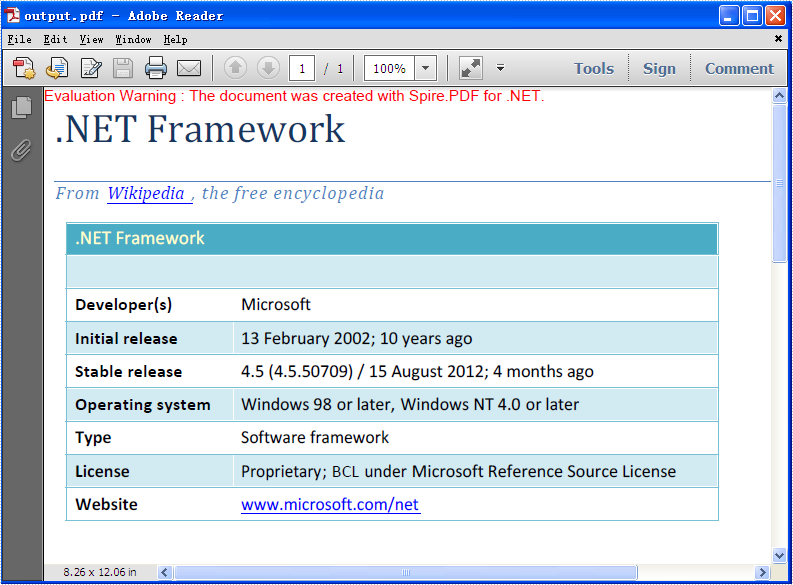
Please check the effective screenshot:
Full codes:
using Spire.Pdf;
using Spire.Pdf.HtmlConverter;
using System.IO;
using System.Threading;

namespace LoadFromHTML
{
    class Program
    {
        static void Main(string[] args)
        {
            PdfDocument pdf = new PdfDocument();
            PdfHtmlLayoutFormat htmlLayoutFormat = new PdfHtmlLayoutFormat();
            htmlLayoutFormat.IsWaiting = false;
            PdfPageSettings setting = new PdfPageSettings();
            setting.Size = PdfPageSize.A4;
            string htmlCode = File.ReadAllText("..\\..\\2.html");

            Thread thread = new Thread(() =>
            { pdf.LoadFromHTML(htmlCode, false, setting, htmlLayoutFormat); });
            thread.SetApartmentState(ApartmentState.STA);
            thread.Start();
            thread.Join();

            pdf.SaveToFile("output.pdf");
            System.Diagnostics.Process.Start("output.pdf");
        }
    }
}
Changing slide size is one way to maintain the visual integrity of your PowerPoint presentation. By adjusting the slide size to the specific aspect ratio and dimensions of the target screen or projection device, you can avoid issues such as content appearing cropped, stretched, or distorted. In this article, you will learn how to change the slide size of a PowerPoint presentation in C# using Spire.Presentation for .NET.
Install Spire.Presentation for .NET
To begin with, you need to add the DLL files included in the Spire.Presentation for.NET package as references in your .NET project. The DLL files can be either downloaded from this link or installed via NuGet.
PM> Install-Package Spire.Presentation
Change the Slide Size to a Preset Size in C#
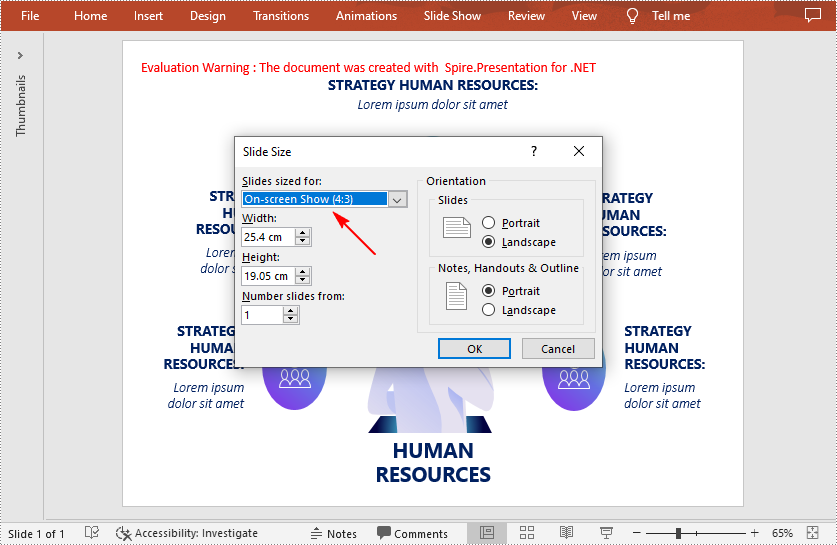
Spire.Presentation for .NET provides the Presentation.SlideSize.Type property to set or change the slide size to a preset size. The following are the detailed steps.
- Create a Presentation instance.
- Load a PowerPoint presentation using Presentation.LoadFromFile() method.
- Change the slide type of the presentation using Presentation.SlideSize.Type property.
- Save the result document using Presentation.SaveToFile() method.
- C#
using Spire.Presentation;

namespace CreateCombination
{
    class Program
    {
        static void Main(string[] args)
        {
            //Create a Presentation instance
            Presentation ppt = new Presentation();

            //Load a presentation file
            ppt.LoadFromFile("sample.pptx");

            //Change the slide size of the presentation
            ppt.SlideSize.Type = SlideSizeType.Screen4x3;

            //Save the result file
            ppt.SaveToFile("SlideSize.pptx", FileFormat.Pptx2013);
            ppt.Dispose();
        }
    }
}
Change the Slide Size to a Custom Size in C#
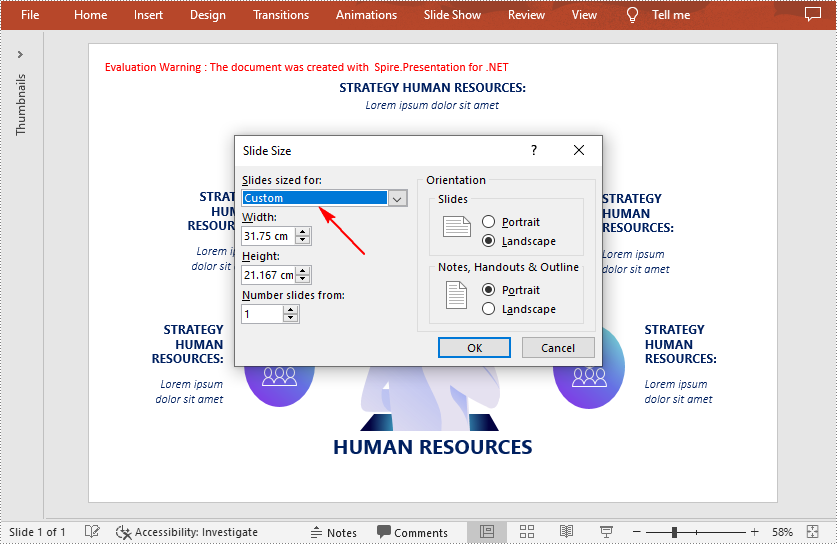
Customizing the size of slides requires changing the slide size type to Custom first, and then you can set a desired size through the Presentation.SlideSize.Size property. The following are the detailed steps.
- Create a Presentation instance.
- Load a PowerPoint presentation using Presentation.LoadFromFile() method.
- Change the slide size type to custom using Presentation.SlideSize.Type property.
- Customize the slide size using Presentation.SlideSize.Size property.
- Save the result document using Presentation.SaveToFile() method.
- C#
using Spire.Presentation;
using System.Drawing;

namespace CreateCombination
{
    class Program
    {
        static void Main(string[] args)
        {
            //Create a Presentation instance
            Presentation ppt = new Presentation();

            //Load a presentation file
            ppt.LoadFromFile("sample.pptx");

            //Change the slide size type to custom
            ppt.SlideSize.Type = SlideSizeType.Custom;

            //Set the slide size
            ppt.SlideSize.Size = new SizeF(900, 600);

            //Save the presentation file
            ppt.SaveToFile("CustomSize.pptx", FileFormat.Pptx2013);
            ppt.Dispose();
        }
    }
}
Apply for a Temporary License
If you'd like to remove the evaluation message from the generated documents, or to get rid of the function limitations, please request a 30-day trial license for yourself.
Sometimes, audiences may feel bored when they see slides with only text and images. Inserting a video is a great way to add visual interest to your presentation and make it more engaging for your audience. In this article, you will learn how to insert videos as well as replace and extract videos in PowerPoint in C# and VB.NET using Spire.Presentation for .NET.
- Insert a Video into a PowerPoint Presentation
- Replace a Video in a PowerPoint Presentation
- Extract Videos from a PowerPoint Presentation
Install Spire.Presentation for .NET
To begin with, you need to add the DLL files included in the Spire.Presentation for.NET package as references in your .NET project. The DLL files can be either downloaded from this link or installed via NuGet.
PM> Install-Package Spire.Presentation
Insert a Video into a PowerPoint Presentation in C# and VB.NET
By inserting a video into your presentation, you can share the video with your audience instantly without having to look for it on your computer while presenting. The following steps demonstrate how to insert a video into a PowerPoint presentation:
- Create an instance of the Presentation class.
- Load a PowerPoint document using Presentation.LoadFromFile() method.
- Get a specific slide by its index through Presentation.Slides[int] property.
- Create an instance of the RectangleF class.
- Add a video to the slide using ISlide.Shapes.AppendVideoMedia(string, RectangleF) method.
- Set a thumbnail image for the video through IVideo.PictureFill.Picture.Url property.
- Save the result document using Presentation.SaveToFile() method.
- C#
- VB.NET
using Spire.Presentation;
using Spire.Presentation.Drawing;
using System.Drawing;

namespace InsertVideoInPPT
{
    class Program
    {
        static void Main(string[] args)
        {
            //Create a Presentation instance
            Presentation presentation = new Presentation();
            //Load a PowerPoint document
            presentation.LoadFromFile(@"Input.pptx");

            //Get the first slide
            ISlide slide = presentation.Slides[0];

            //Add description text
            RectangleF rec_title = new RectangleF(50, 280, 160, 50);
            IAutoShape shape_title = slide.Shapes.AppendShape(ShapeType.Rectangle, rec_title);
            shape_title.ShapeStyle.LineColor.Color = Color.Transparent;
            shape_title.Fill.FillType = FillFormatType.None;
            TextParagraph para_title = new TextParagraph();
            para_title.Text = "Video:";
            para_title.Alignment = TextAlignmentType.Center;
            para_title.TextRanges[0].LatinFont = new TextFont("Myriad Pro Light");
            para_title.TextRanges[0].FontHeight = 32;
            para_title.TextRanges[0].IsBold = TriState.True;
            para_title.TextRanges[0].Fill.FillType = FillFormatType.Solid;
            para_title.TextRanges[0].Fill.SolidColor.Color = Color.FromArgb(68, 68, 68);
            shape_title.TextFrame.Paragraphs.Append(para_title);

            //Add a video to the first slide
            RectangleF videoRect = new RectangleF(presentation.SlideSize.Size.Width / 2 - 125, 240, 240, 130);
            IVideo video = slide.Shapes.AppendVideoMedia("Video.mp4", videoRect);
            //Set a thumbnail image for the video
            video.PictureFill.Picture.Url = @"Picture.png";

            //Save the result document
            presentation.SaveToFile("InsertVideo.pptx", FileFormat.Pptx2010);
        }
    }
}

Replace a Video in a PowerPoint Presentation in C# and VB.NET
If you think an existing video cannot support your statements well, you can replace it with another suitable one. The following steps demonstrate how to replace an existing video with another video in a PowerPoint presentation:
- Create an instance of the Presentation class.
- Load a PowerPoint document using Presentation.LoadFromFile() method.
- Get a specific slide by its index through Presentation.Slides[int] property.
- Load a video into a byte array using File.ReadAllBytes() method.
- Add the loaded video to the video collection of the document using Presentation.Videos.Append(byte[]) method.
- Loop through all shapes on the slide and find the video shape.
- Replace the original video with the loaded video through IVideo.EmbeddedVideoData property. Then change the thumbnail image of the video through IVideo.PictureFill.Picture.Url property.
- Save the result document using Presentation.SaveToFile() method.
- C#
- VB.NET
using Spire.Presentation;
using System.IO;

namespace ReplaceVideoInPPT
{
    class Program
    {
        static void Main(string[] args)
        {
            //Create a Presentation instance
            Presentation ppt = new Presentation();
            //Load a PowerPoint document
            ppt.LoadFromFile("InsertVideo.pptx");

            //Get the first slide
            ISlide slide = ppt.Slides[0];

            //Load a video into a byte array
            byte[] bts = File.ReadAllBytes(@"NewVideo.mp4");
            //Add the loaded video to the video collection of the document
            VideoData videoData = ppt.Videos.Append(bts);

            //Loop through all shapes on the first slide
            foreach (Shape shape in slide.Shapes)
            {
                //Check if the shape is of IVideo type
                if (shape is IVideo)
                {
                    //Typecast the shape as IVideo
                    IVideo video = shape as IVideo;
                    //Replace the original video with the loaded video
                    video.EmbeddedVideoData = videoData;
                    //Change the thumbnail image of the video
                    video.PictureFill.Picture.Url = @"Picture1.png";
                }
            }

            //Save the result document
            ppt.SaveToFile("ReplaceVideo.pptx", FileFormat.Pptx2010);
        }
    }
}

Extract Videos from a PowerPoint Presentation in C# and VB.NET
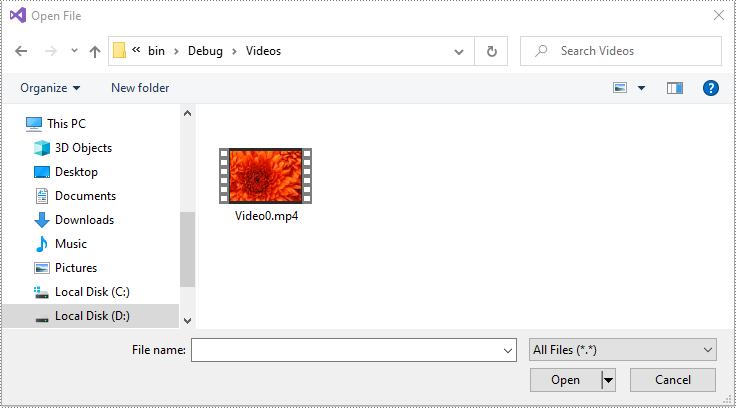
If you like the videos in a PowerPoint presentation and want to use them in other places, you can extract and save them to your disk. The following steps demonstrate how to extract videos from a PowerPoint presentation:
- Create an instance of the Presentation class.
- Load a PowerPoint document using Presentation.LoadFromFile() method.
- Loop through all slides in the document.
- Loop through all shapes on each slide.
- Find the video shapes, then save the videos to disk using IVideo.EmbeddedVideoData.SaveToFile() method.
- C#
- VB.NET
using Spire.Presentation;

namespace ExtractVideosInPPT
{
    class Program
    {
        static void Main(string[] args)
        {
            //Create a Presentation instance
            Presentation presentation = new Presentation();
            //Load a PowerPoint document
            presentation.LoadFromFile(@"ReplaceVideo.pptx");

            int i = 0;
            //Specify the output file path
            string result = string.Format(@"Videos\Video{0}.mp4", i);

            //Loop through all slides in the document
            foreach (ISlide slide in presentation.Slides)
            {
                //Loop through all shapes on each slide
                foreach (IShape shape in slide.Shapes)
                {
                    //Check if the shape is of IVideo type
                    if (shape is IVideo)
                    {
                        //Save the video to the specified path
                        (shape as IVideo).EmbeddedVideoData.SaveToFile(result);
                        i++;
                    }
                }
            }
        }
    }
}
Apply for a Temporary License
If you'd like to remove the evaluation message from the generated documents, or to get rid of the function limitations, please request a 30-day trial license for yourself.
