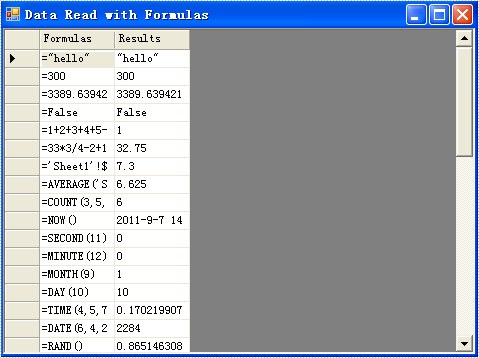
The sample demonstrates how to read data with fomulas
using System.IO;
using System.Windows.Forms;
using System;
using System.Data;
using Spire.Xls;

namespace DataReadWithFormulas
{
    class Program
    {
        static void Main(string[] args)
        {
            DataTable dataTable = new DataTable();
            using (Stream buffer = WriteFormulas())
            {
                //load
                Workbook workbook = new Workbook();
                workbook.LoadFromStream(buffer);
                //calculate all cells' formula
                workbook.CalculateAllValue();
                //read cells' value to data table
                Worksheet sheet = workbook.Worksheets[0];
                dataTable.Columns.Add("Formulas", typeof(String));
                dataTable.Columns.Add("Results", typeof(Object));
                foreach (CellRange row in sheet["A5:B46"].Rows)
                {
                    String formula = row.Columns[1].Formula;
                    Object value = row.Columns[1].FormulaValue;
                    dataTable.Rows.Add(formula, value);
                }
            }
            using (Form frm1 = new Form())
            {
                DataGrid dataGrid = new DataGrid();
                dataGrid.CaptionVisible = false;
                dataGrid.ReadOnly = true;
                dataGrid.DataSource = dataTable;
                dataGrid.Dock = DockStyle.Fill;

                frm1.Text = "Data Export with Formulas";
                frm1.Width = 480;
                frm1.Height = 360;
                frm1.StartPosition = FormStartPosition.CenterParent;
                frm1.Controls.Add(dataGrid);
                frm1.ShowDialog();
            }
        }

        private static Stream WriteFormulas()
        {
            //Create Excel files
            Workbook workbook = new Workbook();
            Worksheet sheet = workbook.Worksheets[0];//it's the first sheet of the worksheets

            int currentRow = 1;
            string currentFormula = string.Empty;
            sheet.SetColumnWidth(1, 32);//SetColumnWidth(columnIndex,width);
            sheet.SetColumnWidth(2, 16);
            sheet.SetColumnWidth(3, 16);
            sheet.Range[currentRow++, 1].Value = "Examples of formulas :";
            sheet.Range[++currentRow, 1].Value = "Test data:";

            CellRange range = sheet.Range["A1"];
            range.Style.Font.IsBold = true;
            range.Style.FillPattern = ExcelPatternType.Solid;
            range.Style.KnownColor = ExcelColors.LightGreen1;
            range.Style.Borders[BordersLineType.EdgeBottom].LineStyle = LineStyleType.Medium;

            //test data
            sheet.Range[currentRow, 2].NumberValue = 7.3;
            sheet.Range[currentRow, 3].NumberValue = 5; ;
            sheet.Range[currentRow, 4].NumberValue = 8.2;
            sheet.Range[currentRow, 5].NumberValue = 4;
            sheet.Range[currentRow, 6].NumberValue = 3;
            sheet.Range[currentRow, 7].NumberValue = 11.3;

            sheet.Range[++currentRow, 1].Value = "Formulas"; ;
            sheet.Range[currentRow, 2].Value = "Results";
            range = sheet.Range[currentRow, 1, currentRow, 2];

            //range.Value = "Formulas";
            range.Style.Font.IsBold = true;
            range.Style.KnownColor = ExcelColors.LightGreen1;
            range.Style.FillPattern = ExcelPatternType.Solid;
            range.Style.Borders[BordersLineType.EdgeBottom].LineStyle = LineStyleType.Medium;

            //str.
            currentFormula = "=\"hello\"";
            sheet.Range[++currentRow, 1].Text = "=\"hello\"";
            sheet.Range[currentRow, 2].Formula = currentFormula;
            sheet.Range[currentRow, 3].Formula = "=\"\u4f60\u597d\"";

            //int.
            currentFormula = "=300";
            sheet.Range[++currentRow, 1].Text = currentFormula;
            sheet.Range[currentRow, 2].Formula = currentFormula;

            // float
            currentFormula = "=3389.639421";
            sheet.Range[++currentRow, 1].Text = currentFormula;
            sheet.Range[currentRow, 2].Formula = currentFormula;

            //bool.
            currentFormula = "=false";
            sheet.Range[++currentRow, 1].Text = currentFormula;
            sheet.Range[currentRow, 2].Formula = currentFormula;

            currentFormula = "=1+2+3+4+5-6-7+8-9";
            sheet.Range[++currentRow, 1].Text = currentFormula;
            sheet.Range[currentRow, 2].Formula = currentFormula;

            currentFormula = "=33*3/4-2+10";
            sheet.Range[++currentRow, 1].Text = currentFormula;
            sheet.Range[currentRow, 2].Formula = currentFormula;


            // sheet reference
            currentFormula = "=Sheet1!$B$3";
            sheet.Range[++currentRow, 1].Text = currentFormula;
            sheet.Range[currentRow, 2].Formula = currentFormula;

            // sheet area reference
            currentFormula = "=AVERAGE(Sheet1!$D$3:G$3)";
            sheet.Range[++currentRow, 1].Text = currentFormula;
            sheet.Range[currentRow, 2].Formula = currentFormula;

            // Functions
            currentFormula = "=Count(3,5,8,10,2,34)";
            sheet.Range[++currentRow, 1].Text = currentFormula;
            sheet.Range[currentRow, 2].Formula = currentFormula;


            currentFormula = "=NOW()";
            sheet.Range[++currentRow, 1].Text = currentFormula;
            sheet.Range[currentRow, 2].Formula = currentFormula;
            sheet.Range[currentRow, 2].Style.NumberFormat = "yyyy-MM-DD";

            currentFormula = "=SECOND(11)";
            sheet.Range[++currentRow, 1].Text = currentFormula;
            sheet.Range[currentRow++, 2].Formula = currentFormula;

            currentFormula = "=MINUTE(12)";
            sheet.Range[currentRow, 1].Text = currentFormula;
            sheet.Range[currentRow++, 2].Formula = currentFormula;

            currentFormula = "=MONTH(9)";
            sheet.Range[currentRow, 1].Text = currentFormula;
            sheet.Range[currentRow++, 2].Formula = currentFormula;

            currentFormula = "=DAY(10)";
            sheet.Range[currentRow, 1].Text = currentFormula;
            sheet.Range[currentRow++, 2].Formula = currentFormula;

            currentFormula = "=TIME(4,5,7)";
            sheet.Range[currentRow, 1].Text = currentFormula;
            sheet.Range[currentRow++, 2].Formula = currentFormula;

            currentFormula = "=DATE(6,4,2)";
            sheet.Range[currentRow, 1].Text = currentFormula;
            sheet.Range[currentRow++, 2].Formula = currentFormula;

            currentFormula = "=RAND()";
            sheet.Range[currentRow, 1].Text = currentFormula;
            sheet.Range[currentRow++, 2].Formula = currentFormula;

            currentFormula = "=HOUR(12)";
            sheet.Range[currentRow, 1].Text = currentFormula;
            sheet.Range[currentRow++, 2].Formula = currentFormula;

            currentFormula = "=MOD(5,3)";
            sheet.Range[currentRow, 1].Text = currentFormula;
            sheet.Range[currentRow++, 2].Formula = currentFormula;

            currentFormula = "=WEEKDAY(3)";
            sheet.Range[currentRow, 1].Text = currentFormula;
            sheet.Range[currentRow++, 2].Formula = currentFormula;

            currentFormula = "=YEAR(23)";
            sheet.Range[currentRow, 1].Text = currentFormula;
            sheet.Range[currentRow++, 2].Formula = currentFormula;

            currentFormula = "=NOT(true)";
            sheet.Range[currentRow, 1].Text = currentFormula;
            sheet.Range[currentRow++, 2].Formula = currentFormula;

            currentFormula = "=OR(true)";
            sheet.Range[currentRow, 1].Text = currentFormula;
            sheet.Range[currentRow++, 2].Formula = currentFormula;

            currentFormula = "=AND(TRUE)";
            sheet.Range[currentRow, 1].Text = currentFormula;
            sheet.Range[currentRow++, 2].Formula = currentFormula;

            currentFormula = "=VALUE(30)";
            sheet.Range[currentRow, 1].Text = currentFormula;
            sheet.Range[currentRow++, 2].Formula = currentFormula;

            currentFormula = "=LEN(\"world\")";
            sheet.Range[currentRow, 1].Text = currentFormula;
            sheet.Range[currentRow++, 2].Formula = currentFormula;

            currentFormula = "=MID(\"world\",4,2)";
            sheet.Range[currentRow, 1].Text = currentFormula;
            sheet.Range[currentRow++, 2].Formula = currentFormula;

            currentFormula = "=ROUND(7,3)";
            sheet.Range[currentRow, 1].Text = currentFormula;
            sheet.Range[currentRow++, 2].Formula = currentFormula;

            currentFormula = "=SIGN(4)";
            sheet.Range[currentRow, 1].Text = currentFormula;
            sheet.Range[currentRow++, 2].Formula = currentFormula;

            currentFormula = "=INT(200)";
            sheet.Range[currentRow, 1].Text = currentFormula;
            sheet.Range[currentRow++, 2].Formula = currentFormula;

            currentFormula = "=ABS(-1.21)";
            sheet.Range[currentRow, 1].Text = currentFormula;
            sheet.Range[currentRow++, 2].Formula = currentFormula;

            currentFormula = "=LN(15)";
            sheet.Range[currentRow, 1].Text = currentFormula;
            sheet.Range[currentRow++, 2].Formula = currentFormula;

            currentFormula = "=EXP(20)";
            sheet.Range[currentRow, 1].Text = currentFormula;
            sheet.Range[currentRow++, 2].Formula = currentFormula;

            currentFormula = "=SQRT(40)";
            sheet.Range[currentRow, 1].Text = currentFormula;
            sheet.Range[currentRow++, 2].Formula = currentFormula;

            currentFormula = "=PI()";
            sheet.Range[currentRow, 1].Text = currentFormula;
            sheet.Range[currentRow++, 2].Formula = currentFormula;

            currentFormula = "=COS(9)";
            sheet.Range[currentRow, 1].Text = currentFormula;
            sheet.Range[currentRow++, 2].Formula = currentFormula;

            currentFormula = "=SIN(45)";
            sheet.Range[currentRow, 1].Text = currentFormula;
            sheet.Range[currentRow++, 2].Formula = currentFormula;

            currentFormula = "=MAX(10,30)";
            sheet.Range[currentRow, 1].Text = currentFormula;
            sheet.Range[currentRow++, 2].Formula = currentFormula;

            currentFormula = "=MIN(5,7)";
            sheet.Range[currentRow, 1].Text = currentFormula;
            sheet.Range[currentRow++, 2].Formula = currentFormula;

            currentFormula = "=AVERAGE(12,45)";
            sheet.Range[currentRow, 1].Text = currentFormula;
            sheet.Range[currentRow++, 2].Formula = currentFormula;

            currentFormula = "=SUM(18,29)";
            sheet.Range[currentRow, 1].Text = currentFormula;
            sheet.Range[currentRow++, 2].Formula = currentFormula;

            currentFormula = "=IF(4,2,2)";
            sheet.Range[currentRow, 1].Text = currentFormula;
            sheet.Range[currentRow++, 2].Formula = currentFormula;

            MemoryStream buffer = new MemoryStream();
            workbook.SaveToStream(buffer);
            buffer.Position = 0;
            return buffer;
        }
    }
}
Imports System.IO
Imports System.Windows.Forms
Imports Spire.Xls
Module Module1

    Private Function WriteFormulas() As Stream
        Dim workbook As Workbook = New Workbook()
        Dim sheet As Worksheet = workbook.Worksheets(0)

        Dim currentRow As Integer = 1
        Dim currentFormula As String = String.Empty

        sheet.SetColumnWidth(1, 32)
        sheet.SetColumnWidth(2, 16)
        sheet.SetColumnWidth(3, 16)

        currentRow = currentRow + 1
        sheet.Range(currentRow, 1).Value = "Examples of formulas :"
        currentRow = currentRow + 1
        sheet.Range(currentRow, 1).Value = "Test data:"

        Dim range As CellRange = sheet.Range("A1")
        range.Style.Font.IsBold = True
        range.Style.FillPattern = ExcelPatternType.Solid
        range.Style.KnownColor = ExcelColors.LightGreen1
        range.Style.Borders(BordersLineType.EdgeBottom).LineStyle = LineStyleType.Medium

        'test data
        sheet.Range(currentRow, 2).NumberValue = 7.3
        sheet.Range(currentRow, 3).NumberValue = 5

        sheet.Range(currentRow, 4).NumberValue = 8.2
        sheet.Range(currentRow, 5).NumberValue = 4
        sheet.Range(currentRow, 6).NumberValue = 3
        sheet.Range(currentRow, 7).NumberValue = 11.3

        currentRow = currentRow + 1
        sheet.Range(currentRow, 1).Value = "Formulas"

        sheet.Range(currentRow, 2).Value = "Results"
        range = sheet.Range(currentRow, 1, currentRow, 2)
        range.Style.Font.IsBold = True
        range.Style.KnownColor = ExcelColors.LightGreen1
        range.Style.FillPattern = ExcelPatternType.Solid
        range.Style.Borders(BordersLineType.EdgeBottom).LineStyle = LineStyleType.Medium
        'str.
        currentFormula = "=""hello"""
        currentRow = currentRow + 1
        sheet.Range(currentRow, 1).Text = "=""hello"""
        sheet.Range(currentRow, 2).Formula = currentFormula
        sheet.Range(currentRow, 3).Formula = "=""" & ChrW(20320) & ChrW(22909) + """"

        'int.
        currentFormula = "=300"
        currentRow = currentRow + 1
        sheet.Range(currentRow, 1).Text = currentFormula
        sheet.Range(currentRow, 2).Formula = currentFormula

        ' float
        currentFormula = "=3389.639421"
        currentRow = currentRow + 1
        sheet.Range(currentRow, 1).Text = currentFormula
        sheet.Range(currentRow, 2).Formula = currentFormula

        'bool.
        currentFormula = "=false"
        currentRow = currentRow + 1
        sheet.Range(currentRow, 1).Text = currentFormula
        sheet.Range(currentRow, 2).Formula = currentFormula

        currentFormula = "=1+2+3+4+5-6-7+8-9"
        currentRow = currentRow + 1
        sheet.Range(currentRow, 1).Text = currentFormula
        sheet.Range(currentRow, 2).Formula = currentFormula

        currentFormula = "=33*3/4-2+10"
        currentRow = currentRow + 1
        sheet.Range(currentRow, 1).Text = currentFormula
        sheet.Range(currentRow, 2).Formula = currentFormula


        ' sheet reference
        currentFormula = "=Sheet1!$B$3"
        currentRow = currentRow + 1
        sheet.Range(currentRow, 1).Text = currentFormula
        sheet.Range(currentRow, 2).Formula = currentFormula

        ' sheet area reference
        currentFormula = "=AVERAGE(Sheet1!$D$3:G$3)"
        currentRow = currentRow + 1
        sheet.Range(currentRow, 1).Text = currentFormula
        sheet.Range(currentRow, 2).Formula = currentFormula

        ' Functions
        currentFormula = "=Count(3,5,8,10,2,34)"
        currentRow = currentRow + 1
        sheet.Range(currentRow, 1).Text = currentFormula
        sheet.Range(currentRow, 2).Formula = currentFormula


        currentFormula = "=NOW()"
        currentRow = currentRow + 1
        sheet.Range(currentRow, 1).Text = currentFormula
        sheet.Range(currentRow, 2).Formula = currentFormula
        sheet.Range(currentRow, 2).Style.NumberFormat = "yyyy-MM-DD"


        currentFormula = "=SECOND(11)"
        currentRow = currentRow + 1
        sheet.Range(currentRow, 1).Text = currentFormula
        sheet.Range(currentRow, 2).Formula = currentFormula

        currentFormula = "=MINUTE(12)"
        currentRow = currentRow + 1
        sheet.Range(currentRow, 1).Text = currentFormula
        sheet.Range(currentRow, 2).Formula = currentFormula

        currentFormula = "=MONTH(9)"
        currentRow = currentRow + 1
        sheet.Range(currentRow, 1).Text = currentFormula
        sheet.Range(currentRow, 2).Formula = currentFormula

        currentFormula = "=DAY(10)"
        currentRow = currentRow + 1
        sheet.Range(currentRow, 1).Text = currentFormula
        sheet.Range(currentRow, 2).Formula = currentFormula

        currentFormula = "=TIME(4,5,7)"
        currentRow = currentRow + 1
        sheet.Range(currentRow, 1).Text = currentFormula
        sheet.Range(currentRow, 2).Formula = currentFormula

        currentFormula = "=DATE(6,4,2)"
        currentRow = currentRow + 1
        sheet.Range(currentRow, 1).Text = currentFormula
        sheet.Range(currentRow, 2).Formula = currentFormula

        currentFormula = "=RAND()"
        currentRow = currentRow + 1
        sheet.Range(currentRow, 1).Text = currentFormula
        sheet.Range(currentRow, 2).Formula = currentFormula

        currentFormula = "=HOUR(12)"
        currentRow = currentRow + 1
        sheet.Range(currentRow, 1).Text = currentFormula
        sheet.Range(currentRow, 2).Formula = currentFormula

        currentFormula = "=MOD(5,3)"
        currentRow = currentRow + 1
        sheet.Range(currentRow, 1).Text = currentFormula
        sheet.Range(currentRow, 2).Formula = currentFormula

        currentFormula = "=WEEKDAY(3)"
        currentRow = currentRow + 1
        sheet.Range(currentRow, 1).Text = currentFormula
        sheet.Range(currentRow, 2).Formula = currentFormula

        currentFormula = "=YEAR(23)"
        currentRow = currentRow + 1
        sheet.Range(currentRow, 1).Text = currentFormula
        sheet.Range(currentRow, 2).Formula = currentFormula

        currentFormula = "=NOT(true)"
        currentRow = currentRow + 1
        sheet.Range(currentRow, 1).Text = currentFormula
        sheet.Range(currentRow, 2).Formula = currentFormula

        currentFormula = "=OR(true)"
        currentRow = currentRow + 1
        sheet.Range(currentRow, 1).Text = currentFormula
        sheet.Range(currentRow, 2).Formula = currentFormula

        currentFormula = "=AND(TRUE)"
        currentRow = currentRow + 1
        sheet.Range(currentRow, 1).Text = currentFormula
        sheet.Range(currentRow, 2).Formula = currentFormula

        currentFormula = "=VALUE(30)"
        currentRow = currentRow + 1
        sheet.Range(currentRow, 1).Text = currentFormula
        sheet.Range(currentRow, 2).Formula = currentFormula

        currentFormula = "=LEN(""world"")"
        currentRow = currentRow + 1
        sheet.Range(currentRow, 1).Text = currentFormula
        sheet.Range(currentRow, 2).Formula = currentFormula

        currentFormula = "=MID(""world"",4,2)"
        currentRow = currentRow + 1
        sheet.Range(currentRow, 1).Text = currentFormula
        sheet.Range(currentRow, 2).Formula = currentFormula

        currentFormula = "=ROUND(7,3)"
        currentRow = currentRow + 1
        sheet.Range(currentRow, 1).Text = currentFormula
        sheet.Range(currentRow, 2).Formula = currentFormula

        currentFormula = "=SIGN(4)"
        currentRow = currentRow + 1
        sheet.Range(currentRow, 1).Text = currentFormula
        sheet.Range(currentRow, 2).Formula = currentFormula

        currentFormula = "=INT(200)"
        currentRow = currentRow + 1
        sheet.Range(currentRow, 1).Text = currentFormula
        sheet.Range(currentRow, 2).Formula = currentFormula

        currentFormula = "=ABS(-1.21)"
        currentRow = currentRow + 1
        sheet.Range(currentRow, 1).Text = currentFormula
        sheet.Range(currentRow, 2).Formula = currentFormula

        currentFormula = "=LN(15)"
        currentRow = currentRow + 1
        sheet.Range(currentRow, 1).Text = currentFormula
        sheet.Range(currentRow, 2).Formula = currentFormula

        currentFormula = "=EXP(20)"
        currentRow = currentRow + 1
        sheet.Range(currentRow, 1).Text = currentFormula
        sheet.Range(currentRow, 2).Formula = currentFormula

        currentFormula = "=SQRT(40)"
        currentRow = currentRow + 1
        sheet.Range(currentRow, 1).Text = currentFormula
        sheet.Range(currentRow, 2).Formula = currentFormula

        currentFormula = "=PI()"
        currentRow = currentRow + 1
        sheet.Range(currentRow, 1).Text = currentFormula
        sheet.Range(currentRow, 2).Formula = currentFormula

        currentFormula = "=COS(9)"
        currentRow = currentRow + 1
        sheet.Range(currentRow, 1).Text = currentFormula
        sheet.Range(currentRow, 2).Formula = currentFormula

        currentFormula = "=SIN(45)"
        currentRow = currentRow + 1
        sheet.Range(currentRow, 1).Text = currentFormula
        sheet.Range(currentRow, 2).Formula = currentFormula

        currentFormula = "=MAX(10,30)"
        currentRow = currentRow + 1
        sheet.Range(currentRow, 1).Text = currentFormula
        sheet.Range(currentRow, 2).Formula = currentFormula

        currentFormula = "=MIN(5,7)"
        currentRow = currentRow + 1
        sheet.Range(currentRow, 1).Text = currentFormula
        sheet.Range(currentRow, 2).Formula = currentFormula

        currentFormula = "=AVERAGE(12,45)"
        currentRow = currentRow + 1
        sheet.Range(currentRow, 1).Text = currentFormula
        sheet.Range(currentRow, 2).Formula = currentFormula

        currentFormula = "=SUM(18,29)"
        currentRow = currentRow + 1
        sheet.Range(currentRow, 1).Text = currentFormula
        sheet.Range(currentRow, 2).Formula = currentFormula

        currentFormula = "=IF(4,2,2)"
        currentRow = currentRow + 1
        sheet.Range(currentRow, 1).Text = currentFormula
        sheet.Range(currentRow, 2).Formula = currentFormula

        Dim buffer As New MemoryStream()
        workbook.SaveToStream(buffer)
        buffer.Position = 0

        Return buffer
    End Function
    Sub Main()
        Using buffer As Stream = WriteFormulas()
            'load
            Dim workbook As New Workbook()
            workbook.LoadFromStream(buffer)

            'calculate formula
            Dim b3 As [Object] = workbook.CaculateFormulaValue("Sheet1!$B$3")
            Dim c3 As [Object] = workbook.CaculateFormulaValue("Sheet1!$C$3")
            Dim formula As [String] = "Sheet1!$B$3 + Sheet1!$C$3"
            Dim value As [Object] = workbook.CaculateFormulaValue(formula)
            Dim message As [String] = [String].Format("Sheet1!$B$3 = {0}, Sheet1!$C$3 = {1}, {2} = {3}", b3, c3, formula, value)
            MessageBox.Show(message)
        End Using
    End Sub
End Module