
Knowledgebase (2370)
Children categories
Excel spreadsheet is a widely used file format that enables users to organize, analyze, and present data in a tabular format. The ability to interact with Excel files programmatically is highly valuable, as it allows automation and integration of Excel functionality into software applications. This capability is particularly useful when working with large datasets, performing complex calculations, or when data needs to be dynamically generated or updated. In this article, you will learn how to create, read, or update Excel documents in C# and VB.NET using Spire.XLS for .NET.
- Create an Excel File in C#, VB.NET
- Read Data of a Worksheet in C#, VB.NET
- Update an Excel File in C#, VB.NET
Install Spire.XLS for .NET
To begin with, you need to add the DLL files included in the Spire.XLS for .NET package as references in your .NET project. The DLL files can be either downloaded from this link or installed via NuGet.
PM> Install-Package Spire.XLS
Create an Excel File in C#, VB.NET
Spire.XLS for .NET offers a variety of classes and interfaces that you can use to create and edit Excel documents. Here is a list of important classes, properties and methods involved in this article.
| Member | Description |
| Workbook class | Represents an Excel workbook model. |
| Workbook.Worksheets.Add() method | Adds a worksheet to workbook. |
| Workbook.SaveToFile() method | Saves the workbook to an Excel document. |
| Worksheet class | Represents a worksheet in a workbook. |
| Worksheet.Range property | Gets a specific cell or cell range from worksheet. |
| Worksheet.Range.Value property | Gets or sets the value of a cell. |
| Worksheet.Rows property | Gets a collection of rows in worksheet. |
| Worksheet.InsertDataTable() method | Imports data from DataTable to worksheet. |
| CellRange class | Represents a cell or cell range in worksheet. |
The following are the steps to create an Excel document from scratch using Spire.XLS for .NET.
- Create a Workbook object.
- Add a worksheet using Workbook.Worksheets.Add() method.
- Write data to a specific cell through Worksheet.Range.Value property.
- Import data from a DataTable to the worksheet using Worksheet.InsertDataTable() method.
- Save the workbook to an Excel document using Workbook.SaveToFile() method.
- C#
- VB.NET
using Spire.Xls;
using System.Data;

namespace CreateExcelSpreadsheet
{
    class Program
    {
        static void Main(string[] args)
        {
            //Create a Workbook object
            Workbook wb = new Workbook();

            //Remove default worksheets
            wb.Worksheets.Clear();

            //Add a worksheet and name it "Employee"
            Worksheet sheet = wb.Worksheets.Add("Employee");

            //Merge the cells between A1 and G1
            sheet.Range["A1:G1"].Merge();

            //Write data to A1 and apply formatting to it
            sheet.Range["A1"].Value = "Basic Information of Employees of Huanyu Automobile Company";
            sheet.Range["A1"].HorizontalAlignment = HorizontalAlignType.Center;
            sheet.Range["A1"].VerticalAlignment = VerticalAlignType.Center;
            sheet.Range["A1"].Style.Font.IsBold = true;
            sheet.Range["A1"].Style.Font.Size = 13F;

            //Set row height of the first row
            sheet.Rows[0].RowHeight = 30F;

            //Create a DataTable
            DataTable dt = new DataTable();
            dt.Columns.Add("Name");
            dt.Columns.Add("Gender");
            dt.Columns.Add("Birth Date");
            dt.Columns.Add("Educational Background");
            dt.Columns.Add("Contact Number");
            dt.Columns.Add("Position");
            dt.Columns.Add("ID");
            dt.Rows.Add("Allen", "Male", "1990-02-10", "Bachelor", "24756854", "Mechanic", "0021");
            dt.Rows.Add("Patrick", "Male", "1985-06-08", "Master", "59863247", "Mechanic", "0022");
            dt.Rows.Add("Jenna", "Female", "1989-11-25", "Bachelor", "79540352", "Sales", "0023");
            dt.Rows.Add("Tommy", "Male", "1988-04-16", "Master", "52014060", "Mechanic", "0024");
            dt.Rows.Add("Christina", "Female", "1998-01-21", "Bachelor", "35401489", "HR", "0025");

            //Import data from DataTable to worksheet
            sheet.InsertDataTable(dt, true, 2, 1, true);

            //Set row height of a range
            sheet.Range["A2:G7"].RowHeight = 15F;

            //Set column width
            sheet.Range["A2:G7"].Columns[2].ColumnWidth = 15F;
            sheet.Range["A2:G7"].Columns[3].ColumnWidth = 21F;
            sheet.Range["A2:G7"].Columns[4].ColumnWidth = 15F;

            //Set border style of a range
            sheet.Range["A2:G7"].BorderAround(LineStyleType.Medium);
            sheet.Range["A2:G7"].BorderInside(LineStyleType.Thin);
            sheet.Range["A2:G2"].BorderAround(LineStyleType.Medium);
            sheet.Range["A2:G7"].Borders.KnownColor = ExcelColors.Black;

            //Save to a .xlsx file
            wb.SaveToFile("NewSpreadsheet.xlsx", FileFormat.Version2016);
        }
    }
}
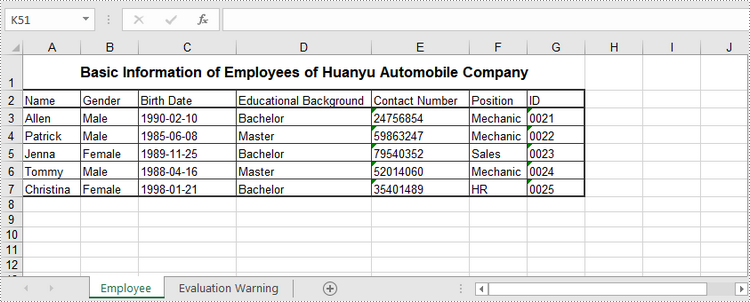
Read Data of a Worksheet in C#, VB.NET
The Worksheet.Range.Value property returns number value or text value of a cell as a string. To get data of a whole worksheet or a cell range, loop through the cells within it. The following are the steps to get data of a worksheet using Spire.XLS for .NET.
- Create a Workbook object.
- Load an Excel document using Workbook.LoadFromFile() method.
- Get a specific worksheet through Workbook.Worksheets[index] property.
- Get the cell range containing data though Worksheet.AllocatedRange property.
- Iterate through the rows and columns to get cells within the range, and return the value of each cell through CellRange.Value property.
- C#
- VB.NET
using Spire.Xls;

namespace ReadExcelData
{
    class Program
    {
        static void Main(string[] args)
        {
            //Create a Workbook object
            Workbook wb = new Workbook();

            //Load an existing Excel file
            wb.LoadFromFile(@"C:\Users\Administrator\Desktop\NewSpreadsheet.xlsx");

            //Get the first worksheet
            Worksheet sheet = wb.Worksheets[0];

            //Get the cell range containing data
            CellRange locatedRange = sheet.AllocatedRange;

            //Iterate through the rows
            for (int i = 0;i < locatedRange.Rows.Length;i++)
            {
                //Iterate through the columns
                for (int j = 0; j < locatedRange.Rows[i].ColumnCount; j++)
                {
                    //Get data of a specific cell
                    Console.Write(locatedRange[i + 1, j + 1].Value + "  ");

                }
                Console.WriteLine();
            }
        }
    }
}
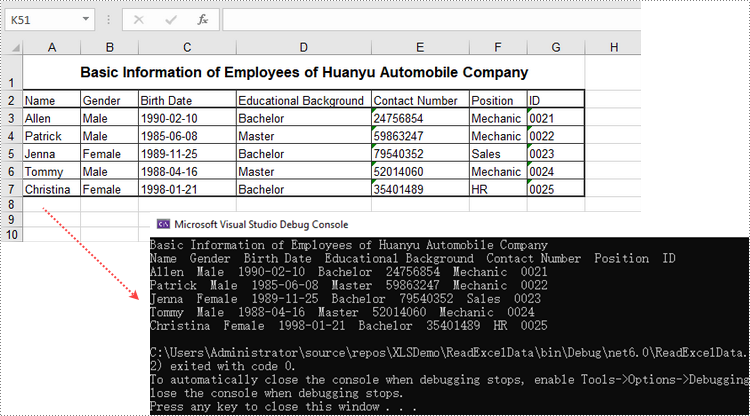
Update an Excel Document in C#, VB.NET
To change the value of a certain cell, just re-assign a value to it through Worksheet.Range.Value property. The following are the detailed steps.
- Create a Workbook object.
- Load an Excel document using Workbook.LoadFromFile() method.
- Get a specific worksheet through Workbook.Worksheets[index] property.
- Change the value of a particular cell though Worksheet.Range.Value property.
- Save the workbook to an Excel file using Workbook.SaveToFile() method.
- C#
- VB.NET
using Spire.Xls;

namespace UpdateCellValue
{
    class Program
    {
        static void Main(string[] args)
        {
            //Create a Workbook object
            Workbook wb = new Workbook();

            //Load an existing Excel file
            wb.LoadFromFile(@"C:\Users\Administrator\Desktop\NewSpreadsheet.xlsx");

            //Get the first worksheet
            Worksheet sheet = wb.Worksheets[0];

            //Change the value of a specific cell
            sheet.Range["A1"].Value = "Updated Value";

            //Save to file
            wb.SaveToFile("Updated.xlsx", ExcelVersion.Version2016);
        }
    }
}
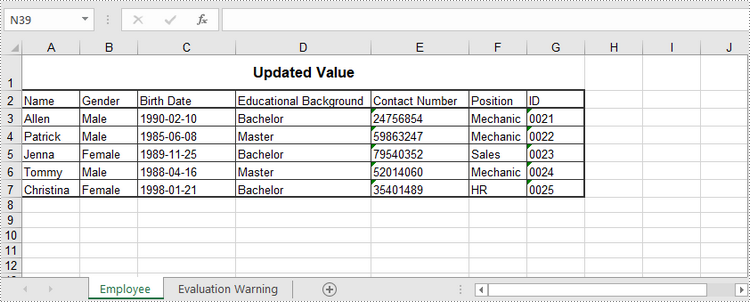
Apply for a Temporary License
If you'd like to remove the evaluation message from the generated documents, or to get rid of the function limitations, please request a 30-day trial license for yourself.
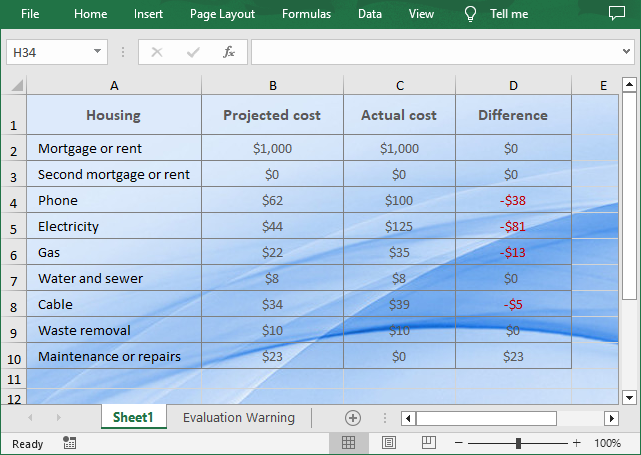
Setting a background in Excel can offer several benefits that enhance the usability and visual appeal of your workbook. For example, you can set background colors or images that align with company branding or specific themes, making your spreadsheets visually cohesive with other marketing or business materials. In this article, you will learn how set a background color or image for an Excel worksheet in C# using Spire.XLS for .NET.
Install Spire.XLS for .NET
To begin with, you need to add the DLL files included in the Spire.XLS for .NET package as references in your .NET project. The DLL files can be either downloaded from this link or installed via NuGet.
PM> Install-Package Spire.XLS
Add a Background Color for an Excel Worksheet
Spire.XLS for .NET provides the CellRange.Style.Color property to set the background color for a specified cell range. The following are the detailed steps:
- Create a Workbook object.
- Load an Excel workbook using Workbook.LoadFromFile() method.
- Get a specified worksheet using Workbook.Worksheets[] property.
- Get the used range in the worksheet through Worksheet.AllocatedRange property.
- Set a background color for the used range through CellRange.Style.Color property.
- Save the result file using Workbook.SaveToFile() method.
- C#
using Spire.Xls;
using System.Drawing;

namespace ExcelBackgroundColor
{
    class Program
    {
        static void Main(string[] args)
        {

            // Create a Workbook object
            Workbook workbook = new Workbook();

            // Load an Excel workbook
            workbook.LoadFromFile("Budget.xlsx");

            // Get the first worksheet
            Worksheet sheet = workbook.Worksheets[0];

            // Get the used range of the worksheet
            CellRange usedRange = sheet.AllocatedRange;

            // Set the background color of the range
            usedRange.Style.Color = Color.FromArgb(200, 233, 255);

            // Save the workbook
            workbook.SaveToFile("ExcelBackgroundColor.xlsx", ExcelVersion.Version2016);
        }
    }
}
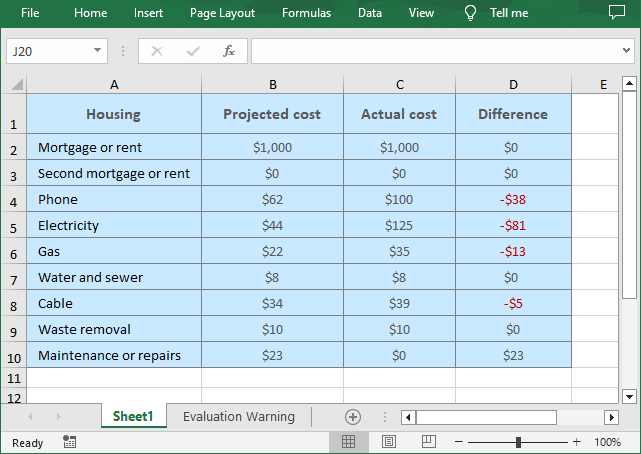
Add a Background Image for an Excel Worksheet
To insert a background image in Excel, you can load an image first and then set it as the worksheet background through the Worksheet.PageSetup.BackgroundImage property. The following are the detailed steps:
- Create a Workbook object.
- Load an Excel workbook using Workbook.LoadFromFile() method.
- Get a specified worksheet using Workbook.Worksheets[] property.
- Load an image using Image.FromFile() method.
- Set the image as the background of the worksheet through Worksheet.PageSetup.BackgroundImage property.
- Save the result file using Workbook.SaveToFile() method.
- C#
using Spire.Xls;
using System.Drawing;

namespace ExcelBackgroundImage
{
    class Program
    {
        static void Main(string[] args)
        {

            // Create a Workbook object
            Workbook workbook = new Workbook();

            // Load an Excel workbook
            workbook.LoadFromFile("Budget.xlsx");

            // Get the first worksheet
            Worksheet sheet = workbook.Worksheets[0];

            // Load an image
            Bitmap image = new Bitmap(Image.FromFile("C:\\Users\\Administrator\\Desktop\\bg.jpg"));

            // Set the background of the worksheet
            sheet.PageSetup.BackgoundImage = image;

            // Save the workbook
            workbook.SaveToFile("ExcelBackgroundImage.xlsx", ExcelVersion.Version2016);
        }
    }
}
Apply for a Temporary License
If you'd like to remove the evaluation message from the generated documents, or to get rid of the function limitations, please request a 30-day trial license for yourself.
The sample demonstrates how to Merge PDF documents in Silverlight via Spire.XLS.
(No Screenshots)
