
Knowledgebase (2370)
Children categories
When sharing Excel files with other people or sending files out of your organization, you may want to protect sensitive data from being changed, moved, or deleted. The easiest way to prevent accidental or deliberate changes in the contents is to restrict editing on a worksheet or password protect an entire workbook. In this article, you will learn how to protect and unprotect a workbook or a worksheet in C# and VB.NET using Spire.XLS for .NET.
- Password Protect an Entire Workbook
- Protect a Worksheet with a Specific Protection Type
- Allow Users to Edit Ranges in a Protected Worksheet
- Lock Specific Cells in a Worksheet
- Unprotect a Password Protected Worksheet
- Remove or Reset Password of an Encrypted Workbook
Install Spire.XLS for .NET
To begin with, you need to add the DLL files included in the Spire.XLS for .NET package as references in your .NET project. The DLL files can be either downloaded from this link or installed via NuGet.
PM> Install-Package Spire.XLS
Password Protect an Entire Workbook in C# and VB.NET
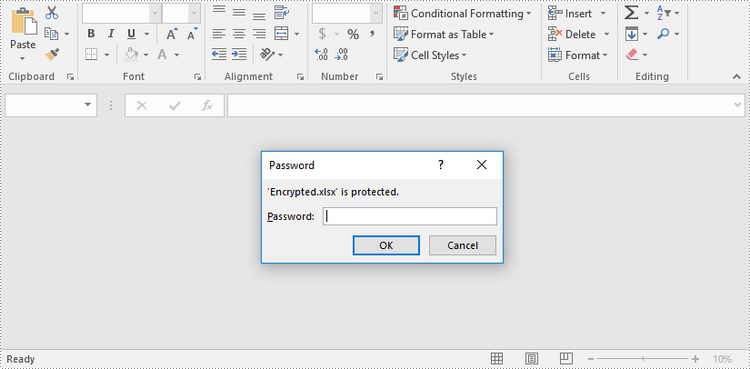
By encrypting an Excel document with a password, you ensure that only you and authorized individuals can read or edit it. The following are the steps to password protect a workbook using Spire.XLS for .NET.
- Create a Workbook object.
- Load an Excel file using Workbook.LoadFromFile() method.
- Protect the workbook using a password using Workbook.Protect() method.
- Save the workbook to another Excel file using Workbook.SaveToFile() method.
- C#
- VB.NET
using Spire.Xls;

namespace PasswordProtectWorkbook
{
    class Program
    {
        static void Main(string[] args)
        {
            //Create a Workbook object
            Workbook workbook = new Workbook();

            //Load an Excel file
            workbook.LoadFromFile(@"C:\Users\Administrator\Desktop\sample.xlsx");

            //Protect workbook with a password
            workbook.Protect("psd-123");

            //Save the workbook to another Excel file
            workbook.SaveToFile("Encrypted.xlsx", ExcelVersion.Version2016);
        }
    }
}
Protect a Worksheet with a Specific Protection Type in C# and VB.NET
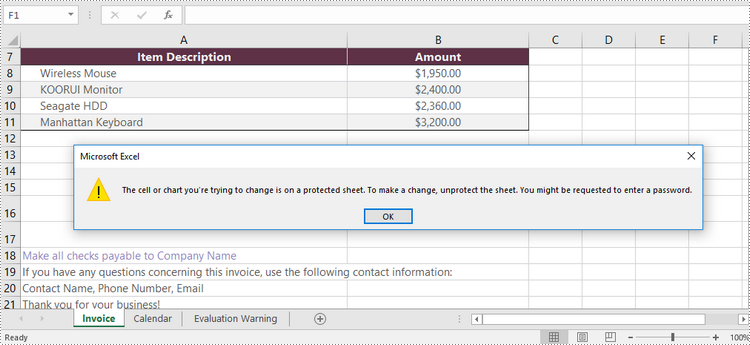
If you wish to grant people permission to read your Excel document but restrict the types of modifications they are allowed to make on a worksheet, you can protect the worksheet with a specific protection type. The table below lists a variety of pre-defined protection types under the SheetProtectionType enumeration.
| Protection Type | Allow users to |
| Content | Modify or insert content. |
| DeletingColumns | Delete columns. |
| DeletingRows | Delete rows. |
| Filtering | Set filters. |
| FormattingCells | Format cells. |
| FormattingColumns | Format columns. |
| FormattingRows | Format rows. |
| InsertingColumns | Insert columns. |
| InsertingRows | Insert rows. |
| InsertingHyperlinks | Insert hyperlinks . |
| LockedCells | Select locked cells. |
| UnlockedCells | Select unlocked cells. |
| Objects | Modify drawing objects. |
| Scenarios | Modify saved scenarios. |
| Sorting | Sort data. |
| UsingPivotTables | Use pivot table and pivot chart. |
| All | Do any operations listed above on the protected worksheet. |
| None | Do nothing on the protected worksheet. |
The following are the steps to protect a worksheet with a specific protection type using Spire.XLS for .NET.
- Create a Workbook object.
- Load an Excel file using Workbook.LoadFromFile() method.
- Get a specific worksheet through Workbook.Worksheets[index] property.
- Protect the worksheet with a protection type using Worksheet.Protect(string password, SheetProtectionType options) method.
- Save the workbook to another Excel file using Workbook.SaveToFile() method.
- C#
- VB.NET
using Spire.Xls;

namespace ProtectWorksheetWithSpecificProtectionType
{
    class Program
    {
        static void Main(string[] args)
        {
            //Create a Workbook object
            Workbook workbook = new Workbook();

            //Load an Excel file
            workbook.LoadFromFile(@"C:\Users\Administrator\Desktop\sample.xlsx");

            //Get a specific worksheet
            Worksheet worksheet = workbook.Worksheets[0];

            //Protect the worksheet with the permission password and the specific protect type
            worksheet.Protect("psd-permission", SheetProtectionType.None);

            //Save the workbook to another Excel file
            workbook.SaveToFile("ProtectWorksheet.xlsx", ExcelVersion.Version2016);
        }
    }
}
Allow Users to Edit Ranges in a Protected Worksheet in C# and VB.NET
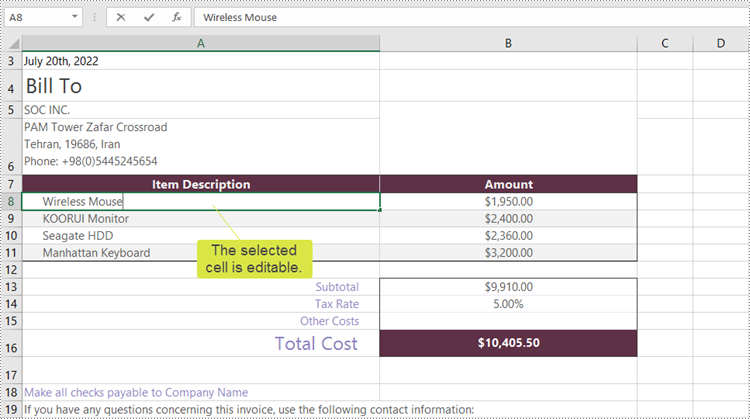
In certain cases, you may need to allow users to be able to edit selected ranges in a protected worksheet. The following steps demonstrate how to.
- Create a Workbook object.
- Load an Excel file using Workbook.LoadFromFile() method.
- Get a specific worksheet through Workbook.Worksheets[index] property.
- Specify editable cell ranges using Worksheet.AddAllowEditRange() method.
- Protect the worksheet with a protection type using Worksheet.Protect(string password, SheetProtectionType options) method.
- Save the workbook to another Excel file using Workbook.SaveToFile() method.
- C#
- VB.NET
using Spire.Xls;

namespace AllowEditRanges
{
    class Program
    {
        static void Main(string[] args)
        {
            //Create a Workbook object
            Workbook workbook = new Workbook();

            //Load an Excel file
            workbook.LoadFromFile(@"C:\Users\Administrator\Desktop\sample.xlsx");

            //Get the first worksheet
            Worksheet sheet = workbook.Worksheets[0];

            //Add ranges that allow editing
            sheet.AddAllowEditRange("Range One", sheet.Range["A5:A6"]);
            sheet.AddAllowEditRange("Range Two", sheet.Range["A8:B11"]);

            //Protect the worksheet with a password and a protection type
            sheet.Protect("psd-permission", SheetProtectionType.All);

            //Save the workbook to another Excel file
            workbook.SaveToFile("AllowEditRange.xlsx", ExcelVersion.Version2016);
        }
    }
}
Unprotect a Password Protected Worksheet in C# and VB.NET
To remove the protection of a password-protected worksheet, invoke the Worksheet.Unprotect() method and pass in the original password as a parameter. The detailed steps are as follows.
- Create a Workbook object.
- Load an Excel file using Workbook.LoadFromFile() method.
- Get a specific worksheet through Workbook.Worksheets[index] property.
- Remove the protection using Worksheet.Unprotect(string password) method.
- Save the workbook to another Excel file using Workbook.SaveToFile() method.
- C#
- VB.NET
using Spire.Xls;

namespace UnprotectWorksheet
{
    class Program
    {
        static void Main(string[] args)
        {
            //Create a Workbook object
            Workbook workbook = new Workbook();

            //Load an Excel file containing protected worksheet
            workbook.LoadFromFile(@"C:\Users\Administrator\Desktop\ProtectedWorksheet.xlsx");

            //Get the first worksheet
            Worksheet sheet = workbook.Worksheets[0];

            //Unprotect the worksheet using the specified password
            sheet.Unprotect("psd-permission");

            //Save the workbook to anther Excel file
            workbook.SaveToFile("UnprotectWorksheet.xlsx", ExcelVersion.Version2016);
        }
    }
}
Remove or Reset Password of an Encrypted Workbook in C# and VB.NET
To remove or reset password of an encrypted workbook, you can use the Workbook.Unprotect() method and the Workbook.Protect() method, respectively. The following steps show you how to load an encrypted Excel document and delete or change the password of it.
- Create a Workbook object.
- Specify the open password through Workbook.OpenPassword property.
- Load the encrypted Excel file using Workbook.LoadFromFile() method.
- Remove the encryption using Workbook.Unprotect() method. Or change the password using Workbook.Protect() method.
- Save the workbook to another Excel file using Workbook.SaveToFile() method.
- C#
- VB.NET
using Spire.Xls;

namespace RemoveOrResetPassword
{
    class Program
    {
        static void Main(string[] args)
        {
            //Create a Workbook object
            Workbook workbook = new Workbook();

            //Specify the open password
            workbook.OpenPassword = "psd-123";

            //Load an encrypted Excel file
            workbook.LoadFromFile(@"C:\Users\Administrator\Desktop\Encrypted.xlsx");

            //Unprotect workbook
            workbook.UnProtect();

            //Reset password
            //workbook.Protect("newpassword");

            //Save the workbook to another Excel file
            workbook.SaveToFile("Unprotect.xlsx", ExcelVersion.Version2016);
        }
    }
}
Apply for a Temporary License
If you'd like to remove the evaluation message from the generated documents, or to get rid of the function limitations, please request a 30-day trial license for yourself.
The most important reason that people lock worksheet when perform tasks in Excel is to protect the original Excel file from editing or modifying by other people. Through Microsoft Excel, you can set the entire Excel worksheet by setting its property as Read Only or just set partial region area cells as Read Only via protecting worksheet. While how to lock worksheet with C#, VB.NET will be the core topic in this section.
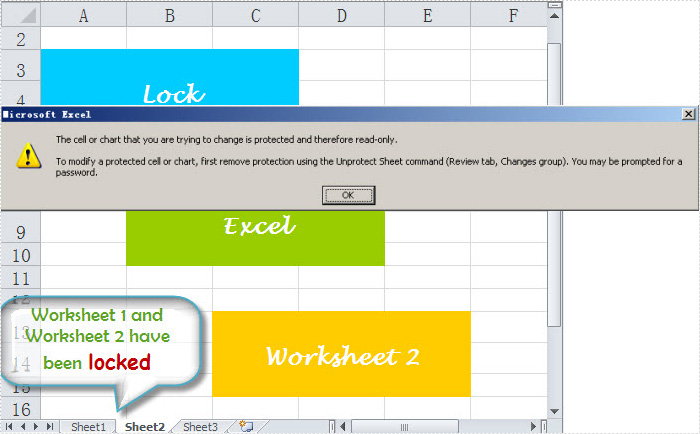
Spire.XLS for .NET, as a fast and reliable excel component, enables you to lock your worksheet by setting Worksheet class property: Worksheet.Range.Style.Locked = true. By this component, you can lock any worksheet that you need. In this solution, worksheet one and worksheet two are locked as you view in below picture:
Now, before the detail code, you have to add Spire.Xls dll by download Spire.XLS for .NET.
using Spire.Xls;

namespace lock_excel_worksheet
{
    class Program
    {
        static void Main(string[] args)
        {
            Workbook workbook = new Workbook();
            workbook.LoadFromFile(@"..\lock worksheet.xls");
            workbook.Worksheets[0].Range.Style.Locked = true;
            workbook.Worksheets[1].Range.Style.Locked = true;
            workbook.Worksheets[0].Protect("", SheetProtectionType.All);
            workbook.Worksheets[1].Protect("", SheetProtectionType.All);
            workbook.SaveToFile("result.xls",ExcelVersion.Version97to2003);
        }
    }
}
Imports Spire.Xls

Namespace lock_excel_worksheet

    Class Program

        Private Shared Sub Main(ByVal args() As String)
            Dim workbook As Workbook = New Workbook
            workbook.LoadFromFile("..\lock worksheet.xls")
            workbook.Worksheets(0).Range.Style.Locked = true
            workbook.Worksheets(1).Range.Style.Locked = true
            workbook.Worksheets(0).Protect("", SheetProtectionType.All)
            workbook.Worksheets(1).Protect("", SheetProtectionType.All)
            workbook.SaveToFile("result.xls",ExcelVersion.Version97to2003)
        End Sub
    End Class
End Namespace
Spire.XLS allows user to operate Excel document directly such as save to stream, save as web response, copy, lock/unlock worksheet, set up workbook properties, etc. As a professional .NET/Silverlight Excel component, it owns the ability of inserting content into Excel document, formatting cells and converting Excel documents to popular office file formats. Spire.XLS for .NET supports Excel 97-2003, Excel 2007 and Excel 2010.
Why Export Listview to CSV?
CSV file (Comma Separated Values, sometimes also called Comma Delimited) is a specially formatted plain text file which stores spreadsheet or basic database-style information in a very simple format, with one record on each line, and each field within that record separated by a comma. It is often used to exchange data between disparate applications. CSV has become a pseudo standard throughout the industry, even among non-Microsoft platforms because it is used in Microsoft Excel.
CSV files are often used as a simple way to transfer a large volume of spreadsheet or database information between programs, without worrying about special file types. For example, transferring a home-made address book from Excel into a database program such as Filemaker Pro could be done by exporting the file as a CSV from Excel, then importing that CSV into File maker.
How to Export Listview to CSV?
Spire.DataExport for .NET presents an easy solution for exporting Listvie to CSV. Spire.DataExport is a 100% pure .NET component suit for exporting data into MS Excel, MS Word, HTML, XML, PDF, MS Access, DBF, SQL Script, SYLK, DIF, CSV ,MS Clipboard format. Quickly and easily export data from Command, ListView, DataTable components. Save you much time and money by using Spire.DataExport.
Download Spire.DataExport (or Spire.Office) with .NET framework 2.0 (or above) together and use the code below to Export Listview to CSV:
this.txtExport1.ActionAfterExport = Spire.DataExport.Common.ActionType.OpenView;
    this.txtExport1.DataFormats.CultureName = "en-us";
    this.txtExport1.DataFormats.Currency = "c";
    this.txtExport1.DataFormats.DateTime = "yyyy-M-d H:mm";
    this.txtExport1.DataFormats.Float = "g";
    this.txtExport1.DataFormats.Integer = "g";
    this.txtExport1.DataFormats.Time = "H:mm";
    this.txtExport1.DataEncoding = Spire.DataExport.Common.EncodingType.ASCII;
    this.txtExport1.DataSource = ExportSource.ListView;
    this.txtExport1.ListView = this.ListView1
    txtExport1.ExportType = TextExportType.CSV;
    txtExport1.FileName = "sample.csv";
    txtExport1.SaveToFile();
Me.txtExport1.ActionAfterExport = Spire.DataExport.Common.ActionType.OpenView
            Me.txtExport1.DataFormats.CultureName = "en-us"
            Me.txtExport1.DataFormats.Currency = "c"
            Me.txtExport1.DataFormats.DateTime = "yyyy-M-d H:mm"
            Me.txtExport1.DataFormats.Float = "g"
            Me.txtExport1.DataFormats.Integer = "g"
            Me.txtExport1.DataFormats.Time = "H:mm"
            Me.txtExport1.DataEncoding = Spire.DataExport.Common.EncodingType.ASCII
            Me.txtExport1.DataSource = Common.ExportSource.ListView
            Me.txtExport1.ListView = Me.ListView1
txtExport1.ExportType = TextExportType.CSV
                        txtExport1.FileName = "sample.csv"
                        txtExport1.SaveToFile()
