Knowledgebase (2370)
Children categories
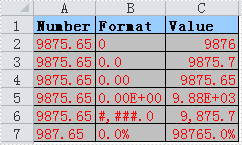
The sample demonstrates how to set number style in an excel workbook.
Barcodes provide a quick and efficient way to identify and track items, making them indispensable in a variety of industries. By adding barcodes to PDFs, companies can enhance their document management processes, allowing for a more streamlined way to handle and track PDF files. Additionally, this operation also enables the creation of dynamic, interactive PDF documents that not only contain traditional text and images, but also integrate the functionality of barcodes. In this article, you will learn how to add barcodes to PDF in C# using Spire.PDF for .NET and Spire.Barcode for .NET.
Install Spire.PDF for .NET
To begin with, you need to download Spire.PDF for.NET and Spire.Barcode for .NET libraries, then add the DLL files included in both product packages as references in your .NET project. Or you can install them via NuGet.
PM> Install-Package Spire.PDF
PM> Install-Package Spire.Barcode
Add Barcodes to PDF in C#
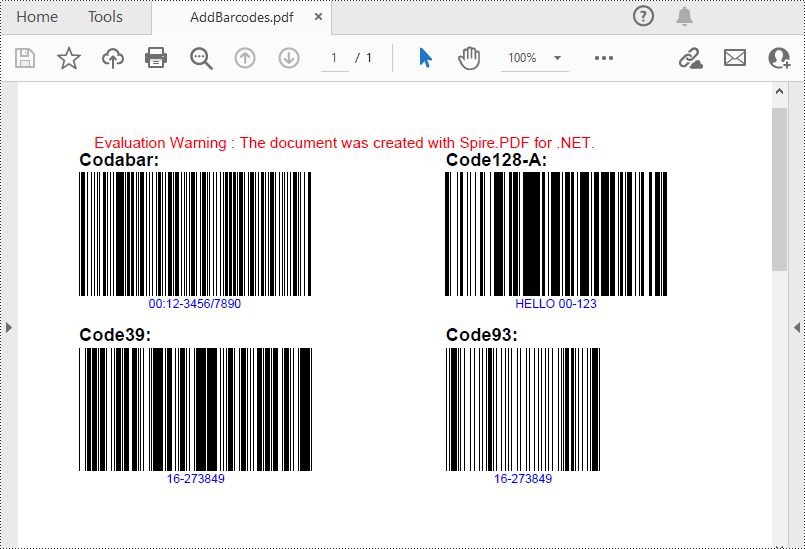
Spire.PDF for .NET support several 1D barcode types represented by different classes, such as PdfCodabarBarcode, PdfCode128ABarcode, PdfCode32Barcode, PdfCode39Barcode, PdfCode93Barcode.
Each class provides corresponding properties for setting the barcode text, size, color, etc. The following are the steps to draw the common Codabar, Code128, Code39 and Code93 barcodes at the specified locations on a PDF page.
- Create a PdfDocument object.
- Add a PDF page using PdfDocument.Pages.Add() method.
- Create a PdfTextWidget object and draw text on the page using PdfTextWidget.Draw( PdfPageBase page, float x, float y) method.
- Create PdfCodabarBarcode, PdfCode128ABarcode, PdfCode39Barcode, PdfCode93Barcode objects.
- Set the gap between the barcode and the displayed text through the BarcodeToTextGapHeight property of the corresponding classes.
- Sets the barcode text display location through the TextDisplayLocation property of the corresponding classes.
- Set the barcode text color through the TextColor property of the corresponding classes.
- Draw the barcodes at specified locations on the PDF page using the Draw(PdfPageBase page, PointF location) method of the corresponding classes.
- Save the result PDF file using PdfDocument.SaveToFile() method.
- C#
using Spire.Pdf;
using Spire.Pdf.Barcode;
using Spire.Pdf.Graphics;
using System.Drawing;

namespace PDFBarcode
{
    class Program
    {
        static void Main(string[] args)
        {
            //Create a PDF document
            PdfDocument pdf = new PdfDocument();

            //Add a page
            PdfPageBase page = pdf.Pages.Add(PdfPageSize.A4);

            //Initialize y-coordinate
            float y = 20;

            //Create a true type font
            PdfTrueTypeFont font = new PdfTrueTypeFont(new Font("Arial", 12f, FontStyle.Bold), true);

            //Draw text on the page
            PdfTextWidget text = new PdfTextWidget();
            text.Font = font;
            text.Text = "Codabar:";
            PdfLayoutResult result = text.Draw(page, 0, y);
            page = result.Page;
            y = result.Bounds.Bottom + 2;

            //Draw Codabar barcode on the page
            PdfCodabarBarcode Codabar = new PdfCodabarBarcode("00:12-3456/7890");
            Codabar.BarcodeToTextGapHeight = 1f;
            Codabar.TextDisplayLocation = TextLocation.Bottom;
            Codabar.TextColor = Color.Blue;
            Codabar.Draw(page, new PointF(0, y));

            //Draw text on the page
            text.Text = "Code128-A:";
            result = text.Draw(page, 240, 20);
            page = result.Page;
            y = result.Bounds.Bottom + 2;

            //Draw Code128-A barcode on the page
            PdfCode128ABarcode Code128 = new PdfCode128ABarcode("HELLO 00-123");
            Code128.BarcodeToTextGapHeight = 1f;
            Code128.TextDisplayLocation = TextLocation.Bottom;
            Code128.TextColor = Color.Blue;
            Code128.Draw(page, new PointF(240, y));

            //Draw text on the page
            text.Text = "Code39:";
            result = text.Draw(page, 0, Codabar.Bounds.Bottom + 8);
            page = result.Page;
            y = result.Bounds.Bottom + 2;

            //Draw Code39 barcode on the page
            PdfCode39Barcode Code39 = new PdfCode39Barcode("16-273849");
            Code39.BarcodeToTextGapHeight = 1f;
            Code39.TextDisplayLocation = TextLocation.Bottom;
            Code39.TextColor = Color.Blue;
            Code39.Draw(page, new PointF(0, y));

            //Draw text on the page
            text.Text = "Code93:";
            result = text.Draw(page, 240, Code128.Bounds.Bottom + 8);
            page = result.Page;
            y = result.Bounds.Bottom + 2;

            //Draw Code93 barcode on the page
            PdfCode93Barcode Code93 = new PdfCode93Barcode("16-273849");
            Code93.BarcodeToTextGapHeight = 1f;
            Code93.TextDisplayLocation = TextLocation.Bottom;
            Code93.TextColor = Color.Blue;
            Code93.QuietZone.Bottom = 5;
            Code93.Draw(page, new PointF(240, y));

            //Save the document
            pdf.SaveToFile("AddBarcodes.pdf");
            pdf.Close();
        }
    }
}
Add QR Codes to PDF in C#
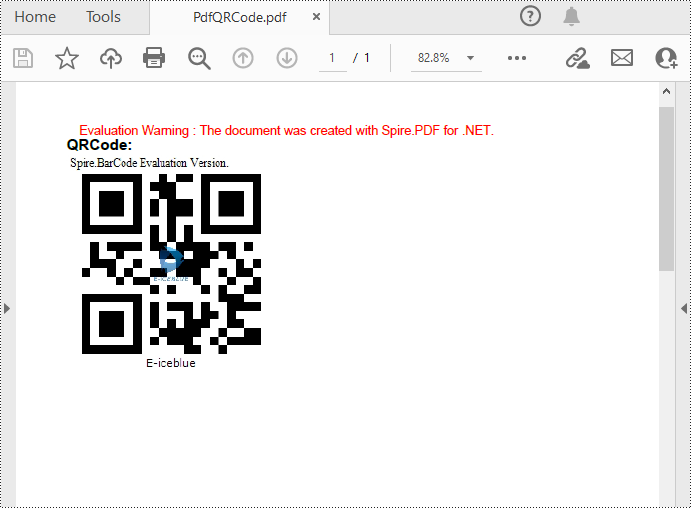
To add 2D barcodes to a PDF file, the Spire.Barcode for .NET library is required to generate QR code first, and then you can add the QR code image to the PDF file with the Spire.PDF for .NET library. The following are the detailed steps.
- Create a PdfDocument object.
- Add a PDF page using PdfDocument.Pages.Add() method.
- Create a BarcodeSettings object.
- Call the corresponding properties of the BarcodeSettings class to set the barcode type, data, error correction level and width, etc.
- Create a BarCodeGenerator object based on the settings.
- Generate QR code image using BarCodeGenerator.GenerateImage() method.
- Draw the QR code image at a specified location on the PDF page using PdfPageBase.Canvas.DrawImage(PdfImage image, float x, float y) method.
- Save the result PDF file using PdfDocument.SaveToFile() method.
- C#
using System.Drawing;
using Spire.Barcode;
using Spire.Pdf;
using Spire.Pdf.Graphics;

namespace PDFQRcode
{
    class Program
    {
        static void Main(string[] args)
        {
            //Create a PDF document
            PdfDocument pdf = new PdfDocument();
            //Add a page
            PdfPageBase page = pdf.Pages.Add();

            //Create a BarcodeSettings object
            BarcodeSettings settings = new BarcodeSettings();

            //Set the barcode type to QR Code
            settings.Type = BarCodeType.QRCode;
            //Set the data of the QR code
            settings.Data = "E-iceblue";
            settings.Data2D = "E-iceblue";
            //Set the width of the QR code
            settings.X = 2.5f;
            //Set the error correction level of the QR code
            settings.QRCodeECL = QRCodeECL.Q;
            //Set to show QR code text at the bottom
            settings.ShowTextOnBottom = true;

            //Generate QR code image based on the settings
            BarCodeGenerator generator = new BarCodeGenerator(settings);
            Image QRimage = generator.GenerateImage();

            //Initialize y-coordinate
            float y = 20;

            //Create a true type font
            PdfTrueTypeFont font = new PdfTrueTypeFont(new Font("Arial", 12f, FontStyle.Bold), true);

            //Draw text on the PDF page
            PdfTextWidget text = new PdfTextWidget();
            text.Font = font;
            text.Text = "QRCode:";
            PdfLayoutResult result = text.Draw(page, 0, y);
            y = result.Bounds.Bottom + 2;

            //Draw QR code image on the PDF page
            PdfImage pdfImage = PdfImage.FromImage(QRimage);
            page.Canvas.DrawImage(pdfImage, 0, y);

            //Save the document
            pdf.SaveToFile("PdfQRCode.pdf");
        }
    }
}
Apply for a Temporary License
If you'd like to remove the evaluation message from the generated documents, or to get rid of the function limitations, please request a 30-day trial license for yourself.
Spire.PDF can help us draw different shapes in PDF document. We can use Spire.PDF to draw rectangles in PDF, draw circles in PDF, draw arcs in PDF and draw ellipses in PDF. Besides these shapes, we can also use Spire.PDF to draw some other special shapes such as Spiral and five-pointed stars.
Draw Five-Pointed Star in PDF
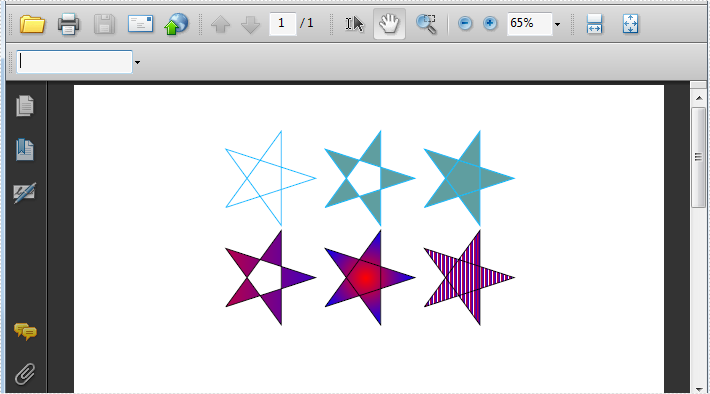
By using Spire.PDF, we can draw different stars in PDF document. The sample below is showing how to draw 6 types of different five-pointed star.
using Spire.Pdf;
using Spire.Pdf.Graphics;
using System;
using System.Drawing;


namespace FivePointedStar
{
    class Program
    {
        private static void DrawStar(PdfPageBase page)
        {
            PdfDocument doc = new PdfDocument();
            PdfPageBase page = doc.Pages.Add();
            PointF[] points = new PointF[5];
            for (int i = 0; i < points.Length; i++)
            {
                float x = (float)Math.Cos(i * 2 * Math.PI / 5);
                float y = (float)Math.Sin(i * 2 * Math.PI / 5);
                points[i] = new PointF(x, y);
            }
            PdfPath path = new PdfPath();
            path.AddLine(points[2], points[0]);
            path.AddLine(points[0], points[3]);
            path.AddLine(points[3], points[1]);
            path.AddLine(points[1], points[4]);
            path.AddLine(points[4], points[2]);

            //save graphics state
            PdfDocument doc = new PdfDocument();
            PdfPageBase page = doc.Pages.Add();
            PdfGraphicsState state = page.Canvas.Save();
            PdfPen pen = new PdfPen(Color.DeepSkyBlue, 0.02f);
            PdfBrush brush1 = new PdfSolidBrush(Color.CadetBlue);

            page.Canvas.ScaleTransform(50f, 50f);
            page.Canvas.TranslateTransform(5f, 1.2f);
            page.Canvas.DrawPath(pen, path);

            page.Canvas.TranslateTransform(2f, 0f);
            path.FillMode = PdfFillMode.Alternate;
            page.Canvas.DrawPath(pen, brush1, path);

            page.Canvas.TranslateTransform(2f, 0f);
            path.FillMode = PdfFillMode.Winding;
            page.Canvas.DrawPath(pen, brush1, path);

            PdfLinearGradientBrush brush2
                = new PdfLinearGradientBrush(new PointF(-2, 0), new PointF(2, 0), Color.Red, Color.Blue);
            page.Canvas.TranslateTransform(-4f, 2f);
            path.FillMode = PdfFillMode.Alternate;
            page.Canvas.DrawPath(pen, brush2, path);

            PdfRadialGradientBrush brush3
                = new PdfRadialGradientBrush(new PointF(0f, 0f), 0f, new PointF(0f, 0f), 1f, Color.Red, Color.Blue);
            page.Canvas.TranslateTransform(2f, 0f);
            path.FillMode = PdfFillMode.Winding;
            page.Canvas.DrawPath(pen, brush3, path);

            PdfTilingBrush brush4 = new PdfTilingBrush(new RectangleF(0, 0, 4f, 4f));
            brush4.Graphics.DrawRectangle(brush2, 0, 0, 4f, 4f);

            page.Canvas.TranslateTransform(2f, 0f);
            path.FillMode = PdfFillMode.Winding;
            page.Canvas.DrawPath(pen, brush4, path);

            //restor graphics
            page.Canvas.Restore(state);
        }
    }
}
Imports Spire.Pdf
Imports Spire.Pdf.Graphics
Imports System.Drawing


Namespace FivePointedStar
	Class Program
		Private Shared Sub DrawStar(page As PdfPageBase)
			Dim doc As New PdfDocument()
			Dim page As PdfPageBase = doc.Pages.Add()
			Dim points As PointF() = New PointF(4) {}
			For i As Integer = 0 To points.Length - 1
				Dim x As Single = CSng(Math.Cos(i * 2 * Math.PI / 5))
				Dim y As Single = CSng(Math.Sin(i * 2 * Math.PI / 5))
				points(i) = New PointF(x, y)
			Next
			Dim path As New PdfPath()
			path.AddLine(points(2), points(0))
			path.AddLine(points(0), points(3))
			path.AddLine(points(3), points(1))
			path.AddLine(points(1), points(4))
			path.AddLine(points(4), points(2))

			'save graphics state
			Dim doc As New PdfDocument()
			Dim page As PdfPageBase = doc.Pages.Add()
			Dim state As PdfGraphicsState = page.Canvas.Save()
			Dim pen As New PdfPen(Color.DeepSkyBlue, 0.02F)
			Dim brush1 As PdfBrush = New PdfSolidBrush(Color.CadetBlue)

			page.Canvas.ScaleTransform(50F, 50F)
			page.Canvas.TranslateTransform(5F, 1.2F)
			page.Canvas.DrawPath(pen, path)

			page.Canvas.TranslateTransform(2F, 0F)
			path.FillMode = PdfFillMode.Alternate
			page.Canvas.DrawPath(pen, brush1, path)

			page.Canvas.TranslateTransform(2F, 0F)
			path.FillMode = PdfFillMode.Winding
			page.Canvas.DrawPath(pen, brush1, path)

			Dim brush2 As New PdfLinearGradientBrush(New PointF(-2, 0), New PointF(2, 0), Color.Red, Color.Blue)
			page.Canvas.TranslateTransform(-4F, 2F)
			path.FillMode = PdfFillMode.Alternate
			page.Canvas.DrawPath(pen, brush2, path)

			Dim brush3 As New PdfRadialGradientBrush(New PointF(0F, 0F), 0F, New PointF(0F, 0F), 1F, Color.Red, Color.Blue)
			page.Canvas.TranslateTransform(2F, 0F)
			path.FillMode = PdfFillMode.Winding
			page.Canvas.DrawPath(pen, brush3, path)

			Dim brush4 As New PdfTilingBrush(New RectangleF(0, 0, 4F, 4F))
			brush4.Graphics.DrawRectangle(brush2, 0, 0, 4F, 4F)

			page.Canvas.TranslateTransform(2F, 0F)
			path.FillMode = PdfFillMode.Winding
			page.Canvas.DrawPath(pen, brush4, path)

			'restor graphics
			page.Canvas.Restore(state)
		End Sub
	End Class
End Namespace
Effective Screenshot:
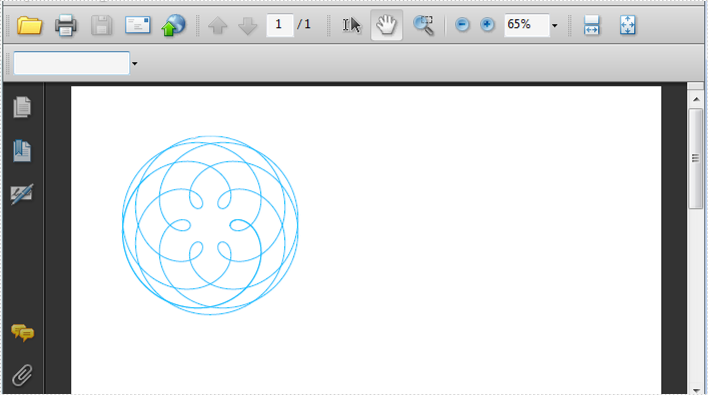
Draw Spiral in PDF
A spiral is a curve which emanates from a central point, getting progressively farther away as it revolves around the point. Spire.PDF can also help us easily draw Spiral in PDF and we can design at will.
using Spire.Pdf;
using Spire.Pdf.Graphics;
using System;

namespace DrawSpiral
{
    class Program
    {
        static void Main(string[] args)
        {
            PdfDocument doc = new PdfDocument();
            PdfPageBase page = doc.Pages.Add();
            //save graphics state
            PdfGraphicsState state = page.Canvas.Save();

            //Draw shap - spiro
            PdfPen pen = PdfPens.DeepSkyBlue;

            int nPoints = 1000;
            double r1 = 30;
            double r2 = 25;
            double p = 35;
            double x1 = r1 + r2 - p;
            double y1 = 0;
            double x2 = 0;
            double y2 = 0;

            page.Canvas.TranslateTransform(100, 100);

            for (int i = 0; i < nPoints; i++)
            {
                double t = i * Math.PI / 90;
                x2 = (r1 + r2) * Math.Cos(t) - p * Math.Cos((r1 + r2) * t / r2);
                y2 = (r1 + r2) * Math.Sin(t) - p * Math.Sin((r1 + r2) * t / r2);
                page.Canvas.DrawLine(pen, (float)x1, (float)y1, (float)x2, (float)y2);
                x1 = x2;
                y1 = y2;
            }

            //restor graphics
            page.Canvas.Restore(state);
        }
    }
}
Imports Spire.Pdf
Imports Spire.Pdf.Graphics
Imports Spire.Pdf.Texts
Imports System.Drawing

Namespace AddLineNumber
    Class Program
		Shared Sub Main(ByVal args() As String)
			Dim doc As New PdfDocument()
			Dim page As PdfPageBase = doc.Pages.Add()
			'save graphics state
			Dim state As PdfGraphicsState = page.Canvas.Save()

			'Draw shap - spiro
			Dim pen As PdfPen = PdfPens.DeepSkyBlue

			Dim nPoints As Integer = 1000
			Dim r1 As Double = 30
			Dim r2 As Double = 25
			Dim p As Double = 35
			Dim x1 As Double = r1 + r2 - p
			Dim y1 As Double = 0
			Dim x2 As Double = 0
			Dim y2 As Double = 0

			page.Canvas.TranslateTransform(100, 100)

			For i As Integer = 0 To nPoints - 1
				Dim t As Double = i * Math.PI / 90
				x2 = (r1 + r2) * Math.Cos(t) - p * Math.Cos((r1 + r2) * t / r2)
				y2 = (r1 + r2) * Math.Sin(t) - p * Math.Sin((r1 + r2) * t / r2)
				page.Canvas.DrawLine(pen, CSng(x1), CSng(y1), CSng(x2), CSng(y2))
				x1 = x2
				y1 = y2
			Next

			'restor graphics
			page.Canvas.Restore(state)

		End Sub
	End Class
End Namespace
Effective Screenshot: