
Knowledgebase (2416)
Children categories

Microsoft Word and HTML (Hypertext Markup Language) are two of the most widely used formats worldwide. Microsoft Word is the go-to solution for crafting rich, feature-packed documents such as reports, proposals, and print-ready files, while HTML is the foundational language that powers content on the web. Understanding how to effectively convert between these formats can enhance document usability and accessibility.
In this article, we will provide a detailed step-by-step guide on converting HTML to Word and Word to HTML in .NET using C#. It covers the following topics:
- Why Convert Between Word and HTML
- .NET Word Library Installation
- How to Convert HTML to Word Using C#
- How to Convert Word to HTML Using C#
- Conclusion
- FAQs
Why Convert Between Word and HTML?
Before diving into the technical details, let's understand why you might need to convert between Word and HTML:
- Cross-Platform Accessibility: HTML is the backbone of web pages, while Word documents are industry-standard for creating, sharing and editing content. Converting between them enables content to be accessible and editable across different platforms.
- Rich Formatting: Word documents support complex formatting and elements; converting HTML to Word lets users retain formatting when exporting web content.
- Document Archiving and Data Exchange: Archive HTML content as Word or publish Word-based reports to the web.
.NET Word Library Installation
The .NET framework does not natively support HTML or Word conversions. To bridge this gap, Spire.Doc for .NET provides a powerful, developer-friendly API for document creation, manipulation, and conversion—without requiring Microsoft Office or Interop libraries.
Install Spire.Doc for .NET
Before getting started with the conversion, you need to install Spire.Doc for .NET through one of the following methods:
Method 1: Install via NuGet
Run the following command in the NuGet Package Manager Console:
Install-Package Spire.Doc
Method 2: Manually Add the DLLs
You can also download the Spire.Doc for .NET package, extract the files, and then reference Spire.Doc.dll manually in your Visual Studio project.
How to Convert HTML to Word Using C#
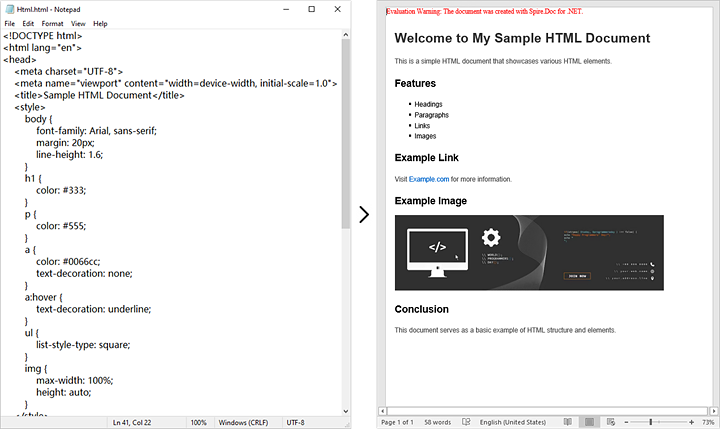
Spire.Doc enables you to load HTML files or HTML strings and save them as Word documents. Let’s see how to implement these conversions.
Convert HTML String to Word
To convert an HTML string to Word format, follow these steps:
- Create a Document Object: Instantiate a new Document object.
- Add a Section and Paragraph: Create a section in the document and add a paragraph.
- Append HTML String: Use the Paragraph.AppendHTML() method to include the HTML content.
- Save the Document: Save the document using Document.SaveToFile() with the desired format (e.g., Docx).
Example code
using Spire.Doc;
using Spire.Doc.Documents;
using System.IO;

namespace ConvertHtmlStringToWord
{
    class Program
    {
        static void Main(string[] args)
        {
            // Create a Document object
            Document document = new Document();

            // Add a section to the document
            Section section = document.AddSection();

            // Set the page margins
            section.PageSetup.Margins.All = 2;

            // Add a paragraph to the section
            Paragraph paragraph = section.AddParagraph();

            // Read HTML string from a file
            string htmlFilePath = @"C:\Users\Administrator\Desktop\Html.html";
            string htmlString = File.ReadAllText(htmlFilePath, System.Text.Encoding.UTF8);

            // Append the HTML string to the paragraph
            paragraph.AppendHTML(htmlString);

            // Save the document to a Word file
            document.SaveToFile("AddHtmlStringToWord.docx", FileFormat.Docx);

            // Dispose resources
            document.Dispose();
        }
    }
}
Convert HTML File to Word
If you have existing HTML files, converting them to Word is straightforward. Here’s how to do that:
- Create a Document Object: Instantiate a new Document object.
- Load the HTML File: Use Document.LoadFromFile() to load the HTML file.
- Save as Word Format: Save the document using Document.SaveToFile() with the desired format (e.g., Docx).
Example Code
using Spire.Doc;

namespace ConvertHtmlToWord
{
    class Program
    {
        static void Main(string[] args)
        {
            // Create a Document object
            Document document = new Document();
            // Load the HTML file
            document.LoadFromFile(@"C:\Users\Administrator\Desktop\MyHtml.html", FileFormat.Html);

            // Save the file as a Word document
            document.SaveToFile("HtmlToWord.docx", FileFormat.Docx);

            // Dispose resources
            document.Dispose();
        }
    }
}

How to Convert Word to HTML Using C#
Spire.Doc also supports exporting Word documents (such as .docx and .doc) to HTML format. You can perform basic conversion with default behavior, or customize the output using advanced settings.
Basic Word to HTML Conversion
To convert a Word document to an HTML file using default settings, follow these steps:
- Create a Document Object: Instantiate a new Document object.
- Load the Word Document: Use Document.LoadFromFile() to load the Word document.
- Save as HTML File: Save the document using Document.SaveToFile() with HTML as the format.
Example Code
using Spire.Doc;

namespace BasicWordToHtmlConversion
{
    class Program
    {
        static void Main(string[] args)
        {
            // Create a Document object
            Document document = new Document();
            // Load the Word document
            document.LoadFromFile("input.docx");

            // Save the document as an HTML file
            document.SaveToFile("BasicWordToHtmlConversion.html", FileFormat.Html);

            // Dispose resources
            document.Dispose();
        }
    }
}
Advanced Word to HTML Conversion Settings
To tailor the conversion process, use the HtmlExportOptions class, which allows you to adjust a variety of settings, including:
- Whether to export the document's styles.
- Whether to embed images in the converted HTML.
- Whether to export headers and footers.
- Whether to export form fields as text.
Follow these steps to convert a Word document to HTML with customized options:
- Create a Document Object: Instantiate a new Document object.
- Load the Word Document: Use Document.LoadFromFile() to load the Word document.
- Get HtmlExportOptions: Access the HtmlExportOptions through Document.HtmlExportOptions.
- Customize Conversion Settings: Modify the properties of HtmlExportOptions to customize the conversion.
- Save as HTML File: Save the document using Document.SaveToFile() with HTML as the format.
Example Code
using Spire.Doc;

namespace AdvancedWordToHtmlConversion
{
    class Program
    {
        static void Main(string[] args)
        {
            //Create a Document object
            Document doc = new Document();

            //Load a Word document
            doc.LoadFromFile("sample.docx");

            HtmlExportOptions htmlExportOptions = doc.HtmlExportOptions;
            // Set whether to export the document styles
            htmlExportOptions.IsExportDocumentStyles = true;
            // Set whether to embed the images in the HTML
            htmlExportOptions.ImageEmbedded = true;
            // Set the type of the CSS style sheet
            htmlExportOptions.CssStyleSheetType = CssStyleSheetType.Internal;
            // Set whether to export headers and footers
            htmlExportOptions.HasHeadersFooters = true;
            // Set whether to export form fields as text
            htmlExportOptions.IsTextInputFormFieldAsText = false;

            // Save the document as an HTML file
            doc.SaveToFile("AdvancedWordToHtmlConversion.html", FileFormat.Html);
            doc.Close();
        }
    }
}
Conclusion
Converting HTML to Word and Word to HTML using C# and the Spire.Doc library is a seamless process that enhances document management and accessibility. By following the detailed steps outlined in this tutorial, developers can easily implement these conversions in their applications, improving workflow and productivity.
FAQs
Q1: Is it possible to batch convert multiple Word files to HTML using C#?
A1: Yes, you can loop through a list of Word files and apply the conversion logic in your C# code.
Q2: What types of HTML elements are supported during conversion to Word?
A2: Spire.Doc supports a wide range of HTML elements, including text, tables, images, lists, and more. However, certain elements not supported by Microsoft Word may also not be rendered correctly in Spire.Doc.
Q3: Can I convert formats other than HTML and Word?
A3: Yes. Spire.Doc supports various file format conversions, such as Word to PDF, Markdown to Word, Word to Markdown, RTF to Word, RTF to PDF.
Q4: Is Spire.Doc free to use?
A4: Spire.Doc offers a free version for lightweight use, but for extensive features and commercial use, a licensed version is recommended.
Get a Free License
To fully experience the capabilities of Spire.Doc for .NET without any evaluation limitations, you can request a free 30-day trial license.
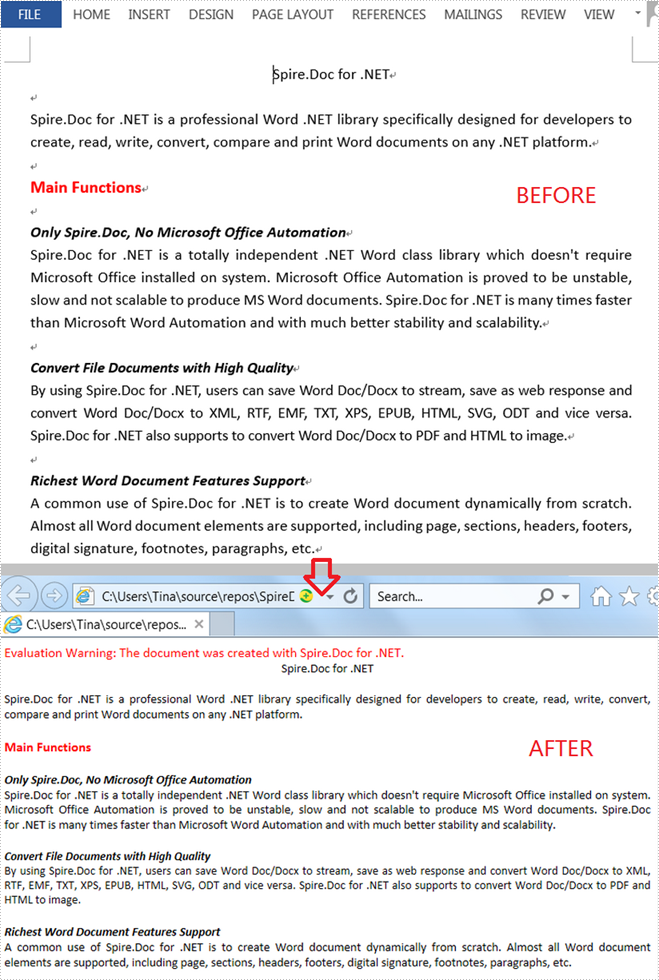
When you'd like to put a Word document on the web, it's recommended that you should convert the document to HTML in order to make it accessible via a web page. This article will demonstrate how to convert Word to HTML programmatically in C# and VB.NET using Spire.Doc for .NET.
Install Spire.Doc for .NET
To begin with, you need to add the DLL files included in the Spire.Doc for .NET package as references in your .NET project. The DLL files can be either downloaded from this link or installed via NuGet.
PM> Install-Package Spire.Doc
Convert Word to HTML
The following steps show you how to convert Word to HTML using Spire.Doc for .NET.
- Create a Document instance.
- Load a Word sample document using Document.LoadFromFile() method.
- Save the document as an HTML file using Document.SaveToFile() method.
- C#
- VB.NET
using Spire.Doc;

namespace WordToHTML
{
    class Program
    {
        static void Main(string[] args)
        {
            //Create a Document instance
            Document mydoc = new Document();

            //Load a Word document
            mydoc.LoadFromFile("sample.docx");

            //Save to HTML
            mydoc.SaveToFile("WordToHTML.html", FileFormat.Html);
        }
    }
}
Apply for a Temporary License
If you'd like to remove the evaluation message from the generated documents, or to get rid of the function limitations, please request a 30-day trial license for yourself.
Text files are simple and versatile, but they don't support formatting options and advanced features like headers, footers, page numbers, and styles, and cannot include multimedia content like images or tables. Additionally, spell-checking and grammar-checking features are also not available in plain text editors.
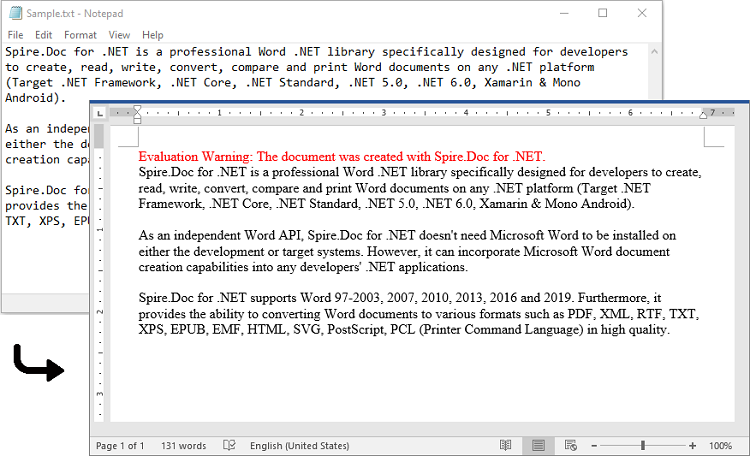
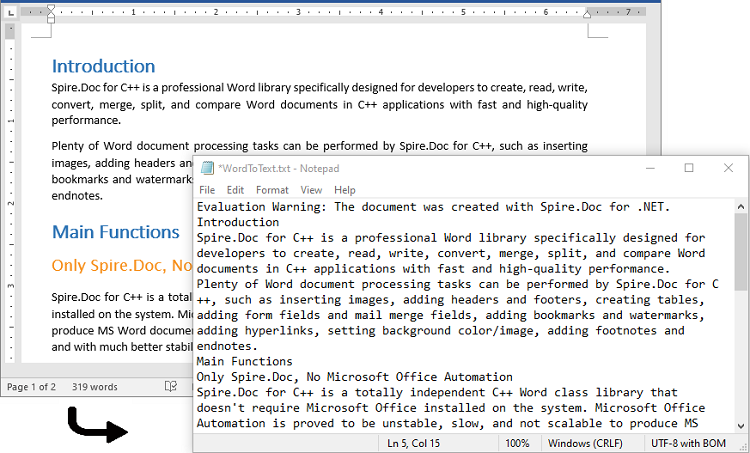
If you need to add formatting, multimedia content, or advanced features to a text document, you'll need to convert it to a more advanced format like Word. Similarly, if you need to simplify the formatting of a Word document, reduce its file size, or work with its content using basic tools, you might need to convert it to a plain text format. In this article, we will explain how to convert text files to Word format and convert Word files to text format in C# and VB.NET using Spire.Doc for .NET library.
- Convert a Text File to Word Format in C# and VB.NET
- Convert a Word File to Text Format in C# and VB.NET
Install Spire.Doc for .NET
To begin with, you need to add the DLL files included in the Spire.Doc for .NET package as references in your .NET project. The DLL files can be either downloaded from this link or installed via NuGet.
PM> Install-Package Spire.Doc
Convert a Text File to Word Format in C# and VB.NET
Spire.Doc for .NET offers the Document.LoadText(string fileName) method which enables you to load a text file. After the text file is loaded, you can easily save it in Word format by using the Document.SaveToFile(string fileName, FileFormat fileFormat) method. The detailed steps are as follows:
- Initialize an instance of the Document class.
- Load a text file using the Document.LoadText(string fileName) method.
- Save the text file in Word format using the Document.SaveToFile(string fileName, FileFormat fileFormat) method.
- C#
- VB.NET
using Spire.Doc;

namespace ConvertTextToWord
{
    internal class Program
    {
        static void Main(string[] args)
        {
            //Initialize an instance of the Document class
            Document doc = new Document();
            //Load a text file
            doc.LoadText("Sample.txt");

            //Save the text file in Word format
            doc.SaveToFile("TextToWord.docx", FileFormat.Docx2016);
            doc.Close();
        }
    }
}
Convert a Word File to Text Format in C# and VB.NET
To convert a Word file to text format, you just need to load the Word file using the Document.LoadFromFile(string fileName) method, and then call the Document.SaveToFile(string fileName, FileFormat fileFormat) method to save it in text format. The detailed steps are as follows:
- Initialize an instance of the Document class.
- Load a Word file using the Document.LoadFromFile(string fileName) method.
- Save the Word file in text format using the Document.SaveToFile(string fileName, FileFormat fileFormat) method.
- C#
- VB.NET
using Spire.Doc;

namespace ConvertWordToText
{
    internal class Program
    {
        static void Main(string[] args)
        {
            //Initialize an instance of the Document class
            Document doc = new Document();
            //Load a Word file
            doc.LoadFromFile(@"Sample.docx");

            //Save the Word file in text format
            doc.SaveToFile("WordToText.txt", FileFormat.Txt);
            doc.Close();
        }
    }
}
Apply for a Temporary License
If you'd like to remove the evaluation message from the generated documents, or to get rid of the function limitations, please request a 30-day trial license for yourself.
