Knowledgebase (2609)
Children categories
This section will introduce a solution to export data from database to Excel for WPF. The whole solution is easily performed by this WPF Excel component Spire.XLS for WPF.
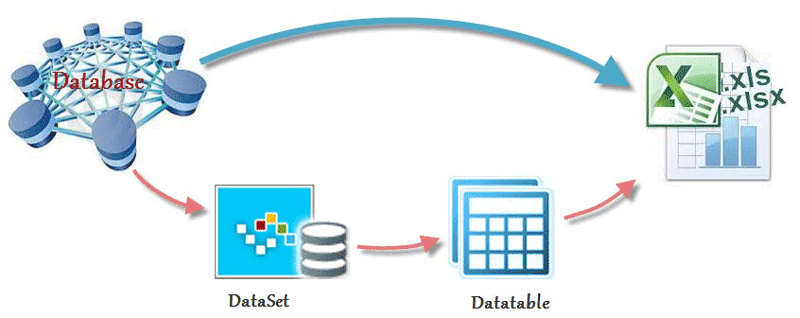
In the task of database to Excel, first we need to connect with database by this class provided by Microsoft: System.Data.Oledb.OledbConnection. Here we use an MS access database. Then, OleDbCommand can help us specify a datatable from database in order to save the data in Dataset later. Finally fill the data into dataset table. After all the connection, we can see the key source code provided by Spire.XLS to export data columns from datatable to Excel: Spire.Xls.Worksheet.InsertDataTable(System.Data.DataTable dataTable, bool columnHeaders, int firstRow, int firstColumn).
There are four parameters passed.
- dataTable: The first parameter is to export the data column;
- columnHeaders: the second is to indicate whether to import field names;
- firstRow, firstColumn: the third and fourth parameters are index of first row and first column.
Here we can download Spire.XLS for WPF. After installing it on system, and start our database to excel task as below code:
//export datatable to excel
Workbook book = new Workbook();
Worksheet sheet = book.Worksheets[0];
sheet.InsertDataTable(t, true, 1, 1);
book.SaveToFile("insertTableToExcel.xls");
System.Diagnostics.Process.Start("insertTableToExcel.xls");
//export datatable to excel
Dim book As New Workbook()
Dim sheet As Worksheet = book.Worksheets(0)
sheet.InsertDataTable(t, True, 1, 1)
book.SaveToFile("insertTableToExcel.xls")
System.Diagnostics.Process.Start("insertTableToExcel.xls")
End Sub
End Class
End Namespace
In people's daily life, we can open a PDF document by right clicking the open option as well as using C#, VB.NET or other programming languages. Both methods are available as long as you have a PDF Document, but for PDF itself, it has no viewing function, thus, we need to use PDF Viewer to help us view it. This article is designed to open a PDF Document with C#, VB.NET via PDF Viewer by two methods.
Spire. PDFViewer is designed for viewing PDF files from .NET application. It does NOT require Adobe Read or any other 3rd party software/library installed on system. By using Spire.PDFViewer, we can do this job easily. Please just follow the below procedure.
Step 1: Create a new project
- Freely Download Spire.PDFViewer
- Create a new project in Visual Studio and add a toolScript in Form1
- Set its target Framework to be .NET Framework 4
- Add Spire.PdfViewer. Forms as reference in Project. And add using at the top of the method. Please see below:
using System.IO;
using Spire.PdfViewer.Forms;
Imports Sytem. IO
Imports Spire.PdfViewer.Forms
Step 2: Open a PDF Document with C#, VB.NET via Spire.PDFViewer
Method one: This method is to directly load a PDF file from system, then open it.
        public partial class Form1 : Form
    {

        public Form1()
        {
            InitializeComponent();

        }

        private void Form1_Load(object sender, EventArgs e)
        {

        }

        private void toolStripButton1_Click(object sender, EventArgs e)
        {
            string pdfDoc = @"D:\michelle\e-iceblue\Spire.Office.pdf";
            if (File.Exists(pdfDoc))
            {
                this.pdfDocumentViewer1.LoadFromFile(pdfDoc);
            }

        }
    }
 }
Public Partial Class Form1
		Inherits Form

		Public Sub New()

			InitializeComponent()
		End Sub

		Private Sub Form1_Load(sender As Object, e As EventArgs)

		End Sub

		Private Sub toolStripButton1_Click(sender As Object, e As EventArgs)
			Dim pdfDoc As String = "D:\michelle\e-iceblue\Spire.Office.pdf"
			If File.Exists(pdfDoc) Then
				Me.pdfDocumentViewer1.LoadFromFile(pdfDoc)
			End If

		End Sub
	End Class
End Namespace
Method Two: This method allows you to choose the PDF file you want to open in a dialog box from your computer.
public partial class Form1 : Form
 {

        public Form1()
        {
            InitializeComponent();

        }

        private void Form1_Load(object sender, EventArgs e)
        {

        }

        private void toolStripButton1_Click(object sender, EventArgs e)
        {
            OpenFileDialog dialog = new OpenFileDialog();
            dialog.Filter = "PDF document (*.pdf)|*.pdf";
            DialogResult result = dialog.ShowDialog();
            if (result == DialogResult.OK)
            {
                try
                {
                    string pdfFile = dialog.FileName;
                    this.pdfDocumentViewer1.LoadFromFile(pdfFile);
                }
                catch (Exception exe)
                {
                    MessageBox.Show(exe.Message, "Spire.PdfViewer Demo", MessageBoxButtons.OK, MessageBoxIcon.Error);
                }

            }

        }
   }
Public Partial Class Form1
	Inherits Form

	Public Sub New()

		InitializeComponent()
	End Sub

	Private Sub Form1_Load(sender As Object, e As EventArgs)

	End Sub

	Private Sub toolStripButton1_Click(sender As Object, e As EventArgs)
		Dim dialog As New OpenFileDialog()
		dialog.Filter = "PDF document (*.pdf)|*.pdf"
		Dim result As DialogResult = dialog.ShowDialog()
		If result = DialogResult.OK Then
			Try
				Dim pdfFile As String = dialog.FileName
				Me.pdfDocumentViewer1.LoadFromFile(pdfFile)
			Catch exe As Exception
				MessageBox.Show(exe.Message, "Spire.PdfViewer Demo", MessageBoxButtons.OK, MessageBoxIcon.[Error])

			End Try
		End If

	End Sub
End Class
Step 3: Launch the file
Press F5, you can see Form1 display itself as picture below:
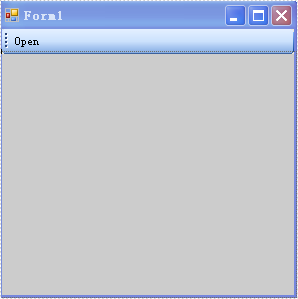
Then click "open" in the Form. When you use method one, you can see the PDF document content shows in the Form1. Also you can set the size of the form according to your own preference. When you use method two, you can choose the PDF Document by yourself in a dialog box. And then preview it in Form1.
Note: I set the default name of toolScript to be "open".
Effective Screenshot:

When working with an existing Excel file or creating an Excel file from scratch, we may need to add one or more worksheets to record data. In this article, we will demonstrate how to add worksheets to Excel in C# and VB.NET using Spire.XLS for .NET library.
- Add a Worksheet to an Existing Excel file
- Add a Worksheet to a New Excel file
- Add Multiple Worksheets to a New Excel file
Install Spire.XLS for .NET
To begin with, you need to add the DLL files included in the Spire.XLS for.NET package as references in your .NET project. The DLLs files can be either downloaded from this link or installed via NuGet.
PM> Install-Package Spire.XLS
Add a Worksheet to an Existing Excel file in C# and VB.NET
The following are the steps to add a worksheet to an existing Excel file:
- Create an instance of Workbook class.
- Load an Excel workbook using Workbook.LoadFromFile() method.
- Add a worksheet to the workbook using Workbook.Worksheets.Add(sheetName) method.
- Add data to a cell using Worksheet.Range[rowIndex, columnIndex].Value property.
- Save the result workbook using Workbook.SaveToFile() method.
- C#
- VB.NET
using Spire.Xls;

namespace AddWorksheet
{
    class Program
    {
        static void Main(string[] args)
        {
            //Create a Workbook instance
            Workbook workbook = new Workbook();
            //Load an Excel file
            workbook.LoadFromFile("Sample.xlsx");

            //Add a worksheet
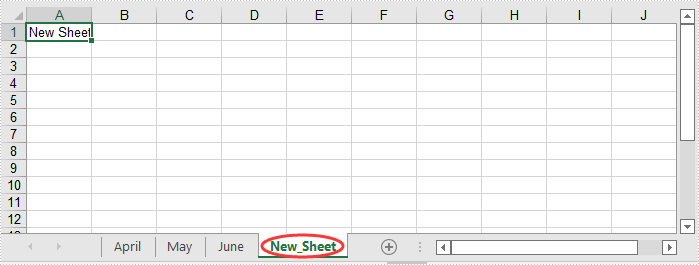
            Worksheet sheet = workbook.Worksheets.Add("New_Sheet");

            //Add data to cell (1, 1)
            sheet.Range[1, 1].Value = "New Sheet";

            //Save the result file
            workbook.SaveToFile("AddWorksheets.xlsx", ExcelVersion.Version2016);
        }
    }
}
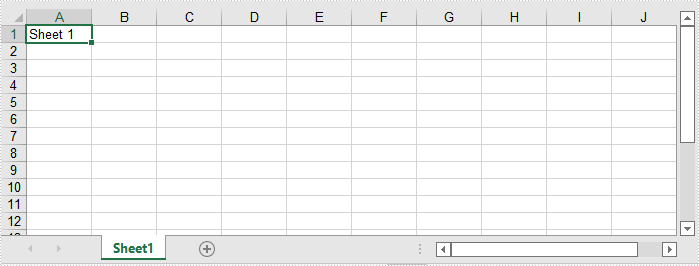
Add a Worksheet to a New Excel File in C# and VB.NET
The following steps show how to create a new Excel file and add a worksheet to it:
- Create an instance of Workbook class.
- Clear the default worksheets using Workbook.Worksheets.Clear() method.
- Add a worksheet to the workbook using Workbook.Worksheets.Add(sheetName) method.
- Add data to a cell using Worksheet.Range[rowIndex, columnIndex].Value property.
- Save the result workbook using Workbook.SaveToFile() method.
- C#
- VB.NET
using Spire.Xls;

namespace AddWorksheetToNewExcel
{
    class Program
    {
        static void Main(string[] args)
        {
            //Create a Workbook instance
            Workbook workbook = new Workbook();
            //Clear the default worksheets
            workbook.Worksheets.Clear();

            //Add a worksheet with name
            Worksheet sheet = workbook.Worksheets.Add("Sheet1");

            //Add data to cell (1, 1)
            sheet.Range[1, 1].Value = "Sheet 1";

            //Save the result file
            workbook.SaveToFile("AddWorksheets.xlsx", ExcelVersion.Version2016);
        }
    }
}
Add Multiple Worksheets to a New Excel File in C# and VB.NET
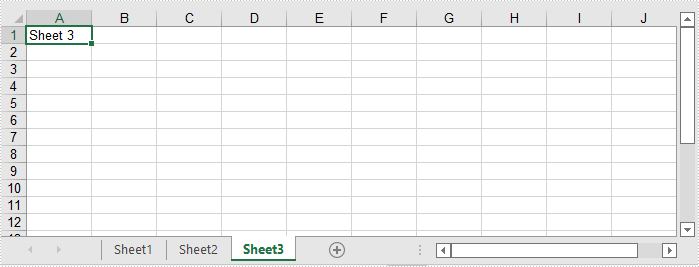
The following steps show how to create a new Excel file and add 3 worksheets to it:
- Create an instance of Workbook class.
- Add 3 worksheets to the workbook using Workbook.CreateEmptySheets(sheetCount) method.
- Loop through the worksheets in the workbook, add data to cell (1, 1) in each worksheet using Worksheet.Range[rowIndex, columnIndex].Value property.
- Save the result workbook using Workbook.SaveToFile() method.
- C#
- VB.NET
using Spire.Xls;

namespace AddWorksheetsToNewExcel
{
    class Program
    {
        static void Main(string[] args)
        {
            //Create a Workbook instance
            Workbook workbook = new Workbook();

            //Add 3 worksheets
            workbook.CreateEmptySheets(3);

            //Loop through the worksheets
            for (int i = 0; i < workbook.Worksheets.Count; i++)
            {
                Worksheet sheet = workbook.Worksheets[i];
                //Add data to cell (1, 1) in each worksheet
                sheet.Range[1, 1].Value = "Sheet " + (i + 1);
            }

            //Save the result file
            workbook.SaveToFile("AddWorksheetsToNewExcel.xlsx", ExcelVersion.Version2016);
        }
    }
}
Apply for a Temporary License
If you'd like to remove the evaluation message from the generated documents, or to get rid of the function limitations, please request a 30-day trial license for yourself.
