
Knowledgebase (2432)
Children categories
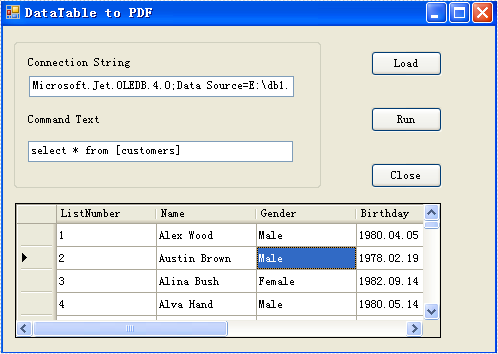
This article will show you how to use Spire.DataExport to Export Datatable to PDF through DataGridView. Through DataGridView, users can preview data information and modify the information if they think it’s not correct before exporting data. With Spire.DataExport, this whole exporting process could be fast and easy.
Download Spire.DataExport (or Spire.Office) with .NET Framework together. Only 2 Simple steps you can finish the whole datatable to PDF exporting process.
Step 1: Load Data Information
Before exporting data from DataTable, we should load data information from data source. And select which information we need export. Through DataGridVew, we even can preview and modify data information. So, in this step, our job is to prepare data which is about to be exported out.
        private void btnLoad_Click(object sender, EventArgs e)
        {
            using (OleDbConnection oleDbConnection = new OleDbConnection())
            {
                oleDbConnection.ConnectionString = this.tbCS.Text;
                OleDbCommand oleDbCommand = new OleDbCommand();
                oleDbCommand.CommandText = this.tbCT.Text;
                oleDbCommand.Connection = oleDbConnection;
                using (OleDbDataAdapter da = new OleDbDataAdapter(oleDbCommand))
                {
                    DataTable dt = new DataTable();
                    da.Fill(dt);
                    dataGridView.DataSource = dt;
                }
            }
        }
Effect Screenshot
Step 2: Set Export into PDF
Spire.DataExport allows user to export data into most popular file formats including MS Excel, MS Word, HTML, PDF, XML, CSV, DBF, DIF, etc. Here we need set it as PDF format. Spire.DataExport will create a new PDF file and through DataGridView export data into PDF file. You also can rename the file as you like.
        private void btnRun_Click(object sender, EventArgs e)
        {
            Spire.DataExport.PDF.PDFExport PDFExport = new Spire.DataExport.PDF.PDFExport();
            PDFExport.DataSource = Spire.DataExport.Common.ExportSource.DataTable;
            PDFExport.DataTable = this.dataGridView.DataSource as DataTable;
            PDFExport.ActionAfterExport = Spire.DataExport.Common.ActionType.OpenView;
            PDFExport.SaveToFile("20110223.pdf");

        }
Effect Screenshot

In daily work, you may come across some situations where you need to convert Excel to images, such as attaching a cell range to a PowerPoint presentation or safely sending your spreadsheet data via email. This article will show you how to programmatically convert Excel to images from the following two aspects using Spire.XLS for .NET.
Install Spire.XLS for .NET
To begin with, you need to add the DLL files included in the Spire.XLS for .NET package as references in your .NET project. The DLL files can be either downloaded from this link or installed via NuGet.
PM> Install-Package Spire.XLS
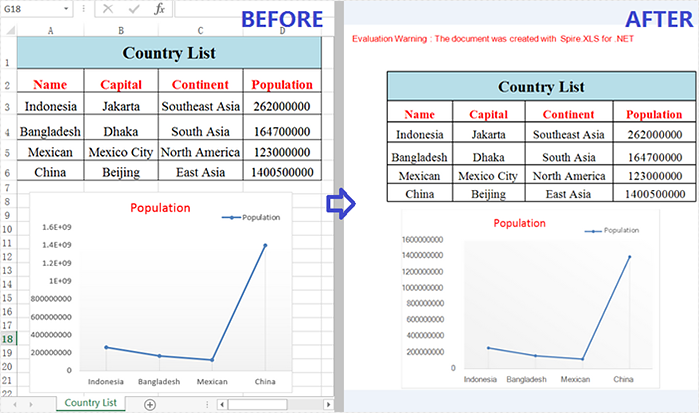
Convert a Whole Excel Worksheet to an Image
The following are steps to convert a whole Excel worksheet to an image.
- Create a Workbook instance.
- Load an Excel sample document using Workbook.LoadFromFile() method.
- Get a specific worksheet of the document using Workbook.Worksheets[] property.
- Save the worksheet as an image using Worksheet.SaveToImage() method.
- C#
- VB.NET
using Spire.Xls;
namespace Xls2Image

{
    class Program
    {
        static void Main(string[] args)
        {
            //Create a Workbook instance
            Workbook workbook = new Workbook();

            //Load an Excel sample document
            workbook.LoadFromFile(@"sample.xlsx");

            //Get the first worksheet
            Worksheet sheet = workbook.Worksheets[0];

            //Save the worksheet as an image
            sheet.SaveToImage("XlsToImage.jpg");
        }
    }
}
Convert a Specific Cell Range to an Image
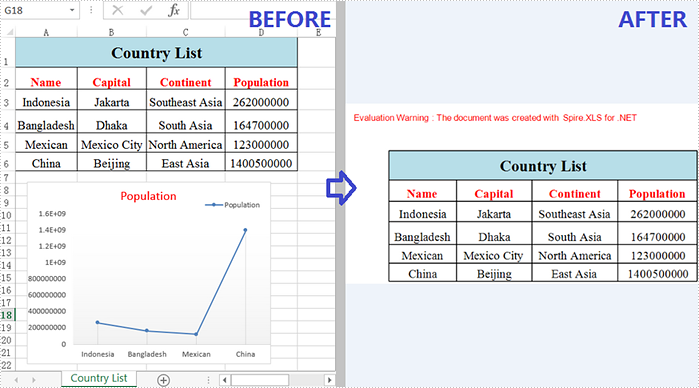
In addition to converting a whole worksheet to an image, Spire.XLS for .NET also supports converting a specific cell range of a worksheet to an image. Detailed steps are listed below.
- Create a Workbook instance.
- Load an Excel sample document using Workbook.LoadFromFile() method.
- Get a specific worksheet of the document using Workbook.Worksheets[] property.
- Specify a cell range and save it as the Image object using Worksheet.ToImage() method, and then save the object as a certain image format using Image.Save() method.
- C#
- VB.NET
using Spire.Xls;
using System.Drawing.Imaging;

namespace SpecificCellsToImage
{

    class Program
    {
        static void Main(string[] args)
        {
            //Create a Workbook instance
            Workbook workbook = new Workbook();

            //Load an Excel sample document
            workbook.LoadFromFile(@"sample.xlsx");

            //Get the first worksheet
            Worksheet sheet = workbook.Worksheets[0];

            //Specify a cell range and save it to a certain image format
            sheet.ToImage(1, 1, 6, 4).Save("CellRangeToImage.png", ImageFormat.Png);
        }
        }
    }
Apply for a Temporary License
If you'd like to remove the evaluation message from the generated documents, or to get rid of the function limitations, please request a 30-day trial license for yourself.
Open XML is an XML-based file format developed by Microsoft that allows users to store and exchange various types of files such as word processing documents, spreadsheets, presentations, charts, and diagrams. It is widely recognized and supported by various applications, making it a reliable choice for long-term data preservation.
In some cases, it may be necessary to convert Excel files to Open XML format to ensure that these files can be opened and read by other software. On the other hand, there may be situations where users need to convert Open XML files to Excel format to take advantage of the data analysis tools available in Excel, such as pivot tables and charts. In this article, we will introduce how to convert Excel to Open XML or Open XML to Excel in C# and VB.NET using Spire.XLS for .NET.
Install Spire.XLS for .NET
To begin with, you need to add the DLL files included in the Spire.XLS for .NET package as references in your .NET project. The DLL files can be either downloaded from this link or installed via NuGet.
PM> Install-Package Spire.XLS
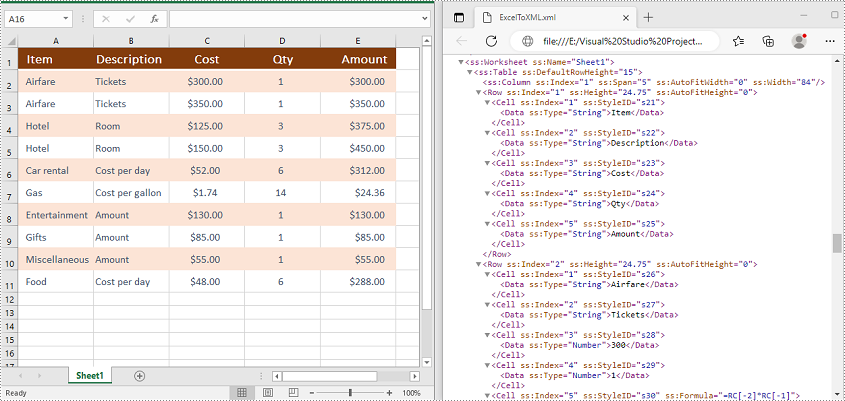
Convert Excel to Open XML in C# and VB.NET
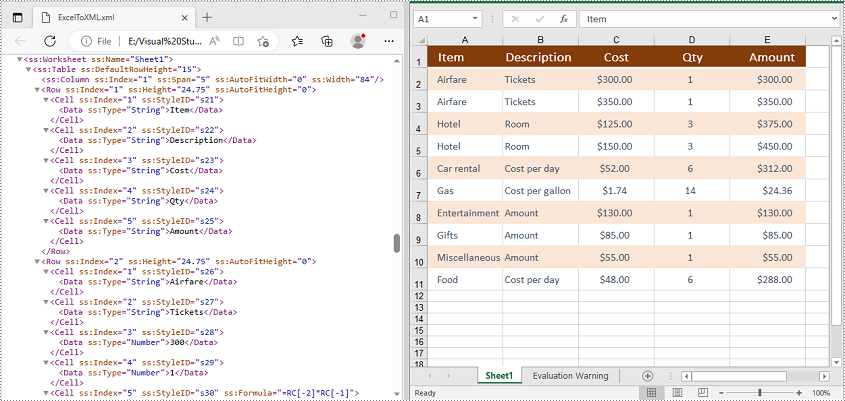
To convert an Excel file to Open XML, you need to load the Excel file using the Workbook.LoadFromFile(string fileName) method, then call the Workbook.SaveAsXml(string fileName) method to save it in Open XML format.
The following steps demonstrate how to convert an Excel file to Open XML:
- Initialize an instance of the Workbook class.
- Load an Excel file using the Workbook.LoadFromFile(string fileName) method.
- Call the Workbook.SaveAsXml(string fileName) method to save the Excel file in Open XML format.
- C#
- VB.NET
using Spire.Xls;

namespace ConvertExcelToOpenXML
{
    internal class Program
    {
        static void Main(string[] args)
        {
            //Initialize an instance of the Workbook class
            Workbook workbook = new Workbook();
            //Load an Excel file
            workbook.LoadFromFile("Sample.xlsx");

            //Save the Excel file in Open XML file format
            workbook.SaveAsXml("ExcelToXML.xml");
        }
    }
}
Convert Open XML to Excel in C# and VB.NET
To convert an Open XML file to Excel, you need to load the Open XML file using the Workbook.LoadFromXml(string fileName) method, then call the Workbook.SaveToFile(string fileName, ExcelVersion version) method to save it in Excel format.
The following are the steps to convert an Open XML file to Excel:
- Initialize an instance of the Workbook class.
- Load an Open XML file using the Workbook.LoadFromXml(string fileName) method.
- Call the Workbook.SaveToFile(string fileName, ExcelVersion version) method to save the Open XML file in Excel format.
- C#
- VB.NET
using Spire.Xls;

namespace ConvertOpenXMLToExcel
{
    internal class Program
    {
        static void Main(string[] args)
        {
            //Initialize an instance of the Workbook class
            Workbook workbook = new Workbook();
            //Load an Open XML file
            workbook.LoadFromXml("ExcelToXML.xml");

            //Save the Open XML file in Excel XLSX file format
            workbook.SaveToFile("XMLToExcel.xlsx", ExcelVersion.Version2016);
        }
    }
}
Apply for a Temporary License
If you'd like to remove the evaluation message from the generated documents, or to get rid of the function limitations, please request a 30-day trial license for yourself.
