
Spire.Agent.Office (24)
Generate PDF Bookmarks and TOC in C# with Spire.Agent.Office
2026-10-14 08:52:32 Written by liu taliaA PDF that runs to dozens or hundreds of pages — a product manual, a technical handbook, a project report, a conference proceedings — loses most of its usability when it has no bookmarks and no table of contents. To get from "Chapter 3" to "5.2 Interface Description", a reader has to scroll page by page or guess the page number from memory. Reviewers and archivists cannot jump to a chapter either.
Bookmarks and a table of contents exist to solve exactly this problem of navigation: bookmarks are the hierarchical structure in the PDF reader's side panel, where one click jumps to the matching chapter; a table of contents page is a single page of text placed before the body, listing chapter titles and page numbers so readers can grasp the structure at a glance or look things up in print. Yet these two things are usually the first to be lost: bookmarks generated when converting Word to PDF can drop out, scanned or reassembled documents have none at all, and adding them by hand means cross-checking titles against page numbers until a long document inevitably goes out of sync.
The PDF AI capability of Spire.Agent.Office lets you describe the bookmark hierarchy and the table of contents requirements in natural language. The AI agent understands the request and completes two kinds of work automatically: generating hierarchical bookmarks for a PDF, and generating a front-of-document contents page whose page numbers match the body and whose entries jump when clicked.
Comparison with Traditional SDK API
| Traditional Spire.Office for .NET API | Spire.Agent.Office | |
|---|---|---|
| Driving style | Write code that walks every page, matches headings by font size or numbering patterns, builds the bookmark tree and assigns each entry a page, controlling every step | Describe the bookmark hierarchy and TOC requirements in natural language; the AI understands them and orchestrates the execution path |
| Code size | Bookmark and TOC generation usually needs 150-300 lines of C# (page iteration, heading detection, hierarchy decisions, bookmark tree construction, page number calculation, TOC page layout and formatting, etc.) | About 10 lines of calling code + 1 natural-language instruction |
| Heading detection | You must define what text counts as a heading, and any change to font size or numbering format means changing the rules | The AI judges heading levels from numbering, font size and layout context; the rules are stated in one sentence in the instruction |
| Page number mapping | TOC page numbers are counted by hand and must be recounted whenever the body changes | The AI reads the actual page numbers from the body and fills them into the TOC |
| Requirement change | Change the bookmark hierarchy / TOC style → change code → compile → redeploy | Modify the instruction and it takes effect immediately |
This article shows how to use the Spire.Agent.Office PDF AI capability to generate bookmarks and a table of contents for PDF documents. Two cases demonstrate the two typical uses — "generating hierarchical bookmarks" and "generating a table of contents page":
- Case 1: Generate hierarchical bookmarks for a PDF
- Case 2: Generate a table of contents page for a PDF
For product installation and SpireToken configuration, please refer to Integrating Spire.Agent.Office in a .NET Project. The examples below assume that Spire.Agent.Office has been installed and SpireToken has been configured.
Case 1: Generate hierarchical bookmarks for a PDF
Documents such as product manuals and technical handbooks usually follow a fixed structure: the body is divided into large parts labelled "Chapter 1", "Chapter 2", and each chapter is broken down further into sections such as "1.1" and "1.2". The layout makes the hierarchy obvious at a glance through numbering and font size, but the PDF reader's navigation panel stays empty — jumping to one specific section means paging through the document yourself.
For that panel to be genuinely useful, the bookmarks must mirror the heading hierarchy exactly: top-level headings become top-level bookmarks, second-level headings become child bookmarks nested under their chapter, and clicking a bookmark jumps straight to the page where the heading appears. Adding them by hand means finding each heading page by page, creating an entry in the bookmark panel, then pointing that entry at the right destination — hundreds of headings in, mistakes are close to inevitable.
The example below uses the Spire.Agent.Office agent to read the chapter structure from the PDF body through a natural-language instruction and generate multi-level bookmarks by heading hierarchy:
using Spire.Agent.Office.AI;
using Spire.Agent.Office.Extensions;
using Spire.Pdf;

// PDF-related configuration
string inputPath = @"E:\manual.pdf";  // path to the PDF that needs bookmarks
string savePath = @"E:\output\manual-with-bookmarks.pdf";  // path of the result file
string key = "**************************";  // SpireToken key
string instruction =
    "Read the body of this PDF product manual and generate hierarchical bookmarks for it:" +
    "1. Detect the chapter headings in the body; headings starting with 'Chapter X' become top-level bookmarks, and headings starting with 'X.Y' become child bookmarks under the matching chapter;" +
    "2. List the bookmarks in the order they appear in the body, keep the hierarchy consistent with the heading structure, and keep each bookmark title identical to the heading text;" +
    "3. Each bookmark jumps to the page where its heading appears, so one click locates that chapter;" +
    "4. Ignore figure captions and headers/footers and do not create bookmarks for them;" +
    "5. Keep the original layout, fonts and page setup of the body unchanged;" +
    "Save the final result as a PDF file";

// Call the PDF document processing function
AIResult result = ExecuteDemoPDF(instruction, inputPath, savePath, key);


// Execute PDF AI processing
static AIResult ExecuteDemoPDF(string instruction, string inputPath, string savePath, string key)
{
    // Create the AIOptions configuration object
    AIOptions options = new AIOptions();
    options.SpireToken = key;  // set the SpireToken key

    // Process the PDF document using a PdfDocument object
    using (PdfDocument pdf = new PdfDocument())
    {
        // Load the PDF document from file
        if (!string.IsNullOrEmpty(inputPath) && File.Exists(inputPath))
        {
            pdf.LoadFromFile(inputPath);
        }
        // Create the AI document processor
        AIDocumentProcessor processor = pdf.AI(options);

        // Execute the AI instruction
        return processor.ExecuteInstruction(pdf, instruction, savePath);
    }
}
The PDF after hierarchical bookmarks were generated
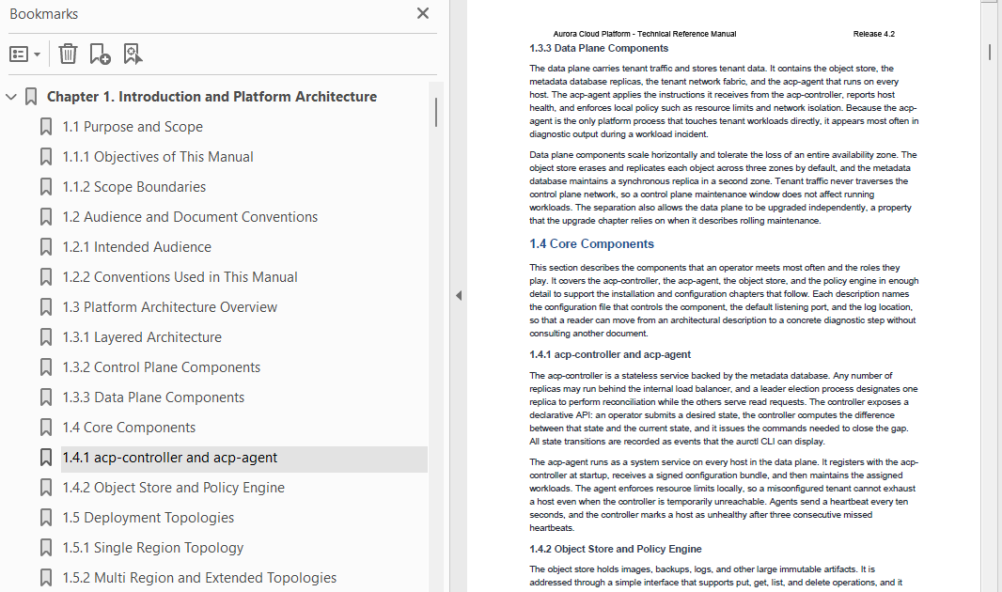
The generated bookmarks reproduce the chapter structure of the body completely: top-level chapters sit at the top of the panel, each section is nested beneath its chapter, and clicking any bookmark jumps to the page where that heading appears. The body layout, fonts and page setup stay exactly as they were — the navigation structure is simply added on top.
Case 2: Generate a table of contents page for a PDF
When a technical proposal, project report or collection of papers is delivered to reviewers or readers, it usually needs a table of contents on the very first page: chapter titles listed line by line, each with the page number where the chapter begins, so readers can see the whole structure before deciding where to start. A contents page is also part of the required style of a formal document, and documents of this kind normally carry a cover page, with the contents sitting after the cover and before the body.
Two things make a contents page awkward to build. The first is the page numbers: they must match the body exactly, and any added or removed chapter, or any change in pagination, means every number has to be recounted. The second is the jumping: a line reading "Section 5.2, page 27" still leaves the reader to find page 27 by hand; only when the entry itself is clickable does the contents page become genuinely useful.
The example below uses the Spire.Agent.Office agent to extract each chapter title with its page number through a natural-language instruction and insert a laid-out, clickable contents page after the cover page:
using Spire.Agent.Office.AI;
using Spire.Agent.Office.Extensions;
using Spire.Pdf;

// PDF-related configuration
string inputPath = @"E:\report.pdf";  // path to the PDF that needs a contents page
string savePath = @"E:\output\report-with-toc.pdf";  // path of the result file
string key = "**************************";  // SpireToken key
string instruction =
    "Read the body of this PDF and generate a table of contents page after the cover page:" +
    "1. Extract the title and page number of every chapter in the body, including both top-level and second-level headings;" +
    "2. Insert a 'Contents' page after the cover page and before the body, listing chapter titles with their page numbers line by line, titles left-aligned and page numbers right-aligned with dot leaders in between;" +
    "3. Make every entry in the contents a clickable link that jumps straight to the page where that chapter begins;" +
    "4. The page numbers shown in the contents must match the actual body pages after the contents page has been inserted; no number may be off by a page;" +
    "5. Centre the word 'Contents' as the title of the page, using the same font size as the top-level headings in the body;" +
    "6. Keep the original layout, fonts and page setup of the body unchanged;" +
    "Save the final result as a PDF file";

// Call the PDF document processing function
AIResult result = ExecuteDemoPDF(instruction, inputPath, savePath, key);


// Execute PDF AI processing
static AIResult ExecuteDemoPDF(string instruction, string inputPath, string savePath, string key)
{
    // Create the AIOptions configuration object
    AIOptions options = new AIOptions();
    options.SpireToken = key;  // set the SpireToken key

    // Process the PDF document using a PdfDocument object
    using (PdfDocument pdf = new PdfDocument())
    {
        // Load the PDF document from file
        if (!string.IsNullOrEmpty(inputPath) && File.Exists(inputPath))
        {
            pdf.LoadFromFile(inputPath);
        }
        // Create the AI document processor
        AIDocumentProcessor processor = pdf.AI(options);

        // Execute the AI instruction
        return processor.ExecuteInstruction(pdf, instruction, savePath);
    }
}
The PDF with a contents page generated after the cover
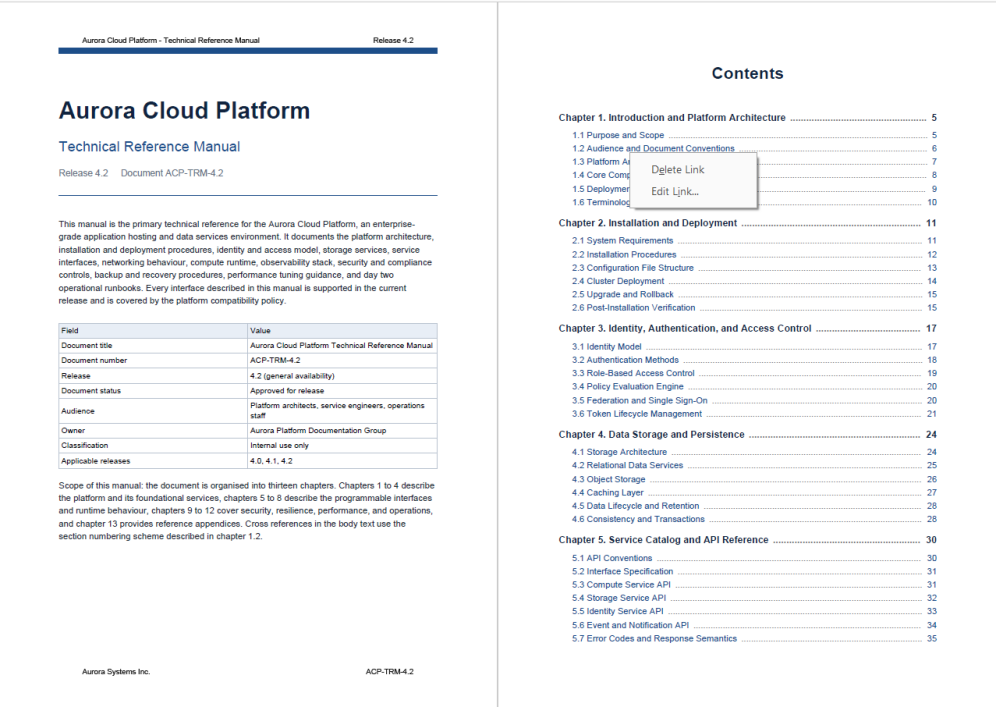
The contents page lists chapters by level, with dot leaders running from each title to its page number, matching the format of a published book. Every entry carries a jump link, so one click lands on the matching chapter — the page works as a reading aid and as a navigation tool at the same time. The body content and its original layout are untouched; the contents page is inserted as a page of its own after the cover.
FAQ
The generated bookmarks have no hierarchy and all headings sit on one level
Cause: The hierarchy in the body is conveyed by numbering format ("Chapter 1" versus "1.1") and font size. If the instruction does not state the rule, the AI may treat every heading it detects as a top-level bookmark.
Solution: State the hierarchy rule in the instruction, for example "headings starting with 'Chapter X' become top-level bookmarks and headings starting with 'X.Y' become child bookmarks under the matching chapter". When the numbering is unusual (such as "Part I" or "Appendix A"), include that rule in the instruction as well.
The page numbers in the contents do not match the actual body pages
Cause: Inserting the contents page in front of the body shifts every following page by one. If the page numbers are collected before the contents page is inserted, every number in the contents comes out one page too low.
Solution: State which numbering basis to use, for example "the page numbers in the contents must match the actual body pages after the contents page has been inserted". If the body already has its own numbering scheme (for instance a cover page and preface that are not numbered), describe that rule in the instruction so the AI counts by the same convention.
Getting a SpireToken Key
- Contact sales@e-iceblue.com or visit https://www.e-iceblue.com/TemLicense.html to obtain a trial/commercial API key
Configure it in your code:
AIOptions options = new AIOptions();
options.SpireToken = key;
Textbook to Courseware and Exercises with Spire.Agent.Office
2026-10-10 01:20:35 Written by liu taliaLesson preparation usually means doing the same work twice. A textbook lays out concepts, worked examples and exercises chapter by chapter, complete and detailed; a deck has to be reorganised into pages fit for the classroom. Teachers condense the material into a handful of points per slide, add the examples and diagrams, split the exercises into one question per page, and prepare answers for review. None of this is technically hard, but it is time-consuming, and every textbook revision means doing it all again.
The Presentation AI in Spire.Agent.Office hands this step to an AI agent: pass the PDF textbook in as an attachment, describe in natural language how the deck should be organised and presented, and the agent reads the material and generates the slides. It produces either a lecture deck (one page per section, with concepts, examples and speaker notes) or an exercise deck (one question per page, with answers revealed as animations on the page).
Comparison with Traditional SDK API
| Traditional Spire.Office for .NET API | Spire.Agent.Office | |
|---|---|---|
| Driving style | Walk the PDF pages to extract text and graphics, then create slides and text boxes page by page, coding all the pagination and layout logic yourself | Pass the textbook in as an attachment, describe how the deck should be organised and presented in natural language, and let the AI orchestrate the execution path |
| Code size | Usually 200-400 lines of C# (page parsing, slide creation, layout, speaker-note writing) | About 10 lines of calling code + 1 natural-language instruction |
| Content extraction | Rewrite long passages into points by hand and pick the examples and redraw the diagrams yourself | The AI reads the textbook and extracts content under a "points + examples + diagrams" rule |
| Layout and notes | Set the layout, font sizes, master and speaker notes of each new slide by hand | The AI applies one consistent layout and writes the teaching notes into the notes pane |
| Requirement change | Change the page count or level of detail → change code → compile → redeploy | Modify the instruction and it takes effect immediately |
This article shows how to use Spire.Agent.Office to generate PowerPoint decks from a PDF textbook. Two cases demonstrate the two typical uses — "generating a lecture deck from a textbook" and "generating an exercise deck from a textbook":
For product installation and SpireToken configuration, please refer to Integrating Spire.Agent.Office in a .NET Project. The examples below assume that Spire.Agent.Office has been installed and SpireToken has been configured.
Case 1: Generate a lecture deck from a textbook
A textbook is complete and logically coherent, but it cannot be projected as it is — a whole paragraph becomes a wall of small text on screen, and the hierarchy that the textbook conveys through layout has to be rebuilt with pages. What a teacher needs to do is reorganise it section by section: keep that section's core concepts, formulas and typical worked examples, rewrite long passages into points that read well in class, and carry over the textbook's diagrams. Each page must hold enough to support a full lesson without copying whole paragraphs, or it becomes too dense to read. The deck as a whole then uses one consistent layout: a light colour theme, page-by-page animations and a few supporting images, with body text no smaller than 24 pt.
How the examples are presented matters most. A textbook usually derives a formula or theorem before stating the conclusion; if the deck only carries the conclusion across, students cannot see where it comes from, so the instruction requires examples to keep their full derivation. What the teacher needs to be reminded of while teaching — the emphasis on that page, the common mistakes and the pacing — goes into the speaker notes, invisible when projected and shown only in Presenter View. The example below passes the PDF textbook in as an attachment:
using Spire.Agent.Office.AI;
using Spire.Agent.Office.Extensions;
using Spire.Presentation;

// the textbook file passed in as an attachment
string[] attachmentPaths = new string[]
{
    @"E:\textbook\Proportion.pdf"
};

// PPT-related configuration
string inputPath = null;  // the deck is generated from scratch, so no input PPT is needed
string savePath = @"E:\textbook\Proportion.ppt";  // result path
string key = "**************************";  // SpireToken key
string instruction =
    "Read the attached PDF textbook and generate a lecture deck as follows:" +
    "1. Follow the textbook's original chapter order and omit nothing;" +
    "2. Make each page substantial: list the chapter's core concepts and formulas, together with the textbook's typical worked examples;" +
    "3. Worked examples must show the full derivation steps, not just the conclusion;" +
    "4. Keep the diagrams, tables and data from the textbook and use them to support the explanation so that students can follow;" +
    "5. Write speaker notes for each page covering the key points, common mistakes and pacing;" +
    "6. Apply one consistent layout to every page, use a light colour theme, add appropriate animations and images, and keep body text at 24 pt or larger;" +
    "Save the final result as a PPT file";

// Call the PPT document processing function
AIResult result = ExecuteDemoPpt(instruction, inputPath, savePath, key, attachmentPaths);

// Execute the PPT AI processing
static AIResult ExecuteDemoPpt(string instruction, string inputPath, string savePath, string key, string[] attachmentPaths)
{
    // Create the AIOptions configuration object
    AIOptions options = new AIOptions();
    options.SpireToken = key;  // set the SpireToken key

    // Process the PPT document with a Presentation object
    using (Presentation ppt = new Presentation())
    {
        // Load the PPT document from file (not needed when generating a deck from scratch)
        if (!string.IsNullOrEmpty(inputPath) && File.Exists(inputPath))
        {
            ppt.LoadFromFile(inputPath);
        }
        // Create the AI document processor
        AIDocumentProcessor processor = ppt.AI(options);

        // Execute the AI instruction
        return processor.ExecuteInstruction(ppt, instruction, savePath, attachmentPaths);
    }
}
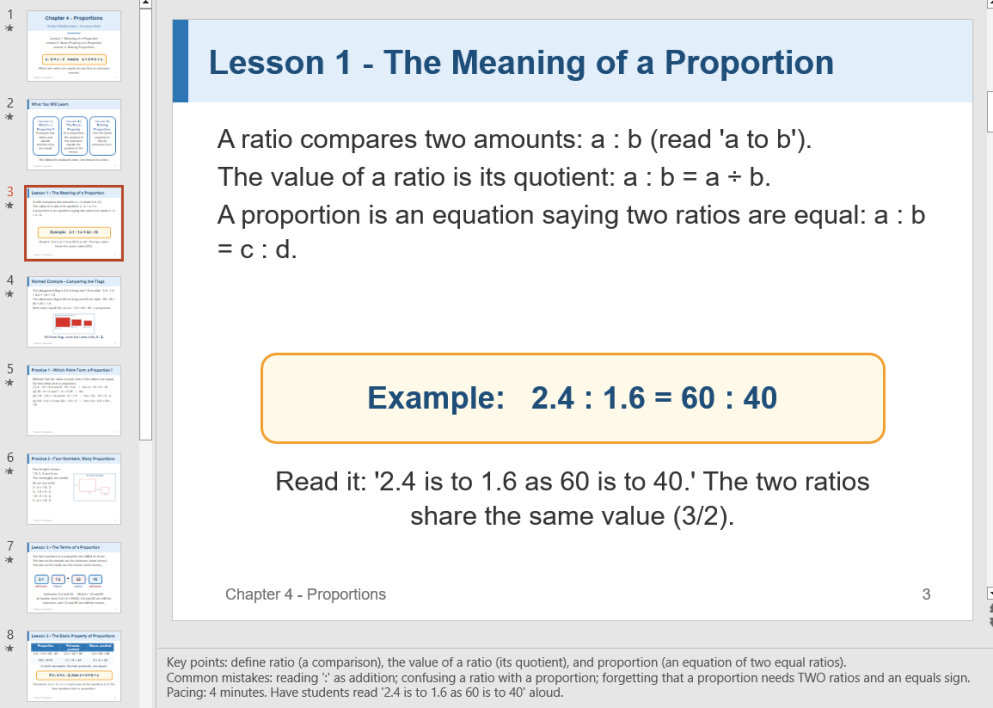
A lecture deck generated from the textbook
Case 2: Generate an exercise deck from a textbook
The exercise set is after-class practice: students work through it on their own, and the teacher walks through it question by question in the next lesson. On slides the exercises need one question per page, with the answer built as an animation that only appears when the teacher reaches that question, so students judge for themselves first and then check their reasoning against the walkthrough.
Moving a set of exercises onto slides, however, is a fair amount of work: the exercises run as a continuous sequence of numbered items packed several to a page, so each one has to be picked out and re-laid-out one question per page; the tables and diagrams inside the questions must be carried over too, or students cannot read the question; and the answers needed for the walkthrough have to be worked out one by one and built as animations. This case treats the exercise deck as a standalone deliverable: pass the PDF of the after-class exercises in as an attachment, and the AI extracts and lays out each question, with the question always on the page and the answer revealed as an animation when the teacher triggers it:
using Spire.Agent.Office.AI;
using Spire.Agent.Office.Extensions;
using Spire.Presentation;

// the textbook's exercise section passed in as an attachment
string[] attachmentPaths = new string[]
{
    @"E:\textbook\ProportionExercises.pdf"
};

// PPT-related configuration
string inputPath = null;  // the deck is generated from scratch, so no input PPT is needed
string savePath = @"E:\textbook\ProportionExercises.ppt";  // result path
string key = "**************************";  // SpireToken key
string instruction =
    "Read the attached PDF textbook exercises and generate an exercise deck as follows:" +
    "1. Follow the textbook's original question order, one question per page, omitting and merging nothing;" +
    "2. Keep the full question text, options and diagrams so that students can answer directly;" +
    "3. Show the answers as animations;" +
    "4. Apply one consistent layout to every page, use a light colour theme, add appropriate animations and images, and keep body text at 24 pt or larger;" +
    "Save the final result as a PPT file";

// Call the PPT document processing function
AIResult result = ExecuteDemoPpt(instruction, inputPath, savePath, key, attachmentPaths);

// Execute the PPT AI processing
static AIResult ExecuteDemoPpt(string instruction, string inputPath, string savePath, string key, string[] attachmentPaths)
{
    // Create the AIOptions configuration object
    AIOptions options = new AIOptions();
    options.SpireToken = key;  // set the SpireToken key

    // Process the PPT document with a Presentation object
    using (Presentation ppt = new Presentation())
    {
        // Load the PPT document from file (not needed when generating a deck from scratch)
        if (!string.IsNullOrEmpty(inputPath) && File.Exists(inputPath))
        {
            ppt.LoadFromFile(inputPath);
        }
        // Create the AI document processor
        AIDocumentProcessor processor = ppt.AI(options);

        // Execute the AI instruction
        return processor.ExecuteInstruction(ppt, instruction, savePath, attachmentPaths);
    }
}
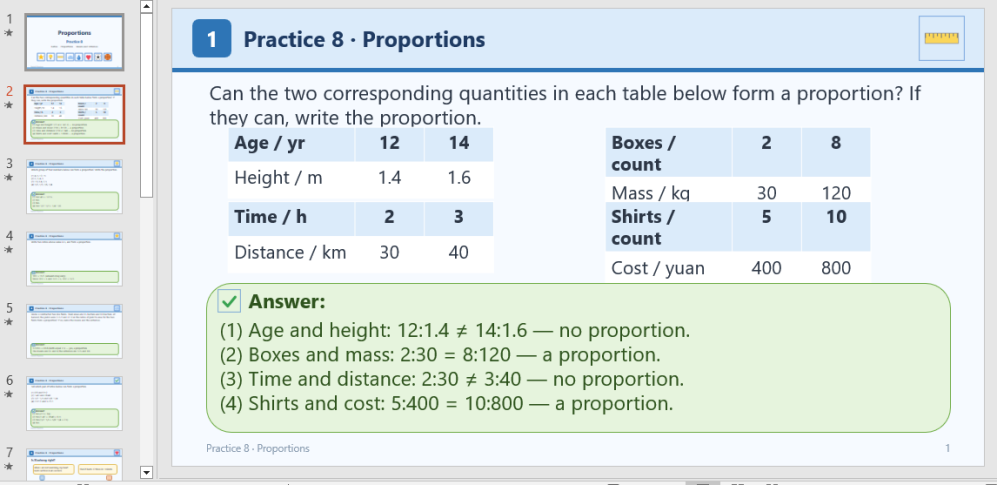
An exercise deck generated from the textbook
FAQ
The body text is copied straight from the textbook and is too small to project
Cause: The instruction does not say what each page should hold, so the AI carries whole paragraphs onto the page and shrinks the font to fit them in.
Solution: Ask explicitly for each page to list the core concepts and formulas with the typical worked examples, and to keep the textbook's diagrams and tables, rather than copying whole paragraphs across; also set a minimum font size (for example, "keep body text at 24 pt or larger"). Constrain only the font size and the enlarged text overflows the page; constrain only the form of the content with no lower bound and the layout may still be squeezed.
A long textbook takes a very long time, or times out
Cause: Deck generation runs page by page, and the AI repeatedly reads and writes the document, sending the existing content back to the model each time. The more pages there are and the denser the text on each, the faster token use and elapsed time grow.
Solution: Set TimeoutMs (in milliseconds) when creating AIOptions. A full textbook of several dozen pages can be given 10 minutes (600000).
AIOptions options = new AIOptions();
options.TimeoutMs = 600000;  // allow 10 minutes for a long textbook
options.SpireToken = key;
Getting a SpireToken Key
- Contact sales@e-iceblue.com or visit https://www.e-iceblue.com/TemLicense.html to obtain a trial/commercial API key
Configure it in your code:
AIOptions options = new AIOptions();
options.SpireToken = key;
Generate PPT Speaker Notes and Script with Spire.Agent.Office
2026-09-24 01:11:54 Written by liu taliaWhen you build a presentation, the part that really costs time is rarely the layout — it is deciding what to say. A slide only has room for the essentials: a few short lines, a set of numbers, one chart. The words that actually need to be spoken live in the author's head. The night before the talk, the author reads the whole deck again, slide by slide, trying to remember what each page was meant to say, and then writes it up.
It gets worse when a team is involved. For a product launch, one person writes the content, another builds the slides, and a third delivers the talk. Whoever steps on stage inherits a deck of bullet points with no idea which numbers matter most — so they improvise. Speaker notes exist precisely for this: they never appear on the projector, only in Presenter View, as the author's message to the speaker. In practice, almost nobody has the patience to fill them in page by page.
The PowerPoint AI capability in Spire.Agent.Office lets you describe in plain language what the notes should say and what tone the script should take. The AI agent reads the title and bullet points of every slide and then handles two jobs: writing speaker notes for each slide, and expanding the whole deck into a Word script that can be read aloud directly.
Compared with the Traditional SDK API
| Traditional Spire.Office for .NET API | Spire.Agent.Office | |
|---|---|---|
| Driving model | Loop over slides, pull text out of each shape, assemble the copy yourself, then write it back to the notes page — every step is code | Describe the writing requirements in natural language and let the AI plan the execution path |
| Code size | 150-300 lines of C# (slide iteration, shape traversal, text extraction, notes-page writing, font and paragraph settings) | About 10 lines of calling code plus one natural-language instruction |
| Content generation | You must wire up a model yourself or hand-write templates, and it is hard to keep each slide in context | The AI understands each slide's points and writes copy that reads coherently page to page |
| Layout handling | Writing notes easily damages the original layout and placeholder structure | The AI preserves the original layout, fonts and colours, appending only to the notes pane |
| Changing requirements | Adjust tone, length or script format → edit code → rebuild → redeploy | Edit the wording of the instruction and it takes effect immediately |
This article shows how to use Spire.Agent.Office to generate speaker notes and a script for a PowerPoint deck. Two cases cover the two common patterns — adding notes to an existing deck and turning a report into a Word script:
- Case 1: Generate per-slide speaker notes for a deck
- Case 2: Turn a business review into a ready-to-read Word script
For product installation and SpireToken configuration, please refer to Integrating Spire.Agent.Office in a .NET Project. The examples below assume Spire.Agent.Office is installed and SpireToken is configured.
Case 1: Generate per-slide speaker notes for a deck
The most common situation is a deck that is already final: layout and content stay exactly as they are, and the only thing missing is the prompt for whoever has to speak. A projected slide is built to be read at a glance, so it carries a title and a few bullet points — where the emphasis falls, what is behind each number, and how to move from one page to the next all stay in the author's head. Speaker notes are what carry that across. They are the author's handover to the presenter: what this page is really getting at, what to stress, and how to lead naturally into the next one. This product launch deck has 8 slides, each with a title and a few bullet points, and an empty notes pane from start to finish. The presenter needs one short paragraph per slide — not an essay, but enough to present the deck rather than read it out. Writing those notes by hand is expensive because every slide needs its own thought. Read the page, rebuild the sentence, and calibrate length — too short and it is no help, too long and it turns into reading from a script. Eight slides is tolerable; a fifty-page annual review rarely gets the treatment it deserves.
The example below uses the Spire.Agent.Office agent to read every slide and write speaker notes into the notes pane, ready to be read aloud:
using Spire.Agent.Office.AI;
using Spire.Agent.Office.Extensions;
using Spire.Presentation;

// PowerPoint processing configuration
string inputPath = @"E:\product-launch.pptx";  // Deck to add speaker notes to
string savePath = @"E:\product_result.pptx";  // Result document path

string key = "**************************";  // SpireToken key
string instruction = "Generate speaker notes for each slide of the input PPT file and write them into the notes pane of that slide: " +
"1. Read each slide's title and bullet points and understand what the page is meant to convey; " +
"2. Write one paragraph of speaker notes per slide, in the presenter's voice, ready to be read aloud; " +
"3. Each note should make clear what this page emphasises and lead naturally into the next slide; keep the notes varied in depth — explain the important content in detail and keep transition slides brief; " +
"4. Keep the original slide layout, fonts, colours and page order completely unchanged, and do not add or remove any slides; " +
"Finally, save the output as a PowerPoint file";

// Call the PowerPoint processing function
AIResult result = ExecuteDemoPpt(instruction, inputPath, savePath, key);

// Run the PowerPoint AI processing
static AIResult ExecuteDemoPpt(string instruction, string inputPath, string savePath, string key)
{
    // Create the AIOptions configuration object
    AIOptions options = new AIOptions();
    options.SpireToken = key;  // Set the SpireToken key

    // Process the PowerPoint document with a Presentation object
    using (Presentation ppt = new Presentation())
    {
        // Load the PowerPoint document from file
        if (!string.IsNullOrEmpty(inputPath) && File.Exists(inputPath))
        {
            ppt.LoadFromFile(inputPath);
        }
        // Create the AI document processor
        AIDocumentProcessor processor = ppt.AI(options);

        // Execute the AI instruction
        return processor.ExecuteInstruction(ppt, instruction, savePath);
    }
}
The original deck with an empty notes pane
 The deck after speaker notes were written slide by slide
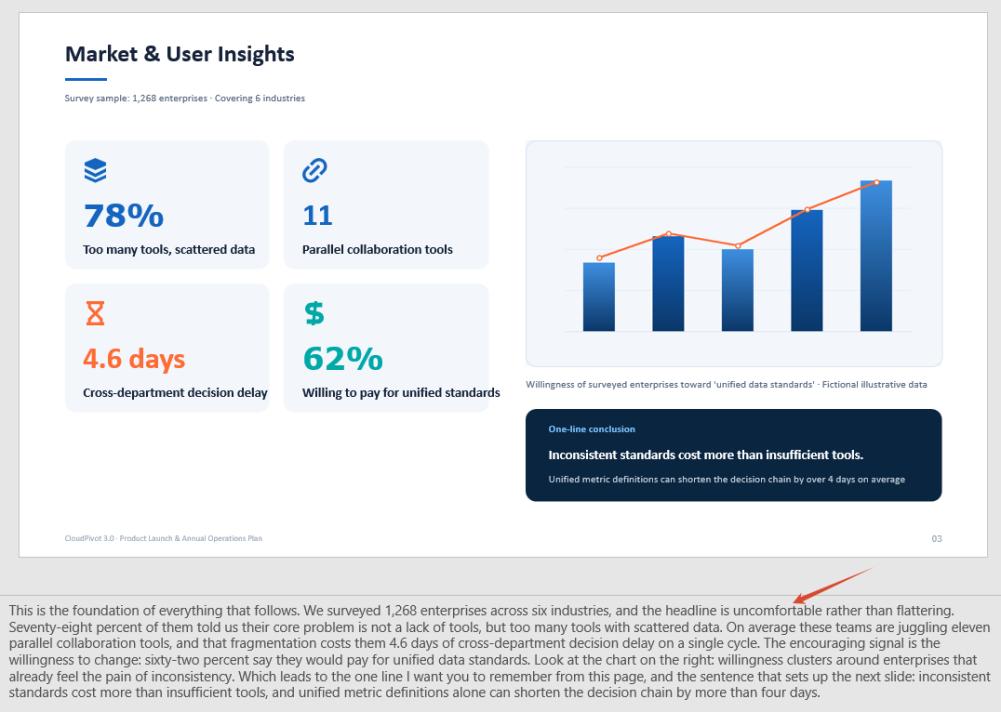
The generated deck looks identical to the original on the projector; the notes appear only in Presenter View. The speaker opens Presenter View and sees the prompt for each slide below it, ready to deliver a complete product launch in order.
Case 2: Turn a business review into a ready-to-read Word script
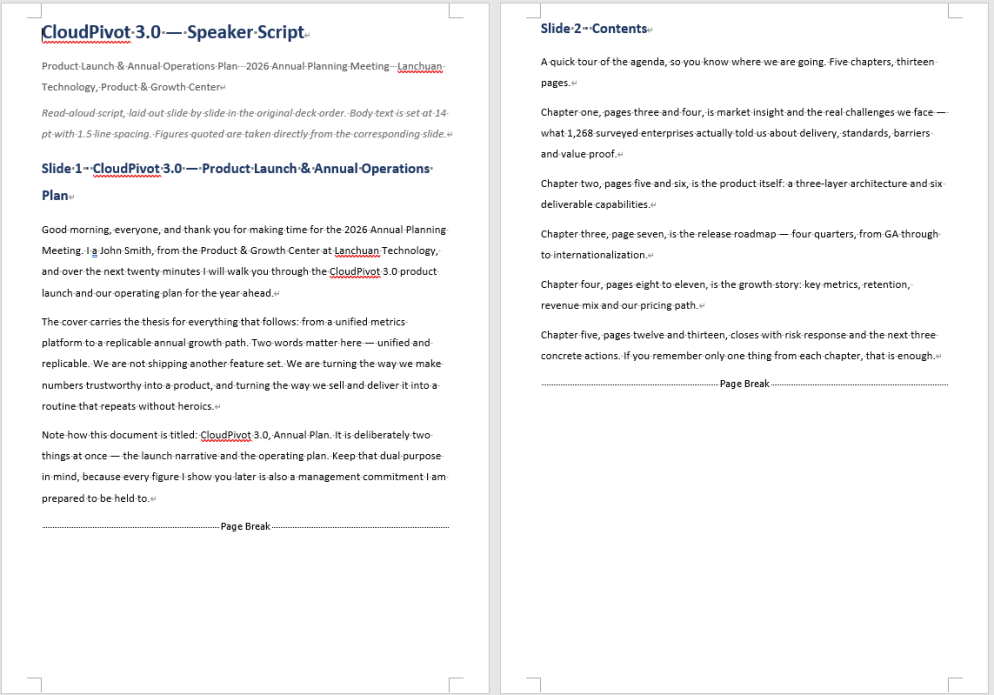
The notes pane is good for prompting, but not for reading aloud. Notes are short fragments in a small font at the edge of the screen; looking down at them on stage hurts delivery and invites missed lines. When the occasion is more formal — reporting quarterly results to management, for instance, where every figure has to be explained — the speaker needs a complete, spoken-word script. The medium for that script deserves a word of its own. A presentation is made to be looked at; a script is made to be read. A script needs control over font size, line spacing and sectioning, and it is usually printed and carried into the room. Packing several hundred words of body text onto each slide reads badly — and projecting it hands the audience every line. So this case takes a PPT as input and produces a Word script document as output.
Handling that format change is exactly what Spire.Agent.Office does: the deck is still loaded with Presentation, the AI reads each slide, and it writes the script as a Word file following the instruction. So this case has the AI read the figures page by page and then write the script as sections in the original order: each slide of the original becomes one section of the script document, keeping the original title, with the body holding the full script text.
The example below uses the Spire.Agent.Office agent to interpret the figures page by page and write the script, producing a Word document:
using Spire.Agent.Office.AI;
using Spire.Agent.Office.Extensions;
using Spire.Presentation;

// PowerPoint processing configuration
string inputPath = @"E:\quarterly-review.pptx";  // Input presentation path
string savePath = null;  // Result document path (null here, the output folder below is used instead)
string OutDir = @"E:\output-script";  // Output directory
string key = "**************************";  // SpireToken key
string instruction =
    "Read the input PPT file and write a complete presentation script for the speaker, outputting it as a Word script document: " +
    "1. Read the figures and bullet points on each slide and understand the core conclusion of that page; " +
    "2. Write a complete, conversational script per slide that can be read aloud directly; keep it varied in depth, quote the specific figures on that page and explain what they mean for the business; " +
    "3. Lay the script out as sections in the original slide order, each headed 'Slide N + the original title', with the full script for that page as the body; " +
    "4. Format the body for reading aloud: a clear typeface, no smaller than 14 pt, 1.5 line spacing, comfortable paragraph spacing;";

// Call the PowerPoint processing function
AIResult result = ExecuteDemoPpt(instruction, inputPath, savePath, key, OutDir);

// Run the PowerPoint AI processing
static AIResult ExecuteDemoPpt(string instruction, string inputPath, string savePath, string key, string output)
{
    // Create the AIOptions configuration object
    AIOptions options = new AIOptions();
    options.WorkDir = output;  // Set the working directory to the output directory
    options.SpireToken = key;  // Set the SpireToken key

    // Process the PowerPoint document with a Presentation object
    using (Presentation ppt = new Presentation())
    {
        // Load the PowerPoint document from file
        if (!string.IsNullOrEmpty(inputPath) && File.Exists(inputPath))
        {
            ppt.LoadFromFile(inputPath);
        }
        // Create the AI document processor
        AIDocumentProcessor processor = ppt.AI(options);

        // Execute the AI instruction
        return processor.ExecuteInstruction(ppt, instruction, savePath);
    }
}
The generated Word script document
FAQ
Can I use my own model or a private deployment?
Note: By default the AI requests go to Spire's model service. AIOptions also exposes Model, BaseUrl and ApiKey for the model name, the service address and the access key — set these three to route the requests to your own or a third-party inference service.
AIOptions options = new AIOptions();
options.BaseUrl = "baseUrl";
options.Model = "modelName";
options.SpireToken = "*************";
options.ApiKey = "*************";
A long deck is slow to process — and may time out
Cause: Notes and scripts are generated page by page, so the AI reads and writes the document repeatedly and sends the existing content back to the model each time. The more slides there are, and the denser the text on each, the faster token consumption grows and the longer the whole run takes — the default timeout is often not enough.
Solution: Set TimeoutMs explicitly on the AIOptions instance (the unit is milliseconds) so a long deck has enough time. For a 50-slide PPT file, TimeoutMs can be set to 10 minutes (600000).
Getting a SpireToken Key
- Contact sales@e-iceblue.com or visit https://www.e-iceblue.com/TemLicense.html for a trial or commercial API key
Configure it in code:
AIOptions options = new AIOptions();
options.SpireToken = key;
In tendering, the technical bid response is a step every bid must go through, and one of the easiest to get wrong. A tender document runs to dozens or hundreds of pages, and its "Technical Requirements" chapter holds anywhere from dozens to hundreds of clauses. A bidder has to respond to each clause and state the deviation, and a single unanswered clause can invalidate the bid. The responses must also line up with the bidder's own product parameters, test reports and project references — content that is too generic is scored as non-responsive, while inventing parameters or references to pad out a "fully compliant" answer creates far worse contractual and compliance risk if the bid wins. Traditionally a bidding specialist reads clause by clause, looks up the materials and fills in the table row by row. That takes days per bid, and the depth and wording of the responses vary widely between projects and between people.
Compared with the Traditional SDK API
| Traditional Spire.Office for .NET API | Spire.Agent.Office | |
|---|---|---|
| Driving method | Code handles every clause: load the tender document → split clauses with regex → match enterprise materials by keyword → fill the response table row by row, each step controlled in code | Describe the response requirements in natural language; the AI splits the clauses and matches responses clause by clause |
| Code volume | Substantial code to maintain clause-splitting rules, material-matching logic and table filling | Configuration code plus one natural language instruction |
| Clause splitting | Relies on clause numbers and ★▲ symbols as regex anchors; cross-page tables and multi-level numbering are easily split wrongly or dropped | The AI reads semantics together with numbering, so hierarchy and page breaks lose no clauses |
| Material matching | Keyword hits only; two different wordings of the same capability never match | Semantic matching; a capability description in the product manual maps onto a specific clause |
| Deviation assessment | Assessment rules must be hard-coded; better-than / equal / missing is hard to formalize | Each clause is judged against the criteria given in the instruction, and the AI downgrades when evidence is thin |
| Maintainability | A change in tender format or assessment criteria means code changes and a new release | Assessment criteria and chapter structure are adjusted in natural language at any time |
This article shows how to use the Word AI capability of Spire.Agent.Office to hand the tender document and your enterprise technical materials to the AI together and generate, in one pass, a complete technical bid response document containing the technical response table and the technical proposal body. Both single-lot and multi-lot batch usage are covered.
- Single lot: one tender document, one complete technical bid
- Multiple lots: batch output from several tender documents, one consistent standard
For product installation and SpireToken configuration, see Integrating Spire.Agent.Office into a .NET project. The examples below assume Spire.Agent.Office is installed and SpireToken is configured.
Technical Bid Response Generation
Technical bid response generation is the process of extracting the technical requirement clauses from a tender document, writing a response for each clause against the bidder's own technical materials, assessing the deviation, and organizing the result into a submittable technical bid document. The core approach: pass the tender document and the enterprise technical materials to the AI as attachments, have the AI generate a "technical response table" clause by clause under the tender document's original numbering, then continue into the technical proposal body based on those responses — producing the complete technical bid response document in one pass.
This addresses three difficulties the traditional approach cannot get around:
- Semantic correspondence: the tender says "supports deployment in a domestic xinchuang environment" while the enterprise materials say "adaptation for Kylin and UOS completed" — different wording for the same thing, and only semantic understanding maps the two. Keyword matching cannot.
- No omissions: the number of response clauses matches the technical requirements in the tender document exactly, with no merging and nothing dropped, which removes the risk of an invalid bid at the source.
- No fabrication: any clause without support in the enterprise materials is assessed as "Partially Compliant" with the missing items noted, instead of writing extra content to reach "Fully Compliant".
Single lot: one tender document, one complete technical bid
using Spire.Agent.Office.AI;
using Spire.Agent.Office.Extensions;
using Spire.Doc;

// Tender document and enterprise technical materials (data source files)
string[] attachmentPaths = new string[] {
    @"E:\Input\XX-Project-Tender-Document.docx",
    @"E:\Input\Enterprise-Technical-Materials.docx"
};
// Save path
string savePath = @"E:\Output\XX-Project-Technical-Bid-Response.docx";
// SpireToken key
string key = "**************************";
// Natural language instruction
string instruction =
    "Based on the attached tender document and enterprise technical materials, write a technical bid response document: generate a Technical Response Table clause by clause under the tender document's original numbering (No. | Tender Requirement | Our Response | Deviation | Notes), one to one with the requirements and with none omitted; " +
    "deviation takes only Fully Compliant / Partially Compliant / Non-Compliant, and the response must cite the matching model, parameters or project reference from the materials, while any clause without support is assessed Partially Compliant with the missing items noted and nothing invented; " +
    "after the table, continue with a five-chapter technical proposal body: project understanding, technical solution, implementation plan, quality assurance and after-sales service.";

// Call the Word document processing function
AIResult result = ExecuteDemoWord(instruction, savePath, key, attachmentPaths);


// Run the Word document AI processing
static AIResult ExecuteDemoWord(string instruction, string savePath, string key, string[] attachmentPaths)
{
    // Create the AIOptions configuration object
    AIOptions options = new AIOptions();
    // Set the single-call timeout budget (ms)
    options.TimeoutMs = 3600000;
    // Set the SpireToken key
    options.SpireToken = key;

    // Process the Word document with a Document object
    using (Document doc = new Document())
    {
        // Create the AI document processor
        AIDocumentProcessor processor = doc.AI(options);

        // Execute the AI instruction
        return processor.ExecuteInstruction(doc, instruction, savePath, attachmentPaths);
    }
}
The technical bid response document generated by the AI (technical response table + technical proposal body):
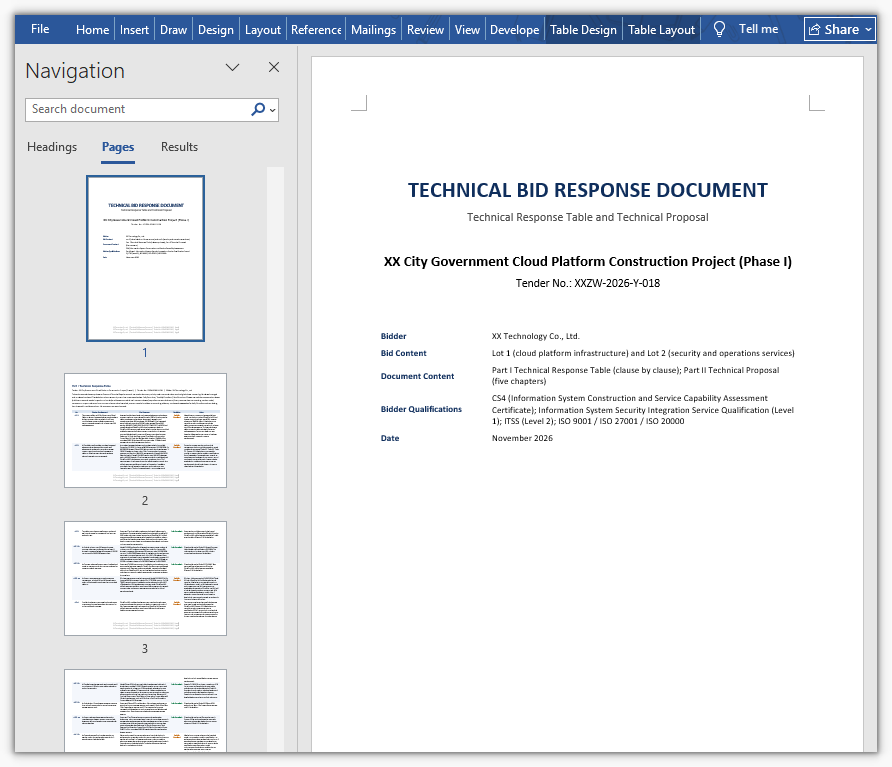
In the generated document the technical response table follows the tender document's original clause numbers one by one, and each row states the response and the deviation. Clauses with matching evidence cite specific product models and project references; the proposal body expands from the response table into the five chapters on project understanding, technical solution, implementation plan, quality assurance and after-sales service. The bidding specialist only has to check that the deviation assessments match reality and supply the materials that are missing, then move on to internal sign-off.
Multiple lots: batch output from several tender documents, one consistent standard
When a project is divided into several lots, each lot's tender document carries different technical requirements, but all lots use the same enterprise technical materials, which makes a single batch call a good fit. Set options.WorkDir to the output directory, pass null as savePath, and hand in every lot's tender document as an attachment — one call then produces several files, each named by the AI after its lot. Because all lots share the same materials and the same instruction, the assessment standard stays consistent by construction.
One caveat: a single call runs against a timeout budget (about 300 seconds by default), so a multi-lot batch should raise options.TimeoutMs; otherwise the call is cut off when the budget runs out.
using Spire.Agent.Office.AI;
using Spire.Agent.Office.Extensions;
using Spire.Doc;

// Tender documents for the lots (data source files)
string[] lotFiles = new string[] {
    @"E:\Input\Lot-1-Technical-Requirements.docx",  // Lot 1 tender document
    @"E:\Input\Lot-2-Technical-Requirements.docx"   // Lot 2 tender document
};
// All lots share the same enterprise technical materials
string materialPath = @"E:\Input\Enterprise-Technical-Materials.docx";
// Output directory
string OutDir = @"E:\Output";
// SpireToken key
string key = "**************************";
// Natural language instruction
string instruction =
    "Based on the attached tender documents and enterprise technical materials, generate a Technical Response Table clause by clause under that lot's original numbering (No. | Tender Requirement | Our Response | Deviation | Notes), one to one with that lot's requirements and with none omitted; " +
    "deviation takes only Fully Compliant / Partially Compliant / Non-Compliant, assessed as met or better → Fully Compliant, differences that do not affect use → Partially Compliant, cannot be met → Non-Compliant; " +
    "the response must cite the matching model, parameters or project reference from the materials, while any clause without support is assessed Partially Compliant with the missing items noted and nothing invented; " +
    "after the table, continue with a five-chapter technical proposal body: project understanding, technical solution, implementation plan, quality assurance and after-sales service; " +
    "the attachments hold two lots, so produce one document per lot, 2 files in total, each named with an 'output' prefix plus the lot and written directly into the working directory with no .csx script.";

// Attachments: two lot tender documents + the shared enterprise technical materials
string[] attachmentPaths = new string[] { lotFiles[0], lotFiles[1], materialPath };

// Call the Word document processing function
AIResult result = ExecuteDemoWordMultiLot(instruction, null, key, OutDir, attachmentPaths);


// Run the Word document AI processing
static AIResult ExecuteDemoWordMultiLot(string instruction, string? savePath, string key, string output, string[] attachmentPaths)
{
    // Create the AIOptions configuration object
    AIOptions options = new AIOptions();
    // Set the working directory to the output directory
    options.WorkDir = output;
    // Set the single-call timeout budget (ms)
    options.TimeoutMs = 3600000;
    // Set the SpireToken key
    options.SpireToken = key;

    // Process the Word document with a Document object
    using (Document doc = new Document())
    {
        // Create the AI document processor
        AIDocumentProcessor processor = doc.AI(options);

        // Execute the AI instruction
        return processor.ExecuteInstruction(doc, instruction, savePath, attachmentPaths);
    }
}
The technical bid response documents generated in batch by the AI (one per lot, named after the lot)
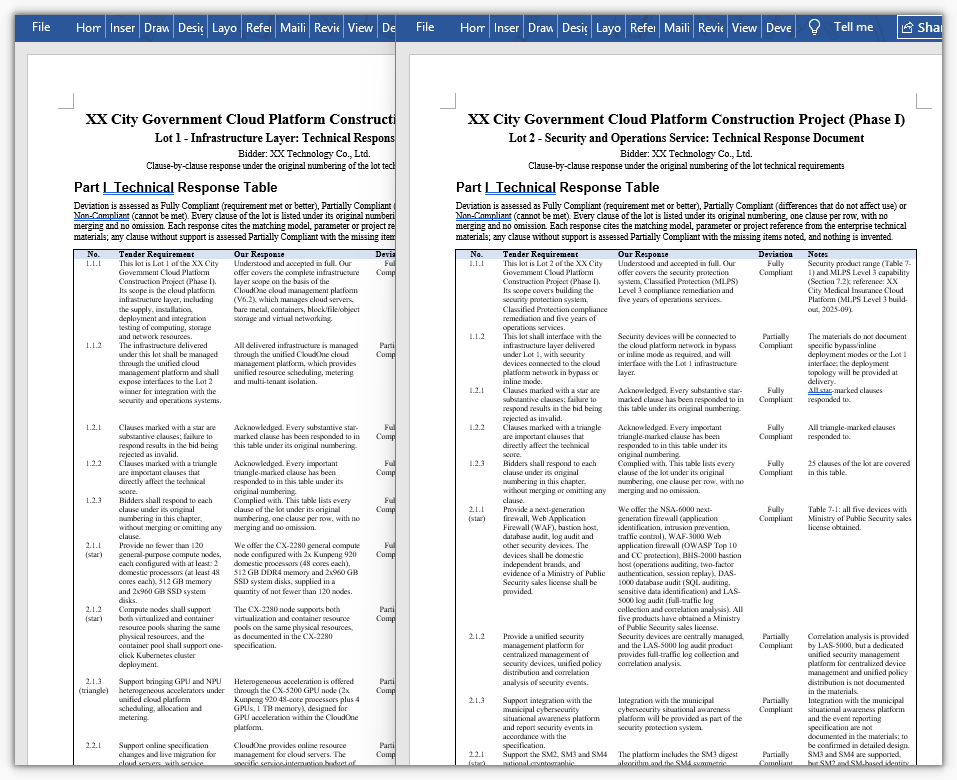
One call produces one independent response document per lot, named after the lot so that each can be submitted separately. Because all lots share the same deviation criteria and the same technical materials, the response standard stays consistent across lots — the same capability is not assessed "Fully Compliant" in one lot and "Partially Compliant" in another.
Common Questions
Response clauses are missing and the count does not match the tender document
Cause: the technical requirements in a tender document are often laid out as multi-level numbering, cross-page tables or even images, and the AI may merge adjacent clauses when splitting, or miss the entries that continue on the following page.
Solution: state in the instruction that each clause must be extracted individually and never merged or summarized, and require that the number of response clauses match the technical requirements in the tender document. For projects with many clauses, first have the AI output a clause list on its own (number + original text), check the count manually, and only then generate the responses — a two-step flow of "split first, respond second".
Responses are generic and do not reflect the company's actual capability
Cause: only the tender document was attached and no enterprise technical materials, so the AI can only write generic wording.
Solution: attach product manuals, test reports, qualification certificates and references for similar projects, and require in the instruction that "clauses with matching evidence must cite the specific product model, technical parameters or project reference".
Invented parameters, certificates or project references appear
Cause: when tender requirements and enterprise materials diverge, the AI tends to write extra content to fill the response table.
Solution: state in the instruction that "inventing parameters, certificates or project references to reach full compliance is forbidden; anything that cannot be confirmed is left blank and marked for manual confirmation", and write "any clause with no corresponding content in the materials is assessed as Partially Compliant" in as a hard rule.
Every deviation is assessed as "Fully Compliant"
Cause: no deviation criteria were given, so the AI sets its own standard, which usually leans lenient.
Solution: write the assessment standard into the instruction, for example "tender requirements fully met or better → Fully Compliant; differences that do not affect use → Partially Compliant; cannot be met → Non-Compliant". For stricter assessment, add "Fully Compliant may be assessed only when the enterprise materials provide explicit parameters or project references".
The response table layout breaks down and long clauses run together
Cause: a response table has many columns and long cell contents, so the AI may reorder columns or produce abnormal row heights when laying it out.
Solution: fix the column names and column order in the instruction (No. | Tender Requirement | Our Response | Deviation | Notes), and add layout requirements as needed (table centered, header row bold, body 12 pt, 1.5 line spacing); for very long clauses, require that "the Tender Requirement column keeps the original sentence, truncated at 80 characters with a trailing ellipsis".
Get the SpireToken Key
- Contact sales@e-iceblue.com or visit https://www.e-iceblue.com/TemLicense.html for a trial or commercial API key
Configure it in code:
AIOptions options = new AIOptions();
options.SpireToken = key;
Batch Payslip Splitting and PDF Distribution with Spire.Agent.Office
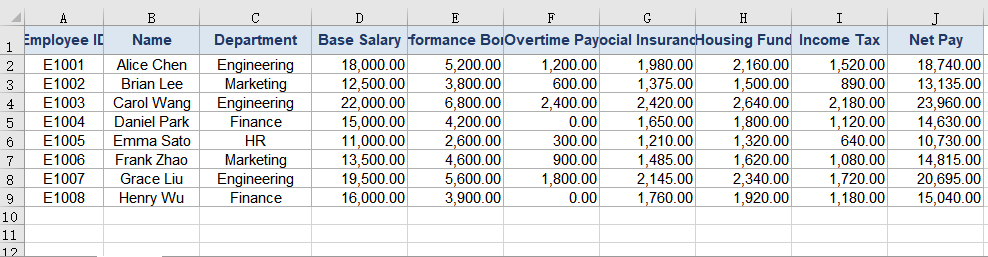
2026-09-21 02:26:59 Written by liu taliaIn HR and finance departments, distributing payslips is a monthly task that is small in substance yet remarkably tedious. A payroll sheet is usually an Excel table arranged by rows — each row is one employee, while the columns hold base salary, performance bonus, overtime pay, social insurance deduction, housing fund, individual income tax and net pay. But when the sheet reaches employees, each person should only see their own row. So "one sheet" must first be "split into N copies", and then each copy sent out one by one.
The traditional approach is copy-and-paste row by row inside the spreadsheet: create a new file, paste the header once, paste one employee's row into it, save as PDF, rename it, then loop to the next person. A team of a few dozen people means a few dozen repetitions; at a hundred people it is not only slow but highly prone to missed sends, wrong sends, or sending one person's salary to someone else — and payroll is exactly the information that must never be wrong.
The Excel AI capability of Spire.Agent.Office lets you describe the splitting rules in natural language. The AI agent understands the request and completes two kinds of work automatically: splitting one payroll sheet into individual payslip PDFs, one per employee, and applying a unified layout template to each payslip and encrypting it per person, producing files that are ready to distribute — along with a distribution ledger you can consult at any time.
Comparison with Traditional SDK API
| Traditional Spire.Office for .NET API | Spire.Agent.Office | |
|---|---|---|
| Driving style | Write complete code that loops over data rows, creates workbooks, copies headers and data and exports PDFs, controlling every step | Describe the splitting and distribution requirements in natural language; the AI understands them and orchestrates the execution path |
| Code size | Batch splitting and export usually needs 200-400 lines of C# (data reading, row loops, worksheet creation, style copying, page setup, PDF export, file naming, encryption parameters, etc.) | About 10 lines of calling code + 1 natural-language instruction |
| Layout handling | Copy header styles and set column widths and print areas by hand, or every payslip comes out misformatted | The AI recognizes and reuses the borders, alignment and column widths of the original header |
| Passwords and ledger | Generate each file's password yourself and register it separately; producing a ledger needs extra export logic | State the password rule in one sentence; the AI applies it and also outputs an Excel distribution ledger |
| Requirement change | Change a splitting rule / naming / encryption rule → change code → compile → redeploy | Modify the instruction and it takes effect immediately |
This article shows how to use Spire.Agent.Office to split an Excel payroll sheet into individual payslip PDFs. Two cases demonstrate the two typical uses — "splitting the payroll sheet directly" and "applying a template, encrypting and distributing":
- Case 1: Batch-split a payroll sheet into per-employee payslip PDFs
- Case 2: Apply a payslip template and encrypt to produce distributable files
For product installation and SpireToken configuration, please refer to Integrating Spire.Agent.Office in a .NET Project. The examples below assume that Spire.Agent.Office has been installed and SpireToken has been configured.
Case 1: Batch-split a payroll sheet into per-employee payslip PDFs
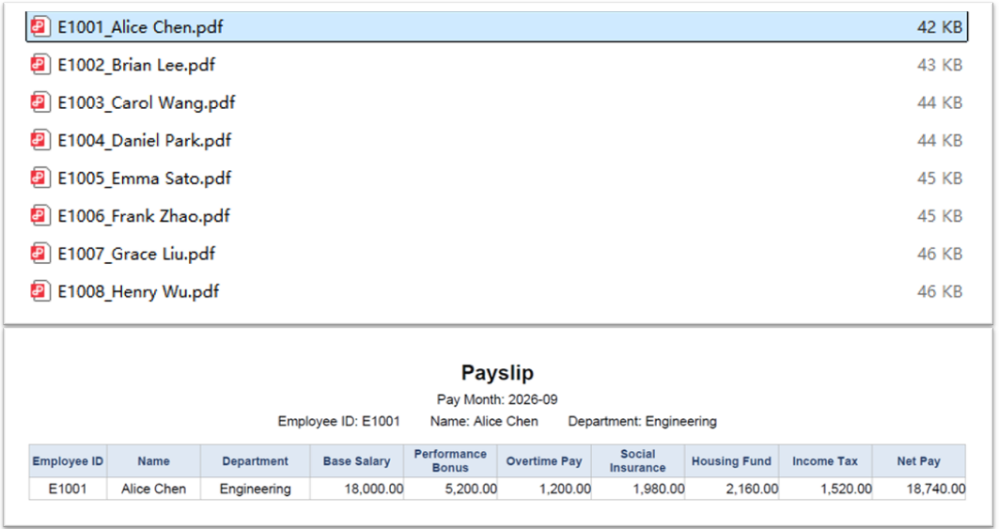
This is the most direct scenario: all you have is a raw payroll sheet, with no extra template file. The first row is the header and each following row holds one employee's pay data for the month. The task is to split the sheet by row, generate a payslip for each employee that contains only their own information, and save it named "employeeID_name" for later distribution or archiving.
The pain of doing this by hand is the repetition: the more employees there are, the more copy-and-paste cycles are needed, and the further you get the easier it is for rows to slip — leaving the previous person's net pay in the next person's file. That is a class of error that is hard to notice and serious in its consequences.
The example below uses the Spire.Agent.Office agent to read every employee record in the payroll sheet through a natural-language instruction, split it row by row into individual payslips and export them as PDFs:
using Spire.Agent.Office.AI;
using Spire.Agent.Office.Extensions;
using Spire.Xls;

// Excel-related configuration
string inputPath = @"E:\payroll.xlsx";  // path to the payroll sheet to split
string savePath = null;  // result path (null here: the output folder below will be used)
string OutDir = @"E:\output";  // output directory (the split payslip PDFs are saved here)
string key = "**************************";  // SpireToken key
string instruction =
"Read the employee payroll data in the payroll sheet and generate an individual payslip for each employee:" +
  "1. The first row is the header and each following row is one employee; extract the employee ID, name, department and each pay item row by row;" +
  "2. At the top of each payslip show the title 'Payslip' and the pay month, and list that employee's ID, name and department, then list each pay item in the source column order: base salary, performance bonus, overtime pay, social insurance deduction, housing fund, individual income tax and net pay;" +
  "3. Generate a separate PDF file for each employee, named 'employeeID_name' and saved to the output directory;" +
  "4. Keep the borders and column widths of the original header, right-align the amount columns and keep two decimal places;" +
  "5. Make the page size fit the payslip content, with tight margins and a height that adapts to the content, leaving no large blank areas;" +
  "Save the final result as a PDF file";

// Call the Excel document processing function
AIResult result = ExecuteDemoExcel(instruction, inputPath, savePath, key, OutDir);


// Execute Excel AI processing
static AIResult ExecuteDemoExcel(string instruction, string inputPath, string savePath, string key, string output)
{
    // Create the AIOptions configuration object
    AIOptions options = new AIOptions();
    options.WorkDir = output;  // set the working directory to the output directory
    options.SpireToken = key;  // set the SpireToken key

    // Process the Excel document using a Workbook object
    using (Workbook workbook = new Workbook())
    {
        // Load the Excel payroll sheet from file
        if (!string.IsNullOrEmpty(inputPath) && File.Exists(inputPath))
        {
            workbook.LoadFromFile(inputPath);
        }
        // Create the AI document processor
        AIDocumentProcessor processor = workbook.AI(options);

        // Execute the AI instruction
        return processor.ExecuteInstruction(workbook, instruction, savePath);
    }
}
The Excel payroll sheet to be split
 The individual payslip PDFs produced by the split
Case 2: Apply a payslip template and encrypt to produce distributable files
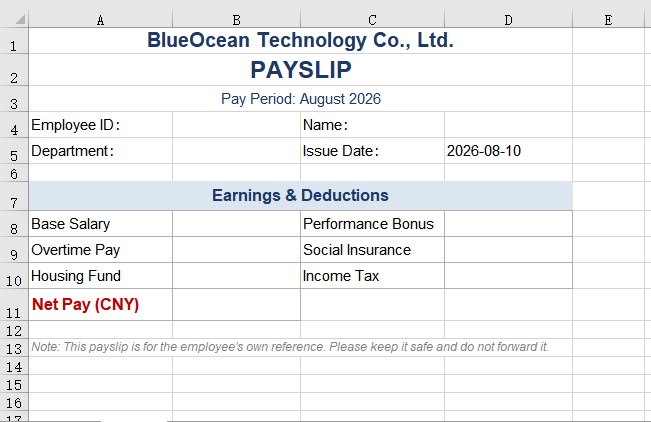
When a company distributes payslips, two more requirements usually come up: a unified layout and confidentiality. Companies normally have a fixed payslip template — with a company letterhead, the pay month, the order of pay items and explanatory text at the bottom. At the same time, salary is sensitive information: sending a plain-text PDF directly means that once it is forwarded or misdelivered, the employee's pay is exposed.
The safer approach is to apply the same template to every payslip and then set an individual open password on each employee's PDF (for example, generated from their own employee ID), so that only that person can open and view their payslip.
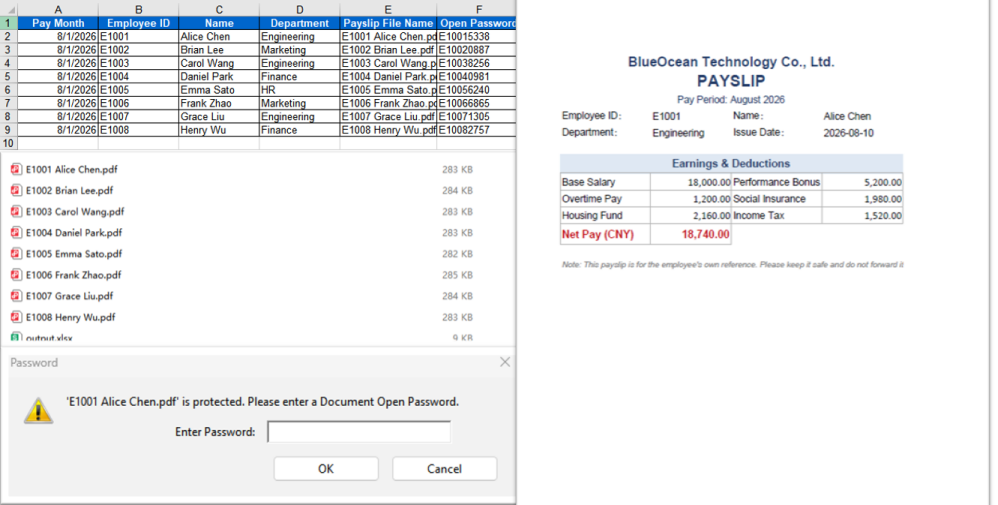
But once the passwords "all differ", a new management problem appears: who records them, and where do you look them up afterwards. Each password is built from "employee ID + 4 random digits", and those random digits cannot be reconstructed from the file name or any other information. After dozens or hundreds of files have gone out, if an employee reports that a file will not open, the only fallback is to dig out the original payroll sheet and try one by one. So the complete loop of encrypted distribution should also produce a distribution ledger — recording file names, employee details and open passwords in one-to-one correspondence, for later distribution, reconciliation and archive lookups.
This case takes the payslip template as the input document, while the employee payroll data is passed in as an attachment. The AI needs to fill the attachment data into the corresponding positions of the template and output that ledger alongside the encrypted PDFs.
The example below uses the Spire.Agent.Office agent to read the employee data in the attached payroll sheet through a natural-language instruction, fill it into the payslip template row by row, generate a separate PDF for each employee, encrypt it with "employee ID + 4 random digits", and additionally produce an Excel-format "Payslip Distribution Ledger":
using Spire.Agent.Office.AI;
using Spire.Agent.Office.Extensions;
using Spire.Xls;

// Path to the employee payroll data file (passed in as an attachment)
string[] attachmentPaths = new string[]
{
    @"E:\payroll.xlsx"
};

// Excel-related configuration
string inputPath = @"E:\template-payslip.xlsx";  // path to the payslip template file
string savePath = null;  // result path (null here: the output folder below will be used)
string OutDir = @"E:\output-encrypted";  // output directory (encrypted payslip PDFs and the distribution ledger are saved here)
string key = "**************************";  // SpireToken key
string instruction =
    "Read the employee payroll data from the attached 'payroll.xlsx' and process it as follows:" +
    "1. The first row is the header and each following row is one employee; read the employee ID, name, department and each pay item row by row;" +
    "2. Fill each row of data into the corresponding positions of the payslip template, keeping the template's company letterhead, notes and item order unchanged;" +
    "3. Generate a separate PDF file for each employee, named 'employee ID + employee name' and saved to the output directory;" +
    "4. Set an open password on each PDF as 'employee ID + 4 random digits'; it only restricts opening the document and does not affect printing or copying;" +
    "5. Also generate an Excel-format 'Payslip Distribution Ledger' in the output directory, listing the pay month, employee ID, name, department, payslip file name and the corresponding open password in each row, for later distribution and archive lookups;" +
    "6. Keep the layout, fonts and column widths of the template;" +
    "Save the final result as a PDF file";

// Call the Excel document processing function
AIResult result = ExecuteDemoExcel(instruction, inputPath, savePath, key, OutDir, attachmentPaths);


// Execute Excel AI processing
static AIResult ExecuteDemoExcel(string instruction, string inputPath, string savePath, string key, string output, string[] attachmentPaths)
{
    // Create the AIOptions configuration object
    AIOptions options = new AIOptions();
    options.WorkDir = output;  // set the working directory to the output directory
    options.SpireToken = key;  // set the SpireToken key

    // Process the Excel document using a Workbook object
    using (Workbook workbook = new Workbook())
    {
        // Load the payslip template from file
        if (!string.IsNullOrEmpty(inputPath) && File.Exists(inputPath))
        {
            workbook.LoadFromFile(inputPath);
        }
        // Create the AI document processor
        AIDocumentProcessor processor = workbook.AI(options);

        // Execute the AI instruction
        return processor.ExecuteInstruction(workbook, instruction, savePath, attachmentPaths);
    }
}
The payslip template file
 Template-applied, encrypted payslip PDFs and the payslip distribution ledger
FAQ
The split payslips have slipped rows or misaligned data
Cause: The payroll sheet contains blank rows, merged cells or subtotal rows, so when the AI reads by row it counts non-employee rows as records and everything after them shifts.
Solution: Make sure the first row of the payroll sheet is the header and every row after it corresponds to exactly one employee, with no blank or subtotal rows in between. If the table structure is complex, state the rule in the instruction, for example "treat a row as an employee record only when the 'Employee ID' column is not empty".
An encrypted payslip will not open even for me
Cause: Each payslip's password is generated as "employee ID + 4 random digits", so it differs per person, and the random digits cannot be worked out on your own.
Solution: State the password rule explicitly in the instruction (for example, "the password is the employee ID plus 4 random digits") and make sure the generated passwords are recorded in the distribution ledger — once a random number is lost, the file can no longer be opened. Before distributing, try opening one payslip using a record from the ledger to verify.
Getting a SpireToken Key
- Contact sales@e-iceblue.com or visit https://www.e-iceblue.com/TemLicense.html to obtain a trial/commercial API key
Configure it in your code:
AIOptions options = new AIOptions();
options.SpireToken = key;
Automated Case File Archiving and Management with Spire.Agent.Office
2026-09-17 05:53:51 Written by liu taliaIn courts, law firms and compliance departments, electronic case file archiving is a high-frequency but tedious task. The materials of a single case are often scattered across dozens of PDFs — complaints, evidence lists, hearing transcripts, judgments — of varying counts and page lengths. Archiving means first organizing these loose materials into one complete volume that meets records-management standards, and then filling in an archive register that lists the name, creation date and page count of every material in the volume, for storage and later retrieval.
The traditional approach means switching between several tools: open each file to identify the material type, drag them into the conventional case-file order by hand, type out a cover page and a table of contents, then use image tools to add page numbers, watermarks and passwords separately. When the register is due, every material has to be opened all over again to copy out its name and page count by hand. With dozens of materials, this is slow and prone to mistakes or omissions.
The PDF AI capability of Spire.Agent.Office lets you describe the archiving requirements in natural language. The AI agent understands the request and handles two kinds of work automatically: turning loose materials into a well-formed volume, and extracting the volume's information into an archive register.
Comparison with Traditional SDK API
| Traditional Spire.Office for .NET API | Spire.Agent.Office | |
|---|---|---|
| Driving style | Write loops to iterate files plus code that orders, merges, stamps and encrypts, controlling every step | Describe the archiving requirements in natural language; the AI understands it and orchestrates the execution path |
| Code size | Case file consolidation usually needs 300-500 lines of C# (file enumeration, ordering, page merging, cover and contents generation, page-number drawing, watermark generation, encryption parameters, register reading, etc.) | About 10 lines of calling code + 1 natural-language instruction |
| Requirement change | Change the ordering/watermark style/register fields → change code → compile → redeploy | Modify the instruction and it takes effect immediately |
This article shows how to use the Spire.Agent.Office PDF AI capability to archive case files. Two cases demonstrate the two typical uses — "organizing the volume" and "registering the volume":
- Case 1: Merge case files into one volume
- Case 2: Extract material information and generate an archive register
For product installation and SpireToken configuration, please refer to Integrating Spire.Agent.Office in a .NET Project. The examples below assume that Spire.Agent.Office has been installed and SpireToken has been configured.
Case 1: Merge case files into one volume
The types of material in a case are fairly fixed, but their counts and page lengths are not: complaints, evidence lists, hearing transcripts, judgments and so on — each type may have several documents, of differing lengths. Archiving requires not only stitching them into one volume in the conventional case-file order, but also adding a cover page and a table of contents, giving the volume continuous page numbers and a unified case-number identifier, and encrypting it when it is handed over or stored to prevent leaks. Doing this by hand means switching between multiple tools, and the more materials there are, the more likely the order gets mixed up, the page numbers fail to run on, or the encryption is missed.
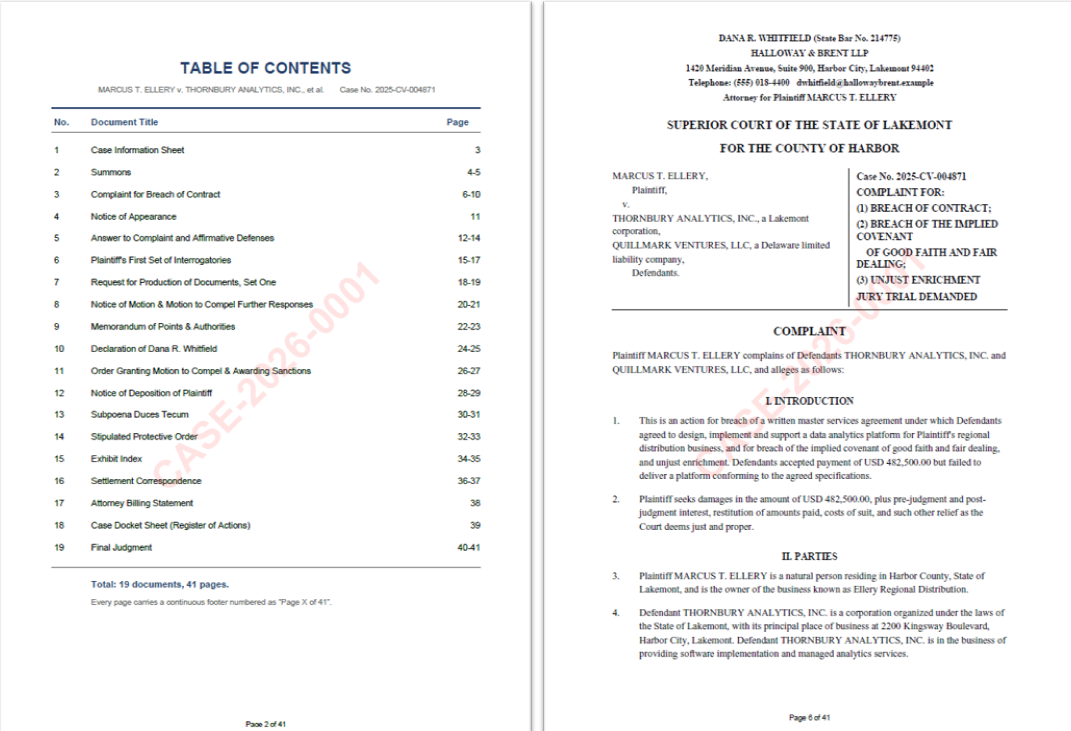
The example below uses the Spire.Agent.Office agent to read all the PDF materials among the attachments, merge them into one volume in the conventional case-file order, generate a cover page and a table of contents automatically, remove the original page numbers and add continuous footers, then stamp the case-number watermark and set an open password:
using Spire.Agent.Office.AI;
using Spire.Agent.Office.Extensions;
using Spire.Pdf;

// Folder containing the PDF materials to consolidate: every PDF in this folder is treated as an attachment
string attachmentDir = @"E:\case_files";  // folder that holds the PDF materials of one case
string[] attachmentPaths = Directory.GetFiles(attachmentDir, "*.pdf");

// PDF-related configuration
string inputPath = "";  // empty input: all materials to archive are among the attachments
string savePath = null;  // result path
string OutDir = @"E:\output";  // output directory (the merged and encrypted case file is saved here)
string key = "**************************";  // SpireToken key
string instruction =
    "Read all the PDF case materials among the attachments and complete the consolidation:" +
    "1. Merge all materials into a single case file PDF in the conventional order of case file documents, and generate a cover page and a table of contents page based on the content;" +
    "2. Remove the original page numbers and add continuous footers to the merged file, centered in the footer as 'Page X of Y', with a font size smaller than the body text so that no existing content is covered;" +
    "3. Add the case-number watermark 'CASE-2026-0001' to every page, rotated 45 degrees, red, without affecting readability;" +
    "4. Set the open password '2026@Case0001' for the case file PDF; this password only restricts opening the document and does not affect printing or copying;" +
    "5. Add a table of contents page and keep the layout, fonts and page settings of each original material;" +
    "Save the final result as a PDF file";

// Call the PDF document processing function
AIResult result = ExecuteDemoPDF(instruction, inputPath, savePath, key, OutDir, attachmentPaths);

// Execute PDF AI processing
static AIResult ExecuteDemoPDF(string instruction, string inputPath, string savePath, string key, string output, string[] attachmentPaths)
{
    // Create the AIOptions configuration object
    AIOptions options = new AIOptions();
    options.WorkDir = output;  // set the working directory to the output directory
    options.SpireToken = key;  // set the SpireToken key

    // Process the PDF document using a PdfDocument object
    using (PdfDocument pdf = new PdfDocument())
    {
        // The input file is empty so nothing is loaded; all files to process come from the attachments
        if (!string.IsNullOrEmpty(inputPath) && File.Exists(inputPath))
        {
            pdf.LoadFromFile(inputPath);
        }
        // Create the AI document processor
        AIDocumentProcessor processor = pdf.AI(options);

        // Execute the AI instruction
        return processor.ExecuteInstruction(pdf, instruction, savePath, attachmentPaths);
    }
}
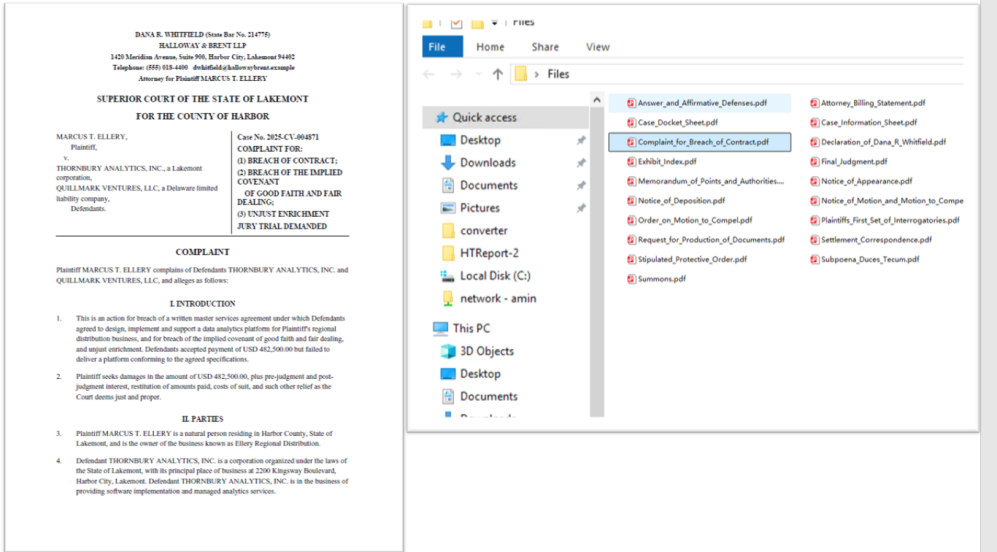
The PDF case materials to be consolidated
 The encrypted case file merged in order, with page numbers and watermark
Case 2: Extract material information and generate an archive register
Once the volume is organized, an archive register has to be filed together with it. The register lists the name, creation date and page count of every material in the volume, headed by the case number, the parties and the cause of action. All of this information is already inside the materials themselves, but the traditional approach can only copy it out by hand, opening each material one by one — with many materials, a wrong page count or date is almost unavoidable.
Unlike Case 1, this case does not modify any page. It only reads information: the input is the same set of PDF attachments, but the output is a newly generated register PDF.
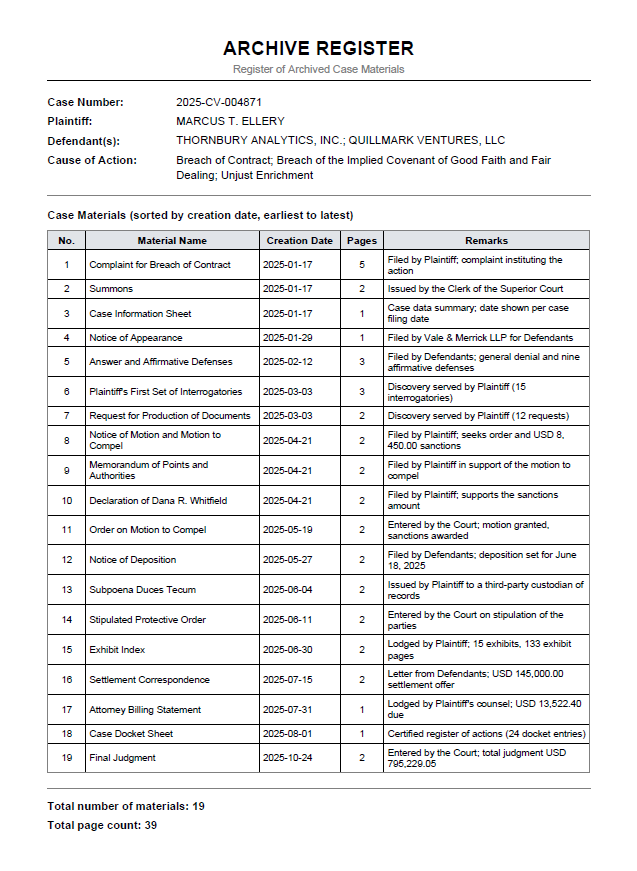
The example below uses the Spire.Agent.Office agent to read all the PDF materials among the attachments, extract the case information and the per-material information, sort them by creation date and compile an archive register:
using Spire.Agent.Office.AI;
using Spire.Agent.Office.Extensions;
using Spire.Pdf;

// Folder containing the PDF materials to register: every PDF in this folder is treated as an attachment
string attachmentDir = @"E:\case_files";  // folder that holds the PDF materials of one case
string[] attachmentPaths = Directory.GetFiles(attachmentDir, "*.pdf");

// PDF-related configuration
string inputPath = "";  // empty input: all materials to register are among the attachments
string savePath = null;  // result path
string OutDir = @"E:\output-register";  // output directory (the archive register is saved here)
string key = "**************************";  // SpireToken key
string instruction =
    "Read all the PDF case materials among the attachments, extract the information and compile an 'Archive Register':" +
    "1. Extract the basic case information from the materials: case number, plaintiff, defendant and cause of action;" +
    "2. Extract the material name, creation date and page count from each material;" +
    "3. Sort the materials from the earliest creation date to the latest;" +
    "4. Generate a PDF-format 'Archive Register' in the output directory, with columns: Serial Number, Material Name, Creation Date, Pages, Remarks;" +
    "5. List the case number, plaintiff, defendant and cause of action above the table, and summarize the number of materials and the total page count below it;" ;

// Call the PDF document processing function
AIResult result = ExecuteDemoPDF(instruction, inputPath, savePath, key, OutDir, attachmentPaths);

// Execute PDF AI processing
static AIResult ExecuteDemoPDF(string instruction, string inputPath, string savePath, string key, string output, string[] attachmentPaths)
{
    // Create the AIOptions configuration object
    AIOptions options = new AIOptions();
    options.WorkDir = output;  // set the working directory to the output directory
    options.SpireToken = key;  // set the SpireToken key

    // Process the PDF document using a PdfDocument object
    using (PdfDocument pdf = new PdfDocument())
    {
        // The input file is empty so nothing is loaded; all files to process come from the attachments
        if (!string.IsNullOrEmpty(inputPath) && File.Exists(inputPath))
        {
            pdf.LoadFromFile(inputPath);
        }
        // Create the AI document processor
        AIDocumentProcessor processor = pdf.AI(options);

        // Execute the AI instruction
        return processor.ExecuteInstruction(pdf, instruction, savePath, attachmentPaths);
    }
}
Generated archive register PDF
FAQ
Will the page numbers and watermark cover the body text?
Cause: Page numbers and watermarks are drawing layers overlaid on the page; a poorly chosen position or opacity can indeed cover the content.
Solution: Describe the position and style explicitly in the instruction (for example, "page numbers centered in the footer", "watermark rotated 45 degrees, red") and the AI will draw them as described. When adding page numbers and watermarks, Spire.Agent.Office does not change the original layout, fonts or page settings of the body text.
How is the merge order of the materials determined?
Cause: Case 1 arranges the materials in the conventional order of case file documents (complaint, evidence list, transcript, judgment and so on), while Case 2 sorts them by creation date. If a material type is unusual, or a creation date cannot be recognized, the result may not be as expected.
Solution: For Case 1, state the volume order directly in the instruction (for example, "arrange in the order of complaint, evidence list, hearing transcript, judgment"). For Case 2, make sure the materials carry a creation date, and add a fallback rule for those that genuinely lack one (for example, "materials without a date go last, with the remarks column marked 'date pending'").
Getting a SpireToken Key
- Contact sales@e-iceblue.com or visit https://www.e-iceblue.com/TemLicense.html to obtain a trial/commercial API key
Configure it in your code:
AIOptions options = new AIOptions();
options.SpireToken = key;
Financial Report Parsing and Valuation Modeling Automation with Spire.Agent.Office in C#
2026-09-17 03:11:54 Written by liu taliaIn the field of financial analysis and investment research, interpreting listed company financial reports is one of the most fundamental yet time-consuming tasks. A complete annual report is quite lengthy, encompassing not only core statements such as the balance sheet, income statement, cash flow statement, and statement of changes in shareholders' equity, but also a large amount of detailed data in the notes. Analysts need to extract key data from these documents and generate visual charts before forming investment judgments. The traditional approach typically requires manually flipping through PDFs, manually entering data into Excel, manually drawing charts, and writing analysis conclusions. The entire process takes 4-8 hours and is highly prone to errors caused by data entry mistakes.
But parsing is only the first step. In a real investment research and financial modeling workflow, the data ultimately has to land in the analyst's own valuation model. And the valuation model is precisely the most delicate part of the whole workflow: it is usually built up over months or years, containing a large number of custom macros (VBA), pivot tables and deeply nested formulas. The traditional approach leaves no choice but to key the data in cell by cell — the reason nobody dares to batch-write it with a script is that most third-party Excel libraries rebuild the workbook structure when reading and writing. The result is lost macros, broken pivot tables and nested formulas flattened into static values — a carefully maintained model ruined.
This article uses two connected cases and the Spire.Agent.Office Excel AI capabilities to cover the complete chain from "PDF financial report" to "valuation conclusion":
- Case One: Long-Text Financial Report Data Extraction and Analysis
- Case Two: Injecting Financial Data into a Preset Valuation Model
For product installation and SpireToken configuration, please refer to Integrating Spire.Agent.Office in a .NET Project. The following examples assume Spire.Agent.Office is already installed and SpireToken is configured.
Comparison with Traditional SDK API Processing
| Traditional Spire.Office for .NET API | Spire.Agent.Office Processing | |
|---|---|---|
| Driving Method | Write PDF parsing + cell writing + chart creation + formula calculation code | Describe the goal in natural language, AI understands and automatically orchestrates the execution path |
| Code Volume | The two cases together typically require 800-1500 lines of C# code (including PDF table positioning, row/column parsing, chart configuration, etc.) | Approximately 20 lines of calling code + two natural language instructions |
| Table Recognition | Must manually locate table positions in PDF, handle cross-page table splitting, merged cells, and other logic | AI automatically identifies table structures in the document, understands headers and hierarchical relationships |
| Chart Generation | Must manually create Chart objects, configure data ranges, set chart types and styles | AI automatically selects the most appropriate chart type based on data semantics |
| Data Injection | Must hard-code a "source row N → template row M" mapping; any change in reporting structure means changing the code | AI matches by item name semantics; row/column order changes in the source do not affect the result |
| Macros and Pivot Tables | Must handle VBA project and pivot cache preservation yourself; a single mistake corrupts them | Macros, pivot tables and charts are preserved as-is; the AI writes only to the target cells |
| Requirement Changes | Adding new analysis dimensions requires modifying code → compiling → deploying | Modify the description in the instruction, takes effect immediately |
Case One: Long-Text Financial Report Data Extraction and Analysis
AI reads a PDF financial report file, automatically identifies and extracts financial statement tables into an Excel file, while automatically generating visual charts and financial analysis from the data. The entire process requires only one piece of code and one instruction.
using Spire.Agent.Office.AI;
using Spire.Agent.Office.Extensions;
using Spire.Xls;

// PDF financial report file to be processed (passed as an attachment)
string[] attachmentPaths = new string[] { @"C:\FinancialReport\ListedCompany2025AnnualReport.pdf" };
// Save path of the result Excel document
string savePath = @"C:\FinancialReport\AnalysisResult.xlsx";
// SpireToken Key (apply on the official website)
string key = "sk-***************************";

// Natural language instruction
string instruction =
    "Process the attachment file as follows: " +
    "1. Extract all tables from the financial reporting section, placing each table in a separate worksheet named after the original table. " +
    "2. Preserve all original data without adding or modifying any values. " +
    "3. Enhance table readability with appropriate formatting. " +
    "4. Merge multi-page tables into a single worksheet. " +
    "5. Generate suitable charts to visualize the data from each table. " +
    "6. Use the extracted raw data directly for charting, without adding or modifying any values. " +
    "7. Analyze and summarize the company's financial status and trends based on the data provided.";

// AI generation
AIResult result = AnalyzeFinancialReport(instruction, savePath, key, attachmentPaths);

// AI-assisted financial report analysis
static AIResult AnalyzeFinancialReport(string instruction, string savePath, string key, string[] attachmentPaths)
{
    // Configure the AI processing options
    AIOptions options = new AIOptions();
    options.SpireToken = key;
    options.TimeoutMs = 10000000;

    using (Workbook wb = new Workbook())
    {
        AIDocumentProcessor processor = wb.AI(options);
        return processor.ExecuteInstruction(wb, instruction, savePath, attachmentPaths);
    }
}
Financial Report Data Processing and Chart Analysis Results:
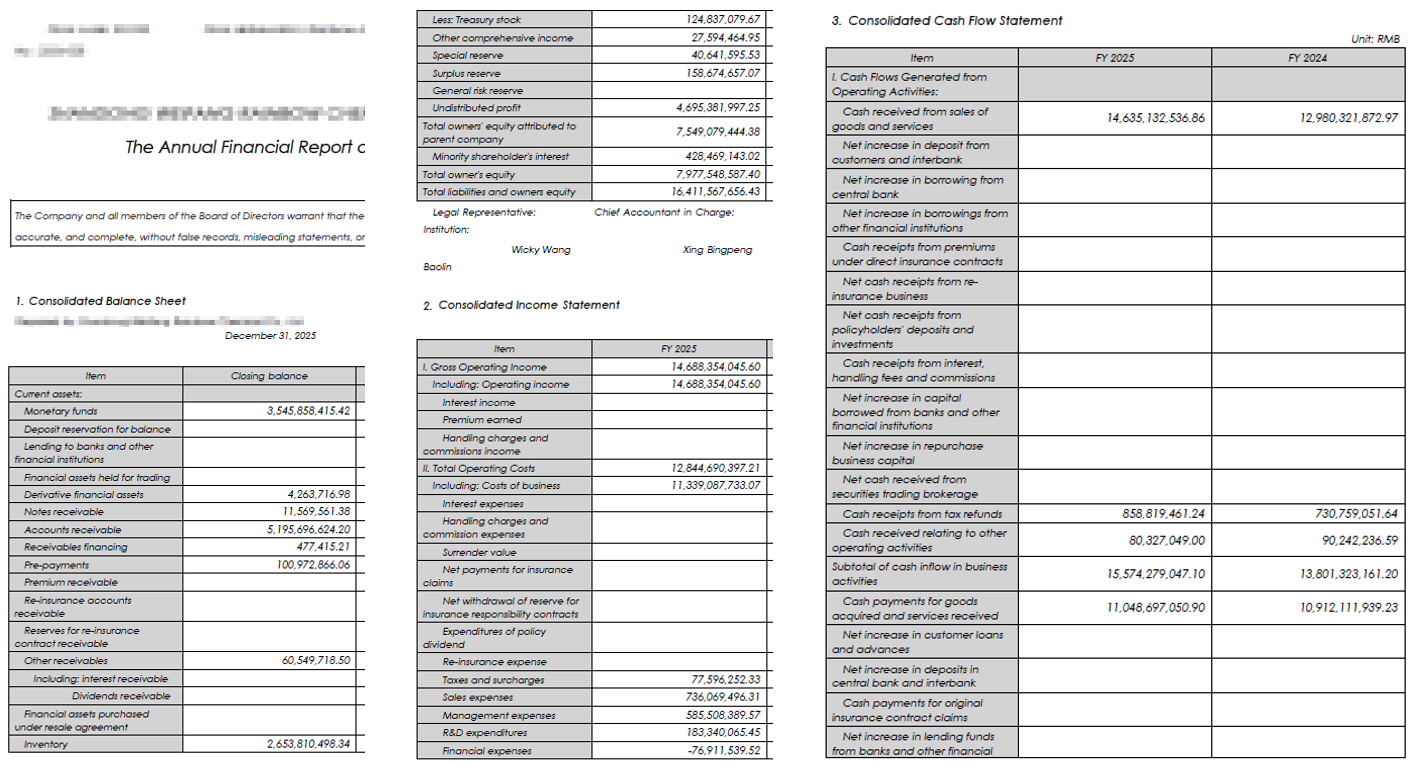 Description: The original input file
The output consists of two parts:
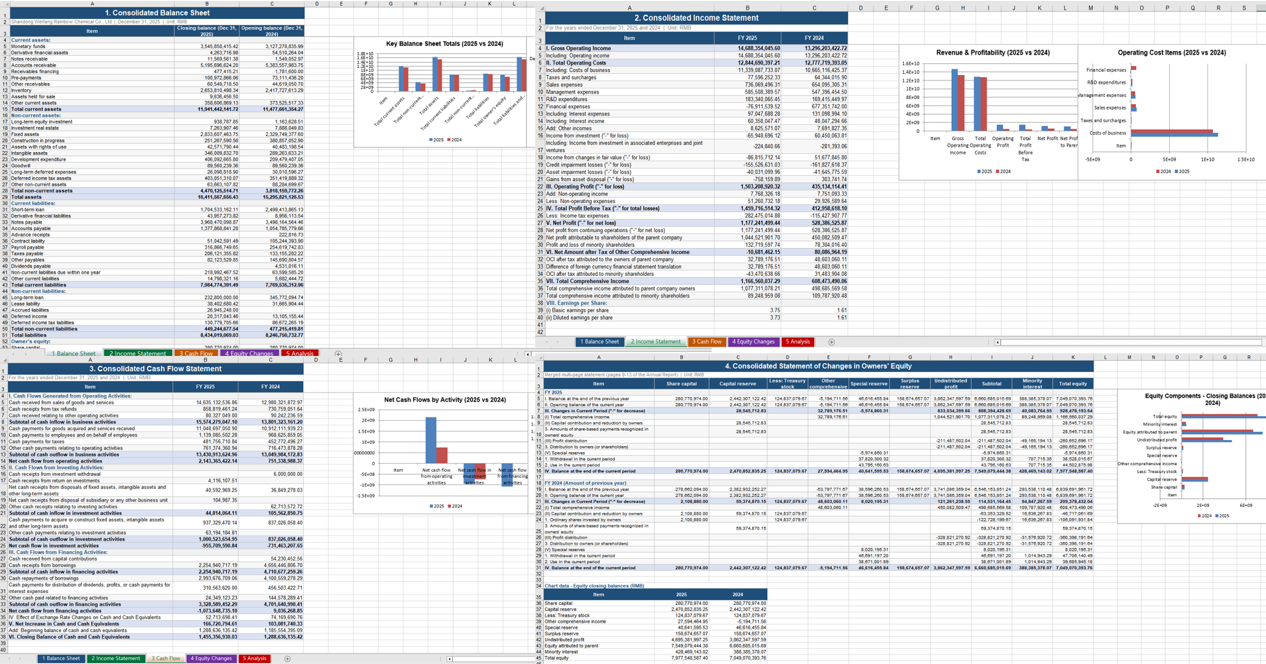 Description: Table data extracted from the PDF financial report, with corresponding visual charts.
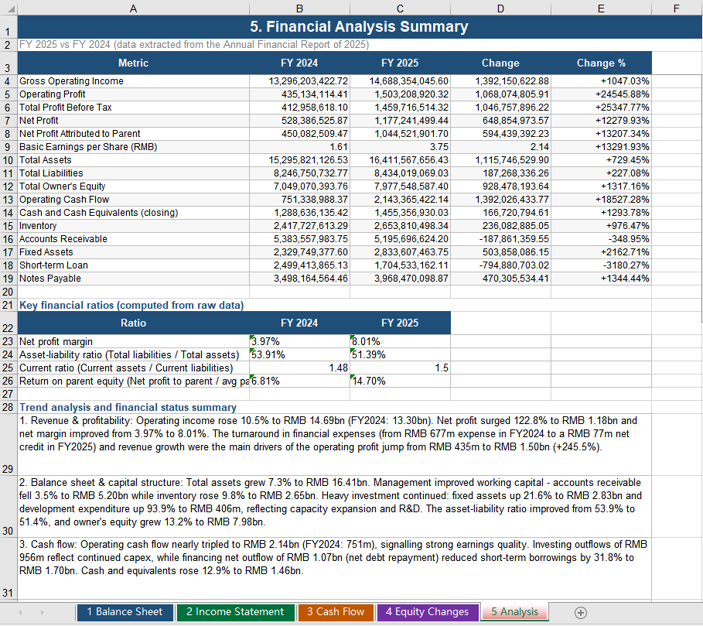 Description: Financial analysis conclusions generated from the extracted data.
Case Two: Injecting Financial Data into a Preset Valuation Model
Case one produced "data"; case two is about "modeling". The process takes two inputs: a preset valuation model template (.xlsm, containing macros, pivot tables and nested formulas) and the financial data workbook produced by case one (.xlsx). AI reads the financial data, fills it into the "Data Input" worksheet of the template by matching item names, and the formulas inside the model recalculate immediately — the valuation curve updates itself.
using Spire.Agent.Office.AI;
using Spire.Agent.Office.Extensions;
using Spire.Xls;

// Preset valuation model template (macros / pivot table / nested formulas / valuation curve chart)
string inputPath = @"C:\FinancialReport\ValuationModelTemplate.xlsm";
// Financial data workbook produced by case one (passed as an attachment)
string[] attachmentPaths = new string[] { @"C:\FinancialReport\AnalysisResult.xlsx" };
// Result document path (null here; the output folder below is used instead)
string savePath = null;
// Output directory
string OutDir = @"C:\FinancialReport\output";
// SpireToken Key (apply on the official website)
string key = "sk-***************************";

// Natural language instruction
string instruction =
    "Read the financial data in the attachment and fill it into the Data Input worksheet of the current valuation model template by matching item names, current period and prior period into the two respective columns; " +
    "fill only the shaded cells, do not modify any existing formula; " +
    "keep the existing macros, pivot table, formulas and chart in the template; " +
    "recalculate the model, refresh the pivot table and update the Valuation Curve after filling; " +
    "save the final result as a macro-enabled Excel file";

// AI generation
AIResult result = InjectDataIntoModel(instruction, inputPath, savePath, key, OutDir, attachmentPaths);

// AI-assisted data injection into the valuation model
static AIResult InjectDataIntoModel(string instruction, string inputPath, string savePath,
                                    string key, string output, string[] attachmentPaths)
{
    // Configure the AI processing options
    AIOptions options = new AIOptions();
    options.WorkDir = output;      // Set the working directory to the output folder
    options.SpireToken = key;      // Set the SpireToken Key

    using (Workbook workbook = new Workbook())
    {
        // Load the valuation model template from file
        if (!string.IsNullOrEmpty(inputPath) && File.Exists(inputPath))
        {
            workbook.LoadFromFile(inputPath);
        }

        // Create the AI document processor
        AIDocumentProcessor processor = workbook.AI(options);

        // Execute the AI instruction
        return processor.ExecuteInstruction(workbook, instruction, savePath, attachmentPaths);
    }
}
The valuation model template before injection:
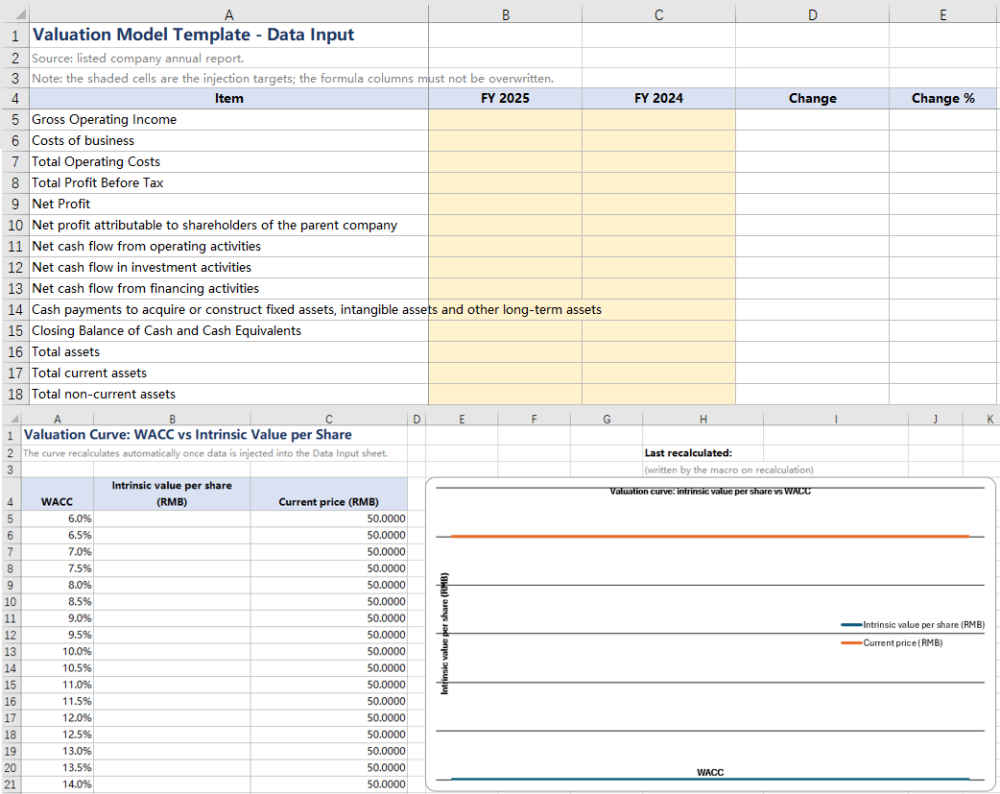 Description: The preset valuation model template; the shaded cells are the injection targets.
The financial data workbook produced by case one, used as the data source for this injection, filled into the Data Input area of the valuation template:
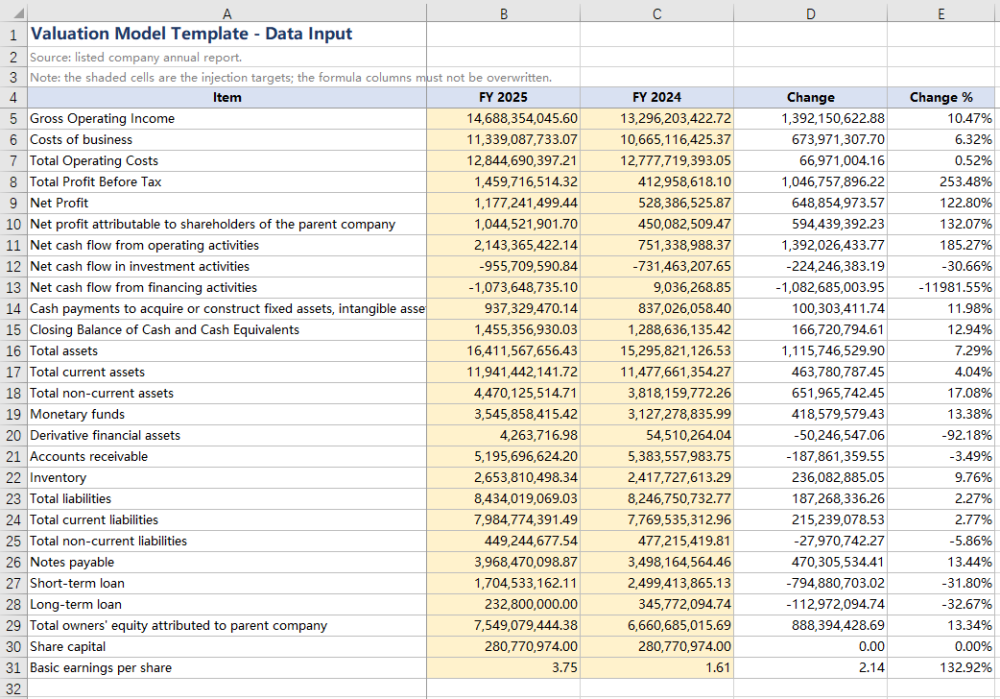 Description: The consolidated balance sheet, income statement and cash flow statement data filled in from among them.
The valuation curve recalculated automatically after injection:
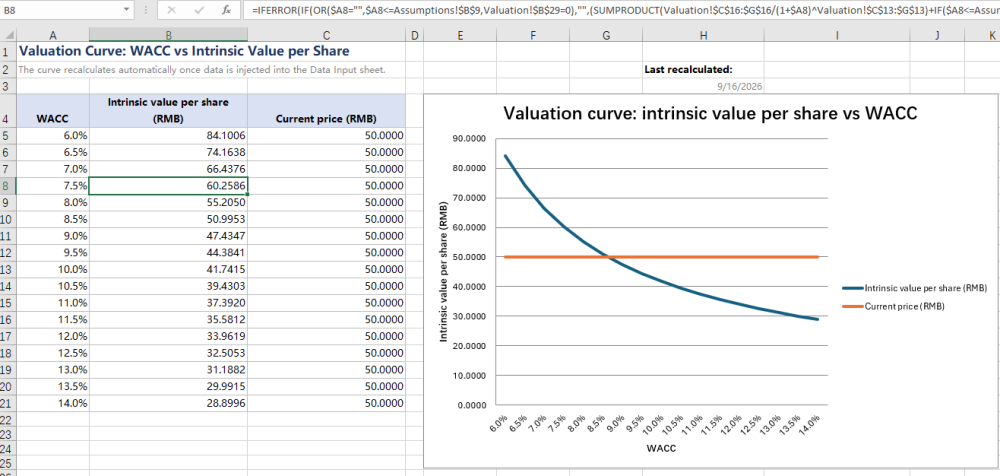 Description: The valuation curve refreshed automatically once the data injection completed.
Frequently Asked Questions
Extracted table data does not match the PDF
Cause: PDF tables may contain complex layouts such as cross-page splitting, merged cells, rotated text, etc., and AI may have deviations during recognition.
Solution: Add "carefully verify data accuracy, especially pay attention to merged cells and cross-page table joining" to the instruction; or limit specific page ranges for batch extraction and review before consolidation.
The valuation curve does not update after data injection
Cause: Model recalculation and pivot table refresh are two independent operations. Writing the data alone does not refresh the pivot cache, and some readers do not proactively recalculate the whole formula chain.
Solution: Explicitly require "recalculate the model and refresh the pivot tables after filling in the data" in the instruction. In addition, the template can be set to force recalculation on open so the curve is always up to date.
Obtaining a SpireToken Key
- Contact sales@e-iceblue.com or visit https://www.e-iceblue.com/TemLicense.html to obtain a trial/commercial API key
Configure it in code:
AIOptions options = new AIOptions();
options.SpireToken = key;
Turn Files into Explainer Videos with Spire.Agent.Office in C#
2026-09-17 03:06:22 Written by Lisa LiIn corporate training, online courses and academic sharing, turning a course document into an "illustrated, voice-narrated" explainer video normally requires a whole toolchain of presentation, image processing, audio synthesis and video encoding. With the AI capability of Spire.Agent.Office, you only need to upload course documents in Word, PDF, Excel, Markdown or other formats and describe the goal in plain language to get a complete narrated video.
Compared with the traditional SDK API
| Traditional Spire.Office for .NET API | Spire.Agent.Office | |
|---|---|---|
| Driving model | Parse the course document, lay out slides page by page to build a Presentation, then use the API and ffmpeg to convert the Presentation to MP4 | Describe the goal in natural language and the AI understands and orchestrates the execution path |
| Amount of code | A large amount of code is required, and speech narration cannot be added | A simple natural-language instruction |
| Multi-format parsing | Separate parsing logic must be written for each format (Word/PDF/Excel/Markdown) | The AI detects the document format and reads the content automatically |
| Changing requirements | Adjust theme, page count, language or narration style → change code → compile → redeploy | Change the instruction and it takes effect immediately |
From course document to narrated video:
For product installation and SpireToken configuration, please refer to Integrating Spire.Agent.Office in a .NET Project. The examples below assume Spire.Agent.Office is installed and SpireToken is configured.
Step 1: From a course document to a Presentation
Use Spire.Agent.Office to distill the core points and generate a well-designed Presentation automatically.
using Spire.Agent.Office.AI;
using Spire.Agent.Office.Extensions;
using Spire.Presentation;

// Load course documents in Word, PDF, Excel and Markdown (4 formats)
List<string> inputPaths = new List<string>
{
    @"AI-application-course.docx",
    @"research-paper.pdf",
    @"financial-analysis.xlsx",
    @"health-policy.md"
};

string outputDirectory = @"E:\output\";
string key = "**************************";
// Distill the key points of the course document and generate a teaching Presentation.
string instruction =
    "Treat the attached tutorial documents as the processing target : distill the core points of the AI-application tutorial, covering the basics, typical application areas, implementation steps, real cases, and outlook. Theme: use a calm professional gray-blue as the theme color (clean, minimalist, modern AI-tech feel). 1. ensure high-quality layout and typography 2. include appropriate illustrative charts/figures 3. keep a clean, minimalist style 4. generate 12 slides; ";

// Generate a Presentation from each of the Word, PDF, Excel and Markdown course documents in turn
foreach (string inputPath in inputPaths)
{
    if (!System.IO.File.Exists(inputPath)) continue;

    string savePath = System.IO.Path.Combine(outputDirectory,
        $"{System.IO.Path.GetFileNameWithoutExtension(inputPath)}.pptx");

    GeneratePPT(inputPath, instruction, savePath, key);
}

// AI-powered PPT generation
static PPTGenerationResult GeneratePPT(string input, string instruction, string savePath, string key)
{
    //AIOptions options
    AIOptions options = new AIOptions();
    //Set the SpireToken
    options.SpireToken = key;
    //Set the timeout
    options.TimeoutMs = 1000000;
    //If the document content is long, you can customize the token circuit breaker; the default fuse is 3,000,000
    options.TokenCircuitBreakerLimit = 5000000;
    using (Presentation ppt = new Presentation())
    {
        AIDocumentProcessor processor = ppt.AI(options);
        return processor.GeneratePresentation(input, instruction, savePath);
    }
}
Step 2: From a Presentation to a video
Based on the Presentation generated in step 1, a single instruction that asks for "voice narration" automatically produces an MP4 explainer video with spoken commentary.
using Spire.Agent.Office.AI;
using Spire.Agent.Office.Extensions;
using Spire.Presentation;

// Define the paths of the 4 PPT source files generated in the previous step
List<string> inputPaths = new List<string>
{
    @"AI-application-course.pptx",
    @"research-paper.pptx",
    @"financial-analysis.pptx",
    @"health-policy.pptx"
};

string outputDirectory = @"E:\output\";
string key = "**************************";
string instruction = "Create an MP4 explainer video of this presentation with synchronized voice narration in English.";

// Loop over each PPT to generate a video
foreach (string inputPath in inputPaths)
{
    if (!File.Exists(inputPath)) continue;

    string savePath = Path.Combine(outputDirectory,
        $"{Path.GetFileNameWithoutExtension(inputPath)}.mp4");

    ExecuteDemoPPT(instruction, inputPath, savePath, key, null);
}

// Execute the PPT document AI processing (generate a video with voice narration)
static AIResult ExecuteDemoPPT(string instruction, string inputPath, string savePath, string key, string[] attachmentPaths)
{
    //AIOptions options
    AIOptions options = new AIOptions();
    //Set the SpireToken
    options.SpireToken = key;
    //Set the timeout
    options.TimeoutMs = 1000000;
    //Set the token circuit breaker
    options.TokenCircuitBreakerLimit = 5000000;
    using (Presentation ppt = new Presentation())
    {
        if (!string.IsNullOrEmpty(inputPath) && File.Exists(inputPath))
        {
            ppt.LoadFromFile(inputPath);
        }
        AIDocumentProcessor processor = ppt.AI(options);
        return processor.ExecuteInstruction(ppt, instruction, savePath, attachmentPaths);
    }
}
Word document ----> Presentation ----> narrated .mp4 video
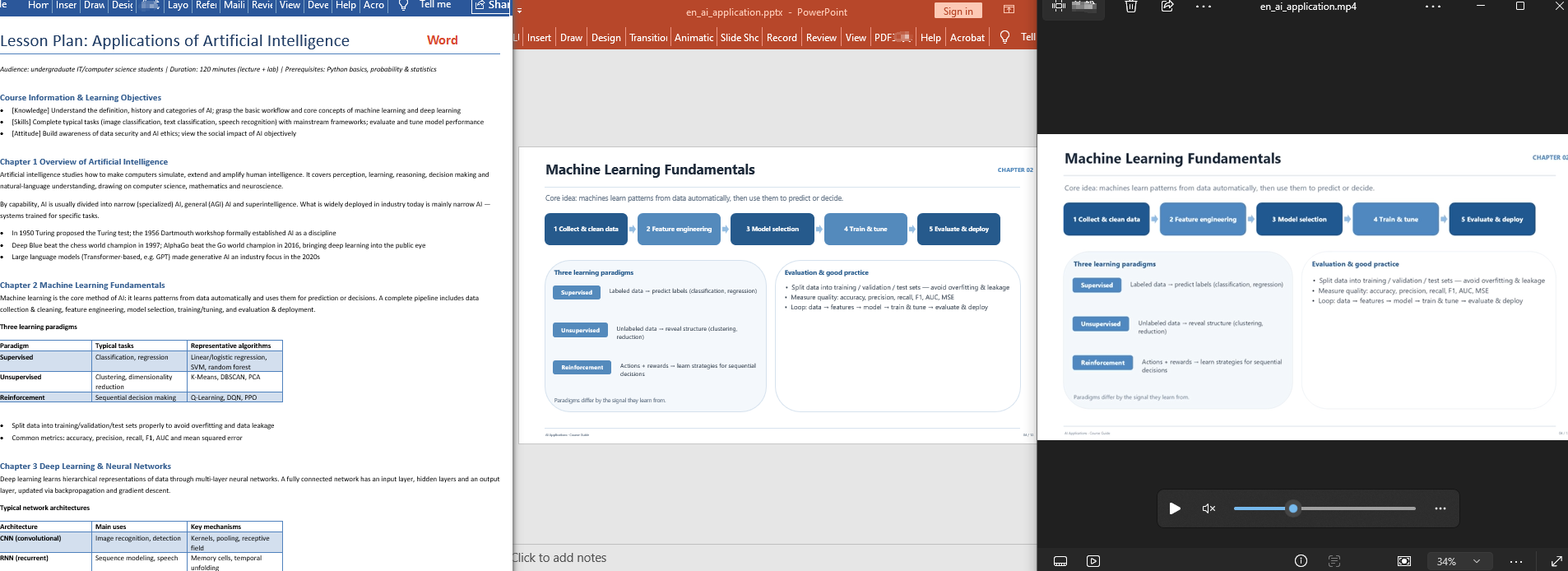 Pdf document ----> Presentation ----> narrated .mp4 video
 Excel document ----> Presentation ----> narrated .mp4 video
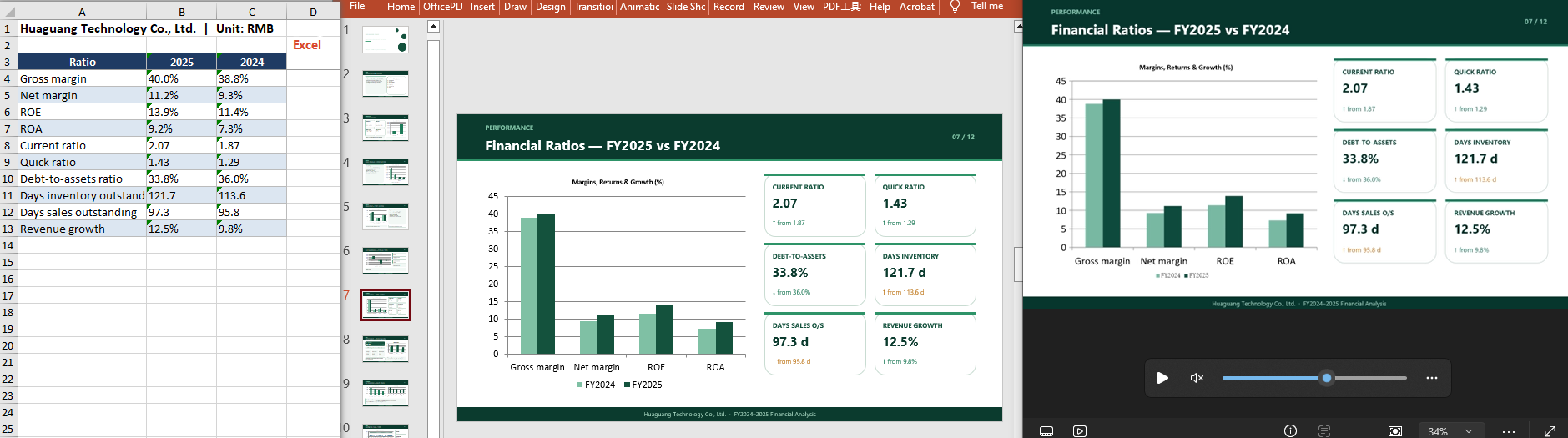 Markdown document ----> Presentation ----> narrated .mp4 video
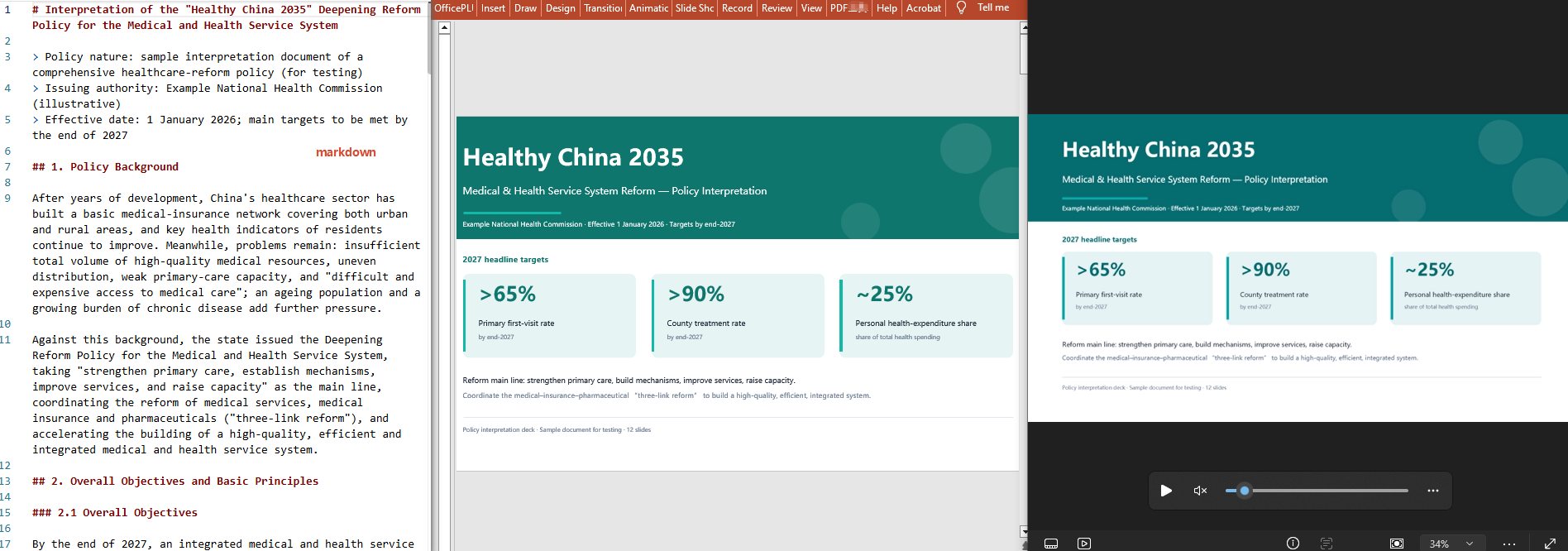
FAQ
The generated PPT's page count does not match the course content
Cause: when the course document is large, the AI's choices when distilling and paginating can differ from expectations.
Solution: state the page count explicitly in the instruction, for example "generate 9 slides, one teaching segment per slide".
The result failed to generate
Cause: the source document contains a lot of data, so the analysis consumes a large number of tokens and exceeds the default token fuse limit.
Solution: configure TokenCircuitBreakerLimit yourself, as shown below:
AIOptions options = new AIOptions();
options.TokenCircuitBreakerLimit = 5000000;
Can multi-format course documents (Word/PDF/Excel/Markdown) all be converted?
Cause: each format is parsed differently, so users are not sure what works.
Solution: Spire.Agent.Office detects the format of the attached document and reads its content automatically; simply pass in the file of the corresponding format and state its origin in the instruction.
Get your SpireToken Key
- Contact sales@e-iceblue.com or visit https://www.e-iceblue.com/TemLicense.html to obtain a trial/commercial API key
Configure it in code:
AIOptions options = new AIOptions();
options.SpireToken = key;
How to Reconstruct Word Structure with Spire.Agent.Office in C#
2026-09-14 09:30:57 Written by Nina TangEditing content in Word is not difficult, but realigning the table of contents, page numbers, headers and footers afterwards is often more troublesome. As soon as a document goes through a few rounds of additions and deletions, chapter order adjustments, or migration from another template, its original table of contents entries, page numbers, and the chapter name in the header easily fall out of sync with the body text — clicking a TOC entry jumps to the wrong page, page numbers fail to continue from a certain section onward, and the header still carries the chapter title from the previous version. Checking item by item by hand is time-consuming and prone to omissions, and the longer the document, the harder it is to guarantee consistency.
Comparison with Traditional SDK API Processing
| Traditional Spire.Office for .NET API | Spire.Agent.Office | |
|---|---|---|
| Driving approach | Write code to handle each item: iterate paragraphs to determine levels → update the TOC field → reorder page numbers → modify headers and footers; every step requires code control | Describe in natural language which structures to reconstruct, and AI completes it automatically |
| Code volume | The TOC field, sectioned page numbers, header fields and so on each require a separate set of processing logic | Only configuration code + 1 natural language instruction |
| Heading level recognition | Relies on rigid judgment by style name or outline level, which is easily misjudged when styles are not standardized | AI determines heading levels by combining semantics and styles |
| Section and field handling | Section breaks, page number start values, and fields such as PAGE/STYLEREF must each be set manually | Automatically identifies sections and field reference relationships and updates them as a group |
| Maintainability | After the document template or structure changes, the code must be modified and a new version released | The reconstruction scope and rules can be adjusted at any time in natural language |
This article explains how to use the Word AI capability of Spire.Agent.Office to complete document structure reconstruction, covering two typical categories of problems, from the table of contents to page numbers, headers and footers: first let AI scan the heading levels and section information and regenerate the table of contents according to the actual headings in the body, then refresh page numbers and update the dynamic fields in headers and footers, keeping the table of contents, page numbers, headers and footers consistent with the body text.
For product installation and SpireToken configuration, refer to Integrating Spire.Agent.Office in a .NET Project. The examples below assume Spire.Agent.Office is installed and SpireToken is configured.
Table of Contents Structure Reconstruction
A table of contents that no longer matches is usually because the TOC was not updated after the body text was modified, or because the original TOC was static text typed by hand. The core idea of structure reconstruction is: load the existing document, let AI scan the headings at each level in the body, determine the hierarchical relationships and check the section positions, and regenerate a table of contents field with page numbers according to the actual headings in the body, making the TOC entries and levels correspond one-to-one with the body text, while only adjusting heading styles and not touching the body content.
using Spire.Agent.Office.AI;
using Spire.Agent.Office.Extensions;
using Spire.Doc;

// The document whose structure is to be reconstructed
string inputPath = "E:\\Input\\XX_Project_Implementation_Plan.docx";
// Save path
string savePath = "E:\\Output\\XX_Project_Implementation_Plan-Reconstructed.docx";
// SpireToken Key
string key = "**********************";
// Natural language instruction
string instruction =
    "Please reconstruct the table of contents structure of the current document: " +
    "1. Scan the headings in the body, identify the hierarchical relationships of the headings at each level, and unify the heading styles (use Heading 1 for level-1 headings, Heading 2 for level-2 headings, and so on); " +
    "2. Check the positions of the section breaks to ensure the chapter divisions are consistent with the heading levels; " +
    "3. Delete the original table of contents and regenerate a table of contents field before the body, containing headings at each level with their corresponding page numbers, fully consistent with the actual headings and levels in the body; " +
    "4. Only adjust the heading styles and the table of contents, and keep the body content unchanged. " +
    "Finally save and output in DOCX format";

// Call the Word document processing function
AIResult result = ExecuteDemoWord(instruction, inputPath, savePath, key, null);

// Execute Word document AI processing
static AIResult ExecuteDemoWord(string instruction, string inputPath, string savePath, string key, string[] attachmentPaths)
{
    // Create an AIOptions configuration object
    AIOptions options = new AIOptions();
    // Set the SpireToken Key
    options.SpireToken = key;

    // Use the Document object to process the Word document
    using (Document doc = new Document())
    {
        // Load the document whose structure is to be reconstructed
        if (!string.IsNullOrEmpty(inputPath) && File.Exists(inputPath))
        {
            doc.LoadFromFile(inputPath);
        }
        // Create the AI document processor
        AIDocumentProcessor processor = doc.AI(options);

        // Execute the AI instruction
        return processor.ExecuteInstruction(doc, instruction, savePath, attachmentPaths);
    }
}
Reconstructed table of contents
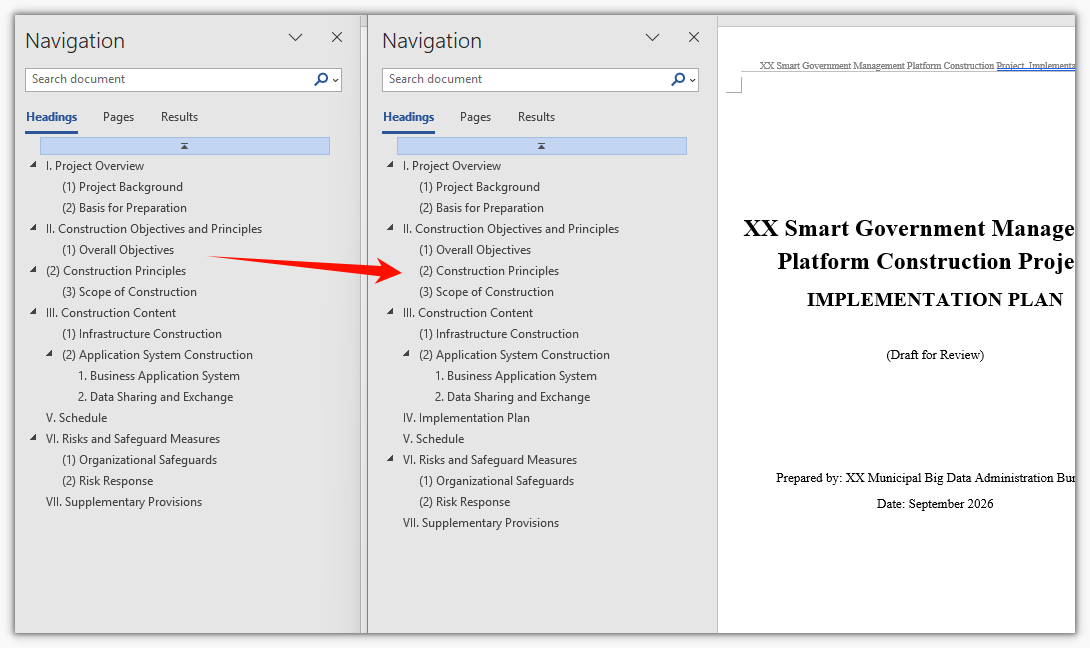
After reconstruction, the TOC entries and levels correspond one-to-one with the body headings, and clicking an entry jumps to the correct position, with no more entries pointing to old chapters or missing. For documents with major structural changes, regenerating the TOC directly is more convenient than manually adding and deleting TOC entries, and far less likely to miss a change.
Page Number, Header and Footer Refresh
After the TOC is reconstructed, the page numbers, headers and footers also need to be realigned. Page number misalignment usually comes from the section settings, and the chapter name or total page count in the header shows the old value of the field. The core idea of this step is: let AI refresh the page numbers of the whole document and set the start value and continuation method according to sections, and at the same time update the dynamic fields in the headers and footers (such as chapter name, total page count, and date) so that the values of these fields match the current content of the body.
using Spire.Agent.Office.AI;
using Spire.Agent.Office.Extensions;
using Spire.Doc;

// The document whose page numbers are to be refreshed (can follow the reconstructed document from the previous section)
string inputPath = "E:\\Input\\XX_Project_Implementation_Plan-Reconstructed.docx";
// Save path
string savePath = "E:\\Output\\XX_Project_Implementation_Plan-Final.docx";
// SpireToken Key
string key = "**********************";
// Natural language instruction
string instruction =
    "Please refresh the page numbers of the current document and update the dynamic fields in the headers and footers: " +
    "1. Recalculate and refresh the page numbers of the whole document, with the body page numbers numbered consecutively starting from page 1; " +
    "2. Set page numbers by section, do not number the cover page and the table of contents, and start the body on a separate page with restarted numbering; " +
    "3. Update the dynamic fields such as the chapter name in the header (taken from the heading at the corresponding level) and the total page count, so that they match the current content of the body; " +
    "4. Unify the footer page number format as \"Page X of Y\". " +
    "Only update the above structural information, do not modify the body content, and finally save and output in DOCX format";

// Call the Word document processing function
AIResult result = ExecuteDemoWord(instruction, inputPath, savePath, key, null);

// Execute Word document AI processing
static AIResult ExecuteDemoWord(string instruction, string inputPath, string savePath, string key, string[] attachmentPaths)
{
    // Create an AIOptions configuration object
    AIOptions options = new AIOptions();
    // Set the SpireToken Key
    options.SpireToken = key;

    // Use the Document object to process the Word document
    using (Document doc = new Document())
    {
        // Load the document whose page numbers are to be refreshed
        if (!string.IsNullOrEmpty(inputPath) && File.Exists(inputPath))
        {
            doc.LoadFromFile(inputPath);
        }
        // Create the AI document processor
        AIDocumentProcessor processor = doc.AI(options);

        // Execute the AI instruction
        return processor.ExecuteInstruction(doc, instruction, savePath, attachmentPaths);
    }
}
Document after refreshing the page numbers, headers and footers
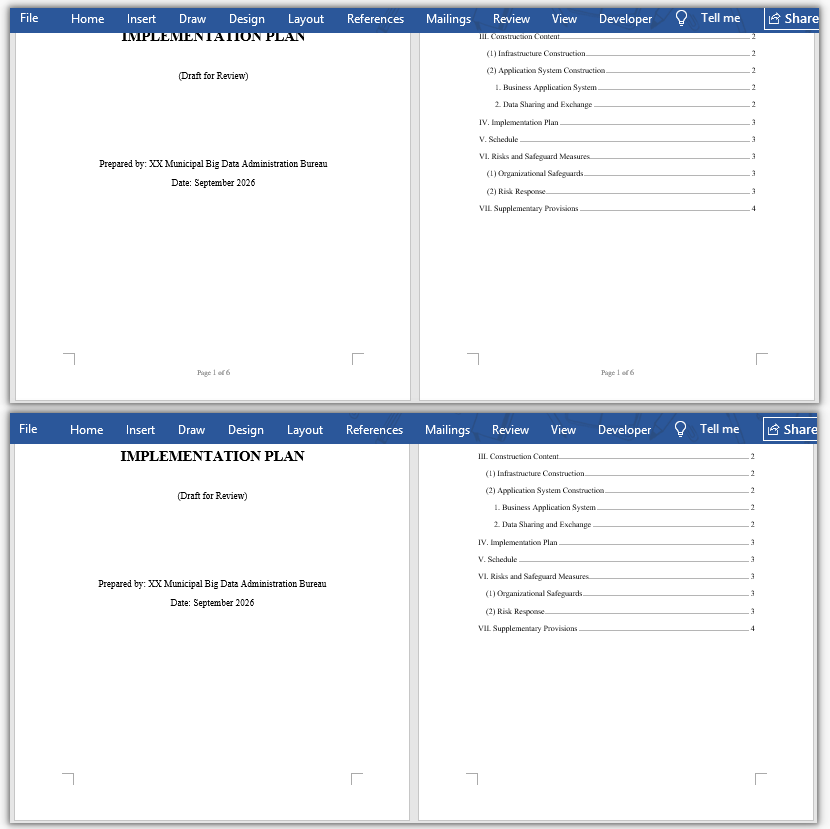
After refreshing, the body page numbers are consecutive, the section start values are correct, and the chapter name and total page count in the header stay consistent with the body. For documents processed in batches, the same set of instructions can be used to unify the page number rules and the header and footer formats, saving the time of opening each document and checking each item.
FAQ
The reconstructed table of contents still shows old entries or gains extra items
Reason: The original document's table of contents is static text rather than a TOC field, or the heading styles are not unified, causing deviations in the recognized levels.
Solution: In the instruction, explicitly require "delete the original table of contents and regenerate a table of contents field according to the body headings", and state the basis for recognizing headings (by style name or outline level) to reduce misjudgment.
Page numbers do not match starting from a certain section or repeat
Reason: The page number start value and continuation method of the section breaks do not meet the requirements, and it is easy to miss a section when setting them manually.
Solution: Write out the page number requirements of each section one by one in the instruction, such as "do not number the cover page and the table of contents, start the body from page 1, and number each section consecutively", and let AI set them uniformly by section.
The chapter name or total page count in the header does not change
Reason: The chapter name and total page count are mostly dynamic fields such as STYLEREF and NUMPAGES, and still show cached values when not refreshed.
Solution: Require "update the values of all dynamic fields in the headers and footers", and explain the source of the fields, such as the chapter name taken from the heading at the corresponding level and the total page count taken from the whole document.
The body formatting is changed along with the structure reconstruction
Reason: The operation scope was not limited, and AI adjusted the fonts and paragraph formats of the body while unifying the heading styles.
Solution: In the instruction, clearly state "only adjust structural information such as heading styles, the table of contents, page numbers, headers and footers, and keep the body fonts and paragraph formats unchanged".
Get the SpireToken Key
- Contact sales@e-iceblue.com or visit https://www.e-iceblue.com/TemLicense.html to obtain a trial/commercial API key
Configure it in your code:
AIOptions options = new AIOptions();
options.SpireToken = key;
Batch PDF Encryption, Distribution and Decryption with Spire.Agent.Office
2026-09-10 02:34:14 Written by AdministratorIn HR, finance and legal workflows, PDF is the format most often used for sensitive content such as payslips, labor contracts, statements and reconciliations — and "distributing a batch of PDFs to different people" happens every month. Sending plain-text PDFs directly is risky: once a file is forwarded, anyone who receives it can open and read it. The traditional approach is to manually set an open password on each file with a dedicated tool before distribution; doing this for dozens or even hundreds of files is slow and easy to get wrong (some files simply get missed). On the receiving side, users often need a separate tool just to remove the password before they can read the file, which makes the whole loop inefficient.
The PDF AI capability of Spire.Agent.Office lets you describe what you need in natural language. The AI agent understands the request and completes the whole flow — "batch encryption → distribution list → decrypt on demand" — automatically.
Comparison with Traditional SDK API
| Traditional Spire.Office for .NET API | Spire.Agent.Office | |
|---|---|---|
| Driving style | Write loops to iterate files plus password-setting and permission code that controls every step | Describe the goal in natural language; the AI understands it and orchestrates the execution path |
| Code size | Batch encryption/decryption usually needs 200-400 lines of C# (file enumeration, encryption parameters, exception handling, etc.) | About 10 lines of calling code + 1 natural-language instruction |
| Password strategy | Hard-code passwords file by file, or design and maintain a password-generation rule in code | State the rule in one sentence of the instruction (e.g., generated from the employee ID); the AI applies it automatically |
| Distribution list | Need to write extra logic to produce the manifest/table | The same instruction can also output an encryption distribution password list |
| Format handling | Need to handle low-level details such as encryption algorithm and permission flags by hand | The AI recognizes and preserves the layout, fonts and page settings of the original documents |
| Requirement change | Change a rule/path → change code → compile → redeploy | Modify the instruction and it takes effect immediately |
This article shows how to use the Spire.Agent.Office PDF AI capability to set open passwords on a batch of PDFs and produce an encryption distribution list, then remove password protection on demand. Two cases demonstrate the two typical uses — encryption for distribution and decryption for archiving:
- Case 1: Batch-encrypt PDFs and generate a distribution list
- Case 2: Batch-decrypt password-protected PDFs
For product installation and SpireToken configuration, please refer to Integrating Spire.Agent.Office in a .NET Project. The examples below assume that Spire.Agent.Office has been installed and SpireToken has been configured.
Batch PDF Encryption, Distribution and Decryption
The core idea is: take one or more PDF documents to process as input, and let the AI agent set an open password on each one and save the encrypted copy — or remove the protection when the password is known — while keeping the original layout unchanged. The whole process of "file reading → password rule application → encryption/decryption → result output" is completed automatically by the AI, with no need to write per-file processing code. Case 1 below demonstrates batch encryption and distribution to recipients; Case 2 demonstrates how an administrator decrypts and archives the documents after they are collected back.
Case 1: Batch-encrypt PDFs and generate a distribution list
The most common batch-encryption scenario is adding an open password to many sensitive PDFs (such as employee payslips) before they are sent out. There are many files and each has a different recipient; if every file shares one password the protection is meaningless, but if passwords all differ they are hard to remember and communicate.
The example below uses the Spire.Agent.Office agent to treat every PDF in the attachments folder (i.e., all PDF files under the specified folder) as documents to be encrypted, assigns each one an independent open password based on the rule "employee date of birth + 4 random digits + @2026", saves the encrypted documents as PDFs, and at the same time produces an encryption distribution list that maps the original file name, the encrypted file name and the open password row by row:
using Spire.Agent.Office.AI;
using Spire.Agent.Office.Extensions;
using Spire.Pdf;

// Folder containing the PDFs to encrypt: every PDF in this folder is treated as an attachment (one per recipient)
string attachmentDir = @"E:\pdfs";  // folder that holds the PDFs to be encrypted
string[] attachmentPaths = Directory.GetFiles(attachmentDir, "*.pdf");

// PDF-related configuration
string inputPath = null;
string savePath = null;  // result path (null here: the output folder below will be used)
string OutDir = @"E:\output";  // output directory (encrypted PDFs and the distribution list are saved here)
string key = "**************************";  // SpireToken key
string instruction =
    "Read all the PDF files in the attachments and encrypt each one with an open password:" +
    "1. Generate the password for each file as 'employee date of birth + 4 random digits @2026' (for example, salary-1001.pdf corresponds to password 199805083371@2026). This open password only restricts opening the document and does not affect other functions such as printing, copying or editing;" +
    "2. Save every encrypted PDF to the output directory, appending '-encrypted' to the original file name, and keep the layout, fonts and page settings of the original document;" +
    "3. Generate an Excel-format encryption distribution list in the output directory, listing the original file name, encrypted file name and open password in each row.";

// Call the PDF document processing function
AIResult result = ExecuteDemoPDF(instruction, inputPath, savePath, key, OutDir, attachmentPaths);

// Execute PDF AI processing
static AIResult ExecuteDemoPDF(string instruction, string inputPath, string savePath, string key, string output, string[] attachmentPaths)
{
    // Create the AIOptions configuration object
    AIOptions options = new AIOptions();
    options.WorkDir = output;  // set the working directory to the output directory
    options.SpireToken = key;  // set the SpireToken key

    // Process the PDF document using a PdfDocument object
    using (PdfDocument pdf = new PdfDocument())
    {
        // Load the PDF document from file
        if (!string.IsNullOrEmpty(inputPath) && File.Exists(inputPath))
        {
            pdf.LoadFromFile(inputPath);
        }
        // Create the AI document processor
        AIDocumentProcessor processor = pdf.AI(options);

        // Execute the AI instruction
        return processor.ExecuteInstruction(pdf, instruction, savePath, attachmentPaths);
    }
}
The original PDF documents to be encrypted  Batch-encrypted PDFs and the encryption distribution list
Every PDF gets an independent open password while the layout of the original document is preserved, and the encryption distribution list maps each file to its recipient's password so the sender can deliver it securely together with the files. When a new recipient is added later, you only need to put the new file into the attachments folder and rerun the instruction to complete the next round of encryption and distribution.
Case 2: Batch-decrypt password-protected PDFs
After recipients have finished reviewing, the administrator usually collects the files back for archiving and needs to remove the previously set open passwords in batch so the documents can be searched and merged. In this case the input file is empty; the encrypted PDFs and an Excel table that records the "file name / file password" mapping are provided together as attachments. The key to decryption is that the AI reads the open password of each file from the Excel table and opens the document with it.
The example below uses the Spire.Agent.Office agent with an empty input file. Through a natural-language instruction it reads the password-table Excel and the encrypted PDFs among the attachments, opens each document with the corresponding password from the table, removes the password protection, and saves the password-free documents one by one as PDFs:
using Spire.Agent.Office.AI;
using Spire.Agent.Office.Extensions;
using Spire.Pdf;

// The attachments are all the files under this folder (a password-table Excel plus the encrypted PDFs to decrypt)
string attachmentDir = @"E:\pdfs";  // folder that holds the password-table Excel and the encrypted PDFs
string[] attachmentPaths = Directory.GetFiles(attachmentDir);

// PDF-related configuration
string inputPath = "";  // empty input: all files to decrypt are among the attachments
string savePath = null;  // result path
string OutDir = @"E:\output-decrypted";  // output directory (decrypted documents are saved here)
string key = "**************************";  // SpireToken key
string instruction =
    "Read the 'file name / file password' mapping from the password-table Excel among the attachments and decrypt the matching encrypted PDFs in batch:" +
    "1. Read each row of the Excel to get its file name and the corresponding open password;" +
    "2. Locate the PDF document with the same file name among the attachments, open it with that row's password and remove the password protection;" +
    "3. Save each decrypted password-free PDF to the output directory, removing the '-encrypted' suffix from the file name, and keep the layout, fonts and page settings of the original document;" +
    "Save the final result as a PDF file";

// Call the PDF document processing function
AIResult result = ExecuteDemoPDF(instruction, inputPath, savePath, key, OutDir, attachmentPaths);

// Execute PDF AI processing
static AIResult ExecuteDemoPDF(string instruction, string inputPath, string savePath, string key, string output, string[] attachmentPaths)
{
    // Create the AIOptions configuration object
    AIOptions options = new AIOptions();
    options.WorkDir = output;  // set the working directory to the output directory
    options.SpireToken = key;  // set the SpireToken key

    // Process the PDF document using a PdfDocument object
    using (PdfDocument pdf = new PdfDocument())
    {
        // The input file is empty so nothing is loaded; all files to process come from the attachments (the password-table Excel + the encrypted PDFs)
        if (!string.IsNullOrEmpty(inputPath) && File.Exists(inputPath))
        {
            pdf.LoadFromFile(inputPath);
        }
        // Create the AI document processor
        AIDocumentProcessor processor = pdf.AI(options);

        // Execute the AI instruction
        return processor.ExecuteInstruction(pdf, instruction, savePath, attachmentPaths);
    }
}
The password-table Excel and the encrypted PDF documents to decrypt  The decrypted password-free PDF documents
The "file name → file password" mapping in the password-table Excel is read and applied one row at a time, and the collected encrypted files are restored to password-free plain-text PDFs in batch, ready for archiving, searching or further merging.
FAQ
After setting an "open password", will printing / copying / editing be affected (besides needing the password to open)?
Cause: An open password and document permissions are two different things. The examples in this article only set an open password on the document and do not apply restrictions such as "no printing" or "no copying".
Solution: After encryption, apart from needing the password to open the document, the original functions such as printing, copying and editing remain unaffected. If you need to restrict printing or copying for security reasons, add a permission description to the instruction (for example, "view only; printing and copying are not allowed") and the AI will configure the corresponding permissions accordingly.
Does encrypting a PDF with an open password change its layout?
Cause: Encryption only affects opening and permission validation of the document; it does not reflow the page content.
Solution: Spire.Agent.Office preserves the layout, fonts and page settings of the original documents during encryption. If you are concerned about a particular style change, add "keep the layout, fonts and page settings of the original document" to the instruction.
Getting a SpireToken Key
- Contact sales@e-iceblue.com or visit https://www.e-iceblue.com/TemLicense.html to obtain a trial/commercial API key
Configure it in your code:
AIOptions options = new AIOptions();
options.SpireToken = key;
