A consecutive sequence is often all a list needs — but real documents regularly ask for a new group that starts at a chosen number, or for a more distinctive glyph than the default dot. Neither change touches the paragraphs: both are level parameters of the list style itself, and both hang off ListRef.Levels — StartAt for the starting number, BulletCharacter for the glyph. Spire.Doc for JavaScript reads and writes these parameters directly in the browser via WebAssembly, with no backend server required.
This article covers two core features:
For installation and project setup, refer to Integrating Spire.Doc for JavaScript in a React Project. The examples below assume Spire.Doc is installed and the WebAssembly module is initialized.
Restart a List at a Specific Number
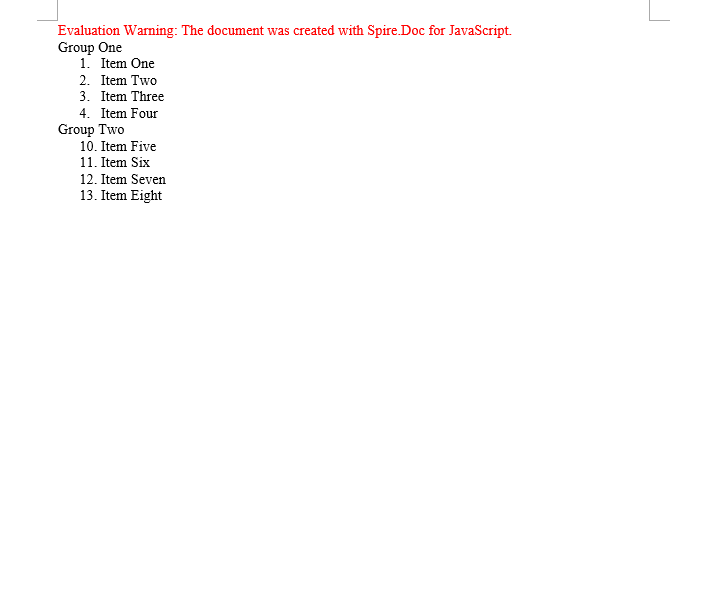
When two lists share one style object, Word treats them as a single numbering sequence and the second group simply carries on from the first. To make the second group count again, the most direct approach is to create a separate list style for it and set the StartAt property of level 0 on that style — it decides which number the level starts at.
StartAt follows the same indexing as ListLevelNumber: get_Item(0) is the first level. The sample sets the second list to 10, so its first entry renders as 10.:
function App() {
  const RestartList = async () => {
    const docModule = window.wasmModule?.spiredoc;
    if (!docModule) {
      alert('Spire.Doc is not ready yet');
      return;
    }

    // Create the document and the section
    let doc = new docModule.Document();
    let section = doc.AddSection();

    // Group heading
    let paragraph = section.AddParagraph();
    paragraph.AppendText("Group One");

    // The first list style: starts at 1 by default
    let numberList = doc.Styles.Add({ listType: docModule.ListType.Numbered, name: "Numbered1" });
    doc.Styles.Add(numberList);

    // Apply the style paragraph by paragraph
    paragraph = section.AddParagraph();
    paragraph.AppendText("Item One");
    paragraph.ListFormat.ApplyStyle(numberList.Name);

    paragraph = section.AddParagraph();
    paragraph.AppendText("Item Two");
    paragraph.ListFormat.ApplyStyle(numberList.Name);

    paragraph = section.AddParagraph();
    paragraph.AppendText("Item Three");
    paragraph.ListFormat.ApplyStyle(numberList.Name);

    paragraph = section.AddParagraph();
    paragraph.AppendText("Item Four");
    paragraph.ListFormat.ApplyStyle(numberList.Name);

    // Group heading
    paragraph = section.AddParagraph();
    paragraph.AppendText("Group Two");

    // The second list style: set the starting number of level 0 to 10
    let numberList2 = doc.Styles.Add({ listType: docModule.ListType.Numbered, name: "Numbered2" });
    numberList2.ListRef.Levels.get_Item(0).StartAt = 10;
    doc.Styles.Add(numberList2);

    // Apply the second style paragraph by paragraph; the numbering starts at 10
    paragraph = section.AddParagraph();
    paragraph.AppendText("Item Five");
    paragraph.ListFormat.ApplyStyle(numberList2.Name);

    paragraph = section.AddParagraph();
    paragraph.AppendText("Item Six");
    paragraph.ListFormat.ApplyStyle(numberList2.Name);

    paragraph = section.AddParagraph();
    paragraph.AppendText("Item Seven");
    paragraph.ListFormat.ApplyStyle(numberList2.Name);

    paragraph = section.AddParagraph();
    paragraph.AppendText("Item Eight");
    paragraph.ListFormat.ApplyStyle(numberList2.Name);

    // Define the output file name
    const outputFileName = "RestartList-result.docx";

    // Save the document to the given path
    doc.SaveToFile({ fileName: outputFileName, fileFormat: docModule.FileFormat.Docx2013 });
    doc.Dispose();

    const modifiedFileArray = window.dotnetRuntime.Module.FS.readFile(outputFileName);
    const blob = new Blob([modifiedFileArray], { type: 'application/vnd.openxmlformats-officedocument.wordprocessingml.document' });
    const url = URL.createObjectURL(blob);
    const a = document.createElement('a');
    a.href = url;
    a.download = outputFileName;
    a.click();
    URL.revokeObjectURL(url);
  };

  return (
    <div style={{ textAlign: 'center', height: '300px' }}>
      <h1>Restart the Second List at a Given Number</h1>
      <button onClick={RestartList}>Generate</button>
    </div>
  );
}
export default App;
The first list is numbered 1 to 4, the second starts at 10 and runs 10 to 13
Customize the Glyph a Bullet Displays
A bulleted list uses a dot such as · by default. Switching it to another shape takes two properties:
BulletCharacter— the character itself. It is a single character and can be produced from an ASCII/Unicode code point withString.fromCharCode();CharacterFormat.FontName— the font that carries the character. The shape of a bullet is really decided by the font: one code point draws a different figure under different fonts.
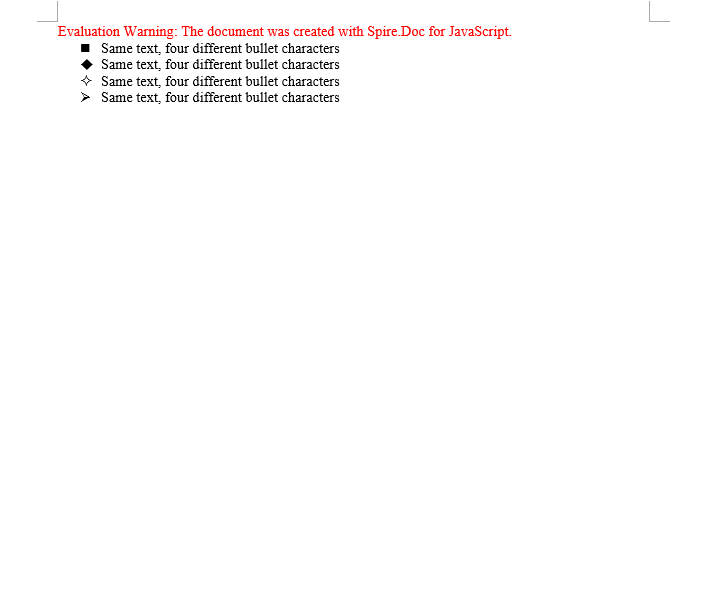
The second point is the one that matters. Symbol fonts such as Wingdings map ordinary letters onto geometric shapes, so a single character code comes out completely different under Wingdings than under a regular font. The sample below builds four list styles from four code points and applies each of them to the same sentence, so that the differences can be compared side by side:
function App() {
  const ASCIICharactersBulletStyle = async () => {
    const docModule = window.wasmModule?.spiredoc;
    if (!docModule) {
      alert('Spire.Doc is not ready yet');
      return;
    }

    // Create the document and the section
    let doc = new docModule.Document();
    let section = doc.AddSection();

    // Spell the glyph out as a character code and set the font that carries it to Wingdings
    let listStyle1 = doc.Styles.Add({ listType: docModule.ListType.Bulleted, name: "liststyle" });
    listStyle1.ListRef.Levels.get_Item(0).BulletCharacter = String.fromCharCode(0x006e);
    listStyle1.ListRef.Levels.get_Item(0).CharacterFormat.FontName = "Wingdings";

    let listStyle2 = doc.Styles.Add({ listType: docModule.ListType.Bulleted, name: "liststyle2" });
    listStyle2.ListRef.Levels.get_Item(0).BulletCharacter = String.fromCharCode(0x0075);
    listStyle2.ListRef.Levels.get_Item(0).CharacterFormat.FontName = "Wingdings";

    let listStyle3 = doc.Styles.Add({ listType: docModule.ListType.Bulleted, name: "liststyle3" });
    listStyle3.ListRef.Levels.get_Item(0).BulletCharacter = String.fromCharCode(0x00b2);
    listStyle3.ListRef.Levels.get_Item(0).CharacterFormat.FontName = "Wingdings";

    let listStyle4 = doc.Styles.Add({ listType: docModule.ListType.Bulleted, name: "liststyle4" });
    listStyle4.ListRef.Levels.get_Item(0).BulletCharacter = String.fromCharCode(0x00d8);
    listStyle4.ListRef.Levels.get_Item(0).CharacterFormat.FontName = "Wingdings";

    // Four paragraphs share one sentence, each with one of the four list styles
    let p1 = section.Body.AddParagraph();
    p1.AppendText("Same text, four different bullet characters");
    p1.ListFormat.ApplyStyle(listStyle1.Name);

    let p2 = section.Body.AddParagraph();
    p2.AppendText("Same text, four different bullet characters");
    p2.ListFormat.ApplyStyle(listStyle2.Name);

    let p3 = section.Body.AddParagraph();
    p3.AppendText("Same text, four different bullet characters");
    p3.ListFormat.ApplyStyle(listStyle3.Name);

    let p4 = section.Body.AddParagraph();
    p4.AppendText("Same text, four different bullet characters");
    p4.ListFormat.ApplyStyle(listStyle4.Name);

    // Define the output file name
    const outputFileName = "ASCIICharactersBulletStyle-result.docx";

    // Save the document to the given path
    doc.SaveToFile({ fileName: outputFileName, fileFormat: docModule.FileFormat.Docx2013 });
    doc.Dispose();

    const modifiedFileArray = window.dotnetRuntime.Module.FS.readFile(outputFileName);
    const blob = new Blob([modifiedFileArray], { type: 'application/vnd.openxmlformats-officedocument.wordprocessingml.document' });
    const url = URL.createObjectURL(blob);
    const a = document.createElement('a');
    a.href = url;
    a.download = outputFileName;
    a.click();
    URL.revokeObjectURL(url);
  };

  return (
    <div style={{ textAlign: 'center', height: '300px' }}>
      <h1>Create a Bullet Style from ASCII Characters</h1>
      <button onClick={ASCIICharactersBulletStyle}>Generate</button>
    </div>
  );
}
export default App;
Four identical lines, each with a different bullet; the difference comes from the BulletCharacter code point
FAQ
StartAt is set, but the list still continues from the previous group
Cause: The new list and the old one reuse the same style object. Every reference to one style shares a single numbering sequence, so changing StartAt moves the starting point of the whole sequence.
Solution: Add a separate style for the group that has to count again, and set StartAt on that new style:
let numberList2 = document.Styles.Add({ listType: wasmModule.ListType.Numbered, name: "Numbered2" });
numberList2.ListRef.Levels.get_Item(0).StartAt = 10;
The custom bullet shows up as a box or as garbled text
Cause: Only BulletCharacter was set and the font was left alone — or a regular font that does not contain the glyph was used. The system cannot render the code point and falls back to the missing-glyph box.
Solution: Set the symbol font to one that really contains the glyph (Wingdings, for example):
listStyle1.ListRef.Levels.get_Item(0).BulletCharacter = String.fromCharCode(0x006e);
listStyle1.ListRef.Levels.get_Item(0).CharacterFormat.FontName = "Wingdings";
The list level parameter was changed but nothing happens
Cause: ListRef.Levels is indexed from 0. Writing 1 out of habit changes the second level instead, and the first level stays exactly as it was.
Solution: Check the index — get_Item(0) is the first level:
// First level
numberList.ListRef.Levels.get_Item(0).StartAt = 10;
// Second level
numberList.ListRef.Levels.get_Item(1).NumberPrefix = "%1.";
Get a Free License
Spire.Doc for JavaScript offers a 30-day full-featured free trial license with no functional limitations. Apply here to evaluate before purchasing.
