A well-formatted document is worth more than its looks: the style a paragraph carries is structured information in its own right. Whether a heading paragraph is on Heading 1 or Heading 2, and which style the body copy uses, both say something about how the document is organised. The same works in reverse — when the headings of a document have to be pulled out to build a table of contents or a summary, the reliable way is to select them by style name rather than to guess which line looks bigger.
In Spire.Doc for JavaScript every paragraph carries a StyleName property, and reading it returns the style that paragraph is currently using. Both examples in this article write their output to a TXT file.
This article covers two core features:
For installation and project setup, refer to Integrating Spire.Doc for JavaScript in a React Project. The examples below assume Spire.Doc is installed and the WebAssembly module is initialized.
Export the Style Names of a Document
The paragraphs of a document are organised in two levels, section then paragraph: doc.Sections is the collection of sections, and each section's Paragraphs is the collection of paragraphs. Walk both with Count + get_Item(index), read the StyleName of each paragraph and join the results up.
function App() {
  const RetrieveStyle = async () => {
    const docModule = window.wasmModule?.spiredoc;
    if (!docModule) {
      alert('Spire.Doc is not ready yet');
      return;
    }

    // Load the sample file into the virtual file system (VFS)
    let inputFileName = "RetrieveStyle.docx";
    await window.spire.FetchFileToVFS(inputFileName, "", `${process.env.PUBLIC_URL}static/data/`);

    // Load the document
    let doc = new docModule.Document();
    doc.LoadFromFile(inputFileName);

    // Walk every section -> paragraph and read each paragraph's StyleName
    let styleName = "";
    for (let i = 0; i < doc.Sections.Count; i++) {
      let section = doc.Sections.get_Item(i);
      for (let j = 0; j < section.Paragraphs.Count; j++) {
        let paragraph = section.Paragraphs.get_Item(j);
        styleName += paragraph.StyleName + "\r\n";
      }
    }

    // Define the output file name
    const outputFileName = "RetrieveStyle-result.txt";

    // Write the content to the TXT file (straight into the VFS, not through SaveToFile)
    window.dotnetRuntime.Module.FS.writeFile(outputFileName, styleName);
    doc.Close();

    // Read the written file and wrap it in a Blob
    const modifiedFileArray = window.dotnetRuntime.Module.FS.readFile(outputFileName);
    const blob = new Blob([modifiedFileArray], { type: "text/plain" });
    const url = URL.createObjectURL(blob);
    const a = document.createElement('a');
    a.href = url;
    a.download = outputFileName;
    a.click();
    URL.revokeObjectURL(url);
  };

  return (
    <div style={{ textAlign: 'center', height: '300px' }}>
      <h1>Read the Style Name of Every Paragraph</h1>
      <button onClick={RetrieveStyle}>Generate</button>
    </div>
  );
}
export default App;
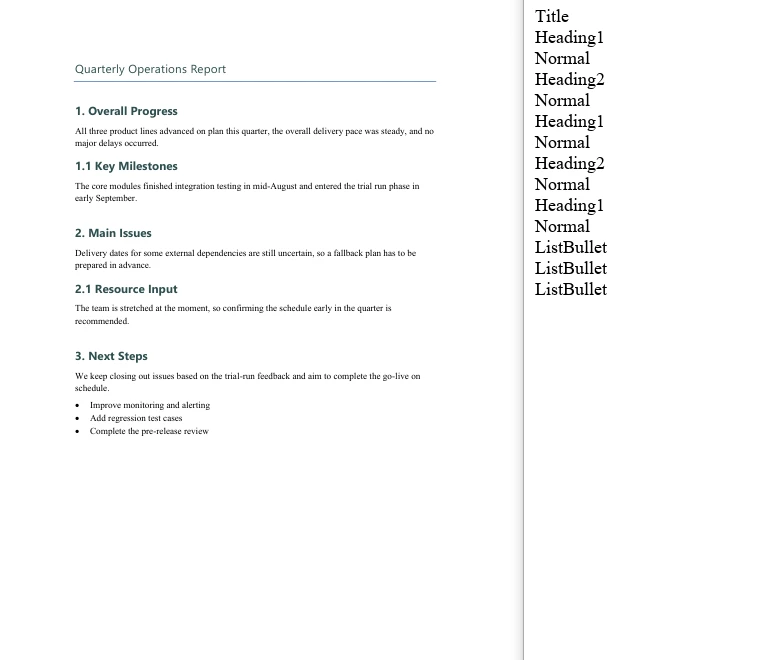
The sample document holds 14 paragraphs, and the exported TXT lists one style name per line, in paragraph order:
Title
Heading1
Normal
Heading2
Normal
Heading1
Normal
Heading2
Normal
Heading1
Normal
ListBullet
ListBullet
ListBullet
Note that the built-in style names come back without the space — Heading1 rather than Heading 1, ListBullet rather than List Bullet. That matters a great deal once a style name is used in a comparison.
The style name list exported for each paragraph of the sample document
Extract Paragraph Text by Style Name
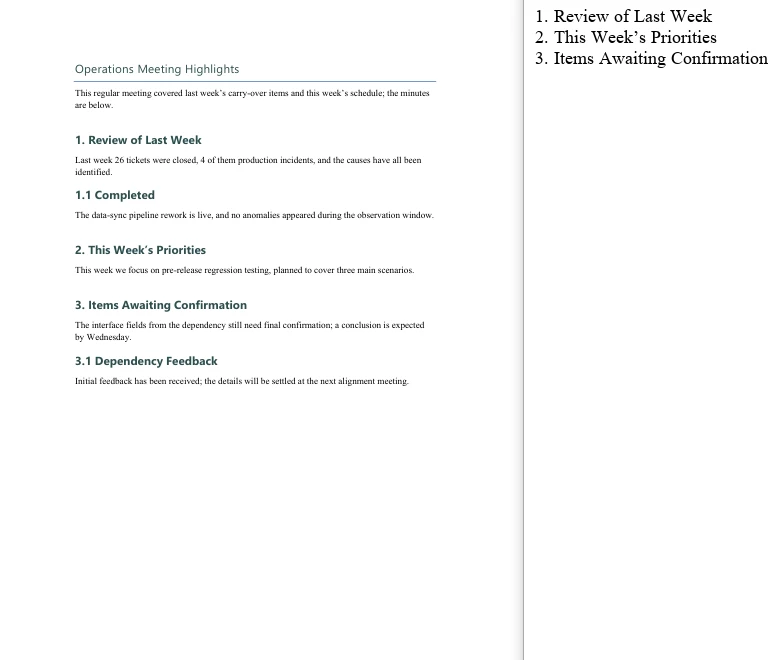
The same two-level walk applies; all it takes is one extra test per paragraph — only when StyleName equals the target style name does paragraph.Text go into the result. The sample document holds 3 Heading1 paragraphs, with a Title, Heading 2 and body paragraphs around them, which shows that the filter really does pick out the target style alone.
function App() {
  const GetTextByStyleName = async () => {
    const docModule = window.wasmModule?.spiredoc;
    if (!docModule) {
      alert('Spire.Doc is not ready yet');
      return;
    }

    // Load the sample file into the virtual file system (VFS)
    let inputFileName = "GetTextByStyleName.docx";
    await window.spire.FetchFileToVFS(inputFileName, "", `${process.env.PUBLIC_URL}static/data/`);

    // Load the document
    let doc = new docModule.Document();
    doc.LoadFromFile(inputFileName);

    // Collect the text of the paragraphs that match
    let builder = [];

    // Walk every section -> paragraph
    for (let i = 0; i < doc.Sections.Count; i++) {
      let section = doc.Sections.get_Item(i);
      for (let j = 0; j < section.Paragraphs.Count; j++) {
        let para = section.Paragraphs.get_Item(j);

        // Take only the paragraphs whose style name is Heading1
        if (para.StyleName == "Heading1") {
          builder.push(para.Text);
        }
      }
    }

    // Define the output file name
    const outputFileName = "GetTextByStyleName-result.txt";

    // Write the content to the TXT file
    window.dotnetRuntime.Module.FS.writeFile(outputFileName, builder.join("\n"));
    doc.Close();

    // Read the written file and wrap it in a Blob
    const modifiedFileArray = window.dotnetRuntime.Module.FS.readFile(outputFileName);
    const blob = new Blob([modifiedFileArray], { type: "text/plain" });
    const url = URL.createObjectURL(blob);
    const a = document.createElement('a');
    a.href = url;
    a.download = outputFileName;
    a.click();
    URL.revokeObjectURL(url);
  };

  return (
    <div style={{ textAlign: 'center', height: '300px' }}>
      <h1>Extract Paragraph Text by Style Name</h1>
      <button onClick={GetTextByStyleName}>Generate</button>
    </div>
  );
}
export default App;
The exported TXT holds just 3 lines, which are exactly the Heading1 paragraphs of the document:
1. Review of Last Week
2. This Week’s Priorities
3. Items Awaiting Confirmation
Only the paragraphs on the target style reached the exported TXT
FAQ
Filtering by style name matches no paragraph at all
Cause: The StyleName of a built-in style is the space-free form, so writing "Heading 1" matches nothing.
Solution: Use the name without the space. In the sample, "Heading1" matches 3 paragraphs while "Heading 1" matches 0:
// Right
if (para.StyleName == "Heading1") { ... }

// Matches nothing
if (para.StyleName == "Heading 1") { ... }
Names are case-sensitive as well, so run the style-name export first to confirm the names the document actually uses before writing the condition.
The exported TXT has a blank line between every line
Cause: The text is joined both ways at once — push(text + "\n") and then join("\n"). Every element already carries a newline and join adds another one, so a blank line appears between every pair.
Solution: Keep only one of the two — either leave the newline off the elements and let join add it, or keep it on the elements and join with join(""):
// Let join supply the line breaks
builder.push(para.Text);
window.dotnetRuntime.Module.FS.writeFile(outputFileName, builder.join("\n"));
The downloaded file opens as garbled text
Cause: The MIME type of the Blob is set to docx, or the text is treated as a binary document when it is read back, so opening it in Word naturally shows nonsense.
Solution: A TXT output has to declare text/plain, and it should be opened in a text editor such as Notepad:
const modifiedFile = new Blob([modifiedFileArray], { type: "text/plain" });
Paragraphs inside tables are missed when walking Sections and Paragraphs
Cause: section.Paragraphs holds the body paragraphs only — paragraphs inside table cells are not in it. Table content hangs off section.Tables, and the Paragraphs of every cell has to be walked separately.
Solution: If the document contains tables and they need to be processed too, walk them outside the body loop:
for (let t = 0; t < section.Tables.Count; t++) {
  let table = section.Tables.get_Item(t);
  for (let r = 0; r < table.Rows.Count; r++) {
    for (let c = 0; c < table.Rows.get_Item(r).Cells.Count; c++) {
      let cell = table.Rows.get_Item(r).Cells.get_Item(c);
      // cell.Paragraphs holds the paragraphs inside the cell
    }
  }
}
Get a Free License
Spire.Doc for JavaScript offers a 30-day full-featured free trial license with no functional limitations. Apply here to evaluate before purchasing.
