The § in a contract clause, the ™ in a trademark notice, the α and ∑ in a technical document: none of them sit on an ordinary keyboard, and an input method cannot always produce them. When documents are generated in bulk these symbols have to be written by code, and when template leftovers are cleaned up they have to be deleted precisely rather than by damaging the surrounding text.
This article uses Spire.Doc for JavaScript to write and clean up symbols in the browser. The whole process runs on WebAssembly in the browser, needs no Office installation and depends on no backend, so the document stays on the user's device the entire time.
This article covers three features:
- Insert Special Symbols in a Word Paragraph
- Remove Special Symbols from Word by Text
- Remove Special Symbols from Word by Object
For installation and project setup, refer to Integrating Spire.Doc for JavaScript in a React Project. The examples below assume that Spire.Doc is installed and the WebAssembly module is initialized.
Insert Special Symbols in a Word Paragraph
Whatever the symbol, what ends up in a paragraph is a character; the difference lies in the font and in the way it is written. Ordinary punctuation can be written as plain text, while mathematical and Greek symbols often depend on the Symbol font and have to be written by character position within that font.
| How it is written | Call | Symbols it suits |
|---|---|---|
| Written as plain text | paragraph.AppendText('©') |
Punctuation, currency, copyright and trademark signs |
| Written by character position | paragraph.AppendSymbol(code) |
Math, Greek and arrow symbols in the Symbol font |
| Changing the font of existing text | textRange.CharacterFormat.FontName = 'Symbol' |
Mapping existing characters onto a symbol font |
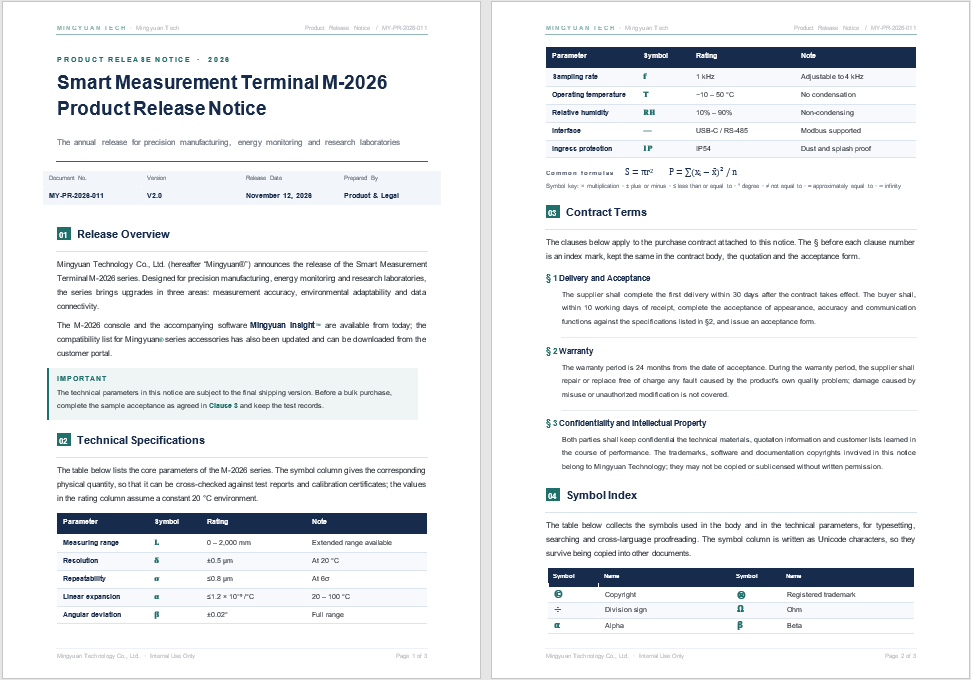
The examples use Notice.docx, a three-page release notice with a header, a parameter table, contract clauses and a symbol index; symbols such as §, ™, ®, α and ∑ are scattered through its body:
The specific steps are as follows:
- Get the Spire.Doc WASM module and confirm that it is ready.
- Load the sample document
Notice.docxinto the VFS. - Create a
Documentobject, load the file, take the first section and append a paragraph at its end. - Use
AppendTextto write the copyright line and the formula text, and useSubSuperScriptto set the square as a superscript. - Save as
NoticeWithSymbols.docx, read the file from the VFS and trigger a browser download.
The code for inserting special symbols is as follows:
function App() {
  const addSymbols = async () => {
    // Get the Spire.Doc WASM module
    const docModule = window.wasmModule?.spiredoc;

    // Check whether the module is ready
    if (!docModule) {
      alert('Spire.Doc is not ready yet');
      return;
    }

    // Load the sample document
    await window.spire.FetchFileToVFS('Notice.docx', '', `${process.env.PUBLIC_URL}/data/`);

    const doc = new docModule.Document();
    doc.LoadFromFile('Notice.docx');

    const section = doc.Sections.get_Item(0);
    const paragraph = section.AddParagraph();

    // Plain symbols: written directly as text
    const copyright = paragraph.AppendText('Copyright © 2026 Mingyuan Technology Co., Ltd.');
    copyright.CharacterFormat.FontSize = 10.5;
    paragraph.AppendText('\r\n');

    // Formula: π is written directly, the square is a superscript
    const formula = paragraph.AppendText('Area S = πr');
    formula.CharacterFormat.FontSize = 10.5;
    const square = paragraph.AppendText('2');
    square.CharacterFormat.SubSuperScript = docModule.SubSuperScript.SuperScript;

    const tail = paragraph.AppendText(', where r = 12.5 cm, S ≈ 491 cm².');
    tail.CharacterFormat.FontSize = 10.5;

    const outputFileName = 'NoticeWithSymbols.docx';
    doc.SaveToFile({ fileName: outputFileName, fileFormat: docModule.FileFormat.Docx2013 });
    doc.Dispose();

    // Read the generated file from the VFS and trigger the download
    const fileArray = window.dotnetRuntime.Module.FS.readFile(outputFileName);
    const blob = new Blob([fileArray], {
      type: 'application/vnd.openxmlformats-officedocument.wordprocessingml.document',
    });
    const url = URL.createObjectURL(blob);
    const a = document.createElement('a');
    a.href = url;
    a.download = outputFileName;
    a.click();
    URL.revokeObjectURL(url);
  };

  return (
    <div style={{ textAlign: 'center', height: '300px' }}>
      <h1>Insert Symbols</h1>
      <button onClick={addSymbols}>Insert</button>
    </div>
  );
}

export default App;
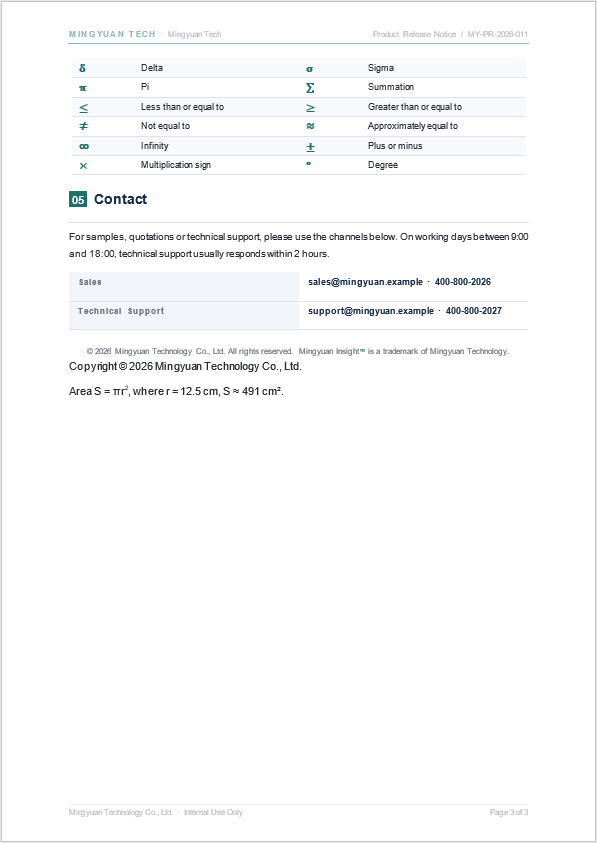
The new copyright line and formula appear at the end of the document:
Writing Symbol-Font Characters by Position
AppendSymbol takes a character position and produces a Symbol object that uses the Symbol font. The following snippet appends α and ∑ at the end of the paragraph:
// In the Symbol font, 0x61 is α and 0xE5 is ∑
const alpha = paragraph.AppendSymbol(0x61);
alpha.FontName = 'Symbol';
alpha.CharacterFormat.FontSize = 12;

const sum = paragraph.AppendSymbol(0xE5);
sum.FontName = 'Symbol';
sum.CharacterFormat.FontSize = 12;
Different fonts may map the same code value to different glyphs, so it is worth confirming the shape in Word after inserting. If the result is not what you expect, write the Unicode character with AppendText instead and set a font with wider coverage.
Check the Font First When a Symbol Shows as a Box
A box usually means the current font has no glyph for that character. The Symbol font covers only a specific character set, and some East Asian fonts do not include the full set of mathematical symbols. Try the following in turn:
- change
CharacterFormat.FontNameto a font with wider coverage, such asCambria Math,Segoe UI SymbolorArial Unicode MS; - write the Unicode character with
AppendTextinstead of relying on a private position in the font; - for symbols that must keep a fixed appearance, switch to an image or an embedded font.
Enlarging the font size alone generally does not make a missing glyph appear.
Remove Special Symbols from Word by Text
To remove special symbols by text, use Paragraph.Replace(): it finds a given string inside a paragraph and replaces it. Set the replacement to an empty string and the result is a deletion. This suits cleaning up placeholder marks in a template, such as removing the § before every clause number.
| Parameter | Meaning | Example value |
|---|---|---|
given |
The text to find | '§' |
replace |
The text to replace it with | '' (an empty string deletes) |
caseSensitive |
Whether the search is case-sensitive | false |
wholeWord |
Whether only whole words match | false |
Replace() only acts on the paragraph it is called on, so the paragraphs of the document have to be walked first.
The specific steps are as follows:
- Load the sample document
Notice.docx. - Loop over all sections, and over
Body.ChildObjectsof each section. - Skip objects that are not paragraphs, and call
Replace('§', '', false, false)andReplace('™', '', false, false)on each paragraph. - Save as
NoticeWithoutSymbols.docx. - Read the result from the VFS and download it.
The code for removing special symbols by text is as follows (the module check, the document loading and the download code are the same as in the previous section and are omitted):
const doc = new docModule.Document();
doc.LoadFromFile('Notice.docx');

for (let s = 0; s < doc.Sections.Count; s++) {
  const section = doc.Sections.get_Item(s);
  const body = section.Body;

  for (let i = 0; i < body.ChildObjects.Count; i++) {
    const obj = body.ChildObjects.get_Item(i);
    if (obj.DocumentObjectType !== docModule.DocumentObjectType.Paragraph) continue;

    // An empty second argument deletes every matched symbol
    obj.Replace('§', '', false, false);
    obj.Replace('™', '', false, false);
  }
}

const outputFileName = 'NoticeWithoutSymbols.docx';
doc.SaveToFile({ fileName: outputFileName, fileFormat: docModule.FileFormat.Docx2013 });
doc.Dispose();
The loop above covers the top-level paragraphs of the body. If a symbol sits in a table cell, keep walking Table.Rows and Row.Cells and call Replace() on the paragraphs inside the cell; alternatively call Replace() with the same signature directly on the Document.
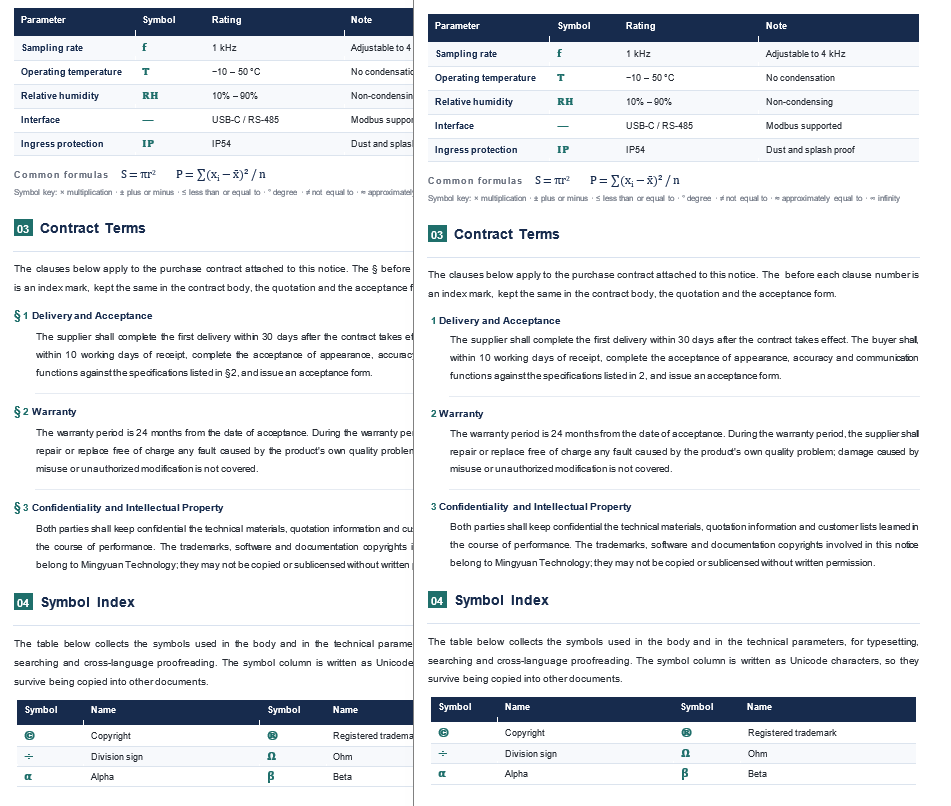
The contract clauses before and after the removal: the § before each clause number is gone, while the number and the text remain. The same loop also clears the ™ from the body:
Removing Several Symbols at Once
Put the target symbols in an array and call Replace() in a loop:
const targets = ['§', '™', '®', '©'];

for (const symbol of targets) {
  paragraph.Replace(symbol, '', false, false);
}
This deletes every match inside the paragraph. If © and ® carry real meaning in the body, leave them out of the list and keep only the placeholder symbols that genuinely need cleaning.
Remove Special Symbols from Word by Object
Removing by object suits the case where only one occurrence should go and symbols of the same name elsewhere must be kept. Walk the paragraph's ChildObjects, find the TextRange whose text equals the target symbol, and remove it with RemoveAt(index). Removing by text, by contrast, works on the whole paragraph and clears every symbol of that name in it.
| Approach | Call | Scope of deletion | When to use |
|---|---|---|---|
| Remove by text | Paragraph.Replace() |
Every match in the paragraph | Template placeholders, blanket clean-up |
| Remove by object | ChildObjects.RemoveAt(index) |
The specified TextRange |
Keep symbols of the same name elsewhere in the body |
The specific steps are as follows:
- Load the sample document
Notice.docx. - Loop over all sections and over the body paragraphs.
- Walk the paragraph's
ChildObjectsbackwards. - When the object is a
TextRangewhoseTextequals'™', callRemoveAt(k). - Save as
NoticeWithoutTrademark.docxand download it.
The code for removing special symbols by object is as follows:
const doc = new docModule.Document();
doc.LoadFromFile('Notice.docx');

const target = '™'; // Remove only the trademark sign, keep the other characters in the body

for (let s = 0; s < doc.Sections.Count; s++) {
  const section = doc.Sections.get_Item(s);
  const body = section.Body;

  for (let i = 0; i < body.ChildObjects.Count; i++) {
    const paragraph = body.ChildObjects.get_Item(i);
    if (paragraph.DocumentObjectType !== docModule.DocumentObjectType.Paragraph) continue;

    // Iterate backwards: removing an element shifts the following ones down
    for (let k = paragraph.ChildObjects.Count - 1; k >= 0; k--) {
      const child = paragraph.ChildObjects.get_Item(k);
      const isText = child.DocumentObjectType === docModule.DocumentObjectType.TextRange;

      if (isText && child.Text === target) {
        paragraph.ChildObjects.RemoveAt(k);
      }
    }
  }
}

const outputFileName = 'NoticeWithoutTrademark.docx';
doc.SaveToFile({ fileName: outputFileName, fileFormat: docModule.FileFormat.Docx2013 });
doc.Dispose();
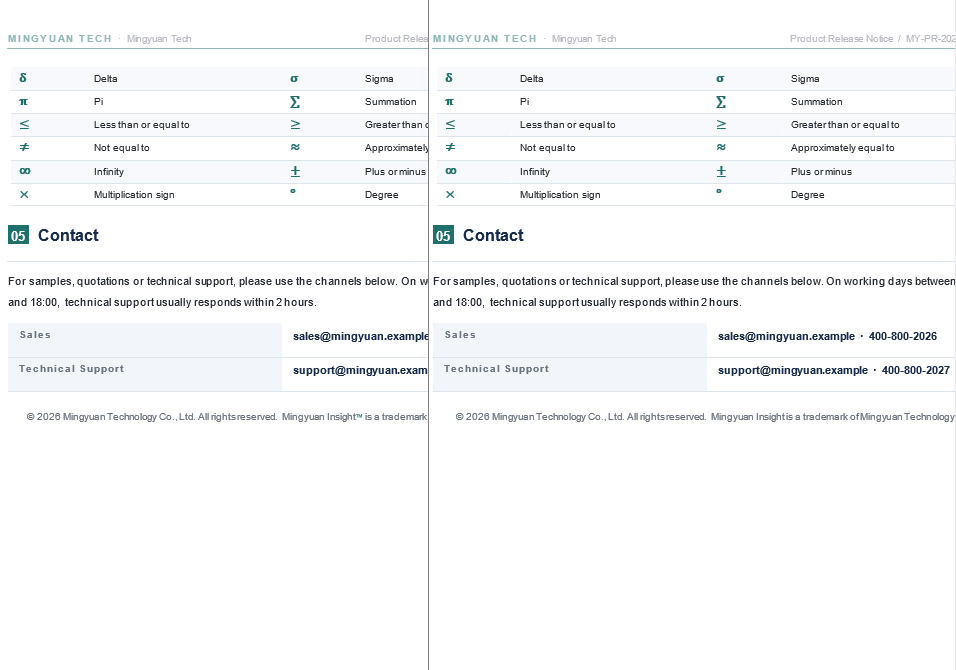
The trademark signs before and after the removal: only the ™ is gone, while the ® and the other text are untouched:
Why ChildObjects Must Be Walked Backwards
After RemoveAt() deletes an element, the elements behind it all shift down by one position. Walking forwards, every deletion makes the next iteration skip an element; walking backwards is not affected by the shift. This is the usual way to remove elements from a collection.
// Start from the last element so removal does not disturb the ones still to be handled
for (let k = paragraph.ChildObjects.Count - 1; k >= 0; k--) {
  const child = paragraph.ChildObjects.get_Item(k);
  // Check and remove
}
Does Removing by Object Take the Whole Paragraph with It
No, only the selected TextRange is removed. If the symbol sits alone in a TextRange, the rest of the paragraph is unaffected; if the symbol and the surrounding text have been merged into one TextRange, RemoveAt() takes that whole range away. In the latter case, split the text range first, or switch to Replace() and replace the symbol itself.
A table cell is a Body as well. When the symbol is inside a table, walk Table.Rows and Row.Cells first and then run the same TextRange check on the paragraphs of the cell.
FAQ
Why Does an Inserted Symbol Show as a Box
A box usually means the current font has no glyph for the character. Switch to a font with wider coverage such as Cambria Math or Segoe UI Symbol, or write the Unicode character with AppendText directly. If the box remains after the font change, check whether the environment that opens the document has that font installed.
Can the Code Value of AppendSymbol Be a Unicode Code Point
Usually not. The code value passed to AppendSymbol() is a character position in the font, and different fonts may map the same value to different glyphs, whereas a Unicode code point refers to the character itself. When the mapping is uncertain, writing the actual character with AppendText is the safer route.
Why Did Replace Delete Symbols Elsewhere in the Body
Paragraph.Replace() works on the whole paragraph, so every match inside it is replaced. To remove just one occurrence, switch to removal by object, locate the corresponding TextRange and call RemoveAt(); alternatively collect the matching ranges with FindAllString() first and handle them one by one.
Why Are Some Symbols Missed When Several Are Removed
If removal by object uses an increasing index inside the loop, every deletion shifts the following elements down and the target is easily skipped. Starting the loop at ChildObjects.Count - 1 and counting down usually avoids the miss.
Does the Word File Need to Be Uploaded to a Server
Not with the usage shown here. Spire.Doc for JavaScript runs on WebAssembly in the browser and reads and writes documents through a virtual file system (VFS), so inserting, removing and saving all happen locally, and the library itself never sends the file to a server. Whether the file eventually leaves the device depends on any other code you add to the page.
Get a Free License
Spire.Doc for JavaScript offers a 30-day full-featured free trial license with no functional limitations. Apply here to evaluate before purchasing.
