When proofreading a contract, the slow part is not the editing but the finding: the same phrase has to be located in four places, the dates are written in more than one way, and the English terms in the appendix have to be set in capitals. Marking each place by hand is easy to get wrong, and a server-side script means the file leaves the user's device before anything is done to it.
This article uses Spire.Doc for JavaScript to perform finding, replacing and case changes in the browser. The whole process runs on WebAssembly in the browser, needs no Office installation and depends on no backend, so the document stays on the user's device the entire time.
This article covers three features:
- Find and Highlight Keywords in a Word Document
- Find and Replace Word Text with Regular Expressions
- Convert English Text in Word to All Caps
For installation and project setup, refer to Integrating Spire.Doc for JavaScript in a React Project. The examples below assume that Spire.Doc is installed and the WebAssembly module is initialized.
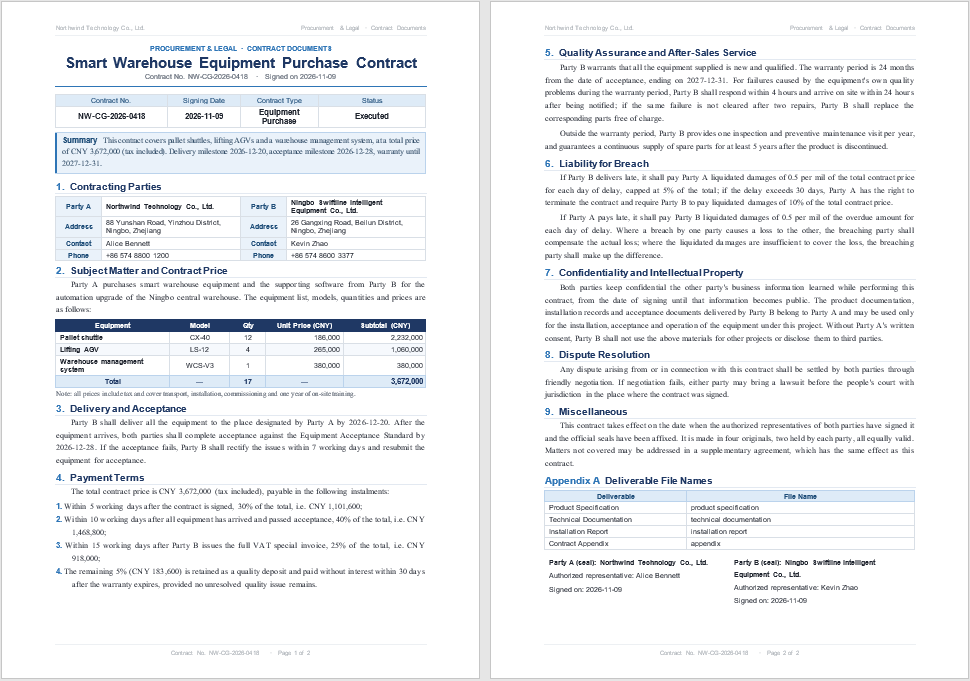
The sample contract runs to two pages. Its body contains four occurrences of "liquidated damages", ten dates in YYYY-MM-DD form (four distinct dates), and Appendix A lists four English terms. All three features work on this one file:
The three features all start from the same set of objects:
| Call | Returns | Purpose |
|---|---|---|
document.FindAllString(text, caseSensitive, wholeWord) |
A TextSelection collection |
Find every match by plain text |
document.FindAllPattern(regex) |
A TextSelection collection |
Find every match by regular expression |
selection.GetRanges() |
A TextRange collection |
The character ranges covered by the match |
range.CharacterFormat |
CharacterFormat |
Character formatting such as highlight and case |
document.Replace(text, replacement, caseSensitive, wholeWord) |
The number of replacements | Replace plain text throughout the document |
Find and Highlight Keywords in a Word Document
Finding and highlighting keywords is the safest step in a review: only the character background color changes, the text itself stays untouched, and a mistaken mark is undone by removing the color. FindAllString() searches the whole document, each match is a TextSelection, and GetRanges() then returns the character ranges it covers.
| Parameter or member | Purpose |
|---|---|
text |
The text to find, such as 'liquidated damages' |
caseSensitive |
Whether the search is case-sensitive; the example passes false |
wholeWord |
Whether only whole words match; the example passes false |
selection.SelectedText |
The original text of the match |
range.CharacterFormat.HighlightColor |
The highlight color, which takes a Color object |
The specific steps are as follows:
- Get the Spire.Doc WASM module and confirm that it is ready.
- Read the sample contract, create a
Documentobject and load the file. - Use
Document.FindAllString()to find the keyword and obtain every match. - Loop over the matches, get the character ranges with
GetRanges()and setCharacterFormat.HighlightColor. - Save the result with
Document.SaveToFile(), read the file from the VFS and trigger a browser download.
The code for finding and highlighting keywords is as follows:
function App() {
  const highlightKeywords = async () => {
    // Get the Spire.Doc WASM module
    const docModule = window.wasmModule?.spiredoc;

    // Check whether the module is ready
    if (!docModule) {
      alert('Spire.Doc is not ready yet');
      return;
    }

    // Load the sample contract
    await window.spire.FetchFileToVFS('Contract.docx', '', `${process.env.PUBLIC_URL}/data/`);

    // Create a Document instance and load the contract
    const doc = new docModule.Document();
    doc.LoadFromFile('Contract.docx');

    // Yellow highlight
    const yellow = docModule.Color.FromArgb(255, 255, 235, 59);

    // Document-level search: body, tables, headers and footers are all covered
    const hits = doc.FindAllString('liquidated damages', false, false);

    for (const selection of hits) {
      // One match may span several character ranges, so color each range in turn
      const ranges = selection.GetRanges();
      for (const range of ranges) {
        range.CharacterFormat.HighlightColor = yellow;
      }
    }

    // Save the result file
    const outputFileName = 'Highlighted.docx';
    doc.SaveToFile({ fileName: outputFileName, fileFormat: docModule.FileFormat.Docx2013 });
    doc.Dispose();

    // Read the generated file from the VFS and trigger the download
    const fileArray = window.dotnetRuntime.Module.FS.readFile(outputFileName);
    const blob = new Blob([fileArray], { type: 'application/vnd.openxmlformats-officedocument.wordprocessingml.document' });
    const url = URL.createObjectURL(blob);
    const a = document.createElement('a');
    a.href = url;
    a.download = outputFileName;
    a.click();
    URL.revokeObjectURL(url);
  };

  return (
    <div style={{ textAlign: 'center', height: '300px' }}>
      <h1>Find and Highlight</h1>
      <button onClick={highlightKeywords}>
        Highlight Keywords
      </button>
    </div>
  );
}

export default App;
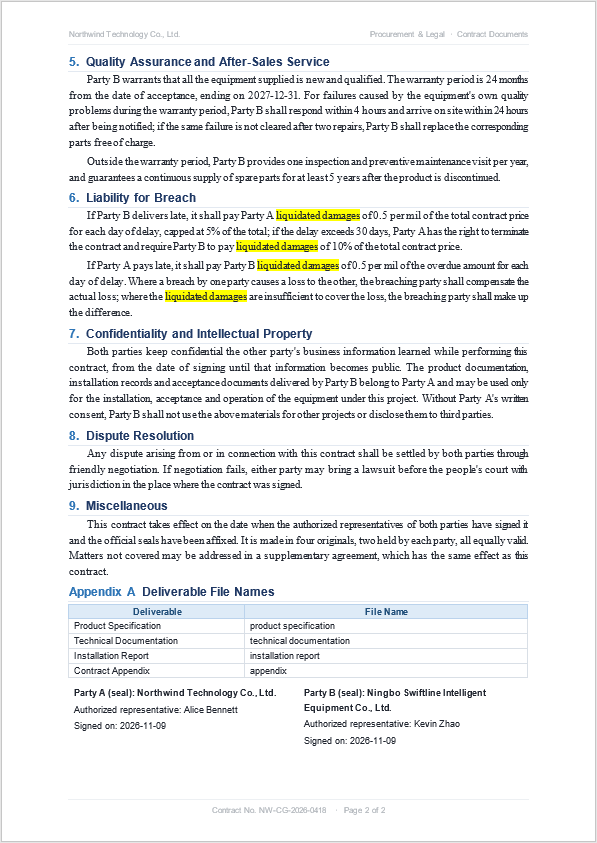
All four occurrences of "liquidated damages" are marked in yellow, and the text itself is unchanged:
Does Highlighting Change the Text
No. HighlightColor is a character format: it writes a highlight property onto the runs of the paragraph, and SelectedText still returns the original text.
For the same reason, the highlight is indifferent to whether the text has been edited: when Replace() later rewrites that text, the new text normally does not carry the highlight. To keep the mark after a change, run the search again after the replacement and apply the color once more.
Keywords in Tables, Headers and Footers
This article uses the document-level search Document.FindAllString(), whose scope includes the body, table cells, headers and footers, so "liquidated damages" in a table is marked as well.
Iterating paragraph by paragraph instead is not equivalent. Calling a paragraph-level search on the paragraphs taken from Section.Body.ChildObjects throws Arg_NullReferenceException in the build used for this sample. When processing by paragraph is required, obtain the matches with FindAllString() first and locate them through selection.GetRanges(); that is more reliable than walking the paragraphs yourself.
Find and Replace Word Text with Regular Expressions
Regular expressions suit content that follows a pattern but is not written consistently: dates, numbers, amounts, old product names. A fixed string can only match one spelling, whereas a pattern first collects every candidate and then lets you decide how to rewrite it.
The dates in the sample contract all look like 2026-11-09 and have to be rewritten as "November 9, 2026". There are ten of them in the document, but only four distinct dates.
| Member | Purpose |
|---|---|
new docModule.Regex(pattern) |
Construct a regular expression object |
document.FindAllPattern(regex) |
Find every match by regular expression |
selection.SelectedText |
The original text of the match, used for de-duplication |
document.Replace(text, replacement, caseSensitive, wholeWord) |
Replace plain text throughout the document and return the number of replacements |
The specific steps are as follows:
- Get the Spire.Doc WASM module and confirm that it is ready.
- Read the sample contract, create a
Documentobject and load the file. - Use
Document.FindAllPattern()together withRegex('\\d{4}-\\d{2}-\\d{2}')to find every date. - Collect the matched text into a
Setto remove duplicates, then callDocument.Replace()for each distinct date to rewrite it as "Month D, YYYY" and add up the returned count. - Save the result with
Document.SaveToFile(), read the file from the VFS and trigger a browser download.
The code for finding and replacing text with regular expressions is as follows:
function App() {
  const replaceDates = async () => {
    // Get the Spire.Doc WASM module
    const docModule = window.wasmModule?.spiredoc;

    // Check whether the module is ready
    if (!docModule) {
      alert('Spire.Doc is not ready yet');
      return;
    }

    // Load the sample contract
    await window.spire.FetchFileToVFS('Contract.docx', '', `${process.env.PUBLIC_URL}/data/`);

    // Create a Document instance and load the contract
    const doc = new docModule.Document();
    doc.LoadFromFile('Contract.docx');

    // Match dates such as 2026-11-09
    const datePattern = new docModule.Regex('\\d{4}-\\d{2}-\\d{2}');
    const matches = doc.FindAllPattern(datePattern);

    // Collect the matched text and remove duplicates: the same date appears many times
    const found = new Set();
    for (const selection of matches) {
      found.add(selection.SelectedText);
    }

    const months = ['January', 'February', 'March', 'April', 'May', 'June',
      'July', 'August', 'September', 'October', 'November', 'December'];

    // Replace one by one: a single Replace call rewrites every occurrence of the same text
    let replaced = 0;
    for (const text of found) {
      const [year, month, day] = text.split('-');
      replaced += doc.Replace(
        text,
        `${months[Number(month) - 1]} ${Number(day)}, ${year}`,
        false,
        true
      );
    }

    console.log(`Matched ${matches.length} occurrences in ${found.size} forms, replaced ${replaced}`);

    // Save the result file
    const outputFileName = 'DatesReplaced.docx';
    doc.SaveToFile({ fileName: outputFileName, fileFormat: docModule.FileFormat.Docx2013 });
    doc.Dispose();

    // Read the generated file from the VFS and trigger the download
    const fileArray = window.dotnetRuntime.Module.FS.readFile(outputFileName);
    const blob = new Blob([fileArray], { type: 'application/vnd.openxmlformats-officedocument.wordprocessingml.document' });
    const url = URL.createObjectURL(blob);
    const a = document.createElement('a');
    a.href = url;
    a.download = outputFileName;
    a.click();
    URL.revokeObjectURL(url);
  };

  return (
    <div style={{ textAlign: 'center', height: '300px' }}>
      <h1>Regex Replace</h1>
      <button onClick={replaceDates}>
        Unify Date Format
      </button>
    </div>
  );
}

export default App;
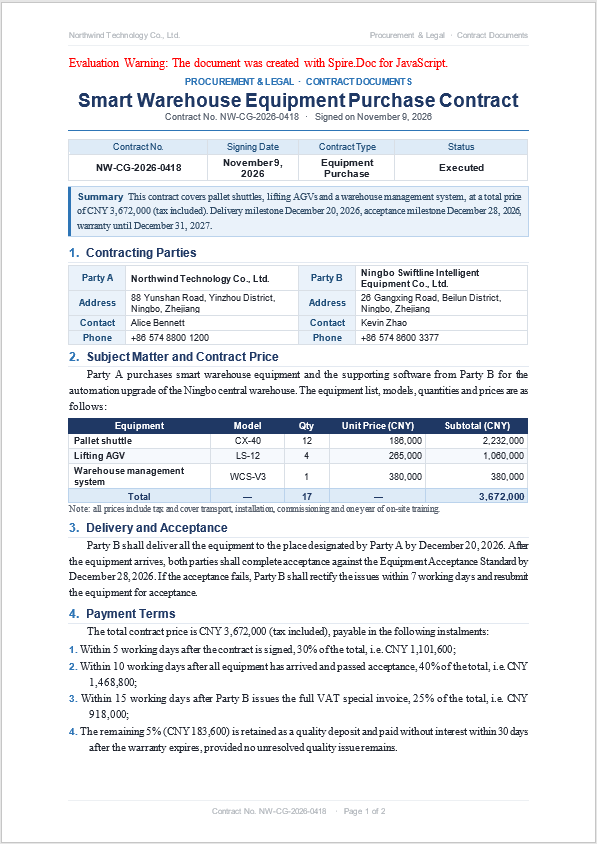
The contract after every date has been rewritten as "Month D, YYYY" (page 1):
Why Group Replacement Does Not Work
Document.Replace(regex, replacement) does accept a Regex object, but it does not expand group references such as $1 and $2. Passing '$1/$2/$3' directly writes that string into the document as it stands:
// The result is the literal text "$1/$2/$3", not 2026/11/09
doc.Replace(new docModule.Regex('(\\d{4})-(\\d{2})-(\\d{2})'), '$1/$2/$3');
That is why the code above takes two steps: take the original text out with FindAllPattern(), assemble the new text in JavaScript, and then replace it as plain text with Replace().
How Many Backslashes the Pattern Needs
The Regex constructor takes a string, which first passes through JavaScript string escaping and is then parsed by the regular expression engine. To get \d in the pattern, write '\\d' in the string; \s, \w and \. follow the same rule. Written as '\d', the string keeps only the letter d, and the engine receives a pattern with no backslash at all, so the match comes out wrong.
Convert English Text in Word to All Caps
Setting English text to all caps is common in appendix terms, abbreviations and reference numbers. CharacterFormat.AllCaps changes only how the text is displayed, and the document still stores the original case. For a formatting requirement such as Appendix A, where the text merely has to look uppercase, changing the format is simpler than changing the text and easier to roll back.
Applying [A-Za-z]+ to an English-language document matches every English word in it, 793 text ranges in this sample, including the contract number, the equipment models and the terms in the appendix:
| Member | Purpose |
|---|---|
new docModule.Regex('[A-Za-z]+') |
Match consecutive English letters |
range.CharacterFormat.AllCaps |
Display as all capitals without changing the content |
range.CharacterFormat.IsSmallCaps |
Display as small capitals |
document.Replace(text, text.toUpperCase(), ...) |
Actually rewrite the text content |
The specific steps are as follows:
- Get the Spire.Doc WASM module and confirm that it is ready.
- Read the sample contract, create a
Documentobject and load the file. - Use
Document.FindAllPattern()together withRegex('[A-Za-z]+')to find every English word. - Loop over the matches, take the character ranges and set
CharacterFormat.AllCaps = true. - Save the result with
Document.SaveToFile(), read the file from the VFS and trigger a browser download.
The code for converting English text in Word to all caps is as follows:
function App() {
  const uppercaseEnglish = async () => {
    // Get the Spire.Doc WASM module
    const docModule = window.wasmModule?.spiredoc;

    // Check whether the module is ready
    if (!docModule) {
      alert('Spire.Doc is not ready yet');
      return;
    }

    // Load the sample contract
    await window.spire.FetchFileToVFS('Contract.docx', '', `${process.env.PUBLIC_URL}/data/`);

    // Create a Document instance and load the contract
    const doc = new docModule.Document();
    doc.LoadFromFile('Contract.docx');

    // Find every English word
    const words = doc.FindAllPattern(new docModule.Regex('[A-Za-z]+'));

    for (const selection of words) {
      const ranges = selection.GetRanges();
      for (const range of ranges) {
        // Display in all caps, keep the original content unchanged
        range.CharacterFormat.AllCaps = true;
      }
    }

    // Save the result file
    const outputFileName = 'Uppercase.docx';
    doc.SaveToFile({ fileName: outputFileName, fileFormat: docModule.FileFormat.Docx2013 });
    doc.Dispose();

    // Read the generated file from the VFS and trigger the download
    const fileArray = window.dotnetRuntime.Module.FS.readFile(outputFileName);
    const blob = new Blob([fileArray], { type: 'application/vnd.openxmlformats-officedocument.wordprocessingml.document' });
    const url = URL.createObjectURL(blob);
    const a = document.createElement('a');
    a.href = url;
    a.download = outputFileName;
    a.click();
    URL.revokeObjectURL(url);
  };

  return (
    <div style={{ textAlign: 'center', height: '300px' }}>
      <h1>Uppercase English</h1>
      <button onClick={uppercaseEnglish}>
        Convert to Uppercase
      </button>
    </div>
  );
}

export default App;
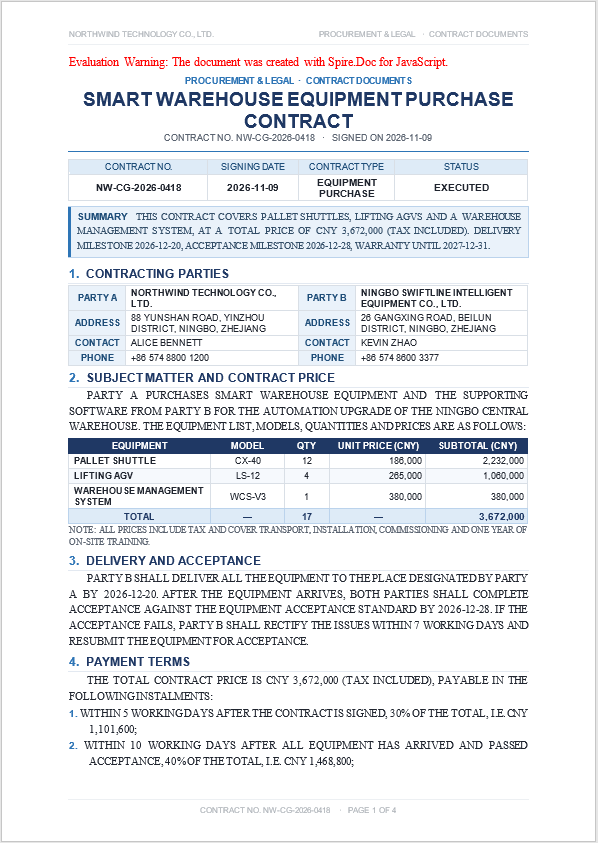
Because every English word is affected, the whole contract is displayed in capitals and the layout grows longer as the glyphs widen. The following figure shows the appendix area of the result, with the English terms set to all caps:
Displayed Capitals versus Real Capitals
AllCaps is a character format and is equivalent to ticking the "All Caps" box in Word: the screen shows capitals, but the text itself has not changed, so copying it as plain text still gives product specification.
When the text has to take part in searching, comparison or export, change the content itself:
// Content-level conversion: the document stores capitals, and copying yields capitals
doc.Replace('product specification', 'PRODUCT SPECIFICATION', false, true);
The two approaches can be combined: first use a content replacement to settle which words change, then use AllCaps to unify how they are displayed.
When Small Caps Fit
IsSmallCaps displays English in small capitals, with the first letter slightly taller and the rest rendered at a smaller size, which is common in author credits and abbreviations. It is set in the same way as AllCaps:
const paragraph = doc.Sections.get_Item(0).AddParagraph();

// Display as small capitals
const smallCaps = paragraph.AppendText('Appendix');
smallCaps.CharacterFormat.IsSmallCaps = true;
When both properties are set on the same piece of text, the final result depends on how the renderer interprets them, so preview in the target reader before mixing the two.
Order of the Three Features
| Step | Purpose | Changes the content |
|---|---|---|
| Find and highlight | Mark the places to work on | No |
| Regex replace | Unify the spelling | Yes |
| Convert to all caps | Adjust how it is displayed | No (AllCaps) / Yes (Replace) |
Highlight first to confirm the scope, then replace, and handle the case last. In that order every step works on the same version of the original text: the places marked by the highlight are exactly the places about to be changed. Replacing first and adding marks afterwards means the marks land on text that has already been edited, and the review record no longer matches the original.
FAQ
Does the Word Document Need to Be Uploaded to a Server
Not with the usage shown here. Spire.Doc for JavaScript runs on WebAssembly in the browser and reads and writes documents through a virtual file system (VFS), so finding, replacing and saving all happen locally, and the library itself never sends the file to a server. Whether the file eventually leaves the device depends on any other code you add to the page.
Do Finds Cover Tables, Headers and Footers
With the document-level methods (Document.FindAllString(), Document.FindAllPattern()), table cells, headers and footers are all inside the search scope, which has been verified with a sample that carries the keyword in its header.
The scope of a paragraph-level search depends on where the object comes from: calling FindAllString() directly on paragraphs taken from Section.Body.ChildObjects throws Arg_NullReferenceException in the build used for this sample. To narrow the scope, the more reliable approach is to run a document-level search first and then work with the results of selection.GetRanges().
Why Can't the Find Result Be Mapped Directly
FindAllString() and FindAllPattern() return a proxy object over a .NET collection, not a JavaScript array. It supports length, indexing and for...of iteration, but it has none of the array methods such as map() and filter().
Convert it once when array methods are needed:
const hits = doc.FindAllString('liquidated damages', false, false);

// Convert to a real JavaScript array so that map / filter / reduce become available
const list = Array.from(hits);
Why Does All-Caps English Come Back as Lowercase in Other Software
Because AllCaps is a display-level property stored in the character formatting, the text itself never changed. When the text is copied as plain text, the receiver gets the characters only and the formatting is dropped, so the original case returns.
To have the copy come out in capitals, rewrite the content, for example with Document.Replace() replacing the original with the result of text.toUpperCase().
A Date Appears Several Times; Must Each Location Be Replaced
No. A single call to Document.Replace() rewrites every occurrence of the same text in the document, and the return value is the number of places replaced at that call. 2026-11-09 appears four times in the sample, and one call returns 4.
What actually needs changing is the number of distinct spellings, so the approach is to find the matches with FindAllPattern(), remove duplicates with a Set, and call once per distinct form: the ten dates need only four replacements.
Get a Free License
Spire.Doc for JavaScript offers a 30-day full-featured free trial license with no functional limitations. Apply here to evaluate before purchasing.
