When a presentation is generated from a template, the pages often still carry material from the previous version: outdated logos, temporary decoration, or diagrams that are no longer needed. Deleting them by hand page by page takes time and is easy to miss; shapes that are only hidden for now are even harder to find once they have been deleted.
This article uses Spire.Presentation for JavaScript to delete and hide shapes in PowerPoint in the browser. The whole process runs locally on the user's device through WebAssembly, requires no Office installation and no back-end service.
This article covers two core features:
For installation and project configuration, see Integrating Spire.Presentation for JavaScript in a React Project. The examples below assume that Spire.Presentation for JavaScript is installed and the WebAssembly module has been initialized.
Delete PowerPoint Shapes
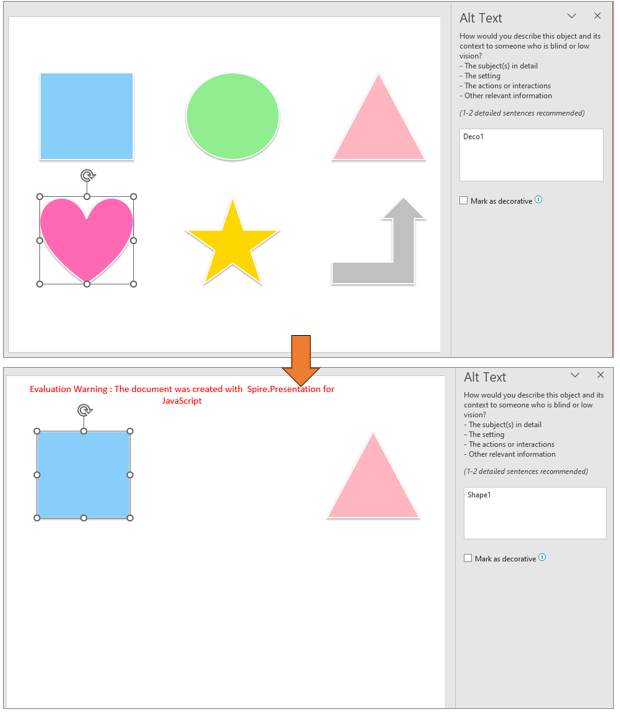
There are two common ways to delete shapes on a slide: when the target shape's index in the collection is known, delete it by index directly; when the index is not known and the shape has alternative text, loop over the shape collection and delete it by matching that text.
| Usage | Result |
|---|---|
slide.Shapes.Count |
The total number of shapes on the current slide |
slide.Shapes.RemoveAt(index) |
Delete the shape at the given index (indexes start at 0) |
slide.Shapes.get_Item(i) |
Get the i-th shape by index |
shape.AlternativeText |
Read the alternative text of a shape |
slide.Shapes.Remove(shape) |
Delete the given shape object |
The steps are:
- Get the Spire.Presentation WASM module and make sure it is ready, then load the font file and the presentation into the VFS.
- Create a
Presentationobject, load the presentation withLoadFromFile(), and get the first slide withSlides.get_Item(0). - Delete the shape at the given index with
Shapes.RemoveAt(). - Loop from
Shapes.Count - 1backwards, get each shape withShapes.get_Item(i), check whetherAlternativeTextcontains the marker, and callShapes.Remove(shape)when it matches. - Save the result file with
Presentation.SaveToFile()and release the presentation withDispose(). - Read the result file from the VFS and trigger the browser download.
The following code deletes PowerPoint shapes:
function App() {
  const removeShapes = async () => {
    // Get the Spire.Presentation WASM module
    const pptModule = window.wasmModule?.spirepresentation;

    // Check that the module is ready
    if (!pptModule) {
      alert('Spire.Presentation is not ready yet');
      return;
    }

    // Load the font and the presentation into the VFS
    await window.spire.FetchFileToVFS('ARIAL.TTF', '/Library/Fonts/', `${process.env.PUBLIC_URL}/font/`);
    const inputFileName = 'Shapes.pptx';
    await window.spire.FetchFileToVFS(inputFileName, '', `${process.env.PUBLIC_URL}data/`);

    // Load the presentation and get the first slide
    const ppt = new pptModule.Presentation();
    ppt.LoadFromFile(inputFileName);
    const slide = ppt.Slides.get_Item(0);

    // Delete the shape at index 1 (the second shape; the index starts at 0)
    slide.Shapes.RemoveAt(1);

    // Delete the shapes whose alternative text contains "Deco"
    for (let i = slide.Shapes.Count - 1; i >= 0; i--) {
      const shape = slide.Shapes.get_Item(i);
      if (shape.AlternativeText.includes('Deco')) {
        slide.Shapes.Remove(shape);
      }
    }

    // Save the result file
    const outputFileName = 'RemoveShapes.pptx';
    ppt.SaveToFile({ file: outputFileName, fileFormat: pptModule.FileFormat.Pptx2013 });
    ppt.Dispose();

    // Read the generated file from the VFS and trigger the download
    const fileArray = window.dotnetRuntime.Module.FS.readFile(outputFileName);
    const blob = new Blob([fileArray], { type: 'application/vnd.openxmlformats-officedocument.presentationml.presentation' });
    const url = URL.createObjectURL(blob);
    const a = document.createElement('a');
    a.href = url;
    a.download = outputFileName;
    a.click();
    URL.revokeObjectURL(url);
  };

  return (
    <div style={{ textAlign: 'center', height: '300px' }}>
      <h1>Delete Shapes</h1>
      <button onClick={removeShapes}>
        Delete Shape
      </button>
    </div>
  );
}

export default App;
Presentation after deleting shapes by index and by alternative text:
Hide and Show PowerPoint Shapes
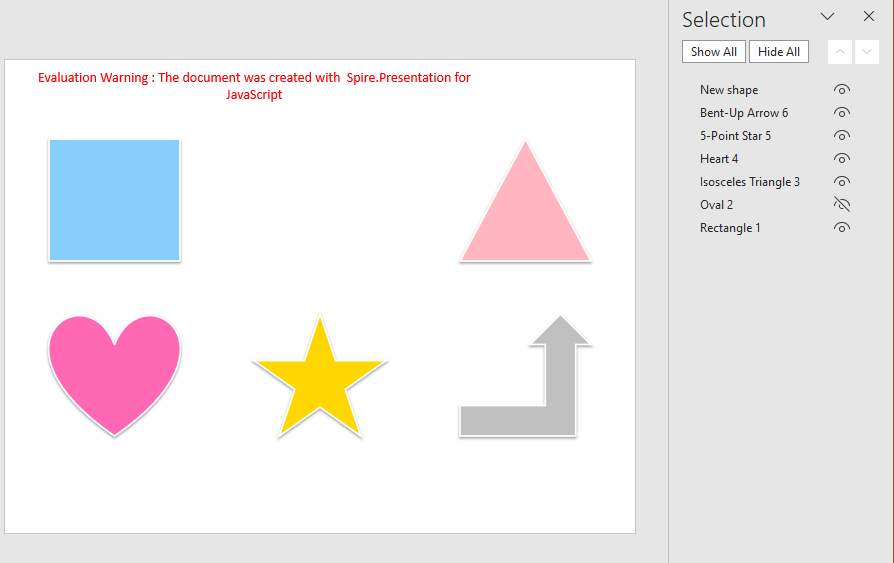
Some shapes are only temporarily unwanted in the current version, and deleting them makes them inconvenient to restore. In that case, keep the shape and hide only its display: set the shape's IsHidden to true, and the shape stays in the file; set it back to false later to restore it. The difference from deletion is that hiding keeps the shape itself and its styles.
| Usage | Result |
|---|---|
slide.Shapes.get_Item(index) |
Get the shape object at the given index |
shape.IsHidden = true |
Hide the shape; it stays in the file |
shape.IsHidden = false |
Show a hidden shape again |
The steps are:
- Get the Spire.Presentation WASM module and make sure it is ready, then load the font file and the presentation into the VFS.
- Create a
Presentationobject, load the presentation withLoadFromFile(), and get the first slide withSlides.get_Item(0). - Get the shape to hide with
Shapes.get_Item()by index, and setIsHiddentotrue. - Save the result file with
Presentation.SaveToFile(), release the presentation withDispose(), and read the file from the VFS to trigger the download.
The following code hides shapes:
function App() {
  const hideShapes = async () => {
    // Get the Spire.Presentation WASM module
    const pptModule = window.wasmModule?.spirepresentation;

    // Check that the module is ready
    if (!pptModule) {
      alert('Spire.Presentation is not ready yet');
      return;
    }

    // Load the font and the presentation into the VFS
    await window.spire.FetchFileToVFS('ARIAL.TTF', '/Library/Fonts/', `${process.env.PUBLIC_URL}/font/`);
    const inputFileName = 'Shapes.pptx';
    await window.spire.FetchFileToVFS(inputFileName, '', `${process.env.PUBLIC_URL}data/`);

    // Load the presentation and get the first slide
    const ppt = new pptModule.Presentation();
    ppt.LoadFromFile(inputFileName);
    const slide = ppt.Slides.get_Item(0);

    // Get the shape at index 1 (the second shape) and hide it
    const shape = slide.Shapes.get_Item(1);
    shape.IsHidden = true;

    // Save the result file
    const outputFileName = 'HideShapes.pptx';
    ppt.SaveToFile({ file: outputFileName, fileFormat: pptModule.FileFormat.Pptx2013 });
    ppt.Dispose();

    // Read the generated file from the VFS and trigger the download
    const fileArray = window.dotnetRuntime.Module.FS.readFile(outputFileName);
    const blob = new Blob([fileArray], { type: 'application/vnd.openxmlformats-officedocument.presentationml.presentation' });
    const url = URL.createObjectURL(blob);
    const a = document.createElement('a');
    a.href = url;
    a.download = outputFileName;
    a.click();
    URL.revokeObjectURL(url);
  };

  return (
    <div style={{ textAlign: 'center', height: '300px' }}>
      <h1>Hide Shapes</h1>
      <button onClick={hideShapes}>
        Hide Shapes
      </button>
    </div>
  );
}

export default App;
Presentation after hiding the specified shape:
To show a shape again, set IsHidden back to false on the same shape; its content and styles are kept:
shape.IsHidden = false;
FAQ
What is the difference between hiding and deleting a shape
Cause: The two operations affect the file in different ways.
Solution: Shapes.Remove() / Shapes.RemoveAt() take the shape away from the slide, and it can no longer be found through the collection; IsHidden = true only changes the display state, so the shape and its styles stay in the file and can be restored by setting it back to false.
How to delete every shape on a slide
Cause: When clearing a page, deleting by ascending index skips shapes because the indexes move forward.
Solution: Loop from the end and delete without any condition:
for (let i = slide.Shapes.Count - 1; i >= 0; i--) {
  slide.Shapes.RemoveAt(i);
}
Can hidden shapes still be read
Cause: Hiding only changes the display state; the shape object still belongs to the slide's shape collection.
Solution: The shape can still be retrieved while looping over Shapes. Check shape.IsHidden to see whether it is hidden, and then decide whether to show it or skip it.
Get a Free License
If you wish to delete the evaluation message from the resulting documents, or to get rid of function limitations, please contact sales to obtain a valid 30-day temporary license.
