A shape on a slide carries no description of its own: when a screen reader reaches a rectangle or an oval, it can only announce the shape type, which says nothing about what the shape represents. Adding alternative text gives every shape a short caption, so the reading experience is clearer and automation scripts can identify a shape by its text. Filling in and checking these captions by hand becomes slow and error-prone as a deck grows.
This article uses Spire.Presentation for JavaScript to set and get the alternative text of PowerPoint shapes in the browser. The whole process runs locally on the user's device through WebAssembly, requires no Office installation and no back-end service, and the presentation never leaves the browser.
The article covers four features:
- Set Alternative Text for PowerPoint Shapes
- Get Alternative Text from PowerPoint Shapes
- Find PowerPoint Shapes by Alternative Text
- Read Alternative Text Inside Group Shapes
For installation and project configuration, see Integrating Spire.Presentation for JavaScript in a React Project. The examples below assume that Spire.Presentation for JavaScript is installed and the WebAssembly module has been initialized.
Set Alternative Text for PowerPoint Shapes
A shape carries visual information only, and a screen reader cannot infer its meaning from the shape type. Setting alternative text attaches a description to the shape, so it can explain what the shape stands for when read aloud; the same text also serves as a stable identifier for scripts that need to locate a shape by content. Besides the description, a shape can carry a short title, and the two together make up its accessible description.
| Syntax | Result |
|---|---|
slide.Shapes.Count |
The total number of shapes on the current slide |
slide.Shapes.get_Item(i) |
Gets a shape by index |
shape.AlternativeText = '…' |
Sets the alternative text of a shape |
shape.AlternativeTitle = '…' |
Sets the alternative title of a shape |
The steps are:
- Get the Spire.Presentation WASM module and make sure it is ready, then load the font file and the presentation into the VFS.
- Create a
Presentationobject, load the presentation withLoadFromFile(), and get the first slide withSlides.get_Item(0). - Loop from 0 to
Shapes.Countand get each shape on the slide withShapes.get_Item(i). - Assign the prepared descriptions and titles to the
AlternativeTextandAlternativeTitleproperties of the shapes in turn. - Save the result with
Presentation.SaveToFile()and release the presentation withDispose(). - Read the result file from the VFS and trigger the browser download.
The code for setting alternative text for PowerPoint shapes is as follows:
function App() {
  const setAlternativeText = async () => {
    // Get the Spire.Presentation WASM module
    const pptModule = window.wasmModule?.spirepresentation;

    // Check whether the module is ready
    if (!pptModule) {
      alert('Spire.Presentation is not ready yet');
      return;
    }

    // Load the font and the presentation into the VFS
    await window.spire.FetchFileToVFS('ARIAL.TTF', '/Library/Fonts/', `${process.env.PUBLIC_URL}/font/`);
    const inputFileName = 'AlternativeText.pptx';
    await window.spire.FetchFileToVFS(inputFileName, '', `${process.env.PUBLIC_URL}data/`);

    // Load the presentation and get the first slide
    const ppt = new pptModule.Presentation();
    ppt.LoadFromFile(inputFileName);
    const slide = ppt.Slides.get_Item(0);

    // Set the alternative text and its title for the four process shapes in turn
    const labels = ['Step 1: Plan', 'Step 2: Do', 'Step 3: Check', 'Step 4: Act'];
    const titles = ['Plan progress', 'Execution', 'Check results', 'Improvement'];
    for (let i = 0; i < slide.Shapes.Count; i++) {
      const shape = slide.Shapes.get_Item(i);
      if (i < labels.length) {
        shape.AlternativeText = labels[i];
        shape.AlternativeTitle = titles[i];
      }
    }

    // Save the result file
    const outputFileName = 'SetAlternativeText.pptx';
    ppt.SaveToFile({ file: outputFileName, fileFormat: pptModule.FileFormat.Pptx2013 });
    ppt.Dispose();

    // Read the generated file from the VFS and trigger the download
    const fileArray = window.dotnetRuntime.Module.FS.readFile(outputFileName);
    const blob = new Blob([fileArray], { type: 'application/vnd.openxmlformats-officedocument.presentationml.presentation' });
    const url = URL.createObjectURL(blob);
    const a = document.createElement('a');
    a.href = url;
    a.download = outputFileName;
    a.click();
    URL.revokeObjectURL(url);
  };

  return (
    <div style={{ textAlign: 'center', height: '300px' }}>
      <h1>Alternative Text</h1>
      <button onClick={setAlternativeText}>
        Set Alternative Text
      </button>
    </div>
  );
}

export default App;
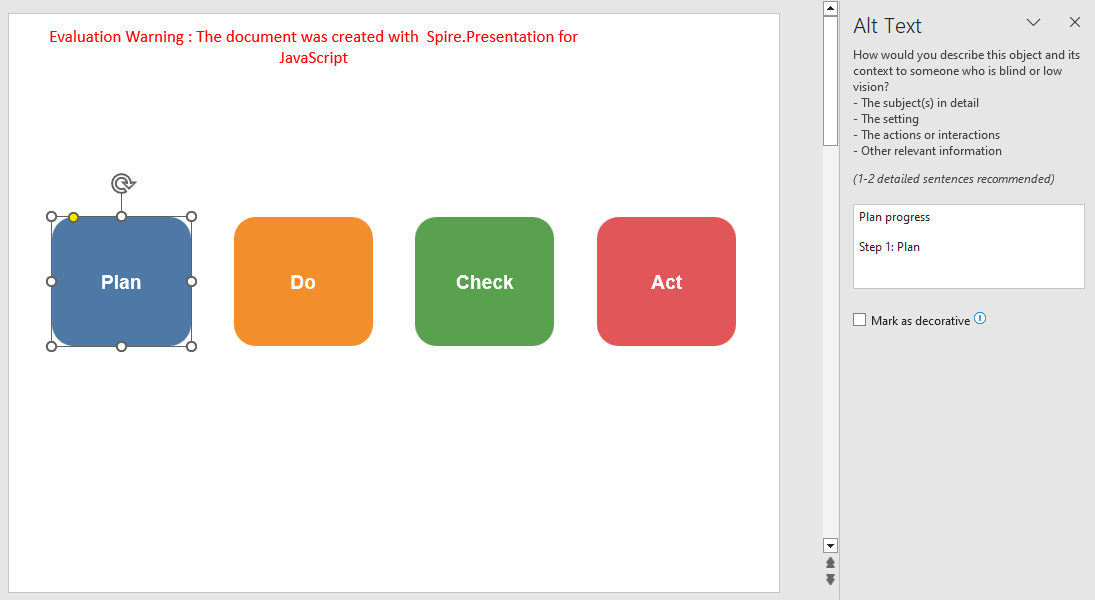
The presentation after setting alternative text for the shapes on the slide:
Get Alternative Text from PowerPoint Shapes
Alternative text can be reviewed one shape at a time, or read in bulk by a script. Looping over the shape collection and gathering the descriptions in one place makes it easy to see which shapes already have text and which are still blank, so gaps can be filled before publishing.
| Syntax | Result |
|---|---|
shape.AlternativeText |
Reads the alternative text of a shape; empty when none is set |
shape.AlternativeTitle |
Reads the alternative title of a shape; empty when none is set |
new TextEncoder().encode(text) |
Encodes the text into bytes for writing |
window.dotnetRuntime.Module.FS.writeFile(fileName, bytes) |
Writes the bytes to a file in the VFS |
The steps are:
- Get the Spire.Presentation WASM module and make sure it is ready, then load the presentation into the VFS.
- Create a
Presentationobject, load the presentation withLoadFromFile(), and get the second slide that holds the shapes withSlides.get_Item(1). - Loop over
Shapes.Count, get each shape withShapes.get_Item(i), read itsAlternativeTextandAlternativeTitle, and collect the non-empty values. - Join the collected texts by line breaks, encode them with
TextEncoder, and write them toGetAlternativeText.txtwithFS.writeFile(). - Release the presentation with
Dispose(), then read the text file from the VFS and trigger the download.
The code for getting alternative text from PowerPoint shapes is as follows:
function App() {
  const getAlternativeText = async () => {
    // Get the Spire.Presentation WASM module
    const pptModule = window.wasmModule?.spirepresentation;

    if (!pptModule) {
      alert('Spire.Presentation is not ready yet');
      return;
    }

    const inputFileName = 'AlternativeText.pptx';
    await window.spire.FetchFileToVFS(inputFileName, '', `${process.env.PUBLIC_URL}data/`);

    // Load the presentation and get the second slide
    const ppt = new pptModule.Presentation();
    ppt.LoadFromFile(inputFileName);
    const slide = ppt.Slides.get_Item(1);

    // Read the alternative text of each shape, skipping shapes without one
    const lines = [];
    for (let i = 0; i < slide.Shapes.Count; i++) {
      const shape = slide.Shapes.get_Item(i);
      if (shape.AlternativeText) {
        const title = shape.AlternativeTitle ? ` (Title: ${shape.AlternativeTitle})` : '';
        lines.push(`Shape ${i + 1}: ${shape.AlternativeText}${title}`);
      }
    }

    // Write the result into a text file
    const outputFileName = 'GetAlternativeText.txt';
    window.dotnetRuntime.Module.FS.writeFile(outputFileName, new TextEncoder().encode(lines.join('\n')));
    ppt.Dispose();

    // Read the generated text file from the VFS and trigger the download
    const fileArray = window.dotnetRuntime.Module.FS.readFile(outputFileName);
    const blob = new Blob([fileArray], { type: 'text/plain;charset=utf-8' });
    const url = URL.createObjectURL(blob);
    const a = document.createElement('a');
    a.href = url;
    a.download = outputFileName;
    a.click();
    URL.revokeObjectURL(url);
  };

  return (
    <div style={{ textAlign: 'center', height: '300px' }}>
      <h1>Alternative Text</h1>
      <button onClick={getAlternativeText}>
        Get Alternative Text
      </button>
    </div>
  );
}

export default App;
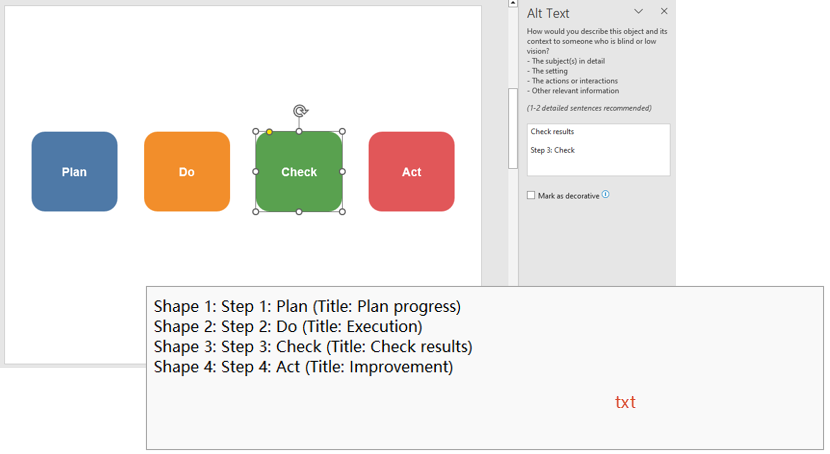
The text file generated after reading the alternative text of each shape:
Find PowerPoint Shapes by Alternative Text
The order of shapes in a collection changes as shapes are added or removed, so locating one by index is not reliable. When a shape has alternative text, the text can be used as the search key: look up the shape in the collection first, then process it, for example by changing its fill and outline to flag a position that needs review.
| Syntax | Result |
|---|---|
slide.Shapes.get_Item(i) |
Gets a shape by index |
shape.AlternativeText === target |
Checks whether a shape's alternative text matches the target value |
shape.Fill.FillType and Fill.SolidColor.Color |
Changes the fill of the found shape |
shape.Line.Width and Line.SolidFillColor.Color |
Changes the outline of the found shape |
The steps are:
- Get the Spire.Presentation WASM module and make sure it is ready, then load the font file and the presentation into the VFS.
- Create a
Presentationobject, load the presentation withLoadFromFile(), and get the third slide withSlides.get_Item(2). - Loop from 0 to
Shapes.Count, get each shape withShapes.get_Item(i), compare itsAlternativeTextwith the target text, and keep the shape and stop the loop once it matches. - Set the
FillTypeof the found shape toFillFormatType.Solidand change its color withFill.SolidColor.Color; then set theLine.FillTypeto solid and adjust the outline withLine.WidthandLine.SolidFillColor.Color. - Save the result with
Presentation.SaveToFile(), release the presentation withDispose(), then read the file from the VFS and trigger the download.
The code for finding PowerPoint shapes by alternative text is as follows:
function App() {
  const findShapeByAlternativeText = async () => {
    // Get the Spire.Presentation WASM module
    const pptModule = window.wasmModule?.spirepresentation;

    if (!pptModule) {
      alert('Spire.Presentation is not ready yet');
      return;
    }

    await window.spire.FetchFileToVFS('ARIAL.TTF', '/Library/Fonts/', `${process.env.PUBLIC_URL}/font/`);
    const inputFileName = 'AlternativeText.pptx';
    await window.spire.FetchFileToVFS(inputFileName, '', `${process.env.PUBLIC_URL}data/`);

    // Load the presentation and get the third slide
    const ppt = new pptModule.Presentation();
    ppt.LoadFromFile(inputFileName);
    const slide = ppt.Slides.get_Item(2);

    // Find the logo shape by its alternative text
    const target = 'Brand logo';
    let found = null;
    for (let i = 0; i < slide.Shapes.Count; i++) {
      const shape = slide.Shapes.get_Item(i);
      if (shape.AlternativeText === target) {
        found = shape;
        break;
      }
    }

    // Recolor the found shape so the result is easy to confirm
    if (found) {
      found.Fill.FillType = pptModule.FillFormatType.Solid;
      found.Fill.SolidColor.Color = pptModule.Color.get_Purple();
      found.Line.FillType = pptModule.FillFormatType.Solid;
      found.Line.Width = 4;
      found.Line.SolidFillColor.Color = pptModule.Color.get_LightGray();
    }

    // Save the result file
    const outputFileName = 'FindShapeByAlternativeText.pptx';
    ppt.SaveToFile({ file: outputFileName, fileFormat: pptModule.FileFormat.Pptx2013 });
    ppt.Dispose();

    // Read the generated file from the VFS and trigger the download
    const fileArray = window.dotnetRuntime.Module.FS.readFile(outputFileName);
    const blob = new Blob([fileArray], { type: 'application/vnd.openxmlformats-officedocument.presentationml.presentation' });
    const url = URL.createObjectURL(blob);
    const a = document.createElement('a');
    a.href = url;
    a.download = outputFileName;
    a.click();
    URL.revokeObjectURL(url);
  };

  return (
    <div style={{ textAlign: 'center', height: '300px' }}>
      <h1>Alternative Text</h1>
      <button onClick={findShapeByAlternativeText}>
        Find by Alternative Text
      </button>
    </div>
  );
}

export default App;
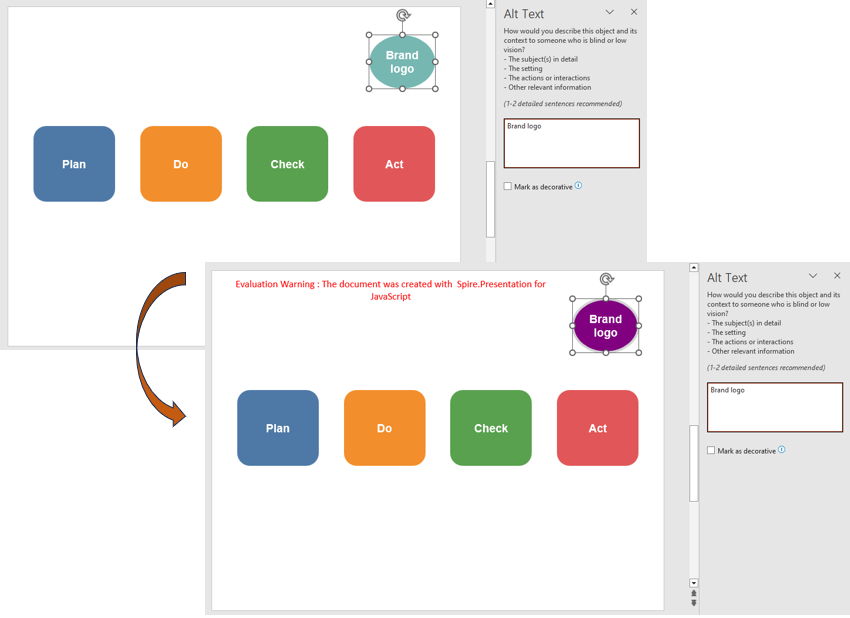
The presentation after locating and marking the target shape by alternative text:
Read Alternative Text Inside Group Shapes
A group shape gathers several shapes into one unit, while each child shape keeps its own alternative text. Reading the property on the outer group does not return these descriptions: the group's shape collection has to be traversed so that every description inside the group is collected.
| Syntax | Result |
|---|---|
shape instanceof pptModule.GroupShape |
Checks whether a shape is a group |
shape.Shapes.Count |
The number of shapes inside the group |
shape.Shapes.get_Item(j) |
Gets the j-th shape inside the group |
shape.Shapes.get_Item(j).AlternativeText |
Reads the alternative text of a shape inside the group |
shape.Shapes.get_Item(j).AlternativeTitle |
Reads the alternative title of a shape inside the group |
new TextEncoder().encode(text) |
Encodes the collected text into bytes |
window.dotnetRuntime.Module.FS.writeFile(fileName, bytes) |
Writes the collected result to a text file in the VFS |
The steps are:
- Get the Spire.Presentation WASM module and make sure it is ready, then load the presentation into the VFS.
- Create a
Presentationobject, load the presentation withLoadFromFile(), and get the fourth slide withSlides.get_Item(3). - Loop from 0 to
Shapes.Count, get each shape withShapes.get_Item(i), and test whether it is a group withshape instanceof pptModule.GroupShape. - Inside the group, loop from 0 to
shape.Shapes.Count, get each child withshape.Shapes.get_Item(j)and read itsAlternativeTextandAlternativeTitle. - Join the collected texts by line breaks, encode them with
TextEncoder, and write them toGetGroupAlternativeText.txtwithFS.writeFile(). - Release the presentation with
Dispose(), then read the text file from the VFS and trigger the download.
The code for reading alternative text inside group shapes is as follows:
function App() {
  const getGroupAlternativeText = async () => {
    // Get the Spire.Presentation WASM module
    const pptModule = window.wasmModule?.spirepresentation;

    if (!pptModule) {
      alert('Spire.Presentation is not ready yet');
      return;
    }

    const inputFileName = 'AlternativeText.pptx';
    await window.spire.FetchFileToVFS(inputFileName, '', `${process.env.PUBLIC_URL}data/`);

    // Load the presentation and get the fourth slide
    const ppt = new pptModule.Presentation();
    ppt.LoadFromFile(inputFileName);
    const slide = ppt.Slides.get_Item(3);

    // Find the group shape and read the alternative text of its children
    const lines = [];
    for (let i = 0; i < slide.Shapes.Count; i++) {
      const shape = slide.Shapes.get_Item(i);
      if (shape instanceof pptModule.GroupShape) {
        for (let j = 0; j < shape.Shapes.Count; j++) {
          const child = shape.Shapes.get_Item(j);
          const title = child.AlternativeTitle ? ` (Title: ${child.AlternativeTitle})` : '';
          lines.push(`Child ${j + 1}: ${child.AlternativeText}${title}`);
        }
      }
    }

    // Write the result into a text file
    const outputFileName = 'GetGroupAlternativeText.txt';
    window.dotnetRuntime.Module.FS.writeFile(outputFileName, new TextEncoder().encode(lines.join('\n')));
    ppt.Dispose();

    // Read the generated text file from the VFS and trigger the download
    const fileArray = window.dotnetRuntime.Module.FS.readFile(outputFileName);
    const blob = new Blob([fileArray], { type: 'text/plain;charset=utf-8' });
    const url = URL.createObjectURL(blob);
    const a = document.createElement('a');
    a.href = url;
    a.download = outputFileName;
    a.click();
    URL.revokeObjectURL(url);
  };

  return (
    <div style={{ textAlign: 'center', height: '300px' }}>
      <h1>Alternative Text</h1>
      <button onClick={getGroupAlternativeText}>
        Get Group Alternative Text
      </button>
    </div>
  );
}

export default App;
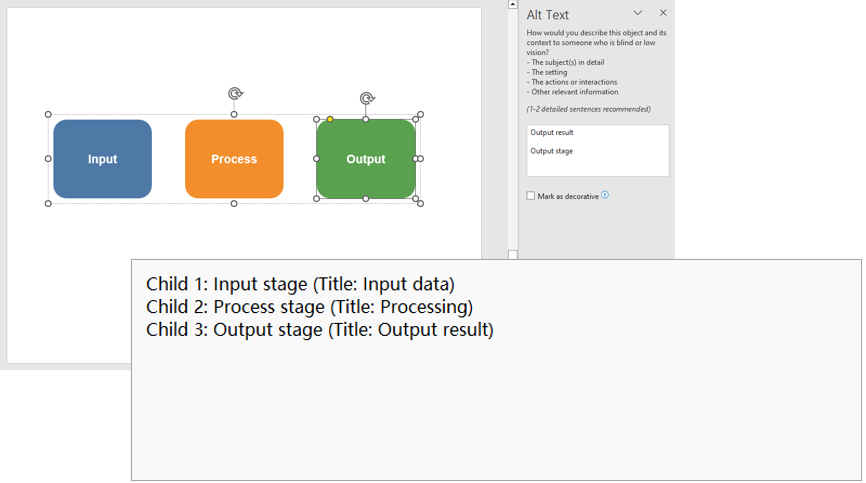
The text file generated after reading the alternative text inside the group:
FAQ
What is the difference between alternative text and the shape name
Solution: AlternativeText is the description read by screen readers and used for searching, matching the "Alt Text" setting in PowerPoint; Name is the internal name of the shape in the file and is mainly used for programmatic reference. They are independent, so changing one does not affect the other.
What is the difference between the alternative text and its title
Solution: AlternativeText is the full description read aloud by screen readers; AlternativeTitle is a short title that summarizes the shape. They are stored as two separate properties of the shape and are independent, so you can set either one or both.
Can alternative text still be read from a hidden shape
Cause: Hiding only changes the display state, and the shape itself stays on the slide.
Solution: After IsHidden is set to true, the shape remains in the Shapes collection, and both AlternativeText and AlternativeTitle can still be read. The hidden state is saved with the file, and the text stays unchanged when the shape is shown again.
Can the group shape itself have alternative text
Cause: A group is also a kind of shape, while the descriptions of its children belong to each child shape.
Solution: You can assign AlternativeText and AlternativeTitle directly to the GroupShape; the child shapes are still read and written one by one through group.Shapes, and the two levels do not affect each other.
Get a Free License
If you wish to delete the evaluation message from the resulting documents, or to get rid of function limitations, please contact sales to obtain a valid 30-day temporary license.
