Tables are a common way to present structured content on a slide, and where the text sits inside a cell directly affects readability: body columns are usually left aligned, numeric columns right aligned, and header rows centered, while each column is also nudged up or down to suit its content. Adjusting every cell by hand becomes hard to keep consistent once a table grows, and the same work repeats for the next deck.
This article uses Spire.Presentation for JavaScript to set the text alignment of PowerPoint tables in the browser. The whole process runs locally on the user's device through WebAssembly, requires no Office installation and no back-end service, and keeps the presentation from leaving the browser.
This article covers three core features:
- Set the Horizontal Alignment of Table Text
- Set the Vertical Alignment of Table Text
- Set Both Horizontal and Vertical Alignment
For installation and project configuration, see Integrating Spire.Presentation for JavaScript in a React Project. The examples below assume that Spire.Presentation for JavaScript is installed and the WebAssembly module has been initialized.
Set the Horizontal Alignment of Table Text
Horizontal alignment decides whether text sits at the left, center or right of a cell, or is stretched across the full width. Columns that hold different kinds of content often need different positions, and assigning them column by column lines similar items up along one vertical edge while separating values from labels. It is set paragraph by paragraph, so changing one column leaves the others untouched.
| Syntax | Result |
|---|---|
paragraph.Alignment = TextAlignmentType.Left |
Aligns the paragraph text to the left of the cell |
paragraph.Alignment = TextAlignmentType.Center |
Centers the paragraph text horizontally in the cell |
paragraph.Alignment = TextAlignmentType.Right |
Aligns the paragraph text to the right of the cell |
paragraph.Alignment = TextAlignmentType.Justify |
Justifies the paragraph text, spreading spacing to fill the line |
The steps are:
- Get the Spire.Presentation WASM module and make sure it is ready, load the presentation into the VFS, then open it with
LoadFromFile()and get the first slide. - Walk
slide.Shapesand useshape instanceof pptModule.ITableto tell whether a shape is a table, and keep the table object. - Loop over the columns of one data row, take
TextFrame.Paragraphs.get_Item(0)of each cell, and setAlignmenttoTextAlignmentType.Left,Center,RightandJustifyin turn. - Call
Presentation.SaveToFile()to save the result, release the presentation withDispose(), then read the file from the VFS to trigger the download.
The following code sets the horizontal alignment of table text:
function App() {
  const setHorizontalAlignment = async () => {
    // get the Spire.Presentation WASM module
    const pptModule = window.wasmModule?.spirepresentation;

    // check that the module is ready
    if (!pptModule) {
      alert('Spire.Presentation is not ready yet');
      return;
    }

    // load the font and the presentation into the VFS
    await window.spire.FetchFileToVFS('ARIAL.TTF', '/Library/Fonts/', `${process.env.PUBLIC_URL}/font/`);
    const inputFileName = 'en_TextAlignment.pptx';
    await window.spire.FetchFileToVFS(inputFileName, '', `${process.env.PUBLIC_URL}/data/`);

    // load the presentation and take its first slide
    const ppt = new pptModule.Presentation();
    ppt.LoadFromFile(inputFileName);
    const slide = ppt.Slides.get_Item(0);

    // walk the shape collection and find the table by type
    let table = null;
    for (let i = 0; i < slide.Shapes.Count; i++) {
      const shape = slide.Shapes.get_Item(i);
      if (shape instanceof pptModule.ITable) {
        table = shape;
        break;
      }
    }

    // set the horizontal alignment of the first data row column by column
    const alignments = [
      pptModule.TextAlignmentType.Left,
      pptModule.TextAlignmentType.Center,
      pptModule.TextAlignmentType.Right,
      pptModule.TextAlignmentType.Justify,
    ];
    for (let col = 1; col <= 4; col++) {
      table.get_Item(col, 1).TextFrame.Paragraphs.get_Item(0).Alignment = alignments[col - 1];
    }

    // save the result file
    const outputFileName = 'HorizontalAlignment_result.pptx';
    ppt.SaveToFile({ file: outputFileName, fileFormat: pptModule.FileFormat.Pptx2013 });
    ppt.Dispose();

    // read the generated file from the VFS and start the download
    const fileArray = window.dotnetRuntime.Module.FS.readFile(outputFileName);
    const blob = new Blob([fileArray], { type: 'application/vnd.openxmlformats-officedocument.presentationml.presentation' });
    const url = URL.createObjectURL(blob);
    const a = document.createElement('a');
    a.href = url;
    a.download = outputFileName;
    a.click();
    URL.revokeObjectURL(url);
  };

  return (
    <div style={{ textAlign: 'center', height: '300px' }}>
      <h1>Text Alignment in PowerPoint Tables</h1>
      <button onClick={setHorizontalAlignment}>Horizontal</button>
    </div>
  );
}

export default App;
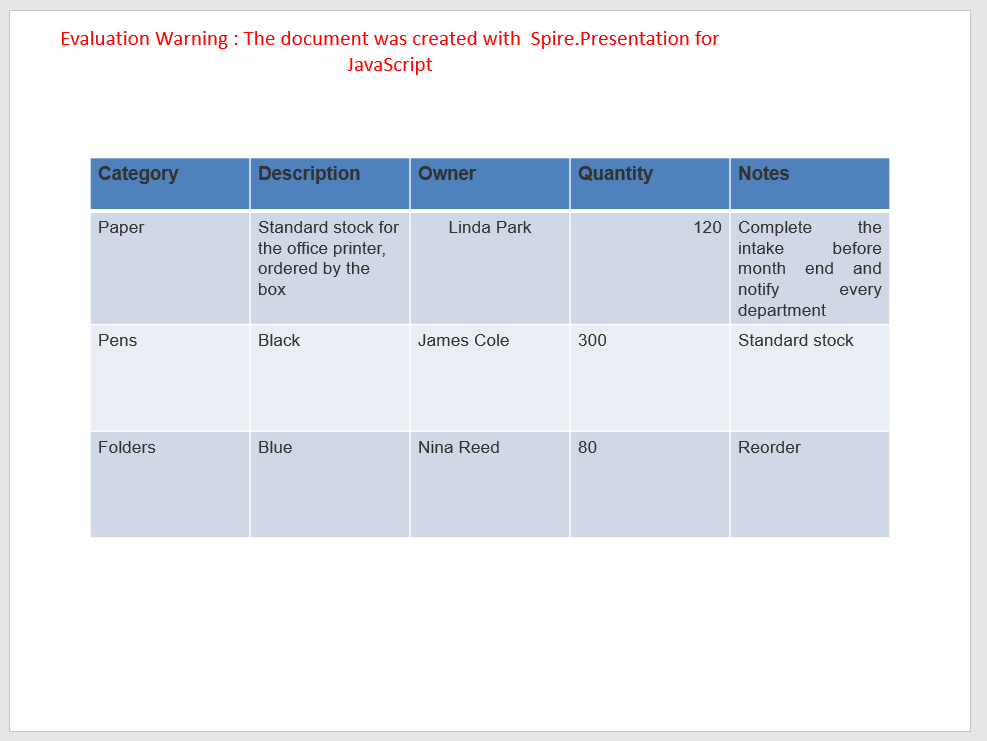
The presentation after setting the horizontal alignment of the first data row:
Set the Vertical Alignment of Table Text
Vertical alignment decides whether text hugs the top of a cell, sits in the middle or drops to the bottom. It shows most clearly when the row is taller than the text: short text at the top sticks to the upper edge, centered text lands in the middle, and bottom-aligned text approaches the lower edge. It is set at the cell level and is independent of the paragraph-level horizontal alignment.
| Syntax | Result |
|---|---|
cell.TextAnchorType = TextAnchorType.Top |
Aligns the cell text to the top |
cell.TextAnchorType = TextAnchorType.Center |
Centers the cell text vertically |
cell.TextAnchorType = TextAnchorType.Bottom |
Aligns the cell text to the bottom |
The steps are:
- Get the Spire.Presentation WASM module and make sure it is ready, load the presentation into the VFS, then open it with
LoadFromFile()and get the first slide. - Walk
slide.Shapesand useshape instanceof pptModule.ITableto tell whether a shape is a table, and keep the table object. - Loop over the columns of one data row and set each cell's
TextAnchorTypetoTextAnchorType.Top,CenterandBottomin turn. - Call
Presentation.SaveToFile()to save the result, release the presentation withDispose(), then read the file from the VFS to trigger the download.
The following code sets the vertical alignment of table text:
function App() {
  const setVerticalAlignment = async () => {
    // get the Spire.Presentation WASM module
    const pptModule = window.wasmModule?.spirepresentation;

    // check that the module is ready
    if (!pptModule) {
      alert('Spire.Presentation is not ready yet');
      return;
    }

    // load the font and the presentation into the VFS
    await window.spire.FetchFileToVFS('ARIAL.TTF', '/Library/Fonts/', `${process.env.PUBLIC_URL}/font/`);
    const inputFileName = 'en_TextAlignment.pptx';
    await window.spire.FetchFileToVFS(inputFileName, '', `${process.env.PUBLIC_URL}/data/`);

    // load the presentation and take its first slide
    const ppt = new pptModule.Presentation();
    ppt.LoadFromFile(inputFileName);
    const slide = ppt.Slides.get_Item(0);

    // walk the shape collection and find the table by type
    let table = null;
    for (let i = 0; i < slide.Shapes.Count; i++) {
      const shape = slide.Shapes.get_Item(i);
      if (shape instanceof pptModule.ITable) {
        table = shape;
        break;
      }
    }

    // set the vertical alignment of the second data row column by column
    const anchors = [
      pptModule.TextAnchorType.Top,
      pptModule.TextAnchorType.Center,
      pptModule.TextAnchorType.Bottom,
    ];
    for (let col = 1; col <= 3; col++) {
      table.get_Item(col, 2).TextAnchorType = anchors[col - 1];
    }

    // save the result file
    const outputFileName = 'VerticalAlignment_result.pptx';
    ppt.SaveToFile({ file: outputFileName, fileFormat: pptModule.FileFormat.Pptx2013 });
    ppt.Dispose();

    // read the generated file from the VFS and start the download
    const fileArray = window.dotnetRuntime.Module.FS.readFile(outputFileName);
    const blob = new Blob([fileArray], { type: 'application/vnd.openxmlformats-officedocument.presentationml.presentation' });
    const url = URL.createObjectURL(blob);
    const a = document.createElement('a');
    a.href = url;
    a.download = outputFileName;
    a.click();
    URL.revokeObjectURL(url);
  };

  return (
    <div style={{ textAlign: 'center', height: '300px' }}>
      <h1>Text Alignment in PowerPoint Tables</h1>
      <button onClick={setVerticalAlignment}>Vertical</button>
    </div>
  );
}

export default App;
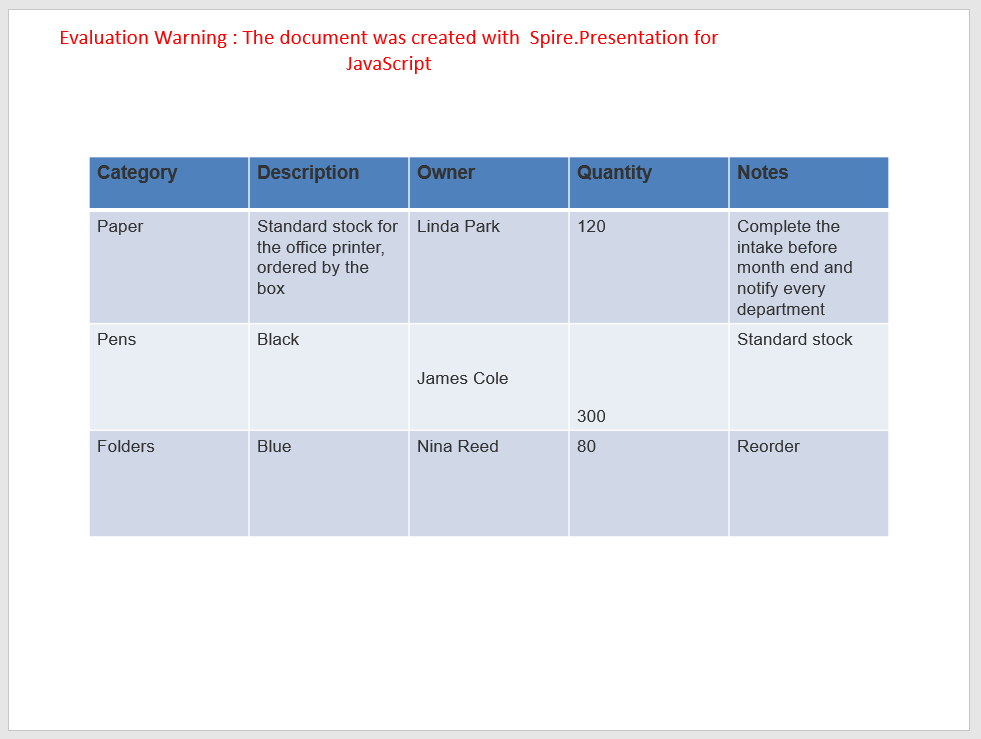
The presentation after setting the vertical alignment of the second data row:
Set Both Horizontal and Vertical Alignment
In real layouts the horizontal and vertical positions are often decided together: a label at the top-left, emphasis text in the exact center, or a value at the bottom-right are all results of combining the two. Horizontal alignment lives on the paragraph and vertical alignment on the cell, so assigning both gives the combined effect; setting them cell by cell lets each column of the same table use a different arrangement.
| Syntax | Result |
|---|---|
paragraph.Alignment = TextAlignmentType.Left and cell.TextAnchorType = TextAnchorType.Top |
Text aligned to the top-left |
paragraph.Alignment = TextAlignmentType.Center and cell.TextAnchorType = TextAnchorType.Center |
Text centered both horizontally and vertically |
paragraph.Alignment = TextAlignmentType.Right and cell.TextAnchorType = TextAnchorType.Bottom |
Text aligned to the bottom-right |
paragraph.Alignment = TextAlignmentType.Justify and cell.TextAnchorType = TextAnchorType.Center |
Text justified and vertically centered |
The steps are:
- Get the Spire.Presentation WASM module and make sure it is ready, load the presentation into the VFS, then open it with
LoadFromFile()and get the first slide. - Walk
slide.Shapesand useshape instanceof pptModule.ITableto tell whether a shape is a table, and keep the table object. - For every cell of that row assign both at once: set
TextFrame.Paragraphs.get_Item(0).Alignmentto aTextAlignmentTypevalue andTextAnchorTypeto aTextAnchorTypevalue, pairing them. - Call
Presentation.SaveToFile()to save the result, release the presentation withDispose(), then read the file from the VFS to trigger the download.
The following code sets both the horizontal and vertical alignment of table text:
function App() {
  const setBothAlignments = async () => {
    // get the Spire.Presentation WASM module
    const pptModule = window.wasmModule?.spirepresentation;

    // check that the module is ready
    if (!pptModule) {
      alert('Spire.Presentation is not ready yet');
      return;
    }

    // load the font and the presentation into the VFS
    await window.spire.FetchFileToVFS('ARIAL.TTF', '/Library/Fonts/', `${process.env.PUBLIC_URL}/font/`);
    const inputFileName = 'en_TextAlignment.pptx';
    await window.spire.FetchFileToVFS(inputFileName, '', `${process.env.PUBLIC_URL}/data/`);

    // load the presentation and take its first slide
    const ppt = new pptModule.Presentation();
    ppt.LoadFromFile(inputFileName);
    const slide = ppt.Slides.get_Item(0);

    // walk the shape collection and find the table by type
    let table = null;
    for (let i = 0; i < slide.Shapes.Count; i++) {
      const shape = slide.Shapes.get_Item(i);
      if (shape instanceof pptModule.ITable) {
        table = shape;
        break;
      }
    }

    // set the horizontal and the vertical alignment of every cell in the third data row
    table.get_Item(1, 3).TextFrame.Paragraphs.get_Item(0).Alignment = pptModule.TextAlignmentType.Left;
    table.get_Item(1, 3).TextAnchorType = pptModule.TextAnchorType.Top;

    table.get_Item(2, 3).TextFrame.Paragraphs.get_Item(0).Alignment = pptModule.TextAlignmentType.Center;
    table.get_Item(2, 3).TextAnchorType = pptModule.TextAnchorType.Center;

    table.get_Item(3, 3).TextFrame.Paragraphs.get_Item(0).Alignment = pptModule.TextAlignmentType.Right;
    table.get_Item(3, 3).TextAnchorType = pptModule.TextAnchorType.Bottom;

    table.get_Item(4, 3).TextFrame.Paragraphs.get_Item(0).Alignment = pptModule.TextAlignmentType.Justify;
    table.get_Item(4, 3).TextAnchorType = pptModule.TextAnchorType.Center;

    // save the result file
    const outputFileName = 'BothAlignments_result.pptx';
    ppt.SaveToFile({ file: outputFileName, fileFormat: pptModule.FileFormat.Pptx2013 });
    ppt.Dispose();

    // read the generated file from the VFS and start the download
    const fileArray = window.dotnetRuntime.Module.FS.readFile(outputFileName);
    const blob = new Blob([fileArray], { type: 'application/vnd.openxmlformats-officedocument.presentationml.presentation' });
    const url = URL.createObjectURL(blob);
    const a = document.createElement('a');
    a.href = url;
    a.download = outputFileName;
    a.click();
    URL.revokeObjectURL(url);
  };

  return (
    <div style={{ textAlign: 'center', height: '300px' }}>
      <h1>Text Alignment in PowerPoint Tables</h1>
      <button onClick={setBothAlignments}>Combined</button>
    </div>
  );
}

export default App;
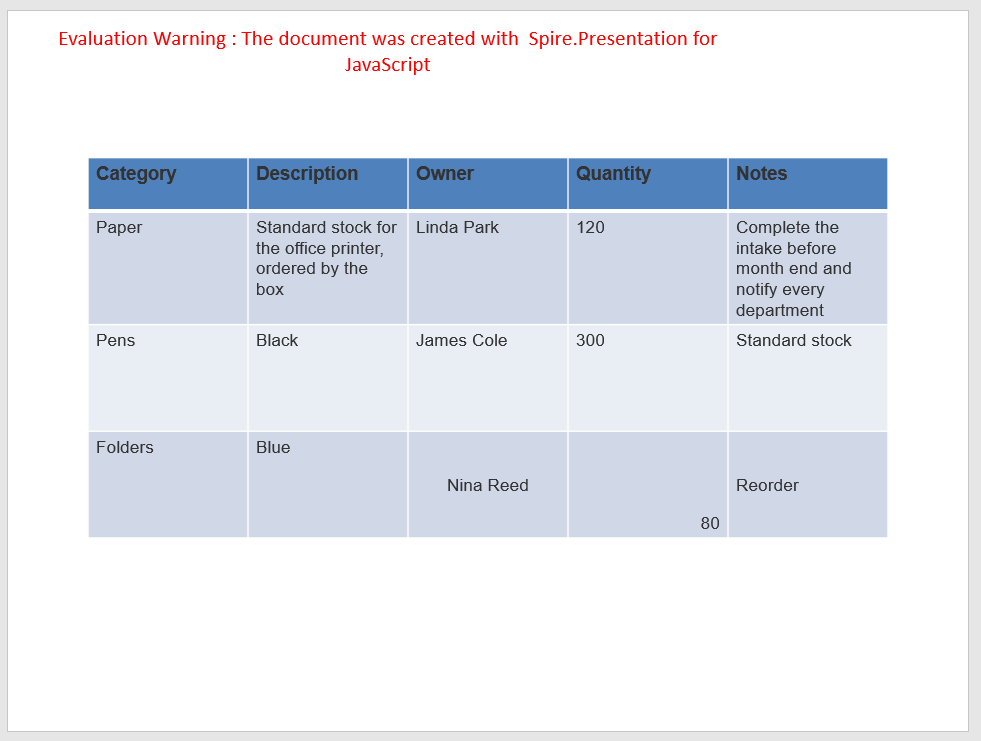
The presentation after setting both the horizontal and vertical alignment:
FAQ
How do I align a cell that holds several paragraphs
Reason: Alignment belongs to a paragraph, not a cell. When a cell holds more than one paragraph, setting only the first one leaves the others unchanged.
Solution: Read TextFrame.Paragraphs.Count first, then set Alignment on each paragraph by index:
const paragraphs = cell.TextFrame.Paragraphs;
for (let p = 0; p < paragraphs.Count; p++) {
  paragraphs.get_Item(p).Alignment = pptModule.TextAlignmentType.Center;
}
How do I align a merged cell
Reason: Once cells are merged, several positions in the merged area actually point to the same cell, so setting each one repeats the work; to change the alignment you only need to target the merged cell itself.
Solution: A merged cell can be located through FirstRowIndex and FirstColumnIndex, or taken directly with table.get_Item() using the anchor position at the top-left of the merged area; set its TextFrame.Paragraphs.get_Item(0).Alignment and TextAnchorType, and after saving, positions covered by the merge still read back the same cell with the alignment kept:
const merged = table.get_Item(column, row); // column and row are the top-left of the merged area
merged.TextFrame.Paragraphs.get_Item(0).Alignment = pptModule.TextAlignmentType.Center;
merged.TextAnchorType = pptModule.TextAnchorType.Center;
Why does nothing change after setting Justify alignment
Reason: TextAlignmentType.Justify stretches every line except the last. When the cell text is a single line, or already nearly fills the line, there is no spare space to stretch, so it looks almost the same as the default alignment.
Solution: To see the justify effect, let the cell text wrap onto several lines and narrow the column a little so the inner lines have gaps to stretch; if only the left-to-right position of a single line matters, TextAlignmentType.Left, Center or Right is more direct.
Get a Free License
If you wish to delete the evaluation message from the resulting documents, or to get rid of function limitations, please contact sales to obtain a valid 30-day temporary license.
