Torne os Dados do Excel Visuais com Formatação Condicional em JavaScript
Índice
- Por que não apenas adicionar um gráfico
- Pré-requisitos
- Uma API, três visualizações
- Barras de dados: magnitude em um relance
- Escalas de cores: mapa de calor sem gráfico
- Conjuntos de ícones: faixas de status
- Escolhendo entre os três
- Personalizando a aparência das barras de dados
- Problemas comuns
- Perguntas frequentes
- Veja também
Uma tabela de vendas com vinte colunas de números é precisa e ilegível. O olho não consegue comparar 43.210 com 38.900 ao longo de uma linha rápido o suficiente para encontrar o trimestre fraco, e quem lê o relatório sabe disso — por isso pede um gráfico. Mas um gráfico por coluna significa vinte gráficos, e agora a planilha é uma galeria em vez de uma tabela.
Barras de dados, escalas de cores e conjuntos de ícones resolvem isso dentro das próprias células. Uma barra cresce proporcionalmente ao valor. Uma cor muda de pálida para saturada conforme o número aumenta. Um ícone muda de forma quando o valor cruza um limite. Nenhum deles adiciona linhas, colunas ou objetos flutuantes — a visualização fica na célula que já contém o número. Todos os três são formas de formatação condicional do Excel, e o Spire.XLS for JavaScript os aplica por meio de uma única API no navegador em WebAssembly, com arquivos percorrendo um sistema de arquivos virtual (VFS) e sem necessidade de backend.
Para configuração do projeto, consulte Integrando o Spire.XLS for JavaScript em um projeto React. Os exemplos abaixo assumem que o pacote está instalado e que o módulo WebAssembly foi inicializado.
Por que não apenas adicionar um gráfico
Gráficos e visualização na célula respondem à mesma pergunta — "como esses valores se comparam?" — mas se encaixam em momentos diferentes:
| Gráficos | Visualização na célula | |
|---|---|---|
| Espaço | Flutua sobre a planilha, ocupa uma área retangular | Fica dentro das células que já contêm os dados |
| Densidade | Um gráfico por conjunto de dados; vários gráficos congestionam a planilha | Um formato por intervalo; dezenas de colunas podem exibir indicadores simultaneamente |
| Detalhe | Mostra eixos, linhas de grade, rótulos — uma renderização completa | Mostra apenas o indicador: uma barra, uma cor, um ícone |
| Melhor para | Apresentações, relatórios, exibições isoladas | Escanear uma tabela, identificar valores atípicos, comparar entre muitas colunas |
Quando o objetivo é tornar uma tabela de números fácil de escanear sem reconstruir o layout, a visualização na célula é a ferramenta mais leve. As três seções abaixo cobrem cada tipo, e elas compartilham mais API do que diferem — o que é a primeira coisa que vale a pena saber.
Pré-requisitos
Você precisa de um projeto React com o Spire.XLS for JavaScript instalado e o módulo WebAssembly inicializado, acessível em window.wasmModule.spirexls. O exemplo carrega uma fonte e um arquivo de dados de vendas no VFS, e salva com o sinalizador de versão do Excel 2010, que é a versão mais antiga que suporta esses tipos de formato condicional.
Uma API, três visualizações
Todos os três tipos seguem a mesma cadeia de chamadas. A única linha que muda é a atribuição de FormatType:
sheet.ConditionalFormats.Add() → xcfs.AddRange(range) → format = xcfs.AddCondition() → format.FormatType = ???
| Visualização | Valor de FormatType |
Configuração extra |
|---|---|---|
| Barras de dados | ConditionalFormatType.DataBar |
DataBar.BarColor para a cor de preenchimento |
| Escalas de cores | ConditionalFormatType.ColorScale |
Nenhuma — usa por padrão um gradiente de duas cores |
| Conjuntos de ícones | ConditionalFormatType.IconSet |
IconSet.IconSetType para o estilo do ícone |
A cadeia compartilhada é o motivo pelo qual os três exemplos de código abaixo parecem semelhantes — eles são a mesma operação com um tipo de formato diferente. As diferenças estão no que cada tipo produz e quando você recorreria a ele, o que a tabela de comparação mais adiante neste artigo aborda.
Barras de dados: magnitude em um relance
Uma barra de dados desenha uma faixa colorida horizontal dentro de cada célula, e o comprimento da faixa é proporcional ao valor da célula em relação ao restante do intervalo selecionado. O maior valor preenche a célula; o menor preenche uma lasca. Escanear uma linha de barras de dados é a mesma operação mental que escanear um gráfico de barras, exceto que os números permanecem visíveis por baixo.
Os passos são:
- Carregue a fonte e o arquivo de dados de teste no VFS.
- Carregue a pasta de trabalho e obtenha a planilha.
- Chame
ConditionalFormats.Addpara criar um formato condicional e vincule o intervalo de dados comAddRange. - Chame
AddConditionpara adicionar uma condição, definaFormatTypecomoDataBare defina a cor da barra. - Salve a pasta de trabalho.
function App() {
  const applyDataBars = async () => {
    // Get the Spire.XLS WASM module
    const xlsModule = window.wasmModule?.spirexls;

    // Check whether the module is ready
    if (!xlsModule) {
      alert('Spire.Xls is not ready yet');
      return;
    }

    // Load the font and the test data file into the VFS
    await window.spire.FetchFileToVFS('ARIAL.TTF', '/Library/Fonts/', `${process.env.PUBLIC_URL}/font/`);
    const inputFileName = 'SalesData.xlsx';
    await window.spire.FetchFileToVFS(inputFileName, '', `${process.env.PUBLIC_URL}data/`);

    // Load the workbook and get the first worksheet
    const workbook = new xlsModule.Workbook();
    workbook.LoadFromFile({ fileName: inputFileName });
    const sheet = workbook.Worksheets.get(0);

    // Select the data range that receives the data bars
    const dataRange = sheet.Range.get("B2:E9");

    // Create a conditional format and bind it to that range
    const xcfs = sheet.ConditionalFormats.Add();
    xcfs.AddRange(dataRange);

    // Add a data bar condition and set the bar color
    const format = xcfs.AddCondition();
    format.FormatType = xlsModule.ConditionalFormatType.DataBar;
    format.DataBar.BarColor = xlsModule.Color.get_CadetBlue();

    // Save the workbook
    const outputFileName = "ApplyDataBars.xlsx";
    workbook.SaveToFile({ fileName: outputFileName, version: xlsModule.ExcelVersion.Version2010 });

    // Dispose of the workbook object to free resources
    workbook.Dispose();

    // Read the result file from the VFS and trigger the download
    const fileArray = window.dotnetRuntime.Module.FS.readFile(outputFileName);
    const blob = new Blob([fileArray], { type: 'application/vnd.openxmlformats-officedocument.spreadsheetml.sheet' });
    const url = URL.createObjectURL(blob);
    const a = document.createElement('a');
    a.href = url;
    a.download = outputFileName;
    a.click();
    URL.revokeObjectURL(url);
  };

  return (
    <div style={{ textAlign: 'center', height: '300px' }}>
      <h1>Apply Data Bars</h1>
      <button onClick={applyDataBars}>Start</button>
    </div>
  );
}

export default App;
Barras de dados aplicadas a uma tabela de números de vendas, com o comprimento da barra proporcional ao valor da célula
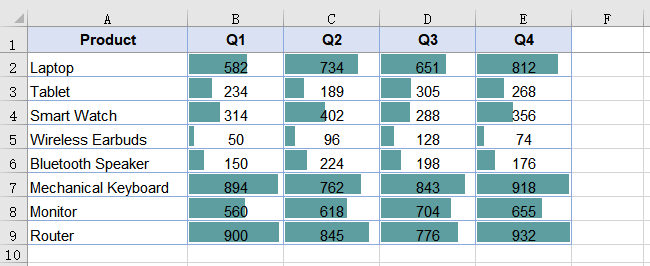
Apenas células numéricas recebem barras — células de texto dentro do intervalo são ignoradas. Isso é esperado: uma barra de dados expressa magnitude relativa, e texto não tem magnitude a expressar. Mantenha o intervalo limitado à área numérica; incluir uma coluna de nomes de produtos ou uma linha de cabeçalho não causa erro, mas essas células não mostrarão nada.
Escalas de cores: mapa de calor sem gráfico
Uma escala de cores sombreia cada célula com base em onde seu valor se posiciona entre o mínimo e o máximo do intervalo. Nenhum argumento de cor é necessário — quando nenhum é especificado, o resultado é uma escala de duas cores que assume laranja no mínimo e amarelo pálido no máximo, com valores intermediários sombreados proporcionalmente. O efeito é um mapa de calor incorporado à tabela de dados: pontos quentes e frios ficam visíveis sem classificação ou gráfico.
Os passos são os mesmos das barras de dados, com FormatType definido como ColorScale e nenhuma propriedade adicional:
- Carregue a fonte e o arquivo de dados de teste no VFS.
- Carregue a pasta de trabalho e obtenha a planilha.
- Chame
ConditionalFormats.Addpara criar um formato condicional e vincule o intervalo de dados comAddRange. - Chame
AddConditionpara adicionar uma condição e definaFormatTypecomoColorScale. - Salve a pasta de trabalho.
function App() {
  const applyColorScales = async () => {
    // Get the Spire.XLS WASM module
    const xlsModule = window.wasmModule?.spirexls;

    // Check whether the module is ready
    if (!xlsModule) {
      alert('Spire.Xls is not ready yet');
      return;
    }

    // Load the font and the test data file into the VFS
    await window.spire.FetchFileToVFS('ARIAL.TTF', '/Library/Fonts/', `${process.env.PUBLIC_URL}/font/`);
    const inputFileName = 'SalesData.xlsx';
    await window.spire.FetchFileToVFS(inputFileName, '', `${process.env.PUBLIC_URL}data/`);

    // Load the workbook and get the first worksheet
    const workbook = new xlsModule.Workbook();
    workbook.LoadFromFile({ fileName: inputFileName });
    const sheet = workbook.Worksheets.get(0);

    // Select the data range that receives the color scales
    const dataRange = sheet.Range.get("B2:E9");

    // Create a conditional format and bind it to that range
    const xcfs = sheet.ConditionalFormats.Add();
    xcfs.AddRange(dataRange);

    // Add a color scale condition; colors transition with the values
    const format = xcfs.AddCondition();
    format.FormatType = xlsModule.ConditionalFormatType.ColorScale;

    // Save the workbook
    const outputFileName = "ApplyColorScales.xlsx";
    workbook.SaveToFile({ fileName: outputFileName, version: xlsModule.ExcelVersion.Version2010 });

    // Dispose of the workbook object to free resources
    workbook.Dispose();

    // Read the result file from the VFS and trigger the download
    const fileArray = window.dotnetRuntime.Module.FS.readFile(outputFileName);
    const blob = new Blob([fileArray], { type: 'application/vnd.openxmlformats-officedocument.spreadsheetml.sheet' });
    const url = URL.createObjectURL(blob);
    const a = document.createElement('a');
    a.href = url;
    a.download = outputFileName;
    a.click();
    URL.revokeObjectURL(url);
  };

  return (
    <div style={{ textAlign: 'center', height: '300px' }}>
      <h1>Apply Color Scales</h1>
      <button onClick={applyColorScales}>Start</button>
    </div>
  );
}

export default App;
Escalas de cores aplicadas a uma tabela de números de vendas, com sombreamento de laranja a amarelo pálido
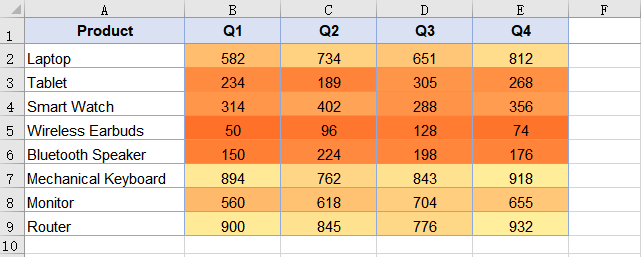
Enquanto as barras de dados mostram magnitude absoluta por meio do comprimento da barra, as escalas de cores mostram posição relativa por meio da matiz. Um valor no meio do intervalo recebe um tom intermediário independentemente de o intervalo variar de 1 a 100 ou de 10.000 a 50.000 — o sombreamento é posicional, não absoluto.
Conjuntos de ícones: faixas de status
Um conjunto de ícones coloca um ícone diferente em cada célula com base em qual faixa o valor se enquadra. O exemplo usa três semáforos: vermelho para o terço mais baixo, amarelo para o meio, verde para o mais alto. Diferentemente das barras de dados e das escalas de cores, que comunicam um gradiente contínuo, os conjuntos de ícones comunicam uma categoria discreta — "isto é baixo", "isto é médio", "isto é alto" — o que está mais próximo de um indicador de status do que de uma medição.
Os passos diferem apenas no FormatType e na seleção do estilo do ícone:
- Carregue a fonte e o arquivo de dados de teste no VFS.
- Carregue a pasta de trabalho e obtenha a planilha.
- Chame
ConditionalFormats.Addpara criar um formato condicional e vincule o intervalo de dados comAddRange. - Chame
AddConditionpara adicionar uma condição, definaFormatTypecomoIconSete especifique o tipo de conjunto de ícones. - Salve a pasta de trabalho.
function App() {
  const applyIconSets = async () => {
    // Get the Spire.XLS WASM module
    const xlsModule = window.wasmModule?.spirexls;

    // Check whether the module is ready
    if (!xlsModule) {
      alert('Spire.Xls is not ready yet');
      return;
    }

    // Load the font and the test data file into the VFS
    await window.spire.FetchFileToVFS('ARIAL.TTF', '/Library/Fonts/', `${process.env.PUBLIC_URL}/font/`);
    const inputFileName = 'SalesData.xlsx';
    await window.spire.FetchFileToVFS(inputFileName, '', `${process.env.PUBLIC_URL}data/`);

    // Load the workbook and get the first worksheet
    const workbook = new xlsModule.Workbook();
    workbook.LoadFromFile({ fileName: inputFileName });
    const sheet = workbook.Worksheets.get(0);

    // Select the data range that receives the icon sets
    const dataRange = sheet.Range.get("B2:E9");

    // Create a conditional format and bind it to that range
    const xcfs = sheet.ConditionalFormats.Add();
    xcfs.AddRange(dataRange);

    // Add an icon set condition and set the icon style to three traffic lights
    const format = xcfs.AddCondition();
    format.FormatType = xlsModule.ConditionalFormatType.IconSet;
    format.IconSet.IconSetType = xlsModule.IconSetType.ThreeTrafficLights1;

    // Save the workbook
    const outputFileName = "ApplyIconSets.xlsx";
    workbook.SaveToFile({ fileName: outputFileName, version: xlsModule.ExcelVersion.Version2010 });

    // Dispose of the workbook object to free resources
    workbook.Dispose();

    // Read the result file from the VFS and trigger the download
    const fileArray = window.dotnetRuntime.Module.FS.readFile(outputFileName);
    const blob = new Blob([fileArray], { type: 'application/vnd.openxmlformats-officedocument.spreadsheetml.sheet' });
    const url = URL.createObjectURL(blob);
    const a = document.createElement('a');
    a.href = url;
    a.download = outputFileName;
    a.click();
    URL.revokeObjectURL(url);
  };

  return (
    <div style={{ textAlign: 'center', height: '300px' }}>
      <h1>Apply Icon Sets</h1>
      <button onClick={applyIconSets}>Start</button>
    </div>
  );
}

export default App;
Conjuntos de ícones aplicados a uma tabela de números de vendas, com ícones de semáforo com base nas faixas de valores
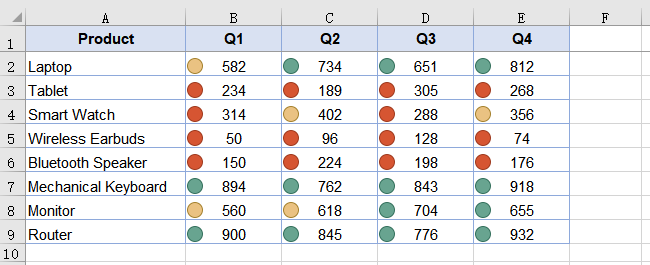
Um conjunto de ícones divide o intervalo em faixas, portanto o mesmo ícone cobre um intervalo diferente de valores em intervalos diferentes. Em um intervalo de 10 a 90, o ícone verde cobre aproximadamente 60 a 90; em um intervalo de 10 a 900, cobre aproximadamente 600 a 900. As faixas são relativas, não absolutas — o que é o padrão correto para uma tabela em que cada coluna tem sua própria escala, mas vale saber caso você espere um limite fixo.
Escolhendo entre os três
Todos os três são aplicados a um intervalo, todos os três ficam dentro das células e todos os três são formatação condicional. A escolha é sobre o que o leitor precisa fazer com os números:
| O leitor precisa | Use | Porque |
|---|---|---|
| Comparar magnitudes ao longo de uma linha ou coluna | Barras de dados | O comprimento da barra é o indicador visual mais preciso para "quanto" |
| Identificar pontos quentes e frios em uma tabela grande | Escalas de cores | A intensidade da cor é percebida perifericamente mesmo quando o olho não está focado em uma célula específica |
| Classificar valores em algumas categorias de status | Conjuntos de ícones | Ícones discretos mapeiam decisões discretas — "isto precisa de atenção", "isto está bom" |
| Ver tudo o que foi mencionado acima de uma só vez | Combinar em intervalos diferentes | Cada formato condicional é independente; aplique barras de dados a um intervalo e conjuntos de ícones a outro |
Os três não são mutuamente exclusivos. Uma planilha pode conter barras de dados nas colunas de receita e conjuntos de ícones na coluna de taxa de crescimento na mesma gravação, porque cada chamada a ConditionalFormats.Add cria um formato independente vinculado ao seu próprio intervalo.
Personalizando a aparência das barras de dados
A cor de preenchimento de uma barra de dados vem de DataBar.BarColor. Definir apenas FormatType sem BarColor resulta no azul padrão. Uma borda também está disponível, mas tem uma dependência: o tipo de borda deve ser definido antes que a cor da borda entre em vigor.
// Set the border type first so that the border color takes effect
format.DataBar.BarBorder.Type = xlsModule.DataBarBorderType.DataBarBorderSolid;
format.DataBar.BarBorder.Color = xlsModule.Color.get_Red();

// Fill color of the bar
format.DataBar.BarColor = xlsModule.Color.get_GreenYellow();
Definir BarBorder.Color por si só, sem primeiro definir BarBorder.Type, não tem efeito — a borda não é desenhada porque nenhum tipo de borda foi declarado. Escalas de cores e conjuntos de ícones não têm propriedades de aparência equivalentes; seu estilo é determinado pelo tipo de formato e, para conjuntos de ícones, pela enumeração IconSetType.
Problemas comuns
Células de texto no intervalo de destino não mostram barras de dados. Isso é esperado. Uma barra de dados expressa magnitude relativa, e apenas células numéricas têm magnitude. Células de texto são ignoradas silenciosamente — nenhum erro, nenhuma barra. Mantenha o intervalo limitado à área numérica.
As barras de dados estão todas no azul padrão.
DataBar.BarColor não foi definido após a atribuição de FormatType. Defina-o como qualquer valor de xlsModule.Color para alterar o preenchimento.
A cor da borda da barra de dados não está aparecendo.
O tipo de borda não foi definido primeiro. Atribua DataBar.BarBorder.Type antes de DataBar.BarBorder.Color — a cor só entra em vigor depois que um tipo de borda sólida é declarado.
Nenhuma alteração visível após aplicar um formato condicional.
Verifique se o intervalo passado para AddRange corresponde a onde os dados realmente estão. Um intervalo apontando para células vazias não produz erro nem resultado visível.
Perguntas frequentes
Posso aplicar mais de um formato condicional ao mesmo intervalo?
Sim. Cada chamada a ConditionalFormats.Add cria um formato independente. Dois formatos podem ter como alvo o mesmo intervalo, embora o resultado visual de empilhar uma barra de dados e uma escala de cores nas mesmas células possa ser confuso — geralmente é mais claro aplicar tipos diferentes a intervalos diferentes.
Quais versões do Excel suportam esses tipos de formato condicional?
Barras de dados, escalas de cores e conjuntos de ícones foram introduzidos no Excel 2007. O exemplo salva com ExcelVersion.Version2010 para garantir compatibilidade com o Excel 2010 e versões posteriores.
Preciso ter o Excel instalado para aplicar formatação condicional?
Não. O mecanismo de planilha é fornecido com o pacote e é executado como WebAssembly no navegador. A formatação condicional é gravada como XML padrão dentro do arquivo .xlsx, e o Excel a renderiza quando o arquivo é aberto.
Posso definir limites personalizados para conjuntos de ícones?
A enumeração IconSetType seleciona um estilo de ícone predefinido com limites de faixa predefinidos. O exemplo usa ThreeTrafficLights1, que divide o intervalo em três faixas iguais.
A formatação condicional sobrevive se o arquivo for aberto e salvo novamente no Excel?
Sim. A formatação condicional faz parte das regras de formato armazenadas da planilha, não um artefato de renderização. O Excel lê, preserva e reaplica as mesmas regras ao recalcular.
Veja também
JavaScript에서 조건부 서식으로 Excel 데이터 시각화하기
숫자로 가득한 20개 열의 매출 표는 정확하지만 읽을 수가 없습니다. 43,210과 38,900을 한 행에서 비교해 부진한 분기를 찾아내기에는 눈이 너무 느리고, 보고서를 읽는 사람도 이를 알고 있기에 차트를 요청합니다. 하지만 열마다 차트를 만들면 차트가 스무 개가 되고, 워크시트는 표가 아니라 갤러리가 되어 버립니다.
데이터 막대, 색조, 아이콘 집합은 이 문제를 셀 자체 안에서 해결합니다. 막대는 값에 비례해 길어집니다. 숫자가 커질수록 색상은 옅은 색에서 진한 색으로 변합니다. 값이 임계값을 넘으면 아이콘 모양이 바뀝니다. 이들 중 어느 것도 행, 열 또는 떠 있는 개체를 추가하지 않습니다. 시각화는 이미 숫자를 담고 있는 셀 안에 자리합니다. 세 가지 모두 Excel 조건부 서식의 한 형태이며, Spire.XLS for JavaScript는 WebAssembly를 통해 브라우저에서 단일 API로 이를 적용하며, 파일은 가상 파일 시스템(VFS)을 거쳐 이동하고 백엔드가 필요하지 않습니다.
프로젝트 설정은 React 프로젝트에 Spire.XLS for JavaScript 통합하기를 참조하세요. 아래 예제는 패키지가 설치되어 있고 WebAssembly 모듈이 초기화되었다고 가정합니다.
차트를 추가하지 않는 이유
차트와 셀 내 시각화는 같은 질문에 답합니다. 즉, "이 값들은 어떻게 비교되는가?" 하지만 서로 다른 순간에 적합합니다.
| 차트 | 셀 내 시각화 | |
|---|---|---|
| 공간 | 워크시트 위에 떠 있으며 직사각형 영역을 차지함 | 이미 데이터를 담고 있는 셀 안에 존재함 |
| 밀도 | 데이터 집합당 차트 하나이며, 여러 차트는 시트를 복잡하게 만듦 | 범위당 서식 하나이며, 수십 개 열이 동시에 단서를 표시할 수 있음 |
| 세부 정보 | 축, 눈금선, 레이블 등 전체 렌더링을 표시함 | 막대, 색상, 아이콘 등 단서만 표시함 |
| 적합한 용도 | 프레젠테이션, 보고서, 독립형 화면 | 표 훑어보기, 이상값 찾기, 여러 열 간 비교 |
레이아웃을 다시 만들지 않고 숫자 표를 훑어보기 쉽게 만드는 것이 목표라면, 셀 내 시각화가 더 가벼운 도구입니다. 아래 세 섹션에서 각 유형을 다루며, 이들은 차이점보다 공유하는 API가 더 많습니다. 이것이 가장 먼저 알아 둘 만한 점입니다.
사전 요구 사항
Spire.XLS for JavaScript가 설치되고 WebAssembly 모듈이 초기화되어 window.wasmModule.spirexls에서 접근할 수 있는 React 프로젝트가 필요합니다. 샘플은 폰트와 매출 데이터 파일을 VFS에 로드하고, 이러한 조건부 서식 유형을 지원하는 가장 이른 버전인 Excel 2010 버전 플래그로 저장합니다.
하나의 API, 세 가지 시각화
세 가지 유형 모두 동일한 호출 체인을 따릅니다. 바뀌는 줄은 FormatType 할당뿐입니다.
sheet.ConditionalFormats.Add() → xcfs.AddRange(range) → format = xcfs.AddCondition() → format.FormatType = ???
| 시각화 | FormatType 값 |
추가 설정 |
|---|---|---|
| 데이터 막대 | ConditionalFormatType.DataBar |
채우기 색상은 DataBar.BarColor |
| 색조 | ConditionalFormatType.ColorScale |
없음 — 기본값은 두 색 그라데이션 |
| 아이콘 집합 | ConditionalFormatType.IconSet |
아이콘 스타일은 IconSet.IconSetType |
공유된 호출 체인 때문에 아래 세 코드 예제는 비슷해 보입니다. 이들은 서로 다른 서식 유형을 가진 동일한 작업입니다. 차이는 각 유형이 만들어 내는 결과와 언제 이를 선택하게 되는지에 있으며, 이 문서 뒷부분의 비교 표에서 다룹니다.
데이터 막대: 한눈에 보는 크기
데이터 막대는 각 셀 안에 가로 방향의 색 띠를 그리며, 띠의 길이는 선택한 범위의 나머지 값 대비 해당 셀 값에 비례합니다. 가장 큰 값은 셀을 가득 채우고, 가장 작은 값은 가느다란 조각만 채웁니다. 데이터 막대 행을 훑어보는 것은 막대 차트를 훑어보는 것과 같은 정신적 작업이며, 다만 숫자가 아래에 그대로 보입니다.
단계는 다음과 같습니다.
- 폰트와 테스트 데이터 파일을 VFS에 로드합니다.
- 통합 문서를 로드하고 워크시트를 가져옵니다.
ConditionalFormats.Add를 호출해 조건부 서식을 만들고,AddRange로 데이터 범위를 바인딩합니다.AddCondition을 호출해 조건을 추가하고,FormatType을DataBar로 설정한 뒤 막대 색상을 설정합니다.- 통합 문서를 저장합니다.
function App() {
  const applyDataBars = async () => {
    // Get the Spire.XLS WASM module
    const xlsModule = window.wasmModule?.spirexls;

    // Check whether the module is ready
    if (!xlsModule) {
      alert('Spire.Xls is not ready yet');
      return;
    }

    // Load the font and the test data file into the VFS
    await window.spire.FetchFileToVFS('ARIAL.TTF', '/Library/Fonts/', `${process.env.PUBLIC_URL}/font/`);
    const inputFileName = 'SalesData.xlsx';
    await window.spire.FetchFileToVFS(inputFileName, '', `${process.env.PUBLIC_URL}data/`);

    // Load the workbook and get the first worksheet
    const workbook = new xlsModule.Workbook();
    workbook.LoadFromFile({ fileName: inputFileName });
    const sheet = workbook.Worksheets.get(0);

    // Select the data range that receives the data bars
    const dataRange = sheet.Range.get("B2:E9");

    // Create a conditional format and bind it to that range
    const xcfs = sheet.ConditionalFormats.Add();
    xcfs.AddRange(dataRange);

    // Add a data bar condition and set the bar color
    const format = xcfs.AddCondition();
    format.FormatType = xlsModule.ConditionalFormatType.DataBar;
    format.DataBar.BarColor = xlsModule.Color.get_CadetBlue();

    // Save the workbook
    const outputFileName = "ApplyDataBars.xlsx";
    workbook.SaveToFile({ fileName: outputFileName, version: xlsModule.ExcelVersion.Version2010 });

    // Dispose of the workbook object to free resources
    workbook.Dispose();

    // Read the result file from the VFS and trigger the download
    const fileArray = window.dotnetRuntime.Module.FS.readFile(outputFileName);
    const blob = new Blob([fileArray], { type: 'application/vnd.openxmlformats-officedocument.spreadsheetml.sheet' });
    const url = URL.createObjectURL(blob);
    const a = document.createElement('a');
    a.href = url;
    a.download = outputFileName;
    a.click();
    URL.revokeObjectURL(url);
  };

  return (
    <div style={{ textAlign: 'center', height: '300px' }}>
      <h1>Apply Data Bars</h1>
      <button onClick={applyDataBars}>Start</button>
    </div>
  );
}

export default App;
매출 수치 표에 적용된 데이터 막대, 막대 길이는 셀 값에 비례함
숫자 셀만 막대를 받으며, 범위 내의 텍스트 셀은 건너뜁니다. 이는 예상된 동작입니다. 데이터 막대는 상대적 크기를 표현하는데, 텍스트에는 표현할 크기가 없습니다. 범위는 숫자 영역으로 한정하세요. 제품명 열이나 머리글 행을 포함해도 오류는 발생하지 않지만, 해당 셀에는 아무것도 표시되지 않습니다.
색조: 차트 없는 히트맵
색조는 범위의 최솟값과 최댓값 사이에서 해당 값의 위치에 따라 각 셀에 음영을 입힙니다. 색상 인수를 지정할 필요가 없습니다. 아무것도 지정하지 않으면 최솟값에 주황색, 최댓값에 옅은 노란색을 취하고 중간 값은 비례적으로 음영 처리되는 두 색 스케일이 결과로 나옵니다. 그 효과는 데이터 표에 내장된 히트맵으로, 정렬이나 차트 없이도 뜨거운 지점과 차가운 지점이 보입니다.
단계는 데이터 막대와 동일하며, FormatType을 ColorScale로 설정하고 추가 속성이 없습니다.
- 폰트와 테스트 데이터 파일을 VFS에 로드합니다.
- 통합 문서를 로드하고 워크시트를 가져옵니다.
ConditionalFormats.Add를 호출해 조건부 서식을 만들고,AddRange로 데이터 범위를 바인딩합니다.AddCondition을 호출해 조건을 추가하고,FormatType을ColorScale로 설정합니다.- 통합 문서를 저장합니다.
function App() {
  const applyColorScales = async () => {
    // Get the Spire.XLS WASM module
    const xlsModule = window.wasmModule?.spirexls;

    // Check whether the module is ready
    if (!xlsModule) {
      alert('Spire.Xls is not ready yet');
      return;
    }

    // Load the font and the test data file into the VFS
    await window.spire.FetchFileToVFS('ARIAL.TTF', '/Library/Fonts/', `${process.env.PUBLIC_URL}/font/`);
    const inputFileName = 'SalesData.xlsx';
    await window.spire.FetchFileToVFS(inputFileName, '', `${process.env.PUBLIC_URL}data/`);

    // Load the workbook and get the first worksheet
    const workbook = new xlsModule.Workbook();
    workbook.LoadFromFile({ fileName: inputFileName });
    const sheet = workbook.Worksheets.get(0);

    // Select the data range that receives the color scales
    const dataRange = sheet.Range.get("B2:E9");

    // Create a conditional format and bind it to that range
    const xcfs = sheet.ConditionalFormats.Add();
    xcfs.AddRange(dataRange);

    // Add a color scale condition; colors transition with the values
    const format = xcfs.AddCondition();
    format.FormatType = xlsModule.ConditionalFormatType.ColorScale;

    // Save the workbook
    const outputFileName = "ApplyColorScales.xlsx";
    workbook.SaveToFile({ fileName: outputFileName, version: xlsModule.ExcelVersion.Version2010 });

    // Dispose of the workbook object to free resources
    workbook.Dispose();

    // Read the result file from the VFS and trigger the download
    const fileArray = window.dotnetRuntime.Module.FS.readFile(outputFileName);
    const blob = new Blob([fileArray], { type: 'application/vnd.openxmlformats-officedocument.spreadsheetml.sheet' });
    const url = URL.createObjectURL(blob);
    const a = document.createElement('a');
    a.href = url;
    a.download = outputFileName;
    a.click();
    URL.revokeObjectURL(url);
  };

  return (
    <div style={{ textAlign: 'center', height: '300px' }}>
      <h1>Apply Color Scales</h1>
      <button onClick={applyColorScales}>Start</button>
    </div>
  );
}

export default App;
매출 수치 표에 적용된 색조, 주황색에서 옅은 노란색으로 이어지는 음영
데이터 막대가 막대 길이를 통해 절대적 크기를 보여 준다면, 색조는 색상을 통해 상대적 위치를 보여 줍니다. 범위가 1에서 100이든 10,000에서 50,000이든 중간 값은 중간 색조를 받습니다. 즉 음영은 절대적이 아니라 위치에 기반합니다.
아이콘 집합: 상태 구간
아이콘 집합은 값이 어느 구간에 속하는지에 따라 각 셀에 서로 다른 아이콘을 배치합니다. 예제는 세 가지 신호등을 사용합니다. 가장 낮은 3분의 1에는 빨간색, 중간에는 노란색, 가장 높은 값에는 초록색입니다. 연속적인 그라데이션을 전달하는 데이터 막대와 색조와 달리, 아이콘 집합은 이산적인 범주, 즉 "이것은 낮음", "이것은 중간", "이것은 높음"을 전달하며, 이는 측정값이라기보다 상태 표시에 가깝습니다.
단계는 FormatType과 아이콘 스타일 선택에서만 다릅니다.
- 폰트와 테스트 데이터 파일을 VFS에 로드합니다.
- 통합 문서를 로드하고 워크시트를 가져옵니다.
ConditionalFormats.Add를 호출해 조건부 서식을 만들고,AddRange로 데이터 범위를 바인딩합니다.AddCondition을 호출해 조건을 추가하고,FormatType을IconSet으로 설정한 뒤 아이콘 집합 유형을 지정합니다.- 통합 문서를 저장합니다.
function App() {
  const applyIconSets = async () => {
    // Get the Spire.XLS WASM module
    const xlsModule = window.wasmModule?.spirexls;

    // Check whether the module is ready
    if (!xlsModule) {
      alert('Spire.Xls is not ready yet');
      return;
    }

    // Load the font and the test data file into the VFS
    await window.spire.FetchFileToVFS('ARIAL.TTF', '/Library/Fonts/', `${process.env.PUBLIC_URL}/font/`);
    const inputFileName = 'SalesData.xlsx';
    await window.spire.FetchFileToVFS(inputFileName, '', `${process.env.PUBLIC_URL}data/`);

    // Load the workbook and get the first worksheet
    const workbook = new xlsModule.Workbook();
    workbook.LoadFromFile({ fileName: inputFileName });
    const sheet = workbook.Worksheets.get(0);

    // Select the data range that receives the icon sets
    const dataRange = sheet.Range.get("B2:E9");

    // Create a conditional format and bind it to that range
    const xcfs = sheet.ConditionalFormats.Add();
    xcfs.AddRange(dataRange);

    // Add an icon set condition and set the icon style to three traffic lights
    const format = xcfs.AddCondition();
    format.FormatType = xlsModule.ConditionalFormatType.IconSet;
    format.IconSet.IconSetType = xlsModule.IconSetType.ThreeTrafficLights1;

    // Save the workbook
    const outputFileName = "ApplyIconSets.xlsx";
    workbook.SaveToFile({ fileName: outputFileName, version: xlsModule.ExcelVersion.Version2010 });

    // Dispose of the workbook object to free resources
    workbook.Dispose();

    // Read the result file from the VFS and trigger the download
    const fileArray = window.dotnetRuntime.Module.FS.readFile(outputFileName);
    const blob = new Blob([fileArray], { type: 'application/vnd.openxmlformats-officedocument.spreadsheetml.sheet' });
    const url = URL.createObjectURL(blob);
    const a = document.createElement('a');
    a.href = url;
    a.download = outputFileName;
    a.click();
    URL.revokeObjectURL(url);
  };

  return (
    <div style={{ textAlign: 'center', height: '300px' }}>
      <h1>Apply Icon Sets</h1>
      <button onClick={applyIconSets}>Start</button>
    </div>
  );
}

export default App;
매출 수치 표에 적용된 아이콘 집합, 값 구간에 따른 신호등 아이콘
아이콘 집합은 범위를 구간으로 나누므로, 같은 아이콘이 범위에 따라 서로 다른 값 범위를 담당합니다. 10에서 90 범위에서는 초록색 아이콘이 대략 60에서 90을 담당하고, 10에서 900 범위에서는 대략 600에서 900을 담당합니다. 구간은 절대적이지 않고 상대적입니다. 이는 각 열이 고유한 척도를 가지는 표에 적합한 기본값이지만, 고정 임계값을 기대한다면 알아 둘 만합니다.
세 가지 중에서 선택하기
세 가지 모두 범위에 적용되고, 모두 셀 안에 존재하며, 모두 조건부 서식입니다. 선택은 읽는 사람이 숫자로 무엇을 해야 하는지에 달려 있습니다.
| 읽는 사람이 해야 하는 일 | 사용 | 이유 |
|---|---|---|
| 행이나 열 전체에서 크기 비교 | 데이터 막대 | 막대 길이는 "얼마나 많은가"에 대한 가장 정밀한 시각적 단서임 |
| 큰 표에서 뜨거운 지점과 차가운 지점 찾기 | 색조 | 색상 강도는 시선이 특정 셀에 집중하지 않아도 주변부에서 인지됨 |
| 값을 몇 가지 상태 범주로 분류 | 아이콘 집합 | 이산적인 아이콘은 "주의 필요", "양호" 같은 이산적인 판단에 대응함 |
| 위의 모든 것을 한 번에 보기 | 서로 다른 범위에 조합 | 각 조건부 서식은 독립적이므로, 한 범위에는 데이터 막대를, 다른 범위에는 아이콘 집합을 적용할 수 있음 |
세 가지는 상호 배타적이지 않습니다. 각 ConditionalFormats.Add 호출은 자체 범위에 바인딩된 독립적인 서식을 만들기 때문에, 한 번의 저장으로 매출 열에는 데이터 막대를, 성장률 열에는 아이콘 집합을 적용할 수 있습니다.
데이터 막대 모양 사용자 지정
데이터 막대의 채우기 색상은 DataBar.BarColor에서 옵니다. BarColor 없이 FormatType만 설정하면 기본 파란색이 됩니다. 테두리도 사용할 수 있지만 의존성이 있습니다. 테두리 색상이 적용되려면 테두리 유형을 먼저 설정해야 합니다.
// Set the border type first so that the border color takes effect
format.DataBar.BarBorder.Type = xlsModule.DataBarBorderType.DataBarBorderSolid;
format.DataBar.BarBorder.Color = xlsModule.Color.get_Red();

// Fill color of the bar
format.DataBar.BarColor = xlsModule.Color.get_GreenYellow();
BarBorder.Type을 먼저 설정하지 않고 BarBorder.Color만 설정하면 아무 효과가 없습니다. 테두리 유형이 선언되지 않았으므로 테두리가 그려지지 않습니다. 색조와 아이콘 집합에는 이에 상응하는 모양 속성이 없습니다. 이들의 스타일은 서식 유형에 의해 결정되며, 아이콘 집합의 경우 IconSetType 열거형에 의해 결정됩니다.
일반적인 문제
대상 범위의 텍스트 셀에 데이터 막대가 표시되지 않습니다. 이는 예상된 동작입니다. 데이터 막대는 상대적 크기를 표현하며, 숫자 셀만 크기를 가집니다. 텍스트 셀은 오류도, 막대도 없이 조용히 건너뜁니다. 범위를 숫자 영역으로 제한하세요.
데이터 막대가 모두 기본 파란색입니다.
FormatType을 할당한 뒤 DataBar.BarColor를 설정하지 않았습니다. 채우기를 변경하려면 임의의 xlsModule.Color 값으로 설정하세요.
데이터 막대 테두리 색상이 표시되지 않습니다.
테두리 유형을 먼저 설정하지 않았습니다. DataBar.BarBorder.Color보다 DataBar.BarBorder.Type을 먼저 할당하세요. 실선 테두리 유형이 선언되어야 색상이 적용됩니다.
조건부 서식을 적용한 후에도 눈에 띄는 변화가 없습니다.
AddRange에 전달한 범위가 실제 데이터가 있는 위치와 일치하는지 확인하세요. 빈 셀을 가리키는 범위는 오류도, 눈에 보이는 결과도 만들어 내지 않습니다.
자주 묻는 질문
같은 범위에 조건부 서식을 두 개 이상 적용할 수 있나요?
예. ConditionalFormats.Add를 호출할 때마다 독립적인 서식이 만들어집니다. 두 서식이 같은 범위를 대상으로 할 수 있지만, 같은 셀에 데이터 막대와 색조를 겹쳐 놓으면 시각적 결과가 혼란스러울 수 있으므로 일반적으로는 서로 다른 유형을 서로 다른 범위에 적용하는 편이 더 명확합니다.
이러한 조건부 서식 유형을 지원하는 Excel 버전은 무엇인가요?
데이터 막대, 색조, 아이콘 집합은 Excel 2007에서 도입되었습니다. 샘플은 Excel 2010 및 이후 버전과의 호환성을 보장하기 위해 ExcelVersion.Version2010으로 저장합니다.
조건부 서식을 적용하려면 Excel이 설치되어 있어야 하나요?
아니요. 스프레드시트 엔진은 패키지에 포함되어 브라우저에서 WebAssembly로 실행됩니다. 조건부 서식은 .xlsx 파일 내부에 표준 XML로 기록되며, Excel은 파일을 열 때 이를 렌더링합니다.
아이콘 집합에 사용자 지정 임계값을 설정할 수 있나요?
IconSetType 열거형은 미리 정의된 구간 경계를 가진 미리 정의된 아이콘 스타일을 선택합니다. 예제는 범위를 세 개의 동일한 구간으로 나누는 ThreeTrafficLights1을 사용합니다.
Excel에서 파일을 열고 다시 저장해도 조건부 서식이 유지되나요?
예. 조건부 서식은 렌더링 결과물이 아니라 워크시트에 저장된 서식 규칙의 일부입니다. Excel은 동일한 규칙을 읽고, 보존하며, 다시 계산할 때 다시 적용합니다.
함께 보기
Rendi visivi i dati di Excel con la formattazione condizionale in JavaScript
Indice
- Perché non aggiungere semplicemente un grafico
- Prerequisiti
- Un'unica API, tre visualizzazioni
- Barre dei dati: la grandezza a colpo d'occhio
- Scale di colori: mappe di calore senza grafico
- Set di icone: fasce di stato
- Scegliere tra i tre
- Personalizzare l'aspetto delle barre dei dati
- Problemi comuni
- FAQ
- Vedi anche
Una tabella di vendite con venti colonne di numeri è accurata e illeggibile. L'occhio non riesce a confrontare 43.210 con 38.900 lungo una riga abbastanza velocemente da individuare il trimestre debole, e chi legge il report lo sa — ed è per questo che chiede un grafico. Ma un grafico per colonna significa venti grafici, e ora il foglio di lavoro è una galleria invece di una tabella.
Le barre dei dati, le scale di colori e i set di icone risolvono il problema all'interno delle celle stesse. Una barra cresce in proporzione al valore. Un colore passa dal tenue al saturo man mano che il numero aumenta. Un'icona cambia forma quando il valore supera una soglia. Nessuno di essi aggiunge righe, colonne o oggetti fluttuanti — la visualizzazione risiede nella cella che già contiene il numero. Tutti e tre sono forme di formattazione condizionale di Excel, e Spire.XLS for JavaScript le applica tramite un'unica API nel browser su WebAssembly, con i file che passano attraverso un file system virtuale (VFS) e senza necessità di un backend.
Per la configurazione del progetto, vedi Integrare Spire.XLS for JavaScript in un progetto React. Gli esempi seguenti presuppongono che il pacchetto sia installato e che il modulo WebAssembly sia stato inizializzato.
Perché non aggiungere semplicemente un grafico
I grafici e la visualizzazione all'interno delle celle rispondono alla stessa domanda — "come si confrontano questi valori?" — ma si adattano a momenti diversi:
| Grafici | Visualizzazione nelle celle | |
|---|---|---|
| Spazio | Fluttua sopra il foglio di lavoro, occupa un'area rettangolare | Vive all'interno delle celle che già contengono i dati |
| Densità | Un grafico per set di dati; più grafici affollano il foglio | Un formato per intervallo; decine di colonne possono veicolare indicazioni contemporaneamente |
| Dettaglio | Mostra assi, linee della griglia, etichette — una resa completa | Mostra solo l'indicazione: una barra, un colore, un'icona |
| Ideale per | Presentazioni, report, visualizzazioni autonome | Scansionare una tabella, individuare valori anomali, confrontare molte colonne |
Quando l'obiettivo è rendere leggibile a colpo d'occhio una tabella di numeri senza ricostruire il layout, la visualizzazione nelle celle è lo strumento più leggero. Le tre sezioni seguenti trattano ciascun tipo, e condividono più API di quante ne differenzino — ed è la prima cosa che vale la pena sapere.
Prerequisiti
Serve un progetto React con Spire.XLS for JavaScript installato e il modulo WebAssembly inizializzato, accessibile all'indirizzo window.wasmModule.spirexls. L'esempio carica un font e un file di dati di vendita nel VFS e salva con il flag della versione Excel 2010, che è la prima versione a supportare questi tipi di formato condizionale.
Un'unica API, tre visualizzazioni
Tutti e tre i tipi seguono la stessa catena di chiamate. L'unica riga che cambia è l'assegnazione di FormatType:
sheet.ConditionalFormats.Add() → xcfs.AddRange(range) → format = xcfs.AddCondition() → format.FormatType = ???
| Visualizzazione | Valore FormatType |
Configurazione aggiuntiva |
|---|---|---|
| Barre dei dati | ConditionalFormatType.DataBar |
DataBar.BarColor per il colore di riempimento |
| Scale di colori | ConditionalFormatType.ColorScale |
Nessuna — per impostazione predefinita usa una sfumatura a due colori |
| Set di icone | ConditionalFormatType.IconSet |
IconSet.IconSetType per lo stile dell'icona |
La catena condivisa è il motivo per cui i tre esempi di codice seguenti si assomigliano — sono la stessa operazione con un tipo di formato diverso. Le differenze stanno in ciò che ciascun tipo produce e in quando lo si utilizzerebbe, ed è proprio questo che affronta la tabella di confronto più avanti nell'articolo.
Barre dei dati: la grandezza a colpo d'occhio
Una barra dei dati disegna una fascia colorata orizzontale all'interno di ogni cella, e la lunghezza della fascia è proporzionale al valore della cella rispetto al resto dell'intervallo selezionato. Il valore più grande riempie la cella; il più piccolo riempie uno spicchio sottile. Scansionare una riga di barre dei dati è la stessa operazione mentale che scansionare un grafico a barre, con la differenza che i numeri restano visibili sotto.
I passaggi sono:
- Caricare il font e il file di dati di test nel VFS.
- Caricare la cartella di lavoro e ottenere il foglio di lavoro.
- Chiamare
ConditionalFormats.Addper creare un formato condizionale e associare l'intervallo di dati conAddRange. - Chiamare
AddConditionper aggiungere una condizione, impostareFormatTypesuDataBare impostare il colore della barra. - Salvare la cartella di lavoro.
function App() {
  const applyDataBars = async () => {
    // Get the Spire.XLS WASM module
    const xlsModule = window.wasmModule?.spirexls;

    // Check whether the module is ready
    if (!xlsModule) {
      alert('Spire.Xls is not ready yet');
      return;
    }

    // Load the font and the test data file into the VFS
    await window.spire.FetchFileToVFS('ARIAL.TTF', '/Library/Fonts/', `${process.env.PUBLIC_URL}/font/`);
    const inputFileName = 'SalesData.xlsx';
    await window.spire.FetchFileToVFS(inputFileName, '', `${process.env.PUBLIC_URL}data/`);

    // Load the workbook and get the first worksheet
    const workbook = new xlsModule.Workbook();
    workbook.LoadFromFile({ fileName: inputFileName });
    const sheet = workbook.Worksheets.get(0);

    // Select the data range that receives the data bars
    const dataRange = sheet.Range.get("B2:E9");

    // Create a conditional format and bind it to that range
    const xcfs = sheet.ConditionalFormats.Add();
    xcfs.AddRange(dataRange);

    // Add a data bar condition and set the bar color
    const format = xcfs.AddCondition();
    format.FormatType = xlsModule.ConditionalFormatType.DataBar;
    format.DataBar.BarColor = xlsModule.Color.get_CadetBlue();

    // Save the workbook
    const outputFileName = "ApplyDataBars.xlsx";
    workbook.SaveToFile({ fileName: outputFileName, version: xlsModule.ExcelVersion.Version2010 });

    // Dispose of the workbook object to free resources
    workbook.Dispose();

    // Read the result file from the VFS and trigger the download
    const fileArray = window.dotnetRuntime.Module.FS.readFile(outputFileName);
    const blob = new Blob([fileArray], { type: 'application/vnd.openxmlformats-officedocument.spreadsheetml.sheet' });
    const url = URL.createObjectURL(blob);
    const a = document.createElement('a');
    a.href = url;
    a.download = outputFileName;
    a.click();
    URL.revokeObjectURL(url);
  };

  return (
    <div style={{ textAlign: 'center', height: '300px' }}>
      <h1>Apply Data Bars</h1>
      <button onClick={applyDataBars}>Start</button>
    </div>
  );
}

export default App;
Barre dei dati applicate a una tabella di cifre di vendita, lunghezza della barra proporzionale al valore della cella
Solo le celle numeriche ricevono le barre — le celle di testo all'interno dell'intervallo vengono ignorate. È il comportamento previsto: una barra dei dati esprime una grandezza relativa, e il testo non ha alcuna grandezza da esprimere. Mantieni l'intervallo delimitato all'area numerica; includere una colonna con i nomi dei prodotti o una riga di intestazione non causa un errore, ma quelle celle non mostreranno nulla.
Scale di colori: mappe di calore senza grafico
Una scala di colori ombreggia ogni cella in base alla posizione del suo valore tra il minimo e il massimo dell'intervallo. Non sono richiesti argomenti di colore — quando non ne viene specificato nessuno, il risultato è una scala a due colori che assume l'arancione in corrispondenza del minimo e il giallo pallido in corrispondenza del massimo, con i valori intermedi ombreggiati in proporzione. L'effetto è una mappa di calore incorporata nella tabella di dati: i punti caldi e quelli freddi sono visibili senza ordinare né creare grafici.
I passaggi sono gli stessi delle barre dei dati, con FormatType impostato su ColorScale e nessuna proprietà aggiuntiva:
- Caricare il font e il file di dati di test nel VFS.
- Caricare la cartella di lavoro e ottenere il foglio di lavoro.
- Chiamare
ConditionalFormats.Addper creare un formato condizionale e associare l'intervallo di dati conAddRange. - Chiamare
AddConditionper aggiungere una condizione e impostareFormatTypesuColorScale. - Salvare la cartella di lavoro.
function App() {
  const applyColorScales = async () => {
    // Get the Spire.XLS WASM module
    const xlsModule = window.wasmModule?.spirexls;

    // Check whether the module is ready
    if (!xlsModule) {
      alert('Spire.Xls is not ready yet');
      return;
    }

    // Load the font and the test data file into the VFS
    await window.spire.FetchFileToVFS('ARIAL.TTF', '/Library/Fonts/', `${process.env.PUBLIC_URL}/font/`);
    const inputFileName = 'SalesData.xlsx';
    await window.spire.FetchFileToVFS(inputFileName, '', `${process.env.PUBLIC_URL}data/`);

    // Load the workbook and get the first worksheet
    const workbook = new xlsModule.Workbook();
    workbook.LoadFromFile({ fileName: inputFileName });
    const sheet = workbook.Worksheets.get(0);

    // Select the data range that receives the color scales
    const dataRange = sheet.Range.get("B2:E9");

    // Create a conditional format and bind it to that range
    const xcfs = sheet.ConditionalFormats.Add();
    xcfs.AddRange(dataRange);

    // Add a color scale condition; colors transition with the values
    const format = xcfs.AddCondition();
    format.FormatType = xlsModule.ConditionalFormatType.ColorScale;

    // Save the workbook
    const outputFileName = "ApplyColorScales.xlsx";
    workbook.SaveToFile({ fileName: outputFileName, version: xlsModule.ExcelVersion.Version2010 });

    // Dispose of the workbook object to free resources
    workbook.Dispose();

    // Read the result file from the VFS and trigger the download
    const fileArray = window.dotnetRuntime.Module.FS.readFile(outputFileName);
    const blob = new Blob([fileArray], { type: 'application/vnd.openxmlformats-officedocument.spreadsheetml.sheet' });
    const url = URL.createObjectURL(blob);
    const a = document.createElement('a');
    a.href = url;
    a.download = outputFileName;
    a.click();
    URL.revokeObjectURL(url);
  };

  return (
    <div style={{ textAlign: 'center', height: '300px' }}>
      <h1>Apply Color Scales</h1>
      <button onClick={applyColorScales}>Start</button>
    </div>
  );
}

export default App;
Scale di colori applicate a una tabella di cifre di vendita, con ombreggiatura dall'arancione al giallo pallido
Mentre le barre dei dati mostrano la grandezza assoluta attraverso la lunghezza della barra, le scale di colori mostrano la posizione relativa attraverso la tonalità. Un valore al centro dell'intervallo ottiene una tonalità intermedia indipendentemente dal fatto che l'intervallo vada da 1 a 100 o da 10.000 a 50.000 — l'ombreggiatura è posizionale, non assoluta.
Set di icone: fasce di stato
Un set di icone colloca un'icona diversa in ogni cella in base alla fascia in cui ricade il valore. L'esempio utilizza i tre semafori: rosso per il terzo più basso, giallo per quello intermedio, verde per il più alto. A differenza delle barre dei dati e delle scale di colori, che comunicano un gradiente continuo, i set di icone comunicano una categoria discreta — "questo è basso", "questo è medio", "questo è alto" — il che è più vicino a un indicatore di stato che a una misurazione.
I passaggi differiscono solo per FormatType e per la selezione dello stile dell'icona:
- Caricare il font e il file di dati di test nel VFS.
- Caricare la cartella di lavoro e ottenere il foglio di lavoro.
- Chiamare
ConditionalFormats.Addper creare un formato condizionale e associare l'intervallo di dati conAddRange. - Chiamare
AddConditionper aggiungere una condizione, impostareFormatTypesuIconSete specificare il tipo di set di icone. - Salvare la cartella di lavoro.
function App() {
  const applyIconSets = async () => {
    // Get the Spire.XLS WASM module
    const xlsModule = window.wasmModule?.spirexls;

    // Check whether the module is ready
    if (!xlsModule) {
      alert('Spire.Xls is not ready yet');
      return;
    }

    // Load the font and the test data file into the VFS
    await window.spire.FetchFileToVFS('ARIAL.TTF', '/Library/Fonts/', `${process.env.PUBLIC_URL}/font/`);
    const inputFileName = 'SalesData.xlsx';
    await window.spire.FetchFileToVFS(inputFileName, '', `${process.env.PUBLIC_URL}data/`);

    // Load the workbook and get the first worksheet
    const workbook = new xlsModule.Workbook();
    workbook.LoadFromFile({ fileName: inputFileName });
    const sheet = workbook.Worksheets.get(0);

    // Select the data range that receives the icon sets
    const dataRange = sheet.Range.get("B2:E9");

    // Create a conditional format and bind it to that range
    const xcfs = sheet.ConditionalFormats.Add();
    xcfs.AddRange(dataRange);

    // Add an icon set condition and set the icon style to three traffic lights
    const format = xcfs.AddCondition();
    format.FormatType = xlsModule.ConditionalFormatType.IconSet;
    format.IconSet.IconSetType = xlsModule.IconSetType.ThreeTrafficLights1;

    // Save the workbook
    const outputFileName = "ApplyIconSets.xlsx";
    workbook.SaveToFile({ fileName: outputFileName, version: xlsModule.ExcelVersion.Version2010 });

    // Dispose of the workbook object to free resources
    workbook.Dispose();

    // Read the result file from the VFS and trigger the download
    const fileArray = window.dotnetRuntime.Module.FS.readFile(outputFileName);
    const blob = new Blob([fileArray], { type: 'application/vnd.openxmlformats-officedocument.spreadsheetml.sheet' });
    const url = URL.createObjectURL(blob);
    const a = document.createElement('a');
    a.href = url;
    a.download = outputFileName;
    a.click();
    URL.revokeObjectURL(url);
  };

  return (
    <div style={{ textAlign: 'center', height: '300px' }}>
      <h1>Apply Icon Sets</h1>
      <button onClick={applyIconSets}>Start</button>
    </div>
  );
}

export default App;
Set di icone applicati a una tabella di cifre di vendita, icone a semaforo basate sulle fasce di valore
Un set di icone divide l'intervallo in fasce, quindi la stessa icona copre un intervallo di valori diverso in intervalli diversi. In un intervallo da 10 a 90, l'icona verde copre all'incirca da 60 a 90; in un intervallo da 10 a 900, copre all'incirca da 600 a 900. Le fasce sono relative, non assolute — il che è l'impostazione predefinita corretta per una tabella in cui ogni colonna ha la propria scala, ma vale la pena saperlo se ci si aspetta una soglia fissa.
Scegliere tra i tre
Tutti e tre vengono applicati a un intervallo, tutti e tre risiedono all'interno delle celle e tutti e tre sono formattazione condizionale. La scelta riguarda ciò che il lettore deve fare con i numeri:
| Il lettore deve | Usare | Perché |
|---|---|---|
| Confrontare grandezze lungo una riga o una colonna | Barre dei dati | La lunghezza della barra è l'indizio visivo più preciso per "quanto" |
| Individuare punti caldi e freddi in una tabella grande | Scale di colori | L'intensità del colore viene percepita perifericamente anche quando l'occhio non è concentrato su una cella specifica |
| Classificare i valori in poche categorie di stato | Set di icone | Icone discrete corrispondono a decisioni discrete — "questo richiede attenzione", "questo va bene" |
| Vedere tutto quanto sopra contemporaneamente | Combinare su intervalli diversi | Ogni formato condizionale è indipendente; applica le barre dei dati a un intervallo e i set di icone a un altro |
I tre non si escludono a vicenda. Un foglio di lavoro può contenere barre dei dati sulle colonne dei ricavi e set di icone sulla colonna del tasso di crescita nello stesso salvataggio, perché ogni chiamata a ConditionalFormats.Add crea un formato indipendente associato al proprio intervallo.
Personalizzare l'aspetto delle barre dei dati
Il colore di riempimento di una barra dei dati proviene da DataBar.BarColor. Impostando solo FormatType senza BarColor si ottiene il blu predefinito. È disponibile anche un bordo, ma ha una dipendenza: il tipo di bordo deve essere impostato prima che il colore del bordo abbia effetto.
// Set the border type first so that the border color takes effect
format.DataBar.BarBorder.Type = xlsModule.DataBarBorderType.DataBarBorderSolid;
format.DataBar.BarBorder.Color = xlsModule.Color.get_Red();

// Fill color of the bar
format.DataBar.BarColor = xlsModule.Color.get_GreenYellow();
Impostare BarBorder.Color da solo, senza impostare prima BarBorder.Type, non ha alcun effetto — il bordo non viene disegnato perché non è stato dichiarato alcun tipo di bordo. Le scale di colori e i set di icone non hanno proprietà equivalenti di aspetto; il loro stile è determinato dal tipo di formato e, per i set di icone, dall'enumerazione IconSetType.
Problemi comuni
Le celle di testo nell'intervallo di destinazione non mostrano barre dei dati. Questo è il comportamento previsto. Una barra dei dati esprime una grandezza relativa, e solo le celle numeriche hanno una grandezza. Le celle di testo vengono ignorate silenziosamente — nessun errore, nessuna barra. Mantieni l'intervallo limitato all'area numerica.
Le barre dei dati sono tutte del blu predefinito.
DataBar.BarColor non è stato impostato dopo l'assegnazione di FormatType. Impostalo su un qualsiasi valore di xlsModule.Color per cambiare il riempimento.
Il colore del bordo delle barre dei dati non viene visualizzato.
Il tipo di bordo non è stato impostato per primo. Assegna DataBar.BarBorder.Type prima di DataBar.BarBorder.Color — il colore ha effetto solo dopo che è stato dichiarato un tipo di bordo pieno.
Nessun cambiamento visibile dopo l'applicazione di un formato condizionale.
Verifica che l'intervallo passato a AddRange corrisponda a dove si trovano effettivamente i dati. Un intervallo che punta a celle vuote non produce errori né risultati visibili.
FAQ
Posso applicare più di un formato condizionale allo stesso intervallo?
Sì. Ogni chiamata a ConditionalFormats.Add crea un formato indipendente. Due formati possono avere come destinazione lo stesso intervallo, anche se il risultato visivo di sovrapporre una barra dei dati e una scala di colori sulle stesse celle può risultare confuso — di solito è più chiaro applicare tipi diversi a intervalli diversi.
Quali versioni di Excel supportano questi tipi di formato condizionale?
Le barre dei dati, le scale di colori e i set di icone sono stati introdotti in Excel 2007. L'esempio salva con ExcelVersion.Version2010 per garantire la compatibilità sia con Excel 2010 sia con le versioni successive.
Serve Excel installato per applicare la formattazione condizionale?
No. Il motore per fogli di calcolo è incluso nel pacchetto e viene eseguito come WebAssembly nel browser. La formattazione condizionale viene scritta come XML standard all'interno del file .xlsx, ed Excel la renderizza all'apertura del file.
Posso impostare soglie personalizzate per i set di icone?
L'enumerazione IconSetType seleziona uno stile di icona predefinito con confini di fascia predefiniti. L'esempio usa ThreeTrafficLights1, che divide l'intervallo in tre fasce uguali.
La formattazione condizionale sopravvive se il file viene aperto e salvato di nuovo in Excel?
Sì. La formattazione condizionale fa parte delle regole di formato memorizzate nel foglio di lavoro, non è un artefatto di rendering. Excel legge, preserva e riapplica le stesse regole al ricalcolo.
Vedi anche
Rendre les données Excel visuelles avec la mise en forme conditionnelle en JavaScript
Table des matières
- Pourquoi ne pas simplement ajouter un graphique
- Prérequis
- Une seule API, trois visualisations
- Barres de données : l'ampleur en un coup d'œil
- Échelles de couleurs : cartographie thermique sans graphique
- Jeux d'icônes : bandes de statut
- Choisir entre les trois
- Personnaliser l'apparence des barres de données
- Problèmes courants
- FAQ
- Voir aussi
Un tableau de ventes comportant vingt colonnes de chiffres est exact et illisible. L'œil ne peut pas comparer 43 210 à 38 900 sur une ligne assez rapidement pour repérer le trimestre faible, et la personne qui lit le rapport le sait — c'est pourquoi elle demande un graphique. Mais un graphique par colonne signifie vingt graphiques, et la feuille de calcul devient une galerie plutôt qu'un tableau.
Les barres de données, les échelles de couleurs et les jeux d'icônes résolvent ce problème à l'intérieur même des cellules. Une barre s'allonge proportionnellement à la valeur. Une couleur passe du pâle au saturé à mesure que le nombre augmente. Une icône change de forme lorsque la valeur franchit un seuil. Aucun d'eux n'ajoute de lignes, de colonnes ou d'objets flottants — la visualisation se trouve dans la cellule qui contient déjà le nombre. Tous trois sont des formes de mise en forme conditionnelle Excel, et Spire.XLS for JavaScript les applique via une API unique dans le navigateur sur WebAssembly, les fichiers circulant dans un système de fichiers virtuel (VFS) et sans nécessiter de backend.
Pour la configuration du projet, consultez Intégrer Spire.XLS for JavaScript dans un projet React. Les exemples ci-dessous supposent que le paquet est installé et que le module WebAssembly a été initialisé.
Pourquoi ne pas simplement ajouter un graphique
Les graphiques et la visualisation dans les cellules répondent à la même question — "comment ces valeurs se comparent-elles ?" — mais ils conviennent à des moments différents :
| Graphiques | Visualisation dans les cellules | |
|---|---|---|
| Espace | Flotte au-dessus de la feuille de calcul, occupe une zone rectangulaire | Réside à l'intérieur des cellules qui contiennent déjà les données |
| Densité | Un graphique par jeu de données ; plusieurs graphiques encombrent la feuille | Un format par plage ; des dizaines de colonnes peuvent porter des repères simultanément |
| Détail | Affiche les axes, le quadrillage, les étiquettes — un rendu complet | Affiche uniquement le repère : une barre, une couleur, une icône |
| Idéal pour | Les présentations, les rapports, les affichages autonomes | Parcourir un tableau, repérer les valeurs aberrantes, comparer sur de nombreuses colonnes |
Lorsque l'objectif est de rendre un tableau de chiffres facile à parcourir sans reconstruire la mise en page, la visualisation dans les cellules est l'outil le plus léger. Les trois sections ci-dessous couvrent chaque type, et ils partagent plus d'API qu'ils n'en diffèrent — ce qui est la première chose à savoir.
Prérequis
Vous avez besoin d'un projet React avec Spire.XLS for JavaScript installé et le module WebAssembly initialisé, accessible à window.wasmModule.spirexls. L'exemple charge une police et un fichier de données de ventes dans le VFS, et enregistre avec l'indicateur de version Excel 2010, qui est la version la plus ancienne prenant en charge ces types de mise en forme conditionnelle.
Une seule API, trois visualisations
Les trois types suivent la même chaîne d'appels. La seule ligne qui change est l'attribution de FormatType :
sheet.ConditionalFormats.Add() → xcfs.AddRange(range) → format = xcfs.AddCondition() → format.FormatType = ???
| Visualisation | Valeur de FormatType |
Configuration supplémentaire |
|---|---|---|
| Barres de données | ConditionalFormatType.DataBar |
DataBar.BarColor pour la couleur de remplissage |
| Échelles de couleurs | ConditionalFormatType.ColorScale |
Aucune — utilise par défaut un dégradé à deux couleurs |
| Jeux d'icônes | ConditionalFormatType.IconSet |
IconSet.IconSetType pour le style d'icône |
C'est cette chaîne commune qui explique la ressemblance des trois exemples de code ci-dessous — il s'agit de la même opération avec un type de format différent. Les différences résident dans ce que chaque type produit et dans le moment où vous y feriez appel, ce que le tableau comparatif plus loin dans cet article aborde.
Barres de données : l'ampleur en un coup d'œil
Une barre de données dessine une bande colorée horizontale à l'intérieur de chaque cellule, et la longueur de la bande est proportionnelle à la valeur de la cellule par rapport au reste de la plage sélectionnée. La valeur la plus élevée remplit la cellule ; la plus faible n'en remplit qu'un filet. Parcourir une ligne de barres de données est la même opération mentale que parcourir un graphique à barres, à ceci près que les chiffres restent visibles en dessous.
Les étapes sont les suivantes :
- Chargez la police et le fichier de données de test dans le VFS.
- Chargez le classeur et récupérez la feuille de calcul.
- Appelez
ConditionalFormats.Addpour créer une mise en forme conditionnelle, et liez la plage de données avecAddRange. - Appelez
AddConditionpour ajouter une condition, définissezFormatTypesurDataBaret définissez la couleur de la barre. - Enregistrez le classeur.
function App() {
  const applyDataBars = async () => {
    // Get the Spire.XLS WASM module
    const xlsModule = window.wasmModule?.spirexls;

    // Check whether the module is ready
    if (!xlsModule) {
      alert('Spire.Xls is not ready yet');
      return;
    }

    // Load the font and the test data file into the VFS
    await window.spire.FetchFileToVFS('ARIAL.TTF', '/Library/Fonts/', `${process.env.PUBLIC_URL}/font/`);
    const inputFileName = 'SalesData.xlsx';
    await window.spire.FetchFileToVFS(inputFileName, '', `${process.env.PUBLIC_URL}data/`);

    // Load the workbook and get the first worksheet
    const workbook = new xlsModule.Workbook();
    workbook.LoadFromFile({ fileName: inputFileName });
    const sheet = workbook.Worksheets.get(0);

    // Select the data range that receives the data bars
    const dataRange = sheet.Range.get("B2:E9");

    // Create a conditional format and bind it to that range
    const xcfs = sheet.ConditionalFormats.Add();
    xcfs.AddRange(dataRange);

    // Add a data bar condition and set the bar color
    const format = xcfs.AddCondition();
    format.FormatType = xlsModule.ConditionalFormatType.DataBar;
    format.DataBar.BarColor = xlsModule.Color.get_CadetBlue();

    // Save the workbook
    const outputFileName = "ApplyDataBars.xlsx";
    workbook.SaveToFile({ fileName: outputFileName, version: xlsModule.ExcelVersion.Version2010 });

    // Dispose of the workbook object to free resources
    workbook.Dispose();

    // Read the result file from the VFS and trigger the download
    const fileArray = window.dotnetRuntime.Module.FS.readFile(outputFileName);
    const blob = new Blob([fileArray], { type: 'application/vnd.openxmlformats-officedocument.spreadsheetml.sheet' });
    const url = URL.createObjectURL(blob);
    const a = document.createElement('a');
    a.href = url;
    a.download = outputFileName;
    a.click();
    URL.revokeObjectURL(url);
  };

  return (
    <div style={{ textAlign: 'center', height: '300px' }}>
      <h1>Apply Data Bars</h1>
      <button onClick={applyDataBars}>Start</button>
    </div>
  );
}

export default App;
Barres de données appliquées à un tableau de chiffres de ventes, longueur de barre proportionnelle à la valeur de la cellule
Seules les cellules numériques reçoivent des barres — les cellules de texte à l'intérieur de la plage sont ignorées. C'est normal : une barre de données exprime une magnitude relative, et le texte n'a pas de magnitude à exprimer. Gardez la plage délimitée par la zone numérique ; inclure une colonne de noms de produits ou une ligne d'en-tête ne provoque pas d'erreur, mais ces cellules n'afficheront rien.
Échelles de couleurs : cartographie thermique sans graphique
Une échelle de couleurs ombre chaque cellule en fonction de la position de sa valeur entre le minimum et le maximum de la plage. Aucun argument de couleur n'est requis — lorsqu'aucun n'est spécifié, le résultat est une échelle à deux couleurs qui prend l'orange au minimum et le jaune pâle au maximum, les valeurs intermédiaires étant ombrées proportionnellement. L'effet est une carte thermique intégrée au tableau de données : les points chauds et les points froids sont visibles sans tri ni graphique.
Les étapes sont les mêmes que pour les barres de données, avec FormatType défini sur ColorScale et aucune propriété supplémentaire :
- Chargez la police et le fichier de données de test dans le VFS.
- Chargez le classeur et récupérez la feuille de calcul.
- Appelez
ConditionalFormats.Addpour créer une mise en forme conditionnelle, et liez la plage de données avecAddRange. - Appelez
AddConditionpour ajouter une condition, et définissezFormatTypesurColorScale. - Enregistrez le classeur.
function App() {
  const applyColorScales = async () => {
    // Get the Spire.XLS WASM module
    const xlsModule = window.wasmModule?.spirexls;

    // Check whether the module is ready
    if (!xlsModule) {
      alert('Spire.Xls is not ready yet');
      return;
    }

    // Load the font and the test data file into the VFS
    await window.spire.FetchFileToVFS('ARIAL.TTF', '/Library/Fonts/', `${process.env.PUBLIC_URL}/font/`);
    const inputFileName = 'SalesData.xlsx';
    await window.spire.FetchFileToVFS(inputFileName, '', `${process.env.PUBLIC_URL}data/`);

    // Load the workbook and get the first worksheet
    const workbook = new xlsModule.Workbook();
    workbook.LoadFromFile({ fileName: inputFileName });
    const sheet = workbook.Worksheets.get(0);

    // Select the data range that receives the color scales
    const dataRange = sheet.Range.get("B2:E9");

    // Create a conditional format and bind it to that range
    const xcfs = sheet.ConditionalFormats.Add();
    xcfs.AddRange(dataRange);

    // Add a color scale condition; colors transition with the values
    const format = xcfs.AddCondition();
    format.FormatType = xlsModule.ConditionalFormatType.ColorScale;

    // Save the workbook
    const outputFileName = "ApplyColorScales.xlsx";
    workbook.SaveToFile({ fileName: outputFileName, version: xlsModule.ExcelVersion.Version2010 });

    // Dispose of the workbook object to free resources
    workbook.Dispose();

    // Read the result file from the VFS and trigger the download
    const fileArray = window.dotnetRuntime.Module.FS.readFile(outputFileName);
    const blob = new Blob([fileArray], { type: 'application/vnd.openxmlformats-officedocument.spreadsheetml.sheet' });
    const url = URL.createObjectURL(blob);
    const a = document.createElement('a');
    a.href = url;
    a.download = outputFileName;
    a.click();
    URL.revokeObjectURL(url);
  };

  return (
    <div style={{ textAlign: 'center', height: '300px' }}>
      <h1>Apply Color Scales</h1>
      <button onClick={applyColorScales}>Start</button>
    </div>
  );
}

export default App;
Échelles de couleurs appliquées à un tableau de chiffres de ventes, dégradé de l'orange au jaune pâle
Là où les barres de données montrent la magnitude absolue par la longueur de la barre, les échelles de couleurs montrent la position relative par la teinte. Une valeur au milieu de la plage obtient une teinte intermédiaire, que la plage s'étende de 1 à 100 ou de 10 000 à 50 000 — l'ombrage est positionnel, non absolu.
Jeux d'icônes : bandes de statut
Un jeu d'icônes place une icône différente dans chaque cellule selon la bande dans laquelle tombe la valeur. L'exemple utilise des feux tricolores : rouge pour le tiers le plus bas, jaune pour le milieu, vert pour le plus élevé. Contrairement aux barres de données et aux échelles de couleurs, qui communiquent un dégradé continu, les jeux d'icônes communiquent une catégorie discrète — "c'est faible", "c'est moyen", "c'est élevé" — ce qui se rapproche davantage d'un indicateur de statut que d'une mesure.
Les étapes ne diffèrent que par le FormatType et la sélection du style d'icône :
- Chargez la police et le fichier de données de test dans le VFS.
- Chargez le classeur et récupérez la feuille de calcul.
- Appelez
ConditionalFormats.Addpour créer une mise en forme conditionnelle, et liez la plage de données avecAddRange. - Appelez
AddConditionpour ajouter une condition, définissezFormatTypesurIconSetet spécifiez le type de jeu d'icônes. - Enregistrez le classeur.
function App() {
  const applyIconSets = async () => {
    // Get the Spire.XLS WASM module
    const xlsModule = window.wasmModule?.spirexls;

    // Check whether the module is ready
    if (!xlsModule) {
      alert('Spire.Xls is not ready yet');
      return;
    }

    // Load the font and the test data file into the VFS
    await window.spire.FetchFileToVFS('ARIAL.TTF', '/Library/Fonts/', `${process.env.PUBLIC_URL}/font/`);
    const inputFileName = 'SalesData.xlsx';
    await window.spire.FetchFileToVFS(inputFileName, '', `${process.env.PUBLIC_URL}data/`);

    // Load the workbook and get the first worksheet
    const workbook = new xlsModule.Workbook();
    workbook.LoadFromFile({ fileName: inputFileName });
    const sheet = workbook.Worksheets.get(0);

    // Select the data range that receives the icon sets
    const dataRange = sheet.Range.get("B2:E9");

    // Create a conditional format and bind it to that range
    const xcfs = sheet.ConditionalFormats.Add();
    xcfs.AddRange(dataRange);

    // Add an icon set condition and set the icon style to three traffic lights
    const format = xcfs.AddCondition();
    format.FormatType = xlsModule.ConditionalFormatType.IconSet;
    format.IconSet.IconSetType = xlsModule.IconSetType.ThreeTrafficLights1;

    // Save the workbook
    const outputFileName = "ApplyIconSets.xlsx";
    workbook.SaveToFile({ fileName: outputFileName, version: xlsModule.ExcelVersion.Version2010 });

    // Dispose of the workbook object to free resources
    workbook.Dispose();

    // Read the result file from the VFS and trigger the download
    const fileArray = window.dotnetRuntime.Module.FS.readFile(outputFileName);
    const blob = new Blob([fileArray], { type: 'application/vnd.openxmlformats-officedocument.spreadsheetml.sheet' });
    const url = URL.createObjectURL(blob);
    const a = document.createElement('a');
    a.href = url;
    a.download = outputFileName;
    a.click();
    URL.revokeObjectURL(url);
  };

  return (
    <div style={{ textAlign: 'center', height: '300px' }}>
      <h1>Apply Icon Sets</h1>
      <button onClick={applyIconSets}>Start</button>
    </div>
  );
}

export default App;
Jeux d'icônes appliqués à un tableau de chiffres de ventes, icônes de feux tricolores basées sur des bandes de valeurs
Un jeu d'icônes divise la plage en bandes, de sorte que la même icône couvre une étendue de valeurs différente selon la plage. Dans une plage de 10 à 90, l'icône verte couvre environ 60 à 90 ; dans une plage de 10 à 900, elle couvre environ 600 à 900. Les bandes sont relatives, non absolues — ce qui est la valeur par défaut appropriée pour un tableau où chaque colonne a sa propre échelle, mais qu'il vaut mieux connaître si vous attendez un seuil fixe.
Choisir entre les trois
Les trois s'appliquent à une plage, les trois résident à l'intérieur des cellules et les trois relèvent de la mise en forme conditionnelle. Le choix dépend de ce que le lecteur doit faire des chiffres :
| Le lecteur doit | Utiliser | Parce que |
|---|---|---|
| Comparer des magnitudes sur une ligne ou une colonne | Barres de données | La longueur de la barre est le repère visuel le plus précis pour "combien" |
| Repérer les points chauds et froids dans un grand tableau | Échelles de couleurs | L'intensité de la couleur est perçue périphériquement même lorsque l'œil n'est pas focalisé sur une cellule précise |
| Classer les valeurs en quelques catégories de statut | Jeux d'icônes | Des icônes discrètes correspondent à des décisions discrètes — "ceci nécessite une attention", "ceci est correct" |
| Voir tout ce qui précède en même temps | Combiner sur différentes plages | Chaque mise en forme conditionnelle est indépendante ; appliquez des barres de données à une plage et des jeux d'icônes à une autre |
Les trois ne sont pas mutuellement exclusifs. Une feuille de calcul peut porter des barres de données sur les colonnes de chiffre d'affaires et des jeux d'icônes sur la colonne de taux de croissance dans le même enregistrement, car chaque appel à ConditionalFormats.Add crée un format indépendant lié à sa propre plage.
Personnaliser l'apparence des barres de données
La couleur de remplissage d'une barre de données provient de DataBar.BarColor. Définir uniquement FormatType sans BarColor produit le bleu par défaut. Une bordure est également disponible, mais elle a une dépendance : le type de bordure doit être défini avant que la couleur de bordure ne prenne effet.
// Set the border type first so that the border color takes effect
format.DataBar.BarBorder.Type = xlsModule.DataBarBorderType.DataBarBorderSolid;
format.DataBar.BarBorder.Color = xlsModule.Color.get_Red();

// Fill color of the bar
format.DataBar.BarColor = xlsModule.Color.get_GreenYellow();
Définir BarBorder.Color seul, sans définir d'abord BarBorder.Type, n'a aucun effet — la bordure n'est pas dessinée car aucun type de bordure n'a été déclaré. Les échelles de couleurs et les jeux d'icônes n'ont pas de propriétés d'apparence équivalentes ; leur style est déterminé par le type de format et, pour les jeux d'icônes, par l'énumération IconSetType.
Problèmes courants
Les cellules de texte dans la plage cible n'affichent aucune barre de données. C'est normal. Une barre de données exprime une magnitude relative, et seules les cellules numériques ont une magnitude. Les cellules de texte sont ignorées silencieusement — aucune erreur, aucune barre. Limitez la plage à la zone numérique.
Les barres de données sont toutes du bleu par défaut.
DataBar.BarColor n'a pas été défini après l'attribution de FormatType. Définissez-le sur n'importe quelle valeur xlsModule.Color pour modifier le remplissage.
La couleur de bordure de la barre de données ne s'affiche pas.
Le type de bordure n'a pas été défini en premier. Attribuez DataBar.BarBorder.Type avant DataBar.BarBorder.Color — la couleur ne prend effet qu'une fois un type de bordure pleine déclaré.
Aucun changement visible après l'application d'une mise en forme conditionnelle.
Vérifiez que la plage transmise à AddRange correspond à l'emplacement réel des données. Une plage pointant vers des cellules vides ne produit ni erreur ni résultat visible.
FAQ
Puis-je appliquer plusieurs mises en forme conditionnelles à la même plage ?
Oui. Chaque appel à ConditionalFormats.Add crée un format indépendant. Deux formats peuvent cibler la même plage, bien que le résultat visuel de la superposition d'une barre de données et d'une échelle de couleurs sur les mêmes cellules puisse être déroutant — il est généralement plus clair d'appliquer différents types à différentes plages.
Quelles versions d'Excel prennent en charge ces types de mise en forme conditionnelle ?
Les barres de données, les échelles de couleurs et les jeux d'icônes ont été introduits dans Excel 2007. L'exemple enregistre avec ExcelVersion.Version2010 pour garantir la compatibilité avec Excel 2010 et les versions ultérieures.
Ai-je besoin d'Excel installé pour appliquer une mise en forme conditionnelle ?
Non. Le moteur de feuille de calcul est fourni avec le paquet et s'exécute en WebAssembly dans le navigateur. La mise en forme conditionnelle est écrite en XML standard à l'intérieur du fichier .xlsx, et Excel la restitue à l'ouverture du fichier.
Puis-je définir des seuils personnalisés pour les jeux d'icônes ?
L'énumération IconSetType sélectionne un style d'icône prédéfini avec des limites de bandes prédéfinies. L'exemple utilise ThreeTrafficLights1, qui divise la plage en trois bandes égales.
La mise en forme conditionnelle survit-elle si le fichier est ouvert puis réenregistré dans Excel ?
Oui. La mise en forme conditionnelle fait partie des règles de format stockées dans la feuille de calcul, et non d'un artefact de rendu. Excel lit, préserve et réapplique les mêmes règles lors du recalcul.
Voir aussi
Haz que los datos de Excel sean visuales con formato condicional en JavaScript
Tabla de contenido
- Por qué no basta con añadir un gráfico
- Requisitos previos
- Una API, tres visualizaciones
- Barras de datos: la magnitud de un vistazo
- Escalas de color: mapas de calor sin un gráfico
- Conjuntos de iconos: bandas de estado
- Elegir entre las tres opciones
- Personalizar la apariencia de las barras de datos
- Problemas comunes
- Preguntas frecuentes
- Véase también
Una tabla de ventas con veinte columnas de números es precisa e ilegible. El ojo no puede comparar 43.210 con 38.900 a lo largo de una fila con la suficiente rapidez para encontrar el trimestre débil, y quien lee el informe lo sabe, por eso pide un gráfico. Pero un gráfico por columna significa veinte gráficos, y ahora la hoja de cálculo es una galería en lugar de una tabla.
Las barras de datos, las escalas de color y los conjuntos de iconos resuelven esto dentro de las propias celdas. Una barra crece en proporción al valor. Un color pasa de pálido a saturado a medida que el número aumenta. Un icono cambia de forma cuando el valor cruza un umbral. Ninguno de ellos añade filas, columnas u objetos flotantes: la visualización se asienta en la celda que ya contiene el número. Los tres son formas de formato condicional de Excel, y Spire.XLS for JavaScript los aplica a través de una única API en el navegador sobre WebAssembly, con los archivos circulando por un sistema de archivos virtual (VFS) y sin necesidad de backend.
Para la configuración del proyecto, consulte Integrar Spire.XLS for JavaScript en un proyecto de React. Los ejemplos siguientes presuponen que el paquete está instalado y que el módulo de WebAssembly se ha inicializado.
Por qué no basta con añadir un gráfico
Los gráficos y la visualización dentro de la celda responden a la misma pregunta —"¿cómo se comparan estos valores?"—, pero encajan en momentos diferentes:
| Gráficos | Visualización dentro de la celda | |
|---|---|---|
| Espacio | Flota sobre la hoja de cálculo, ocupa un área rectangular | Vive dentro de las celdas que ya contienen los datos |
| Densidad | Un gráfico por conjunto de datos; varios gráficos abarrotan la hoja | Un formato por rango; docenas de columnas pueden mostrar indicios simultáneamente |
| Detalle | Muestra ejes, líneas de división y etiquetas: una representación completa | Muestra solo el indicio: una barra, un color, un icono |
| Ideal para | Presentaciones, informes, visualizaciones independientes | Escanear una tabla, detectar valores atípicos, comparar entre muchas columnas |
Cuando el objetivo es hacer que una tabla de números se pueda escanear sin rehacer el diseño, la visualización dentro de la celda es la herramienta más ligera. Las tres secciones siguientes abordan cada tipo, y comparten más API de lo que difieren, que es lo primero que conviene saber.
Requisitos previos
Necesita un proyecto de React con Spire.XLS for JavaScript instalado y el módulo de WebAssembly inicializado, accesible en window.wasmModule.spirexls. El ejemplo carga una fuente y un archivo de datos de ventas en el VFS, y guarda con la marca de versión de Excel 2010, que es la versión más antigua que admite estos tipos de formato condicional.
Una API, tres visualizaciones
Los tres tipos siguen la misma cadena de llamadas. La única línea que cambia es la asignación de FormatType:
sheet.ConditionalFormats.Add() → xcfs.AddRange(range) → format = xcfs.AddCondition() → format.FormatType = ???
| Visualización | Valor de FormatType |
Configuración adicional |
|---|---|---|
| Barras de datos | ConditionalFormatType.DataBar |
DataBar.BarColor para el color de relleno |
| Escalas de color | ConditionalFormatType.ColorScale |
Ninguna: por defecto usa un degradado de dos colores |
| Conjuntos de iconos | ConditionalFormatType.IconSet |
IconSet.IconSetType para el estilo del icono |
La cadena compartida es la razón por la que los tres ejemplos de código siguientes se parecen: son la misma operación con un tipo de formato distinto. Las diferencias están en lo que produce cada tipo y en cuándo recurriríamos a él, que es lo que aborda la tabla comparativa que aparece más adelante en este artículo.
Barras de datos: la magnitud de un vistazo
Una barra de datos dibuja una banda horizontal de color dentro de cada celda, y la longitud de la banda es proporcional al valor de la celda en relación con el resto del rango seleccionado. El valor más alto llena la celda; el más bajo llena apenas una franja. Escanear una fila de barras de datos es la misma operación mental que escanear un gráfico de barras, salvo que los números permanecen visibles debajo.
Los pasos son:
- Cargue la fuente y el archivo de datos de prueba en el VFS.
- Cargue el libro y obtenga la hoja de cálculo.
- Llame a
ConditionalFormats.Addpara crear un formato condicional y vincule el rango de datos conAddRange. - Llame a
AddConditionpara añadir una condición, establezcaFormatTypeenDataBary defina el color de la barra. - Guarde el libro.
function App() {
  const applyDataBars = async () => {
    // Get the Spire.XLS WASM module
    const xlsModule = window.wasmModule?.spirexls;

    // Check whether the module is ready
    if (!xlsModule) {
      alert('Spire.Xls is not ready yet');
      return;
    }

    // Load the font and the test data file into the VFS
    await window.spire.FetchFileToVFS('ARIAL.TTF', '/Library/Fonts/', `${process.env.PUBLIC_URL}/font/`);
    const inputFileName = 'SalesData.xlsx';
    await window.spire.FetchFileToVFS(inputFileName, '', `${process.env.PUBLIC_URL}data/`);

    // Load the workbook and get the first worksheet
    const workbook = new xlsModule.Workbook();
    workbook.LoadFromFile({ fileName: inputFileName });
    const sheet = workbook.Worksheets.get(0);

    // Select the data range that receives the data bars
    const dataRange = sheet.Range.get("B2:E9");

    // Create a conditional format and bind it to that range
    const xcfs = sheet.ConditionalFormats.Add();
    xcfs.AddRange(dataRange);

    // Add a data bar condition and set the bar color
    const format = xcfs.AddCondition();
    format.FormatType = xlsModule.ConditionalFormatType.DataBar;
    format.DataBar.BarColor = xlsModule.Color.get_CadetBlue();

    // Save the workbook
    const outputFileName = "ApplyDataBars.xlsx";
    workbook.SaveToFile({ fileName: outputFileName, version: xlsModule.ExcelVersion.Version2010 });

    // Dispose of the workbook object to free resources
    workbook.Dispose();

    // Read the result file from the VFS and trigger the download
    const fileArray = window.dotnetRuntime.Module.FS.readFile(outputFileName);
    const blob = new Blob([fileArray], { type: 'application/vnd.openxmlformats-officedocument.spreadsheetml.sheet' });
    const url = URL.createObjectURL(blob);
    const a = document.createElement('a');
    a.href = url;
    a.download = outputFileName;
    a.click();
    URL.revokeObjectURL(url);
  };

  return (
    <div style={{ textAlign: 'center', height: '300px' }}>
      <h1>Apply Data Bars</h1>
      <button onClick={applyDataBars}>Start</button>
    </div>
  );
}

export default App;
Barras de datos aplicadas a una tabla de cifras de ventas, con la longitud de la barra proporcional al valor de la celda
Solo las celdas numéricas reciben barras; las celdas de texto dentro del rango se omiten. Esto es lo esperado: una barra de datos expresa una magnitud relativa, y el texto no tiene magnitud que expresar. Mantenga el rango limitado al área numérica; incluir una columna de nombres de producto o una fila de encabezados no provoca ningún error, pero esas celdas no mostrarán nada.
Escalas de color: mapas de calor sin un gráfico
Una escala de color sombrea cada celda según dónde se sitúe su valor entre el mínimo y el máximo del rango. No se requieren argumentos de color: cuando no se especifica ninguno, el resultado es una escala de dos colores que toma naranja en el mínimo y amarillo pálido en el máximo, con los valores intermedios sombreados de forma proporcional. El efecto es un mapa de calor integrado en la tabla de datos: los puntos calientes y fríos se ven sin necesidad de ordenar ni de crear un gráfico.
Los pasos son los mismos que para las barras de datos, con FormatType establecido en ColorScale y sin propiedades adicionales:
- Cargue la fuente y el archivo de datos de prueba en el VFS.
- Cargue el libro y obtenga la hoja de cálculo.
- Llame a
ConditionalFormats.Addpara crear un formato condicional y vincule el rango de datos conAddRange. - Llame a
AddConditionpara añadir una condición y establezcaFormatTypeenColorScale. - Guarde el libro.
function App() {
  const applyColorScales = async () => {
    // Get the Spire.XLS WASM module
    const xlsModule = window.wasmModule?.spirexls;

    // Check whether the module is ready
    if (!xlsModule) {
      alert('Spire.Xls is not ready yet');
      return;
    }

    // Load the font and the test data file into the VFS
    await window.spire.FetchFileToVFS('ARIAL.TTF', '/Library/Fonts/', `${process.env.PUBLIC_URL}/font/`);
    const inputFileName = 'SalesData.xlsx';
    await window.spire.FetchFileToVFS(inputFileName, '', `${process.env.PUBLIC_URL}data/`);

    // Load the workbook and get the first worksheet
    const workbook = new xlsModule.Workbook();
    workbook.LoadFromFile({ fileName: inputFileName });
    const sheet = workbook.Worksheets.get(0);

    // Select the data range that receives the color scales
    const dataRange = sheet.Range.get("B2:E9");

    // Create a conditional format and bind it to that range
    const xcfs = sheet.ConditionalFormats.Add();
    xcfs.AddRange(dataRange);

    // Add a color scale condition; colors transition with the values
    const format = xcfs.AddCondition();
    format.FormatType = xlsModule.ConditionalFormatType.ColorScale;

    // Save the workbook
    const outputFileName = "ApplyColorScales.xlsx";
    workbook.SaveToFile({ fileName: outputFileName, version: xlsModule.ExcelVersion.Version2010 });

    // Dispose of the workbook object to free resources
    workbook.Dispose();

    // Read the result file from the VFS and trigger the download
    const fileArray = window.dotnetRuntime.Module.FS.readFile(outputFileName);
    const blob = new Blob([fileArray], { type: 'application/vnd.openxmlformats-officedocument.spreadsheetml.sheet' });
    const url = URL.createObjectURL(blob);
    const a = document.createElement('a');
    a.href = url;
    a.download = outputFileName;
    a.click();
    URL.revokeObjectURL(url);
  };

  return (
    <div style={{ textAlign: 'center', height: '300px' }}>
      <h1>Apply Color Scales</h1>
      <button onClick={applyColorScales}>Start</button>
    </div>
  );
}

export default App;
Escalas de color aplicadas a una tabla de cifras de ventas, con un sombreado de naranja a amarillo pálido
Mientras que las barras de datos muestran la magnitud absoluta mediante la longitud de la barra, las escalas de color muestran la posición relativa mediante el tono. Un valor situado en la mitad del rango recibe un tono medio independientemente de si el rango abarca de 1 a 100 o de 10.000 a 50.000: el sombreado es posicional, no absoluto.
Conjuntos de iconos: bandas de estado
Un conjunto de iconos coloca un icono distinto en cada celda según la banda en la que se sitúe el valor. El ejemplo utiliza tres semáforos: rojo para el tercio más bajo, amarillo para el intermedio y verde para el más alto. A diferencia de las barras de datos y las escalas de color, que comunican un degradado continuo, los conjuntos de iconos comunican una categoría discreta —"esto es bajo", "esto es medio", "esto es alto"—, lo que se acerca más a un indicador de estado que a una medición.
Los pasos solo se diferencian en el FormatType y en la selección del estilo de icono:
- Cargue la fuente y el archivo de datos de prueba en el VFS.
- Cargue el libro y obtenga la hoja de cálculo.
- Llame a
ConditionalFormats.Addpara crear un formato condicional y vincule el rango de datos conAddRange. - Llame a
AddConditionpara añadir una condición, establezcaFormatTypeenIconSety especifique el tipo de conjunto de iconos. - Guarde el libro.
function App() {
  const applyIconSets = async () => {
    // Get the Spire.XLS WASM module
    const xlsModule = window.wasmModule?.spirexls;

    // Check whether the module is ready
    if (!xlsModule) {
      alert('Spire.Xls is not ready yet');
      return;
    }

    // Load the font and the test data file into the VFS
    await window.spire.FetchFileToVFS('ARIAL.TTF', '/Library/Fonts/', `${process.env.PUBLIC_URL}/font/`);
    const inputFileName = 'SalesData.xlsx';
    await window.spire.FetchFileToVFS(inputFileName, '', `${process.env.PUBLIC_URL}data/`);

    // Load the workbook and get the first worksheet
    const workbook = new xlsModule.Workbook();
    workbook.LoadFromFile({ fileName: inputFileName });
    const sheet = workbook.Worksheets.get(0);

    // Select the data range that receives the icon sets
    const dataRange = sheet.Range.get("B2:E9");

    // Create a conditional format and bind it to that range
    const xcfs = sheet.ConditionalFormats.Add();
    xcfs.AddRange(dataRange);

    // Add an icon set condition and set the icon style to three traffic lights
    const format = xcfs.AddCondition();
    format.FormatType = xlsModule.ConditionalFormatType.IconSet;
    format.IconSet.IconSetType = xlsModule.IconSetType.ThreeTrafficLights1;

    // Save the workbook
    const outputFileName = "ApplyIconSets.xlsx";
    workbook.SaveToFile({ fileName: outputFileName, version: xlsModule.ExcelVersion.Version2010 });

    // Dispose of the workbook object to free resources
    workbook.Dispose();

    // Read the result file from the VFS and trigger the download
    const fileArray = window.dotnetRuntime.Module.FS.readFile(outputFileName);
    const blob = new Blob([fileArray], { type: 'application/vnd.openxmlformats-officedocument.spreadsheetml.sheet' });
    const url = URL.createObjectURL(blob);
    const a = document.createElement('a');
    a.href = url;
    a.download = outputFileName;
    a.click();
    URL.revokeObjectURL(url);
  };

  return (
    <div style={{ textAlign: 'center', height: '300px' }}>
      <h1>Apply Icon Sets</h1>
      <button onClick={applyIconSets}>Start</button>
    </div>
  );
}

export default App;
Conjuntos de iconos aplicados a una tabla de cifras de ventas, con iconos de semáforo según las bandas de valores
Un conjunto de iconos divide el rango en bandas, por lo que el mismo icono abarca un intervalo distinto de valores en rangos diferentes. En un rango de 10 a 90, el icono verde abarca aproximadamente de 60 a 90; en un rango de 10 a 900, abarca aproximadamente de 600 a 900. Las bandas son relativas, no absolutas, lo cual es el valor predeterminado adecuado para una tabla en la que cada columna tiene su propia escala, pero conviene saberlo si espera un umbral fijo.
Elegir entre las tres opciones
Las tres se aplican a un rango, las tres viven dentro de las celdas y las tres son formato condicional. La elección depende de lo que el lector necesite hacer con los números:
| El lector necesita | Usar | Porque |
|---|---|---|
| Comparar magnitudes en una fila o columna | Barras de datos | La longitud de la barra es el indicio visual más preciso de "cuánto" |
| Detectar puntos calientes y fríos en una tabla grande | Escalas de color | La intensidad del color se percibe de forma periférica incluso cuando la vista no se centra en una celda concreta |
| Clasificar valores en unas pocas categorías de estado | Conjuntos de iconos | Los iconos discretos se corresponden con decisiones discretas: "esto requiere atención", "esto está bien" |
| Ver todo lo anterior a la vez | Combinar en rangos diferentes | Cada formato condicional es independiente; aplique barras de datos a un rango y conjuntos de iconos a otro |
Los tres no son mutuamente excluyentes. Una hoja de cálculo puede llevar barras de datos en las columnas de ingresos y conjuntos de iconos en la columna de tasa de crecimiento en la misma operación de guardado, porque cada llamada a ConditionalFormats.Add crea un formato independiente vinculado a su propio rango.
Personalizar la apariencia de las barras de datos
El color de relleno de una barra de datos proviene de DataBar.BarColor. Establecer solo FormatType sin BarColor da como resultado el azul predeterminado. También hay disponible un borde, pero tiene una dependencia: el tipo de borde debe establecerse antes de que el color del borde surta efecto.
// Set the border type first so that the border color takes effect
format.DataBar.BarBorder.Type = xlsModule.DataBarBorderType.DataBarBorderSolid;
format.DataBar.BarBorder.Color = xlsModule.Color.get_Red();

// Fill color of the bar
format.DataBar.BarColor = xlsModule.Color.get_GreenYellow();
Establecer BarBorder.Color por sí solo, sin definir antes BarBorder.Type, no tiene ningún efecto: el borde no se dibuja porque no se ha declarado ningún tipo de borde. Las escalas de color y los conjuntos de iconos no tienen propiedades de apariencia equivalentes; su estilo viene determinado por el tipo de formato y, en el caso de los conjuntos de iconos, por la enumeración IconSetType.
Problemas comunes
Las celdas de texto del rango de destino no muestran barras de datos. Esto es lo esperado. Una barra de datos expresa una magnitud relativa, y solo las celdas numéricas tienen magnitud. Las celdas de texto se omiten de forma silenciosa: sin error y sin barra. Mantenga el rango limitado al área numérica.
Todas las barras de datos son del azul predeterminado.
No se estableció DataBar.BarColor después de asignar FormatType. Establézcalo con cualquier valor de xlsModule.Color para cambiar el relleno.
No se muestra el color del borde de la barra de datos.
No se estableció primero el tipo de borde. Asigne DataBar.BarBorder.Type antes de DataBar.BarBorder.Color: el color solo surte efecto una vez declarado un tipo de borde sólido.
No hay ningún cambio visible tras aplicar un formato condicional.
Compruebe que el rango pasado a AddRange coincide con el lugar donde están realmente los datos. Un rango que apunta a celdas vacías no produce ningún error ni ningún resultado visible.
Preguntas frecuentes
¿Puedo aplicar más de un formato condicional al mismo rango?
Sí. Cada llamada a ConditionalFormats.Add crea un formato independiente. Dos formatos pueden tener como destino el mismo rango, aunque el resultado visual de superponer una barra de datos y una escala de color en las mismas celdas puede resultar confuso; normalmente es más claro aplicar tipos distintos a rangos distintos.
¿Qué versiones de Excel admiten estos tipos de formato condicional?
Las barras de datos, las escalas de color y los conjuntos de iconos se introdujeron en Excel 2007. El ejemplo guarda con ExcelVersion.Version2010 para garantizar la compatibilidad tanto con Excel 2010 como con versiones posteriores.
¿Necesito tener Excel instalado para aplicar formato condicional?
No. El motor de hojas de cálculo viene incluido en el paquete y se ejecuta como WebAssembly en el navegador. El formato condicional se escribe como XML estándar dentro del archivo .xlsx, y Excel lo representa al abrir el archivo.
¿Puedo establecer umbrales personalizados para los conjuntos de iconos?
La enumeración IconSetType selecciona un estilo de icono predefinido con límites de banda predefinidos. El ejemplo utiliza ThreeTrafficLights1, que divide el rango en tres bandas iguales.
¿Sobrevive el formato condicional si el archivo se abre y se vuelve a guardar en Excel?
Sí. El formato condicional forma parte de las reglas de formato almacenadas en la hoja de cálculo, no es un artefacto de representación. Excel lee, conserva y vuelve a aplicar las mismas reglas al recalcular.
Véase también
Excel-Daten mit bedingter Formatierung in JavaScript visualisieren
Inhaltsverzeichnis
Eine Verkaufstabelle mit zwanzig Zahlenspalten ist korrekt und unlesbar. Das Auge kann 43.210 nicht schnell genug mit 38.900 über eine Zeile hinweg vergleichen, um das schwache Quartal zu finden, und die Person, die den Bericht liest, weiß das – deshalb bittet sie um ein Diagramm. Aber ein Diagramm pro Spalte bedeutet zwanzig Diagramme, und schon ist das Arbeitsblatt eine Galerie statt einer Tabelle.
Datenbalken, Farbskalen und Symbolsätze lösen dies innerhalb der Zellen selbst. Ein Balken wächst proportional zum Wert. Eine Farbe verschiebt sich von blass zu gesättigt, wenn die Zahl steigt. Ein Symbol ändert seine Form, wenn der Wert eine Schwelle überschreitet. Keine davon fügt Zeilen, Spalten oder schwebende Objekte hinzu – die Visualisierung sitzt in der Zelle, die bereits die Zahl enthält. Alle drei sind Formen der bedingten Formatierung von Excel, und Spire.XLS for JavaScript wendet sie über eine einzige API im Browser auf WebAssembly an, wobei Dateien durch ein virtuelles Dateisystem (VFS) wandern und kein Backend erforderlich ist.
Zur Projekteinrichtung siehe Integrating Spire.XLS for JavaScript in a React Project. Die folgenden Beispiele gehen davon aus, dass das Paket installiert und das WebAssembly-Modul initialisiert wurde.
Warum nicht einfach ein Diagramm hinzufügen
Diagramme und In-Cell-Visualisierungen beantworten dieselbe Frage – „Wie lassen sich diese Werte vergleichen?“ –, passen aber zu unterschiedlichen Momenten:
| Diagramme | Visualisierung in der Zelle | |
|---|---|---|
| Platzbedarf | Schwebt über dem Arbeitsblatt und belegt einen rechteckigen Bereich | Befindet sich in den Zellen, die bereits die Daten enthalten |
| Dichte | Ein Diagramm pro Datensatz; mehrere Diagramme überfüllen das Blatt | Ein Format pro Bereich; Dutzende Spalten können gleichzeitig Hinweise tragen |
| Detailgrad | Zeigt Achsen, Gitternetzlinien, Beschriftungen – eine vollständige Darstellung | Zeigt nur den Hinweis: einen Balken, eine Farbe, ein Symbol |
| Am besten für | Präsentationen, Berichte, eigenständige Darstellungen | Das Überfliegen einer Tabelle, das Erkennen von Ausreißern, der Vergleich über viele Spalten hinweg |
Wenn das Ziel darin besteht, eine Zahlentabelle ohne Umbau des Layouts überfliegbar zu machen, ist die In-Cell-Visualisierung das leichtere Werkzeug. Die drei folgenden Abschnitte behandeln jeweils einen Typ, und sie teilen mehr API, als sie sich unterscheiden – was das Erste ist, das man wissen sollte.
Voraussetzungen
Sie benötigen ein React-Projekt mit installiertem Spire.XLS for JavaScript und initialisiertem WebAssembly-Modul, erreichbar unter window.wasmModule.spirexls. Das Beispiel lädt eine Schriftart und eine Verkaufsdatendatei in das VFS und speichert mit dem Versionsflag für Excel 2010, der frühesten Version, die diese Typen der bedingten Formatierung unterstützt.
Eine API, drei Visualisierungen
Alle drei Typen folgen derselben Aufrufkette. Die einzige Zeile, die sich ändert, ist die Zuweisung von FormatType:
sheet.ConditionalFormats.Add() → xcfs.AddRange(range) → format = xcfs.AddCondition() → format.FormatType = ???
| Visualisierung | FormatType-Wert |
Zusätzliche Einrichtung |
|---|---|---|
| Datenbalken | ConditionalFormatType.DataBar |
DataBar.BarColor für die Füllfarbe |
| Farbskalen | ConditionalFormatType.ColorScale |
Keine – standardmäßig ein zweifarbiger Farbverlauf |
| Symbolsätze | ConditionalFormatType.IconSet |
IconSet.IconSetType für den Symbolstil |
Die gemeinsame Aufrufkette ist der Grund, warum die drei Codebeispiele unten ähnlich aussehen – sie sind dieselbe Operation mit einem anderen Formattyp. Die Unterschiede liegen darin, was jeder Typ erzeugt und wann man zu ihm greifen würde, was die Vergleichstabelle weiter unten in diesem Artikel behandelt.
Datenbalken: Größenordnung auf einen Blick
Ein Datenbalken zeichnet ein horizontales farbiges Band innerhalb jeder Zelle, und die Länge des Bandes ist proportional zum Wert der Zelle im Verhältnis zum übrigen ausgewählten Bereich. Der größte Wert füllt die Zelle; der kleinste füllt einen schmalen Streifen. Eine Zeile mit Datenbalken zu überfliegen ist dieselbe geistige Operation wie das Überfliegen eines Balkendiagramms, nur dass die Zahlen darunter sichtbar bleiben.
Die Schritte sind:
- Laden Sie die Schriftart und die Testdatendatei in das VFS.
- Laden Sie die Arbeitsmappe und rufen Sie das Arbeitsblatt ab.
- Rufen Sie
ConditionalFormats.Addauf, um ein bedingtes Format zu erstellen, und binden Sie den Datenbereich mitAddRange. - Rufen Sie
AddConditionauf, um eine Bedingung hinzuzufügen, setzen SieFormatTypeaufDataBarund legen Sie die Balkenfarbe fest. - Speichern Sie die Arbeitsmappe.
function App() {
  const applyDataBars = async () => {
    // Get the Spire.XLS WASM module
    const xlsModule = window.wasmModule?.spirexls;

    // Check whether the module is ready
    if (!xlsModule) {
      alert('Spire.Xls is not ready yet');
      return;
    }

    // Load the font and the test data file into the VFS
    await window.spire.FetchFileToVFS('ARIAL.TTF', '/Library/Fonts/', `${process.env.PUBLIC_URL}/font/`);
    const inputFileName = 'SalesData.xlsx';
    await window.spire.FetchFileToVFS(inputFileName, '', `${process.env.PUBLIC_URL}data/`);

    // Load the workbook and get the first worksheet
    const workbook = new xlsModule.Workbook();
    workbook.LoadFromFile({ fileName: inputFileName });
    const sheet = workbook.Worksheets.get(0);

    // Select the data range that receives the data bars
    const dataRange = sheet.Range.get("B2:E9");

    // Create a conditional format and bind it to that range
    const xcfs = sheet.ConditionalFormats.Add();
    xcfs.AddRange(dataRange);

    // Add a data bar condition and set the bar color
    const format = xcfs.AddCondition();
    format.FormatType = xlsModule.ConditionalFormatType.DataBar;
    format.DataBar.BarColor = xlsModule.Color.get_CadetBlue();

    // Save the workbook
    const outputFileName = "ApplyDataBars.xlsx";
    workbook.SaveToFile({ fileName: outputFileName, version: xlsModule.ExcelVersion.Version2010 });

    // Dispose of the workbook object to free resources
    workbook.Dispose();

    // Read the result file from the VFS and trigger the download
    const fileArray = window.dotnetRuntime.Module.FS.readFile(outputFileName);
    const blob = new Blob([fileArray], { type: 'application/vnd.openxmlformats-officedocument.spreadsheetml.sheet' });
    const url = URL.createObjectURL(blob);
    const a = document.createElement('a');
    a.href = url;
    a.download = outputFileName;
    a.click();
    URL.revokeObjectURL(url);
  };

  return (
    <div style={{ textAlign: 'center', height: '300px' }}>
      <h1>Apply Data Bars</h1>
      <button onClick={applyDataBars}>Start</button>
    </div>
  );
}

export default App;
Datenbalken auf eine Verkaufszahlen-Tabelle angewendet, Balkenlänge proportional zum Zellenwert
Nur numerische Zellen erhalten Balken – Textzellen innerhalb des Bereichs werden übersprungen. Das ist zu erwarten: Ein Datenbalken drückt eine relative Größenordnung aus, und Text hat keine Größenordnung auszudrücken. Halten Sie den Bereich auf die numerische Fläche begrenzt; das Einbeziehen einer Produktnamensspalte oder einer Kopfzeile verursacht keinen Fehler, aber diese Zellen zeigen nichts an.
Farbskalen: Heatmap ohne Diagramm
Eine Farbskala schattiert jede Zelle danach, wo ihr Wert zwischen Minimum und Maximum des Bereichs liegt. Es sind keine Farbargumente erforderlich – wenn keine angegeben werden, ist das Ergebnis eine zweifarbige Skala, die am Minimum Orange und am Maximum Blassgelb annimmt, wobei Zwischenwerte proportional schattiert werden. Der Effekt ist eine Heatmap, die in die Datentabelle eingebettet ist: heiße und kalte Stellen sind sichtbar, ohne zu sortieren oder ein Diagramm zu erstellen.
Die Schritte sind dieselben wie bei Datenbalken, mit FormatType auf ColorScale gesetzt und ohne zusätzliche Eigenschaften:
- Laden Sie die Schriftart und die Testdatendatei in das VFS.
- Laden Sie die Arbeitsmappe und rufen Sie das Arbeitsblatt ab.
- Rufen Sie
ConditionalFormats.Addauf, um ein bedingtes Format zu erstellen, und binden Sie den Datenbereich mitAddRange. - Rufen Sie
AddConditionauf, um eine Bedingung hinzuzufügen, und setzen SieFormatTypeaufColorScale. - Speichern Sie die Arbeitsmappe.
function App() {
  const applyColorScales = async () => {
    // Get the Spire.XLS WASM module
    const xlsModule = window.wasmModule?.spirexls;

    // Check whether the module is ready
    if (!xlsModule) {
      alert('Spire.Xls is not ready yet');
      return;
    }

    // Load the font and the test data file into the VFS
    await window.spire.FetchFileToVFS('ARIAL.TTF', '/Library/Fonts/', `${process.env.PUBLIC_URL}/font/`);
    const inputFileName = 'SalesData.xlsx';
    await window.spire.FetchFileToVFS(inputFileName, '', `${process.env.PUBLIC_URL}data/`);

    // Load the workbook and get the first worksheet
    const workbook = new xlsModule.Workbook();
    workbook.LoadFromFile({ fileName: inputFileName });
    const sheet = workbook.Worksheets.get(0);

    // Select the data range that receives the color scales
    const dataRange = sheet.Range.get("B2:E9");

    // Create a conditional format and bind it to that range
    const xcfs = sheet.ConditionalFormats.Add();
    xcfs.AddRange(dataRange);

    // Add a color scale condition; colors transition with the values
    const format = xcfs.AddCondition();
    format.FormatType = xlsModule.ConditionalFormatType.ColorScale;

    // Save the workbook
    const outputFileName = "ApplyColorScales.xlsx";
    workbook.SaveToFile({ fileName: outputFileName, version: xlsModule.ExcelVersion.Version2010 });

    // Dispose of the workbook object to free resources
    workbook.Dispose();

    // Read the result file from the VFS and trigger the download
    const fileArray = window.dotnetRuntime.Module.FS.readFile(outputFileName);
    const blob = new Blob([fileArray], { type: 'application/vnd.openxmlformats-officedocument.spreadsheetml.sheet' });
    const url = URL.createObjectURL(blob);
    const a = document.createElement('a');
    a.href = url;
    a.download = outputFileName;
    a.click();
    URL.revokeObjectURL(url);
  };

  return (
    <div style={{ textAlign: 'center', height: '300px' }}>
      <h1>Apply Color Scales</h1>
      <button onClick={applyColorScales}>Start</button>
    </div>
  );
}

export default App;
Farbskalen auf eine Verkaufszahlen-Tabelle angewendet, Schattierung von Orange bis Blassgelb
Wo Datenbalken die absolute Größenordnung durch die Balkenlänge zeigen, zeigen Farbskalen die relative Position durch den Farbton. Ein Wert in der Mitte des Bereichs erhält einen Mittelton, unabhängig davon, ob der Bereich von 1 bis 100 oder von 10.000 bis 50.000 reicht – die Schattierung ist positionell, nicht absolut.
Symbolsätze: Statusbänder
Ein Symbolsatz platziert ein unterschiedliches Symbol in jeder Zelle, je nachdem, in welches Band der Wert fällt. Das Beispiel verwendet drei Ampeln: Rot für das untere Drittel, Gelb für die Mitte, Grün für das oberste. Anders als Datenbalken und Farbskalen, die einen kontinuierlichen Verlauf vermitteln, vermitteln Symbolsätze eine diskrete Kategorie – „das ist niedrig“, „das ist mittel“, „das ist hoch“ –, was eher einer Statusanzeige als einer Messung entspricht.
Die Schritte unterscheiden sich nur in FormatType und der Auswahl des Symbolstils:
- Laden Sie die Schriftart und die Testdatendatei in das VFS.
- Laden Sie die Arbeitsmappe und rufen Sie das Arbeitsblatt ab.
- Rufen Sie
ConditionalFormats.Addauf, um ein bedingtes Format zu erstellen, und binden Sie den Datenbereich mitAddRange. - Rufen Sie
AddConditionauf, um eine Bedingung hinzuzufügen, setzen SieFormatTypeaufIconSetund geben Sie den Symbolsatztyp an. - Speichern Sie die Arbeitsmappe.
function App() {
  const applyIconSets = async () => {
    // Get the Spire.XLS WASM module
    const xlsModule = window.wasmModule?.spirexls;

    // Check whether the module is ready
    if (!xlsModule) {
      alert('Spire.Xls is not ready yet');
      return;
    }

    // Load the font and the test data file into the VFS
    await window.spire.FetchFileToVFS('ARIAL.TTF', '/Library/Fonts/', `${process.env.PUBLIC_URL}/font/`);
    const inputFileName = 'SalesData.xlsx';
    await window.spire.FetchFileToVFS(inputFileName, '', `${process.env.PUBLIC_URL}data/`);

    // Load the workbook and get the first worksheet
    const workbook = new xlsModule.Workbook();
    workbook.LoadFromFile({ fileName: inputFileName });
    const sheet = workbook.Worksheets.get(0);

    // Select the data range that receives the icon sets
    const dataRange = sheet.Range.get("B2:E9");

    // Create a conditional format and bind it to that range
    const xcfs = sheet.ConditionalFormats.Add();
    xcfs.AddRange(dataRange);

    // Add an icon set condition and set the icon style to three traffic lights
    const format = xcfs.AddCondition();
    format.FormatType = xlsModule.ConditionalFormatType.IconSet;
    format.IconSet.IconSetType = xlsModule.IconSetType.ThreeTrafficLights1;

    // Save the workbook
    const outputFileName = "ApplyIconSets.xlsx";
    workbook.SaveToFile({ fileName: outputFileName, version: xlsModule.ExcelVersion.Version2010 });

    // Dispose of the workbook object to free resources
    workbook.Dispose();

    // Read the result file from the VFS and trigger the download
    const fileArray = window.dotnetRuntime.Module.FS.readFile(outputFileName);
    const blob = new Blob([fileArray], { type: 'application/vnd.openxmlformats-officedocument.spreadsheetml.sheet' });
    const url = URL.createObjectURL(blob);
    const a = document.createElement('a');
    a.href = url;
    a.download = outputFileName;
    a.click();
    URL.revokeObjectURL(url);
  };

  return (
    <div style={{ textAlign: 'center', height: '300px' }}>
      <h1>Apply Icon Sets</h1>
      <button onClick={applyIconSets}>Start</button>
    </div>
  );
}

export default App;
Symbolsätze auf eine Verkaufszahlen-Tabelle angewendet, Ampel-Symbole basierend auf Wertbändern
Ein Symbolsatz unterteilt den Bereich in Bänder, sodass dasselbe Symbol in unterschiedlichen Bereichen eine unterschiedliche Wertespanne abdeckt. In einem Bereich von 10 bis 90 deckt das grüne Symbol etwa 60 bis 90 ab; in einem Bereich von 10 bis 900 deckt es etwa 600 bis 900 ab. Die Bänder sind relativ, nicht absolut – was die richtige Voreinstellung für eine Tabelle ist, in der jede Spalte ihre eigene Skala hat, aber gut zu wissen, wenn Sie eine feste Schwelle erwarten.
Die Wahl zwischen den dreien
Alle drei werden auf einen Bereich angewendet, alle drei leben innerhalb der Zellen, und alle drei sind bedingte Formatierung. Die Wahl hängt davon ab, was der Leser mit den Zahlen tun muss:
| Der Leser muss | Verwenden | Weil |
|---|---|---|
| Größenordnungen über eine Zeile oder Spalte vergleichen | Datenbalken | Die Balkenlänge ist der präziseste visuelle Hinweis auf „wie viel“ |
| Heiße und kalte Stellen in einer großen Tabelle erkennen | Farbskalen | Farbintensität wird peripher wahrgenommen, auch wenn das Auge nicht auf eine bestimmte Zelle fokussiert ist |
| Werte in wenige Statuskategorien einordnen | Symbolsätze | Diskrete Symbole entsprechen diskreten Entscheidungen – „das braucht Aufmerksamkeit“, „das ist in Ordnung“ |
| All das auf einmal sehen | Auf verschiedenen Bereichen kombinieren | Jede bedingte Formatierung ist unabhängig; wenden Sie Datenbalken auf einen Bereich und Symbolsätze auf einen anderen an |
Die drei schließen sich nicht gegenseitig aus. Ein Arbeitsblatt kann im selben Speichervorgang Datenbalken auf den Umsatzspalten und Symbolsätze auf der Wachstumsratenspalte tragen, weil jeder Aufruf von ConditionalFormats.Add ein unabhängiges Format erstellt, das an seinen eigenen Bereich gebunden ist.
Anpassen des Erscheinungsbilds von Datenbalken
Die Füllfarbe eines Datenbalkens stammt aus DataBar.BarColor. Wenn nur FormatType ohne BarColor gesetzt wird, ergibt sich das Standardblau. Ein Rahmen ist ebenfalls verfügbar, hat aber eine Abhängigkeit: Der Rahmentyp muss festgelegt werden, bevor die Rahmenfarbe wirksam wird.
// Set the border type first so that the border color takes effect
format.DataBar.BarBorder.Type = xlsModule.DataBarBorderType.DataBarBorderSolid;
format.DataBar.BarBorder.Color = xlsModule.Color.get_Red();

// Fill color of the bar
format.DataBar.BarColor = xlsModule.Color.get_GreenYellow();
Das Setzen von BarBorder.Color allein, ohne vorher BarBorder.Type festzulegen, hat keine Wirkung – der Rahmen wird nicht gezeichnet, weil kein Rahmentyp deklariert wurde. Farbskalen und Symbolsätze haben keine entsprechenden Eigenschaften für das Erscheinungsbild; ihre Gestaltung wird durch den Formattyp und – bei Symbolsätzen – durch die Enumeration IconSetType bestimmt.
Häufige Probleme
Textzellen im Zielbereich zeigen keine Datenbalken. Das ist zu erwarten. Ein Datenbalken drückt eine relative Größenordnung aus, und nur numerische Zellen haben eine Größenordnung. Textzellen werden stillschweigend übersprungen – kein Fehler, kein Balken. Begrenzen Sie den Bereich auf die numerische Fläche.
Alle Datenbalken sind im Standardblau.
DataBar.BarColor wurde nach der Zuweisung von FormatType nicht gesetzt. Setzen Sie es auf einen beliebigen xlsModule.Color-Wert, um die Füllung zu ändern.
Die Rahmenfarbe des Datenbalkens wird nicht angezeigt.
Der Rahmentyp wurde nicht zuerst festgelegt. Weisen Sie DataBar.BarBorder.Type vor DataBar.BarBorder.Color zu – die Farbe wird erst wirksam, wenn ein durchgehender Rahmentyp deklariert wurde.
Keine sichtbare Änderung nach dem Anwenden einer bedingten Formatierung.
Prüfen Sie, ob der an AddRange übergebene Bereich mit der Stelle übereinstimmt, an der sich die Daten tatsächlich befinden. Ein Bereich, der auf leere Zellen zeigt, erzeugt keinen Fehler und kein sichtbares Ergebnis.
FAQ
Kann ich mehr als eine bedingte Formatierung auf denselben Bereich anwenden?
Ja. Jeder Aufruf von ConditionalFormats.Add erstellt ein unabhängiges Format. Zwei Formate können auf denselben Bereich abzielen, obwohl das visuelle Ergebnis des Stapelns eines Datenbalkens und einer Farbskala auf denselben Zellen verwirrend sein kann – es ist üblicherweise klarer, verschiedene Typen auf verschiedene Bereiche anzuwenden.
Welche Excel-Versionen unterstützen diese Typen der bedingten Formatierung?
Datenbalken, Farbskalen und Symbolsätze wurden in Excel 2007 eingeführt. Das Beispiel speichert mit ExcelVersion.Version2010, um die Kompatibilität sowohl mit Excel 2010 als auch mit späteren Versionen sicherzustellen.
Muss Excel installiert sein, um bedingte Formatierung anzuwenden?
Nein. Die Tabellenkalkulations-Engine ist im Paket enthalten und läuft als WebAssembly im Browser. Die bedingte Formatierung wird als Standard-XML innerhalb der .xlsx-Datei geschrieben, und Excel rendert sie beim Öffnen der Datei.
Kann ich benutzerdefinierte Schwellenwerte für Symbolsätze festlegen?
Die Enumeration IconSetType wählt einen vordefinierten Symbolstil mit vordefinierten Bandgrenzen. Das Beispiel verwendet ThreeTrafficLights1, das den Bereich in drei gleiche Bänder unterteilt.
Bleibt die bedingte Formatierung erhalten, wenn die Datei in Excel geöffnet und erneut gespeichert wird?
Ja. Die bedingte Formatierung ist Teil der gespeicherten Formatregeln des Arbeitsblatts, kein Rendering-Artefakt. Excel liest, bewahrt und wendet dieselben Regeln bei der Neuberechnung erneut an.
Siehe auch
Визуализируйте данные Excel с помощью условного форматирования в JavaScript
Содержание
- Почему бы просто не добавить диаграмму
- Предварительные требования
- Один API, три визуализации
- Гистограммы: величина с первого взгляда
- Цветовые шкалы: тепловая карта без диаграммы
- Наборы значков: диапазоны статусов
- Выбор между тремя
- Настройка внешнего вида гистограмм
- Распространённые проблемы
- Часто задаваемые вопросы
- См. также
Таблица продаж с двадцатью колонками чисел точна, но нечитаема. Глаз не может достаточно быстро сравнить 43 210 и 38 900 в строке, чтобы найти слабый квартал, и человек, читающий отчёт, знает это — именно поэтому он просит диаграмму. Но диаграмма для каждой колонки означает двадцать диаграмм, и теперь рабочий лист превращается в галерею, а не в таблицу.
Гистограммы, цветовые шкалы и наборы значков решают эту задачу внутри самих ячеек. Полоса растёт пропорционально значению. Цвет меняется от бледного к насыщенному по мере роста числа. Значок меняет форму, когда значение пересекает порог. Ни один из них не добавляет строки, столбцы или плавающие объекты — визуализация находится в ячейке, которая уже содержит число. Все три являются разновидностями условного форматирования Excel, и Spire.XLS for JavaScript применяет их через единый API в браузере на WebAssembly, при этом файлы перемещаются через виртуальную файловую систему (VFS), а серверная часть не требуется.
По настройке проекта см. Интеграция Spire.XLS for JavaScript в проект React. Примеры ниже предполагают, что пакет установлен, а модуль WebAssembly инициализирован.
Почему бы просто не добавить диаграмму
Диаграммы и визуализация внутри ячеек отвечают на один и тот же вопрос — "как эти значения соотносятся?" — но подходят для разных ситуаций:
| Диаграммы | Визуализация внутри ячеек | |
|---|---|---|
| Пространство | «Плавает» над рабочим листом, занимает прямоугольную область | Находится внутри ячеек, которые уже содержат данные |
| Плотность | Одна диаграмма на набор данных; несколько диаграмм загромождают лист | Один формат на диапазон; десятки колонок могут одновременно нести визуальные подсказки |
| Детализация | Показывает оси, линии сетки, подписи — полное отображение | Показывает только подсказку: полосу, цвет, значок |
| Лучше всего подходит для | Презентаций, отчётов, отдельных показов | Просмотра таблицы, выявления выбросов, сравнения по множеству колонок |
Когда цель — сделать таблицу чисел удобной для просмотра без перестройки макета, визуализация внутри ячеек является более лёгким инструментом. Три приведённых ниже раздела описывают каждый тип, и у них больше общего в API, чем различий — это первое, что стоит знать.
Предварительные требования
Вам нужен проект React с установленным Spire.XLS for JavaScript и инициализированным модулем WebAssembly, доступным по адресу window.wasmModule.spirexls. Пример загружает шрифт и файл с данными о продажах в VFS и сохраняет с флагом версии Excel 2010 — это самая ранняя версия, поддерживающая эти типы условного форматирования.
Один API, три визуализации
Все три типа используют одну и ту же цепочку вызовов. Меняется только строка с присваиванием FormatType:
sheet.ConditionalFormats.Add() → xcfs.AddRange(range) → format = xcfs.AddCondition() → format.FormatType = ???
| Визуализация | Значение FormatType |
Дополнительная настройка |
|---|---|---|
| Гистограммы | ConditionalFormatType.DataBar |
DataBar.BarColor для цвета заливки |
| Цветовые шкалы | ConditionalFormatType.ColorScale |
Нет — по умолчанию используется двухцветный градиент |
| Наборы значков | ConditionalFormatType.IconSet |
IconSet.IconSetType для стиля значков |
Общая цепочка — вот почему три приведённых ниже примера кода выглядят похоже: это одна и та же операция с разным типом формата. Различия заключаются в том, что производит каждый тип и когда к нему стоит прибегать, — именно этому посвящена сравнительная таблица далее в этой статье.
Гистограммы: величина с первого взгляда
Гистограмма рисует горизонтальную цветную полосу внутри каждой ячейки, и длина полосы пропорциональна значению ячейки относительно остальной части выбранного диапазона. Наибольшее значение заполняет ячейку целиком; наименьшее — лишь тонкую полоску. Просмотр строки гистограмм — та же мыслительная операция, что и просмотр столбчатой диаграммы, только числа остаются видимыми под ними.
Шаги:
- Загрузите шрифт и файл тестовых данных в VFS.
- Загрузите книгу и получите рабочий лист.
- Вызовите
ConditionalFormats.Add, чтобы создать условный формат, и привяжите диапазон данных с помощьюAddRange. - Вызовите
AddCondition, чтобы добавить условие, установитеFormatTypeв значениеDataBarи задайте цвет полосы. - Сохраните книгу.
function App() {
  const applyDataBars = async () => {
    // Get the Spire.XLS WASM module
    const xlsModule = window.wasmModule?.spirexls;

    // Check whether the module is ready
    if (!xlsModule) {
      alert('Spire.Xls is not ready yet');
      return;
    }

    // Load the font and the test data file into the VFS
    await window.spire.FetchFileToVFS('ARIAL.TTF', '/Library/Fonts/', `${process.env.PUBLIC_URL}/font/`);
    const inputFileName = 'SalesData.xlsx';
    await window.spire.FetchFileToVFS(inputFileName, '', `${process.env.PUBLIC_URL}data/`);

    // Load the workbook and get the first worksheet
    const workbook = new xlsModule.Workbook();
    workbook.LoadFromFile({ fileName: inputFileName });
    const sheet = workbook.Worksheets.get(0);

    // Select the data range that receives the data bars
    const dataRange = sheet.Range.get("B2:E9");

    // Create a conditional format and bind it to that range
    const xcfs = sheet.ConditionalFormats.Add();
    xcfs.AddRange(dataRange);

    // Add a data bar condition and set the bar color
    const format = xcfs.AddCondition();
    format.FormatType = xlsModule.ConditionalFormatType.DataBar;
    format.DataBar.BarColor = xlsModule.Color.get_CadetBlue();

    // Save the workbook
    const outputFileName = "ApplyDataBars.xlsx";
    workbook.SaveToFile({ fileName: outputFileName, version: xlsModule.ExcelVersion.Version2010 });

    // Dispose of the workbook object to free resources
    workbook.Dispose();

    // Read the result file from the VFS and trigger the download
    const fileArray = window.dotnetRuntime.Module.FS.readFile(outputFileName);
    const blob = new Blob([fileArray], { type: 'application/vnd.openxmlformats-officedocument.spreadsheetml.sheet' });
    const url = URL.createObjectURL(blob);
    const a = document.createElement('a');
    a.href = url;
    a.download = outputFileName;
    a.click();
    URL.revokeObjectURL(url);
  };

  return (
    <div style={{ textAlign: 'center', height: '300px' }}>
      <h1>Apply Data Bars</h1>
      <button onClick={applyDataBars}>Start</button>
    </div>
  );
}

export default App;
Гистограммы, применённые к таблице показателей продаж; длина полосы пропорциональна значению ячейки
Полосы получают только числовые ячейки — текстовые ячейки внутри диапазона пропускаются. Это ожидаемо: гистограмма выражает относительную величину, а текст не имеет величины для выражения. Ограничьте диапазон числовой областью; включение колонки с названиями товаров или строки заголовков не вызовет ошибки, но в этих ячейках ничего не отобразится.
Цветовые шкалы: тепловая карта без диаграммы
Цветовая шкала закрашивает каждую ячейку в зависимости от того, где её значение находится между минимумом и максимумом диапазона. Аргументы цвета не требуются — если они не указаны, результатом становится двухцветная шкала, принимающая оранжевый цвет на минимуме и бледно-жёлтый на максимуме, а промежуточные значения закрашиваются пропорционально. Эффект — тепловая карта, встроенная в таблицу данных: горячие и холодные точки видны без сортировки или построения диаграмм.
Шаги те же, что и для гистограмм, но FormatType устанавливается в значение ColorScale и дополнительные свойства не задаются:
- Загрузите шрифт и файл тестовых данных в VFS.
- Загрузите книгу и получите рабочий лист.
- Вызовите
ConditionalFormats.Add, чтобы создать условный формат, и привяжите диапазон данных с помощьюAddRange. - Вызовите
AddCondition, чтобы добавить условие, и установитеFormatTypeв значениеColorScale. - Сохраните книгу.
function App() {
  const applyColorScales = async () => {
    // Get the Spire.XLS WASM module
    const xlsModule = window.wasmModule?.spirexls;

    // Check whether the module is ready
    if (!xlsModule) {
      alert('Spire.Xls is not ready yet');
      return;
    }

    // Load the font and the test data file into the VFS
    await window.spire.FetchFileToVFS('ARIAL.TTF', '/Library/Fonts/', `${process.env.PUBLIC_URL}/font/`);
    const inputFileName = 'SalesData.xlsx';
    await window.spire.FetchFileToVFS(inputFileName, '', `${process.env.PUBLIC_URL}data/`);

    // Load the workbook and get the first worksheet
    const workbook = new xlsModule.Workbook();
    workbook.LoadFromFile({ fileName: inputFileName });
    const sheet = workbook.Worksheets.get(0);

    // Select the data range that receives the color scales
    const dataRange = sheet.Range.get("B2:E9");

    // Create a conditional format and bind it to that range
    const xcfs = sheet.ConditionalFormats.Add();
    xcfs.AddRange(dataRange);

    // Add a color scale condition; colors transition with the values
    const format = xcfs.AddCondition();
    format.FormatType = xlsModule.ConditionalFormatType.ColorScale;

    // Save the workbook
    const outputFileName = "ApplyColorScales.xlsx";
    workbook.SaveToFile({ fileName: outputFileName, version: xlsModule.ExcelVersion.Version2010 });

    // Dispose of the workbook object to free resources
    workbook.Dispose();

    // Read the result file from the VFS and trigger the download
    const fileArray = window.dotnetRuntime.Module.FS.readFile(outputFileName);
    const blob = new Blob([fileArray], { type: 'application/vnd.openxmlformats-officedocument.spreadsheetml.sheet' });
    const url = URL.createObjectURL(blob);
    const a = document.createElement('a');
    a.href = url;
    a.download = outputFileName;
    a.click();
    URL.revokeObjectURL(url);
  };

  return (
    <div style={{ textAlign: 'center', height: '300px' }}>
      <h1>Apply Color Scales</h1>
      <button onClick={applyColorScales}>Start</button>
    </div>
  );
}

export default App;
Цветовые шкалы, применённые к таблице показателей продаж; заливка от оранжевого к бледно-жёлтому
Там, где гистограммы показывают абсолютную величину через длину полосы, цветовые шкалы показывают относительную позицию через оттенок. Значение в середине диапазона получает средний тон независимо от того, охватывает диапазон от 1 до 100 или от 10 000 до 50 000 — заливка зависит от позиции, а не от абсолютной величины.
Наборы значков: диапазоны статусов
Набор значков помещает в каждую ячейку свой значок в зависимости от того, в какую полосу попадает значение. В примере используются три светофора: красный для нижней трети, жёлтый для середины, зелёный для верхней. В отличие от гистограмм и цветовых шкал, которые передают непрерывный градиент, наборы значков передают дискретную категорию — "это низко", "это средне", "это высоко" — что ближе к индикатору состояния, чем к измерению.
Шаги отличаются только значением FormatType и выбором стиля значков:
- Загрузите шрифт и файл тестовых данных в VFS.
- Загрузите книгу и получите рабочий лист.
- Вызовите
ConditionalFormats.Add, чтобы создать условный формат, и привяжите диапазон данных с помощьюAddRange. - Вызовите
AddCondition, чтобы добавить условие, установитеFormatTypeв значениеIconSetи укажите тип набора значков. - Сохраните книгу.
function App() {
  const applyIconSets = async () => {
    // Get the Spire.XLS WASM module
    const xlsModule = window.wasmModule?.spirexls;

    // Check whether the module is ready
    if (!xlsModule) {
      alert('Spire.Xls is not ready yet');
      return;
    }

    // Load the font and the test data file into the VFS
    await window.spire.FetchFileToVFS('ARIAL.TTF', '/Library/Fonts/', `${process.env.PUBLIC_URL}/font/`);
    const inputFileName = 'SalesData.xlsx';
    await window.spire.FetchFileToVFS(inputFileName, '', `${process.env.PUBLIC_URL}data/`);

    // Load the workbook and get the first worksheet
    const workbook = new xlsModule.Workbook();
    workbook.LoadFromFile({ fileName: inputFileName });
    const sheet = workbook.Worksheets.get(0);

    // Select the data range that receives the icon sets
    const dataRange = sheet.Range.get("B2:E9");

    // Create a conditional format and bind it to that range
    const xcfs = sheet.ConditionalFormats.Add();
    xcfs.AddRange(dataRange);

    // Add an icon set condition and set the icon style to three traffic lights
    const format = xcfs.AddCondition();
    format.FormatType = xlsModule.ConditionalFormatType.IconSet;
    format.IconSet.IconSetType = xlsModule.IconSetType.ThreeTrafficLights1;

    // Save the workbook
    const outputFileName = "ApplyIconSets.xlsx";
    workbook.SaveToFile({ fileName: outputFileName, version: xlsModule.ExcelVersion.Version2010 });

    // Dispose of the workbook object to free resources
    workbook.Dispose();

    // Read the result file from the VFS and trigger the download
    const fileArray = window.dotnetRuntime.Module.FS.readFile(outputFileName);
    const blob = new Blob([fileArray], { type: 'application/vnd.openxmlformats-officedocument.spreadsheetml.sheet' });
    const url = URL.createObjectURL(blob);
    const a = document.createElement('a');
    a.href = url;
    a.download = outputFileName;
    a.click();
    URL.revokeObjectURL(url);
  };

  return (
    <div style={{ textAlign: 'center', height: '300px' }}>
      <h1>Apply Icon Sets</h1>
      <button onClick={applyIconSets}>Start</button>
    </div>
  );
}

export default App;
Наборы значков, применённые к таблице показателей продаж; значки светофора на основе диапазонов значений
Набор значков делит диапазон на полосы, поэтому один и тот же значок охватывает разный интервал значений в разных диапазонах. В диапазоне от 10 до 90 зелёный значок охватывает примерно от 60 до 90; в диапазоне от 10 до 900 — примерно от 600 до 900. Полосы относительны, а не абсолютны — это правильное поведение по умолчанию для таблицы, где у каждой колонки своя шкала, но об этом стоит знать, если вы ожидаете фиксированный порог.
Выбор между тремя
Все три применяются к диапазону, все три находятся внутри ячеек, и все три являются условным форматированием. Выбор зависит от того, что читателю нужно сделать с числами:
| Читателю нужно | Использовать | Потому что |
|---|---|---|
| Сравнить величины в строке или колонке | Гистограммы | Длина полосы — самая точная визуальная подсказка о том, "сколько" |
| Найти горячие и холодные точки в большой таблице | Цветовые шкалы | Интенсивность цвета воспринимается периферийно, даже когда взгляд не сосредоточен на конкретной ячейке |
| Классифицировать значения по нескольким категориям статуса | Наборы значков | Дискретные значки соответствуют дискретным решениям — "это требует внимания", "это в порядке" |
| Увидеть всё вышеперечисленное сразу | Комбинировать на разных диапазонах | Каждый условный формат независим; примените гистограммы к одному диапазону, а наборы значков — к другому |
Эти три не исключают друг друга. Рабочий лист может содержать гистограммы в колонках выручки и наборы значков в колонке темпов роста при одном сохранении, поскольку каждый вызов ConditionalFormats.Add создаёт независимый формат, привязанный к своему диапазону.
Настройка внешнего вида гистограмм
Цвет заливки гистограммы задаётся через DataBar.BarColor. Если задать только FormatType без BarColor, получится синий цвет по умолчанию. Также доступна граница, но у неё есть зависимость: тип границы должен быть задан до того, как вступит в силу цвет границы.
// Set the border type first so that the border color takes effect
format.DataBar.BarBorder.Type = xlsModule.DataBarBorderType.DataBarBorderSolid;
format.DataBar.BarBorder.Color = xlsModule.Color.get_Red();

// Fill color of the bar
format.DataBar.BarColor = xlsModule.Color.get_GreenYellow();
Если задать только BarBorder.Color, не установив предварительно BarBorder.Type, это не даст эффекта — граница не будет нарисована, поскольку тип границы не объявлен. У цветовых шкал и наборов значков нет аналогичных свойств внешнего вида; их стиль определяется типом формата, а для наборов значков — перечислением IconSetType.
Распространённые проблемы
Текстовые ячейки в целевом диапазоне не показывают гистограммы. Это ожидаемо. Гистограмма выражает относительную величину, и только числовые ячейки обладают величиной. Текстовые ячейки пропускаются без уведомления — ни ошибки, ни полосы. Ограничьте диапазон числовой областью.
Все гистограммы синие по умолчанию.
DataBar.BarColor не был задан после присваивания FormatType. Установите любое значение xlsModule.Color, чтобы изменить заливку.
Цвет границы гистограммы не отображается.
Тип границы не был задан первым. Присвойте DataBar.BarBorder.Type до DataBar.BarBorder.Color — цвет вступает в силу только после объявления сплошного типа границы.
После применения условного формата нет видимых изменений.
Проверьте, что диапазон, переданный в AddRange, соответствует тому, где действительно находятся данные. Диапазон, указывающий на пустые ячейки, не вызывает ошибки и не даёт видимого результата.
Часто задаваемые вопросы
Можно ли применить более одного условного формата к одному и тому же диапазону?
Да. Каждый вызов ConditionalFormats.Add создаёт независимый формат. Два формата могут нацеливаться на один и тот же диапазон, хотя визуальный результат наложения гистограммы и цветовой шкалы на одни и те же ячейки может запутать — обычно понятнее применять разные типы к разным диапазонам.
Какие версии Excel поддерживают эти типы условного форматирования?
Гистограммы, цветовые шкалы и наборы значков появились в Excel 2007. Пример сохраняется с ExcelVersion.Version2010, чтобы обеспечить совместимость как с Excel 2010, так и с более поздними версиями.
Нужен ли установленный Excel для применения условного форматирования?
Нет. Механизм работы с электронными таблицами входит в состав пакета и работает как WebAssembly в браузере. Условное форматирование записывается как стандартный XML внутри файла .xlsx, и Excel отображает его при открытии файла.
Можно ли задать собственные пороги для наборов значков?
Перечисление IconSetType выбирает предопределённый стиль значков с предопределёнными границами полос. В примере используется ThreeTrafficLights1, который делит диапазон на три равные полосы.
Сохранится ли условное форматирование, если файл открыть и пересохранить в Excel?
Да. Условное форматирование является частью сохранённых правил формата рабочего листа, а не артефактом отображения. Excel читает, сохраняет и повторно применяет те же правила при пересчёте.
См. также
Inserir Formas de Linha no Excel em JavaScript (React)
Uma planilha nem sempre é apenas uma grade de números. Às vezes, ela é uma tela — um fluxograma esboçado entre blocos de dados, um diagrama de relacionamento conectando equipes a projetos, uma chamada apontando de uma nota para a célula que ela anota. Em cada um desses casos, o elemento que falta é uma linha: um traço reto entre duas caixas, um arco curvo ao redor de uma região, um conector em cotovelo que dobra uma vez e continua.
Spire.XLS for JavaScript oferece a um aplicativo React o método sheet.Lines.AddLine() para inserir formas de linha em uma posição especificada, com quatro tipos de linha disponíveis por meio do enum LineShapeType e controle total sobre estilo de traço, cor e espessura. Tudo é executado no navegador via WebAssembly — sem backend, sem automação do Excel, sem upload de arquivo.
Para configuração do projeto, consulte Integrando o Spire.XLS for JavaScript em um projeto React. Os exemplos abaixo pressupõem que o pacote está instalado e o módulo WebAssembly foi inicializado.
Quando uma planilha precisa de linhas
Linhas em uma planilha atendem a três propósitos amplos, e o tipo de linha que você escolhe depende de qual deles está diante de você:
| Cenário | O que a linha faz | Tipo de linha típico |
|---|---|---|
| Fluxograma entre blocos de dados | Conecta uma etapa do processo à próxima, às vezes com uma curva | Reta ou em cotovelo |
| Diagrama de relacionamento | Liga entidades que não estão alinhadas em uma grade | Curva |
| Limite ou divisor de região | Separa uma área da planilha de outra | Reta |
| Chamada ou indicador de anotação | Chama a atenção de um rótulo para uma célula | Reta com ponta de seta |
O caso da ponta de seta — em que a linha precisa mostrar direção — usa uma API diferente, TypedLines.AddLine(), que oferece suporte a estilos de seta nas duas extremidades e posicionamento com precisão de pixels. Isso é abordado separadamente em Adicionar conectores de seta no Excel em JavaScript (React). Este artigo concentra-se em Lines.AddLine(), que lida com as quatro formas de linha principais e sua estilização visual.
Pré-requisitos
Você precisa de um projeto React com o Spire.XLS for JavaScript instalado e o módulo WebAssembly inicializado, acessível em window.wasmModule.spirexls. O exemplo carrega uma fonte no VFS para medição de texto e salva com o sinalizador de versão do Excel 2010.
Os quatro tipos de linha
LineShapeType expõe quatro formas, e a diferença entre elas é geométrica — como a linha percorre do início ao fim:
Valor de LineShapeType |
Forma | Como se parece | Use-a quando |
|---|---|---|---|
Line |
Linha reta | Um único traço do início ao fim | Conectar dois pontos na mesma linha ou coluna |
CurveLine |
Linha curva | Um arco suave entre o início e o fim | Contornar outro conteúdo ou mostrar um relacionamento não linear |
ElbowLine |
Conector em cotovelo | Uma linha que dobra uma vez em ângulo reto | Etapas de fluxograma que não estão diretamente alinhadas |
LineInv |
Linha invertida | Uma linha reta com orientação invertida | Layouts espelhados ou diagramas da direita para a esquerda |
Todas as quatro são criadas pelo mesmo método — sheet.Lines.AddLine() — com o parâmetro lineShapeType selecionando qual delas é desenhada. As propriedades de aparência (DashStyle, Color, Weight) aplicam-se uniformemente a todas as quatro.
Inserir linhas em uma planilha
O exemplo insere um de cada tipo de linha em uma nova planilha, cada uma com um estilo de traço e cor distintos para que as quatro formas sejam distinguíveis na saída. As etapas são:
- Crie um objeto
Workbooke obtenha a primeira planilha. - Chame
Worksheet.Lines.AddLine()quatro vezes, passando parâmetros de posição e umLineShapeTypediferente a cada vez. - Personalize
DashStyle,ColoreWeightde cada linha. - Salve a pasta de trabalho com
Workbook.SaveToFile().
function App() {
  const addLineShapes = async () => {
    // Get the Spire.XLS WASM module
    const xlsModule = window.wasmModule?.spirexls;

    // Check whether the module is ready
    if (!xlsModule) {
      alert('Spire.Xls is not ready yet');
      return;
    }

    // Load the font into the VFS for text measurement and column auto-fit
    await window.spire.FetchFileToVFS('ARIAL.TTF', '/Library/Fonts/', `${process.env.PUBLIC_URL}/font/`);

    // Create a new workbook and get the first worksheet
    const workbook = new xlsModule.Workbook();
    const sheet = workbook.Worksheets.get(0);

    // Add a straight line - solid, CadetBlue, weight 2, with arrow
    let line1 = sheet.Lines.AddLine({ row: 10, column: 2, width: 200, height: 1, lineShapeType: xlsModule.LineShapeType.Line });
    line1.DashStyle = xlsModule.ShapeDashLineStyleType.Solid;
    line1.Color = xlsModule.Color.get_CadetBlue();
    line1.Weight = 2;
    line1.EndArrowHeadStyle = xlsModule.ShapeArrowStyleType.LineArrow;

    // Add a curved line - dotted, OrangeRed, weight 2
    let line2 = sheet.Lines.AddLine({ row: 12, column: 2, width: 200, height: 1, lineShapeType: xlsModule.LineShapeType.CurveLine });
    line2.DashStyle = xlsModule.ShapeDashLineStyleType.Dotted;
    line2.Color = xlsModule.Color.get_OrangeRed();
    line2.Weight = 2;

    // Add an elbow connector - DashDotDot, Purple, weight 2
    let line3 = sheet.Lines.AddLine({ row: 14, column: 2, width: 200, height: 1, lineShapeType: xlsModule.LineShapeType.ElbowLine });
    line3.DashStyle = xlsModule.ShapeDashLineStyleType.DashDotDot;
    line3.Color = xlsModule.Color.get_Purple();
    line3.Weight = 2;

    // Add an inverted line - Dashed, Green, weight 2
    let line4 = sheet.Lines.AddLine({ row: 16, column: 2, width: 200, height: 1, lineShapeType: xlsModule.LineShapeType.LineInv });
    line4.DashStyle = xlsModule.ShapeDashLineStyleType.Dashed;
    line4.Color = xlsModule.Color.get_Green();
    line4.Weight = 2;

    // Save the workbook
    const outputFileName = 'AddLineShapes.xlsx';
    workbook.SaveToFile({ fileName: outputFileName, version: xlsModule.ExcelVersion.Version2010 });

    // Release resources
    workbook.Dispose();

    // Read the saved file from the VFS and trigger the download
    const fileArray = window.dotnetRuntime.Module.FS.readFile(outputFileName);
    const blob = new Blob([fileArray], { type: 'application/vnd.openxmlformats-officedocument.spreadsheetml.sheet' });
    const url = URL.createObjectURL(blob);
    const a = document.createElement('a');
    a.href = url;
    a.download = outputFileName;
    a.click();
    URL.revokeObjectURL(url);
  };

  return (
    <div style={{ textAlign: 'center', height: '300px' }}>
      <h1>Add Line Shapes</h1>
      <button onClick={addLineShapes}>Start</button>
    </div>
  );
}

export default App;
Quatro tipos de linha inseridos em uma planilha: reta, curva, em cotovelo e invertida

A primeira linha também define EndArrowHeadStyle, o que lhe dá uma ponta de seta no final — Lines.AddLine() oferece suporte a um único estilo de seta no final, mas não no início. Para setas nas duas extremidades ou posicionamento com precisão de pixels, use TypedLines.AddLine(), abordado em Adicionar conectores de seta no Excel em JavaScript (React).
Personalizar a aparência da linha
Três propriedades controlam a aparência de uma linha, e elas são independentes — alterar uma não redefine as outras:
| Propriedade | O que ela controla | Valores de exemplo |
|---|---|---|
DashStyle |
O padrão de tracejado do traço | Solid, Dotted, Dashed, DashDotDot |
Color |
A cor do traço | Qualquer valor de xlsModule.Color.get_*() |
Weight |
A espessura do traço, em pontos | 1, 2, 3 — quanto maior, mais espessa |
O estilo de traço é o que vale a pena experimentar. Uma linha sólida é lida como uma conexão permanente; uma linha pontilhada é lida como provisória ou opcional; uma linha tracejada é lida como um limite. Em um fluxograma em que algumas conexões são condicionais, usar Solid para o fluxo principal e Dashed para os ramos condicionais comunica a distinção sem uma legenda.
Posicionamento por linha e coluna
Lines.AddLine() posiciona uma linha usando coordenadas de linha e coluna, além de largura e altura:
sheet.Lines.AddLine({ row: 10, column: 2, width: 200, height: 1, lineShapeType: xlsModule.LineShapeType.Line });
rowecolumndefinem o ponto de ancoragem — onde a linha começa.widthdefine a extensão horizontal em pixels.heightdefine a extensão vertical em pixels. Uma altura de1produz uma linha horizontal; uma largura de1produz uma vertical.
Este é um sistema híbrido: a âncora está em unidades da planilha (linhas e colunas), mas o tamanho está em pixels. Isso torna simples alinhar uma linha a uma célula específica — passe a linha e a coluna dessa célula — mas o comprimento precisa considerar as larguras das colunas e as alturas das linhas, que variam. Se você precisar de controle total em pixels sobre a posição inicial, bem como o tamanho, TypedLines.AddLine() oferece Top e Left em pixels.
Problemas comuns
A linha não está visível na saída.
Verifique Weight e Color. Um peso 0 ou uma cor que corresponde ao fundo produz uma linha invisível. Também verifique se row e column colocam a linha dentro do intervalo usado da planilha — uma linha ancorada na linha 1000 em uma planilha vazia é desenhada, mas fora da tela.
A ponta de seta está ausente.
EndArrowHeadStyle não foi definido, ou foi definido como LineNoArrow. Atribua ShapeArrowStyleType.LineArrow para mostrar uma ponta de seta no final da linha. Lines.AddLine() não oferece suporte a BeginArrowHeadStyle — para setas nas duas extremidades, use TypedLines.AddLine().
A linha em cotovelo vai em uma direção inesperada.
Um conector em cotovelo dobra uma vez, e a direção da dobra depende dos valores de width e height. Uma largura positiva com uma altura positiva dobra para baixo e para a direita; alterar o sinal de qualquer um dos valores muda a direção da dobra. Experimente com valores pequenos primeiro para confirmar a forma antes de partir para um layout grande.
As linhas se sobrepõem ou se empilham umas sobre as outras.
Cada chamada a AddLine cria uma forma independente na posição especificada. Se duas linhas compartilham a mesma row e column, elas se sobrepõem. Desloque o valor de row em 2 ou mais para cada linha sucessiva, como o exemplo faz.
Perguntas frequentes
Qual é a diferença entre Lines.AddLine() e TypedLines.AddLine()?
Lines.AddLine() posiciona por linha e coluna e oferece suporte a uma ponta de seta apenas no final. TypedLines.AddLine() posiciona por coordenadas em pixels e oferece suporte a pontas de seta nas duas extremidades. Para formas de linha básicas sem setas direcionais, Lines.AddLine() é mais simples. Para conectores que precisam de posicionamento preciso ou setas bidirecionais, consulte Adicionar conectores de seta no Excel em JavaScript (React).
Posso criar uma linha vertical?
Sim. Defina width como 1 e height como um valor positivo. A linha se estende para baixo a partir do ponto de ancoragem.
Quantas linhas uma única planilha pode conter?
Não há um limite rígido na API. Cada linha é um objeto de forma armazenado na coleção de formas da planilha, e a restrição prática é o tamanho do arquivo e o desempenho de renderização quando centenas de formas estão presentes.
As linhas são preservadas se o arquivo for aberto no Excel?
Sim. As linhas são armazenadas como objetos de forma padrão no XML da planilha. O Excel as lê e renderiza nativamente — não são um artefato de renderização específico do Spire.XLS.
Posso recuperar e modificar linhas que já existem em uma pasta de trabalho?
Sim. Percorra a coleção sheet.Shapes para acessar objetos de forma de linha e, em seguida, modifique suas propriedades por meio da interface ILineShape. Para exclusão, use sheet.Shapes.Remove(index).
Veja também
JavaScript(React)로 Excel에 선 도형 삽입
워크시트는 항상 숫자 그리드만 있는 것은 아닙니다. 때로는 캔버스입니다. 데이터 블록 사이에 스케치된 순서도, 팀을 프로젝트에 연결하는 관계 다이어그램, 노트에서 주석이 달린 셀을 가리키는 콜아웃 등이 있습니다. 이 모든 경우에 빠진 요소는 선입니다. 두 상자 사이의 직선, 영역 주위의 곡선 호, 한 번 구부러지고 계속되는 엘보 커넥터 등이 있습니다.
Spire.XLS for JavaScript는 React 앱에 sheet.Lines.AddLine() 메서드를 제공하여 지정된 위치에 선 도형을 삽입할 수 있으며, LineShapeType 열거형을 통해 네 가지 선 유형을 사용할 수 있고 대시 스타일, 색상 및 두께를 완전히 제어할 수 있습니다. 모든 것이 브라우저에서 WebAssembly로 실행됩니다. 백엔드, Excel 자동화, 파일 업로드가 필요 없습니다.
프로젝트 설정에 대해서는 React 프로젝트에 Spire.XLS for JavaScript 통합을 참조하세요. 아래 예제는 패키지가 설치되고 WebAssembly 모듈이 초기화되었다고 가정합니다.
워크시트에 선이 필요할 때
워크시트의 선은 크게 세 가지 목적을 수행하며, 어떤 선 유형을 선택할지는 앞에 놓인 목적에 따라 달라집니다:
| 시나리오 | 선의 역할 | 일반적인 선 유형 |
|---|---|---|
| 데이터 블록 간의 순서도 | 프로세스 단계를 다음 단계로 연결하며, 때로는 굽은 부분이 있음 | 직선 또는 엘보 |
| 관계 다이어그램 | 그리드에 정렬되지 않은 엔터티를 연결 | 곡선 |
| 영역 경계 또는 구분선 | 시트의 한 영역을 다른 영역과 분리 | 직선 |
| 콜아웃 또는 주석 포인터 | 레이블에서 셀로 주의를 끌기 | 화살표가 있는 직선 |
화살표가 있는 경우(선이 방향을 표시해야 하는 경우)는 다른 API인 TypedLines.AddLine()을 사용하며, 양쪽 끝에 화살표 스타일을 지원하고 픽셀 단위로 정확한 위치 지정이 가능합니다. 이는 JavaScript(React)에서 Excel에 화살표 커넥터 추가에서 별도로 다룹니다. 이 문서는 네 가지 핵심 선 모양과 시각적 스타일을 처리하는 Lines.AddLine()에 중점을 둡니다.
필수 조건
Spire.XLS for JavaScript가 설치되고 WebAssembly 모듈이 초기화된 React 프로젝트가 필요하며, window.wasmModule.spirexls에서 접근할 수 있어야 합니다. 샘플은 텍스트 측정을 위해 VFS에 폰트를 로드하고 Excel 2010 버전 플래그로 저장합니다.
네 가지 선 유형
LineShapeType은 네 가지 모양을 제공하며, 이들 간의 차이는 기하학적입니다. 즉, 선이 시작점에서 끝점까지 이동하는 방식입니다:
LineShapeType 값 |
모양 | 어떻게 보이는지 | 사용 시기 |
|---|---|---|---|
Line |
직선 | 시작부터 끝까지 단일 획 | 같은 행이나 열의 두 점을 연결할 때 |
CurveLine |
곡선 | 시작과 끝 사이의 부드러운 호 | 다른 콘텐츠를 우회하거나 비선형 관계를 표시할 때 |
ElbowLine |
엘보 커넥터 | 직각으로 한 번 구부러지는 선 | 직접 정렬되지 않은 순서도 단계 |
LineInv |
반전된 선 | 방향이 반전된 직선 | 미러 레이아웃 또는 오른쪽에서 왼쪽 다이어그램 |
네 가지 모두 동일한 메서드인 sheet.Lines.AddLine()으로 생성되며, lineShapeType 매개변수가 어떤 선을 그릴지 선택합니다. 모양 속성(DashStyle, Color, Weight)은 네 가지 모두에 균일하게 적용됩니다.
워크시트에 선 삽입
이 예제는 각 선 유형을 새 워크시트에 하나씩 삽입하며, 출력에서 네 가지 모양을 구분할 수 있도록 각기 다른 대시 스타일과 색상을 지정합니다. 단계는 다음과 같습니다:
Workbook객체를 만들고 첫 번째 워크시트를 가져옵니다.Worksheet.Lines.AddLine()을 네 번 호출하여 매번 위치 매개변수와 다른LineShapeType을 전달합니다.- 각 선의
DashStyle,Color및Weight를 사용자 지정합니다. Workbook.SaveToFile()을 사용하여 통합 문서를 저장합니다.
function App() {
  const addLineShapes = async () => {
    // Get the Spire.XLS WASM module
    const xlsModule = window.wasmModule?.spirexls;

    // Check whether the module is ready
    if (!xlsModule) {
      alert('Spire.Xls is not ready yet');
      return;
    }

    // Load the font into the VFS for text measurement and column auto-fit
    await window.spire.FetchFileToVFS('ARIAL.TTF', '/Library/Fonts/', `${process.env.PUBLIC_URL}/font/`);

    // Create a new workbook and get the first worksheet
    const workbook = new xlsModule.Workbook();
    const sheet = workbook.Worksheets.get(0);

    // Add a straight line - solid, CadetBlue, weight 2, with arrow
    let line1 = sheet.Lines.AddLine({ row: 10, column: 2, width: 200, height: 1, lineShapeType: xlsModule.LineShapeType.Line });
    line1.DashStyle = xlsModule.ShapeDashLineStyleType.Solid;
    line1.Color = xlsModule.Color.get_CadetBlue();
    line1.Weight = 2;
    line1.EndArrowHeadStyle = xlsModule.ShapeArrowStyleType.LineArrow;

    // Add a curved line - dotted, OrangeRed, weight 2
    let line2 = sheet.Lines.AddLine({ row: 12, column: 2, width: 200, height: 1, lineShapeType: xlsModule.LineShapeType.CurveLine });
    line2.DashStyle = xlsModule.ShapeDashLineStyleType.Dotted;
    line2.Color = xlsModule.Color.get_OrangeRed();
    line2.Weight = 2;

    // Add an elbow connector - DashDotDot, Purple, weight 2
    let line3 = sheet.Lines.AddLine({ row: 14, column: 2, width: 200, height: 1, lineShapeType: xlsModule.LineShapeType.ElbowLine });
    line3.DashStyle = xlsModule.ShapeDashLineStyleType.DashDotDot;
    line3.Color = xlsModule.Color.get_Purple();
    line3.Weight = 2;

    // Add an inverted line - Dashed, Green, weight 2
    let line4 = sheet.Lines.AddLine({ row: 16, column: 2, width: 200, height: 1, lineShapeType: xlsModule.LineShapeType.LineInv });
    line4.DashStyle = xlsModule.ShapeDashLineStyleType.Dashed;
    line4.Color = xlsModule.Color.get_Green();
    line4.Weight = 2;

    // Save the workbook
    const outputFileName = 'AddLineShapes.xlsx';
    workbook.SaveToFile({ fileName: outputFileName, version: xlsModule.ExcelVersion.Version2010 });

    // Release resources
    workbook.Dispose();

    // Read the saved file from the VFS and trigger the download
    const fileArray = window.dotnetRuntime.Module.FS.readFile(outputFileName);
    const blob = new Blob([fileArray], { type: 'application/vnd.openxmlformats-officedocument.spreadsheetml.sheet' });
    const url = URL.createObjectURL(blob);
    const a = document.createElement('a');
    a.href = url;
    a.download = outputFileName;
    a.click();
    URL.revokeObjectURL(url);
  };

  return (
    <div style={{ textAlign: 'center', height: '300px' }}>
      <h1>Add Line Shapes</h1>
      <button onClick={addLineShapes}>Start</button>
    </div>
  );
}

export default App;
워크시트에 삽입된 네 가지 선 유형: 직선, 곡선, 엘보, 반전
첫 번째 선은 EndArrowHeadStyle도 설정하여 끝에 화살촉을 추가합니다. Lines.AddLine()은 끝에 단일 화살표 스타일을 지원하지만 시작 부분에는 지원하지 않습니다. 양쪽 끝에 화살표를 사용하거나 픽셀 단위로 정확한 위치 지정이 필요한 경우 대신 TypedLines.AddLine()을 사용하며, 이는 JavaScript(React)에서 Excel에 화살표 커넥터 추가에서 다룹니다.
선 모양 사용자 지정
선의 모양을 제어하는 세 가지 속성이 있으며, 이들은 독립적입니다. 하나를 변경해도 다른 속성이 재설정되지 않습니다:
| 속성 | 제어 대상 | 예시 값 |
|---|---|---|
DashStyle |
선의 대시 패턴 | Solid, Dotted, Dashed, DashDotDot |
Color |
선 색상 | 모든 xlsModule.Color.get_*() 값 |
Weight |
선 두께(포인트) | 1, 2, 3 — 높을수록 두꺼움 |
대시 스타일은 실험해 볼 가치가 있습니다. 실선은 영구적인 연결로 읽히고, 점선은 임시적이거나 선택적인 연결로 읽히며, 파선은 경계로 읽힙니다. 일부 연결이 조건부인 순서도에서 주요 흐름에는 Solid를, 조건부 분기에는 Dashed를 사용하면 범례 없이도 구분을 전달할 수 있습니다.
행과 열로 위치 지정
Lines.AddLine()은 행과 열 좌표, 그리고 너비와 높이를 사용하여 선을 배치합니다:
sheet.Lines.AddLine({ row: 10, column: 2, width: 200, height: 1, lineShapeType: xlsModule.LineShapeType.Line });
row와column은 앵커 포인트(선이 시작되는 위치)를 설정합니다.width는 가로 범위를 픽셀 단위로 설정합니다.height는 세로 범위를 픽셀 단위로 설정합니다.height가1이면 가로선이 생성되고,width가1이면 세로선이 생성됩니다.
이것은 하이브리드 시스템입니다. 앵커는 스프레드시트 단위(행과 열)이지만 크기는 픽셀 단위입니다. 따라서 특정 셀에 선을 정렬하기는 쉽습니다. 해당 셀의 행과 열을 전달하면 됩니다. 그러나 길이는 열 너비와 행 높이를 고려해야 하며, 이는 다양합니다. 크기뿐만 아니라 시작 위치에 대해서도 완전한 픽셀 제어가 필요한 경우 TypedLines.AddLine()은 픽셀 단위의 Top과 Left를 제공합니다.
일반적인 문제
출력에서 선이 보이지 않습니다.
Weight와 Color를 확인하세요. 가중치가 0이거나 배경과 일치하는 색상은 보이지 않는 선을 만듭니다. 또한 row와 column이 워크시트의 사용 범위 내에 선을 배치하는지 확인하세요. 빈 시트의 행 1000에 앵커된 선은 그려지지만 화면 밖에 있습니다.
화살촉이 없습니다.
EndArrowHeadStyle이 설정되지 않았거나 LineNoArrow로 설정되었습니다. 선 끝에 화살촉을 표시하려면 ShapeArrowStyleType.LineArrow를 할당하세요. Lines.AddLine()은 BeginArrowHeadStyle을 지원하지 않습니다. 양쪽 끝에 화살표를 사용하려면 TypedLines.AddLine()을 사용하세요.
엘보 선이 예상치 못한 방향으로 갑니다.
엘보 커넥터는 한 번 구부러지며, 구부러지는 방향은 width와 height 값에 따라 달라집니다. 양수 너비와 양수 높이는 오른쪽 아래로 구부러집니다. 어느 한 값의 부호를 바꾸면 구부러지는 방향이 바뀝니다. 큰 레이아웃을 적용하기 전에 작은 값으로 실험하여 모양을 확인하세요.
선이 겹치거나 서로 위에 쌓입니다.
AddLine을 호출할 때마다 지정된 위치에 독립적인 도형이 생성됩니다. 두 선이 동일한 row와 column을 공유하면 겹칩니다. 예제에서처럼 각 연속 선에 대해 row 값을 2 이상씩 오프셋하세요.
FAQ
Lines.AddLine()과 TypedLines.AddLine()의 차이점은 무엇인가요?
Lines.AddLine()은 행과 열로 위치를 지정하고 끝에만 화살촉을 지원합니다. TypedLines.AddLine()은 픽셀 좌표로 위치를 지정하고 양쪽 끝에 화살촉을 지원합니다. 방향 화살표가 없는 기본 선 모양에는 Lines.AddLine()이 더 간단합니다. 정밀한 배치나 양방향 화살표가 필요한 커넥터는 JavaScript(React)에서 Excel에 화살표 커넥터 추가를 참조하세요.
세로선을 만들 수 있나요?
예. width를 1로 설정하고 height를 양수로 설정하세요. 선은 앵커 포인트에서 아래쪽으로 확장됩니다.
단일 워크시트에 몇 개의 선을 넣을 수 있나요?
API에는 엄격한 제한이 없습니다. 각 선은 워크시트의 도형 컬렉션에 저장되는 도형 객체이며, 실제 제약은 수백 개의 도형이 있을 때 파일 크기와 렌더링 성능입니다.
파일을 Excel에서 열면 선이 유지되나요?
예. 선은 워크시트 XML에 표준 도형 객체로 저장됩니다. Excel은 이를 기본적으로 읽고 렌더링합니다. 이는 Spire.XLS에 특정된 렌더링 결과물이 아닙니다.
통합 문서에 이미 존재하는 선을 검색하고 수정할 수 있나요?
예. sheet.Shapes 컬렉션을 순회하여 선 도형 객체에 액세스한 다음 ILineShape 인터페이스를 통해 해당 속성을 수정합니다. 삭제하려면 sheet.Shapes.Remove(index)를 사용하세요.
참조 항목
Inserisci forme di linee in Excel in JavaScript (React)
Indice dei contenuti
Un foglio di lavoro non è sempre solo una griglia di numeri. A volte è una tela — un diagramma di flusso abbozzato tra blocchi di dati, un diagramma di relazioni che collega team a progetti, una nota che punta da un'annotazione alla cella che essa commenta. In ognuno di questi casi l'elemento mancante è una linea: un tratto rettilineo tra due caselle, un arco curvo attorno a una regione, un connettore a gomito che si piega una volta e prosegue.
Spire.XLS for JavaScript offre a un'app React il metodo sheet.Lines.AddLine() per inserire forme di linea in una posizione specificata, con quattro tipi di linea disponibili tramite l'enum LineShapeType e il pieno controllo su stile del tratteggio, colore e spessore. Tutto viene eseguito nel browser su WebAssembly — nessun backend, nessuna automazione di Excel, nessun caricamento di file.
Per la configurazione del progetto, consulta Integrating Spire.XLS for JavaScript in a React Project. Gli esempi seguenti presuppongono che il pacchetto sia installato e che il modulo WebAssembly sia stato inizializzato.
Quando un foglio di lavoro ha bisogno di linee
Le linee in un foglio di lavoro servono tre scopi generali, e il tipo di linea da utilizzare dipende da quale di essi ti trovi di fronte:
| Scenario | Cosa fa la linea | Tipo di linea tipico |
|---|---|---|
| Diagramma di flusso tra blocchi di dati | Collega un passaggio di processo a quello successivo, a volte con una piega | Retta o a gomito |
| Diagramma di relazioni | Collega entità che non sono allineate in una griglia | Curva |
| Confine o divisore di regione | Separa un'area del foglio da un'altra | Retta |
| Indicatore di nota o annotazione | Attira l'attenzione da un'etichetta a una cella | Retta con punta di freccia |
Il caso della punta di freccia — in cui la linea deve mostrare la direzione — utilizza un'API diversa, TypedLines.AddLine(), che supporta stili di freccia su entrambe le estremità e un posizionamento preciso al pixel. Questo è trattato separatamente in Add Arrow Connectors in Excel in JavaScript (React). Questo articolo si concentra su Lines.AddLine(), che gestisce le quattro forme di linea principali e la loro stilizzazione visiva.
Prerequisiti
È necessario un progetto React con Spire.XLS for JavaScript installato e il modulo WebAssembly inizializzato, accessibile all'indirizzo window.wasmModule.spirexls. L'esempio carica un font nel VFS per la misurazione del testo e salva con il flag della versione Excel 2010.
I quattro tipi di linea
LineShapeType espone quattro forme, e la differenza tra esse è geometrica — come la linea si sposta dal suo inizio alla sua fine:
Valore di LineShapeType |
Forma | Aspetto | Utilizzalo quando |
|---|---|---|---|
Line |
Linea retta | Un singolo tratto dall'inizio alla fine | Colleghi due punti sulla stessa riga o colonna |
CurveLine |
Linea curva | Un arco uniforme tra inizio e fine | Devi aggirare altri contenuti o mostrare una relazione non lineare |
ElbowLine |
Connettore a gomito | Una linea che si piega una volta ad angolo retto | Passaggi di diagramma di flusso non direttamente allineati |
LineInv |
Linea invertita | Una linea retta con orientamento invertito | Layout speculari o diagrammi da destra a sinistra |
Tutte e quattro vengono create dallo stesso metodo — sheet.Lines.AddLine() — con il parametro lineShapeType che seleziona quale viene disegnata. Le proprietà di aspetto (DashStyle, Color, Weight) si applicano uniformemente a tutte e quattro.
Inserire linee in un foglio di lavoro
L'esempio inserisce uno di ciascun tipo di linea in un nuovo foglio di lavoro, ognuno con uno stile di tratteggio e un colore distinti in modo che le quattro forme siano distinguibili nell'output. I passaggi sono:
- Creare un oggetto
Workbooke ottenere il primo foglio di lavoro. - Chiamare
Worksheet.Lines.AddLine()quattro volte, passando i parametri di posizione e un diversoLineShapeTypeogni volta. - Personalizzare
DashStyle,ColoreWeightdi ciascuna linea. - Salvare la cartella di lavoro con
Workbook.SaveToFile().
function App() {
  const addLineShapes = async () => {
    // Get the Spire.XLS WASM module
    const xlsModule = window.wasmModule?.spirexls;

    // Check whether the module is ready
    if (!xlsModule) {
      alert('Spire.Xls is not ready yet');
      return;
    }

    // Load the font into the VFS for text measurement and column auto-fit
    await window.spire.FetchFileToVFS('ARIAL.TTF', '/Library/Fonts/', `${process.env.PUBLIC_URL}/font/`);

    // Create a new workbook and get the first worksheet
    const workbook = new xlsModule.Workbook();
    const sheet = workbook.Worksheets.get(0);

    // Add a straight line - solid, CadetBlue, weight 2, with arrow
    let line1 = sheet.Lines.AddLine({ row: 10, column: 2, width: 200, height: 1, lineShapeType: xlsModule.LineShapeType.Line });
    line1.DashStyle = xlsModule.ShapeDashLineStyleType.Solid;
    line1.Color = xlsModule.Color.get_CadetBlue();
    line1.Weight = 2;
    line1.EndArrowHeadStyle = xlsModule.ShapeArrowStyleType.LineArrow;

    // Add a curved line - dotted, OrangeRed, weight 2
    let line2 = sheet.Lines.AddLine({ row: 12, column: 2, width: 200, height: 1, lineShapeType: xlsModule.LineShapeType.CurveLine });
    line2.DashStyle = xlsModule.ShapeDashLineStyleType.Dotted;
    line2.Color = xlsModule.Color.get_OrangeRed();
    line2.Weight = 2;

    // Add an elbow connector - DashDotDot, Purple, weight 2
    let line3 = sheet.Lines.AddLine({ row: 14, column: 2, width: 200, height: 1, lineShapeType: xlsModule.LineShapeType.ElbowLine });
    line3.DashStyle = xlsModule.ShapeDashLineStyleType.DashDotDot;
    line3.Color = xlsModule.Color.get_Purple();
    line3.Weight = 2;

    // Add an inverted line - Dashed, Green, weight 2
    let line4 = sheet.Lines.AddLine({ row: 16, column: 2, width: 200, height: 1, lineShapeType: xlsModule.LineShapeType.LineInv });
    line4.DashStyle = xlsModule.ShapeDashLineStyleType.Dashed;
    line4.Color = xlsModule.Color.get_Green();
    line4.Weight = 2;

    // Save the workbook
    const outputFileName = 'AddLineShapes.xlsx';
    workbook.SaveToFile({ fileName: outputFileName, version: xlsModule.ExcelVersion.Version2010 });

    // Release resources
    workbook.Dispose();

    // Read the saved file from the VFS and trigger the download
    const fileArray = window.dotnetRuntime.Module.FS.readFile(outputFileName);
    const blob = new Blob([fileArray], { type: 'application/vnd.openxmlformats-officedocument.spreadsheetml.sheet' });
    const url = URL.createObjectURL(blob);
    const a = document.createElement('a');
    a.href = url;
    a.download = outputFileName;
    a.click();
    URL.revokeObjectURL(url);
  };

  return (
    <div style={{ textAlign: 'center', height: '300px' }}>
      <h1>Add Line Shapes</h1>
      <button onClick={addLineShapes}>Start</button>
    </div>
  );
}

export default App;
Quattro tipi di linea inseriti in un foglio di lavoro: retta, curva, a gomito e invertita
La prima linea imposta anche EndArrowHeadStyle, che le conferisce una punta di freccia all'estremità finale — Lines.AddLine() supporta un singolo stile di freccia all'estremità finale, ma non all'inizio. Per frecce su entrambe le estremità o un posizionamento preciso al pixel, usa invece TypedLines.AddLine(), trattato in Add Arrow Connectors in Excel in JavaScript (React).
Personalizzare l'aspetto delle linee
Tre proprietà controllano l'aspetto di una linea, e sono indipendenti — modificarne una non reimposta le altre:
| Proprietà | Cosa controlla | Valori di esempio |
|---|---|---|
DashStyle |
Il motivo del tratteggio del tratto | Solid, Dotted, Dashed, DashDotDot |
Color |
Il colore del tratto | Qualsiasi valore xlsModule.Color.get_*() |
Weight |
Lo spessore del tratto, in punti | 1, 2, 3 — un valore più alto è più spesso |
Lo stile del tratteggio è quello che vale la pena sperimentare. Una linea continua si legge come una connessione permanente; una linea punteggiata si legge come provvisoria o opzionale; una linea tratteggiata si legge come un confine. In un diagramma di flusso in cui alcune connessioni sono condizionali, usare Solid per il flusso principale e Dashed per i rami condizionali comunica la distinzione senza una legenda.
Posizionamento per riga e colonna
Lines.AddLine() posiziona una linea usando coordinate di riga e colonna, più una larghezza e un'altezza:
sheet.Lines.AddLine({ row: 10, column: 2, width: 200, height: 1, lineShapeType: xlsModule.LineShapeType.Line });
rowecolumnimpostano il punto di ancoraggio — dove inizia la linea.widthimposta l'estensione orizzontale in pixel.heightimposta l'estensione verticale in pixel. Un'altezza di1produce una linea orizzontale; una larghezza di1produce una linea verticale.
Questo è un sistema ibrido: l'ancoraggio è in unità del foglio di calcolo (righe e colonne), ma la dimensione è in pixel. Ciò rende semplice allineare una linea a una cella specifica — passa la riga e la colonna di quella cella — ma la lunghezza deve tenere conto delle larghezze delle colonne e delle altezze delle righe, che variano. Se hai bisogno del pieno controllo in pixel sia sulla posizione iniziale che sulla dimensione, TypedLines.AddLine() offre Top e Left in pixel.
Problemi comuni
La linea non è visibile nell'output.
Controlla Weight e Color. Uno spessore di 0 o un colore che corrisponde allo sfondo producono una linea invisibile. Verifica anche che row e column collochino la linea all'interno dell'intervallo utilizzato del foglio di lavoro — una linea ancorata alla riga 1000 su un foglio vuoto viene disegnata ma fuori dallo schermo.
Manca la punta di freccia.
EndArrowHeadStyle non è stato impostato, oppure è stato impostato a LineNoArrow. Assegna ShapeArrowStyleType.LineArrow per mostrare una punta di freccia all'estremità della linea. Lines.AddLine() non supporta BeginArrowHeadStyle — per frecce su entrambe le estremità, usa TypedLines.AddLine().
La linea a gomito va in una direzione inaspettata.
Un connettore a gomito si piega una volta, e la direzione della piega dipende dai valori di width e height. Una larghezza positiva con un'altezza positiva si piega verso il basso a destra; cambiare il segno di uno dei due valori cambia la direzione della piega. Sperimenta prima con valori piccoli per confermare la forma prima di impegnarti in un layout grande.
Le linee si sovrappongono o si impilano l'una sull'altra.
Ogni chiamata a AddLine crea una forma indipendente nella posizione specificata. Se due linee condividono la stessa row e column, si sovrappongono. Sfalsa il valore di row di 2 o più per ogni linea successiva, come fa l'esempio.
Domande frequenti
Qual è la differenza tra Lines.AddLine() e TypedLines.AddLine()?
Lines.AddLine() posiziona per riga e colonna e supporta una punta di freccia solo all'estremità finale. TypedLines.AddLine() posiziona per coordinate in pixel e supporta punte di freccia su entrambe le estremità. Per forme di linea di base senza frecce direzionali, Lines.AddLine() è più semplice. Per connettori che richiedono un posizionamento preciso o frecce bidirezionali, consulta Add Arrow Connectors in Excel in JavaScript (React).
Posso creare una linea verticale?
Sì. Imposta width a 1 e height a un valore positivo. La linea si estende verso il basso dal punto di ancoraggio.
Quante linee può contenere un singolo foglio di lavoro?
Non c'è un limite rigido nell'API. Ogni linea è un oggetto forma memorizzato nella raccolta di forme del foglio di lavoro, e il vincolo pratico è la dimensione del file e le prestazioni di rendering quando sono presenti centinaia di forme.
Le linee sopravvivono se il file viene aperto in Excel?
Sì. Le linee vengono memorizzate come oggetti forma standard nell'XML del foglio di lavoro. Excel le legge e le renderizza nativamente — non sono un artefatto di rendering specifico di Spire.XLS.
Posso recuperare e modificare linee già esistenti in una cartella di lavoro?
Sì. Attraversa la raccolta sheet.Shapes per accedere agli oggetti forma di linea, quindi modifica le loro proprietà tramite l'interfaccia ILineShape. Per l'eliminazione, usa sheet.Shapes.Remove(index).