Добавление стрелочных соединителей в Excel на JavaScript (React)
Содержание
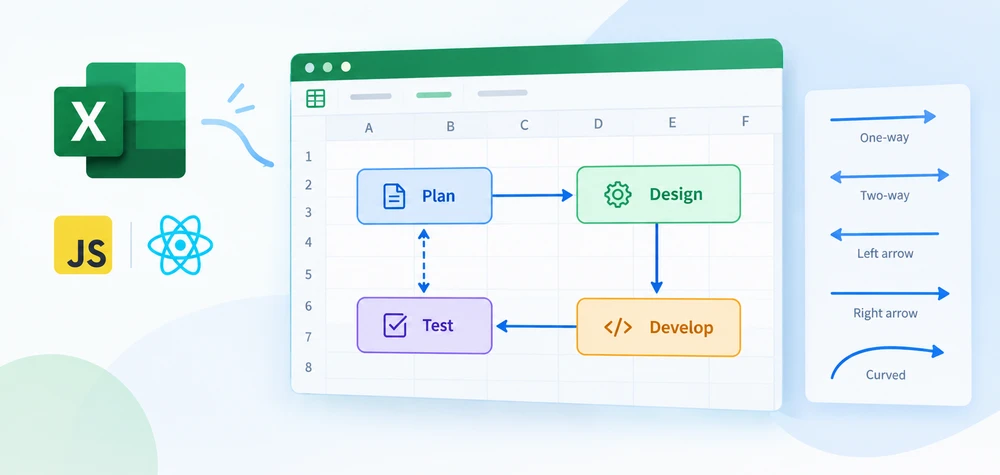
Линия между двумя блоками на блок-схеме говорит «они связаны». Стрелка от одного к другому говорит «этот идёт первым». Именно это различие — направление — отличает соединитель от декоративного элемента, и это единственное, что базовый API Lines.AddLine() не может сделать на обоих концах. Схема процесса требует стрелки, выходящей из каждого шага; диаграмма причинно-следственных связей требует стрелок, указывающих внутрь; сравнение иногда требует двунаправленных стрелок, чтобы показать двустороннюю связь. Ничего из этого невозможно с одним EndArrowHeadStyle.
Spire.XLS for JavaScript предоставляет sheet.TypedLines.AddLine() именно для такого случая. Он позиционирует линии по пиксельным координатам вместо строк и столбцов и принимает BeginArrowHeadStyle и EndArrowHeadStyle независимо — так что линия может нести стрелку на одном конце, на обоих концах или ни на одном. Движок работает в браузере на WebAssembly, файлы перемещаются через виртуальную файловую систему (VFS), и никакого бэкенда не задействовано.
О настройке проекта см. Интеграция Spire.XLS for JavaScript в проект React. Приведённые ниже примеры предполагают, что пакет установлен и модуль WebAssembly инициализирован.
Направление меняет всё
Три диаграммы, три разных требования к направлению, и один и тот же API линий справляется со всеми:
| Тип диаграммы | Конфигурация стрелок | Что она сообщает |
|---|---|---|
| Схема процесса | Стрелка только на конце | Последовательное выполнение — шаг A ведёт к шагу B |
| Причинная цепочка | Стрелка только на конце, несколько линий последовательно | Причина порождает следствие, которое порождает следующее следствие |
| Двунаправленная связь | Стрелка на обоих концах | Взаимная связь — A влияет на B, а B влияет на A |
| Указатель-аннотация | Стрелка на конце, нет стрелки на начале | Метка указывает на ячейку, которую она описывает |
Сам стиль наконечника стрелки также несёт смысл. Залитая сплошная стрелка (LineArrow) воспринимается как определённая, устойчивая связь. Открытая стрелка (LineArrowOpen) воспринимается как более свободная, менее определённая — что часто встречается в диаграммах потоков данных, где направление известно, но механизм не указан.
Предварительные требования
Вам нужен проект React с установленным Spire.XLS for JavaScript и инициализированным модулем WebAssembly, доступным по адресу window.wasmModule.spirexls. Пример загружает шрифт в VFS и сохраняет с флагом версии Excel 2010.
TypedLines против Lines: в чём разница
sheet.Lines.AddLine() и sheet.TypedLines.AddLine() — это два отдельных API для двух разных задач. Различия структурные, а не косметические:
Lines.AddLine() |
TypedLines.AddLine() |
|
|---|---|---|
| Позиционирование | Координаты строк и столбцов | Пиксельные координаты (Top, Left) |
| Размер | width и height в конструкторе |
Width и Height как свойства |
| Стрелка на конце | EndArrowHeadStyle |
EndArrowHeadStyle |
| Стрелка на начале | Не поддерживается | BeginArrowHeadStyle |
| Тип линии | Задаётся через lineShapeType в конструкторе |
Задаётся через свойство LineShapeType |
| Лучше всего подходит для | Простые фигуры линий, выровненные по ячейкам | Направленные соединители с точным размещением |
Поддержка стрелки на начале — самое значимое различие. С Lines.AddLine() линия может иметь наконечник на конце, но не в начале — этого достаточно для одностороннего потока, но не для двунаправленной связи. TypedLines.AddLine() снимает это ограничение.
Для базовых фигур линий без стрелок см. Вставка фигур линий в Excel на JavaScript (React), где рассматривается API Lines.AddLine().
Позиционирование с точностью до пикселя
TypedLines.AddLine() размещает линии с помощью Top и Left в пикселях, а Width и Height управляют их протяжённостью:
let line = sheet.TypedLines.AddLine();
line.Top = 10;     // 10 pixels from the top of the sheet
line.Left = 20;    // 20 pixels from the left
line.Width = 100;  // 100 pixels wide
line.Height = 0;   // 0 height — a horizontal line
Height, равный 0, создаёт горизонтальную линию; Width, равный 0, создаёт вертикальную. Установка обоих значений в ненулевые значения создаёт диагональный или изогнутый соединитель, в зависимости от LineShapeType.
Переход от координат строк и столбцов к пиксельным координатам имеет наибольшее значение, когда линии должны соединять определённые точки внутри ячеек — середину объединённого диапазона, край границы — а не выравниваться по границам ячеек. Пиксельное позиционирование позволяет вычислить точное начало и конец исходя из известной вам разметки, а не оценивать, какая строка и столбец подходят ближе всего.
Комбинации стрелок
Когда BeginArrowHeadStyle и EndArrowHeadStyle заданы независимо, четыре комбинации охватывают распространённые случаи:
| Начало | Конец | Визуально | Значение |
|---|---|---|---|
LineNoArrow |
LineArrow |
→ | Одностороннее направление: A ведёт к B |
LineArrow |
LineArrow |
↔ | Двунаправленное: A и B влияют друг на друга |
LineArrow |
LineNoArrow |
← | Обратное одностороннее: B ведёт к A (редко, но полезно для макетов справа налево) |
LineNoArrow |
LineNoArrow |
— | Без направления: обычный соединитель (для простоты используйте вместо этого Lines.AddLine()) |
Стиль стрелки также может быть LineArrowOpen — открытая V-образная форма, а не залитый треугольник — на любом из концов. Смешивание стилей на двух концах допустимо: залитая стрелка на одном конце и открытая на другом сообщает, что одно направление определённое, а другое — предположительное.
Вставка линий со стрелками
В примере в новый рабочий лист вставляются шесть линий со стрелками, охватывающих распространённые комбинации: линия с двойной стрелкой, линия с одной стрелкой, угловой соединитель со стрелкой, угловой соединитель с двойной стрелкой, изогнутый соединитель со стрелкой и изогнутый соединитель с двойной стрелкой. Шаги следующие:
- Создайте объект
Workbookи получите первый рабочий лист. - Вызовите
Worksheet.TypedLines.AddLine()для создания каждой линии. - Задайте положение линии через
Top,Left,WidthиHeight(в пикселях). - Задайте стили стрелок на обоих концах через
BeginArrowHeadStyleиEndArrowHeadStyle. - Укажите тип линии через
LineShapeType(прямая, угловая, изогнутая и т. д.). - Сохраните книгу с помощью
Workbook.SaveToFile().
function App() {
  const addArrowLines = async () => {
    // Get the Spire.XLS WASM module
    const xlsModule = window.wasmModule?.spirexls;

    // Check whether the module is ready
    if (!xlsModule) {
      alert('Spire.Xls is not ready yet');
      return;
    }

    // Load the font into the VFS for text measurement and column auto-fit
    await window.spire.FetchFileToVFS('ARIAL.TTF', '/Library/Fonts/', `${process.env.PUBLIC_URL}/font/`);

    // Create a new workbook and get the first worksheet
    const workbook = new xlsModule.Workbook();
    const sheet = workbook.Worksheets.get(0);

    // Add a double-arrow line - solid blue
    let line = sheet.TypedLines.AddLine();
    line.Top = 10;
    line.Left = 20;
    line.Width = 100;
    line.Height = 0;
    line.Color = xlsModule.Color.get_Blue();
    line.BeginArrowHeadStyle = xlsModule.ShapeArrowStyleType.LineArrow;
    line.EndArrowHeadStyle = xlsModule.ShapeArrowStyleType.LineArrow;

    // Add a single-arrow line - solid red
    let line_1 = sheet.TypedLines.AddLine();
    line_1.Top = 50;
    line_1.Left = 30;
    line_1.Width = 100;
    line_1.Height = 100;
    line_1.Color = xlsModule.Color.get_Red();
    line_1.BeginArrowHeadStyle = xlsModule.ShapeArrowStyleType.LineNoArrow;
    line_1.EndArrowHeadStyle = xlsModule.ShapeArrowStyleType.LineArrow;

    // Add an elbow arrow connector
    let line3 = sheet.TypedLines.AddLine();
    line3.LineShapeType = xlsModule.LineShapeType.ElbowLine;
    line3.Width = 30;
    line3.Height = 50;
    line3.EndArrowHeadStyle = xlsModule.ShapeArrowStyleType.LineArrow;
    line3.Top = 100;
    line3.Left = 50;

    // Add an elbow double-arrow connector
    let line2 = sheet.TypedLines.AddLine();
    line2.LineShapeType = xlsModule.LineShapeType.ElbowLine;
    line2.Width = 50;
    line2.Height = 50;
    line2.EndArrowHeadStyle = xlsModule.ShapeArrowStyleType.LineArrow;
    line2.BeginArrowHeadStyle = xlsModule.ShapeArrowStyleType.LineArrow;
    line2.Left = 120;
    line2.Top = 100;

    // Add a curved arrow connector
    line3 = sheet.TypedLines.AddLine();
    line3.LineShapeType = xlsModule.LineShapeType.CurveLine;
    line3.Width = 30;
    line3.Height = 50;
    line3.EndArrowHeadStyle = xlsModule.ShapeArrowStyleType.LineArrowOpen;
    line3.Top = 100;
    line3.Left = 200;

    // Add a curved double-arrow connector
    line2 = sheet.TypedLines.AddLine();
    line2.LineShapeType = xlsModule.LineShapeType.CurveLine;
    line2.Width = 30;
    line2.Height = 50;
    line2.EndArrowHeadStyle = xlsModule.ShapeArrowStyleType.LineArrowOpen;
    line2.BeginArrowHeadStyle = xlsModule.ShapeArrowStyleType.LineArrowOpen;
    line2.Left = 250;
    line2.Top = 100;

    // Save the workbook
    const outputFileName = 'AddArrowLines.xlsx';
    workbook.SaveToFile({ fileName: outputFileName, version: xlsModule.ExcelVersion.Version2010 });

    // Release resources
    workbook.Dispose();

    // Read the saved file from the VFS and trigger the download
    const fileArray = window.dotnetRuntime.Module.FS.readFile(outputFileName);
    const blob = new Blob([fileArray], { type: 'application/vnd.openxmlformats-officedocument.spreadsheetml.sheet' });
    const url = URL.createObjectURL(blob);
    const a = document.createElement('a');
    a.href = url;
    a.download = outputFileName;
    a.click();
    URL.revokeObjectURL(url);
  };

  return (
    <div style={{ textAlign: 'center', height: '300px' }}>
      <h1>Add Arrow Lines</h1>
      <button onClick={addArrowLines}>Start</button>
    </div>
  );
}

export default App;
Шесть линий со стрелками: двойная стрелка, одинарная стрелка, угловая стрелка, угловая двойная стрелка, изогнутая стрелка и изогнутая двойная стрелка

Обратите внимание на повторное использование переменных line3 и line2 во второй половине функции. Каждый вызов TypedLines.AddLine() возвращает новый объект линии, который уже добавлен на рабочий лист — переменная является дескриптором для задания свойств, а не контейнером, который нужно сохранять. Повторное использование имени переменной для следующей линии безопасно, потому что предыдущая линия уже добавлена в коллекцию фигур листа.
Управление существующими линиями
Рабочий лист, который уже содержит линии — добавленные вашим кодом, импортированные из файла или нарисованные пользователем — предоставляет к ним доступ через коллекцию sheet.Shapes. Каждую фигуру можно получить по индексу и изменить через её свойства:
// Get the first shape in the worksheet
let shape = sheet.Shapes.get(0);
// Modify its properties — color, dash style, etc.
shape.Color = xlsModule.Color.get_Red();
Для удаления sheet.Shapes.Remove(index) удаляет фигуру по указанному индексу. Чтобы удалять линии выборочно — по имени, по типу или по положению — переберите коллекцию и удалите подходящие фигуры. При удалении в цикле удаляйте с последнего индекса вниз, поскольку удаление элемента сдвигает индексы всех элементов после него.
Типичные проблемы
Наконечник стрелки не отображается.
BeginArrowHeadStyle или EndArrowHeadStyle не был задан или был установлен в LineNoArrow. Проверьте, на каком конце вы ожидаете стрелку, и присвойте соответствующее свойство. Линия, у которой не задано ни одно из свойств, не имеет стрелок ни на одном конце.
Линия отображается в неправильном положении.
Top и Left задаются в пикселях, а не в строках и столбцах. Значение Top = 10 размещает линию на расстоянии 10 пикселей от верхнего края листа, а не в строке 10. Если вы привыкли к API Lines.AddLine(), это наиболее частая причина неправильного размещения.
Угловой соединитель изгибается не в ту сторону.
Направление изгиба зависит от знаков и относительных величин Width и Height. Положительные Width и Height дают изгиб вправо-вниз. Измените знак или поменяйте два значения местами, чтобы изменить изгиб. Сначала протестируйте с небольшими значениями.
Изогнутая линия изгибается не так, как я ожидал.
CurveLine через TypedLines рисует плавную дугу между начальной и конечной точками, и на форму дуги влияют Width и Height. В отличие от углового соединителя, у которого один изгиб под прямым углом, кривая непрерывна — но её точный путь зависит от размеров, поэтому проверьте результат, прежде чем полагаться на него для точной разметки.
Часто задаваемые вопросы
В чём разница между LineArrow и LineArrowOpen?
LineArrow рисует залитый треугольный наконечник стрелки. LineArrowOpen рисует открытый V-образный наконечник стрелки — два штриха без заливки. Открытый стиль часто встречается в диаграммах потоков данных и диаграммах «сущность-связь», где стрелка указывает направление, не подразумевая конкретного механизма.
Могу ли я задать разные стили стрелок на двух концах?
Да. BeginArrowHeadStyle и EndArrowHeadStyle — независимые свойства. Линия с LineArrow на одном конце и LineArrowOpen на другом допустима и сообщает, что одно направление определённое, а другое — предположительное.
Как пиксельные координаты соотносятся с разметкой рабочего листа?
Пиксельные координаты отсчитываются от верхнего левого угла рабочего листа. Высота строк и ширина столбцов в Excel измеряются в пунктах и символах соответственно, поэтому для преобразования между позициями ячеек и пиксельными координатами необходимо учитывать текущую высоту строк и ширину столбцов. Для линий, которые должны выравниваться по границам ячеек, Lines.AddLine() с параметрами строк и столбцов может оказаться проще.
Могу ли я смешивать Lines.AddLine() и TypedLines.AddLine() в одном рабочем листе?
Да. Оба API добавляют фигуры в коллекцию фигур одного и того же рабочего листа. Рабочий лист может одновременно содержать базовые фигуры линий и линии со стрелками.
Требуется ли для этого установленный Excel?
Нет. Движок работает как WebAssembly в браузере. Линии и стрелки записываются как стандартные объекты фигур в XML рабочего листа, и Excel отображает их нативно при открытии файла.
См. также
Make Excel Data Visual with Conditional Formatting in JavaScript
Table of Contents
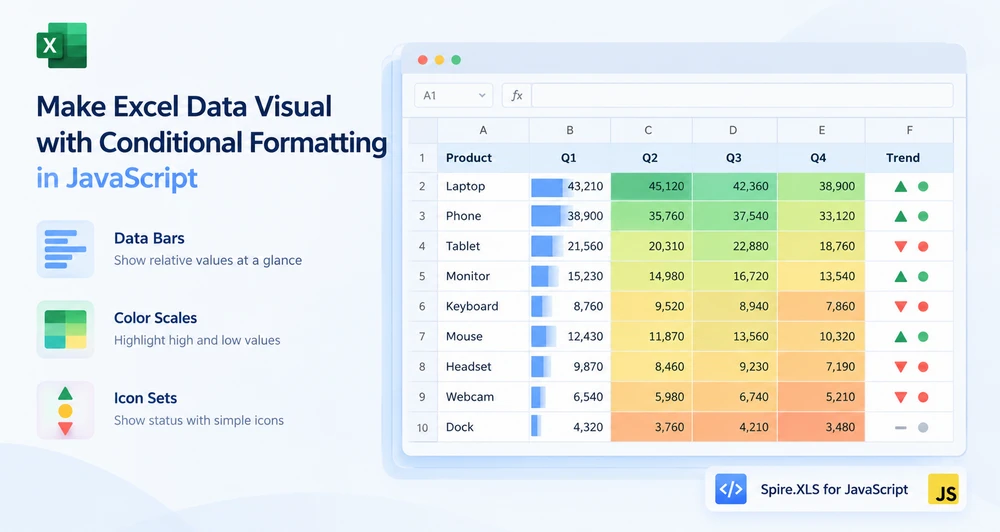
A sales table with twenty columns of numbers is accurate and unreadable. The eye cannot compare 43,210 against 38,900 across a row fast enough to find the weak quarter, and the person reading the report knows this — which is why they ask for a chart. But a chart per column means twenty charts, and now the worksheet is a gallery instead of a table.
Data bars, color scales, and icon sets solve this inside the cells themselves. A bar grows in proportion to the value. A color shifts from pale to saturated as the number rises. An icon changes shape when the value crosses a threshold. None of them add rows, columns, or floating objects — the visualization sits in the cell that already holds the number. All three are forms of Excel conditional formatting, and Spire.XLS for JavaScript applies them through a single API in the browser on WebAssembly, with files moving through a virtual file system (VFS) and no backend required.
For project setup, see Integrating Spire.XLS for JavaScript in a React Project. The examples below assume the package is installed and the WebAssembly module has been initialized.
Why not just add a chart
Charts and in-cell visualization answer the same question — "how do these values compare?" — but they fit different moments:
| Charts | In-cell visualization | |
|---|---|---|
| Space | Floats over the worksheet, occupies a rectangular area | Lives inside the cells that already hold the data |
| Density | One chart per data set; multiple charts crowd the sheet | One format per range; dozens of columns can carry cues simultaneously |
| Detail | Shows axes, gridlines, labels — a full rendering | Shows only the cue: a bar, a color, an icon |
| Best for | Presentations, reports, standalone displays | Scanning a table, spotting outliers, comparing across many columns |
When the goal is to make a table of numbers scannable without rebuilding the layout, in-cell visualization is the lighter tool. The three sections below cover each type, and they share more API than they differ on — which is the first thing worth knowing.
Prerequisites
You need a React project with Spire.XLS for JavaScript installed and the WebAssembly module initialized, reachable at window.wasmModule.spirexls. The sample loads a font and a sales data file into the VFS, and saves with the Excel 2010 version flag, which is the earliest version that supports these conditional format types.
One API, three visualizations
All three types follow the same chain of calls. The only line that changes is the FormatType assignment:
sheet.ConditionalFormats.Add() → xcfs.AddRange(range) → format = xcfs.AddCondition() → format.FormatType = ???
| Visualization | FormatType value |
Extra setup |
|---|---|---|
| Data bars | ConditionalFormatType.DataBar |
DataBar.BarColor for the fill color |
| Color scales | ConditionalFormatType.ColorScale |
None — defaults to a two-color gradient |
| Icon sets | ConditionalFormatType.IconSet |
IconSet.IconSetType for the icon style |
The shared chain is why the three code examples below look similar — they are the same operation with a different format type. The differences are in what each type produces and when you would reach for it, which is what the comparison table later in this article addresses.
Data bars: magnitude at a glance
A data bar draws a horizontal colored band inside each cell, and the band's length is proportional to the cell's value relative to the rest of the selected range. The largest value fills the cell; the smallest fills a sliver. Scanning a row of data bars is the same mental operation as scanning a bar chart, except the numbers stay visible underneath.
The steps are:
- Load the font and the test data file into the VFS.
- Load the workbook and get the worksheet.
- Call
ConditionalFormats.Addto create a conditional format, and bind the data range withAddRange. - Call
AddConditionto add a condition, setFormatTypetoDataBar, and set the bar color. - Save the workbook.
function App() {
  const applyDataBars = async () => {
    // Get the Spire.XLS WASM module
    const xlsModule = window.wasmModule?.spirexls;

    // Check whether the module is ready
    if (!xlsModule) {
      alert('Spire.Xls is not ready yet');
      return;
    }

    // Load the font and the test data file into the VFS
    await window.spire.FetchFileToVFS('ARIAL.TTF', '/Library/Fonts/', `${process.env.PUBLIC_URL}/font/`);
    const inputFileName = 'SalesData.xlsx';
    await window.spire.FetchFileToVFS(inputFileName, '', `${process.env.PUBLIC_URL}data/`);

    // Load the workbook and get the first worksheet
    const workbook = new xlsModule.Workbook();
    workbook.LoadFromFile({ fileName: inputFileName });
    const sheet = workbook.Worksheets.get(0);

    // Select the data range that receives the data bars
    const dataRange = sheet.Range.get("B2:E9");

    // Create a conditional format and bind it to that range
    const xcfs = sheet.ConditionalFormats.Add();
    xcfs.AddRange(dataRange);

    // Add a data bar condition and set the bar color
    const format = xcfs.AddCondition();
    format.FormatType = xlsModule.ConditionalFormatType.DataBar;
    format.DataBar.BarColor = xlsModule.Color.get_CadetBlue();

    // Save the workbook
    const outputFileName = "ApplyDataBars.xlsx";
    workbook.SaveToFile({ fileName: outputFileName, version: xlsModule.ExcelVersion.Version2010 });

    // Dispose of the workbook object to free resources
    workbook.Dispose();

    // Read the result file from the VFS and trigger the download
    const fileArray = window.dotnetRuntime.Module.FS.readFile(outputFileName);
    const blob = new Blob([fileArray], { type: 'application/vnd.openxmlformats-officedocument.spreadsheetml.sheet' });
    const url = URL.createObjectURL(blob);
    const a = document.createElement('a');
    a.href = url;
    a.download = outputFileName;
    a.click();
    URL.revokeObjectURL(url);
  };

  return (
    <div style={{ textAlign: 'center', height: '300px' }}>
      <h1>Apply Data Bars</h1>
      <button onClick={applyDataBars}>Start</button>
    </div>
  );
}

export default App;
Data bars applied to a sales figures table, bar length proportional to cell value
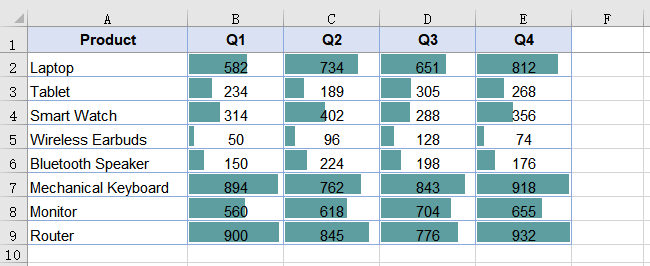
Only numeric cells receive bars — text cells inside the range are skipped. This is expected: a data bar expresses relative magnitude, and text has no magnitude to express. Keep the range bounded by the numeric area; including a product-name column or a header row does not cause an error, but those cells will show nothing.
Color scales: heat-mapping without a chart
A color scale shades each cell based on where its value falls between the range minimum and maximum. No color arguments are required — when none are specified, the result is a two-color scale that takes orange at the minimum and pale yellow at the maximum, with intermediate values shaded proportionally. The effect is a heat map embedded in the data table: hot spots and cold spots are visible without sorting or charting.
The steps are the same as for data bars, with FormatType set to ColorScale and no additional properties:
- Load the font and the test data file into the VFS.
- Load the workbook and get the worksheet.
- Call
ConditionalFormats.Addto create a conditional format, and bind the data range withAddRange. - Call
AddConditionto add a condition, and setFormatTypetoColorScale. - Save the workbook.
function App() {
  const applyColorScales = async () => {
    // Get the Spire.XLS WASM module
    const xlsModule = window.wasmModule?.spirexls;

    // Check whether the module is ready
    if (!xlsModule) {
      alert('Spire.Xls is not ready yet');
      return;
    }

    // Load the font and the test data file into the VFS
    await window.spire.FetchFileToVFS('ARIAL.TTF', '/Library/Fonts/', `${process.env.PUBLIC_URL}/font/`);
    const inputFileName = 'SalesData.xlsx';
    await window.spire.FetchFileToVFS(inputFileName, '', `${process.env.PUBLIC_URL}data/`);

    // Load the workbook and get the first worksheet
    const workbook = new xlsModule.Workbook();
    workbook.LoadFromFile({ fileName: inputFileName });
    const sheet = workbook.Worksheets.get(0);

    // Select the data range that receives the color scales
    const dataRange = sheet.Range.get("B2:E9");

    // Create a conditional format and bind it to that range
    const xcfs = sheet.ConditionalFormats.Add();
    xcfs.AddRange(dataRange);

    // Add a color scale condition; colors transition with the values
    const format = xcfs.AddCondition();
    format.FormatType = xlsModule.ConditionalFormatType.ColorScale;

    // Save the workbook
    const outputFileName = "ApplyColorScales.xlsx";
    workbook.SaveToFile({ fileName: outputFileName, version: xlsModule.ExcelVersion.Version2010 });

    // Dispose of the workbook object to free resources
    workbook.Dispose();

    // Read the result file from the VFS and trigger the download
    const fileArray = window.dotnetRuntime.Module.FS.readFile(outputFileName);
    const blob = new Blob([fileArray], { type: 'application/vnd.openxmlformats-officedocument.spreadsheetml.sheet' });
    const url = URL.createObjectURL(blob);
    const a = document.createElement('a');
    a.href = url;
    a.download = outputFileName;
    a.click();
    URL.revokeObjectURL(url);
  };

  return (
    <div style={{ textAlign: 'center', height: '300px' }}>
      <h1>Apply Color Scales</h1>
      <button onClick={applyColorScales}>Start</button>
    </div>
  );
}

export default App;
Color scales applied to a sales figures table, shading from orange to pale yellow
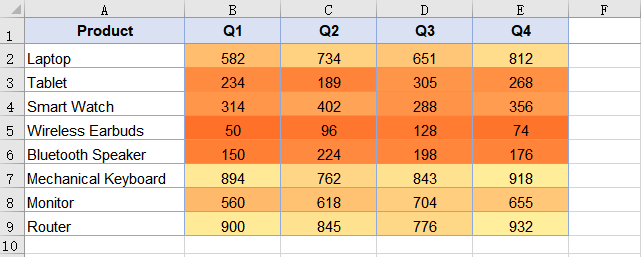
Where data bars show absolute magnitude through bar length, color scales show relative position through hue. A value in the middle of the range gets a mid-tone regardless of whether the range spans 1 to 100 or 10,000 to 50,000 — the shading is positional, not absolute.
Icon sets: status bands
An icon set places a different icon in each cell based on which band the value falls into. The example uses three-traffic-lights: red for the lowest third, yellow for the middle, green for the highest. Unlike data bars and color scales, which communicate a continuous gradient, icon sets communicate a discrete category — "this is low", "this is medium", "this is high" — which is closer to a status indicator than a measurement.
The steps differ only in the FormatType and the icon style selection:
- Load the font and the test data file into the VFS.
- Load the workbook and get the worksheet.
- Call
ConditionalFormats.Addto create a conditional format, and bind the data range withAddRange. - Call
AddConditionto add a condition, setFormatTypetoIconSet, and specify the icon set type. - Save the workbook.
function App() {
  const applyIconSets = async () => {
    // Get the Spire.XLS WASM module
    const xlsModule = window.wasmModule?.spirexls;

    // Check whether the module is ready
    if (!xlsModule) {
      alert('Spire.Xls is not ready yet');
      return;
    }

    // Load the font and the test data file into the VFS
    await window.spire.FetchFileToVFS('ARIAL.TTF', '/Library/Fonts/', `${process.env.PUBLIC_URL}/font/`);
    const inputFileName = 'SalesData.xlsx';
    await window.spire.FetchFileToVFS(inputFileName, '', `${process.env.PUBLIC_URL}data/`);

    // Load the workbook and get the first worksheet
    const workbook = new xlsModule.Workbook();
    workbook.LoadFromFile({ fileName: inputFileName });
    const sheet = workbook.Worksheets.get(0);

    // Select the data range that receives the icon sets
    const dataRange = sheet.Range.get("B2:E9");

    // Create a conditional format and bind it to that range
    const xcfs = sheet.ConditionalFormats.Add();
    xcfs.AddRange(dataRange);

    // Add an icon set condition and set the icon style to three traffic lights
    const format = xcfs.AddCondition();
    format.FormatType = xlsModule.ConditionalFormatType.IconSet;
    format.IconSet.IconSetType = xlsModule.IconSetType.ThreeTrafficLights1;

    // Save the workbook
    const outputFileName = "ApplyIconSets.xlsx";
    workbook.SaveToFile({ fileName: outputFileName, version: xlsModule.ExcelVersion.Version2010 });

    // Dispose of the workbook object to free resources
    workbook.Dispose();

    // Read the result file from the VFS and trigger the download
    const fileArray = window.dotnetRuntime.Module.FS.readFile(outputFileName);
    const blob = new Blob([fileArray], { type: 'application/vnd.openxmlformats-officedocument.spreadsheetml.sheet' });
    const url = URL.createObjectURL(blob);
    const a = document.createElement('a');
    a.href = url;
    a.download = outputFileName;
    a.click();
    URL.revokeObjectURL(url);
  };

  return (
    <div style={{ textAlign: 'center', height: '300px' }}>
      <h1>Apply Icon Sets</h1>
      <button onClick={applyIconSets}>Start</button>
    </div>
  );
}

export default App;
Icon sets applied to a sales figures table, traffic-light icons based on value bands
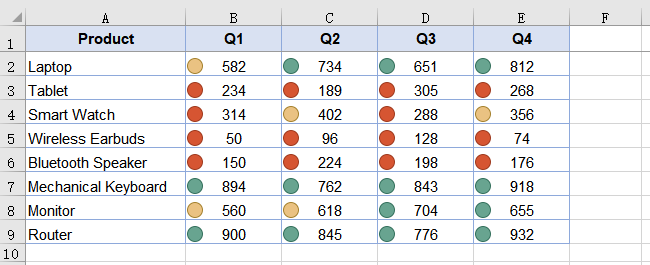
An icon set divides the range into bands, so the same icon covers a different span of values in different ranges. In a range of 10 to 90, the green icon covers roughly 60 to 90; in a range of 10 to 900, it covers roughly 600 to 900. The bands are relative, not absolute — which is the right default for a table where each column has its own scale, but worth knowing if you expect a fixed threshold.
Choosing between the three
All three are applied to a range, all three live inside the cells, and all three are conditional formatting. The choice is about what the reader needs to do with the numbers:
| The reader needs to | Use | Because |
|---|---|---|
| Compare magnitudes across a row or column | Data bars | Bar length is the most precise visual cue for "how much" |
| Spot hot and cold spots in a large table | Color scales | Color intensity registers peripherally even when the eye is not focused on a specific cell |
| Classify values into a few status categories | Icon sets | Discrete icons map to discrete decisions — "this needs attention", "this is fine" |
| See all of the above at once | Combine on different ranges | Each conditional format is independent; apply data bars to one range and icon sets to another |
The three are not mutually exclusive. A worksheet can carry data bars on the revenue columns and icon sets on the growth-rate column in the same save, because each call to ConditionalFormats.Add creates an independent format bound to its own range.
Customizing data bar appearance
The fill color of a data bar comes from DataBar.BarColor. Setting only FormatType without BarColor yields the default blue. A border is also available, but it has a dependency: the border type must be set before the border color takes effect.
// Set the border type first so that the border color takes effect
format.DataBar.BarBorder.Type = xlsModule.DataBarBorderType.DataBarBorderSolid;
format.DataBar.BarBorder.Color = xlsModule.Color.get_Red();

// Fill color of the bar
format.DataBar.BarColor = xlsModule.Color.get_GreenYellow();
Setting BarBorder.Color on its own, without first setting BarBorder.Type, has no effect — the border is not drawn because no border type has been declared. Color scales and icon sets do not have equivalent appearance properties; their styling is determined by the format type and, for icon sets, the IconSetType enum.
Common issues
Text cells in the target range show no data bars. This is expected. A data bar expresses relative magnitude, and only numeric cells have magnitude. Text cells are skipped silently — no error, no bar. Keep the range limited to the numeric area.
Data bars are all the default blue.
DataBar.BarColor was not set after FormatType was assigned. Set it to any xlsModule.Color value to change the fill.
The data bar border color is not showing.
The border type was not set first. Assign DataBar.BarBorder.Type before DataBar.BarBorder.Color — the color only takes effect once a solid border type is declared.
No visible change after applying a conditional format.
Check that the range passed to AddRange matches where the data actually is. A range pointing at empty cells produces no error and no visible result.
FAQ
Can I apply more than one conditional format to the same range?
Yes. Each call to ConditionalFormats.Add creates an independent format. Two formats can target the same range, though the visual result of stacking a data bar and a color scale on the same cells may be confusing — it is usually clearer to apply different types to different ranges.
Which Excel versions support these conditional format types?
Data bars, color scales, and icon sets were introduced in Excel 2007. The sample saves with ExcelVersion.Version2010 to ensure compatibility with both Excel 2010 and later versions.
Do I need Excel installed to apply conditional formatting?
No. The spreadsheet engine is bundled with the package and runs as WebAssembly in the browser. The conditional formatting is written as standard XML inside the .xlsx file, and Excel renders it when the file is opened.
Can I set custom thresholds for icon sets?
The IconSetType enum selects a predefined icon style with predefined band boundaries. The example uses ThreeTrafficLights1, which divides the range into three equal bands.
Does the conditional formatting survive if the file is opened and re-saved in Excel?
Yes. Conditional formatting is part of the worksheet's stored format rules, not a rendering artifact. Excel reads, preserves, and re-applies the same rules on recalculation.
See Also
Add Arrow Connectors in Excel in JavaScript (React)
A line between two boxes in a flowchart says "these are related". An arrow from one to the other says "this one comes first". That distinction — direction — is what separates a connector from a decoration, and it is the one thing the basic Lines.AddLine() API cannot do on both ends. A process flow needs an arrow leaving each step; a cause-and-effect diagram needs arrows pointing in; a comparison sometimes needs double-headed arrows to show a bidirectional link. None of these are possible with a single EndArrowHeadStyle.
Spire.XLS for JavaScript provides sheet.TypedLines.AddLine() for exactly this case. It positions lines by pixel coordinates instead of row and column, and it accepts BeginArrowHeadStyle and EndArrowHeadStyle independently — so a line can carry an arrow on one end, both ends, or neither. The engine runs in the browser on WebAssembly, with files moving through a virtual file system (VFS) and no backend involved.
For project setup, see Integrating Spire.XLS for JavaScript in a React Project. The examples below assume the package is installed and the WebAssembly module has been initialized.
Direction changes everything
Three diagrams, three different directional requirements, and the same line API handles all of them:
| Diagram type | Arrow configuration | What it communicates |
|---|---|---|
| Process flow | Arrow on the end only | Sequential execution — step A leads to step B |
| Causal chain | Arrow on the end only, multiple lines in sequence | Cause produces effect, which produces the next effect |
| Bidirectional link | Arrow on both ends | Mutual relationship — A affects B and B affects A |
| Annotation pointer | Arrow on the end, no arrow on the beginning | A label points at the cell it describes |
The arrowhead style itself also carries meaning. A solid filled arrow (LineArrow) reads as a definite, committed connection. An open arrow (LineArrowOpen) reads as a looser, less certain one — common in data-flow diagrams where the direction is known but the mechanism is not specified.
Prerequisites
You need a React project with Spire.XLS for JavaScript installed and the WebAssembly module initialized, reachable at window.wasmModule.spirexls. The sample loads a font into the VFS and saves with the Excel 2010 version flag.
TypedLines vs Lines: what is different
sheet.Lines.AddLine() and sheet.TypedLines.AddLine() are two separate APIs for two separate needs. The differences are structural, not cosmetic:
Lines.AddLine() |
TypedLines.AddLine() |
|
|---|---|---|
| Positioning | Row and column coordinates | Pixel coordinates (Top, Left) |
| Size | width and height in the constructor |
Width and Height as properties |
| Arrow on end | EndArrowHeadStyle |
EndArrowHeadStyle |
| Arrow on beginning | Not supported | BeginArrowHeadStyle |
| Line type | Set via lineShapeType in constructor |
Set via LineShapeType property |
| Best for | Simple line shapes aligned to cells | Directional connectors with precise placement |
The beginning-arrow support is the most consequential difference. With Lines.AddLine(), a line can have an arrowhead at its end but not at its start — which is enough for a one-way flow but not for a bidirectional link. TypedLines.AddLine() removes that constraint.
For basic line shapes without arrows, Insert Line Shapes in Excel in JavaScript (React) covers the Lines.AddLine() API.
Pixel-precise positioning
TypedLines.AddLine() places lines using Top and Left in pixels, with Width and Height controlling the extent:
let line = sheet.TypedLines.AddLine();
line.Top = 10;     // 10 pixels from the top of the sheet
line.Left = 20;    // 20 pixels from the left
line.Width = 100;  // 100 pixels wide
line.Height = 0;   // 0 height — a horizontal line
A Height of 0 produces a horizontal line; a Width of 0 produces a vertical one. Setting both to non-zero values produces a diagonal or a bent connector, depending on the LineShapeType.
The shift from row-and-column to pixel coordinates matters most when lines need to connect specific points inside cells — the middle of a merged range, the edge of a border — rather than aligning with cell boundaries. Pixel positioning lets you compute the exact start and end from the layout you know, rather than estimating which row and column comes closest.
Arrow combinations
With BeginArrowHeadStyle and EndArrowHeadStyle set independently, four combinations cover the common cases:
| Begin | End | Visual | Meaning |
|---|---|---|---|
LineNoArrow |
LineArrow |
→ | One-way direction: A leads to B |
LineArrow |
LineArrow |
↔ | Bidirectional: A and B affect each other |
LineArrow |
LineNoArrow |
← | Reverse one-way: B leads to A (rare, but useful for right-to-left layouts) |
LineNoArrow |
LineNoArrow |
— | No direction: a plain connector (use Lines.AddLine() instead for simplicity) |
The arrow style can also be LineArrowOpen — an open V-shape rather than a filled triangle — on either end. Mixing styles on the two ends is valid: a filled arrow on one end and an open arrow on the other communicates that one direction is definite and the other is tentative.
Insert arrow-tipped lines
The example inserts six arrow-tipped lines into a fresh worksheet, covering the common combinations: a double-arrow line, a single-arrow line, an elbow arrow connector, an elbow double-arrow connector, a curved arrow connector, and a curved double-arrow connector. The steps are:
- Create a
Workbookobject and get the first worksheet. - Call
Worksheet.TypedLines.AddLine()to create each line. - Set line position through
Top,Left,Width, andHeight(in pixels). - Set arrow styles on both ends through
BeginArrowHeadStyleandEndArrowHeadStyle. - Specify the line type through
LineShapeType(straight, elbow, curved, etc.). - Save the workbook with
Workbook.SaveToFile().
function App() {
  const addArrowLines = async () => {
    // Get the Spire.XLS WASM module
    const xlsModule = window.wasmModule?.spirexls;

    // Check whether the module is ready
    if (!xlsModule) {
      alert('Spire.Xls is not ready yet');
      return;
    }

    // Load the font into the VFS for text measurement and column auto-fit
    await window.spire.FetchFileToVFS('ARIAL.TTF', '/Library/Fonts/', `${process.env.PUBLIC_URL}/font/`);

    // Create a new workbook and get the first worksheet
    const workbook = new xlsModule.Workbook();
    const sheet = workbook.Worksheets.get(0);

    // Add a double-arrow line - solid blue
    let line = sheet.TypedLines.AddLine();
    line.Top = 10;
    line.Left = 20;
    line.Width = 100;
    line.Height = 0;
    line.Color = xlsModule.Color.get_Blue();
    line.BeginArrowHeadStyle = xlsModule.ShapeArrowStyleType.LineArrow;
    line.EndArrowHeadStyle = xlsModule.ShapeArrowStyleType.LineArrow;

    // Add a single-arrow line - solid red
    let line_1 = sheet.TypedLines.AddLine();
    line_1.Top = 50;
    line_1.Left = 30;
    line_1.Width = 100;
    line_1.Height = 100;
    line_1.Color = xlsModule.Color.get_Red();
    line_1.BeginArrowHeadStyle = xlsModule.ShapeArrowStyleType.LineNoArrow;
    line_1.EndArrowHeadStyle = xlsModule.ShapeArrowStyleType.LineArrow;

    // Add an elbow arrow connector
    let line3 = sheet.TypedLines.AddLine();
    line3.LineShapeType = xlsModule.LineShapeType.ElbowLine;
    line3.Width = 30;
    line3.Height = 50;
    line3.EndArrowHeadStyle = xlsModule.ShapeArrowStyleType.LineArrow;
    line3.Top = 100;
    line3.Left = 50;

    // Add an elbow double-arrow connector
    let line2 = sheet.TypedLines.AddLine();
    line2.LineShapeType = xlsModule.LineShapeType.ElbowLine;
    line2.Width = 50;
    line2.Height = 50;
    line2.EndArrowHeadStyle = xlsModule.ShapeArrowStyleType.LineArrow;
    line2.BeginArrowHeadStyle = xlsModule.ShapeArrowStyleType.LineArrow;
    line2.Left = 120;
    line2.Top = 100;

    // Add a curved arrow connector
    line3 = sheet.TypedLines.AddLine();
    line3.LineShapeType = xlsModule.LineShapeType.CurveLine;
    line3.Width = 30;
    line3.Height = 50;
    line3.EndArrowHeadStyle = xlsModule.ShapeArrowStyleType.LineArrowOpen;
    line3.Top = 100;
    line3.Left = 200;

    // Add a curved double-arrow connector
    line2 = sheet.TypedLines.AddLine();
    line2.LineShapeType = xlsModule.LineShapeType.CurveLine;
    line2.Width = 30;
    line2.Height = 50;
    line2.EndArrowHeadStyle = xlsModule.ShapeArrowStyleType.LineArrowOpen;
    line2.BeginArrowHeadStyle = xlsModule.ShapeArrowStyleType.LineArrowOpen;
    line2.Left = 250;
    line2.Top = 100;

    // Save the workbook
    const outputFileName = 'AddArrowLines.xlsx';
    workbook.SaveToFile({ fileName: outputFileName, version: xlsModule.ExcelVersion.Version2010 });

    // Release resources
    workbook.Dispose();

    // Read the saved file from the VFS and trigger the download
    const fileArray = window.dotnetRuntime.Module.FS.readFile(outputFileName);
    const blob = new Blob([fileArray], { type: 'application/vnd.openxmlformats-officedocument.spreadsheetml.sheet' });
    const url = URL.createObjectURL(blob);
    const a = document.createElement('a');
    a.href = url;
    a.download = outputFileName;
    a.click();
    URL.revokeObjectURL(url);
  };

  return (
    <div style={{ textAlign: 'center', height: '300px' }}>
      <h1>Add Arrow Lines</h1>
      <button onClick={addArrowLines}>Start</button>
    </div>
  );
}

export default App;
Six arrow-tipped lines: double-arrow, single-arrow, elbow arrow, elbow double-arrow, curved arrow, and curved double-arrow
Note the reuse of the line3 and line2 variables in the second half of the function. Each call to TypedLines.AddLine() returns a new line object that has already been added to the worksheet — the variable is a handle for setting properties, not a container that needs to be preserved. Reusing the variable name for the next line is safe because the previous line is already committed to the sheet's shape collection.
Managing existing lines
A worksheet that already contains lines — whether added by your code, imported from a file, or drawn by a user — exposes them through the sheet.Shapes collection. Each shape can be retrieved by index and modified through its properties:
// Get the first shape in the worksheet
let shape = sheet.Shapes.get(0);
// Modify its properties — color, dash style, etc.
shape.Color = xlsModule.Color.get_Red();
For deletion, sheet.Shapes.Remove(index) removes the shape at the specified index. To remove lines selectively — by name, by type, or by position — iterate the collection and remove matching shapes. Remove from the last index downward when deleting in a loop, since removing an element shifts the indices of all elements after it.
Common issues
The arrowhead is not showing.
BeginArrowHeadStyle or EndArrowHeadStyle was not set, or was set to LineNoArrow. Check which end you expect the arrow on and assign the corresponding property. A line with neither property set has no arrows at either end.
The line appears in the wrong position.
Top and Left are in pixels, not rows and columns. A value of Top = 10 places the line 10 pixels from the top of the sheet, not on row 10. If you are used to the Lines.AddLine() API, this is the most common source of misplacement.
The elbow connector bends in the wrong direction.
The bend direction depends on the signs and relative magnitudes of Width and Height. A positive Width with a positive Height bends down-right. Swap the sign or exchange the two values to change the bend. Test with small values first.
The curved line does not curve the way I expected.
A CurveLine through TypedLines draws a smooth arc between the start and end points, and the arc's shape is influenced by Width and Height. Unlike an elbow connector, which has a single right-angle bend, a curve is continuous — but its exact path depends on the dimensions, so verify the output before relying on it for a precise layout.
FAQ
What is the difference between LineArrow and LineArrowOpen?
LineArrow draws a filled triangular arrowhead. LineArrowOpen draws an open V-shaped arrowhead — two strokes without a fill. The open style is common in data-flow and entity-relationship diagrams where the arrow indicates direction without implying a specific mechanism.
Can I set different arrow styles on the two ends?
Yes. BeginArrowHeadStyle and EndArrowHeadStyle are independent properties. A line with LineArrow on one end and LineArrowOpen on the other is valid and communicates that one direction is definite while the other is tentative.
How do pixel coordinates relate to the worksheet layout?
Pixel coordinates are measured from the top-left corner of the worksheet. Row heights and column widths in Excel are measured in points and characters respectively, so converting between cell positions and pixel coordinates requires accounting for the current row heights and column widths. For lines that need to align with cell boundaries, Lines.AddLine() with row and column parameters may be simpler.
Can I mix Lines.AddLine() and TypedLines.AddLine() in the same worksheet?
Yes. Both APIs add shapes to the same worksheet's shape collection. A worksheet can contain basic line shapes and arrow-tipped lines simultaneously.
Does this require Excel to be installed?
No. The engine runs as WebAssembly in the browser. Lines and arrows are written as standard shape objects in the worksheet XML, and Excel renders them natively when the file is opened.
See Also
Insert Line Shapes in Excel in JavaScript (React)
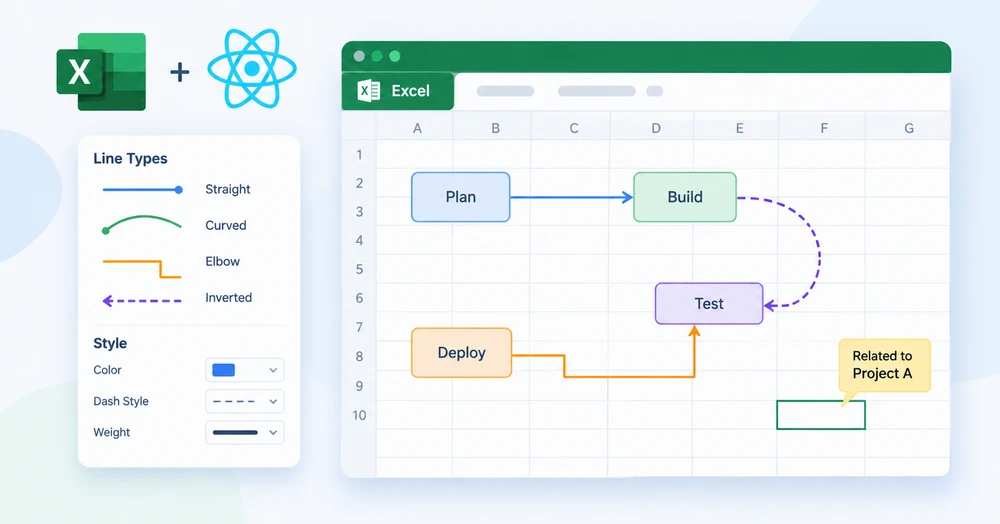
A worksheet is not always just a grid of numbers. Sometimes it is a canvas — a flowchart sketched between data blocks, a relationship diagram connecting teams to projects, a callout pointing from a note to the cell it annotates. In every one of these cases the missing element is a line: a straight stroke between two boxes, a curved arc around a region, an elbow connector that bends once and continues.
Spire.XLS for JavaScript gives a React app the sheet.Lines.AddLine() method for inserting line shapes at a specified position, with four line types available through the LineShapeType enum and full control over dash style, color, and weight. Everything runs in the browser on WebAssembly — no backend, no Excel automation, no file upload.
For project setup, see Integrating Spire.XLS for JavaScript in a React Project. The examples below assume the package is installed and the WebAssembly module has been initialized.
When a worksheet needs lines
Lines in a worksheet serve three broad purposes, and the line type you reach for depends on which one is in front of you:
| Scenario | What the line does | Typical line type |
|---|---|---|
| Flowchart between data blocks | Connects a process step to the next, sometimes with a bend | Straight or elbow |
| Relationship diagram | Links entities that are not aligned in a grid | Curved |
| Region boundary or divider | Separates one area of the sheet from another | Straight |
| Callout or annotation pointer | Draws attention from a label to a cell | Straight with an arrowhead |
The arrowhead case — where the line needs to show direction — uses a different API, TypedLines.AddLine(), which supports arrow styles on both ends and pixel-precise positioning. That is covered separately in Add Arrow Connectors in Excel in JavaScript (React). This article focuses on Lines.AddLine(), which handles the four core line shapes and their visual styling.
Prerequisites
You need a React project with Spire.XLS for JavaScript installed and the WebAssembly module initialized, reachable at window.wasmModule.spirexls. The sample loads a font into the VFS for text measurement and saves with the Excel 2010 version flag.
The four line types
LineShapeType exposes four shapes, and the difference between them is geometric — how the line travels from its start to its end:
LineShapeType value |
Shape | What it looks like | Reach for it when |
|---|---|---|---|
Line |
Straight line | A single stroke from start to end | Connecting two points on the same row or column |
CurveLine |
Curved line | A smooth arc between start and end | Routing around other content, or showing a non-linear relationship |
ElbowLine |
Elbow connector | A line that bends once at a right angle | Flowchart steps that are not directly aligned |
LineInv |
Inverted line | A straight line with inverted orientation | Mirror layouts or right-to-left diagrams |
All four are created by the same method — sheet.Lines.AddLine() — with the lineShapeType parameter selecting which one is drawn. The appearance properties (DashStyle, Color, Weight) apply to all four uniformly.
Insert lines into a worksheet
The example inserts one of each line type into a fresh worksheet, each with a distinct dash style and color so the four shapes are distinguishable in the output. The steps are:
- Create a
Workbookobject and get the first worksheet. - Call
Worksheet.Lines.AddLine()four times, passing position parameters and a differentLineShapeTypeeach time. - Customize each line's
DashStyle,Color, andWeight. - Save the workbook with
Workbook.SaveToFile().
function App() {
  const addLineShapes = async () => {
    // Get the Spire.XLS WASM module
    const xlsModule = window.wasmModule?.spirexls;

    // Check whether the module is ready
    if (!xlsModule) {
      alert('Spire.Xls is not ready yet');
      return;
    }

    // Load the font into the VFS for text measurement and column auto-fit
    await window.spire.FetchFileToVFS('ARIAL.TTF', '/Library/Fonts/', `${process.env.PUBLIC_URL}/font/`);

    // Create a new workbook and get the first worksheet
    const workbook = new xlsModule.Workbook();
    const sheet = workbook.Worksheets.get(0);

    // Add a straight line - solid, CadetBlue, weight 2, with arrow
    let line1 = sheet.Lines.AddLine({ row: 10, column: 2, width: 200, height: 1, lineShapeType: xlsModule.LineShapeType.Line });
    line1.DashStyle = xlsModule.ShapeDashLineStyleType.Solid;
    line1.Color = xlsModule.Color.get_CadetBlue();
    line1.Weight = 2;
    line1.EndArrowHeadStyle = xlsModule.ShapeArrowStyleType.LineArrow;

    // Add a curved line - dotted, OrangeRed, weight 2
    let line2 = sheet.Lines.AddLine({ row: 12, column: 2, width: 200, height: 1, lineShapeType: xlsModule.LineShapeType.CurveLine });
    line2.DashStyle = xlsModule.ShapeDashLineStyleType.Dotted;
    line2.Color = xlsModule.Color.get_OrangeRed();
    line2.Weight = 2;

    // Add an elbow connector - DashDotDot, Purple, weight 2
    let line3 = sheet.Lines.AddLine({ row: 14, column: 2, width: 200, height: 1, lineShapeType: xlsModule.LineShapeType.ElbowLine });
    line3.DashStyle = xlsModule.ShapeDashLineStyleType.DashDotDot;
    line3.Color = xlsModule.Color.get_Purple();
    line3.Weight = 2;

    // Add an inverted line - Dashed, Green, weight 2
    let line4 = sheet.Lines.AddLine({ row: 16, column: 2, width: 200, height: 1, lineShapeType: xlsModule.LineShapeType.LineInv });
    line4.DashStyle = xlsModule.ShapeDashLineStyleType.Dashed;
    line4.Color = xlsModule.Color.get_Green();
    line4.Weight = 2;

    // Save the workbook
    const outputFileName = 'AddLineShapes.xlsx';
    workbook.SaveToFile({ fileName: outputFileName, version: xlsModule.ExcelVersion.Version2010 });

    // Release resources
    workbook.Dispose();

    // Read the saved file from the VFS and trigger the download
    const fileArray = window.dotnetRuntime.Module.FS.readFile(outputFileName);
    const blob = new Blob([fileArray], { type: 'application/vnd.openxmlformats-officedocument.spreadsheetml.sheet' });
    const url = URL.createObjectURL(blob);
    const a = document.createElement('a');
    a.href = url;
    a.download = outputFileName;
    a.click();
    URL.revokeObjectURL(url);
  };

  return (
    <div style={{ textAlign: 'center', height: '300px' }}>
      <h1>Add Line Shapes</h1>
      <button onClick={addLineShapes}>Start</button>
    </div>
  );
}

export default App;
Four line types inserted into a worksheet: straight, curved, elbow, and inverted

The first line also sets EndArrowHeadStyle, which gives it an arrowhead at the end — Lines.AddLine() supports a single arrow style on the end, but not on the beginning. For arrows on both ends or pixel-precise positioning, use TypedLines.AddLine() instead, covered in Add Arrow Connectors in Excel in JavaScript (React).
Customizing line appearance
Three properties control how a line looks, and they are independent — changing one does not reset the others:
| Property | What it controls | Example values |
|---|---|---|
DashStyle |
The dash pattern of the stroke | Solid, Dotted, Dashed, DashDotDot |
Color |
The stroke color | Any xlsModule.Color.get_*() value |
Weight |
The stroke thickness, in points | 1, 2, 3 — higher is thicker |
The dash style is the one worth experimenting with. A solid line reads as a permanent connection; a dotted line reads as a tentative or optional one; a dashed line reads as a boundary. In a flowchart where some connections are conditional, using Solid for the main flow and Dashed for the conditional branches communicates the distinction without a legend.
Positioning by row and column
Lines.AddLine() places a line using row and column coordinates, plus a width and height:
sheet.Lines.AddLine({ row: 10, column: 2, width: 200, height: 1, lineShapeType: xlsModule.LineShapeType.Line });
rowandcolumnset the anchor point — where the line starts.widthsets the horizontal extent in pixels.heightsets the vertical extent in pixels. A height of1produces a horizontal line; a width of1produces a vertical one.
This is a hybrid system: the anchor is in spreadsheet units (rows and columns), but the size is in pixels. That makes it straightforward to align a line with a specific cell — pass that cell's row and column — but the length needs to account for column widths and row heights, which vary. If you need full pixel control over the start position as well as the size, TypedLines.AddLine() offers Top and Left in pixels.
Common issues
The line is not visible in the output.
Check Weight and Color. A weight of 0 or a color that matches the background produces an invisible line. Also verify that row and column place the line within the used range of the worksheet — a line anchored at row 1000 on an empty sheet is drawn but off-screen.
The arrowhead is missing.
EndArrowHeadStyle was not set, or was set to LineNoArrow. Assign ShapeArrowStyleType.LineArrow to show an arrowhead at the end of the line. Lines.AddLine() does not support BeginArrowHeadStyle — for arrows on both ends, use TypedLines.AddLine().
The elbow line goes in an unexpected direction.
An elbow connector bends once, and the direction of the bend depends on the width and height values. A positive width with a positive height bends down-right; changing the sign of either value changes the bend direction. Experiment with small values first to confirm the shape before committing to a large layout.
Lines overlap or stack on top of each other.
Each call to AddLine creates an independent shape at the specified position. If two lines share the same row and column, they overlap. Offset the row value by 2 or more for each successive line, as the example does.
FAQ
What is the difference between Lines.AddLine() and TypedLines.AddLine()?
Lines.AddLine() positions by row and column and supports an arrowhead on the end only. TypedLines.AddLine() positions by pixel coordinates and supports arrowheads on both ends. For basic line shapes without directional arrows, Lines.AddLine() is simpler. For connectors that need precise placement or bidirectional arrows, see Add Arrow Connectors in Excel in JavaScript (React).
Can I create a vertical line?
Yes. Set width to 1 and height to a positive value. The line extends downward from the anchor point.
How many lines can a single worksheet hold?
There is no hard limit in the API. Each line is a shape object stored in the worksheet's shapes collection, and the practical constraint is file size and rendering performance when hundreds of shapes are present.
Do the lines survive if the file is opened in Excel?
Yes. Lines are stored as standard shape objects in the worksheet XML. Excel reads and renders them natively — they are not a rendering artifact specific to Spire.XLS.
Can I retrieve and modify lines that already exist in a workbook?
Yes. Traverse the sheet.Shapes collection to access line shape objects, then modify their properties through the ILineShape interface. For deletion, use sheet.Shapes.Remove(index).
See Also
Clearer Excel Charts in JavaScript: Multi-Level Labels & Dual Axes
Table of Contents
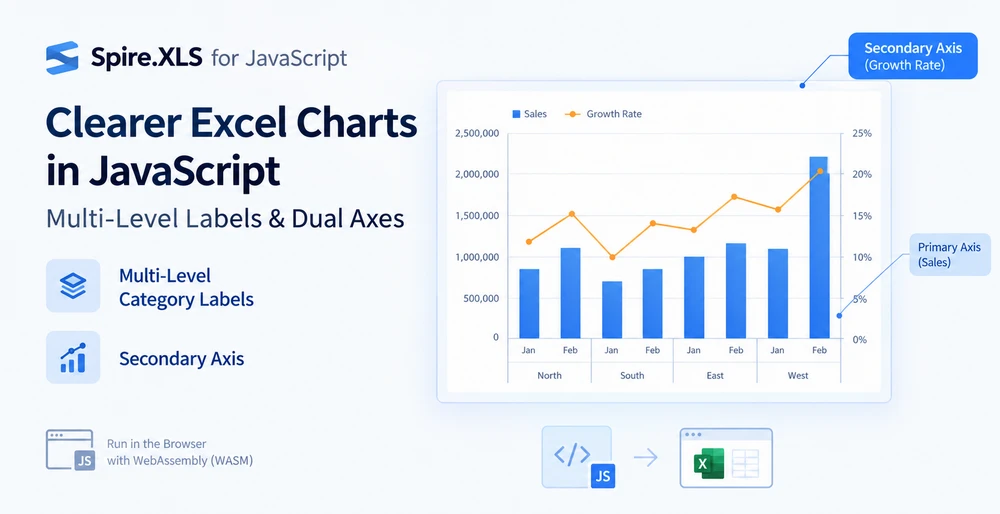
A column chart with regions and months on the same axis has two problems, and they are not the same problem. The first is that the category labels collapse into a single row — "North", "Jan", "North", "Feb" — and the reader has to mentally re-group which month belongs to which region. The second is that when a growth-rate series is added alongside a sales series that runs into the millions, the growth rate becomes a flat line hugging the baseline, because one value axis cannot serve two magnitudes at once.
Multi-level category labels fix the first. A secondary axis fixes the second. They are independent features that happen to be useful on the same chart, and Spire.XLS for JavaScript handles both through the chart axis API — directly in the browser on WebAssembly, with files moving through a virtual file system (VFS) and no backend involved.
For project setup, see Integrating Spire.XLS for JavaScript in a React Project. The examples below assume the package is installed and the WebAssembly module has been initialized.
When one axis is not enough
The two problems show up on the same kind of worksheet — one where the categories have a hierarchy and the values have a spread — but they come from different places:
| Problem | Where it comes from | What the chart looks like | What fixes it |
|---|---|---|---|
| Labels pile into one row | Categories are hierarchical (region → month, year → quarter) but the axis treats them as flat | A single row of labels where outer and inner categories alternate without visual grouping | Multi-level category labels |
| One series flattens to a line | Two series differ by orders of magnitude (sales in millions, growth in percent) but share one value axis | The smaller series compresses to near-zero and its variation is invisible | Secondary axis |
Neither is a styling issue. Both are about the axis not knowing something it needs to know — that the categories have layers, or that the values have incompatible scales. The two sections below address them in turn, and the second builds on the first so the final chart carries both fixes.
Prerequisites
You need a React project with Spire.XLS for JavaScript installed and the WebAssembly module initialized, reachable at window.wasmModule.spirexls. The sample loads a font and a pre-built data file into the VFS before creating the chart, and both are fetched from the project's public folder.
The data behind multi-level labels
Multi-level labels are not created by a property alone — they are read from the data. The category axis draws as many label levels as there are columns in the range that CategoryLabels points at. So the worksheet needs to be laid out with the hierarchy across columns:
| Column A (outer) | Column B (inner) | Column C (values) |
|---|---|---|
| North | Jan | 120,000 |
| North | Feb | 135,000 |
| South | Jan | 98,000 |
| South | Feb | 110,000 |
The outer labels in column A are merged across the rows they cover — "North" spans the two rows for Jan and Feb. That merging is what makes the level visually collapse into a single label per group when the chart renders. Without it, the axis still shows two levels, but the outer level repeats the label on every row instead of grouping.
This is a data-layout concern, not a chart-API concern. The chart code only has to point CategoryLabels at both columns; whether the outer cells are merged is decided in the workbook, not in the chart object.
Create a chart with multi-level category labels
Once the data is laid out, the chart code does two things: it points CategoryLabels at a range spanning both the outer and the inner column, and it turns on MultiLevelLable so the axis expands those columns into stacked rows. The steps are:
- Load the font and the test data file into the VFS.
- Load the workbook and get the worksheet.
- Add a column chart and add a named sales series.
- Point the category labels at both the region and the month column.
- Turn on multi-level labels for the category axis and save the workbook.
function App() {
  const createMultiLevelChart = async () => {
    // Get the Spire.XLS WASM module
    const xlsModule = window.wasmModule?.spirexls;

    // Check if the module is ready
    if (!xlsModule) {
      alert('Spire.Xls is not ready yet');
      return;
    }

    // Load the font and the test data file into the VFS
    await window.spire.FetchFileToVFS('ARIAL.TTF', '/Library/Fonts/', `${process.env.PUBLIC_URL}/font/`);
    const inputFileName = 'MultiLevelChartData.xlsx';
    await window.spire.FetchFileToVFS(inputFileName, '', `${process.env.PUBLIC_URL}data/`);

    // Load the workbook and get the first worksheet
    const workbook = new xlsModule.Workbook();
    workbook.LoadFromFile({ fileName: inputFileName });
    const sheet = workbook.Worksheets.get(0);

    // Add a column chart
    const chart = sheet.Charts.Add({ chartType: xlsModule.ExcelChartType.ColumnClustered });
    chart.ChartTitle = "Sales";
    chart.Legend.Delete();

    // Add the sales series and give it a name
    const serie = chart.Series.Add({ name: "Sales", serieType: xlsModule.ExcelChartType.ColumnClustered });
    serie.Values = sheet.Range.get("C2:C7");

    // Point the category labels at both the region and the month column
    serie.CategoryLabels = sheet.Range.get("A2:B7");

    // Turn on multi-level category labels so each level gets its own row
    chart.PrimaryCategoryAxis.MultiLevelLable = true;

    // Place the chart on the worksheet
    chart.LeftColumn = 5;
    chart.TopRow = 1;
    chart.RightColumn = 14;

    // Save the workbook
    const outputFileName = "MultiLevelLabels.xlsx";
    workbook.SaveToFile({ fileName: outputFileName });

    // Dispose of the workbook object to free resources
    workbook.Dispose();

    // Read the result file from the VFS and trigger the download
    const fileArray = window.dotnetRuntime.Module.FS.readFile(outputFileName);
    const blob = new Blob([fileArray], { type: 'application/vnd.openxmlformats-officedocument.spreadsheetml.sheet' });
    const url = URL.createObjectURL(blob);
    const a = document.createElement('a');
    a.href = url;
    a.download = outputFileName;
    a.click();
    URL.revokeObjectURL(url);
  };

  return (
    <div style={{ textAlign: 'center', height: '300px' }}>
      <h1>Multi-Level Labels</h1>
      <button onClick={createMultiLevelChart}>Start</button>
    </div>
  );
}

export default App;
A chart with multi-level category labels, each level on its own row
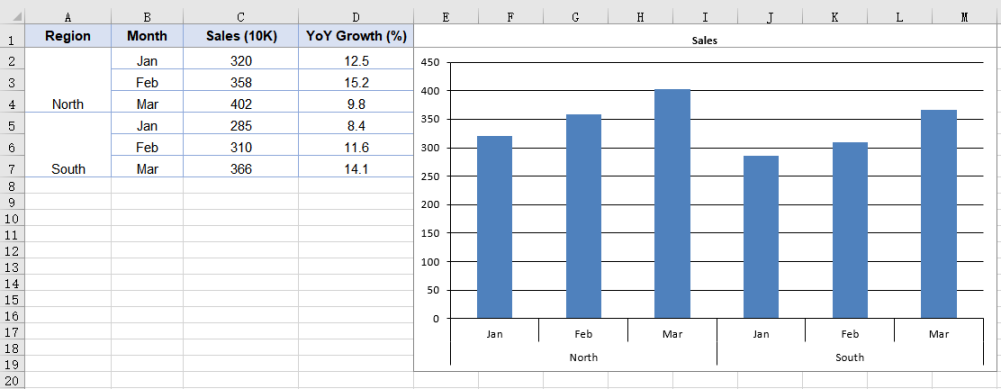
The range A2:B7 is what makes the axis show two levels. Binding a single-column range such as B2:B7 would still produce one level even with MultiLevelLable set to true — the property controls whether multiple levels are expanded into rows, not whether a level of data exists to expand.
Why the growth series disappears
Add a second series for year-over-year growth — values in the low teens, percentages — and plot it on the same value axis as sales. The sales columns reach 120,000; the growth rate reaches 12. On an axis that scales from 0 to 140,000, the number 12 is indistinguishable from zero. The series is there, the data is correct, and the chart shows a line flat against the baseline.
This is not a bug in the data or the chart. It is the value axis doing its job — mapping a range that covers the largest series — at the cost of the smallest. The only way to see both series clearly is to give each its own scale, and that is what the secondary axis does.
Move a series to the secondary axis
The growth series is added as a line rather than a column. A line takes up no bar width, so it reads clearly against the column series sharing the same categories. Moving it off the primary axis is a single property: UsePrimaryAxis = false. The steps are:
- Load the font and the test data file into the VFS.
- Load the workbook and get the worksheet.
- Add a column chart and add a named sales series.
- Add the growth series as a line.
- Move the growth series to the secondary axis and save the workbook.
function App() {
  const addSecondaryAxis = async () => {
    // Get the Spire.XLS WASM module
    const xlsModule = window.wasmModule?.spirexls;

    // Check if the module is ready
    if (!xlsModule) {
      alert('Spire.Xls is not ready yet');
      return;
    }

    // Load the font and the test data file into the VFS
    await window.spire.FetchFileToVFS('ARIAL.TTF', '/Library/Fonts/', `${process.env.PUBLIC_URL}/font/`);
    const inputFileName = 'MultiLevelChartData.xlsx';
    await window.spire.FetchFileToVFS(inputFileName, '', `${process.env.PUBLIC_URL}data/`);

    // Load the workbook and get the first worksheet
    const workbook = new xlsModule.Workbook();
    workbook.LoadFromFile({ fileName: inputFileName });
    const sheet = workbook.Worksheets.get(0);

    // Add a column chart
    const chart = sheet.Charts.Add({ chartType: xlsModule.ExcelChartType.ColumnClustered });
    chart.ChartTitle = "Sales and YoY Growth";

    // Add the sales series, which stays on the primary axis
    const salesSerie = chart.Series.Add({ name: "Sales", serieType: xlsModule.ExcelChartType.ColumnClustered });
    salesSerie.Values = sheet.Range.get("C2:C7");

    // Point the category labels at both the region and the month column
    salesSerie.CategoryLabels = sheet.Range.get("A2:B7");

    // Add the growth series as a line
    const growthSerie = chart.Series.Add({ name: "YoY Growth", serieType: xlsModule.ExcelChartType.Line });
    growthSerie.Values = sheet.Range.get("D2:D7");

    // Move the growth series to the secondary axis so it plots on its own percentage scale
    growthSerie.UsePrimaryAxis = false;

    // Turn on multi-level category labels
    chart.PrimaryCategoryAxis.MultiLevelLable = true;

    // Place the chart on the worksheet
    chart.LeftColumn = 5;
    chart.TopRow = 1;
    chart.RightColumn = 14;

    // Save the workbook
    const outputFileName = "SecondaryAxis.xlsx";
    workbook.SaveToFile({ fileName: outputFileName });

    // Dispose of the workbook object to free resources
    workbook.Dispose();

    // Read the result file from the VFS and trigger the download
    const fileArray = window.dotnetRuntime.Module.FS.readFile(outputFileName);
    const blob = new Blob([fileArray], { type: 'application/vnd.openxmlformats-officedocument.spreadsheetml.sheet' });
    const url = URL.createObjectURL(blob);
    const a = document.createElement('a');
    a.href = url;
    a.download = outputFileName;
    a.click();
    URL.revokeObjectURL(url);
  };

  return (
    <div style={{ textAlign: 'center', height: '300px' }}>
      <h1>Secondary Axis</h1>
      <button onClick={addSecondaryAxis}>Start</button>
    </div>
  );
}

export default App;
A column chart with a secondary axis for the growth rate line series
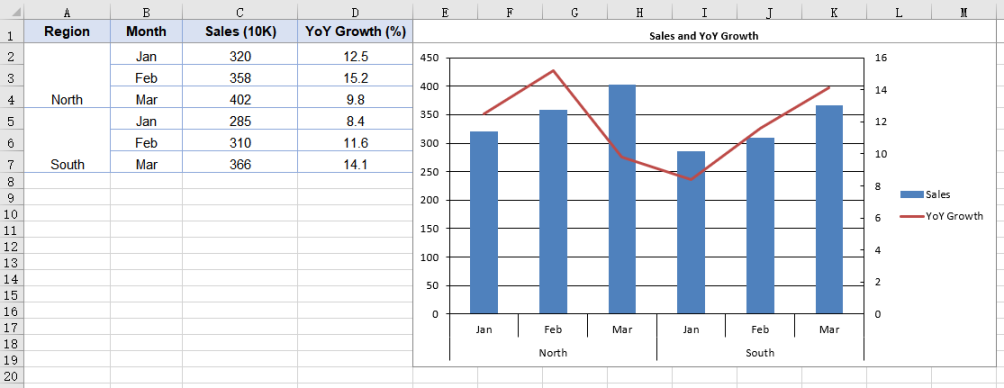
UsePrimaryAxis = false affects only the series it is set on; every other series stays on the primary axis. The chart gains a second pair of value and category axes, giving it two separate scale ranges. Series.Add takes the series name at the same time, so the legend shows the name passed in rather than an auto-generated "Series 1".
Setting the secondary axis scale
Once a series moves to the secondary axis, that axis works out its own scale — and it does so independently of the primary. The two ranges have no knowledge of each other, which means the secondary axis may pick bounds that do not line up well with the data.
PrimaryValueAxis.MinValue, MaxValue, and MajorUnit control the primary axis only. To set the secondary axis scale, use SecondaryValueAxis:
// Give the secondary axis a 0-20 scale with a major unit of 5
chart.SecondaryValueAxis.MinValue = 0;
chart.SecondaryValueAxis.MaxValue = 20;
chart.SecondaryValueAxis.MajorUnit = 5;
Set the scale after the series has been moved to the secondary axis. While no series uses the secondary axis, the assignment is accepted but never written to the file — the axis does not exist in the output until a series is plotted on it.
Common issues
The category axis shows only one level of labels.
CategoryLabels is pointing at a single-column range. The number of levels is decided by how many columns the range spans, not by the MultiLevelLable property. Point at a multi-column range such as A2:B7, and make sure the outer label cells are merged in the data.
The secondary axis scale looks wrong.
The primary and secondary value axes compute their scales independently. Setting MinValue or MaxValue on PrimaryValueAxis does not affect the secondary axis. Use chart.SecondaryValueAxis to set its scale directly, and do so after moving a series onto it.
The growth series still appears flat after adding a secondary axis.
Check that UsePrimaryAxis = false is set on the growth series, not on the sales series. The property is per-series — setting it on the wrong series moves the wrong one to the secondary axis.
The legend shows "Series 1" instead of the series name.
The name was not passed to Series.Add. Use chart.Series.Add({ name: "Sales", ... }) so the legend picks up the name you intended rather than an auto-generated label.
FAQ
Can I have more than two levels of category labels?
Yes. The number of levels is determined by the number of columns the CategoryLabels range spans. A three-column range produces three levels — for example, year, quarter, and month. The outer label cells need to be merged in the data for each level to group correctly.
Does the secondary axis work with chart types other than column and line?
Yes. The secondary axis is not tied to a specific chart type. The common pattern is column plus line — the line takes no bar width and reads clearly against the columns — but any series can be moved to the secondary axis by setting UsePrimaryAxis = false.
Do I need Excel installed to create these charts?
No. The spreadsheet engine ships with the package and runs as WebAssembly in the browser. The workbook is built, charted, and saved entirely client-side.
Can I control the secondary category axis separately?
When a series moves to the secondary axis, the chart gains a secondary category axis in addition to the secondary value axis. The two category axes share the same category labels by default, so multi-level labels apply to both.
Is the output file compatible with Excel?
Yes. The workbook is saved as .xlsx, and the chart — including multi-level labels and the secondary axis — is written as standard chart XML that Excel reads natively.
See Also
Geração de Documentos com IA: De Dados a Documentos Prontos para Uso
Índice
- O que é a Geração de Documentos com IA?
- O que os Geradores de Documentos com IA Podem Criar?
- Como Funciona a Geração de Documentos com IA
- Experimente a Geração de Documentos com IA Online
- Geração de Documentos com IA para Programadores
- De Uma Fonte de Dados, Quatro Tipos de Documento
- Geração com IA vs. Automação de Documentos Tradicional
- Quando Usar a Geração de Documentos com IA
- Perguntas Frequentes
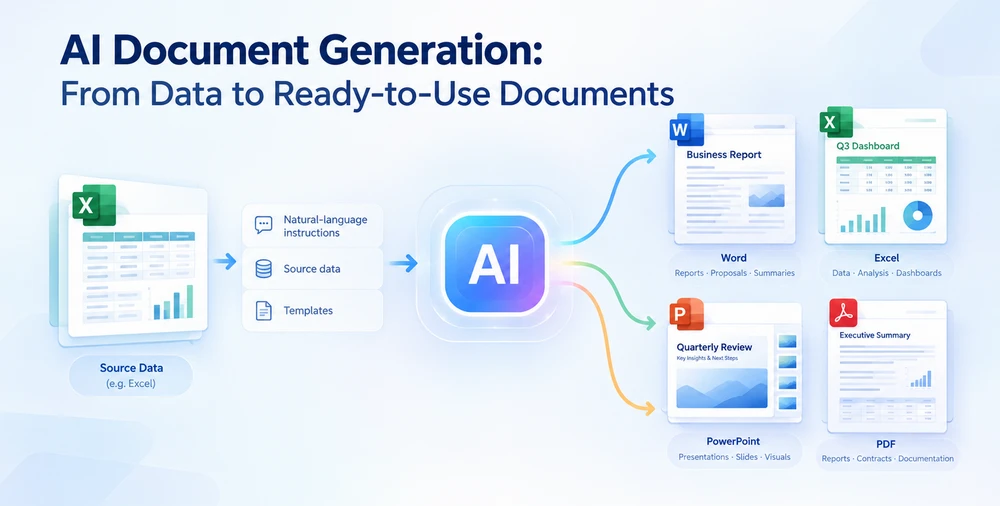
A geração de documentos com IA utiliza instruções em linguagem natural, dados de origem e modelos para criar ficheiros estruturados em Word, Excel, PowerPoint e PDF — não apenas texto, mas documentos formatados com secções, tabelas, gráficos e estilos. Ao contrário da simples geração de texto com IA, produz ficheiros completos e prontos a usar que cumprem as normas de formatação do Office. Este artigo aborda o que é a geração de documentos com IA, como funciona, ferramentas online que pode experimentar agora mesmo e uma implementação em C# com Spire.Agent.Office.
Navegação Rápida
- O que é? — definição e como difere da geração de texto com IA
- O que pode criar? — matriz de formato × tipo de documento com casos de uso
- Como funciona — o pipeline de geração e três padrões de arquitetura
- Experimente online — geração de documentos sem código com o CloudXDocs
- Para programadores — integração em C# com Spire.Agent.Office
- Uma fonte de dados → quatro documentos — uma demonstração de revisão trimestral de negócio
- IA vs. automação tradicional — comparação lado a lado
- Quando usá-la — guia de decisão
- FAQ
1. O que é a Geração de Documentos com IA?
A geração de documentos com IA é o processo de utilizar inteligência artificial para criar documentos empresariais formatados — ficheiros Word, Excel, PowerPoint e PDF — a partir de entradas como descrições em linguagem natural, dados estruturados, modelos ou documentos existentes. A IA lê a entrada, determina a estrutura do documento, preenche o conteúdo, aplica a formatação e produz um ficheiro finalizado.
Como difere da geração de texto com IA
A geração de texto com IA (ChatGPT, Claude, Gemini) produz texto — parágrafos, respostas, excertos de código. A geração de documentos com IA vai mais longe: produz ficheiros estruturados e formatados com títulos, tabelas, gráficos, esquemas de página e estilos que cumprem as normas do Office. A distinção é importante:
| Dimensão | Geração de Texto com IA | Geração de Documentos com IA |
|---|---|---|
| Resultado | Texto simples ou markdown | Ficheiros formatados .docx, .xlsx, .pptx, .pdf |
| Estrutura | Texto linear | Secções, tabelas, gráficos, cabeçalhos, quebras de página |
| Formatação | Nenhuma | Tipos de letra, estilos, margens, formatos de células, esquemas de diapositivos |
| Caso de uso | Elaboração de conteúdo | Criação de documentos empresariais finais |
Quatro padrões de entrada
A geração de documentos com IA funciona normalmente com um ou mais destes padrões de entrada:
- Prompt → documento: Descreva o que pretende; a IA constrói o documento completo de raiz.
- Dados → documento: Forneça uma folha de cálculo, exportação de base de dados ou JSON; a IA estrutura um documento em torno dos dados.
- Modelo + dados → documento: Carregue um modelo com campos de preenchimento; a IA preenche-o e adapta-o com dados.
- Documento existente → documento regenerado: Carregue um ficheiro existente; a IA reescreve-o, reformata-o ou converte-o.
A maioria dos fluxos de trabalho reais combina estes padrões — por exemplo, fornecer um ficheiro de dados e uma instrução em linguagem natural que lhe faça referência.
2. O que os Geradores de Documentos com IA Podem Criar?
A geração de documentos com IA inclui habitualmente fluxos de trabalho de Word, Excel, PowerPoint e PDF. A tabela abaixo associa cada formato aos tipos de documento que produz e a uma instrução representativa.
| Formato | Tipos de Documento | Instrução de Exemplo |
|---|---|---|
| Word (.docx) | Relatórios executivos, cartas comerciais, memorandos, contratos, propostas, políticas | "Gere um relatório de revisão trimestral de negócio com secções para desempenho de receita, principais produtos, comparação regional e indicadores de risco." |
| Excel (.xlsx) | Painéis financeiros, resumos de dados, folhas de orçamento, relatórios de análise | "Crie um painel de vendas com tabelas dinâmicas que mostrem a receita por região e produto, gráficos que comparem o T3 com o T2 e formatação condicional para os objetivos." |
| PowerPoint (.pptx) | Apresentações ao conselho, pitch decks, diapositivos de formação, apresentações para toda a empresa, atualizações de projetos | "Construa uma apresentação de 10 diapositivos para a reunião geral que cubra os destaques do T3, o crescimento da receita, os melhores desempenhos, os desafios e as prioridades para o T4." |
| PDF (.pdf) | Resumos de uma página, relatórios formais, formulários preenchíveis, documentos de conformidade | "Gere um resumo em PDF de uma página dos resultados do T3 para os gestores regionais, incluindo a receita total, a percentagem de crescimento, as 3 principais regiões e os pontos de ação." |
Casos de uso comuns em todos os formatos
| Caso de Uso | Formato Típico | Quem Precisa |
|---|---|---|
| Revisões trimestrais de negócio | Word + PPT + PDF | Executivos, membros do conselho |
| Propostas e orçamentos de vendas | Word + PDF | Equipas de vendas |
| Relatórios e painéis financeiros | Excel + PDF | Equipas financeiras |
| Materiais de formação e integração | PPT + Word | RH, equipas de formação |
| Geração de faturas e contratos | Word + PDF | Operações, jurídico |
| Atualizações de estado de projetos | PPT + Word | Gestores de projeto |
| Materiais de marketing | PPT + PDF | Equipas de marketing |
3. Como Funciona a Geração de Documentos com IA
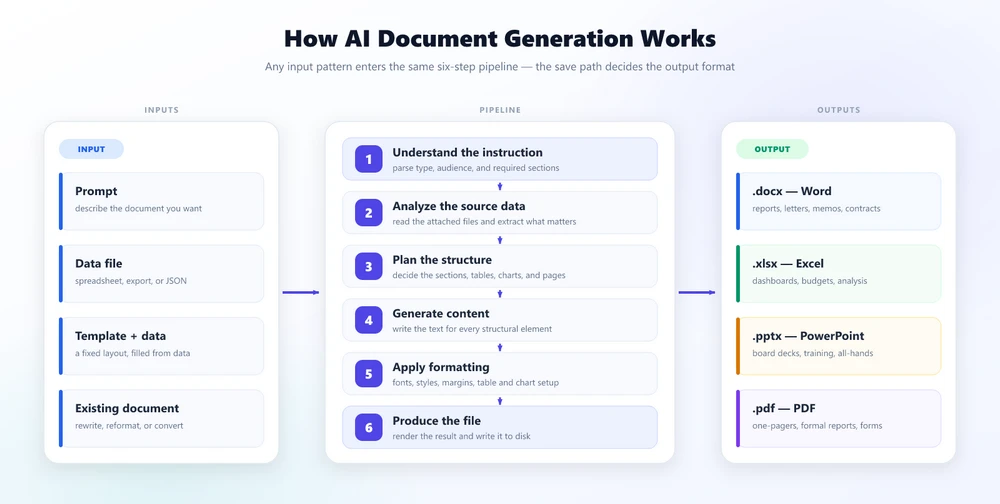
Independentemente da ferramenta ou SDK específico, a geração de documentos com IA segue um pipeline comum: Instrução + Dados/Modelo → Agente de IA → Estrutura do Documento → Formatação → Ficheiro de Saída. Entra uma instrução mais um ficheiro de dados ou um modelo; o agente planeia a estrutura, gera o conteúdo e aplica a formatação; sai um documento formatado.
O agente de IA não se limita a "escrever texto num ficheiro". Executa vários passos:
- Compreender a instrução — analisar o pedido em linguagem natural para determinar o tipo de documento, o público-alvo e as secções necessárias.
- Analisar os dados de origem — ler o(s) ficheiro(s) de dados anexado(s) e extrair a informação relevante.
- Planear a estrutura — decidir como organizar o conteúdo: que secções, tabelas, gráficos e páginas o documento necessita.
- Gerar conteúdo — escrever ou preencher o texto de cada elemento estrutural.
- Aplicar formatação — definir tipos de letra, estilos, cores, margens, esquemas de tabelas e configurações de gráficos.
- Produzir o ficheiro — renderizar o resultado como um ficheiro .docx, .xlsx, .pptx ou .pdf.
Três padrões de arquitetura
Ferramentas diferentes implementam a geração de documentos com IA de formas diferentes:
| Padrão | Como Funciona | Ideal Para |
|---|---|---|
| Modelo + preenchimento com IA | Um modelo fixo define o esquema; a IA preenche os campos de conteúdo | Documentos de elevado volume com estrutura consistente (faturas, contratos) |
| Geração de conteúdo com IA + renderização por SDK | A IA gera conteúdo estruturado (JSON/Markdown); um SDK de documentos renderiza-o num ficheiro formatado | Fluxos de trabalho de programadores em que controla tanto a IA como a renderização |
| Totalmente agêntico | Um agente de IA trata de todo o pipeline — ler dados, planear a estrutura, gerar conteúdo e produzir o ficheiro — numa única chamada | Documentos flexíveis, orientados por dados, em que a estrutura varia |
O Spire.Agent.Office utiliza um fluxo de trabalho agêntico de geração de documentos em que uma única chamada a ExecuteInstruction trata de todo o pipeline. Ferramentas online como o CloudXDocs disponibilizam um fluxo de trabalho agêntico baseado no navegador para o mesmo caso de uso geral.
4. Experimente a Geração de Documentos com IA Online
Nem todos os que precisam de geração de documentos com IA são programadores. Se pretender gerar documentos sem escrever código, os agentes de documentos com IA baseados no navegador podem transformar prompts, notas e ficheiros de origem em ficheiros Word, Excel, PowerPoint ou PDF formatados.
O CloudXDocs é um agente de IA online que trata do processamento e da geração de documentos nos quatro formatos do Office. Destina-se a utilizadores empresariais em marketing, vendas, finanças, consultoria e operações — sem necessidade de conhecimentos técnicos.
Como funciona
- Carregue um ficheiro de origem — ou comece a partir de um prompt sem origem
- Descreva o documento que pretende — em linguagem natural
- Reveja e descarregue o resultado — como .docx, .xlsx, .pptx ou .pdf
Exemplo
Um gestor financeiro carrega uma folha de cálculo de vendas mensais e escreve:
"Gere um relatório mensal de desempenho financeiro. Inclua um resumo executivo, uma tabela de destaques financeiros com variações mês a mês e ano a ano, uma decomposição da receita por segmento de negócio e uma análise de despesas. Formate-o como um PDF profissional."
O resultado pode ser um PDF de várias páginas com tabelas formatadas, gráficos e secções com estilos. Como acontece com qualquer documento empresarial gerado por IA, reveja o resultado antes da distribuição formal.
Para automação do lado da aplicação — gerar documentos programaticamente no seu próprio software — a secção seguinte aborda a abordagem para programadores com o Spire.Agent.Office.
5. Geração de Documentos com IA para Programadores
Se precisar de integrar a geração de documentos com IA numa aplicação .NET, o Spire.Agent.Office disponibiliza um SDK de IA para documentos que trata de todo o pipeline de geração em processo. Adicione-o via NuGet:
dotnet add package Spire.Agent.Office
O padrão central
Todas as tarefas de geração de documentos seguem o mesmo padrão de três passos:
using Spire.Doc;
using Spire.Agent.Office.AI;
using Spire.Agent.Office.Extensions;

AIOptions options = new AIOptions
{
    SpireToken = "sk-YourSpireToken",
    TimeoutMs = 600000
};

using (Document doc = new Document())
{
    AIResult result = doc.AI(options).ExecuteInstruction(
        doc,
        "Generate an executive summary report from the attached sales data. "
        + "Include sections for revenue, top products, and risk indicators.",
        @"C:\output\q3-report.docx",
        new[] { @"C:\data\q3-sales-data.xlsx" },  // source files via attachmentPaths
        autonomousOutput: true, maxTurns: null);

    Console.WriteLine(result.Success ? "Done" : result.ErrorMessage);
}
Chamadas principais à API
| Passo | Método | Objetivo |
|---|---|---|
| Configurar | new AIOptions { SpireToken, WorkDir, TimeoutMs } |
Definir a chave de API e o diretório de trabalho |
| Instruir | doc.AI(options).ExecuteInstruction(doc, instruction, savePath, attachmentPaths) |
Enviar a instrução com os ficheiros de origem |
| Verificar | result.Success / result.ErrorMessage |
Confirmar a conclusão |
O parâmetro attachmentPaths (IEnumerable<string> de caminhos de ficheiro) é a forma como fluem os dados entre formatos — passa um ficheiro Excel, um PDF ou um ficheiro Markdown como origem e o agente lê-o automaticamente. O formato de saída é determinado pela extensão de savePath (.docx, .xlsx, .pptx, .pdf). Um detalhe prático: o agente escreve o ficheiro finalizado no seu diretório de trabalho como output_<fileName>, e não diretamente em savePath, pelo que deve copiá-lo depois de a chamada retornar.
6. De Uma Fonte de Dados, Quatro Tipos de Documento
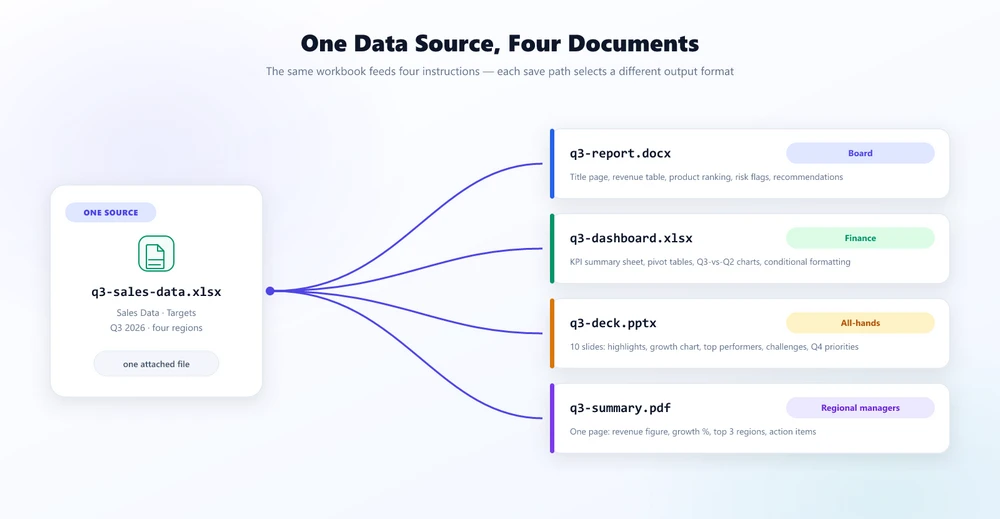
Um caso de uso prático da geração de documentos com IA é a saída em vários formatos a partir de uma única fonte de dados. Em vez de escrever quatro caminhos de código separados, escreve quatro instruções e deixa o agente tratar do resto.
O cenário
Um vice-presidente de vendas tem os dados do T3 de 2026 num livro do Excel (q3-sales-data.xlsx) e precisa de quatro entregáveis para públicos diferentes.
O código
using Spire.Doc;
using Spire.Xls;
using Spire.Presentation;
using Spire.Agent.Office.AI;
using Spire.Agent.Office.Extensions;

string[] sources = new[] { @"C:\data\q3-sales-data.xlsx" };
AIOptions options = new AIOptions { SpireToken = "sk-YourToken", TimeoutMs = 600000 };

// 1. Word executive report (for the board)
using (Document doc = new Document())
{
    doc.AI(options).ExecuteInstruction(doc,
        "Generate an executive summary report with sections for revenue, top products, "
        + "regional comparison, and risk indicators.",
        @"C:\output\q3-report.docx", sources, autonomousOutput: true, maxTurns: null);
}

// 2. Excel dashboard (for finance)
using (Workbook wb = new Workbook())
{
    wb.AI(options).ExecuteInstruction(wb,
        "Create a sales dashboard with KPI summary, pivot tables, charts comparing "
        + "Q3 vs Q2, and conditional formatting for targets.",
        @"C:\output\q3-dashboard.xlsx", sources, autonomousOutput: true, maxTurns: null);
}

// 3. PowerPoint deck (for all-hands)
using (Presentation ppt = new Presentation())
{
    ppt.AI(options).ExecuteInstruction(ppt,
        "Build a 10-slide all-hands presentation covering Q3 highlights, revenue growth, "
        + "top performers, challenges, and Q4 priorities.",
        @"C:\output\q3-deck.pptx", sources, autonomousOutput: true, maxTurns: null);
}

// 4. PDF one-pager (for regional managers)
using (Document pdfDoc = new Document())
{
    pdfDoc.AI(options).ExecuteInstruction(pdfDoc,
        "Generate a one-page PDF summary with total revenue, growth rate, "
        + "top 3 regions, and Q4 action items.",
        @"C:\output\q3-summary.pdf", sources, autonomousOutput: true, maxTurns: null);
}
Quatro documentos, quatro formatos, quatro públicos — uma fonte de dados. Todas as quatro chamadas seguem o mesmo padrão: anexar os dados de origem, descrever o resultado pretendido numa instrução e deixar o agente construir o ficheiro; a extensão de savePath determina o formato de saída.
Um parâmetro suporta a carga: autonomousOutput: true. Se o omitir (o valor predefinido é false), o motor procura um ficheiro output_* que o agente nunca escreveu, retorna sem nada guardado e reporta um erro que começa por "The AI did not produce any output file". O maxTurns é aqui explicitado apenas porque a mesma forma de chamada aceita um limite de turnos; null — sem limite — já é o valor predefinido.
Como cada chamada é uma geração de longa duração em vez de uma transformação rápida, o TimeoutMs também precisa de margem: aos 300 segundos, tanto o deck como o PDF foram interrompidos a meio da construção, antes de o agente ter terminado de os escrever. O documento finalizado fica no diretório de trabalho como output_<fileName>, refletindo o nome que passou em savePath — copie-o para o caminho que pretende guardar. Leia esse nome em vez de AIResult.OutputFiles: o agente converte uma origem binária em Markdown antes de a analisar e escreve esse ficheiro intermédio no mesmo diretório, pelo que uma lista de ficheiros output_* pode conter tanto o documento que pediu como os dados a partir dos quais foi construído — e o documento gerado pode citar esse nome intermédio .md como a sua origem.
O que cada instrução produz
| Resultado | Público | Conteúdo Principal |
|---|---|---|
q3-report.docx |
Conselho | Página de título, tabela de receita, ranking de produtos, sinalizações de risco, recomendações |
q3-dashboard.xlsx |
Finanças | Folha de resumo de KPI, tabelas dinâmicas, gráficos T3 vs T2, formatação condicional |
q3-deck.pptx |
Toda a empresa | 10 diapositivos: destaques, gráfico de crescimento, melhores desempenhos, desafios, prioridades para o T4 |
q3-summary.pdf |
Gestores regionais | Uma página: valor da receita, % de crescimento, 3 principais regiões, pontos de ação |
Três dos quatro resultados, exatamente como o agente os escreveu — o painel do Excel, o deck e o resumo em PDF de uma página:
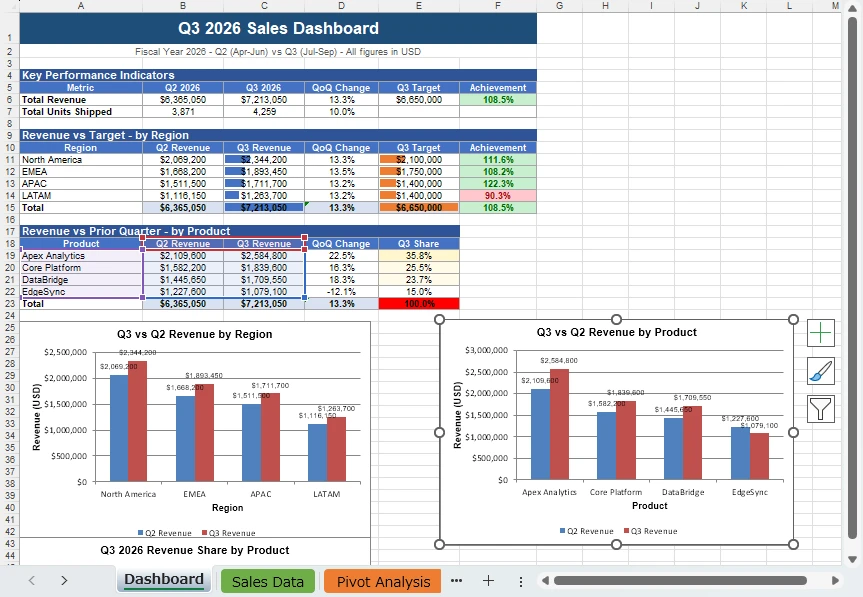
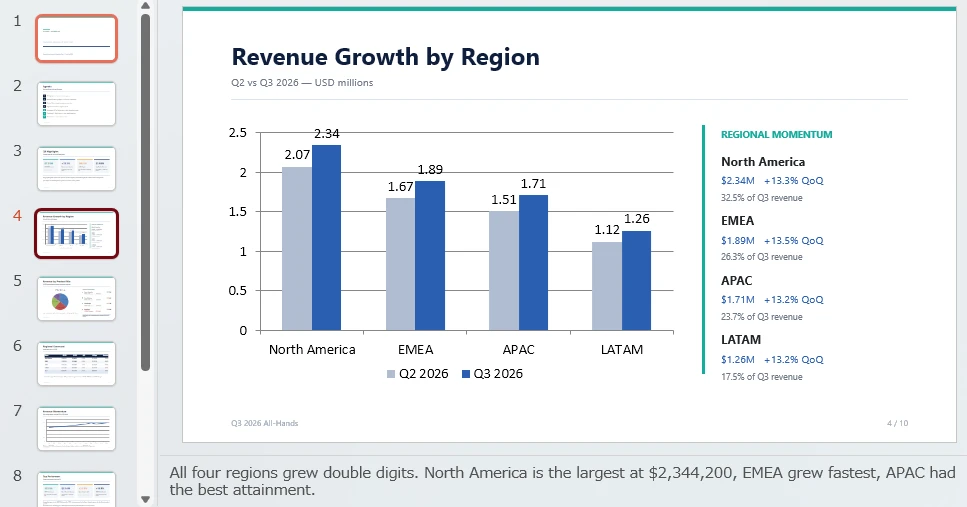
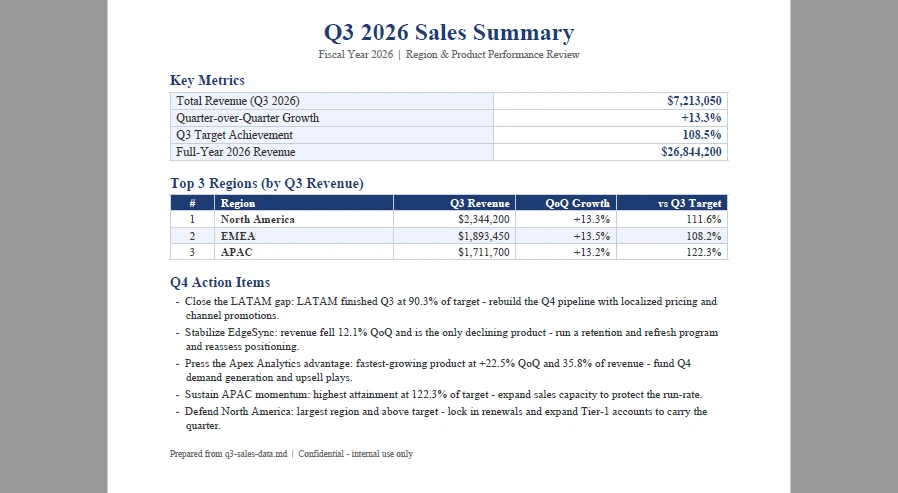
7. Geração com IA vs. Automação de Documentos Tradicional
Porquê usar a geração de documentos com IA em vez de modelos, mala direta ou código de SDK de documentos? Considere uma tarefa: criar um relatório Word a partir de dados do Excel com uma tabela de resumo, um gráfico e títulos formatados.
Abordagem tradicional
Escrever isto com um SDK de documentos exige: carregar os dados do Excel, criar um documento Word, adicionar um parágrafo de título com tipo de letra e alinhamento, criar um cabeçalho de secção, construir uma tabela com as dimensões corretas, percorrer os dados para preencher as células, aplicar estilos de cabeçalho e sombreado alternado das linhas, definir larguras de colunas, adicionar uma forma de gráfico e configurar a sua fonte de dados, adicionar as restantes secções, definir margens de página e guardar. A quantidade de código cresce com a complexidade do esquema — e isto é apenas para um formato.
Abordagem com agente de IA
using (Document doc = new Document())
{
    doc.AI(options).ExecuteInstruction(doc,
        "Generate an executive summary report with a revenue summary table, "
        + "a growth chart, and formatted section headings.",
        @"C:\output\report.docx", new[] { @"C:\data\sales.xlsx" },
        autonomousOutput: true, maxTurns: null);
}
A instrução descreve o resultado; o agente trata internamente de todos os passos de esquema. A implementação mantém-se compacta em todos os quatro formatos.
O compromisso
| Dimensão | SDK Tradicional / Modelos | Geração de Documentos com IA |
|---|---|---|
| Estrutura do código | Chamadas de API específicas do formato e lógica de esquema | Instrução em linguagem natural mais orquestração do agente |
| Curva de aprendizagem | É preciso aprender a API de cada formato | Um único padrão de alto nível partilhado entre formatos |
| Controlo | Detalhado, elemento a elemento | Baseado em instruções, através da especificidade |
| Previsibilidade | Tipicamente mais determinística e repetível | Elevada, mas pode variar entre execuções |
| Ideal para | Modelos fixos, documentos de conformidade, esquemas exatos | Relatórios orientados por dados, saída em vários formatos, prototipagem |
8. Quando Usar a Geração de Documentos com IA
| Cenário | Geração com IA | SDK Tradicional |
|---|---|---|
| Prototipagem de um novo tipo de documento | ✅ Iterar através de alterações às instruções | Lento — cada alteração ao esquema implica alterações ao código |
| Relatórios a partir de esquemas de dados em evolução | ✅ O agente adapta a estrutura aos dados | Fluxos de trabalho baseados em modelos podem exigir alterações ao modelo quando o esquema de dados muda |
| Saída em vários formatos a partir de uma fonte | ✅ O mesmo padrão para todos os formatos | Caminho de código separado por formato |
| Documentos pontuais ou ad-hoc | ✅ Descreva o que precisa | Excessivo escrever código de esquema para uma única utilização |
| Utilizadores não técnicos a criar documentos | ✅ Ferramentas online (CloudXDocs) | Não aplicável |
| Esquema perfeito ao pixel com posicionamento exato | ✅ Controlo total sobre coordenadas e tamanhos | |
| Lotes de elevado volume com modelo fixo | ✅ Determinístico, sem latência de IA por documento | |
| Documentos de conformidade com formatação estrita | ✅ Tipicamente mais determinístico e repetível |
Ferramenta online vs. SDK para programadores
| Se pretende... | Use |
|---|---|
| Gerar documentos sem código | CloudXDocs — agente de IA baseado no navegador |
| Integrar a geração numa aplicação | Spire.Agent.Office — SDK .NET |
| Ambos — permitir que os utilizadores gerem online e automatizar em código | Ambos se combinam naturalmente: CloudXDocs para ad-hoc, SDK para pipeline |
9. Perguntas Frequentes
Qual é a diferença entre a geração de documentos com IA e a geração de texto com IA?
A geração de texto com IA produz texto simples ou markdown — parágrafos, respostas, excertos de código. A geração de documentos com IA produz ficheiros formatados (.docx, .xlsx, .pptx, .pdf) com estrutura: secções, tabelas, gráficos, estilos e esquema de página. O resultado é um documento final, não apenas texto.
Posso gerar vários documentos a partir de uma única instrução?
Não numa só chamada: no SDK, cada formato de saída exige a sua própria chamada a ExecuteInstruction, mas essas chamadas podem partilhar um único ficheiro de origem — é esse o padrão da Secção 6. Para aplicar várias instruções a um único documento, em vez disso, ExecuteInstructionsAsync aceita um string[] de instruções e executa-as por ordem.
Como controlo formatações específicas como margens, tipos de letra ou estilos de tabela?
Inclua os detalhes de formatação na instrução: "use margens de 1 polegada, texto corrido em Calibri 12pt e uma tabela com faixas e uma linha de cabeçalho azul-escura." O agente aplica estas especificações. Para requisitos que têm de ser exatos (por exemplo, uma margem regulamentar), gere primeiro com IA e depois ajuste propriedades específicas com chamadas ao SDK.
Posso usar os meus próprios modelos como ponto de partida?
Sim. Carregue um ficheiro de modelo com LoadFromFile e depois envie uma instrução como "preenche as secções de marcador de posição com dados do ficheiro Excel anexado." O agente trata o modelo carregado como o documento de partida e modifica-o. Também pode passar ficheiros de modelo como anexos juntamente com ficheiros de dados.
Que formatos de ficheiro são suportados para entrada e saída?
Entrada: .docx, .xlsx, .pptx, .pdf e Markdown (.md) — os motores Spire subjacentes também leem os formatos legados .doc, .xls e .ppt. O formato de saída é determinado pela extensão do caminho de gravação — altere .docx para .pdf no caminho de gravação e a mesma instrução produz um PDF.
A ferramenta online exige uma subscrição?
O CloudXDocs oferece acesso gratuito para experimentar a geração de documentos. Para uso em produção, consulte a sua página de preços. O SDK Spire.Agent.Office exige um SpireToken, disponível no site da e-iceblue.
Pronto para Experimentar a Geração de Documentos com IA?
- Sem código: Experimente o CloudXDocs — carregue um ficheiro, descreva o que pretende, descarregue o resultado.
- Na sua aplicação: Instale o pacote NuGet Spire.Agent.Office, configure o seu SpireToken e execute os exemplos acima.
Leitura Adicional
- AI Agent for Document Processing: What It Is and How It Works -- a visão conceptual dos agentes de IA para documentos
- Generate Word Documents from Excel Data in C# -- análise aprofundada da geração de Excel para Word com comparação de mala direta
- Turn Documents into PowerPoint with AI in C# -- tutorial de geração de PPT a partir de várias fontes
- Automate Excel Report Generation with an AI Agent in C# -- padrões de automação de relatórios do Excel
- AI Agent vs. Raw LLM API: Document Layer in .NET -- porque é que uma camada de documentos é importante entre o LLM e a saída de ficheiros
AI 문서 생성: 데이터에서 바로 사용 가능한 문서로
AI 문서 생성은 자연어 지시, 소스 데이터 및 템플릿을 사용하여 구조화된 Word, Excel, PowerPoint 및 PDF 파일을 생성합니다. 단순한 텍스트가 아니라 섹션, 표, 차트 및 스타일이 포함된 서식 지정된 문서입니다. 단순한 AI 텍스트 생성과 달리, Office 서식 표준을 준수하는 완성된 즉시 사용 가능한 파일을 생성합니다. 이 문서에서는 AI 문서 생성이 무엇인지, 어떻게 작동하는지, 지금 바로 사용해 볼 수 있는 온라인 도구, 그리고 Spire.Agent.Office를 사용한 C# 구현을 다룹니다.
빠른 탐색
- 무엇인가? — 정의 및 AI 텍스트 생성과의 차이점
- 무엇을 만들 수 있는가? — 형식 × 문서 유형 매트릭스와 사용 사례
- 어떻게 작동하는가 — 생성 파이프라인과 세 가지 아키텍처 패턴
- 온라인에서 사용해 보기 — CloudXDocs를 통한 노코드 문서 생성
- 개발자를 위해 — Spire.Agent.Office를 사용한 C# 통합
- 하나의 데이터 소스 → 네 개의 문서 — 분기별 비즈니스 리뷰 데모
- AI vs. 전통적인 자동화 — 나란히 비교
- 언제 사용해야 하는가 — 의사 결정 가이드
- FAQ
1. AI 문서 생성이란 무엇인가?
AI 문서 생성은 인공지능을 사용하여 자연어 설명, 구조화된 데이터, 템플릿 또는 기존 문서와 같은 입력으로부터 서식이 지정된 비즈니스 문서 — Word, Excel, PowerPoint 및 PDF 파일 — 를 만드는 프로세스입니다. AI는 입력을 읽고, 문서 구조를 결정하고, 콘텐츠를 채우고, 서식을 적용하고, 완성된 파일을 생성합니다.
AI 텍스트 생성과의 차이점
AI 텍스트 생성(ChatGPT, Claude, Gemini)은 텍스트 — 문단, 답변, 코드 조각 — 를 생성합니다. AI 문서 생성은 더 나아가 Office 표준을 준수하는 제목, 표, 차트, 페이지 레이아웃 및 스타일이 포함된 구조화된 서식 지정 파일을 생성합니다. 이 차이는 중요합니다:
| 차원 | AI 텍스트 생성 | AI 문서 생성 |
|---|---|---|
| 출력 | 일반 텍스트 또는 마크다운 | 서식 지정된 .docx, .xlsx, .pptx, .pdf 파일 |
| 구조 | 선형 텍스트 | 섹션, 표, 차트, 머리글, 페이지 나누기 |
| 서식 | 없음 | 글꼴, 스타일, 여백, 셀 서식, 슬라이드 레이아웃 |
| 사용 사례 | 콘텐츠 초안 작성 | 납품 가능한 비즈니스 문서 생성 |
네 가지 입력 패턴
AI 문서 생성은 일반적으로 다음 입력 패턴 중 하나 이상으로 작동합니다:
- 프롬프트 → 문서: 원하는 내용을 설명하면 AI가 처음부터 전체 문서를 작성합니다.
- 데이터 → 문서: 스프레드시트, 데이터베이스 내보내기 또는 JSON을 제공하면 AI가 데이터를 기반으로 문서를 구성합니다.
- 템플릿 + 데이터 → 문서: 자리 표시자 필드가 있는 템플릿을 로드하면 AI가 데이터로 채우고 조정합니다.
- 기존 문서 → 재생성된 문서: 기존 파일을 로드하면 AI가 다시 작성, 재서식 지정 또는 변환합니다.
대부분의 실제 워크플로는 이들을 결합합니다 — 예를 들어, 데이터 파일과 이를 참조하는 자연어 지시를 제공하는 것입니다.
2. AI 문서 생성기로 무엇을 만들 수 있는가?
AI 문서 생성은 일반적으로 Word, Excel, PowerPoint 및 PDF 워크플로를 포함합니다. 아래 표는 각 형식을 생성하는 문서 유형과 대표적인 지시에 매핑합니다.
| 형식 | 문서 유형 | 예시 지시 |
|---|---|---|
| Word (.docx) | 경영진 보고서, 비즈니스 서신, 메모, 계약서, 제안서, 정책 | "매출 성과, 주요 제품, 지역 비교 및 위험 지표에 대한 섹션이 포함된 분기별 비즈니스 리뷰 보고서를 생성하세요." |
| Excel (.xlsx) | 재무 대시보드, 데이터 요약, 예산 워크시트, 분석 보고서 | "지역 및 제품별 매출을 보여주는 피벗 테이블, Q3 vs Q2를 비교하는 차트, 목표에 대한 조건부 서식이 포함된 영업 대시보드를 만드세요." |
| PowerPoint (.pptx) | 이사회 프레젠테이션, 피치 덱, 교육 슬라이드, 전사 회의 덱, 프로젝트 업데이트 | "Q3 하이라이트, 매출 성장, 우수 성과자, 과제 및 Q4 우선순위를 다루는 전사 회의용 10장 슬라이드 프레젠테이션을 만드세요." |
| PDF (.pdf) | 한 페이지 요약, 공식 보고서, 작성 가능한 양식, 규정 준수 문서 | "총 매출, 성장률, 상위 3개 지역 및 실행 항목을 포함하는 지역 관리자용 Q3 결과 한 페이지 PDF 요약을 생성하세요." |
형식 전반의 일반적인 사용 사례
| 사용 사례 | 일반적인 형식 | 필요한 대상 |
|---|---|---|
| 분기별 비즈니스 리뷰 | Word + PPT + PDF | 경영진, 이사회 구성원 |
| 영업 제안서 및 견적서 | Word + PDF | 영업팀 |
| 재무 보고서 및 대시보드 | Excel + PDF | 재무팀 |
| 교육 자료 및 온보딩 | PPT + Word | HR, 교육팀 |
| 청구서 및 계약서 생성 | Word + PDF | 운영, 법무 |
| 프로젝트 상태 업데이트 | PPT + Word | 프로젝트 관리자 |
| 마케팅 자료 | PPT + PDF | 마케팅팀 |
3. AI 문서 생성은 어떻게 작동하는가
특정 도구나 SDK에 관계없이 AI 문서 생성은 하나의 공통 파이프라인을 따릅니다: 지시 + 데이터/템플릿 → AI 에이전트 → 문서 구조 → 서식 지정 → 출력 파일. 지시와 데이터 파일 또는 템플릿이 입력되고, 에이전트는 구조를 계획하고 콘텐츠를 생성하며 서식을 적용하고, 서식이 지정된 문서가 출력됩니다.
AI 에이전트는 단순히 "파일에 텍스트를 작성"하지 않습니다. 여러 단계를 수행합니다:
- 지시 이해 — 자연어 요청을 구문 분석하여 문서 유형, 대상 및 필요한 섹션을 결정합니다.
- 소스 데이터 분석 — 첨부된 데이터 파일을 읽고 관련 정보를 추출합니다.
- 구조 계획 — 문서에 필요한 섹션, 표, 차트 및 페이지를 결정하여 콘텐츠를 구성할 방법을 결정합니다.
- 콘텐츠 생성 — 각 구조 요소에 대한 텍스트를 작성하거나 채웁니다.
- 서식 적용 — 글꼴, 스타일, 색상, 여백, 표 레이아웃 및 차트 구성을 설정합니다.
- 파일 생성 — 결과를 .docx, .xlsx, .pptx 또는 .pdf 파일로 렌더링합니다.
세 가지 아키텍처 패턴
다양한 도구가 AI 문서 생성을 다양한 방식으로 구현합니다:
| 패턴 | 작동 방식 | 적합한 대상 |
|---|---|---|
| 템플릿 + AI 채우기 | 고정 템플릿이 레이아웃을 정의하고, AI가 콘텐츠 필드를 채웁니다 | 일관된 구조의 대량 문서(청구서, 계약서) |
| AI 콘텐츠 생성 + SDK 렌더링 | AI가 구조화된 콘텐츠(JSON/Markdown)를 생성하고, 문서 SDK가 이를 서식 지정된 파일로 렌더링합니다 | AI와 렌더링을 모두 제어하는 개발자 워크플로 |
| 완전 에이전트 방식 | AI 에이전트가 단일 호출에서 전체 파이프라인 — 데이터 읽기, 구조 계획, 콘텐츠 생성 및 파일 생성 — 을 처리합니다 | 구조가 다양한 유연한 데이터 기반 문서 |
Spire.Agent.Office는 하나의 ExecuteInstruction 호출이 전체 파이프라인을 처리하는 에이전트 방식 문서 생성 워크플로를 사용합니다. CloudXDocs와 같은 온라인 도구는 동일한 일반적인 사용 사례에 대해 브라우저 기반 에이전트 워크플로를 제공합니다.
4. 온라인에서 AI 문서 생성 사용해 보기
AI 문서 생성이 필요한 모든 사람이 개발자는 아닙니다. 코드를 작성하지 않고 문서를 생성하려는 경우, 브라우저 기반 AI 문서 에이전트가 프롬프트, 메모 및 소스 파일을 서식 지정된 Word, Excel, PowerPoint 또는 PDF 파일로 변환할 수 있습니다.
CloudXDocs는 네 가지 Office 형식 전반에 걸쳐 문서 처리 및 생성을 처리하는 온라인 AI 에이전트입니다. 마케팅, 영업, 재무, 컨설팅 및 운영 분야의 비즈니스 사용자를 대상으로 하며 기술적 배경이 필요하지 않습니다.
작동 방식
- 소스 파일 업로드 — 또는 소스 없이 프롬프트로 시작
- 원하는 문서 설명 — 자연어로
- 결과 검토 및 다운로드 — .docx, .xlsx, .pptx 또는 .pdf로
예시
재무 관리자가 월간 매출 스프레드시트를 업로드하고 다음과 같이 입력합니다:
"월간 재무 성과 보고서를 생성하세요. 경영 요약, 월별 및 전년 대비 변화가 포함된 재무 하이라이트 표, 사업 부문별 매출 분석 및 비용 분석을 포함하세요. 전문적인 PDF로 서식을 지정하세요."
결과는 서식 지정된 표, 차트 및 스타일이 적용된 섹션이 포함된 여러 페이지 PDF가 될 수 있습니다. 다른 AI 생성 비즈니스 문서와 마찬가지로 공식 배포 전에 출력을 검토하세요.
애플리케이션 측 자동화 — 자체 소프트웨어에서 프로그래밍 방식으로 문서 생성 — 를 위해서는 다음 섹션에서 Spire.Agent.Office를 사용한 개발자 접근 방식을 다룹니다.
5. 개발자를 위한 AI 문서 생성
.NET 애플리케이션에 AI 문서 생성을 통합해야 하는 경우, Spire.Agent.Office는 전체 생성 파이프라인을 프로세스 내에서 처리하는 문서 AI SDK를 제공합니다. NuGet을 통해 추가하세요:
dotnet add package Spire.Agent.Office
핵심 패턴
모든 문서 생성 작업은 동일한 3단계 패턴을 따릅니다:
using Spire.Doc;
using Spire.Agent.Office.AI;
using Spire.Agent.Office.Extensions;

AIOptions options = new AIOptions
{
    SpireToken = "sk-YourSpireToken",
    TimeoutMs = 600000
};

using (Document doc = new Document())
{
    AIResult result = doc.AI(options).ExecuteInstruction(
        doc,
        "Generate an executive summary report from the attached sales data. "
        + "Include sections for revenue, top products, and risk indicators.",
        @"C:\output\q3-report.docx",
        new[] { @"C:\data\q3-sales-data.xlsx" },  // source files via attachmentPaths
        autonomousOutput: true, maxTurns: null);

    Console.WriteLine(result.Success ? "Done" : result.ErrorMessage);
}
주요 API 호출
| 단계 | 메서드 | 목적 |
|---|---|---|
| 구성 | new AIOptions { SpireToken, WorkDir, TimeoutMs } |
API 키 및 작업 디렉터리 설정 |
| 지시 | doc.AI(options).ExecuteInstruction(doc, instruction, savePath, attachmentPaths) |
소스 파일과 함께 지시 전송 |
| 확인 | result.Success / result.ErrorMessage |
완료 확인 |
attachmentPaths 매개변수(파일 경로의 IEnumerable<string>)는 교차 형식 데이터가 유입되는 방식입니다 — Excel 파일, PDF 또는 Markdown 파일을 소스로 전달하면 에이전트가 자동으로 읽습니다. 출력 형식은 savePath 확장자(.docx, .xlsx, .pptx, .pdf)에 의해 결정됩니다. 한 가지 실용적인 세부 사항: 에이전트는 완성된 파일을 savePath에 직접 쓰지 않고 작업 디렉터리에 output_<fileName>로 작성하므로, 호출이 반환되면 해당 파일을 복사해야 합니다.
6. 하나의 데이터 소스에서 네 가지 문서 유형으로
AI 문서 생성의 실용적인 사용 사례 중 하나는 단일 데이터 소스에서 다중 형식 출력입니다. 네 개의 별도 코드 경로를 작성하는 대신 네 개의 지시를 작성하고 에이전트가 나머지를 처리하도록 합니다.
시나리오
영업 부사장이 Excel 워크북(q3-sales-data.xlsx)에 Q3 2026 데이터를 가지고 있으며 다양한 대상에 대한 네 가지 결과물이 필요합니다.
코드
using Spire.Doc;
using Spire.Xls;
using Spire.Presentation;
using Spire.Agent.Office.AI;
using Spire.Agent.Office.Extensions;

string[] sources = new[] { @"C:\data\q3-sales-data.xlsx" };
AIOptions options = new AIOptions { SpireToken = "sk-YourToken", TimeoutMs = 600000 };

// 1. Word executive report (for the board)
using (Document doc = new Document())
{
    doc.AI(options).ExecuteInstruction(doc,
        "Generate an executive summary report with sections for revenue, top products, "
        + "regional comparison, and risk indicators.",
        @"C:\output\q3-report.docx", sources, autonomousOutput: true, maxTurns: null);
}

// 2. Excel dashboard (for finance)
using (Workbook wb = new Workbook())
{
    wb.AI(options).ExecuteInstruction(wb,
        "Create a sales dashboard with KPI summary, pivot tables, charts comparing "
        + "Q3 vs Q2, and conditional formatting for targets.",
        @"C:\output\q3-dashboard.xlsx", sources, autonomousOutput: true, maxTurns: null);
}

// 3. PowerPoint deck (for all-hands)
using (Presentation ppt = new Presentation())
{
    ppt.AI(options).ExecuteInstruction(ppt,
        "Build a 10-slide all-hands presentation covering Q3 highlights, revenue growth, "
        + "top performers, challenges, and Q4 priorities.",
        @"C:\output\q3-deck.pptx", sources, autonomousOutput: true, maxTurns: null);
}

// 4. PDF one-pager (for regional managers)
using (Document pdfDoc = new Document())
{
    pdfDoc.AI(options).ExecuteInstruction(pdfDoc,
        "Generate a one-page PDF summary with total revenue, growth rate, "
        + "top 3 regions, and Q4 action items.",
        @"C:\output\q3-summary.pdf", sources, autonomousOutput: true, maxTurns: null);
}
네 개의 문서, 네 가지 형식, 네 명의 대상 — 하나의 데이터 소스. 네 가지 호출 모두 동일한 패턴을 따릅니다: 소스 데이터를 첨부하고, 지시에서 원하는 출력을 설명하고, 에이전트가 파일을 생성하도록 합니다. savePath 확장자가 출력 형식을 결정합니다.
하나의 매개변수가 핵심적인 역할을 합니다: autonomousOutput: true. 이를 생략하면(기본값은 false) 엔진이 에이전트가 작성하지 않은 output_* 파일을 찾고, 아무것도 저장되지 않은 채로 반환하며, "The AI did not produce any output file"로 시작하는 오류를 보고합니다. maxTurns는 동일한 호출 형식이 턴 제한을 허용하기 때문에 여기에 명시되어 있습니다. null — 제한 없음 — 이 이미 기본값입니다.
각 호출이 빠른 변환이 아닌 장시간 실행되는 생성이기 때문에 TimeoutMs에도 여유가 필요합니다: 300초에서 덱과 PDF 모두 에이전트가 작성을 완료하기 전에 빌드 중간에 잘렸습니다. 완성된 문서는 savePath에 전달한 이름을 미러링하여 작업 디렉터리에 output_<fileName>로 저장됩니다 — 원하는 경로로 복사하세요. AIResult.OutputFiles가 아닌 해당 이름을 읽으세요: 에이전트는 바이너리 소스를 구문 분석하기 전에 Markdown으로 변환하고 해당 중간 파일을 같은 디렉터리에 작성하므로, output_* 파일 목록에는 요청한 문서와 그것이 만들어진 데이터가 모두 포함될 수 있습니다 — 생성된 문서는 해당 중간 .md 이름을 소스로 인용할 수 있습니다.
각 지시가 생성하는 것
| 출력 | 대상 | 주요 콘텐츠 |
|---|---|---|
q3-report.docx |
이사회 | 제목 페이지, 매출 표, 제품 순위, 위험 플래그, 권장 사항 |
q3-dashboard.xlsx |
재무 | KPI 요약 시트, 피벗 테이블, Q3-vs-Q2 차트, 조건부 서식 |
q3-deck.pptx |
전사 회의 | 10장 슬라이드: 하이라이트, 성장 차트, 우수 성과자, 과제, Q4 우선순위 |
q3-summary.pdf |
지역 관리자 | 한 페이지: 매출 수치, 성장률 %, 상위 3개 지역, 실행 항목 |
네 가지 출력 중 세 가지, 에이전트가 작성한 그대로 — Excel 대시보드, 덱 및 PDF 한 페이지 요약:
7. AI 생성 vs. 전통적인 문서 자동화
템플릿, 메일 병합 또는 문서 SDK 코드 대신 AI 문서 생성을 사용하는 이유는 무엇입니까? 한 가지 작업을 고려해 보세요: 요약 표, 차트 및 서식이 지정된 제목이 있는 Excel 데이터로부터 Word 보고서 만들기.
전통적인 접근 방식
문서 SDK로 이를 작성하려면 다음이 필요합니다: Excel 데이터 로드, Word 문서 생성, 글꼴 및 정렬이 있는 제목 문단 추가, 섹션 제목 생성, 올바른 크기의 표 작성, 데이터를 반복하여 셀 채우기, 머리글 스타일 및 교대 행 음영 적용, 열 너비 설정, 차트 도형 추가 및 데이터 원본 구성, 나머지 섹션 추가, 페이지 여백 설정 및 저장. 코드 양은 레이아웃의 복잡성에 따라 증가합니다 — 그리고 이는 하나의 형식에만 해당합니다.
AI 에이전트 접근 방식
using (Document doc = new Document())
{
    doc.AI(options).ExecuteInstruction(doc,
        "Generate an executive summary report with a revenue summary table, "
        + "a growth chart, and formatted section headings.",
        @"C:\output\report.docx", new[] { @"C:\data\sales.xlsx" },
        autonomousOutput: true, maxTurns: null);
}
지시가 출력을 설명하면 에이전트가 내부적으로 모든 레이아웃 단계를 처리합니다. 구현은 네 가지 형식 모두에서 간결하게 유지됩니다.
트레이드오프
| 차원 | 전통적인 SDK / 템플릿 | AI 문서 생성 |
|---|---|---|
| 코드 구조 | 형식별 API 호출 및 레이아웃 로직 | 자연어 지시 및 에이전트 오케스트레이션 |
| 학습 곡선 | 각 형식의 API를 배워야 함 | 형식 전반에 걸친 하나의 공유 고수준 패턴 |
| 제어 | 세밀하고 요소별 | 특정성을 통한 지시 기반 |
| 예측 가능성 | 일반적으로 더 결정적이고 반복 가능 | 높지만 실행 간에 달라질 수 있음 |
| 적합한 대상 | 고정 템플릿, 규정 준수 문서, 정확한 레이아웃 | 데이터 기반 보고서, 다중 형식 출력, 프로토타이핑 |
8. AI 문서 생성을 사용해야 할 때
| 시나리오 | AI 생성 | 전통적인 SDK |
|---|---|---|
| 새 문서 유형 프로토타이핑 | ✅ 지시 변경을 통한 반복 | 느림 — 각 레이아웃 변경은 코드 변경을 의미 |
| 진화하는 데이터 스키마의 보고서 | ✅ 에이전트가 데이터에 맞게 구조를 조정 | 템플릿 기반 워크플로는 데이터 스키마가 변경되면 템플릿 변경이 필요할 수 있음 |
| 하나의 소스에서 다중 형식 출력 | ✅ 모든 형식에 동일한 패턴 | 형식별 별도 코드 경로 |
| 일회성 또는 임시 문서 | ✅ 필요한 것을 설명 | 한 번 사용을 위해 레이아웃 코드를 작성하는 것은 과함 |
| 비기술 사용자가 문서 생성 | ✅ 온라인 도구(CloudXDocs) | 해당 없음 |
| 정확한 위치 지정이 있는 픽셀 완벽 레이아웃 | ✅ 좌표 및 크기에 대한 완전한 제어 | |
| 고정 템플릿의 대량 배치 | ✅ 결정적이며 문서당 AI 지연 없음 | |
| 엄격한 서식의 규정 준수 문서 | ✅ 일반적으로 더 결정적이고 반복 가능 |
온라인 도구 vs. 개발자 SDK
| 만약 당신이... | 사용 |
|---|---|
| 코드 없이 문서를 생성하고 싶다 | CloudXDocs — 브라우저 기반 AI 에이전트 |
| 애플리케이션에 생성을 통합해야 한다 | Spire.Agent.Office — .NET SDK |
| 둘 다 원한다 — 사용자가 온라인에서 생성하고 코드로 자동화 | 둘 다 자연스럽게 구성됩니다: 임시용 CloudXDocs, 파이프라인용 SDK |
9. 자주 묻는 질문
AI 문서 생성과 AI 텍스트 생성의 차이점은 무엇인가요?
AI 텍스트 생성은 일반 텍스트나 마크다운 — 문단, 답변, 코드 조각 — 을 생성합니다. AI 문서 생성은 구조 — 섹션, 표, 차트, 스타일 및 페이지 레이아웃 — 가 있는 서식 지정된 파일(.docx, .xlsx, .pptx, .pdf)을 생성합니다. 출력은 단순한 텍스트가 아니라 납품 가능한 문서입니다.
하나의 지시로 여러 문서를 생성할 수 있나요?
한 번의 호출로는 불가능합니다: SDK에서 각 출력 형식은 자체 ExecuteInstruction 호출이 필요하지만, 해당 호출은 하나의 소스 파일을 공유할 수 있습니다 — 이것이 섹션 6의 패턴입니다. 대신 여러 지시를 단일 문서에 적용하려면 ExecuteInstructionsAsync가 지시의 string[]을 받아 순서대로 실행합니다.
여백, 글꼴 또는 표 스타일과 같은 특정 서식을 어떻게 제어하나요?
지시에 서식 세부 사항을 포함하세요: "1인치 여백, 12pt Calibri 본문 텍스트, 진한 파란색 머리글 행이 있는 줄무늬 표를 사용하세요." 에이전트가 이러한 사양을 적용합니다. 정확해야 하는 요구 사항(예: 규제 여백)의 경우 먼저 AI로 생성한 다음 SDK 호출로 특정 속성을 조정하세요.
자체 템플릿을 시작점으로 사용할 수 있나요?
예. LoadFromFile로 템플릿 파일을 로드한 다음 "첨부된 Excel 파일의 데이터로 자리 표시자 섹션을 채우세요."와 같은 지시를 보내세요. 에이전트는 로드된 템플릿을 시작 문서로 취급하고 수정합니다. 데이터 파일과 함께 템플릿 파일을 첨부 파일로 전달할 수도 있습니다.
입력 및 출력에 지원되는 파일 형식은 무엇인가요?
입력: .docx, .xlsx, .pptx, .pdf 및 Markdown(.md) — 기본 Spire 엔진은 기존 .doc, .xls 및 .ppt도 읽습니다. 출력 형식은 저장 경로 확장자에 의해 결정됩니다 — 저장 경로에서 .docx를 .pdf로 변경하면 동일한 지시가 대신 PDF를 생성합니다.
온라인 도구에 구독이 필요한가요?
CloudXDocs는 문서 생성을 시도할 수 있는 무료 액세스를 제공합니다. 프로덕션 용도의 경우 해당 가격 페이지를 확인하세요. Spire.Agent.Office SDK는 e-iceblue 웹사이트에서 제공되는 SpireToken이 필요합니다.
AI 문서 생성을 사용해 볼 준비가 되셨나요?
- 코드 없음: CloudXDocs를 사용해 보세요 — 파일을 업로드하고, 원하는 것을 설명하고, 결과를 다운로드하세요.
- 앱에서: Spire.Agent.Office NuGet 패키지를 설치하고, SpireToken을 구성하고, 위의 예제를 실행하세요.
추가 읽을거리
- 문서 처리를 위한 AI 에이전트: 무엇이며 어떻게 작동하는가 -- 문서용 AI 에이전트의 개념적 개요
- C#에서 Excel 데이터로 Word 문서 생성하기 -- 메일 병합 비교와 함께하는 Excel-to-Word 생성 심층 분석
- C#에서 AI로 문서를 PowerPoint로 변환하기 -- 다중 소스 PPT 생성 튜토리얼
- C#에서 AI 에이전트로 Excel 보고서 생성을 자동화하기 -- Excel 보고서 자동화 패턴
- AI 에이전트 vs. 원시 LLM API: .NET의 문서 계층 -- LLM과 파일 출력 사이에 문서 계층이 중요한 이유
Generazione di documenti AI: dai dati a documenti pronti all'uso
Indice dei contenuti
- Che cos'è la generazione di documenti con l'AI?
- Cosa possono creare i generatori di documenti AI?
- Come funziona la generazione di documenti con l'AI
- Prova online la generazione di documenti con l'AI
- Generazione di documenti con l'AI per sviluppatori
- Da un'unica fonte di dati, quattro tipi di documento
- Generazione AI vs. automazione documentale tradizionale
- Quando utilizzare la generazione di documenti con l'AI
- Domande frequenti
La generazione di documenti con l'AI utilizza istruzioni in linguaggio naturale, dati di origine e modelli per creare file Word, Excel, PowerPoint e PDF strutturati — non solo testo, ma documenti formattati con sezioni, tabelle, grafici e stili. A differenza della semplice generazione di testo con l'AI, produce file completi e pronti all'uso conformi agli standard di formattazione di Office. Questo articolo illustra cos'è la generazione di documenti con l'AI, come funziona, gli strumenti online che puoi provare subito e un'implementazione in C# con Spire.Agent.Office.
Navigazione rapida
- Che cos'è? — definizione e differenze rispetto alla generazione di testo con l'AI
- Cosa può creare? — matrice formato × tipo di documento con casi d'uso
- Come funziona — la pipeline di generazione e tre modelli architetturali
- Provalo online — generazione di documenti senza codice con CloudXDocs
- Per sviluppatori — integrazione in C# con Spire.Agent.Office
- Una fonte di dati → quattro documenti — una demo di business review trimestrale
- AI vs. automazione tradizionale — confronto affiancato
- Quando utilizzarlo — guida decisionale
- Domande frequenti
1. Che cos'è la generazione di documenti con l'AI?
La generazione di documenti con l'AI è il processo che utilizza l'intelligenza artificiale per creare documenti aziendali formattati — file Word, Excel, PowerPoint e PDF — a partire da input quali descrizioni in linguaggio naturale, dati strutturati, modelli o documenti esistenti. L'AI legge l'input, determina la struttura del documento, inserisce i contenuti, applica la formattazione e produce un file finito.
In che cosa differisce dalla generazione di testo con l'AI
La generazione di testo con l'AI (ChatGPT, Claude, Gemini) produce testo — paragrafi, risposte, frammenti di codice. La generazione di documenti con l'AI va oltre: produce file strutturati e formattati con intestazioni, tabelle, grafici, layout di pagina e stili conformi agli standard di Office. La distinzione è importante:
| Dimensione | Generazione di testo con l'AI | Generazione di documenti con l'AI |
|---|---|---|
| Output | Testo semplice o markdown | File .docx, .xlsx, .pptx, .pdf formattati |
| Struttura | Testo lineare | Sezioni, tabelle, grafici, intestazioni, interruzioni di pagina |
| Formattazione | Nessuna | Caratteri, stili, margini, formati di cella, layout delle diapositive |
| Caso d'uso | Bozza di contenuti | Creazione di documenti aziendali da consegnare |
Quattro modelli di input
La generazione di documenti con l'AI funziona in genere con uno o più dei seguenti modelli di input:
- Prompt → documento: descrivi ciò che vuoi; l'AI costruisce l'intero documento da zero.
- Dati → documento: fornisci un foglio di calcolo, un'esportazione da database o JSON; l'AI struttura un documento attorno ai dati.
- Modello + dati → documento: carica un modello con campi segnaposto; l'AI lo compila e lo adatta con i dati.
- Documento esistente → documento rigenerato: carica un file esistente; l'AI lo riscrive, riformatta o converte.
La maggior parte dei flussi di lavoro reali combina questi modelli — ad esempio, fornendo un file di dati e un'istruzione in linguaggio naturale che vi fa riferimento.
2. Cosa possono creare i generatori di documenti AI?
La generazione di documenti con l'AI comprende comunemente flussi di lavoro Word, Excel, PowerPoint e PDF. La tabella seguente associa ciascun formato ai tipi di documento che produce e a un'istruzione rappresentativa.
| Formato | Tipi di documento | Istruzione di esempio |
|---|---|---|
| Word (.docx) | Report dirigenziali, lettere commerciali, memo, contratti, proposte, politiche | "Genera un report di business review trimestrale con sezioni per le performance di ricavi, i prodotti principali, il confronto regionale e gli indicatori di rischio." |
| Excel (.xlsx) | Dashboard finanziarie, riepiloghi di dati, fogli di budget, report di analisi | "Crea una dashboard di vendite con tabelle pivot che mostrano i ricavi per regione e prodotto, grafici che confrontano il Q3 con il Q2 e formattazione condizionale per gli obiettivi." |
| PowerPoint (.pptx) | Presentazioni al consiglio, pitch deck, slide formative, presentazioni aziendali, aggiornamenti di progetto | "Crea una presentazione di 10 slide per la riunione generale che copra i punti salienti del Q3, la crescita dei ricavi, i migliori performer, le criticità e le priorità del Q4." |
| PDF (.pdf) | Riepiloghi di una pagina, report formali, moduli compilabili, documenti di conformità | "Genera un riepilogo PDF di una pagina sui risultati del Q3 per i responsabili regionali, includendo i ricavi totali, la percentuale di crescita, le 3 regioni migliori e le azioni da intraprendere." |
Casi d'uso comuni tra i formati
| Caso d'uso | Formato tipico | Chi ne ha bisogno |
|---|---|---|
| Business review trimestrali | Word + PPT + PDF | Dirigenti, membri del consiglio |
| Proposte di vendita e preventivi | Word + PDF | Team di vendita |
| Report finanziari e dashboard | Excel + PDF | Team finanziari |
| Materiali formativi e onboarding | PPT + Word | HR, team di formazione |
| Generazione di fatture e contratti | Word + PDF | Operations, legale |
| Aggiornamenti sullo stato dei progetti | PPT + Word | Project manager |
| Materiali di marketing | PPT + PDF | Team di marketing |
3. Come funziona la generazione di documenti con l'AI
Indipendentemente dallo strumento o dall'SDK specifico, la generazione di documenti con l'AI segue un'unica pipeline comune: Istruzione + Dati/Modello → Agente AI → Struttura del documento → Formattazione → File di output. In ingresso vanno un'istruzione più un file di dati o un modello; l'agente pianifica la struttura, genera il contenuto e applica la formattazione; in uscita si ottiene un documento formattato.
L'agente AI non si limita a "scrivere testo in un file". Esegue diversi passaggi:
- Comprendere l'istruzione — interpreta la richiesta in linguaggio naturale per determinare il tipo di documento, il pubblico e le sezioni richieste.
- Analizzare i dati di origine — legge i file di dati allegati ed estrae le informazioni rilevanti.
- Pianificare la struttura — decide come organizzare il contenuto: quali sezioni, tabelle, grafici e pagine sono necessari al documento.
- Generare il contenuto — scrive o compila il testo per ciascun elemento strutturale.
- Applicare la formattazione — imposta caratteri, stili, colori, margini, layout delle tabelle e configurazioni dei grafici.
- Produrre il file — genera il risultato come file .docx, .xlsx, .pptx o .pdf.
Tre modelli architetturali
Strumenti diversi implementano la generazione di documenti con l'AI in modi diversi:
| Modello | Come funziona | Ideale per |
|---|---|---|
| Modello + compilazione AI | Un modello fisso definisce il layout; l'AI compila i campi di contenuto | Documenti ad alto volume con struttura coerente (fatture, contratti) |
| Generazione di contenuti AI + rendering SDK | L'AI genera contenuti strutturati (JSON/Markdown); un SDK per documenti li rende in un file formattato | Flussi di lavoro per sviluppatori in cui si controllano sia l'AI sia il rendering |
| Completamente agentico | Un agente AI gestisce l'intera pipeline — lettura dei dati, pianificazione della struttura, generazione del contenuto e produzione del file — in un'unica chiamata | Documenti flessibili e guidati dai dati, in cui la struttura varia |
Spire.Agent.Office utilizza un flusso di lavoro di generazione documenti agentico in cui una chiamata a ExecuteInstruction gestisce l'intera pipeline. Strumenti online come CloudXDocs offrono un flusso di lavoro agentico basato su browser per lo stesso caso d'uso generale.
4. Prova online la generazione di documenti con l'AI
Non tutti coloro che hanno bisogno della generazione di documenti con l'AI sono sviluppatori. Se desideri generare documenti senza scrivere codice, gli agenti AI per documenti basati su browser possono trasformare prompt, appunti e file di origine in file Word, Excel, PowerPoint o PDF formattati.
CloudXDocs è un agente AI online che gestisce l'elaborazione e la generazione di documenti in tutti e quattro i formati Office. Si rivolge agli utenti aziendali di marketing, vendite, finanza, consulenza e operations — senza richiedere competenze tecniche.
Come funziona
- Carica un file di origine — oppure inizia da un prompt senza file di origine
- Descrivi il documento che desideri — in linguaggio naturale
- Esamina e scarica il risultato — come .docx, .xlsx, .pptx o .pdf
Esempio
Un responsabile finanziario carica un foglio di calcolo delle vendite mensili e digita:
"Genera un report mensile sulle performance finanziarie. Includi un riepilogo dirigenziale, una tabella degli highlight finanziari con variazioni mese su mese e anno su anno, una ripartizione dei ricavi per segmento di business e un'analisi delle spese. Formattalo come PDF professionale."
Il risultato può essere un PDF di più pagine con tabelle formattate, grafici e sezioni con stile. Come per qualsiasi documento aziendale generato dall'AI, esamina l'output prima della distribuzione formale.
Per l'automazione lato applicazione — generare documenti programmaticamente nel tuo software — la sezione successiva illustra l'approccio per sviluppatori con Spire.Agent.Office.
5. Generazione di documenti con l'AI per sviluppatori
Se devi integrare la generazione di documenti con l'AI in un'applicazione .NET, Spire.Agent.Office fornisce un SDK AI per documenti che gestisce l'intera pipeline di generazione in-process. Aggiungilo tramite NuGet:
dotnet add package Spire.Agent.Office
Il modello di base
Ogni attività di generazione di documenti segue lo stesso modello in tre passaggi:
using Spire.Doc;
using Spire.Agent.Office.AI;
using Spire.Agent.Office.Extensions;

AIOptions options = new AIOptions
{
    SpireToken = "sk-YourSpireToken",
    TimeoutMs = 600000
};

using (Document doc = new Document())
{
    AIResult result = doc.AI(options).ExecuteInstruction(
        doc,
        "Generate an executive summary report from the attached sales data. "
        + "Include sections for revenue, top products, and risk indicators.",
        @"C:\output\q3-report.docx",
        new[] { @"C:\data\q3-sales-data.xlsx" },  // source files via attachmentPaths
        autonomousOutput: true, maxTurns: null);

    Console.WriteLine(result.Success ? "Done" : result.ErrorMessage);
}
Chiamate API principali
| Passaggio | Metodo | Scopo |
|---|---|---|
| Configura | new AIOptions { SpireToken, WorkDir, TimeoutMs } |
Imposta la chiave API e la directory di lavoro |
| Istruisci | doc.AI(options).ExecuteInstruction(doc, instruction, savePath, attachmentPaths) |
Invia l'istruzione con i file di origine |
| Verifica | result.Success / result.ErrorMessage |
Verifica il completamento |
Il parametro attachmentPaths (IEnumerable<string> di percorsi di file) è il modo in cui fluiscono i dati tra formati diversi — passi un file Excel, un PDF o un file Markdown come origine, e l'agente lo legge automaticamente. Il formato di output è determinato dall'estensione di savePath (.docx, .xlsx, .pptx, .pdf). Un dettaglio pratico: l'agente scrive il file finito nella propria directory di lavoro come output_<fileName>, non direttamente in savePath, quindi copialo nel percorso desiderato una volta terminata la chiamata.
6. Da un'unica fonte di dati, quattro tipi di documento
Un caso d'uso pratico della generazione di documenti con l'AI è l'output multi-formato da un'unica fonte di dati. Invece di scrivere quattro percorsi di codice separati, scrivi quattro istruzioni e lascia che l'agente gestisca il resto.
Lo scenario
Un VP delle vendite ha i dati del Q3 2026 in una cartella di lavoro Excel (q3-sales-data.xlsx) e necessita di quattro deliverable per pubblici diversi.
Il codice
using Spire.Doc;
using Spire.Xls;
using Spire.Presentation;
using Spire.Agent.Office.AI;
using Spire.Agent.Office.Extensions;

string[] sources = new[] { @"C:\data\q3-sales-data.xlsx" };
AIOptions options = new AIOptions { SpireToken = "sk-YourToken", TimeoutMs = 600000 };

// 1. Word executive report (for the board)
using (Document doc = new Document())
{
    doc.AI(options).ExecuteInstruction(doc,
        "Generate an executive summary report with sections for revenue, top products, "
        + "regional comparison, and risk indicators.",
        @"C:\output\q3-report.docx", sources, autonomousOutput: true, maxTurns: null);
}

// 2. Excel dashboard (for finance)
using (Workbook wb = new Workbook())
{
    wb.AI(options).ExecuteInstruction(wb,
        "Create a sales dashboard with KPI summary, pivot tables, charts comparing "
        + "Q3 vs Q2, and conditional formatting for targets.",
        @"C:\output\q3-dashboard.xlsx", sources, autonomousOutput: true, maxTurns: null);
}

// 3. PowerPoint deck (for all-hands)
using (Presentation ppt = new Presentation())
{
    ppt.AI(options).ExecuteInstruction(ppt,
        "Build a 10-slide all-hands presentation covering Q3 highlights, revenue growth, "
        + "top performers, challenges, and Q4 priorities.",
        @"C:\output\q3-deck.pptx", sources, autonomousOutput: true, maxTurns: null);
}

// 4. PDF one-pager (for regional managers)
using (Document pdfDoc = new Document())
{
    pdfDoc.AI(options).ExecuteInstruction(pdfDoc,
        "Generate a one-page PDF summary with total revenue, growth rate, "
        + "top 3 regions, and Q4 action items.",
        @"C:\output\q3-summary.pdf", sources, autonomousOutput: true, maxTurns: null);
}
Quattro documenti, quattro formati, quattro pubblici — un'unica fonte di dati. Tutte e quattro le chiamate seguono lo stesso modello: allega i dati di origine, descrivi l'output desiderato in un'istruzione e lascia che l'agente costruisca il file; l'estensione di savePath determina il formato di output.
Un parametro è fondamentale: autonomousOutput: true. Se lo ometti (il valore predefinito è false), il motore cerca un file output_* che l'agente non ha mai scritto, restituisce senza aver salvato nulla e segnala un errore che inizia con "The AI did not produce any output file". maxTurns è specificato qui solo perché la stessa forma di chiamata accetta un limite di turni; null — nessun limite — è già il valore predefinito.
Poiché ogni chiamata è una generazione di lunga durata anziché una rapida trasformazione, anche TimeoutMs necessita di margine: a 300 secondi sia la presentazione sia il PDF sono stati interrotti a metà costruzione, prima che l'agente avesse finito di scriverli. Il documento finito arriva nella directory di lavoro come output_<fileName>, rispecchiando il nome passato in savePath — copialo nel percorso che vuoi conservare. Leggi quel nome anziché AIResult.OutputFiles: l'agente converte una fonte binaria in Markdown prima di analizzarla e scrive quel file intermedio nella stessa directory, quindi un elenco di file output_* può contenere sia il documento richiesto sia i dati da cui è stato costruito — e il documento generato può citare quel nome .md intermedio come propria fonte.
Cosa produce ciascuna istruzione
| Output | Pubblico | Contenuto principale |
|---|---|---|
q3-report.docx |
Consiglio | Pagina del titolo, tabella dei ricavi, classifica dei prodotti, segnalazioni di rischio, raccomandazioni |
q3-dashboard.xlsx |
Finanza | Foglio di riepilogo KPI, tabelle pivot, grafici Q3 vs Q2, formattazione condizionale |
q3-deck.pptx |
Riunione generale | 10 slide: punti salienti, grafico di crescita, migliori performer, criticità, priorità del Q4 |
q3-summary.pdf |
Responsabili regionali | Una pagina: cifra dei ricavi, % di crescita, 3 regioni migliori, azioni da intraprendere |
Tre dei quattro output, esattamente come li ha scritti l'agente — la dashboard Excel, la presentazione e il riepilogo PDF di una pagina:
7. Generazione AI vs. automazione documentale tradizionale
Perché usare la generazione di documenti con l'AI invece di modelli, stampa unione o codice SDK per documenti? Considera un compito: creare un report Word dai dati Excel con una tabella di riepilogo, un grafico e intestazioni formattate.
Approccio tradizionale
Scrivere questo con un SDK per documenti richiede: caricare i dati Excel, creare un documento Word, aggiungere un paragrafo di titolo con carattere e allineamento, creare un'intestazione di sezione, costruire una tabella con le dimensioni corrette, scorrere i dati per popolare le celle, applicare lo stile dell'intestazione e l'ombreggiatura alternata delle righe, impostare la larghezza delle colonne, aggiungere una forma grafico e configurarne l'origine dati, aggiungere le sezioni rimanenti, impostare i margini di pagina e salvare. La quantità di codice cresce con la complessità del layout — e questo vale per un solo formato.
Approccio con agente AI
using (Document doc = new Document())
{
    doc.AI(options).ExecuteInstruction(doc,
        "Generate an executive summary report with a revenue summary table, "
        + "a growth chart, and formatted section headings.",
        @"C:\output\report.docx", new[] { @"C:\data\sales.xlsx" },
        autonomousOutput: true, maxTurns: null);
}
L'istruzione descrive l'output; l'agente gestisce internamente tutti i passaggi di layout. L'implementazione resta compatta in tutti e quattro i formati.
Il compromesso
| Dimensione | SDK tradizionale / Modelli | Generazione di documenti con l'AI |
|---|---|---|
| Struttura del codice | Chiamate API e logica di layout specifiche per formato | Istruzione in linguaggio naturale più orchestrazione dell'agente |
| Curva di apprendimento | Bisogna imparare l'API di ciascun formato | Un unico modello condiviso di alto livello tra i formati |
| Controllo | Granulare, elemento per elemento | Basato su istruzioni, tramite la specificità |
| Prevedibilità | In genere più deterministico e ripetibile | Elevata, ma può variare tra le esecuzioni |
| Ideale per | Modelli fissi, documenti di conformità, layout esatti | Report guidati dai dati, output multi-formato, prototipazione |
8. Quando utilizzare la generazione di documenti con l'AI
| Scenario | Generazione AI | SDK tradizionale |
|---|---|---|
| Prototipazione di un nuovo tipo di documento | ✅ Itera tramite modifiche all'istruzione | Lento — ogni modifica al layout implica modifiche al codice |
| Report da schemi di dati in evoluzione | ✅ L'agente adatta la struttura ai dati | I flussi di lavoro basati su modelli possono richiedere modifiche ai modelli quando cambia lo schema dei dati |
| Output multi-formato da un'unica fonte | ✅ Stesso modello per ogni formato | Percorso di codice separato per ogni formato |
| Documenti una tantum o ad hoc | ✅ Descrivi ciò che ti serve | Eccessivo scrivere codice di layout per un singolo uso |
| Utenti non tecnici che creano documenti | ✅ Strumenti online (CloudXDocs) | Non applicabile |
| Layout pixel-perfect con posizionamento esatto | ✅ Pieno controllo su coordinate e dimensioni | |
| Batch ad alto volume con modello fisso | ✅ Deterministico, nessuna latenza AI per documento | |
| Documenti di conformità con formattazione rigorosa | ✅ In genere più deterministico e ripetibile |
Strumento online vs. SDK per sviluppatori
| Se tu... | Usa |
|---|---|
| Vuoi generare documenti senza codice | CloudXDocs — agente AI basato su browser |
| Devi integrare la generazione in un'applicazione | Spire.Agent.Office — SDK .NET |
| Vuoi entrambi — consentire agli utenti di generare online e automatizzare nel codice | Entrambi si combinano naturalmente: CloudXDocs per l'ad hoc, SDK per la pipeline |
9. Domande frequenti
Qual è la differenza tra la generazione di documenti con l'AI e la generazione di testo con l'AI?
La generazione di testo con l'AI produce testo semplice o markdown — paragrafi, risposte, frammenti di codice. La generazione di documenti con l'AI produce file formattati (.docx, .xlsx, .pptx, .pdf) con struttura: sezioni, tabelle, grafici, stili e layout di pagina. L'output è un documento da consegnare, non solo testo.
Posso generare più documenti da un'unica istruzione?
Non con una sola chiamata: nell'SDK ogni formato di output richiede una propria chiamata a ExecuteInstruction, ma tali chiamate possono condividere un unico file di origine — è il modello illustrato nella Sezione 6. Per applicare invece più istruzioni a un singolo documento, ExecuteInstructionsAsync accetta un string[] di istruzioni e le esegue in ordine.
Come posso controllare una formattazione specifica come margini, caratteri o stili di tabella?
Includi i dettagli di formattazione nell'istruzione: "usa margini di 2,54 cm, testo del corpo Calibri 12 pt e una tabella a bande con riga di intestazione blu scuro." L'agente applica queste specifiche. Per requisiti che devono essere esatti (ad es. un margine regolamentare), genera prima con l'AI, poi regola proprietà specifiche con chiamate all'SDK.
Posso usare i miei modelli come punto di partenza?
Sì. Carica un file modello con LoadFromFile, poi invia un'istruzione come "compila le sezioni segnaposto con i dati del file Excel allegato." L'agente tratta il modello caricato come documento di partenza e lo modifica. Puoi anche passare file modello come allegati insieme ai file di dati.
Quali formati di file sono supportati per input e output?
Input: .docx, .xlsx, .pptx, .pdf e Markdown (.md) — i motori Spire sottostanti leggono anche i formati legacy .doc, .xls e .ppt. Il formato di output è determinato dall'estensione del percorso di salvataggio — cambia .docx in .pdf nel percorso di salvataggio e la stessa istruzione produrrà un PDF.
Lo strumento online richiede un abbonamento?
CloudXDocs offre accesso gratuito per provare la generazione di documenti. Per l'uso in produzione, consulta la loro pagina dei prezzi. L'SDK Spire.Agent.Office richiede uno SpireToken, disponibile sul sito web e-iceblue.
Pronto a provare la generazione di documenti con l'AI?
- Senza codice: prova CloudXDocs — carica un file, descrivi ciò che vuoi, scarica il risultato.
- Nella tua app: installa il pacchetto NuGet Spire.Agent.Office, configura il tuo SpireToken ed esegui gli esempi precedenti.
Letture correlate
- AI Agent for Document Processing: What It Is and How It Works -- panoramica concettuale degli agenti AI per i documenti
- Generate Word Documents from Excel Data in C# -- approfondimento sulla generazione da Excel a Word con confronto sulla stampa unione
- Turn Documents into PowerPoint with AI in C# -- tutorial sulla generazione di PPT da più fonti
- Automate Excel Report Generation with an AI Agent in C# -- modelli di automazione dei report Excel
- AI Agent vs. Raw LLM API: Document Layer in .NET -- perché è importante uno strato documentale tra l'LLM e l'output su file
Génération de documents par IA : des données aux documents prêts à l'emploi
Table des matières
- Qu'est-ce que la génération de documents par IA ?
- Que peuvent créer les générateurs de documents par IA ?
- Comment fonctionne la génération de documents par IA
- Essayez la génération de documents par IA en ligne
- La génération de documents par IA pour les développeurs
- D'une seule source de données, quatre types de documents
- Génération par IA vs automatisation documentaire traditionnelle
- Quand utiliser la génération de documents par IA
- Questions fréquentes
La génération de documents par IA utilise des instructions en langage naturel, des données sources et des modèles pour créer des fichiers Word, Excel, PowerPoint et PDF structurés — pas seulement du texte, mais des documents mis en forme avec des sections, des tableaux, des graphiques et des styles. Contrairement à la simple génération de texte par IA, elle produit des fichiers complets et prêts à l'emploi, conformes aux normes de mise en forme Office. Cet article présente ce qu'est la génération de documents par IA, comment elle fonctionne, des outils en ligne que vous pouvez essayer dès maintenant, et une implémentation en C# avec Spire.Agent.Office.
Navigation rapide
- De quoi s'agit-il ? — définition et différences avec la génération de texte par IA
- Que peut-elle créer ? — matrice format × type de document avec cas d'usage
- Comment cela fonctionne — le pipeline de génération et trois modèles d'architecture
- Essayez en ligne — génération de documents sans code avec CloudXDocs
- Pour les développeurs — intégration C# avec Spire.Agent.Office
- Une source de données → quatre documents — une démo de revue trimestrielle d'activité
- IA vs automatisation traditionnelle — comparaison côte à côte
- Quand l'utiliser — guide de décision
- FAQ
1. Qu'est-ce que la génération de documents par IA ?
La génération de documents par IA est le processus qui consiste à utiliser l'intelligence artificielle pour créer des documents professionnels mis en forme — fichiers Word, Excel, PowerPoint et PDF — à partir d'entrées telles que des descriptions en langage naturel, des données structurées, des modèles ou des documents existants. L'IA lit l'entrée, détermine la structure du document, remplit le contenu, applique la mise en forme et produit un fichier fini.
En quoi cela diffère de la génération de texte par IA
La génération de texte par IA (ChatGPT, Claude, Gemini) produit du texte — paragraphes, réponses, extraits de code. La génération de documents par IA va plus loin : elle produit des fichiers structurés et mis en forme avec des titres, des tableaux, des graphiques, des mises en page et des styles conformes aux normes Office. Cette distinction est importante :
| Dimension | Génération de texte par IA | Génération de documents par IA |
|---|---|---|
| Sortie | Texte brut ou markdown | Fichiers .docx, .xlsx, .pptx, .pdf mis en forme |
| Structure | Texte linéaire | Sections, tableaux, graphiques, en-têtes, sauts de page |
| Mise en forme | Aucune | Polices, styles, marges, formats de cellules, dispositions de diapositives |
| Cas d'usage | Rédaction de contenu | Création de documents professionnels livrables |
Quatre modèles d'entrée
La génération de documents par IA fonctionne généralement avec un ou plusieurs de ces modèles d'entrée :
- Invite → document : décrivez ce que vous voulez ; l'IA construit l'intégralité du document à partir de zéro.
- Données → document : fournissez un tableur, un export de base de données ou du JSON ; l'IA structure un document autour des données.
- Modèle + données → document : chargez un modèle avec des champs de remplacement ; l'IA le remplit et l'adapte avec les données.
- Document existant → document régénéré : chargez un fichier existant ; l'IA le réécrit, le remet en forme ou le convertit.
La plupart des flux de travail réels combinent ces modèles — par exemple, en fournissant un fichier de données et une instruction en langage naturel qui s'y réfère.
2. Que peuvent créer les générateurs de documents par IA ?
La génération de documents par IA englobe couramment des flux de travail Word, Excel, PowerPoint et PDF. Le tableau ci-dessous associe chaque format aux types de documents qu'il produit et à une instruction représentative.
| Format | Types de documents | Exemple d'instruction |
|---|---|---|
| Word (.docx) | Rapports de direction, lettres commerciales, notes de service, contrats, propositions, politiques | "Générez un rapport de revue trimestrielle d'activité avec des sections pour la performance des revenus, les meilleurs produits, la comparaison régionale et les indicateurs de risque." |
| Excel (.xlsx) | Tableaux de bord financiers, synthèses de données, feuilles de calcul budgétaires, rapports d'analyse | "Créez un tableau de bord des ventes avec des tableaux croisés dynamiques montrant les revenus par région et par produit, des graphiques comparant le T3 au T2, et une mise en forme conditionnelle pour les objectifs." |
| PowerPoint (.pptx) | Présentations au conseil d'administration, dossiers de présentation, diapositives de formation, présentations générales, mises à jour de projet | "Construisez une présentation de 10 diapositives pour la réunion générale couvrant les faits marquants du T3, la croissance des revenus, les meilleurs performers, les défis et les priorités du T4." |
| PDF (.pdf) | Synthèses d'une page, rapports formels, formulaires remplissables, documents de conformité | "Générez une synthèse PDF d'une page des résultats du T3 destinée aux responsables régionaux, incluant le chiffre d'affaires total, le pourcentage de croissance, les 3 meilleures régions et les actions à mener." |
Cas d'usage courants selon les formats
| Cas d'usage | Format typique | Qui en a besoin |
|---|---|---|
| Revues trimestrielles d'activité | Word + PPT + PDF | Dirigeants, membres du conseil d'administration |
| Propositions commerciales et devis | Word + PDF | Équipes commerciales |
| Rapports financiers et tableaux de bord | Excel + PDF | Équipes financières |
| Supports de formation et intégration | PPT + Word | RH, équipes de formation |
| Génération de factures et de contrats | Word + PDF | Opérations, juridique |
| Mises à jour de l'état des projets | PPT + Word | Chefs de projet |
| Supports marketing | PPT + PDF | Équipes marketing |
3. Comment fonctionne la génération de documents par IA
Quel que soit l'outil ou le SDK spécifique, la génération de documents par IA suit un pipeline commun : Instruction + Données/Modèle → Agent IA → Structure du document → Mise en forme → Fichier de sortie. Une instruction accompagnée d'un fichier de données ou d'un modèle entre ; l'agent planifie la structure, génère le contenu et applique la mise en forme ; un document mis en forme en ressort.
L'agent IA ne se contente pas d'"écrire du texte dans un fichier". Il effectue plusieurs étapes :
- Comprendre l'instruction — analyser la demande en langage naturel pour déterminer le type de document, le public et les sections requises.
- Analyser les données sources — lire le ou les fichiers de données joints et en extraire les informations pertinentes.
- Planifier la structure — décider comment organiser le contenu : quelles sections, quels tableaux, quels graphiques et quelles pages le document nécessite.
- Générer le contenu — rédiger ou remplir le texte de chaque élément structurel.
- Appliquer la mise en forme — définir les polices, les styles, les couleurs, les marges, les dispositions de tableaux et les configurations de graphiques.
- Produire le fichier — générer le résultat sous forme de fichier .docx, .xlsx, .pptx ou .pdf.
Trois modèles d'architecture
Différents outils implémentent la génération de documents par IA de différentes manières :
| Modèle | Fonctionnement | Idéal pour |
|---|---|---|
| Modèle + remplissage par IA | Un modèle fixe définit la mise en page ; l'IA remplit les champs de contenu | Documents en grand volume à structure cohérente (factures, contrats) |
| Génération de contenu par IA + rendu par SDK | L'IA génère un contenu structuré (JSON/Markdown) ; un SDK de documents le restitue dans un fichier mis en forme | Flux de travail de développeurs où vous contrôlez à la fois l'IA et le rendu |
| Entièrement agentique | Un agent IA gère tout le pipeline — lecture des données, planification de la structure, génération du contenu et production du fichier — en un seul appel | Documents flexibles, pilotés par les données, dont la structure varie |
Spire.Agent.Office utilise un flux de travail de génération de documents agentique où un seul appel à ExecuteInstruction gère tout le pipeline. Des outils en ligne tels que CloudXDocs fournissent un flux de travail agentique dans le navigateur pour le même cas d'usage général.
4. Essayez la génération de documents par IA en ligne
Tous ceux qui ont besoin de génération de documents par IA ne sont pas développeurs. Si vous souhaitez générer des documents sans écrire de code, les agents IA de documents basés sur navigateur peuvent transformer des invites, des notes et des fichiers sources en fichiers Word, Excel, PowerPoint ou PDF mis en forme.
CloudXDocs est un agent IA en ligne qui gère le traitement et la génération de documents dans les quatre formats Office. Il s'adresse aux utilisateurs professionnels du marketing, des ventes, de la finance, du conseil et des opérations — aucune compétence technique requise.
Comment cela fonctionne
- Importez un fichier source — ou partez d'une invite sans source
- Décrivez le document que vous souhaitez — en langage naturel
- Vérifiez et téléchargez le résultat — au format .docx, .xlsx, .pptx ou .pdf
Exemple
Un responsable financier importe un tableur des ventes mensuelles et saisit :
"Générez un rapport mensuel de performance financière. Incluez un résumé pour la direction, un tableau des faits financiers marquants avec les variations d'un mois sur l'autre et d'une année sur l'autre, une répartition des revenus par segment d'activité et une analyse des dépenses. Mettez-le en forme sous forme de PDF professionnel."
Le résultat peut être un PDF de plusieurs pages avec des tableaux, des graphiques et des sections stylisées. Comme pour tout document professionnel généré par IA, vérifiez le résultat avant toute diffusion officielle.
Pour l'automatisation côté application — générer des documents par programmation dans votre propre logiciel — la section suivante présente l'approche développeur avec Spire.Agent.Office.
5. La génération de documents par IA pour les développeurs
Si vous devez intégrer la génération de documents par IA dans une application .NET, Spire.Agent.Office fournit un SDK d'IA documentaire qui gère l'intégralité du pipeline de génération en cours de processus. Ajoutez-le via NuGet :
dotnet add package Spire.Agent.Office
Le modèle de base
Chaque tâche de génération de documents suit le même modèle en trois étapes :
using Spire.Doc;
using Spire.Agent.Office.AI;
using Spire.Agent.Office.Extensions;

AIOptions options = new AIOptions
{
    SpireToken = "sk-YourSpireToken",
    TimeoutMs = 600000
};

using (Document doc = new Document())
{
    AIResult result = doc.AI(options).ExecuteInstruction(
        doc,
        "Generate an executive summary report from the attached sales data. "
        + "Include sections for revenue, top products, and risk indicators.",
        @"C:\output\q3-report.docx",
        new[] { @"C:\data\q3-sales-data.xlsx" },  // source files via attachmentPaths
        autonomousOutput: true, maxTurns: null);

    Console.WriteLine(result.Success ? "Done" : result.ErrorMessage);
}
Appels API clés
| Étape | Méthode | Objectif |
|---|---|---|
| Configurer | new AIOptions { SpireToken, WorkDir, TimeoutMs } |
Définir la clé API et le répertoire de travail |
| Instruire | doc.AI(options).ExecuteInstruction(doc, instruction, savePath, attachmentPaths) |
Envoyer l'instruction avec les fichiers sources |
| Vérifier | result.Success / result.ErrorMessage |
Confirmer l'achèvement |
Le paramètre attachmentPaths (IEnumerable<string> de chemins de fichiers) est le moyen par lequel les données inter-formats circulent — vous passez un fichier Excel, un PDF ou un fichier Markdown comme source, et l'agent le lit automatiquement. Le format de sortie est déterminé par l'extension de savePath (.docx, .xlsx, .pptx, .pdf). Un détail pratique : l'agent écrit le fichier fini dans son répertoire de travail sous le nom output_<fileName>, et non directement dans savePath ; copiez-le donc à l'emplacement voulu une fois l'appel terminé.
6. D'une seule source de données, quatre types de documents
Un cas d'usage pratique de la génération de documents par IA est la production multi-format à partir d'une seule source de données. Au lieu d'écrire quatre chemins de code distincts, vous rédigez quatre instructions et laissez l'agent s'occuper du reste.
Le scénario
Un vice-président des ventes dispose des données du T3 2026 dans un classeur Excel (q3-sales-data.xlsx) et a besoin de quatre livrables destinés à différents publics.
Le code
using Spire.Doc;
using Spire.Xls;
using Spire.Presentation;
using Spire.Agent.Office.AI;
using Spire.Agent.Office.Extensions;

string[] sources = new[] { @"C:\data\q3-sales-data.xlsx" };
AIOptions options = new AIOptions { SpireToken = "sk-YourToken", TimeoutMs = 600000 };

// 1. Word executive report (for the board)
using (Document doc = new Document())
{
    doc.AI(options).ExecuteInstruction(doc,
        "Generate an executive summary report with sections for revenue, top products, "
        + "regional comparison, and risk indicators.",
        @"C:\output\q3-report.docx", sources, autonomousOutput: true, maxTurns: null);
}

// 2. Excel dashboard (for finance)
using (Workbook wb = new Workbook())
{
    wb.AI(options).ExecuteInstruction(wb,
        "Create a sales dashboard with KPI summary, pivot tables, charts comparing "
        + "Q3 vs Q2, and conditional formatting for targets.",
        @"C:\output\q3-dashboard.xlsx", sources, autonomousOutput: true, maxTurns: null);
}

// 3. PowerPoint deck (for all-hands)
using (Presentation ppt = new Presentation())
{
    ppt.AI(options).ExecuteInstruction(ppt,
        "Build a 10-slide all-hands presentation covering Q3 highlights, revenue growth, "
        + "top performers, challenges, and Q4 priorities.",
        @"C:\output\q3-deck.pptx", sources, autonomousOutput: true, maxTurns: null);
}

// 4. PDF one-pager (for regional managers)
using (Document pdfDoc = new Document())
{
    pdfDoc.AI(options).ExecuteInstruction(pdfDoc,
        "Generate a one-page PDF summary with total revenue, growth rate, "
        + "top 3 regions, and Q4 action items.",
        @"C:\output\q3-summary.pdf", sources, autonomousOutput: true, maxTurns: null);
}
Quatre documents, quatre formats, quatre publics — une seule source de données. Les quatre appels suivent le même modèle : joindre les données sources, décrire le résultat souhaité dans une instruction et laisser l'agent construire le fichier ; l'extension de savePath détermine le format de sortie.
Un paramètre porte toute la charge : autonomousOutput: true. Si vous l'omettez (la valeur par défaut est false), le moteur cherche un fichier output_* que l'agent n'a jamais écrit, revient sans rien avoir enregistré et signale une erreur commençant par "The AI did not produce any output file". maxTurns n'est précisé ici que parce que la même forme d'appel accepte un plafond de tours ; null — aucun plafond — est déjà la valeur par défaut.
Comme chaque appel est une génération longue plutôt qu'une transformation rapide, TimeoutMs a lui aussi besoin de marge : à 300 secondes, la présentation comme le PDF ont été interrompus en pleine construction, avant que l'agent ait fini de les écrire. Le document fini se retrouve dans le répertoire de travail sous le nom output_<fileName>, reprenant le nom que vous avez passé dans savePath — copiez-le vers le chemin que vous souhaitez conserver. Lisez ce nom plutôt que AIResult.OutputFiles : l'agent convertit une source binaire en Markdown avant de l'analyser et écrit ce fichier intermédiaire dans le même répertoire, de sorte qu'une liste de fichiers output_* peut contenir à la fois le document demandé et les données à partir desquelles il a été construit — et le document généré peut citer ce nom .md intermédiaire comme source.
Ce que produit chaque instruction
| Sortie | Public | Contenu clé |
|---|---|---|
q3-report.docx |
Conseil d'administration | Page de titre, tableau des revenus, classement des produits, alertes de risque, recommandations |
q3-dashboard.xlsx |
Finance | Feuille de synthèse des KPI, tableaux croisés dynamiques, graphiques T3 vs T2, mise en forme conditionnelle |
q3-deck.pptx |
Réunion générale | 10 diapositives : faits marquants, graphique de croissance, meilleurs performers, défis, priorités du T4 |
q3-summary.pdf |
Responsables régionaux | Une page : chiffre d'affaires, % de croissance, 3 meilleures régions, actions à mener |
Trois des quatre sorties, exactement telles que l'agent les a écrites — le tableau de bord Excel, la présentation et la synthèse PDF d'une page :
7. Génération par IA vs automatisation documentaire traditionnelle
Pourquoi utiliser la génération de documents par IA plutôt que des modèles, une fusion et publipostage ou du code SDK documentaire ? Prenons une seule tâche : créer un rapport Word à partir de données Excel avec un tableau de synthèse, un graphique et des titres mis en forme.
Approche traditionnelle
Écrire cela avec un SDK documentaire exige : charger les données Excel, créer un document Word, ajouter un paragraphe de titre avec police et alignement, créer un titre de section, construire un tableau aux bonnes dimensions, parcourir les données pour remplir les cellules, appliquer un style d'en-tête et une alternance de couleurs de lignes, définir la largeur des colonnes, ajouter une forme de graphique et configurer sa source de données, ajouter les sections restantes, définir les marges de page et enregistrer. La quantité de code augmente avec la complexité de la mise en page — et cela pour un seul format.
Approche par agent IA
using (Document doc = new Document())
{
    doc.AI(options).ExecuteInstruction(doc,
        "Generate an executive summary report with a revenue summary table, "
        + "a growth chart, and formatted section headings.",
        @"C:\output\report.docx", new[] { @"C:\data\sales.xlsx" },
        autonomousOutput: true, maxTurns: null);
}
L'instruction décrit la sortie ; l'agent gère toutes les étapes de mise en page en interne. L'implémentation reste compacte pour les quatre formats.
Le compromis
| Dimension | SDK traditionnel / Modèles | Génération de documents par IA |
|---|---|---|
| Structure du code | Appels API et logique de mise en page propres à chaque format | Instruction en langage naturel plus orchestration par l'agent |
| Courbe d'apprentissage | Il faut apprendre l'API de chaque format | Un modèle de haut niveau commun à tous les formats |
| Contrôle | Granulaire, élément par élément | Basé sur l'instruction, via la spécificité |
| Prévisibilité | Généralement plus déterministe et reproductible | Élevée, mais peut varier d'une exécution à l'autre |
| Idéal pour | Modèles fixes, documents de conformité, mises en page exactes | Rapports pilotés par les données, sortie multi-format, prototypage |
8. Quand utiliser la génération de documents par IA
| Scénario | Génération par IA | SDK traditionnel |
|---|---|---|
| Prototyper un nouveau type de document | ✅ Itérer via des modifications d'instruction | Lent — chaque changement de mise en page implique des modifications de code |
| Rapports à partir de schémas de données évolutifs | ✅ L'agent adapte la structure aux données | Les flux basés sur des modèles peuvent nécessiter des modifications de modèle lorsque le schéma de données change |
| Sortie multi-format à partir d'une seule source | ✅ Le même modèle pour chaque format | Chemin de code distinct par format |
| Documents ponctuels ou ad hoc | ✅ Décrivez ce dont vous avez besoin | Excessif d'écrire du code de mise en page pour un seul usage |
| Utilisateurs non techniques créant des documents | ✅ Outils en ligne (CloudXDocs) | Non applicable |
| Mise en page au pixel près avec positionnement exact | ✅ Contrôle total des coordonnées et des tailles | |
| Traitement par lots à grand volume avec modèle fixe | ✅ Déterministe, sans latence d'IA par document | |
| Documents de conformité avec mise en forme stricte | ✅ Généralement plus déterministe et reproductible |
Outil en ligne vs SDK pour développeurs
| Si vous... | Utilisez |
|---|---|
| Souhaitez générer des documents sans code | CloudXDocs — agent IA dans le navigateur |
| Devez intégrer la génération dans une application | Spire.Agent.Office — SDK .NET |
| Voulez les deux — permettre aux utilisateurs de générer en ligne et automatiser dans le code | Les deux se combinent naturellement : CloudXDocs pour l'ad hoc, le SDK pour le pipeline |
9. Questions fréquentes
Quelle est la différence entre la génération de documents par IA et la génération de texte par IA ?
La génération de texte par IA produit du texte brut ou du markdown — paragraphes, réponses, extraits de code. La génération de documents par IA produit des fichiers mis en forme (.docx, .xlsx, .pptx, .pdf) avec une structure : sections, tableaux, graphiques, styles et mise en page. Le résultat est un document livrable, pas seulement du texte.
Puis-je générer plusieurs documents à partir d'une seule instruction ?
Pas avec un seul appel : dans le SDK, chaque format de sortie nécessite son propre appel à ExecuteInstruction, mais ces appels peuvent partager un même fichier source — c'est le modèle présenté à la section 6. Pour appliquer plusieurs instructions à un seul document, ExecuteInstructionsAsync accepte un string[] d'instructions et les exécute dans l'ordre.
Comment contrôler une mise en forme spécifique comme les marges, les polices ou les styles de tableau ?
Incluez les détails de mise en forme dans l'instruction : "utilisez des marges de 1 pouce, un corps de texte en Calibri 12 pt et un tableau à lignes alternées avec une ligne d'en-tête bleu foncé." L'agent applique ces spécifications. Pour les exigences qui doivent être exactes (par exemple une marge réglementaire), générez d'abord avec l'IA, puis ajustez les propriétés concernées avec des appels SDK.
Puis-je utiliser mes propres modèles comme point de départ ?
Oui. Chargez un fichier modèle avec LoadFromFile, puis envoyez une instruction telle que "remplissez les sections de remplacement avec les données du fichier Excel joint." L'agent considère le modèle chargé comme le document de départ et le modifie. Vous pouvez également passer des fichiers modèles en pièces jointes, aux côtés des fichiers de données.
Quels formats de fichiers sont pris en charge en entrée et en sortie ?
En entrée : .docx, .xlsx, .pptx, .pdf et Markdown (.md) — les moteurs Spire sous-jacents lisent également les anciens formats .doc, .xls et .ppt. Le format de sortie est déterminé par l'extension du chemin d'enregistrement — remplacez .docx par .pdf dans le chemin d'enregistrement et la même instruction produira un PDF à la place.
L'outil en ligne nécessite-t-il un abonnement ?
CloudXDocs offre un accès gratuit pour essayer la génération de documents. Pour une utilisation en production, consultez leur page de tarifs. Le SDK Spire.Agent.Office nécessite un SpireToken, disponible sur le site web e-iceblue.
Prêt à essayer la génération de documents par IA ?
- Sans code : essayez CloudXDocs — importez un fichier, décrivez ce que vous voulez, téléchargez le résultat.
- Dans votre application : installez le package NuGet Spire.Agent.Office, configurez votre SpireToken et exécutez les exemples ci-dessus.
Pour aller plus loin
- Agent IA pour le traitement de documents : ce qu'il est et comment il fonctionne -- présentation conceptuelle des agents IA pour les documents
- Générer des documents Word à partir de données Excel en C# -- analyse approfondie de la génération Excel vers Word avec comparaison du publipostage
- Transformer des documents en PowerPoint avec l'IA en C# -- tutoriel de génération PPT multi-sources
- Automatiser la génération de rapports Excel avec un agent IA en C# -- modèles d'automatisation des rapports Excel
- Agent IA vs API LLM brute : la couche documentaire en .NET -- pourquoi une couche documentaire est importante entre le LLM et la sortie de fichier
Generación de documentos con IA: de los datos a documentos listos para usar
Tabla de contenido
- ¿Qué es la generación de documentos con IA?
- ¿Qué pueden crear los generadores de documentos con IA?
- Cómo funciona la generación de documentos con IA
- Pruebe la generación de documentos con IA en línea
- Generación de documentos con IA para desarrolladores
- De una sola fuente de datos, cuatro tipos de documentos
- Generación con IA vs. automatización documental tradicional
- Cuándo usar la generación de documentos con IA
- Preguntas frecuentes
La generación de documentos con IA utiliza instrucciones en lenguaje natural, datos de origen y plantillas para crear archivos estructurados de Word, Excel, PowerPoint y PDF, no solo texto, sino documentos con formato que incluyen secciones, tablas, gráficos y estilos. A diferencia de la simple generación de texto con IA, produce archivos completos y listos para usar que cumplen con los estándares de formato de Office. Este artículo explica qué es la generación de documentos con IA, cómo funciona, herramientas en línea que puede probar ahora mismo y una implementación en C# con Spire.Agent.Office.
Navegación rápida
- ¿Qué es?: definición y en qué se diferencia de la generación de texto con IA
- ¿Qué puede crear?: matriz de formato × tipo de documento con casos de uso
- Cómo funciona: la canalización de generación y tres patrones de arquitectura
- Pruébelo en línea: generación de documentos sin código con CloudXDocs
- Para desarrolladores: integración en C# con Spire.Agent.Office
- Una fuente de datos → cuatro documentos: una demostración de revisión trimestral de negocio
- IA vs. automatización tradicional: comparación lado a lado
- Cuándo usarlo: guía de decisión
- Preguntas frecuentes
1. ¿Qué es la generación de documentos con IA?
La generación de documentos con IA es el proceso de usar inteligencia artificial para crear documentos de negocio con formato —archivos de Word, Excel, PowerPoint y PDF— a partir de entradas como descripciones en lenguaje natural, datos estructurados, plantillas o documentos existentes. La IA lee la entrada, determina la estructura del documento, completa el contenido, aplica el formato y produce un archivo terminado.
En qué se diferencia de la generación de texto con IA
La generación de texto con IA (ChatGPT, Claude, Gemini) produce texto: párrafos, respuestas, fragmentos de código. La generación de documentos con IA va más allá: produce archivos estructurados y con formato con encabezados, tablas, gráficos, diseños de página y estilos que cumplen con los estándares de Office. La distinción es importante:
| Dimensión | Generación de texto con IA | Generación de documentos con IA |
|---|---|---|
| Salida | Texto sin formato o markdown | Archivos con formato .docx, .xlsx, .pptx, .pdf |
| Estructura | Texto lineal | Secciones, tablas, gráficos, encabezados, saltos de página |
| Formato | Ninguno | Fuentes, estilos, márgenes, formatos de celda, diseños de diapositiva |
| Caso de uso | Redactar contenido | Crear documentos de negocio entregables |
Cuatro patrones de entrada
La generación de documentos con IA suele funcionar con uno o varios de estos patrones de entrada:
- Indicación → documento: describa lo que desea; la IA construye todo el documento desde cero.
- Datos → documento: proporcione una hoja de cálculo, una exportación de base de datos o JSON; la IA estructura un documento en torno a los datos.
- Plantilla + datos → documento: cargue una plantilla con campos de marcador de posición; la IA la rellena y la adapta con datos.
- Documento existente → documento regenerado: cargue un archivo existente; la IA lo reescribe, le da nuevo formato o lo convierte.
La mayoría de los flujos de trabajo reales combinan estos patrones; por ejemplo, proporcionar un archivo de datos y una instrucción en lenguaje natural que haga referencia a él.
2. ¿Qué pueden crear los generadores de documentos con IA?
La generación de documentos con IA suele abarcar flujos de trabajo de Word, Excel, PowerPoint y PDF. La siguiente tabla relaciona cada formato con los tipos de documentos que produce y una instrucción representativa.
| Formato | Tipos de documentos | Instrucción de ejemplo |
|---|---|---|
| Word (.docx) | Informes ejecutivos, cartas comerciales, memorandos, contratos, propuestas, políticas | "Genera un informe trimestral de revisión del negocio con secciones para el rendimiento de ingresos, los principales productos, la comparación regional y los indicadores de riesgo." |
| Excel (.xlsx) | Paneles financieros, resúmenes de datos, hojas de presupuesto, informes de análisis | "Crea un panel de ventas con tablas dinámicas que muestren los ingresos por región y producto, gráficos que comparen el T3 con el T2 y formato condicional para los objetivos." |
| PowerPoint (.pptx) | Presentaciones para el consejo, presentaciones de pitch, diapositivas de formación, presentaciones generales, actualizaciones de proyectos | "Crea una presentación de 10 diapositivas para la reunión general que cubra los aspectos destacados del T3, el crecimiento de los ingresos, los mejores resultados, los desafíos y las prioridades del T4." |
| PDF (.pdf) | Resúmenes de una página, informes formales, formularios rellenables, documentos de cumplimiento | "Genera un resumen en PDF de una página con los resultados del T3 para los gerentes regionales, incluyendo los ingresos totales, el porcentaje de crecimiento, las 3 principales regiones y las acciones a seguir." |
Casos de uso comunes en todos los formatos
| Caso de uso | Formato típico | Quién lo necesita |
|---|---|---|
| Revisiones trimestrales de negocio | Word + PPT + PDF | Ejecutivos, miembros del consejo |
| Propuestas y cotizaciones de ventas | Word + PDF | Equipos de ventas |
| Informes financieros y paneles | Excel + PDF | Equipos de finanzas |
| Materiales de formación e incorporación | PPT + Word | RR. HH., equipos de formación |
| Generación de facturas y contratos | Word + PDF | Operaciones, legal |
| Actualizaciones del estado de proyectos | PPT + Word | Gerentes de proyectos |
| Material de marketing | PPT + PDF | Equipos de marketing |
3. Cómo funciona la generación de documentos con IA
Independientemente de la herramienta o el SDK específico, la generación de documentos con IA sigue una canalización común: Instrucción + Datos/Plantilla → Agente de IA → Estructura del documento → Formato → Archivo de salida. Entra una instrucción junto con un archivo de datos o una plantilla; el agente planifica la estructura, genera el contenido y aplica el formato; sale un documento con formato.
El agente de IA no se limita a «escribir texto en un archivo». Realiza varios pasos:
- Comprender la instrucción: analizar la solicitud en lenguaje natural para determinar el tipo de documento, la audiencia y las secciones necesarias.
- Analizar los datos de origen: leer los archivos de datos adjuntos y extraer la información relevante.
- Planificar la estructura: decidir cómo organizar el contenido: qué secciones, tablas, gráficos y páginas necesita el documento.
- Generar el contenido: escribir o completar el texto de cada elemento estructural.
- Aplicar el formato: establecer fuentes, estilos, colores, márgenes, diseños de tabla y configuraciones de gráficos.
- Producir el archivo: renderizar el resultado como un archivo .docx, .xlsx, .pptx o .pdf.
Tres patrones de arquitectura
Distintas herramientas implementan la generación de documentos con IA de maneras diferentes:
| Patrón | Cómo funciona | Ideal para |
|---|---|---|
| Plantilla + relleno con IA | Una plantilla fija define el diseño; la IA rellena los campos de contenido | Documentos de gran volumen con estructura uniforme (facturas, contratos) |
| Generación de contenido con IA + renderizado mediante SDK | La IA genera contenido estructurado (JSON/Markdown); un SDK de documentos lo renderiza en un archivo con formato | Flujos de trabajo de desarrolladores en los que usted controla tanto la IA como el renderizado |
| Totalmente agéntico | Un agente de IA gestiona toda la canalización —leer datos, planificar la estructura, generar contenido y producir el archivo— en una sola llamada | Documentos flexibles basados en datos, donde la estructura varía |
Spire.Agent.Office utiliza un flujo de trabajo de generación de documentos agéntico en el que una sola llamada a ExecuteInstruction gestiona toda la canalización. Herramientas en línea como CloudXDocs ofrecen un flujo de trabajo de agente basado en el navegador para el mismo caso de uso general.
4. Pruebe la generación de documentos con IA en línea
No todo el que necesita la generación de documentos con IA es desarrollador. Si desea generar documentos sin escribir código, los agentes de IA para documentos basados en el navegador pueden convertir indicaciones, notas y archivos de origen en archivos con formato de Word, Excel, PowerPoint o PDF.
CloudXDocs es un agente de IA en línea que gestiona el procesamiento y la generación de documentos en los cuatro formatos de Office. Está dirigido a usuarios de negocio de marketing, ventas, finanzas, consultoría y operaciones, sin necesidad de conocimientos técnicos.
Cómo funciona
- Cargue un archivo de origen: o comience desde una indicación sin archivo de origen
- Describa el documento que desea: en lenguaje natural
- Revise y descargue el resultado: como .docx, .xlsx, .pptx o .pdf
Ejemplo
Un gerente de finanzas carga una hoja de cálculo de ventas mensuales y escribe:
"Genera un informe mensual de rendimiento financiero. Incluye un resumen ejecutivo, una tabla de aspectos financieros destacados con variaciones mes a mes e interanuales, un desglose de ingresos por segmento de negocio y un análisis de gastos. Dále formato de PDF profesional."
El resultado puede ser un PDF de varias páginas con tablas con formato, gráficos y secciones con estilos. Como con cualquier documento de negocio generado por IA, revise el resultado antes de distribuirlo formalmente.
Para la automatización del lado de la aplicación —generar documentos mediante programación en su propio software— la siguiente sección aborda el enfoque para desarrolladores con Spire.Agent.Office.
5. Generación de documentos con IA para desarrolladores
Si necesita integrar la generación de documentos con IA en una aplicación .NET, Spire.Agent.Office ofrece un SDK de IA para documentos que gestiona toda la canalización de generación dentro del proceso. Añádalo mediante NuGet:
dotnet add package Spire.Agent.Office
El patrón básico
Toda tarea de generación de documentos sigue el mismo patrón de tres pasos:
using Spire.Doc;
using Spire.Agent.Office.AI;
using Spire.Agent.Office.Extensions;

AIOptions options = new AIOptions
{
    SpireToken = "sk-YourSpireToken",
    TimeoutMs = 600000
};

using (Document doc = new Document())
{
    AIResult result = doc.AI(options).ExecuteInstruction(
        doc,
        "Generate an executive summary report from the attached sales data. "
        + "Include sections for revenue, top products, and risk indicators.",
        @"C:\output\q3-report.docx",
        new[] { @"C:\data\q3-sales-data.xlsx" },  // source files via attachmentPaths
        autonomousOutput: true, maxTurns: null);

    Console.WriteLine(result.Success ? "Done" : result.ErrorMessage);
}
Llamadas clave de la API
| Paso | Método | Propósito |
|---|---|---|
| Configurar | new AIOptions { SpireToken, WorkDir, TimeoutMs } |
Establecer la clave de API y el directorio de trabajo |
| Instruir | doc.AI(options).ExecuteInstruction(doc, instruction, savePath, attachmentPaths) |
Enviar la instrucción con los archivos de origen |
| Comprobar | result.Success / result.ErrorMessage |
Verificar la finalización |
El parámetro attachmentPaths (IEnumerable<string> de rutas de archivo) es la forma en que fluyen los datos entre formatos: usted pasa un archivo de Excel, un PDF o un archivo Markdown como origen, y el agente lo lee automáticamente. El formato de salida se determina por la extensión de savePath (.docx, .xlsx, .pptx, .pdf). Un detalle práctico: el agente escribe el archivo terminado en su directorio de trabajo como output_<fileName>, no directamente en savePath, así que cópielo una vez que la llamada retorne.
6. De una sola fuente de datos, cuatro tipos de documentos
Un caso de uso práctico de la generación de documentos con IA es la salida multiformato a partir de una única fuente de datos. En lugar de escribir cuatro rutas de código independientes, se escriben cuatro instrucciones y se deja que el agente haga el resto.
El escenario
Un vicepresidente de ventas tiene los datos del T3 de 2026 en un libro de Excel (q3-sales-data.xlsx) y necesita cuatro entregables para distintas audiencias.
El código
using Spire.Doc;
using Spire.Xls;
using Spire.Presentation;
using Spire.Agent.Office.AI;
using Spire.Agent.Office.Extensions;

string[] sources = new[] { @"C:\data\q3-sales-data.xlsx" };
AIOptions options = new AIOptions { SpireToken = "sk-YourToken", TimeoutMs = 600000 };

// 1. Word executive report (for the board)
using (Document doc = new Document())
{
    doc.AI(options).ExecuteInstruction(doc,
        "Generate an executive summary report with sections for revenue, top products, "
        + "regional comparison, and risk indicators.",
        @"C:\output\q3-report.docx", sources, autonomousOutput: true, maxTurns: null);
}

// 2. Excel dashboard (for finance)
using (Workbook wb = new Workbook())
{
    wb.AI(options).ExecuteInstruction(wb,
        "Create a sales dashboard with KPI summary, pivot tables, charts comparing "
        + "Q3 vs Q2, and conditional formatting for targets.",
        @"C:\output\q3-dashboard.xlsx", sources, autonomousOutput: true, maxTurns: null);
}

// 3. PowerPoint deck (for all-hands)
using (Presentation ppt = new Presentation())
{
    ppt.AI(options).ExecuteInstruction(ppt,
        "Build a 10-slide all-hands presentation covering Q3 highlights, revenue growth, "
        + "top performers, challenges, and Q4 priorities.",
        @"C:\output\q3-deck.pptx", sources, autonomousOutput: true, maxTurns: null);
}

// 4. PDF one-pager (for regional managers)
using (Document pdfDoc = new Document())
{
    pdfDoc.AI(options).ExecuteInstruction(pdfDoc,
        "Generate a one-page PDF summary with total revenue, growth rate, "
        + "top 3 regions, and Q4 action items.",
        @"C:\output\q3-summary.pdf", sources, autonomousOutput: true, maxTurns: null);
}
Cuatro documentos, cuatro formatos, cuatro audiencias: una fuente de datos. Las cuatro llamadas siguen el mismo patrón: adjuntar los datos de origen, describir el resultado deseado en una instrucción y dejar que el agente cree el archivo; la extensión de savePath determina el formato de salida.
Un parámetro lleva la carga: autonomousOutput: true. Si se omite (el valor predeterminado es false), el motor busca un archivo output_* que el agente nunca escribió, retorna sin nada guardado e informa de un error que comienza con "The AI did not produce any output file". Aquí maxTurns se indica solo porque la misma forma de llamada acepta un límite de turnos; null —sin límite— ya es el valor predeterminado.
Como cada llamada es una generación de larga duración en lugar de una transformación rápida, TimeoutMs también necesita margen: con 300 segundos, tanto la presentación como el PDF se cortaron a mitad de la creación, antes de que el agente terminara de escribirlos. El documento terminado queda en el directorio de trabajo como output_<fileName>, replicando el nombre que se pasó en savePath: cópielo a la ruta que desee conservar. Lea ese nombre en lugar de AIResult.OutputFiles: el agente convierte una fuente binaria a Markdown antes de analizarla y escribe ese archivo intermedio en el mismo directorio, por lo que una lista de archivos output_* puede contener tanto el documento que solicitó como los datos a partir de los cuales se creó, y el documento generado puede citar ese nombre .md intermedio como su fuente.
Qué produce cada instrucción
| Salida | Audiencia | Contenido clave |
|---|---|---|
q3-report.docx |
Consejo | Portada, tabla de ingresos, clasificación de productos, alertas de riesgo, recomendaciones |
q3-dashboard.xlsx |
Finanzas | Hoja de resumen de KPI, tablas dinámicas, gráficos T3 vs T2, formato condicional |
q3-deck.pptx |
Reunión general | 10 diapositivas: aspectos destacados, gráfico de crecimiento, mejores resultados, desafíos, prioridades del T4 |
q3-summary.pdf |
Gerentes regionales | Una página: cifra de ingresos, % de crecimiento, 3 principales regiones, acciones a seguir |
Tres de las cuatro salidas, exactamente como las escribió el agente: el panel de Excel, la presentación y el resumen en PDF de una página:
7. Generación con IA vs. automatización documental tradicional
¿Por qué usar la generación de documentos con IA en lugar de plantillas, combinación de correspondencia o código con un SDK de documentos? Considere una tarea: crear un informe de Word a partir de datos de Excel con una tabla de resumen, un gráfico y encabezados con formato.
Enfoque tradicional
Escribir esto con un SDK de documentos requiere: cargar los datos de Excel, crear un documento de Word, añadir un párrafo de título con fuente y alineación, crear un encabezado de sección, construir una tabla con las dimensiones correctas, recorrer los datos para rellenar las celdas, aplicar el estilo del encabezado y el sombreado alterno de filas, establecer los anchos de columna, añadir una forma de gráfico y configurar su origen de datos, añadir las secciones restantes, definir los márgenes de página y guardar. La cantidad de código crece con la complejidad del diseño, y esto es solo para un formato.
Enfoque con agente de IA
using (Document doc = new Document())
{
    doc.AI(options).ExecuteInstruction(doc,
        "Generate an executive summary report with a revenue summary table, "
        + "a growth chart, and formatted section headings.",
        @"C:\output\report.docx", new[] { @"C:\data\sales.xlsx" },
        autonomousOutput: true, maxTurns: null);
}
La instrucción describe el resultado; el agente gestiona internamente todos los pasos de diseño. La implementación se mantiene compacta en los cuatro formatos.
El compromiso
| Dimensión | SDK tradicional / Plantillas | Generación de documentos con IA |
|---|---|---|
| Estructura del código | Llamadas a la API y lógica de diseño específicas de cada formato | Instrucción en lenguaje natural más orquestación del agente |
| Curva de aprendizaje | Hay que aprender la API de cada formato | Un único patrón de alto nivel compartido entre formatos |
| Control | Detallado, elemento por elemento | Basado en instrucciones, mediante la especificidad |
| Previsibilidad | Normalmente más determinista y repetible | Alta, pero puede variar entre ejecuciones |
| Ideal para | Plantillas fijas, documentos de cumplimiento, diseños exactos | Informes basados en datos, salida multiformato, creación de prototipos |
8. Cuándo usar la generación de documentos con IA
| Escenario | Generación con IA | SDK tradicional |
|---|---|---|
| Crear el prototipo de un nuevo tipo de documento | ✅ Iterar mediante cambios en la instrucción | Lento: cada cambio de diseño implica cambios en el código |
| Informes a partir de esquemas de datos en evolución | ✅ El agente adapta la estructura a los datos | Los flujos basados en plantillas pueden requerir cambios de plantilla cuando cambia el esquema de datos |
| Salida multiformato desde una sola fuente | ✅ El mismo patrón para cada formato | Una ruta de código distinta por formato |
| Documentos puntuales o ad hoc | ✅ Describa lo que necesita | Escribir código de diseño para un solo uso es excesivo |
| Usuarios no técnicos que crean documentos | ✅ Herramientas en línea (CloudXDocs) | No aplicable |
| Diseño perfecto al píxel con posicionamiento exacto | ✅ Control total sobre coordenadas y tamaños | |
| Lotes de gran volumen con plantilla fija | ✅ Determinista, sin latencia de IA por documento | |
| Documentos de cumplimiento con formato estricto | ✅ Normalmente más determinista y repetible |
Herramienta en línea vs. SDK para desarrolladores
| Si usted... | Use |
|---|---|
| Quiere generar documentos sin código | CloudXDocs: agente de IA basado en el navegador |
| Necesita integrar la generación en una aplicación | Spire.Agent.Office: SDK de .NET |
| Quiere ambos: permitir que los usuarios generen en línea y automatizar en el código | Ambos se combinan de forma natural: CloudXDocs para lo ad hoc, el SDK para la canalización |
9. Preguntas frecuentes
¿Cuál es la diferencia entre la generación de documentos con IA y la generación de texto con IA?
La generación de texto con IA produce texto sin formato o markdown: párrafos, respuestas, fragmentos de código. La generación de documentos con IA produce archivos con formato (.docx, .xlsx, .pptx, .pdf) con estructura: secciones, tablas, gráficos, estilos y diseño de página. El resultado es un documento entregable, no solo texto.
¿Puedo generar varios documentos a partir de una sola instrucción?
No con una sola llamada: en el SDK cada formato de salida requiere su propia llamada a ExecuteInstruction, pero esas llamadas pueden compartir un mismo archivo de origen; ese es el patrón de la Sección 6. Para aplicar varias instrucciones a un único documento, ExecuteInstructionsAsync acepta un string[] de instrucciones y las ejecuta en orden.
¿Cómo controlo un formato específico como márgenes, fuentes o estilos de tabla?
Incluya los detalles de formato en la instrucción: "use márgenes de 1 pulgada, texto de cuerpo en Calibri de 12 pt y una tabla con bandas y una fila de encabezado azul oscuro". El agente aplica estas especificaciones. Para requisitos que deben ser exactos (por ejemplo, un margen reglamentario), genere primero con IA y luego ajuste propiedades específicas con llamadas al SDK.
¿Puedo usar mis propias plantillas como punto de partida?
Sí. Cargue un archivo de plantilla con LoadFromFile y luego envíe una instrucción como "rellena las secciones de marcador de posición con los datos del archivo de Excel adjunto". El agente trata la plantilla cargada como el documento inicial y la modifica. También puede pasar archivos de plantilla como adjuntos junto con los archivos de datos.
¿Qué formatos de archivo se admiten para la entrada y la salida?
Entrada: .docx, .xlsx, .pptx, .pdf y Markdown (.md); los motores subyacentes de Spire también leen los formatos heredados .doc, .xls y .ppt. El formato de salida se determina por la extensión de la ruta de guardado: cambie .docx por .pdf en la ruta de guardado y la misma instrucción producirá un PDF.
¿La herramienta en línea requiere una suscripción?
CloudXDocs ofrece acceso gratuito para probar la generación de documentos. Para uso en producción, consulte su página de precios. El SDK Spire.Agent.Office requiere un SpireToken, disponible en el sitio web de e-iceblue.
¿Listo para probar la generación de documentos con IA?
- Sin código: pruebe CloudXDocs: cargue un archivo, describa lo que desea y descargue el resultado.
- En su aplicación: instale el paquete NuGet Spire.Agent.Office, configure su SpireToken y ejecute los ejemplos anteriores.
Lecturas adicionales
- Agente de IA para el procesamiento de documentos: qué es y cómo funciona -- la descripción conceptual de los agentes de IA para documentos
- Generar documentos de Word a partir de datos de Excel en C# -- análisis detallado de la generación de Excel a Word con comparación de combinación de correspondencia
- Convertir documentos en PowerPoint con IA en C# -- tutorial de generación de PPT con múltiples fuentes
- Automatizar la generación de informes de Excel con un agente de IA en C# -- patrones de automatización de informes de Excel
- Agente de IA vs. API de LLM sin procesar: la capa de documentos en .NET -- por qué importa una capa de documentos entre el LLM y la salida de archivos