Réduire la taille d’un fichier PDF : images, polices et flux de contenu en JavaScript (React)
Table des matières
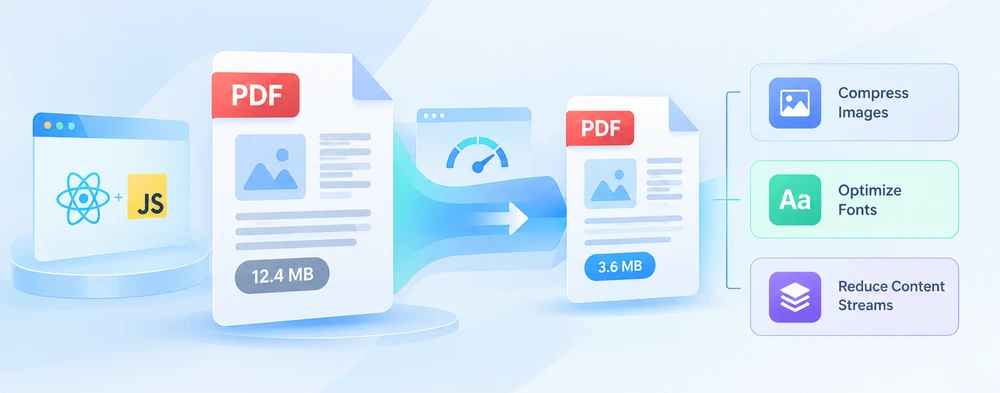
Un PDF est rarement simplement « trop volumineux ». Il est trop volumineux pour une porte précise — une limite de pièce jointe, un formulaire d'envoi, un quota de stockage — et ce qui l'a poussé au-delà de cette limite relève généralement de l'une de trois causes. Compresser sans savoir laquelle revient à deviner, et deviner coûte soit de la qualité, soit un nouvel échec d'envoi.
Spire.PDF for JavaScript vous fournit un compresseur avec une option pour chacun de ces trois endroits. Elles peuvent être appliquées séparément ou ensemble, et les compromis sont suffisamment différents pour qu'il vaille la peine de comprendre chacune avant de décider. Tout s'exécute dans le navigateur via WebAssembly, les fichiers circulant dans un système de fichiers virtuel (VFS), de sorte qu'un document n'a pas besoin d'être téléversé vers un service tiers pour être réduit.
Pour la configuration du projet, consultez Intégrer Spire.PDF for JavaScript dans un projet React. Les exemples ci-dessous supposent que le paquet est installé et que le module WebAssembly a été initialisé.
Ce qui rend réellement un PDF volumineux
La taille d'un fichier PDF provient de trois endroits différents, et ils se comportent de manière totalement dissemblable :
| Où se situe le poids | À quoi cela ressemble | Un indice que c'est la cause |
|---|---|---|
| Images | Des images bitmap incorporées à leur propre résolution — numérisations, photos, captures d'écran exportées | Peu de pages, des dizaines de mégaoctets |
| Polices incorporées | Des programmes de police stockés dans le fichier pour que le texte s'affiche à l'identique partout | Surtout du texte, et pourtant plusieurs mégaoctets |
| Flux de contenu | Les instructions de dessin derrière le texte et les graphiques vectoriels | Le fichier a été modifié ou réenregistré par plusieurs outils différents |
Deux documents de même longueur peuvent différer d'un ordre de grandeur pour cette raison : un contrat numérisé de cinq pages peut peser 20 Mo tandis qu'un rapport textuel de cinquante pages reste sous 1 Mo. C'est pourquoi « combien puis-je compresser ceci ? » n'a pas de réponse unique — un fichier riche en numérisations a beaucoup à rendre, et un document déjà composé principalement de texte et d'art vectoriel est proche de son plancher.
Le diagnostic vient donc en premier. Compresser un document essentiellement textuel avec des paramètres d'image ne fait presque rien, et écraser les images d'un document dont le poids réside en réalité dans ses polices sacrifie de la qualité sans aucun gain.
Les trois leviers de compression
PdfCompressor expose sa stratégie via Options, et chaque groupe de paramètres correspond à l'une des trois sources ci-dessus :
| Option | Ce qu'elle cible | Ce à quoi vous renoncez |
|---|---|---|
ImageCompressionOptions |
Les images bitmap de la page | La fidélité des images — c'est le seul levier avec perte parmi les trois |
TextCompressionOptions |
Les données de police incorporées | Rien, sauf si vous désincorporez les polices, auquel cas la portabilité |
CompressContents |
Les flux de contenu des pages | Pratiquement rien — le contenu est réencodé, non supprimé |
Les trois sections suivantes les abordent une par une afin que l'effet de chacune soit visible isolément. La section qui suit les combine, ce que vous voudrez généralement en production.
Compresser les images
Les images bitmap à haute résolution sont la cause unique la plus fréquente d'un PDF surdimensionné, et c'est aussi là que les gains sont les plus importants. Options.ImageCompressionOptions contrôle la mise à l'échelle et le réencodage via trois propriétés :
| Propriété | Ce qu'elle fait | Quand il vaut la peine de la définir |
|---|---|---|
ResizeImages |
Réduit les images proportionnellement, puis les réencode | Photos ou numérisations capturées bien au-dessus de la résolution à laquelle elles sont affichées |
CompressImage |
Applique un réencodage avec perte aux images | Chaque fois que la qualité d'image a une marge de manœuvre |
ImageQuality |
Sélectionne le niveau de qualité pour ce réencodage | Le réglage final — High conserve plus de détails, Low produit un fichier plus petit |
// Compress images in the document: resize, re-compress, and lower the quality
compressor.Options.ImageCompressionOptions.ResizeImages = true;
compressor.Options.ImageCompressionOptions.CompressImage = true;
compressor.Options.ImageCompressionOptions.ImageQuality = pdfModule.ImageQuality.Low;
ImageQuality ne fait rien à elle seule — elle décrit seulement comment sont encodées les images passant par les deux premières propriétés, donc la définir seule vous rend le même fichier. Et comme c'est le seul levier avec perte, testez d'abord au niveau High si le PDF doit être imprimé plutôt que lu à l'écran.
Polices : compresser ou désincorporer
Pour que le texte s'affiche à l'identique sur des machines qui ne possèdent pas les polices d'origine, un PDF transporte dans le fichier les programmes de police utilisés dans son texte. Ils peuvent être sous-ensembles, mais ils ne sont jamais absents — et plusieurs familles à plusieurs graisses finissent par peser. Options.TextCompressionOptions offre deux manières très différentes de gérer cela :
| Propriété | Ce qu'elle fait | Le piège |
|---|---|---|
CompressFonts |
Compresse les données de police incorporées et laisse les polices en place | Aucun pour le rendu — les glyphes restent dans le fichier |
UnembedFonts |
Supprime les programmes de police et laisse le lecteur substituer des polices système | Substitution de glyphes ou décalages d'espacement partout où ces polices sont absentes |
// Compress font data; UnembedFonts goes further and removes the embedded fonts
compressor.Options.TextCompressionOptions.CompressFonts = true;
compressor.Options.TextCompressionOptions.UnembedFonts = true;
La combinaison ci-dessus est la plus agressive, et elle n'est sûre qu'à une seule condition : que vous sachiez ce qui affichera le document. Un lien de téléchargement ou un e-mail à un destinataire inconnu ne remplit pas cette condition — dans ce cas, gardez les polices incorporées et laissez CompressFonts faire le travail. Ne désincorporez que là où l'ensemble de polices est fixe, comme une visionneuse interne à configuration connue.
Recompresser les flux de contenu
Le texte et les commandes de dessin vectoriel d'une page résident dans des flux de contenu. Ils sont compressés lorsque le PDF est écrit, mais un document qui a été modifié à plusieurs reprises, ou qui est passé entre différents outils, peut y accumuler de la redondance. Options.CompressContents réencode ces flux :
// Re-compress the document content streams
compressor.Options.CompressContents = true;
Pris isolément, c'est le moins spectaculaire des trois — ne comptez pas sur lui pour sauver un document riche en photos. Il gagne sa place dans les documents denses en texte à mise en page complexe, et c'est le levier le plus sûr à laisser activé, puisque réencoder un flux ne change pas ce qu'il dessine.
Les trois en une seule passe
Les trois dimensions ne correspondent pas à trois exécutions distinctes. Vous pointez un seul PdfCompressor vers un fichier, définissez autant d'options que nécessaire, et écrivez le résultat une seule fois avec CompressToFile.
L'exemple ci-dessous active le redimensionnement et la recompression des images au niveau High, la compression des polices avec désincorporation, et la recompression des flux de contenu — sur un document qui contient à la fois des images haute résolution et du corps de texte :
function App() {
  const compressPdfDocument = async () => {
    // Get the Spire.PDF WASM module
    const pdfModule = window.wasmModule?.spirepdf;

    // Check that the module is ready
    if (!pdfModule) {
      alert('Spire.PDF is not ready yet');
      return;
    }

    // Load the PDF to be compressed into the VFS
    const inputFileName = 'ImageDocument.pdf';
    await window.spire.FetchFileToVFS(inputFileName, "", `${process.env.PUBLIC_URL}/data/`);

    // Create a PdfCompressor and point it at the PDF to compress
    let compressor = new pdfModule.PdfCompressor({ filePath: inputFileName });

    // 1. Image compression: resize and re-compress images, with a higher quality tier
    compressor.Options.ImageCompressionOptions.ResizeImages = true;
    compressor.Options.ImageCompressionOptions.CompressImage = true;
    compressor.Options.ImageCompressionOptions.ImageQuality = pdfModule.ImageQuality.High;

    // 2. Font compression: compress font data and remove embedded fonts
    compressor.Options.TextCompressionOptions.CompressFonts = true;
    compressor.Options.TextCompressionOptions.UnembedFonts = true;

    // 3. Content compression: re-compress the document content streams
    compressor.Options.CompressContents = true;

    // Define the output file name and compress to it
    const outputFileName = 'CompressedDocument.pdf';
    compressor.CompressToFile(outputFileName);

    // Read the generated file from the VFS and trigger the download
    const fileArray = window.dotnetRuntime.Module.FS.readFile(outputFileName);
    const blob = new Blob([fileArray], { type: 'application/pdf' });
    const url = URL.createObjectURL(blob);
    const a = document.createElement('a');
    a.href = url;
    a.download = outputFileName;
    a.click();
    URL.revokeObjectURL(url);
  };

  return (
    <div style={{ textAlign: 'center', height: '300px' }}>
      <h1>Compress PDF Document</h1>
      <button onClick={compressPdfDocument}>
        Generate
      </button>
    </div>
  );
}

export default App;
Document PDF compressé en combinant les trois approches
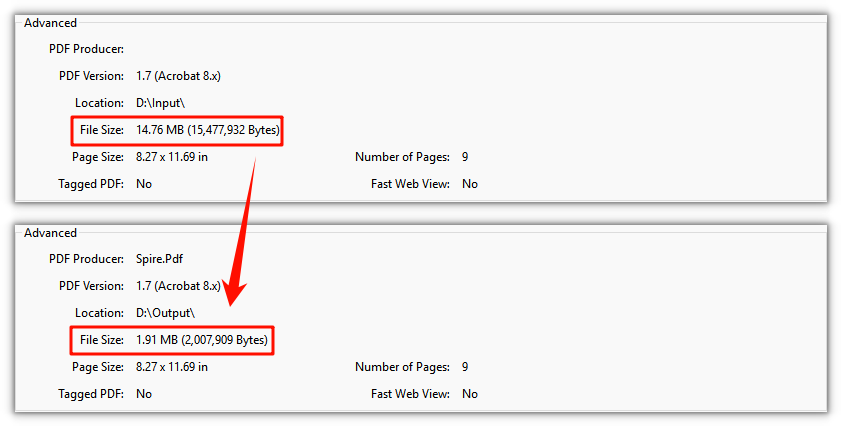
Deux remarques sur la forme de ce code. L'original reste intact dans le VFS — CompressToFile écrit un nouveau document, ce qui laisse le choix entre avant et après. Et comme le compresseur agit sur les ressources du document plutôt que sur des pages rendues, le texte reste du vrai texte : toujours sélectionnable, toujours recherchable. Seules les images sont réencodées.
Vérifier ce qui a changé
Les deux fichiers se trouvent dans le VFS, vous pouvez donc les comparer avant de remettre le résultat à l'utilisateur plutôt que de deviner si les paramètres ont produit un effet :
// Both the original and the compressed copy are in the VFS
const originalBytes = window.dotnetRuntime.Module.FS.readFile(inputFileName).length;
const compressedBytes = window.dotnetRuntime.Module.FS.readFile(outputFileName).length;
Indiquez la différence en pourcentage à côté du téléchargement plutôt que de proposer un simple bouton — cela dit immédiatement à l'utilisateur si le fichier est désormais assez petit pour sa destination. Si les deux nombres sont presque identiques, le poids ne se trouvait pas là où vous compressiez.
Adapter les paramètres au document
| Le document | À activer | À surveiller |
|---|---|---|
| Pages numérisées, photos, captures d'écran | ResizeImages, CompressImage, ImageQuality réglé pour l'écran ou l'impression |
Les détails fins dans une numérisation s'adoucissent en premier — vérifiez en High avant de livrer |
| Surtout du texte et de l'art vectoriel | CompressFonts, CompressContents |
Les gains sont modestes par nature ; ne les poursuivez pas avec des paramètres d'image |
| Contenu mixte | Les trois, en ImageQuality.High |
Le profil généraliste le plus sûr, et généralement le meilleur point de départ |
| Déjà optimisé pour la diffusion | CompressContents uniquement |
Peu à gagner ; un réencodage agressif des images peut coûter de la qualité pour presque rien |
Problèmes courants
Le fichier a à peine diminué, et le PDF ne contient presque aucune image.
La taille provient des polices ou des flux de contenu. Activez TextCompressionOptions — avec UnembedFonts uniquement si l'environnement de visualisation est connu — et ajoutez CompressContents. Les documents denses en texte réagissent à ces deux-là et à rien d'autre.
Le texte s'affiche différemment après la compression.
C'est UnembedFonts qui fait exactement ce qu'il annonce. Remettez-le à false et gardez CompressFonts = true ; les données de police restent compressées, mais les glyphes demeurent dans le fichier.
Les images paraissent floues ou pixelisées dans le résultat.
Soit le niveau ImageQuality est trop bas, soit ResizeImages a réduit une image qui avait besoin de sa résolution pour l'impression. Pour tout ce qui sera imprimé, commencez à High.
Le fichier compressé a la même taille que l'original. Certains documents sont déjà optimisés et n'ont plus rien d'utile à rendre. Vérifiez avec la comparaison d'octets ci-dessus plutôt que de supposer que les paramètres ont échoué.
Rien ne se passe au premier clic.
Le module WebAssembly se charge de manière asynchrone. C'est à cela que sert la garde if (!pdfModule) return; — dans une véritable application, désactivez le bouton jusqu'à ce que le module signale qu'il est prêt au lieu d'afficher une alerte.
FAQ
Vers quel levier dois-je me tourner en premier ?
Les images, en supposant qu'elles soient le coupable — mais confirmez-le. Si le document est riche en texte et disproportionné par rapport à son nombre de pages, commencez par les polices et les flux de contenu et laissez les paramètres d'image de côté.
Compresser un PDF rend-il son texte illisible ou non sélectionnable ?
Non, et c'est là qu'un compresseur basé sur une API diffère des outils en ligne qui transforment chaque page en JPEG. Le texte reste du texte, l'art vectoriel reste vectoriel, et seules les images bitmap sont touchées — la copie compressée reste donc sélectionnable, recherchable et imprimable.
Puis-je compresser seulement une partie d'un document ?
Le compresseur agit sur le document dans son ensemble. Si vous avez besoin de réduire une partie d'un fichier et d'en laisser une autre intacte, fractionnez d'abord le document, compressez la partie qui en a besoin, puis fusionnez à nouveau.
Puis-je conserver l'original et proposer la copie compressée comme choix ?
Oui. CompressToFile écrit vers un nouveau nom de fichier et laisse l'entrée dans le VFS, les deux versions sont donc disponibles dans la même session — utile lorsque l'utilisateur décide de la quantité de qualité à échanger.
Cela nécessite-t-il un serveur, ou est-ce entièrement exécutable dans le navigateur ?
Entièrement. Le moteur PDF est compilé en WebAssembly et les fichiers circulent dans le VFS, le document ne quitte donc jamais l'appareil. Cela importe surtout pour précisément les documents que les gens veulent habituellement réduire — contrats, relevés, dossiers.
Voir aussi
Reducir el tamaño de archivo PDF: Imágenes, fuentes y flujos de contenido en JavaScript (React)
Tabla de contenido
- Qué es lo que realmente hace grande a un PDF
- Las tres palancas de compresión
- Comprimir las imágenes
- Fuentes: comprimir o desincrustar
- Volver a comprimir los flujos de contenido
- Las tres en una sola pasada
- Comprobar qué ha cambiado
- Ajustar la configuración al documento
- Problemas comunes
- Preguntas frecuentes
- Véase también
Un PDF rara vez es simplemente "demasiado grande". Es demasiado grande para una puerta concreta —un límite de adjuntos de correo, un formulario de carga, una cuota de almacenamiento— y lo que lo empujó más allá de ese límite suele ser una de tres cosas. Comprimir sin saber cuál de ellas es significa adivinar, y adivinar cuesta o calidad o otra carga fallida.
Spire.PDF for JavaScript le ofrece un compresor con una opción para cada uno de esos tres lugares. Se pueden aplicar por separado o juntos, y las contrapartidas son lo bastante distintas como para que merezca la pena entender cada una antes de decidir. Todo se ejecuta en el navegador sobre WebAssembly, con los archivos moviéndose a través de un sistema de archivos virtual (VFS), de modo que un documento no tiene que subirse a un servicio de terceros para reducir su tamaño.
Para la configuración del proyecto, consulte Integrating Spire.PDF for JavaScript in a React Project. Los ejemplos siguientes asumen que el paquete está instalado y que el módulo WebAssembly se ha inicializado.
Qué es lo que realmente hace grande a un PDF
El tamaño de archivo de un PDF proviene de tres lugares distintos, y no se comportan en absoluto igual:
| Dónde está el peso | Cómo se ve | Una pista de que es la causa |
|---|---|---|
| Imágenes | Mapas de bits incrustados a su propia resolución: escaneos, fotos, capturas de pantalla exportadas | Pocas páginas, decenas de megabytes |
| Fuentes incrustadas | Programas de fuentes almacenados dentro del archivo para que el texto se represente igual en cualquier lugar | Mayormente texto, y aun así varios megabytes |
| Flujos de contenido | Las instrucciones de dibujo que hay detrás del texto y los gráficos vectoriales | El archivo ha sido editado o vuelto a guardar por varias herramientas distintas |
Dos documentos de la misma longitud pueden diferir en un orden de magnitud por este motivo: un contrato escaneado de cinco páginas puede pesar 20 MB mientras que un informe de texto de cincuenta páginas no llega a 1 MB. Por eso "¿cuánto puedo comprimir esto?" no tiene una única respuesta: un archivo con muchos escaneos tiene mucho que devolver, y un documento que ya es mayormente texto y arte vectorial está cerca de su mínimo.
Así que el diagnóstico es lo primero. Comprimir un documento con mucho texto con ajustes de imagen no hace casi nada, y aplastar las imágenes de un documento cuyo peso está en realidad en sus fuentes desperdicia calidad sin ninguna ganancia.
Las tres palancas de compresión
PdfCompressor expone su estrategia a través de Options, y cada grupo de ajustes corresponde a una de las tres fuentes anteriores:
| Opción | A qué apunta | A qué renuncia |
|---|---|---|
ImageCompressionOptions |
Los mapas de bits de la página | Fidelidad de la imagen: es la única palanca con pérdida de las tres |
TextCompressionOptions |
Los datos de fuentes incrustadas | Nada, salvo que desincruste las fuentes, en cuyo caso la portabilidad |
CompressContents |
Los flujos de contenido de las páginas | Prácticamente nada: el contenido se recodifica, no se descarta |
Las tres secciones siguientes las abordan una a una para que el efecto de cada una sea visible por sí solo. La sección posterior las combina, que es lo que normalmente querrá en producción.
Comprimir las imágenes
Los mapas de bits de alta resolución son la causa individual más común de un PDF sobredimensionado, y también donde están las mayores ganancias. Options.ImageCompressionOptions controla el escalado y la recodificación mediante tres propiedades:
| Propiedad | Qué hace | Cuándo merece la pena configurarla |
|---|---|---|
ResizeImages |
Escala las imágenes hacia abajo proporcionalmente y luego las recodifica | Fotos o escaneos capturados muy por encima de la resolución a la que se muestran |
CompressImage |
Aplica una recodificación con pérdida a las imágenes | Siempre que la calidad de imagen tenga algún margen que ceder |
ImageQuality |
Selecciona el nivel de calidad para esa recodificación | El ajuste final: High conserva más detalle, Low produce un archivo más pequeño |
// Compress images in the document: resize, re-compress, and lower the quality
compressor.Options.ImageCompressionOptions.ResizeImages = true;
compressor.Options.ImageCompressionOptions.CompressImage = true;
compressor.Options.ImageCompressionOptions.ImageQuality = pdfModule.ImageQuality.Low;
ImageQuality no hace nada por sí sola: solo describe cómo se codifican las imágenes que pasan por las dos primeras propiedades, así que configurarla sola le devuelve el mismo archivo. Y como es la única palanca con pérdida, pruebe primero con el nivel High si el PDF se va a imprimir en lugar de leerse en pantalla.
Fuentes: comprimir o desincrustar
Para que el texto se represente de forma idéntica en máquinas que no tienen las tipografías originales, un PDF lleva dentro del archivo los programas de fuentes usados en su texto. Puede que estén subconjuntados, pero ausentes no están, y varias familias con varios pesos suman. Options.TextCompressionOptions ofrece dos maneras muy distintas de gestionarlo:
| Propiedad | Qué hace | El inconveniente |
|---|---|---|
CompressFonts |
Comprime los datos de fuentes incrustadas y deja las fuentes en su sitio | Ninguno para la representación: los glifos permanecen en el archivo |
UnembedFonts |
Elimina los programas de fuentes y deja que el lector sustituya por fuentes del sistema | Sustitución de glifos o desplazamientos de espaciado allí donde falten esas fuentes |
// Compress font data; UnembedFonts goes further and removes the embedded fonts
compressor.Options.TextCompressionOptions.CompressFonts = true;
compressor.Options.TextCompressionOptions.UnembedFonts = true;
La combinación anterior es la agresiva, y es segura bajo una única condición: que sepa qué va a representar el documento. Un enlace de descarga o un correo a un destinatario desconocido no es esa condición; en ese caso, mantenga las fuentes incrustadas y deje que CompressFonts haga el trabajo. Desincruste solo donde el conjunto de fuentes sea fijo, como un visor interno con una configuración conocida.
Volver a comprimir los flujos de contenido
El texto y los comandos de dibujo vectorial de una página viven en flujos de contenido. Se comprimen cuando se escribe el PDF, pero un documento que se ha editado repetidamente, o que ha pasado entre herramientas distintas, puede acumular redundancia en ellos. Options.CompressContents recodifica esos flujos:
// Re-compress the document content streams
compressor.Options.CompressContents = true;
Por sí sola, esta es la menos espectacular de las tres: no espere que rescate un documento cargado de fotos. Se gana su lugar en documentos densos en texto con diseños complejos, y es la palanca más segura de dejar activada, ya que recodificar un flujo no cambia lo que dibuja.
Las tres en una sola pasada
Las tres dimensiones no son tres ejecuciones separadas. Usted apunta un único PdfCompressor a un archivo, configura tantas opciones como necesite y escribe el resultado una sola vez con CompressToFile.
El ejemplo siguiente activa el redimensionado y la recompresión de imágenes con el nivel High, la compresión de fuentes con desincrustación y la recompresión de los flujos de contenido, sobre un documento que contiene tanto imágenes de alta resolución como texto de cuerpo:
function App() {
  const compressPdfDocument = async () => {
    // Get the Spire.PDF WASM module
    const pdfModule = window.wasmModule?.spirepdf;

    // Check that the module is ready
    if (!pdfModule) {
      alert('Spire.PDF is not ready yet');
      return;
    }

    // Load the PDF to be compressed into the VFS
    const inputFileName = 'ImageDocument.pdf';
    await window.spire.FetchFileToVFS(inputFileName, "", `${process.env.PUBLIC_URL}/data/`);

    // Create a PdfCompressor and point it at the PDF to compress
    let compressor = new pdfModule.PdfCompressor({ filePath: inputFileName });

    // 1. Image compression: resize and re-compress images, with a higher quality tier
    compressor.Options.ImageCompressionOptions.ResizeImages = true;
    compressor.Options.ImageCompressionOptions.CompressImage = true;
    compressor.Options.ImageCompressionOptions.ImageQuality = pdfModule.ImageQuality.High;

    // 2. Font compression: compress font data and remove embedded fonts
    compressor.Options.TextCompressionOptions.CompressFonts = true;
    compressor.Options.TextCompressionOptions.UnembedFonts = true;

    // 3. Content compression: re-compress the document content streams
    compressor.Options.CompressContents = true;

    // Define the output file name and compress to it
    const outputFileName = 'CompressedDocument.pdf';
    compressor.CompressToFile(outputFileName);

    // Read the generated file from the VFS and trigger the download
    const fileArray = window.dotnetRuntime.Module.FS.readFile(outputFileName);
    const blob = new Blob([fileArray], { type: 'application/pdf' });
    const url = URL.createObjectURL(blob);
    const a = document.createElement('a');
    a.href = url;
    a.download = outputFileName;
    a.click();
    URL.revokeObjectURL(url);
  };

  return (
    <div style={{ textAlign: 'center', height: '300px' }}>
      <h1>Compress PDF Document</h1>
      <button onClick={compressPdfDocument}>
        Generate
      </button>
    </div>
  );
}

export default App;
Documento PDF comprimido combinando los tres enfoques
Dos cosas sobre la forma de este código. El original permanece intacto en el VFS: CompressToFile escribe un documento nuevo, así que se dispone de la opción de comparar antes y después. Y como el compresor trabaja sobre los recursos del documento y no sobre páginas representadas, el texto sigue siendo texto real: todavía seleccionable, todavía buscable. Solo se recodifican las imágenes.
Comprobar qué ha cambiado
Ambos archivos están en el VFS, así que puede compararlos antes de entregar el resultado al usuario en lugar de adivinar si los ajustes hicieron algo:
// Both the original and the compressed copy are in the VFS
const originalBytes = window.dotnetRuntime.Module.FS.readFile(inputFileName).length;
const compressedBytes = window.dotnetRuntime.Module.FS.readFile(outputFileName).length;
Muestre la diferencia como porcentaje junto a la descarga en lugar de ofrecer un simple botón: indica al usuario de inmediato si el archivo ahora es lo bastante pequeño para el destino al que va. Si los dos números son casi idénticos, el peso no estaba donde usted estaba comprimiendo.
Ajustar la configuración al documento
| El documento | Activar | Atención a |
|---|---|---|
| Páginas escaneadas, fotos, capturas de pantalla | ResizeImages, CompressImage, ImageQuality ajustados para pantalla o impresión |
El detalle fino dentro de un escaneo se suaviza primero: compruébelo en High antes de publicarlo |
| Mayormente texto y arte vectorial | CompressFonts, CompressContents |
Las ganancias son modestas por naturaleza; no las persiga con ajustes de imagen |
| Contenido mixto | Las tres, con ImageQuality.High |
El perfil general más seguro, y normalmente el mejor punto de partida |
| Ya optimizado para su distribución | Solo CompressContents |
Poco que ganar; una recodificación agresiva de imágenes puede costar calidad a cambio de casi nada |
Problemas comunes
El archivo apenas se redujo y el PDF casi no tiene imágenes.
El tamaño proviene de las fuentes o de los flujos de contenido. Active TextCompressionOptions —con UnembedFonts solo si se conoce el entorno de visualización— y añada CompressContents. Los documentos densos en texto responden a esas dos y a nada más.
El texto se representa de forma distinta después de comprimir.
Eso es UnembedFonts haciendo exactamente lo que dice. Vuelva a ponerlo en false y mantenga CompressFonts = true; los datos de fuentes siguen comprimidos, pero los glifos permanecen en el archivo.
Las imágenes se ven suaves o con bloques en la salida.
O el nivel de ImageQuality es demasiado bajo, o ResizeImages redujo una imagen que necesitaba su resolución para impresión. Para cualquier cosa que se vaya a imprimir, empiece por High.
El archivo comprimido tiene el mismo tamaño que el original. Algunos documentos ya están optimizados y no les queda nada significativo que ceder. Verifíquelo con la comparación de bytes anterior en lugar de suponer que los ajustes fallaron.
No ocurre nada en el primer clic.
El módulo WebAssembly se carga de forma asíncrona. Para eso está la comprobación if (!pdfModule) return;: en una aplicación real, desactive el botón hasta que el módulo indique que está listo en lugar de mostrar una alerta.
Preguntas frecuentes
¿A qué palanca debería recurrir primero?
A las imágenes, suponiendo que sean las culpables, pero confírmelo. Si el documento tiene mucho texto y está desproporcionado respecto a su número de páginas, empiece por las fuentes y los flujos de contenido y no toque los ajustes de imagen.
¿Comprimir un PDF hace que su texto sea ilegible o no se pueda seleccionar?
No, y aquí es donde un compresor basado en API se diferencia de las herramientas en línea que rasterizan cada página a un JPEG. El texto sigue siendo texto, el arte vectorial sigue siendo vectorial y solo se tocan los mapas de bits, así que la copia comprimida sigue siendo seleccionable, buscable e imprimible.
¿Puedo comprimir solo una parte de un documento?
El compresor trabaja sobre el documento en su conjunto. Si necesita reducir una parte de un archivo y dejar otra intacta, divida primero el documento, comprima la pieza que lo necesite y vuelva a combinarlas.
¿Puedo conservar el original y ofrecer la copia comprimida como opción?
Sí. CompressToFile escribe en un nombre de archivo nuevo y deja la entrada en el VFS, de modo que ambas versiones están disponibles en la misma sesión: útil cuando el usuario decide cuánta calidad sacrificar.
¿Esto necesita un servidor o puede ejecutarse enteramente en el navegador?
Enteramente. El motor de PDF está compilado a WebAssembly y los archivos se mueven por el VFS, así que el documento nunca sale del dispositivo. Eso importa sobre todo precisamente en los documentos que la gente suele querer reducir: contratos, extractos, expedientes.
Véase también
PDF-Dateigröße reduzieren: Bilder, Schriftarten & Content-Streams in JavaScript (React)
Inhaltsverzeichnis
Eine PDF ist selten einfach nur „zu groß“. Sie ist zu groß für eine bestimmte Tür – ein Limit für E-Mail-Anhänge, ein Upload-Formular, ein Speicherkontingent – und was auch immer sie über diese Grenze gedrückt hat, ist meist eines von drei Dingen. Zu komprimieren, ohne zu wissen, welches, bedeutet raten, und Raten kostet entweder Qualität oder einen weiteren fehlgeschlagenen Upload.
Spire.PDF for JavaScript bietet Ihnen einen Kompressor mit einer Option für jede dieser drei Stellen. Sie können separat oder zusammen angewendet werden, und die Kompromisse sind unterschiedlich genug, dass es sich lohnt, jeden zu verstehen, bevor Sie sich entscheiden. Alles läuft im Browser auf WebAssembly, wobei Dateien durch ein virtuelles Dateisystem (VFS) wandern, sodass ein Dokument nicht auf einen Drittanbieterdienst hochgeladen werden muss, um verkleinert zu werden.
Zur Projekteinrichtung siehe Integrieren von Spire.PDF for JavaScript in ein React-Projekt. Die folgenden Beispiele gehen davon aus, dass das Paket installiert und das WebAssembly-Modul initialisiert wurde.
Was eine PDF eigentlich groß macht
Die Dateigröße einer PDF stammt aus drei verschiedenen Quellen, und sie verhalten sich völlig unterschiedlich:
| Wo das Gewicht liegt | Wie es aussieht | Ein Hinweis darauf, dass es die Ursache ist |
|---|---|---|
| Bilder | Als Bitmaps mit eigener Auflösung eingebettet – Scans, Fotos, exportierte Screenshots | Wenige Seiten, zig Megabyte |
| Eingebettete Schriftarten | Schriftprogramme, die in der Datei gespeichert sind, damit Text überall identisch dargestellt wird | Überwiegend Text, trotzdem mehrere Megabyte |
| Inhaltsströme | Die Zeichenanweisungen hinter Text und Vektorgrafiken | Die Datei wurde von mehreren verschiedenen Tools bearbeitet oder neu gespeichert |
Zwei Dokumente gleicher Länge können sich dadurch um eine Größenordnung unterscheiden: Ein fünfseitiger gescannter Vertrag kann 20 MB wiegen, während ein fünfzigseitiger Textbericht unter 1 MB bleibt. Deshalb gibt es auf die Frage „Wie stark kann ich das komprimieren?“ keine pauschale Antwort – eine stark gescannte Datei hat viel zurückzugeben, und ein Dokument, das bereits überwiegend aus Text und Vektorgrafik besteht, ist nahe an seiner Untergrenze.
Die Diagnose kommt also zuerst. Ein textlastiges Dokument mit Bildeinstellungen zu komprimieren, bringt fast nichts, und Bilder in einem Dokument zu quetschen, dessen Gewicht tatsächlich in den Schriftarten liegt, verschwendet Qualität ohne Gewinn.
Die drei Kompressionshebel
PdfCompressor legt seine Strategie über Options offen, und jede Einstellungsgruppe entspricht einer der drei oben genannten Quellen:
| Option | Worauf sie abzielt | Was Sie aufgeben |
|---|---|---|
ImageCompressionOptions |
Die Bitmaps auf der Seite | Bildtreue – dies ist der einzige verlustbehaftete Hebel der drei |
TextCompressionOptions |
Die eingebetteten Schriftdaten | Nichts, es sei denn, Sie heben die Einbettung der Schriftarten auf; dann die Portabilität |
CompressContents |
Die Seiteninhaltsströme | Praktisch nichts – der Inhalt wird neu kodiert, nicht verworfen |
Die nächsten drei Abschnitte behandeln sie einzeln, damit die Wirkung jedes Hebels für sich sichtbar wird. Der darauffolgende Abschnitt kombiniert sie, was Sie in der Produktion normalerweise wollen.
Bilder komprimieren
Hochauflösende Bitmaps sind die häufigste einzelne Ursache für eine übergroße PDF, und dort sind auch die größten Einsparungen möglich. Options.ImageCompressionOptions steuert Skalierung und Neukodierung über drei Eigenschaften:
| Eigenschaft | Was sie bewirkt | Wann es sich lohnt, sie festzulegen |
|---|---|---|
ResizeImages |
Skaliert Bilder proportional herunter und kodiert sie anschließend neu | Fotos oder Scans, die weit über der Auflösung aufgenommen wurden, in der sie angezeigt werden |
CompressImage |
Wendet verlustbehaftete Neukodierung auf die Bilder an | Immer wenn bei der Bildqualität noch Spielraum besteht |
ImageQuality |
Wählt die Qualitätsstufe für diese Neukodierung | Der letzte Regler – High behält mehr Details, Low erzeugt eine kleinere Datei |
// Compress images in the document: resize, re-compress, and lower the quality
compressor.Options.ImageCompressionOptions.ResizeImages = true;
compressor.Options.ImageCompressionOptions.CompressImage = true;
compressor.Options.ImageCompressionOptions.ImageQuality = pdfModule.ImageQuality.Low;
ImageQuality bewirkt für sich genommen nichts – es beschreibt nur, wie Bilder kodiert werden, die die ersten beiden Eigenschaften durchlaufen; allein gesetzt erhalten Sie also dieselbe Datei zurück. Und da dies der einzige verlustbehaftete Hebel ist, testen Sie zuerst mit der Stufe High, wenn die PDF gedruckt statt am Bildschirm gelesen wird.
Schriftarten: komprimieren oder Einbettung aufheben
Damit Text auf Rechnern, die die ursprünglichen Schriftarten nicht besitzen, identisch dargestellt wird, führt eine PDF die in ihrem Text verwendeten Schriftprogramme in der Datei mit. Sie mögen als Teilmenge vorliegen, fehlen tun sie nicht – und mehrere Familien in mehreren Schnitten summieren sich. Options.TextCompressionOptions bietet zwei sehr unterschiedliche Wege, damit umzugehen:
| Eigenschaft | Was sie bewirkt | Der Haken |
|---|---|---|
CompressFonts |
Komprimiert die eingebetteten Schriftdaten und lässt die Schriftarten an Ort und Stelle | Keiner für die Darstellung – die Glyphen bleiben in der Datei |
UnembedFonts |
Entfernt die Schriftprogramme und lässt den Reader Systemschriftarten einsetzen | Glyphentausch oder Verschiebungen der Abstände überall dort, wo diese Schriftarten fehlen |
// Compress font data; UnembedFonts goes further and removes the embedded fonts
compressor.Options.TextCompressionOptions.CompressFonts = true;
compressor.Options.TextCompressionOptions.UnembedFonts = true;
Die obige Kombination ist die aggressive Variante und nur unter genau einer Bedingung sicher: dass Sie wissen, womit das Dokument dargestellt wird. Ein Download-Link oder eine E-Mail an einen unbekannten Empfänger ist nicht diese Bedingung – dort behalten Sie die Schriftarten eingebettet und lassen CompressFonts die Arbeit machen. Heben Sie die Einbettung nur dort auf, wo der Schriftartensatz feststeht, etwa bei einem internen Viewer mit bekannter Konfiguration.
Inhaltsströme neu komprimieren
Der Text und die Vektorzeichenbefehle einer Seite liegen in Inhaltsströmen. Sie werden beim Schreiben der PDF komprimiert, aber ein Dokument, das wiederholt bearbeitet oder zwischen verschiedenen Tools weitergereicht wurde, kann Redundanz darin ansammeln. Options.CompressContents kodiert diese Ströme neu:
// Re-compress the document content streams
compressor.Options.CompressContents = true;
Für sich genommen ist dies der unspektakulärste der drei – erwarten Sie nicht, dass er ein fotoheavy Dokument rettet. Er verdient seinen Platz in textdichten Dokumenten mit komplexem Layout, und er ist der sicherste Hebel, den man eingeschaltet lassen kann, da das Neukodieren eines Stroms nicht ändert, was er zeichnet.
Alle drei in einem Durchgang
Die drei Dimensionen sind nicht drei getrennte Durchläufe. Sie richten einen PdfCompressor auf eine Datei, legen so viele Optionen fest, wie Sie benötigen, und schreiben das Ergebnis einmal mit CompressToFile heraus.
Das folgende Beispiel aktiviert Bildskalierung und Neukomprimierung mit der Stufe High, Schriftkomprimierung mit Aufhebung der Einbettung und Neukomprimierung der Inhaltsströme – bei einem Dokument, das sowohl hochauflösende Bilder als auch Fließtext enthält:
function App() {
  const compressPdfDocument = async () => {
    // Get the Spire.PDF WASM module
    const pdfModule = window.wasmModule?.spirepdf;

    // Check that the module is ready
    if (!pdfModule) {
      alert('Spire.PDF is not ready yet');
      return;
    }

    // Load the PDF to be compressed into the VFS
    const inputFileName = 'ImageDocument.pdf';
    await window.spire.FetchFileToVFS(inputFileName, "", `${process.env.PUBLIC_URL}/data/`);

    // Create a PdfCompressor and point it at the PDF to compress
    let compressor = new pdfModule.PdfCompressor({ filePath: inputFileName });

    // 1. Image compression: resize and re-compress images, with a higher quality tier
    compressor.Options.ImageCompressionOptions.ResizeImages = true;
    compressor.Options.ImageCompressionOptions.CompressImage = true;
    compressor.Options.ImageCompressionOptions.ImageQuality = pdfModule.ImageQuality.High;

    // 2. Font compression: compress font data and remove embedded fonts
    compressor.Options.TextCompressionOptions.CompressFonts = true;
    compressor.Options.TextCompressionOptions.UnembedFonts = true;

    // 3. Content compression: re-compress the document content streams
    compressor.Options.CompressContents = true;

    // Define the output file name and compress to it
    const outputFileName = 'CompressedDocument.pdf';
    compressor.CompressToFile(outputFileName);

    // Read the generated file from the VFS and trigger the download
    const fileArray = window.dotnetRuntime.Module.FS.readFile(outputFileName);
    const blob = new Blob([fileArray], { type: 'application/pdf' });
    const url = URL.createObjectURL(blob);
    const a = document.createElement('a');
    a.href = url;
    a.download = outputFileName;
    a.click();
    URL.revokeObjectURL(url);
  };

  return (
    <div style={{ textAlign: 'center', height: '300px' }}>
      <h1>Compress PDF Document</h1>
      <button onClick={compressPdfDocument}>
        Generate
      </button>
    </div>
  );
}

export default App;
PDF-Dokument, komprimiert durch Kombination aller drei Ansätze
Zwei Dinge zur Form dieses Codes. Das Original bleibt unangetastet im VFS – CompressToFile schreibt ein neues Dokument, sodass eine Vorher-Nachher-Wahl möglich ist. Und weil der Kompressor auf den Ressourcen des Dokuments arbeitet und nicht auf gerenderten Seiten, bleibt der Text echter Text: weiterhin auswählbar, weiterhin durchsuchbar. Nur die Bilder werden neu kodiert.
Prüfen, was sich geändert hat
Beide Dateien liegen im VFS, sodass Sie sie vergleichen können, bevor Sie das Ergebnis an den Benutzer übergeben, statt zu raten, ob die Einstellungen etwas bewirkt haben:
// Both the original and the compressed copy are in the VFS
const originalBytes = window.dotnetRuntime.Module.FS.readFile(inputFileName).length;
const compressedBytes = window.dotnetRuntime.Module.FS.readFile(outputFileName).length;
Geben Sie die Differenz als Prozentwert neben dem Download an, statt nur einen bloßen Button anzubieten – das zeigt dem Benutzer sofort, ob die Datei jetzt klein genug für ihren Bestimmungsort ist. Wenn die beiden Zahlen nahezu identisch sind, lag das Gewicht nicht dort, wo Sie komprimiert haben.
Die Einstellungen auf das Dokument abstimmen
| Das Dokument | Aktivieren | Achten Sie auf |
|---|---|---|
| Gescannte Seiten, Fotos, Screenshots | ResizeImages, CompressImage, ImageQuality auf Bildschirm oder Druck abgestimmt |
Feine Details in einem Scan werden zuerst weicher – prüfen Sie es mit High, bevor Sie es ausliefern |
| Überwiegend Text und Vektorgrafik | CompressFonts, CompressContents |
Die Einsparungen sind von Natur aus bescheiden; jagen Sie ihnen nicht mit Bildeinstellungen nach |
| Gemischte Inhalte | Alle drei, mit ImageQuality.High |
Das sicherste Allzweckprofil und normalerweise der beste Ausgangspunkt |
| Bereits für die Verteilung optimiert | Nur CompressContents |
Wenig zu gewinnen; aggressive Bildneukodierung kann Qualität für fast nichts kosten |
Häufige Probleme
Die Datei wurde kaum kleiner, und die PDF hat fast keine Bilder.
Die Größe kommt von den Schriftarten oder den Inhaltsströmen. Aktivieren Sie TextCompressionOptions – mit UnembedFonts nur, wenn die Anzeigeumgebung bekannt ist – und fügen Sie CompressContents hinzu. Textdichte Dokumente reagieren auf diese beiden und auf nichts anderes.
Der Text wird nach dem Komprimieren anders dargestellt.
Das ist UnembedFonts, das genau das tut, was sein Name sagt. Setzen Sie es wieder auf false und behalten Sie CompressFonts = true; die Schriftdaten werden weiterhin komprimiert, aber die Glyphen bleiben in der Datei.
Bilder wirken in der Ausgabe weich oder blockig.
Entweder ist die ImageQuality-Stufe zu niedrig, oder ResizeImages hat ein Bild herunterskaliert, das seine Auflösung für den Druck benötigte. Beginnen Sie bei allem, was gedruckt werden soll, mit High.
Die komprimierte Datei ist genauso groß wie das Original. Manche Dokumente sind bereits optimiert und haben nichts Nennenswertes mehr herzugeben. Verifizieren Sie dies mit dem obigen Byte-Vergleich, statt anzunehmen, dass die Einstellungen fehlgeschlagen sind.
Beim ersten Klick passiert nichts.
Das WebAssembly-Modul lädt asynchron. Dafür ist die Prüfung if (!pdfModule) return; da – deaktivieren Sie in einer echten Anwendung den Button, bis das Modul Bereitschaft meldet, statt einen Alert anzuzeigen.
FAQ
Nach welchem Hebel sollte ich zuerst greifen?
Bilder, vorausgesetzt, sie sind der Übeltäter – aber bestätigen Sie es. Wenn das Dokument textlastig und im Verhältnis zu seiner Seitenzahl unverhältnismäßig groß ist, beginnen Sie mit Schriftarten und Inhaltsströmen und lassen Sie die Bildeinstellungen in Ruhe.
Macht das Komprimieren einer PDF ihren Text unlesbar oder nicht auswählbar?
Nein, und hier unterscheidet sich ein API-basierter Kompressor von Online-Tools, die jede Seite in ein JPEG rastern. Der Text bleibt Text, die Vektorgrafik bleibt Vektorgrafik, und nur die Bitmaps werden angefasst – die komprimierte Kopie ist also weiterhin auswählbar, durchsuchbar und druckbar.
Kann ich nur einen Teil eines Dokuments komprimieren?
Der Kompressor arbeitet mit dem Dokument als Ganzem. Wenn Sie einen Teil einer Datei verkleinert und einen Teil unangetastet lassen möchten, teilen Sie das Dokument zuerst auf, komprimieren Sie den Teil, der es braucht, und führen Sie es wieder zusammen.
Kann ich das Original behalten und die komprimierte Kopie als Auswahl anbieten?
Ja. CompressToFile schreibt in einen neuen Dateinamen und lässt die Eingabe im VFS, sodass beide Versionen in derselben Sitzung verfügbar sind – nützlich, wenn der Benutzer entscheidet, wie viel Qualität er eintauschen möchte.
Braucht dies einen Server, oder kann es vollständig im Browser ausgeführt werden?
Vollständig. Die PDF-Engine ist zu WebAssembly kompiliert und Dateien bewegen sich durch das VFS, sodass das Dokument das Gerät nie verlässt. Das ist gerade für die Dokumente wichtig, die Leute normalerweise verkleinern wollen – Verträge, Abrechnungen, Aufzeichnungen.
Siehe auch
Уменьшение размера PDF: изображения, шрифты и потоки контента в JavaScript (React)
Содержание
PDF редко бывает просто «слишком большим». Он слишком большой для одной конкретной двери — ограничения на вложение в почте, формы загрузки, квоты хранилища — и то, что вытолкнуло его за этот предел, обычно является одной из трёх вещей. Сжимать, не зная, какой именно, — значит гадать, а гадание стоит либо качества, либо ещё одной неудачной загрузки.
Spire.PDF for JavaScript даёт вам компрессор с опцией для каждого из этих трёх мест. Их можно применять по отдельности или вместе, и компромиссы достаточно различны, чтобы стоило понять каждый, прежде чем решать. Всё выполняется в браузере на WebAssembly, а файлы перемещаются через виртуальную файловую систему (VFS), поэтому документ не нужно загружать в сторонний сервис, чтобы уменьшить его размер.
По настройке проекта см. Интеграция Spire.PDF for JavaScript в проект React. Примеры ниже предполагают, что пакет установлен и модуль WebAssembly инициализирован.
Что на самом деле делает PDF большим
Размер файла PDF складывается из трёх разных мест, и ведут они себя совершенно по-разному:
| Где сосредоточен вес | Как это выглядит | Признак, что причина в этом |
|---|---|---|
| Изображения | Растровые изображения, встроенные в собственном разрешении — сканы, фотографии, экспортированные скриншоты | Мало страниц, десятки мегабайт |
| Встроенные шрифты | Шрифтовые программы, хранящиеся внутри файла, чтобы текст одинаково отображался везде | В основном текст, но всё ещё несколько мегабайт |
| Потоки содержимого | Инструкции рисования, стоящие за текстом и векторной графикой | Файл редактировался или пересохранялся несколькими разными инструментами |
Два документа одинаковой длины могут различаться на порядок из-за этого: пятистраничный сканированный договор может весить 20 МБ, тогда как пятидесятистраничный текстовый отчёт укладывается в 1 МБ. Вот почему у вопроса «насколько я могу это сжать?» нет единственного ответа — файл с обилием сканов может многое вернуть, а документ, который уже в основном состоит из текста и векторной графики, близок к своему минимуму.
Поэтому сначала нужна диагностика. Сжатие документа с большим объёмом текста настройками изображений почти ничего не даёт, а сжатие изображений в документе, вес которого на самом деле в шрифтах, тратит качество без выигрыша.
Три рычага сжатия
PdfCompressor предоставляет свою стратегию через Options, и каждая группа настроек соответствует одному из трёх источников выше:
| Параметр | На что нацелен | Чем вы жертвуете |
|---|---|---|
ImageCompressionOptions |
Растровые изображения на странице | Точность изображений — это единственный рычаг с потерями из трёх |
TextCompressionOptions |
Данные встроенных шрифтов | Ничем, если только вы не удаляете встроенные шрифты — тогда переносимостью |
CompressContents |
Потоки содержимого страницы | Практически ничем — содержимое перекодируется, а не отбрасывается |
Следующие три раздела рассматривают их по одному, чтобы эффект каждого был виден отдельно. Раздел после них объединяет их, что обычно и нужно в продакшене.
Сжатие изображений
Растровые изображения с высоким разрешением — самая распространённая единственная причина PDF завышенного размера, и именно там наибольший выигрыш. Options.ImageCompressionOptions управляет масштабированием и перекодированием через три свойства:
| Свойство | Что делает | Когда стоит устанавливать |
|---|---|---|
ResizeImages |
Пропорционально уменьшает изображения, затем перекодирует их | Фотографии или сканы, снятые с разрешением намного выше того, при котором они отображаются |
CompressImage |
Применяет к изображениям перекодирование с потерями | Когда качество изображений вообще можно немного снизить |
ImageQuality |
Выбирает уровень качества для этого перекодирования | Последняя настройка — High сохраняет больше деталей, Low даёт меньший файл |
// Compress images in the document: resize, re-compress, and lower the quality
compressor.Options.ImageCompressionOptions.ResizeImages = true;
compressor.Options.ImageCompressionOptions.CompressImage = true;
compressor.Options.ImageCompressionOptions.ImageQuality = pdfModule.ImageQuality.Low;
ImageQuality сам по себе ничего не делает — он лишь описывает, как кодируются изображения, проходящие через первые два свойства, поэтому установка только его возвращает вам тот же файл. И поскольку это единственный рычаг с потерями, сначала протестируйте на уровне High, если PDF будет печататься, а не читаться на экране.
Шрифты: сжимать или удалять встроенные
Чтобы текст одинаково отображался на машинах, где нет исходных шрифтов, PDF содержит шрифтовые программы, используемые в его тексте, внутри файла. Они могут быть подмножествами, но отсутствующими не являются — а несколько семейств с несколькими начертаниями в сумме дают немало. Options.TextCompressionOptions предлагает два совершенно разных способа справиться с этим:
| Свойство | Что делает | Подвох |
|---|---|---|
CompressFonts |
Сжимает данные встроенных шрифтов и оставляет шрифты на месте | Нет для отображения — глифы остаются в файле |
UnembedFonts |
Удаляет шрифтовые программы и позволяет программе просмотра подставлять системные шрифты | Подмена глифов или смещение интервалов там, где этих шрифтов нет |
// Compress font data; UnembedFonts goes further and removes the embedded fonts
compressor.Options.TextCompressionOptions.CompressFonts = true;
compressor.Options.TextCompressionOptions.UnembedFonts = true;
Комбинация выше — агрессивная, и она безопасна ровно при одном условии: вы знаете, что будет отображать документ. Ссылка для скачивания или письмо неизвестному получателю — это не такое условие; там оставьте шрифты встроенными и дайте CompressFonts сделать работу. Удаляйте встроенные шрифты только там, где набор шрифтов фиксирован, например во внутренней программе просмотра с известной конфигурацией.
Повторное сжатие потоков содержимого
Текст и команды векторной отрисовки на странице находятся в потоках содержимого. Они сжимаются при записи PDF, но документ, который многократно редактировался или передавался между разными инструментами, может накапливать в них избыточность. Options.CompressContents перекодирует эти потоки:
// Re-compress the document content streams
compressor.Options.CompressContents = true;
Сам по себе это наименее впечатляющий из трёх — не ожидайте, что он спасёт документ с обилием фотографий. Он оправдывает себя в насыщенных текстом документах со сложной вёрсткой, и это самый безопасный рычаг, который можно оставить включённым, поскольку перекодирование потока не меняет то, что он рисует.
Все три за один проход
Эти три измерения — не три отдельных запуска. Вы направляете один PdfCompressor на файл, задаёте столько опций, сколько нужно, и записываете результат один раз с помощью CompressToFile.
Пример ниже включает изменение размера и повторное сжатие изображений на уровне High, сжатие шрифтов с удалением встроенных и повторное сжатие потоков содержимого — для документа, содержащего как изображения с высоким разрешением, так и основной текст:
function App() {
  const compressPdfDocument = async () => {
    // Get the Spire.PDF WASM module
    const pdfModule = window.wasmModule?.spirepdf;

    // Check that the module is ready
    if (!pdfModule) {
      alert('Spire.PDF is not ready yet');
      return;
    }

    // Load the PDF to be compressed into the VFS
    const inputFileName = 'ImageDocument.pdf';
    await window.spire.FetchFileToVFS(inputFileName, "", `${process.env.PUBLIC_URL}/data/`);

    // Create a PdfCompressor and point it at the PDF to compress
    let compressor = new pdfModule.PdfCompressor({ filePath: inputFileName });

    // 1. Image compression: resize and re-compress images, with a higher quality tier
    compressor.Options.ImageCompressionOptions.ResizeImages = true;
    compressor.Options.ImageCompressionOptions.CompressImage = true;
    compressor.Options.ImageCompressionOptions.ImageQuality = pdfModule.ImageQuality.High;

    // 2. Font compression: compress font data and remove embedded fonts
    compressor.Options.TextCompressionOptions.CompressFonts = true;
    compressor.Options.TextCompressionOptions.UnembedFonts = true;

    // 3. Content compression: re-compress the document content streams
    compressor.Options.CompressContents = true;

    // Define the output file name and compress to it
    const outputFileName = 'CompressedDocument.pdf';
    compressor.CompressToFile(outputFileName);

    // Read the generated file from the VFS and trigger the download
    const fileArray = window.dotnetRuntime.Module.FS.readFile(outputFileName);
    const blob = new Blob([fileArray], { type: 'application/pdf' });
    const url = URL.createObjectURL(blob);
    const a = document.createElement('a');
    a.href = url;
    a.download = outputFileName;
    a.click();
    URL.revokeObjectURL(url);
  };

  return (
    <div style={{ textAlign: 'center', height: '300px' }}>
      <h1>Compress PDF Document</h1>
      <button onClick={compressPdfDocument}>
        Generate
      </button>
    </div>
  );
}

export default App;
PDF-документ, сжатый сочетанием всех трёх подходов
Два замечания о форме этого кода. Оригинал остаётся в VFS нетронутым — CompressToFile записывает новый документ, поэтому доступен выбор до и после. И поскольку компрессор работает с ресурсами документа, а не с отрендеренными страницами, текст остаётся настоящим текстом: всё ещё выделяемым, всё ещё доступным для поиска. Перекодируются только изображения.
Проверка изменений
Оба файла находятся в VFS, поэтому вы можете сравнить их, прежде чем отдавать результат пользователю, вместо того чтобы гадать, дали ли настройки какой-либо эффект:
// Both the original and the compressed copy are in the VFS
const originalBytes = window.dotnetRuntime.Module.FS.readFile(inputFileName).length;
const compressedBytes = window.dotnetRuntime.Module.FS.readFile(outputFileName).length;
Сообщайте разницу в процентах рядом с загрузкой, а не предлагайте голую кнопку — это сразу говорит пользователю, достаточно ли файл мал для того места, куда он направляется. Если два числа почти одинаковы, вес был не там, где вы сжимали.
Подбор настроек под документ
| Документ | Включить | На что обратить внимание |
|---|---|---|
| Сканированные страницы, фотографии, скриншоты | ResizeImages, CompressImage, ImageQuality, настроенные под экран или печать |
Мелкие детали внутри скана размываются первыми — проверьте на High перед публикацией |
| В основном текст и векторная графика | CompressFonts, CompressContents |
Выигрыш по своей природе скромный; не гонитесь за ним с помощью настроек изображений |
| Смешанное содержимое | Все три, при ImageQuality.High |
Самый безопасный универсальный профиль, и обычно лучшее место для начала |
| Уже оптимизирован для распространения | Только CompressContents |
Мало что можно выиграть; агрессивное перекодирование изображений может стоить качества почти ни за что |
Частые проблемы
Файл почти не уменьшился, а в PDF почти нет изображений.
Размер идёт из шрифтов или потоков содержимого. Включите TextCompressionOptions — с UnembedFonts только если среда просмотра известна — и добавьте CompressContents. Насыщенные текстом документы реагируют на эти две настройки и ни на что другое.
Текст отображается иначе после сжатия.
Это UnembedFonts делает ровно то, что заявлено. Верните его в false и оставьте CompressFonts = true; данные шрифтов всё равно сжимаются, но глифы остаются в файле.
Изображения выглядят размытыми или блочными в выходном файле.
Либо уровень ImageQuality слишком низкий, либо ResizeImages уменьшил изображение, которому для печати нужно было его разрешение. Для всего, что будет печататься, начинайте с High.
Сжатый файл такого же размера, как оригинал. Некоторые документы уже оптимизированы и не имеют ничего значимого, что можно отдать. Проверьте с помощью сравнения байтов выше, вместо того чтобы предполагать, что настройки не сработали.
Ничего не происходит при первом клике.
Модуль WebAssembly загружается асинхронно. Для этого и нужна проверка if (!pdfModule) return; — в реальном приложении отключайте кнопку, пока модуль не сообщит о готовности, вместо показа предупреждения.
Часто задаваемые вопросы
За какой рычаг взяться первым?
За изображения, если предполагать, что виноваты они — но подтвердите это. Если документ насыщен текстом и непропорционален своему количеству страниц, начните со шрифтов и потоков содержимого и не трогайте настройки изображений.
Делает ли сжатие PDF его текст нечитаемым или невыделяемым?
Нет, и именно здесь компрессор на основе API отличается от онлайн-инструментов, которые растрируют каждую страницу в JPEG. Текст остаётся текстом, векторная графика остаётся векторной, и затрагиваются только растровые изображения — поэтому сжатая копия всё ещё выделяемая, доступная для поиска и пригодная для печати.
Можно ли сжать только часть документа?
Компрессор работает с документом как с целым. Если вам нужно уменьшить часть файла, а часть оставить нетронутой, сначала разделите документ, сожмите нужный фрагмент и снова объедините.
Можно ли сохранить оригинал и предложить сжатую копию на выбор?
Да. CompressToFile записывает в новое имя файла и оставляет входной файл в VFS, поэтому обе версии доступны в одной сессии — это полезно, когда пользователь решает, сколько качества обменять.
Нужен ли для этого сервер, или это может работать полностью в браузере?
Полностью в браузере. PDF-движок скомпилирован в WebAssembly, а файлы перемещаются через VFS, поэтому документ никогда не покидает устройство. Это особенно важно именно для тех документов, которые люди обычно хотят уменьшить — договоров, выписок, записей.
См. также
Reducing PDF File Size: Images, Fonts & Content Streams in JavaScript (React)
Table of Contents
A PDF is rarely just "too big". It is too big for one specific door — a mail attachment cap, an upload form, a storage quota — and whatever pushed it past that limit is usually one of three things. Compressing without knowing which one means guessing, and guessing costs either quality or another failed upload.
Spire.PDF for JavaScript gives you a compressor with an option for each of those three places. They can be applied separately or together, and the trade-offs are different enough that it is worth understanding each before deciding. Everything runs in the browser on WebAssembly, with files moving through a virtual file system (VFS), so a document does not have to be uploaded to a third-party service to be made smaller.
For project setup, see Integrating Spire.PDF for JavaScript in a React Project. The examples below assume the package is installed and the WebAssembly module has been initialized.
What actually makes a PDF large
File size in a PDF comes from three different places, and they behave nothing alike:
| Where the weight sits | What it looks like | A hint that it is the cause |
|---|---|---|
| Images | Bitmaps embedded at their own resolution — scans, photos, exported screenshots | Few pages, tens of megabytes |
| Embedded fonts | Font programs stored inside the file so text renders identically anywhere | Mostly text, still several megabytes |
| Content streams | The drawing instructions behind the text and vector graphics | The file has been edited or re-saved by several different tools |
Two documents of the same length can differ by an order of magnitude because of this: a five-page scanned contract can weigh 20 MB while a fifty-page text report sits under 1 MB. That is why "how much can I compress this?" has no single answer — a scan-heavy file has a lot to give back, and a document that is already mostly text and vector art is close to its floor.
So the diagnosis comes first. Compressing a text-heavy document with image settings does almost nothing, and squashing images in a document whose weight is actually in its fonts wastes quality for no gain.
The three compression levers
PdfCompressor exposes its strategy through Options, and each group of settings maps to one of the three sources above:
| Option | What it targets | What you give up |
|---|---|---|
ImageCompressionOptions |
The bitmaps on the page | Image fidelity — this is the only lossy lever of the three |
TextCompressionOptions |
The embedded font data | Nothing, unless you unembed the fonts, in which case portability |
CompressContents |
The page content streams | Practically nothing — the content is re-encoded, not discarded |
The next three sections take them one at a time so the effect of each is visible on its own. The section after that combines them, which is what you will usually want in production.
Compressing the images
High-resolution bitmaps are the most common single cause of an oversized PDF, and they are also where the biggest gains are. Options.ImageCompressionOptions controls scaling and re-encoding through three properties:
| Property | What it does | When it is worth setting |
|---|---|---|
ResizeImages |
Scales images down proportionally, then re-encodes them | Photos or scans captured far above the resolution they are displayed at |
CompressImage |
Applies lossy re-encoding to the images | Whenever image quality has any room to give |
ImageQuality |
Selects the quality tier for that re-encoding | The final knob — High keeps more detail, Low produces a smaller file |
// Compress images in the document: resize, re-compress, and lower the quality
compressor.Options.ImageCompressionOptions.ResizeImages = true;
compressor.Options.ImageCompressionOptions.CompressImage = true;
compressor.Options.ImageCompressionOptions.ImageQuality = pdfModule.ImageQuality.Low;
ImageQuality does nothing on its own — it only describes how images passing through the first two properties are encoded, so setting it alone gives you the same file back. And since this is the one lossy lever, test at the High tier first if the PDF will be printed rather than read on screen.
Fonts: compress or unembed
To make text render identically on machines that do not have the original typefaces, a PDF carries the font programs used in its text inside the file. Subsetted they may be, absent they are not — and several families at several weights add up. Options.TextCompressionOptions offers two very different ways to deal with that:
| Property | What it does | The catch |
|---|---|---|
CompressFonts |
Compresses the embedded font data and leaves the fonts in place | None for rendering — the glyphs stay in the file |
UnembedFonts |
Removes the font programs and lets the reader substitute system fonts | Glyph substitution or spacing shifts wherever those fonts are missing |
// Compress font data; UnembedFonts goes further and removes the embedded fonts
compressor.Options.TextCompressionOptions.CompressFonts = true;
compressor.Options.TextCompressionOptions.UnembedFonts = true;
The combination above is the aggressive one, and it is safe on exactly one condition: that you know what will render the document. A download link or an email to an unknown recipient is not that condition — there, keep the fonts embedded and let CompressFonts do the work. Unembed only where the font set is fixed, such as an internal viewer with a known configuration.
Re-compressing the content streams
The text and the vector drawing commands on a page live in content streams. They are compressed when the PDF is written, but a document that has been edited repeatedly, or passed between different tools, can accumulate redundancy in them. Options.CompressContents re-encodes those streams:
// Re-compress the document content streams
compressor.Options.CompressContents = true;
On its own this is the least dramatic of the three — do not expect it to rescue a photo-heavy document. It earns its place in text-dense documents with complex layout, and it is the safest lever to leave on, since re-encoding a stream does not change what it draws.
All three in one pass
The three dimensions are not three separate runs. You point one PdfCompressor at a file, set as many options as you need, and write the result out once with CompressToFile.
The example below enables image resizing and re-compression at the High tier, font compression with unembedding, and content stream re-compression — on a document that contains both high-resolution images and body text:
function App() {
  const compressPdfDocument = async () => {
    // Get the Spire.PDF WASM module
    const pdfModule = window.wasmModule?.spirepdf;

    // Check that the module is ready
    if (!pdfModule) {
      alert('Spire.PDF is not ready yet');
      return;
    }

    // Load the PDF to be compressed into the VFS
    const inputFileName = 'ImageDocument.pdf';
    await window.spire.FetchFileToVFS(inputFileName, "", `${process.env.PUBLIC_URL}/data/`);

    // Create a PdfCompressor and point it at the PDF to compress
    let compressor = new pdfModule.PdfCompressor({ filePath: inputFileName });

    // 1. Image compression: resize and re-compress images, with a higher quality tier
    compressor.Options.ImageCompressionOptions.ResizeImages = true;
    compressor.Options.ImageCompressionOptions.CompressImage = true;
    compressor.Options.ImageCompressionOptions.ImageQuality = pdfModule.ImageQuality.High;

    // 2. Font compression: compress font data and remove embedded fonts
    compressor.Options.TextCompressionOptions.CompressFonts = true;
    compressor.Options.TextCompressionOptions.UnembedFonts = true;

    // 3. Content compression: re-compress the document content streams
    compressor.Options.CompressContents = true;

    // Define the output file name and compress to it
    const outputFileName = 'CompressedDocument.pdf';
    compressor.CompressToFile(outputFileName);

    // Read the generated file from the VFS and trigger the download
    const fileArray = window.dotnetRuntime.Module.FS.readFile(outputFileName);
    const blob = new Blob([fileArray], { type: 'application/pdf' });
    const url = URL.createObjectURL(blob);
    const a = document.createElement('a');
    a.href = url;
    a.download = outputFileName;
    a.click();
    URL.revokeObjectURL(url);
  };

  return (
    <div style={{ textAlign: 'center', height: '300px' }}>
      <h1>Compress PDF Document</h1>
      <button onClick={compressPdfDocument}>
        Generate
      </button>
    </div>
  );
}

export default App;
PDF document compressed by combining all three approaches
Two things about the shape of this code. The original stays in the VFS untouched — CompressToFile writes a new document, so a before-and-after choice is available. And because the compressor works on the document's resources rather than on rendered pages, the text stays real text: still selectable, still searchable. Only the images are re-encoded.
Checking what changed
Both files sit in the VFS, so you can compare them before handing the result to the user rather than guessing whether the settings did anything:
// Both the original and the compressed copy are in the VFS
const originalBytes = window.dotnetRuntime.Module.FS.readFile(inputFileName).length;
const compressedBytes = window.dotnetRuntime.Module.FS.readFile(outputFileName).length;
Report the difference as a percentage next to the download rather than offering a bare button — it tells the user immediately whether the file is now small enough for where it is going. If the two numbers are nearly identical, the weight was not where you were compressing.
Matching the settings to the document
| The document | Enable | Watch out for |
|---|---|---|
| Scanned pages, photos, screenshots | ResizeImages, CompressImage, ImageQuality tuned to screen or print |
Fine detail inside a scan softens first — check it at High before shipping |
| Mostly text and vector art | CompressFonts, CompressContents |
Gains are modest by nature; do not chase them with image settings |
| Mixed content | All three, at ImageQuality.High |
The safest general-purpose profile, and usually the best place to start |
| Already optimized for distribution | CompressContents only |
Little to gain; aggressive image re-encoding can cost quality for almost nothing |
Common issues
The file barely shrank, and the PDF has almost no images.
The size is coming from the fonts or the content streams. Turn on TextCompressionOptions — with UnembedFonts only if the viewing environment is known — and add CompressContents. Text-dense documents respond to those two and to nothing else.
The text renders differently after compressing.
That is UnembedFonts doing exactly what it says. Set it back to false and keep CompressFonts = true; the font data is still compressed, but the glyphs stay in the file.
Images look soft or blocky in the output.
Either the ImageQuality tier is too low, or ResizeImages scaled down an image that needed its resolution for print. For anything that will be printed, start at High.
The compressed file is the same size as the original. Some documents are already optimized and have nothing meaningful left to give. Verify with the byte comparison above rather than assuming the settings failed.
Nothing happens on the first click.
The WebAssembly module loads asynchronously. That is what the if (!pdfModule) return; guard is for — in a real application, disable the button until the module reports ready instead of showing an alert.
FAQ
Which lever should I reach for first?
Images, assuming they are the culprit — but confirm it. If the document is text-heavy and out of proportion to its page count, start with fonts and content streams and leave the image settings alone.
Does compressing a PDF make its text unreadable or unselectable?
No, and this is where an API-based compressor differs from online tools that rasterize every page into a JPEG. The text stays text, the vector art stays vector, and only the bitmaps are touched — so the compressed copy is still selectable, searchable and printable.
Can I compress only part of a document?
The compressor works on the document as a whole. If you need part of a file shrunk and part of it untouched, split the document first, compress the piece that needs it, and merge again.
Can I keep the original and offer the compressed copy as a choice?
Yes. CompressToFile writes to a new file name and leaves the input in the VFS, so both versions are available in the same session — useful when the user decides how much quality to trade.
Does this need a server, or can it run entirely in the browser?
Entirely. The PDF engine is compiled to WebAssembly and files move through the VFS, so the document never leaves the device. That matters most for exactly the documents people usually want to shrink — contracts, statements, records.
See Also
Reading and Extracting Excel Formulas in JavaScript (React)
Table of Contents
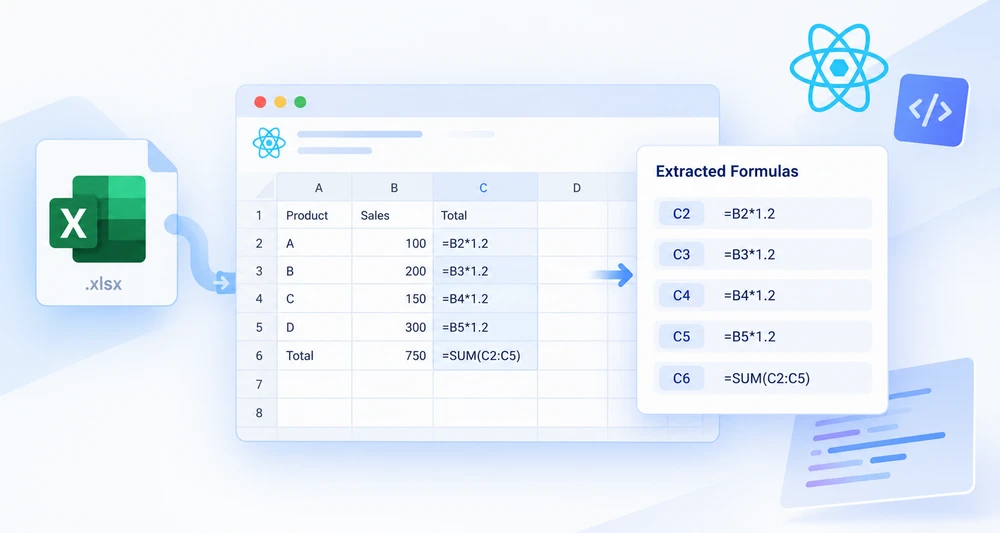
Somebody built this workbook years ago. It recalculates when the data changes, the totals move in ways nobody predicts any more, and there is no documentation — because the formulas are the documentation. Reading the numbers will not tell you how they were produced. Reading the rules will.
Spire.XLS for JavaScript compiles a spreadsheet engine to WebAssembly, so a React app can open an existing .xlsx in the browser, walk its cells, and pull out the rule behind each one. The workbook travels through a virtual file system (VFS), so nothing is uploaded, and no backend is involved.
Two questions get asked of every cell: does it hold a formula, and if so, what does that formula say? The first is a property check. The second is a read. Almost everything in this article follows from keeping those two apart.
For project setup, see Integrating Spire.XLS for JavaScript in a React Project. The examples below assume the package is installed and the WebAssembly module has been initialized.
When you need the formulas, not the numbers
The reason to read rules rather than values is almost always one of these:
- Taking over a model nobody documented. The rules are the only surviving description of what the workbook does.
- Moving calculations out of the spreadsheet. Reimplementing a calculation in application code requires knowing the exact expression, not just its last result.
- Checking consistency. One row quietly using a different rule than the rows around it is invisible in the values and obvious in the formulas.
- Producing a change request. A list of cells and the rules they contain is something a business user can review and correct.
- Verifying a workbook your own code generated. Confirming that what was written is what got stored — see How to Insert Excel Formulas and Functions in JavaScript (React) for the writing side of that pair.
Prerequisites
You need a React project with Spire.XLS for JavaScript installed and the WebAssembly module initialized, reachable at window.wasmModule.spirexls. The workbook you want to inspect should already be in the VFS — loaded from your application's public folder with FetchFileToVFS, or written there as bytes if it arrived from elsewhere.
If the result is going to be formatted — column widths and the like — load a font into the VFS as well, as the example does.
The two questions to ask of every cell
Start by asking the worksheet for the region it actually uses:
// The region the sheet actually uses — not the whole grid
const usedRange = sheet.AllocatedRange;

for (const cell of usedRange.Cells) {
  if (cell.HasFormula) {
    // this cell holds a rule
  }
}
AllocatedRange is the half of that snippet that protects you. Looping over A1:Z1000 on a sheet with twelve used rows spends most of its time on empty cells, and leaves you filtering them out afterwards. Asking the sheet for its allocated region keeps the loop proportional to the content, which matters as soon as the workbook is real.
Then HasFormula decides what is worth reading. It is a plain boolean, and it answers exactly one question — whether the cell holds a formula — which turns out to be a narrower question than it sounds.
A complete example
The component below loads an existing workbook, walks its used range, and writes every formula it finds into a fresh sheet as a readable line — the cell address and the rule stored in it:
function App() {
  const readFormulasAndFunctions = async () => {
    // Get the Spire.XLS WASM module
    const xlsModule = window.wasmModule?.spirexls;

    // Check whether the module is ready
    if (!xlsModule) {
      alert('Spire.Xls is not ready yet');
      return;
    }

    // Load the font and Excel file into the VFS
    await window.spire.FetchFileToVFS('ARIAL.TTF', '/Library/Fonts/', `${process.env.PUBLIC_URL}/font/`);
    const inputFileName = 'FormulasAndFunctions.xlsx';
    await window.spire.FetchFileToVFS(inputFileName, '', `${process.env.PUBLIC_URL}data/`);

    // Create a Workbook object
    const workbook = new xlsModule.Workbook();

    // Load the Excel workbook
    workbook.LoadFromFile({ fileName: inputFileName });

    // Get the first worksheet
    const sheet = workbook.Worksheets.get(0);

    // Get the used cell range of the worksheet
    const usedRange = sheet.AllocatedRange;

    // Create an output workbook
    const output = new xlsModule.Workbook();
    const outSheet = output.Worksheets.get(0);
    let outRow = 1;

    // Loop through the used cells
    for (const cell of usedRange.Cells) {
      // Check whether the cell contains a formula or function
      if (cell.HasFormula) {
        // Get the cell name
        const cellname = cell.RangeAddressLocal;

        // Get the formula or function in the cell
        const formula = cell.Formula;

        // Write the cell name and formula that were read
        outSheet.Range.get({ row: outRow, column: 1 }).Value = "Cell " + cellname + " contains: " + formula;
        outRow += 1;
      }
    }

    // Set the output column width so the text displays completely
    outSheet.SetColumnWidth(1, 45);

    // Save the output workbook
    const outputFileName = 'ReadFormulasAndFunctions_output.xlsx';
    output.SaveToFile({ fileName: outputFileName, version: xlsModule.ExcelVersion.Version2010 });

    // Release resources
    output.Dispose();

    // Read the converted file from the VFS and trigger a download
    const fileArray = window.dotnetRuntime.Module.FS.readFile(outputFileName);
    const blob = new Blob([fileArray], { type: 'application/vnd.openxmlformats-officedocument.spreadsheetml.sheet' });
    const url = URL.createObjectURL(blob);
    const a = document.createElement('a');
    a.href = url;
    a.download = outputFileName;
    a.click();
    URL.revokeObjectURL(url);
  };

  return (
    <div style={{ textAlign: 'center', height: '300px' }}>
      <h1>Read Formulas and Functions</h1>
      <button onClick={readFormulasAndFunctions}>
        Start
      </button>
    </div>
  );
}

export default App;
Read formulas and function results from Excel worksheets
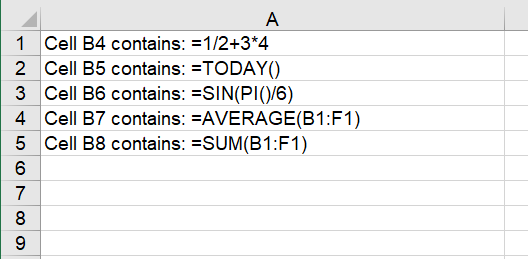
Note what the code does with the source workbook: it reads it and nothing else. A second Workbook is created for the output, so the file being inspected is never modified. That matters when you are examining someone else's document — the inspection should be non-destructive by construction, not by remembering not to save.
Formula or value
Here is where the narrow reading of HasFormula pays off, because the properties you can read from a cell do not all return the same thing:
| Property | What you get | Reach for it when |
|---|---|---|
HasFormula |
Whether the cell holds a formula | Screening a range before reading anything |
Formula |
The formula string as stored — =SUM(B1:F1) |
You need the rule |
FormulaNumberValue |
The numeric result of evaluating that formula | You need the number the rule produced |
NumberValue |
The number held in a data cell | The cell is data rather than a rule |
Text |
The text as written into the cell | You want the display string |
The pair that causes the most confusion is Formula versus FormulaNumberValue: the same cell, two completely different answers. One is the rule; the other is what the rule produced. Ask for the wrong one and you will get a technically valid value that is not the thing you were looking for — a formula audit that returns numbers, or a value extraction that returns formulas.
Assembling a formula inventory
The example writes each hit into a second workbook and downloads it. That is the right shape when the inventory is itself a document — something to hand to a reviewer or attach to a ticket.
When the inventory is for the screen instead, collect the same data first and decide how to present it afterwards:
// Collect first, then decide how to present it
const inventory = [];
for (const cell of usedRange.Cells) {
  if (cell.HasFormula) {
    inventory.push({ cell: cell.RangeAddressLocal, formula: cell.Formula });
  }
}
RangeAddressLocal is what makes the result usable. It returns the address in the sheet's own notation — the name a person would use when discussing the cell — rather than a row-and-column pair, which is technically equivalent and practically unreadable. An entry that says B7 can be acted on; an entry that says row 7, column 2 has to be translated first.
More than one worksheet
The loop above covers one sheet. A workbook-level inventory means repeating it for each worksheet in turn, fetching each one the same way the first is fetched, with Workbook.Worksheets.get(i) taking the index.
Two details are worth getting right before you scale it up. Record which worksheet each entry came from, because B7 on two sheets is two different cells and a list that does not distinguish them is ambiguous at exactly the moment it matters. And keep the output column wide enough — the addresses and rule strings are long, and a truncated inventory is worse than a narrow one.
Why a formula cell can go undetected
A cell that displays =SUM(B1:F1) is not necessarily holding a formula. If it was written through Text or Value instead of Formula, or typed into a cell that was already formatted as text, then the characters are stored as a string. The sheet shows a formula; the cell contains a label.
HasFormula reports this correctly as false, and a scan expecting to find that cell comes up empty. This is the trap in this workflow because it does not look like a failure: the workbook visibly contains formulas, the code runs without error, and the inventory is short by however many cells were typed in as text.
When a formula appears to be missing from an inventory, check how it was written before checking the reading code. If the workbook is generated by your own application, this is the same property distinction that inserting formulas covers from the writing end.
Common issues
The scan finds nothing, but the sheet is full of formulas.
They are stored as text. See the section above — HasFormula only reports real formulas.
The result is a number when I wanted the formula, or the reverse.
You read the wrong property. Formula gives the rule, FormulaNumberValue gives the computed number.
The loop is slow or produces hundreds of empty entries.
It is walking a fixed rectangular range instead of the sheet's allocated region. Use AllocatedRange as the source of the iteration.
Cells from a second sheet are missing. The loop runs on one worksheet. Repeat it for each worksheet, and keep the sheet alongside each entry.
The source workbook changed after running.
It should not have — the example reads one workbook and writes to another. Check that the output is being saved to a different Workbook object, as in the code above.
FAQ
Do I need Excel installed to read formulas from a workbook?
No. The engine is bundled with the package and runs as WebAssembly inside the browser. The original spreadsheet application is not involved at any point.
Can I read the calculated value instead of the formula?
Yes. Read FormulaNumberValue rather than Formula from the same cell. Use HasFormula first so you only ask that question of cells where it means something.
Does reading a workbook modify it?
Reading does not. The example opens the input, creates a separate output workbook for the results, and saves only that — so the file being inspected is left as it was.
Which Excel formats can I read?
Both the legacy .xls format and modern .xlsx files are supported by the same API, so a workbook does not need converting before it can be inspected.
Does this work for workbooks stored on a server?
Yes, if you can get the bytes into the browser. Write them into the VFS and load from there — the reading itself is entirely client-side, and the workbook is only uploaded if your own application chooses to upload it.
See Also
How to Insert Excel Formulas and Functions in JavaScript (React)
Table of Contents
A generated spreadsheet full of pre-computed numbers is a snapshot. It looks right the moment it is produced and starts aging immediately: the data behind it moves on, the numbers inside it do not, and once the file has left your application nobody can tell which cells they are allowed to change. A workbook that carries its formulas instead stays a live document — edit an input, and the totals follow.
Spire.XLS for JavaScript is a spreadsheet engine compiled to WebAssembly, so a React app can build workbooks in the browser without a server. Files are read and written through a virtual file system (VFS), and formulas are written the same way values are: through a cell's Range object. Only the property name changes.
That last point is the whole trick. The interesting question is not how to write a formula but which of the four available properties to write it with, because three of them will quietly store your formula as plain text.
For project setup, see Integrating Spire.XLS for JavaScript in a React Project. The examples below assume the package is installed and the WebAssembly module has been initialized.
Why generated workbooks should carry formulas
Generating a file with the answers already filled in is easier to write and worse to receive. The cases where it actually breaks:
- Templates with placeholders. The recipient is expected to replace the inputs. If the totals are hard-coded, replacing an input leaves the totals wrong and nothing warns them.
- Models handed to an analyst. They will want to test a different assumption. A sheet that cannot be re-derived is a sheet they have to rebuild.
- Reports that must be traceable. A number with no visible rule behind it cannot be checked. A formula can be.
- Worksheets that feed other worksheets. Other cells reference these; if the value never recalculates, everything downstream inherits the staleness.
In all four, the formula is the point of the file. The values are a by-product.
Prerequisites
You need a React project with Spire.XLS for JavaScript installed and the WebAssembly module initialized, reachable at window.wasmModule.spirexls. The sample below also loads a font into the VFS before formatting any text, and saves with the Excel 2010 version flag so the output opens cleanly in current Excel and in older versions alike.
Choosing the property that writes a formula
Every cell you write to is a Range object, and it exposes four properties that accept something. They are not interchangeable:
| Property | What you hand it | What the cell ends up holding |
|---|---|---|
Value |
Text or a value, with the type inferred | The value, as data |
NumberValue |
A number | A number — data, not a rule |
Text |
A display string | A literal string, never evaluated |
Formula |
A formula string beginning with = |
The rule itself, which the engine evaluates |
Text is the one to be careful with, and it is worth understanding why before the code below. Assign =SUM(B1:F1) to Text and the cell stores those characters — it will display the formula forever, because nothing is ever going to evaluate it.
That behaviour is not a defect. It is exactly what the sample uses deliberately, so that each row can show the formula on the left and its result on the right: the left cell uses Text because it is meant to display the rule, and the right cell uses Formula because it is meant to apply it.
Writing formulas into cells
The flow is short:
- Create a
Workbookobject. - Get a worksheet with the
Workbook.Worksheets.get()method. - Write the input data into cells and set the cell formatting.
- Assign formulas to the cells that should calculate, through the
Range.Formulaproperty. - Save the workbook with
Workbook.SaveToFile().
The example builds a small sheet with a row of input numbers, then writes five formulas beneath it — an arithmetic expression, a date function, a trigonometric function, an average, and a sum:
function App() {
  const insertFormulasAndFunctions = async () => {
    // Get the Spire.XLS WASM module
    const xlsModule = window.wasmModule?.spirexls;

    // Check whether the module is ready
    if (!xlsModule) {
      alert('Spire.Xls is not ready yet');
      return;
    }

    // Load the font into the VFS
    await window.spire.FetchFileToVFS('ARIAL.TTF', '/Library/Fonts/', `${process.env.PUBLIC_URL}/font/`);

    // Create a Workbook object
    const workbook = new xlsModule.Workbook();

    // Get the first worksheet
    const sheet = workbook.Worksheets.get(0);

    // Declare two variables: currentRow and currentFormula
    let currentRow = 1;
    let currentFormula = "";

    // Set the column width
    sheet.SetColumnWidth(1, 32);
    sheet.SetColumnWidth(2, 16);

    // Write data into cells
    sheet.Range.get({ row: currentRow, column: 1 }).Value = "Test Data";
    sheet.Range.get({ row: currentRow, column: 2 }).NumberValue = 1;
    sheet.Range.get({ row: currentRow, column: 3 }).NumberValue = 2;
    sheet.Range.get({ row: currentRow, column: 4 }).NumberValue = 3;
    sheet.Range.get({ row: currentRow, column: 5 }).NumberValue = 4;
    sheet.Range.get({ row: currentRow, column: 6 }).NumberValue = 5;
    currentRow += 2;
    sheet.Range.get({ row: currentRow, column: 1 }).Value = "Formula or Function";
    sheet.Range.get({ row: currentRow, column: 2 }).Value = "Result";

    // Set the cell formatting
    let range = sheet.Range.get({ row: currentRow, column: 1, lastRow: currentRow, lastColumn: 2 });
    range.Style.Font.FontName = "Arial";
    range.Style.KnownColor = xlsModule.ExcelColors.LightGreen;
    range.Style.FillPattern = xlsModule.ExcelPatternType.Solid;
    range.Style.Borders.get(xlsModule.BordersLineType.EdgeBottom).LineStyle = xlsModule.LineStyleType.Medium;
    range.Style.Font.IsBold = true;

    // Mathematical operation
    currentFormula = "=1/2+3*4";
    currentRow += 1;
    sheet.Range.get({ row: currentRow, column: 1 }).NumberFormat = "@";
    sheet.Range.get({ row: currentRow, column: 1 }).Text = currentFormula;
    sheet.Range.get({ row: currentRow, column: 2 }).Formula = currentFormula;

    // Date function
    currentFormula = "=TODAY()";
    currentRow += 1;
    sheet.Range.get({ row: currentRow, column: 1 }).NumberFormat = "@";
    sheet.Range.get({ row: currentRow, column: 1 }).Text = currentFormula;
    sheet.Range.get({ row: currentRow, column: 2 }).Formula = currentFormula;
    sheet.Range.get({ row: currentRow, column: 2 }).Style.NumberFormat = "YYYY/MM/DD";

    // Trigonometric function
    currentFormula = "=SIN(PI()/6)";
    currentRow += 1;
    sheet.Range.get({ row: currentRow, column: 1 }).NumberFormat = "@";
    sheet.Range.get({ row: currentRow, column: 1 }).Text = currentFormula;
    sheet.Range.get({ row: currentRow, column: 2 }).Formula = currentFormula;

    // Average function
    currentFormula = "=AVERAGE(B1:F1)";
    currentRow += 1;
    sheet.Range.get({ row: currentRow, column: 1 }).NumberFormat = "@";
    sheet.Range.get({ row: currentRow, column: 1 }).Text = currentFormula;
    sheet.Range.get({ row: currentRow, column: 2 }).Formula = currentFormula;

    // Sum function
    currentFormula = "=SUM(B1:F1)";
    currentRow += 1;
    sheet.Range.get({ row: currentRow, column: 1 }).NumberFormat = "@";
    sheet.Range.get({ row: currentRow, column: 1 }).Text = currentFormula;
    sheet.Range.get({ row: currentRow, column: 2 }).Formula = currentFormula;

    // Save the workbook
    const outputFileName = 'InsertFormulasAndFunctions_output.xlsx';
    workbook.SaveToFile({ fileName: outputFileName, version: xlsModule.ExcelVersion.Version2010 });

    // Release resources
    workbook.Dispose();

    // Read the converted file from the VFS and trigger a download
    const fileArray = window.dotnetRuntime.Module.FS.readFile(outputFileName);
    const blob = new Blob([fileArray], { type: 'application/vnd.openxmlformats-officedocument.spreadsheetml.sheet' });
    const url = URL.createObjectURL(blob);
    const a = document.createElement('a');
    a.href = url;
    a.download = outputFileName;
    a.click();
    URL.revokeObjectURL(url);
  };

  return (
    <div style={{ textAlign: 'center', height: '300px' }}>
      <h1>Insert Formulas and Functions</h1>
      <button onClick={insertFormulasAndFunctions}>
        Start
      </button>
    </div>
  );
}

export default App;
Insert formulas and function results into Excel worksheets
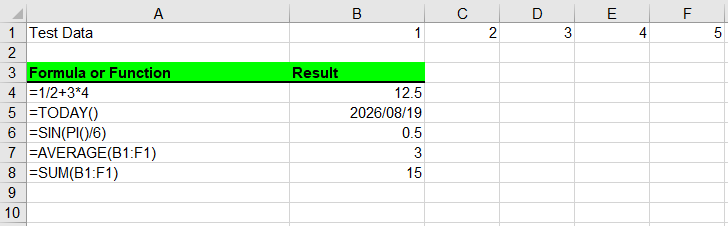
Note the formatting call before the formulas. Range.get() accepts lastRow and lastColumn, so a header block can be styled in one call instead of cell by cell — the same object you use to write a formula also carries the style.
Functions by category
The five formulas in the sample are not five different techniques. They are one technique applied to five kinds of expression:
| Formula | Kind | Worth knowing |
|---|---|---|
=1/2+3*4 |
Arithmetic expression | Operator precedence applies exactly as it does in Excel |
=TODAY() |
Date function | Volatile — it changes on every recalculation, and needs a date format to display as a date |
=SIN(PI()/6) |
Trigonometric | Angles are in radians; write PI()/6 rather than a rounded decimal |
=AVERAGE(B1:F1) |
Statistical over a range | Range syntax is identical to what you would type in Excel |
=SUM(B1:F1) |
Aggregation | Same range syntax, different function |
There is no separate API for "functions". A function is a formula — Range.Formula receives the string, and the engine decides what to do with it. That is why the catalog of things you can write is as large as the spreadsheet engine's function list, with no wrapper to maintain per function.
Showing the formula text beside its result
One of the more useful habits in a generated worksheet is keeping the rule visible next to its output. The sample does that by putting the formula string in column A as literal text and the evaluated value in column B:
// Column A displays the rule; column B applies it
sheet.Range.get({ row: currentRow, column: 1 }).NumberFormat = "@";
sheet.Range.get({ row: currentRow, column: 1 }).Text = currentFormula;
sheet.Range.get({ row: currentRow, column: 2 }).Formula = currentFormula;
Assigning "@" as the number format first is what keeps the label column from trying to interpret the string — the cell is declared text before anything is written into it. The result column needs no such care, but it may need a display format of its own: the date row sets .Style.NumberFormat = "YYYY/MM/DD", without which the value renders as a serial number rather than a date.
A sheet that carries its own rules like this survives every round trip, because the labels are plain text that no engine will touch.
One formula across a range
Real worksheets rarely need one formula; they need the same rule down a column. Since you are building the string, you control the references explicitly:
// One rule, many rows: the row number in the reference shifts with each cell
for (let row = 2; row <= 11; row += 1) {
  sheet.Range.get({ row: row, column: 3 }).Formula = `=A${row}*B${row}`;
}
That is the same relative-reference behaviour you would get by dragging a formula down in Excel, written out longhand. If the rule should always point at one fixed input instead, pin it — $A$1 does not shift when the formula moves, while A1 does.
Formula syntax that trips people up
- The leading equals sign. A formula string without
=is not a formula. It will be stored as text and never evaluated. - Relative versus absolute references.
A1shifts;$A$1does not. Choose deliberately when you generate formulas in a loop. - Cross-sheet references. Name the sheet inside the string —
Sheet2!A1. If the sheet name contains spaces, quote it:'Q1 Sales'!A1. - Argument separators across locales. The string is stored as you write it. Keep the comma-separated form used above if the file will be opened in a mix of locales, where some display semicolons instead.
- Volatile functions.
TODAY()andNOW()change whenever the workbook recalculates, so a value read back later will not match the one you saw. That gap between a rule and its last computed value is worth knowing about in its own right — it is what Reading and Extracting Excel Formulas in JavaScript (React) deals with.
Common issues
The cell shows the formula instead of a result.
It was written through Text rather than Formula. Reassign it with Formula — the cell needs the rule, not the characters.
A date shows up as a five-digit number.
That is the serial value with no date format applied. Set .Style.NumberFormat on the cell, as the sample does for the TODAY() row.
Formatting lands on cells I did not mean to touch.
Check the range you passed to Range.get(). Supplying lastRow and lastColumn applies the change to a block, which is convenient for a header and easy to mis-scope.
The formula is stored but the cell looks empty when read back. Results appear once the workbook has been calculated. Save after writing the formulas so the calculated values travel with the file.
FAQ
Do I need Excel or Office installed to write formulas?
No. The spreadsheet engine ships with the package and runs as WebAssembly in the browser. Nothing is automated and nothing is required on the user's machine.
Can a formula reference a different worksheet in the same workbook?
Yes, and you write it exactly as you would in Excel — include the sheet name in the formula string.
Can I mix formulas and plain values in one sheet?
Yes, and you usually will. The properties are independent: some cells receive data through NumberValue or Value, others receive rules through Formula.
What happens to the results when the recipient opens the file?
The formulas are stored, and Excel recalculates when the workbook is opened. That is the point of writing rules rather than results — the file stays correct even if the inputs are edited afterwards.
Does writing formulas require a backend?
No. The workbook is built in the browser and returned as bytes you turn into a Blob for download. Nothing is uploaded.
See Also
Como Criar Software de Gestão de Contratos com IA em C#
Índice
- O Ciclo de Vida do Contrato
- Arquitetura do Sistema
- Etapa 1: Elaboração
- Etapa 2: Revisão e Análise de Risco
- Etapa 3: Negociação e Controle de Versão
- Etapa 4: Aprovação e Finalização
- Etapa 5: Monitoramento Pós-Assinatura
- Orquestrando o Pipeline Completo
- Onde a IA Termina e a Governança Começa
- Perguntas Frequentes
O software de gestão de contratos com IA automatiza todo o ciclo de vida do contrato — desde a elaboração até a revisão, negociação, aprovação, finalização e acompanhamento das obrigações pós-assinatura — combinando a compreensão de linguagem natural da IA com o processamento determinístico de documentos dentro de uma aplicação .NET. A distinção em relação à automação de contratos de tarefa única está no escopo do ciclo de vida: uma ferramenta de revisão de contratos sinaliza cláusulas de risco; um sistema de gestão de contratos conduz um acordo por todas as etapas, mantém uma trilha de auditoria entre versões e acompanha as obrigações após a assinatura.
O Spire.Agent.Office é um SDK de agente de IA para documentos que fornece tanto a camada de compreensão de linguagem quanto a de processamento de documentos. Este artigo mostra como construir um sistema de gestão do ciclo de vida de contratos em C# que encadeia cinco etapas em um único pipeline, com isolamento de erros por etapa, despacho de formato para PDF e Word e rastreamento adequado de status — padrões que exemplos de tarefa única não abordam.
Este artigo apresenta uma implementação de referência de um pipeline de ciclo de vida de contratos assistido por IA em .NET. Um sistema CLM de produção precisaria adicionalmente de persistência de fluxo de trabalho, controle de identidade e acesso, integração com assinatura eletrônica, armazenamento de documentos e retenção de versões, notificações e infraestrutura de auditoria.
1. O Ciclo de Vida do Contrato: Cinco Etapas em que a IA Atua
Um ciclo de vida de contrato não é uma única operação sobre um documento. É uma sequência de etapas, cada uma com entradas, saídas e modos de falha distintos. Entender onde a IA agrega valor em cada etapa — e onde o código determinístico deve manter a linha — é a base de um sistema que se sustenta em produção.
| Etapa | O que acontece | Papel da IA | Papel do código determinístico |
|---|---|---|---|
| Elaboração | Gerar um contrato a partir de um modelo mais dados estruturados | Interpretar a solicitação, selecionar e preencher campos do modelo | Carregar o modelo, preservar a formatação, salvar como .docx ou .pdf |
| Revisão | Ler o contrato, sinalizar cláusulas de risco, extrair termos-chave | Análise semântica da linguagem das cláusulas, pontuação de risco | Escrever relatório de revisão estruturado, aplicar checklist de revisão |
| Negociação | Comparar versões, rastrear marcações, mesclar alterações | Resumir diferenças, sinalizar alterações substanciais vs. de formatação | Ativar/desativar controle de alterações, comparar documentos, aceitar/rejeitar revisões |
| Aprovação | Encaminhar para as partes interessadas, coletar aprovações | Sugerir aprovadores com base no tipo e valor do contrato | Aplicar regras de encaminhamento, registrar trilha de auditoria, produzir cópia finalizada |
| Pós-assinatura | Acompanhar obrigações, prazos, renovações | Extrair obrigações e datas-chave do contrato finalizado | Armazenar metadados estruturados, disparar lembretes, gerar relatórios |
Na prática, o ciclo de vida não é linear — a negociação retorna à revisão, as emendas reiniciam a elaboração —, mas a arquitetura de pipeline lida com isso por meio de roteamento de etapas em vez de uma sequência fixa.
O Que Diferencia Isto da Revisão de Contratos Isolada
A automação de revisão de contratos — tema de Revisão de Contratos com IA em C# — cobre uma etapa: ler um acordo e sinalizar problemas. Um sistema de gestão de contratos deve:
- Encadear etapas com dados fluindo de uma para a próxima (a saída da elaboração torna-se a entrada da revisão).
- Lidar com múltiplos formatos de documento — modelos chegam como
.docx, contrapartes podem enviar.pdf, e etapas com despacho de formato lidam com ambos sem lançar exceções. - Manter o estado entre as etapas — o status de revisão de um contrato, a contagem de versões de negociação e a cadeia de aprovação devem persistir entre execuções do pipeline.
- Isolar falhas por contrato — um arquivo corrompido em um lote de 200 não deve interromper todo o pipeline.
Esses requisitos moldam a arquitetura a seguir.
2. Arquitetura do Sistema para Automação do Ciclo de Vida de Contratos
Um sistema de gestão do ciclo de vida de contratos tem três camadas. Cada camada tem uma responsabilidade específica, e as fronteiras entre elas são onde as falhas de produção são capturadas ou escapam.
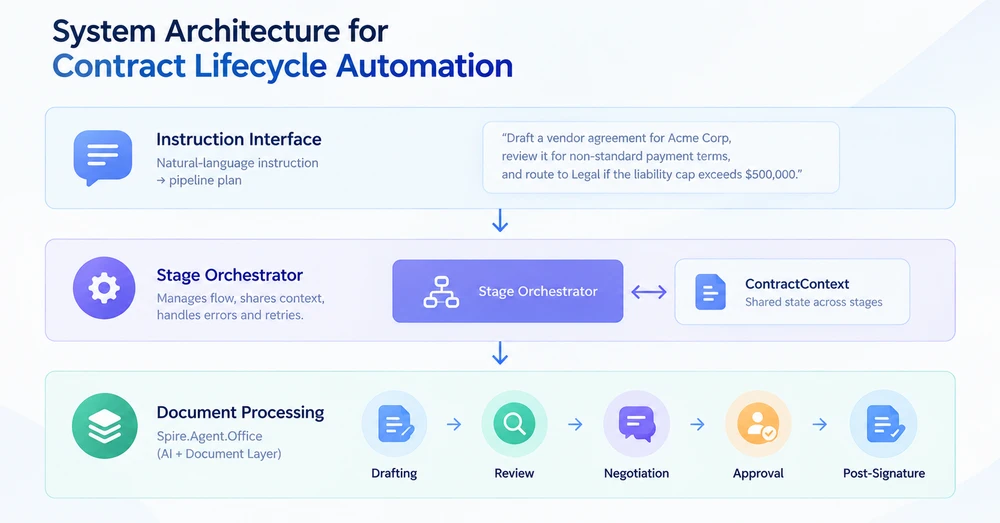
Camada 1: Interface de Instrução
O ponto de entrada é uma instrução em linguagem natural que descreve o resultado desejado — não os passos mecânicos. "Elabore um contrato de fornecedor para a Acme Corp usando o modelo padrão, revise-o quanto a condições de pagamento não padrão e encaminhe ao Jurídico se o limite de responsabilidade exceder $500.000." A camada de instrução analisa isso e produz um plano de pipeline: quais etapas executar, em que ordem e quais parâmetros cada etapa precisa.
Camada 2: Orquestrador de Etapas
O orquestrador gerencia o fluxo entre as etapas. Ele mantém um objeto ContractContext compartilhado que carrega os metadados do contrato, o documento atual e os resultados das etapas de uma etapa para a seguinte. Cada etapa recebe o contexto, realiza sua operação e retorna um contexto atualizado mais um resultado da etapa. O orquestrador decide se prossegue, tenta novamente ou encaminha para um tratador de exceções com base no resultado.
Camada 3: Processamento de Documentos
Cada etapa chama o Spire.Agent.Office para realizar a operação real sobre o documento. O agente cuida do raciocínio de IA (entender a instrução, extrair informações) e a camada de documento cuida das operações de arquivo (carregar, modificar, salvar). O despacho de formato é aplicado nas etapas em que múltiplos formatos de documento são esperados: uma entrada .pdf usa PdfDocument, enquanto uma entrada .docx usa Document.
O Contexto do Contrato
O objeto de estado compartilhado que flui pelo pipeline:
/// <summary>
/// Shared state that flows through every lifecycle stage.
/// Each stage reads from and writes to this context.
/// </summary>
public class ContractContext
{
    // Identity
    public string ContractId { get; set; } = string.Empty;
    public string ContractType { get; set; } = string.Empty;  // "NDA", "MSA", "Vendor", etc.

    // Document state
    public string CurrentFilePath { get; set; } = string.Empty;
    public string WorkDir { get; set; } = string.Empty;
    public int VersionNumber { get; set; } = 1;

    // Stage results
    public DraftResult? Draft { get; set; }
    public ReviewResult? Review { get; set; }
    public NegotiationResult? Negotiation { get; set; }
    public ApprovalResult? Approval { get; set; }
    public ObligationResult? Obligations { get; set; }

    // Pipeline metadata
    public string Status { get; set; } = PipelineStages.Pending;
    public List<string> StageLog { get; set; } = new();
    public string? ErrorMessage { get; set; }
}

/// <summary>
/// Stage status constants. Using named constants instead of raw strings
/// prevents the "Status never set" bug where results fall through all
/// reporting buckets and silently disappear from batch summaries.
/// </summary>
public static class PipelineStages
{
    public const string Pending    = "Pending";
    public const string Drafted    = "Drafted";
    public const string Reviewed   = "Reviewed";
    public const string Negotiated = "Negotiated";
    public const string Approved   = "Approved";
    public const string Executed   = "Executed"; // In this sample: finalized post-approval PDF, not e-signature
    public const string Monitored  = "Monitored";
    public const string Failed     = "Failed";
    public const string NeedsReview = "NeedsReview";
}
O campo Status usa constantes nomeadas em vez de strings brutas. Isso evita um modo de falha comum em que o status nunca é definido explicitamente, fazendo com que os documentos caiam por todos os grupos de relatório e desapareçam dos resumos de lote.
3. Etapa 1: Elaboração a partir de Modelo e Dados
A etapa de elaboração recebe um modelo (.docx com marcadores {{Placeholder}}) e uma fonte de dados (planilha do Excel ou entrada estruturada), e então produz um contrato preenchido. O agente de IA lê a estrutura do modelo e preenche os marcadores com dados da fonte — uma única instrução substitui o código de mapeamento de campos exigido por um SDK tradicional.
using Spire.Agent.Office.AI;
using Spire.Agent.Office.Extensions;
using Spire.Doc;

public class DraftResult
{
    public string OutputPath { get; set; } = string.Empty;
    public int ContractsGenerated { get; set; }
    public List<string> PlaceholdersFilled { get; set; } = new();
}

public class DraftingStage
{
    private readonly AIOptions _options;

    public DraftingStage(AIOptions options) => _options = options;

    public DraftResult Execute(ContractContext context, string templatePath, string dataSourcePath)
    {
        // Format dispatch: verify the template is .docx before loading
        if (!templatePath.EndsWith(".docx", StringComparison.OrdinalIgnoreCase))
            throw new NotSupportedException(
                $"Drafting requires a .docx template. Received: {templatePath}");

        string[] attachments = { dataSourcePath };

        using (Document template = new Document())
        {
            template.LoadFromFile(templatePath);

            string draftPath = Path.Combine(context.WorkDir, $"{context.ContractId}-v1-draft.docx");

            string draftInstruction =
                "Read the data source and fill every {{Placeholder}} field in this template " +
                "with the corresponding data. Preserve the template's layout, styling, and " +
                "clause numbering. Save the completed contract to: " +
                $"{draftPath}. Contract type: {context.ContractType}.";

            AIResult result = template.AI(_options).ExecuteInstruction(
                template, draftInstruction, draftPath, attachments);

            if (result == null || !result.Success)
                throw new InvalidOperationException(
                    $"Drafting failed: {result?.ErrorMessage ?? "Unknown error"}");

            // Collect the generated file: prefer the explicit output path,
            // fall back to AIResult.OutputFiles (unreliable for some product types).
            string? generated = File.Exists(draftPath)
                ? draftPath
                : result.OutputFiles?.FirstOrDefault(p => File.Exists(p));

            if (generated == null)
                throw new InvalidOperationException(
                    "Drafting completed but no output file was found (neither at the requested " +
                    $"path '{draftPath}' nor in AIResult.OutputFiles).");

            context.CurrentFilePath = generated;
            context.VersionNumber = 1;
            context.Status = PipelineStages.Drafted;
            context.StageLog.Add($"Draft: generated contract at {generated}");

            return new DraftResult
            {
                OutputPath = generated,
                ContractsGenerated = 1,
                PlaceholdersFilled = ExtractPlaceholderNames(templatePath)
            };
        }
    }

    private static List<string> ExtractPlaceholderNames(string templatePath)
    {
        // Quick scan of the template for {{...}} markers to report what was filled
        var placeholders = new List<string>();
        using (Document doc = new Document())
        {
            doc.LoadFromFile(templatePath);
            string text = doc.GetText();
            var matches = System.Text.RegularExpressions.Regex.Matches(
                text, @"\{\{(\w+)\}\}");
            foreach (System.Text.RegularExpressions.Match m in matches)
                if (!placeholders.Contains(m.Groups[1].Value))
                    placeholders.Add(m.Groups[1].Value);
        }
        return placeholders;
    }
}
Chamadas Principais da API
Document.LoadFromFile()— carrega o modelo.docxcom marcadorestemplate.AI(_options)— anexa o processador de documentos com IAExecuteInstruction(doc, instruction, outputPath, attachments)— preenche os marcadores a partir da fonte de dados; passe um caminho absoluto explícito para que o agente grave o produto em um local conhecido- Coleta do produto: verifique primeiro
File.Exists(outputPath);AIResult.OutputFilesnão é confiável para alguns tipos de produto e deve ser usado apenas como fallback
Despacho de Formato
A etapa valida o formato de entrada antes do processamento. Um modelo .pdf ou um formato não suportado é rejeitado explicitamente com uma mensagem clara, em vez de falhar dentro do agente com uma exceção opaca. Esse padrão evita um modo de falha comum em que a ausência de despacho de formato faz com que entradas PDF lancem exceções não tratadas em camadas profundas do pipeline de processamento.
Elaborar um contrato é o caso simples. Quando o mesmo modelo precisa ser preenchido para dezenas de registros — novos funcionários, fornecedores, renovações — o padrão de instrução escala para saída em lote sem alterações; Geração de Contratos em Lote com Spire.Agent.Office aborda tanto a rota de mala direta quanto a de substituição de marcadores, e compara onde cada uma se encaixa.
Nota do SDK: Quando um
outputPathexplícito é passado paraExecuteInstruction, o SDK também pode gravar uma cópiaoutput-<filename>no mesmo diretório. Essa duplicata tem conteúdo idêntico e pode ser removida com segurança após o processamento. Todas as etapas que especificam caminhos de saída são afetadas.
O produto desta etapa é o próprio documento preenchido — o modelo de contrato de fornecedor com cada marcador substituído a partir da planilha mestre de fornecedores.
4. Etapa 2: Revisão e Análise de Risco
A etapa de revisão lê o contrato elaborado, identifica cláusulas de risco ou não padronizadas e produz um relatório de revisão estruturado. Diferentemente da etapa de elaboração, a entrada pode ser .docx (minuta interna) ou .pdf (documento da contraparte), então a etapa deve despachar para o tipo de documento correto.
using Spire.Agent.Office.AI;
using Spire.Agent.Office.Extensions;
using Spire.Doc;
using Spire.Pdf;

public class ReviewResult
{
    public string ReportPath { get; set; } = string.Empty;
    public int ClausesAnalyzed { get; set; }
    public int RiskFlags { get; set; }
    public double RiskScore { get; set; }     // ratio of flagged clauses to total (0.0 = none flagged, 1.0 = all flagged)
    public List<string> FlaggedClauses { get; set; } = new();
}

public class ReviewStage
{
    private readonly AIOptions _options;

    // Risk threshold: contracts above this score require manual review.
    // Using a named constant prevents the "threshold always passes" bug
    // where a miscalculated score boundary lets everything auto-approve.
    public const double AutoApproveThreshold = 0.3;
    public const double ManualReviewThreshold = 0.6;

    public ReviewStage(AIOptions options) => _options = options;

    public ReviewResult Execute(ContractContext context)
    {
        string filePath = context.CurrentFilePath;
        string reportPath = Path.Combine(context.WorkDir, $"{context.ContractId}-review.md");

        string reviewInstruction =
            "Review this contract and write a Markdown report with two sections:\n" +
            "1. A table listing each major clause, its type, and a risk score (0-1).\n" +
            "2. A bullet list of clauses that deviate from standard practice for a " +
            $"standard {context.ContractType}. " +
            "Flag any of: uncapped liability, automatic renewal without notice, " +
            "broad indemnification, unilateral termination, or payment terms exceeding 60 days. " +
            "Prefix each flagged clause bullet with 'FLAG:' so the parser can identify it. " +
            $"Reference the source document as '{context.ContractId}', not as 'input.docx'.\n" +
            $"Save the report to: {reportPath}";

        AIResult result = DispatchByFormat(filePath, reviewInstruction, reportPath);

        if (result == null || !result.Success)
            throw new InvalidOperationException(
                $"Review failed: {result?.ErrorMessage ?? "Unknown error"}");

        // Parse the review report to extract structured data
        string reportContent = File.ReadAllText(reportPath);
        var review = ParseReviewReport(reportContent, reportPath);

        // Route based on risk score (three-tier classification)
        if (review.RiskScore >= ManualReviewThreshold)
            context.Status = PipelineStages.NeedsReview;
        else if (review.RiskScore >= AutoApproveThreshold)
        {
            // Middle zone: not clean enough to auto-approve, not risky enough to block
            context.Status = PipelineStages.Reviewed;
            context.StageLog.Add(
                $"Review: risk score {review.RiskScore:F2} in warning zone " +
                $"({AutoApproveThreshold}-{ManualReviewThreshold}); reviewed with warning");
        }
        else
            context.Status = PipelineStages.Reviewed;

        context.StageLog.Add(
            $"Review: {review.ClausesAnalyzed} clauses, {review.RiskFlags} flags, " +
            $"score {review.RiskScore:F2}, status={context.Status}");

        return review;
    }

    /// <summary>
    /// Dispatch to the correct document type based on file extension.
    /// This prevents the "PDF throws exception" bug where a stage
    /// only handles .docx and fails on counterparty PDFs.
    /// </summary>
    private AIResult DispatchByFormat(string filePath, string instruction, string outputPath)
    {
        string ext = Path.GetExtension(filePath).ToLowerInvariant();

        return ext switch
        {
            ".docx" or ".doc" => ProcessWord(filePath, instruction, outputPath),
            ".pdf"            => ProcessPdf(filePath, instruction, outputPath),
            _ => throw new NotSupportedException(
                $"Review stage does not support format: {ext}")
        };
    }

    private AIResult ProcessWord(string filePath, string instruction, string outputPath)
    {
        using (Document doc = new Document())
        {
            doc.LoadFromFile(filePath);
            return doc.AI(_options).ExecuteInstruction(
                doc, instruction, outputPath, Array.Empty<string>());
        }
    }

    private AIResult ProcessPdf(string filePath, string instruction, string outputPath)
    {
        using (PdfDocument pdf = new PdfDocument())
        {
            pdf.LoadFromFile(filePath);
            return pdf.AI(_options).ExecuteInstruction(
                pdf, instruction, outputPath, Array.Empty<string>());
        }
    }

    private static ReviewResult ParseReviewReport(string markdown, string reportPath)
    {
        var result = new ReviewResult { ReportPath = reportPath };

        // Count table rows as clauses analyzed
        var tableLines = markdown.Split('\n')
            .Where(l => l.StartsWith("|") && !l.StartsWith("|---") && !l.StartsWith("| --"))
            .Skip(1); // skip header
        result.ClausesAnalyzed = tableLines.Count();

        // Count bullet points prefixed with "FLAG:" as risk flags
        var flagLines = markdown.Split('\n')
            .Select(l => l.TrimStart())
            .Where(l => l.StartsWith("-") || l.StartsWith("*"))
            .Where(l => l.Substring(1).TrimStart()
                .StartsWith("FLAG:", StringComparison.OrdinalIgnoreCase));
        result.FlaggedClauses = flagLines.Select(l => l.Trim()).ToList();
        result.RiskFlags = result.FlaggedClauses.Count;

        // Risk score: ratio of flagged clauses to total, clamped to [0, 1]
        result.RiskScore = result.ClausesAnalyzed > 0
            ? Math.Min(1.0, (double)result.RiskFlags / result.ClausesAnalyzed)
            : 0.0;

        return result;
    }
}
O método DispatchByFormat é a adição crítica. Em implementações anteriores de pipeline, uma etapa que só lidava com .docx lançava uma InvalidOperationException quando a contraparte enviava um .pdf. A expressão switch despacha para o tipo de documento correto antes que o agente seja executado, de modo que ambos os formatos são entradas de primeira classe.
Os limites de risco (AutoApproveThreshold, ManualReviewThreshold) são constantes nomeadas com semântica documentada. A diferença entre 0,3 e 0,6 cria uma zona explícita de "precisa de revisão" — contratos que não são limpos o suficiente para aprovação automática nem arriscados o suficiente para bloquear. Isso evita o bug de lógica morta de limite em que todo contrato passa na mesma verificação.
Os achados da revisão são persistidos como relatório em vez de retornados em memória, de modo que a auditoria em nível de cláusula sobrevive independentemente da execução que a produziu.
5. Etapa 3: Negociação e Controle de Versão
A negociação é onde os contratos mudam de mãos. A contraparte marca o documento — riscando cláusulas, ajustando termos, adicionando condições. O sistema deve comparar versões, rastrear alterações e ajudar a equipe a decidir o que aceitar.
Esta etapa usa dois recursos da camada de documento Spire.Doc que vão além do ExecuteInstruction do agente de IA:
- Controle de Alterações — ativar o rastreamento de revisões para que toda edição seja visível e atribuível
- Comparação de Documentos — comparar duas versões e gerar um documento de diferenças
using Spire.Agent.Office.AI;
using Spire.Agent.Office.Extensions;
using Spire.Doc;
using Spire.Doc.Documents;
using System.Text.RegularExpressions;

public class NegotiationResult
{
    public string ComparisonPath { get; set; } = string.Empty;
    public int ChangesDetected { get; set; }
    public int SubstantiveChanges { get; set; }  // changes to clause text, not formatting
    public int FormattingChanges { get; set; }
    public string NegotiatedFilePath { get; set; } = string.Empty;
}

public class NegotiationStage
{
    private readonly AIOptions _options;

    public NegotiationStage(AIOptions options) => _options = options;

    /// <summary>
    /// Compare the current version with a counterparty's revised version.
    /// Produces a diff document with all changes marked.
    /// </summary>
    public NegotiationResult CompareVersions(
        ContractContext context, string counterpartyFilePath)
    {
        string comparisonPath = Path.Combine(
            context.WorkDir, $"{context.ContractId}-v{context.VersionNumber}-comparison.docx");

        // Load both versions
        using (Document ourVersion = new Document())
        using (Document theirVersion = new Document())
        {
            ourVersion.LoadFromFile(context.CurrentFilePath);
            theirVersion.LoadFromFile(counterpartyFilePath);

            // Compare: marks every difference in ourVersion as a tracked change
            ourVersion.Compare(theirVersion, "Contract Management System");

            // Save the comparison document
            ourVersion.SaveToFile(comparisonPath, FileFormat.Docx2013);
        }

        // Use the AI agent to analyze the comparison and categorize changes
        string analysisPath = Path.Combine(
            context.WorkDir, $"{context.ContractId}-negotiation-analysis.md");

        using (Document comparison = new Document())
        {
            comparison.LoadFromFile(comparisonPath);

            string analyzeInstruction =
                "Analyze this document comparison and write a Markdown report:\n" +
                "1. On the first line, write 'Total changes: <N>' where N is the total count " +
                "of categorized changes (substantive + formatting).\n" +
                "2. List each change as a bullet line prefixed with 'SUBSTANTIVE:' or 'FORMATTING:' " +
                "followed by the clause affected and the nature of the change.\n" +
                "3. SUBSTANTIVE changes: clause text, numbers, dates. " +
                "FORMATTING changes: style, spacing, font.\n" +
                $"Save to: {analysisPath}";

            AIResult result = comparison.AI(_options).ExecuteInstruction(
                comparison, analyzeInstruction, analysisPath, Array.Empty<string>());

            if (result == null || !result.Success)
                throw new InvalidOperationException(
                    $"Negotiation analysis failed: {result?.ErrorMessage}");
        }

        var negotiation = ParseNegotiationReport(analysisPath);
        negotiation.ComparisonPath = comparisonPath;
        negotiation.NegotiatedFilePath = counterpartyFilePath;

        context.VersionNumber++;
        context.CurrentFilePath = counterpartyFilePath;
        context.Status = PipelineStages.Negotiated;
        context.StageLog.Add(
            $"Negotiation: {negotiation.ChangesDetected} changes " +
            $"({negotiation.SubstantiveChanges} substantive, " +
            $"{negotiation.FormattingChanges} formatting), v{context.VersionNumber}");

        return negotiation;
    }

    /// <summary>
    /// Enable track changes on a contract before sending it for negotiation.
    /// This ensures every edit by the counterparty is visible and attributable.
    /// </summary>
    public string PrepareForRedlining(ContractContext context)
    {
        string redlineReadyPath = Path.Combine(
            context.WorkDir, $"{context.ContractId}-v{context.VersionNumber}-redline.docx");

        using (Document doc = new Document())
        {
            doc.LoadFromFile(context.CurrentFilePath);

            // Enable track changes so all edits are recorded as revisions
            doc.TrackChanges = true;

            doc.SaveToFile(redlineReadyPath, FileFormat.Docx2013);
        }

        context.StageLog.Add("Negotiation: track changes enabled for redlining");
        return redlineReadyPath;
    }

    /// <summary>
    /// Accept all tracked changes to produce a clean final version.
    /// Optional post-review operation: not automatically invoked by the pipeline
    /// because acceptance should occur only after human review of the changes.
    /// </summary>
    public string AcceptAllChanges(ContractContext context)
    {
        string cleanPath = Path.Combine(
            context.WorkDir, $"{context.ContractId}-v{context.VersionNumber}-final.docx");

        using (Document doc = new Document())
        {
            doc.LoadFromFile(context.CurrentFilePath);
            doc.AcceptChanges();
            doc.SaveToFile(cleanPath, FileFormat.Docx2013);
        }

        context.CurrentFilePath = cleanPath;
        context.StageLog.Add("Negotiation: all changes accepted, clean version produced");
        return cleanPath;
    }

    private static NegotiationResult ParseNegotiationReport(string reportPath)
    {
        string content = File.ReadAllText(reportPath);
        var result = new NegotiationResult();

        // Parse total changes from the report (try multiple patterns for robustness)
        var totalMatch = Regex.Match(content, @"Total changes:\s*(\d+)", RegexOptions.IgnoreCase);
        if (!totalMatch.Success)
            totalMatch = Regex.Match(content, @"(\d+)\s+(?:tracked\s+)?changes", RegexOptions.IgnoreCase);
        if (totalMatch.Success)
            result.ChangesDetected = int.Parse(totalMatch.Groups[1].Value);

        // Count changes by prefix: SUBSTANTIVE: or FORMATTING:
        result.SubstantiveChanges = CountByPrefix(content, "SUBSTANTIVE:");
        result.FormattingChanges = CountByPrefix(content, "FORMATTING:");

        return result;
    }

    private static int CountByPrefix(string content, string prefix)
    {
        return content.Split('\n')
            .Select(l => l.TrimStart())
            .Where(l => l.StartsWith("-") || l.StartsWith("*"))
            .Count(l => l.Substring(1).TrimStart()
                .StartsWith(prefix, StringComparison.OrdinalIgnoreCase));
    }
}
Chamadas Principais da API
Document.Compare(otherDoc, authorName)— gera um documento de diferenças com todas as alterações marcadas como revisões rastreadas (da demonstração de comparação do Spire.Doc)Document.TrackChanges = true— ativa o rastreamento de revisões para que toda edição seja visível e atribuívelDocument.AcceptChanges()— aceita todas as alterações rastreadas para produzir uma versão final limpadoc.AI(_options).ExecuteInstruction(...)— analisa a comparação e categoriza as alterações
A etapa de negociação combina operações determinísticas sobre documentos (comparar, rastrear alterações, aceitar) com a análise de IA (categorizar alterações como substanciais ou de formatação). As operações determinísticas vêm da camada Spire.Doc — as mesmas APIs disponíveis no diretório de referência de código — enquanto o agente de IA cuida da categorização semântica que de outra forma exigiria revisão manual.
O exemplo compara versões e rastreia o caminho do arquivo atual; um sistema de produção normalmente persistiria cada versão separadamente e registraria explicitamente qual revisão foi aceita. AcceptAllChanges() é fornecida como uma operação opcional de finalização após a negociação, mas não é invocada automaticamente pelo pipeline de exemplo, porque a aceitação deve ocorrer somente após a revisão humana.
O que Document.Compare retorna é um documento, não um resumo: as revisões rastreadas abaixo são as marcações que um revisor montaria manualmente.
6. Etapa 4: Aprovação e Finalização
A etapa de aprovação encaminha o contrato para as partes interessadas corretas com base no tipo e no valor do contrato, registra suas aprovações e produz uma cópia finalizada em PDF após todas as aprovações exigidas serem registradas. A lógica de encaminhamento é determinística — usa regras de negócio, não IA —, mas o agente ajuda sugerindo aprovadores e gerando o resumo de aprovação.
using Spire.Agent.Office.AI;
using Spire.Agent.Office.Extensions;
using Spire.Doc;

public class ApprovalResult
{
    public List<ApprovalRecord> Approvals { get; set; } = new();
    public bool AllApproved { get; set; }
    public string ExecutedFilePath { get; set; } = string.Empty; // Finalized PDF path, not a signed contract
    public DateTime? ExecutionDate { get; set; }                // Finalization timestamp, not a signing date
}

public class ApprovalRecord
{
    public string Approver { get; set; } = string.Empty;
    public string Role { get; set; } = string.Empty;
    public bool Approved { get; set; }
    public DateTime Timestamp { get; set; }
    public string? Comments { get; set; }
}

public class ApprovalStage
{
    private readonly AIOptions _options;

    public ApprovalStage(AIOptions options) => _options = options;

    /// <summary>
    /// Route the contract for approval based on type and value.
    /// Routing rules are deterministic business logic, not AI.
    /// </summary>
    public ApprovalResult Execute(
        ContractContext context, double contractValue,
        Dictionary<string, bool>? approvalDecisions = null)
    {
        var routingPlan = DetermineApprovers(context.ContractType, contractValue);
        var result = new ApprovalResult();

        // Generate an approval summary for each approver
        string summaryPath = Path.Combine(
            context.WorkDir, $"{context.ContractId}-approval-summary.md");

        using (Document doc = new Document())
        {
            doc.LoadFromFile(context.CurrentFilePath);

            string summaryInstruction =
                "Write a one-page approval summary for this contract: parties, value, " +
                "key terms, risk flags from review, and changes from negotiation. " +
                $"Save to: {summaryPath}";

            AIResult aiResult = doc.AI(_options).ExecuteInstruction(
                doc, summaryInstruction, summaryPath, Array.Empty<string>());

            if (aiResult == null || !aiResult.Success)
                throw new InvalidOperationException(
                    $"Approval summary generation failed: {aiResult?.ErrorMessage}");
        }

        // In a real system, this would integrate with an approval workflow API.
        // approvalDecisions maps approver name → approved/rejected. A missing key
        // means no decision was recorded — which is not the same as a rejection.
        int approvedCount = 0, rejectedCount = 0, pendingCount = 0;

        foreach (var approver in routingPlan)
        {
            bool decision = false;
            bool hasDecision = approvalDecisions != null
                && approvalDecisions.TryGetValue(approver.Name, out decision);
            bool approved = hasDecision && decision;

            // Three states, all distinguishable in the audit record
            string comment = !hasDecision ? "Pending approval"
                : approved ? "Approved by approver"
                : "Rejected by approver";

            if (!hasDecision) pendingCount++;
            else if (approved) approvedCount++;
            else rejectedCount++;

            result.Approvals.Add(new ApprovalRecord
            {
                Approver = approver.Name,
                Role = approver.Role,
                Approved = approved,
                Timestamp = DateTime.UtcNow,
                Comments = comment
            });
        }

        result.AllApproved = result.Approvals.All(a => a.Approved);

        if (result.AllApproved)
        {
            // Produce the finalized copy as PDF
            string executedPath = Path.Combine(
                context.WorkDir, $"{context.ContractId}-executed.pdf");

            using (Document doc = new Document())
            {
                doc.LoadFromFile(context.CurrentFilePath);
                doc.SaveToFile(executedPath, FileFormat.PDF);
                result.ExecutedFilePath = executedPath;
                result.ExecutionDate = DateTime.UtcNow;
            }

            context.CurrentFilePath = result.ExecutedFilePath;
            context.Status = PipelineStages.Executed;
        }
        else
        {
            context.Status = PipelineStages.NeedsReview;
        }

        context.StageLog.Add(
            $"Approval: {result.Approvals.Count} approvers, " +
            $"approved={approvedCount}, rejected={rejectedCount}, " +
            $"pending={pendingCount}, all approved={result.AllApproved}");

        return result;
    }

    /// <summary>
    /// Deterministic routing rules. These are business logic, not AI.
    /// </summary>
    private static List<(string Name, string Role)> DetermineApprovers(
        string contractType, double value)
    {
        var approvers = new List<(string, string)>();

        // All contracts need Legal sign-off (example business rule)
        approvers.Add(("Legal Team", "Legal Counsel"));

        // Contracts over $100K need VP approval (example business rule)
        if (value > 100_000)
            approvers.Add(("VP Operations", "VP"));

        // Contracts over $500K need CFO approval (example business rule)
        if (value > 500_000)
            approvers.Add(("CFO", "CFO"));

        // Vendor contracts need Procurement sign-off
        if (contractType.Equals("Vendor", StringComparison.OrdinalIgnoreCase))
            approvers.Add(("Procurement", "Procurement Manager"));

        return approvers;
    }
}
As regras de encaminhamento em DetermineApprovers são intencionalmente determinísticas. A IA sugere e resume; ela não decide quem assina um contrato. A cadeia de aprovação é uma regra de negócio que precisa ser auditável e consistente — exatamente o tipo de decisão que pertence ao código, não a um modelo de linguagem.
Nota: O status
Executednesta amostra significa o PDF final produzido após a aprovação — não um contrato assinado. A assinatura eletrônica real — envelopes de assinatura, verificação da identidade do signatário, incorporação de campos de assinatura — deve ser tratada por um fluxo de trabalho dedicado de assinatura eletrônica integrado separadamente.
Assim que a decisão de cada aprovador estiver registrada, a etapa grava o contrato finalizado como PDF — e é esse PDF, não a minuta de origem, que a Etapa 5 consome.
7. Etapa 5: Monitoramento Pós-Assinatura
Em um fluxo de trabalho de produção, o monitoramento pós-assinatura começa após o contrato ter sido assinado eletronicamente ou de outra forma formalmente. Nesta implementação de referência, o PDF finalizado produzido pela Etapa 4 é usado como entrada do monitoramento. O monitoramento pós-assinatura extrai obrigações, datas-chave e termos de renovação do contrato e então os armazena como metadados estruturados que sistemas posteriores usam para lembretes e relatórios.
using Spire.Agent.Office.AI;
using Spire.Agent.Office.Extensions;
using Spire.Doc;
using Spire.Pdf;

public class ObligationResult
{
    public List<Obligation> Obligations { get; set; } = new();
    public List<KeyDate> KeyDates { get; set; } = new();
    public bool AutoRenewal { get; set; }
    public DateTime? RenewalDate { get; set; }
    public string MetadataPath { get; set; } = string.Empty;
}

public class Obligation
{
    public string Description { get; set; } = string.Empty;
    public string Party { get; set; } = string.Empty;  // who must fulfill
    public string Frequency { get; set; } = string.Empty;  // "monthly", "annual", "one-time"
    public DateTime? DueDate { get; set; }
    public string DueDateRaw { get; set; } = string.Empty;  // original deadline text from the contract
}

public class KeyDate
{
    public string Description { get; set; } = string.Empty;
    public DateTime Date { get; set; }
    public string Type { get; set; } = string.Empty;  // "renewal", "termination", "milestone"
}

public class MonitoringStage
{
    private readonly AIOptions _options;

    public MonitoringStage(AIOptions options) => _options = options;

    public ObligationResult Execute(ContractContext context)
    {
        string metadataPath = Path.Combine(
            context.WorkDir, $"{context.ContractId}-obligations.json");

        string extractInstruction =
            "Extract all post-signature obligations and key dates from this contract. " +
            "Write a JSON file with:\n" +
            "1. \"obligations\": array of {description, party, frequency, dueDate, dueDateRaw} " +
            "where dueDate is an ISO-8601 date (YYYY-MM-DD). If the obligation has a relative " +
            "deadline (e.g., 'Within 90 days of receipt'), convert it to an absolute date based " +
            "on the contract effective date. Use null only for ongoing obligations with no " +
            "fixed deadline. Always put the original deadline text in dueDateRaw.\n" +
            "2. \"keyDates\": array of {description, date, type} where date is ISO-8601 " +
            "(YYYY-MM-DD) and type is 'renewal', 'termination', or 'milestone'\n" +
            "3. \"autoRenewal\": boolean\n" +
            "4. \"renewalDate\": ISO-8601 date (YYYY-MM-DD) or null\n" +
            $"Save to: {metadataPath}";

        // Dispatch by format — executed contracts may be PDF or DOCX
        AIResult result = DispatchExtraction(
            context.CurrentFilePath, extractInstruction, metadataPath, _options);

        if (result == null || !result.Success)
            throw new InvalidOperationException(
                $"Obligation extraction failed: {result?.ErrorMessage}");

        var obligations = ParseObligationMetadata(metadataPath);
        obligations.MetadataPath = metadataPath;

        context.Obligations = obligations;
        context.Status = PipelineStages.Monitored;

        // Diagnostics: bucket every obligation by how its deadline came out, so that a
        // field the agent writes but the parser fails to read cannot pass unnoticed.
        int datesParsed = obligations.Obligations.Count(o => o.DueDate != null);
        int datesUnparsed = obligations.Obligations.Count(
            o => o.DueDate == null && !string.IsNullOrEmpty(o.DueDateRaw));
        int datesOngoing = obligations.Obligations.Count(
            o => o.DueDate == null && string.IsNullOrEmpty(o.DueDateRaw));
        int datesNoSourceText = obligations.Obligations.Count(
            o => o.DueDate != null && string.IsNullOrEmpty(o.DueDateRaw));
        context.StageLog.Add(
            $"Monitoring: {obligations.Obligations.Count} obligations, " +
            $"{obligations.KeyDates.Count} key dates, " +
            $"auto-renewal={obligations.AutoRenewal}, " +
            $"dates parsed={datesParsed}, unparsed={datesUnparsed}, ongoing={datesOngoing}, " +
            $"parsed-without-source-text={datesNoSourceText}");

        return obligations;
    }

    private static AIResult DispatchExtraction(
        string filePath, string instruction, string outputPath, AIOptions options)
    {
        string ext = Path.GetExtension(filePath).ToLowerInvariant();

        return ext switch
        {
            ".docx" or ".doc" => ProcessWordExtraction(filePath, instruction, outputPath, options),
            ".pdf"            => ProcessPdfExtraction(filePath, instruction, outputPath, options),
            _ => throw new NotSupportedException(
                $"Obligation extraction does not support format: {ext}")
        };
    }

    private static AIResult ProcessWordExtraction(
        string filePath, string instruction, string outputPath, AIOptions options)
    {
        using (Document doc = new Document())
        {
            doc.LoadFromFile(filePath);
            return doc.AI(options).ExecuteInstruction(
                doc, instruction, outputPath, Array.Empty<string>());
        }
    }

    private static AIResult ProcessPdfExtraction(
        string filePath, string instruction, string outputPath, AIOptions options)
    {
        using (PdfDocument pdf = new PdfDocument())
        {
            pdf.LoadFromFile(filePath);
            return pdf.AI(options).ExecuteInstruction(
                pdf, instruction, outputPath, Array.Empty<string>());
        }
    }

    private static ObligationResult ParseObligationMetadata(string jsonPath)
    {
        string json = File.ReadAllText(jsonPath);
        using var doc = System.Text.Json.JsonDocument.Parse(json);
        var root = doc.RootElement;

        var result = new ObligationResult();

        if (TryGetPropertyIgnoreCase(root, "obligations", out var obs))
            foreach (var ob in obs.EnumerateArray())
            {
                string dueDateRaw = TryGetPropertyIgnoreCase(ob, "dueDateRaw", out var dr)
                    && dr.ValueKind == System.Text.Json.JsonValueKind.String
                    ? dr.GetString() ?? "" : "";

                result.Obligations.Add(new Obligation
                {
                    Description = TryGetPropertyIgnoreCase(ob, "description", out var d) ? d.GetString() ?? "" : "",
                    Party = TryGetPropertyIgnoreCase(ob, "party", out var p) ? p.GetString() ?? "" : "",
                    Frequency = TryGetPropertyIgnoreCase(ob, "frequency", out var f) ? f.GetString() ?? "" : "",
                    DueDate = TryGetDate(TryGetPropertyIgnoreCase(ob, "dueDate", out var dd2), dd2),
                    DueDateRaw = dueDateRaw
                });
            }

        if (TryGetPropertyIgnoreCase(root, "keyDates", out var kds))
            foreach (var kd in kds.EnumerateArray())
                result.KeyDates.Add(new KeyDate
                {
                    Description = TryGetPropertyIgnoreCase(kd, "description", out var d) ? d.GetString() ?? "" : "",
                    Date = TryGetDate(TryGetPropertyIgnoreCase(kd, "date", out var dt), dt) ?? default,
                    Type = TryGetPropertyIgnoreCase(kd, "type", out var t) ? t.GetString() ?? "" : ""
                });

        result.AutoRenewal = TryGetBool(TryGetPropertyIgnoreCase(root, "autoRenewal", out var ar), ar);
        result.RenewalDate = TryGetDate(TryGetPropertyIgnoreCase(root, "renewalDate", out var rd), rd);

        return result;
    }

    /// <summary>
    /// Case-insensitive property lookup. Prevents silent data loss when
    /// the AI agent outputs PascalCase or snake_case instead of camelCase.
    /// </summary>
    private static bool TryGetPropertyIgnoreCase(
        System.Text.Json.JsonElement element, string name,
        out System.Text.Json.JsonElement value)
    {
        foreach (var prop in element.EnumerateObject())
        {
            if (string.Equals(prop.Name, name, StringComparison.OrdinalIgnoreCase))
            {
                value = prop.Value;
                return true;
            }
        }
        value = default;
        return false;
    }

    /// <summary>
    /// Safe date parsing: handles null, non-string values, and invalid formats
    /// without throwing. Returns null on any parse failure.
    /// </summary>
    private static DateTime? TryGetDate(bool exists, System.Text.Json.JsonElement element)
    {
        if (!exists || element.ValueKind != System.Text.Json.JsonValueKind.String)
            return null;
        string? s = element.GetString();
        return DateTime.TryParse(s, out var date) ? date : null;
    }

    /// <summary>
    /// Safe boolean parsing: handles string "true"/"false" and actual booleans
    /// without throwing on type mismatch.
    /// </summary>
    private static bool TryGetBool(bool exists, System.Text.Json.JsonElement element)
    {
        if (!exists) return false;
        if (element.ValueKind == System.Text.Json.JsonValueKind.True) return true;
        if (element.ValueKind == System.Text.Json.JsonValueKind.False) return false;
        if (element.ValueKind == System.Text.Json.JsonValueKind.String)
            return bool.TryParse(element.GetString(), out var b) && b;
        return false;
    }
}
Os metadados das obrigações são armazenados como JSON, não como documento. Isso os torna consultáveis por sistemas posteriores — um painel de renovações pode verificar todos os contratos em busca de autoRenewal == true e renewalDate < DateTime.Now.AddDays(90) sem abrir um único documento. Obrigações com valores dueDate estruturados podem ser rastreadas automaticamente; aquelas em que o prazo não pôde ser convertido em data absoluta mantêm o texto original em dueDateRaw para revisão manual. O agente de IA extrai a informação; a camada determinística a armazena em um formato que sistemas de negócio podem consumir.
O padrão de extração é o mesmo usado para faturas em Automatize o Processamento de Faturas com um Agente de IA em .NET: extrair campos estruturados de um documento recebido, validá-los contra regras determinísticas e encaminhar os valores incertos para revisão. Os contratos diferem principalmente no que acontece depois — as obrigações tornam-se registros de longa duração que sobrevivem à transação, enquanto os campos de fatura são consumidos uma única vez.
Os dados extraídos são armazenados como JSON em vez de prosa, de modo que cada obrigação e data-chave carrega o texto original do contrato ao lado do valor que o analisador derivou dele.
8. Orquestrando o Pipeline Completo
O orquestrador encadeia as etapas, passando o ContractContext de uma para a seguinte. Suas duas responsabilidades críticas são o isolamento de erros por contrato (um contrato com falha não deve interromper o lote) e a conservação de status (todo contrato deve terminar em exatamente um grupo de relatório).
using Spire.Agent.Office.AI;

public class PipelineResult
{
    public string ContractId { get; set; } = string.Empty;
    public string Status { get; set; } = PipelineStages.Pending;
    public List<string> StageLog { get; set; } = new();
    public string? ErrorMessage { get; set; }
}

public class BatchResult
{
    public int Total { get; set; }
    public int Successful { get; set; }
    public int Flagged { get; set; }    // needs review
    public int Errored { get; set; }
    public List<PipelineResult> Results { get; set; } = new();
}

public class ContractLifecyclePipeline
{
    private readonly DraftingStage _drafting;
    private readonly ReviewStage _review;
    private readonly NegotiationStage _negotiation;
    private readonly ApprovalStage _approval;
    private readonly MonitoringStage _monitoring;

    public ContractLifecyclePipeline(AIOptions options)
    {
        _drafting = new DraftingStage(options);
        _review = new ReviewStage(options);
        _negotiation = new NegotiationStage(options);
        _approval = new ApprovalStage(options);
        _monitoring = new MonitoringStage(options);
    }

    /// <summary>
    /// Run a single contract through the full lifecycle.
    /// Each stage is wrapped in its own try-catch so that a failure
    /// in one stage produces a clear error without corrupting the
    /// context for subsequent contracts in the batch.
    /// </summary>
    public PipelineResult RunSingle(
        ContractContext context,
        string templatePath,
        string dataSourcePath,
        double contractValue,
        string? counterpartyFilePath = null,
        Dictionary<string, bool>? approvalDecisions = null)
    {
        try
        {
            // Stage 1: Drafting
            try
            {
                context.Draft = _drafting.Execute(context, templatePath, dataSourcePath);
            }
            catch (Exception ex)
            {
                return Fail(context, "Drafting", ex);
            }

            // Stage 2: Review
            try
            {
                context.Review = _review.Execute(context);
            }
            catch (Exception ex)
            {
                return Fail(context, "Review", ex);
            }

            // If review flagged for manual review, stop here
            if (context.Status == PipelineStages.NeedsReview)
                return Flag(context, "Review flagged for manual review");

            // Stage 3: Negotiation (only when a counterparty version exists)
            if (counterpartyFilePath != null)
            {
                try
                {
                    context.Negotiation = _negotiation.CompareVersions(context, counterpartyFilePath);
                }
                catch (Exception ex)
                {
                    return Fail(context, "Negotiation", ex);
                }
            }

            // Stage 4: Approval and Finalization
            try
            {
                context.Approval = _approval.Execute(context, contractValue, approvalDecisions);
            }
            catch (Exception ex)
            {
                return Fail(context, "Approval", ex);
            }

            if (context.Status == PipelineStages.NeedsReview)
                return Flag(context, "Approval incomplete");

            // Stage 5: Post-signature monitoring
            try
            {
                context.Obligations = _monitoring.Execute(context);
            }
            catch (Exception ex)
            {
                return Fail(context, "Monitoring", ex);
            }

            return new PipelineResult
            {
                ContractId = context.ContractId,
                Status = context.Status,
                StageLog = context.StageLog
            };
        }
        catch (Exception ex)
        {
            return Fail(context, "Pipeline", ex);
        }
    }

    /// <summary>
    /// Process a batch of contracts with per-file error isolation.
    /// One corrupt file does not halt the batch.
    /// Approval decisions are keyed by contract id; a contract with no
    /// entry keeps its approvers pending and stops at NeedsReview.
    /// </summary>
    public BatchResult RunBatch(
        List<(ContractContext context, string template, string data, double value)> contracts,
        Dictionary<string, Dictionary<string, bool>>? approvalDecisions = null)
    {
        var results = new List<PipelineResult>();

        foreach (var (context, template, data, value) in contracts)
        {
            // Per-contract try-catch: one failure does not stop the batch
            try
            {
                Dictionary<string, bool>? decisions = null;
                if (approvalDecisions != null &&
                    approvalDecisions.TryGetValue(context.ContractId, out var d))
                    decisions = d;

                results.Add(RunSingle(context, template, data, value, null, decisions));
            }
            catch (Exception ex)
            {
                results.Add(Fail(context, "Batch", ex));
            }
        }

        // Status conservation: every result must land in exactly one bucket.
        // Using the remainder method ensures that any result with an unexpected
        // status lands in "Flagged" (conservative) rather than vanishing.
        int successful = results.Count(r => r.Status == PipelineStages.Monitored
                                         || r.Status == PipelineStages.Executed);
        int errored = results.Count(r => r.Status == PipelineStages.Failed);

        return new BatchResult
        {
            Total = results.Count,
            Successful = successful,
            Flagged = results.Count - successful - errored,  // remainder → conservative
            Errored = errored,
            Results = results
        };
    }

    private static PipelineResult Fail(ContractContext context, string stage, Exception ex)
    {
        context.Status = PipelineStages.Failed;
        context.ErrorMessage = $"{stage}: {ex.Message}";
        context.StageLog.Add($"ERROR at {stage}: {ex.Message}");
        return new PipelineResult
        {
            ContractId = context.ContractId,
            Status = PipelineStages.Failed,
            StageLog = context.StageLog,
            ErrorMessage = context.ErrorMessage
        };
    }

    private static PipelineResult Flag(ContractContext context, string reason)
    {
        context.StageLog.Add($"FLAGGED: {reason}");
        return new PipelineResult
        {
            ContractId = context.ContractId,
            Status = context.Status,
            StageLog = context.StageLog
        };
    }
}
Isolamento de Erros por Etapa
Cada etapa é envolvida em seu próprio bloco try-catch. Se a etapa de revisão falhar porque o agente de IA não consegue analisar uma cláusula particularmente complexa, o pipeline registra a falha e para — mas o ContractContext do próximo contrato do lote permanece intacto. Isso evita um modo de falha comum em que um único arquivo corrompido em um lote de 200 interrompe todo o pipeline sem resultados parciais.
Conservação de Status
O resumo do lote usa o método do resto para calcular a contagem de Flagged: Flagged = Total - Successful - Errored. Essa é uma propriedade estrutural — qualquer resultado que não seja explicitamente bem-sucedido ou com erro cai em "flagged" (encaminhamento conservador para revisão manual). Isso evita o bug em que resultados com valores de status inesperados desaparecem silenciosamente de todos os três grupos de relatório.
Executando o Pipeline
// Configure the agent
AIOptions options = new AIOptions
{
    WorkDir = @"C:\contract-mgmt\work",
    SpireToken = Environment.GetEnvironmentVariable("SPIRE_TOKEN")!
};

// Create the pipeline
var pipeline = new ContractLifecyclePipeline(options);

// Prepare a batch of contracts
var batch = new List<(ContractContext, string, string, double)>
{
    new(new ContractContext
    {
        ContractId = "CTR-2026-001",
        ContractType = "Vendor",
        WorkDir = @"C:\contract-mgmt\work\CTR-2026-001"
    },
    @"C:\templates\vendor-agreement.docx",
    @"C:\data\vendors-q1.xlsx",
    250_000)
};

// Run the batch. Approval decisions are supplied per contract id —
// a contract with no recorded decision stays in NeedsReview and
// never reaches Stage 5.
BatchResult result = pipeline.RunBatch(batch, new Dictionary<string, Dictionary<string, bool>>
{
    ["CTR-2026-001"] = new Dictionary<string, bool>
    {
        ["Legal Team"] = true,
        ["VP Operations"] = true,
        ["Procurement"] = true
    }
});

Console.WriteLine($"Total: {result.Total}");
Console.WriteLine($"Successful: {result.Successful}");
Console.WriteLine($"Flagged: {result.Flagged}");
Console.WriteLine($"Errored: {result.Errored}");

foreach (var r in result.Results)
{
    Console.WriteLine($"  {r.ContractId}: {r.Status}");
    foreach (var log in r.StageLog)
        Console.WriteLine($"    {log}");
}
As decisões de aprovação são fornecidas à chamada do lote em vez de inferidas pelo pipeline: um contrato sem decisão registrada mantém seus aprovadores pendentes, cai em Flagged e para antes da Etapa 5 — o resultado pretendido para um acordo que ninguém aprovou ainda.
Uma execução sobre alguns contratos é o caso simples. Coloque as mesmas etapas por trás de uma fila de documentos e as questões de orquestração mudam: limites de concorrência, isolamento de erros por documento, política de repetição e agregação em um relatório de lote. Processamento Inteligente de Documentos em .NET: Construindo Pipelines de IDP percorre esses pontos no nível do pipeline, e a seção de lote deste artigo é uma instância específica de contratos do mesmo padrão.
9. Onde a IA Termina e a Governança Começa
A arquitetura acima atribui responsabilidades específicas ao agente de IA e responsabilidades específicas ao código determinístico. A fronteira não é arbitrária — ela segue um princípio: a IA interpreta e sugere; o código determinístico decide e registra.
Avaliações de risco geradas por IA e obrigações extraídas devem ser validadas por revisores qualificados antes de serem usadas para decisões legais ou comerciais.
| Responsabilidade | Tratada por | Por quê |
|---|---|---|
| Entender uma instrução em linguagem natural | Agente de IA | É exatamente a finalidade dos modelos de linguagem |
| Extrair informações de texto não estruturado | Agente de IA | Requer compreensão semântica |
| Categorizar alterações como substanciais ou de formatação | Agente de IA | Requer julgamento sobre significado |
| Sugerir aprovadores com base no tipo de contrato | Regras de negócio | Auditabilidade e consistência |
| Determinar quem deve assinar | Regras de negócio | Auditabilidade e consistência |
| Registrar a cadeia de aprovação | Código determinístico | A trilha de auditoria legal deve ser à prova de adulteração |
| Definir limites de risco | Regras de negócio | A política de risco é uma decisão de governança |
| Armazenar metadados de obrigações | Código determinístico | Sistemas posteriores precisam de estrutura confiável |
| Disparar lembretes de renovação | Código determinístico | Deve disparar conforme o cronograma, não por inferência |
Os limites de risco na etapa de revisão (AutoApproveThreshold = 0.3, ManualReviewThreshold = 0.6) são definidos pelo negócio, não pela IA. A aplicação deriva uma proporção de revisão a partir do número de cláusulas sinalizadas; o negócio define os limites. Essa separação é o que torna o sistema defensável em uma auditoria — toda decisão automatizada remonta a uma regra definida por humanos, não a uma inferência de modelo.
Integração com Sistemas Existentes
Um sistema de ciclo de vida de contratos não existe isoladamente. Os metadados pós-assinatura (obrigações, datas-chave, termos de renovação) são projetados para serem consumidos por sistemas posteriores:
- ERP / Finanças: marcos de pagamento e conciliação de faturas
- CRM: alertas de renovação para gerentes de contas
- Compras: acompanhamento de desempenho de fornecedores em relação aos SLAs do contrato
- Jurídico: monitoramento de conformidade e preparação para auditoria
O formato de metadados JSON da Etapa 5 torna essa integração simples — sistemas posteriores consultam os dados estruturados sem precisar analisar documentos de contrato.
10. Perguntas Frequentes
Como isto é diferente da revisão de contratos com IA?
A revisão de contratos é uma etapa do ciclo de vida — ler um acordo e sinalizar cláusulas de risco. Um sistema de gestão de contratos cobre todo o ciclo de vida: elaboração, revisão, negociação, aprovação, finalização e monitoramento pós-assinatura. O artigo existente Revisão de Contratos com IA em C# aborda a etapa de revisão em profundidade; este artigo cobre o pipeline completo dentro do qual a revisão está inserida.
O pipeline consegue lidar com entradas PDF e Word?
Sim, nas etapas que implementam despacho de formato. As etapas de revisão e monitoramento incluem um switch na extensão do arquivo que encaminha .docx para Document e .pdf para PdfDocument. A etapa de elaboração exige um modelo .docx, e a etapa de negociação opera em documentos do Word (a comparação de documentos usa Spire.Doc.Document). Isso reflete um padrão do mundo real: o despacho de formato é aplicado onde PDFs de contrapartes são esperados, não uniformemente em todas as etapas.
O que acontece se um contrato falhar em um lote?
O processador de lote envolve cada contrato em seu próprio bloco try-catch. Uma falha em um contrato é registrada com a mensagem de erro e a etapa em que ocorreu, e o lote continua para o próximo contrato. O resumo do lote usa o método do resto para conservação de status: Flagged = Total - Successful - Errored, garantindo que todo resultado caia em exatamente um grupo de relatório.
O agente de IA decide quem aprova um contrato?
Não. As regras de encaminhamento de aprovação são lógica de negócio determinística — neste exemplo, contratos acima de $100 mil exigem aprovação do VP, acima de $500 mil exigem aprovação do CFO, e contratos com fornecedores precisam de aprovação de Compras. O agente de IA gera o resumo de aprovação que os aprovadores leem, mas o encaminhamento em si é código. Isso mantém a cadeia de aprovação auditável e consistente.
Como funciona a etapa de negociação?
A etapa de negociação usa dois recursos da camada de documento Spire.Doc: Document.Compare() para gerar um diff entre versões e Document.TrackChanges para ativar o rastreamento de revisões. O agente de IA então analisa o documento de comparação e categoriza cada alteração como substancial (texto da cláusula, números, datas) ou de formatação (estilo, espaçamento). Essa combinação — comparação determinística mais categorização por IA — é o que torna a etapa de negociação útil para equipes jurídicas.
O que é monitoramento pós-assinatura?
Após um contrato ser finalizado (assinado em produção), o sistema extrai obrigações (quem deve fazer o quê, até quando), datas-chave (renovação, rescisão, marcos) e termos de renovação (renovação automática, período de aviso prévio) do documento finalizado. Esses metadados são armazenados como JSON estruturado que sistemas posteriores — ERP, CRM, compras — podem consultar sem abrir o documento do contrato. Esta é a etapa que a maioria das ferramentas de revisão de contratos não aborda, e é onde mais valor é perdido em processos manuais: obrigações esquecidas, renovações perdidas, prazos vencidos sem aviso.
Quais dependências .NET são necessárias?
O pacote NuGet Spire.Agent.Office, que traz transitivamente Spire.Doc, Spire.Pdf, Spire.XLS e Spire.Presentation. A amostra tem como alvo o .NET 6 ou posterior; verifique os frameworks de destino suportados pela versão do pacote antes da implantação. Um SpireToken (chave de API) é necessário para que o agente de IA se comunique com o serviço de modelo de linguagem.
Pronto para Automatizar o Ciclo de Vida dos Seus Contratos?
Se sua aplicação elabora, revisa ou acompanha acordos, um agente de IA para documentos transforma uma única instrução em linguagem natural em um arquivo real e formatado, em vez de um pipeline de extração e reconstrução que você precisa manter. Siga o Guia de Introdução para integrar o SDK a um projeto .NET e executar sua primeira instrução, e então reutilize os cinco padrões de etapa acima para seus próprios tipos de contrato, regras de aprovação e acompanhamento de obrigações.
Leitura Adicional
- Geração de Contratos em Lote com Spire.Agent.Office -- a etapa de elaboração em profundidade: mala direta e substituição de marcadores em dezenas de modelos ao mesmo tempo
- Automatize o Processamento de Faturas com um Agente de IA em .NET -- o mesmo padrão de extrair-validar-revisar aplicado a faturas, onde cada documento é consumido uma única vez
- Processamento Inteligente de Documentos em .NET: Construindo Pipelines de IDP -- orquestração no nível do pipeline: concorrência, isolamento de erros por documento e relatórios em lote
- Visão geral do produto Spire.Agent.Office -- SDKs de agente de IA para todos os formatos de documento do Office
C#으로 AI 계약 관리 소프트웨어를 구축하는 방법
AI 계약 관리 소프트웨어는 AI 언어 이해와 .NET 애플리케이션 내의 결정적 문서 처리를 결합하여 초안 작성부터 검토, 협상, 승인, 최종 확정, 서명 후 의무 추적에 이르기까지 전체 계약 라이프사이클을 자동화합니다. 단일 작업 계약 자동화와의 차이는 라이프사이클 범위입니다. 계약 검토 도구는 위험한 조항을 표시하지만, 계약 관리 시스템은 계약을 모든 단계로 이동시키고 버전 전반에 걸쳐 감사 추적을 유지하며 서명 후 의무를 추적합니다.
Spire.Agent.Office는 언어 이해와 문서 처리 계층을 모두 제공하는 문서 AI 에이전트 SDK입니다. 이 문서에서는 다섯 단계를 하나의 파이프라인으로 연결하고, 단계별 오류 격리, PDF 및 Word용 형식 디스패치, 적절한 상태 추적을 갖춘 C# 기반 계약 라이프사이클 관리 시스템을 구축하는 방법을 보여줍니다. 이는 단일 작업 예제가 다루지 않는 패턴입니다.
이 문서는 .NET에서 AI 지원 계약 라이프사이클 파이프라인의 참조 구현을 제시합니다. 프로덕션 CLM 시스템에는 추가로 워크플로 지속성, ID 및 액세스 제어, 전자 서명 통합, 문서 저장 및 버전 보존, 알림, 감사 인프라가 필요합니다.
1. 계약 라이프사이클: AI가 작동하는 다섯 단계
계약 라이프사이클은 단일 문서 작업이 아닙니다. 각기 다른 입력, 출력, 실패 모드를 가진 일련의 단계입니다. 각 단계에서 AI가 가치를 더하는 지점과 결정적 코드가 경계를 지켜야 하는 지점을 이해하는 것이 프로덕션에서 견고한 시스템의 기반입니다.
| 단계 | 발생하는 일 | AI 역할 | 결정적 코드 역할 |
|---|---|---|---|
| 초안 작성 | 템플릿과 구조화된 데이터로 계약 생성 | 요청을 해석하고 템플릿 필드를 선택 및 채움 | 템플릿 로드, 서식 유지, .docx 또는 .pdf로 저장 |
| 검토 | 계약을 읽고 위험한 조항을 표시하며 핵심 조건 추출 | 조항 언어의 의미 분석, 위험 점수 산정 | 구조화된 검토 보고서 작성, 검토 체크리스트 적용 |
| 협상 | 버전 비교, 수정 내역 추적, 변경 사항 병합 | 차이 요약, 실질적 변경과 서식 변경 구분 표시 | 변경 내용 추적 켜기/끄기, 문서 비교, 수정 내용 수락/거부 |
| 승인 | 이해관계자에게 라우팅하고 승인 수집 | 계약 유형과 가액에 따라 승인자 제안 | 라우팅 규칙 적용, 감사 추적 기록, 최종본 생성 |
| 서명 후 | 의무, 기한, 갱신 추적 | 최종 확정 계약에서 의무와 주요 날짜 추출 | 구조화된 메타데이터 저장, 알림 트리거, 보고서 생성 |
실제에서 라이프사이클은 선형적이지 않습니다. 협상은 검토로 되돌아가고, 수정은 초안 작성을 다시 시작하게 합니다. 그러나 파이프라인 아키텍처는 고정된 순서가 아니라 단계 라우팅을 통해 이를 처리합니다.
계약 검토만과 다른 점
계약 검토 자동화 — C#에서의 AI 계약 검토의 주제 — 는 한 단계를 다룹니다. 즉, 계약을 읽고 문제를 표시하는 것입니다. 계약 관리 시스템은 다음을 수행해야 합니다.
- 단계를 함께 연결하여 데이터가 다음 단계로 흐르게 합니다(초안 작성의 출력이 검토의 입력이 됨).
- 여러 문서 형식 처리 — 템플릿은
.docx로 도착하고, 상대방은.pdf를 보낼 수 있으며, 형식 디스패치가 있는 단계는 예외를 던지지 않고 둘 다 처리합니다. - 단계 전반에 걸쳐 상태 유지 — 계약의 검토 상태, 협상 버전 수, 승인 체인은 파이프라인 실행 간에 지속되어야 합니다.
- 계약별 실패 격리 — 200개 배치 중 하나의 손상된 파일이 전체 파이프라인을 중단시켜서는 안 됩니다.
이러한 요구 사항이 아래 아키텍처를 형성합니다.
2. 계약 라이프사이클 자동화를 위한 시스템 아키텍처
계약 라이프사이클 관리 시스템에는 세 개의 계층이 있습니다. 각 계층은 특정 책임을 가지며, 계층 간의 경계에서 프로덕션 실패가 잡히거나 빠져나갑니다.
계층 1: 지시 인터페이스
진입점은 기계적 단계가 아니라 원하는 결과를 설명하는 자연어 지시입니다. "표준 템플릿을 사용하여 Acme Corp용 공급업체 계약 초안을 작성하고, 비표준 결제 조건이 있는지 검토하며, 책임 한도가 $500,000를 초과하면 법무로 라우팅하세요." 지시 계층은 이를 파이프라인 계획으로 구문 분석합니다. 즉, 어떤 단계를 어떤 순서로 실행할지, 각 단계에 어떤 매개변수가 필요한지를 파악합니다.
계층 2: 단계 오케스트레이터
오케스트레이터는 단계 간 흐름을 관리합니다. 계약 메타데이터, 현재 문서, 단계 결과를 한 단계에서 다음 단계로 전달하는 공유 ContractContext 객체를 보유합니다. 각 단계는 컨텍스트를 받아 작업을 수행하고 업데이트된 컨텍스트와 단계 결과를 반환합니다. 오케스트레이터는 결과에 따라 계속 진행할지, 재시도할지, 예외 처리기로 라우팅할지 결정합니다.
계층 3: 문서 처리
각 단계는 Spire.Agent.Office를 호출하여 실제 문서 작업을 수행합니다. 에이전트는 AI 추론(지시 이해, 정보 추출)을 처리하고 문서 계층은 파일 작업(로드, 수정, 저장)을 처리합니다. 여러 문서 형식이 예상되는 단계에서는 형식 디스패치가 적용됩니다. .pdf 입력은 PdfDocument를 사용하고, .docx 입력은 Document를 사용합니다.
계약 컨텍스트
파이프라인을 통해 흐르는 공유 상태 객체입니다.
/// <summary>
/// Shared state that flows through every lifecycle stage.
/// Each stage reads from and writes to this context.
/// </summary>
public class ContractContext
{
    // Identity
    public string ContractId { get; set; } = string.Empty;
    public string ContractType { get; set; } = string.Empty;  // "NDA", "MSA", "Vendor", etc.

    // Document state
    public string CurrentFilePath { get; set; } = string.Empty;
    public string WorkDir { get; set; } = string.Empty;
    public int VersionNumber { get; set; } = 1;

    // Stage results
    public DraftResult? Draft { get; set; }
    public ReviewResult? Review { get; set; }
    public NegotiationResult? Negotiation { get; set; }
    public ApprovalResult? Approval { get; set; }
    public ObligationResult? Obligations { get; set; }

    // Pipeline metadata
    public string Status { get; set; } = PipelineStages.Pending;
    public List<string> StageLog { get; set; } = new();
    public string? ErrorMessage { get; set; }
}

/// <summary>
/// Stage status constants. Using named constants instead of raw strings
/// prevents the "Status never set" bug where results fall through all
/// reporting buckets and silently disappear from batch summaries.
/// </summary>
public static class PipelineStages
{
    public const string Pending    = "Pending";
    public const string Drafted    = "Drafted";
    public const string Reviewed   = "Reviewed";
    public const string Negotiated = "Negotiated";
    public const string Approved   = "Approved";
    public const string Executed   = "Executed"; // In this sample: finalized post-approval PDF, not e-signature
    public const string Monitored  = "Monitored";
    public const string Failed     = "Failed";
    public const string NeedsReview = "NeedsReview";
}
Status 필드는 원시 문자열 대신 명명된 상수를 사용합니다. 이는 상태가 명시적으로 설정되지 않아 문서가 모든 보고 버킷에서 누락되고 배치 요약에서 사라지는 일반적인 실패 모드를 방지합니다.
3. 1단계: 템플릿과 데이터로 초안 작성
초안 작성 단계는 템플릿({{Placeholder}} 표시자가 있는 .docx)과 데이터 소스(Excel 스프레드시트 또는 구조화된 입력)를 받아 채워진 계약을 생성합니다. AI 에이전트는 템플릿 구조를 읽고 데이터 소스의 데이터로 자리 표시자를 채웁니다. 하나의 지시가 기존 SDK에 필요한 필드 매핑 코드를 대체합니다.
using Spire.Agent.Office.AI;
using Spire.Agent.Office.Extensions;
using Spire.Doc;

public class DraftResult
{
    public string OutputPath { get; set; } = string.Empty;
    public int ContractsGenerated { get; set; }
    public List<string> PlaceholdersFilled { get; set; } = new();
}

public class DraftingStage
{
    private readonly AIOptions _options;

    public DraftingStage(AIOptions options) => _options = options;

    public DraftResult Execute(ContractContext context, string templatePath, string dataSourcePath)
    {
        // Format dispatch: verify the template is .docx before loading
        if (!templatePath.EndsWith(".docx", StringComparison.OrdinalIgnoreCase))
            throw new NotSupportedException(
                $"Drafting requires a .docx template. Received: {templatePath}");

        string[] attachments = { dataSourcePath };

        using (Document template = new Document())
        {
            template.LoadFromFile(templatePath);

            string draftPath = Path.Combine(context.WorkDir, $"{context.ContractId}-v1-draft.docx");

            string draftInstruction =
                "Read the data source and fill every {{Placeholder}} field in this template " +
                "with the corresponding data. Preserve the template's layout, styling, and " +
                "clause numbering. Save the completed contract to: " +
                $"{draftPath}. Contract type: {context.ContractType}.";

            AIResult result = template.AI(_options).ExecuteInstruction(
                template, draftInstruction, draftPath, attachments);

            if (result == null || !result.Success)
                throw new InvalidOperationException(
                    $"Drafting failed: {result?.ErrorMessage ?? "Unknown error"}");

            // Collect the generated file: prefer the explicit output path,
            // fall back to AIResult.OutputFiles (unreliable for some product types).
            string? generated = File.Exists(draftPath)
                ? draftPath
                : result.OutputFiles?.FirstOrDefault(p => File.Exists(p));

            if (generated == null)
                throw new InvalidOperationException(
                    "Drafting completed but no output file was found (neither at the requested " +
                    $"path '{draftPath}' nor in AIResult.OutputFiles).");

            context.CurrentFilePath = generated;
            context.VersionNumber = 1;
            context.Status = PipelineStages.Drafted;
            context.StageLog.Add($"Draft: generated contract at {generated}");

            return new DraftResult
            {
                OutputPath = generated,
                ContractsGenerated = 1,
                PlaceholdersFilled = ExtractPlaceholderNames(templatePath)
            };
        }
    }

    private static List<string> ExtractPlaceholderNames(string templatePath)
    {
        // Quick scan of the template for {{...}} markers to report what was filled
        var placeholders = new List<string>();
        using (Document doc = new Document())
        {
            doc.LoadFromFile(templatePath);
            string text = doc.GetText();
            var matches = System.Text.RegularExpressions.Regex.Matches(
                text, @"\{\{(\w+)\}\}");
            foreach (System.Text.RegularExpressions.Match m in matches)
                if (!placeholders.Contains(m.Groups[1].Value))
                    placeholders.Add(m.Groups[1].Value);
        }
        return placeholders;
    }
}
주요 API 호출
Document.LoadFromFile()— 자리 표시자가 있는.docx템플릿을 로드합니다template.AI(_options)— AI 문서 프로세서를 연결합니다ExecuteInstruction(doc, instruction, outputPath, attachments)— 데이터 소스에서 자리 표시자를 채웁니다. 에이전트가 알려진 위치에 결과물을 쓰도록 명시적 절대 경로를 전달하세요- 결과물 수집: 먼저
File.Exists(outputPath)를 확인하세요.AIResult.OutputFiles는 일부 결과물 유형에서 신뢰할 수 없으므로 대체 수단으로만 사용해야 합니다
형식 디스패치
이 단계는 처리 전에 입력 형식을 검증합니다. .pdf 템플릿 또는 지원되지 않는 형식은 에이전트 내부에서 불투명한 예외로 실패하는 대신 명확한 메시지와 함께 명시적으로 거부됩니다. 이 패턴은 형식 디스패치 누락으로 인해 PDF 입력이 처리 파이프라인 깊은 곳에서 처리되지 않은 예외를 발생시키는 일반적인 실패 모드를 방지합니다.
계약 하나를 작성하는 것은 단순한 경우입니다. 신규 채용, 공급업체, 갱신 등 수십 개의 레코드에 동일한 템플릿을 채워야 할 때도 지시 패턴은 변경 없이 배치 출력으로 확장됩니다. Spire.Agent.Office를 사용한 배치 계약 생성은 메일 병합과 자리 표시자 교체 경로를 모두 다루고 각각이 어디에 적합한지 비교합니다.
SDK 참고: 명시적
outputPath가ExecuteInstruction에 전달되면 SDK는 같은 디렉터리에output-<filename>복사본도 쓸 수 있습니다. 이 중복 파일은 내용이 동일하며 처리 후 안전하게 정리할 수 있습니다. 출력 경로를 지정하는 모든 단계가 영향을 받습니다.
이 단계의 결과물은 채워진 문서 자체입니다. 즉, 공급업체 마스터 워크북에서 모든 자리 표시자가 교체된 공급업체 계약 템플릿입니다.
4. 2단계: 검토 및 위험 분석
검토 단계는 작성된 계약을 읽고 위험하거나 비표준적인 조항을 식별하며 구조화된 검토 보고서를 생성합니다. 초안 작성 단계와 달리 입력은 .docx(내부 초안) 또는 .pdf(상대방 문서)일 수 있으므로 이 단계는 올바른 문서 유형으로 디스패치해야 합니다.
using Spire.Agent.Office.AI;
using Spire.Agent.Office.Extensions;
using Spire.Doc;
using Spire.Pdf;

public class ReviewResult
{
    public string ReportPath { get; set; } = string.Empty;
    public int ClausesAnalyzed { get; set; }
    public int RiskFlags { get; set; }
    public double RiskScore { get; set; }     // ratio of flagged clauses to total (0.0 = none flagged, 1.0 = all flagged)
    public List<string> FlaggedClauses { get; set; } = new();
}

public class ReviewStage
{
    private readonly AIOptions _options;

    // Risk threshold: contracts above this score require manual review.
    // Using a named constant prevents the "threshold always passes" bug
    // where a miscalculated score boundary lets everything auto-approve.
    public const double AutoApproveThreshold = 0.3;
    public const double ManualReviewThreshold = 0.6;

    public ReviewStage(AIOptions options) => _options = options;

    public ReviewResult Execute(ContractContext context)
    {
        string filePath = context.CurrentFilePath;
        string reportPath = Path.Combine(context.WorkDir, $"{context.ContractId}-review.md");

        string reviewInstruction =
            "Review this contract and write a Markdown report with two sections:\n" +
            "1. A table listing each major clause, its type, and a risk score (0-1).\n" +
            "2. A bullet list of clauses that deviate from standard practice for a " +
            $"standard {context.ContractType}. " +
            "Flag any of: uncapped liability, automatic renewal without notice, " +
            "broad indemnification, unilateral termination, or payment terms exceeding 60 days. " +
            "Prefix each flagged clause bullet with 'FLAG:' so the parser can identify it. " +
            $"Reference the source document as '{context.ContractId}', not as 'input.docx'.\n" +
            $"Save the report to: {reportPath}";

        AIResult result = DispatchByFormat(filePath, reviewInstruction, reportPath);

        if (result == null || !result.Success)
            throw new InvalidOperationException(
                $"Review failed: {result?.ErrorMessage ?? "Unknown error"}");

        // Parse the review report to extract structured data
        string reportContent = File.ReadAllText(reportPath);
        var review = ParseReviewReport(reportContent, reportPath);

        // Route based on risk score (three-tier classification)
        if (review.RiskScore >= ManualReviewThreshold)
            context.Status = PipelineStages.NeedsReview;
        else if (review.RiskScore >= AutoApproveThreshold)
        {
            // Middle zone: not clean enough to auto-approve, not risky enough to block
            context.Status = PipelineStages.Reviewed;
            context.StageLog.Add(
                $"Review: risk score {review.RiskScore:F2} in warning zone " +
                $"({AutoApproveThreshold}-{ManualReviewThreshold}); reviewed with warning");
        }
        else
            context.Status = PipelineStages.Reviewed;

        context.StageLog.Add(
            $"Review: {review.ClausesAnalyzed} clauses, {review.RiskFlags} flags, " +
            $"score {review.RiskScore:F2}, status={context.Status}");

        return review;
    }

    /// <summary>
    /// Dispatch to the correct document type based on file extension.
    /// This prevents the "PDF throws exception" bug where a stage
    /// only handles .docx and fails on counterparty PDFs.
    /// </summary>
    private AIResult DispatchByFormat(string filePath, string instruction, string outputPath)
    {
        string ext = Path.GetExtension(filePath).ToLowerInvariant();

        return ext switch
        {
            ".docx" or ".doc" => ProcessWord(filePath, instruction, outputPath),
            ".pdf"            => ProcessPdf(filePath, instruction, outputPath),
            _ => throw new NotSupportedException(
                $"Review stage does not support format: {ext}")
        };
    }

    private AIResult ProcessWord(string filePath, string instruction, string outputPath)
    {
        using (Document doc = new Document())
        {
            doc.LoadFromFile(filePath);
            return doc.AI(_options).ExecuteInstruction(
                doc, instruction, outputPath, Array.Empty<string>());
        }
    }

    private AIResult ProcessPdf(string filePath, string instruction, string outputPath)
    {
        using (PdfDocument pdf = new PdfDocument())
        {
            pdf.LoadFromFile(filePath);
            return pdf.AI(_options).ExecuteInstruction(
                pdf, instruction, outputPath, Array.Empty<string>());
        }
    }

    private static ReviewResult ParseReviewReport(string markdown, string reportPath)
    {
        var result = new ReviewResult { ReportPath = reportPath };

        // Count table rows as clauses analyzed
        var tableLines = markdown.Split('\n')
            .Where(l => l.StartsWith("|") && !l.StartsWith("|---") && !l.StartsWith("| --"))
            .Skip(1); // skip header
        result.ClausesAnalyzed = tableLines.Count();

        // Count bullet points prefixed with "FLAG:" as risk flags
        var flagLines = markdown.Split('\n')
            .Select(l => l.TrimStart())
            .Where(l => l.StartsWith("-") || l.StartsWith("*"))
            .Where(l => l.Substring(1).TrimStart()
                .StartsWith("FLAG:", StringComparison.OrdinalIgnoreCase));
        result.FlaggedClauses = flagLines.Select(l => l.Trim()).ToList();
        result.RiskFlags = result.FlaggedClauses.Count;

        // Risk score: ratio of flagged clauses to total, clamped to [0, 1]
        result.RiskScore = result.ClausesAnalyzed > 0
            ? Math.Min(1.0, (double)result.RiskFlags / result.ClausesAnalyzed)
            : 0.0;

        return result;
    }
}
DispatchByFormat 메서드가 핵심 추가 사항입니다. 이전 파이프라인 구현에서는 .docx만 처리하는 단계가 상대방이 .pdf를 보냈을 때 InvalidOperationException을 던졌습니다. switch 식은 에이전트가 실행되기 전에 올바른 문서 유형으로 디스패치하므로 두 형식 모두 일급 입력입니다.
위험 임계값(AutoApproveThreshold, ManualReviewThreshold)은 문서화된 의미를 가진 명명된 상수입니다. 0.3과 0.6 사이의 간격은 명시적인 "검토 필요" 영역을 만듭니다. 즉, 자동 승인하기에는 충분히 깨끗하지 않고 차단하기에는 위험하지 않은 계약입니다. 이는 모든 계약이 동일한 검사를 통과하는 임계값 데드 로직 버그를 방지합니다.
검토 결과는 메모리에서 반환되지 않고 보고서로 유지되므로 조항 수준 감사가 이를 생성한 실행과 독립적으로 유지됩니다.
5. 3단계: 협상 및 버전 관리
협상은 계약이 여러 손을 거치는 단계입니다. 상대방은 조항을 수정하고, 조건을 조정하고, 조건을 추가하며 문서를 마크업합니다. 시스템은 버전을 비교하고, 변경 사항을 추적하며, 팀이 무엇을 수락할지 결정하도록 도와야 합니다.
이 단계는 AI 에이전트의 ExecuteInstruction을 넘어서는 Spire.Doc 문서 계층의 두 가지 기능을 사용합니다.
- 변경 내용 추적 — 모든 편집이 표시되고 귀속될 수 있도록 수정 추적을 활성화합니다
- 문서 비교 — 두 버전을 비교하고 차이 문서를 생성합니다
using Spire.Agent.Office.AI;
using Spire.Agent.Office.Extensions;
using Spire.Doc;
using Spire.Doc.Documents;
using System.Text.RegularExpressions;

public class NegotiationResult
{
    public string ComparisonPath { get; set; } = string.Empty;
    public int ChangesDetected { get; set; }
    public int SubstantiveChanges { get; set; }  // changes to clause text, not formatting
    public int FormattingChanges { get; set; }
    public string NegotiatedFilePath { get; set; } = string.Empty;
}

public class NegotiationStage
{
    private readonly AIOptions _options;

    public NegotiationStage(AIOptions options) => _options = options;

    /// <summary>
    /// Compare the current version with a counterparty's revised version.
    /// Produces a diff document with all changes marked.
    /// </summary>
    public NegotiationResult CompareVersions(
        ContractContext context, string counterpartyFilePath)
    {
        string comparisonPath = Path.Combine(
            context.WorkDir, $"{context.ContractId}-v{context.VersionNumber}-comparison.docx");

        // Load both versions
        using (Document ourVersion = new Document())
        using (Document theirVersion = new Document())
        {
            ourVersion.LoadFromFile(context.CurrentFilePath);
            theirVersion.LoadFromFile(counterpartyFilePath);

            // Compare: marks every difference in ourVersion as a tracked change
            ourVersion.Compare(theirVersion, "Contract Management System");

            // Save the comparison document
            ourVersion.SaveToFile(comparisonPath, FileFormat.Docx2013);
        }

        // Use the AI agent to analyze the comparison and categorize changes
        string analysisPath = Path.Combine(
            context.WorkDir, $"{context.ContractId}-negotiation-analysis.md");

        using (Document comparison = new Document())
        {
            comparison.LoadFromFile(comparisonPath);

            string analyzeInstruction =
                "Analyze this document comparison and write a Markdown report:\n" +
                "1. On the first line, write 'Total changes: <N>' where N is the total count " +
                "of categorized changes (substantive + formatting).\n" +
                "2. List each change as a bullet line prefixed with 'SUBSTANTIVE:' or 'FORMATTING:' " +
                "followed by the clause affected and the nature of the change.\n" +
                "3. SUBSTANTIVE changes: clause text, numbers, dates. " +
                "FORMATTING changes: style, spacing, font.\n" +
                $"Save to: {analysisPath}";

            AIResult result = comparison.AI(_options).ExecuteInstruction(
                comparison, analyzeInstruction, analysisPath, Array.Empty<string>());

            if (result == null || !result.Success)
                throw new InvalidOperationException(
                    $"Negotiation analysis failed: {result?.ErrorMessage}");
        }

        var negotiation = ParseNegotiationReport(analysisPath);
        negotiation.ComparisonPath = comparisonPath;
        negotiation.NegotiatedFilePath = counterpartyFilePath;

        context.VersionNumber++;
        context.CurrentFilePath = counterpartyFilePath;
        context.Status = PipelineStages.Negotiated;
        context.StageLog.Add(
            $"Negotiation: {negotiation.ChangesDetected} changes " +
            $"({negotiation.SubstantiveChanges} substantive, " +
            $"{negotiation.FormattingChanges} formatting), v{context.VersionNumber}");

        return negotiation;
    }

    /// <summary>
    /// Enable track changes on a contract before sending it for negotiation.
    /// This ensures every edit by the counterparty is visible and attributable.
    /// </summary>
    public string PrepareForRedlining(ContractContext context)
    {
        string redlineReadyPath = Path.Combine(
            context.WorkDir, $"{context.ContractId}-v{context.VersionNumber}-redline.docx");

        using (Document doc = new Document())
        {
            doc.LoadFromFile(context.CurrentFilePath);

            // Enable track changes so all edits are recorded as revisions
            doc.TrackChanges = true;

            doc.SaveToFile(redlineReadyPath, FileFormat.Docx2013);
        }

        context.StageLog.Add("Negotiation: track changes enabled for redlining");
        return redlineReadyPath;
    }

    /// <summary>
    /// Accept all tracked changes to produce a clean final version.
    /// Optional post-review operation: not automatically invoked by the pipeline
    /// because acceptance should occur only after human review of the changes.
    /// </summary>
    public string AcceptAllChanges(ContractContext context)
    {
        string cleanPath = Path.Combine(
            context.WorkDir, $"{context.ContractId}-v{context.VersionNumber}-final.docx");

        using (Document doc = new Document())
        {
            doc.LoadFromFile(context.CurrentFilePath);
            doc.AcceptChanges();
            doc.SaveToFile(cleanPath, FileFormat.Docx2013);
        }

        context.CurrentFilePath = cleanPath;
        context.StageLog.Add("Negotiation: all changes accepted, clean version produced");
        return cleanPath;
    }

    private static NegotiationResult ParseNegotiationReport(string reportPath)
    {
        string content = File.ReadAllText(reportPath);
        var result = new NegotiationResult();

        // Parse total changes from the report (try multiple patterns for robustness)
        var totalMatch = Regex.Match(content, @"Total changes:\s*(\d+)", RegexOptions.IgnoreCase);
        if (!totalMatch.Success)
            totalMatch = Regex.Match(content, @"(\d+)\s+(?:tracked\s+)?changes", RegexOptions.IgnoreCase);
        if (totalMatch.Success)
            result.ChangesDetected = int.Parse(totalMatch.Groups[1].Value);

        // Count changes by prefix: SUBSTANTIVE: or FORMATTING:
        result.SubstantiveChanges = CountByPrefix(content, "SUBSTANTIVE:");
        result.FormattingChanges = CountByPrefix(content, "FORMATTING:");

        return result;
    }

    private static int CountByPrefix(string content, string prefix)
    {
        return content.Split('\n')
            .Select(l => l.TrimStart())
            .Where(l => l.StartsWith("-") || l.StartsWith("*"))
            .Count(l => l.Substring(1).TrimStart()
                .StartsWith(prefix, StringComparison.OrdinalIgnoreCase));
    }
}
주요 API 호출
Document.Compare(otherDoc, authorName)— 모든 변경이 추적된 수정으로 표시된 차이 문서를 생성합니다(Spire.Doc 비교 데모에서)Document.TrackChanges = true— 모든 편집이 표시되고 귀속될 수 있도록 수정 추적을 활성화합니다Document.AcceptChanges()— 깨끗한 최종 버전을 생성하기 위해 모든 추적된 변경을 수락합니다doc.AI(_options).ExecuteInstruction(...)— 비교를 분석하고 변경 사항을 분류합니다
협상 단계는 결정적 문서 작업(비교, 변경 내용 추적, 수락)과 AI 분석(변경 사항을 실질적 또는 서식으로 분류)을 결합합니다. 결정적 작업은 Spire.Doc 계층에서 제공됩니다. 즉, 코드 참조 디렉터리에서 사용할 수 있는 동일한 API이며, AI 에이전트는 그렇지 않으면 수동 검토가 필요했을 의미론적 분류를 처리합니다.
이 예제는 버전을 비교하고 현재 파일 경로를 추적합니다. 프로덕션 시스템은 일반적으로 각 버전을 별도로 유지하고 어떤 수정이 수락되었는지 명시적으로 기록합니다. AcceptAllChanges()는 협상 후 선택적 최종 확정 작업으로 제공되지만, 수락은 사람이 변경 사항을 검토한 후에만 이루어져야 하므로 샘플 파이프라인에서 자동으로 호출되지는 않습니다.
Document.Compare가 반환하는 것은 요약이 아니라 문서입니다. 아래의 추적된 수정은 검토자가 그렇지 않으면 직접 조립해야 했을 수정 내역입니다.
6. 4단계: 승인 및 최종 확정
승인 단계는 계약 유형과 가액에 따라 계약을 올바른 이해관계자에게 라우팅하고, 그들의 승인을 기록하며, 필요한 모든 승인이 기록된 후 최종 PDF 사본을 생성합니다. 라우팅 로직은 결정적입니다. 즉, AI가 아니라 비즈니스 규칙을 사용합니다. 하지만 에이전트는 승인자를 제안하고 승인 요약을 생성하여 지원합니다.
using Spire.Agent.Office.AI;
using Spire.Agent.Office.Extensions;
using Spire.Doc;

public class ApprovalResult
{
    public List<ApprovalRecord> Approvals { get; set; } = new();
    public bool AllApproved { get; set; }
    public string ExecutedFilePath { get; set; } = string.Empty; // Finalized PDF path, not a signed contract
    public DateTime? ExecutionDate { get; set; }                // Finalization timestamp, not a signing date
}

public class ApprovalRecord
{
    public string Approver { get; set; } = string.Empty;
    public string Role { get; set; } = string.Empty;
    public bool Approved { get; set; }
    public DateTime Timestamp { get; set; }
    public string? Comments { get; set; }
}

public class ApprovalStage
{
    private readonly AIOptions _options;

    public ApprovalStage(AIOptions options) => _options = options;

    /// <summary>
    /// Route the contract for approval based on type and value.
    /// Routing rules are deterministic business logic, not AI.
    /// </summary>
    public ApprovalResult Execute(
        ContractContext context, double contractValue,
        Dictionary<string, bool>? approvalDecisions = null)
    {
        var routingPlan = DetermineApprovers(context.ContractType, contractValue);
        var result = new ApprovalResult();

        // Generate an approval summary for each approver
        string summaryPath = Path.Combine(
            context.WorkDir, $"{context.ContractId}-approval-summary.md");

        using (Document doc = new Document())
        {
            doc.LoadFromFile(context.CurrentFilePath);

            string summaryInstruction =
                "Write a one-page approval summary for this contract: parties, value, " +
                "key terms, risk flags from review, and changes from negotiation. " +
                $"Save to: {summaryPath}";

            AIResult aiResult = doc.AI(_options).ExecuteInstruction(
                doc, summaryInstruction, summaryPath, Array.Empty<string>());

            if (aiResult == null || !aiResult.Success)
                throw new InvalidOperationException(
                    $"Approval summary generation failed: {aiResult?.ErrorMessage}");
        }

        // In a real system, this would integrate with an approval workflow API.
        // approvalDecisions maps approver name → approved/rejected. A missing key
        // means no decision was recorded — which is not the same as a rejection.
        int approvedCount = 0, rejectedCount = 0, pendingCount = 0;

        foreach (var approver in routingPlan)
        {
            bool decision = false;
            bool hasDecision = approvalDecisions != null
                && approvalDecisions.TryGetValue(approver.Name, out decision);
            bool approved = hasDecision && decision;

            // Three states, all distinguishable in the audit record
            string comment = !hasDecision ? "Pending approval"
                : approved ? "Approved by approver"
                : "Rejected by approver";

            if (!hasDecision) pendingCount++;
            else if (approved) approvedCount++;
            else rejectedCount++;

            result.Approvals.Add(new ApprovalRecord
            {
                Approver = approver.Name,
                Role = approver.Role,
                Approved = approved,
                Timestamp = DateTime.UtcNow,
                Comments = comment
            });
        }

        result.AllApproved = result.Approvals.All(a => a.Approved);

        if (result.AllApproved)
        {
            // Produce the finalized copy as PDF
            string executedPath = Path.Combine(
                context.WorkDir, $"{context.ContractId}-executed.pdf");

            using (Document doc = new Document())
            {
                doc.LoadFromFile(context.CurrentFilePath);
                doc.SaveToFile(executedPath, FileFormat.PDF);
                result.ExecutedFilePath = executedPath;
                result.ExecutionDate = DateTime.UtcNow;
            }

            context.CurrentFilePath = result.ExecutedFilePath;
            context.Status = PipelineStages.Executed;
        }
        else
        {
            context.Status = PipelineStages.NeedsReview;
        }

        context.StageLog.Add(
            $"Approval: {result.Approvals.Count} approvers, " +
            $"approved={approvedCount}, rejected={rejectedCount}, " +
            $"pending={pendingCount}, all approved={result.AllApproved}");

        return result;
    }

    /// <summary>
    /// Deterministic routing rules. These are business logic, not AI.
    /// </summary>
    private static List<(string Name, string Role)> DetermineApprovers(
        string contractType, double value)
    {
        var approvers = new List<(string, string)>();

        // All contracts need Legal sign-off (example business rule)
        approvers.Add(("Legal Team", "Legal Counsel"));

        // Contracts over $100K need VP approval (example business rule)
        if (value > 100_000)
            approvers.Add(("VP Operations", "VP"));

        // Contracts over $500K need CFO approval (example business rule)
        if (value > 500_000)
            approvers.Add(("CFO", "CFO"));

        // Vendor contracts need Procurement sign-off
        if (contractType.Equals("Vendor", StringComparison.OrdinalIgnoreCase))
            approvers.Add(("Procurement", "Procurement Manager"));

        return approvers;
    }
}
DetermineApprovers의 라우팅 규칙은 의도적으로 결정적입니다. AI는 제안하고 요약합니다. 계약에 누가 서명할지는 결정하지 않습니다. 승인 체인은 감사 가능하고 일관성이 있어야 하는 비즈니스 규칙입니다. 이는 언어 모델이 아니라 코드에 속하는 결정 유형입니다.
참고: 이 샘플의
Executed상태는 서명된 계약이 아니라 승인 후 생성된 최종 PDF를 의미합니다. 실제 전자 서명(서명 봉투, 서명자 신원 확인, 서명 필드 삽입)은 별도로 통합된 전용 전자 서명 워크플로에서 처리해야 합니다.
모든 승인자의 결정이 기록되면 이 단계는 최종 확정 계약을 PDF로 작성합니다. 그리고 5단계가 소비하는 것은 원본 초안이 아니라 바로 그 PDF입니다.
7. 5단계: 서명 후 모니터링
프로덕션 워크플로에서 서명 후 모니터링은 계약이 전자적으로 또는 다른 방식으로 공식 서명된 후 시작됩니다. 이 참조 구현에서는 4단계에서 생성된 최종 PDF가 모니터링 입력으로 사용됩니다. 서명 후 모니터링은 계약에서 의무, 주요 날짜, 갱신 조건을 추출한 다음, 다운스트림 시스템이 알림과 보고에 사용하는 구조화된 메타데이터로 저장합니다.
using Spire.Agent.Office.AI;
using Spire.Agent.Office.Extensions;
using Spire.Doc;
using Spire.Pdf;

public class ObligationResult
{
    public List<Obligation> Obligations { get; set; } = new();
    public List<KeyDate> KeyDates { get; set; } = new();
    public bool AutoRenewal { get; set; }
    public DateTime? RenewalDate { get; set; }
    public string MetadataPath { get; set; } = string.Empty;
}

public class Obligation
{
    public string Description { get; set; } = string.Empty;
    public string Party { get; set; } = string.Empty;  // who must fulfill
    public string Frequency { get; set; } = string.Empty;  // "monthly", "annual", "one-time"
    public DateTime? DueDate { get; set; }
    public string DueDateRaw { get; set; } = string.Empty;  // original deadline text from the contract
}

public class KeyDate
{
    public string Description { get; set; } = string.Empty;
    public DateTime Date { get; set; }
    public string Type { get; set; } = string.Empty;  // "renewal", "termination", "milestone"
}

public class MonitoringStage
{
    private readonly AIOptions _options;

    public MonitoringStage(AIOptions options) => _options = options;

    public ObligationResult Execute(ContractContext context)
    {
        string metadataPath = Path.Combine(
            context.WorkDir, $"{context.ContractId}-obligations.json");

        string extractInstruction =
            "Extract all post-signature obligations and key dates from this contract. " +
            "Write a JSON file with:\n" +
            "1. \"obligations\": array of {description, party, frequency, dueDate, dueDateRaw} " +
            "where dueDate is an ISO-8601 date (YYYY-MM-DD). If the obligation has a relative " +
            "deadline (e.g., 'Within 90 days of receipt'), convert it to an absolute date based " +
            "on the contract effective date. Use null only for ongoing obligations with no " +
            "fixed deadline. Always put the original deadline text in dueDateRaw.\n" +
            "2. \"keyDates\": array of {description, date, type} where date is ISO-8601 " +
            "(YYYY-MM-DD) and type is 'renewal', 'termination', or 'milestone'\n" +
            "3. \"autoRenewal\": boolean\n" +
            "4. \"renewalDate\": ISO-8601 date (YYYY-MM-DD) or null\n" +
            $"Save to: {metadataPath}";

        // Dispatch by format — executed contracts may be PDF or DOCX
        AIResult result = DispatchExtraction(
            context.CurrentFilePath, extractInstruction, metadataPath, _options);

        if (result == null || !result.Success)
            throw new InvalidOperationException(
                $"Obligation extraction failed: {result?.ErrorMessage}");

        var obligations = ParseObligationMetadata(metadataPath);
        obligations.MetadataPath = metadataPath;

        context.Obligations = obligations;
        context.Status = PipelineStages.Monitored;

        // Diagnostics: bucket every obligation by how its deadline came out, so that a
        // field the agent writes but the parser fails to read cannot pass unnoticed.
        int datesParsed = obligations.Obligations.Count(o => o.DueDate != null);
        int datesUnparsed = obligations.Obligations.Count(
            o => o.DueDate == null && !string.IsNullOrEmpty(o.DueDateRaw));
        int datesOngoing = obligations.Obligations.Count(
            o => o.DueDate == null && string.IsNullOrEmpty(o.DueDateRaw));
        int datesNoSourceText = obligations.Obligations.Count(
            o => o.DueDate != null && string.IsNullOrEmpty(o.DueDateRaw));
        context.StageLog.Add(
            $"Monitoring: {obligations.Obligations.Count} obligations, " +
            $"{obligations.KeyDates.Count} key dates, " +
            $"auto-renewal={obligations.AutoRenewal}, " +
            $"dates parsed={datesParsed}, unparsed={datesUnparsed}, ongoing={datesOngoing}, " +
            $"parsed-without-source-text={datesNoSourceText}");

        return obligations;
    }

    private static AIResult DispatchExtraction(
        string filePath, string instruction, string outputPath, AIOptions options)
    {
        string ext = Path.GetExtension(filePath).ToLowerInvariant();

        return ext switch
        {
            ".docx" or ".doc" => ProcessWordExtraction(filePath, instruction, outputPath, options),
            ".pdf"            => ProcessPdfExtraction(filePath, instruction, outputPath, options),
            _ => throw new NotSupportedException(
                $"Obligation extraction does not support format: {ext}")
        };
    }

    private static AIResult ProcessWordExtraction(
        string filePath, string instruction, string outputPath, AIOptions options)
    {
        using (Document doc = new Document())
        {
            doc.LoadFromFile(filePath);
            return doc.AI(options).ExecuteInstruction(
                doc, instruction, outputPath, Array.Empty<string>());
        }
    }

    private static AIResult ProcessPdfExtraction(
        string filePath, string instruction, string outputPath, AIOptions options)
    {
        using (PdfDocument pdf = new PdfDocument())
        {
            pdf.LoadFromFile(filePath);
            return pdf.AI(options).ExecuteInstruction(
                pdf, instruction, outputPath, Array.Empty<string>());
        }
    }

    private static ObligationResult ParseObligationMetadata(string jsonPath)
    {
        string json = File.ReadAllText(jsonPath);
        using var doc = System.Text.Json.JsonDocument.Parse(json);
        var root = doc.RootElement;

        var result = new ObligationResult();

        if (TryGetPropertyIgnoreCase(root, "obligations", out var obs))
            foreach (var ob in obs.EnumerateArray())
            {
                string dueDateRaw = TryGetPropertyIgnoreCase(ob, "dueDateRaw", out var dr)
                    && dr.ValueKind == System.Text.Json.JsonValueKind.String
                    ? dr.GetString() ?? "" : "";

                result.Obligations.Add(new Obligation
                {
                    Description = TryGetPropertyIgnoreCase(ob, "description", out var d) ? d.GetString() ?? "" : "",
                    Party = TryGetPropertyIgnoreCase(ob, "party", out var p) ? p.GetString() ?? "" : "",
                    Frequency = TryGetPropertyIgnoreCase(ob, "frequency", out var f) ? f.GetString() ?? "" : "",
                    DueDate = TryGetDate(TryGetPropertyIgnoreCase(ob, "dueDate", out var dd2), dd2),
                    DueDateRaw = dueDateRaw
                });
            }

        if (TryGetPropertyIgnoreCase(root, "keyDates", out var kds))
            foreach (var kd in kds.EnumerateArray())
                result.KeyDates.Add(new KeyDate
                {
                    Description = TryGetPropertyIgnoreCase(kd, "description", out var d) ? d.GetString() ?? "" : "",
                    Date = TryGetDate(TryGetPropertyIgnoreCase(kd, "date", out var dt), dt) ?? default,
                    Type = TryGetPropertyIgnoreCase(kd, "type", out var t) ? t.GetString() ?? "" : ""
                });

        result.AutoRenewal = TryGetBool(TryGetPropertyIgnoreCase(root, "autoRenewal", out var ar), ar);
        result.RenewalDate = TryGetDate(TryGetPropertyIgnoreCase(root, "renewalDate", out var rd), rd);

        return result;
    }

    /// <summary>
    /// Case-insensitive property lookup. Prevents silent data loss when
    /// the AI agent outputs PascalCase or snake_case instead of camelCase.
    /// </summary>
    private static bool TryGetPropertyIgnoreCase(
        System.Text.Json.JsonElement element, string name,
        out System.Text.Json.JsonElement value)
    {
        foreach (var prop in element.EnumerateObject())
        {
            if (string.Equals(prop.Name, name, StringComparison.OrdinalIgnoreCase))
            {
                value = prop.Value;
                return true;
            }
        }
        value = default;
        return false;
    }

    /// <summary>
    /// Safe date parsing: handles null, non-string values, and invalid formats
    /// without throwing. Returns null on any parse failure.
    /// </summary>
    private static DateTime? TryGetDate(bool exists, System.Text.Json.JsonElement element)
    {
        if (!exists || element.ValueKind != System.Text.Json.JsonValueKind.String)
            return null;
        string? s = element.GetString();
        return DateTime.TryParse(s, out var date) ? date : null;
    }

    /// <summary>
    /// Safe boolean parsing: handles string "true"/"false" and actual booleans
    /// without throwing on type mismatch.
    /// </summary>
    private static bool TryGetBool(bool exists, System.Text.Json.JsonElement element)
    {
        if (!exists) return false;
        if (element.ValueKind == System.Text.Json.JsonValueKind.True) return true;
        if (element.ValueKind == System.Text.Json.JsonValueKind.False) return false;
        if (element.ValueKind == System.Text.Json.JsonValueKind.String)
            return bool.TryParse(element.GetString(), out var b) && b;
        return false;
    }
}
의무 메타데이터는 문서가 아니라 JSON으로 저장됩니다. 따라서 다운스트림 시스템에서 쿼리할 수 있습니다. 갱신 대시보드는 문서를 하나도 열지 않고 모든 계약에서 autoRenewal == true 및 renewalDate < DateTime.Now.AddDays(90)를 스캔할 수 있습니다. 구조화된 dueDate 값이 있는 의무는 자동으로 추적할 수 있으며, 기한이 절대 날짜로 변환되지 않은 의무는 수동 검토를 위해 dueDateRaw에 원문을 보존합니다. AI 에이전트는 정보를 추출하고, 결정적 계층은 비즈니스 시스템이 소비할 수 있는 형식으로 저장합니다.
추출 패턴은 .NET에서 AI 에이전트로 인보이스 처리 자동화의 인보이스에 사용된 것과 동일합니다. 들어오는 문서에서 구조화된 필드를 추출하고, 결정적 규칙에 대해 검증하며, 불확실한 값을 검토로 라우팅합니다. 계약은 주로 이후에 발생하는 일에서 다릅니다. 의무는 거래보다 오래 살아남는 장기 레코드가 되는 반면, 인보이스 필드는 한 번 소비됩니다.
추출된 데이터는 산문이 아니라 JSON으로 저장되므로 각 의무와 주요 날짜가 파서가 도출한 값과 함께 원본 계약 문구를 보유합니다.
8. 전체 파이프라인 오케스트레이션
오케스트레이터는 단계를 함께 연결하고 ContractContext를 한 단계에서 다음 단계로 전달합니다. 두 가지 중요한 책임은 계약별 오류 격리(하나의 실패한 계약이 배치를 중단시켜서는 안 됨)와 상태 보존(모든 계약이 정확히 하나의 보고 버킷에 들어가야 함)입니다.
using Spire.Agent.Office.AI;

public class PipelineResult
{
    public string ContractId { get; set; } = string.Empty;
    public string Status { get; set; } = PipelineStages.Pending;
    public List<string> StageLog { get; set; } = new();
    public string? ErrorMessage { get; set; }
}

public class BatchResult
{
    public int Total { get; set; }
    public int Successful { get; set; }
    public int Flagged { get; set; }    // needs review
    public int Errored { get; set; }
    public List<PipelineResult> Results { get; set; } = new();
}

public class ContractLifecyclePipeline
{
    private readonly DraftingStage _drafting;
    private readonly ReviewStage _review;
    private readonly NegotiationStage _negotiation;
    private readonly ApprovalStage _approval;
    private readonly MonitoringStage _monitoring;

    public ContractLifecyclePipeline(AIOptions options)
    {
        _drafting = new DraftingStage(options);
        _review = new ReviewStage(options);
        _negotiation = new NegotiationStage(options);
        _approval = new ApprovalStage(options);
        _monitoring = new MonitoringStage(options);
    }

    /// <summary>
    /// Run a single contract through the full lifecycle.
    /// Each stage is wrapped in its own try-catch so that a failure
    /// in one stage produces a clear error without corrupting the
    /// context for subsequent contracts in the batch.
    /// </summary>
    public PipelineResult RunSingle(
        ContractContext context,
        string templatePath,
        string dataSourcePath,
        double contractValue,
        string? counterpartyFilePath = null,
        Dictionary<string, bool>? approvalDecisions = null)
    {
        try
        {
            // Stage 1: Drafting
            try
            {
                context.Draft = _drafting.Execute(context, templatePath, dataSourcePath);
            }
            catch (Exception ex)
            {
                return Fail(context, "Drafting", ex);
            }

            // Stage 2: Review
            try
            {
                context.Review = _review.Execute(context);
            }
            catch (Exception ex)
            {
                return Fail(context, "Review", ex);
            }

            // If review flagged for manual review, stop here
            if (context.Status == PipelineStages.NeedsReview)
                return Flag(context, "Review flagged for manual review");

            // Stage 3: Negotiation (only when a counterparty version exists)
            if (counterpartyFilePath != null)
            {
                try
                {
                    context.Negotiation = _negotiation.CompareVersions(context, counterpartyFilePath);
                }
                catch (Exception ex)
                {
                    return Fail(context, "Negotiation", ex);
                }
            }

            // Stage 4: Approval and Finalization
            try
            {
                context.Approval = _approval.Execute(context, contractValue, approvalDecisions);
            }
            catch (Exception ex)
            {
                return Fail(context, "Approval", ex);
            }

            if (context.Status == PipelineStages.NeedsReview)
                return Flag(context, "Approval incomplete");

            // Stage 5: Post-signature monitoring
            try
            {
                context.Obligations = _monitoring.Execute(context);
            }
            catch (Exception ex)
            {
                return Fail(context, "Monitoring", ex);
            }

            return new PipelineResult
            {
                ContractId = context.ContractId,
                Status = context.Status,
                StageLog = context.StageLog
            };
        }
        catch (Exception ex)
        {
            return Fail(context, "Pipeline", ex);
        }
    }

    /// <summary>
    /// Process a batch of contracts with per-file error isolation.
    /// One corrupt file does not halt the batch.
    /// Approval decisions are keyed by contract id; a contract with no
    /// entry keeps its approvers pending and stops at NeedsReview.
    /// </summary>
    public BatchResult RunBatch(
        List<(ContractContext context, string template, string data, double value)> contracts,
        Dictionary<string, Dictionary<string, bool>>? approvalDecisions = null)
    {
        var results = new List<PipelineResult>();

        foreach (var (context, template, data, value) in contracts)
        {
            // Per-contract try-catch: one failure does not stop the batch
            try
            {
                Dictionary<string, bool>? decisions = null;
                if (approvalDecisions != null &&
                    approvalDecisions.TryGetValue(context.ContractId, out var d))
                    decisions = d;

                results.Add(RunSingle(context, template, data, value, null, decisions));
            }
            catch (Exception ex)
            {
                results.Add(Fail(context, "Batch", ex));
            }
        }

        // Status conservation: every result must land in exactly one bucket.
        // Using the remainder method ensures that any result with an unexpected
        // status lands in "Flagged" (conservative) rather than vanishing.
        int successful = results.Count(r => r.Status == PipelineStages.Monitored
                                         || r.Status == PipelineStages.Executed);
        int errored = results.Count(r => r.Status == PipelineStages.Failed);

        return new BatchResult
        {
            Total = results.Count,
            Successful = successful,
            Flagged = results.Count - successful - errored,  // remainder → conservative
            Errored = errored,
            Results = results
        };
    }

    private static PipelineResult Fail(ContractContext context, string stage, Exception ex)
    {
        context.Status = PipelineStages.Failed;
        context.ErrorMessage = $"{stage}: {ex.Message}";
        context.StageLog.Add($"ERROR at {stage}: {ex.Message}");
        return new PipelineResult
        {
            ContractId = context.ContractId,
            Status = PipelineStages.Failed,
            StageLog = context.StageLog,
            ErrorMessage = context.ErrorMessage
        };
    }

    private static PipelineResult Flag(ContractContext context, string reason)
    {
        context.StageLog.Add($"FLAGGED: {reason}");
        return new PipelineResult
        {
            ContractId = context.ContractId,
            Status = context.Status,
            StageLog = context.StageLog
        };
    }
}
단계별 오류 격리
각 단계는 자체 try-catch 블록으로 감싸집니다. AI 에이전트가 특히 복잡한 조항을 구문 분석하지 못해 검토 단계가 실패하면 파이프라인은 실패를 기록하고 중단합니다. 그러나 배치의 다음 계약에 대한 ContractContext는 영향을 받지 않습니다. 이는 200개 배치 중 하나의 손상된 파일이 부분 결과 없이 전체 파이프라인을 중단시키는 일반적인 실패 모드를 방지합니다.
상태 보존
배치 요약은 나머지 방식을 사용하여 Flagged 수를 계산합니다. Flagged = Total - Successful - Errored. 이는 구조적 속성입니다. 즉, 명시적으로 성공 또는 오류가 아닌 모든 결과는 "flagged"(수동 검토로의 보수적 라우팅)에 들어갑니다. 이는 예상치 못한 상태 값을 가진 결과가 세 보고 버킷 모두에서 조용히 사라지는 버그를 방지합니다.
파이프라인 실행
// Configure the agent
AIOptions options = new AIOptions
{
    WorkDir = @"C:\contract-mgmt\work",
    SpireToken = Environment.GetEnvironmentVariable("SPIRE_TOKEN")!
};

// Create the pipeline
var pipeline = new ContractLifecyclePipeline(options);

// Prepare a batch of contracts
var batch = new List<(ContractContext, string, string, double)>
{
    new(new ContractContext
    {
        ContractId = "CTR-2026-001",
        ContractType = "Vendor",
        WorkDir = @"C:\contract-mgmt\work\CTR-2026-001"
    },
    @"C:\templates\vendor-agreement.docx",
    @"C:\data\vendors-q1.xlsx",
    250_000)
};

// Run the batch. Approval decisions are supplied per contract id —
// a contract with no recorded decision stays in NeedsReview and
// never reaches Stage 5.
BatchResult result = pipeline.RunBatch(batch, new Dictionary<string, Dictionary<string, bool>>
{
    ["CTR-2026-001"] = new Dictionary<string, bool>
    {
        ["Legal Team"] = true,
        ["VP Operations"] = true,
        ["Procurement"] = true
    }
});

Console.WriteLine($"Total: {result.Total}");
Console.WriteLine($"Successful: {result.Successful}");
Console.WriteLine($"Flagged: {result.Flagged}");
Console.WriteLine($"Errored: {result.Errored}");

foreach (var r in result.Results)
{
    Console.WriteLine($"  {r.ContractId}: {r.Status}");
    foreach (var log in r.StageLog)
        Console.WriteLine($"    {log}");
}
승인 결정은 파이프라인이 추론하는 것이 아니라 배치 호출에 제공됩니다. 기록된 결정이 없는 계약은 승인자를 보류 상태로 유지하고, Flagged에 들어가며, 5단계 전에 중단됩니다. 이는 아직 누구도 승인하지 않은 계약에 대해 의도된 결과입니다.
소수의 계약에 대해 한 번 실행하는 것은 단순한 경우입니다. 동일한 단계를 문서 큐 뒤에 두면 오케스트레이션 질문이 달라집니다. 즉, 동시성 제한, 문서별 오류 격리, 재시도 정책, 배치 보고서로의 집계입니다. .NET에서의 지능형 문서 처리: IDP 파이프라인 구축은 파이프라인 수준에서 이러한 문제를 다루며, 이 문서의 배치 섹션은 동일한 패턴의 계약 관련 인스턴스입니다.
9. AI가 끝나고 거버넌스가 시작되는 곳
위 아키텍처는 AI 에이전트에 특정 책임을, 결정적 코드에 특정 책임을 할당합니다. 경계는 임의적이지 않습니다. 이는 원칙을 따릅니다. AI는 해석하고 제안하며, 결정적 코드는 결정하고 기록합니다.
AI가 생성한 위험 평가와 추출된 의무는 법적 또는 상업적 결정에 사용되기 전에 자격을 갖춘 검토자의 검증을 받아야 합니다.
| 책임 | 처리 주체 | 이유 |
|---|---|---|
| 자연어 지시 이해 | AI 에이전트 | 언어 모델의 핵심 목적 |
| 비정형 텍스트에서 정보 추출 | AI 에이전트 | 의미 이해 필요 |
| 변경 사항을 실질적 또는 서식으로 분류 | AI 에이전트 | 의미에 대한 판단 필요 |
| 계약 유형에 따라 승인자 제안 | 비즈니스 규칙 | 감사 가능성과 일관성 |
| 누가 서명해야 하는지 결정 | 비즈니스 규칙 | 감사 가능성과 일관성 |
| 승인 체인 기록 | 결정적 코드 | 법적 감사 추적은 변조 방지되어야 함 |
| 위험 임계값 설정 | 비즈니스 규칙 | 위험 정책은 거버넌스 결정 |
| 의무 메타데이터 저장 | 결정적 코드 | 다운스트림 시스템은 신뢰할 수 있는 구조 필요 |
| 갱신 알림 트리거 | 결정적 코드 | 추론이 아니라 일정에 따라 실행되어야 함 |
검토 단계의 위험 임계값(AutoApproveThreshold = 0.3, ManualReviewThreshold = 0.6)은 AI가 아니라 비즈니스에서 설정합니다. 애플리케이션은 표시된 조항 수에서 검토 비율을 도출하고, 비즈니스는 임계값을 정의합니다. 이러한 분리가 시스템을 감사에서 방어 가능하게 만듭니다. 모든 자동화 결정은 모델 추론이 아니라 사람이 정의한 규칙으로 거슬러 올라갑니다.
기존 시스템과의 통합
계약 라이프사이클 시스템은 고립되어 존재하지 않습니다. 서명 후 메타데이터(의무, 주요 날짜, 갱신 조건)는 다운스트림 시스템에서 소비되도록 설계됩니다.
- ERP / 재무: 지불 마일스톤 및 인보이스 조정
- CRM: 계정 관리자를 위한 갱신 알림
- 조달: 계약 SLA 대비 공급업체 성과 추적
- 법무: 컴플라이언스 모니터링 및 감사 준비
5단계의 JSON 메타데이터 형식은 이러한 통합을 간단하게 만듭니다. 다운스트림 시스템은 계약 문서를 구문 분석할 필요 없이 구조화된 데이터를 쿼리할 수 있습니다.
10. 자주 묻는 질문
이것은 AI 계약 검토와 어떻게 다른가요?
계약 검토는 라이프사이클의 한 단계입니다. 즉, 계약을 읽고 위험한 조항을 표시하는 것입니다. 계약 관리 시스템은 초안 작성, 검토, 협상, 승인, 최종 확정, 서명 후 모니터링의 전체 라이프사이클을 다룹니다. 기존 C#에서의 AI 계약 검토 문서는 검토 단계를 깊이 다루며, 이 문서는 검토가 속한 전체 파이프라인을 다룹니다.
파이프라인은 PDF와 Word 입력을 모두 처리할 수 있나요?
예, 형식 디스패치를 구현한 단계에서는 가능합니다. 검토 및 모니터링 단계에는 파일 확장자에 따라 .docx를 Document로, .pdf를 PdfDocument로 라우팅하는 switch가 포함됩니다. 초안 작성 단계는 .docx 템플릿이 필요하고, 협상 단계는 Word 문서에서 작동합니다(문서 비교는 Spire.Doc.Document 사용). 이는 현실 세계의 패턴을 반영합니다. 즉, 형식 디스패치는 모든 단계에 균일하게 적용되는 것이 아니라 상대방 PDF가 예상되는 곳에 적용됩니다.
배치에서 하나의 계약이 실패하면 어떻게 되나요?
배치 프로세서는 각 계약을 자체 try-catch 블록으로 감쌉니다. 한 계약의 실패는 오류 메시지와 발생한 단계와 함께 기록되고 배치는 다음 계약으로 계속됩니다. 배치 요약은 상태 보존을 위해 나머지 방식을 사용합니다. Flagged = Total - Successful - Errored를 통해 모든 결과가 정확히 하나의 보고 버킷에 들어가도록 보장합니다.
AI 에이전트가 계약을 누가 승인할지 결정하나요?
아니요. 승인 라우팅 규칙은 결정적 비즈니스 로직입니다. 이 예에서 $100K를 초과하는 계약은 VP 승인이 필요하고, $500K를 초과하는 계약은 CFO 승인이 필요하며, 공급업체 계약은 조달 승인이 필요합니다. AI 에이전트는 승인자가 읽는 승인 요약을 생성하지만 라우팅 자체는 코드입니다. 이는 승인 체인을 감사 가능하고 일관되게 유지합니다.
협상 단계는 어떻게 작동하나요?
협상 단계는 Spire.Doc 문서 계층의 두 가지 기능을 사용합니다. Document.Compare()로 버전 간 차이를 생성하고, Document.TrackChanges로 수정 추적을 활성화합니다. 그런 다음 AI 에이전트가 비교 문서를 분석하고 각 변경을 실질적(조항 텍스트, 숫자, 날짜) 또는 서식(스타일, 간격)으로 분류합니다. 결정적 비교와 AI 분류의 이러한 조합이 협상 단계를 법무 팀에 유용하게 만듭니다.
서명 후 모니터링이란 무엇인가요?
계약이 최종 확정된 후(프로덕션에서는 서명됨), 시스템은 최종 확정 문서에서 의무(누가 무엇을 언제까지 해야 하는지), 주요 날짜(갱신, 종료, 마일스톤), 갱신 조건(자동 갱신, 통지 기간)을 추출합니다. 이 메타데이터는 다운스트림 시스템(ERP, CRM, 조달)이 계약 문서를 열지 않고 쿼리할 수 있는 구조화된 JSON으로 저장됩니다. 이는 대부분의 계약 검토 도구가 다루지 않는 단계이며, 수동 프로세스에서 가장 많은 가치가 손실되는 곳입니다. 즉, 의무는 잊히고, 갱신은 놓치고, 기한은 통지 없이 지나갑니다.
어떤 .NET 종속성이 필요한가요?
Spire.Agent.Office NuGet 패키지가 필요하며, 이는 Spire.Doc, Spire.Pdf, Spire.XLS, Spire.Presentation을 전이적으로 가져옵니다. 샘플은 .NET 6 이상을 대상으로 합니다. 배포 전에 패키지 버전이 지원하는 대상 프레임워크를 확인하세요. AI 에이전트가 언어 모델 서비스와 통신하려면 SpireToken(API 키)이 필요합니다.
계약 라이프사이클을 자동화할 준비가 되셨나요?
애플리케이션이 계약을 작성, 검토 또는 추적한다면, 문서 AI 에이전트는 유지 관리해야 하는 추출 및 재구성 파이프라인 대신 하나의 자연어 지시를 실제 서식이 지정된 파일로 바꿔줍니다. 시작 가이드를 따라 SDK를 .NET 프로젝트에 연결하고 첫 지시를 실행한 다음, 위의 다섯 단계 패턴을 자체 계약 유형, 승인 규칙, 의무 추적에 재사용하세요.
추가 읽을거리
- Spire.Agent.Office를 사용한 배치 계약 생성 -- 초안 작성 단계 심층 분석: 수십 개의 템플릿에 대해 한 번에 메일 병합 및 자리 표시자 교체
- .NET에서 AI 에이전트로 인보이스 처리 자동화 -- 각 문서가 한 번 소비되는 인보이스에 적용된 동일한 추출-검증-검토 패턴
- .NET에서의 지능형 문서 처리: IDP 파이프라인 구축 -- 파이프라인 수준 오케스트레이션: 동시성, 문서별 오류 격리, 배치 보고
- Spire.Agent.Office 제품 개요 -- 모든 Office 문서 형식을 위한 AI 에이전트 SDK
Come costruire un software di gestione contratti basato su AI in C#
Indice
- Il ciclo di vita del contratto
- Architettura del sistema
- Fase 1: Redazione
- Fase 2: Revisione e analisi dei rischi
- Fase 3: Negoziazione e controllo delle versioni
- Fase 4: Approvazione e finalizzazione
- Fase 5: Monitoraggio post-firma
- Orchestrazione dell'intera pipeline
- Dove finisce l'IA e inizia la governance
- FAQ
Il software di gestione dei contratti basato sull'IA automatizza l'intero ciclo di vita del contratto — dalla redazione alla revisione, negoziazione, approvazione, finalizzazione e monitoraggio degli obblighi post-firma — combinando la comprensione del linguaggio IA con l'elaborazione deterministica dei documenti all'interno di un'applicazione .NET. La differenza rispetto all'automazione contrattuale a singola attività è l'ambito del ciclo di vita: uno strumento di revisione contrattuale segnala clausole rischiose; un sistema di gestione contrattuale fa avanzare un accordo attraverso ogni fase, mantiene una traccia di audit tra le versioni e traccia gli obblighi dopo la firma.
Spire.Agent.Office è un SDK agente IA per documenti che fornisce sia il livello di comprensione del linguaggio sia il livello di elaborazione dei documenti. Questo articolo mostra come costruire un sistema di gestione del ciclo di vita contrattuale in C# che concatena cinque fasi in un'unica pipeline, con isolamento degli errori per fase, smistamento del formato per PDF e Word e un corretto monitoraggio dello stato — schemi che gli esempi a singola attività non affrontano.
Questo articolo presenta un'implementazione di riferimento di una pipeline AI-assisted per il ciclo di vita contrattuale in .NET. Un sistema CLM di produzione necessiterebbe inoltre di persistenza del flusso di lavoro, controllo di identità e accesso, integrazione con firma elettronica, archiviazione dei documenti e conservazione delle versioni, notifiche e infrastruttura di audit.
1. Il ciclo di vita del contratto: cinque fasi in cui l'IA agisce
Un ciclo di vita contrattuale non è una singola operazione su un documento. È una sequenza di fasi, ciascuna con input, output e modalità di fallimento distinte. Comprendere dove l'IA aggiunge valore in ogni fase — e dove il codice deterministico deve tenere la barra — è la base di un sistema che regge in produzione.
| Fase | Cosa succede | Ruolo dell'IA | Ruolo del codice deterministico |
|---|---|---|---|
| Redazione | Genera un contratto da un modello più dati strutturati | Interpreta la richiesta, seleziona e compila i campi del modello | Carica il modello, preserva la formattazione, salva come .docx o .pdf |
| Revisione | Legge il contratto, segnala clausole rischiose, estrae i termini chiave | Analisi semantica del linguaggio delle clausole, valutazione del rischio | Scrive un report di revisione strutturato, applica la checklist di revisione |
| Negoziazione | Confronta versioni, traccia modifiche, unisce modifiche | Riassume le differenze, segnala modifiche sostanziali vs. di formattazione | Attiva/disattiva revisioni, confronta documenti, accetta/rifiuta revisioni |
| Approvazione | Indirizza agli stakeholder, raccoglie le approvazioni | Suggerisce approvatori in base al tipo e al valore del contratto | Applica le regole di instradamento, registra la traccia di audit, produce una copia finalizzata |
| Post-firma | Traccia obblighi, scadenze, rinnovi | Estrae obblighi e date chiave dal contratto finalizzato | Memorizza metadati strutturati, attiva promemoria, genera report |
Il ciclo di vita non è lineare nella pratica — la negoziazione ritorna alla revisione, le modifiche riavviano la redazione — ma l'architettura della pipeline gestisce questo tramite l'instradamento delle fasi anziché una sequenza fissa.
Cosa rende questo diverso dalla sola revisione contrattuale
L'automazione della revisione contrattuale — l'argomento di Revisione contrattuale IA in C# — copre una fase: leggere un accordo e segnalare problemi. Un sistema di gestione contrattuale deve:
- Concatenare le fasi con i dati che fluiscono da una all'altra (l'output della redazione diventa l'input della revisione).
- Gestire formati documentali multipli — i modelli arrivano come
.docx, le controparti possono inviare.pdf, e le fasi con smistamento del formato gestiscono entrambi senza errori. - Mantenere lo stato tra le fasi — lo stato di revisione di un contratto, il conteggio delle versioni di negoziazione e la catena di approvazione devono persistere tra le esecuzioni della pipeline.
- Isolare i guasti per contratto — un file corrotto in un batch di 200 non deve bloccare l'intera pipeline.
Questi requisiti plasmano l'architettura di seguito.
2. Architettura del sistema per l'automazione del ciclo di vita del contratto
Un sistema di gestione del ciclo di vita contrattuale ha tre livelli. Ogni livello ha una responsabilità specifica, e i confini tra essi sono dove i guasti di produzione vengono catturati o sfuggono.
Livello 1: Interfaccia delle istruzioni
Il punto di ingresso è un'istruzione in linguaggio naturale che descrive il risultato desiderato — non i passaggi meccanici. "Redigi un accordo fornitore per Acme Corp usando il modello standard, rivedilo per termini di pagamento non standard e inoltra al Legale se il limite di responsabilità supera $500.000." Il livello delle istruzioni analizza questo in un piano di pipeline: quali fasi eseguire, in quale ordine e quali parametri necessita ciascuna fase.
Livello 2: Orchestratore delle fasi
L'orchestratore gestisce il flusso tra le fasi. Mantiene un oggetto condiviso ContractContext che trasporta i metadati del contratto, il documento corrente e i risultati delle fasi da una fase all'altra. Ogni fase riceve il contesto, esegue la sua operazione e restituisce un contesto aggiornato più un risultato di fase. L'orchestratore decide se procedere, riprovare o indirizzare a un gestore di eccezioni in base al risultato.
Livello 3: Elaborazione dei documenti
Ogni fase chiama Spire.Agent.Office per eseguire l'operazione effettiva sul documento. L'agente gestisce il ragionamento IA (comprensione dell'istruzione, estrazione delle informazioni) e il livello documentale gestisce le operazioni sui file (caricamento, modifica, salvataggio). Lo smistamento del formato viene applicato alle fasi in cui si prevedono più formati documentali: un input .pdf usa PdfDocument, mentre un input .docx usa Document.
Il contesto del contratto
L'oggetto di stato condiviso che fluisce attraverso la pipeline:
/// <summary>
/// Shared state that flows through every lifecycle stage.
/// Each stage reads from and writes to this context.
/// </summary>
public class ContractContext
{
    // Identity
    public string ContractId { get; set; } = string.Empty;
    public string ContractType { get; set; } = string.Empty;  // "NDA", "MSA", "Vendor", etc.

    // Document state
    public string CurrentFilePath { get; set; } = string.Empty;
    public string WorkDir { get; set; } = string.Empty;
    public int VersionNumber { get; set; } = 1;

    // Stage results
    public DraftResult? Draft { get; set; }
    public ReviewResult? Review { get; set; }
    public NegotiationResult? Negotiation { get; set; }
    public ApprovalResult? Approval { get; set; }
    public ObligationResult? Obligations { get; set; }

    // Pipeline metadata
    public string Status { get; set; } = PipelineStages.Pending;
    public List<string> StageLog { get; set; } = new();
    public string? ErrorMessage { get; set; }
}

/// <summary>
/// Stage status constants. Using named constants instead of raw strings
/// prevents the "Status never set" bug where results fall through all
/// reporting buckets and silently disappear from batch summaries.
/// </summary>
public static class PipelineStages
{
    public const string Pending    = "Pending";
    public const string Drafted    = "Drafted";
    public const string Reviewed   = "Reviewed";
    public const string Negotiated = "Negotiated";
    public const string Approved   = "Approved";
    public const string Executed   = "Executed"; // In this sample: finalized post-approval PDF, not e-signature
    public const string Monitored  = "Monitored";
    public const string Failed     = "Failed";
    public const string NeedsReview = "NeedsReview";
}
Il campo Status utilizza costanti con nome anziché stringhe grezze. Questo previene una modalità di errore comune in cui lo stato non viene mai impostato esplicitamente, causando la caduta dei documenti attraverso tutti i bucket di reporting e la loro scomparsa dai riepiloghi batch.
3. Fase 1: Redazione da modello e dati
La fase di redazione prende un modello (.docx con marcatori {{Placeholder}}) e una sorgente dati (foglio di calcolo Excel o input strutturato), quindi produce un contratto compilato. L'agente IA legge la struttura del modello e compila i segnaposto con i dati dalla sorgente — un'istruzione sostituisce il codice di mappatura dei campi richiesto da un SDK tradizionale.
using Spire.Agent.Office.AI;
using Spire.Agent.Office.Extensions;
using Spire.Doc;

public class DraftResult
{
    public string OutputPath { get; set; } = string.Empty;
    public int ContractsGenerated { get; set; }
    public List<string> PlaceholdersFilled { get; set; } = new();
}

public class DraftingStage
{
    private readonly AIOptions _options;

    public DraftingStage(AIOptions options) => _options = options;

    public DraftResult Execute(ContractContext context, string templatePath, string dataSourcePath)
    {
        // Format dispatch: verify the template is .docx before loading
        if (!templatePath.EndsWith(".docx", StringComparison.OrdinalIgnoreCase))
            throw new NotSupportedException(
                $"Drafting requires a .docx template. Received: {templatePath}");

        string[] attachments = { dataSourcePath };

        using (Document template = new Document())
        {
            template.LoadFromFile(templatePath);

            string draftPath = Path.Combine(context.WorkDir, $"{context.ContractId}-v1-draft.docx");

            string draftInstruction =
                "Read the data source and fill every {{Placeholder}} field in this template " +
                "with the corresponding data. Preserve the template's layout, styling, and " +
                "clause numbering. Save the completed contract to: " +
                $"{draftPath}. Contract type: {context.ContractType}.";

            AIResult result = template.AI(_options).ExecuteInstruction(
                template, draftInstruction, draftPath, attachments);

            if (result == null || !result.Success)
                throw new InvalidOperationException(
                    $"Drafting failed: {result?.ErrorMessage ?? "Unknown error"}");

            // Collect the generated file: prefer the explicit output path,
            // fall back to AIResult.OutputFiles (unreliable for some product types).
            string? generated = File.Exists(draftPath)
                ? draftPath
                : result.OutputFiles?.FirstOrDefault(p => File.Exists(p));

            if (generated == null)
                throw new InvalidOperationException(
                    "Drafting completed but no output file was found (neither at the requested " +
                    $"path '{draftPath}' nor in AIResult.OutputFiles).");

            context.CurrentFilePath = generated;
            context.VersionNumber = 1;
            context.Status = PipelineStages.Drafted;
            context.StageLog.Add($"Draft: generated contract at {generated}");

            return new DraftResult
            {
                OutputPath = generated,
                ContractsGenerated = 1,
                PlaceholdersFilled = ExtractPlaceholderNames(templatePath)
            };
        }
    }

    private static List<string> ExtractPlaceholderNames(string templatePath)
    {
        // Quick scan of the template for {{...}} markers to report what was filled
        var placeholders = new List<string>();
        using (Document doc = new Document())
        {
            doc.LoadFromFile(templatePath);
            string text = doc.GetText();
            var matches = System.Text.RegularExpressions.Regex.Matches(
                text, @"\{\{(\w+)\}\}");
            foreach (System.Text.RegularExpressions.Match m in matches)
                if (!placeholders.Contains(m.Groups[1].Value))
                    placeholders.Add(m.Groups[1].Value);
        }
        return placeholders;
    }
}
Chiamate API principali
Document.LoadFromFile()— carica il modello.docxcon segnapostotemplate.AI(_options)— collega il processore di documenti IAExecuteInstruction(doc, instruction, outputPath, attachments)— compila i segnaposto dalla sorgente dati; passa un percorso assoluto esplicito in modo che l'agente scriva il prodotto in una posizione nota- Raccolta del prodotto: controlla prima
File.Exists(outputPath);AIResult.OutputFilesnon è affidabile per alcuni tipi di prodotto e dovrebbe essere solo un fallback
Smistamento per formato
La fase convalida il formato di input prima dell'elaborazione. Un modello .pdf o un formato non supportato viene rifiutato esplicitamente con un messaggio chiaro, anziché fallire all'interno dell'agente con un'eccezione opaca. Questo schema previene una modalità di errore comune in cui lo smistamento del formato mancante causa eccezioni non gestite per input PDF in profondità nella pipeline di elaborazione.
Redigere un contratto è il caso semplice. Quando lo stesso modello deve essere compilato per dozzine di record — nuove assunzioni, fornitori, rinnovi — lo schema di istruzione scala a output batch senza modifiche; Generazione batch di contratti con Spire.Agent.Office copre sia la mail-merge sia la strada della sostituzione dei segnaposto, e confronta dove si adatta ciascuna.
Nota SDK: Quando un
outputPathesplicito viene passato aExecuteInstruction, l'SDK può anche scrivere una copiaoutput-<filename>nella stessa directory. Questo duplicato ha contenuto identico e può essere tranquillamente eliminato dopo l'elaborazione. Tutte le fasi che specificano percorsi di output sono interessate.
Il prodotto di questa fase è il documento compilato stesso — il modello di accordo fornitore con ogni segnaposto sostituito dal master workbook dei fornitori.
4. Fase 2: Revisione e analisi dei rischi
La fase di revisione legge il contratto redatto, identifica clausole rischiose o non standard e produce un report di revisione strutturato. A differenza della fase di redazione, l'input può essere .docx (bozza interna) o .pdf (carta della controparte), quindi la fase deve smistare al tipo di documento corretto.
using Spire.Agent.Office.AI;
using Spire.Agent.Office.Extensions;
using Spire.Doc;
using Spire.Pdf;

public class ReviewResult
{
    public string ReportPath { get; set; } = string.Empty;
    public int ClausesAnalyzed { get; set; }
    public int RiskFlags { get; set; }
    public double RiskScore { get; set; }     // ratio of flagged clauses to total (0.0 = none flagged, 1.0 = all flagged)
    public List<string> FlaggedClauses { get; set; } = new();
}

public class ReviewStage
{
    private readonly AIOptions _options;

    // Risk threshold: contracts above this score require manual review.
    // Using a named constant prevents the "threshold always passes" bug
    // where a miscalculated score boundary lets everything auto-approve.
    public const double AutoApproveThreshold = 0.3;
    public const double ManualReviewThreshold = 0.6;

    public ReviewStage(AIOptions options) => _options = options;

    public ReviewResult Execute(ContractContext context)
    {
        string filePath = context.CurrentFilePath;
        string reportPath = Path.Combine(context.WorkDir, $"{context.ContractId}-review.md");

        string reviewInstruction =
            "Review this contract and write a Markdown report with two sections:\n" +
            "1. A table listing each major clause, its type, and a risk score (0-1).\n" +
            "2. A bullet list of clauses that deviate from standard practice for a " +
            $"standard {context.ContractType}. " +
            "Flag any of: uncapped liability, automatic renewal without notice, " +
            "broad indemnification, unilateral termination, or payment terms exceeding 60 days. " +
            "Prefix each flagged clause bullet with 'FLAG:' so the parser can identify it. " +
            $"Reference the source document as '{context.ContractId}', not as 'input.docx'.\n" +
            $"Save the report to: {reportPath}";

        AIResult result = DispatchByFormat(filePath, reviewInstruction, reportPath);

        if (result == null || !result.Success)
            throw new InvalidOperationException(
                $"Review failed: {result?.ErrorMessage ?? "Unknown error"}");

        // Parse the review report to extract structured data
        string reportContent = File.ReadAllText(reportPath);
        var review = ParseReviewReport(reportContent, reportPath);

        // Route based on risk score (three-tier classification)
        if (review.RiskScore >= ManualReviewThreshold)
            context.Status = PipelineStages.NeedsReview;
        else if (review.RiskScore >= AutoApproveThreshold)
        {
            // Middle zone: not clean enough to auto-approve, not risky enough to block
            context.Status = PipelineStages.Reviewed;
            context.StageLog.Add(
                $"Review: risk score {review.RiskScore:F2} in warning zone " +
                $"({AutoApproveThreshold}-{ManualReviewThreshold}); reviewed with warning");
        }
        else
            context.Status = PipelineStages.Reviewed;

        context.StageLog.Add(
            $"Review: {review.ClausesAnalyzed} clauses, {review.RiskFlags} flags, " +
            $"score {review.RiskScore:F2}, status={context.Status}");

        return review;
    }

    /// <summary>
    /// Dispatch to the correct document type based on file extension.
    /// This prevents the "PDF throws exception" bug where a stage
    /// only handles .docx and fails on counterparty PDFs.
    /// </summary>
    private AIResult DispatchByFormat(string filePath, string instruction, string outputPath)
    {
        string ext = Path.GetExtension(filePath).ToLowerInvariant();

        return ext switch
        {
            ".docx" or ".doc" => ProcessWord(filePath, instruction, outputPath),
            ".pdf"            => ProcessPdf(filePath, instruction, outputPath),
            _ => throw new NotSupportedException(
                $"Review stage does not support format: {ext}")
        };
    }

    private AIResult ProcessWord(string filePath, string instruction, string outputPath)
    {
        using (Document doc = new Document())
        {
            doc.LoadFromFile(filePath);
            return doc.AI(_options).ExecuteInstruction(
                doc, instruction, outputPath, Array.Empty<string>());
        }
    }

    private AIResult ProcessPdf(string filePath, string instruction, string outputPath)
    {
        using (PdfDocument pdf = new PdfDocument())
        {
            pdf.LoadFromFile(filePath);
            return pdf.AI(_options).ExecuteInstruction(
                pdf, instruction, outputPath, Array.Empty<string>());
        }
    }

    private static ReviewResult ParseReviewReport(string markdown, string reportPath)
    {
        var result = new ReviewResult { ReportPath = reportPath };

        // Count table rows as clauses analyzed
        var tableLines = markdown.Split('\n')
            .Where(l => l.StartsWith("|") && !l.StartsWith("|---") && !l.StartsWith("| --"))
            .Skip(1); // skip header
        result.ClausesAnalyzed = tableLines.Count();

        // Count bullet points prefixed with "FLAG:" as risk flags
        var flagLines = markdown.Split('\n')
            .Select(l => l.TrimStart())
            .Where(l => l.StartsWith("-") || l.StartsWith("*"))
            .Where(l => l.Substring(1).TrimStart()
                .StartsWith("FLAG:", StringComparison.OrdinalIgnoreCase));
        result.FlaggedClauses = flagLines.Select(l => l.Trim()).ToList();
        result.RiskFlags = result.FlaggedClauses.Count;

        // Risk score: ratio of flagged clauses to total, clamped to [0, 1]
        result.RiskScore = result.ClausesAnalyzed > 0
            ? Math.Min(1.0, (double)result.RiskFlags / result.ClausesAnalyzed)
            : 0.0;

        return result;
    }
}
Il metodo DispatchByFormat è l'aggiunta critica. Nelle implementazioni precedenti della pipeline, una fase che gestiva solo .docx generava un'InvalidOperationException quando una controparte inviava un .pdf. L'espressione switch smista al tipo di documento corretto prima che l'agente venga eseguito, quindi entrambi i formati sono input di prima classe.
Le soglie di rischio (AutoApproveThreshold, ManualReviewThreshold) sono costanti con nome con semantica documentata. Il divario tra 0.3 e 0.6 crea una zona esplicita di "necessita revisione" — contratti che non sono né abbastanza puliti per l'approvazione automatica né abbastanza rischiosi da bloccare. Questo previene il bug della logica morta della soglia in cui ogni contratto supera lo stesso controllo.
I risultati della revisione vengono persistiti come report anziché restituiti in memoria, così l'audit a livello di clausola sopravvive indipendentemente dall'esecuzione che lo ha prodotto.
5. Fase 3: Negoziazione e controllo delle versioni
La negoziazione è dove i contratti cambiano mani. La controparte contrassegna il documento — clausole con modifiche, termini rettificati, condizioni aggiunte. Il sistema deve confrontare le versioni, tracciare le modifiche e aiutare il team a decidere cosa accettare.
Questa fase utilizza due capacità dal livello documentale Spire.Doc che vanno oltre l'ExecuteInstruction dell'agente IA:
- Traccia modifiche — abilita il monitoraggio delle revisioni in modo che ogni modifica sia visibile e attribuibile
- Confronto documenti — confronta due versioni e genera un documento di differenze
using Spire.Agent.Office.AI;
using Spire.Agent.Office.Extensions;
using Spire.Doc;
using Spire.Doc.Documents;
using System.Text.RegularExpressions;

public class NegotiationResult
{
    public string ComparisonPath { get; set; } = string.Empty;
    public int ChangesDetected { get; set; }
    public int SubstantiveChanges { get; set; }  // changes to clause text, not formatting
    public int FormattingChanges { get; set; }
    public string NegotiatedFilePath { get; set; } = string.Empty;
}

public class NegotiationStage
{
    private readonly AIOptions _options;

    public NegotiationStage(AIOptions options) => _options = options;

    /// <summary>
    /// Compare the current version with a counterparty's revised version.
    /// Produces a diff document with all changes marked.
    /// </summary>
    public NegotiationResult CompareVersions(
        ContractContext context, string counterpartyFilePath)
    {
        string comparisonPath = Path.Combine(
            context.WorkDir, $"{context.ContractId}-v{context.VersionNumber}-comparison.docx");

        // Load both versions
        using (Document ourVersion = new Document())
        using (Document theirVersion = new Document())
        {
            ourVersion.LoadFromFile(context.CurrentFilePath);
            theirVersion.LoadFromFile(counterpartyFilePath);

            // Compare: marks every difference in ourVersion as a tracked change
            ourVersion.Compare(theirVersion, "Contract Management System");

            // Save the comparison document
            ourVersion.SaveToFile(comparisonPath, FileFormat.Docx2013);
        }

        // Use the AI agent to analyze the comparison and categorize changes
        string analysisPath = Path.Combine(
            context.WorkDir, $"{context.ContractId}-negotiation-analysis.md");

        using (Document comparison = new Document())
        {
            comparison.LoadFromFile(comparisonPath);

            string analyzeInstruction =
                "Analyze this document comparison and write a Markdown report:\n" +
                "1. On the first line, write 'Total changes: <N>' where N is the total count " +
                "of categorized changes (substantive + formatting).\n" +
                "2. List each change as a bullet line prefixed with 'SUBSTANTIVE:' or 'FORMATTING:' " +
                "followed by the clause affected and the nature of the change.\n" +
                "3. SUBSTANTIVE changes: clause text, numbers, dates. " +
                "FORMATTING changes: style, spacing, font.\n" +
                $"Save to: {analysisPath}";

            AIResult result = comparison.AI(_options).ExecuteInstruction(
                comparison, analyzeInstruction, analysisPath, Array.Empty<string>());

            if (result == null || !result.Success)
                throw new InvalidOperationException(
                    $"Negotiation analysis failed: {result?.ErrorMessage}");
        }

        var negotiation = ParseNegotiationReport(analysisPath);
        negotiation.ComparisonPath = comparisonPath;
        negotiation.NegotiatedFilePath = counterpartyFilePath;

        context.VersionNumber++;
        context.CurrentFilePath = counterpartyFilePath;
        context.Status = PipelineStages.Negotiated;
        context.StageLog.Add(
            $"Negotiation: {negotiation.ChangesDetected} changes " +
            $"({negotiation.SubstantiveChanges} substantive, " +
            $"{negotiation.FormattingChanges} formatting), v{context.VersionNumber}");

        return negotiation;
    }

    /// <summary>
    /// Enable track changes on a contract before sending it for negotiation.
    /// This ensures every edit by the counterparty is visible and attributable.
    /// </summary>
    public string PrepareForRedlining(ContractContext context)
    {
        string redlineReadyPath = Path.Combine(
            context.WorkDir, $"{context.ContractId}-v{context.VersionNumber}-redline.docx");

        using (Document doc = new Document())
        {
            doc.LoadFromFile(context.CurrentFilePath);

            // Enable track changes so all edits are recorded as revisions
            doc.TrackChanges = true;

            doc.SaveToFile(redlineReadyPath, FileFormat.Docx2013);
        }

        context.StageLog.Add("Negotiation: track changes enabled for redlining");
        return redlineReadyPath;
    }

    /// <summary>
    /// Accept all tracked changes to produce a clean final version.
    /// Optional post-review operation: not automatically invoked by the pipeline
    /// because acceptance should occur only after human review of the changes.
    /// </summary>
    public string AcceptAllChanges(ContractContext context)
    {
        string cleanPath = Path.Combine(
            context.WorkDir, $"{context.ContractId}-v{context.VersionNumber}-final.docx");

        using (Document doc = new Document())
        {
            doc.LoadFromFile(context.CurrentFilePath);
            doc.AcceptChanges();
            doc.SaveToFile(cleanPath, FileFormat.Docx2013);
        }

        context.CurrentFilePath = cleanPath;
        context.StageLog.Add("Negotiation: all changes accepted, clean version produced");
        return cleanPath;
    }

    private static NegotiationResult ParseNegotiationReport(string reportPath)
    {
        string content = File.ReadAllText(reportPath);
        var result = new NegotiationResult();

        // Parse total changes from the report (try multiple patterns for robustness)
        var totalMatch = Regex.Match(content, @"Total changes:\s*(\d+)", RegexOptions.IgnoreCase);
        if (!totalMatch.Success)
            totalMatch = Regex.Match(content, @"(\d+)\s+(?:tracked\s+)?changes", RegexOptions.IgnoreCase);
        if (totalMatch.Success)
            result.ChangesDetected = int.Parse(totalMatch.Groups[1].Value);

        // Count changes by prefix: SUBSTANTIVE: or FORMATTING:
        result.SubstantiveChanges = CountByPrefix(content, "SUBSTANTIVE:");
        result.FormattingChanges = CountByPrefix(content, "FORMATTING:");

        return result;
    }

    private static int CountByPrefix(string content, string prefix)
    {
        return content.Split('\n')
            .Select(l => l.TrimStart())
            .Where(l => l.StartsWith("-") || l.StartsWith("*"))
            .Count(l => l.Substring(1).TrimStart()
                .StartsWith(prefix, StringComparison.OrdinalIgnoreCase));
    }
}
Chiamate API principali
Document.Compare(otherDoc, authorName)— genera un documento di differenze con tutte le modifiche contrassegnate come revisioni monitorate (dalla demo di confronto Spire.Doc)Document.TrackChanges = true— abilita il monitoraggio delle revisioni in modo che ogni modifica sia visibile e attribuibileDocument.AcceptChanges()— accetta tutte le modifiche monitorate per produrre una versione finale pulitadoc.AI(_options).ExecuteInstruction(...)— analizza il confronto e categorizza le modifiche
La fase di negoziazione combina operazioni documentali deterministiche (confronta, traccia modifiche, accetta) con l'analisi IA (categorizzazione delle modifiche come sostanziali o di formattazione). Le operazioni deterministiche provengono dal livello Spire.Doc — le stesse API disponibili nella directory di riferimento del codice — mentre l'agente IA gestisce la categorizzazione semantica che altrimenti richiederebbe revisione manuale.
L'esempio confronta le versioni e tiene traccia del percorso del file corrente; un sistema di produzione normalmente persisterebbe ogni versione separatamente e registrerebbe esplicitamente quale revisione è stata accettata. AcceptAllChanges() è fornito come operazione di finalizzazione opzionale dopo la negoziazione, ma non viene automaticamente invocato dalla pipeline di esempio perché l'accettazione dovrebbe avvenire solo dopo la revisione umana.
Ciò che Document.Compare restituisce è un documento, non un riepilogo: le revisioni monitorate di seguito sono le modifiche che un revisore altrimenti assemblebbe a mano.
6. Fase 4: Approvazione e finalizzazione
La fase di approvazione indirizza il contratto agli stakeholder giusti in base al tipo e al valore del contratto, registra le loro approvazioni e produce una copia PDF finalizzata dopo che tutte le approvazioni richieste sono registrate. La logica di instradamento è deterministica — usa regole aziendali, non IA — ma l'agente assiste suggerendo approvatori e generando il riepilogo di approvazione.
using Spire.Agent.Office.AI;
using Spire.Agent.Office.Extensions;
using Spire.Doc;

public class ApprovalResult
{
    public List<ApprovalRecord> Approvals { get; set; } = new();
    public bool AllApproved { get; set; }
    public string ExecutedFilePath { get; set; } = string.Empty; // Finalized PDF path, not a signed contract
    public DateTime? ExecutionDate { get; set; }                // Finalization timestamp, not a signing date
}

public class ApprovalRecord
{
    public string Approver { get; set; } = string.Empty;
    public string Role { get; set; } = string.Empty;
    public bool Approved { get; set; }
    public DateTime Timestamp { get; set; }
    public string? Comments { get; set; }
}

public class ApprovalStage
{
    private readonly AIOptions _options;

    public ApprovalStage(AIOptions options) => _options = options;

    /// <summary>
    /// Route the contract for approval based on type and value.
    /// Routing rules are deterministic business logic, not AI.
    /// </summary>
    public ApprovalResult Execute(
        ContractContext context, double contractValue,
        Dictionary<string, bool>? approvalDecisions = null)
    {
        var routingPlan = DetermineApprovers(context.ContractType, contractValue);
        var result = new ApprovalResult();

        // Generate an approval summary for each approver
        string summaryPath = Path.Combine(
            context.WorkDir, $"{context.ContractId}-approval-summary.md");

        using (Document doc = new Document())
        {
            doc.LoadFromFile(context.CurrentFilePath);

            string summaryInstruction =
                "Write a one-page approval summary for this contract: parties, value, " +
                "key terms, risk flags from review, and changes from negotiation. " +
                $"Save to: {summaryPath}";

            AIResult aiResult = doc.AI(_options).ExecuteInstruction(
                doc, summaryInstruction, summaryPath, Array.Empty<string>());

            if (aiResult == null || !aiResult.Success)
                throw new InvalidOperationException(
                    $"Approval summary generation failed: {aiResult?.ErrorMessage}");
        }

        // In a real system, this would integrate with an approval workflow API.
        // approvalDecisions maps approver name → approved/rejected. A missing key
        // means no decision was recorded — which is not the same as a rejection.
        int approvedCount = 0, rejectedCount = 0, pendingCount = 0;

        foreach (var approver in routingPlan)
        {
            bool decision = false;
            bool hasDecision = approvalDecisions != null
                && approvalDecisions.TryGetValue(approver.Name, out decision);
            bool approved = hasDecision && decision;

            // Three states, all distinguishable in the audit record
            string comment = !hasDecision ? "Pending approval"
                : approved ? "Approved by approver"
                : "Rejected by approver";

            if (!hasDecision) pendingCount++;
            else if (approved) approvedCount++;
            else rejectedCount++;

            result.Approvals.Add(new ApprovalRecord
            {
                Approver = approver.Name,
                Role = approver.Role,
                Approved = approved,
                Timestamp = DateTime.UtcNow,
                Comments = comment
            });
        }

        result.AllApproved = result.Approvals.All(a => a.Approved);

        if (result.AllApproved)
        {
            // Produce the finalized copy as PDF
            string executedPath = Path.Combine(
                context.WorkDir, $"{context.ContractId}-executed.pdf");

            using (Document doc = new Document())
            {
                doc.LoadFromFile(context.CurrentFilePath);
                doc.SaveToFile(executedPath, FileFormat.PDF);
                result.ExecutedFilePath = executedPath;
                result.ExecutionDate = DateTime.UtcNow;
            }

            context.CurrentFilePath = result.ExecutedFilePath;
            context.Status = PipelineStages.Executed;
        }
        else
        {
            context.Status = PipelineStages.NeedsReview;
        }

        context.StageLog.Add(
            $"Approval: {result.Approvals.Count} approvers, " +
            $"approved={approvedCount}, rejected={rejectedCount}, " +
            $"pending={pendingCount}, all approved={result.AllApproved}");

        return result;
    }

    /// <summary>
    /// Deterministic routing rules. These are business logic, not AI.
    /// </summary>
    private static List<(string Name, string Role)> DetermineApprovers(
        string contractType, double value)
    {
        var approvers = new List<(string, string)>();

        // All contracts need Legal sign-off (example business rule)
        approvers.Add(("Legal Team", "Legal Counsel"));

        // Contracts over $100K need VP approval (example business rule)
        if (value > 100_000)
            approvers.Add(("VP Operations", "VP"));

        // Contracts over $500K need CFO approval (example business rule)
        if (value > 500_000)
            approvers.Add(("CFO", "CFO"));

        // Vendor contracts need Procurement sign-off
        if (contractType.Equals("Vendor", StringComparison.OrdinalIgnoreCase))
            approvers.Add(("Procurement", "Procurement Manager"));

        return approvers;
    }
}
Le regole di instradamento in DetermineApprovers sono intenzionalmente deterministiche. L'IA suggerisce e riassume; non decide chi firma un contratto. La catena di approvazione è una regola aziendale che deve essere verificabile e coerente — esattamente il tipo di decisione che appartiene al codice, non a un modello linguistico.
Nota: Lo stato
Executedin questo esempio indica il PDF finale prodotto dopo l'approvazione — non un contratto firmato. La firma elettronica effettiva — buste di firma, verifica dell'identità del firmatario, incorporamento dei campi firma — dovrebbe essere gestita da un flusso di lavoro di firma elettronica dedicato integrato separatamente.
Una volta che la decisione di ogni approvatore è registrata, la fase scrive il contratto finalizzato come PDF — e quel PDF, non la bozza di origine, è ciò che consuma la Fase 5.
7. Fase 5: Monitoraggio post-firma
In un flusso di lavoro di produzione, il monitoraggio post-firma inizia dopo che il contratto è stato firmato elettronicamente o formalmente in altro modo. In questa implementazione di riferimento, il PDF finalizzato prodotto dalla Fase 4 viene utilizzato come input per il monitoraggio. Il monitoraggio post-firma estrae obblighi, date chiave e termini di rinnovo dal contratto, quindi li memorizza come metadati strutturati che i sistemi a valle usano per promemoria e reportistica.
using Spire.Agent.Office.AI;
using Spire.Agent.Office.Extensions;
using Spire.Doc;
using Spire.Pdf;

public class ObligationResult
{
    public List<Obligation> Obligations { get; set; } = new();
    public List<KeyDate> KeyDates { get; set; } = new();
    public bool AutoRenewal { get; set; }
    public DateTime? RenewalDate { get; set; }
    public string MetadataPath { get; set; } = string.Empty;
}

public class Obligation
{
    public string Description { get; set; } = string.Empty;
    public string Party { get; set; } = string.Empty;  // who must fulfill
    public string Frequency { get; set; } = string.Empty;  // "monthly", "annual", "one-time"
    public DateTime? DueDate { get; set; }
    public string DueDateRaw { get; set; } = string.Empty;  // original deadline text from the contract
}

public class KeyDate
{
    public string Description { get; set; } = string.Empty;
    public DateTime Date { get; set; }
    public string Type { get; set; } = string.Empty;  // "renewal", "termination", "milestone"
}

public class MonitoringStage
{
    private readonly AIOptions _options;

    public MonitoringStage(AIOptions options) => _options = options;

    public ObligationResult Execute(ContractContext context)
    {
        string metadataPath = Path.Combine(
            context.WorkDir, $"{context.ContractId}-obligations.json");

        string extractInstruction =
            "Extract all post-signature obligations and key dates from this contract. " +
            "Write a JSON file with:\n" +
            "1. \"obligations\": array of {description, party, frequency, dueDate, dueDateRaw} " +
            "where dueDate is an ISO-8601 date (YYYY-MM-DD). If the obligation has a relative " +
            "deadline (e.g., 'Within 90 days of receipt'), convert it to an absolute date based " +
            "on the contract effective date. Use null only for ongoing obligations with no " +
            "fixed deadline. Always put the original deadline text in dueDateRaw.\n" +
            "2. \"keyDates\": array of {description, date, type} where date is ISO-8601 " +
            "(YYYY-MM-DD) and type is 'renewal', 'termination', or 'milestone'\n" +
            "3. \"autoRenewal\": boolean\n" +
            "4. \"renewalDate\": ISO-8601 date (YYYY-MM-DD) or null\n" +
            $"Save to: {metadataPath}";

        // Dispatch by format — executed contracts may be PDF or DOCX
        AIResult result = DispatchExtraction(
            context.CurrentFilePath, extractInstruction, metadataPath, _options);

        if (result == null || !result.Success)
            throw new InvalidOperationException(
                $"Obligation extraction failed: {result?.ErrorMessage}");

        var obligations = ParseObligationMetadata(metadataPath);
        obligations.MetadataPath = metadataPath;

        context.Obligations = obligations;
        context.Status = PipelineStages.Monitored;

        // Diagnostics: bucket every obligation by how its deadline came out, so that a
        // field the agent writes but the parser fails to read cannot pass unnoticed.
        int datesParsed = obligations.Obligations.Count(o => o.DueDate != null);
        int datesUnparsed = obligations.Obligations.Count(
            o => o.DueDate == null && !string.IsNullOrEmpty(o.DueDateRaw));
        int datesOngoing = obligations.Obligations.Count(
            o => o.DueDate == null && string.IsNullOrEmpty(o.DueDateRaw));
        int datesNoSourceText = obligations.Obligations.Count(
            o => o.DueDate != null && string.IsNullOrEmpty(o.DueDateRaw));
        context.StageLog.Add(
            $"Monitoring: {obligations.Obligations.Count} obligations, " +
            $"{obligations.KeyDates.Count} key dates, " +
            $"auto-renewal={obligations.AutoRenewal}, " +
            $"dates parsed={datesParsed}, unparsed={datesUnparsed}, ongoing={datesOngoing}, " +
            $"parsed-without-source-text={datesNoSourceText}");

        return obligations;
    }

    private static AIResult DispatchExtraction(
        string filePath, string instruction, string outputPath, AIOptions options)
    {
        string ext = Path.GetExtension(filePath).ToLowerInvariant();

        return ext switch
        {
            ".docx" or ".doc" => ProcessWordExtraction(filePath, instruction, outputPath, options),
            ".pdf"            => ProcessPdfExtraction(filePath, instruction, outputPath, options),
            _ => throw new NotSupportedException(
                $"Obligation extraction does not support format: {ext}")
        };
    }

    private static AIResult ProcessWordExtraction(
        string filePath, string instruction, string outputPath, AIOptions options)
    {
        using (Document doc = new Document())
        {
            doc.LoadFromFile(filePath);
            return doc.AI(options).ExecuteInstruction(
                doc, instruction, outputPath, Array.Empty<string>());
        }
    }

    private static AIResult ProcessPdfExtraction(
        string filePath, string instruction, string outputPath, AIOptions options)
    {
        using (PdfDocument pdf = new PdfDocument())
        {
            pdf.LoadFromFile(filePath);
            return pdf.AI(options).ExecuteInstruction(
                pdf, instruction, outputPath, Array.Empty<string>());
        }
    }

    private static ObligationResult ParseObligationMetadata(string jsonPath)
    {
        string json = File.ReadAllText(jsonPath);
        using var doc = System.Text.Json.JsonDocument.Parse(json);
        var root = doc.RootElement;

        var result = new ObligationResult();

        if (TryGetPropertyIgnoreCase(root, "obligations", out var obs))
            foreach (var ob in obs.EnumerateArray())
            {
                string dueDateRaw = TryGetPropertyIgnoreCase(ob, "dueDateRaw", out var dr)
                    && dr.ValueKind == System.Text.Json.JsonValueKind.String
                    ? dr.GetString() ?? "" : "";

                result.Obligations.Add(new Obligation
                {
                    Description = TryGetPropertyIgnoreCase(ob, "description", out var d) ? d.GetString() ?? "" : "",
                    Party = TryGetPropertyIgnoreCase(ob, "party", out var p) ? p.GetString() ?? "" : "",
                    Frequency = TryGetPropertyIgnoreCase(ob, "frequency", out var f) ? f.GetString() ?? "" : "",
                    DueDate = TryGetDate(TryGetPropertyIgnoreCase(ob, "dueDate", out var dd2), dd2),
                    DueDateRaw = dueDateRaw
                });
            }

        if (TryGetPropertyIgnoreCase(root, "keyDates", out var kds))
            foreach (var kd in kds.EnumerateArray())
                result.KeyDates.Add(new KeyDate
                {
                    Description = TryGetPropertyIgnoreCase(kd, "description", out var d) ? d.GetString() ?? "" : "",
                    Date = TryGetDate(TryGetPropertyIgnoreCase(kd, "date", out var dt), dt) ?? default,
                    Type = TryGetPropertyIgnoreCase(kd, "type", out var t) ? t.GetString() ?? "" : ""
                });

        result.AutoRenewal = TryGetBool(TryGetPropertyIgnoreCase(root, "autoRenewal", out var ar), ar);
        result.RenewalDate = TryGetDate(TryGetPropertyIgnoreCase(root, "renewalDate", out var rd), rd);

        return result;
    }

    /// <summary>
    /// Case-insensitive property lookup. Prevents silent data loss when
    /// the AI agent outputs PascalCase or snake_case instead of camelCase.
    /// </summary>
    private static bool TryGetPropertyIgnoreCase(
        System.Text.Json.JsonElement element, string name,
        out System.Text.Json.JsonElement value)
    {
        foreach (var prop in element.EnumerateObject())
        {
            if (string.Equals(prop.Name, name, StringComparison.OrdinalIgnoreCase))
            {
                value = prop.Value;
                return true;
            }
        }
        value = default;
        return false;
    }

    /// <summary>
    /// Safe date parsing: handles null, non-string values, and invalid formats
    /// without throwing. Returns null on any parse failure.
    /// </summary>
    private static DateTime? TryGetDate(bool exists, System.Text.Json.JsonElement element)
    {
        if (!exists || element.ValueKind != System.Text.Json.JsonValueKind.String)
            return null;
        string? s = element.GetString();
        return DateTime.TryParse(s, out var date) ? date : null;
    }

    /// <summary>
    /// Safe boolean parsing: handles string "true"/"false" and actual booleans
    /// without throwing on type mismatch.
    /// </summary>
    private static bool TryGetBool(bool exists, System.Text.Json.JsonElement element)
    {
        if (!exists) return false;
        if (element.ValueKind == System.Text.Json.JsonValueKind.True) return true;
        if (element.ValueKind == System.Text.Json.JsonValueKind.False) return false;
        if (element.ValueKind == System.Text.Json.JsonValueKind.String)
            return bool.TryParse(element.GetString(), out var b) && b;
        return false;
    }
}
I metadati degli obblighi sono memorizzati come JSON, non come documento. Questo li rende interrogabili dai sistemi a valle — una dashboard dei rinnovi può scansionare tutti i contratti per autoRenewal == true e renewalDate < DateTime.Now.AddDays(90) senza aprire un singolo documento. Gli obblighi con valori dueDate strutturati possono essere tracciati automaticamente; quelli in cui la scadenza non era convertibile in una data assoluta conservano il testo originale in dueDateRaw per la revisione manuale. L'agente IA estrae le informazioni; il livello deterministico le memorizza in un formato che i sistemi aziendali possono consumare.
Lo schema di estrazione è lo stesso utilizzato per le fatture in Automazione dell'elaborazione delle fatture con un agente IA in .NET: estrai campi strutturati da un documento in entrata, convalidali rispetto a regole deterministiche e indirizza i valori incerti per la revisione. I contratti differiscono principalmente in ciò che accade dopo — gli obblighi diventano record a lunga vita che sopravvivono alla transazione, mentre i campi delle fatture vengono consumati una volta.
I dati estratti sono memorizzati come JSON anziché come prosa, quindi ogni obbligo e data chiave porta la formulazione originale del contratto accanto al valore che il parser ha derivato da essa.
8. Orchestrazione dell'intera pipeline
L'orchestratore concatena le fasi, passando il ContractContext da una all'altra. Le sue due responsabilità critiche sono l'isolamento degli errori per contratto (un contratto fallito non deve bloccare il batch) e la conservazione dello stato (ogni contratto deve finire in esattamente un bucket di reporting).
using Spire.Agent.Office.AI;

public class PipelineResult
{
    public string ContractId { get; set; } = string.Empty;
    public string Status { get; set; } = PipelineStages.Pending;
    public List<string> StageLog { get; set; } = new();
    public string? ErrorMessage { get; set; }
}

public class BatchResult
{
    public int Total { get; set; }
    public int Successful { get; set; }
    public int Flagged { get; set; }    // needs review
    public int Errored { get; set; }
    public List<PipelineResult> Results { get; set; } = new();
}

public class ContractLifecyclePipeline
{
    private readonly DraftingStage _drafting;
    private readonly ReviewStage _review;
    private readonly NegotiationStage _negotiation;
    private readonly ApprovalStage _approval;
    private readonly MonitoringStage _monitoring;

    public ContractLifecyclePipeline(AIOptions options)
    {
        _drafting = new DraftingStage(options);
        _review = new ReviewStage(options);
        _negotiation = new NegotiationStage(options);
        _approval = new ApprovalStage(options);
        _monitoring = new MonitoringStage(options);
    }

    /// <summary>
    /// Run a single contract through the full lifecycle.
    /// Each stage is wrapped in its own try-catch so that a failure
    /// in one stage produces a clear error without corrupting the
    /// context for subsequent contracts in the batch.
    /// </summary>
    public PipelineResult RunSingle(
        ContractContext context,
        string templatePath,
        string dataSourcePath,
        double contractValue,
        string? counterpartyFilePath = null,
        Dictionary<string, bool>? approvalDecisions = null)
    {
        try
        {
            // Stage 1: Drafting
            try
            {
                context.Draft = _drafting.Execute(context, templatePath, dataSourcePath);
            }
            catch (Exception ex)
            {
                return Fail(context, "Drafting", ex);
            }

            // Stage 2: Review
            try
            {
                context.Review = _review.Execute(context);
            }
            catch (Exception ex)
            {
                return Fail(context, "Review", ex);
            }

            // If review flagged for manual review, stop here
            if (context.Status == PipelineStages.NeedsReview)
                return Flag(context, "Review flagged for manual review");

            // Stage 3: Negotiation (only when a counterparty version exists)
            if (counterpartyFilePath != null)
            {
                try
                {
                    context.Negotiation = _negotiation.CompareVersions(context, counterpartyFilePath);
                }
                catch (Exception ex)
                {
                    return Fail(context, "Negotiation", ex);
                }
            }

            // Stage 4: Approval and Finalization
            try
            {
                context.Approval = _approval.Execute(context, contractValue, approvalDecisions);
            }
            catch (Exception ex)
            {
                return Fail(context, "Approval", ex);
            }

            if (context.Status == PipelineStages.NeedsReview)
                return Flag(context, "Approval incomplete");

            // Stage 5: Post-signature monitoring
            try
            {
                context.Obligations = _monitoring.Execute(context);
            }
            catch (Exception ex)
            {
                return Fail(context, "Monitoring", ex);
            }

            return new PipelineResult
            {
                ContractId = context.ContractId,
                Status = context.Status,
                StageLog = context.StageLog
            };
        }
        catch (Exception ex)
        {
            return Fail(context, "Pipeline", ex);
        }
    }

    /// <summary>
    /// Process a batch of contracts with per-file error isolation.
    /// One corrupt file does not halt the batch.
    /// Approval decisions are keyed by contract id; a contract with no
    /// entry keeps its approvers pending and stops at NeedsReview.
    /// </summary>
    public BatchResult RunBatch(
        List<(ContractContext context, string template, string data, double value)> contracts,
        Dictionary<string, Dictionary<string, bool>>? approvalDecisions = null)
    {
        var results = new List<PipelineResult>();

        foreach (var (context, template, data, value) in contracts)
        {
            // Per-contract try-catch: one failure does not stop the batch
            try
            {
                Dictionary<string, bool>? decisions = null;
                if (approvalDecisions != null &&
                    approvalDecisions.TryGetValue(context.ContractId, out var d))
                    decisions = d;

                results.Add(RunSingle(context, template, data, value, null, decisions));
            }
            catch (Exception ex)
            {
                results.Add(Fail(context, "Batch", ex));
            }
        }

        // Status conservation: every result must land in exactly one bucket.
        // Using the remainder method ensures that any result with an unexpected
        // status lands in "Flagged" (conservative) rather than vanishing.
        int successful = results.Count(r => r.Status == PipelineStages.Monitored
                                         || r.Status == PipelineStages.Executed);
        int errored = results.Count(r => r.Status == PipelineStages.Failed);

        return new BatchResult
        {
            Total = results.Count,
            Successful = successful,
            Flagged = results.Count - successful - errored,  // remainder → conservative
            Errored = errored,
            Results = results
        };
    }

    private static PipelineResult Fail(ContractContext context, string stage, Exception ex)
    {
        context.Status = PipelineStages.Failed;
        context.ErrorMessage = $"{stage}: {ex.Message}";
        context.StageLog.Add($"ERROR at {stage}: {ex.Message}");
        return new PipelineResult
        {
            ContractId = context.ContractId,
            Status = PipelineStages.Failed,
            StageLog = context.StageLog,
            ErrorMessage = context.ErrorMessage
        };
    }

    private static PipelineResult Flag(ContractContext context, string reason)
    {
        context.StageLog.Add($"FLAGGED: {reason}");
        return new PipelineResult
        {
            ContractId = context.ContractId,
            Status = context.Status,
            StageLog = context.StageLog
        };
    }
}
Isolamento degli errori per fase
Ogni fase è racchiusa nel proprio blocco try-catch. Se la fase di revisione fallisce perché l'agente IA non riesce a interpretare una clausola particolarmente complessa, la pipeline registra il fallimento e si ferma — ma il ContractContext per il contratto successivo nel batch rimane intatto. Questo previene una modalità di errore comune in cui un singolo file corrotto in un batch di 200 blocca l'intera pipeline senza risultati parziali.
Conservazione dello stato
Il riepilogo del batch utilizza il metodo del resto per calcolare il conteggio Flagged: Flagged = Total - Successful - Errored. Questa è una proprietà strutturale — qualsiasi risultato che non sia esplicitamente riuscito o in errore finisce in "flagged" (instradamento conservativo alla revisione manuale). Questo previene il bug in cui risultati con valori di stato imprevisti scompaiono silenziosamente da tutti e tre i bucket di reporting.
Esecuzione della pipeline
// Configure the agent
AIOptions options = new AIOptions
{
    WorkDir = @"C:\contract-mgmt\work",
    SpireToken = Environment.GetEnvironmentVariable("SPIRE_TOKEN")!
};

// Create the pipeline
var pipeline = new ContractLifecyclePipeline(options);

// Prepare a batch of contracts
var batch = new List<(ContractContext, string, string, double)>
{
    new(new ContractContext
    {
        ContractId = "CTR-2026-001",
        ContractType = "Vendor",
        WorkDir = @"C:\contract-mgmt\work\CTR-2026-001"
    },
    @"C:\templates\vendor-agreement.docx",
    @"C:\data\vendors-q1.xlsx",
    250_000)
};

// Run the batch. Approval decisions are supplied per contract id —
// a contract with no recorded decision stays in NeedsReview and
// never reaches Stage 5.
BatchResult result = pipeline.RunBatch(batch, new Dictionary<string, Dictionary<string, bool>>
{
    ["CTR-2026-001"] = new Dictionary<string, bool>
    {
        ["Legal Team"] = true,
        ["VP Operations"] = true,
        ["Procurement"] = true
    }
});

Console.WriteLine($"Total: {result.Total}");
Console.WriteLine($"Successful: {result.Successful}");
Console.WriteLine($"Flagged: {result.Flagged}");
Console.WriteLine($"Errored: {result.Errored}");

foreach (var r in result.Results)
{
    Console.WriteLine($"  {r.ContractId}: {r.Status}");
    foreach (var log in r.StageLog)
        Console.WriteLine($"    {log}");
}
Le decisioni di approvazione vengono fornite alla chiamata batch anziché essere dedotte dalla pipeline: un contratto senza decisione registrata mantiene i suoi approvatori in sospeso, finisce in Flagged e si ferma prima della Fase 5 — il risultato previsto per un accordo che nessuno ha ancora approvato.
Una singola esecuzione su una manciata di contratti è il caso semplice. Metti le stesse fasi dietro una coda di documenti e le domande di orchestrazione cambiano: limiti di concorrenza, isolamento degli errori per documento, politica di retry e aggregazione in un report batch. Elaborazione intelligente dei documenti in .NET: creazione di pipeline IDP approfondisce questi a livello di pipeline, e la sezione batch di questo articolo è un'istanza specifica per i contratti dello stesso schema.
9. Dove finisce l'IA e inizia la governance
L'architettura sopra assegna responsabilità specifiche all'agente IA e responsabilità specifiche al codice deterministico. Il confine non è arbitrario — segue un principio: l'IA interpreta e suggerisce; il codice deterministico decide e registra.
Le valutazioni del rischio generate dall'IA e gli obblighi estratti dovrebbero essere convalidati da revisori qualificati prima di essere utilizzati per decisioni legali o commerciali.
| Responsabilità | Gestito da | Perché |
|---|---|---|
| Comprensione di un'istruzione in linguaggio naturale | Agente IA | Lo scopo stesso dei modelli linguistici |
| Estrazione di informazioni da testo non strutturato | Agente IA | Richiede comprensione semantica |
| Classificazione delle modifiche come sostanziali o di formattazione | Agente IA | Richiede giudizio sul significato |
| Suggerimento degli approvatori in base al tipo di contratto | Regole aziendali | Verificabilità e coerenza |
| Determinazione di chi deve firmare | Regole aziendali | Verificabilità e coerenza |
| Registrazione della catena di approvazione | Codice deterministico | La traccia di audit legale deve essere a prova di manomissione |
| Impostazione delle soglie di rischio | Regole aziendali | La politica di rischio è una decisione di governance |
| Memorizzazione dei metadati degli obblighi | Codice deterministico | I sistemi a valle necessitano di una struttura affidabile |
| Attivazione dei promemoria di rinnovo | Codice deterministico | Deve scattare secondo pianificazione, non su inferenza |
Le soglie di rischio nella fase di revisione (AutoApproveThreshold = 0.3, ManualReviewThreshold = 0.6) sono impostate dal business, non dall'IA. L'applicazione deriva un rapporto di revisione dal numero di clausole segnalate; il business definisce le soglie. Questa separazione è ciò che rende il sistema difendibile in un audit — ogni decisione automatizzata risale a una regola definita dall'uomo, non a un'inferenza del modello.
Integrazione con i sistemi esistenti
Un sistema di ciclo di vita contrattuale non esiste in isolamento. I metadati post-firma (obblighi, date chiave, termini di rinnovo) sono progettati per essere consumati dai sistemi a valle:
- ERP / Finanza: milestone di pagamento e riconciliazione delle fatture
- CRM: avvisi di rinnovo per i responsabili account
- Approvvigionamento: monitoraggio delle prestazioni dei fornitori rispetto agli SLA contrattuali
- Legale: monitoraggio della conformità e preparazione degli audit
Il formato dei metadati JSON della Fase 5 rende questa integrazione semplice — i sistemi a valle interrogano i dati strutturati senza dover analizzare i documenti contrattuali.
10. FAQ
In cosa è diverso dalla revisione contrattuale con IA?
La revisione contrattuale è una fase del ciclo di vita — leggere un accordo e segnalare clausole rischiose. Un sistema di gestione contrattuale copre l'intero ciclo di vita: redazione, revisione, negoziazione, approvazione, finalizzazione e monitoraggio post-firma. L'articolo esistente Revisione contrattuale IA in C# copre in profondità la fase di revisione; questo articolo copre l'intera pipeline in cui la revisione si inserisce.
La pipeline può gestire input sia PDF che Word?
Sì, nelle fasi che implementano lo smistamento per formato. Le fasi di revisione e monitoraggio includono uno switch sull'estensione del file che indirizza .docx a Document e .pdf a PdfDocument. La fase di redazione richiede un modello .docx, e la fase di negoziazione opera su documenti Word (il confronto documenti usa Spire.Doc.Document). Questo riflette uno schema del mondo reale: lo smistamento del formato viene applicato dove sono previsti PDF delle controparti, non uniformemente su ogni fase.
Cosa succede se un contratto fallisce in un batch?
Il processore batch racchiude ogni contratto nel proprio blocco try-catch. Un fallimento in un contratto viene registrato con il messaggio di errore e la fase in cui si è verificato, e il batch continua con il contratto successivo. Il riepilogo del batch utilizza il metodo del resto per la conservazione dello stato: Flagged = Total - Successful - Errored, assicurando che ogni risultato finisca in esattamente un bucket di reporting.
L'agente IA decide chi approva un contratto?
No. Le regole di instradamento dell'approvazione sono logica aziendale deterministica — in questo esempio, i contratti superiori a $100K richiedono l'approvazione del VP, quelli superiori a $500K richiedono l'approvazione del CFO, e i contratti fornitore necessitano dell'approvazione dell'Approvvigionamento. L'agente IA genera il riepilogo di approvazione che gli approvatori leggono, ma l'instradamento stesso è codice. Questo mantiene la catena di approvazione verificabile e coerente.
Come funziona la fase di negoziazione?
La fase di negoziazione utilizza due capacità dal livello documentale Spire.Doc: Document.Compare() per generare un diff tra versioni, e Document.TrackChanges per abilitare il monitoraggio delle revisioni. L'agente IA analizza quindi il documento di confronto e categorizza ogni modifica come sostanziale (testo della clausola, numeri, date) o di formattazione (stile, spaziatura). Questa combinazione — confronto deterministico più categorizzazione IA — è ciò che rende utile la fase di negoziazione per i team legali.
Cos'è il monitoraggio post-firma?
Dopo che un contratto è finalizzato (firmato in produzione), il sistema estrae obblighi (chi deve fare cosa, entro quando), date chiave (rinnovo, cessazione, milestone) e termini di rinnovo (rinnovo automatico, periodo di preavviso) dal documento finalizzato. Questi metadati sono memorizzati come JSON strutturato che i sistemi a valle — ERP, CRM, approvvigionamento — possono interrogare senza aprire il documento contrattuale. Questa è la fase che la maggior parte degli strumenti di revisione contrattuale non affronta, ed è dove si perde il maggior valore nei processi manuali: obblighi dimenticati, rinnovi mancati, scadenze superate senza preavviso.
Quali dipendenze .NET sono necessarie?
Il pacchetto NuGet Spire.Agent.Office, che include transitivamente Spire.Doc, Spire.Pdf, Spire.XLS e Spire.Presentation. L'esempio è destinato a .NET 6 o versioni successive; controlla i framework di destinazione supportati dalla versione del pacchetto prima della distribuzione. È richiesto un SpireToken (chiave API) affinché l'agente IA comunichi con il servizio del modello linguistico.
Pronto ad automatizzare il ciclo di vita dei tuoi contratti?
Se la tua applicazione redige, rivede o traccia accordi, un agente IA documentale trasforma una singola istruzione in linguaggio naturale in un file reale e formattato invece di una pipeline di estrazione e ricostruzione che devi mantenere. Segui la Guida introduttiva per collegare l'SDK a un progetto .NET ed eseguire la tua prima istruzione, poi riutilizza i cinque schemi di fase sopra per i tuoi tipi di contratto, regole di approvazione e monitoraggio degli obblighi.
Ulteriori letture
- Generazione batch di contratti con Spire.Agent.Office -- la fase di redazione in dettaglio: mail merge e sostituzione di segnaposto su dozzine di modelli contemporaneamente
- Automazione dell'elaborazione delle fatture con un agente IA in .NET -- lo stesso schema estrai-convalida-esamina applicato alle fatture, dove ogni documento viene consumato una volta
- Elaborazione intelligente dei documenti in .NET: creazione di pipeline IDP -- orchestrazione a livello di pipeline: concorrenza, isolamento degli errori per documento e reportistica batch
- Panoramica del prodotto Spire.Agent.Office -- SDK di agenti IA per ogni formato di documento Office