Ler valores de campos de formulário PDF por tipo com JavaScript
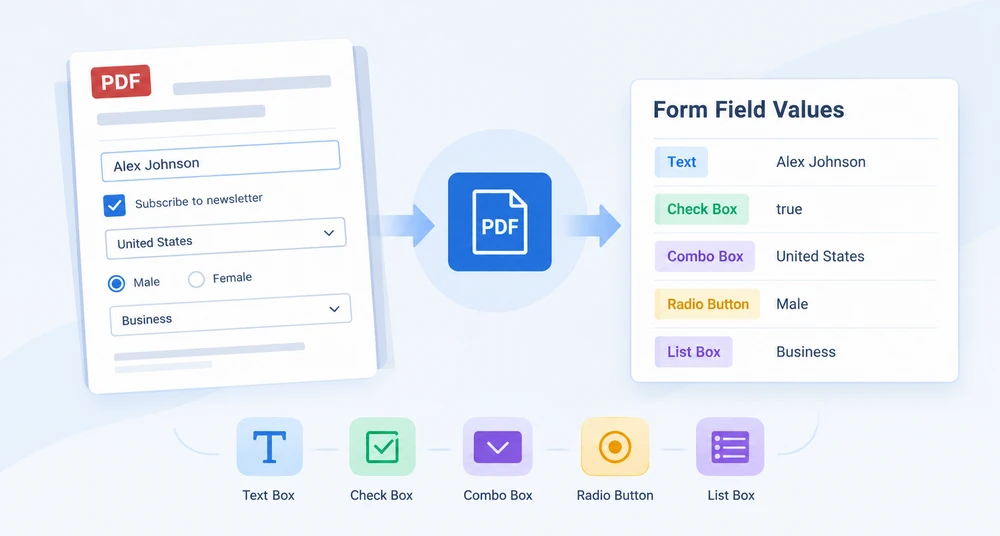
Quando alguém preenche um formulário PDF e o salva, os valores inseridos ficam dentro das estruturas de campos do documento — não como texto simples que você possa pesquisar ou copiar em massa. Para um formulário com trinta ou quarenta campos, a transcrição manual torna-se um gargalo. O problema mais profundo é que cada tipo de campo armazena seu valor de maneira diferente: uma caixa de texto expõe uma string, uma caixa de seleção reporta um booleano, uma caixa de combinação separa as opções da seleção, e um botão de opção armazena o item escolhido. Não existe uma única chamada uniforme de "me dê o valor".
Este artigo mostra como extrair valores de campos de formulário de um PDF usando o Spire.PDF for JavaScript. A biblioteca é executada em WebAssembly no navegador, então o documento é analisado localmente por meio de um sistema de arquivos virtual, sem ida e volta ao servidor. Você verá como percorrer a coleção de campos, identificar o tipo de cada campo e ler a propriedade correta para caixas de texto, caixas de lista, caixas de combinação, botões de opção e caixas de seleção.
Para configuração e instalação do projeto, consulte Integrate Spire.PDF for JavaScript in a React Project. O código abaixo pressupõe que o Spire.PDF está instalado e o módulo WASM está inicializado.
Tipos de Campo em Resumo
Antes de mergulhar na implementação, ajuda mapear como cada tipo de campo expõe seu valor. O Spire.PDF for JavaScript representa campos de formulário como classes de widget, e a propriedade que contém o valor atual difere de um tipo para outro:
| Tipo de Campo | Classe de Widget | Propriedade de Leitura | Observações |
|---|---|---|---|
| Caixa de Texto | PdfTextBoxFieldWidget |
Text |
Retorna a string inserida diretamente. |
| Caixa de Lista | PdfListBoxWidgetFieldWidget |
SelectedValue |
Values é a lista completa de opções, não a escolha do usuário. |
| Caixa de Combinação | PdfComboBoxWidgetFieldWidget |
SelectedValue |
Mesmo modelo de propriedade dupla da caixa de lista. |
| Botão de Opção | PdfRadioButtonListFieldWidget |
Value |
Fornece a string do item selecionado em uma única etapa. |
| Caixa de Seleção | PdfCheckBoxWidgetFieldWidget |
Checked |
Estado booleano. Value é undefined — não o use. |
O padrão é claro: não existe uma única propriedade universal. A lógica de extração deve testar o tipo de cada campo e ler a propriedade correspondente, que é exatamente o que a próxima seção implementa.
Iterar Campos e Ler por Tipo
O fluxo de trabalho principal tem três etapas: carregar o PDF, obter seu formulário como um PdfFormWidget e então percorrer a coleção FieldsWidget e ramificar pelo tipo de cada campo com instanceof. Em cada ramificação, leia a propriedade específica do tipo e acrescente o resultado a uma string de relatório. Como a distribuição cobre todos os tipos suportados, você não precisa saber de antemão quais campos o documento contém — campos não reconhecidos simplesmente caem em um rótulo padrão.
function App() {
  const getAllFieldValues = async () => {
    // Get the Spire.PDF WASM module
    const pdfModule = window.wasmModule?.spirepdf;

    // Check that the module is ready
    if (!pdfModule) {
      alert('Spire.PDF is not ready yet');
      return;
    }

    // Load the PDF file to be read into the VFS
    const inputFileName = 'ApplicationForm.pdf';
    await window.spire.FetchFileToVFS(inputFileName, "", `${process.env.PUBLIC_URL}/data/`);

    // Create a PdfDocument object and load the PDF document
    const doc = new pdfModule.PdfDocument();
    doc.LoadFromFile(inputFileName);

    // Build a PdfFormWidget from the document's form handle; FieldsWidget is its field collection
    const formWidget = new pdfModule.PdfFormWidget(doc.Form.H);
    const fields = formWidget.FieldsWidget;

    let report = '';

    // Walk the field collection, check each type, and read the matching value
    for (let i = 0; i < fields.Count; i++) {
      const field = fields.get_Item({ index: i });

      // Both the type name and the value are filled in by the type dispatch
      let type = 'Unknown';
      let value = '(Unrecognized field type)';

      if (field instanceof pdfModule.PdfTextBoxFieldWidget) {
        // Text box field: read Text directly
        type = 'TextBox';
        value = field.Text;
      } else if (field instanceof pdfModule.PdfListBoxWidgetFieldWidget) {
        // List box field: Values holds every option, SelectedValue is the current one
        const options = [];
        for (let j = 0; j < field.Values.Count; j++) {
          options.push(field.Values.get_Item(j).Value);
        }
        type = 'ListBox';
        value = `Selected ${field.SelectedValue}, options ${options.join(', ')}`;
      } else if (field instanceof pdfModule.PdfComboBoxWidgetFieldWidget) {
        // Combo box field: like a list box, it has an option collection and a selected value
        const options = [];
        for (let j = 0; j < field.Values.Count; j++) {
          options.push(field.Values.get_Item(j).Value);
        }
        type = 'ComboBox';
        value = `Selected ${field.SelectedValue}, options ${options.join(', ')}`;
      } else if (field instanceof pdfModule.PdfRadioButtonListFieldWidget) {
        // Radio button field: Value is the selected item
        type = 'RadioButton';
        value = `Selected ${field.Value}`;
      } else if (field instanceof pdfModule.PdfCheckBoxWidgetFieldWidget) {
        // Check box field: Checked gives the state, not Value
        type = 'CheckBox';
        value = field.Checked ? 'Checked' : 'Not checked';
      }

      report += `Field "${field.Name}" (${type}): ${value}\n`;
    }

    const outputFileName = 'AllFieldValues.txt';
    window.dotnetRuntime.Module.FS.writeFile(outputFileName, report);
    doc.Close();

    // Read the generated file from the VFS and trigger the download
    const fileArray = window.dotnetRuntime.Module.FS.readFile(outputFileName);
    const blob = new Blob([fileArray], { type: 'text/plain' });
    const url = URL.createObjectURL(blob);
    const a = document.createElement('a');
    a.href = url;
    a.download = outputFileName;
    a.click();
    URL.revokeObjectURL(url);
  };

  return (
    <div style={{ textAlign: 'center', height: '300px' }}>
      <h1>Extract Form Field Values</h1>
      <button onClick={getAllFieldValues}>
        Extract values
      </button>
    </div>
  );
}

export default App;
Depois que o loop termina, a string de relatório contém uma linha por campo com seu nome, tipo e valor atual. O arquivo é gravado no sistema de arquivos virtual e então baixado como um arquivo de texto:

A cadeia de instanceof é o coração da abordagem. Cada ramificação sabe exatamente qual propriedade ler, então a saída fica correta independentemente de quantos tipos de campo o documento mistura. As próximas três seções abordam as armadilhas que surgem quando a propriedade de valor de um campo não é a que você poderia esperar.
Caixas de Seleção: Checked vs Value
Um erro comum ao ler campos de caixa de seleção é recorrer a uma propriedade Value. O widget de caixa de seleção — PdfCheckBoxWidgetFieldWidget — não expõe Value de forma alguma; tentar lê-lo retorna undefined. Nos bastidores, uma caixa de seleção rastreia seu estado por meio de valores de exportação: Off quando não marcada, e Yes ou uma string de exportação personalizada quando marcada. Uma string bruta não consegue dizer de forma confiável se a caixa está selecionada, então a superfície da API deliberadamente omite Value e oferece Checked em vez disso.
A correção é simples — use sempre a propriedade booleana Checked:
// Check the state with Checked, not Value
const checked = field.Checked;
Isso retorna true quando a caixa está marcada e false caso contrário, fornecendo um booleano limpo para a lógica subsequente, sem qualquer análise de string.
Caixas de Lista e Caixas de Combinação: SelectedValue vs Values
Caixas de lista e caixas de combinação compartilham um modelo de dados em duas partes que confunde muitos desenvolvedores. Tanto PdfListBoxWidgetFieldWidget quanto PdfComboBoxWidgetFieldWidget expõem uma coleção Values e uma string SelectedValue, e é fácil supor que Values contém a entrada do usuário. Não contém.
Values é o conjunto completo de opções disponíveis. Cada elemento da coleção é um objeto PdfListWidgetItem, então você deve desempacotá-lo com .Value para obter o texto da opção. Percorrer Values informa o que o usuário poderia ter escolhido, não o que ele realmente selecionou. A seleção real do usuário está em SelectedValue como uma string simples.
Use SelectedValue para o valor atual e percorra Values apenas quando precisar enumerar as escolhas disponíveis:
// The text of the currently selected item
const selected = field.SelectedValue;

// Every available option
const options = [];
for (let j = 0; j < field.Values.Count; j++) {
  options.push(field.Values.get_Item(j).Value);
}
Manter essas duas propriedades bem distintas é essencial: tratar Values como a resposta fornece a lista de opções em vez do resultado preenchido, e as duas raramente têm o mesmo comprimento.
Lidar com PDFs Criptografados
A extração de formulário começa abrindo o documento. Se o PDF estiver protegido por senha, chamar LoadFromFile apenas com o nome do arquivo lança um erro — "Can not open an encrypted document. The password is invalid." — e nenhum objeto de documento é retornado. Os campos de formulário nunca são alcançados.
A solução é passar a senha de abertura como o segundo argumento:
doc.LoadFromFile(inputFileName, 'spire123');
Depois que o documento abre com sucesso, o restante do fluxo de extração — construir o PdfFormWidget, percorrer os campos, distribuir por tipo — funciona exatamente da mesma forma que com um arquivo não criptografado. A senha apenas bloqueia o carregamento inicial; ela não altera como os valores dos campos são lidos.
Veja Também
- Integrate Spire.PDF for JavaScript in a React Project — configuração, instalação e inicialização do WASM
- Fill PDF Form Fields with Spire.PDF for JavaScript — gravar valores em campos de formulário programaticamente
- Import and Export PDF Form Data with Spire.PDF for JavaScript — serializar dados de formulário em arquivos FDF/XFDF
Se você quiser remover a mensagem de avaliação do documento resultante, ou eliminar as limitações de recursos, entre em contato com a equipe de vendas para obter uma licença temporária válida por 30 dias.
JavaScript로 유형별 PDF 양식 필드 값 읽기
누군가 PDF 양식을 작성하고 저장하면, 입력된 값은 문서의 필드 구조 안에 저장됩니다. 일괄적으로 검색하거나 복사할 수 있는 일반 텍스트가 아닙니다. 서른 개나 마흔 개의 필드가 있는 양식이라면 손으로 옮겨 적는 작업이 병목이 됩니다. 더 근본적인 문제는 각 필드 유형이 값을 저장하는 방식이 서로 다르다는 점입니다. 텍스트 상자는 문자열을 노출하고, 체크 박스는 불리언을 보고하며, 콤보 상자는 옵션과 선택 항목을 분리하고, 라디오 버튼은 선택된 항목을 저장합니다. 하나의 통일된 "값을 달라"는 호출은 존재하지 않습니다.
이 글에서는 Spire.PDF for JavaScript를 사용하여 PDF에서 양식 필드 값을 추출하는 방법을 살펴봅니다. 이 라이브러리는 브라우저에서 WebAssembly로 실행되므로, 문서가 가상 파일 시스템을 통해 로컬에서 구문 분석되며 서버 왕복이 필요하지 않습니다. 필드 컬렉션을 순회하고, 각 필드의 유형에 따라 분기하고, 텍스트 상자, 목록 상자, 콤보 상자, 라디오 버튼, 체크 박스에 대해 올바른 속성을 읽는 방법을 확인할 수 있습니다.
설정 및 프로젝트 구성에 대해서는 React 프로젝트에 Spire.PDF for JavaScript 통합하기를 참조하세요. 아래 코드는 Spire.PDF가 설치되어 있고 WASM 모듈이 초기화되었다고 가정합니다.
필드 유형 한눈에 보기
구현을 살펴보기 전에 각 필드 유형이 값을 어떻게 노출하는지 정리해 두면 도움이 됩니다. Spire.PDF for JavaScript는 양식 필드를 위젯 클래스로 표현하며, 현재 값을 담고 있는 속성은 유형마다 다릅니다.
| 필드 유형 | 위젯 클래스 | 읽을 속성 | 비고 |
|---|---|---|---|
| 텍스트 상자 | PdfTextBoxFieldWidget |
Text |
입력된 문자열을 그대로 반환합니다. |
| 목록 상자 | PdfListBoxWidgetFieldWidget |
SelectedValue |
Values는 전체 옵션 목록이며, 사용자가 선택한 항목이 아닙니다. |
| 콤보 상자 | PdfComboBoxWidgetFieldWidget |
SelectedValue |
목록 상자와 동일한 이중 속성 모델을 사용합니다. |
| 라디오 버튼 | PdfRadioButtonListFieldWidget |
Value |
선택된 항목 문자열을 한 번에 제공합니다. |
| 체크 박스 | PdfCheckBoxWidgetFieldWidget |
Checked |
불리언 상태입니다. Value는 undefined이므로 사용하지 마세요. |
패턴은 분명합니다. 모든 경우에 통용되는 단일 속성은 없습니다. 추출 로직은 각 필드의 유형을 확인하고 그에 맞는 속성을 읽어야 하며, 다음 섹션에서 바로 그것을 구현합니다.
필드 반복 및 유형별 값 읽기
핵심 워크플로는 세 단계로 이루어집니다. PDF를 로드하고, 양식을 PdfFormWidget으로 가져온 다음, FieldsWidget 컬렉션을 순회하면서 instanceof로 각 필드의 클래스에 따라 분기합니다. 각 분기에서 유형별 속성을 읽고 결과를 보고서 문자열에 추가합니다. 이 분기 처리가 지원되는 모든 유형을 다루므로, 문서에 어떤 필드가 들어 있는지 미리 알 필요가 없습니다. 인식되지 않는 필드는 단순히 기본 레이블로 처리됩니다.
function App() {
  const getAllFieldValues = async () => {
    // Get the Spire.PDF WASM module
    const pdfModule = window.wasmModule?.spirepdf;

    // Check that the module is ready
    if (!pdfModule) {
      alert('Spire.PDF is not ready yet');
      return;
    }

    // Load the PDF file to be read into the VFS
    const inputFileName = 'ApplicationForm.pdf';
    await window.spire.FetchFileToVFS(inputFileName, "", `${process.env.PUBLIC_URL}/data/`);

    // Create a PdfDocument object and load the PDF document
    const doc = new pdfModule.PdfDocument();
    doc.LoadFromFile(inputFileName);

    // Build a PdfFormWidget from the document's form handle; FieldsWidget is its field collection
    const formWidget = new pdfModule.PdfFormWidget(doc.Form.H);
    const fields = formWidget.FieldsWidget;

    let report = '';

    // Walk the field collection, check each type, and read the matching value
    for (let i = 0; i < fields.Count; i++) {
      const field = fields.get_Item({ index: i });

      // Both the type name and the value are filled in by the type dispatch
      let type = 'Unknown';
      let value = '(Unrecognized field type)';

      if (field instanceof pdfModule.PdfTextBoxFieldWidget) {
        // Text box field: read Text directly
        type = 'TextBox';
        value = field.Text;
      } else if (field instanceof pdfModule.PdfListBoxWidgetFieldWidget) {
        // List box field: Values holds every option, SelectedValue is the current one
        const options = [];
        for (let j = 0; j < field.Values.Count; j++) {
          options.push(field.Values.get_Item(j).Value);
        }
        type = 'ListBox';
        value = `Selected ${field.SelectedValue}, options ${options.join(', ')}`;
      } else if (field instanceof pdfModule.PdfComboBoxWidgetFieldWidget) {
        // Combo box field: like a list box, it has an option collection and a selected value
        const options = [];
        for (let j = 0; j < field.Values.Count; j++) {
          options.push(field.Values.get_Item(j).Value);
        }
        type = 'ComboBox';
        value = `Selected ${field.SelectedValue}, options ${options.join(', ')}`;
      } else if (field instanceof pdfModule.PdfRadioButtonListFieldWidget) {
        // Radio button field: Value is the selected item
        type = 'RadioButton';
        value = `Selected ${field.Value}`;
      } else if (field instanceof pdfModule.PdfCheckBoxWidgetFieldWidget) {
        // Check box field: Checked gives the state, not Value
        type = 'CheckBox';
        value = field.Checked ? 'Checked' : 'Not checked';
      }

      report += `Field "${field.Name}" (${type}): ${value}\n`;
    }

    const outputFileName = 'AllFieldValues.txt';
    window.dotnetRuntime.Module.FS.writeFile(outputFileName, report);
    doc.Close();

    // Read the generated file from the VFS and trigger the download
    const fileArray = window.dotnetRuntime.Module.FS.readFile(outputFileName);
    const blob = new Blob([fileArray], { type: 'text/plain' });
    const url = URL.createObjectURL(blob);
    const a = document.createElement('a');
    a.href = url;
    a.download = outputFileName;
    a.click();
    URL.revokeObjectURL(url);
  };

  return (
    <div style={{ textAlign: 'center', height: '300px' }}>
      <h1>Extract Form Field Values</h1>
      <button onClick={getAllFieldValues}>
        Extract values
      </button>
    </div>
  );
}

export default App;
루프가 끝나면 보고서 문자열에는 각 필드의 이름, 유형, 현재 값이 한 줄씩 담깁니다. 이 파일은 가상 파일 시스템에 기록된 다음 텍스트 파일로 다운로드됩니다.
instanceof 분기 체인이 이 접근 방식의 핵심입니다. 각 분기는 읽어야 할 속성을 정확히 알고 있으므로, 문서에 얼마나 많은 필드 유형이 섞여 있든 출력은 올바릅니다. 다음 세 섹션에서는 필드의 값 속성이 예상과 다를 때 발생하는 함정을 다룹니다.
체크 박스: Checked와 Value의 차이
체크 박스 필드를 읽을 때 흔히 하는 실수는 Value 속성을 사용하려는 것입니다. 체크 박스 위젯인 PdfCheckBoxWidgetFieldWidget은 Value를 전혀 노출하지 않으며, 이를 읽으려 하면 undefined가 반환됩니다. 내부적으로 체크 박스는 내보내기 값(export value)을 통해 상태를 추적합니다. 선택되지 않았을 때는 Off이고, 선택되었을 때는 Yes 또는 사용자 지정 내보내기 문자열입니다. 원시 문자열만으로는 상자가 선택되었는지 확실히 알 수 없으므로, API는 의도적으로 Value를 생략하고 대신 Checked를 제공합니다.
해결 방법은 간단합니다. 항상 불리언인 Checked 속성을 사용하세요.
// Check the state with Checked, not Value
const checked = field.Checked;
이 속성은 상자가 선택되어 있으면 true, 그렇지 않으면 false를 반환하므로, 문자열 구문 분석 없이 후속 로직에 사용할 깔끔한 불리언 값을 얻을 수 있습니다.
목록 상자와 콤보 상자: SelectedValue와 Values의 차이
목록 상자와 콤보 상자는 많은 개발자를 헷갈리게 하는 두 부분으로 된 데이터 모델을 공유합니다. PdfListBoxWidgetFieldWidget과 PdfComboBoxWidgetFieldWidget 모두 Values 컬렉션과 SelectedValue 문자열을 노출하는데, Values에 사용자의 입력이 들어 있다고 가정하기 쉽습니다. 그렇지 않습니다.
Values는 사용 가능한 모든 옵션의 집합입니다. 컬렉션의 각 요소는 PdfListWidgetItem 객체이므로, 옵션 텍스트를 얻으려면 .Value로 풀어내야 합니다. Values를 순회하면 사용자가 선택할 수 있었던 항목을 알 수 있을 뿐, 실제로 선택한 항목은 아닙니다. 사용자의 실제 선택은 일반 문자열인 SelectedValue에 있습니다.
현재 값에는 SelectedValue를 사용하고, 사용 가능한 선택지를 열거해야 할 때만 Values를 순회하세요.
// The text of the currently selected item
const selected = field.SelectedValue;

// Every available option
const options = [];
for (let j = 0; j < field.Values.Count; j++) {
  options.push(field.Values.get_Item(j).Value);
}
이 두 속성을 정확히 구분하는 것이 중요합니다. Values를 답으로 취급하면 채워진 결과 대신 옵션 목록을 얻게 되며, 이 둘은 길이가 같은 경우가 거의 없습니다.
암호화된 PDF 처리
양식 추출은 문서를 여는 것에서 시작합니다. PDF가 암호로 보호되어 있다면 파일 이름만으로 LoadFromFile을 호출할 때 오류가 발생합니다. — "Can not open an encrypted document. The password is invalid." — 그리고 문서 객체가 반환되지 않습니다. 양식 필드에는 아예 도달하지 못합니다.
해결 방법은 열기 암호를 두 번째 인수로 전달하는 것입니다.
doc.LoadFromFile(inputFileName, 'spire123');
문서가 성공적으로 열리면 나머지 추출 흐름 — PdfFormWidget 생성, 필드 순회, 유형별 분기 처리 — 은 암호화되지 않은 파일과 완전히 동일하게 작동합니다. 암호는 최초 로드만 제한할 뿐, 필드 값을 읽는 방식에는 영향을 주지 않습니다.
관련 항목
- React 프로젝트에 Spire.PDF for JavaScript 통합하기 — 설정, 설치, WASM 초기화
- Spire.PDF for JavaScript로 PDF 양식 필드 채우기 — 양식 필드에 값을 프로그래밍 방식으로 기록
- Spire.PDF for JavaScript로 PDF 양식 데이터 가져오기 및 내보내기 — 양식 데이터를 FDF/XFDF 파일로 직렬화
결과 문서에서 평가 메시지를 제거하거나 기능 제한을 없애려면, 30일 동안 유효한 임시 라이선스를 위해 영업팀에 문의하세요.
Leggere i valori dei campi modulo PDF per tipo con JavaScript
Indice dei contenuti
Quando qualcuno compila un modulo PDF e lo salva, i valori inseriti risiedono all'interno delle strutture dei campi del documento — non come testo semplice che puoi cercare o copiare in blocco. Per un modulo con trenta o quaranta campi, la trascrizione manuale diventa un collo di bottiglia. Il problema più profondo è che ogni tipo di campo memorizza il proprio valore in modo diverso: una casella di testo espone una stringa, una casella di controllo restituisce un booleano, una casella combinata separa le opzioni dalla selezione e un pulsante di opzione memorizza l'elemento scelto. Non esiste una singola chiamata uniforme "dammi il valore".
Questo articolo illustra come estrarre i valori dei campi modulo da un PDF usando Spire.PDF per JavaScript. La libreria viene eseguita su WebAssembly nel browser, quindi il documento viene analizzato localmente tramite un file system virtuale senza alcun round-trip verso il server. Vedrai come scorrere la raccolta di campi, effettuare il dispatch in base al tipo di ciascun campo e leggere la proprietà corretta per caselle di testo, caselle di riepilogo, caselle combinate, pulsanti di opzione e caselle di controllo.
Per l'installazione e la configurazione del progetto, consulta Integrare Spire.PDF per JavaScript in un progetto React. Il codice seguente presuppone che Spire.PDF sia installato e che il modulo WASM sia inizializzato.
Tipi di campo a colpo d'occhio
Prima di immergerti nell'implementazione, è utile mappare come ogni tipo di campo espone il proprio valore. Spire.PDF per JavaScript rappresenta i campi modulo come classi widget, e la proprietà che contiene il valore corrente varia da un tipo all'altro:
| Tipo di campo | Classe widget | Proprietà da leggere | Note |
|---|---|---|---|
| Casella di testo | PdfTextBoxFieldWidget |
Text |
Restituisce direttamente la stringa inserita. |
| Casella di riepilogo | PdfListBoxWidgetFieldWidget |
SelectedValue |
Values è l'elenco completo delle opzioni, non la scelta dell'utente. |
| Casella combinata | PdfComboBoxWidgetFieldWidget |
SelectedValue |
Stesso modello a doppia proprietà della casella di riepilogo. |
| Pulsante di opzione | PdfRadioButtonListFieldWidget |
Value |
Fornisce la stringa dell'elemento selezionato in un unico passaggio. |
| Casella di controllo | PdfCheckBoxWidgetFieldWidget |
Checked |
Stato booleano. Value è undefined — non usarlo. |
Il modello è chiaro: non esiste un'unica proprietà universale. La logica di estrazione deve verificare il tipo di ciascun campo e leggere la proprietà corrispondente, che è esattamente ciò che implementa la sezione successiva.
Iterare i campi e leggere per tipo
Il flusso di lavoro principale prevede tre passaggi: caricare il PDF, ottenere il suo modulo come PdfFormWidget, quindi scorrere la raccolta FieldsWidget e diramare in base alla classe di ciascun campo con instanceof. In ogni ramo, leggi la proprietà specifica del tipo e aggiungi il risultato a una stringa di report. Poiché il dispatch copre ogni tipo supportato, non è necessario sapere in anticipo quali campi contiene il documento — i campi non riconosciuti ricadono semplicemente in un'etichetta predefinita.
function App() {
  const getAllFieldValues = async () => {
    // Get the Spire.PDF WASM module
    const pdfModule = window.wasmModule?.spirepdf;

    // Check that the module is ready
    if (!pdfModule) {
      alert('Spire.PDF is not ready yet');
      return;
    }

    // Load the PDF file to be read into the VFS
    const inputFileName = 'ApplicationForm.pdf';
    await window.spire.FetchFileToVFS(inputFileName, "", `${process.env.PUBLIC_URL}/data/`);

    // Create a PdfDocument object and load the PDF document
    const doc = new pdfModule.PdfDocument();
    doc.LoadFromFile(inputFileName);

    // Build a PdfFormWidget from the document's form handle; FieldsWidget is its field collection
    const formWidget = new pdfModule.PdfFormWidget(doc.Form.H);
    const fields = formWidget.FieldsWidget;

    let report = '';

    // Walk the field collection, check each type, and read the matching value
    for (let i = 0; i < fields.Count; i++) {
      const field = fields.get_Item({ index: i });

      // Both the type name and the value are filled in by the type dispatch
      let type = 'Unknown';
      let value = '(Unrecognized field type)';

      if (field instanceof pdfModule.PdfTextBoxFieldWidget) {
        // Text box field: read Text directly
        type = 'TextBox';
        value = field.Text;
      } else if (field instanceof pdfModule.PdfListBoxWidgetFieldWidget) {
        // List box field: Values holds every option, SelectedValue is the current one
        const options = [];
        for (let j = 0; j < field.Values.Count; j++) {
          options.push(field.Values.get_Item(j).Value);
        }
        type = 'ListBox';
        value = `Selected ${field.SelectedValue}, options ${options.join(', ')}`;
      } else if (field instanceof pdfModule.PdfComboBoxWidgetFieldWidget) {
        // Combo box field: like a list box, it has an option collection and a selected value
        const options = [];
        for (let j = 0; j < field.Values.Count; j++) {
          options.push(field.Values.get_Item(j).Value);
        }
        type = 'ComboBox';
        value = `Selected ${field.SelectedValue}, options ${options.join(', ')}`;
      } else if (field instanceof pdfModule.PdfRadioButtonListFieldWidget) {
        // Radio button field: Value is the selected item
        type = 'RadioButton';
        value = `Selected ${field.Value}`;
      } else if (field instanceof pdfModule.PdfCheckBoxWidgetFieldWidget) {
        // Check box field: Checked gives the state, not Value
        type = 'CheckBox';
        value = field.Checked ? 'Checked' : 'Not checked';
      }

      report += `Field "${field.Name}" (${type}): ${value}\n`;
    }

    const outputFileName = 'AllFieldValues.txt';
    window.dotnetRuntime.Module.FS.writeFile(outputFileName, report);
    doc.Close();

    // Read the generated file from the VFS and trigger the download
    const fileArray = window.dotnetRuntime.Module.FS.readFile(outputFileName);
    const blob = new Blob([fileArray], { type: 'text/plain' });
    const url = URL.createObjectURL(blob);
    const a = document.createElement('a');
    a.href = url;
    a.download = outputFileName;
    a.click();
    URL.revokeObjectURL(url);
  };

  return (
    <div style={{ textAlign: 'center', height: '300px' }}>
      <h1>Extract Form Field Values</h1>
      <button onClick={getAllFieldValues}>
        Extract values
      </button>
    </div>
  );
}

export default App;
Dopo che il ciclo è terminato, la stringa del report contiene una riga per campo con il suo nome, il tipo e il valore corrente. Il file viene scritto nel file system virtuale e quindi scaricato come file di testo:
La catena di instanceof è il cuore dell'approccio. Ogni ramo sa esattamente quale proprietà leggere, quindi l'output è corretto indipendentemente da quanti tipi di campo il documento combina insieme. Le tre sezioni successive affrontano le insidie che sorgono quando la proprietà del valore di un campo non è quella che potresti aspettarti.
Caselle di controllo: Checked vs Value
Un errore comune quando si leggono i campi casella di controllo è cercare una proprietà Value. Il widget casella di controllo — PdfCheckBoxWidgetFieldWidget — non espone affatto Value; tentare di leggerla restituisce undefined. Sotto il cofano, una casella di controllo tiene traccia del proprio stato tramite valori di esportazione: Off quando non è selezionata, e Yes o una stringa di esportazione personalizzata quando è selezionata. Una stringa grezza non può indicarti in modo affidabile se la casella è selezionata, quindi l'API omette deliberatamente Value e offre invece Checked.
La soluzione è semplice — usa sempre la proprietà booleana Checked:
// Check the state with Checked, not Value
const checked = field.Checked;
Questa restituisce true quando la casella è selezionata e false in caso contrario, fornendoti un booleano pulito per la logica a valle senza alcuna analisi di stringhe.
Caselle di riepilogo e caselle combinate: SelectedValue vs Values
Le caselle di riepilogo e le caselle combinate condividono un modello dati in due parti che manda in confusione molti sviluppatori. Sia PdfListBoxWidgetFieldWidget sia PdfComboBoxWidgetFieldWidget espongono una raccolta Values e una stringa SelectedValue, ed è facile supporre che Values contenga il valore inserito dall'utente. Non è così.
Values è l'insieme completo delle opzioni disponibili. Ogni elemento della raccolta è un oggetto PdfListWidgetItem, quindi devi estrarlo con .Value per ottenere il testo dell'opzione. Scorrere Values ti dice cosa l'utente poteva scegliere, non cosa ha effettivamente selezionato. La selezione reale dell'utente si trova in SelectedValue come stringa semplice.
Usa SelectedValue per il valore corrente e scorri Values solo quando devi enumerare le scelte disponibili:
// The text of the currently selected item
const selected = field.SelectedValue;

// Every available option
const options = [];
for (let j = 0; j < field.Values.Count; j++) {
  options.push(field.Values.get_Item(j).Value);
}
Tenere distinte queste due proprietà è essenziale: trattare Values come la risposta ti dà l'elenco delle opzioni invece del risultato compilato, e le due cose raramente hanno la stessa lunghezza.
Gestione dei PDF crittografati
L'estrazione dei moduli inizia con l'apertura del documento. Se il PDF è protetto da password, chiamare LoadFromFile con il solo nome file genera un errore — "Impossibile aprire un documento crittografato. La password non è valida." — e non viene restituito alcun oggetto documento. I campi modulo non vengono mai raggiunti.
La soluzione è passare la password di apertura come secondo argomento:
doc.LoadFromFile(inputFileName, 'spire123');
Una volta che il documento si apre correttamente, il resto del flusso di estrazione — creare il PdfFormWidget, scorrere i campi, effettuare il dispatch per tipo — funziona esattamente allo stesso modo di un file non crittografato. La password controlla solo il caricamento iniziale; non cambia il modo in cui vengono letti i valori dei campi.
Vedi anche
- Integrare Spire.PDF per JavaScript in un progetto React — configurazione, installazione e inizializzazione WASM
- Compilare i campi modulo PDF con Spire.PDF per JavaScript — scrivere valori nei campi modulo a livello di codice
- Importare ed esportare i dati dei moduli PDF con Spire.PDF per JavaScript — serializzare i dati del modulo in file FDF/XFDF
Se desideri rimuovere il messaggio di valutazione dal documento risultante o eliminare le limitazioni delle funzionalità, contatta l'assistenza commerciale per ottenere una licenza temporanea valida per 30 giorni.
Lire les valeurs des champs de formulaire PDF par type avec JavaScript
Table des matières
Lorsqu'une personne remplit un formulaire PDF et l'enregistre, les valeurs saisies résident dans les structures de champs du document — et non sous forme de texte brut que vous pouvez rechercher ou copier en masse. Pour un formulaire comportant trente ou quarante champs, la transcription manuelle devient un goulot d'étranglement. Le problème plus profond est que chaque type de champ stocke sa valeur différemment : une zone de texte expose une chaîne, une case à cocher renvoie un booléen, une zone de liste déroulante sépare les options de la sélection, et un bouton radio stocke son élément choisi. Un appel uniforme et unique « donnez-moi la valeur » n'existe pas.
Cet article explique comment extraire les valeurs des champs de formulaire d'un PDF à l'aide de Spire.PDF for JavaScript. La bibliothèque s'exécute sur WebAssembly dans le navigateur, de sorte que le document est analysé localement via un système de fichiers virtuel, sans aller-retour vers le serveur. Vous verrez comment parcourir la collection de champs, effectuer une répartition selon le type de chaque champ, et lire la propriété correcte pour les zones de texte, les zones de liste, les zones de liste déroulante, les boutons radio et les cases à cocher.
Pour l'installation et la configuration du projet, reportez-vous à Intégrer Spire.PDF for JavaScript dans un projet React. Le code ci-dessous suppose que Spire.PDF est installé et que le module WASM est initialisé.
Types de champs en un coup d'œil
Avant de plonger dans l'implémentation, il est utile de cartographier la manière dont chaque type de champ expose sa valeur. Spire.PDF for JavaScript représente les champs de formulaire sous forme de classes de widgets, et la propriété qui contient la valeur actuelle diffère d'un type à l'autre :
| Type de champ | Classe de widget | Propriété à lire | Remarques |
|---|---|---|---|
| Zone de texte | PdfTextBoxFieldWidget |
Text |
Renvoie directement la chaîne saisie. |
| Zone de liste | PdfListBoxWidgetFieldWidget |
SelectedValue |
Values est la liste complète des options, et non le choix de l'utilisateur. |
| Zone de liste déroulante | PdfComboBoxWidgetFieldWidget |
SelectedValue |
Même modèle à double propriété que la zone de liste. |
| Bouton radio | PdfRadioButtonListFieldWidget |
Value |
Fournit la chaîne de l'élément sélectionné en une seule étape. |
| Case à cocher | PdfCheckBoxWidgetFieldWidget |
Checked |
État booléen. Value est indéfini — ne l'utilisez pas. |
Le schéma est clair : il n'existe pas de propriété universelle unique. La logique d'extraction doit tester le type de chaque champ et lire la propriété correspondante, ce que la section suivante met précisément en œuvre.
Parcourir les champs et lire selon le type
Le flux de travail principal comporte trois étapes : charger le PDF, obtenir son formulaire sous forme de PdfFormWidget, puis parcourir la collection FieldsWidget et effectuer un branchement sur la classe de chaque champ à l'aide de instanceof. À chaque branche, lisez la propriété spécifique au type et ajoutez le résultat à une chaîne de rapport. Comme la répartition couvre tous les types pris en charge, vous n'avez pas besoin de connaître à l'avance les champs que contient le document — les champs non reconnus passent simplement à une étiquette par défaut.
function App() {
  const getAllFieldValues = async () => {
    // Get the Spire.PDF WASM module
    const pdfModule = window.wasmModule?.spirepdf;

    // Check that the module is ready
    if (!pdfModule) {
      alert('Spire.PDF is not ready yet');
      return;
    }

    // Load the PDF file to be read into the VFS
    const inputFileName = 'ApplicationForm.pdf';
    await window.spire.FetchFileToVFS(inputFileName, "", `${process.env.PUBLIC_URL}/data/`);

    // Create a PdfDocument object and load the PDF document
    const doc = new pdfModule.PdfDocument();
    doc.LoadFromFile(inputFileName);

    // Build a PdfFormWidget from the document's form handle; FieldsWidget is its field collection
    const formWidget = new pdfModule.PdfFormWidget(doc.Form.H);
    const fields = formWidget.FieldsWidget;

    let report = '';

    // Walk the field collection, check each type, and read the matching value
    for (let i = 0; i < fields.Count; i++) {
      const field = fields.get_Item({ index: i });

      // Both the type name and the value are filled in by the type dispatch
      let type = 'Unknown';
      let value = '(Unrecognized field type)';

      if (field instanceof pdfModule.PdfTextBoxFieldWidget) {
        // Text box field: read Text directly
        type = 'TextBox';
        value = field.Text;
      } else if (field instanceof pdfModule.PdfListBoxWidgetFieldWidget) {
        // List box field: Values holds every option, SelectedValue is the current one
        const options = [];
        for (let j = 0; j < field.Values.Count; j++) {
          options.push(field.Values.get_Item(j).Value);
        }
        type = 'ListBox';
        value = `Selected ${field.SelectedValue}, options ${options.join(', ')}`;
      } else if (field instanceof pdfModule.PdfComboBoxWidgetFieldWidget) {
        // Combo box field: like a list box, it has an option collection and a selected value
        const options = [];
        for (let j = 0; j < field.Values.Count; j++) {
          options.push(field.Values.get_Item(j).Value);
        }
        type = 'ComboBox';
        value = `Selected ${field.SelectedValue}, options ${options.join(', ')}`;
      } else if (field instanceof pdfModule.PdfRadioButtonListFieldWidget) {
        // Radio button field: Value is the selected item
        type = 'RadioButton';
        value = `Selected ${field.Value}`;
      } else if (field instanceof pdfModule.PdfCheckBoxWidgetFieldWidget) {
        // Check box field: Checked gives the state, not Value
        type = 'CheckBox';
        value = field.Checked ? 'Checked' : 'Not checked';
      }

      report += `Field "${field.Name}" (${type}): ${value}\n`;
    }

    const outputFileName = 'AllFieldValues.txt';
    window.dotnetRuntime.Module.FS.writeFile(outputFileName, report);
    doc.Close();

    // Read the generated file from the VFS and trigger the download
    const fileArray = window.dotnetRuntime.Module.FS.readFile(outputFileName);
    const blob = new Blob([fileArray], { type: 'text/plain' });
    const url = URL.createObjectURL(blob);
    const a = document.createElement('a');
    a.href = url;
    a.download = outputFileName;
    a.click();
    URL.revokeObjectURL(url);
  };

  return (
    <div style={{ textAlign: 'center', height: '300px' }}>
      <h1>Extract Form Field Values</h1>
      <button onClick={getAllFieldValues}>
        Extract values
      </button>
    </div>
  );
}

export default App;
Une fois la boucle terminée, la chaîne de rapport contient une ligne par champ avec son nom, son type et sa valeur actuelle. Le fichier est écrit dans le système de fichiers virtuel, puis téléchargé sous forme de fichier texte :
La chaîne instanceof est au cœur de l'approche. Chaque branche sait exactement quelle propriété lire, de sorte que la sortie est correcte quel que soit le nombre de types de champs que le document mélange. Les trois sections suivantes abordent les pièges qui surviennent lorsque la propriété de valeur d'un champ n'est pas celle que vous pourriez attendre.
Cases à cocher : Checked vs Value
Une erreur courante lors de la lecture des champs de case à cocher consiste à se tourner vers une propriété Value. Le widget de case à cocher — PdfCheckBoxWidgetFieldWidget — n'expose pas du tout Value ; toute tentative de lecture renvoie undefined. En interne, une case à cocher suit son état au moyen de valeurs d'exportation : Off lorsqu'elle n'est pas cochée, et Yes ou une chaîne d'exportation personnalisée lorsqu'elle est cochée. Une chaîne brute ne peut pas vous indiquer de manière fiable si la case est sélectionnée, c'est pourquoi la surface de l'API omet délibérément Value et propose Checked à la place.
La solution est simple — utilisez toujours la propriété booléenne Checked :
// Check the state with Checked, not Value
const checked = field.Checked;
Cela renvoie true lorsque la case est cochée et false sinon, vous offrant un booléen propre pour la logique en aval, sans aucune analyse de chaîne.
Zones de liste et zones de liste déroulante : SelectedValue vs Values
Les zones de liste et les zones de liste déroulante partagent un modèle de données en deux parties qui déroute de nombreux développeurs. PdfListBoxWidgetFieldWidget et PdfComboBoxWidgetFieldWidget exposent tous deux une collection Values et une chaîne SelectedValue, et il est facile de supposer que Values contient la saisie de l'utilisateur. Ce n'est pas le cas.
Values est l'ensemble complet des options disponibles. Chaque élément de la collection est un objet PdfListWidgetItem, vous devez donc le déballer avec .Value pour obtenir le texte de l'option. Parcourir Values vous indique ce que l'utilisateur aurait pu choisir, et non ce qu'il a réellement sélectionné. La véritable sélection de l'utilisateur réside dans SelectedValue sous forme de chaîne simple.
Utilisez SelectedValue pour la valeur actuelle, et parcourez Values uniquement lorsque vous devez énumérer les choix disponibles :
// The text of the currently selected item
const selected = field.SelectedValue;

// Every available option
const options = [];
for (let j = 0; j < field.Values.Count; j++) {
  options.push(field.Values.get_Item(j).Value);
}
Il est essentiel de bien distinguer ces deux propriétés : traiter Values comme la réponse vous donne la liste des options au lieu du résultat rempli, et les deux ont rarement la même longueur.
Gestion des PDF chiffrés
L'extraction du formulaire commence par l'ouverture du document. Si le PDF est protégé par mot de passe, appeler LoadFromFile avec seulement le nom du fichier génère une erreur — « Impossible d'ouvrir un document chiffré. Le mot de passe n'est pas valide. » — et aucun objet de document n'est renvoyé. Les champs de formulaire ne sont jamais atteints.
La solution consiste à passer le mot de passe d'ouverture en tant que second argument :
doc.LoadFromFile(inputFileName, 'spire123');
Une fois le document ouvert avec succès, le reste du flux d'extraction — construction du PdfFormWidget, parcours des champs, répartition par type — fonctionne exactement de la même manière qu'avec un fichier non chiffré. Le mot de passe ne conditionne que le chargement initial ; il ne modifie pas la manière dont les valeurs des champs sont lues.
Voir aussi
- Intégrer Spire.PDF for JavaScript dans un projet React — installation, configuration et initialisation de WASM
- Remplir les champs de formulaire PDF avec Spire.PDF for JavaScript — écrire des valeurs dans les champs de formulaire par programmation
- Importer et exporter des données de formulaire PDF avec Spire.PDF for JavaScript — sérialiser les données de formulaire dans des fichiers FDF/XFDF
Si vous souhaitez supprimer le message d'évaluation du document résultant, ou vous débarrasser des limitations de fonctionnalités, contactez le service commercial pour une licence temporaire valable 30 jours.
Leer valores de campos de formulario PDF por tipo con JavaScript
Tabla de contenidos
Cuando alguien rellena un formulario PDF y lo guarda, los valores introducidos residen dentro de las estructuras de campos del documento, no como texto plano que se pueda buscar o copiar de forma masiva. En un formulario con treinta o cuarenta campos, la transcripción manual se convierte en un cuello de botella. El problema de fondo es que cada tipo de campo almacena su valor de forma distinta: un cuadro de texto expone una cadena, una casilla de verificación informa un valor booleano, un cuadro combinado separa las opciones de la selección y un botón de opción almacena el elemento elegido. No existe una única llamada uniforme del tipo "dame el valor".
Este artículo explica cómo extraer los valores de los campos de formulario de un PDF con Spire.PDF for JavaScript. La biblioteca se ejecuta sobre WebAssembly en el navegador, por lo que el documento se analiza localmente a través de un sistema de archivos virtual, sin ida y vuelta al servidor. Verá cómo recorrer la colección de campos, despachar según el tipo de cada campo y leer la propiedad correcta para cuadros de texto, cuadros de lista, cuadros combinados, botones de opción y casillas de verificación.
Para la configuración del proyecto, consulte Integrar Spire.PDF for JavaScript en un proyecto de React. El código siguiente supone que Spire.PDF está instalado y que el módulo WASM está inicializado.
Tipos de campos de un vistazo
Antes de sumergirse en la implementación, conviene trazar cómo expone su valor cada tipo de campo. Spire.PDF for JavaScript representa los campos de formulario como clases de widget, y la propiedad que contiene el valor actual difiere de un tipo a otro:
| Tipo de campo | Clase de widget | Propiedad a leer | Notas |
|---|---|---|---|
| Cuadro de texto | PdfTextBoxFieldWidget |
Text |
Devuelve directamente la cadena introducida. |
| Cuadro de lista | PdfListBoxWidgetFieldWidget |
SelectedValue |
Values es la lista completa de opciones, no la elección del usuario. |
| Cuadro combinado | PdfComboBoxWidgetFieldWidget |
SelectedValue |
El mismo modelo de doble propiedad que el cuadro de lista. |
| Botón de opción | PdfRadioButtonListFieldWidget |
Value |
Proporciona la cadena del elemento seleccionado en un solo paso. |
| Casilla de verificación | PdfCheckBoxWidgetFieldWidget |
Checked |
Estado booleano. Value es undefined; no la use. |
El patrón es claro: no existe una única propiedad universal. La lógica de extracción debe comprobar el tipo de cada campo y leer la propiedad correspondiente, que es exactamente lo que implementa la sección siguiente.
Recorrer los campos y leer según el tipo
El flujo de trabajo principal tiene tres pasos: cargar el PDF, obtener su formulario como un PdfFormWidget y luego recorrer la colección FieldsWidget y ramificar según la clase de cada campo con instanceof. En cada rama, lea la propiedad específica del tipo y añada el resultado a una cadena de informe. Como el despacho cubre todos los tipos admitidos, no necesita saber de antemano qué campos contiene el documento: los campos no reconocidos simplemente caen en una etiqueta predeterminada.
function App() {
  const getAllFieldValues = async () => {
    // Get the Spire.PDF WASM module
    const pdfModule = window.wasmModule?.spirepdf;

    // Check that the module is ready
    if (!pdfModule) {
      alert('Spire.PDF is not ready yet');
      return;
    }

    // Load the PDF file to be read into the VFS
    const inputFileName = 'ApplicationForm.pdf';
    await window.spire.FetchFileToVFS(inputFileName, "", `${process.env.PUBLIC_URL}/data/`);

    // Create a PdfDocument object and load the PDF document
    const doc = new pdfModule.PdfDocument();
    doc.LoadFromFile(inputFileName);

    // Build a PdfFormWidget from the document's form handle; FieldsWidget is its field collection
    const formWidget = new pdfModule.PdfFormWidget(doc.Form.H);
    const fields = formWidget.FieldsWidget;

    let report = '';

    // Walk the field collection, check each type, and read the matching value
    for (let i = 0; i < fields.Count; i++) {
      const field = fields.get_Item({ index: i });

      // Both the type name and the value are filled in by the type dispatch
      let type = 'Unknown';
      let value = '(Unrecognized field type)';

      if (field instanceof pdfModule.PdfTextBoxFieldWidget) {
        // Text box field: read Text directly
        type = 'TextBox';
        value = field.Text;
      } else if (field instanceof pdfModule.PdfListBoxWidgetFieldWidget) {
        // List box field: Values holds every option, SelectedValue is the current one
        const options = [];
        for (let j = 0; j < field.Values.Count; j++) {
          options.push(field.Values.get_Item(j).Value);
        }
        type = 'ListBox';
        value = `Selected ${field.SelectedValue}, options ${options.join(', ')}`;
      } else if (field instanceof pdfModule.PdfComboBoxWidgetFieldWidget) {
        // Combo box field: like a list box, it has an option collection and a selected value
        const options = [];
        for (let j = 0; j < field.Values.Count; j++) {
          options.push(field.Values.get_Item(j).Value);
        }
        type = 'ComboBox';
        value = `Selected ${field.SelectedValue}, options ${options.join(', ')}`;
      } else if (field instanceof pdfModule.PdfRadioButtonListFieldWidget) {
        // Radio button field: Value is the selected item
        type = 'RadioButton';
        value = `Selected ${field.Value}`;
      } else if (field instanceof pdfModule.PdfCheckBoxWidgetFieldWidget) {
        // Check box field: Checked gives the state, not Value
        type = 'CheckBox';
        value = field.Checked ? 'Checked' : 'Not checked';
      }

      report += `Field "${field.Name}" (${type}): ${value}\n`;
    }

    const outputFileName = 'AllFieldValues.txt';
    window.dotnetRuntime.Module.FS.writeFile(outputFileName, report);
    doc.Close();

    // Read the generated file from the VFS and trigger the download
    const fileArray = window.dotnetRuntime.Module.FS.readFile(outputFileName);
    const blob = new Blob([fileArray], { type: 'text/plain' });
    const url = URL.createObjectURL(blob);
    const a = document.createElement('a');
    a.href = url;
    a.download = outputFileName;
    a.click();
    URL.revokeObjectURL(url);
  };

  return (
    <div style={{ textAlign: 'center', height: '300px' }}>
      <h1>Extract Form Field Values</h1>
      <button onClick={getAllFieldValues}>
        Extract values
      </button>
    </div>
  );
}

export default App;
Cuando el bucle termina, la cadena de informe contiene una línea por campo con su nombre, tipo y valor actual. El archivo se escribe en el sistema de archivos virtual y luego se descarga como un archivo de texto:
La cadena de instanceof es el corazón del enfoque. Cada rama sabe exactamente qué propiedad debe leer, por lo que la salida es correcta sin importar cuántos tipos de campo mezcle el documento. Las tres secciones siguientes abordan los escollos que surgen cuando la propiedad de valor de un campo no es la que podría esperarse.
Casillas de verificación: Checked frente a Value
Un error común al leer campos de casilla de verificación es recurrir a una propiedad Value. El widget de casilla de verificación —PdfCheckBoxWidgetFieldWidget— no expone Value en absoluto; intentar leerla devuelve undefined. Internamente, una casilla de verificación registra su estado mediante valores de exportación: Off cuando no está marcada, y Yes o una cadena de exportación personalizada cuando está marcada. Una cadena sin procesar no puede indicar de forma fiable si la casilla está seleccionada, por lo que la superficie de la API omite deliberadamente Value y ofrece Checked en su lugar.
La solución es sencilla: use siempre la propiedad booleana Checked:
// Check the state with Checked, not Value
const checked = field.Checked;
Esta devuelve true cuando la casilla está marcada y false en caso contrario, lo que le proporciona un booleano limpio para la lógica posterior sin necesidad de analizar cadenas.
Cuadros de lista y cuadros combinados: SelectedValue frente a Values
Los cuadros de lista y los cuadros combinados comparten un modelo de datos de dos partes que desconcierta a muchos desarrolladores. Tanto PdfListBoxWidgetFieldWidget como PdfComboBoxWidgetFieldWidget exponen una colección Values y una cadena SelectedValue, y es fácil suponer que Values contiene la entrada del usuario. No es así.
Values es el conjunto completo de opciones disponibles. Cada elemento de la colección es un objeto PdfListWidgetItem, por lo que debe desenvolverlo con .Value para obtener el texto de la opción. Recorrer Values le indica lo que el usuario podría haber elegido, no lo que eligió realmente. La selección real del usuario está en SelectedValue como una cadena simple.
Use SelectedValue para el valor actual, y recorra Values solo cuando necesite enumerar las opciones disponibles:
// The text of the currently selected item
const selected = field.SelectedValue;

// Every available option
const options = [];
for (let j = 0; j < field.Values.Count; j++) {
  options.push(field.Values.get_Item(j).Value);
}
Es esencial no confundir estas dos propiedades: tratar Values como la respuesta le da la lista de opciones en lugar del resultado rellenado, y ambas raramente tienen la misma longitud.
Manejo de PDF cifrados
La extracción de formularios comienza con la apertura del documento. Si el PDF está protegido con contraseña, llamar a LoadFromFile solo con el nombre del archivo genera un error —"Can not open an encrypted document. The password is invalid."— y no se devuelve ningún objeto de documento. Nunca se llega a los campos del formulario.
La solución es pasar la contraseña de apertura como segundo argumento:
doc.LoadFromFile(inputFileName, 'spire123');
Una vez que el documento se abre correctamente, el resto del flujo de extracción —crear el PdfFormWidget, recorrer los campos y despachar según el tipo— funciona exactamente igual que con un archivo sin cifrar. La contraseña solo controla la carga inicial; no cambia la forma en que se leen los valores de los campos.
Véase también
- Integrar Spire.PDF for JavaScript en un proyecto de React: configuración, instalación e inicialización de WASM
- Rellenar campos de formulario PDF con Spire.PDF for JavaScript: escribir valores en los campos del formulario mediante programación
- Importar y exportar datos de formularios PDF con Spire.PDF for JavaScript: serializar los datos del formulario en archivos FDF/XFDF
Si desea eliminar el mensaje de evaluación del documento resultante, o deshacerse de las limitaciones de funciones, contacte con ventas para obtener una licencia temporal válida durante 30 días.
PDF-Formularfeldwerte mit JavaScript nach Typ auslesen
Inhaltsverzeichnis
Wenn jemand ein PDF-Formular ausfüllt und speichert, liegen die eingegebenen Werte in den Feldstrukturen des Dokuments – nicht als einfacher Text, den man durchsuchen oder in großen Mengen kopieren könnte. Bei einem Formular mit dreißig oder vierzig Feldern wird das manuelle Übertragen zum Engpass. Das eigentliche Problem ist, dass jeder Feldtyp seinen Wert anders speichert: Ein Textfeld liefert eine Zeichenkette, ein Kontrollkästchen meldet einen booleschen Wert, ein Kombinationsfeld trennt die Optionen von der Auswahl, und ein Optionsfeld speichert das gewählte Element. Einen einheitlichen Aufruf nach dem Motto "Gib mir den Wert" gibt es nicht.
Dieser Artikel zeigt Schritt für Schritt, wie man Formularfeldwerte aus einem PDF mit Spire.PDF for JavaScript extrahiert. Die Bibliothek läuft im Browser auf WebAssembly, sodass das Dokument lokal über ein virtuelles Dateisystem geparst wird – ohne Roundtrip zum Server. Sie sehen, wie Sie die Feldsammlung durchlaufen, anhand des Typs jedes Felds verzweigen und die richtige Eigenschaft für Textfelder, Listenfelder, Kombinationsfelder, Optionsfelder und Kontrollkästchen auslesen.
Informationen zur Einrichtung und Projektkonfiguration finden Sie unter Integrate Spire.PDF for JavaScript in a React Project. Der folgende Code setzt voraus, dass Spire.PDF installiert und das WASM-Modul initialisiert ist.
Feldtypen auf einen Blick
Bevor wir in die Implementierung einsteigen, ist es hilfreich, sich klarzumachen, wie jeder Feldtyp seinen Wert bereitstellt. Spire.PDF for JavaScript bildet Formularfelder als Widget-Klassen ab, und die Eigenschaft, die den aktuellen Wert enthält, unterscheidet sich von Typ zu Typ:
| Feldtyp | Widget-Klasse | Auszulesende Eigenschaft | Hinweise |
|---|---|---|---|
| Textfeld | PdfTextBoxFieldWidget |
Text |
Gibt die eingegebene Zeichenkette direkt zurück. |
| Listenfeld | PdfListBoxWidgetFieldWidget |
SelectedValue |
Values ist die vollständige Optionsliste, nicht die Auswahl des Benutzers. |
| Kombinationsfeld | PdfComboBoxWidgetFieldWidget |
SelectedValue |
Dasselbe Zwei-Eigenschaften-Modell wie beim Listenfeld. |
| Optionsfeld | PdfRadioButtonListFieldWidget |
Value |
Liefert die Zeichenkette des ausgewählten Elements in einem Schritt. |
| Kontrollkästchen | PdfCheckBoxWidgetFieldWidget |
Checked |
Boolescher Zustand. Value ist undefined – nicht verwenden. |
Das Muster ist klar: Es gibt keine einzige universelle Eigenschaft. Die Extraktionslogik muss den Typ jedes Felds prüfen und die passende Eigenschaft auslesen – genau das implementiert der nächste Abschnitt.
Felder durchlaufen und nach Typ auslesen
Der Kernablauf besteht aus drei Schritten: das PDF laden, sein Formular als PdfFormWidget abrufen und dann die FieldsWidget-Sammlung durchlaufen und mit instanceof nach der Klasse jedes Felds verzweigen. In jedem Zweig wird die typspezifische Eigenschaft gelesen und das Ergebnis an eine Berichtszeichenkette angehängt. Da die Verzweigung jeden unterstützten Typ abdeckt, müssen Sie nicht im Voraus wissen, welche Felder das Dokument enthält – nicht erkannte Felder fallen einfach auf eine Standardbezeichnung zurück.
function App() {
  const getAllFieldValues = async () => {
    // Get the Spire.PDF WASM module
    const pdfModule = window.wasmModule?.spirepdf;

    // Check that the module is ready
    if (!pdfModule) {
      alert('Spire.PDF is not ready yet');
      return;
    }

    // Load the PDF file to be read into the VFS
    const inputFileName = 'ApplicationForm.pdf';
    await window.spire.FetchFileToVFS(inputFileName, "", `${process.env.PUBLIC_URL}/data/`);

    // Create a PdfDocument object and load the PDF document
    const doc = new pdfModule.PdfDocument();
    doc.LoadFromFile(inputFileName);

    // Build a PdfFormWidget from the document's form handle; FieldsWidget is its field collection
    const formWidget = new pdfModule.PdfFormWidget(doc.Form.H);
    const fields = formWidget.FieldsWidget;

    let report = '';

    // Walk the field collection, check each type, and read the matching value
    for (let i = 0; i < fields.Count; i++) {
      const field = fields.get_Item({ index: i });

      // Both the type name and the value are filled in by the type dispatch
      let type = 'Unknown';
      let value = '(Unrecognized field type)';

      if (field instanceof pdfModule.PdfTextBoxFieldWidget) {
        // Text box field: read Text directly
        type = 'TextBox';
        value = field.Text;
      } else if (field instanceof pdfModule.PdfListBoxWidgetFieldWidget) {
        // List box field: Values holds every option, SelectedValue is the current one
        const options = [];
        for (let j = 0; j < field.Values.Count; j++) {
          options.push(field.Values.get_Item(j).Value);
        }
        type = 'ListBox';
        value = `Selected ${field.SelectedValue}, options ${options.join(', ')}`;
      } else if (field instanceof pdfModule.PdfComboBoxWidgetFieldWidget) {
        // Combo box field: like a list box, it has an option collection and a selected value
        const options = [];
        for (let j = 0; j < field.Values.Count; j++) {
          options.push(field.Values.get_Item(j).Value);
        }
        type = 'ComboBox';
        value = `Selected ${field.SelectedValue}, options ${options.join(', ')}`;
      } else if (field instanceof pdfModule.PdfRadioButtonListFieldWidget) {
        // Radio button field: Value is the selected item
        type = 'RadioButton';
        value = `Selected ${field.Value}`;
      } else if (field instanceof pdfModule.PdfCheckBoxWidgetFieldWidget) {
        // Check box field: Checked gives the state, not Value
        type = 'CheckBox';
        value = field.Checked ? 'Checked' : 'Not checked';
      }

      report += `Field "${field.Name}" (${type}): ${value}\n`;
    }

    const outputFileName = 'AllFieldValues.txt';
    window.dotnetRuntime.Module.FS.writeFile(outputFileName, report);
    doc.Close();

    // Read the generated file from the VFS and trigger the download
    const fileArray = window.dotnetRuntime.Module.FS.readFile(outputFileName);
    const blob = new Blob([fileArray], { type: 'text/plain' });
    const url = URL.createObjectURL(blob);
    const a = document.createElement('a');
    a.href = url;
    a.download = outputFileName;
    a.click();
    URL.revokeObjectURL(url);
  };

  return (
    <div style={{ textAlign: 'center', height: '300px' }}>
      <h1>Extract Form Field Values</h1>
      <button onClick={getAllFieldValues}>
        Extract values
      </button>
    </div>
  );
}

export default App;
Nach dem Ende der Schleife enthält die Berichtszeichenkette eine Zeile pro Feld mit dessen Namen, Typ und aktuellem Wert. Die Datei wird in das virtuelle Dateisystem geschrieben und anschließend als Textdatei heruntergeladen:
Die instanceof-Kette ist das Herzstück des Ansatzes. Jeder Zweig weiß genau, welche Eigenschaft auszulesen ist, sodass die Ausgabe korrekt ist, egal wie viele Feldtypen das Dokument kombiniert. Die nächsten drei Abschnitte behandeln die Fallstricke, die auftreten, wenn die Werte-Eigenschaft eines Felds nicht die erwartete ist.
Kontrollkästchen: Checked vs. Value
Ein häufiger Fehler beim Auslesen von Kontrollkästchen ist der Griff zur Eigenschaft Value. Das Kontrollkästchen-Widget – PdfCheckBoxWidgetFieldWidget – stellt Value überhaupt nicht bereit; ein Leseversuch liefert undefined. Intern verfolgt ein Kontrollkästchen seinen Zustand über Exportwerte: Off, wenn es nicht angekreuzt ist, und Yes oder eine benutzerdefinierte Exportzeichenkette, wenn es angekreuzt ist. Eine reine Zeichenkette kann zuverlässig nicht sagen, ob das Kästchen ausgewählt ist, daher lässt die API Value bewusst weg und bietet stattdessen Checked.
Die Lösung ist unkompliziert – verwenden Sie immer die boolesche Eigenschaft Checked:
// Check the state with Checked, not Value
const checked = field.Checked;
Dies gibt true zurück, wenn das Kästchen angekreuzt ist, und andernfalls false – ein sauberer boolescher Wert für die weitere Logik, ganz ohne Parsen von Zeichenketten.
Listenfelder und Kombinationsfelder: SelectedValue vs. Values
Listenfelder und Kombinationsfelder teilen ein zweiteiliges Datenmodell, über das viele Entwickler stolpern. Sowohl PdfListBoxWidgetFieldWidget als auch PdfComboBoxWidgetFieldWidget stellen eine Values-Sammlung und eine SelectedValue-Zeichenkette bereit, und man nimmt leicht an, dass Values die Eingabe des Benutzers enthält. Das ist nicht der Fall.
Values ist die vollständige Menge der verfügbaren Optionen. Jedes Element der Sammlung ist ein PdfListWidgetItem-Objekt, daher müssen Sie es mit .Value entpacken, um den Optionstext zu erhalten. Das Durchlaufen von Values zeigt Ihnen, was der Benutzer hätte wählen können, nicht, was er tatsächlich ausgewählt hat. Die tatsächliche Auswahl des Benutzers steht als einfache Zeichenkette in SelectedValue.
Verwenden Sie SelectedValue für den aktuellen Wert und durchlaufen Sie Values nur, wenn Sie die verfügbaren Auswahlmöglichkeiten auflisten müssen:
// The text of the currently selected item
const selected = field.SelectedValue;

// Every available option
const options = [];
for (let j = 0; j < field.Values.Count; j++) {
  options.push(field.Values.get_Item(j).Value);
}
Es ist unerlässlich, diese beiden Eigenschaften auseinanderzuhalten: Behandelt man Values als die Antwort, erhält man die Optionsliste statt des ausgefüllten Ergebnisses, und beide sind selten gleich lang.
Umgang mit verschlüsselten PDFs
Die Formularextraktion beginnt mit dem Öffnen des Dokuments. Ist das PDF passwortgeschützt, löst der Aufruf von LoadFromFile nur mit dem Dateinamen einen Fehler aus – "Can not open an encrypted document. The password is invalid." – und es wird kein Dokumentobjekt zurückgegeben. Die Formularfelder werden nie erreicht.
Die Lösung besteht darin, das Öffnungspasswort als zweites Argument zu übergeben:
doc.LoadFromFile(inputFileName, 'spire123');
Sobald das Dokument erfolgreich geöffnet ist, funktioniert der restliche Extraktionsablauf – das Erstellen des PdfFormWidget, das Durchlaufen der Felder, das Verzweigen nach Typ – genauso wie bei einer unverschlüsselten Datei. Das Passwort betrifft nur das initiale Laden; es ändert nichts daran, wie Feldwerte ausgelesen werden.
Siehe auch
- Integrate Spire.PDF for JavaScript in a React Project — Einrichtung, Installation und WASM-Initialisierung
- Fill PDF Form Fields with Spire.PDF for JavaScript — Werte programmatisch in Formularfelder schreiben
- Import and Export PDF Form Data with Spire.PDF for JavaScript — Formulardaten in FDF/XFDF-Dateien serialisieren
Wenn Sie die Evaluierungswarnung aus dem Ergebnisdokument entfernen oder die Funktionseinschränkungen beseitigen möchten, wenden Sie sich an den Vertrieb, um eine temporäre Lizenz mit 30 Tagen Gültigkeit zu erhalten.
Чтение значений полей PDF-форм по типам с помощью JavaScript
Когда кто-то заполняет PDF-форму и сохраняет её, введённые значения хранятся внутри структур полей документа, а не в виде обычного текста, который можно искать или массово копировать. Для формы с тридцатью или сорока полями ручной перенос данных становится узким местом. Более глубокая проблема в том, что каждый тип поля хранит своё значение по-разному: текстовое поле предоставляет строку, флажок сообщает логическое значение, раскрывающийся список отделяет варианты от выбора, а переключатель хранит выбранный элемент. Единого универсального вызова "дай мне значение" не существует.
В этой статье рассматривается извлечение значений полей формы из PDF с помощью Spire.PDF for JavaScript. Библиотека работает на WebAssembly в браузере, поэтому документ обрабатывается локально через виртуальную файловую систему без обращения к серверу. Вы увидите, как перебрать коллекцию полей, выполнить ветвление по типу каждого поля и прочитать нужное свойство для текстовых полей, списков, раскрывающихся списков, переключателей и флажков.
По вопросам настройки и конфигурации проекта обращайтесь к разделу Интеграция Spire.PDF for JavaScript в проект React. Приведённый ниже код предполагает, что Spire.PDF установлен, а модуль WASM инициализирован.
Типы полей вкратце
Прежде чем перейти к реализации, полезно разобраться, как каждый тип поля предоставляет своё значение. Spire.PDF for JavaScript представляет поля формы в виде классов виджетов, и свойство, хранящее текущее значение, отличается от типа к типу:
| Тип поля | Класс виджета | Свойство для чтения | Примечания |
|---|---|---|---|
| Текстовое поле | PdfTextBoxFieldWidget |
Text |
Напрямую возвращает введённую строку. |
| Поле списка | PdfListBoxWidgetFieldWidget |
SelectedValue |
Values — это полный список вариантов, а не выбор пользователя. |
| Раскрывающийся список | PdfComboBoxWidgetFieldWidget |
SelectedValue |
Та же модель с двумя свойствами, что и у поля списка. |
| Переключатель | PdfRadioButtonListFieldWidget |
Value |
За один шаг возвращает строку выбранного элемента. |
| Флажок | PdfCheckBoxWidgetFieldWidget |
Checked |
Логическое состояние. Value не определено — не используйте его. |
Закономерность очевидна: единого универсального свойства нет. Логика извлечения должна проверять тип каждого поля и читать соответствующее свойство — именно это и реализуется в следующем разделе.
Перебор полей и чтение по типу
Основной процесс состоит из трёх шагов: загрузить PDF, получить его форму в виде PdfFormWidget, затем перебрать коллекцию FieldsWidget и выполнить ветвление по классу каждого поля с помощью instanceof. В каждой ветке читается свойство, специфичное для типа, а результат добавляется к строке отчёта. Поскольку ветвление охватывает все поддерживаемые типы, вам не нужно заранее знать, какие поля содержит документ: нераспознанные поля просто попадают в ветку с меткой по умолчанию.
function App() {
  const getAllFieldValues = async () => {
    // Get the Spire.PDF WASM module
    const pdfModule = window.wasmModule?.spirepdf;

    // Check that the module is ready
    if (!pdfModule) {
      alert('Spire.PDF is not ready yet');
      return;
    }

    // Load the PDF file to be read into the VFS
    const inputFileName = 'ApplicationForm.pdf';
    await window.spire.FetchFileToVFS(inputFileName, "", `${process.env.PUBLIC_URL}/data/`);

    // Create a PdfDocument object and load the PDF document
    const doc = new pdfModule.PdfDocument();
    doc.LoadFromFile(inputFileName);

    // Build a PdfFormWidget from the document's form handle; FieldsWidget is its field collection
    const formWidget = new pdfModule.PdfFormWidget(doc.Form.H);
    const fields = formWidget.FieldsWidget;

    let report = '';

    // Walk the field collection, check each type, and read the matching value
    for (let i = 0; i < fields.Count; i++) {
      const field = fields.get_Item({ index: i });

      // Both the type name and the value are filled in by the type dispatch
      let type = 'Unknown';
      let value = '(Unrecognized field type)';

      if (field instanceof pdfModule.PdfTextBoxFieldWidget) {
        // Text box field: read Text directly
        type = 'TextBox';
        value = field.Text;
      } else if (field instanceof pdfModule.PdfListBoxWidgetFieldWidget) {
        // List box field: Values holds every option, SelectedValue is the current one
        const options = [];
        for (let j = 0; j < field.Values.Count; j++) {
          options.push(field.Values.get_Item(j).Value);
        }
        type = 'ListBox';
        value = `Selected ${field.SelectedValue}, options ${options.join(', ')}`;
      } else if (field instanceof pdfModule.PdfComboBoxWidgetFieldWidget) {
        // Combo box field: like a list box, it has an option collection and a selected value
        const options = [];
        for (let j = 0; j < field.Values.Count; j++) {
          options.push(field.Values.get_Item(j).Value);
        }
        type = 'ComboBox';
        value = `Selected ${field.SelectedValue}, options ${options.join(', ')}`;
      } else if (field instanceof pdfModule.PdfRadioButtonListFieldWidget) {
        // Radio button field: Value is the selected item
        type = 'RadioButton';
        value = `Selected ${field.Value}`;
      } else if (field instanceof pdfModule.PdfCheckBoxWidgetFieldWidget) {
        // Check box field: Checked gives the state, not Value
        type = 'CheckBox';
        value = field.Checked ? 'Checked' : 'Not checked';
      }

      report += `Field "${field.Name}" (${type}): ${value}\n`;
    }

    const outputFileName = 'AllFieldValues.txt';
    window.dotnetRuntime.Module.FS.writeFile(outputFileName, report);
    doc.Close();

    // Read the generated file from the VFS and trigger the download
    const fileArray = window.dotnetRuntime.Module.FS.readFile(outputFileName);
    const blob = new Blob([fileArray], { type: 'text/plain' });
    const url = URL.createObjectURL(blob);
    const a = document.createElement('a');
    a.href = url;
    a.download = outputFileName;
    a.click();
    URL.revokeObjectURL(url);
  };

  return (
    <div style={{ textAlign: 'center', height: '300px' }}>
      <h1>Extract Form Field Values</h1>
      <button onClick={getAllFieldValues}>
        Extract values
      </button>
    </div>
  );
}

export default App;
После завершения цикла строка отчёта содержит по одной строке на каждое поле с его именем, типом и текущим значением. Файл записывается в виртуальную файловую систему, а затем скачивается как текстовый файл:
Цепочка instanceof — сердце этого подхода. Каждая ветка точно знает, какое свойство читать, поэтому результат будет правильным независимо от того, сколько типов полей смешано в документе. В следующих трёх разделах рассматриваются подводные камни, возникающие, когда свойство значения поля оказывается не тем, которое вы ожидали.
Флажки: Checked или Value
Частая ошибка при чтении полей-флажков — обращение к свойству Value. Виджет флажка — PdfCheckBoxWidgetFieldWidget — вообще не предоставляет Value; попытка его прочитать возвращает undefined. Внутри флажок отслеживает своё состояние через экспортные значения: Off, когда флажок не установлен, и Yes или пользовательскую экспортную строку, когда он установлен. Обычная строка не может надёжно сообщить, выбран ли флажок, поэтому в API намеренно опущено Value и вместо него предложено Checked.
Решение простое — всегда используйте логическое свойство Checked:
// Check the state with Checked, not Value
const checked = field.Checked;
Оно возвращает true, когда флажок установлен, и false в противном случае, предоставляя чистое логическое значение для дальнейшей логики без какого-либо разбора строк.
Списки и раскрывающиеся списки: SelectedValue или Values
Поля списков и раскрывающиеся списки используют модель данных из двух частей, которая сбивает с толку многих разработчиков. И PdfListBoxWidgetFieldWidget, и PdfComboBoxWidgetFieldWidget предоставляют коллекцию Values и строку SelectedValue, и легко предположить, что Values содержит введённое пользователем значение. Это не так.
Values — это полный набор доступных вариантов. Каждый элемент коллекции — объект PdfListWidgetItem, поэтому, чтобы получить текст варианта, его нужно развернуть с помощью .Value. Перебор Values показывает, что пользователь мог выбрать, а не то, что он выбрал на самом деле. Реальный выбор пользователя хранится в SelectedValue в виде обычной строки.
Используйте SelectedValue для текущего значения и перебирайте Values только тогда, когда нужно перечислить доступные варианты:
// The text of the currently selected item
const selected = field.SelectedValue;

// Every available option
const options = [];
for (let j = 0; j < field.Values.Count; j++) {
  options.push(field.Values.get_Item(j).Value);
}
Важно не путать эти два свойства: если считать Values ответом, вы получите список вариантов вместо заполненного результата, а их длины совпадают редко.
Работа с зашифрованными PDF-файлами
Извлечение данных формы начинается с открытия документа. Если PDF защищён паролем, вызов LoadFromFile только с именем файла вызывает ошибку — "Can not open an encrypted document. The password is invalid." — и объект документа не возвращается. До полей формы дело так и не доходит.
Решение — передать пароль для открытия вторым аргументом:
doc.LoadFromFile(inputFileName, 'spire123');
После успешного открытия документа остальной процесс извлечения — создание PdfFormWidget, перебор полей, ветвление по типу — работает точно так же, как и с незашифрованным файлом. Пароль только ограничивает начальную загрузку; он не влияет на то, как читаются значения полей.
См. также
- Интеграция Spire.PDF for JavaScript в проект React — настройка, установка и инициализация WASM
- Заполнение полей PDF-формы с помощью Spire.PDF for JavaScript — программная запись значений в поля формы
- Импорт и экспорт данных PDF-формы с помощью Spire.PDF for JavaScript — сериализация данных формы в файлы FDF/XFDF
Если вы хотите удалить оценочное сообщение из итогового документа или избавиться от ограничений функциональности, свяжитесь с отделом продаж, чтобы получить временную лицензию сроком на 30 дней.
Copy and Reuse PDF Pages Across Documents with JavaScript

Assembling a polished PDF from scattered source files is a routine yet fiddly task: a cover page needs to sit at the front of a project brief, pricing pages belong inside their contract, a quarterly summary stitches together charts from a dozen reports. Doing this by hand means juggling multiple PDF readers and hoping the page order comes out right, with mismatched page sizes compounding the problem.
Spire.PDF for JavaScript moves the entire operation into the browser. Powered by WebAssembly, it loads, manipulates, and saves PDF documents entirely client-side through a virtual file system (VFS), meaning no file is ever uploaded to a backend server. This article walks through four distinct techniques for copying PDF pages between documents — three that relocate whole pages and one that extracts page content as a reusable template — with complete React code examples for each.
For project setup and installation instructions, see Integrating Spire.PDF for JavaScript in a React Project. The examples below assume Spire.PDF is installed and the WebAssembly module has been initialized.
Four Ways to Copy PDF Pages at a Glance
Before examining each method individually, the table below provides a quick comparison. The first three techniques move intact pages and automatically carry over the source page's dimensions, rotation, and margins. The fourth decouples content from page geometry, handing you full control over the target page size and drawing position.
| Method | API Call | What Gets Copied | Page Size | Typical Use Case |
|---|---|---|---|---|
| Insert a single page | InsertPage |
One page at a position you choose | Inherits from source | Adding a cover or title page to the front |
| Insert a page range | InsertPageRange |
A consecutive block of pages | Inherits from source | Appending a specific section like pricing tables |
| Append a whole document | AppendPage |
Every page of the source document | Inherits from source | Concatenating full documents end-to-end |
| Draw page content as a template | CreateTemplate + DrawTemplate |
Page content only, drawn onto any page | You decide the target size | Reusing content on different page sizes or repeating it multiple times |
The first three methods are straightforward page moves — pick the source, pick the destination, and the library handles the rest. The template approach is more advanced and opens up possibilities that simple page copying cannot address, such as scaling content to fit a different page size or stamping the same content onto multiple pages. We will cover the three page-move methods first, then explore the template technique in depth.
Copy a Single Page to a Specific Position
The most precise of the four methods, PdfDocument.InsertPage, copies one page from a source document and places it at an exact index in the target. The resultPageIndex parameter controls where the copy lands: pass 0 to prepend it, pass the target's current page count to append it, or supply any index in between to insert at that position. Omit resultPageIndex entirely and the page defaults to the end.
function App() {
  const copyPageAtPosition = async () => {
    // Get the Spire.PDF WASM module
    const pdfModule = window.wasmModule?.spirepdf;

    // Check whether the module is ready
    if (!pdfModule) {
      alert('Spire.PDF is not ready yet');
      return;
    }

    // Load both the source and the target document into the VFS
    const sourceFileName = 'SourceDocument.pdf';
    const targetFileName = 'TargetDocument.pdf';
    await window.spire.FetchFileToVFS(sourceFileName, "", `${process.env.PUBLIC_URL}/data/`);
    await window.spire.FetchFileToVFS(targetFileName, "", `${process.env.PUBLIC_URL}/data/`);

    // Load the two documents
    const sourceDoc = new pdfModule.PdfDocument();
    sourceDoc.LoadFromFile(sourceFileName);
    const targetDoc = new pdfModule.PdfDocument();
    targetDoc.LoadFromFile(targetFileName);

    // Copy page 1 of the source document to the front of the target document
    // pageIndex comes from the source document, resultPageIndex is where the copy lands
    targetDoc.InsertPage({ ldDoc: sourceDoc, pageIndex: 0, resultPageIndex: 0 });

    // Save the result document
    const outputFileName = 'CopyPageAtPosition.pdf';
    targetDoc.SaveToFile(outputFileName);
    sourceDoc.Close();
    targetDoc.Close();

    // Read the generated file from the VFS and trigger the download
    const fileArray = window.dotnetRuntime.Module.FS.readFile(outputFileName);
    const blob = new Blob([fileArray], { type: 'application/pdf' });
    const url = URL.createObjectURL(blob);
    const a = document.createElement('a');
    a.href = url;
    a.download = outputFileName;
    a.click();
    URL.revokeObjectURL(url);
  };

  return (
    <div style={{ textAlign: 'center', height: '300px' }}>
      <h1>Copy Page at Position</h1>
      <button onClick={copyPageAtPosition}>
        Start
      </button>
    </div>
  );
}

export default App;
Among all four copy methods,
resultPageIndexis the only parameter that lets you choose the insertion point. Setting it to 0 places the page first, 1 places it second, and passing the target document's current page count produces the same effect as appending.
The target document grows from two pages to three, with the source document's first page now occupying the leading position:
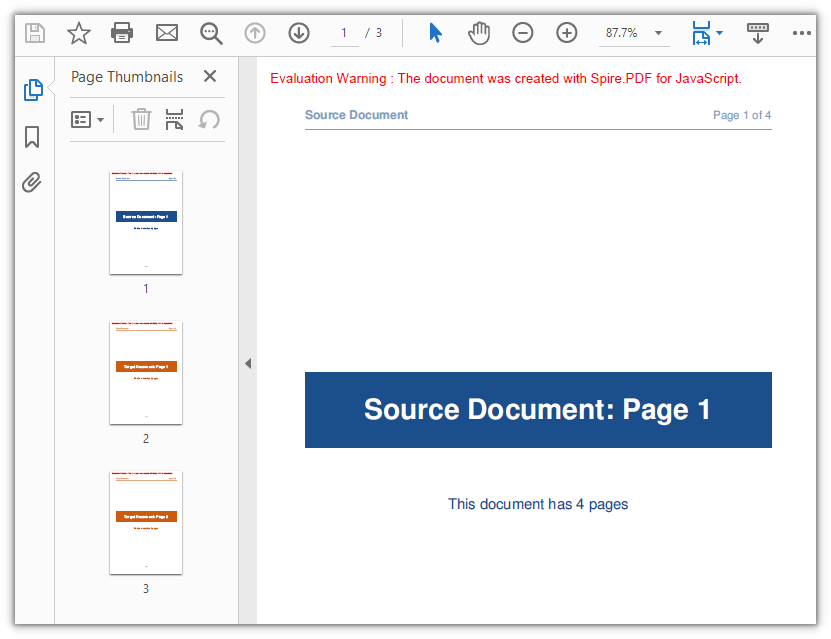
Copy a Range of Pages to the End
When you need more than one page but less than an entire document, PdfDocument.InsertPageRange copies a contiguous block of pages defined by a start and end index. Unlike InsertPage, this method accepts positional arguments rather than an options object, and it always appends the copied pages to the end of the target — there is no parameter for choosing the insertion position. The end index is inclusive, so passing (sourceDoc, 1, 2) copies pages 2 and 3 (zero-indexed).
function App() {
  const appendPageRange = async () => {
    // Get the Spire.PDF WASM module
    const pdfModule = window.wasmModule?.spirepdf;

    // Check whether the module is ready
    if (!pdfModule) {
      alert('Spire.PDF is not ready yet');
      return;
    }

    // Load both the source and the target document into the VFS
    const sourceFileName = 'SourceDocument.pdf';
    const targetFileName = 'TargetDocument.pdf';
    await window.spire.FetchFileToVFS(sourceFileName, "", `${process.env.PUBLIC_URL}/data/`);
    await window.spire.FetchFileToVFS(targetFileName, "", `${process.env.PUBLIC_URL}/data/`);

    // Load the two documents
    const sourceDoc = new pdfModule.PdfDocument();
    sourceDoc.LoadFromFile(sourceFileName);
    const targetDoc = new pdfModule.PdfDocument();
    targetDoc.LoadFromFile(targetFileName);

    // Append pages 2 to 3 of the source document to the end of the target document
    // Note: these are positional arguments, not an object; endIndex is inclusive
    targetDoc.InsertPageRange(sourceDoc, 1, 2);

    // Save the result document
    const outputFileName = 'CopyPageRange.pdf';
    targetDoc.SaveToFile(outputFileName);
    sourceDoc.Close();
    targetDoc.Close();

    // Read the generated file from the VFS and trigger the download
    const fileArray = window.dotnetRuntime.Module.FS.readFile(outputFileName);
    const blob = new Blob([fileArray], { type: 'application/pdf' });
    const url = URL.createObjectURL(blob);
    const a = document.createElement('a');
    a.href = url;
    a.download = outputFileName;
    a.click();
    URL.revokeObjectURL(url);
  };

  return (
    <div style={{ textAlign: 'center', height: '300px' }}>
      <h1>Copy Page Range</h1>
      <button onClick={appendPageRange}>
        Copy pages 2-3
      </button>
    </div>
  );
}

export default App;
The target document picks up two additional pages, bringing its total from two to four:
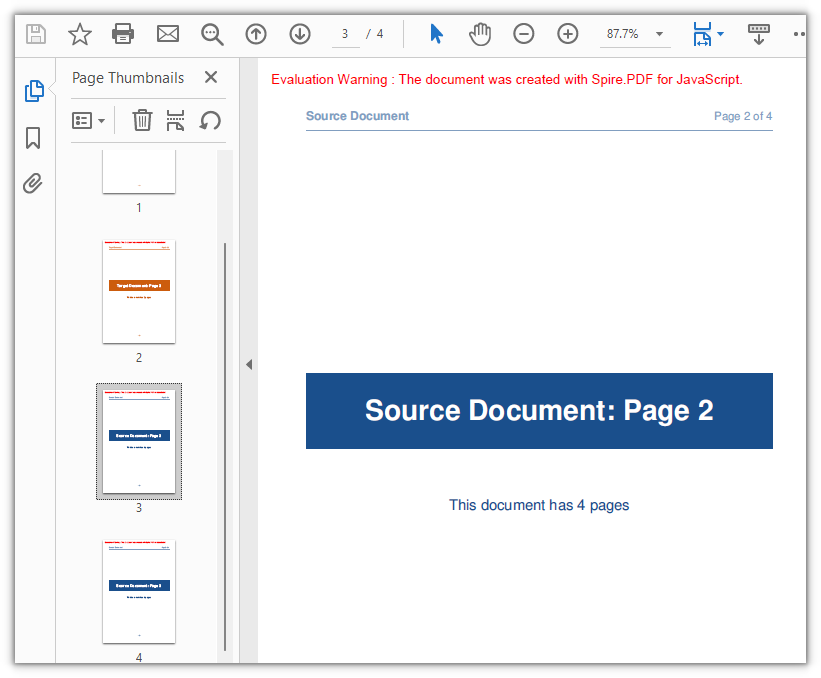
Append an Entire Document
For the simplest case — moving every page of one document into another — PdfDocument.AppendPage removes the need to calculate indices at all. Pass the source document object and all of its pages are appended to the target in their original sequence. To concatenate multiple documents together, call AppendPage repeatedly with each source document in turn.
function App() {
  const appendWholeDocument = async () => {
    // Get the Spire.PDF WASM module
    const pdfModule = window.wasmModule?.spirepdf;

    // Check whether the module is ready
    if (!pdfModule) {
      alert('Spire.PDF is not ready yet');
      return;
    }

    // Load both the source and the target document into the VFS
    const sourceFileName = 'SourceDocument.pdf';
    const targetFileName = 'TargetDocument.pdf';
    await window.spire.FetchFileToVFS(sourceFileName, "", `${process.env.PUBLIC_URL}/data/`);
    await window.spire.FetchFileToVFS(targetFileName, "", `${process.env.PUBLIC_URL}/data/`);

    // Load the two documents
    const sourceDoc = new pdfModule.PdfDocument();
    sourceDoc.LoadFromFile(sourceFileName);
    const targetDoc = new pdfModule.PdfDocument();
    targetDoc.LoadFromFile(targetFileName);

    // Use AppendPage when the whole document has to be copied; all pages are appended in order
    targetDoc.AppendPage({ doc: sourceDoc });

    // Save the result document
    const outputFileName = 'CopyAllPages.pdf';
    targetDoc.SaveToFile(outputFileName);
    sourceDoc.Close();
    targetDoc.Close();

    // Read the generated file from the VFS and trigger the download
    const fileArray = window.dotnetRuntime.Module.FS.readFile(outputFileName);
    const blob = new Blob([fileArray], { type: 'application/pdf' });
    const url = URL.createObjectURL(blob);
    const a = document.createElement('a');
    a.href = url;
    a.download = outputFileName;
    a.click();
    URL.revokeObjectURL(url);
  };

  return (
    <div style={{ textAlign: 'center', height: '300px' }}>
      <h1>Copy Whole Document</h1>
      <button onClick={appendWholeDocument}>
        Start
      </button>
    </div>
  );
}

export default App;
All four pages from the source document join the target, expanding it from two pages to six:
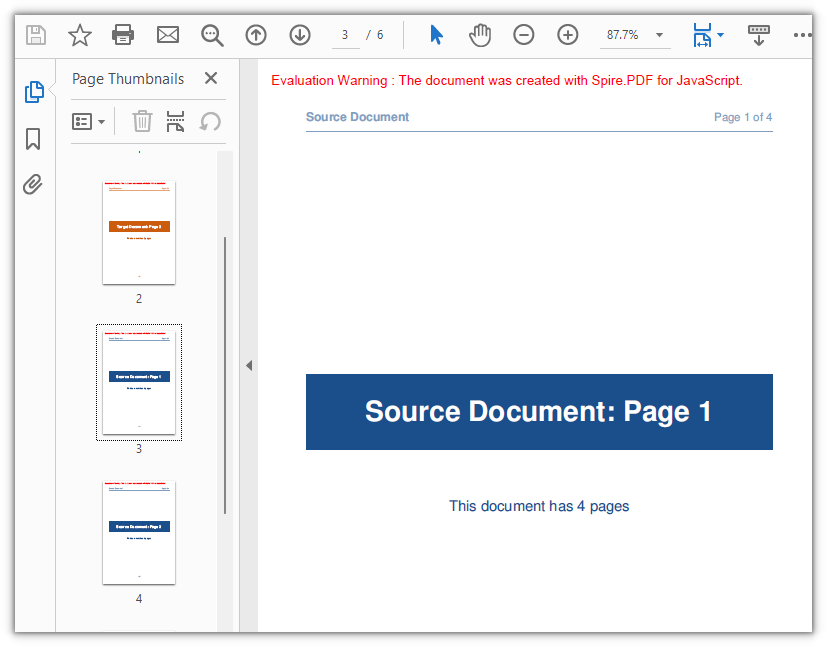
Copy Page Content with a Template
The three methods above treat a page as an indivisible unit: it moves with its size, rotation, and margins preserved. But real-world document assembly often demands finer control — placing a page's content onto a differently sized page, scaling it up or down, or stamping the same content onto multiple pages. This is where PdfPageBase.CreateTemplate enters the picture.
CreateTemplate extracts a page's visual content into a PdfTemplate object. You then draw that template onto any page using Canvas.DrawTemplate, specifying the position and size of the drawing area. The template is decoupled from the original page's geometry, so you can render it at any scale, at any position, on any page size — and you can draw the same template as many times as you need.
This makes templates especially useful for scenarios like:
- Placing an A5 cover's content centered on an A4 page without a white border
- Creating a watermark or background pattern from an existing page
- Duplicating a form layout across multiple new pages at different scales
function App() {
  const copyPageWithTemplate = async () => {
    // Get the Spire.PDF WASM module
    const pdfModule = window.wasmModule?.spirepdf;

    // Check whether the module is ready
    if (!pdfModule) {
      alert('Spire.PDF is not ready yet');
      return;
    }

    // Load the PDF file to work on into the VFS
    const inputFileName = 'SourceDocument.pdf';
    await window.spire.FetchFileToVFS(inputFileName, "", `${process.env.PUBLIC_URL}/data/`);

    // Load the document
    const doc = new pdfModule.PdfDocument();
    doc.LoadFromFile(inputFileName);

    // Take the page to be reused and turn it into a template: read the content once, draw it many times
    const sourcePage = doc.Pages.get_Item(0);
    const template = sourcePage.CreateTemplate();

    // First placement: insert an A4 page at position 2, a different size from the source,
    // and draw the content scaled to 297.6 x 421.6 at (80, 80)
    const page1 = doc.Pages.Insert(1, new pdfModule.SizeF(595.0, 842.0), new pdfModule.PdfMargins({ margin: 0.0 }));
    page1.Canvas.DrawTemplate(template, new pdfModule.PointF(80.0, 80.0), new pdfModule.SizeF(297.6, 421.6));

    // Second placement: insert another A4 page, drawing the same template smaller in the lower right
    const page2 = doc.Pages.Insert(2, new pdfModule.SizeF(595.0, 842.0), new pdfModule.PdfMargins({ margin: 0.0 }));
    page2.Canvas.DrawTemplate(template, new pdfModule.PointF(320.0, 460.0), new pdfModule.SizeF(200.0, 283.3));

    // Save the result document
    const outputFileName = 'CopyPageWithTemplate.pdf';
    doc.SaveToFile(outputFileName);
    doc.Close();

    // Read the generated file from the VFS and trigger the download
    const fileArray = window.dotnetRuntime.Module.FS.readFile(outputFileName);
    const blob = new Blob([fileArray], { type: 'application/pdf' });
    const url = URL.createObjectURL(blob);
    const a = document.createElement('a');
    a.href = url;
    a.download = outputFileName;
    a.click();
    URL.revokeObjectURL(url);
  };

  return (
    <div style={{ textAlign: 'center', height: '300px' }}>
      <h1>Copy Page with Template</h1>
      <button onClick={copyPageWithTemplate}>
        Start
      </button>
    </div>
  );
}

export default App;
A few details worth noting about DrawTemplate:
- Size argument: When the third argument (target size) is omitted, the template renders at its original dimensions without scaling. On a larger target page, the content occupies only a portion of the available space.
- Page creation: The target page's dimensions and margins come from
Pages.Insert, not from the template. In the example, zero margins on all sides make the drawing origin coincide with the page's top-left corner. - Multiple drawings: The same
templateobject is drawn twice onto two separate pages at different positions and scales, demonstrating the reuse capability.
Page 1's content now appears on two newly inserted A4 pages at different scales and positions, growing the document from four pages to six:
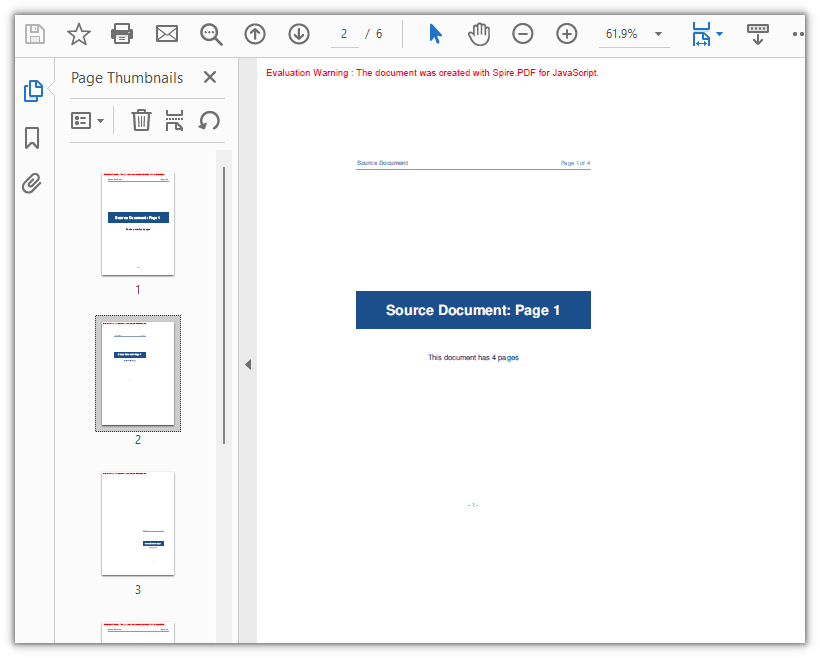
FAQ
Creating a page with new PdfMargins(0.0) throws Arg_NullReferenceException
Cause: The PdfMargins constructor interprets a bare numeric argument as an internal handle rather than a margin value. Calling new pdfModule.PdfMargins(0.0) therefore produces an object that does not represent valid margins — accessing its Left or Top property triggers Arg_NullReferenceException, and passing it to page creation yields unexpected results.
Solution: Always pass margins as a configuration object. For uniform zero margins, use { margin: 0.0 }; for individual side values, specify each side explicitly:
// Zero margins on all four sides
const margins = new pdfModule.PdfMargins({ margin: 0.0 });

// Or set each side separately
const custom = new pdfModule.PdfMargins({ left: 20.0, top: 20.0, right: 20.0, bottom: 20.0 });
An out-of-range or reversed-range error is thrown when copying pages
Cause: Page indices are zero-based, and endIndex in InsertPageRange is inclusive. The valid range therefore runs from 0 to Pages.Count - 1. Supplying an index outside this range raises Index out of range, while setting startIndex higher than endIndex raises The start index is greater then the end index.
Solution: Guard the upper bound by clamping it against Pages.Count before calling the method:
// To copy pages 2 to 4: start = 1, end = 3, with the page count as the upper bound
const start = 1;
const end = Math.min(3, sourceDoc.Pages.Count - 1);
targetDoc.InsertPageRange(sourceDoc, start, end);
A rotated page comes out with the wrong orientation after copying
Cause: CreateTemplate() captures the page's drawn content but not its rotation angle (the /Rotate entry). When the source page carries a rotation, the template's coordinate system misaligns with the target page — drawing it directly places content outside the visible area, and the resulting copy has a Rotation of 0.
Solution: For rotated source pages, prefer a whole-page copy so the rotation angle travels with the content:
// Whole-page copy: the rotation angle comes with the page
targetDoc.InsertPage({ ldDoc: sourceDoc, pageIndex: 0, resultPageIndex: 1 });
If the template approach is unavoidable, temporarily clear the source page's rotation before extracting the template, then restore the original angle on both the source and the new page:
const rotation = sourcePage.Rotation.value;

// Zero it temporarily so the template exports at the page's real coordinates
sourcePage.Rotation = 0;
const newPage = doc.Pages.Insert(1, sourcePage.Size, new pdfModule.PdfMargins({ margin: 0.0 }));
newPage.Canvas.DrawTemplate(sourcePage.CreateTemplate(), new pdfModule.PointF(0.0, 0.0));

// Restore the source page and give the copy the same angle
sourcePage.Rotation = rotation;
newPage.Rotation = rotation;
To remove the evaluation watermark from output documents or unlock full feature access, contact sales for a temporary 30-day license.
See Also
Read PDF Form Field Values by Type with JavaScript
When someone fills out a PDF form and saves it, the entered values live inside the document's field structures — not as plain text you can search or copy in bulk. For a form with thirty or forty fields, hand-transcription becomes a bottleneck. The deeper problem is that each field type stores its value differently: a text box exposes a string, a check box reports a boolean, a combo box separates options from the selection, and a radio button stores its chosen item. A single uniform "give me the value" call does not exist.
This article walks through extracting form field values from a PDF using Spire.PDF for JavaScript. The library runs on WebAssembly in the browser, so the document is parsed locally through a virtual file system with no server round-trip. You will see how to walk the field collection, dispatch on each field's type, and read the correct property for text boxes, list boxes, combo boxes, radio buttons, and check boxes.
For setup and project configuration, refer to Integrate Spire.PDF for JavaScript in a React Project. The code below assumes Spire.PDF is installed and the WASM module is initialized.
Field Types at a Glance
Before diving into the implementation, it helps to map out how each field type exposes its value. Spire.PDF for JavaScript represents form fields as widget classes, and the property that holds the current value differs from one type to the next:
| Field Type | Widget Class | Read Property | Notes |
|---|---|---|---|
| Text Box | PdfTextBoxFieldWidget |
Text |
Returns the entered string directly. |
| List Box | PdfListBoxWidgetFieldWidget |
SelectedValue |
Values is the full option list, not the user's pick. |
| Combo Box | PdfComboBoxWidgetFieldWidget |
SelectedValue |
Same dual-property model as the list box. |
| Radio Button | PdfRadioButtonListFieldWidget |
Value |
Gives the selected item string in one step. |
| Check Box | PdfCheckBoxWidgetFieldWidget |
Checked |
Boolean state. Value is undefined — do not use it. |
The pattern is clear: there is no single universal property. The extraction logic must test each field's type and read the matching property, which is exactly what the next section implements.
Iterate Fields and Read by Type
The core workflow has three steps: load the PDF, obtain its form as a PdfFormWidget, then loop through the FieldsWidget collection and branch on each field's class with instanceof. At each branch, read the type-specific property and append the result to a report string. Because the dispatch covers every supported type, you do not need to know which fields the document contains ahead of time — unrecognized fields simply fall through to a default label.
function App() {
  const getAllFieldValues = async () => {
    // Get the Spire.PDF WASM module
    const pdfModule = window.wasmModule?.spirepdf;

    // Check that the module is ready
    if (!pdfModule) {
      alert('Spire.PDF is not ready yet');
      return;
    }

    // Load the PDF file to be read into the VFS
    const inputFileName = 'ApplicationForm.pdf';
    await window.spire.FetchFileToVFS(inputFileName, "", `${process.env.PUBLIC_URL}/data/`);

    // Create a PdfDocument object and load the PDF document
    const doc = new pdfModule.PdfDocument();
    doc.LoadFromFile(inputFileName);

    // Build a PdfFormWidget from the document's form handle; FieldsWidget is its field collection
    const formWidget = new pdfModule.PdfFormWidget(doc.Form.H);
    const fields = formWidget.FieldsWidget;

    let report = '';

    // Walk the field collection, check each type, and read the matching value
    for (let i = 0; i < fields.Count; i++) {
      const field = fields.get_Item({ index: i });

      // Both the type name and the value are filled in by the type dispatch
      let type = 'Unknown';
      let value = '(Unrecognized field type)';

      if (field instanceof pdfModule.PdfTextBoxFieldWidget) {
        // Text box field: read Text directly
        type = 'TextBox';
        value = field.Text;
      } else if (field instanceof pdfModule.PdfListBoxWidgetFieldWidget) {
        // List box field: Values holds every option, SelectedValue is the current one
        const options = [];
        for (let j = 0; j < field.Values.Count; j++) {
          options.push(field.Values.get_Item(j).Value);
        }
        type = 'ListBox';
        value = `Selected ${field.SelectedValue}, options ${options.join(', ')}`;
      } else if (field instanceof pdfModule.PdfComboBoxWidgetFieldWidget) {
        // Combo box field: like a list box, it has an option collection and a selected value
        const options = [];
        for (let j = 0; j < field.Values.Count; j++) {
          options.push(field.Values.get_Item(j).Value);
        }
        type = 'ComboBox';
        value = `Selected ${field.SelectedValue}, options ${options.join(', ')}`;
      } else if (field instanceof pdfModule.PdfRadioButtonListFieldWidget) {
        // Radio button field: Value is the selected item
        type = 'RadioButton';
        value = `Selected ${field.Value}`;
      } else if (field instanceof pdfModule.PdfCheckBoxWidgetFieldWidget) {
        // Check box field: Checked gives the state, not Value
        type = 'CheckBox';
        value = field.Checked ? 'Checked' : 'Not checked';
      }

      report += `Field "${field.Name}" (${type}): ${value}\n`;
    }

    const outputFileName = 'AllFieldValues.txt';
    window.dotnetRuntime.Module.FS.writeFile(outputFileName, report);
    doc.Close();

    // Read the generated file from the VFS and trigger the download
    const fileArray = window.dotnetRuntime.Module.FS.readFile(outputFileName);
    const blob = new Blob([fileArray], { type: 'text/plain' });
    const url = URL.createObjectURL(blob);
    const a = document.createElement('a');
    a.href = url;
    a.download = outputFileName;
    a.click();
    URL.revokeObjectURL(url);
  };

  return (
    <div style={{ textAlign: 'center', height: '300px' }}>
      <h1>Extract Form Field Values</h1>
      <button onClick={getAllFieldValues}>
        Extract values
      </button>
    </div>
  );
}

export default App;
After the loop finishes, the report string contains one line per field with its name, type, and current value. The file is written to the virtual file system and then downloaded as a text file:
The instanceof chain is the heart of the approach. Each branch knows exactly which property to read, so the output is correct regardless of how many field types the document mixes together. The next three sections address the pitfalls that arise when a field's value property is not the one you might expect.
Check Boxes: Checked vs Value
A common mistake when reading check box fields is reaching for a Value property. The check box widget — PdfCheckBoxWidgetFieldWidget — does not expose Value at all; attempting to read it returns undefined. Under the hood, a check box tracks its state through export values: Off when unticked, and Yes or a custom export string when ticked. A raw string cannot reliably tell you whether the box is selected, so the API surface deliberately omits Value and offers Checked instead.
The fix is straightforward — always use the boolean Checked property:
// Check the state with Checked, not Value
const checked = field.Checked;
This returns true when the box is ticked and false otherwise, giving you a clean boolean for downstream logic without any string parsing.
List Boxes and Combo Boxes: SelectedValue vs Values
List boxes and combo boxes share a two-part data model that trips up many developers. Both PdfListBoxWidgetFieldWidget and PdfComboBoxWidgetFieldWidget expose a Values collection and a SelectedValue string, and it is easy to assume Values holds the user's entry. It does not.
Values is the complete set of available options. Each element in the collection is a PdfListWidgetItem object, so you must unwrap it with .Value to get the option text. Walking Values tells you what the user could have chosen, not what they actually selected. The user's real selection lives on SelectedValue as a plain string.
Use SelectedValue for the current value, and walk Values only when you need to enumerate the available choices:
// The text of the currently selected item
const selected = field.SelectedValue;

// Every available option
const options = [];
for (let j = 0; j < field.Values.Count; j++) {
  options.push(field.Values.get_Item(j).Value);
}
Keeping these two properties straight is essential: treating Values as the answer gives you the option list instead of the filled-in result, and the two are rarely the same length.
Handling Encrypted PDFs
Form extraction begins with opening the document. If the PDF is password-protected, calling LoadFromFile with only the file name throws an error — "Can not open an encrypted document. The password is invalid." — and no document object is returned. The form fields are never reached.
The solution is to pass the open password as the second argument:
doc.LoadFromFile(inputFileName, 'spire123');
Once the document opens successfully, the rest of the extraction flow — building the PdfFormWidget, walking the fields, dispatching by type — works exactly the same way as with an unencrypted file. The password only gates the initial load; it does not change how field values are read.
See Also
- Integrate Spire.PDF for JavaScript in a React Project — setup, installation, and WASM initialization
- Fill PDF Form Fields with Spire.PDF for JavaScript — write values into form fields programmatically
- Import and Export PDF Form Data with Spire.PDF for JavaScript — serialize form data to FDF/XFDF files
If you want to remove the evaluation message from the result document, or to get rid of the feature limitations, contact sales for a temporary license valid for 30 days.
Round-Trip PDF Form Data: Export and Import with JavaScript
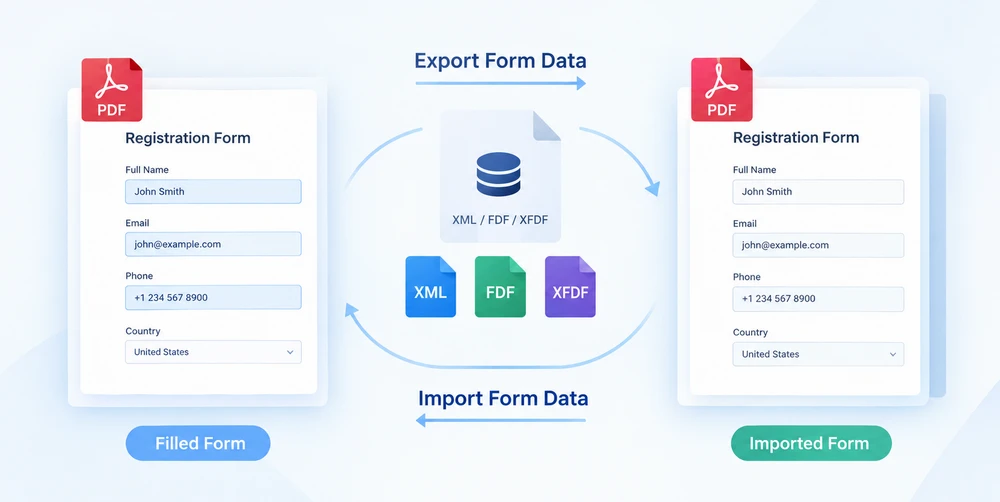
When a PDF form is filled out, the entered values fuse with the visual layout into a sealed artifact. Migrating those entries onto a different template means retyping every field by hand. The way out is to treat form data as a portable asset: extract field values into a standalone data file, then feed it back into a blank copy of the form to reproduce all entries in one automatic pass. This export-then-import cycle is what Spire.PDF for JavaScript delivers through PdfFormWidget.ExportData and PdfFormWidget.ImportData.
Both methods accept three file formats: XML, FDF, and XFDF. Switching between them is nothing more than changing a DataFormat enum value — the calling convention remains identical; only the on-disk structure of the output file changes. Because Spire.PDF for JavaScript runs entirely in the browser on top of WebAssembly, the whole round-trip executes locally through a virtual file system (VFS), with no backend server involved and no document ever leaving the client.
This article walks through the complete data flow:
- Export form data — pull field values out of a filled form
- Import form data — push those values back into a blank form
For installation and project setup, see Integrate Spire.PDF for JavaScript in a React Project. The examples below assume Spire.PDF is installed and the WebAssembly module is initialized.
Three Form Data Formats at a Glance
Before diving into code, it helps to understand the three formats that ExportData and ImportData work with. All three carry the same payload — a set of field-name/value pairs — but they package it in different ways. Picking the right one up front saves friction later when the data file needs to be shared, inspected, or fed into another tool.
| Format | Enum value | File structure | Human-readable | Best for |
|---|---|---|---|---|
| XML | DataFormat.Xml |
Adobe form-data XML; the field name becomes the element name, the value sits as element content | Yes | Quick inspection, debugging, simple tooling |
| FDF | DataFormat.Fdf |
Forms Data Format; a text structure starting with %FDF-, where /T holds the field name and /V the value |
No | Compact inter-program transfer |
| XFDF | DataFormat.XFdf |
XFDF, standard XML; one <field name="…"> per field, with the value inside <value> |
Yes | Version control, cross-system interchange |
All three are lossless with respect to field values — nothing is dropped or transformed during export or import. The choice between them is purely about workflow fit, which we return to in the format selection guide below.
Export PDF Form Data
The first half of the round-trip is extraction. PdfFormWidget.ExportData takes every field value in the form and writes it out to a single data file. The second argument — a DataFormat enum — controls which format is written. The third argument is the form name; for an unnamed AcroForm, pass an empty string.
The example below loads a filled-in customer information form, wraps its form handle in a PdfFormWidget, and exports the field values to an XML file. The FDF and XFDF variants are included as commented-out lines — uncomment any one to switch formats without touching anything else:
function App() {
  const exportFormData = async () => {
    // Get the Spire.PDF WASM module
    const pdfModule = window.wasmModule?.spirepdf;

    // Check that the module is ready
    if (!pdfModule) {
      alert('Spire.PDF is not ready yet');
      return;
    }

    // Load the PDF file to be exported into the VFS
    const inputFileName = 'CustomerInformationForm.pdf';
    await window.spire.FetchFileToVFS(inputFileName, "", `${process.env.PUBLIC_URL}/data/`);

    // Create a PdfDocument object and load the PDF document
    const doc = new pdfModule.PdfDocument();
    doc.LoadFromFile(inputFileName);

    // Build a PdfFormWidget from the document's form handle to reach the data export API
    const formWidget = new pdfModule.PdfFormWidget(doc.Form.H);

    // This demo exports XML
    const dataFiles = [
      { fileName: 'FormData.xml', format: pdfModule.DataFormat.Xml },
      // { fileName: 'FormData.fdf', format: pdfModule.DataFormat.Fdf },
      // { fileName: 'FormData.xfdf', format: pdfModule.DataFormat.XFdf },
    ];

    for (const item of dataFiles) {
      // The third parameter is the form name; pass an empty string for an unnamed form
      formWidget.ExportData(item.fileName, item.format, '');
    }
    doc.Close();

    // Read the generated file from the VFS and trigger the download
    for (const item of dataFiles) {
      const fileArray = window.dotnetRuntime.Module.FS.readFile(item.fileName);
      const blob = new Blob([fileArray], { type: 'application/octet-stream' });
      const url = URL.createObjectURL(blob);
      const a = document.createElement('a');
      a.href = url;
      a.download = item.fileName;
      a.click();
      URL.revokeObjectURL(url);
    }
  };

  return (
    <div style={{ textAlign: 'center', height: '300px' }}>
      <h1>Export Form Data</h1>
      <button onClick={exportFormData}>
        Export
      </button>
    </div>
  );
}

export default App;
Once the export call finishes, the data file resides in the virtual file system. The code then reads it back from the VFS and triggers a browser download so the file can be saved, shared, or archived alongside other form data:
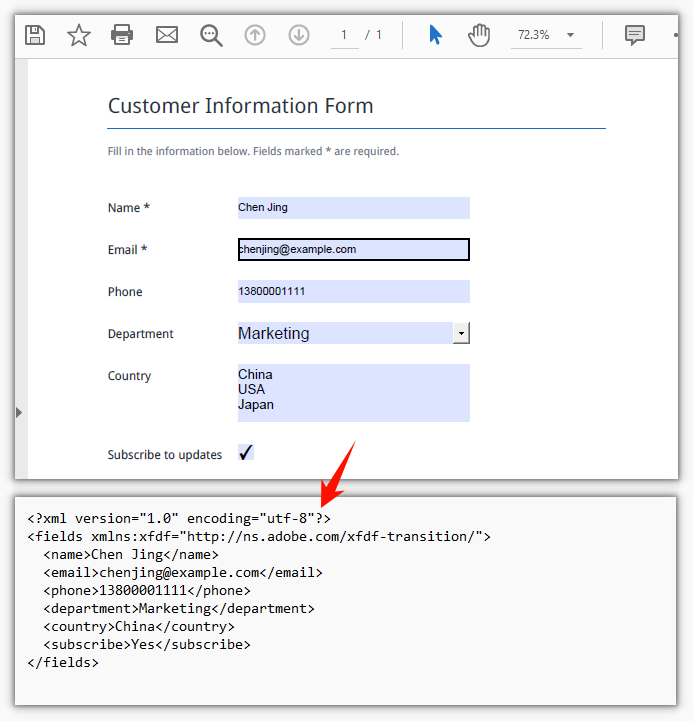
Import PDF Form Data
The second half of the round-trip is rehydration. PdfFormWidget.ImportData reads a data file and writes each value back into the matching form field by name. The DataFormat parameter tells the parser how to interpret the file contents — it has nothing to do with the file extension, so the declared format must match the actual format of the file.
The target here is a blank copy of the original form. The template goes out empty; when the data file comes back, every field is populated in a single pass — no manual re-entry, no field-by-field copying, no need to key everything in a second time:
function App() {
  const importFormData = async () => {
    // Get the Spire.PDF WASM module
    const pdfModule = window.wasmModule?.spirepdf;

    // Check that the module is ready
    if (!pdfModule) {
      alert('Spire.PDF is not ready yet');
      return;
    }

    // Load the blank form to be filled into the VFS
    const inputFileName = 'BlankCustomerInformationForm.pdf';
    await window.spire.FetchFileToVFS(inputFileName, "", `${process.env.PUBLIC_URL}/data/`);

    // This demo refills from the XML data file
    const dataFiles = [
      { fileName: 'FormData.xml', format: pdfModule.DataFormat.Xml, outputFileName: 'ImportedXMLData.pdf' },
      // { fileName: 'FormData.fdf', format: pdfModule.DataFormat.Fdf, outputFileName: 'ImportedFDFData.pdf' },
      // { fileName: 'FormData.xfdf', format: pdfModule.DataFormat.XFdf, outputFileName: 'ImportedXFDFData.pdf' },
    ];

    for (const item of dataFiles) {
      // The data file also has to be loaded into the VFS first
      await window.spire.FetchFileToVFS(item.fileName, "", `${process.env.PUBLIC_URL}/data/`);

      const doc = new pdfModule.PdfDocument();
      doc.LoadFromFile(inputFileName);

      // Read the data file and write the values back into the fields by name
      const formWidget = new pdfModule.PdfFormWidget(doc.Form.H);
      formWidget.ImportData(item.fileName, item.format);

      doc.SaveToFile(item.outputFileName);
      doc.Close();

      // Read the generated file from the VFS and trigger the download
      const fileArray = window.dotnetRuntime.Module.FS.readFile(item.outputFileName);
      const blob = new Blob([fileArray], { type: 'application/pdf' });
      const url = URL.createObjectURL(blob);
      const a = document.createElement('a');
      a.href = url;
      a.download = item.outputFileName;
      a.click();
      URL.revokeObjectURL(url);
    }
  };

  return (
    <div style={{ textAlign: 'center', height: '300px' }}>
      <h1>Import Form Data</h1>
      <button onClick={importFormData}>
        Import
      </button>
    </div>
  );
}

export default App;
After the import call completes, the previously blank form is fully populated and ready to be saved or displayed. The result is a new PDF with every field filled in from the data file:
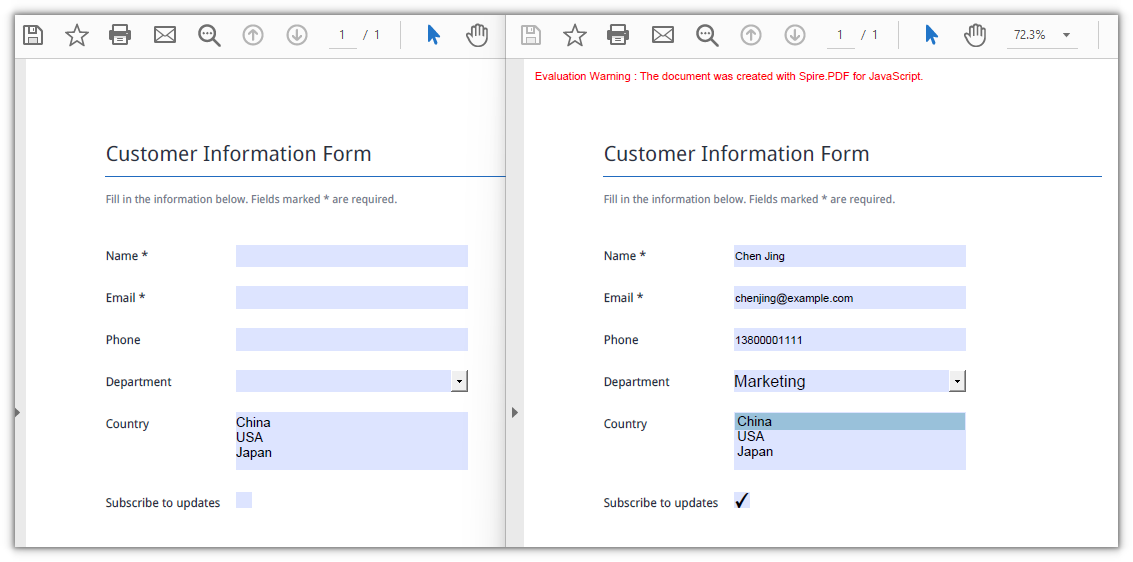
Choosing the Right Data Format
All three formats hold identical field values, so the decision comes down to structure and tool support rather than data fidelity. Here is how to think about each one in the context of a form data round-trip:
- FDF produces the smallest files. It starts with
%FDF-and uses a compact text notation where/Tcarries the field name and/Vthe value. This makes it efficient for passing data between form-handling programs, but the contents are not easily read by a person and do not play well with text tools or version-control systems. - XFDF is standard XML with one
<field>element per field. Because it is well-formed XML, it can be diffed, merged, and inspected with ordinary text tools, making it the safest choice when the data file enters version control, needs human review, or must interoperate with another system. - XML (Adobe form-data XML) puts the field name directly in the element name, giving the most straightforward structure of the three. It is ideal when you simply want a readable list of field names and values without any extra ceremony.
In short: use FDF for round trips that stay inside a single program; use XFDF when the file crosses tool or team boundaries; use XML when readability is the top priority.
FAQ
Some fields are still empty after import
Cause: ImportData matches by field name, so the names in the data file must match the field names in the form exactly — including case and whitespace. A field that does not match is silently skipped; there is no error and no return value indicating a mismatch. Only the fields whose names align receive a value.
Solution: Before importing, walk the form's field collection and print the actual names, then compare them against the data file:
const fields = formWidget.FieldsWidget;
for (let i = 0; i < fields.Count; i++) {
  console.log(fields.get_Item({ index: i }).Name);
}
Import throws Xml_MessageWithErrorPosition or "not a valid FDF file"
Cause: ImportData parses the file according to the format named by the second parameter and never inspects the file extension. When the content does not match the declared format, parsing fails immediately: XML files report Xml_MessageWithErrorPosition, Xml_InvalidRootData, and a non-FDF file reports The source is not a valid FDF file because it does not start with "%FDF-".
Solution: Pass the DataFormat that matches the file's actual content, and use the original exported data file rather than one that has been re-saved in a different format.