Count PDF Pages in JavaScript: More Than Just a Number
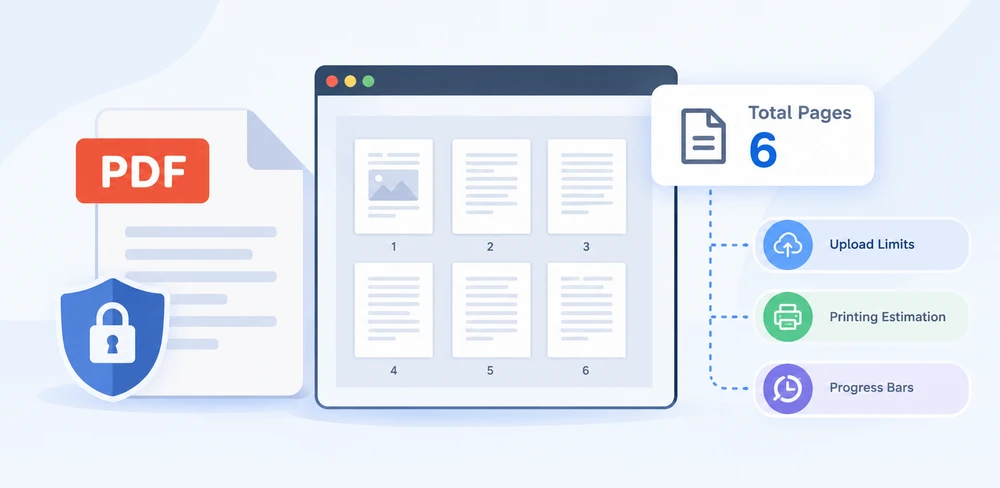
A single integer — the total number of pages in a PDF — sits behind a surprising number of real-world decisions: upload limits, paper estimation for printing, split operations, progress bars. Most PDF rendering libraries only draw pages and do not expose a simple count, and sending the file to a backend just to read a page count adds latency and privacy concerns.
Spire.PDF for JavaScript loads and parses PDF documents directly in the browser through WebAssembly, so the file never leaves the client. The page count is available as a single property — no loops, no server round-trips, no rendering workarounds. This article walks through retrieving that count and three practical concerns: telling physical page counts apart from display labels, handling password-protected files, and avoiding off-by-one errors when iterating over pages.
For installation and project setup, see Integrate Spire.PDF for JavaScript in a React Project. The examples below assume Spire.PDF is installed and the WebAssembly module has been initialized.
Get the Page Count of a PDF Document
Once a PdfDocument object has loaded a file, its Pages property exposes the page collection, and the Count property on that collection returns the total number of pages. There is no need to iterate through the pages individually — the count is available immediately after loading.
The following React component demonstrates the full workflow: fetch the PDF into the virtual file system, create a PdfDocument, load the file, read Pages.Count, and write the result to a downloadable text file.
function App() {
  const getPageCount = async () => {
    // Get the Spire.PDF WASM module
    const pdfModule = window.wasmModule?.spirepdf;

    // Check whether the module is ready
    if (!pdfModule) {
      alert('Spire.PDF is not ready yet');
      return;
    }

    // Load the PDF file to be counted into the VFS
    const inputFileName = 'Multipage_Document.pdf';
    await window.spire.FetchFileToVFS(inputFileName, '', `${process.env.PUBLIC_URL}/data/`);

    // Create a PdfDocument object and load the PDF document
    const doc = new pdfModule.PdfDocument();
    doc.LoadFromFile(inputFileName);

    // Pages is the document's page collection; Count is the total page count
    const pageCount = doc.Pages.Count;

    // Write the result to the VFS
    const outputFileName = 'PageCountResult.txt';
    const report = `Document: ${inputFileName}\r\nTotal pages: ${pageCount}`;
    window.dotnetRuntime.Module.FS.writeFile(outputFileName, report);
    doc.Close();

    // Read the generated file from the VFS and trigger the download
    const fileArray = window.dotnetRuntime.Module.FS.readFile(outputFileName);
    const blob = new Blob([fileArray], { type: 'text/plain' });
    const url = URL.createObjectURL(blob);
    const a = document.createElement('a');
    a.href = url;
    a.download = outputFileName;
    a.click();
    URL.revokeObjectURL(url);
  };

  return (
    <div style={{ textAlign: 'center', height: '300px' }}>
      <h1>Get PDF Page Count</h1>
      <button onClick={getPageCount}>
        Count Pages
      </button>
    </div>
  );
}

export default App;
The result is written to a text file that records the document's total page count:
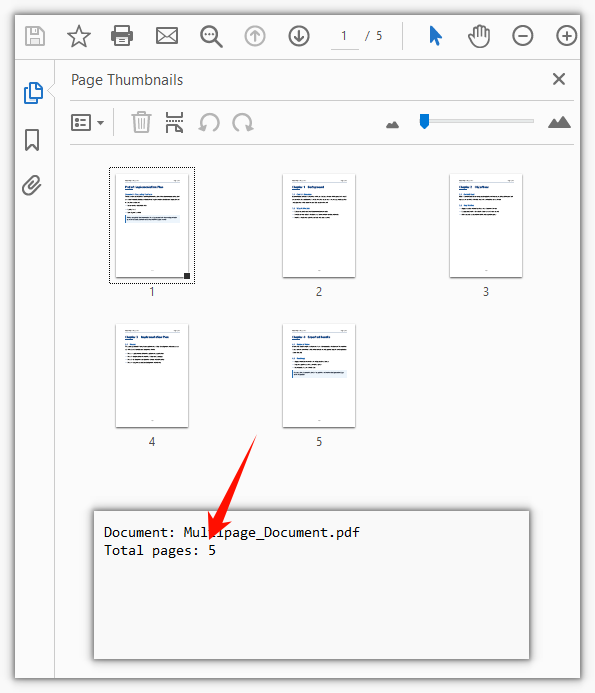
In a production application, you would typically use the pageCount value directly rather than writing it to a file — for example, to validate an upload, set a loop bound, or display metadata in the UI. The file-output approach shown here is useful for testing and demonstration.
Physical Page Count vs Page Labels
Here is a situation that catches developers off guard: you read Pages.Count and get 12, but the PDF reader on the user's screen shows the last page as "page 8." Which number is correct?
Both are — they measure different things. Pages.Count returns the number of physical pages in the document, plain and simple. The number displayed by a reader, however, comes from page labels (the /PageLabels entry in the PDF specification). Page labels are a presentation layer that publishers use to control how page numbers appear to the reader. A book publisher might exclude the cover from numbering, use roman numerals (i, ii, iii) for the front matter, and restart the body at 1. After all that, the fifth physical page could display as iii or 1 depending on how the labels are configured.
This distinction matters when your application needs to show users a page number that matches what they see in their reader. If you display Pages.Count as the "current page," it will not line up with the reader's numbering whenever page labels are in play.
When you need the displayed label rather than the physical index, read the PageLabel property on the individual page object:
// What label the 5th physical page displays in a reader
const page = doc.Pages.get_Item(4);
console.log(page.PageLabel);
Note the zero-based index: get_Item(4) retrieves the fifth physical page. When the document has no page labels configured, PageLabel returns an empty string. In that common case, the displayed number matches the physical page order, so Count is the value you want.
A practical way to handle both scenarios is to check PageLabel first and fall back to the physical index when it is empty. This gives your application a page number that always matches what the user sees, regardless of whether the document uses custom labels.
Counting Pages in an Encrypted PDF
Many PDFs in business environments are protected by an open password — a security measure that prevents the document from being read without the correct credential. If you try to load such a file with a plain LoadFromFile call, the WASM runtime throws an error before Pages.Count is ever reached:
Can not open an encrypted document. The password is invalid.
This happens at load time, not at the point where you read the page count. The document's content — including its page structure — is encrypted, so the library cannot parse it without the password. There is no way to count pages without first unlocking the document.
The fix is straightforward: pass the open password as the second argument to LoadFromFile. Once the document is unlocked, the page count is available just as with an unencrypted file:
// The second argument is the open password
doc.LoadFromFile(inputFileName, 'spire123');
const pageCount = doc.Pages.Count;
In a real application, you would typically collect the password from the user through a form field and pass it in dynamically rather than hardcoding it. If the user enters the wrong password, the same error is thrown — so wrapping the LoadFromFile call in a try/catch block and showing a friendly "incorrect password" message is a good practice.
One more thing worth noting: this password is the open password (also called the user password), which controls who can view the document. A PDF can also have a permissions password (owner password) that restricts editing, printing, or copying without blocking viewing. For the purpose of counting pages, only the open password is relevant — once the document is open, Pages.Count works regardless of permissions restrictions.
Using Page Count as a Loop Boundary
Once you have the page count, a natural next step is to loop over every page — to extract text, render thumbnails, split the document, or apply some transformation. This is where a subtle but common bug appears: using Count as an inclusive upper bound.
The Pages collection is zero-indexed, which means valid indices run from 0 to Count - 1. If the loop condition is written with <= instead of <, the final iteration tries to access the page at index Count, which does not exist. The WASM runtime wraps the underlying .NET ArgumentOutOfRangeException as a JavaScript Error with a message like:
ArgumentOutOfRange_IndexMustBeLess Arg_ParamName_Name, index
Because the error's name property is just the generic Error, you cannot distinguish it by name alone — you have to match on the message string if you want to handle it specifically.
The correct loop uses < so the last accessed index is Count - 1:
// The upper bound is Count - 1, so use < rather than <=
for (let i = 0; i < doc.Pages.Count; i++) {
  const page = doc.Pages.get_Item(i);
}
This off-by-one pattern is one of the most frequent sources of runtime errors when working with page collections. It is easy to miss in testing if your sample documents happen to have only one or two pages — the error only surfaces on the final iteration, so a single-page document will not trigger it at all. Always test loop logic with a document that has at least three pages to make sure the boundary condition is correct.
See Also
- Integrate Spire.PDF for JavaScript in a React Project — Setup guide for installing Spire.PDF and initializing the WebAssembly module in a React app.
- Spire.PDF for JavaScript Product Page — Overview of features, supported operations, and browser-based PDF processing capabilities.
- spire.pdf on npm — Package page for installing the library via npm.
Trim PDF Pages: Crop Margins and White Space with JavaScript
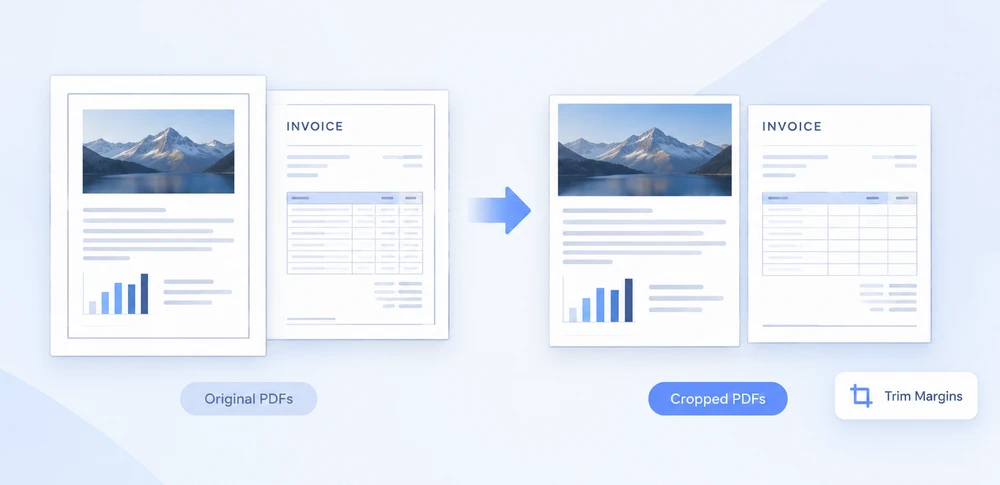
PDFs often carry more whitespace than they need — scanned documents with thick borders, engineering drawings with generous margins, or invoices where only the center table matters. Cropping the page is the natural fix, but doing it in a browser-based workflow is not straightforward. Desktop tools break the web experience, and sending the file to a backend server raises privacy and compliance concerns.
This is where Spire.PDF for JavaScript comes in. It runs on WebAssembly and operates entirely inside the browser, loading and saving PDFs through a virtual file system (VFS) with no server round-trip. You can set the visible area of each page programmatically and let the user download the trimmed result — all client-side. For installation and project setup, refer to Integrate Spire.PDF for JavaScript in a React project. The examples below assume Spire.PDF is installed and the WebAssembly module is initialized.
CropBox and MediaBox: Two Page Boxes Explained
Every PDF page is defined by two rectangles, and understanding the difference between them is essential before you start cropping.
MediaBox describes the physical dimensions of the page — the full sheet of paper, so to speak. It is the outermost boundary and defines the coordinate space in which all content is placed. A standard A4 page has a MediaBox of approximately 595 × 842 points.
CropBox defines what the viewer actually displays. It is a sub-region of the MediaBox, and any content falling outside the CropBox is hidden from view. By default, the CropBox matches the MediaBox, which is why you normally see the entire page. When you shrink the CropBox, you are effectively telling the PDF reader, "Only show this portion of the page."
The key insight for cropping is that the CropBox is derived from the MediaBox. You read the full page dimensions from page.MediaBox.Width and page.MediaBox.Height, then compute a smaller rectangle — inset by whatever margin you want on each side — and assign it to page.CropBox. The x and y coordinates of the CropBox are measured from the top-left corner of the page, and width and height determine how much of the page is retained.
Crop All Pages with a Uniform Margin
The most common scenario is applying the same margin reduction to every page in a document. You iterate over doc.Pages, read each page's MediaBox, and set a CropBox that is inset by a fixed number of points on all four sides.
The example below trims 60 points off every edge of every page — enough to remove a wide white border or an unwanted frame:
function App() {
  const cropPdfPage = async () => {
    // Get the Spire.PDF WASM module
    const pdfModule = window.wasmModule?.spirepdf;

    // Check whether the module is ready
    if (!pdfModule) {
      alert('Spire.PDF is not ready yet');
      return;
    }

    // Load the PDF file to be cropped into the VFS
    const inputFileName = 'ToCrop.pdf';
    await window.spire.FetchFileToVFS(inputFileName, "", `${process.env.PUBLIC_URL}/data/`);

    // Create a PdfDocument object and load the PDF document
    let doc = new pdfModule.PdfDocument();
    doc.LoadFromFile(inputFileName);

    // Trim 60 points off every side
    const margin = 60;

    for (let i = 0; i < doc.Pages.Count; i++) {
      const page = doc.Pages.get_Item(i);

      // MediaBox gives the full extent of the page, from which the crop box is derived
      // (x and y are measured from the top-left corner of the page)
      const width = page.MediaBox.Width;
      const height = page.MediaBox.Height;

      page.CropBox = new pdfModule.RectangleF({
        x: margin,
        y: margin,
        width: width - margin * 2,
        height: height - margin * 2,
      });
    }

    const outputFileName = 'CropByMargins.pdf';
    doc.SaveToFile(outputFileName);
    doc.Close();

    // Read the generated file from the VFS and trigger the download
    const fileArray = window.dotnetRuntime.Module.FS.readFile(outputFileName);
    const blob = new Blob([fileArray], { type: 'application/pdf' });
    const url = URL.createObjectURL(blob);
    const a = document.createElement('a');
    a.href = url;
    a.download = outputFileName;
    a.click();
    URL.revokeObjectURL(url);
  };

  return (
    <div style={{ textAlign: 'center', height: '300px' }}>
      <h1>Crop PDF Pages</h1>
      <button onClick={cropPdfPage}>
        Crop PDF
      </button>
    </div>
  );
}

export default App;
Both pages are cropped by a 60-point margin, so the white margin and the frame around the page are removed:
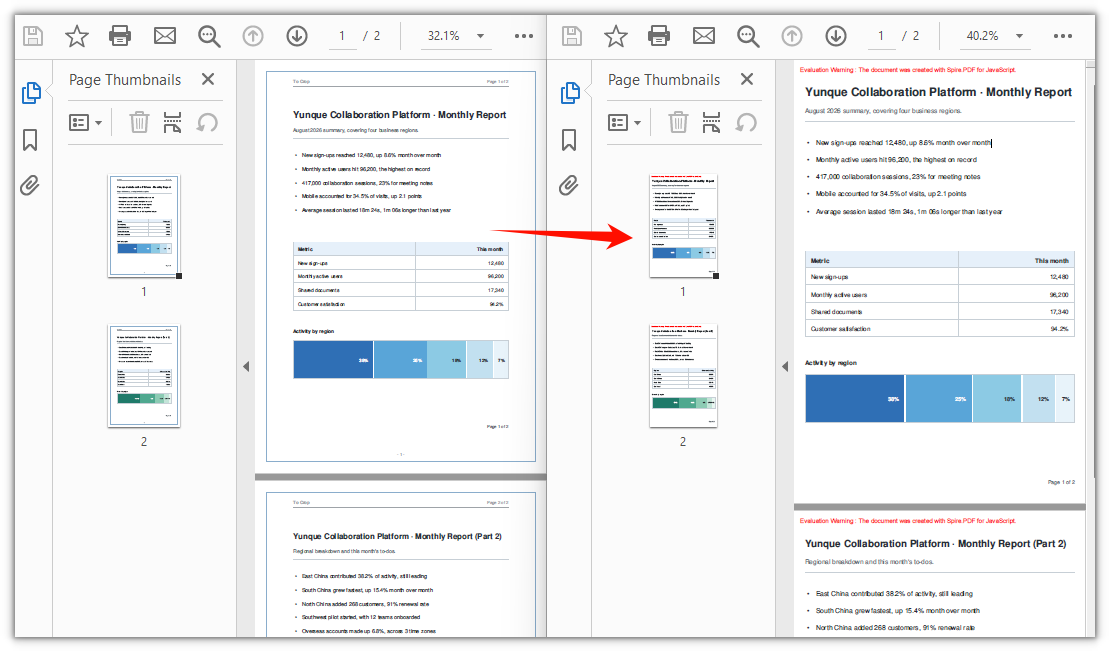
Adjust the margin value to control how aggressively the page is trimmed. A larger value removes more whitespace; a smaller value performs a subtler trim. Because the margin is applied uniformly to all four sides, this approach works best when the unwanted border is roughly equal on every edge — which is typically the case with scanned documents and exported drawings.
Single Page vs Whole Document Cropping
The loop in the previous section applies the same crop to every page. But CropBox is a page-level property — there is no document-wide cropping interface. The loop simply ensures that each page receives the same margin. This distinction matters when your pages have different needs.
When to crop the whole document: Use the loop approach when all pages share the same problem — for instance, a scanned batch where every page has the same scanner border, or a multi-page drawing set exported with identical margins. A single margin value keeps the code simple and the result consistent.
When to crop a single page: Drop the loop and assign the CropBox directly to the target page. This is useful when only one page needs trimming — for example, a cover page with an oversized logo, or an invoice where only the table region on page 2 should be visible. You can also apply different crop values to different pages by combining per-page logic inside the loop.
Here is how to crop just the first page, keeping a 400 × 500 point block starting at position (80, 80) from the top-left corner:
// Crop page 1 only: keep a 400 x 500 point block starting at (80, 80) from the top-left corner
const page = doc.Pages.get_Item(0);
page.CropBox = new pdfModule.RectangleF({ x: 80, y: 80, width: 400, height: 500 });
The x and y values specify where the visible region begins, measured from the top-left corner of the page. The width and height values define the size of that region. Everything outside this rectangle is hidden from the viewer.
Soft Cropping: What Happens to the Content
There is an important detail about CropBox that is easy to overlook: it performs a soft crop, not a hard one.
When you set the CropBox, you are changing the visible boundary of the page — the rectangle that PDF viewers display and that printers use as the page area. But the content that falls outside this boundary is not removed from the file. It is still there, just hidden. This has two practical consequences:
File size does not decrease. The cropped-away text, images, and vector graphics remain in the PDF data stream. If your goal is to reduce file size by trimming margins, setting the CropBox alone will not achieve that.
Cropped content is still searchable. Text outside the visible CropBox can still be found by search functions and copied by users who know how to select beyond the visible area. This is usually fine for margin trimming, but it means cropping is not a way to redact or securely remove sensitive information.
If you need to truly eliminate content — for redaction, file size reduction, or ensuring that hidden text cannot be recovered — you must rebuild the page. The approach is to create a new document, extract the visible content from the cropped page using page.CreateTemplate(), draw it onto a fresh page in the new document, and save the result. This produces a hard crop where the out-of-bounds content no longer exists in the file.
For most margin-trimming and whitespace-removal use cases, however, soft cropping with CropBox is exactly what you want: it is fast, simple, and produces a visually clean result without the overhead of rebuilding the document.
FAQ
Can I crop a single page instead of the whole document?
Yes. Since CropBox is a per-page property, there is no built-in "crop entire document" method — the loop in the main example is just a convenience for applying the same margin to every page. To crop only one page, skip the loop and assign the CropBox directly to that page:
// Crop page 1 only: keep a 400 x 500 point block starting at (80, 80) from the top-left corner
const page = doc.Pages.get_Item(0);
page.CropBox = new pdfModule.RectangleF({ x: 80, y: 80, width: 400, height: 500 });
How do I undo a crop?
Setting CropBox modifies the page box in place, and the document does not store the previous box. You might expect that assigning page.MediaBox back to page.CropBox would restore the original view, but this does not work as intended — the coordinates are applied relative to the origin of the current visible area, so only the dimensions change while the origin stays fixed. After a 60-point crop, reassigning the MediaBox dimensions still leaves the visible area starting at (60, 60).
The simplest solution is to reload the original file if you still have it. If only the cropped file is available, you can shift the origin back to the top-left corner using negative offsets and restore the full page dimensions:
// Undo when the crop offset was (offsetX, offsetY)
page.CropBox = new pdfModule.RectangleF({
  x: -offsetX,
  y: -offsetY,
  width: page.MediaBox.Width,
  height: page.MediaBox.Height,
});
The file did not get smaller and the cropped content is still searchable — why?
This is expected behavior. CropBox performs a soft crop: it changes only the visible boundary of the page, while content outside that boundary remains in the file and can still be found by text search or copy operations. If you need to physically remove the content from the PDF, setting the CropBox is not sufficient — you would need to rebuild the page by creating a new document, extracting the visible content with page.CreateTemplate(), drawing it onto a new page, and saving to a new file.
See Also
How to Generate a PDF in JavaScript (React)

JavaScript can generate PDF files programmatically by creating a document, adding pages, drawing text and other elements, and saving the document. In a React application, this workflow can run entirely in the browser with Spire.PDF for JavaScript and WebAssembly, without requiring a backend server.
At a high level, JavaScript PDF generation consists of five steps: create the document, add pages, add content, save the PDF, and download the generated file. This tutorial uses React as the example environment, but the PDF-generation workflow itself is JavaScript-based and applies to any frontend framework.
Here, “generating a PDF” means creating a PDF document programmatically from scratch, rather than printing an existing HTML page to PDF. JavaScript applications can generate PDFs through HTML-to-PDF conversion, canvas-based rendering, or programmatic PDF construction. This tutorial focuses on programmatic PDF generation with Spire.PDF for JavaScript.
What You Need
This tutorial assumes that Spire.PDF for JavaScript has already been installed and initialized in your React project. For setup details, see How to Integrate Spire.PDF for JavaScript in a React Project. You also need the WebAssembly resources configured so that the PDF module is available through window.spirepdf (Spire.Office for JavaScript 11.7.0 or later).
How to Generate a PDF in JavaScript
Create PdfDocument -> Add Page -> Draw Content -> Save -> Download
1. Create a PDF document
Start by creating a PdfDocument object. This is the in-memory representation of the PDF file you will build.
const pdf = window.spirepdf;
let doc = new pdf.PdfDocument();
2. Add a page
A PDF document needs at least one page. Call Pages.Add() to create a blank page with a default size.
let page = doc.Pages.Add();
3. Add text and other content
The page has a Canvas property that exposes drawing methods. Use DrawString to add text, DrawImage to add images, DrawLine to draw lines, and DrawRectangle to draw filled or outlined rectangles. Coordinates are measured in points (1 point = 1/72 inch) from the top-left corner.
let font = new pdf.PdfFont({ fontFamily: pdf.PdfFontFamily.Helvetica, size: 12 });
let brush = new pdf.PdfSolidBrush({ pdfRGBColor: new pdf.PdfRGBColor(0, 0, 0) });
page.Canvas.DrawString({ s: "Hello, World!", font: font, brush: brush, x: 50, y: 50 });
4. Save the generated PDF
Once all content is in place, call SaveToFile to write the PDF to the WebAssembly virtual file system (VFS). The VFS is an in-browser file system that Spire.PDF uses to manage input and output files without touching the real disk or a server.
doc.SaveToFile({ fileName: 'Output.pdf' });
doc.Close();
5. Download the PDF in the browser
After saving to the VFS, read the file back as a byte array, wrap it in a Blob, and trigger a download by creating a temporary anchor element. This pattern is used in every Spire.PDF for JavaScript example.
const fileArray = window.dotnetRuntime.Module.FS.readFile('Output.pdf');
const blob = new Blob([fileArray], { type: 'application/pdf' });
const url = URL.createObjectURL(blob);
const a = document.createElement('a');
a.href = url;
a.download = 'Output.pdf';
a.click();
URL.revokeObjectURL(url);
Programmatic PDF generation is useful when you need precise control over the document structure, page layout, text, graphics, or metadata. If you already have a web page or HTML template and simply need to convert that layout into a PDF, an JavaScript HTML-to-PDF workflow may be a better fit.
The next section puts these steps together in a complete example that generates a PDF from JavaScript data.
Generate an Invoice PDF from JavaScript Data
Real applications generate structured documents — invoices, reports, quotations — from application data, not hardcoded strings. In a React application, the invoice object could come from form input, component state, or an API response; the PDF generation code only needs the data needed for the document layout. This example defines an invoice as a JavaScript object and renders a print-ready PDF from it: a bleed header, a billed-to block, a line-item table, a totals cascade, and payment details. It combines DrawString, DrawRectangle, DrawLine, and PdfGrid into one complete runnable React component.
function App() {
  const generateInvoicePdf = async () => {
    // spire.office 11.7.0 hangs the engine off window.spirepdf.
    const pdf = window.spirepdf;
    if (!pdf) return alert('Spire.PDF is not ready yet');

    // ── The invoice, as data. Swap this object and the layout follows. ────
    const invoice = {
      number: 'INV-2026-0148', issued: '23 September 2026',
      due: '23 October 2026', po: 'PO-ACME-88231', terms: 'Net 30',
      seller: ['NIMBUS SOFTWARE LTD.', 'Cloud platforms for manufacturing teams',
        '12 Kingsway, London WC2B 6UN, United Kingdom'],
      buyer: ['Acme Manufacturing Co.', 'Attn: Sarah Chen, Procurement',
        '1400 Harbor Boulevard, Suite 320', 'Long Beach, CA 90802', 'United States'],
      // [description, quantity, unit price] — the amount is derived below
      items: [
        ['CloudDesk Pro — annual subscription (25 seats)', 25, 120],
        ['Implementation & onboarding (remote, 16 hours)', 16, 95],
        ['Priority support — Premium tier (12 months)', 1, 2400],
        ['Additional object storage (500 GB per year)', 1, 480],
      ],
      discountRate: 0.05, taxRate: 0.08,
      bank: ['Barclays Bank PLC · Sort code 20-00-00 · Account 5571 2043',
        'IBAN GB29 BARC 2000 0055 7120 43 · SWIFT BARCGB22'],
      remark: ['Quote the invoice number as the payment reference.',
        'Amounts unpaid after the due date accrue interest at 1.5% per month.'],
      legal:
        'Nimbus Software Ltd. · 12 Kingsway, London WC2B 6UN · VAT GB 412 8876 21 · Company No. 09882417',
      contact: 'billing@nimbussoftware.com · +44 20 7946 0812 · nimbussoftware.com',
    };

    const round = (n) => Math.round(n * 100) / 100;
    const subtotal = round(invoice.items.reduce((sum, [, qty, unit]) => sum + qty * unit, 0));
    const discount = -round(subtotal * invoice.discountRate);
    const tax = round((subtotal + discount) * invoice.taxRate);
    const total = round(subtotal + discount + tax);
    const money = (n) =>
      '$' + Math.abs(n).toLocaleString('en-US', { minimumFractionDigits: 2, maximumFractionDigits: 2 });
    const pct = (rate) => Math.round(rate * 100) + '%';

    // ── Document ──────────────────────────────────────────────────────────
    const doc = new pdf.PdfDocument();
    doc.PageSettings.Margins.All = 0; // before Pages.Add(), or the origin stays at the margin
    const page = doc.Pages.Add();

    // Text is dropped past the canvas client area, so lay out against it.
    const W = page.Canvas.ClientSize.Width;
    const H = page.Canvas.ClientSize.Height;
    const PAD = 28;
    const EDGE = W - PAD;

    // ── Drawing toolkit ───────────────────────────────────────────────────
    // Object notation selects the PdfFont / PdfSolidBrush / PdfPen overload —
    // the positional constructors all report "Ambiguous call" here.
    const rgb = (c) => new pdf.PdfRGBColor(c[0], c[1], c[2]);
    const paint = (c) => new pdf.PdfSolidBrush({ pdfRGBColor: rgb(c) });
    const font = (size, bold) =>
      new pdf.PdfFont({
        fontFamily: pdf.PdfFontFamily.Helvetica,
        size,
        ...(bold ? { style: pdf.PdfFontStyle.Bold } : {}),
      });
    // DrawString's first parameter is `s`, and it has no alignment option in
    // point mode — measure the string when it has to be right-aligned.
    const text = (s, f, colour, x, y, align) => {
      const dx = align === 'right' ? f.MeasureString({ text: s }).Width : 0;
      page.Canvas.DrawString({ s, font: f, brush: paint(colour), x: x - dx, y });
    };
    const box = (colour, x, y, w, h) =>
      page.Canvas.DrawRectangle({ brush: paint(colour), x, y, width: w, height: h });

    const INK = [26, 31, 43], NAVY = [23, 54, 93], ACCENT = [47, 111, 181];
    const MUTED = [107, 114, 128], RULE = [220, 225, 232], ZEBRA = [246, 248, 251];
    const SOFT = [238, 243, 249], WHITE = [255, 255, 255], ON_NAVY = [186, 200, 220];
    const fHero = font(26, true), fBrand = font(17, true), fTitle = font(11, true);
    const fBody = font(9.5), fBold = font(9.5, true), fSmall = font(8.5);
    const fLabel = font(7.5, true), fFoot = font(7.5), fCell = font(9), fHead = font(8, true);

    // ── Header band, bleeding to the sheet edges ──────────────────────────
    box(NAVY, 0, 0, W, 106);
    box(ACCENT, 0, 106, W, 3.5);
    text(invoice.seller[0], fBrand, WHITE, PAD, 30);
    text(invoice.seller[1], fSmall, ON_NAVY, PAD, 52);
    text(invoice.seller[2], fFoot, ON_NAVY, PAD, 68);
    text('INVOICE', fHero, WHITE, EDGE, 22, 'right');
    text(invoice.number, fBody, ON_NAVY, EDGE, 56, 'right');
    text(`Issued ${invoice.issued}`, fFoot, ON_NAVY, EDGE, 74, 'right');

    // ── Billed to / invoice details ───────────────────────────────────────
    const top = 158;
    text('BILL TO', fLabel, MUTED, PAD, top);
    text(invoice.buyer[0], fBold, INK, PAD, top + 17);
    invoice.buyer.slice(2).forEach((line, i) => text(line, fBody, MUTED, PAD, top + 35 + i * 14));
    text(invoice.buyer[1], fSmall, MUTED, PAD, top + 83);

    const details = [
      ['Invoice No.', invoice.number], ['Issue date', invoice.issued], ['Due date', invoice.due],
      ['PO number', invoice.po], ['Payment terms', invoice.terms],
    ];
    text('INVOICE DETAILS', fLabel, MUTED, EDGE, top, 'right');
    details.forEach(([key, value], i) => {
      text(key, fSmall, MUTED, EDGE - 128, top + 20 + i * 16);
      text(value, fBold, INK, EDGE, top + 20 + i * 16, 'right');
    });

    const tableY = top + 106;
    page.Canvas.DrawLine({
      pen: new pdf.PdfPen({ pdfRGBColor: rgb(RULE), width: 0.75 }),
      x1: PAD, y1: tableY, x2: EDGE, y2: tableY,
    });

    // ── Line items ────────────────────────────────────────────────────────
    const grid = new pdf.PdfGrid();
    grid.Columns.Add(4);
    [255, 44, 112, 128].forEach((w, i) => (grid.Columns.get_Item(i).Width = w));

    const alignRight = new pdf.PdfStringFormat({ alignment: pdf.PdfTextAlignment.Right });
    [1, 2, 3].forEach((i) => (grid.Columns.get_Item(i).Format = alignRight));

    // Cell padding is subtracted from row.Height — leave room for one line box
    // or every cell renders blank, with no error at all.
    const padding = new pdf.PdfPaddings();
    padding.Left = padding.Right = 8;
    padding.Top = padding.Bottom = 2;
    grid.Style.CellPadding = padding;
    grid.Style.Font = fCell;

    const hairline = new pdf.PdfBorders();
    hairline.All = new pdf.PdfPen({ pdfRGBColor: rgb(RULE), width: 0.5 });

    try { grid.Headers.Add(1); } catch {}
    const head = grid.Headers.get_Item(0);
    head.Height = 26;
    head.Style.BackgroundBrush = paint(NAVY);
    head.Style.TextBrush = paint(WHITE);
    head.Style.Font = fHead;
    ['DESCRIPTION', 'QTY', 'UNIT PRICE', 'AMOUNT'].forEach((label, i) => {
      const cell = head.Cells.get_Item(i);
      cell.Value = new pdf.String(label); // .Value is a .NET object — box the string
      if (i) cell.StringFormat = alignRight;
      cell.Style.Borders = hairline;
    });

    invoice.items.forEach(([description, qty, unit], r) => {
      const row = grid.Rows.Add();
      row.Height = 26;
      if (r % 2) row.Style.BackgroundBrush = paint(ZEBRA);
      [description, String(qty), money(unit), money(qty * unit)].forEach((value, i) => {
        const cell = row.Cells.get_Item(i);
        cell.Value = new pdf.String(value);
        cell.Style.Borders = hairline;
      });
    });

    const layout = new pdf.PdfGridLayoutFormat();
    layout.Layout = pdf.PdfLayoutType.Paginate;
    // The parameter is `format`, not `layout`.
    const tableBottom = grid.Draw({ page, x: PAD, y: tableY + 26, format: layout }).Bounds.Bottom;

    // ── Totals cascade ────────────────────────────────────────────────────
    let y = tableBottom + 22;
    const summary = [
      ['Subtotal', money(subtotal)],
      [`Discount · partner rate ${pct(invoice.discountRate)}`, '-' + money(discount)],
      [`Sales tax · ${pct(invoice.taxRate)}`, money(tax)],
    ];
    summary.forEach(([label, value], i) => {
      text(label, fBody, MUTED, EDGE - 220, y + i * 18);
      text(value, fBody, INK, EDGE, y + i * 18, 'right');
    });
    y += 58;

    box(NAVY, EDGE - 220, y, 220, 34);
    text('TOTAL DUE', fTitle, WHITE, EDGE - 204, y + 11);
    text(money(total), font(14, true), WHITE, EDGE - 14, y + 8, 'right');
    y += 34;

    // ── Payment details ───────────────────────────────────────────────────
    const cardTop = y + 34;
    box(SOFT, PAD, cardTop, W - 2 * PAD, 104);
    box(ACCENT, PAD, cardTop, 3, 104);
    text('PAYMENT DETAILS', fLabel, ACCENT, PAD + 18, cardTop + 16);
    text(invoice.bank[0], fBody, INK, PAD + 18, cardTop + 34);
    text(invoice.bank[1], fBody, INK, PAD + 18, cardTop + 50);
    invoice.remark.forEach((line, i) => text(line, fSmall, MUTED, PAD + 18, cardTop + 72 + i * 14));

    // ── Footer band, mirroring the header ─────────────────────────────────
    box(NAVY, 0, H - 58, W, 58);
    text(invoice.legal, fFoot, ON_NAVY, PAD, H - 41);
    text(invoice.contact, fFoot, ON_NAVY, PAD, H - 27);
    text('Page 1 of 1', fFoot, ON_NAVY, EDGE, H - 41, 'right');
    text(invoice.number, fFoot, ON_NAVY, EDGE, H - 27, 'right');

    // ── Save and download ─────────────────────────────────────────────────
    const fileName = 'Invoice.pdf';
    doc.SaveToFile({ fileName });
    doc.Close();

    const bytes = window.dotnetRuntime.Module.FS.readFile(fileName);
    const url = URL.createObjectURL(new Blob([bytes], { type: 'application/pdf' }));
    Object.assign(document.createElement('a'), { href: url, download: fileName }).click();
    URL.revokeObjectURL(url);
  };

  return (
    <div style={{ textAlign: 'center', height: '300px' }}>
      <h1>Generate Invoice PDF</h1>
      <button onClick={generateInvoicePdf}>Generate Invoice PDF</button>
    </div>
  );
}

export default App;
Invoice PDF generated from JavaScript data
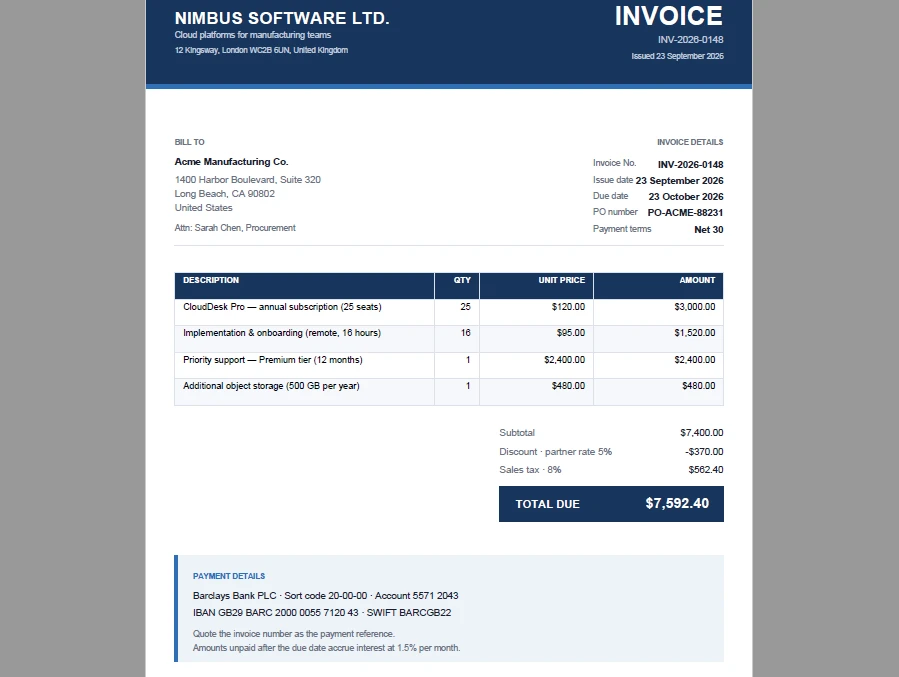
What the code does:
- Defines an
invoiceobject with the seller, the customer, the invoice metadata, and anitemsarray — the shape a React app would receive from a form, an API response, or component state. - Derives
subtotal,discount,tax, andtotalfrom that data withreduce, so the figures printed on the PDF always match the figures in the app. - Sets
Margins.Allto0before callingPages.Add(). The canvas origin sits at the page's margin origin, so this is what makes(0, 0)the top-left corner of the sheet and lets the header and footer bands bleed to the edges. - Lays the page out against
Canvas.ClientSizeinstead ofSize, because text drawn past the client area is dropped rather than clipped. - Draws the header band, the billed-to and invoice-details blocks, the totals cascade, and the payment box with
DrawRectangle,DrawLine, andDrawString. Right-aligned strings are measured withMeasureStringfirst, sinceDrawStringhas no alignment option when you draw at a point. - Builds the line-item table with
PdfGrid: fixed column widths, a styled header row, zebra-striped body rows, and right-aligned numeric columns driven by aPdfStringFormat. - Saves the document to the VFS and downloads it with the blob-and-anchor pattern from step 5.
The same pattern works for any structured document — replace the invoice object with report data, quotation data, or receipt data, and the five-step workflow stays the same.
Add More Content to the PDF
After creating the basic document, you can extend the same workflow with other PDF elements depending on the document you need to generate.
| Element | Typical use | Tutorial |
|---|---|---|
| Text | Titles, labels, paragraphs | Covered in this tutorial |
| Images | Logos, signatures, charts | Add Images to a PDF |
| Tables | Invoices, reports, statements | Document Operation guide |
| Shapes | Borders, separators, diagrams | Draw Shapes in PDF |
| Headers & Footers | Page numbers, repeating headers | Page Setting guide |
| Form fields | Interactive forms, editable documents | Form Field guide |
The five-step workflow does not change — only the content you draw in step 3 differs.
Generate PDFs in the Browser with WebAssembly
Spire.PDF for JavaScript runs its PDF processing engine through WebAssembly. Once the WASM module loads, your application can create, edit, and save PDFs on the client side. Files move through an in-browser Virtual File System (VFS):
JavaScript -> Spire.PDF WebAssembly -> VFS -> Blob -> Download
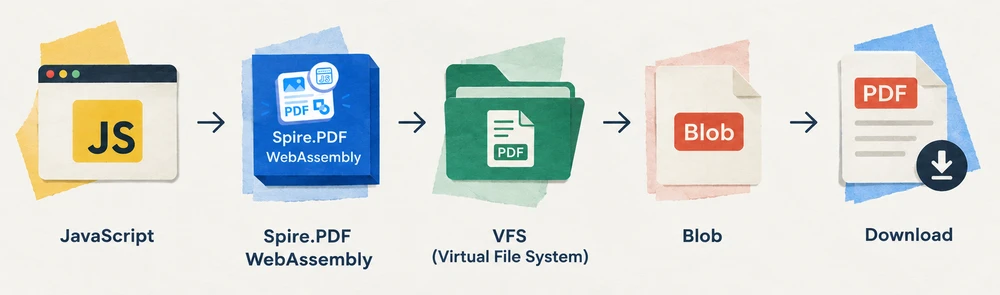
This means no PDF-generation backend is required. The browser handles document creation, rendering, and file output locally. The generated PDF is read from the VFS as a byte array and downloaded as a standard Blob.
The trade-off is the initial WASM download size, which is a one-time cost per session. For applications that generate documents frequently, subsequent generations are fast since the module is already loaded. For very large or complex PDFs, client-side performance depends on the user's device and available memory.
Common Use Cases
Common use cases include invoices, reports, quotations, certificates, receipts, and other structured business documents generated from application data. The specific layout changes, but the underlying workflow — create, add page, draw, save, download — remains the same.
Troubleshooting
WASM Module Not Initialized
If window.spirepdf is undefined, ensure the WebAssembly runtime is fully initialized before using the API:
const commonModule = await import('/node_modules/spire.office/spire.common.js');
await commonModule.initializeWasm();
await import('/node_modules/spire.office/spire.pdf.js');
Generated PDF Cannot Be Downloaded
If the download does not trigger or the file is empty, verify that SaveToFile was called before reading from the VFS. The file must exist in the VFS before FS.readFile can read it:
doc.SaveToFile({ fileName: 'Output.pdf' });
doc.Close();

// Only read after saving
const fileArray = window.dotnetRuntime.Module.FS.readFile('Output.pdf');
Conclusion
Spire.PDF for JavaScript provides a practical way to generate PDF files directly in the browser using JavaScript and WebAssembly. The five-step workflow — create, add page, draw, save, download — handles everything from simple text documents to structured invoices with tables and totals. You can apply for a 30-day free license to evaluate all features before purchasing.
Gráficos Excel mais claros em JavaScript: rótulos multinível e eixos duplos
Índice
- Quando um eixo não é suficiente
- Pré-requisitos
- Os dados por trás dos rótulos de vários níveis
- Criar um gráfico com rótulos de categoria de vários níveis
- Por que a série de crescimento desaparece
- Mover uma série para o eixo secundário
- Definir a escala do eixo secundário
- Problemas comuns
- Perguntas frequentes
- Veja também
Um gráfico de colunas com regiões e meses no mesmo eixo apresenta dois problemas, e eles não são o mesmo problema. O primeiro é que os rótulos de categoria se aglutinam em uma única linha — "Norte", "Jan", "Norte", "Fev" — e o leitor precisa reagrupar mentalmente qual mês pertence a qual região. O segundo é que, quando uma série de taxa de crescimento é adicionada ao lado de uma série de vendas que chega aos milhões, a taxa de crescimento se torna uma linha plana colada à linha de base, porque um único eixo de valores não consegue atender a duas ordens de grandeza ao mesmo tempo.
Os rótulos de categoria de vários níveis resolvem o primeiro problema. Um eixo secundário resolve o segundo. São recursos independentes que, por acaso, são úteis no mesmo gráfico, e o Spire.XLS for JavaScript lida com ambos por meio da API de eixos do gráfico — diretamente no navegador via WebAssembly, com os arquivos passando por um sistema de arquivos virtual (VFS) e sem envolvimento de backend.
Para a configuração do projeto, consulte Integrating Spire.XLS for JavaScript in a React Project. Os exemplos abaixo pressupõem que o pacote está instalado e que o módulo WebAssembly foi inicializado.
Quando um eixo não é suficiente
Os dois problemas aparecem no mesmo tipo de planilha — uma em que as categorias têm uma hierarquia e os valores têm uma dispersão — mas vêm de lugares diferentes:
| Problema | De onde vem | Como fica o gráfico | O que resolve |
|---|---|---|---|
| Os rótulos se acumulam em uma linha | As categorias são hierárquicas (região → mês, ano → trimestre), mas o eixo as trata como planas | Uma única linha de rótulos em que as categorias externas e internas se alternam sem agrupamento visual | Rótulos de categoria de vários níveis |
| Uma série se achata em uma linha | Duas séries diferem em ordens de grandeza (vendas em milhões, crescimento em porcentagem), mas compartilham um único eixo de valores | A série menor se comprime para perto de zero e sua variação fica invisível | Eixo secundário |
Nenhum dos dois é uma questão de estilo. Ambos se devem ao fato de o eixo não saber algo que precisa saber — que as categorias têm camadas, ou que os valores têm escalas incompatíveis. As duas seções abaixo abordam cada um deles por vez, e a segunda se baseia na primeira, de modo que o gráfico final carrega ambas as correções.
Pré-requisitos
Você precisa de um projeto React com o Spire.XLS for JavaScript instalado e o módulo WebAssembly inicializado, acessível em window.wasmModule.spirexls. O exemplo carrega uma fonte e um arquivo de dados pré-construído no VFS antes de criar o gráfico, e ambos são obtidos da pasta public do projeto.
Os dados por trás dos rótulos de vários níveis
Os rótulos de vários níveis não são criados apenas por uma propriedade — eles são lidos dos dados. O eixo de categorias desenha tantos níveis de rótulos quantas forem as colunas no intervalo para o qual CategoryLabels aponta. Portanto, a planilha precisa ser disposta com a hierarquia distribuída pelas colunas:
| Coluna A (externa) | Coluna B (interna) | Coluna C (valores) |
|---|---|---|
| Norte | Jan | 120.000 |
| Norte | Fev | 135.000 |
| Sul | Jan | 98.000 |
| Sul | Fev | 110.000 |
Os rótulos externos na coluna A estão mesclados ao longo das linhas que abrangem — "Norte" abrange as duas linhas de Jan e Fev. Essa mesclagem é o que faz o nível se aglutinar visualmente em um único rótulo por grupo quando o gráfico é renderizado. Sem ela, o eixo ainda mostra dois níveis, mas o nível externo repete o rótulo em cada linha em vez de agrupá-lo.
Isso é uma questão de layout de dados, não de API de gráfico. O código do gráfico só precisa apontar CategoryLabels para ambas as colunas; se as células externas estão mescladas é decidido na pasta de trabalho, não no objeto de gráfico.
Criar um gráfico com rótulos de categoria de vários níveis
Depois que os dados estão dispostos, o código do gráfico faz duas coisas: aponta CategoryLabels para um intervalo que abrange tanto a coluna externa quanto a interna, e ativa MultiLevelLable para que o eixo expanda essas colunas em linhas empilhadas. As etapas são:
- Carregar a fonte e o arquivo de dados de teste no VFS.
- Carregar a pasta de trabalho e obter a planilha.
- Adicionar um gráfico de colunas e adicionar uma série de vendas nomeada.
- Apontar os rótulos de categoria para a coluna de região e a de mês.
- Ativar os rótulos de vários níveis para o eixo de categorias e salvar a pasta de trabalho.
function App() {
  const createMultiLevelChart = async () => {
    // Get the Spire.XLS WASM module
    const xlsModule = window.wasmModule?.spirexls;

    // Check if the module is ready
    if (!xlsModule) {
      alert('Spire.Xls is not ready yet');
      return;
    }

    // Load the font and the test data file into the VFS
    await window.spire.FetchFileToVFS('ARIAL.TTF', '/Library/Fonts/', `${process.env.PUBLIC_URL}/font/`);
    const inputFileName = 'MultiLevelChartData.xlsx';
    await window.spire.FetchFileToVFS(inputFileName, '', `${process.env.PUBLIC_URL}data/`);

    // Load the workbook and get the first worksheet
    const workbook = new xlsModule.Workbook();
    workbook.LoadFromFile({ fileName: inputFileName });
    const sheet = workbook.Worksheets.get(0);

    // Add a column chart
    const chart = sheet.Charts.Add({ chartType: xlsModule.ExcelChartType.ColumnClustered });
    chart.ChartTitle = "Sales";
    chart.Legend.Delete();

    // Add the sales series and give it a name
    const serie = chart.Series.Add({ name: "Sales", serieType: xlsModule.ExcelChartType.ColumnClustered });
    serie.Values = sheet.Range.get("C2:C7");

    // Point the category labels at both the region and the month column
    serie.CategoryLabels = sheet.Range.get("A2:B7");

    // Turn on multi-level category labels so each level gets its own row
    chart.PrimaryCategoryAxis.MultiLevelLable = true;

    // Place the chart on the worksheet
    chart.LeftColumn = 5;
    chart.TopRow = 1;
    chart.RightColumn = 14;

    // Save the workbook
    const outputFileName = "MultiLevelLabels.xlsx";
    workbook.SaveToFile({ fileName: outputFileName });

    // Dispose of the workbook object to free resources
    workbook.Dispose();

    // Read the result file from the VFS and trigger the download
    const fileArray = window.dotnetRuntime.Module.FS.readFile(outputFileName);
    const blob = new Blob([fileArray], { type: 'application/vnd.openxmlformats-officedocument.spreadsheetml.sheet' });
    const url = URL.createObjectURL(blob);
    const a = document.createElement('a');
    a.href = url;
    a.download = outputFileName;
    a.click();
    URL.revokeObjectURL(url);
  };

  return (
    <div style={{ textAlign: 'center', height: '300px' }}>
      <h1>Multi-Level Labels</h1>
      <button onClick={createMultiLevelChart}>Start</button>
    </div>
  );
}

export default App;
Um gráfico com rótulos de categoria de vários níveis, cada nível em sua própria linha
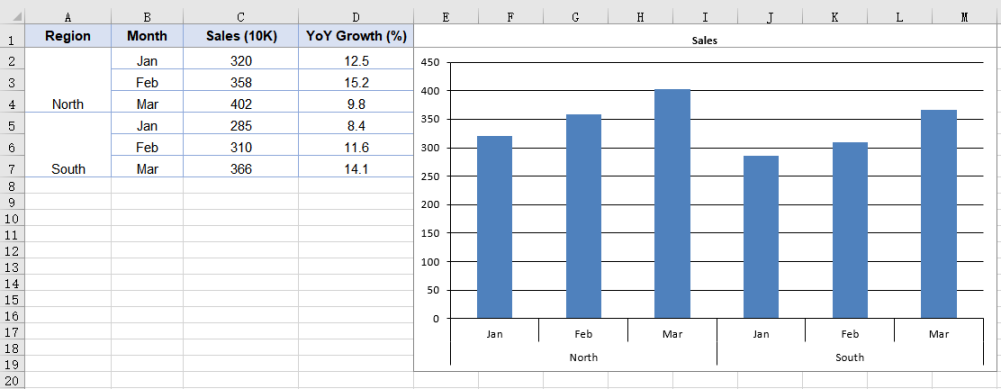
O intervalo A2:B7 é o que faz o eixo mostrar dois níveis. Vincular um intervalo de uma única coluna, como B2:B7, ainda produziria um nível mesmo com MultiLevelLable definido como true — a propriedade controla se vários níveis são expandidos em linhas, não se existe um nível de dados a expandir.
Por que a série de crescimento desaparece
Adicione uma segunda série para o crescimento ano a ano — valores na casa dos dez, em porcentagens — e plote-a no mesmo eixo de valores das vendas. As colunas de vendas chegam a 120.000; a taxa de crescimento chega a 12. Em um eixo que varia de 0 a 140.000, o número 12 é indistinguível de zero. A série está lá, os dados estão corretos, e o gráfico mostra uma linha plana colada à linha de base.
Isso não é um bug nos dados nem no gráfico. É o eixo de valores fazendo seu trabalho — mapear um intervalo que cobre a maior série — ao custo da menor. A única maneira de ver as duas séries com clareza é dar a cada uma sua própria escala, e é isso que o eixo secundário faz.
Mover uma série para o eixo secundário
A série de crescimento é adicionada como linha em vez de coluna. Uma linha não ocupa largura de barra, então ela se destaca claramente em relação à série de colunas que compartilha as mesmas categorias. Movê-la para fora do eixo primário é uma única propriedade: UsePrimaryAxis = false. As etapas são:
- Carregar a fonte e o arquivo de dados de teste no VFS.
- Carregar a pasta de trabalho e obter a planilha.
- Adicionar um gráfico de colunas e adicionar uma série de vendas nomeada.
- Adicionar a série de crescimento como linha.
- Mover a série de crescimento para o eixo secundário e salvar a pasta de trabalho.
function App() {
  const addSecondaryAxis = async () => {
    // Get the Spire.XLS WASM module
    const xlsModule = window.wasmModule?.spirexls;

    // Check if the module is ready
    if (!xlsModule) {
      alert('Spire.Xls is not ready yet');
      return;
    }

    // Load the font and the test data file into the VFS
    await window.spire.FetchFileToVFS('ARIAL.TTF', '/Library/Fonts/', `${process.env.PUBLIC_URL}/font/`);
    const inputFileName = 'MultiLevelChartData.xlsx';
    await window.spire.FetchFileToVFS(inputFileName, '', `${process.env.PUBLIC_URL}data/`);

    // Load the workbook and get the first worksheet
    const workbook = new xlsModule.Workbook();
    workbook.LoadFromFile({ fileName: inputFileName });
    const sheet = workbook.Worksheets.get(0);

    // Add a column chart
    const chart = sheet.Charts.Add({ chartType: xlsModule.ExcelChartType.ColumnClustered });
    chart.ChartTitle = "Sales and YoY Growth";

    // Add the sales series, which stays on the primary axis
    const salesSerie = chart.Series.Add({ name: "Sales", serieType: xlsModule.ExcelChartType.ColumnClustered });
    salesSerie.Values = sheet.Range.get("C2:C7");

    // Point the category labels at both the region and the month column
    salesSerie.CategoryLabels = sheet.Range.get("A2:B7");

    // Add the growth series as a line
    const growthSerie = chart.Series.Add({ name: "YoY Growth", serieType: xlsModule.ExcelChartType.Line });
    growthSerie.Values = sheet.Range.get("D2:D7");

    // Move the growth series to the secondary axis so it plots on its own percentage scale
    growthSerie.UsePrimaryAxis = false;

    // Turn on multi-level category labels
    chart.PrimaryCategoryAxis.MultiLevelLable = true;

    // Place the chart on the worksheet
    chart.LeftColumn = 5;
    chart.TopRow = 1;
    chart.RightColumn = 14;

    // Save the workbook
    const outputFileName = "SecondaryAxis.xlsx";
    workbook.SaveToFile({ fileName: outputFileName });

    // Dispose of the workbook object to free resources
    workbook.Dispose();

    // Read the result file from the VFS and trigger the download
    const fileArray = window.dotnetRuntime.Module.FS.readFile(outputFileName);
    const blob = new Blob([fileArray], { type: 'application/vnd.openxmlformats-officedocument.spreadsheetml.sheet' });
    const url = URL.createObjectURL(blob);
    const a = document.createElement('a');
    a.href = url;
    a.download = outputFileName;
    a.click();
    URL.revokeObjectURL(url);
  };

  return (
    <div style={{ textAlign: 'center', height: '300px' }}>
      <h1>Secondary Axis</h1>
      <button onClick={addSecondaryAxis}>Start</button>
    </div>
  );
}

export default App;
Um gráfico de colunas com um eixo secundário para a série de linhas da taxa de crescimento
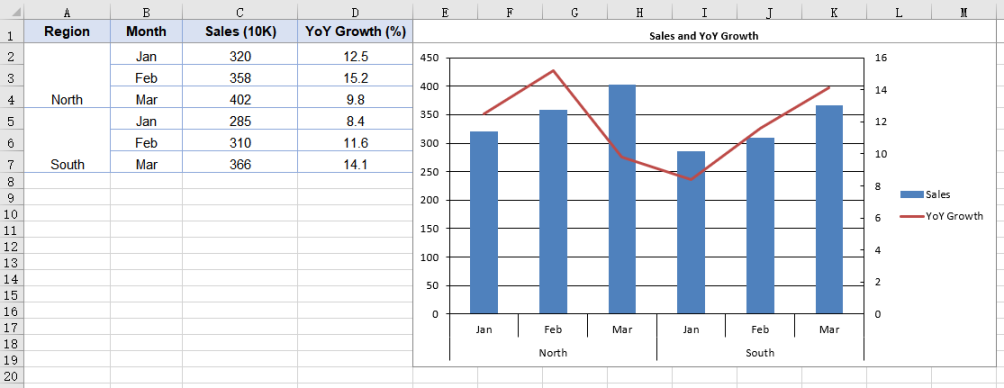
UsePrimaryAxis = false afeta apenas a série na qual é definido; todas as outras séries permanecem no eixo primário. O gráfico ganha um segundo par de eixos de valores e de categorias, dando-lhe dois intervalos de escala separados. Series.Add recebe o nome da série ao mesmo tempo, então a legenda mostra o nome passado em vez de um "Série 1" gerado automaticamente.
Definir a escala do eixo secundário
Quando uma série é movida para o eixo secundário, esse eixo calcula sua própria escala — e o faz de forma independente do primário. Os dois intervalos não têm conhecimento um do outro, o que significa que o eixo secundário pode escolher limites que não se alinham bem com os dados.
PrimaryValueAxis.MinValue, MaxValue e MajorUnit controlam apenas o eixo primário. Para definir a escala do eixo secundário, use SecondaryValueAxis:
// Give the secondary axis a 0-20 scale with a major unit of 5
chart.SecondaryValueAxis.MinValue = 0;
chart.SecondaryValueAxis.MaxValue = 20;
chart.SecondaryValueAxis.MajorUnit = 5;
Defina a escala depois que a série tiver sido movida para o eixo secundário. Enquanto nenhuma série usar o eixo secundário, a atribuição é aceita mas nunca gravada no arquivo — o eixo não existe na saída até que uma série seja plotada nele.
Problemas comuns
O eixo de categorias mostra apenas um nível de rótulos.
O CategoryLabels está apontando para um intervalo de uma única coluna. O número de níveis é decidido por quantas colunas o intervalo abrange, não pela propriedade MultiLevelLable. Aponte para um intervalo de várias colunas, como A2:B7, e certifique-se de que as células de rótulo externas estejam mescladas nos dados.
A escala do eixo secundário parece errada.
Os eixos de valores primário e secundário calculam suas escalas de forma independente. Definir MinValue ou MaxValue em PrimaryValueAxis não afeta o eixo secundário. Use chart.SecondaryValueAxis para definir sua escala diretamente, e faça isso depois de mover uma série para ele.
A série de crescimento ainda aparece plana depois de adicionar um eixo secundário.
Verifique se UsePrimaryAxis = false está definido na série de crescimento, não na série de vendas. A propriedade é por série — defini-la na série errada move a série errada para o eixo secundário.
A legenda mostra "Série 1" em vez do nome da série.
O nome não foi passado para Series.Add. Use chart.Series.Add({ name: "Sales", ... }) para que a legenda use o nome pretendido em vez de um rótulo gerado automaticamente.
Perguntas frequentes
Posso ter mais de dois níveis de rótulos de categoria?
Sim. O número de níveis é determinado pelo número de colunas que o intervalo CategoryLabels abrange. Um intervalo de três colunas produz três níveis — por exemplo, ano, trimestre e mês. As células de rótulo externas precisam estar mescladas nos dados para que cada nível seja agrupado corretamente.
O eixo secundário funciona com tipos de gráfico diferentes de colunas e linhas?
Sim. O eixo secundário não está vinculado a um tipo específico de gráfico. O padrão comum é colunas mais linha — a linha não ocupa largura de barra e se destaca claramente em relação às colunas — mas qualquer série pode ser movida para o eixo secundário definindo UsePrimaryAxis = false.
Preciso ter o Excel instalado para criar esses gráficos?
Não. O mecanismo de planilha vem com o pacote e é executado como WebAssembly no navegador. A pasta de trabalho é criada, recebe o gráfico e é salva inteiramente no lado do cliente.
Posso controlar o eixo de categorias secundário separadamente?
Quando uma série é movida para o eixo secundário, o gráfico ganha um eixo de categorias secundário além do eixo de valores secundário. Os dois eixos de categorias compartilham os mesmos rótulos de categoria por padrão, então os rótulos de vários níveis se aplicam a ambos.
O arquivo de saída é compatível com o Excel?
Sim. A pasta de trabalho é salva como .xlsx, e o gráfico — incluindo os rótulos de vários níveis e o eixo secundário — é gravado como XML de gráfico padrão que o Excel lê nativamente.
Veja também
JavaScript로 더 명확한 Excel 차트: 다중 레벨 레이블과 이중 축
지역과 월을 같은 축에 놓은 세로 막대형 차트에는 두 가지 문제가 있으며, 이 둘은 같은 문제가 아닙니다. 첫 번째는 범주 레이블이 단일 행 — "북부", "1월", "북부", "2월" — 으로 합쳐져서, 읽는 사람이 어느 월이 어느 지역에 속하는지 머릿속으로 다시 묶어야 한다는 점입니다. 두 번째는 매출 계열이 수백만 단위에 달하는데 성장률 계열을 함께 추가하면, 하나의 값 축이 두 가지 규모를 동시에 처리할 수 없기 때문에 성장률이 기준선에 붙은 평평한 선이 된다는 점입니다.
다중 수준 범주 레이블은 첫 번째 문제를 해결합니다. 보조 축은 두 번째 문제를 해결합니다. 이 둘은 같은 차트에서 유용하게 쓰일 뿐 서로 독립적인 기능이며, Spire.XLS for JavaScript는 차트 축 API를 통해 두 가지를 모두 처리합니다. 즉, 백엔드 없이 가상 파일 시스템(VFS)을 통해 파일을 이동하면서 브라우저의 WebAssembly에서 직접 실행됩니다.
프로젝트 설정은 React 프로젝트에 Spire.XLS for JavaScript 통합하기를 참조하세요. 아래 예제는 패키지가 설치되어 있고 WebAssembly 모듈이 초기화되었다고 가정합니다.
하나의 축으로 충분하지 않을 때
두 문제는 같은 종류의 워크시트 — 범주에 계층이 있고 값의 범위가 넓은 워크시트 — 에서 나타나지만, 원인은 서로 다릅니다:
| 문제 | 원인 | 차트 모양 | 해결 방법 |
|---|---|---|---|
| 레이블이 한 행에 몰림 | 범주가 계층적임(지역 → 월, 연도 → 분기)이지만 축은 이를 평면적으로 처리함 | 외부 및 내부 범주가 시각적 그룹화 없이 번갈아 나타나는 단일 레이블 행 | 다중 수준 범주 레이블 |
| 한 계열이 선으로 평평해짐 | 두 계열이 규모 차이가 큼(매출은 백만 단위, 성장률은 퍼센트)이지만 하나의 값 축을 공유함 | 더 작은 계열이 거의 0에 가깝게 압축되어 변동이 보이지 않음 | 보조 축 |
둘 다 스타일 문제가 아닙니다. 둘 모두 축이 알아야 할 무언가를 모르기 때문에 발생합니다. 즉, 범주에 계층이 있다는 것, 또는 값의 눈금이 서로 호환되지 않는다는 것입니다. 아래 두 섹션에서 이를 차례로 다루며, 두 번째 섹션은 첫 번째를 기반으로 하여 최종 차트가 두 가지 해결책을 모두 갖추도록 합니다.
사전 요구 사항
Spire.XLS for JavaScript가 설치되고 WebAssembly 모듈이 초기화된 React 프로젝트가 필요하며, 모듈은 window.wasmModule.spirexls에서 접근할 수 있어야 합니다. 샘플은 차트를 만들기 전에 글꼴과 미리 준비된 데이터 파일을 VFS에 로드하며, 둘 다 프로젝트의 public 폴더에서 가져옵니다.
다중 수준 레이블 뒤의 데이터
다중 수준 레이블은 속성 하나만으로 만들어지지 않습니다. 데이터에서 읽어옵니다. 범주 축은 CategoryLabels가 가리키는 범위에 있는 열 수만큼 레이블 수준을 그립니다. 따라서 워크시트는 계층이 열을 가로질러 배치되도록 구성해야 합니다:
| 열 A(외부) | 열 B(내부) | 열 C(값) |
|---|---|---|
| 북부 | 1월 | 120,000 |
| 북부 | 2월 | 135,000 |
| 남부 | 1월 | 98,000 |
| 남부 | 2월 | 110,000 |
열 A의 외부 레이블은 해당 레이블이 포괄하는 행에 걸쳐 병합됩니다. "북부"는 1월과 2월의 두 행에 걸쳐 있습니다. 이 병합 덕분에 차트가 렌더링될 때 해당 수준이 그룹당 단일 레이블로 시각적으로 합쳐집니다. 병합하지 않으면 축은 여전히 두 수준을 표시하지만, 외부 수준이 그룹화되지 않고 각 행마다 레이블을 반복합니다.
이것은 차트 API의 문제가 아니라 데이터 배치의 문제입니다. 차트 코드는 CategoryLabels가 두 열을 모두 가리키도록 하기만 하면 됩니다. 외부 셀이 병합되는지 여부는 차트 개체가 아니라 통합 문서에서 결정됩니다.
다중 수준 범주 레이블이 있는 차트 만들기
데이터가 배치되면 차트 코드는 두 가지를 수행합니다. CategoryLabels가 외부 열과 내부 열을 모두 포괄하는 범위를 가리키게 하고, MultiLevelLable을 켜서 축이 해당 열을 누적된 행으로 확장하도록 합니다. 단계는 다음과 같습니다:
- 글꼴과 테스트 데이터 파일을 VFS에 로드합니다.
- 통합 문서를 로드하고 워크시트를 가져옵니다.
- 세로 막대형 차트를 추가하고 이름이 지정된 매출 계열을 추가합니다.
- 범주 레이블이 지역과 월 열을 모두 가리키도록 합니다.
- 범주 축에 대해 다중 수준 레이블을 켜고 통합 문서를 저장합니다.
function App() {
  const createMultiLevelChart = async () => {
    // Get the Spire.XLS WASM module
    const xlsModule = window.wasmModule?.spirexls;

    // Check if the module is ready
    if (!xlsModule) {
      alert('Spire.Xls is not ready yet');
      return;
    }

    // Load the font and the test data file into the VFS
    await window.spire.FetchFileToVFS('ARIAL.TTF', '/Library/Fonts/', `${process.env.PUBLIC_URL}/font/`);
    const inputFileName = 'MultiLevelChartData.xlsx';
    await window.spire.FetchFileToVFS(inputFileName, '', `${process.env.PUBLIC_URL}data/`);

    // Load the workbook and get the first worksheet
    const workbook = new xlsModule.Workbook();
    workbook.LoadFromFile({ fileName: inputFileName });
    const sheet = workbook.Worksheets.get(0);

    // Add a column chart
    const chart = sheet.Charts.Add({ chartType: xlsModule.ExcelChartType.ColumnClustered });
    chart.ChartTitle = "Sales";
    chart.Legend.Delete();

    // Add the sales series and give it a name
    const serie = chart.Series.Add({ name: "Sales", serieType: xlsModule.ExcelChartType.ColumnClustered });
    serie.Values = sheet.Range.get("C2:C7");

    // Point the category labels at both the region and the month column
    serie.CategoryLabels = sheet.Range.get("A2:B7");

    // Turn on multi-level category labels so each level gets its own row
    chart.PrimaryCategoryAxis.MultiLevelLable = true;

    // Place the chart on the worksheet
    chart.LeftColumn = 5;
    chart.TopRow = 1;
    chart.RightColumn = 14;

    // Save the workbook
    const outputFileName = "MultiLevelLabels.xlsx";
    workbook.SaveToFile({ fileName: outputFileName });

    // Dispose of the workbook object to free resources
    workbook.Dispose();

    // Read the result file from the VFS and trigger the download
    const fileArray = window.dotnetRuntime.Module.FS.readFile(outputFileName);
    const blob = new Blob([fileArray], { type: 'application/vnd.openxmlformats-officedocument.spreadsheetml.sheet' });
    const url = URL.createObjectURL(blob);
    const a = document.createElement('a');
    a.href = url;
    a.download = outputFileName;
    a.click();
    URL.revokeObjectURL(url);
  };

  return (
    <div style={{ textAlign: 'center', height: '300px' }}>
      <h1>Multi-Level Labels</h1>
      <button onClick={createMultiLevelChart}>Start</button>
    </div>
  );
}

export default App;
각 수준이 자체 행에 표시되는 다중 수준 범주 레이블이 있는 차트
축이 두 수준을 표시하도록 하는 것은 A2:B7 범위입니다. B2:B7과 같은 단일 열 범위를 바인딩하면 MultiLevelLable이 true로 설정되어 있어도 여전히 하나의 수준만 생성됩니다. 이 속성은 여러 수준을 행으로 확장할지 여부를 제어할 뿐, 확장할 데이터 수준이 존재하는지 여부를 제어하지 않습니다.
성장 계열이 사라지는 이유
전년 대비 성장률에 대한 두 번째 계열 — 10%대 초반의 백분율 값 — 을 추가하고 매출과 같은 값 축에 표시해 보겠습니다. 매출 막대는 120,000에 도달하지만 성장률은 12에 도달합니다. 0에서 140,000까지 눈금이 매겨진 축에서는 숫자 12가 0과 구별되지 않습니다. 계열은 존재하고 데이터도 정확하지만, 차트에는 기준선에 붙은 평평한 선이 표시됩니다.
이것은 데이터나 차트의 버그가 아닙니다. 가장 큰 계열을 포괄하는 범위를 매핑하는 값 축이 제 역할을 하는 대신, 가장 작은 계열을 희생한 결과입니다. 두 계열을 모두 선명하게 보려면 각각 고유한 눈금을 부여해야 하며, 보조 축이 바로 그 역할을 합니다.
계열을 보조 축으로 이동
성장 계열은 막대가 아니라 선으로 추가합니다. 선은 막대 너비를 차지하지 않으므로, 같은 범주를 공유하는 막대 계열과 대비되어 선명하게 보입니다. 이를 기본 축에서 분리하는 방법은 속성 하나입니다: UsePrimaryAxis = false. 단계는 다음과 같습니다:
- 글꼴과 테스트 데이터 파일을 VFS에 로드합니다.
- 통합 문서를 로드하고 워크시트를 가져옵니다.
- 세로 막대형 차트를 추가하고 이름이 지정된 매출 계열을 추가합니다.
- 성장 계열을 선으로 추가합니다.
- 성장 계열을 보조 축으로 이동하고 통합 문서를 저장합니다.
function App() {
  const addSecondaryAxis = async () => {
    // Get the Spire.XLS WASM module
    const xlsModule = window.wasmModule?.spirexls;

    // Check if the module is ready
    if (!xlsModule) {
      alert('Spire.Xls is not ready yet');
      return;
    }

    // Load the font and the test data file into the VFS
    await window.spire.FetchFileToVFS('ARIAL.TTF', '/Library/Fonts/', `${process.env.PUBLIC_URL}/font/`);
    const inputFileName = 'MultiLevelChartData.xlsx';
    await window.spire.FetchFileToVFS(inputFileName, '', `${process.env.PUBLIC_URL}data/`);

    // Load the workbook and get the first worksheet
    const workbook = new xlsModule.Workbook();
    workbook.LoadFromFile({ fileName: inputFileName });
    const sheet = workbook.Worksheets.get(0);

    // Add a column chart
    const chart = sheet.Charts.Add({ chartType: xlsModule.ExcelChartType.ColumnClustered });
    chart.ChartTitle = "Sales and YoY Growth";

    // Add the sales series, which stays on the primary axis
    const salesSerie = chart.Series.Add({ name: "Sales", serieType: xlsModule.ExcelChartType.ColumnClustered });
    salesSerie.Values = sheet.Range.get("C2:C7");

    // Point the category labels at both the region and the month column
    salesSerie.CategoryLabels = sheet.Range.get("A2:B7");

    // Add the growth series as a line
    const growthSerie = chart.Series.Add({ name: "YoY Growth", serieType: xlsModule.ExcelChartType.Line });
    growthSerie.Values = sheet.Range.get("D2:D7");

    // Move the growth series to the secondary axis so it plots on its own percentage scale
    growthSerie.UsePrimaryAxis = false;

    // Turn on multi-level category labels
    chart.PrimaryCategoryAxis.MultiLevelLable = true;

    // Place the chart on the worksheet
    chart.LeftColumn = 5;
    chart.TopRow = 1;
    chart.RightColumn = 14;

    // Save the workbook
    const outputFileName = "SecondaryAxis.xlsx";
    workbook.SaveToFile({ fileName: outputFileName });

    // Dispose of the workbook object to free resources
    workbook.Dispose();

    // Read the result file from the VFS and trigger the download
    const fileArray = window.dotnetRuntime.Module.FS.readFile(outputFileName);
    const blob = new Blob([fileArray], { type: 'application/vnd.openxmlformats-officedocument.spreadsheetml.sheet' });
    const url = URL.createObjectURL(blob);
    const a = document.createElement('a');
    a.href = url;
    a.download = outputFileName;
    a.click();
    URL.revokeObjectURL(url);
  };

  return (
    <div style={{ textAlign: 'center', height: '300px' }}>
      <h1>Secondary Axis</h1>
      <button onClick={addSecondaryAxis}>Start</button>
    </div>
  );
}

export default App;
성장률 선 계열을 위한 보조 축이 있는 세로 막대형 차트
UsePrimaryAxis = false는 설정된 계열에만 영향을 미치며, 다른 모든 계열은 기본 축에 남습니다. 차트에는 두 번째 값 축과 범주 축 쌍이 생겨 두 개의 별도 눈금 범위를 갖게 됩니다. Series.Add는 계열 이름을 동시에 받으므로, 범례에는 자동 생성된 "Series 1" 대신 전달한 이름이 표시됩니다.
보조 축 눈금 설정
계열이 보조 축으로 이동하면 해당 축은 자체적으로 눈금을 계산하며, 기본 축과 독립적으로 계산합니다. 두 범위는 서로를 알지 못하므로 보조 축이 데이터와 잘 맞지 않는 범위를 선택할 수 있습니다.
PrimaryValueAxis.MinValue, MaxValue, MajorUnit은 기본 축만 제어합니다. 보조 축 눈금을 설정하려면 SecondaryValueAxis를 사용하세요:
// Give the secondary axis a 0-20 scale with a major unit of 5
chart.SecondaryValueAxis.MinValue = 0;
chart.SecondaryValueAxis.MaxValue = 20;
chart.SecondaryValueAxis.MajorUnit = 5;
눈금은 계열을 보조 축으로 이동한 후에 설정하세요. 보조 축을 사용하는 계열이 없으면 할당은 받아들여지지만 파일에 기록되지 않습니다. 즉, 계열이 그 위에 그려지기 전까지 출력에 해당 축은 존재하지 않습니다.
일반적인 문제
범주 축에 한 수준의 레이블만 표시됩니다.
CategoryLabels가 단일 열 범위를 가리키고 있습니다. 수준 수는 범위가 포괄하는 열 수에 따라 결정되며, MultiLevelLable 속성에 따라 결정되지 않습니다. A2:B7과 같은 여러 열 범위를 가리키고, 데이터에서 외부 레이블 셀이 병합되었는지 확인하세요.
보조 축 눈금이 잘못된 것처럼 보입니다.
기본 및 보조 값 축은 각각 독립적으로 눈금을 계산합니다. PrimaryValueAxis에 MinValue 또는 MaxValue를 설정해도 보조 축에는 영향을 주지 않습니다. chart.SecondaryValueAxis를 사용하여 해당 눈금을 직접 설정하고, 계열을 그 축으로 이동한 후에 설정하세요.
보조 축을 추가한 후에도 성장 계열이 여전히 평평하게 나타납니다.
UsePrimaryAxis = false가 매출 계열이 아니라 성장 계열에 설정되어 있는지 확인하세요. 이 속성은 계열별로 적용되므로, 잘못된 계열에 설정하면 잘못된 계열이 보조 축으로 이동합니다.
범례에 계열 이름 대신 "Series 1"이 표시됩니다.
이름이 Series.Add에 전달되지 않았습니다. chart.Series.Add({ name: "Sales", ... })를 사용하여 범례가 자동 생성 레이블이 아니라 의도한 이름을 가져오도록 하세요.
자주 묻는 질문
범주 레이블을 두 수준 이상으로 가질 수 있나요?
예. 수준 수는 CategoryLabels 범위가 포괄하는 열 수에 따라 결정됩니다. 3열 범위는 세 수준을 생성합니다. 예를 들어 연도, 분기, 월입니다. 각 수준이 올바르게 그룹화되려면 데이터에서 외부 레이블 셀이 병합되어야 합니다.
보조 축이 세로 막대형 및 선형 외의 차트 종류에서도 작동하나요?
예. 보조 축은 특정 차트 종류에 묶여 있지 않습니다. 일반적인 패턴은 세로 막대형과 선의 조합입니다. 선은 막대 너비를 차지하지 않아 막대와 대비되어 선명하게 보입니다. 하지만 UsePrimaryAxis = false를 설정하면 모든 계열을 보조 축으로 이동할 수 있습니다.
이 차트를 만들려면 Excel이 설치되어 있어야 하나요?
아니요. 스프레드시트 엔진은 패키지에 포함되어 제공되며 브라우저에서 WebAssembly로 실행됩니다. 통합 문서는 전적으로 클라이언트 측에서 작성, 차트 생성, 저장됩니다.
보조 범주 축을 별도로 제어할 수 있나요?
계열이 보조 축으로 이동하면 차트에는 보조 값 축 외에도 보조 범주 축이 생깁니다. 두 범주 축은 기본적으로 동일한 범주 레이블을 공유하므로 다중 수준 레이블이 둘 다에 적용됩니다.
출력 파일이 Excel과 호환되나요?
예. 통합 문서는 .xlsx로 저장되며, 다중 수준 레이블과 보조 축을 포함한 차트는 Excel이 기본적으로 읽는 표준 차트 XML로 작성됩니다.
참고 항목
Grafici Excel più chiari in JavaScript: etichette multilivello e doppi assi
Indice dei contenuti
Un grafico a colonne con regioni e mesi sullo stesso asse presenta due problemi, e non si tratta dello stesso problema. Il primo è che le etichette di categoria si riducono a un'unica riga — "North", "Jan", "North", "Feb" — e il lettore deve raggruppare mentalmente quale mese appartiene a quale regione. Il secondo è che quando una serie di tasso di crescita viene aggiunta accanto a una serie di vendite che arriva a milioni, il tasso di crescita diventa una linea piatta aderente alla linea di base, perché un unico asse dei valori non può servire due ordini di grandezza contemporaneamente.
Le etichette di categoria multilivello risolvono il primo problema. Un asse secondario risolve il secondo. Sono funzionalità indipendenti che si trovano a essere utili sullo stesso grafico, e Spire.XLS for JavaScript gestisce entrambe tramite l'API degli assi del grafico — direttamente nel browser su WebAssembly, con i file che transitano attraverso un file system virtuale (VFS) e senza alcun backend coinvolto.
Per la configurazione del progetto, vedere Integrare Spire.XLS for JavaScript in un progetto React. Gli esempi seguenti presuppongono che il pacchetto sia installato e che il modulo WebAssembly sia stato inizializzato.
Quando un asse non è sufficiente
I due problemi si presentano sullo stesso tipo di foglio di lavoro — uno in cui le categorie hanno una gerarchia e i valori hanno un'ampia gamma — ma provengono da origini diverse:
| Problema | Da dove deriva | Come appare il grafico | Cosa lo risolve |
|---|---|---|---|
| Le etichette si accalcano in un'unica riga | Le categorie sono gerarchiche (regione → mese, anno → trimestre) ma l'asse le tratta come piatte | Un'unica riga di etichette in cui le categorie esterne e interne si alternano senza raggruppamento visivo | Etichette di categoria multilivello |
| Una serie si appiattisce in una linea | Due serie differiscono di ordini di grandezza (vendite in milioni, crescita in percentuale) ma condividono un unico asse dei valori | La serie più piccola si comprime quasi a zero e la sua variazione è invisibile | Asse secondario |
Nessuno dei due è un problema di stile. Entrambi dipendono dal fatto che l'asse non sa qualcosa che deve sapere — che le categorie hanno livelli, o che i valori hanno scale incompatibili. Le due sezioni seguenti li affrontano una dopo l'altra, e la seconda si basa sulla prima, così il grafico finale contiene entrambe le soluzioni.
Prerequisiti
Serve un progetto React con Spire.XLS for JavaScript installato e il modulo WebAssembly inizializzato, accessibile all'indirizzo window.wasmModule.spirexls. L'esempio carica un font e un file di dati predefinito nella VFS prima di creare il grafico, ed entrambi vengono recuperati dalla cartella public del progetto.
I dati alla base delle etichette multilivello
Le etichette multilivello non vengono create da una sola proprietà — vengono lette dai dati. L'asse delle categorie disegna tanti livelli di etichette quante sono le colonne nell'intervallo a cui punta CategoryLabels. Quindi il foglio di lavoro deve essere organizzato con la gerarchia distribuita sulle colonne:
| Colonna A (esterna) | Colonna B (interna) | Colonna C (valori) |
|---|---|---|
| North | Jan | 120,000 |
| North | Feb | 135,000 |
| South | Jan | 98,000 |
| South | Feb | 110,000 |
Le etichette esterne nella colonna A sono unite per tutte le righe che coprono — "North" comprende le due righe di Jan e Feb. È questa unione che fa sì che il livello si comprima visivamente in un'unica etichetta per gruppo quando il grafico viene renderizzato. Senza di essa, l'asse mostra comunque due livelli, ma il livello esterno ripete l'etichetta su ogni riga invece di raggrupparla.
Questa è una questione di layout dei dati, non di API del grafico. Il codice del grafico deve solo far puntare CategoryLabels a entrambe le colonne; se le celle esterne sono unite viene deciso nella cartella di lavoro, non nell'oggetto grafico.
Creare un grafico con etichette di categoria multilivello
Una volta organizzati i dati, il codice del grafico fa due cose: fa puntare CategoryLabels a un intervallo che comprende sia la colonna esterna sia quella interna, e attiva MultiLevelLable in modo che l'asse espanda tali colonne in righe sovrapposte. I passaggi sono:
- Caricare il font e il file di dati di test nella VFS.
- Caricare la cartella di lavoro e ottenere il foglio di lavoro.
- Aggiungere un grafico a colonne e aggiungere una serie di vendite con nome.
- Far puntare le etichette di categoria sia alla colonna della regione sia a quella del mese.
- Attivare le etichette multilivello per l'asse delle categorie e salvare la cartella di lavoro.
function App() {
  const createMultiLevelChart = async () => {
    // Get the Spire.XLS WASM module
    const xlsModule = window.wasmModule?.spirexls;

    // Check if the module is ready
    if (!xlsModule) {
      alert('Spire.Xls is not ready yet');
      return;
    }

    // Load the font and the test data file into the VFS
    await window.spire.FetchFileToVFS('ARIAL.TTF', '/Library/Fonts/', `${process.env.PUBLIC_URL}/font/`);
    const inputFileName = 'MultiLevelChartData.xlsx';
    await window.spire.FetchFileToVFS(inputFileName, '', `${process.env.PUBLIC_URL}data/`);

    // Load the workbook and get the first worksheet
    const workbook = new xlsModule.Workbook();
    workbook.LoadFromFile({ fileName: inputFileName });
    const sheet = workbook.Worksheets.get(0);

    // Add a column chart
    const chart = sheet.Charts.Add({ chartType: xlsModule.ExcelChartType.ColumnClustered });
    chart.ChartTitle = "Sales";
    chart.Legend.Delete();

    // Add the sales series and give it a name
    const serie = chart.Series.Add({ name: "Sales", serieType: xlsModule.ExcelChartType.ColumnClustered });
    serie.Values = sheet.Range.get("C2:C7");

    // Point the category labels at both the region and the month column
    serie.CategoryLabels = sheet.Range.get("A2:B7");

    // Turn on multi-level category labels so each level gets its own row
    chart.PrimaryCategoryAxis.MultiLevelLable = true;

    // Place the chart on the worksheet
    chart.LeftColumn = 5;
    chart.TopRow = 1;
    chart.RightColumn = 14;

    // Save the workbook
    const outputFileName = "MultiLevelLabels.xlsx";
    workbook.SaveToFile({ fileName: outputFileName });

    // Dispose of the workbook object to free resources
    workbook.Dispose();

    // Read the result file from the VFS and trigger the download
    const fileArray = window.dotnetRuntime.Module.FS.readFile(outputFileName);
    const blob = new Blob([fileArray], { type: 'application/vnd.openxmlformats-officedocument.spreadsheetml.sheet' });
    const url = URL.createObjectURL(blob);
    const a = document.createElement('a');
    a.href = url;
    a.download = outputFileName;
    a.click();
    URL.revokeObjectURL(url);
  };

  return (
    <div style={{ textAlign: 'center', height: '300px' }}>
      <h1>Multi-Level Labels</h1>
      <button onClick={createMultiLevelChart}>Start</button>
    </div>
  );
}

export default App;
Un grafico con etichette di categoria multilivello, ogni livello sulla propria riga
È l'intervallo A2:B7 che fa mostrare all'asse due livelli. Associare un intervallo a colonna singola come B2:B7 produrrebbe comunque un solo livello anche con MultiLevelLable impostato su true — la proprietà controlla se più livelli vengono espansi in righe, non se esiste un livello di dati da espandere.
Perché la serie di crescita scompare
Aggiungete una seconda serie per la crescita anno su anno — valori a due cifre basse, percentuali — e tracciatela sullo stesso asse dei valori delle vendite. Le colonne delle vendite raggiungono 120,000; il tasso di crescita raggiunge 12. Su un asse che va da 0 a 140,000, il numero 12 è indistinguibile dallo zero. La serie c'è, i dati sono corretti, e il grafico mostra una linea piatta contro la linea di base.
Non è un bug nei dati o nel grafico. È l'asse dei valori che fa il suo lavoro — mappare un intervallo che copre la serie più grande — a scapito della più piccola. L'unico modo per vedere chiaramente entrambe le serie è dare a ciascuna la propria scala, ed è ciò che fa l'asse secondario.
Spostare una serie sull'asse secondario
La serie di crescita viene aggiunta come linea anziché come colonna. Una linea non occupa larghezza di barra, quindi risulta ben leggibile rispetto alla serie a colonne che condivide le stesse categorie. Spostarla dall'asse primario richiede una sola proprietà: UsePrimaryAxis = false. I passaggi sono:
- Caricare il font e il file di dati di test nella VFS.
- Caricare la cartella di lavoro e ottenere il foglio di lavoro.
- Aggiungere un grafico a colonne e aggiungere una serie di vendite con nome.
- Aggiungere la serie di crescita come linea.
- Spostare la serie di crescita sull'asse secondario e salvare la cartella di lavoro.
function App() {
  const addSecondaryAxis = async () => {
    // Get the Spire.XLS WASM module
    const xlsModule = window.wasmModule?.spirexls;

    // Check if the module is ready
    if (!xlsModule) {
      alert('Spire.Xls is not ready yet');
      return;
    }

    // Load the font and the test data file into the VFS
    await window.spire.FetchFileToVFS('ARIAL.TTF', '/Library/Fonts/', `${process.env.PUBLIC_URL}/font/`);
    const inputFileName = 'MultiLevelChartData.xlsx';
    await window.spire.FetchFileToVFS(inputFileName, '', `${process.env.PUBLIC_URL}data/`);

    // Load the workbook and get the first worksheet
    const workbook = new xlsModule.Workbook();
    workbook.LoadFromFile({ fileName: inputFileName });
    const sheet = workbook.Worksheets.get(0);

    // Add a column chart
    const chart = sheet.Charts.Add({ chartType: xlsModule.ExcelChartType.ColumnClustered });
    chart.ChartTitle = "Sales and YoY Growth";

    // Add the sales series, which stays on the primary axis
    const salesSerie = chart.Series.Add({ name: "Sales", serieType: xlsModule.ExcelChartType.ColumnClustered });
    salesSerie.Values = sheet.Range.get("C2:C7");

    // Point the category labels at both the region and the month column
    salesSerie.CategoryLabels = sheet.Range.get("A2:B7");

    // Add the growth series as a line
    const growthSerie = chart.Series.Add({ name: "YoY Growth", serieType: xlsModule.ExcelChartType.Line });
    growthSerie.Values = sheet.Range.get("D2:D7");

    // Move the growth series to the secondary axis so it plots on its own percentage scale
    growthSerie.UsePrimaryAxis = false;

    // Turn on multi-level category labels
    chart.PrimaryCategoryAxis.MultiLevelLable = true;

    // Place the chart on the worksheet
    chart.LeftColumn = 5;
    chart.TopRow = 1;
    chart.RightColumn = 14;

    // Save the workbook
    const outputFileName = "SecondaryAxis.xlsx";
    workbook.SaveToFile({ fileName: outputFileName });

    // Dispose of the workbook object to free resources
    workbook.Dispose();

    // Read the result file from the VFS and trigger the download
    const fileArray = window.dotnetRuntime.Module.FS.readFile(outputFileName);
    const blob = new Blob([fileArray], { type: 'application/vnd.openxmlformats-officedocument.spreadsheetml.sheet' });
    const url = URL.createObjectURL(blob);
    const a = document.createElement('a');
    a.href = url;
    a.download = outputFileName;
    a.click();
    URL.revokeObjectURL(url);
  };

  return (
    <div style={{ textAlign: 'center', height: '300px' }}>
      <h1>Secondary Axis</h1>
      <button onClick={addSecondaryAxis}>Start</button>
    </div>
  );
}

export default App;
Un grafico a colonne con un asse secondario per la serie a linee del tasso di crescita
UsePrimaryAxis = false influisce solo sulla serie su cui è impostato; tutte le altre serie rimangono sull'asse primario. Il grafico acquisisce una seconda coppia di assi dei valori e delle categorie, ottenendo due intervalli di scala separati. Series.Add accetta contemporaneamente il nome della serie, così la legenda mostra il nome passato invece di un "Series 1" generato automaticamente.
Impostare la scala dell'asse secondario
Una volta che una serie passa all'asse secondario, quell'asse calcola la propria scala — e lo fa indipendentemente da quello primario. I due intervalli non si conoscono a vicenda, il che significa che l'asse secondario potrebbe scegliere limiti che non si allineano bene con i dati.
PrimaryValueAxis.MinValue, MaxValue e MajorUnit controllano solo l'asse primario. Per impostare la scala dell'asse secondario, usate SecondaryValueAxis:
// Give the secondary axis a 0-20 scale with a major unit of 5
chart.SecondaryValueAxis.MinValue = 0;
chart.SecondaryValueAxis.MaxValue = 20;
chart.SecondaryValueAxis.MajorUnit = 5;
Impostate la scala dopo che la serie è stata spostata sull'asse secondario. Finché nessuna serie utilizza l'asse secondario, l'assegnazione viene accettata ma non viene mai scritta nel file — l'asse non esiste nell'output finché non vi viene tracciata una serie.
Problemi comuni
L'asse delle categorie mostra un solo livello di etichette.
CategoryLabels punta a un intervallo a colonna singola. Il numero di livelli è determinato da quante colonne copre l'intervallo, non dalla proprietà MultiLevelLable. Puntate a un intervallo multicolonna come A2:B7 e assicuratevi che le celle delle etichette esterne siano unite nei dati.
La scala dell'asse secondario sembra sbagliata.
Gli assi dei valori primario e secondario calcolano le rispettive scale in modo indipendente. Impostare MinValue o MaxValue su PrimaryValueAxis non influisce sull'asse secondario. Usate chart.SecondaryValueAxis per impostarne direttamente la scala, e fatelo dopo aver spostato una serie su di esso.
La serie di crescita appare ancora piatta dopo aver aggiunto un asse secondario.
Verificate che UsePrimaryAxis = false sia impostato sulla serie di crescita, non su quella delle vendite. La proprietà è per serie — impostarla sulla serie sbagliata sposta quella sbagliata sull'asse secondario.
La legenda mostra "Series 1" invece del nome della serie.
Il nome non è stato passato a Series.Add. Usate chart.Series.Add({ name: "Sales", ... }) in modo che la legenda riprenda il nome che intendevate invece di un'etichetta generata automaticamente.
FAQ
Posso avere più di due livelli di etichette di categoria?
Sì. Il numero di livelli è determinato dal numero di colonne che l'intervallo CategoryLabels copre. Un intervallo a tre colonne produce tre livelli — ad esempio anno, trimestre e mese. Le celle delle etichette esterne devono essere unite nei dati affinché ogni livello venga raggruppato correttamente.
L'asse secondario funziona con tipi di grafico diversi da colonne e linee?
Sì. L'asse secondario non è legato a un tipo di grafico specifico. Lo schema più comune è colonne più linee — la linea non occupa larghezza di barra e risulta ben leggibile rispetto alle colonne — ma qualsiasi serie può essere spostata sull'asse secondario impostando UsePrimaryAxis = false.
Devo avere Excel installato per creare questi grafici?
No. Il motore per fogli di calcolo è incluso nel pacchetto e viene eseguito come WebAssembly nel browser. La cartella di lavoro viene creata, rappresentata con grafici e salvata interamente lato client.
Posso controllare separatamente l'asse delle categorie secondario?
Quando una serie passa all'asse secondario, il grafico acquisisce un asse delle categorie secondario oltre all'asse dei valori secondario. I due assi delle categorie condividono le stesse etichette di categoria per impostazione predefinita, quindi le etichette multilivello si applicano a entrambi.
Il file di output è compatibile con Excel?
Sì. La cartella di lavoro viene salvata come .xlsx e il grafico — comprese le etichette multilivello e l'asse secondario — viene scritto come XML di grafico standard che Excel legge nativamente.
Vedi anche
Graphiques Excel plus clairs en JavaScript : étiquettes à plusieurs niveaux et double axe
Table des matières
- Quand un seul axe ne suffit pas
- Prérequis
- Les données derrière les étiquettes multi-niveaux
- Créer un graphique avec des étiquettes de catégorie multi-niveaux
- Pourquoi la série de croissance disparaît
- Déplacer une série vers l'axe secondaire
- Définir l'échelle de l'axe secondaire
- Problèmes courants
- FAQ
- Voir aussi
Un graphique à colonnes comportant des régions et des mois sur un même axe pose deux problèmes, et ce ne sont pas les mêmes problèmes. Le premier est que les étiquettes de catégorie se réduisent à une seule ligne — « Nord », « Janv. », « Nord », « Févr. » — et le lecteur doit regrouper mentalement quel mois appartient à quelle région. Le second est que, lorsqu'une série de taux de croissance est ajoutée à côté d'une série de ventes qui se chiffre en millions, le taux de croissance devient une ligne plate collée à la ligne de base, car un seul axe des valeurs ne peut pas servir deux ordres de grandeur à la fois.
Les étiquettes de catégorie multi-niveaux corrigent le premier. Un axe secondaire corrige le second. Ce sont des fonctionnalités indépendantes qui se trouvent être utiles sur le même graphique, et Spire.XLS for JavaScript gère les deux via l'API d'axe du graphique — directement dans le navigateur sous WebAssembly, les fichiers transitant par un système de fichiers virtuel (VFS) et sans aucun backend.
Pour la configuration du projet, consultez Intégrer Spire.XLS for JavaScript dans un projet React. Les exemples ci-dessous supposent que le package est installé et que le module WebAssembly a été initialisé.
Quand un seul axe ne suffit pas
Les deux problèmes apparaissent sur le même type de feuille de calcul — une feuille où les catégories présentent une hiérarchie et où les valeurs s'étalent largement — mais ils proviennent d'endroits différents :
| Problème | Son origine | À quoi ressemble le graphique | Ce qui le corrige |
|---|---|---|---|
| Les étiquettes s'empilent sur une seule ligne | Les catégories sont hiérarchiques (région → mois, année → trimestre) mais l'axe les traite comme plates | Une seule ligne d'étiquettes où les catégories externes et internes alternent sans regroupement visuel | Étiquettes de catégorie multi-niveaux |
| Une série s'aplatit en une ligne | Deux séries diffèrent de plusieurs ordres de grandeur (ventes en millions, croissance en pourcentage) mais partagent un seul axe des valeurs | La plus petite série se comprime vers zéro et sa variation est invisible | Axe secondaire |
Aucun des deux n'est un problème de style. Dans les deux cas, l'axe ignore quelque chose qu'il doit savoir — que les catégories comportent des niveaux, ou que les valeurs ont des échelles incompatibles. Les deux sections ci-dessous les traitent tour à tour, et la seconde s'appuie sur la première afin que le graphique final intègre les deux corrections.
Prérequis
Vous avez besoin d'un projet React avec Spire.XLS for JavaScript installé et le module WebAssembly initialisé, accessible via window.wasmModule.spirexls. L'exemple charge une police et un fichier de données prédéfini dans le VFS avant de créer le graphique, et les deux sont récupérés depuis le dossier public du projet.
Les données derrière les étiquettes multi-niveaux
Les étiquettes multi-niveaux ne sont pas créées par une simple propriété : elles sont lues à partir des données. L'axe des catégories dessine autant de niveaux d'étiquettes qu'il y a de colonnes dans la plage vers laquelle pointe CategoryLabels. La feuille de calcul doit donc être organisée avec la hiérarchie répartie sur les colonnes :
| Colonne A (externe) | Colonne B (interne) | Colonne C (valeurs) |
|---|---|---|
| Nord | Janv. | 120 000 |
| Nord | Févr. | 135 000 |
| Sud | Janv. | 98 000 |
| Sud | Févr. | 110 000 |
Les étiquettes externes de la colonne A sont fusionnées sur les lignes qu'elles couvrent — « Nord » s'étend sur les deux lignes de janv. et févr. C'est cette fusion qui fait que le niveau se réduit visuellement à une seule étiquette par groupe au moment où le graphique est rendu. Sans elle, l'axe affiche toujours deux niveaux, mais le niveau externe répète l'étiquette sur chaque ligne au lieu de regrouper.
Il s'agit d'une question de disposition des données, non d'API de graphique. Le code du graphique doit seulement faire pointer CategoryLabels vers les deux colonnes ; le fait que les cellules externes soient fusionnées se décide dans le classeur, pas dans l'objet graphique.
Créer un graphique avec des étiquettes de catégorie multi-niveaux
Une fois les données disposées, le code du graphique fait deux choses : il fait pointer CategoryLabels vers une plage couvrant à la fois la colonne externe et la colonne interne, et il active MultiLevelLable pour que l'axe développe ces colonnes en lignes empilées. Les étapes sont les suivantes :
- Chargez la police et le fichier de données de test dans le VFS.
- Chargez le classeur et récupérez la feuille de calcul.
- Ajoutez un graphique à colonnes et ajoutez une série de ventes nommée.
- Faites pointer les étiquettes de catégorie vers la colonne de la région et celle du mois.
- Activez les étiquettes multi-niveaux pour l'axe des catégories et enregistrez le classeur.
function App() {
  const createMultiLevelChart = async () => {
    // Get the Spire.XLS WASM module
    const xlsModule = window.wasmModule?.spirexls;

    // Check if the module is ready
    if (!xlsModule) {
      alert('Spire.Xls is not ready yet');
      return;
    }

    // Load the font and the test data file into the VFS
    await window.spire.FetchFileToVFS('ARIAL.TTF', '/Library/Fonts/', `${process.env.PUBLIC_URL}/font/`);
    const inputFileName = 'MultiLevelChartData.xlsx';
    await window.spire.FetchFileToVFS(inputFileName, '', `${process.env.PUBLIC_URL}data/`);

    // Load the workbook and get the first worksheet
    const workbook = new xlsModule.Workbook();
    workbook.LoadFromFile({ fileName: inputFileName });
    const sheet = workbook.Worksheets.get(0);

    // Add a column chart
    const chart = sheet.Charts.Add({ chartType: xlsModule.ExcelChartType.ColumnClustered });
    chart.ChartTitle = "Sales";
    chart.Legend.Delete();

    // Add the sales series and give it a name
    const serie = chart.Series.Add({ name: "Sales", serieType: xlsModule.ExcelChartType.ColumnClustered });
    serie.Values = sheet.Range.get("C2:C7");

    // Point the category labels at both the region and the month column
    serie.CategoryLabels = sheet.Range.get("A2:B7");

    // Turn on multi-level category labels so each level gets its own row
    chart.PrimaryCategoryAxis.MultiLevelLable = true;

    // Place the chart on the worksheet
    chart.LeftColumn = 5;
    chart.TopRow = 1;
    chart.RightColumn = 14;

    // Save the workbook
    const outputFileName = "MultiLevelLabels.xlsx";
    workbook.SaveToFile({ fileName: outputFileName });

    // Dispose of the workbook object to free resources
    workbook.Dispose();

    // Read the result file from the VFS and trigger the download
    const fileArray = window.dotnetRuntime.Module.FS.readFile(outputFileName);
    const blob = new Blob([fileArray], { type: 'application/vnd.openxmlformats-officedocument.spreadsheetml.sheet' });
    const url = URL.createObjectURL(blob);
    const a = document.createElement('a');
    a.href = url;
    a.download = outputFileName;
    a.click();
    URL.revokeObjectURL(url);
  };

  return (
    <div style={{ textAlign: 'center', height: '300px' }}>
      <h1>Multi-Level Labels</h1>
      <button onClick={createMultiLevelChart}>Start</button>
    </div>
  );
}

export default App;
Un graphique avec des étiquettes de catégorie multi-niveaux, chaque niveau sur sa propre ligne
C'est la plage A2:B7 qui fait afficher deux niveaux à l'axe. Lier une plage d'une seule colonne telle que B2:B7 ne produirait toujours qu'un seul niveau, même avec MultiLevelLable défini sur true — la propriété contrôle si plusieurs niveaux sont développés en lignes, et non si un niveau de données existe à développer.
Pourquoi la série de croissance disparaît
Ajoutez une seconde série pour la croissance d'une année sur l'autre — des valeurs autour de la dizaine, en pourcentage — et tracez-la sur le même axe des valeurs que les ventes. Les colonnes de ventes atteignent 120 000 ; le taux de croissance atteint 12. Sur un axe gradué de 0 à 140 000, le nombre 12 est indiscernable de zéro. La série est bien là, les données sont correctes, et le graphique affiche une ligne plate collée à la ligne de base.
Ce n'est ni un bug des données ni un bug du graphique. C'est l'axe des valeurs qui fait son travail — mapper une plage qui couvre la plus grande série — au détriment de la plus petite. La seule façon de bien voir les deux séries est de donner à chacune sa propre échelle, et c'est ce que fait l'axe secondaire.
Déplacer une série vers l'axe secondaire
La série de croissance est ajoutée sous forme de courbe plutôt que de colonne. Une courbe n'occupe aucune largeur de barre, elle se lit donc clairement face à la série de colonnes qui partage les mêmes catégories. La sortir de l'axe principal tient à une seule propriété : UsePrimaryAxis = false. Les étapes sont les suivantes :
- Chargez la police et le fichier de données de test dans le VFS.
- Chargez le classeur et récupérez la feuille de calcul.
- Ajoutez un graphique à colonnes et ajoutez une série de ventes nommée.
- Ajoutez la série de croissance sous forme de courbe.
- Déplacez la série de croissance vers l'axe secondaire et enregistrez le classeur.
function App() {
  const addSecondaryAxis = async () => {
    // Get the Spire.XLS WASM module
    const xlsModule = window.wasmModule?.spirexls;

    // Check if the module is ready
    if (!xlsModule) {
      alert('Spire.Xls is not ready yet');
      return;
    }

    // Load the font and the test data file into the VFS
    await window.spire.FetchFileToVFS('ARIAL.TTF', '/Library/Fonts/', `${process.env.PUBLIC_URL}/font/`);
    const inputFileName = 'MultiLevelChartData.xlsx';
    await window.spire.FetchFileToVFS(inputFileName, '', `${process.env.PUBLIC_URL}data/`);

    // Load the workbook and get the first worksheet
    const workbook = new xlsModule.Workbook();
    workbook.LoadFromFile({ fileName: inputFileName });
    const sheet = workbook.Worksheets.get(0);

    // Add a column chart
    const chart = sheet.Charts.Add({ chartType: xlsModule.ExcelChartType.ColumnClustered });
    chart.ChartTitle = "Sales and YoY Growth";

    // Add the sales series, which stays on the primary axis
    const salesSerie = chart.Series.Add({ name: "Sales", serieType: xlsModule.ExcelChartType.ColumnClustered });
    salesSerie.Values = sheet.Range.get("C2:C7");

    // Point the category labels at both the region and the month column
    salesSerie.CategoryLabels = sheet.Range.get("A2:B7");

    // Add the growth series as a line
    const growthSerie = chart.Series.Add({ name: "YoY Growth", serieType: xlsModule.ExcelChartType.Line });
    growthSerie.Values = sheet.Range.get("D2:D7");

    // Move the growth series to the secondary axis so it plots on its own percentage scale
    growthSerie.UsePrimaryAxis = false;

    // Turn on multi-level category labels
    chart.PrimaryCategoryAxis.MultiLevelLable = true;

    // Place the chart on the worksheet
    chart.LeftColumn = 5;
    chart.TopRow = 1;
    chart.RightColumn = 14;

    // Save the workbook
    const outputFileName = "SecondaryAxis.xlsx";
    workbook.SaveToFile({ fileName: outputFileName });

    // Dispose of the workbook object to free resources
    workbook.Dispose();

    // Read the result file from the VFS and trigger the download
    const fileArray = window.dotnetRuntime.Module.FS.readFile(outputFileName);
    const blob = new Blob([fileArray], { type: 'application/vnd.openxmlformats-officedocument.spreadsheetml.sheet' });
    const url = URL.createObjectURL(blob);
    const a = document.createElement('a');
    a.href = url;
    a.download = outputFileName;
    a.click();
    URL.revokeObjectURL(url);
  };

  return (
    <div style={{ textAlign: 'center', height: '300px' }}>
      <h1>Secondary Axis</h1>
      <button onClick={addSecondaryAxis}>Start</button>
    </div>
  );
}

export default App;
Un graphique à colonnes avec un axe secondaire pour la série de courbe du taux de croissance
UsePrimaryAxis = false n'affecte que la série sur laquelle il est défini ; toutes les autres séries restent sur l'axe principal. Le graphique gagne une seconde paire d'axes des valeurs et des catégories, ce qui lui donne deux plages d'échelle distinctes. Series.Add prend le nom de la série au même moment, de sorte que la légende affiche le nom transmis plutôt qu'un « Série 1 » généré automatiquement.
Définir l'échelle de l'axe secondaire
Une fois qu'une série passe sur l'axe secondaire, cet axe calcule sa propre échelle — et il le fait indépendamment de l'axe principal. Les deux plages ne se connaissent pas, ce qui signifie que l'axe secondaire peut choisir des bornes qui ne s'accordent pas bien avec les données.
PrimaryValueAxis.MinValue, MaxValue et MajorUnit ne contrôlent que l'axe principal. Pour définir l'échelle de l'axe secondaire, utilisez SecondaryValueAxis :
// Give the secondary axis a 0-20 scale with a major unit of 5
chart.SecondaryValueAxis.MinValue = 0;
chart.SecondaryValueAxis.MaxValue = 20;
chart.SecondaryValueAxis.MajorUnit = 5;
Définissez l'échelle après avoir déplacé la série sur l'axe secondaire. Tant qu'aucune série n'utilise l'axe secondaire, l'affectation est acceptée mais jamais écrite dans le fichier — l'axe n'existe pas dans le résultat tant qu'une série n'y est pas tracée.
Problèmes courants
L'axe des catégories n'affiche qu'un seul niveau d'étiquettes.
CategoryLabels pointe vers une plage d'une seule colonne. Le nombre de niveaux est déterminé par le nombre de colonnes que couvre la plage, et non par la propriété MultiLevelLable. Pointez vers une plage multi-colonnes telle que A2:B7, et assurez-vous que les cellules d'étiquettes externes sont fusionnées dans les données.
L'échelle de l'axe secondaire semble incorrecte.
Les axes des valeurs principal et secondaire calculent leurs échelles indépendamment. Définir MinValue ou MaxValue sur PrimaryValueAxis n'affecte pas l'axe secondaire. Utilisez chart.SecondaryValueAxis pour définir directement son échelle, et faites-le après avoir déplacé une série dessus.
La série de croissance apparaît toujours plate après l'ajout d'un axe secondaire.
Vérifiez que UsePrimaryAxis = false est défini sur la série de croissance, et non sur la série de ventes. La propriété s'applique série par série — la définir sur la mauvaise série déplace la mauvaise vers l'axe secondaire.
La légende affiche « Série 1 » au lieu du nom de la série.
Le nom n'a pas été transmis à Series.Add. Utilisez chart.Series.Add({ name: "Sales", ... }) afin que la légende reprenne le nom souhaité plutôt qu'une étiquette générée automatiquement.
FAQ
Puis-je avoir plus de deux niveaux d'étiquettes de catégorie ?
Oui. Le nombre de niveaux est déterminé par le nombre de colonnes que couvre la plage CategoryLabels. Une plage de trois colonnes produit trois niveaux — par exemple, année, trimestre et mois. Les cellules d'étiquettes externes doivent être fusionnées dans les données pour que chaque niveau se regroupe correctement.
L'axe secondaire fonctionne-t-il avec des types de graphiques autres que les colonnes et les courbes ?
Oui. L'axe secondaire n'est pas lié à un type de graphique précis. Le schéma courant est colonnes plus courbe — la courbe n'occupe aucune largeur de barre et se lit clairement face aux colonnes — mais n'importe quelle série peut être déplacée vers l'axe secondaire en définissant UsePrimaryAxis = false.
Dois-je installer Excel pour créer ces graphiques ?
Non. Le moteur de feuille de calcul est fourni avec le package et s'exécute en WebAssembly dans le navigateur. Le classeur est créé, mis en graphique et enregistré entièrement côté client.
Puis-je contrôler séparément l'axe des catégories secondaire ?
Lorsqu'une série passe sur l'axe secondaire, le graphique gagne un axe des catégories secondaire en plus de l'axe des valeurs secondaire. Les deux axes des catégories partagent les mêmes étiquettes de catégorie par défaut, de sorte que les étiquettes multi-niveaux s'appliquent aux deux.
Le fichier de sortie est-il compatible avec Excel ?
Oui. Le classeur est enregistré au format .xlsx, et le graphique — y compris les étiquettes multi-niveaux et l'axe secondaire — est écrit sous forme de XML de graphique standard qu'Excel lit nativement.
Voir aussi
Gráficos de Excel más claros en JavaScript: etiquetas multinivel y ejes duales
Tabla de contenidos
- Cuando un eje no es suficiente
- Requisitos previos
- Los datos detrás de las etiquetas de varios niveles
- Crear un gráfico con etiquetas de categoría de varios niveles
- Por qué desaparece la serie de crecimiento
- Mover una serie al eje secundario
- Configurar la escala del eje secundario
- Problemas comunes
- Preguntas frecuentes
- Véase también
Un gráfico de columnas con regiones y meses en el mismo eje tiene dos problemas, y no son el mismo problema. El primero es que las etiquetas de categoría se colapsan en una sola fila — "North", "Jan", "North", "Feb" — y el lector tiene que reagrupar mentalmente qué mes pertenece a qué región. El segundo es que cuando se añade una serie de tasa de crecimiento junto a una serie de ventas que llega a los millones, la tasa de crecimiento se convierte en una línea plana pegada a la línea base, porque un solo eje de valores no puede servir a dos magnitudes a la vez.
Las etiquetas de categoría de varios niveles solucionan lo primero. Un eje secundario soluciona lo segundo. Son características independientes que resultan útiles en el mismo gráfico, y Spire.XLS for JavaScript maneja ambas a través de la API de ejes del gráfico — directamente en el navegador sobre WebAssembly, con archivos que circulan por un sistema de archivos virtual (VFS) y sin necesidad de backend.
Para la configuración del proyecto, consulte Integrating Spire.XLS for JavaScript in a React Project. Los siguientes ejemplos asumen que el paquete está instalado y que el módulo WebAssembly se ha inicializado.
Cuando un eje no es suficiente
Los dos problemas aparecen en el mismo tipo de hoja de cálculo — una en la que las categorías tienen una jerarquía y los valores tienen una dispersión — pero provienen de lugares diferentes:
| Problema | De dónde viene | Cómo se ve el gráfico | Qué lo soluciona |
|---|---|---|---|
| Las etiquetas se amontonan en una sola fila | Las categorías son jerárquicas (región → mes, año → trimestre) pero el eje las trata como planas | Una sola fila de etiquetas donde las categorías externas e internas se alternan sin agrupación visual | Etiquetas de categoría de varios niveles |
| Una serie se aplana hasta convertirse en una línea | Dos series difieren en órdenes de magnitud (ventas en millones, crecimiento en porcentaje) pero comparten un solo eje de valores | La serie más pequeña se comprime hasta casi cero y su variación resulta invisible | Eje secundario |
Ninguno de los dos es un problema de estilo. Ambos tienen que ver con que el eje no sabe algo que necesita saber — que las categorías tienen capas, o que los valores tienen escalas incompatibles. Las dos secciones siguientes los abordan por turnos, y la segunda se apoya en la primera para que el gráfico final incluya ambas correcciones.
Requisitos previos
Necesita un proyecto de React con Spire.XLS for JavaScript instalado y el módulo WebAssembly inicializado, accesible en window.wasmModule.spirexls. El ejemplo carga una fuente y un archivo de datos preconstruido en el VFS antes de crear el gráfico, y ambos se obtienen de la carpeta pública del proyecto.
Los datos detrás de las etiquetas de varios niveles
Las etiquetas de varios niveles no se crean solo con una propiedad — se leen de los datos. El eje de categorías dibuja tantos niveles de etiquetas como columnas haya en el rango al que apunta CategoryLabels. Por lo tanto, la hoja de cálculo debe estar organizada con la jerarquía distribuida en columnas:
| Columna A (externa) | Columna B (interna) | Columna C (valores) |
|---|---|---|
| North | Jan | 120,000 |
| North | Feb | 135,000 |
| South | Jan | 98,000 |
| South | Feb | 110,000 |
Las etiquetas externas de la columna A están combinadas a lo largo de las filas que abarcan — "North" abarca las dos filas de Jan y Feb. Esa combinación es lo que hace que el nivel se colapse visualmente en una sola etiqueta por grupo cuando se representa el gráfico. Sin ella, el eje sigue mostrando dos niveles, pero el nivel externo repite la etiqueta en cada fila en lugar de agrupar.
Esto es una cuestión de diseño de datos, no de la API de gráficos. El código del gráfico solo tiene que apuntar CategoryLabels a ambas columnas; si las celdas externas están combinadas se decide en el libro de trabajo, no en el objeto del gráfico.
Crear un gráfico con etiquetas de categoría de varios niveles
Una vez organizados los datos, el código del gráfico hace dos cosas: apunta CategoryLabels a un rango que abarca tanto la columna externa como la interna, y activa MultiLevelLable para que el eje expanda esas columnas en filas apiladas. Los pasos son:
- Cargar la fuente y el archivo de datos de prueba en el VFS.
- Cargar el libro de trabajo y obtener la hoja de cálculo.
- Añadir un gráfico de columnas y añadir una serie de ventas con nombre.
- Apuntar las etiquetas de categoría tanto a la columna de región como a la de mes.
- Activar las etiquetas de varios niveles para el eje de categorías y guardar el libro de trabajo.
function App() {
  const createMultiLevelChart = async () => {
    // Get the Spire.XLS WASM module
    const xlsModule = window.wasmModule?.spirexls;

    // Check if the module is ready
    if (!xlsModule) {
      alert('Spire.Xls is not ready yet');
      return;
    }

    // Load the font and the test data file into the VFS
    await window.spire.FetchFileToVFS('ARIAL.TTF', '/Library/Fonts/', `${process.env.PUBLIC_URL}/font/`);
    const inputFileName = 'MultiLevelChartData.xlsx';
    await window.spire.FetchFileToVFS(inputFileName, '', `${process.env.PUBLIC_URL}data/`);

    // Load the workbook and get the first worksheet
    const workbook = new xlsModule.Workbook();
    workbook.LoadFromFile({ fileName: inputFileName });
    const sheet = workbook.Worksheets.get(0);

    // Add a column chart
    const chart = sheet.Charts.Add({ chartType: xlsModule.ExcelChartType.ColumnClustered });
    chart.ChartTitle = "Sales";
    chart.Legend.Delete();

    // Add the sales series and give it a name
    const serie = chart.Series.Add({ name: "Sales", serieType: xlsModule.ExcelChartType.ColumnClustered });
    serie.Values = sheet.Range.get("C2:C7");

    // Point the category labels at both the region and the month column
    serie.CategoryLabels = sheet.Range.get("A2:B7");

    // Turn on multi-level category labels so each level gets its own row
    chart.PrimaryCategoryAxis.MultiLevelLable = true;

    // Place the chart on the worksheet
    chart.LeftColumn = 5;
    chart.TopRow = 1;
    chart.RightColumn = 14;

    // Save the workbook
    const outputFileName = "MultiLevelLabels.xlsx";
    workbook.SaveToFile({ fileName: outputFileName });

    // Dispose of the workbook object to free resources
    workbook.Dispose();

    // Read the result file from the VFS and trigger the download
    const fileArray = window.dotnetRuntime.Module.FS.readFile(outputFileName);
    const blob = new Blob([fileArray], { type: 'application/vnd.openxmlformats-officedocument.spreadsheetml.sheet' });
    const url = URL.createObjectURL(blob);
    const a = document.createElement('a');
    a.href = url;
    a.download = outputFileName;
    a.click();
    URL.revokeObjectURL(url);
  };

  return (
    <div style={{ textAlign: 'center', height: '300px' }}>
      <h1>Multi-Level Labels</h1>
      <button onClick={createMultiLevelChart}>Start</button>
    </div>
  );
}

export default App;
Un gráfico con etiquetas de categoría de varios niveles, cada nivel en su propia fila
El rango A2:B7 es lo que hace que el eje muestre dos niveles. Enlazar un rango de una sola columna como B2:B7 seguiría produciendo un solo nivel incluso con MultiLevelLable establecido en true — la propiedad controla si se expanden varios niveles en filas, no si existe un nivel de datos que expandir.
Por qué desaparece la serie de crecimiento
Añada una segunda serie para el crecimiento interanual — valores en la decena baja, porcentajes — y represéntela en el mismo eje de valores que las ventas. Las columnas de ventas alcanzan 120,000; la tasa de crecimiento alcanza 12. En un eje que va de 0 a 140,000, el número 12 es indistinguible de cero. La serie está ahí, los datos son correctos, y el gráfico muestra una línea plana pegada a la línea base.
Esto no es un error en los datos ni en el gráfico. Es el eje de valores haciendo su trabajo — mapear un rango que cubre la serie más grande — a costa de la más pequeña. La única forma de ver claramente ambas series es darle a cada una su propia escala, y eso es lo que hace el eje secundario.
Mover una serie al eje secundario
La serie de crecimiento se añade como línea en lugar de como columna. Una línea no ocupa ancho de barra, así que se lee con claridad frente a la serie de columnas que comparte las mismas categorías. Moverla fuera del eje primario es una sola propiedad: UsePrimaryAxis = false. Los pasos son:
- Cargar la fuente y el archivo de datos de prueba en el VFS.
- Cargar el libro de trabajo y obtener la hoja de cálculo.
- Añadir un gráfico de columnas y añadir una serie de ventas con nombre.
- Añadir la serie de crecimiento como línea.
- Mover la serie de crecimiento al eje secundario y guardar el libro de trabajo.
function App() {
  const addSecondaryAxis = async () => {
    // Get the Spire.XLS WASM module
    const xlsModule = window.wasmModule?.spirexls;

    // Check if the module is ready
    if (!xlsModule) {
      alert('Spire.Xls is not ready yet');
      return;
    }

    // Load the font and the test data file into the VFS
    await window.spire.FetchFileToVFS('ARIAL.TTF', '/Library/Fonts/', `${process.env.PUBLIC_URL}/font/`);
    const inputFileName = 'MultiLevelChartData.xlsx';
    await window.spire.FetchFileToVFS(inputFileName, '', `${process.env.PUBLIC_URL}data/`);

    // Load the workbook and get the first worksheet
    const workbook = new xlsModule.Workbook();
    workbook.LoadFromFile({ fileName: inputFileName });
    const sheet = workbook.Worksheets.get(0);

    // Add a column chart
    const chart = sheet.Charts.Add({ chartType: xlsModule.ExcelChartType.ColumnClustered });
    chart.ChartTitle = "Sales and YoY Growth";

    // Add the sales series, which stays on the primary axis
    const salesSerie = chart.Series.Add({ name: "Sales", serieType: xlsModule.ExcelChartType.ColumnClustered });
    salesSerie.Values = sheet.Range.get("C2:C7");

    // Point the category labels at both the region and the month column
    salesSerie.CategoryLabels = sheet.Range.get("A2:B7");

    // Add the growth series as a line
    const growthSerie = chart.Series.Add({ name: "YoY Growth", serieType: xlsModule.ExcelChartType.Line });
    growthSerie.Values = sheet.Range.get("D2:D7");

    // Move the growth series to the secondary axis so it plots on its own percentage scale
    growthSerie.UsePrimaryAxis = false;

    // Turn on multi-level category labels
    chart.PrimaryCategoryAxis.MultiLevelLable = true;

    // Place the chart on the worksheet
    chart.LeftColumn = 5;
    chart.TopRow = 1;
    chart.RightColumn = 14;

    // Save the workbook
    const outputFileName = "SecondaryAxis.xlsx";
    workbook.SaveToFile({ fileName: outputFileName });

    // Dispose of the workbook object to free resources
    workbook.Dispose();

    // Read the result file from the VFS and trigger the download
    const fileArray = window.dotnetRuntime.Module.FS.readFile(outputFileName);
    const blob = new Blob([fileArray], { type: 'application/vnd.openxmlformats-officedocument.spreadsheetml.sheet' });
    const url = URL.createObjectURL(blob);
    const a = document.createElement('a');
    a.href = url;
    a.download = outputFileName;
    a.click();
    URL.revokeObjectURL(url);
  };

  return (
    <div style={{ textAlign: 'center', height: '300px' }}>
      <h1>Secondary Axis</h1>
      <button onClick={addSecondaryAxis}>Start</button>
    </div>
  );
}

export default App;
Un gráfico de columnas con un eje secundario para la serie de línea de la tasa de crecimiento
UsePrimaryAxis = false afecta solo a la serie en la que se establece; todas las demás series permanecen en el eje primario. El gráfico gana un segundo par de ejes de valores y de categorías, lo que le da dos rangos de escala separados. Series.Add toma el nombre de la serie al mismo tiempo, así que la leyenda muestra el nombre pasado en lugar de un "Series 1" autogenerado.
Configurar la escala del eje secundario
Una vez que una serie se mueve al eje secundario, ese eje calcula su propia escala — y lo hace de forma independiente del primario. Los dos rangos no conocen nada el uno del otro, lo que significa que el eje secundario puede elegir límites que no se alinean bien con los datos.
PrimaryValueAxis.MinValue, MaxValue y MajorUnit controlan solo el eje primario. Para establecer la escala del eje secundario, utilice SecondaryValueAxis:
// Give the secondary axis a 0-20 scale with a major unit of 5
chart.SecondaryValueAxis.MinValue = 0;
chart.SecondaryValueAxis.MaxValue = 20;
chart.SecondaryValueAxis.MajorUnit = 5;
Establezca la escala después de que la serie se haya movido al eje secundario. Mientras ninguna serie utilice el eje secundario, la asignación se acepta pero nunca se escribe en el archivo — el eje no existe en la salida hasta que se representa una serie sobre él.
Problemas comunes
El eje de categorías muestra solo un nivel de etiquetas.
CategoryLabels está apuntando a un rango de una sola columna. El número de niveles lo decide cuántas columnas abarca el rango, no la propiedad MultiLevelLable. Apunte a un rango de varias columnas como A2:B7, y asegúrese de que las celdas de etiqueta externas estén combinadas en los datos.
La escala del eje secundario parece incorrecta.
Los ejes de valores primario y secundario calculan sus escalas de forma independiente. Establecer MinValue o MaxValue en PrimaryValueAxis no afecta al eje secundario. Utilice chart.SecondaryValueAxis para establecer su escala directamente, y hágalo después de mover una serie a él.
La serie de crecimiento sigue apareciendo plana tras añadir un eje secundario.
Compruebe que UsePrimaryAxis = false esté establecido en la serie de crecimiento, no en la serie de ventas. La propiedad es por serie — establecerla en la serie equivocada mueve la serie equivocada al eje secundario.
La leyenda muestra "Series 1" en lugar del nombre de la serie.
El nombre no se pasó a Series.Add. Utilice chart.Series.Add({ name: "Sales", ... }) para que la leyenda tome el nombre que pretendía en lugar de una etiqueta autogenerada.
Preguntas frecuentes
¿Puedo tener más de dos niveles de etiquetas de categoría?
Sí. El número de niveles lo determina el número de columnas que abarca el rango de CategoryLabels. Un rango de tres columnas produce tres niveles — por ejemplo, año, trimestre y mes. Las celdas de etiqueta externas deben estar combinadas en los datos para que cada nivel se agrupe correctamente.
¿Funciona el eje secundario con tipos de gráfico distintos de columnas y líneas?
Sí. El eje secundario no está vinculado a un tipo de gráfico específico. El patrón habitual es columnas más línea — la línea no ocupa ancho de barra y se lee con claridad frente a las columnas — pero cualquier serie puede moverse al eje secundario estableciendo UsePrimaryAxis = false.
¿Necesito tener Excel instalado para crear estos gráficos?
No. El motor de hojas de cálculo viene con el paquete y se ejecuta como WebAssembly en el navegador. El libro de trabajo se construye, se grafica y se guarda por completo en el lado del cliente.
¿Puedo controlar el eje de categorías secundario por separado?
Cuando una serie se mueve al eje secundario, el gráfico gana un eje de categorías secundario además del eje de valores secundario. Los dos ejes de categorías comparten las mismas etiquetas de categoría de forma predeterminada, así que las etiquetas de varios niveles se aplican a ambos.
¿Es el archivo de salida compatible con Excel?
Sí. El libro de trabajo se guarda como .xlsx, y el gráfico — incluidas las etiquetas de varios niveles y el eje secundario — se escribe como XML de gráfico estándar que Excel lee de forma nativa.
Véase también
Klarere Excel-Diagramme in JavaScript: Mehrstufige Beschriftungen & duale Achsen
Inhaltsverzeichnis
- Wenn eine Achse nicht ausreicht
- Voraussetzungen
- Die Daten hinter mehrstufigen Beschriftungen
- Ein Diagramm mit mehrstufigen Kategoriebeschriftungen erstellen
- Warum die Wachstumsreihe verschwindet
- Eine Reihe auf die Sekundärachse verschieben
- Die Skalierung der Sekundärachse festlegen
- Häufige Probleme
- FAQ
- Siehe auch
Ein Säulendiagramm mit Regionen und Monaten auf derselben Achse hat zwei Probleme, und diese Probleme sind nicht dieselben. Das erste ist, dass die Kategoriebeschriftungen in einer einzigen Zeile zusammenfallen — "Nord", "Jan", "Nord", "Feb" — und der Leser mental neu gruppieren muss, welcher Monat zu welcher Region gehört. Das zweite ist, dass wenn eine Wachstumsraten-Reihe neben einer Umsatzreihe hinzugefügt wird, die in die Millionen geht, die Wachstumsrate zu einer flachen Linie wird, die an der Grundlinie klebt, weil eine einzige Wertachse nicht zwei Größenordnungen gleichzeitig bedienen kann.
Mehrstufige Kategoriebeschriftungen beheben das erste Problem. Eine Sekundärachse behebt das zweite. Es sind unabhängige Funktionen, die zufällig im selben Diagramm nützlich sind, und Spire.XLS for JavaScript behandelt beide über die Diagrammachsen-API — direkt im Browser auf WebAssembly, wobei Dateien durch ein virtuelles Dateisystem (VFS) laufen und kein Backend beteiligt ist.
Zur Projekteinrichtung siehe Spire.XLS for JavaScript in ein React-Projekt integrieren. Die folgenden Beispiele gehen davon aus, dass das Paket installiert und das WebAssembly-Modul initialisiert wurde.
Wenn eine Achse nicht ausreicht
Die beiden Probleme treten in derselben Art von Arbeitsblatt auf — eines, bei dem die Kategorien eine Hierarchie haben und die Werte eine Streuung aufweisen —, aber sie stammen von unterschiedlichen Stellen:
| Problem | Woher es kommt | Wie das Diagramm aussieht | Was es behebt |
|---|---|---|---|
| Beschriftungen stapeln sich in einer Zeile | Kategorien sind hierarchisch (Region → Monat, Jahr → Quartal), aber die Achse behandelt sie als flach | Eine einzige Zeile mit Beschriftungen, in der äußere und innere Kategorien ohne visuelle Gruppierung abwechseln | Mehrstufige Kategoriebeschriftungen |
| Eine Reihe wird zu einer flachen Linie | Zwei Reihen unterscheiden sich um Größenordnungen (Umsatz in Millionen, Wachstum in Prozent), teilen sich aber eine einzige Wertachse | Die kleinere Reihe wird auf nahezu null komprimiert und ihre Variation ist unsichtbar | Sekundärachse |
Keines von beiden ist ein Styling-Problem. Bei beiden geht es darum, dass die Achse etwas nicht weiß, was sie wissen müsste — dass die Kategorien Ebenen haben oder dass die Werte inkompatible Skalen haben. Die beiden folgenden Abschnitte behandeln sie der Reihe nach, und der zweite baut auf dem ersten auf, sodass das endgültige Diagramm beide Korrekturen enthält.
Voraussetzungen
Sie benötigen ein React-Projekt mit installiertem Spire.XLS for JavaScript und einem initialisierten WebAssembly-Modul, erreichbar unter window.wasmModule.spirexls. Das Beispiel lädt eine Schriftart und eine vorbereitete Datendatei in das VFS, bevor das Diagramm erstellt wird, und beide werden aus dem öffentlichen Ordner des Projekts abgerufen.
Die Daten hinter mehrstufigen Beschriftungen
Mehrstufige Beschriftungen werden nicht allein durch eine Eigenschaft erstellt — sie werden aus den Daten gelesen. Die Kategorieachse zeichnet so viele Beschriftungsebenen, wie es Spalten in dem Bereich gibt, auf den CategoryLabels zeigt. Daher muss das Arbeitsblatt mit der Hierarchie über die Spalten hinweg angelegt werden:
| Spalte A (äußere) | Spalte B (innere) | Spalte C (Werte) |
|---|---|---|
| Nord | Jan | 120.000 |
| Nord | Feb | 135.000 |
| Süd | Jan | 98.000 |
| Süd | Feb | 110.000 |
Die äußeren Beschriftungen in Spalte A sind über die Zeilen, die sie abdecken, verbunden — "Nord" erstreckt sich über die beiden Zeilen für Jan und Feb. Diese Zusammenführung ist es, die die Ebene beim Rendern des Diagramms visuell zu einer einzigen Beschriftung pro Gruppe zusammenfallen lässt. Ohne sie zeigt die Achse zwar weiterhin zwei Ebenen, aber die äußere Ebene wiederholt die Beschriftung in jeder Zeile, statt zu gruppieren.
Dies ist eine Frage des Datenlayouts, nicht der Diagramm-API. Der Diagrammcode muss CategoryLabels nur auf beide Spalten zeigen lassen; ob die äußeren Zellen verbunden sind, wird in der Arbeitsmappe entschieden, nicht im Diagrammobjekt.
Ein Diagramm mit mehrstufigen Kategoriebeschriftungen erstellen
Sobald die Daten angelegt sind, tut der Diagrammcode zwei Dinge: Er zeigt CategoryLabels auf einen Bereich, der sowohl die äußere als auch die innere Spalte umfasst, und er aktiviert MultiLevelLable, damit die Achse diese Spalten zu gestapelten Zeilen erweitert. Die Schritte sind:
- Laden Sie die Schriftart und die Testdatendatei in das VFS.
- Laden Sie die Arbeitsmappe und holen Sie das Arbeitsblatt.
- Fügen Sie ein Säulendiagramm hinzu und fügen Sie eine benannte Umsatzreihe hinzu.
- Richten Sie die Kategoriebeschriftungen sowohl auf die Regions- als auch auf die Monatsspalte.
- Aktivieren Sie mehrstufige Beschriftungen für die Kategorieachse und speichern Sie die Arbeitsmappe.
function App() {
  const createMultiLevelChart = async () => {
    // Get the Spire.XLS WASM module
    const xlsModule = window.wasmModule?.spirexls;

    // Check if the module is ready
    if (!xlsModule) {
      alert('Spire.Xls is not ready yet');
      return;
    }

    // Load the font and the test data file into the VFS
    await window.spire.FetchFileToVFS('ARIAL.TTF', '/Library/Fonts/', `${process.env.PUBLIC_URL}/font/`);
    const inputFileName = 'MultiLevelChartData.xlsx';
    await window.spire.FetchFileToVFS(inputFileName, '', `${process.env.PUBLIC_URL}data/`);

    // Load the workbook and get the first worksheet
    const workbook = new xlsModule.Workbook();
    workbook.LoadFromFile({ fileName: inputFileName });
    const sheet = workbook.Worksheets.get(0);

    // Add a column chart
    const chart = sheet.Charts.Add({ chartType: xlsModule.ExcelChartType.ColumnClustered });
    chart.ChartTitle = "Sales";
    chart.Legend.Delete();

    // Add the sales series and give it a name
    const serie = chart.Series.Add({ name: "Sales", serieType: xlsModule.ExcelChartType.ColumnClustered });
    serie.Values = sheet.Range.get("C2:C7");

    // Point the category labels at both the region and the month column
    serie.CategoryLabels = sheet.Range.get("A2:B7");

    // Turn on multi-level category labels so each level gets its own row
    chart.PrimaryCategoryAxis.MultiLevelLable = true;

    // Place the chart on the worksheet
    chart.LeftColumn = 5;
    chart.TopRow = 1;
    chart.RightColumn = 14;

    // Save the workbook
    const outputFileName = "MultiLevelLabels.xlsx";
    workbook.SaveToFile({ fileName: outputFileName });

    // Dispose of the workbook object to free resources
    workbook.Dispose();

    // Read the result file from the VFS and trigger the download
    const fileArray = window.dotnetRuntime.Module.FS.readFile(outputFileName);
    const blob = new Blob([fileArray], { type: 'application/vnd.openxmlformats-officedocument.spreadsheetml.sheet' });
    const url = URL.createObjectURL(blob);
    const a = document.createElement('a');
    a.href = url;
    a.download = outputFileName;
    a.click();
    URL.revokeObjectURL(url);
  };

  return (
    <div style={{ textAlign: 'center', height: '300px' }}>
      <h1>Multi-Level Labels</h1>
      <button onClick={createMultiLevelChart}>Start</button>
    </div>
  );
}

export default App;
Ein Diagramm mit mehrstufigen Kategoriebeschriftungen, jede Ebene in einer eigenen Zeile
Der Bereich A2:B7 ist es, der die Achse zwei Ebenen anzeigen lässt. Das Binden eines einspaltigen Bereichs wie B2:B7 würde auch bei auf true gesetztem MultiLevelLable nur eine Ebene erzeugen — die Eigenschaft steuert, ob mehrere Ebenen in Zeilen erweitert werden, nicht, ob überhaupt eine Datenebene zum Erweitern vorhanden ist.
Warum die Wachstumsreihe verschwindet
Fügen Sie eine zweite Reihe für das Jahr-über-Jahr-Wachstum hinzu — Werte im niedrigen zweistelligen Prozentbereich — und tragen Sie sie auf derselben Wertachse wie den Umsatz auf. Die Umsatzsäulen erreichen 120.000; die Wachstumsrate erreicht 12. Auf einer Achse, die von 0 bis 140.000 skaliert, ist die Zahl 12 nicht von null zu unterscheiden. Die Reihe ist vorhanden, die Daten sind korrekt, und das Diagramm zeigt eine flache Linie an der Grundlinie.
Dies ist kein Fehler in den Daten oder im Diagramm. Es ist die Wertachse, die ihre Aufgabe erfüllt — einen Bereich abbildet, der die größte Reihe abdeckt — auf Kosten der kleinsten. Die einzige Möglichkeit, beide Reihen klar zu sehen, besteht darin, jeder ihre eigene Skala zu geben, und genau das tut die Sekundärachse.
Eine Reihe auf die Sekundärachse verschieben
Die Wachstumsreihe wird als Linie statt als Säule hinzugefügt. Eine Linie beansprucht keine Balkenbreite und lässt sich daher klar neben der Säulenreihe lesen, die dieselben Kategorien teilt. Sie von der primären Achse zu entfernen ist eine einzige Eigenschaft: UsePrimaryAxis = false. Die Schritte sind:
- Laden Sie die Schriftart und die Testdatendatei in das VFS.
- Laden Sie die Arbeitsmappe und holen Sie das Arbeitsblatt.
- Fügen Sie ein Säulendiagramm hinzu und fügen Sie eine benannte Umsatzreihe hinzu.
- Fügen Sie die Wachstumsreihe als Linie hinzu.
- Verschieben Sie die Wachstumsreihe auf die Sekundärachse und speichern Sie die Arbeitsmappe.
function App() {
  const addSecondaryAxis = async () => {
    // Get the Spire.XLS WASM module
    const xlsModule = window.wasmModule?.spirexls;

    // Check if the module is ready
    if (!xlsModule) {
      alert('Spire.Xls is not ready yet');
      return;
    }

    // Load the font and the test data file into the VFS
    await window.spire.FetchFileToVFS('ARIAL.TTF', '/Library/Fonts/', `${process.env.PUBLIC_URL}/font/`);
    const inputFileName = 'MultiLevelChartData.xlsx';
    await window.spire.FetchFileToVFS(inputFileName, '', `${process.env.PUBLIC_URL}data/`);

    // Load the workbook and get the first worksheet
    const workbook = new xlsModule.Workbook();
    workbook.LoadFromFile({ fileName: inputFileName });
    const sheet = workbook.Worksheets.get(0);

    // Add a column chart
    const chart = sheet.Charts.Add({ chartType: xlsModule.ExcelChartType.ColumnClustered });
    chart.ChartTitle = "Sales and YoY Growth";

    // Add the sales series, which stays on the primary axis
    const salesSerie = chart.Series.Add({ name: "Sales", serieType: xlsModule.ExcelChartType.ColumnClustered });
    salesSerie.Values = sheet.Range.get("C2:C7");

    // Point the category labels at both the region and the month column
    salesSerie.CategoryLabels = sheet.Range.get("A2:B7");

    // Add the growth series as a line
    const growthSerie = chart.Series.Add({ name: "YoY Growth", serieType: xlsModule.ExcelChartType.Line });
    growthSerie.Values = sheet.Range.get("D2:D7");

    // Move the growth series to the secondary axis so it plots on its own percentage scale
    growthSerie.UsePrimaryAxis = false;

    // Turn on multi-level category labels
    chart.PrimaryCategoryAxis.MultiLevelLable = true;

    // Place the chart on the worksheet
    chart.LeftColumn = 5;
    chart.TopRow = 1;
    chart.RightColumn = 14;

    // Save the workbook
    const outputFileName = "SecondaryAxis.xlsx";
    workbook.SaveToFile({ fileName: outputFileName });

    // Dispose of the workbook object to free resources
    workbook.Dispose();

    // Read the result file from the VFS and trigger the download
    const fileArray = window.dotnetRuntime.Module.FS.readFile(outputFileName);
    const blob = new Blob([fileArray], { type: 'application/vnd.openxmlformats-officedocument.spreadsheetml.sheet' });
    const url = URL.createObjectURL(blob);
    const a = document.createElement('a');
    a.href = url;
    a.download = outputFileName;
    a.click();
    URL.revokeObjectURL(url);
  };

  return (
    <div style={{ textAlign: 'center', height: '300px' }}>
      <h1>Secondary Axis</h1>
      <button onClick={addSecondaryAxis}>Start</button>
    </div>
  );
}

export default App;
Ein Säulendiagramm mit einer Sekundärachse für die Linienreihe der Wachstumsrate
UsePrimaryAxis = false wirkt sich nur auf die Reihe aus, bei der es gesetzt ist; jede andere Reihe bleibt auf der primären Achse. Das Diagramm erhält ein zweites Paar aus Wert- und Kategorieachse, wodurch es zwei separate Skalenbereiche hat. Series.Add nimmt den Reihennamen gleichzeitig entgegen, sodass die Legende den übergebenen Namen anzeigt und nicht ein automatisch generiertes "Series 1".
Die Skalierung der Sekundärachse festlegen
Sobald eine Reihe auf die Sekundärachse verschoben wurde, berechnet diese Achse ihre eigene Skalierung — und zwar unabhängig von der primären. Die beiden Bereiche wissen nichts voneinander, was bedeutet, dass die Sekundärachse Grenzen wählen kann, die nicht gut zu den Daten passen.
PrimaryValueAxis.MinValue, MaxValue und MajorUnit steuern nur die primäre Achse. Um die Skalierung der Sekundärachse festzulegen, verwenden Sie SecondaryValueAxis:
// Give the secondary axis a 0-20 scale with a major unit of 5
chart.SecondaryValueAxis.MinValue = 0;
chart.SecondaryValueAxis.MaxValue = 20;
chart.SecondaryValueAxis.MajorUnit = 5;
Legen Sie die Skalierung nach dem Verschieben der Reihe auf die Sekundärachse fest. Solange keine Reihe die Sekundärachse verwendet, wird die Zuweisung akzeptiert, aber nie in die Datei geschrieben — die Achse existiert in der Ausgabe erst, wenn eine Reihe darauf dargestellt wird.
Häufige Probleme
Die Kategorieachse zeigt nur eine Ebene von Beschriftungen.
CategoryLabels zeigt auf einen einspaltigen Bereich. Die Anzahl der Ebenen wird dadurch bestimmt, wie viele Spalten der Bereich umfasst, nicht durch die Eigenschaft MultiLevelLable. Richten Sie es auf einen mehrspaltigen Bereich wie A2:B7, und stellen Sie sicher, dass die äußeren Beschriftungszellen in den Daten verbunden sind.
Die Skalierung der Sekundärachse sieht falsch aus.
Die primäre und die sekundäre Wertachse berechnen ihre Skalierungen unabhängig voneinander. Das Setzen von MinValue oder MaxValue auf PrimaryValueAxis wirkt sich nicht auf die Sekundärachse aus. Verwenden Sie chart.SecondaryValueAxis, um ihre Skalierung direkt festzulegen, und tun Sie dies, nachdem Sie eine Reihe darauf verschoben haben.
Die Wachstumsreihe erscheint auch nach dem Hinzufügen einer Sekundärachse noch flach.
Prüfen Sie, ob UsePrimaryAxis = false bei der Wachstumsreihe gesetzt ist und nicht bei der Umsatzreihe. Die Eigenschaft gilt pro Reihe — wenn Sie sie bei der falschen Reihe setzen, wird die falsche auf die Sekundärachse verschoben.
Die Legende zeigt "Series 1" statt des Reihennamens.
Der Name wurde nicht an Series.Add übergeben. Verwenden Sie chart.Series.Add({ name: "Sales", ... }), damit die Legende den von Ihnen beabsichtigten Namen übernimmt und nicht eine automatisch generierte Beschriftung.
FAQ
Kann ich mehr als zwei Ebenen von Kategoriebeschriftungen haben?
Ja. Die Anzahl der Ebenen wird durch die Anzahl der Spalten bestimmt, die der Bereich CategoryLabels umfasst. Ein dreispaltiger Bereich erzeugt drei Ebenen — zum Beispiel Jahr, Quartal und Monat. Die äußeren Beschriftungszellen müssen in den Daten verbunden sein, damit jede Ebene korrekt gruppiert wird.
Funktioniert die Sekundärachse auch mit anderen Diagrammtypen als Säule und Linie?
Ja. Die Sekundärachse ist nicht an einen bestimmten Diagrammtyp gebunden. Das übliche Muster ist Säule plus Linie — die Linie beansprucht keine Balkenbreite und lässt sich klar neben den Säulen lesen —, aber jede Reihe kann durch Setzen von UsePrimaryAxis = false auf die Sekundärachse verschoben werden.
Muss Excel installiert sein, um diese Diagramme zu erstellen?
Nein. Die Tabellenkalkulations-Engine ist im Paket enthalten und läuft als WebAssembly im Browser. Die Arbeitsmappe wird vollständig clientseitig erstellt, mit Diagrammen versehen und gespeichert.
Kann ich die sekundäre Kategorieachse separat steuern?
Wenn eine Reihe auf die Sekundärachse verschoben wird, erhält das Diagramm zusätzlich zur sekundären Wertachse eine sekundäre Kategorieachse. Die beiden Kategorieachsen teilen sich standardmäßig dieselben Kategoriebeschriftungen, sodass mehrstufige Beschriftungen für beide gelten.
Ist die Ausgabedatei mit Excel kompatibel?
Ja. Die Arbeitsmappe wird als .xlsx gespeichert, und das Diagramm — einschließlich mehrstufiger Beschriftungen und Sekundärachse — wird als standardmäßiges Diagramm-XML geschrieben, das Excel nativ liest.
Siehe auch
Понятные диаграммы Excel на JavaScript: многоуровневые подписи и двойные оси
Содержание
- Когда одной оси недостаточно
- Предварительные требования
- Данные, лежащие в основе многоуровневых подписей
- Создание диаграммы с многоуровневыми подписями категорий
- Почему ряд роста исчезает
- Перемещение ряда на вспомогательную ось
- Настройка шкалы вспомогательной оси
- Типичные проблемы
- Часто задаваемые вопросы
- См. также
Гистограмма с регионами и месяцами на одной и той же оси имеет две проблемы, и это не одна и та же проблема. Первая — подписи категорий сливаются в одну строку — "North", "Jan", "North", "Feb" — и читателю приходится мысленно заново группировать, какой месяц относится к какому региону. Вторая — когда ряд темпов роста добавляется рядом с рядом продаж, измеряемым миллионами, темп роста превращается в плоскую линию, прижатую к базовой линии, потому что одна ось значений не может обслуживать два порядка величин одновременно.
Многоуровневые подписи категорий решают первую проблему. Вспомогательная ось решает вторую. Это независимые возможности, которые просто оказываются полезны на одной диаграмме, и Spire.XLS for JavaScript поддерживает обе через API осей диаграммы — прямо в браузере на WebAssembly, с перемещением файлов через виртуальную файловую систему (VFS) и без участия серверной части.
О настройке проекта см. в разделе Интеграция Spire.XLS for JavaScript в проект React. Примеры ниже предполагают, что пакет установлен, а модуль WebAssembly инициализирован.
Когда одной оси недостаточно
Обе проблемы встречаются на одном и том же типе листа — там, где категории имеют иерархию, а значения сильно различаются по величине, — но возникают они по разным причинам:
| Проблема | Из-за чего возникает | Как выглядит диаграмма | Что это исправляет |
|---|---|---|---|
| Подписи скучиваются в одну строку | Категории иерархичны (регион → месяц, год → квартал), но ось обрабатывает их как плоские | Одна строка подписей, где внешние и внутренние категории чередуются без визуальной группировки | Многоуровневые подписи категорий |
| Один ряд вырождается в линию | Два ряда различаются на порядки (продажи в миллионах, рост в процентах), но используют одну ось значений | Меньший ряд сжимается почти до нуля, и его вариация не видна | Вспомогательная ось |
Ни то, ни другое не является проблемой оформления. Обе связаны с тем, что ось не знает того, что ей нужно знать, — что категории имеют уровни или что значения имеют несовместимые шкалы. Два раздела ниже рассматривают их по очереди, причём второй опирается на первый, так что итоговая диаграмма содержит оба исправления.
Предварительные требования
Вам понадобится проект React с установленным Spire.XLS for JavaScript и инициализированным модулем WebAssembly, доступным по адресу window.wasmModule.spirexls. Пример загружает шрифт и заранее подготовленный файл данных в VFS перед созданием диаграммы; оба файла берутся из папки public проекта.
Данные, лежащие в основе многоуровневых подписей
Многоуровневые подписи не создаются одним лишь свойством — они считываются из данных. Ось категорий отрисовывает столько уровней подписей, сколько столбцов содержит диапазон, на который указывает CategoryLabels. Поэтому лист должен быть организован так, чтобы иерархия располагалась по столбцам:
| Столбец A (внешний) | Столбец B (внутренний) | Столбец C (значения) |
|---|---|---|
| North | Jan | 120,000 |
| North | Feb | 135,000 |
| South | Jan | 98,000 |
| South | Feb | 110,000 |
Внешние подписи в столбце A объединены по строкам, которые они охватывают, — "North" охватывает две строки для Jan и Feb. Именно это объединение приводит к тому, что при отрисовке диаграммы уровень визуально сворачивается в одну подпись на группу. Без него ось всё равно показывает два уровня, но внешний уровень повторяет подпись в каждой строке вместо группировки.
Это вопрос компоновки данных, а не API диаграмм. Коду диаграммы достаточно указать CategoryLabels на оба столбца; объединены ли внешние ячейки — решается в книге, а не в объекте диаграммы.
Создание диаграммы с многоуровневыми подписями категорий
Когда данные разложены, код диаграммы делает две вещи: указывает CategoryLabels на диапазон, охватывающий и внешний, и внутренний столбец, и включает MultiLevelLable, чтобы ось развернула эти столбцы в расположенные друг над другом строки. Шаги таковы:
- Загрузите шрифт и файл тестовых данных в VFS.
- Загрузите книгу и получите лист.
- Добавьте гистограмму и добавьте именованный ряд продаж.
- Укажите подписи категорий на столбец региона и на столбец месяца.
- Включите многоуровневые подписи для оси категорий и сохраните книгу.
function App() {
  const createMultiLevelChart = async () => {
    // Get the Spire.XLS WASM module
    const xlsModule = window.wasmModule?.spirexls;

    // Check if the module is ready
    if (!xlsModule) {
      alert('Spire.Xls is not ready yet');
      return;
    }

    // Load the font and the test data file into the VFS
    await window.spire.FetchFileToVFS('ARIAL.TTF', '/Library/Fonts/', `${process.env.PUBLIC_URL}/font/`);
    const inputFileName = 'MultiLevelChartData.xlsx';
    await window.spire.FetchFileToVFS(inputFileName, '', `${process.env.PUBLIC_URL}data/`);

    // Load the workbook and get the first worksheet
    const workbook = new xlsModule.Workbook();
    workbook.LoadFromFile({ fileName: inputFileName });
    const sheet = workbook.Worksheets.get(0);

    // Add a column chart
    const chart = sheet.Charts.Add({ chartType: xlsModule.ExcelChartType.ColumnClustered });
    chart.ChartTitle = "Sales";
    chart.Legend.Delete();

    // Add the sales series and give it a name
    const serie = chart.Series.Add({ name: "Sales", serieType: xlsModule.ExcelChartType.ColumnClustered });
    serie.Values = sheet.Range.get("C2:C7");

    // Point the category labels at both the region and the month column
    serie.CategoryLabels = sheet.Range.get("A2:B7");

    // Turn on multi-level category labels so each level gets its own row
    chart.PrimaryCategoryAxis.MultiLevelLable = true;

    // Place the chart on the worksheet
    chart.LeftColumn = 5;
    chart.TopRow = 1;
    chart.RightColumn = 14;

    // Save the workbook
    const outputFileName = "MultiLevelLabels.xlsx";
    workbook.SaveToFile({ fileName: outputFileName });

    // Dispose of the workbook object to free resources
    workbook.Dispose();

    // Read the result file from the VFS and trigger the download
    const fileArray = window.dotnetRuntime.Module.FS.readFile(outputFileName);
    const blob = new Blob([fileArray], { type: 'application/vnd.openxmlformats-officedocument.spreadsheetml.sheet' });
    const url = URL.createObjectURL(blob);
    const a = document.createElement('a');
    a.href = url;
    a.download = outputFileName;
    a.click();
    URL.revokeObjectURL(url);
  };

  return (
    <div style={{ textAlign: 'center', height: '300px' }}>
      <h1>Multi-Level Labels</h1>
      <button onClick={createMultiLevelChart}>Start</button>
    </div>
  );
}

export default App;
Диаграмма с многоуровневыми подписями категорий, каждый уровень в своей строке
Диапазон A2:B7 — это то, что заставляет ось показывать два уровня. Привязка одностолбцового диапазона, например B2:B7, всё равно даст один уровень, даже если для MultiLevelLable задано значение true, — свойство управляет тем, разворачиваются ли несколько уровней в строки, а не тем, существует ли уровень данных для разворачивания.
Почему ряд роста исчезает
Добавьте второй ряд для годового роста — значения в районе 12–13, проценты — и постройте его на той же оси значений, что и продажи. Столбцы продаж достигают 120 000; темп роста достигает 12. На оси с диапазоном от 0 до 140 000 число 12 неотличимо от нуля. Ряд присутствует, данные верны, а диаграмма показывает линию, плоскую у базовой линии.
Это не ошибка ни в данных, ни в диаграмме. Это ось значений делает свою работу — отображает диапазон, охватывающий наибольший ряд, — за счёт наименьшего. Единственный способ ясно увидеть оба ряда — дать каждому свою шкалу, и именно это делает вспомогательная ось.
Перемещение ряда на вспомогательную ось
Ряд роста добавляется как линия, а не как столбец. Линия не занимает ширину столбца, поэтому она чётко читается на фоне ряда столбцов, использующего те же категории. Чтобы убрать её с основной оси, достаточно одного свойства: UsePrimaryAxis = false. Шаги таковы:
- Загрузите шрифт и файл тестовых данных в VFS.
- Загрузите книгу и получите лист.
- Добавьте гистограмму и добавьте именованный ряд продаж.
- Добавьте ряд роста как линию.
- Переместите ряд роста на вспомогательную ось и сохраните книгу.
function App() {
  const addSecondaryAxis = async () => {
    // Get the Spire.XLS WASM module
    const xlsModule = window.wasmModule?.spirexls;

    // Check if the module is ready
    if (!xlsModule) {
      alert('Spire.Xls is not ready yet');
      return;
    }

    // Load the font and the test data file into the VFS
    await window.spire.FetchFileToVFS('ARIAL.TTF', '/Library/Fonts/', `${process.env.PUBLIC_URL}/font/`);
    const inputFileName = 'MultiLevelChartData.xlsx';
    await window.spire.FetchFileToVFS(inputFileName, '', `${process.env.PUBLIC_URL}data/`);

    // Load the workbook and get the first worksheet
    const workbook = new xlsModule.Workbook();
    workbook.LoadFromFile({ fileName: inputFileName });
    const sheet = workbook.Worksheets.get(0);

    // Add a column chart
    const chart = sheet.Charts.Add({ chartType: xlsModule.ExcelChartType.ColumnClustered });
    chart.ChartTitle = "Sales and YoY Growth";

    // Add the sales series, which stays on the primary axis
    const salesSerie = chart.Series.Add({ name: "Sales", serieType: xlsModule.ExcelChartType.ColumnClustered });
    salesSerie.Values = sheet.Range.get("C2:C7");

    // Point the category labels at both the region and the month column
    salesSerie.CategoryLabels = sheet.Range.get("A2:B7");

    // Add the growth series as a line
    const growthSerie = chart.Series.Add({ name: "YoY Growth", serieType: xlsModule.ExcelChartType.Line });
    growthSerie.Values = sheet.Range.get("D2:D7");

    // Move the growth series to the secondary axis so it plots on its own percentage scale
    growthSerie.UsePrimaryAxis = false;

    // Turn on multi-level category labels
    chart.PrimaryCategoryAxis.MultiLevelLable = true;

    // Place the chart on the worksheet
    chart.LeftColumn = 5;
    chart.TopRow = 1;
    chart.RightColumn = 14;

    // Save the workbook
    const outputFileName = "SecondaryAxis.xlsx";
    workbook.SaveToFile({ fileName: outputFileName });

    // Dispose of the workbook object to free resources
    workbook.Dispose();

    // Read the result file from the VFS and trigger the download
    const fileArray = window.dotnetRuntime.Module.FS.readFile(outputFileName);
    const blob = new Blob([fileArray], { type: 'application/vnd.openxmlformats-officedocument.spreadsheetml.sheet' });
    const url = URL.createObjectURL(blob);
    const a = document.createElement('a');
    a.href = url;
    a.download = outputFileName;
    a.click();
    URL.revokeObjectURL(url);
  };

  return (
    <div style={{ textAlign: 'center', height: '300px' }}>
      <h1>Secondary Axis</h1>
      <button onClick={addSecondaryAxis}>Start</button>
    </div>
  );
}

export default App;
Гистограмма со вспомогательной осью для линейного ряда темпа роста
UsePrimaryAxis = false влияет только на тот ряд, для которого оно задано; все остальные ряды остаются на основной оси. Диаграмма приобретает вторую пару осей — значений и категорий, — что даёт ей два отдельных диапазона шкал. Series.Add принимает имя ряда одновременно, поэтому в легенде отображается переданное имя, а не автоматически созданное "Series 1".
Настройка шкалы вспомогательной оси
Как только ряд перемещается на вспомогательную ось, эта ось вычисляет собственную шкалу — независимо от основной. Два диапазона ничего не знают друг о друге, поэтому вспомогательная ось может выбрать границы, которые плохо согласуются с данными.
PrimaryValueAxis.MinValue, MaxValue и MajorUnit управляют только основной осью. Чтобы задать шкалу вспомогательной оси, используйте SecondaryValueAxis:
// Give the secondary axis a 0-20 scale with a major unit of 5
chart.SecondaryValueAxis.MinValue = 0;
chart.SecondaryValueAxis.MaxValue = 20;
chart.SecondaryValueAxis.MajorUnit = 5;
Задавайте шкалу после того, как ряд был перемещён на вспомогательную ось. Пока ни один ряд не использует вспомогательную ось, присваивание принимается, но никогда не записывается в файл — оси не существует в выходных данных, пока на неё не построен ряд.
Типичные проблемы
Ось категорий показывает только один уровень подписей.
CategoryLabels указывает на одностолбцовый диапазон. Число уровней определяется тем, сколько столбцов охватывает диапазон, а не свойством MultiLevelLable. Укажите многоколоночный диапазон, например A2:B7, и убедитесь, что внешние ячейки подписей объединены в данных.
Шкала вспомогательной оси выглядит неправильно.
Основная и вспомогательная оси значений вычисляют свои шкалы независимо. Установка MinValue или MaxValue в PrimaryValueAxis не влияет на вспомогательную ось. Используйте chart.SecondaryValueAxis, чтобы задать её шкалу напрямую, и делайте это после перемещения ряда на неё.
Ряд роста по-прежнему выглядит плоским после добавления вспомогательной оси.
Проверьте, что UsePrimaryAxis = false задано для ряда роста, а не для ряда продаж. Свойство действует на отдельный ряд — если задать его не тому ряду, на вспомогательную ось переместится не тот ряд.
В легенде отображается "Series 1" вместо имени ряда.
Имя не было передано в Series.Add. Используйте chart.Series.Add({ name: "Sales", ... }), чтобы легенда взяла нужное вам имя, а не автоматически созданную подпись.
Часто задаваемые вопросы
Может ли быть больше двух уровней подписей категорий?
Да. Число уровней определяется количеством столбцов, которые охватывает диапазон CategoryLabels. Диапазон из трёх столбцов даёт три уровня — например, год, квартал и месяц. Внешние ячейки подписей должны быть объединены в данных, чтобы каждый уровень группировался правильно.
Работает ли вспомогательная ось с типами диаграмм, отличными от гистограммы и линейчатой?
Да. Вспомогательная ось не привязана к конкретному типу диаграммы. Распространённый вариант — столбцы плюс линия (линия не занимает ширину столбца и чётко читается на фоне столбцов), но любой ряд можно переместить на вспомогательную ось, задав UsePrimaryAxis = false.
Нужен ли установленный Excel для создания таких диаграмм?
Нет. Движок электронных таблиц поставляется вместе с пакетом и работает как WebAssembly в браузере. Книга полностью создаётся, снабжается диаграммой и сохраняется на стороне клиента.
Можно ли управлять вспомогательной осью категорий отдельно?
Когда ряд перемещается на вспомогательную ось, диаграмма приобретает вспомогательную ось категорий в дополнение к вспомогательной оси значений. По умолчанию обе оси категорий используют одни и те же подписи категорий, поэтому многоуровневые подписи применяются к обеим.
Совместим ли выходной файл с Excel?
Да. Книга сохраняется в формате .xlsx, а диаграмма — включая многоуровневые подписи и вспомогательную ось — записывается в виде стандартного XML диаграмм, который Excel читает изначально.