JavaScript(React)에서 Excel 수식과 함수 삽입하는 방법
미리 계산된 숫자로 가득 찬 생성된 스프레드시트는 스냅샷에 불과합니다. 생성되는 순간에는 올바르게 보이지만 즉시 낡아가기 시작합니다. 그 뒤의 데이터는 계속 변하는데 그 안의 숫자는 변하지 않으며, 파일이 애플리케이션을 떠난 뒤에는 어떤 셀을 변경해도 되는지 아무도 알 수 없습니다. 대신 수식을 함께 담은 통합 문서는 살아 있는 문서로 남습니다. 입력값을 편집하면 합계가 따라옵니다.
Spire.XLS for JavaScript는 WebAssembly로 컴파일된 스프레드시트 엔진이므로 React 앱이 서버 없이 브라우저에서 통합 문서를 만들 수 있습니다. 파일은 가상 파일 시스템(VFS)을 통해 읽고 쓰며, 수식은 값과 같은 방식으로, 즉 셀의 Range 객체를 통해 작성됩니다. 달라지는 것은 속성 이름뿐입니다.
마지막 요점이 바로 핵심입니다. 흥미로운 질문은 수식을 작성하는 방법이 아니라 사용 가능한 네 가지 속성 중 어느 것으로 작성할지입니다. 그중 세 가지는 여러분의 수식을 조용히 일반 텍스트로 저장하기 때문입니다.
프로젝트 설정은 React 프로젝트에 Spire.XLS for JavaScript 통합하기를 참조하세요. 아래 예제는 패키지가 설치되어 있고 WebAssembly 모듈이 초기화되었다고 가정합니다.
생성된 통합 문서에 수식이 포함되어야 하는 이유
정답이 이미 채워진 파일을 생성하는 것이 작성하기는 더 쉽지만, 받는 입장에서는 더 나쁩니다. 실제로 문제가 되는 경우는 다음과 같습니다.
- 자리 표시자가 있는 템플릿. 받는 사람이 입력값을 교체할 것으로 예상됩니다. 합계가 하드코딩되어 있으면 입력값을 교체해도 합계는 잘못된 상태로 남고, 아무런 경고도 표시되지 않습니다.
- 분석가에게 전달되는 모델. 그들은 다른 가정을 테스트하고 싶어 할 것입니다. 다시 도출할 수 없는 시트는 다시 만들어야 하는 시트입니다.
- 추적 가능해야 하는 보고서. 뒤에 보이는 규칙이 없는 숫자는 검증할 수 없습니다. 수식은 검증할 수 있습니다.
- 다른 워크시트에 데이터를 공급하는 워크시트. 다른 셀들이 이를 참조합니다. 값이 다시 계산되지 않으면 다운스트림의 모든 것이 그 오래된 값을 물려받습니다.
네 가지 경우 모두에서 수식이 파일의 핵심입니다. 값은 부산물일 뿐입니다.
사전 요구 사항
Spire.XLS for JavaScript가 설치되어 있고 WebAssembly 모듈이 초기화되어 window.wasmModule.spirexls에서 접근 가능한 React 프로젝트가 필요합니다. 아래 샘플은 텍스트 서식을 지정하기 전에 VFS에 글꼴을 로드하고, 최신 Excel과 이전 버전 모두에서 문제없이 열리도록 Excel 2010 버전 플래그로 저장합니다.
수식을 작성하는 속성 선택
작성하는 모든 셀은 Range 객체이며, 값을 받는 네 가지 속성을 노출합니다. 이들은 서로 호환되지 않습니다.
| 속성 | 전달하는 값 | 셀이 최종적으로 담는 것 |
|---|---|---|
Value |
형식이 유추되는 텍스트 또는 값 | 데이터로서의 값 |
NumberValue |
숫자 | 숫자 — 규칙이 아닌 데이터 |
Text |
표시 문자열 | 리터럴 문자열, 절대 평가되지 않음 |
Formula |
=로 시작하는 수식 문자열 |
엔진이 평가하는 규칙 자체 |
Text는 주의해야 할 속성이며, 아래 코드를 보기 전에 그 이유를 이해할 가치가 있습니다. =SUM(B1:F1)을 Text에 할당하면 셀은 그 문자들을 저장합니다. 아무것도 이를 평가하지 않으므로 수식이 영원히 표시됩니다.
이 동작은 결함이 아닙니다. 샘플이 의도적으로 사용하는 바로 그 동작으로, 각 행이 왼쪽에 수식을, 오른쪽에 결과를 표시할 수 있게 합니다. 왼쪽 셀은 규칙을 표시하기 위한 것이므로 Text를 사용하고, 오른쪽 셀은 규칙을 적용하기 위한 것이므로 Formula를 사용합니다.
셀에 수식 작성하기
흐름은 짧습니다.
Workbook객체를 생성합니다.Workbook.Worksheets.get()메서드로 워크시트를 가져옵니다.- 입력 데이터를 셀에 쓰고 셀 서식을 설정합니다.
- 계산해야 하는 셀에
Range.Formula속성을 통해 수식을 할당합니다. Workbook.SaveToFile()로 통합 문서를 저장합니다.
이 예제는 입력 숫자 행이 있는 작은 시트를 만들고 그 아래에 다섯 개의 수식(산술 식, 날짜 함수, 삼각 함수, 평균, 합계)을 작성합니다.
function App() {
  const insertFormulasAndFunctions = async () => {
    // Get the Spire.XLS WASM module
    const xlsModule = window.wasmModule?.spirexls;

    // Check whether the module is ready
    if (!xlsModule) {
      alert('Spire.Xls is not ready yet');
      return;
    }

    // Load the font into the VFS
    await window.spire.FetchFileToVFS('ARIAL.TTF', '/Library/Fonts/', `${process.env.PUBLIC_URL}/font/`);

    // Create a Workbook object
    const workbook = new xlsModule.Workbook();

    // Get the first worksheet
    const sheet = workbook.Worksheets.get(0);

    // Declare two variables: currentRow and currentFormula
    let currentRow = 1;
    let currentFormula = "";

    // Set the column width
    sheet.SetColumnWidth(1, 32);
    sheet.SetColumnWidth(2, 16);

    // Write data into cells
    sheet.Range.get({ row: currentRow, column: 1 }).Value = "Test Data";
    sheet.Range.get({ row: currentRow, column: 2 }).NumberValue = 1;
    sheet.Range.get({ row: currentRow, column: 3 }).NumberValue = 2;
    sheet.Range.get({ row: currentRow, column: 4 }).NumberValue = 3;
    sheet.Range.get({ row: currentRow, column: 5 }).NumberValue = 4;
    sheet.Range.get({ row: currentRow, column: 6 }).NumberValue = 5;
    currentRow += 2;
    sheet.Range.get({ row: currentRow, column: 1 }).Value = "Formula or Function";
    sheet.Range.get({ row: currentRow, column: 2 }).Value = "Result";

    // Set the cell formatting
    let range = sheet.Range.get({ row: currentRow, column: 1, lastRow: currentRow, lastColumn: 2 });
    range.Style.Font.FontName = "Arial";
    range.Style.KnownColor = xlsModule.ExcelColors.LightGreen;
    range.Style.FillPattern = xlsModule.ExcelPatternType.Solid;
    range.Style.Borders.get(xlsModule.BordersLineType.EdgeBottom).LineStyle = xlsModule.LineStyleType.Medium;
    range.Style.Font.IsBold = true;

    // Mathematical operation
    currentFormula = "=1/2+3*4";
    currentRow += 1;
    sheet.Range.get({ row: currentRow, column: 1 }).NumberFormat = "@";
    sheet.Range.get({ row: currentRow, column: 1 }).Text = currentFormula;
    sheet.Range.get({ row: currentRow, column: 2 }).Formula = currentFormula;

    // Date function
    currentFormula = "=TODAY()";
    currentRow += 1;
    sheet.Range.get({ row: currentRow, column: 1 }).NumberFormat = "@";
    sheet.Range.get({ row: currentRow, column: 1 }).Text = currentFormula;
    sheet.Range.get({ row: currentRow, column: 2 }).Formula = currentFormula;
    sheet.Range.get({ row: currentRow, column: 2 }).Style.NumberFormat = "YYYY/MM/DD";

    // Trigonometric function
    currentFormula = "=SIN(PI()/6)";
    currentRow += 1;
    sheet.Range.get({ row: currentRow, column: 1 }).NumberFormat = "@";
    sheet.Range.get({ row: currentRow, column: 1 }).Text = currentFormula;
    sheet.Range.get({ row: currentRow, column: 2 }).Formula = currentFormula;

    // Average function
    currentFormula = "=AVERAGE(B1:F1)";
    currentRow += 1;
    sheet.Range.get({ row: currentRow, column: 1 }).NumberFormat = "@";
    sheet.Range.get({ row: currentRow, column: 1 }).Text = currentFormula;
    sheet.Range.get({ row: currentRow, column: 2 }).Formula = currentFormula;

    // Sum function
    currentFormula = "=SUM(B1:F1)";
    currentRow += 1;
    sheet.Range.get({ row: currentRow, column: 1 }).NumberFormat = "@";
    sheet.Range.get({ row: currentRow, column: 1 }).Text = currentFormula;
    sheet.Range.get({ row: currentRow, column: 2 }).Formula = currentFormula;

    // Save the workbook
    const outputFileName = 'InsertFormulasAndFunctions_output.xlsx';
    workbook.SaveToFile({ fileName: outputFileName, version: xlsModule.ExcelVersion.Version2010 });

    // Release resources
    workbook.Dispose();

    // Read the converted file from the VFS and trigger a download
    const fileArray = window.dotnetRuntime.Module.FS.readFile(outputFileName);
    const blob = new Blob([fileArray], { type: 'application/vnd.openxmlformats-officedocument.spreadsheetml.sheet' });
    const url = URL.createObjectURL(blob);
    const a = document.createElement('a');
    a.href = url;
    a.download = outputFileName;
    a.click();
    URL.revokeObjectURL(url);
  };

  return (
    <div style={{ textAlign: 'center', height: '300px' }}>
      <h1>Insert Formulas and Functions</h1>
      <button onClick={insertFormulasAndFunctions}>
        Start
      </button>
    </div>
  );
}

export default App;
Excel 워크시트에 수식과 함수 결과 삽입
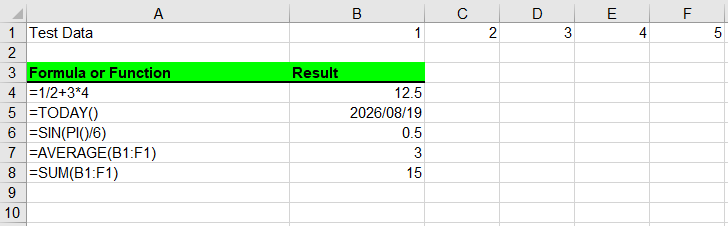
수식 앞의 서식 지정 호출에 주목하세요. Range.get()은 lastRow와 lastColumn을 받으므로, 헤더 블록을 셀 단위가 아니라 한 번의 호출로 스타일링할 수 있습니다. 수식을 작성하는 데 사용하는 동일한 객체가 스타일도 함께 갖습니다.
범주별 함수
샘플의 다섯 수식은 다섯 가지 기법이 아닙니다. 하나의 기법을 다섯 종류의 식에 적용한 것입니다.
| 수식 | 종류 | 알아둘 점 |
|---|---|---|
=1/2+3*4 |
산술 식 | 연산자 우선순위는 Excel에서와 정확히 동일하게 적용됩니다 |
=TODAY() |
날짜 함수 | 휘발성 — 재계산할 때마다 변경되며, 날짜로 표시하려면 날짜 서식이 필요합니다 |
=SIN(PI()/6) |
삼각 함수 | 각도는 라디안 단위입니다. 반올림한 소수 대신 PI()/6를 사용하세요 |
=AVERAGE(B1:F1) |
범위에 대한 통계 | 범위 구문은 Excel에서 입력하는 것과 동일합니다 |
=SUM(B1:F1) |
집계 | 동일한 범위 구문, 다른 함수 |
"함수"를 위한 별도의 API는 없습니다. 함수는 곧 수식입니다. Range.Formula가 문자열을 받고 엔진이 이를 어떻게 처리할지 결정합니다. 그래서 작성할 수 있는 것들의 목록은 스프레드시트 엔진의 함수 목록만큼 방대하며, 함수마다 유지 관리할 래퍼가 없습니다.
결과 옆에 수식 텍스트 표시하기
생성된 워크시트에서 유용한 습관 중 하나는 규칙을 그 결과 옆에 보이게 유지하는 것입니다. 샘플은 수식 문자열을 A열에 리터럴 텍스트로, 평가된 값을 B열에 넣는 방식으로 이를 수행합니다.
// Column A displays the rule; column B applies it
sheet.Range.get({ row: currentRow, column: 1 }).NumberFormat = "@";
sheet.Range.get({ row: currentRow, column: 1 }).Text = currentFormula;
sheet.Range.get({ row: currentRow, column: 2 }).Formula = currentFormula;
먼저 숫자 서식으로 "@"를 할당하는 것이 레이블 열이 문자열을 해석하려 들지 않게 하는 방법입니다. 즉, 아무것도 쓰기 전에 셀이 텍스트로 선언됩니다. 결과 열에는 그런 주의가 필요 없지만, 자체 표시 서식이 필요할 수 있습니다. 날짜 행은 .Style.NumberFormat = "YYYY/MM/DD"를 설정하는데, 이것이 없으면 값이 날짜가 아닌 일련 번호로 표시됩니다.
이렇게 자체 규칙을 포함한 시트는 레이블이 어떤 엔진도 건드리지 않는 일반 텍스트이므로 모든 왕복 과정을 견뎌냅니다.
범위 전체에 하나의 수식 적용하기
실제 워크시트에는 하나의 수식이 필요한 경우가 드물고, 열을 따라 내려가는 동일한 규칙이 필요합니다. 문자열을 직접 만들기 때문에 참조를 명시적으로 제어할 수 있습니다.
// One rule, many rows: the row number in the reference shifts with each cell
for (let row = 2; row <= 11; row += 1) {
  sheet.Range.get({ row: row, column: 3 }).Formula = `=A${row}*B${row}`;
}
이는 Excel에서 수식을 아래로 끌어 복사할 때 얻는 것과 동일한 상대 참조 동작을 풀어 쓴 것입니다. 규칙이 항상 하나의 고정된 입력을 가리켜야 한다면 고정하세요. 수식이 이동해도 $A$1은 변하지 않지만 A1은 변합니다.
사람들이 자주 실수하는 수식 구문
- 선행 등호. 수식 문자열에
=가 없으면 수식이 아닙니다. 텍스트로 저장되고 절대 평가되지 않습니다. - 상대 참조와 절대 참조.
A1은 이동하고$A$1은 이동하지 않습니다. 루프에서 수식을 생성할 때는 의도적으로 선택하세요. - 시트 간 참조. 문자열 안에 시트 이름을 지정하세요 —
Sheet2!A1. 시트 이름에 공백이 있으면 따옴표로 묶으세요:'Q1 Sales'!A1. - 로캘별 인수 구분 기호. 문자열은 작성한 그대로 저장됩니다. 일부 로캘에서 세미콜론으로 표시되는 경우가 있으므로, 파일이 여러 로캘에서 열릴 가능성이 있다면 위에서 사용한 쉼표 구분 형식을 유지하세요.
- 휘발성 함수.
TODAY()와NOW()는 통합 문서가 재계산될 때마다 변경되므로, 나중에 다시 읽은 값이 앞서 본 값과 일치하지 않습니다. 규칙과 마지막 계산 값 사이의 이 간극은 그 자체로 알아둘 가치가 있습니다. 바로 JavaScript(React)에서 Excel 수식 읽기 및 추출에서 다루는 내용입니다.
일반적인 문제
셀에 결과 대신 수식이 표시됩니다.
Formula가 아닌 Text를 통해 작성된 것입니다. Formula로 다시 할당하세요. 셀에는 문자가 아니라 규칙이 필요합니다.
날짜가 다섯 자리 숫자로 표시됩니다.
날짜 서식이 적용되지 않은 일련 번호 값입니다. 샘플이 TODAY() 행에 하는 것처럼 셀에 .Style.NumberFormat을 설정하세요.
서식이 의도하지 않은 셀에 적용됩니다.
Range.get()에 전달한 범위를 확인하세요. lastRow와 lastColumn을 지정하면 변경 사항이 블록 전체에 적용되는데, 헤더에는 편리하지만 범위를 잘못 잡기 쉽습니다.
수식은 저장되었지만 다시 읽을 때 셀이 비어 있는 것처럼 보입니다. 결과는 통합 문서가 계산된 후에 나타납니다. 계산된 값이 파일과 함께 저장되도록 수식을 작성한 뒤 저장하세요.
자주 묻는 질문
수식을 작성하려면 Excel이나 Office가 설치되어 있어야 하나요?
아니요. 스프레드시트 엔진은 패키지에 포함되어 있으며 브라우저에서 WebAssembly로 실행됩니다. 자동화되는 것도 없고 사용자 컴퓨터에 필요한 것도 없습니다.
수식이 같은 통합 문서의 다른 워크시트를 참조할 수 있나요?
예, Excel에서 하는 것과 정확히 동일하게 작성하면 됩니다. 수식 문자열에 시트 이름을 포함하세요.
하나의 시트에서 수식과 일반 값을 섞어 쓸 수 있나요?
예, 보통 그렇게 하게 됩니다. 속성들은 서로 독립적입니다. 일부 셀은 NumberValue나 Value를 통해 데이터를 받고, 다른 셀은 Formula를 통해 규칙을 받습니다.
받는 사람이 파일을 열면 결과는 어떻게 되나요?
수식이 저장되어 있고, 통합 문서를 열 때 Excel이 다시 계산합니다. 결과가 아닌 규칙을 작성하는 이유가 바로 이것입니다. 나중에 입력값을 편집해도 파일은 올바른 상태로 유지됩니다.
수식을 작성하려면 백엔드가 필요한가요?
아니요. 통합 문서는 브라우저에서 만들어지고, 다운로드용 Blob으로 변환하는 바이트로 반환됩니다. 아무것도 업로드되지 않습니다.
참고 항목
Come inserire formule e funzioni Excel in JavaScript (React)
Indice dei contenuti
- Perché le cartelle di lavoro generate dovrebbero contenere formule
- Prerequisiti
- Scegliere la proprietà che scrive una formula
- Scrivere formule nelle celle
- Funzioni per categoria
- Mostrare il testo della formula accanto al suo risultato
- Una formula su un intervallo
- Sintassi delle formule che trae in inganno
- Problemi comuni
- Domande frequenti
- Vedi anche
Un foglio di calcolo generato pieno di numeri precalcolati è un'istantanea. Sembra corretto nel momento in cui viene prodotto e inizia a invecchiare immediatamente: i dati che ne stanno alla base evolvono, i numeri al suo interno no, e una volta che il file ha lasciato la tua applicazione nessuno può dire quali celle sia consentito modificare. Una cartella di lavoro che invece contiene le sue formule rimane un documento vivo — modifica un input e i totali si aggiornano.
Spire.XLS for JavaScript è un motore per fogli di calcolo compilato in WebAssembly, così un'app React può creare cartelle di lavoro nel browser senza un server. I file vengono letti e scritti tramite un file system virtuale (VFS), e le formule vengono scritte allo stesso modo dei valori: tramite l'oggetto Range di una cella. Cambia solo il nome della proprietà.
Quest'ultimo punto è l'intero trucco. La domanda interessante non è come scrivere una formula, ma con quale delle quattro proprietà disponibili scriverla, perché tre di esse memorizzeranno silenziosamente la tua formula come semplice testo.
Per la configurazione del progetto, vedi Integrare Spire.XLS for JavaScript in un progetto React. Gli esempi seguenti presuppongono che il pacchetto sia installato e che il modulo WebAssembly sia stato inizializzato.
Perché le cartelle di lavoro generate dovrebbero contenere formule
Generare un file con le risposte già inserite è più facile da scrivere e peggiore da ricevere. I casi in cui si rompe davvero:
- Modelli con segnaposto. Ci si aspetta che il destinatario sostituisca gli input. Se i totali sono codificati in modo fisso, sostituire un input lascia i totali errati e nulla lo avverte.
- Modelli consegnati a un analista. Vorrà testare un'ipotesi diversa. Un foglio che non può essere ricalcolato è un foglio che deve ricostruire da zero.
- Report che devono essere tracciabili. Un numero senza una regola visibile alle spalle non può essere verificato. Una formula sì.
- Fogli di lavoro che alimentano altri fogli di lavoro. Altre celle fanno riferimento a queste; se il valore non viene mai ricalcolato, tutto ciò che sta a valle eredita l'obsolescenza.
In tutti e quattro i casi, la formula è il punto del file. I valori sono un sottoprodotto.
Prerequisiti
Ti serve un progetto React con Spire.XLS for JavaScript installato e il modulo WebAssembly inizializzato, raggiungibile all'indirizzo window.wasmModule.spirexls. L'esempio seguente carica anche un font nel VFS prima di formattare qualsiasi testo, e salva con il flag della versione Excel 2010 in modo che l'output si apra correttamente sia in Excel attuale sia nelle versioni precedenti.
Scegliere la proprietà che scrive una formula
Ogni cella in cui scrivi è un oggetto Range, e questo espone quattro proprietà che accettano qualcosa. Non sono intercambiabili:
| Proprietà | Cosa le assegni | Cosa finisce per contenere la cella |
|---|---|---|
Value |
Testo o un valore, con il tipo dedotto | Il valore, come dato |
NumberValue |
Un numero | Un numero — un dato, non una regola |
Text |
Una stringa di visualizzazione | Una stringa letterale, mai valutata |
Formula |
Una stringa di formula che inizia con = |
La regola stessa, che il motore valuta |
Text è quella con cui bisogna stare attenti, e vale la pena capire perché prima del codice seguente. Assegna =SUM(B1:F1) a Text e la cella memorizzerà quei caratteri — visualizzerà la formula per sempre, perché nulla la valuterà mai.
Questo comportamento non è un difetto. È esattamente ciò che l'esempio utilizza deliberatamente, in modo che ogni riga possa mostrare la formula a sinistra e il suo risultato a destra: la cella di sinistra usa Text perché è pensata per visualizzare la regola, e la cella di destra usa Formula perché è pensata per applicarla.
Scrivere formule nelle celle
Il flusso è breve:
- Crea un oggetto
Workbook. - Ottieni un foglio di lavoro con il metodo
Workbook.Worksheets.get(). - Scrivi i dati di input nelle celle e imposta la formattazione delle celle.
- Assegna le formule alle celle che devono calcolare, tramite la proprietà
Range.Formula. - Salva la cartella di lavoro con
Workbook.SaveToFile().
L'esempio crea un piccolo foglio con una riga di numeri di input, poi scrive cinque formule sotto di essa — un'espressione aritmetica, una funzione di data, una funzione trigonometrica, una media e una somma:
function App() {
  const insertFormulasAndFunctions = async () => {
    // Get the Spire.XLS WASM module
    const xlsModule = window.wasmModule?.spirexls;

    // Check whether the module is ready
    if (!xlsModule) {
      alert('Spire.Xls is not ready yet');
      return;
    }

    // Load the font into the VFS
    await window.spire.FetchFileToVFS('ARIAL.TTF', '/Library/Fonts/', `${process.env.PUBLIC_URL}/font/`);

    // Create a Workbook object
    const workbook = new xlsModule.Workbook();

    // Get the first worksheet
    const sheet = workbook.Worksheets.get(0);

    // Declare two variables: currentRow and currentFormula
    let currentRow = 1;
    let currentFormula = "";

    // Set the column width
    sheet.SetColumnWidth(1, 32);
    sheet.SetColumnWidth(2, 16);

    // Write data into cells
    sheet.Range.get({ row: currentRow, column: 1 }).Value = "Test Data";
    sheet.Range.get({ row: currentRow, column: 2 }).NumberValue = 1;
    sheet.Range.get({ row: currentRow, column: 3 }).NumberValue = 2;
    sheet.Range.get({ row: currentRow, column: 4 }).NumberValue = 3;
    sheet.Range.get({ row: currentRow, column: 5 }).NumberValue = 4;
    sheet.Range.get({ row: currentRow, column: 6 }).NumberValue = 5;
    currentRow += 2;
    sheet.Range.get({ row: currentRow, column: 1 }).Value = "Formula or Function";
    sheet.Range.get({ row: currentRow, column: 2 }).Value = "Result";

    // Set the cell formatting
    let range = sheet.Range.get({ row: currentRow, column: 1, lastRow: currentRow, lastColumn: 2 });
    range.Style.Font.FontName = "Arial";
    range.Style.KnownColor = xlsModule.ExcelColors.LightGreen;
    range.Style.FillPattern = xlsModule.ExcelPatternType.Solid;
    range.Style.Borders.get(xlsModule.BordersLineType.EdgeBottom).LineStyle = xlsModule.LineStyleType.Medium;
    range.Style.Font.IsBold = true;

    // Mathematical operation
    currentFormula = "=1/2+3*4";
    currentRow += 1;
    sheet.Range.get({ row: currentRow, column: 1 }).NumberFormat = "@";
    sheet.Range.get({ row: currentRow, column: 1 }).Text = currentFormula;
    sheet.Range.get({ row: currentRow, column: 2 }).Formula = currentFormula;

    // Date function
    currentFormula = "=TODAY()";
    currentRow += 1;
    sheet.Range.get({ row: currentRow, column: 1 }).NumberFormat = "@";
    sheet.Range.get({ row: currentRow, column: 1 }).Text = currentFormula;
    sheet.Range.get({ row: currentRow, column: 2 }).Formula = currentFormula;
    sheet.Range.get({ row: currentRow, column: 2 }).Style.NumberFormat = "YYYY/MM/DD";

    // Trigonometric function
    currentFormula = "=SIN(PI()/6)";
    currentRow += 1;
    sheet.Range.get({ row: currentRow, column: 1 }).NumberFormat = "@";
    sheet.Range.get({ row: currentRow, column: 1 }).Text = currentFormula;
    sheet.Range.get({ row: currentRow, column: 2 }).Formula = currentFormula;

    // Average function
    currentFormula = "=AVERAGE(B1:F1)";
    currentRow += 1;
    sheet.Range.get({ row: currentRow, column: 1 }).NumberFormat = "@";
    sheet.Range.get({ row: currentRow, column: 1 }).Text = currentFormula;
    sheet.Range.get({ row: currentRow, column: 2 }).Formula = currentFormula;

    // Sum function
    currentFormula = "=SUM(B1:F1)";
    currentRow += 1;
    sheet.Range.get({ row: currentRow, column: 1 }).NumberFormat = "@";
    sheet.Range.get({ row: currentRow, column: 1 }).Text = currentFormula;
    sheet.Range.get({ row: currentRow, column: 2 }).Formula = currentFormula;

    // Save the workbook
    const outputFileName = 'InsertFormulasAndFunctions_output.xlsx';
    workbook.SaveToFile({ fileName: outputFileName, version: xlsModule.ExcelVersion.Version2010 });

    // Release resources
    workbook.Dispose();

    // Read the converted file from the VFS and trigger a download
    const fileArray = window.dotnetRuntime.Module.FS.readFile(outputFileName);
    const blob = new Blob([fileArray], { type: 'application/vnd.openxmlformats-officedocument.spreadsheetml.sheet' });
    const url = URL.createObjectURL(blob);
    const a = document.createElement('a');
    a.href = url;
    a.download = outputFileName;
    a.click();
    URL.revokeObjectURL(url);
  };

  return (
    <div style={{ textAlign: 'center', height: '300px' }}>
      <h1>Insert Formulas and Functions</h1>
      <button onClick={insertFormulasAndFunctions}>
        Start
      </button>
    </div>
  );
}

export default App;
Inserisci formule e risultati di funzioni nei fogli di lavoro Excel
Nota la chiamata di formattazione prima delle formule. Range.get() accetta lastRow e lastColumn, quindi un blocco di intestazione può essere formattato con una sola chiamata invece che cella per cella — lo stesso oggetto che usi per scrivere una formula porta anche lo stile.
Funzioni per categoria
Le cinque formule dell'esempio non sono cinque tecniche diverse. Sono un'unica tecnica applicata a cinque tipi di espressione:
| Formula | Tipo | Utile da sapere |
|---|---|---|
=1/2+3*4 |
Espressione aritmetica | La precedenza degli operatori si applica esattamente come in Excel |
=TODAY() |
Funzione di data | Volatile — cambia a ogni ricalcolo e necessita di un formato data per essere visualizzata come data |
=SIN(PI()/6) |
Trigonometrica | Gli angoli sono in radianti; scrivi PI()/6 invece di un decimale arrotondato |
=AVERAGE(B1:F1) |
Statistica su un intervallo | La sintassi dell'intervallo è identica a quella che digiteresti in Excel |
=SUM(B1:F1) |
Aggregazione | Stessa sintassi dell'intervallo, funzione diversa |
Non esiste un'API separata per le "funzioni". Una funzione è una formula — Range.Formula riceve la stringa, e il motore decide cosa farne. Ecco perché il catalogo delle cose che puoi scrivere è ampio quanto l'elenco di funzioni del motore per fogli di calcolo, senza alcun wrapper da mantenere per funzione.
Mostrare il testo della formula accanto al suo risultato
Una delle abitudini più utili in un foglio di lavoro generato è mantenere la regola visibile accanto al suo output. L'esempio lo fa inserendo la stringa della formula nella colonna A come testo letterale e il valore valutato nella colonna B:
// Column A displays the rule; column B applies it
sheet.Range.get({ row: currentRow, column: 1 }).NumberFormat = "@";
sheet.Range.get({ row: currentRow, column: 1 }).Text = currentFormula;
sheet.Range.get({ row: currentRow, column: 2 }).Formula = currentFormula;
Assegnare prima "@" come formato numerico è ciò che impedisce alla colonna delle etichette di provare a interpretare la stringa — la cella viene dichiarata testo prima che vi si scriva qualcosa. La colonna dei risultati non necessita di tale accortezza, ma potrebbe aver bisogno di un proprio formato di visualizzazione: la riga della data imposta .Style.NumberFormat = "YYYY/MM/DD", senza il quale il valore viene visualizzato come numero seriale anziché come data.
Un foglio che porta con sé le proprie regole in questo modo sopravvive a ogni passaggio, perché le etichette sono testo semplice che nessun motore toccherà.
Una formula su un intervallo
I fogli di lavoro reali raramente necessitano di una sola formula; necessitano della stessa regola lungo una colonna. Poiché sei tu a costruire la stringa, controlli i riferimenti esplicitamente:
// One rule, many rows: the row number in the reference shifts with each cell
for (let row = 2; row <= 11; row += 1) {
  sheet.Range.get({ row: row, column: 3 }).Formula = `=A${row}*B${row}`;
}
È lo stesso comportamento di riferimento relativo che otterresti trascinando una formula verso il basso in Excel, scritto per esteso. Se invece la regola dovesse puntare sempre a un unico input fisso, fissalo — $A$1 non si sposta quando la formula si sposta, mentre A1 sì.
Sintassi delle formule che trae in inganno
- Il segno di uguale iniziale. Una stringa di formula senza
=non è una formula. Verrà memorizzata come testo e mai valutata. - Riferimenti relativi e assoluti.
A1si sposta;$A$1no. Scegli deliberatamente quando generi formule in un ciclo. - Riferimenti tra fogli. Nomina il foglio all'interno della stringa —
Sheet2!A1. Se il nome del foglio contiene spazi, racchiudilo tra virgolette:'Q1 Sales'!A1. - Separatori di argomenti tra impostazioni locali. La stringa viene memorizzata così come la scrivi. Mantieni la forma separata da virgole usata sopra se il file verrà aperto in una combinazione di impostazioni locali, dove alcune visualizzano invece il punto e virgola.
- Funzioni volatili.
TODAY()eNOW()cambiano ogni volta che la cartella di lavoro viene ricalcolata, quindi un valore letto in seguito non corrisponderà a quello che hai visto. Quel divario tra una regola e il suo ultimo valore calcolato vale la pena di essere conosciuto di per sé — è ciò di cui si occupa Reading and Extracting Excel Formulas in JavaScript (React).
Problemi comuni
La cella mostra la formula invece di un risultato.
È stata scritta tramite Text anziché Formula. RIassegnala con Formula — la cella necessita della regola, non dei caratteri.
Una data appare come un numero a cinque cifre.
È il valore seriale senza alcun formato data applicato. Imposta .Style.NumberFormat sulla cella, come fa l'esempio per la riga TODAY().
La formattazione finisce su celle che non intendevo toccare.
Controlla l'intervallo che hai passato a Range.get(). Fornire lastRow e lastColumn applica la modifica a un blocco, il che è comodo per un'intestazione e facile da delimitare in modo errato.
La formula è memorizzata ma la cella appare vuota quando viene riletta. I risultati compaiono una volta che la cartella di lavoro è stata calcolata. Salva dopo aver scritto le formule in modo che i valori calcolati viaggino con il file.
Domande frequenti
Ho bisogno di Excel o Office installato per scrivere formule?
No. Il motore per fogli di calcolo è fornito con il pacchetto e viene eseguito come WebAssembly nel browser. Nulla viene automatizzato e nulla è richiesto sulla macchina dell'utente.
Una formula può fare riferimento a un foglio di lavoro diverso nella stessa cartella di lavoro?
Sì, e la scrivi esattamente come faresti in Excel — includi il nome del foglio nella stringa della formula.
Posso mescolare formule e valori semplici in un unico foglio?
Sì, e di solito lo farai. Le proprietà sono indipendenti: alcune celle ricevono dati tramite NumberValue o Value, altre ricevono regole tramite Formula.
Cosa succede ai risultati quando il destinatario apre il file?
Le formule vengono memorizzate, ed Excel ricalcola all'apertura della cartella di lavoro. Questo è il punto di scrivere regole anziché risultati — il file rimane corretto anche se gli input vengono modificati in seguito.
La scrittura di formule richiede un backend?
No. La cartella di lavoro viene creata nel browser e restituita come byte che trasformi in un Blob per il download. Nulla viene caricato.
Vedi anche
Comment insérer des formules et fonctions Excel en JavaScript (React)
Table des matières
- Pourquoi les classeurs générés doivent contenir des formules
- Prérequis
- Choisir la propriété qui écrit une formule
- Écrire des formules dans des cellules
- Fonctions par catégorie
- Afficher le texte de la formule à côté de son résultat
- Une seule formule sur toute une plage
- La syntaxe des formules qui piège les gens
- Problèmes courants
- FAQ
- Voir aussi
Une feuille de calcul générée remplie de nombres pré-calculés n'est qu'un instantané. Elle a l'air correcte au moment où elle est produite et commence à vieillir immédiatement : les données qui la sous-tendent évoluent, les nombres qu'elle contient non, et une fois que le fichier a quitté votre application, personne ne peut dire quelles cellules il est autorisé à modifier. Un classeur qui contient ses formules reste au contraire un document vivant — modifiez une entrée, et les totaux suivent.
Spire.XLS for JavaScript est un moteur de feuille de calcul compilé en WebAssembly, ce qui permet à une application React de créer des classeurs dans le navigateur sans serveur. Les fichiers sont lus et écrits via un système de fichiers virtuel (VFS), et les formules s'écrivent de la même manière que les valeurs : via l'objet Range d'une cellule. Seul le nom de la propriété change.
Ce dernier point est toute l'astuce. La question intéressante n'est pas comment écrire une formule, mais avec laquelle des quatre propriétés disponibles l'écrire, car trois d'entre elles stockeront discrètement votre formule sous forme de texte brut.
Pour la configuration du projet, consultez Intégrer Spire.XLS for JavaScript dans un projet React. Les exemples ci-dessous supposent que le package est installé et que le module WebAssembly a été initialisé.
Pourquoi les classeurs générés doivent contenir des formules
Générer un fichier avec les réponses déjà remplies est plus facile à écrire et pire à recevoir. Les cas où cela pose réellement problème :
- Modèles avec espaces réservés. Le destinataire est censé remplacer les entrées. Si les totaux sont codés en dur, remplacer une entrée laisse les totaux erronés sans que rien ne l'avertisse.
- Modèles remis à un analyste. Il voudra tester une hypothèse différente. Une feuille qui ne peut pas être recalculée est une feuille qu'il devra reconstruire.
- Rapports qui doivent être traçables. Un nombre sans règle visible derrière lui ne peut pas être vérifié. Une formule, si.
- Feuilles de calcul qui alimentent d'autres feuilles. D'autres cellules s'y réfèrent ; si la valeur n'est jamais recalculée, tout ce qui en dépend hérite de l'obsolescence.
Dans ces quatre cas, la formule est l'objet même du fichier. Les valeurs ne sont qu'un sous-produit.
Prérequis
Vous avez besoin d'un projet React avec Spire.XLS for JavaScript installé et le module WebAssembly initialisé, accessible à window.wasmModule.spirexls. L'exemple ci-dessous charge également une police dans le VFS avant de formater le moindre texte, et enregistre avec l'indicateur de version Excel 2010 afin que le résultat s'ouvre proprement dans Excel actuel comme dans les versions plus anciennes.
Choisir la propriété qui écrit une formule
Chaque cellule dans laquelle vous écrivez est un objet Range, et il expose quatre propriétés qui acceptent quelque chose. Elles ne sont pas interchangeables :
| Propriété | Ce que vous lui fournissez | Ce que la cellule contient finalement |
|---|---|---|
Value |
Du texte ou une valeur, avec le type déduit | La valeur, en tant que donnée |
NumberValue |
Un nombre | Un nombre — une donnée, pas une règle |
Text |
Une chaîne d'affichage | Une chaîne littérale, jamais évaluée |
Formula |
Une chaîne de formule commençant par = |
La règle elle-même, que le moteur évalue |
Text est celle avec laquelle il faut être prudent, et il vaut la peine de comprendre pourquoi avant le code ci-dessous. Affectez =SUM(B1:F1) à Text et la cellule stocke ces caractères — elle affichera la formule pour toujours, car rien ne l'évaluera jamais.
Ce comportement n'est pas un défaut. C'est exactement ce que l'exemple utilise délibérément, afin que chaque ligne puisse afficher la formule à gauche et son résultat à droite : la cellule de gauche utilise Text parce qu'elle est destinée à afficher la règle, et la cellule de droite utilise Formula parce qu'elle est destinée à l'appliquer.
Écrire des formules dans des cellules
Le déroulement est court :
- Créer un objet
Workbook. - Obtenir une feuille de calcul avec la méthode
Workbook.Worksheets.get(). - Écrire les données d'entrée dans les cellules et définir la mise en forme des cellules.
- Affecter des formules aux cellules qui doivent calculer, via la propriété
Range.Formula. - Enregistrer le classeur avec
Workbook.SaveToFile().
L'exemple construit une petite feuille avec une ligne de nombres d'entrée, puis écrit cinq formules en dessous — une expression arithmétique, une fonction de date, une fonction trigonométrique, une moyenne et une somme :
function App() {
  const insertFormulasAndFunctions = async () => {
    // Get the Spire.XLS WASM module
    const xlsModule = window.wasmModule?.spirexls;

    // Check whether the module is ready
    if (!xlsModule) {
      alert('Spire.Xls is not ready yet');
      return;
    }

    // Load the font into the VFS
    await window.spire.FetchFileToVFS('ARIAL.TTF', '/Library/Fonts/', `${process.env.PUBLIC_URL}/font/`);

    // Create a Workbook object
    const workbook = new xlsModule.Workbook();

    // Get the first worksheet
    const sheet = workbook.Worksheets.get(0);

    // Declare two variables: currentRow and currentFormula
    let currentRow = 1;
    let currentFormula = "";

    // Set the column width
    sheet.SetColumnWidth(1, 32);
    sheet.SetColumnWidth(2, 16);

    // Write data into cells
    sheet.Range.get({ row: currentRow, column: 1 }).Value = "Test Data";
    sheet.Range.get({ row: currentRow, column: 2 }).NumberValue = 1;
    sheet.Range.get({ row: currentRow, column: 3 }).NumberValue = 2;
    sheet.Range.get({ row: currentRow, column: 4 }).NumberValue = 3;
    sheet.Range.get({ row: currentRow, column: 5 }).NumberValue = 4;
    sheet.Range.get({ row: currentRow, column: 6 }).NumberValue = 5;
    currentRow += 2;
    sheet.Range.get({ row: currentRow, column: 1 }).Value = "Formula or Function";
    sheet.Range.get({ row: currentRow, column: 2 }).Value = "Result";

    // Set the cell formatting
    let range = sheet.Range.get({ row: currentRow, column: 1, lastRow: currentRow, lastColumn: 2 });
    range.Style.Font.FontName = "Arial";
    range.Style.KnownColor = xlsModule.ExcelColors.LightGreen;
    range.Style.FillPattern = xlsModule.ExcelPatternType.Solid;
    range.Style.Borders.get(xlsModule.BordersLineType.EdgeBottom).LineStyle = xlsModule.LineStyleType.Medium;
    range.Style.Font.IsBold = true;

    // Mathematical operation
    currentFormula = "=1/2+3*4";
    currentRow += 1;
    sheet.Range.get({ row: currentRow, column: 1 }).NumberFormat = "@";
    sheet.Range.get({ row: currentRow, column: 1 }).Text = currentFormula;
    sheet.Range.get({ row: currentRow, column: 2 }).Formula = currentFormula;

    // Date function
    currentFormula = "=TODAY()";
    currentRow += 1;
    sheet.Range.get({ row: currentRow, column: 1 }).NumberFormat = "@";
    sheet.Range.get({ row: currentRow, column: 1 }).Text = currentFormula;
    sheet.Range.get({ row: currentRow, column: 2 }).Formula = currentFormula;
    sheet.Range.get({ row: currentRow, column: 2 }).Style.NumberFormat = "YYYY/MM/DD";

    // Trigonometric function
    currentFormula = "=SIN(PI()/6)";
    currentRow += 1;
    sheet.Range.get({ row: currentRow, column: 1 }).NumberFormat = "@";
    sheet.Range.get({ row: currentRow, column: 1 }).Text = currentFormula;
    sheet.Range.get({ row: currentRow, column: 2 }).Formula = currentFormula;

    // Average function
    currentFormula = "=AVERAGE(B1:F1)";
    currentRow += 1;
    sheet.Range.get({ row: currentRow, column: 1 }).NumberFormat = "@";
    sheet.Range.get({ row: currentRow, column: 1 }).Text = currentFormula;
    sheet.Range.get({ row: currentRow, column: 2 }).Formula = currentFormula;

    // Sum function
    currentFormula = "=SUM(B1:F1)";
    currentRow += 1;
    sheet.Range.get({ row: currentRow, column: 1 }).NumberFormat = "@";
    sheet.Range.get({ row: currentRow, column: 1 }).Text = currentFormula;
    sheet.Range.get({ row: currentRow, column: 2 }).Formula = currentFormula;

    // Save the workbook
    const outputFileName = 'InsertFormulasAndFunctions_output.xlsx';
    workbook.SaveToFile({ fileName: outputFileName, version: xlsModule.ExcelVersion.Version2010 });

    // Release resources
    workbook.Dispose();

    // Read the converted file from the VFS and trigger a download
    const fileArray = window.dotnetRuntime.Module.FS.readFile(outputFileName);
    const blob = new Blob([fileArray], { type: 'application/vnd.openxmlformats-officedocument.spreadsheetml.sheet' });
    const url = URL.createObjectURL(blob);
    const a = document.createElement('a');
    a.href = url;
    a.download = outputFileName;
    a.click();
    URL.revokeObjectURL(url);
  };

  return (
    <div style={{ textAlign: 'center', height: '300px' }}>
      <h1>Insert Formulas and Functions</h1>
      <button onClick={insertFormulasAndFunctions}>
        Start
      </button>
    </div>
  );
}

export default App;
Insérer des formules et des résultats de fonctions dans des feuilles de calcul Excel
Notez l'appel de mise en forme avant les formules. Range.get() accepte lastRow et lastColumn, de sorte qu'un bloc d'en-tête peut être mis en forme en un seul appel plutôt que cellule par cellule — le même objet que vous utilisez pour écrire une formule porte aussi le style.
Fonctions par catégorie
Les cinq formules de l'exemple ne sont pas cinq techniques différentes. C'est une seule technique appliquée à cinq types d'expression :
| Formule | Type | Bon à savoir |
|---|---|---|
=1/2+3*4 |
Expression arithmétique | La priorité des opérateurs s'applique exactement comme dans Excel |
=TODAY() |
Fonction de date | Volatile — elle change à chaque recalcul, et nécessite un format de date pour s'afficher comme une date |
=SIN(PI()/6) |
Trigonométrique | Les angles sont en radians ; écrivez PI()/6 plutôt qu'un décimal arrondi |
=AVERAGE(B1:F1) |
Statistique sur une plage | La syntaxe de plage est identique à celle que vous saisiriez dans Excel |
=SUM(B1:F1) |
Agrégation | Même syntaxe de plage, fonction différente |
Il n'existe pas d'API distincte pour les « fonctions ». Une fonction est une formule — Range.Formula reçoit la chaîne, et le moteur décide quoi en faire. C'est pourquoi le catalogue de ce que vous pouvez écrire est aussi vaste que la liste de fonctions du moteur de feuille de calcul, sans aucun wrapper à maintenir par fonction.
Afficher le texte de la formule à côté de son résultat
L'une des habitudes les plus utiles dans une feuille de calcul générée est de garder la règle visible à côté de son résultat. L'exemple le fait en plaçant la chaîne de formule dans la colonne A sous forme de texte littéral et la valeur évaluée dans la colonne B :
// Column A displays the rule; column B applies it
sheet.Range.get({ row: currentRow, column: 1 }).NumberFormat = "@";
sheet.Range.get({ row: currentRow, column: 1 }).Text = currentFormula;
sheet.Range.get({ row: currentRow, column: 2 }).Formula = currentFormula;
Affecter d'abord "@" comme format de nombre est ce qui empêche la colonne d'étiquettes d'essayer d'interpréter la chaîne — la cellule est déclarée comme texte avant que quoi que ce soit y soit écrit. La colonne de résultats n'a pas besoin d'un tel soin, mais elle peut avoir besoin de son propre format d'affichage : la ligne de date définit .Style.NumberFormat = "YYYY/MM/DD", sans quoi la valeur s'affiche comme un numéro de série plutôt que comme une date.
Une feuille qui porte ainsi ses propres règles survit à chaque aller-retour, car les étiquettes sont du texte brut que nul moteur ne touchera.
Une seule formule sur toute une plage
Les vraies feuilles de calcul ont rarement besoin d'une seule formule ; elles ont besoin de la même règle sur toute une colonne. Comme vous construisez la chaîne, vous contrôlez explicitement les références :
// One rule, many rows: the row number in the reference shifts with each cell
for (let row = 2; row <= 11; row += 1) {
  sheet.Range.get({ row: row, column: 3 }).Formula = `=A${row}*B${row}`;
}
C'est le même comportement de référence relative que celui obtenu en faisant glisser une formule vers le bas dans Excel, écrit en toutes lettres. Si la règle doit toujours pointer vers une entrée fixe unique, figez-la — $A$1 ne se décale pas lorsque la formule se déplace, tandis que A1 le fait.
La syntaxe des formules qui piège les gens
- Le signe égal initial. Une chaîne de formule sans
=n'est pas une formule. Elle sera stockée comme texte et jamais évaluée. - Références relatives ou absolues.
A1se décale ;$A$1non. Choisissez délibérément lorsque vous générez des formules en boucle. - Références inter-feuilles. Nommez la feuille dans la chaîne —
Sheet2!A1. Si le nom de la feuille contient des espaces, mettez-le entre guillemets :'Q1 Sales'!A1. - Séparateurs d'arguments selon les paramètres régionaux. La chaîne est stockée telle que vous l'écrivez. Conservez la forme séparée par des virgules utilisée ci-dessus si le fichier doit être ouvert dans des paramètres régionaux variés, où certains affichent des points-virgules à la place.
- Fonctions volatiles.
TODAY()etNOW()changent à chaque recalcul du classeur, de sorte qu'une valeur relue plus tard ne correspondra pas à celle que vous avez vue. Cet écart entre une règle et sa dernière valeur calculée mérite d'être connu en soi — c'est ce que traite Lire et extraire des formules Excel en JavaScript (React).
Problèmes courants
La cellule affiche la formule au lieu d'un résultat.
Elle a été écrite via Text plutôt que Formula. Réaffectez-la avec Formula — la cellule a besoin de la règle, pas des caractères.
Une date s'affiche comme un nombre à cinq chiffres.
C'est la valeur de série sans format de date appliqué. Définissez .Style.NumberFormat sur la cellule, comme le fait l'exemple pour la ligne TODAY().
La mise en forme s'applique à des cellules que je ne voulais pas toucher.
Vérifiez la plage que vous avez passée à Range.get(). Fournir lastRow et lastColumn applique la modification à un bloc, ce qui est pratique pour un en-tête et facile à mal délimiter.
La formule est stockée mais la cellule semble vide à la relecture. Les résultats apparaissent une fois le classeur calculé. Enregistrez après avoir écrit les formules afin que les valeurs calculées accompagnent le fichier.
FAQ
Ai-je besoin d'Excel ou d'Office installé pour écrire des formules ?
Non. Le moteur de feuille de calcul est fourni avec le package et s'exécute en WebAssembly dans le navigateur. Rien n'est automatisé et rien n'est requis sur la machine de l'utilisateur.
Une formule peut-elle référencer une autre feuille du même classeur ?
Oui, et vous l'écrivez exactement comme dans Excel — incluez le nom de la feuille dans la chaîne de formule.
Puis-je mélanger formules et valeurs simples dans une même feuille ?
Oui, et vous le ferez généralement. Les propriétés sont indépendantes : certaines cellules reçoivent des données via NumberValue ou Value, d'autres reçoivent des règles via Formula.
Qu'advient-il des résultats lorsque le destinataire ouvre le fichier ?
Les formules sont stockées, et Excel recalcule à l'ouverture du classeur. C'est tout l'intérêt d'écrire des règles plutôt que des résultats — le fichier reste correct même si les entrées sont modifiées par la suite.
L'écriture de formules nécessite-t-elle un backend ?
Non. Le classeur est construit dans le navigateur et renvoyé sous forme d'octets que vous transformez en Blob pour le téléchargement. Rien n'est téléversé.
Voir aussi
Cómo insertar fórmulas y funciones de Excel en JavaScript (React)
Tabla de contenido
- Por qué los libros generados deben incluir fórmulas
- Requisitos previos
- Elegir la propiedad que escribe una fórmula
- Escribir fórmulas en las celdas
- Funciones por categoría
- Mostrar el texto de la fórmula junto a su resultado
- Una fórmula en todo un rango
- Sintaxis de fórmulas que suele causar problemas
- Problemas comunes
- Preguntas frecuentes
- Ver también
Una hoja de cálculo generada llena de números ya calculados es una instantánea. Se ve bien en el momento en que se produce y empieza a quedar obsoleta de inmediato: los datos que hay detrás avanzan, los números que contiene no, y una vez que el archivo ha salido de su aplicación nadie puede saber qué celdas tiene permitido modificar. Un libro que en cambio lleva sus fórmulas sigue siendo un documento vivo: edite una entrada y los totales se actualizan.
Spire.XLS for JavaScript es un motor de hojas de cálculo compilado a WebAssembly, por lo que una aplicación React puede crear libros en el navegador sin necesidad de un servidor. Los archivos se leen y se escriben a través de un sistema de archivos virtual (VFS), y las fórmulas se escriben igual que los valores: a través del objeto Range de una celda. Solo cambia el nombre de la propiedad.
Ese último punto es todo el truco. La pregunta interesante no es cómo escribir una fórmula, sino con cuál de las cuatro propiedades disponibles escribirla, porque tres de ellas almacenarán su fórmula silenciosamente como texto sin formato.
Para la configuración del proyecto, consulte Integrating Spire.XLS for JavaScript in a React Project. Los ejemplos a continuación suponen que el paquete está instalado y que el módulo WebAssembly se ha inicializado.
Por qué los libros generados deben incluir fórmulas
Generar un archivo con las respuestas ya rellenadas es más fácil de escribir y peor de recibir. Los casos en los que realmente falla:
- Plantillas con marcadores de posición. Se espera que el destinatario reemplace las entradas. Si los totales están codificados de forma fija, reemplazar una entrada deja los totales incorrectos y nada se lo advierte.
- Modelos entregados a un analista. Querrán probar un supuesto diferente. Una hoja que no se puede volver a derivar es una hoja que tienen que reconstruir.
- Informes que deben ser trazables. Un número sin una regla visible detrás no se puede comprobar. Una fórmula sí.
- Hojas de cálculo que alimentan a otras hojas. Otras celdas hacen referencia a estas; si el valor nunca se recalcula, todo lo que está aguas abajo hereda la obsolescencia.
En los cuatro casos, la fórmula es el objetivo del archivo. Los valores son un subproducto.
Requisitos previos
Necesita un proyecto React con Spire.XLS for JavaScript instalado y el módulo WebAssembly inicializado, accesible en window.wasmModule.spirexls. El ejemplo siguiente también carga una fuente en el VFS antes de dar formato a cualquier texto, y guarda con la marca de versión de Excel 2010 para que la salida se abra sin problemas tanto en el Excel actual como en versiones anteriores.
Elegir la propiedad que escribe una fórmula
Cada celda en la que escribe es un objeto Range, y este expone cuatro propiedades que aceptan algo. No son intercambiables:
| Propiedad | Qué se le entrega | Qué acaba conteniendo la celda |
|---|---|---|
Value |
Texto o un valor, con el tipo inferido | El valor, como dato |
NumberValue |
Un número | Un número: un dato, no una regla |
Text |
Una cadena de visualización | Una cadena literal, nunca evaluada |
Formula |
Una cadena de fórmula que comienza con = |
La regla en sí, que el motor evalúa |
Text es la que hay que manejar con cuidado, y vale la pena entender por qué antes del código que aparece a continuación. Asigne =SUM(B1:F1) a Text y la celda almacenará esos caracteres: mostrará la fórmula para siempre, porque nada la va a evaluar nunca.
Ese comportamiento no es un defecto. Es exactamente lo que el ejemplo utiliza de forma deliberada, para que cada fila pueda mostrar la fórmula a la izquierda y su resultado a la derecha: la celda izquierda usa Text porque está pensada para mostrar la regla, y la celda derecha usa Formula porque está pensada para aplicarla.
Escribir fórmulas en las celdas
El flujo es breve:
- Cree un objeto
Workbook. - Obtenga una hoja de cálculo con el método
Workbook.Worksheets.get(). - Escriba los datos de entrada en las celdas y establezca el formato de las celdas.
- Asigne fórmulas a las celdas que deben calcular, a través de la propiedad
Range.Formula. - Guarde el libro con
Workbook.SaveToFile().
El ejemplo crea una pequeña hoja con una fila de números de entrada y luego escribe cinco fórmulas debajo: una expresión aritmética, una función de fecha, una función trigonométrica, un promedio y una suma:
function App() {
  const insertFormulasAndFunctions = async () => {
    // Get the Spire.XLS WASM module
    const xlsModule = window.wasmModule?.spirexls;

    // Check whether the module is ready
    if (!xlsModule) {
      alert('Spire.Xls is not ready yet');
      return;
    }

    // Load the font into the VFS
    await window.spire.FetchFileToVFS('ARIAL.TTF', '/Library/Fonts/', `${process.env.PUBLIC_URL}/font/`);

    // Create a Workbook object
    const workbook = new xlsModule.Workbook();

    // Get the first worksheet
    const sheet = workbook.Worksheets.get(0);

    // Declare two variables: currentRow and currentFormula
    let currentRow = 1;
    let currentFormula = "";

    // Set the column width
    sheet.SetColumnWidth(1, 32);
    sheet.SetColumnWidth(2, 16);

    // Write data into cells
    sheet.Range.get({ row: currentRow, column: 1 }).Value = "Test Data";
    sheet.Range.get({ row: currentRow, column: 2 }).NumberValue = 1;
    sheet.Range.get({ row: currentRow, column: 3 }).NumberValue = 2;
    sheet.Range.get({ row: currentRow, column: 4 }).NumberValue = 3;
    sheet.Range.get({ row: currentRow, column: 5 }).NumberValue = 4;
    sheet.Range.get({ row: currentRow, column: 6 }).NumberValue = 5;
    currentRow += 2;
    sheet.Range.get({ row: currentRow, column: 1 }).Value = "Formula or Function";
    sheet.Range.get({ row: currentRow, column: 2 }).Value = "Result";

    // Set the cell formatting
    let range = sheet.Range.get({ row: currentRow, column: 1, lastRow: currentRow, lastColumn: 2 });
    range.Style.Font.FontName = "Arial";
    range.Style.KnownColor = xlsModule.ExcelColors.LightGreen;
    range.Style.FillPattern = xlsModule.ExcelPatternType.Solid;
    range.Style.Borders.get(xlsModule.BordersLineType.EdgeBottom).LineStyle = xlsModule.LineStyleType.Medium;
    range.Style.Font.IsBold = true;

    // Mathematical operation
    currentFormula = "=1/2+3*4";
    currentRow += 1;
    sheet.Range.get({ row: currentRow, column: 1 }).NumberFormat = "@";
    sheet.Range.get({ row: currentRow, column: 1 }).Text = currentFormula;
    sheet.Range.get({ row: currentRow, column: 2 }).Formula = currentFormula;

    // Date function
    currentFormula = "=TODAY()";
    currentRow += 1;
    sheet.Range.get({ row: currentRow, column: 1 }).NumberFormat = "@";
    sheet.Range.get({ row: currentRow, column: 1 }).Text = currentFormula;
    sheet.Range.get({ row: currentRow, column: 2 }).Formula = currentFormula;
    sheet.Range.get({ row: currentRow, column: 2 }).Style.NumberFormat = "YYYY/MM/DD";

    // Trigonometric function
    currentFormula = "=SIN(PI()/6)";
    currentRow += 1;
    sheet.Range.get({ row: currentRow, column: 1 }).NumberFormat = "@";
    sheet.Range.get({ row: currentRow, column: 1 }).Text = currentFormula;
    sheet.Range.get({ row: currentRow, column: 2 }).Formula = currentFormula;

    // Average function
    currentFormula = "=AVERAGE(B1:F1)";
    currentRow += 1;
    sheet.Range.get({ row: currentRow, column: 1 }).NumberFormat = "@";
    sheet.Range.get({ row: currentRow, column: 1 }).Text = currentFormula;
    sheet.Range.get({ row: currentRow, column: 2 }).Formula = currentFormula;

    // Sum function
    currentFormula = "=SUM(B1:F1)";
    currentRow += 1;
    sheet.Range.get({ row: currentRow, column: 1 }).NumberFormat = "@";
    sheet.Range.get({ row: currentRow, column: 1 }).Text = currentFormula;
    sheet.Range.get({ row: currentRow, column: 2 }).Formula = currentFormula;

    // Save the workbook
    const outputFileName = 'InsertFormulasAndFunctions_output.xlsx';
    workbook.SaveToFile({ fileName: outputFileName, version: xlsModule.ExcelVersion.Version2010 });

    // Release resources
    workbook.Dispose();

    // Read the converted file from the VFS and trigger a download
    const fileArray = window.dotnetRuntime.Module.FS.readFile(outputFileName);
    const blob = new Blob([fileArray], { type: 'application/vnd.openxmlformats-officedocument.spreadsheetml.sheet' });
    const url = URL.createObjectURL(blob);
    const a = document.createElement('a');
    a.href = url;
    a.download = outputFileName;
    a.click();
    URL.revokeObjectURL(url);
  };

  return (
    <div style={{ textAlign: 'center', height: '300px' }}>
      <h1>Insert Formulas and Functions</h1>
      <button onClick={insertFormulasAndFunctions}>
        Start
      </button>
    </div>
  );
}

export default App;
Inserte fórmulas y resultados de funciones en hojas de cálculo de Excel
Observe la llamada de formato antes de las fórmulas. Range.get() acepta lastRow y lastColumn, por lo que se puede dar estilo a un bloque de encabezado en una sola llamada en lugar de celda por celda: el mismo objeto que usa para escribir una fórmula también lleva el estilo.
Funciones por categoría
Las cinco fórmulas del ejemplo no son cinco técnicas diferentes. Son una técnica aplicada a cinco tipos de expresión:
| Fórmula | Tipo | Conviene saber |
|---|---|---|
=1/2+3*4 |
Expresión aritmética | La precedencia de operadores se aplica exactamente igual que en Excel |
=TODAY() |
Función de fecha | Volátil: cambia en cada recálculo y necesita un formato de fecha para mostrarse como fecha |
=SIN(PI()/6) |
Trigonométrica | Los ángulos están en radianes; escriba PI()/6 en lugar de un decimal redondeado |
=AVERAGE(B1:F1) |
Estadística sobre un rango | La sintaxis de rango es idéntica a la que escribiría en Excel |
=SUM(B1:F1) |
Agregación | La misma sintaxis de rango, una función diferente |
No hay una API separada para las «funciones». Una función es una fórmula: Range.Formula recibe la cadena y el motor decide qué hacer con ella. Por eso el catálogo de cosas que puede escribir es tan amplio como la lista de funciones del motor de hojas de cálculo, sin ningún contenedor que mantener por función.
Mostrar el texto de la fórmula junto a su resultado
Uno de los hábitos más útiles en una hoja de cálculo generada es mantener la regla visible junto a su resultado. El ejemplo lo hace colocando la cadena de la fórmula en la columna A como texto literal y el valor evaluado en la columna B:
// Column A displays the rule; column B applies it
sheet.Range.get({ row: currentRow, column: 1 }).NumberFormat = "@";
sheet.Range.get({ row: currentRow, column: 1 }).Text = currentFormula;
sheet.Range.get({ row: currentRow, column: 2 }).Formula = currentFormula;
Asignar "@" como formato de número en primer lugar es lo que evita que la columna de etiquetas intente interpretar la cadena: la celda se declara como texto antes de que se escriba nada en ella. La columna de resultados no necesita ese cuidado, pero puede necesitar un formato de visualización propio: la fila de la fecha establece .Style.NumberFormat = "YYYY/MM/DD", sin lo cual el valor se muestra como un número de serie en lugar de una fecha.
Una hoja que lleva sus propias reglas de esta manera sobrevive a todos los traslados, porque las etiquetas son texto sin formato que ningún motor tocará.
Una fórmula en todo un rango
Las hojas de cálculo reales rara vez necesitan una sola fórmula; necesitan la misma regla a lo largo de una columna. Como usted construye la cadena, controla las referencias de forma explícita:
// One rule, many rows: the row number in the reference shifts with each cell
for (let row = 2; row <= 11; row += 1) {
  sheet.Range.get({ row: row, column: 3 }).Formula = `=A${row}*B${row}`;
}
Ese es el mismo comportamiento de referencia relativa que obtendría al arrastrar una fórmula hacia abajo en Excel, escrito de forma desarrollada. Si la regla debe apuntar siempre a una entrada fija, fíjela: $A$1 no se desplaza cuando la fórmula se mueve, mientras que A1 sí lo hace.
Sintaxis de fórmulas que suele causar problemas
- El signo igual inicial. Una cadena de fórmula sin
=no es una fórmula. Se almacenará como texto y nunca se evaluará. - Referencias relativas frente a absolutas.
A1se desplaza;$A$1no. Elija de forma deliberada cuando genere fórmulas en un bucle. - Referencias entre hojas. Nombre la hoja dentro de la cadena:
Sheet2!A1. Si el nombre de la hoja contiene espacios, entrecomíllelo:'Q1 Sales'!A1. - Separadores de argumentos según la configuración regional. La cadena se almacena tal como usted la escribe. Mantenga la forma separada por comas usada arriba si el archivo se abrirá en una combinación de configuraciones regionales, donde algunas muestran puntos y coma en su lugar.
- Funciones volátiles.
TODAY()yNOW()cambian cada vez que el libro se recalcula, por lo que un valor leído más tarde no coincidirá con el que vio. Esa diferencia entre una regla y su último valor calculado merece conocerse por sí misma: es de lo que trata Reading and Extracting Excel Formulas in JavaScript (React).
Problemas comunes
La celda muestra la fórmula en lugar de un resultado.
Se escribió a través de Text en lugar de Formula. Reasígnela con Formula: la celda necesita la regla, no los caracteres.
Una fecha aparece como un número de cinco dígitos.
Ese es el valor de serie sin ningún formato de fecha aplicado. Establezca .Style.NumberFormat en la celda, como hace el ejemplo para la fila de TODAY().
El formato se aplica a celdas que no pretendía tocar.
Compruebe el rango que pasó a Range.get(). Suministrar lastRow y lastColumn aplica el cambio a un bloque, lo cual es cómodo para un encabezado y fácil de delimitar mal.
La fórmula se almacena pero la celda parece vacía al volver a leerla. Los resultados aparecen una vez que el libro se ha calculado. Guarde después de escribir las fórmulas para que los valores calculados viajen con el archivo.
Preguntas frecuentes
¿Necesito tener Excel u Office instalado para escribir fórmulas?
No. El motor de hojas de cálculo viene incluido con el paquete y se ejecuta como WebAssembly en el navegador. No se automatiza nada ni se requiere nada en el equipo del usuario.
¿Puede una fórmula hacer referencia a una hoja de cálculo diferente del mismo libro?
Sí, y la escribe exactamente como lo haría en Excel: incluya el nombre de la hoja en la cadena de la fórmula.
¿Puedo mezclar fórmulas y valores simples en una misma hoja?
Sí, y normalmente lo hará. Las propiedades son independientes: algunas celdas reciben datos a través de NumberValue o Value, y otras reciben reglas a través de Formula.
¿Qué ocurre con los resultados cuando el destinatario abre el archivo?
Las fórmulas se almacenan y Excel recalcula cuando se abre el libro. Ese es el objetivo de escribir reglas en lugar de resultados: el archivo sigue siendo correcto aunque las entradas se editen después.
¿Escribir fórmulas requiere un backend?
No. El libro se crea en el navegador y se devuelve como bytes que usted convierte en un Blob para su descarga. No se sube nada.
Ver también
So fügen Sie Excel-Formeln und -Funktionen in JavaScript (React) ein
Inhaltsverzeichnis
- Warum generierte Arbeitsmappen Formeln enthalten sollten
- Voraussetzungen
- Die passende Eigenschaft zum Schreiben einer Formel wählen
- Formeln in Zellen schreiben
- Funktionen nach Kategorie
- Den Formeltext neben seinem Ergebnis anzeigen
- Eine Formel über einen Bereich
- Formelsyntax, über die Menschen stolpern
- Häufige Probleme
- FAQ
- Siehe auch
Eine generierte Tabellenkalkulation voller vorberechneter Zahlen ist eine Momentaufnahme. Sie sieht in dem Moment richtig aus, in dem sie erzeugt wird, und beginnt sofort zu veralten: Die Daten dahinter verändern sich weiter, die Zahlen darin nicht, und sobald die Datei Ihre Anwendung verlassen hat, kann niemand mehr sagen, welche Zellen geändert werden dürfen. Eine Arbeitsmappe, die ihre Formeln mitführt, bleibt dagegen ein lebendiges Dokument – ändern Sie eine Eingabe, und die Summen folgen.
Spire.XLS für JavaScript ist eine nach WebAssembly kompilierte Tabellenkalkulations-Engine, sodass eine React-App Arbeitsmappen im Browser ohne Server erstellen kann. Dateien werden über ein virtuelles Dateisystem (VFS) gelesen und geschrieben, und Formeln werden genauso geschrieben wie Werte: über das Range-Objekt einer Zelle. Nur der Name der Eigenschaft ändert sich.
Genau dieser letzte Punkt ist der ganze Trick. Die interessante Frage ist nicht, wie man eine Formel schreibt, sondern mit welcher der vier verfügbaren Eigenschaften man sie schreibt, denn drei davon speichern Ihre Formel still und leise als reinen Text.
Zur Projekteinrichtung siehe Integrating Spire.XLS for JavaScript in a React Project. Die folgenden Beispiele setzen voraus, dass das Paket installiert und das WebAssembly-Modul initialisiert ist.
Warum generierte Arbeitsmappen Formeln enthalten sollten
Eine Datei zu generieren, in der die Antworten bereits eingetragen sind, ist einfacher zu schreiben und schlechter zu erhalten. Die Fälle, in denen das tatsächlich zum Problem wird:
- Vorlagen mit Platzhaltern. Vom Empfänger wird erwartet, dass er die Eingaben ersetzt. Sind die Summen fest einprogrammiert, bleiben nach dem Ersetzen einer Eingabe die Summen falsch, und nichts warnt ihn davor.
- Modelle, die einem Analysten übergeben werden. Er möchte eine andere Annahme testen. Eine Tabelle, die sich nicht neu herleiten lässt, muss neu aufgebaut werden.
- Berichte, die nachvollziehbar sein müssen. Eine Zahl ohne sichtbare Regel dahinter lässt sich nicht prüfen. Eine Formel schon.
- Arbeitsblätter, die andere Arbeitsblätter speisen. Andere Zellen verweisen darauf; wenn der Wert nie neu berechnet wird, erbt alles Nachgelagerte die Veraltung.
In allen vier Fällen ist die Formel der Zweck der Datei. Die Werte sind ein Nebenprodukt.
Voraussetzungen
Sie benötigen ein React-Projekt mit installiertem Spire.XLS für JavaScript und initialisiertem WebAssembly-Modul, erreichbar unter window.wasmModule.spirexls. Das folgende Beispiel lädt außerdem eine Schriftart in das VFS, bevor Text formatiert wird, und speichert mit dem Versions-Flag für Excel 2010, damit die Ausgabe sowohl in aktuellem Excel als auch in älteren Versionen sauber geöffnet wird.
Die passende Eigenschaft zum Schreiben einer Formel wählen
Jede Zelle, in die Sie schreiben, ist ein Range-Objekt, und dieses bietet vier Eigenschaften, die etwas entgegennehmen. Sie sind nicht austauschbar:
| Eigenschaft | Was Sie übergeben | Was die Zelle am Ende enthält |
|---|---|---|
Value |
Text oder einen Wert, wobei der Typ abgeleitet wird | Den Wert als Daten |
NumberValue |
Eine Zahl | Eine Zahl – Daten, keine Regel |
Text |
Eine Anzeigezeichenkette | Eine wörtliche Zeichenkette, die nie ausgewertet wird |
Formula |
Eine Formelzeichenkette, die mit = beginnt |
Die Regel selbst, die die Engine auswertet |
Text ist diejenige, bei der man aufpassen muss, und es lohnt sich zu verstehen, warum, noch bevor man sich den folgenden Code ansieht. Weisen Sie =SUM(B1:F1) Text zu, speichert die Zelle genau diese Zeichen – sie zeigt die Formel für immer an, weil nichts sie jemals auswerten wird.
Dieses Verhalten ist kein Defekt. Es ist genau das, was das Beispiel bewusst nutzt, damit jede Zeile links die Formel und rechts ihr Ergebnis anzeigen kann: Die linke Zelle verwendet Text, weil sie die Regel anzeigen soll, und die rechte Zelle verwendet Formula, weil sie sie anwenden soll.
Formeln in Zellen schreiben
Der Ablauf ist kurz:
- Ein
Workbook-Objekt erstellen. - Ein Arbeitsblatt mit der Methode
Workbook.Worksheets.get()abrufen. - Die Eingabedaten in Zellen schreiben und die Zellformatierung festlegen.
- Formeln über die Eigenschaft
Range.Formuladen Zellen zuweisen, die berechnen sollen. - Die Arbeitsmappe mit
Workbook.SaveToFile()speichern.
Das Beispiel erstellt ein kleines Blatt mit einer Zeile aus Eingabezahlen und schreibt darunter fünf Formeln – einen arithmetischen Ausdruck, eine Datumsfunktion, eine trigonometrische Funktion, einen Mittelwert und eine Summe:
function App() {
  const insertFormulasAndFunctions = async () => {
    // Get the Spire.XLS WASM module
    const xlsModule = window.wasmModule?.spirexls;

    // Check whether the module is ready
    if (!xlsModule) {
      alert('Spire.Xls is not ready yet');
      return;
    }

    // Load the font into the VFS
    await window.spire.FetchFileToVFS('ARIAL.TTF', '/Library/Fonts/', `${process.env.PUBLIC_URL}/font/`);

    // Create a Workbook object
    const workbook = new xlsModule.Workbook();

    // Get the first worksheet
    const sheet = workbook.Worksheets.get(0);

    // Declare two variables: currentRow and currentFormula
    let currentRow = 1;
    let currentFormula = "";

    // Set the column width
    sheet.SetColumnWidth(1, 32);
    sheet.SetColumnWidth(2, 16);

    // Write data into cells
    sheet.Range.get({ row: currentRow, column: 1 }).Value = "Test Data";
    sheet.Range.get({ row: currentRow, column: 2 }).NumberValue = 1;
    sheet.Range.get({ row: currentRow, column: 3 }).NumberValue = 2;
    sheet.Range.get({ row: currentRow, column: 4 }).NumberValue = 3;
    sheet.Range.get({ row: currentRow, column: 5 }).NumberValue = 4;
    sheet.Range.get({ row: currentRow, column: 6 }).NumberValue = 5;
    currentRow += 2;
    sheet.Range.get({ row: currentRow, column: 1 }).Value = "Formula or Function";
    sheet.Range.get({ row: currentRow, column: 2 }).Value = "Result";

    // Set the cell formatting
    let range = sheet.Range.get({ row: currentRow, column: 1, lastRow: currentRow, lastColumn: 2 });
    range.Style.Font.FontName = "Arial";
    range.Style.KnownColor = xlsModule.ExcelColors.LightGreen;
    range.Style.FillPattern = xlsModule.ExcelPatternType.Solid;
    range.Style.Borders.get(xlsModule.BordersLineType.EdgeBottom).LineStyle = xlsModule.LineStyleType.Medium;
    range.Style.Font.IsBold = true;

    // Mathematical operation
    currentFormula = "=1/2+3*4";
    currentRow += 1;
    sheet.Range.get({ row: currentRow, column: 1 }).NumberFormat = "@";
    sheet.Range.get({ row: currentRow, column: 1 }).Text = currentFormula;
    sheet.Range.get({ row: currentRow, column: 2 }).Formula = currentFormula;

    // Date function
    currentFormula = "=TODAY()";
    currentRow += 1;
    sheet.Range.get({ row: currentRow, column: 1 }).NumberFormat = "@";
    sheet.Range.get({ row: currentRow, column: 1 }).Text = currentFormula;
    sheet.Range.get({ row: currentRow, column: 2 }).Formula = currentFormula;
    sheet.Range.get({ row: currentRow, column: 2 }).Style.NumberFormat = "YYYY/MM/DD";

    // Trigonometric function
    currentFormula = "=SIN(PI()/6)";
    currentRow += 1;
    sheet.Range.get({ row: currentRow, column: 1 }).NumberFormat = "@";
    sheet.Range.get({ row: currentRow, column: 1 }).Text = currentFormula;
    sheet.Range.get({ row: currentRow, column: 2 }).Formula = currentFormula;

    // Average function
    currentFormula = "=AVERAGE(B1:F1)";
    currentRow += 1;
    sheet.Range.get({ row: currentRow, column: 1 }).NumberFormat = "@";
    sheet.Range.get({ row: currentRow, column: 1 }).Text = currentFormula;
    sheet.Range.get({ row: currentRow, column: 2 }).Formula = currentFormula;

    // Sum function
    currentFormula = "=SUM(B1:F1)";
    currentRow += 1;
    sheet.Range.get({ row: currentRow, column: 1 }).NumberFormat = "@";
    sheet.Range.get({ row: currentRow, column: 1 }).Text = currentFormula;
    sheet.Range.get({ row: currentRow, column: 2 }).Formula = currentFormula;

    // Save the workbook
    const outputFileName = 'InsertFormulasAndFunctions_output.xlsx';
    workbook.SaveToFile({ fileName: outputFileName, version: xlsModule.ExcelVersion.Version2010 });

    // Release resources
    workbook.Dispose();

    // Read the converted file from the VFS and trigger a download
    const fileArray = window.dotnetRuntime.Module.FS.readFile(outputFileName);
    const blob = new Blob([fileArray], { type: 'application/vnd.openxmlformats-officedocument.spreadsheetml.sheet' });
    const url = URL.createObjectURL(blob);
    const a = document.createElement('a');
    a.href = url;
    a.download = outputFileName;
    a.click();
    URL.revokeObjectURL(url);
  };

  return (
    <div style={{ textAlign: 'center', height: '300px' }}>
      <h1>Insert Formulas and Functions</h1>
      <button onClick={insertFormulasAndFunctions}>
        Start
      </button>
    </div>
  );
}

export default App;
Formeln und Funktionsergebnisse in Excel-Arbeitsblätter einfügen
Beachten Sie den Formatierungsaufruf vor den Formeln. Range.get() akzeptiert lastRow und lastColumn, sodass ein Kopfzeilenblock mit einem einzigen Aufruf formatiert werden kann statt Zelle für Zelle – dasselbe Objekt, mit dem Sie eine Formel schreiben, trägt auch das Format.
Funktionen nach Kategorie
Die fünf Formeln im Beispiel sind nicht fünf verschiedene Techniken. Sie sind eine Technik, angewandt auf fünf Arten von Ausdrücken:
| Formel | Art | Wissenswert |
|---|---|---|
=1/2+3*4 |
Arithmetischer Ausdruck | Die Operatorrangfolge gilt genau wie in Excel |
=TODAY() |
Datumsfunktion | Flüchtig – sie ändert sich bei jeder Neuberechnung und benötigt ein Datumsformat, um als Datum angezeigt zu werden |
=SIN(PI()/6) |
Trigonometrisch | Winkel werden im Bogenmaß angegeben; schreiben Sie PI()/6 statt einer gerundeten Dezimalzahl |
=AVERAGE(B1:F1) |
Statistisch über einen Bereich | Die Bereichssyntax ist identisch mit der, die Sie in Excel eingeben würden |
=SUM(B1:F1) |
Aggregation | Gleiche Bereichssyntax, andere Funktion |
Es gibt keine separate API für "Funktionen". Eine Funktion ist eine Formel – Range.Formula nimmt die Zeichenkette entgegen, und die Engine entscheidet, was damit geschieht. Deshalb ist der Katalog der Dinge, die Sie schreiben können, so groß wie die Funktionsliste der Tabellenkalkulations-Engine, ohne dass pro Funktion ein Wrapper gepflegt werden muss.
Den Formeltext neben seinem Ergebnis anzeigen
Eine der nützlicheren Gewohnheiten in einem generierten Arbeitsblatt ist, die Regel neben ihrer Ausgabe sichtbar zu halten. Das Beispiel tut dies, indem es die Formelzeichenkette in Spalte A als wörtlichen Text und den ausgewerteten Wert in Spalte B platziert:
// Column A displays the rule; column B applies it
sheet.Range.get({ row: currentRow, column: 1 }).NumberFormat = "@";
sheet.Range.get({ row: currentRow, column: 1 }).Text = currentFormula;
sheet.Range.get({ row: currentRow, column: 2 }).Formula = currentFormula;
Dass zuerst "@" als Zahlenformat zugewiesen wird, verhindert, dass die Beschriftungsspalte versucht, die Zeichenkette zu interpretieren – die Zelle wird als Text deklariert, bevor etwas hineingeschrieben wird. Die Ergebnisspalte braucht diese Vorsicht nicht, aber möglicherweise ein eigenes Anzeigeformat: Die Datumszeile setzt .Style.NumberFormat = "YYYY/MM/DD", ohne das der Wert als Seriennummer statt als Datum dargestellt wird.
Ein Blatt, das seine eigenen Regeln auf diese Weise mitführt, übersteht jeden Roundtrip, denn die Beschriftungen sind reiner Text, den keine Engine anfassen wird.
Eine Formel über einen Bereich
Echte Arbeitsblätter brauchen selten nur eine Formel; sie brauchen dieselbe Regel über eine ganze Spalte. Da Sie die Zeichenkette selbst aufbauen, steuern Sie die Bezüge explizit:
// One rule, many rows: the row number in the reference shifts with each cell
for (let row = 2; row <= 11; row += 1) {
  sheet.Range.get({ row: row, column: 3 }).Formula = `=A${row}*B${row}`;
}
Das ist dasselbe Verhalten relativer Bezüge, das Sie erhalten würden, wenn Sie in Excel eine Formel nach unten ziehen – nur ausgeschrieben. Soll die Regel immer auf eine feste Eingabe verweisen, binden Sie sie: $A$1 verschiebt sich nicht, wenn die Formel wandert, A1 hingegen schon.
Formelsyntax, über die Menschen stolpern
- Das führende Gleichheitszeichen. Eine Formelzeichenkette ohne
=ist keine Formel. Sie wird als Text gespeichert und nie ausgewertet. - Relative versus absolute Bezüge.
A1verschiebt sich;$A$1nicht. Wählen Sie bewusst, wenn Sie Formeln in einer Schleife generieren. - Blattübergreifende Bezüge. Nennen Sie das Blatt innerhalb der Zeichenkette –
Sheet2!A1. Enthält der Blattname Leerzeichen, setzen Sie ihn in Anführungszeichen:'Q1 Sales'!A1. - Argumenttrennzeichen je nach Locale. Die Zeichenkette wird genau so gespeichert, wie Sie sie schreiben. Behalten Sie die oben verwendete kommagetrennte Form bei, wenn die Datei in verschiedenen Locales geöffnet wird, von denen einige stattdessen Semikolons anzeigen.
- Flüchtige Funktionen.
TODAY()undNOW()ändern sich, wann immer die Arbeitsmappe neu berechnet wird, sodass ein später ausgelesener Wert nicht mit dem übereinstimmt, den Sie gesehen haben. Diese Lücke zwischen einer Regel und ihrem zuletzt berechneten Wert ist für sich genommen wissenswert – damit befasst sich Reading and Extracting Excel Formulas in JavaScript (React).
Häufige Probleme
Die Zelle zeigt die Formel statt eines Ergebnisses an.
Sie wurde über Text statt über Formula geschrieben. Weisen Sie sie erneut mit Formula zu – die Zelle braucht die Regel, nicht die Zeichen.
Ein Datum erscheint als fünfstellige Zahl.
Das ist der Serienwert ohne angewandtes Datumsformat. Setzen Sie .Style.NumberFormat für die Zelle, wie es das Beispiel für die TODAY()-Zeile tut.
Die Formatierung landet auf Zellen, die ich gar nicht ändern wollte.
Prüfen Sie den Bereich, den Sie an Range.get() übergeben haben. Die Angabe von lastRow und lastColumn wendet die Änderung auf einen Block an, was für eine Kopfzeile praktisch und leicht falsch abzugrenzen ist.
Die Formel wird gespeichert, aber die Zelle wirkt beim Auslesen leer. Ergebnisse erscheinen, sobald die Arbeitsmappe berechnet wurde. Speichern Sie nach dem Schreiben der Formeln, damit die berechneten Werte mit der Datei mitreisen.
FAQ
Brauche ich Excel oder Office, um Formeln zu schreiben?
Nein. Die Tabellenkalkulations-Engine ist im Paket enthalten und läuft als WebAssembly im Browser. Es wird nichts automatisiert und nichts auf dem Rechner des Anwenders vorausgesetzt.
Kann eine Formel auf ein anderes Arbeitsblatt in derselben Arbeitsmappe verweisen?
Ja, und Sie schreiben sie genau so, wie Sie es in Excel tun würden – nehmen Sie den Blattnamen in die Formelzeichenkette auf.
Kann ich Formeln und einfache Werte in einem Blatt mischen?
Ja, und das werden Sie in der Regel auch tun. Die Eigenschaften sind unabhängig: Einige Zellen erhalten Daten über NumberValue oder Value, andere erhalten Regeln über Formula.
Was geschieht mit den Ergebnissen, wenn der Empfänger die Datei öffnet?
Die Formeln werden gespeichert, und Excel berechnet beim Öffnen der Arbeitsmappe neu. Das ist der Sinn davon, Regeln statt Ergebnisse zu schreiben – die Datei bleibt korrekt, selbst wenn die Eingaben anschließend bearbeitet werden.
Erfordert das Schreiben von Formeln ein Backend?
Nein. Die Arbeitsmappe wird im Browser erstellt und als Bytes zurückgegeben, aus denen Sie einen Blob zum Herunterladen machen. Es wird nichts hochgeladen.
Siehe auch
Как вставлять формулы и функции Excel в JavaScript (React)
Содержание
- Почему сгенерированные книги должны нести формулы
- Предварительные требования
- Выбор свойства, которое записывает формулу
- Запись формул в ячейки
- Функции по категориям
- Отображение текста формулы рядом с её результатом
- Одна формула на весь диапазон
- Синтаксис формул, который часто сбивает с толку
- Частые проблемы
- Часто задаваемые вопросы
- См. также
Сгенерированная электронная таблица, заполненная заранее вычисленными числами, — это снимок состояния. Она выглядит правильно в момент создания и сразу начинает устаревать: данные, лежащие в её основе, меняются, а числа внутри неё — нет, и после того как файл покинул ваше приложение, никто не может сказать, какие ячейки разрешено изменять. Книга, которая несёт в себе формулы, напротив, остаётся живым документом — измените входные данные, и итоги последуют за ними.
Spire.XLS for JavaScript — это движок электронных таблиц, скомпилированный в WebAssembly, поэтому приложение на React может создавать книги прямо в браузере, без сервера. Файлы читаются и записываются через виртуальную файловую систему (VFS), а формулы записываются так же, как и значения: через объект Range ячейки. Меняется только имя свойства.
В этом последнем пункте и заключается весь фокус. Интересный вопрос не в том, как записать формулу, а в том, с помощью какого из четырёх доступных свойств это сделать, поскольку три из них молча сохранят вашу формулу как обычный текст.
О настройке проекта см. Интеграция Spire.XLS for JavaScript в проект React. Примеры ниже предполагают, что пакет установлен, а модуль WebAssembly инициализирован.
Почему сгенерированные книги должны нести формулы
Сгенерировать файл с уже вписанными ответами проще, а получать его — хуже. Вот случаи, когда это действительно ломается:
- Шаблоны с заполнителями. Предполагается, что получатель заменит входные данные. Если итоги жёстко закодированы, замена входного значения оставит итоги неверными, и ничто об этом не предупредит.
- Модели, передаваемые аналитику. Ему захочется проверить другое допущение. Лист, который нельзя пересчитать заново, — это лист, который придётся перестраивать.
- Отчёты, которые должны быть прослеживаемыми. Число, за которым не видно правила, проверить нельзя. Формулу — можно.
- Листы, питающие другие листы. Другие ячейки ссылаются на них; если значение никогда не пересчитывается, устаревание наследует всё, что находится ниже по цепочке.
Во всех четырёх случаях формула — это суть файла. Значения — лишь побочный продукт.
Предварительные требования
Вам понадобится проект на React с установленным Spire.XLS for JavaScript и инициализированным модулем WebAssembly, доступным по адресу window.wasmModule.spirexls. Пример ниже также загружает шрифт в VFS перед форматированием любого текста и сохраняет файл с флагом версии Excel 2010, чтобы результат корректно открывался и в текущей версии Excel, и в более старых.
Выбор свойства, которое записывает формулу
Каждая ячейка, в которую вы пишете, — это объект Range, и он предоставляет четыре свойства, принимающих значение. Они не взаимозаменяемы:
| Свойство | Что вы ему передаёте | Что в итоге содержит ячейка |
|---|---|---|
Value |
Текст или значение с выведенным типом | Значение как данные |
NumberValue |
Число | Число — данные, а не правило |
Text |
Строку для отображения | Литеральную строку, которая никогда не вычисляется |
Formula |
Строку формулы, начинающуюся с = |
Само правило, которое вычисляет движок |
Text — то, с чем нужно быть осторожным, и стоит понять почему, прежде чем перейти к коду ниже. Присвойте =SUM(B1:F1) свойству Text, и ячейка сохранит эти символы — она будет отображать формулу вечно, потому что ничто её никогда не вычислит.
Такое поведение — не дефект. Именно его пример использует намеренно, чтобы каждая строка показывала формулу слева, а её результат справа: левая ячейка использует Text, потому что она должна отображать правило, а правая использует Formula, потому что она должна его применять.
Запись формул в ячейки
Процесс короткий:
- Создайте объект
Workbook. - Получите лист с помощью метода
Workbook.Worksheets.get(). - Запишите входные данные в ячейки и задайте форматирование ячеек.
- Присвойте формулы ячейкам, которые должны вычисляться, через свойство
Range.Formula. - Сохраните книгу с помощью
Workbook.SaveToFile().
В примере создаётся небольшой лист со строкой входных чисел, а под ней записываются пять формул — арифметическое выражение, функция даты, тригонометрическая функция, среднее значение и сумма:
function App() {
  const insertFormulasAndFunctions = async () => {
    // Get the Spire.XLS WASM module
    const xlsModule = window.wasmModule?.spirexls;

    // Check whether the module is ready
    if (!xlsModule) {
      alert('Spire.Xls is not ready yet');
      return;
    }

    // Load the font into the VFS
    await window.spire.FetchFileToVFS('ARIAL.TTF', '/Library/Fonts/', `${process.env.PUBLIC_URL}/font/`);

    // Create a Workbook object
    const workbook = new xlsModule.Workbook();

    // Get the first worksheet
    const sheet = workbook.Worksheets.get(0);

    // Declare two variables: currentRow and currentFormula
    let currentRow = 1;
    let currentFormula = "";

    // Set the column width
    sheet.SetColumnWidth(1, 32);
    sheet.SetColumnWidth(2, 16);

    // Write data into cells
    sheet.Range.get({ row: currentRow, column: 1 }).Value = "Test Data";
    sheet.Range.get({ row: currentRow, column: 2 }).NumberValue = 1;
    sheet.Range.get({ row: currentRow, column: 3 }).NumberValue = 2;
    sheet.Range.get({ row: currentRow, column: 4 }).NumberValue = 3;
    sheet.Range.get({ row: currentRow, column: 5 }).NumberValue = 4;
    sheet.Range.get({ row: currentRow, column: 6 }).NumberValue = 5;
    currentRow += 2;
    sheet.Range.get({ row: currentRow, column: 1 }).Value = "Formula or Function";
    sheet.Range.get({ row: currentRow, column: 2 }).Value = "Result";

    // Set the cell formatting
    let range = sheet.Range.get({ row: currentRow, column: 1, lastRow: currentRow, lastColumn: 2 });
    range.Style.Font.FontName = "Arial";
    range.Style.KnownColor = xlsModule.ExcelColors.LightGreen;
    range.Style.FillPattern = xlsModule.ExcelPatternType.Solid;
    range.Style.Borders.get(xlsModule.BordersLineType.EdgeBottom).LineStyle = xlsModule.LineStyleType.Medium;
    range.Style.Font.IsBold = true;

    // Mathematical operation
    currentFormula = "=1/2+3*4";
    currentRow += 1;
    sheet.Range.get({ row: currentRow, column: 1 }).NumberFormat = "@";
    sheet.Range.get({ row: currentRow, column: 1 }).Text = currentFormula;
    sheet.Range.get({ row: currentRow, column: 2 }).Formula = currentFormula;

    // Date function
    currentFormula = "=TODAY()";
    currentRow += 1;
    sheet.Range.get({ row: currentRow, column: 1 }).NumberFormat = "@";
    sheet.Range.get({ row: currentRow, column: 1 }).Text = currentFormula;
    sheet.Range.get({ row: currentRow, column: 2 }).Formula = currentFormula;
    sheet.Range.get({ row: currentRow, column: 2 }).Style.NumberFormat = "YYYY/MM/DD";

    // Trigonometric function
    currentFormula = "=SIN(PI()/6)";
    currentRow += 1;
    sheet.Range.get({ row: currentRow, column: 1 }).NumberFormat = "@";
    sheet.Range.get({ row: currentRow, column: 1 }).Text = currentFormula;
    sheet.Range.get({ row: currentRow, column: 2 }).Formula = currentFormula;

    // Average function
    currentFormula = "=AVERAGE(B1:F1)";
    currentRow += 1;
    sheet.Range.get({ row: currentRow, column: 1 }).NumberFormat = "@";
    sheet.Range.get({ row: currentRow, column: 1 }).Text = currentFormula;
    sheet.Range.get({ row: currentRow, column: 2 }).Formula = currentFormula;

    // Sum function
    currentFormula = "=SUM(B1:F1)";
    currentRow += 1;
    sheet.Range.get({ row: currentRow, column: 1 }).NumberFormat = "@";
    sheet.Range.get({ row: currentRow, column: 1 }).Text = currentFormula;
    sheet.Range.get({ row: currentRow, column: 2 }).Formula = currentFormula;

    // Save the workbook
    const outputFileName = 'InsertFormulasAndFunctions_output.xlsx';
    workbook.SaveToFile({ fileName: outputFileName, version: xlsModule.ExcelVersion.Version2010 });

    // Release resources
    workbook.Dispose();

    // Read the converted file from the VFS and trigger a download
    const fileArray = window.dotnetRuntime.Module.FS.readFile(outputFileName);
    const blob = new Blob([fileArray], { type: 'application/vnd.openxmlformats-officedocument.spreadsheetml.sheet' });
    const url = URL.createObjectURL(blob);
    const a = document.createElement('a');
    a.href = url;
    a.download = outputFileName;
    a.click();
    URL.revokeObjectURL(url);
  };

  return (
    <div style={{ textAlign: 'center', height: '300px' }}>
      <h1>Insert Formulas and Functions</h1>
      <button onClick={insertFormulasAndFunctions}>
        Start
      </button>
    </div>
  );
}

export default App;
Вставка формул и результатов функций в листы Excel
Обратите внимание на вызов форматирования перед формулами. Range.get() принимает lastRow и lastColumn, поэтому блок заголовка можно стилизовать одним вызовом, а не по ячейкам — тот же объект, который используется для записи формулы, несёт и стиль.
Функции по категориям
Пять формул в примере — это не пять разных приёмов. Это один приём, применённый к пяти видам выражений:
| Формула | Вид | Полезно знать |
|---|---|---|
=1/2+3*4 |
Арифметическое выражение | Приоритет операторов действует точно так же, как в Excel |
=TODAY() |
Функция даты | Волатильная — меняется при каждом пересчёте и требует формата даты, чтобы отображаться как дата |
=SIN(PI()/6) |
Тригонометрическая | Углы задаются в радианах; пишите PI()/6, а не округлённое десятичное число |
=AVERAGE(B1:F1) |
Статистическая по диапазону | Синтаксис диапазона идентичен тому, что вы ввели бы в Excel |
=SUM(B1:F1) |
Агрегирование | Тот же синтаксис диапазона, другая функция |
Отдельного API для «функций» нет. Функция и есть формула — Range.Formula получает строку, а движок решает, что с ней делать. Именно поэтому список того, что можно записать, так же велик, как перечень функций движка электронных таблиц, и для каждой функции не нужно поддерживать обёртку.
Отображение текста формулы рядом с её результатом
Одна из самых полезных привычек при работе со сгенерированным листом — держать правило на виду рядом с его результатом. В примере это делается так: строка формулы помещается в столбец A как обычный текст, а вычисленное значение — в столбец B:
// Column A displays the rule; column B applies it
sheet.Range.get({ row: currentRow, column: 1 }).NumberFormat = "@";
sheet.Range.get({ row: currentRow, column: 1 }).Text = currentFormula;
sheet.Range.get({ row: currentRow, column: 2 }).Formula = currentFormula;
Именно предварительное присвоение "@" в качестве числового формата не даёт столбцу с подписями пытаться интерпретировать строку — ячейка объявляется текстовой до того, как в неё что-либо записано. Столбцу результатов такая забота не нужна, но ему может понадобиться собственный формат отображения: строка с датой задаёт .Style.NumberFormat = "YYYY/MM/DD", без чего значение отображается как порядковый номер, а не как дата.
Лист, который несёт свои правила таким образом, переживёт любое преобразование, потому что подписи — это обычный текст, которого не коснётся никакой движок.
Одна формула на весь диапазон
Настоящим листам редко нужна одна формула; им нужно одно и то же правило вниз по столбцу. Поскольку строку строите вы, ссылками вы управляете явно:
// One rule, many rows: the row number in the reference shifts with each cell
for (let row = 2; row <= 11; row += 1) {
  sheet.Range.get({ row: row, column: 3 }).Formula = `=A${row}*B${row}`;
}
Это то же поведение относительных ссылок, которое вы получили бы, протянув формулу вниз в Excel, только записанное вручную. Если правило всегда должно указывать на одно фиксированное входное значение, закрепите его — $A$1 не смещается при перемещении формулы, а A1 смещается.
Синтаксис формул, который часто сбивает с толку
- Ведущий знак равенства. Строка формулы без
=— не формула. Она будет сохранена как текст и никогда не вычислена. - Относительные и абсолютные ссылки.
A1смещается;$A$1— нет. Выбирайте осознанно, когда генерируете формулы в цикле. - Ссылки между листами. Указывайте имя листа внутри строки —
Sheet2!A1. Если имя листа содержит пробелы, заключите его в кавычки:'Q1 Sales'!A1. - Разделители аргументов в разных локалях. Строка сохраняется так, как вы её написали. Используйте форму с запятыми, как показано выше, если файл будут открывать в разных локалях, где в некоторых вместо запятых отображаются точки с запятой.
- Волатильные функции.
TODAY()иNOW()меняются при каждом пересчёте книги, поэтому значение, прочитанное позже, не совпадёт с тем, что вы видели. Этот разрыв между правилом и его последним вычисленным значением заслуживает внимания сам по себе — именно им занимается Чтение и извлечение формул Excel в JavaScript (React).
Частые проблемы
Ячейка показывает формулу вместо результата.
Она была записана через Text, а не через Formula. Переприсвойте её через Formula — ячейке нужно правило, а не символы.
Дата отображается как пятизначное число.
Это порядковое значение без применённого формата даты. Задайте .Style.NumberFormat для ячейки, как это сделано в примере для строки с TODAY().
Форматирование применяется к ячейкам, которых я не хотел затрагивать.
Проверьте диапазон, переданный в Range.get(). Указание lastRow и lastColumn применяет изменение к блоку, что удобно для заголовка и легко приводит к ошибкам в границах.
Формула сохранена, но при чтении обратно ячейка выглядит пустой. Результаты появляются после того, как книга была вычислена. Сохраняйте файл после записи формул, чтобы вычисленные значения сохранились вместе с ним.
Часто задаваемые вопросы
Нужен ли установленный Excel или Office, чтобы записывать формулы?
Нет. Движок электронных таблиц поставляется вместе с пакетом и работает как WebAssembly в браузере. Ничего не автоматизируется, и на машине пользователя ничего не требуется.
Может ли формула ссылаться на другой лист той же книги?
Да, и записывается она точно так же, как в Excel — включите имя листа в строку формулы.
Можно ли смешивать формулы и обычные значения на одном листе?
Да, и обычно так и делается. Свойства независимы: одни ячейки получают данные через NumberValue или Value, другие получают правила через Formula.
Что происходит с результатами, когда получатель открывает файл?
Формулы сохранены, и Excel пересчитывает их при открытии книги. В этом и смысл записи правил, а не результатов — файл остаётся корректным, даже если входные данные потом изменят.
Требует ли запись формул серверной части?
Нет. Книга создаётся в браузере и возвращается в виде байтов, которые вы превращаете в Blob для скачивания. Ничего никуда не загружается.
См. также
AI Document Generation: From Data to Ready-to-Use Documents
Table of Contents
- What Is AI Document Generation?
- What Can AI Document Generators Create?
- How AI Document Generation Works
- Try AI Document Generation Online
- AI Document Generation for Developers
- From One Data Source, Four Document Types
- AI Generation vs. Traditional Document Automation
- When to Use AI Document Generation
- Frequently Asked Questions
AI document generation uses natural-language instructions, source data, and templates to create structured Word, Excel, PowerPoint, and PDF files — not just text, but formatted documents with sections, tables, charts, and styling. Unlike simple AI text generation, it produces complete, ready-to-use files that comply with Office formatting standards. This article covers what AI document generation is, how it works, online tools you can try right now, and a C# implementation with Spire.Agent.Office.
Quick Navigation
- What is it? — definition and how it differs from AI text generation
- What can it create? — format × document-type matrix with use cases
- How it works — the generation pipeline and three architecture patterns
- Try it online — no-code document generation with CloudXDocs
- For developers — C# integration with Spire.Agent.Office
- One data source → four documents — a quarterly business review demo
- AI vs. traditional automation — side-by-side comparison
- When to use it — decision guide
- FAQ
1. What Is AI Document Generation?
AI document generation is the process of using artificial intelligence to create formatted business documents — Word, Excel, PowerPoint, and PDF files — from inputs such as natural-language descriptions, structured data, templates, or existing documents. The AI reads the input, determines the document structure, fills in content, applies formatting, and produces a finished file.
How it differs from AI text generation
AI text generation (ChatGPT, Claude, Gemini) produces text — paragraphs, answers, code snippets. AI document generation goes further: it produces structured, formatted files with headings, tables, charts, page layouts, and styling that comply with Office standards. The distinction matters:
| Dimension | AI Text Generation | AI Document Generation |
|---|---|---|
| Output | Plain text or markdown | Formatted .docx, .xlsx, .pptx, .pdf files |
| Structure | Linear text | Sections, tables, charts, headers, page breaks |
| Formatting | None | Fonts, styles, margins, cell formats, slide layouts |
| Use case | Drafting content | Creating deliverable business documents |
Four input patterns
AI document generation typically works with one or more of these input patterns:
- Prompt → document: Describe what you want; the AI builds the entire document from scratch.
- Data → document: Provide a spreadsheet, database export, or JSON; the AI structures a document around the data.
- Template + data → document: Load a template with placeholder fields; the AI fills and adapts it with data.
- Existing document → regenerated document: Load an existing file; the AI rewrites, reformats, or converts it.
Most real workflows combine these — for example, providing a data file and a natural-language instruction that references it.
2. What Can AI Document Generators Create?
AI document generation commonly includes Word, Excel, PowerPoint, and PDF workflows. The table below maps each format to the document types it produces and a representative instruction.
| Format | Document Types | Example Instruction |
|---|---|---|
| Word (.docx) | Executive reports, business letters, memos, contracts, proposals, policies | "Generate a quarterly business review report with sections for revenue performance, top products, regional comparison, and risk indicators." |
| Excel (.xlsx) | Financial dashboards, data summaries, budget worksheets, analysis reports | "Create a sales dashboard with pivot tables showing revenue by region and product, charts comparing Q3 vs Q2, and conditional formatting for targets." |
| PowerPoint (.pptx) | Board presentations, pitch decks, training slides, all-hands decks, project updates | "Build a 10-slide presentation for the all-hands meeting covering Q3 highlights, revenue growth, top performers, challenges, and Q4 priorities." |
| PDF (.pdf) | One-page summaries, formal reports, fillable forms, compliance documents | "Generate a one-page PDF summary of Q3 results for regional managers including total revenue, growth percentage, top 3 regions, and action items." |
Common use cases across formats
| Use Case | Typical Format | Who Needs It |
|---|---|---|
| Quarterly business reviews | Word + PPT + PDF | Executives, board members |
| Sales proposals and quotes | Word + PDF | Sales teams |
| Financial reports and dashboards | Excel + PDF | Finance teams |
| Training materials and onboarding | PPT + Word | HR, training teams |
| Invoice and contract generation | Word + PDF | Operations, legal |
| Project status updates | PPT + Word | Project managers |
| Marketing collateral | PPT + PDF | Marketing teams |
3. How AI Document Generation Works
Regardless of the specific tool or SDK, AI document generation follows one common pipeline: Instruction + Data/Template → AI Agent → Document Structure → Formatting → Output File. An instruction plus a data file or a template goes in; the agent plans the structure, generates the content, and applies formatting; a formatted document comes out.
The AI agent does not simply "write text into a file." It performs several steps:
- Understand the instruction — parse the natural-language request to determine the document type, audience, and required sections.
- Analyze the source data — read the attached data file(s) and extract relevant information.
- Plan the structure — decide how to organize the content: which sections, tables, charts, and pages the document needs.
- Generate content — write or fill in the text for each structural element.
- Apply formatting — set fonts, styles, colors, margins, table layouts, and chart configurations.
- Produce the file — render the result as a .docx, .xlsx, .pptx, or .pdf file.
Three architecture patterns
Different tools implement AI document generation in different ways:
| Pattern | How It Works | Best For |
|---|---|---|
| Template + AI fill | A fixed template defines the layout; the AI fills in content fields | High-volume documents with consistent structure (invoices, contracts) |
| AI content generation + SDK rendering | The AI generates structured content (JSON/Markdown); a document SDK renders it into a formatted file | Developer workflows where you control both AI and rendering |
| Fully agentic | An AI agent handles the entire pipeline — reading data, planning structure, generating content, and producing the file — in one call | Flexible, data-driven documents where the structure varies |
Spire.Agent.Office uses an agentic document-generation workflow where one ExecuteInstruction call handles the entire pipeline. Online tools such as CloudXDocs provide a browser-based agent workflow for the same general use case.
4. Try AI Document Generation Online
Not everyone who needs AI document generation is a developer. If you want to generate documents without writing code, browser-based AI document agents can turn prompts, notes, and source files into formatted Word, Excel, PowerPoint, or PDF files.
CloudXDocs is an online AI agent that handles document processing and generation across all four Office formats. It targets business users in marketing, sales, finance, consulting, and operations — no technical background required.
How it works
- Upload a source file — or start from a prompt with no source
- Describe the document you want — in natural language
- Review and download the result — as .docx, .xlsx, .pptx, or .pdf
Example
A finance manager uploads a monthly sales spreadsheet and types:
"Generate a monthly financial performance report. Include an executive summary, a financial highlights table with month-over-month and year-over-year changes, a revenue breakdown by business segment, and an expense analysis. Format it as a professional PDF."
The result can be a multi-page PDF with formatted tables, charts, and styled sections. As with any AI-generated business document, review the output before formal distribution.
For application-side automation — generating documents programmatically in your own software — the next section covers the developer approach with Spire.Agent.Office.
5. AI Document Generation for Developers
If you need to integrate AI document generation into a .NET application, Spire.Agent.Office provides a document AI SDK that handles the full generation pipeline in-process. Add it via NuGet:
dotnet add package Spire.Agent.Office
The core pattern
Every document generation task follows the same three-step pattern:
using Spire.Doc;
using Spire.Agent.Office.AI;
using Spire.Agent.Office.Extensions;

AIOptions options = new AIOptions
{
    SpireToken = "sk-YourSpireToken",
    TimeoutMs = 600000
};

using (Document doc = new Document())
{
    AIResult result = doc.AI(options).ExecuteInstruction(
        doc,
        "Generate an executive summary report from the attached sales data. "
        + "Include sections for revenue, top products, and risk indicators.",
        @"C:\output\q3-report.docx",
        new[] { @"C:\data\q3-sales-data.xlsx" },  // source files via attachmentPaths
        autonomousOutput: true, maxTurns: null);

    Console.WriteLine(result.Success ? "Done" : result.ErrorMessage);
}
Key API calls
| Step | Method | Purpose |
|---|---|---|
| Configure | new AIOptions { SpireToken, WorkDir, TimeoutMs } |
Set API key and working directory |
| Instruct | doc.AI(options).ExecuteInstruction(doc, instruction, savePath, attachmentPaths) |
Send instruction with source files |
| Check | result.Success / result.ErrorMessage |
Verify completion |
The attachmentPaths parameter (IEnumerable<string> of file paths) is how cross-format data flows in — you pass an Excel file, a PDF, or a Markdown file as a source, and the agent reads it automatically. The output format is determined by the savePath extension (.docx, .xlsx, .pptx, .pdf). One practical detail: the agent writes the finished file into its working directory as output_<fileName>, not straight to savePath, so copy it across once the call returns.
6. From One Data Source, Four Document Types
One practical use case for AI document generation is multi-format output from a single data source. Instead of writing four separate code paths, you write four instructions and let the agent handle the rest.
The scenario
A sales VP has Q3 2026 data in an Excel workbook (q3-sales-data.xlsx) and needs four deliverables for different audiences.
The code
using Spire.Doc;
using Spire.Xls;
using Spire.Presentation;
using Spire.Agent.Office.AI;
using Spire.Agent.Office.Extensions;

string[] sources = new[] { @"C:\data\q3-sales-data.xlsx" };
AIOptions options = new AIOptions { SpireToken = "sk-YourToken", TimeoutMs = 600000 };

// 1. Word executive report (for the board)
using (Document doc = new Document())
{
    doc.AI(options).ExecuteInstruction(doc,
        "Generate an executive summary report with sections for revenue, top products, "
        + "regional comparison, and risk indicators.",
        @"C:\output\q3-report.docx", sources, autonomousOutput: true, maxTurns: null);
}

// 2. Excel dashboard (for finance)
using (Workbook wb = new Workbook())
{
    wb.AI(options).ExecuteInstruction(wb,
        "Create a sales dashboard with KPI summary, pivot tables, charts comparing "
        + "Q3 vs Q2, and conditional formatting for targets.",
        @"C:\output\q3-dashboard.xlsx", sources, autonomousOutput: true, maxTurns: null);
}

// 3. PowerPoint deck (for all-hands)
using (Presentation ppt = new Presentation())
{
    ppt.AI(options).ExecuteInstruction(ppt,
        "Build a 10-slide all-hands presentation covering Q3 highlights, revenue growth, "
        + "top performers, challenges, and Q4 priorities.",
        @"C:\output\q3-deck.pptx", sources, autonomousOutput: true, maxTurns: null);
}

// 4. PDF one-pager (for regional managers)
using (Document pdfDoc = new Document())
{
    pdfDoc.AI(options).ExecuteInstruction(pdfDoc,
        "Generate a one-page PDF summary with total revenue, growth rate, "
        + "top 3 regions, and Q4 action items.",
        @"C:\output\q3-summary.pdf", sources, autonomousOutput: true, maxTurns: null);
}
Four documents, four formats, four audiences — one data source. All four calls follow the same pattern: attach the source data, describe the desired output in an instruction, and let the agent build the file; the savePath extension determines the output format.
One parameter carries the load: autonomousOutput: true. Leave it out (the default is false) and the engine looks for an output_* file the agent never wrote, returns with nothing saved, and reports an error beginning "The AI did not produce any output file". maxTurns is spelled out here only because the same call form accepts a turn cap; null — no cap — is already the default.
Because each call is a long-running generation rather than a quick transformation, TimeoutMs needs headroom too: at 300 seconds both the deck and the PDF were cut off mid-build, before the agent had finished writing them. The finished document lands in the working directory as output_<fileName>, mirroring the name you passed in savePath — copy it to the path you want to keep. Read that name rather than AIResult.OutputFiles: the agent converts a binary source to Markdown before parsing it and writes that intermediate file into the same directory, so a list of output_* files can hold both the document you asked for and the data it was built from — and the generated document may cite that intermediate .md name as its source.
What each instruction produces
| Output | Audience | Key Content |
|---|---|---|
q3-report.docx |
Board | Title page, revenue table, product ranking, risk flags, recommendations |
q3-dashboard.xlsx |
Finance | KPI summary sheet, pivot tables, Q3-vs-Q2 charts, conditional formatting |
q3-deck.pptx |
All-hands | 10 slides: highlights, growth chart, top performers, challenges, Q4 priorities |
q3-summary.pdf |
Regional managers | One page: revenue figure, growth %, top 3 regions, action items |
Three of the four outputs, exactly as the agent wrote them — the Excel dashboard, the deck, and the PDF one-pager:
7. AI Generation vs. Traditional Document Automation
Why use AI document generation instead of templates, mail merge, or document SDK code? Consider one task: create a Word report from Excel data with a summary table, a chart, and formatted headings.
Traditional approach
Writing this with a document SDK requires: loading the Excel data, creating a Word document, adding a title paragraph with font and alignment, creating a section heading, building a table with the right dimensions, looping through data to populate cells, applying header styling and alternating row shading, setting column widths, adding a chart shape and configuring its data source, adding remaining sections, setting page margins, and saving. The amount of code grows with the complexity of the layout — and this is for one format only.
AI agent approach
using (Document doc = new Document())
{
    doc.AI(options).ExecuteInstruction(doc,
        "Generate an executive summary report with a revenue summary table, "
        + "a growth chart, and formatted section headings.",
        @"C:\output\report.docx", new[] { @"C:\data\sales.xlsx" },
        autonomousOutput: true, maxTurns: null);
}
The instruction describes the output; the agent handles all the layout steps internally. The implementation stays compact across all four formats.
The trade-off
| Dimension | Traditional SDK / Templates | AI Document Generation |
|---|---|---|
| Code structure | Format-specific API calls and layout logic | Natural-language instruction plus agent orchestration |
| Learning curve | Must learn each format's API | One shared high-level pattern across formats |
| Control | Fine-grained, element-by-element | Instruction-based, through specificity |
| Predictability | Typically more deterministic and repeatable | High, but can vary across runs |
| Best for | Fixed templates, compliance docs, exact layouts | Data-driven reports, multi-format output, prototyping |
8. When to Use AI Document Generation
| Scenario | AI Generation | Traditional SDK |
|---|---|---|
| Prototyping a new document type | ✅ Iterate via instruction changes | Slow — each layout change means code changes |
| Reports from evolving data schemas | ✅ Agent adapts structure to data | Template-based workflows may require template changes when the data schema changes |
| Multi-format output from one source | ✅ Same pattern for every format | Separate code path per format |
| One-off or ad-hoc documents | ✅ Describe what you need | Overkill to write layout code for one use |
| Non-technical users creating documents | ✅ Online tools (CloudXDocs) | Not applicable |
| Pixel-perfect layout with exact positioning | ✅ Full control over coordinates and sizes | |
| High-volume batch with fixed template | ✅ Deterministic, no AI latency per document | |
| Compliance documents with strict formatting | ✅ Typically more deterministic and repeatable |
Online tool vs. developer SDK
| If you... | Use |
|---|---|
| Want to generate documents without code | CloudXDocs — browser-based AI agent |
| Need to integrate generation into an application | Spire.Agent.Office — .NET SDK |
| Want both — let users generate online and automate in code | Both compose naturally: CloudXDocs for ad-hoc, SDK for pipeline |
9. Frequently Asked Questions
What is the difference between AI document generation and AI text generation?
AI text generation produces plain text or markdown — paragraphs, answers, code snippets. AI document generation produces formatted files (.docx, .xlsx, .pptx, .pdf) with structure: sections, tables, charts, styling, and page layout. The output is a deliverable document, not just text.
Can I generate multiple documents from a single instruction?
Not with one call: in the SDK each output format requires its own ExecuteInstruction call, but those calls can share one source file — that is the pattern in Section 6. To apply several instructions to a single document instead, ExecuteInstructionsAsync accepts a string[] of instructions and runs them in order.
How do I control specific formatting like margins, fonts, or table styles?
Include formatting details in the instruction: "use 1-inch margins, 12pt Calibri body text, and a banded table with a dark blue header row." The agent applies these specifications. For requirements that must be exact (e.g., a regulatory margin), generate with AI first, then adjust specific properties with SDK calls.
Can I use my own templates as a starting point?
Yes. Load a template file with LoadFromFile, then send an instruction like "fill in the placeholder sections with data from the attached Excel file." The agent treats the loaded template as the starting document and modifies it. You can also pass template files as attachments alongside data files.
What file formats are supported for input and output?
Input: .docx, .xlsx, .pptx, .pdf, and Markdown (.md) — the underlying Spire engines also read legacy .doc, .xls, and .ppt. Output format is determined by the save path extension — change .docx to .pdf in the save path and the same instruction produces a PDF instead.
Does the online tool require a subscription?
CloudXDocs offers free access to try document generation. For production use, check their pricing page. The Spire.Agent.Office SDK requires a SpireToken, available from the e-iceblue website.
Ready to Try AI Document Generation?
- No code: Try CloudXDocs — upload a file, describe what you want, download the result.
- In your app: Install the Spire.Agent.Office NuGet package, configure your SpireToken, and run the examples above.
Further Reading
- AI Agent for Document Processing: What It Is and How It Works -- the conceptual overview of AI agents for documents
- Generate Word Documents from Excel Data in C# -- deep dive on Excel-to-Word generation with mail merge comparison
- Turn Documents into PowerPoint with AI in C# -- multi-source PPT generation tutorial
- Automate Excel Report Generation with an AI Agent in C# -- Excel report automation patterns
- AI Agent vs. Raw LLM API: Document Layer in .NET -- why a document layer matters between LLM and file output
Reduzindo o Tamanho de Arquivos PDF: Imagens, Fontes e Fluxos de Conteúdo em JavaScript (React)
Índice
Um PDF raramente é apenas "grande demais". Ele é grande demais para uma porta específica — um limite de anexo de e-mail, um formulário de upload, uma cota de armazenamento — e o que o empurrou além desse limite costuma ser uma de três coisas. Comprimir sem saber qual delas é adivinhar, e adivinhar custa ou qualidade ou mais um upload malsucedido.
O Spire.PDF for JavaScript oferece um compressor com uma opção para cada um desses três lugares. Elas podem ser aplicadas separadamente ou em conjunto, e os trade-offs são suficientemente diferentes para valer a pena entender cada uma antes de decidir. Tudo é executado no navegador via WebAssembly, com arquivos transitando por um sistema de arquivos virtual (VFS), de modo que um documento não precisa ser enviado a um serviço de terceiros para ser reduzido.
Para a configuração do projeto, consulte Integrando o Spire.PDF for JavaScript em um projeto React. Os exemplos abaixo pressupõem que o pacote esteja instalado e que o módulo WebAssembly tenha sido inicializado.
O que realmente torna um PDF grande
O tamanho do arquivo em um PDF vem de três lugares diferentes, e eles não se comportam de forma alguma de maneira semelhante:
| Onde está o peso | Como se parece | Uma pista de que é a causa |
|---|---|---|
| Imagens | Bitmaps incorporados em sua própria resolução — digitalizações, fotos, capturas de tela exportadas | Poucas páginas, dezenas de megabytes |
| Fontes incorporadas | Programas de fonte armazenados dentro do arquivo para que o texto seja renderizado de forma idêntica em qualquer lugar | Predominantemente texto, ainda assim vários megabytes |
| Fluxos de conteúdo | As instruções de desenho por trás do texto e dos gráficos vetoriais | O arquivo foi editado ou salvo novamente por várias ferramentas diferentes |
Dois documentos do mesmo comprimento podem diferir em uma ordem de magnitude por causa disso: um contrato digitalizado de cinco páginas pode pesar 20 MB, enquanto um relatório de texto de cinquenta páginas fica abaixo de 1 MB. É por isso que "quanto posso comprimir isto?" não tem uma resposta única — um arquivo com muitas digitalizações tem muito a devolver, e um documento que já é predominantemente texto e arte vetorial está próximo de seu piso.
Portanto, o diagnóstico vem primeiro. Comprimir um documento com muito texto usando configurações de imagem quase não faz nada, e espremer imagens em um documento cujo peso está de fato nas fontes desperdiça qualidade sem ganho algum.
As três alavancas de compressão
O PdfCompressor expõe sua estratégia por meio de Options, e cada grupo de configurações corresponde a uma das três fontes acima:
| Opção | O que ela atinge | O que você abre mão |
|---|---|---|
ImageCompressionOptions |
Os bitmaps na página | Fidelidade da imagem — esta é a única alavanca com perdas das três |
TextCompressionOptions |
Os dados de fonte incorporados | Nada, a menos que você desincorpore as fontes, caso em que é a portabilidade |
CompressContents |
Os fluxos de conteúdo das páginas | Praticamente nada — o conteúdo é recodificado, não descartado |
As três seções seguintes abordam cada uma delas individualmente, para que o efeito de cada uma seja visível por si só. A seção seguinte as combina, que é o que você normalmente vai querer em produção.
Comprimindo as imagens
Bitmaps de alta resolução são a causa única mais comum de um PDF superdimensionado, e também é onde estão os maiores ganhos. Options.ImageCompressionOptions controla o redimensionamento e a recodificação por meio de três propriedades:
| Propriedade | O que ela faz | Quando vale a pena defini-la |
|---|---|---|
ResizeImages |
Reduz as imagens proporcionalmente e depois as recodifica | Fotos ou digitalizações capturadas muito acima da resolução em que são exibidas |
CompressImage |
Aplica recodificação com perdas às imagens | Sempre que a qualidade da imagem tiver alguma margem a ceder |
ImageQuality |
Seleciona o nível de qualidade para essa recodificação | O ajuste final — High mantém mais detalhes, Low produz um arquivo menor |
// Compress images in the document: resize, re-compress, and lower the quality
compressor.Options.ImageCompressionOptions.ResizeImages = true;
compressor.Options.ImageCompressionOptions.CompressImage = true;
compressor.Options.ImageCompressionOptions.ImageQuality = pdfModule.ImageQuality.Low;
ImageQuality não faz nada por si só — ela apenas descreve como as imagens que passam pelas duas primeiras propriedades são codificadas, de modo que defini-la sozinha devolve o mesmo arquivo. E, como esta é a única alavanca com perdas, teste primeiro no nível High se o PDF for impresso em vez de lido na tela.
Fontes: comprimir ou desincorporar
Para que o texto seja renderizado de forma idêntica em máquinas que não possuem as fontes originais, um PDF carrega dentro do arquivo os programas de fonte usados em seu texto. Podem estar em subconjunto, mas não estão ausentes — e várias famílias em vários pesos somam. Options.TextCompressionOptions oferece duas maneiras bem diferentes de lidar com isso:
| Propriedade | O que ela faz | A ressalva |
|---|---|---|
CompressFonts |
Comprime os dados de fonte incorporados e mantém as fontes no lugar | Nenhuma para a renderização — os glifos permanecem no arquivo |
UnembedFonts |
Remove os programas de fonte e deixa o leitor substituir por fontes do sistema | Substituição de glifos ou deslocamentos de espaçamento onde essas fontes estiverem ausentes |
// Compress font data; UnembedFonts goes further and removes the embedded fonts
compressor.Options.TextCompressionOptions.CompressFonts = true;
compressor.Options.TextCompressionOptions.UnembedFonts = true;
A combinação acima é a agressiva, e é segura exatamente sob uma condição: que você saiba o que renderizará o documento. Um link de download ou um e-mail para um destinatário desconhecido não é essa condição — nesses casos, mantenha as fontes incorporadas e deixe o CompressFonts fazer o trabalho. Desincorpore apenas onde o conjunto de fontes é fixo, como em um visualizador interno com configuração conhecida.
Recomprimindo os fluxos de conteúdo
O texto e os comandos de desenho vetorial de uma página ficam nos fluxos de conteúdo. Eles são comprimidos quando o PDF é gravado, mas um documento que foi editado repetidamente, ou que passou por ferramentas diferentes, pode acumular redundância neles. Options.CompressContents recodifica esses fluxos:
// Re-compress the document content streams
compressor.Options.CompressContents = true;
Por si só, esta é a menos dramática das três — não espere que ela salve um documento repleto de fotos. Ela conquista seu lugar em documentos densos em texto com layout complexo, e é a alavanca mais segura de deixar ativada, já que recodificar um fluxo não altera o que ele desenha.
As três em uma única passagem
As três dimensões não são três execuções separadas. Você aponta um único PdfCompressor para um arquivo, define quantas opções precisar e grava o resultado uma vez com CompressToFile.
O exemplo abaixo ativa o redimensionamento e a recompressão de imagens no nível High, a compressão de fontes com desincorporação e a recompressão dos fluxos de conteúdo — em um documento que contém tanto imagens de alta resolução quanto texto corrido:
function App() {
  const compressPdfDocument = async () => {
    // Get the Spire.PDF WASM module
    const pdfModule = window.wasmModule?.spirepdf;

    // Check that the module is ready
    if (!pdfModule) {
      alert('Spire.PDF is not ready yet');
      return;
    }

    // Load the PDF to be compressed into the VFS
    const inputFileName = 'ImageDocument.pdf';
    await window.spire.FetchFileToVFS(inputFileName, "", `${process.env.PUBLIC_URL}/data/`);

    // Create a PdfCompressor and point it at the PDF to compress
    let compressor = new pdfModule.PdfCompressor({ filePath: inputFileName });

    // 1. Image compression: resize and re-compress images, with a higher quality tier
    compressor.Options.ImageCompressionOptions.ResizeImages = true;
    compressor.Options.ImageCompressionOptions.CompressImage = true;
    compressor.Options.ImageCompressionOptions.ImageQuality = pdfModule.ImageQuality.High;

    // 2. Font compression: compress font data and remove embedded fonts
    compressor.Options.TextCompressionOptions.CompressFonts = true;
    compressor.Options.TextCompressionOptions.UnembedFonts = true;

    // 3. Content compression: re-compress the document content streams
    compressor.Options.CompressContents = true;

    // Define the output file name and compress to it
    const outputFileName = 'CompressedDocument.pdf';
    compressor.CompressToFile(outputFileName);

    // Read the generated file from the VFS and trigger the download
    const fileArray = window.dotnetRuntime.Module.FS.readFile(outputFileName);
    const blob = new Blob([fileArray], { type: 'application/pdf' });
    const url = URL.createObjectURL(blob);
    const a = document.createElement('a');
    a.href = url;
    a.download = outputFileName;
    a.click();
    URL.revokeObjectURL(url);
  };

  return (
    <div style={{ textAlign: 'center', height: '300px' }}>
      <h1>Compress PDF Document</h1>
      <button onClick={compressPdfDocument}>
        Generate
      </button>
    </div>
  );
}

export default App;
Documento PDF comprimido combinando as três abordagens
Duas observações sobre o formato deste código. O original permanece intacto no VFS — CompressToFile grava um novo documento, de modo que uma escolha entre antes e depois fica disponível. E, como o compressor trabalha sobre os recursos do documento e não sobre páginas renderizadas, o texto continua sendo texto real: ainda selecionável, ainda pesquisável. Apenas as imagens são recodificadas.
Verificando o que mudou
Ambos os arquivos ficam no VFS, então você pode compará-los antes de entregar o resultado ao usuário, em vez de adivinhar se as configurações fizeram alguma coisa:
// Both the original and the compressed copy are in the VFS
const originalBytes = window.dotnetRuntime.Module.FS.readFile(inputFileName).length;
const compressedBytes = window.dotnetRuntime.Module.FS.readFile(outputFileName).length;
Informe a diferença em porcentagem ao lado do download, em vez de oferecer um botão isolado — isso diz ao usuário imediatamente se o arquivo agora é pequeno o suficiente para o destino dele. Se os dois números forem quase idênticos, o peso não estava onde você estava comprimindo.
Ajustando as configurações ao documento
| O documento | Ativar | Cuidado com |
|---|---|---|
| Páginas digitalizadas, fotos, capturas de tela | ResizeImages, CompressImage, ImageQuality ajustado para tela ou impressão |
Detalhes finos dentro de uma digitalização suavizam primeiro — verifique em High antes de publicar |
| Predominantemente texto e arte vetorial | CompressFonts, CompressContents |
Os ganhos são modestos por natureza; não os persiga com configurações de imagem |
| Conteúdo misto | As três, em ImageQuality.High |
O perfil de uso geral mais seguro e, normalmente, o melhor ponto de partida |
| Já otimizado para distribuição | Apenas CompressContents |
Pouco a ganhar; a recodificação agressiva de imagens pode custar qualidade por quase nada |
Problemas comuns
O arquivo quase não diminuiu, e o PDF quase não tem imagens.
O tamanho vem das fontes ou dos fluxos de conteúdo. Ative TextCompressionOptions — com UnembedFonts apenas se o ambiente de visualização for conhecido — e adicione CompressContents. Documentos densos em texto respondem a essas duas e a nada mais.
O texto é renderizado de forma diferente após a compressão.
Isso é o UnembedFonts fazendo exatamente o que diz. Defina-o de volta como false e mantenha CompressFonts = true; os dados de fonte continuam comprimidos, mas os glifos permanecem no arquivo.
As imagens parecem suaves ou com blocos na saída.
Ou o nível de ImageQuality está muito baixo, ou o ResizeImages reduziu uma imagem que precisava de sua resolução para impressão. Para qualquer coisa que será impressa, comece em High.
O arquivo comprimido tem o mesmo tamanho do original. Alguns documentos já estão otimizados e não têm nada significativo a ceder. Verifique com a comparação de bytes acima, em vez de presumir que as configurações falharam.
Nada acontece no primeiro clique.
O módulo WebAssembly é carregado de forma assíncrona. É para isso que serve a verificação if (!pdfModule) return; — em uma aplicação real, desabilite o botão até que o módulo informe que está pronto, em vez de mostrar um alerta.
Perguntas frequentes
Qual alavanca devo procurar primeiro?
As imagens, presumindo que elas sejam a culpada — mas confirme. Se o documento tem muito texto e está desproporcional ao seu número de páginas, comece pelas fontes e pelos fluxos de conteúdo e não mexa nas configurações de imagem.
Comprimir um PDF torna seu texto ilegível ou não selecionável?
Não, e é aí que um compressor baseado em API difere das ferramentas online que rasterizam cada página em um JPEG. O texto continua texto, a arte vetorial continua vetorial, e apenas os bitmaps são afetados — portanto a cópia comprimida continua selecionável, pesquisável e imprimível.
Posso comprimir apenas parte de um documento?
O compressor trabalha sobre o documento como um todo. Se você precisa que parte de um arquivo seja reduzida e parte fique intacta, divida o documento primeiro, comprima a parte que precisa e mescle novamente.
Posso manter o original e oferecer a cópia comprimida como opção?
Sim. CompressToFile grava em um novo nome de arquivo e deixa a entrada no VFS, de modo que ambas as versões ficam disponíveis na mesma sessão — útil quando o usuário decide quanta qualidade trocar.
Isso precisa de um servidor, ou pode ser executado inteiramente no navegador?
Inteiramente. O mecanismo de PDF é compilado para WebAssembly e os arquivos transitam pelo VFS, então o documento nunca sai do dispositivo. Isso importa sobretudo exatamente para os documentos que as pessoas costumam querer reduzir — contratos, extratos, registros.
Veja também
PDF 파일 크기 줄이기: JavaScript(React)에서 이미지, 글꼴, 콘텐츠 스트림
PDF가 그냥 “너무 큰” 경우는 드뭅니다. 특정한 관문—메일 첨부 용량 제한, 업로드 양식, 저장소 할당량—에 비해 너무 큰 것이며, 그 한도를 넘긴 원인은 대개 세 가지 중 하나입니다. 어느 것인지 모른 채 압축하는 것은 추측에 불과하고, 추측은 품질 저하나 또 한 번의 업로드 실패라는 대가를 치릅니다.
Spire.PDF for JavaScript는 이 세 가지 위치 각각에 대한 옵션을 갖춘 압축기를 제공합니다. 이들은 개별적으로 또는 함께 적용할 수 있으며, 각각의 트레이드오프가 상당히 다르기 때문에 결정하기 전에 각각을 이해할 가치가 있습니다. 모든 것이 브라우저의 WebAssembly에서 실행되고 파일은 가상 파일 시스템(VFS)을 통해 이동하므로, 문서를 더 작게 만들기 위해 제3자 서비스에 업로드할 필요가 없습니다.
프로젝트 설정은 React 프로젝트에 Spire.PDF for JavaScript 통합하기를 참조하세요. 아래 예제는 패키지가 설치되어 있고 WebAssembly 모듈이 초기화되었다고 가정합니다.
PDF를 실제로 크게 만드는 요인
PDF의 파일 크기는 세 가지 다른 곳에서 비롯되며, 그 동작 방식은 서로 전혀 다릅니다:
| 용량이 차지하는 위치 | 어떻게 보이는지 | 원인이라는 단서 |
|---|---|---|
| 이미지 | 자체 해상도로 포함된 비트맵 — 스캔, 사진, 내보낸 스크린샷 | 페이지 수는 적지만 수십 MB |
| 포함된 글꼴 | 텍스트가 어디서나 동일하게 렌더링되도록 파일 내부에 저장된 글꼴 프로그램 | 대부분 텍스트인데도 여전히 몇 MB |
| 콘텐츠 스트림 | 텍스트와 벡터 그래픽 뒤에 있는 그리기 명령 | 여러 다른 도구로 파일을 편집하거나 다시 저장한 경우 |
같은 분량의 두 문서도 이 때문에 크기가 10배까지 차이 날 수 있습니다. 5페이지 분량의 스캔 계약서는 20MB에 달할 수 있지만, 50페이지 텍스트 보고서는 1MB 미만일 수 있습니다. 그래서 “이걸 얼마나 압축할 수 있나요?”에는 하나의 답이 없습니다. 스캔이 많은 파일은 줄일 것이 많고, 이미 대부분 텍스트와 벡터 아트인 문서는 거의 하한에 가깝습니다.
따라서 진단이 먼저입니다. 텍스트가 많은 문서를 이미지 설정으로 압축하면 거의 효과가 없고, 실제 무게가 글꼴에 있는 문서의 이미지를 눌러 압축하면 얻는 것 없이 품질만 낭비합니다.
세 가지 압축 레버
PdfCompressor는 Options를 통해 전략을 노출하며, 각 설정 그룹은 위의 세 가지 원인 중 하나에 대응합니다:
| 옵션 | 대상 | 포기하는 것 |
|---|---|---|
ImageCompressionOptions |
페이지의 비트맵 | 이미지 충실도 — 세 가지 중 유일한 손실 압축 수단입니다 |
TextCompressionOptions |
포함된 글꼴 데이터 | 글꼴 포함을 해제하지 않는 한 없음. 포함을 해제하면 이식성 |
CompressContents |
페이지 콘텐츠 스트림 | 실질적으로 없음 — 콘텐츠는 버려지지 않고 다시 인코딩됨 |
다음 세 섹션에서는 각각을 하나씩 다루어 각각의 효과를 개별적으로 확인할 수 있습니다. 그다음 섹션에서는 이들을 결합하며, 이는 일반적으로 프로덕션에서 원하게 될 방식입니다.
이미지 압축
고해상도 비트맵은 너무 큰 PDF의 가장 흔한 단일 원인이면서, 가장 큰 절감 효과를 볼 수 있는 곳이기도 합니다. Options.ImageCompressionOptions는 세 가지 속성을 통해 크기 조정과 재인코딩을 제어합니다:
| 속성 | 기능 | 설정할 가치가 있을 때 |
|---|---|---|
ResizeImages |
이미지를 비례적으로 축소한 다음 다시 인코딩합니다 | 표시되는 해상도보다 훨씬 높은 해상도로 촬영/스캔한 사진이나 문서 |
CompressImage |
이미지에 손실 재인코딩을 적용합니다 | 이미지 품질을 어느 정도 희생해도 될 때마다 |
ImageQuality |
해당 재인코딩의 품질 등급을 선택합니다 | 마지막 조정값 — High는 세부 정보를 더 유지하고, Low는 더 작은 파일을 만듭니다 |
// Compress images in the document: resize, re-compress, and lower the quality
compressor.Options.ImageCompressionOptions.ResizeImages = true;
compressor.Options.ImageCompressionOptions.CompressImage = true;
compressor.Options.ImageCompressionOptions.ImageQuality = pdfModule.ImageQuality.Low;
ImageQuality는 그 자체로는 아무것도 하지 않습니다. 처음 두 속성을 통과하는 이미지가 어떻게 인코딩되는지만 설명하므로, 이것만 설정하면 같은 파일이 그대로 나옵니다. 그리고 이것이 유일한 손실 압축 수단이므로, PDF를 화면에서 읽는 것이 아니라 인쇄할 예정이라면 먼저 High 등급으로 테스트하세요.
글꼴: 압축 또는 포함 해제
원래 서체가 없는 컴퓨터에서도 텍스트가 동일하게 렌더링되도록, PDF는 텍스트에 사용된 글꼴 프로그램을 파일 안에 포함합니다. 하위 집합화되었을 수는 있어도 아예 없는 것은 아니며, 여러 글꼴 패밀리와 여러 굵기가 합쳐져 용량을 차지합니다. Options.TextCompressionOptions는 이를 처리하는 두 가지 매우 다른 방법을 제공합니다:
| 속성 | 기능 | 주의점 |
|---|---|---|
CompressFonts |
포함된 글꼴 데이터를 압축하고 글꼴은 그대로 둡니다 | 렌더링에는 영향 없음 — 글리프가 파일에 남아 있습니다 |
UnembedFonts |
글꼴 프로그램을 제거하고 리더가 시스템 글꼴로 대체하도록 합니다 | 해당 글꼴이 없는 곳에서는 글리프 대체나 자간 이동이 발생함 |
// Compress font data; UnembedFonts goes further and removes the embedded fonts
compressor.Options.TextCompressionOptions.CompressFonts = true;
compressor.Options.TextCompressionOptions.UnembedFonts = true;
위 조합은 공격적인 방식이며, 정확히 한 가지 조건에서만 안전합니다. 즉, 문서를 무엇이 렌더링할지 아는 경우입니다. 다운로드 링크나 알 수 없는 수신자에게 보내는 이메일은 그 조건에 해당하지 않습니다. 그런 경우에는 글꼴을 포함된 상태로 두고 CompressFonts가 작업하도록 하세요. 글꼴 집합이 고정된 경우, 예를 들어 구성이 알려진 내부 뷰어에서만 포함을 해제하세요.
콘텐츠 스트림 재압축
페이지의 텍스트와 벡터 그리기 명령은 콘텐츠 스트림에 들어 있습니다. PDF가 작성될 때 이들은 압축되지만, 반복적으로 편집되었거나 여러 도구 사이를 거친 문서는 스트림에 중복이 쌓일 수 있습니다. Options.CompressContents는 해당 스트림을 다시 인코딩합니다:
// Re-compress the document content streams
compressor.Options.CompressContents = true;
단독으로 보면 세 가지 중 가장 극적인 효과는 없습니다. 사진이 많은 문서를 구해 주리라 기대하지 마세요. 복잡한 레이아웃의 텍스트 밀도가 높은 문서에서 제 역할을 하며, 스트림을 다시 인코딩해도 그리는 내용이 바뀌지 않으므로 켜 두기에 가장 안전한 수단입니다.
세 가지 모두 한 번에
세 가지 차원은 세 번의 별도 실행이 아닙니다. 하나의 PdfCompressor를 파일에 지정하고, 필요한 만큼 옵션을 설정한 다음, CompressToFile로 결과를 한 번에 기록합니다.
아래 예제는 고해상도 이미지와 본문 텍스트가 모두 포함된 문서에서 High 등급의 이미지 크기 조정 및 재압축, 글꼴 포함 해제를 동반한 글꼴 압축, 콘텐츠 스트림 재압축을 활성화합니다:
function App() {
  const compressPdfDocument = async () => {
    // Get the Spire.PDF WASM module
    const pdfModule = window.wasmModule?.spirepdf;

    // Check that the module is ready
    if (!pdfModule) {
      alert('Spire.PDF is not ready yet');
      return;
    }

    // Load the PDF to be compressed into the VFS
    const inputFileName = 'ImageDocument.pdf';
    await window.spire.FetchFileToVFS(inputFileName, "", `${process.env.PUBLIC_URL}/data/`);

    // Create a PdfCompressor and point it at the PDF to compress
    let compressor = new pdfModule.PdfCompressor({ filePath: inputFileName });

    // 1. Image compression: resize and re-compress images, with a higher quality tier
    compressor.Options.ImageCompressionOptions.ResizeImages = true;
    compressor.Options.ImageCompressionOptions.CompressImage = true;
    compressor.Options.ImageCompressionOptions.ImageQuality = pdfModule.ImageQuality.High;

    // 2. Font compression: compress font data and remove embedded fonts
    compressor.Options.TextCompressionOptions.CompressFonts = true;
    compressor.Options.TextCompressionOptions.UnembedFonts = true;

    // 3. Content compression: re-compress the document content streams
    compressor.Options.CompressContents = true;

    // Define the output file name and compress to it
    const outputFileName = 'CompressedDocument.pdf';
    compressor.CompressToFile(outputFileName);

    // Read the generated file from the VFS and trigger the download
    const fileArray = window.dotnetRuntime.Module.FS.readFile(outputFileName);
    const blob = new Blob([fileArray], { type: 'application/pdf' });
    const url = URL.createObjectURL(blob);
    const a = document.createElement('a');
    a.href = url;
    a.download = outputFileName;
    a.click();
    URL.revokeObjectURL(url);
  };

  return (
    <div style={{ textAlign: 'center', height: '300px' }}>
      <h1>Compress PDF Document</h1>
      <button onClick={compressPdfDocument}>
        Generate
      </button>
    </div>
  );
}

export default App;
세 가지 접근 방식을 모두 결합하여 압축한 PDF 문서
이 코드의 형태에 관해 두 가지가 있습니다. 원본은 VFS에 그대로 남습니다. CompressToFile은 새 문서를 작성하므로 전후 비교 선택이 가능합니다. 또한 압축기는 렌더링된 페이지가 아니라 문서의 리소스에서 작동하므로 텍스트는 실제 텍스트로 남습니다. 여전히 선택 가능하고 검색 가능합니다. 이미지만 다시 인코딩됩니다.
변경 사항 확인
두 파일 모두 VFS에 있으므로, 설정이 효과가 있었는지 추측하는 대신 사용자에게 결과를 전달하기 전에 비교할 수 있습니다:
// Both the original and the compressed copy are in the VFS
const originalBytes = window.dotnetRuntime.Module.FS.readFile(inputFileName).length;
const compressedBytes = window.dotnetRuntime.Module.FS.readFile(outputFileName).length;
다운로드 옆에 차이를 백분율로 표시하고 빈 버튼만 제공하지 마세요. 그러면 파일이 목적지에 보내기에 충분히 작아졌는지 사용자에게 즉시 알려 줍니다. 두 숫자가 거의 같다면, 압축한 위치에 용량이 있었던 것이 아닙니다.
문서에 맞게 설정 조정
| 문서 | 활성화 | 주의할 점 |
|---|---|---|
| 스캔한 페이지, 사진, 스크린샷 | ResizeImages, CompressImage, 화면 또는 인쇄에 맞게 조정한 ImageQuality |
스캔 내부의 미세한 디테일이 가장 먼저 흐려짐 — 배포 전에 High에서 확인하세요 |
| 대부분 텍스트와 벡터 아트 | CompressFonts, CompressContents |
본질적으로 절감 효과는 크지 않음. 이미지 설정으로 이를 쫓지 마세요 |
| 혼합 콘텐츠 | 세 가지 모두, ImageQuality.High에서 |
가장 안전한 범용 프로필이며, 대개 시작하기 가장 좋은 지점 |
| 이미 배포용으로 최적화됨 | CompressContents만 |
얻을 것이 거의 없음. 공격적인 이미지 재인코딩은 거의 이득 없이 품질만 잃을 수 있음 |
일반적인 문제
파일이 거의 줄지 않았고 PDF에 이미지가 거의 없습니다.
크기는 글꼴이나 콘텐츠 스트림에서 비롯됩니다. TextCompressionOptions를 켜고 — 보기 환경을 아는 경우에만 UnembedFonts를 사용 — CompressContents를 추가하세요. 텍스트 밀도가 높은 문서는 이 두 가지에만 반응하고 다른 것에는 반응하지 않습니다.
압축 후 텍스트가 다르게 렌더링됩니다.
그것은 UnembedFonts가 말 그대로 하는 일입니다. false로 되돌리고 CompressFonts = true를 유지하세요. 글꼴 데이터는 여전히 압축되지만 글리프는 파일에 남아 있습니다.
출력에서 이미지가 흐리거나 각져 보입니다.
ImageQuality 등급이 너무 낮거나, ResizeImages가 인쇄를 위해 해상도가 필요한 이미지를 축소했기 때문입니다. 인쇄할 항목은 High에서 시작하세요.
압축된 파일이 원본과 같은 크기입니다. 일부 문서는 이미 최적화되어 의미 있게 줄일 것이 남아 있지 않습니다. 설정이 실패했다고 가정하지 말고 위의 바이트 비교로 확인하세요.
첫 클릭에 아무 일도 일어나지 않습니다.
WebAssembly 모듈은 비동기적으로 로드됩니다. if (!pdfModule) return; 가드가 바로 그 용도입니다. 실제 애플리케이션에서는 경고를 표시하는 대신 모듈이 준비되었다고 보고할 때까지 버튼을 비활성화하세요.
자주 묻는 질문
어떤 수단을 먼저 사용해야 하나요?
이미지가 원인이라고 가정한다면 이미지부터 — 하지만 확인하세요. 문서가 텍스트 위주이고 페이지 수에 비해 용량이 과도하다면 글꼴과 콘텐츠 스트림부터 시작하고 이미지 설정은 건드리지 마세요.
PDF를 압축하면 텍스트를 읽을 수 없거나 선택할 수 없게 되나요?
아니요. 그리고 여기에서 API 기반 압축기가 모든 페이지를 JPEG로 래스터화하는 온라인 도구와 다릅니다. 텍스트는 텍스트로 남고, 벡터 아트는 벡터로 남으며, 비트맵만 처리됩니다. 따라서 압축된 복사본도 여전히 선택, 검색, 인쇄가 가능합니다.
문서의 일부만 압축할 수 있나요?
압축기는 문서 전체에 작동합니다. 파일의 일부는 줄이고 일부는 그대로 두어야 한다면, 먼저 문서를 분할하고, 필요한 부분을 압축한 다음, 다시 병합하세요.
원본을 유지하고 압축된 복사본을 선택지로 제공할 수 있나요?
예. CompressToFile은 새 파일 이름에 기록하고 입력 파일은 VFS에 남겨 두므로, 같은 세션에서 두 버전을 모두 사용할 수 있습니다. 사용자가 품질을 얼마나 희생할지 결정할 때 유용합니다.
서버가 필요한가요, 아니면 전적으로 브라우저에서 실행할 수 있나요?
전적으로 브라우저에서 실행됩니다. PDF 엔진은 WebAssembly로 컴파일되고 파일은 VFS를 통해 이동하므로 문서는 기기를 떠나지 않습니다. 이는 사람들이 보통 줄이고 싶어 하는 문서 — 계약서, 명세서, 기록 — 에 가장 중요합니다.
함께 보기
Ridurre le dimensioni di un file PDF: immagini, font e flussi di contenuto in JavaScript (React)
Indice dei contenuti
Un PDF raramente è semplicemente "troppo grande". È troppo grande per uno specifico varco — un limite per gli allegati email, un modulo di caricamento, una quota di archiviazione — e qualunque cosa lo abbia spinto oltre quel limite è di solito una di tre cose. Comprimere senza sapere quale delle tre significa tirare a indovinare, e indovinare costa o in termini di qualità o con un altro caricamento fallito.
Spire.PDF for JavaScript ti offre un compressore con un'opzione per ciascuno di quei tre punti. Possono essere applicate separatamente o insieme, e i compromessi sono abbastanza diversi da rendere utile comprenderli ciascuno prima di decidere. Tutto viene eseguito nel browser su WebAssembly, con i file che passano attraverso un file system virtuale (VFS), così un documento non deve essere caricato su un servizio di terze parti per essere ridotto.
Per la configurazione del progetto, vedi Integrare Spire.PDF for JavaScript in un progetto React. Gli esempi seguenti presuppongono che il pacchetto sia installato e che il modulo WebAssembly sia stato inizializzato.
Cosa rende davvero grande un PDF
La dimensione di un file PDF proviene da tre punti diversi, e si comportano in modo del tutto diverso:
| Dove risiede il peso | Come si presenta | Un indizio che è la causa |
|---|---|---|
| Immagini | Bitmap incorporati alla loro risoluzione — scansioni, foto, screenshot esportati | Poche pagine, decine di megabyte |
| Font incorporati | Programmi di font memorizzati all'interno del file affinché il testo venga visualizzato in modo identico ovunque | Prevalentemente testo, eppure diversi megabyte |
| Flussi di contenuto | Le istruzioni di disegno dietro il testo e la grafica vettoriale | Il file è stato modificato o risalvato da diversi strumenti differenti |
Due documenti della stessa lunghezza possono differire di un ordine di grandezza per questo motivo: un contratto scansionato di cinque pagine può pesare 20 MB mentre un report testuale di cinquanta pagine resta sotto 1 MB. Ecco perché "quanto posso comprimere questo file?" non ha un'unica risposta — un file ricco di scansioni ha molto da restituire, e un documento già composto per lo più da testo e grafica vettoriale è vicino al suo limite minimo.
Quindi la diagnosi viene prima. Comprimere un documento ricco di testo con le impostazioni per le immagini non fa quasi nulla, e schiacciare le immagini in un documento il cui peso è in realtà nei font spreca qualità senza alcun guadagno.
Le tre leve di compressione
PdfCompressor espone la sua strategia tramite Options, e ogni gruppo di impostazioni corrisponde a una delle tre fonti sopra:
| Opzione | Su cosa agisce | A cosa rinunci |
|---|---|---|
ImageCompressionOptions |
I bitmap sulla pagina | La fedeltà delle immagini — è l'unica leva con perdita delle tre |
TextCompressionOptions |
I dati dei font incorporati | Nulla, a meno che tu non rimuova i font incorporati, nel qual caso la portabilità |
CompressContents |
I flussi di contenuto delle pagine | Praticamente nulla — il contenuto viene ricodificato, non scartato |
Le tre sezioni successive le affrontano una alla volta, così che l'effetto di ciascuna sia visibile singolarmente. La sezione seguente le combina, ed è ciò che di solito vorrai in produzione.
Comprimere le immagini
I bitmap ad alta risoluzione sono la causa singola più comune di un PDF sovradimensionato, e sono anche il punto in cui si ottengono i guadagni maggiori. Options.ImageCompressionOptions controlla il ridimensionamento e la ricodifica tramite tre proprietà:
| Proprietà | Cosa fa | Quando vale la pena impostarla |
|---|---|---|
ResizeImages |
Ridimensiona le immagini proporzionalmente, poi le ricodifica | Foto o scansioni acquisite a una risoluzione molto superiore a quella con cui vengono visualizzate |
CompressImage |
Applica una ricodifica con perdita alle immagini | Ogni volta che la qualità delle immagini ha margine di riduzione |
ImageQuality |
Seleziona il livello di qualità per quella ricodifica | La manopola finale — High mantiene più dettaglio, Low produce un file più piccolo |
// Comprimi le immagini nel documento: ridimensiona, ricomprimi e abbassa la qualità
compressor.Options.ImageCompressionOptions.ResizeImages = true;
compressor.Options.ImageCompressionOptions.CompressImage = true;
compressor.Options.ImageCompressionOptions.ImageQuality = pdfModule.ImageQuality.Low;
ImageQuality non fa nulla da sola — descrive solo come vengono codificate le immagini che passano attraverso le prime due proprietà, quindi impostarla da sola ti restituisce lo stesso file. E poiché questa è l'unica leva con perdita, prova prima al livello High se il PDF verrà stampato anziché letto a schermo.
Font: comprimere o rimuovere l'incorporamento
Per far sì che il testo venga visualizzato in modo identico su macchine che non dispongono dei caratteri originali, un PDF porta all'interno del file i programmi di font usati nel suo testo. Possono essere sottoinsiemi, ma non sono assenti — e diverse famiglie con diversi pesi si sommano. Options.TextCompressionOptions offre due modi molto diversi per gestire la cosa:
| Proprietà | Cosa fa | Il rovescio della medaglia |
|---|---|---|
CompressFonts |
Comprime i dati dei font incorporati e lascia i font al loro posto | Nessuno per la resa — i glifi restano nel file |
UnembedFonts |
Rimuove i programmi di font e lascia che il lettore sostituisca i font di sistema | Sostituzione dei glifi o variazioni di spaziatura ovunque quei font siano assenti |
// Comprimi i dati dei font; UnembedFonts va oltre e rimuove i font incorporati
compressor.Options.TextCompressionOptions.CompressFonts = true;
compressor.Options.TextCompressionOptions.UnembedFonts = true;
La combinazione sopra è quella aggressiva, ed è sicura a una sola condizione: che tu sappia cosa renderizzerà il documento. Un link per il download o un'email a un destinatario sconosciuto non è quella condizione — in quel caso, mantieni i font incorporati e lascia che CompressFonts faccia il lavoro. Rimuovi l'incorporamento solo dove il set di font è fisso, come in un visualizzatore interno con una configurazione nota.
Ricomprimere i flussi di contenuto
Il testo e i comandi di disegno vettoriale su una pagina risiedono nei flussi di contenuto. Vengono compressi quando il PDF viene scritto, ma un documento modificato ripetutamente, o passato tra strumenti diversi, può accumulare ridondanza al loro interno. Options.CompressContents ricodifica quei flussi:
// Ricomprimi i flussi di contenuto del documento
compressor.Options.CompressContents = true;
Da sola è la meno incisiva delle tre — non aspettarti che salvi un documento pieno di foto. Si guadagna il suo posto nei documenti densi di testo con layout complesso, ed è la leva più sicura da lasciare attiva, dato che ricodificare un flusso non cambia ciò che disegna.
Tutte e tre in un'unica passata
Le tre dimensioni non sono tre esecuzioni separate. Punti un solo PdfCompressor su un file, imposti tutte le opzioni che ti servono e scrivi il risultato una sola volta con CompressToFile.
L'esempio seguente abilita il ridimensionamento e la ricompressione delle immagini al livello High, la compressione dei font con rimozione dell'incorporamento e la ricompressione dei flussi di contenuto — su un documento che contiene sia immagini ad alta risoluzione sia testo del corpo:
function App() {
  const compressPdfDocument = async () => {
    // Ottieni il modulo WASM di Spire.PDF
    const pdfModule = window.wasmModule?.spirepdf;

    // Verifica che il modulo sia pronto
    if (!pdfModule) {
      alert('Spire.PDF non è ancora pronto');
      return;
    }

    // Carica il PDF da comprimere nel VFS
    const inputFileName = 'ImageDocument.pdf';
    await window.spire.FetchFileToVFS(inputFileName, "", `${process.env.PUBLIC_URL}/data/`);

    // Crea un PdfCompressor e puntalo al PDF da comprimere
    let compressor = new pdfModule.PdfCompressor({ filePath: inputFileName });

    // 1. Compressione delle immagini: ridimensiona e ricomprimi le immagini, con un livello di qualità più alto
    compressor.Options.ImageCompressionOptions.ResizeImages = true;
    compressor.Options.ImageCompressionOptions.CompressImage = true;
    compressor.Options.ImageCompressionOptions.ImageQuality = pdfModule.ImageQuality.High;

    // 2. Compressione dei font: comprimi i dati dei font e rimuovi i font incorporati
    compressor.Options.TextCompressionOptions.CompressFonts = true;
    compressor.Options.TextCompressionOptions.UnembedFonts = true;

    // 3. Compressione del contenuto: ricomprimi i flussi di contenuto del documento
    compressor.Options.CompressContents = true;

    // Definisci il nome del file di output e comprimi su di esso
    const outputFileName = 'CompressedDocument.pdf';
    compressor.CompressToFile(outputFileName);

    // Leggi il file generato dal VFS e avvia il download
    const fileArray = window.dotnetRuntime.Module.FS.readFile(outputFileName);
    const blob = new Blob([fileArray], { type: 'application/pdf' });
    const url = URL.createObjectURL(blob);
    const a = document.createElement('a');
    a.href = url;
    a.download = outputFileName;
    a.click();
    URL.revokeObjectURL(url);
  };

  return (
    <div style={{ textAlign: 'center', height: '300px' }}>
      <h1>Comprimi documento PDF</h1>
      <button onClick={compressPdfDocument}>
        Genera
      </button>
    </div>
  );
}

export default App;
Documento PDF compresso combinando tutti e tre gli approcci
Due cose sulla struttura di questo codice. L'originale resta intatto nel VFS — CompressToFile scrive un nuovo documento, quindi è disponibile una scelta prima-e-dopo. E poiché il compressore lavora sulle risorse del documento anziché sulle pagine renderizzate, il testo resta testo vero: ancora selezionabile, ancora ricercabile. Solo le immagini vengono ricodificate.
Verificare cosa è cambiato
Entrambi i file risiedono nel VFS, quindi puoi confrontarli prima di consegnare il risultato all'utente anziché indovinare se le impostazioni hanno sortito qualche effetto:
// Sia l'originale sia la copia compressa sono nel VFS
const originalBytes = window.dotnetRuntime.Module.FS.readFile(inputFileName).length;
const compressedBytes = window.dotnetRuntime.Module.FS.readFile(outputFileName).length;
Mostra la differenza in percentuale accanto al download anziché offrire un semplice pulsante — indica subito all'utente se il file è ora abbastanza piccolo per la sua destinazione. Se i due numeri sono quasi identici, il peso non era dove stavi comprimendo.
Abbinare le impostazioni al documento
| Il documento | Abilita | Fai attenzione a |
|---|---|---|
| Pagine scansionate, foto, screenshot | ResizeImages, CompressImage, ImageQuality regolata per schermo o stampa |
I dettagli fini all'interno di una scansione si ammorbidiscono per primi — verificali a High prima di pubblicare |
| Prevalentemente testo e grafica vettoriale | CompressFonts, CompressContents |
I guadagni sono modesti per natura; non inseguirli con le impostazioni delle immagini |
| Contenuto misto | Tutte e tre, con ImageQuality.High |
Il profilo generico più sicuro, e di solito il punto di partenza migliore |
| Già ottimizzato per la distribuzione | Solo CompressContents |
Poco da guadagnare; una ricodifica aggressiva delle immagini può costare qualità per quasi nulla |
Problemi comuni
Il file si è ridotto a malapena e il PDF non contiene quasi immagini.
La dimensione proviene dai font o dai flussi di contenuto. Attiva TextCompressionOptions — con UnembedFonts solo se l'ambiente di visualizzazione è noto — e aggiungi CompressContents. I documenti densi di testo rispondono a queste due e a nient'altro.
Il testo viene visualizzato diversamente dopo la compressione.
È UnembedFonts che fa esattamente ciò che dice. Riportalo a false e mantieni CompressFonts = true; i dati dei font sono comunque compressi, ma i glifi restano nel file.
Le immagini appaiono sfocate o a blocchi nell'output.
O il livello di ImageQuality è troppo basso, oppure ResizeImages ha ridotto un'immagine che aveva bisogno della sua risoluzione per la stampa. Per qualsiasi cosa che verrà stampata, parti da High.
Il file compresso ha la stessa dimensione dell'originale. Alcuni documenti sono già ottimizzati e non hanno più nulla di significativo da offrire. Verifica con il confronto in byte qui sopra anziché presumere che le impostazioni abbiano fallito.
Non succede nulla al primo clic.
Il modulo WebAssembly si carica in modo asincrono. È a questo che serve il controllo if (!pdfModule) return; — in un'applicazione reale, disabilita il pulsante finché il modulo non segnala di essere pronto invece di mostrare un avviso.
FAQ
A quale leva dovrei ricorrere per prima?
Le immagini, supponendo che siano il colpevole — ma confermalo. Se il documento è ricco di testo e sproporzionato rispetto al numero di pagine, inizia dai font e dai flussi di contenuto e lascia stare le impostazioni delle immagini.
Comprimere un PDF rende il suo testo illeggibile o non selezionabile?
No, ed è qui che un compressore basato su API si differenzia dagli strumenti online che rasterizzano ogni pagina in un JPEG. Il testo resta testo, la grafica vettoriale resta vettoriale e vengono toccati solo i bitmap — quindi la copia compressa è ancora selezionabile, ricercabile e stampabile.
Posso comprimere solo una parte di un documento?
Il compressore lavora sul documento nel suo insieme. Se hai bisogno che una parte di un file venga ridotta e una parte rimanga intatta, dividi prima il documento, comprimi la parte che ne ha bisogno e unisci di nuovo.
Posso conservare l'originale e offrire la copia compressa come scelta?
Sì. CompressToFile scrive su un nuovo nome di file e lascia l'input nel VFS, quindi entrambe le versioni sono disponibili nella stessa sessione — utile quando l'utente decide quanta qualità sacrificare.
Serve un server o può essere eseguito interamente nel browser?
Interamente. Il motore PDF è compilato in WebAssembly e i file passano attraverso il VFS, quindi il documento non lascia mai il dispositivo. Questo conta soprattutto proprio per i documenti che le persone di solito vogliono ridurre — contratti, estratti conto, registrazioni.