Estrarre immagini da un PDF in JavaScript (React)
Hai ricevuto un report di 40 pagine e ti servono gli otto grafici al suo interno per una presentazione, oppure vuoi estrarre le foto di prodotto dal catalogo di un fornitore. Il problema: un PDF memorizza le immagini in un formato di stream interno che le API integrate del browser non riescono a leggere, quindi non esiste un percorso "clic destro, salva immagine".
Spire.PDF for JavaScript legge quegli stream per te tramite la sua classe PdfImageHelper. GetImagesInfo recupera ogni oggetto immagine presente in una pagina, e il metodo Image.Save di ciascuno la scrive come file autonomo. Tutto viene eseguito nel browser tramite WebAssembly — il PDF non lascia mai il dispositivo e non è coinvolto alcun server o strumento esterno.
In questo articolo imparerai come:
- Recuperare gli oggetti immagine da una pagina PDF con
GetImagesInfo - Salvare ciascuno nel VFS e attivare un download
- Percorrere ogni pagina di un documento multi-pagina
- Applicare uno schema di denominazione coerente ai file estratti
- Usare le immagini estratte direttamente nella tua interfaccia React
Prerequisiti
Questa guida presuppone che tu abbia un progetto React con Spire.PDF for JavaScript installato e il modulo WASM inizializzato. Per le istruzioni di configurazione, consulta Integrating Spire.PDF for JavaScript in a React Project.
Ti serviranno:
- Un PDF che contenga immagini, caricato nel VFS
- Il modulo WASM raggiungibile tramite
window.wasmModule.spirepdf
Estrarre immagini da una singola pagina
Il flusso di estrazione di base recupera tutte le immagini da una pagina, salva ciascuna nel VFS e attiva un download:
- Carica il PDF nel VFS e aprilo con
PdfDocument - Ottieni la pagina di destinazione dal documento
- Chiama
GetImagesInfoper recuperare un array di oggetti informativi sulle immagini - Scorri l'array, chiamando
images[i].Image.Save()per scrivere ciascuna immagine nel VFS - Leggi dal VFS e attiva un download nel browser per ogni immagine estratta
function App() {
  const extractImagesFromPdf = async () => {
    // Get the Spire.PDF WASM module
    const pdfModule = window.wasmModule?.spirepdf;

    // Check if the WASM module is ready
    if (!pdfModule) {
      alert('Spire.PDF is not ready yet');
      return;
    }

    // Load the PDF file into VFS
    const inputFileName = 'Business_Data_Overview.pdf';
    await window.spire.FetchFileToVFS(inputFileName, "", `${process.env.PUBLIC_URL}/data/`);

    // Create a PdfDocument object and load the PDF document
    let doc = new pdfModule.PdfDocument();
    doc.LoadFromFile(inputFileName);

    // Get the first page
    let page = doc.Pages.get_Item(0);

    // Create a PdfImageHelper object and get the image information on the first page
    let helper = new pdfModule.PdfImageHelper();
    let images = helper.GetImagesInfo(page);

    // Iterate through the images on the page, save each as a separate image file, and trigger download
    for (let i = 0; i < images.length; i++) {
      const outputFileName = `ExtractedImage_${i + 1}.png`;
      images[i].Image.Save({ fileName: outputFileName });

      // Read the extracted image file from VFS and trigger download
      const fileArray = window.dotnetRuntime.Module.FS.readFile(outputFileName);
      const blob = new Blob([fileArray], { type: 'image/png' });
      const url = URL.createObjectURL(blob);
      const a = document.createElement('a');
      a.href = url;
      a.download = outputFileName;
      a.click();
      URL.revokeObjectURL(url);
    }

    doc.Close();
  };

  return (
    <div style={{ textAlign: 'center', height: '300px' }}>
      <h1>Extract Images From PDF</h1>
      <button onClick={extractImagesFromPdf}>
        Generate
      </button>
    </div>
  );
}

export default App;
File immagine estratti dal PDF
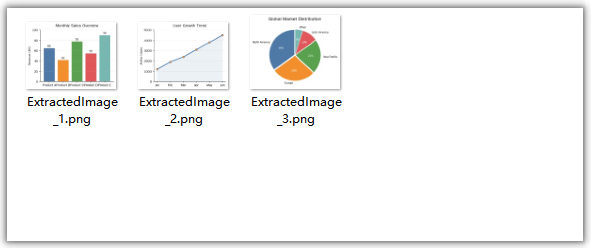
Cosa fa il codice:
helper.GetImagesInfo(page)restituisce un array di oggetti informativi sulle immagini per la pagina specificata. Ogni oggetto ha una proprietàImageche fornisce accesso ai dati dell'immagine.images[i].Image.Save({ fileName: outputFileName })scrive l'immagine nel VFS come file PNG.- Il pattern lettura VFS + Blob + download è lo stesso usato per l'output PDF, ma con
type: 'image/png'invece ditype: 'application/pdf'. - L'estrazione è un'operazione di sola lettura — il documento PDF originale non viene modificato. Se desideri cambiare o rimuovere un'immagine sul posto invece di limitarti a leggerla, consulta Replacing and Removing Images from PDFs in JavaScript (React).
Estrarre immagini da tutte le pagine
L'esempio precedente estrae solo dalla prima pagina. Per un documento multi-pagina come un catalogo prodotti o un report annuale, in genere desideri tutte le immagini da ogni pagina. Aggiungi semplicemente un ciclo esterno attraverso le pagine del documento:
const extractAllImages = async () => {
  const pdfModule = window.wasmModule?.spirepdf;
  if (!pdfModule) return;

  await window.spire.FetchFileToVFS('Business_Data_Overview.pdf', "", `${process.env.PUBLIC_URL}/data/`);

  let doc = new pdfModule.PdfDocument();
  doc.LoadFromFile('Business_Data_Overview.pdf');

  let helper = new pdfModule.PdfImageHelper();
  let imageCount = 0;

  // Loop through all pages in the document
  for (let pageIndex = 0; pageIndex < doc.Pages.Count; pageIndex++) {
    let page = doc.Pages.get_Item(pageIndex);
    let images = helper.GetImagesInfo(page);

    // Extract each image on this page
    for (let i = 0; i < images.length; i++) {
      imageCount++;
      const outputFileName = `Page${pageIndex + 1}_Image${i + 1}.png`;
      images[i].Image.Save({ fileName: outputFileName });

      const fileArray = window.dotnetRuntime.Module.FS.readFile(outputFileName);
      const blob = new Blob([fileArray], { type: 'image/png' });
      const url = URL.createObjectURL(blob);
      const a = document.createElement('a');
      a.href = url;
      a.download = outputFileName;
      a.click();
      URL.revokeObjectURL(url);
    }
  }

  console.log(`Total images extracted: ${imageCount}`);
  doc.Close();
};
Differenza chiave rispetto all'esempio a pagina singola: il ciclo for esterno itera attraverso doc.Pages.Count, e il nome del file include sia il numero di pagina che l'indice dell'immagine (Page1_Image1.png, Page1_Image2.png, Page2_Image1.png, ecc.) per mantenere organizzati i file estratti.
Assegnare un nome ai file estratti
Una strategia di denominazione coerente ti aiuta a tenere traccia di quale immagine provenga da quale pagina e posizione. Ecco i pattern comuni:
Numerazione sequenziale — la più semplice, adatta all'estrazione da una singola pagina:
const outputFileName = `ExtractedImage_${i + 1}.png`;
// ExtractedImage_1.png, ExtractedImage_2.png, ...
Pagina e indice — ideale per l'estrazione multi-pagina, conserva la posizione di origine:
const outputFileName = `Page${pageIndex + 1}_Image${i + 1}.png`;
// Page1_Image1.png, Page1_Image2.png, Page2_Image1.png, ...
Con marca temporale — utile quando si estrae da più documenti in una sessione:
const timestamp = Date.now();
const outputFileName = `Extracted_${timestamp}_Page${pageIndex + 1}_${i + 1}.png`;
Basato sul nome del documento di origine — aiuta a tenere traccia della provenienza:
const sourceName = 'Business_Data_Overview';
const outputFileName = `${sourceName}_p${pageIndex + 1}_img${i + 1}.png`;
// Business_Data_Overview_p1_img1.png, ...
Lavorare con le immagini estratte
Invece di (o in aggiunta a) attivare i download, puoi usare i dati delle immagini estratte direttamente nella tua applicazione React. Ad esempio, visualizza le immagini estratte in una galleria:
const extractAndDisplay = async () => {
  const pdfModule = window.wasmModule?.spirepdf;
  if (!pdfModule) return;

  await window.spire.FetchFileToVFS('Business_Data_Overview.pdf', "", `${process.env.PUBLIC_URL}/data/`);

  let doc = new pdfModule.PdfDocument();
  doc.LoadFromFile('Business_Data_Overview.pdf');

  let helper = new pdfModule.PdfImageHelper();
  let extractedImageUrls = [];

  for (let pageIndex = 0; pageIndex < doc.Pages.Count; pageIndex++) {
    let page = doc.Pages.get_Item(pageIndex);
    let images = helper.GetImagesInfo(page);

    for (let i = 0; i < images.length; i++) {
      const tempName = `temp_p${pageIndex + 1}_${i + 1}.png`;
      images[i].Image.Save({ fileName: tempName });

      const fileArray = window.dotnetRuntime.Module.FS.readFile(tempName);
      const blob = new Blob([fileArray], { type: 'image/png' });
      const url = URL.createObjectURL(blob);
      extractedImageUrls.push(url);
    }
  }

  doc.Close();

  // Now you have an array of object URLs you can use in <img> tags
  // setExtractedImages(extractedImageUrls); // if using state
  console.log(`Extracted ${extractedImageUrls.length} images ready for display`);
};
Questo approccio ti fornisce URL di oggetti che possono essere usati direttamente negli elementi <img src={url} />, rendendo semplice creare una galleria di anteprima, consentire agli utenti di selezionare immagini specifiche o passare le immagini ad altre parti della tua applicazione. Una volta ottenuti i dati dell'immagine, la logica di disegno per aggiungerla a un PDF è un naturale passo successivo.
Nota: Ricorda di chiamare
URL.revokeObjectURL(url)per ogni URL di oggetto quando hai finito di usarlo, per liberare memoria. Se stai visualizzando immagini in una galleria, revoca gli URL quando il componente della galleria viene smontato.
FAQ
L'estrazione delle immagini modificherà il PDF originale?
No. L'estrazione delle immagini è un'operazione di sola lettura. GetImagesInfo legge i dati delle immagini dal PDF senza modificare il documento, e Image.Save scrive una copia nel VFS. Il PDF originale rimane invariato.
In quale formato vengono salvate le immagini estratte?
Gli esempi in questo articolo salvano le immagini estratte come file PNG (.png). L'estensione di file che passi a Image.Save determina il formato di output, quindi puoi sceglierne uno diverso se il tuo caso d'uso lo richiede.
Come posso estrarre immagini da un intervallo di pagine specifico?
Invece di scorrere tutte le pagine con doc.Pages.Count, scorri l'intervallo desiderato. Ad esempio, per estrarre dalle pagine da 3 a 5 (con indice a partire da 0: da 2 a 4):
for (let pageIndex = 2; pageIndex <= 4 && pageIndex < doc.Pages.Count; pageIndex++) {
  let page = doc.Pages.get_Item(pageIndex);
  let images = helper.GetImagesInfo(page);
  // ... save and download each image
}
Posso estrarre immagini e visualizzarle nella mia app React senza scaricarle?
Sì. Invece di creare un link di download, crea un URL di oggetto con URL.createObjectURL(blob) e usalo come src di un elemento <img>. Consulta la sezione Lavorare con le immagini estratte qui sopra per un esempio di codice.
Cosa succede se una pagina non contiene immagini?
GetImagesInfo restituisce un array vuoto per le pagine senza immagini. Il ciclo for semplicemente non viene eseguito, quindi non vengono generati file e non vengono lanciati errori. È sicuro eseguirlo su qualsiasi pagina.
Vedi anche
Extraire des images d'un PDF en JavaScript (React)
Vous avez reçu un rapport de 40 pages et vous avez besoin des huit graphiques qu'il contient pour une présentation, ou vous souhaitez extraire des photos de produits du catalogue d'un fournisseur. Le problème : un PDF stocke les images dans un format de flux interne que les API intégrées du navigateur ne peuvent pas lire, il n'existe donc pas de chemin « clic droit, enregistrer l'image ».
Spire.PDF for JavaScript lit ces flux pour vous grâce à sa classe PdfImageHelper. GetImagesInfo récupère chaque objet image d'une page, et la méthode Image.Save de chacun d'eux l'écrit dans un fichier autonome. Tout s'exécute dans le navigateur via WebAssembly — le PDF ne quitte jamais l'appareil et aucun serveur ni outil externe n'est impliqué.
Dans cet article, vous allez apprendre à :
- Récupérer les objets image d'une page PDF avec
GetImagesInfo - Enregistrer chacun d'eux dans le VFS et déclencher un téléchargement
- Parcourir chaque page d'un document de plusieurs pages
- Appliquer un schéma de nommage cohérent aux fichiers extraits
- Utiliser les images extraites directement dans votre interface React
Prérequis
Ce guide suppose que vous disposez d'un projet React avec Spire.PDF for JavaScript installé et le module WASM initialisé. Pour les instructions de configuration, consultez Intégrer Spire.PDF for JavaScript dans un projet React.
Vous aurez besoin de :
- Un PDF contenant des images, chargé dans le VFS
- Le module WASM accessible via
window.wasmModule.spirepdf
Extraire les images d'une page unique
Le flux d'extraction de base récupère toutes les images d'une page, enregistre chacune dans le VFS et déclenche un téléchargement :
- Charger le PDF dans le VFS et l'ouvrir avec
PdfDocument - Obtenir la page cible du document
- Appeler
GetImagesInfopour récupérer un tableau d'objets d'informations sur les images - Parcourir le tableau en appelant
images[i].Image.Save()pour écrire chaque image dans le VFS - Lire depuis le VFS et déclencher un téléchargement du navigateur pour chaque image extraite
function App() {
  const extractImagesFromPdf = async () => {
    // Get the Spire.PDF WASM module
    const pdfModule = window.wasmModule?.spirepdf;

    // Check if the WASM module is ready
    if (!pdfModule) {
      alert('Spire.PDF is not ready yet');
      return;
    }

    // Load the PDF file into VFS
    const inputFileName = 'Business_Data_Overview.pdf';
    await window.spire.FetchFileToVFS(inputFileName, "", `${process.env.PUBLIC_URL}/data/`);

    // Create a PdfDocument object and load the PDF document
    let doc = new pdfModule.PdfDocument();
    doc.LoadFromFile(inputFileName);

    // Get the first page
    let page = doc.Pages.get_Item(0);

    // Create a PdfImageHelper object and get the image information on the first page
    let helper = new pdfModule.PdfImageHelper();
    let images = helper.GetImagesInfo(page);

    // Iterate through the images on the page, save each as a separate image file, and trigger download
    for (let i = 0; i < images.length; i++) {
      const outputFileName = `ExtractedImage_${i + 1}.png`;
      images[i].Image.Save({ fileName: outputFileName });

      // Read the extracted image file from VFS and trigger download
      const fileArray = window.dotnetRuntime.Module.FS.readFile(outputFileName);
      const blob = new Blob([fileArray], { type: 'image/png' });
      const url = URL.createObjectURL(blob);
      const a = document.createElement('a');
      a.href = url;
      a.download = outputFileName;
      a.click();
      URL.revokeObjectURL(url);
    }

    doc.Close();
  };

  return (
    <div style={{ textAlign: 'center', height: '300px' }}>
      <h1>Extract Images From PDF</h1>
      <button onClick={extractImagesFromPdf}>
        Generate
      </button>
    </div>
  );
}

export default App;
Fichiers image extraits du PDF
Ce que fait le code :
helper.GetImagesInfo(page)renvoie un tableau d'objets d'informations sur les images pour la page spécifiée. Chaque objet possède une propriétéImagequi donne accès aux données de l'image.images[i].Image.Save({ fileName: outputFileName })écrit l'image dans le VFS sous forme de fichier PNG.- Le modèle lecture du VFS + Blob + téléchargement est le même que celui utilisé pour la sortie PDF, mais avec
type: 'image/png'au lieu detype: 'application/pdf'. - L'extraction est une opération en lecture seule — le document PDF d'origine n'est pas modifié. Si vous souhaitez modifier ou supprimer une image sur place plutôt que de simplement la lire, consultez Remplacer et supprimer des images dans des PDF en JavaScript (React).
Extraire les images de toutes les pages
L'exemple ci-dessus n'extrait que de la première page. Pour un document de plusieurs pages comme un catalogue de produits ou un rapport annuel, vous voulez généralement toutes les images de chaque page. Il suffit d'ajouter une boucle externe parcourant les pages du document :
const extractAllImages = async () => {
  const pdfModule = window.wasmModule?.spirepdf;
  if (!pdfModule) return;

  await window.spire.FetchFileToVFS('Business_Data_Overview.pdf', "", `${process.env.PUBLIC_URL}/data/`);

  let doc = new pdfModule.PdfDocument();
  doc.LoadFromFile('Business_Data_Overview.pdf');

  let helper = new pdfModule.PdfImageHelper();
  let imageCount = 0;

  // Loop through all pages in the document
  for (let pageIndex = 0; pageIndex < doc.Pages.Count; pageIndex++) {
    let page = doc.Pages.get_Item(pageIndex);
    let images = helper.GetImagesInfo(page);

    // Extract each image on this page
    for (let i = 0; i < images.length; i++) {
      imageCount++;
      const outputFileName = `Page${pageIndex + 1}_Image${i + 1}.png`;
      images[i].Image.Save({ fileName: outputFileName });

      const fileArray = window.dotnetRuntime.Module.FS.readFile(outputFileName);
      const blob = new Blob([fileArray], { type: 'image/png' });
      const url = URL.createObjectURL(blob);
      const a = document.createElement('a');
      a.href = url;
      a.download = outputFileName;
      a.click();
      URL.revokeObjectURL(url);
    }
  }

  console.log(`Total images extracted: ${imageCount}`);
  doc.Close();
};
Principale différence avec l'exemple d'une seule page : la boucle for externe parcourt doc.Pages.Count, et le nom de fichier inclut à la fois le numéro de page et l'index de l'image (Page1_Image1.png, Page1_Image2.png, Page2_Image1.png, etc.) afin de garder les fichiers extraits organisés.
Nommer les fichiers extraits
Une stratégie de nommage cohérente vous aide à suivre quelle image provient de quelle page et de quelle position. Voici les modèles courants :
Numérotation séquentielle — la plus simple, adaptée à l'extraction d'une seule page :
const outputFileName = `ExtractedImage_${i + 1}.png`;
// ExtractedImage_1.png, ExtractedImage_2.png, ...
Page et index — idéal pour l'extraction multi-pages, préserve l'emplacement source :
const outputFileName = `Page${pageIndex + 1}_Image${i + 1}.png`;
// Page1_Image1.png, Page1_Image2.png, Page2_Image1.png, ...
Horodatage — utile lors de l'extraction de plusieurs documents dans une session :
const timestamp = Date.now();
const outputFileName = `Extracted_${timestamp}_Page${pageIndex + 1}_${i + 1}.png`;
Basé sur le nom du document source — aide à suivre l'origine :
const sourceName = 'Business_Data_Overview';
const outputFileName = `${sourceName}_p${pageIndex + 1}_img${i + 1}.png`;
// Business_Data_Overview_p1_img1.png, ...
Travailler avec les images extraites
Au lieu de (ou en plus de) déclencher des téléchargements, vous pouvez utiliser les données d'image extraites directement dans votre application React. Par exemple, affichez les images extraites dans une galerie :
const extractAndDisplay = async () => {
  const pdfModule = window.wasmModule?.spirepdf;
  if (!pdfModule) return;

  await window.spire.FetchFileToVFS('Business_Data_Overview.pdf', "", `${process.env.PUBLIC_URL}/data/`);

  let doc = new pdfModule.PdfDocument();
  doc.LoadFromFile('Business_Data_Overview.pdf');

  let helper = new pdfModule.PdfImageHelper();
  let extractedImageUrls = [];

  for (let pageIndex = 0; pageIndex < doc.Pages.Count; pageIndex++) {
    let page = doc.Pages.get_Item(pageIndex);
    let images = helper.GetImagesInfo(page);

    for (let i = 0; i < images.length; i++) {
      const tempName = `temp_p${pageIndex + 1}_${i + 1}.png`;
      images[i].Image.Save({ fileName: tempName });

      const fileArray = window.dotnetRuntime.Module.FS.readFile(tempName);
      const blob = new Blob([fileArray], { type: 'image/png' });
      const url = URL.createObjectURL(blob);
      extractedImageUrls.push(url);
    }
  }

  doc.Close();

  // Now you have an array of object URLs you can use in <img> tags
  // setExtractedImages(extractedImageUrls); // if using state
  console.log(`Extracted ${extractedImageUrls.length} images ready for display`);
};
Cette approche vous donne des URL d'objet qui peuvent être utilisées directement dans des éléments <img src={url} />, ce qui facilite la création d'une galerie d'aperçu, permet aux utilisateurs de sélectionner des images spécifiques, ou de transmettre les images à d'autres parties de votre application. Une fois que vous disposez des données d'image, la logique de dessin pour les ajouter à un PDF est une étape suivante naturelle.
Remarque : N'oubliez pas d'appeler
URL.revokeObjectURL(url)pour chaque URL d'objet lorsque vous avez terminé de l'utiliser afin de libérer de la mémoire. Si vous affichez des images dans une galerie, révoquez les URL lorsque le composant de galerie est démonté.
FAQ
L'extraction d'images modifie-t-elle le PDF d'origine ?
Non. L'extraction d'images est une opération en lecture seule. GetImagesInfo lit les données d'image du PDF sans modifier le document, et Image.Save écrit une copie dans le VFS. Le PDF d'origine reste inchangé.
Dans quel format les images extraites sont-elles enregistrées ?
Les exemples de cet article enregistrent les images extraites sous forme de fichiers PNG (.png). L'extension de fichier que vous transmettez à Image.Save détermine le format de sortie ; vous pouvez donc en choisir une autre si votre cas d'usage l'exige.
Comment extraire des images d'une plage de pages spécifique ?
Au lieu de parcourir toutes les pages avec doc.Pages.Count, parcourez la plage souhaitée. Par exemple, pour extraire des pages 3 à 5 (indexées à partir de 0 : 2 à 4) :
for (let pageIndex = 2; pageIndex <= 4 && pageIndex < doc.Pages.Count; pageIndex++) {
  let page = doc.Pages.get_Item(pageIndex);
  let images = helper.GetImagesInfo(page);
  // ... save and download each image
}
Puis-je extraire des images et les afficher dans mon application React sans les télécharger ?
Oui. Au lieu de créer un lien de téléchargement, créez une URL d'objet avec URL.createObjectURL(blob) et utilisez-la comme src d'un élément <img>. Consultez la section Travailler avec les images extraites ci-dessus pour un exemple de code.
Que se passe-t-il si une page ne contient aucune image ?
GetImagesInfo renvoie un tableau vide pour les pages sans images. La boucle for ne s'exécute tout simplement pas, donc aucun fichier n'est généré et aucune erreur n'est levée. Cette opération peut être exécutée sans risque sur n'importe quelle page.
Voir aussi
Extraer imágenes de un PDF en JavaScript (React)
Recibió un informe de 40 páginas y necesita los ocho gráficos que contiene para una presentación, o quiere extraer las fotos de productos del catálogo de un proveedor. El problema: un PDF almacena las imágenes en un formato de flujo interno que las API integradas del navegador no pueden leer, por lo que no existe la opción de "clic derecho, guardar imagen".
Spire.PDF for JavaScript lee esos flujos por usted a través de su clase PdfImageHelper. GetImagesInfo recupera todos los objetos de imagen de una página, y el método Image.Save de cada uno la escribe como un archivo independiente. Todo se ejecuta en el navegador mediante WebAssembly: el PDF nunca sale del dispositivo y no interviene ningún servidor ni herramienta externa.
En este artículo aprenderá a:
- Recuperar objetos de imagen de una página PDF con
GetImagesInfo - Guardar cada una en el VFS y desencadenar una descarga
- Recorrer todas las páginas de un documento de varias páginas
- Aplicar un esquema de nombres coherente a los archivos extraídos
- Usar las imágenes extraídas directamente en su interfaz de React
Requisitos previos
Este tutorial supone que tiene un proyecto de React con Spire.PDF for JavaScript instalado y el módulo WASM inicializado. Para obtener instrucciones de configuración, consulte Integrar Spire.PDF for JavaScript en un proyecto de React.
Necesitará:
- Un PDF que contenga imágenes, cargado en el VFS
- El módulo WASM accesible a través de
window.wasmModule.spirepdf
Extraer imágenes de una sola página
El flujo de trabajo básico de extracción recupera todas las imágenes de una página, guarda cada una en el VFS y desencadena una descarga:
- Cargue el PDF en el VFS y ábralo con
PdfDocument - Obtenga la página de destino del documento
- Llame a
GetImagesInfopara recuperar una matriz de objetos de información de imagen - Recorra la matriz, llamando a
images[i].Image.Save()para escribir cada imagen en el VFS - Lea desde el VFS y desencadene una descarga del navegador para cada imagen extraída
function App() {
  const extractImagesFromPdf = async () => {
    // Get the Spire.PDF WASM module
    const pdfModule = window.wasmModule?.spirepdf;

    // Check if the WASM module is ready
    if (!pdfModule) {
      alert('Spire.PDF is not ready yet');
      return;
    }

    // Load the PDF file into VFS
    const inputFileName = 'Business_Data_Overview.pdf';
    await window.spire.FetchFileToVFS(inputFileName, "", `${process.env.PUBLIC_URL}/data/`);

    // Create a PdfDocument object and load the PDF document
    let doc = new pdfModule.PdfDocument();
    doc.LoadFromFile(inputFileName);

    // Get the first page
    let page = doc.Pages.get_Item(0);

    // Create a PdfImageHelper object and get the image information on the first page
    let helper = new pdfModule.PdfImageHelper();
    let images = helper.GetImagesInfo(page);

    // Iterate through the images on the page, save each as a separate image file, and trigger download
    for (let i = 0; i < images.length; i++) {
      const outputFileName = `ExtractedImage_${i + 1}.png`;
      images[i].Image.Save({ fileName: outputFileName });

      // Read the extracted image file from VFS and trigger download
      const fileArray = window.dotnetRuntime.Module.FS.readFile(outputFileName);
      const blob = new Blob([fileArray], { type: 'image/png' });
      const url = URL.createObjectURL(blob);
      const a = document.createElement('a');
      a.href = url;
      a.download = outputFileName;
      a.click();
      URL.revokeObjectURL(url);
    }

    doc.Close();
  };

  return (
    <div style={{ textAlign: 'center', height: '300px' }}>
      <h1>Extract Images From PDF</h1>
      <button onClick={extractImagesFromPdf}>
        Generate
      </button>
    </div>
  );
}

export default App;
Archivos de imagen extraídos del PDF
Qué hace el código:
helper.GetImagesInfo(page)devuelve una matriz de objetos de información de imagen para la página especificada. Cada objeto tiene una propiedadImageque proporciona acceso a los datos de la imagen.images[i].Image.Save({ fileName: outputFileName })escribe la imagen en el VFS como un archivo PNG.- El patrón de lectura del VFS + Blob + descarga es el mismo que se usa para la salida de PDF, pero con
type: 'image/png'en lugar detype: 'application/pdf'. - La extracción es una operación de solo lectura: el documento PDF original no se modifica. Si desea cambiar o eliminar una imagen in situ en lugar de solo leerla, consulte Reemplazar y eliminar imágenes de PDF en JavaScript (React).
Extraer imágenes de todas las páginas
El ejemplo anterior solo extrae de la primera página. Para un documento de varias páginas, como un catálogo de productos o un informe anual, normalmente querrá todas las imágenes de cada página. Simplemente agregue un bucle externo que recorra las páginas del documento:
const extractAllImages = async () => {
  const pdfModule = window.wasmModule?.spirepdf;
  if (!pdfModule) return;

  await window.spire.FetchFileToVFS('Business_Data_Overview.pdf', "", `${process.env.PUBLIC_URL}/data/`);

  let doc = new pdfModule.PdfDocument();
  doc.LoadFromFile('Business_Data_Overview.pdf');

  let helper = new pdfModule.PdfImageHelper();
  let imageCount = 0;

  // Loop through all pages in the document
  for (let pageIndex = 0; pageIndex < doc.Pages.Count; pageIndex++) {
    let page = doc.Pages.get_Item(pageIndex);
    let images = helper.GetImagesInfo(page);

    // Extract each image on this page
    for (let i = 0; i < images.length; i++) {
      imageCount++;
      const outputFileName = `Page${pageIndex + 1}_Image${i + 1}.png`;
      images[i].Image.Save({ fileName: outputFileName });

      const fileArray = window.dotnetRuntime.Module.FS.readFile(outputFileName);
      const blob = new Blob([fileArray], { type: 'image/png' });
      const url = URL.createObjectURL(blob);
      const a = document.createElement('a');
      a.href = url;
      a.download = outputFileName;
      a.click();
      URL.revokeObjectURL(url);
    }
  }

  console.log(`Total images extracted: ${imageCount}`);
  doc.Close();
};
Diferencia clave con el ejemplo de una sola página: el bucle for externo recorre doc.Pages.Count, y el nombre del archivo incluye tanto el número de página como el índice de la imagen (Page1_Image1.png, Page1_Image2.png, Page2_Image1.png, etc.) para mantener organizados los archivos extraídos.
Nombrar los archivos extraídos
Una estrategia de nombres coherente le ayuda a saber de qué página y posición proviene cada imagen. Estos son los patrones más comunes:
Numeración secuencial: la más sencilla, ideal para la extracción de una sola página:
const outputFileName = `ExtractedImage_${i + 1}.png`;
// ExtractedImage_1.png, ExtractedImage_2.png, ...
Página e índice: la mejor para la extracción de varias páginas, conserva la ubicación de origen:
const outputFileName = `Page${pageIndex + 1}_Image${i + 1}.png`;
// Page1_Image1.png, Page1_Image2.png, Page2_Image1.png, ...
Con marca de tiempo: útil cuando se extraen imágenes de varios documentos en una misma sesión:
const timestamp = Date.now();
const outputFileName = `Extracted_${timestamp}_Page${pageIndex + 1}_${i + 1}.png`;
Basado en el nombre del documento de origen: ayuda a rastrear el origen:
const sourceName = 'Business_Data_Overview';
const outputFileName = `${sourceName}_p${pageIndex + 1}_img${i + 1}.png`;
// Business_Data_Overview_p1_img1.png, ...
Trabajar con las imágenes extraídas
En lugar de desencadenar descargas (o además de hacerlo), puede usar los datos de las imágenes extraídas directamente en su aplicación React. Por ejemplo, mostrar las imágenes extraídas en una galería:
const extractAndDisplay = async () => {
  const pdfModule = window.wasmModule?.spirepdf;
  if (!pdfModule) return;

  await window.spire.FetchFileToVFS('Business_Data_Overview.pdf', "", `${process.env.PUBLIC_URL}/data/`);

  let doc = new pdfModule.PdfDocument();
  doc.LoadFromFile('Business_Data_Overview.pdf');

  let helper = new pdfModule.PdfImageHelper();
  let extractedImageUrls = [];

  for (let pageIndex = 0; pageIndex < doc.Pages.Count; pageIndex++) {
    let page = doc.Pages.get_Item(pageIndex);
    let images = helper.GetImagesInfo(page);

    for (let i = 0; i < images.length; i++) {
      const tempName = `temp_p${pageIndex + 1}_${i + 1}.png`;
      images[i].Image.Save({ fileName: tempName });

      const fileArray = window.dotnetRuntime.Module.FS.readFile(tempName);
      const blob = new Blob([fileArray], { type: 'image/png' });
      const url = URL.createObjectURL(blob);
      extractedImageUrls.push(url);
    }
  }

  doc.Close();

  // Now you have an array of object URLs you can use in <img> tags
  // setExtractedImages(extractedImageUrls); // if using state
  console.log(`Extracted ${extractedImageUrls.length} images ready for display`);
};
Este enfoque le proporciona URL de objeto que se pueden usar directamente en elementos <img src={url} />, lo que facilita crear una galería de vista previa, permitir que los usuarios seleccionen imágenes específicas o pasar las imágenes a otras partes de su aplicación. Una vez que tenga los datos de la imagen, la lógica de dibujo para agregarla a un PDF es el siguiente paso natural.
Nota: Recuerde llamar a
URL.revokeObjectURL(url)para cada URL de objeto cuando termine de usarla, a fin de liberar memoria. Si muestra imágenes en una galería, revoque las URL cuando el componente de la galería se desmonte.
Preguntas frecuentes
¿La extracción de imágenes modifica el PDF original?
No. La extracción de imágenes es una operación de solo lectura. GetImagesInfo lee los datos de la imagen del PDF sin modificar el documento, y Image.Save escribe una copia en el VFS. El PDF original permanece sin cambios.
¿En qué formato se guardan las imágenes extraídas?
Los ejemplos de este artículo guardan las imágenes extraídas como archivos PNG (.png). La extensión de archivo que pase a Image.Save determina el formato de salida, por lo que puede elegir otra diferente si su caso de uso lo requiere.
¿Cómo extraigo imágenes de un rango de páginas específico?
En lugar de recorrer todas las páginas con doc.Pages.Count, recorra el rango que desee. Por ejemplo, para extraer de las páginas 3 a 5 (con índice basado en 0: 2 a 4):
for (let pageIndex = 2; pageIndex <= 4 && pageIndex < doc.Pages.Count; pageIndex++) {
  let page = doc.Pages.get_Item(pageIndex);
  let images = helper.GetImagesInfo(page);
  // ... save and download each image
}
¿Puedo extraer imágenes y mostrarlas en mi aplicación React sin descargarlas?
Sí. En lugar de crear un enlace de descarga, cree una URL de objeto con URL.createObjectURL(blob) y úsela como src de un elemento <img>. Consulte la sección Trabajar con las imágenes extraídas anterior para ver un ejemplo de código.
¿Qué pasa si una página no tiene imágenes?
GetImagesInfo devuelve una matriz vacía para las páginas sin imágenes. El bucle for simplemente no se ejecuta, por lo que no se generan archivos ni se producen errores. Es seguro ejecutarlo en cualquier página.
Véase también
Bilder aus einer PDF in JavaScript extrahieren (React)
Sie haben einen 40-seitigen Bericht erhalten und benötigen die acht darin enthaltenen Diagramme für eine Präsentation, oder Sie möchten Produktfotos aus einem Lieferantenkatalog herausziehen. Der Haken: Ein PDF speichert Bilder in einem internen Stream-Format, das die integrierten APIs des Browsers nicht lesen können, es gibt also keinen Weg über "Rechtsklick, Bild speichern".
Spire.PDF für JavaScript liest diese Streams für Sie über seine Klasse PdfImageHelper aus. GetImagesInfo ruft jedes Bildobjekt auf einer Seite ab, und die Methode Image.Save jedes Objekts schreibt es als eigenständige Datei heraus. Alles läuft im Browser über WebAssembly — das PDF verlässt niemals das Gerät, und es sind kein Server und kein externes Tool beteiligt.
In diesem Artikel erfahren Sie, wie Sie:
- Bildobjekte aus einer PDF-Seite mit
GetImagesInfoabrufen - Jedes davon im VFS speichern und einen Download auslösen
- Jede Seite in einem mehrseitigen Dokument durchlaufen
- Ein einheitliches Benennungsschema auf die extrahierten Dateien anwenden
- Die extrahierten Bilder direkt in Ihrer React-Oberfläche verwenden
Voraussetzungen
Diese Anleitung setzt voraus, dass Sie ein React-Projekt mit installiertem Spire.PDF für JavaScript und initialisiertem WASM-Modul haben. Anweisungen zur Einrichtung finden Sie unter Integrieren von Spire.PDF für JavaScript in ein React-Projekt.
Sie benötigen:
- Ein PDF, das Bilder enthält und in das VFS geladen wird
- Das WASM-Modul, erreichbar über
window.wasmModule.spirepdf
Bilder aus einer einzelnen Seite extrahieren
Der grundlegende Extraktionsablauf ruft alle Bilder von einer Seite ab, speichert jedes im VFS und löst einen Download aus:
- Laden Sie das PDF in das VFS und öffnen Sie es mit
PdfDocument - Holen Sie die Zielseite aus dem Dokument
- Rufen Sie
GetImagesInfoauf, um ein Array von Bildinfo-Objekten abzurufen - Durchlaufen Sie das Array und rufen Sie
images[i].Image.Save()auf, um jedes Bild in das VFS zu schreiben - Lesen Sie aus dem VFS und lösen Sie für jedes extrahierte Bild einen Browser-Download aus
function App() {
  const extractImagesFromPdf = async () => {
    // Get the Spire.PDF WASM module
    const pdfModule = window.wasmModule?.spirepdf;

    // Check if the WASM module is ready
    if (!pdfModule) {
      alert('Spire.PDF is not ready yet');
      return;
    }

    // Load the PDF file into VFS
    const inputFileName = 'Business_Data_Overview.pdf';
    await window.spire.FetchFileToVFS(inputFileName, "", `${process.env.PUBLIC_URL}/data/`);

    // Create a PdfDocument object and load the PDF document
    let doc = new pdfModule.PdfDocument();
    doc.LoadFromFile(inputFileName);

    // Get the first page
    let page = doc.Pages.get_Item(0);

    // Create a PdfImageHelper object and get the image information on the first page
    let helper = new pdfModule.PdfImageHelper();
    let images = helper.GetImagesInfo(page);

    // Iterate through the images on the page, save each as a separate image file, and trigger download
    for (let i = 0; i < images.length; i++) {
      const outputFileName = `ExtractedImage_${i + 1}.png`;
      images[i].Image.Save({ fileName: outputFileName });

      // Read the extracted image file from VFS and trigger download
      const fileArray = window.dotnetRuntime.Module.FS.readFile(outputFileName);
      const blob = new Blob([fileArray], { type: 'image/png' });
      const url = URL.createObjectURL(blob);
      const a = document.createElement('a');
      a.href = url;
      a.download = outputFileName;
      a.click();
      URL.revokeObjectURL(url);
    }

    doc.Close();
  };

  return (
    <div style={{ textAlign: 'center', height: '300px' }}>
      <h1>Extract Images From PDF</h1>
      <button onClick={extractImagesFromPdf}>
        Generate
      </button>
    </div>
  );
}

export default App;
Aus dem PDF extrahierte Bilddateien
Was der Code macht:
helper.GetImagesInfo(page)gibt ein Array von Bildinfo-Objekten für die angegebene Seite zurück. Jedes Objekt verfügt über eineImage-Eigenschaft, die Zugriff auf die Bilddaten bietet.images[i].Image.Save({ fileName: outputFileName })schreibt das Bild als PNG-Datei in das VFS.- Das Muster aus VFS-Lesen + Blob + Download ist dasselbe wie bei der PDF-Ausgabe, jedoch mit
type: 'image/png'statttype: 'application/pdf'. - Die Extraktion ist ein schreibgeschützter Vorgang — das ursprüngliche PDF-Dokument wird nicht verändert. Wenn Sie ein Bild direkt ersetzen oder entfernen möchten, anstatt es nur auszulesen, lesen Sie Ersetzen und Entfernen von Bildern in PDFs mit JavaScript (React).
Bilder aus allen Seiten extrahieren
Das obige Beispiel extrahiert nur aus der ersten Seite. Bei einem mehrseitigen Dokument wie einem Produktkatalog oder Jahresbericht möchten Sie in der Regel alle Bilder von jeder Seite. Fügen Sie einfach eine äußere Schleife über die Seiten des Dokuments hinzu:
const extractAllImages = async () => {
  const pdfModule = window.wasmModule?.spirepdf;
  if (!pdfModule) return;

  await window.spire.FetchFileToVFS('Business_Data_Overview.pdf', "", `${process.env.PUBLIC_URL}/data/`);

  let doc = new pdfModule.PdfDocument();
  doc.LoadFromFile('Business_Data_Overview.pdf');

  let helper = new pdfModule.PdfImageHelper();
  let imageCount = 0;

  // Loop through all pages in the document
  for (let pageIndex = 0; pageIndex < doc.Pages.Count; pageIndex++) {
    let page = doc.Pages.get_Item(pageIndex);
    let images = helper.GetImagesInfo(page);

    // Extract each image on this page
    for (let i = 0; i < images.length; i++) {
      imageCount++;
      const outputFileName = `Page${pageIndex + 1}_Image${i + 1}.png`;
      images[i].Image.Save({ fileName: outputFileName });

      const fileArray = window.dotnetRuntime.Module.FS.readFile(outputFileName);
      const blob = new Blob([fileArray], { type: 'image/png' });
      const url = URL.createObjectURL(blob);
      const a = document.createElement('a');
      a.href = url;
      a.download = outputFileName;
      a.click();
      URL.revokeObjectURL(url);
    }
  }

  console.log(`Total images extracted: ${imageCount}`);
  doc.Close();
};
Wichtigster Unterschied zum Einzelseiten-Beispiel: Die äußere for-Schleife durchläuft doc.Pages.Count, und der Dateiname enthält sowohl die Seitenzahl als auch den Bildindex (Page1_Image1.png, Page1_Image2.png, Page2_Image1.png usw.), um die extrahierten Dateien organisiert zu halten.
Benennung extrahierter Dateien
Eine einheitliche Benennungsstrategie hilft Ihnen nachzuvollziehen, welches Bild von welcher Seite und Position stammt. Hier sind gängige Muster:
Fortlaufende Nummerierung — am einfachsten, gut für die Extraktion einzelner Seiten:
const outputFileName = `ExtractedImage_${i + 1}.png`;
// ExtractedImage_1.png, ExtractedImage_2.png, ...
Seite und Index — am besten für die Extraktion mehrerer Seiten, bewahrt die Quellposition:
const outputFileName = `Page${pageIndex + 1}_Image${i + 1}.png`;
// Page1_Image1.png, Page1_Image2.png, Page2_Image1.png, ...
Mit Zeitstempel — nützlich bei der Extraktion aus mehreren Dokumenten in einer Sitzung:
const timestamp = Date.now();
const outputFileName = `Extracted_${timestamp}_Page${pageIndex + 1}_${i + 1}.png`;
Basierend auf dem Namen des Quelldokuments — hilft, die Herkunft nachzuvollziehen:
const sourceName = 'Business_Data_Overview';
const outputFileName = `${sourceName}_p${pageIndex + 1}_img${i + 1}.png`;
// Business_Data_Overview_p1_img1.png, ...
Arbeiten mit extrahierten Bildern
Anstatt Downloads auszulösen (oder zusätzlich dazu) können Sie die extrahierten Bilddaten direkt in Ihrer React-Anwendung verwenden. Zeigen Sie beispielsweise die extrahierten Bilder in einer Galerie an:
const extractAndDisplay = async () => {
  const pdfModule = window.wasmModule?.spirepdf;
  if (!pdfModule) return;

  await window.spire.FetchFileToVFS('Business_Data_Overview.pdf', "", `${process.env.PUBLIC_URL}/data/`);

  let doc = new pdfModule.PdfDocument();
  doc.LoadFromFile('Business_Data_Overview.pdf');

  let helper = new pdfModule.PdfImageHelper();
  let extractedImageUrls = [];

  for (let pageIndex = 0; pageIndex < doc.Pages.Count; pageIndex++) {
    let page = doc.Pages.get_Item(pageIndex);
    let images = helper.GetImagesInfo(page);

    for (let i = 0; i < images.length; i++) {
      const tempName = `temp_p${pageIndex + 1}_${i + 1}.png`;
      images[i].Image.Save({ fileName: tempName });

      const fileArray = window.dotnetRuntime.Module.FS.readFile(tempName);
      const blob = new Blob([fileArray], { type: 'image/png' });
      const url = URL.createObjectURL(blob);
      extractedImageUrls.push(url);
    }
  }

  doc.Close();

  // Now you have an array of object URLs you can use in <img> tags
  // setExtractedImages(extractedImageUrls); // if using state
  console.log(`Extracted ${extractedImageUrls.length} images ready for display`);
};
Dieser Ansatz liefert Ihnen Objekt-URLs, die direkt in <img src={url} />-Elementen verwendet werden können, sodass es einfach ist, eine Vorschaugalerie zu erstellen, Benutzer bestimmte Bilder auswählen zu lassen oder die Bilder an andere Teile Ihrer Anwendung weiterzugeben. Sobald Sie die Bilddaten haben, ist die Zeichenlogik zum Hinzufügen in ein PDF ein natürlicher nächster Schritt.
Hinweis: Denken Sie daran, für jede Objekt-URL
URL.revokeObjectURL(url)aufzurufen, wenn Sie sie nicht mehr benötigen, um Speicher freizugeben. Wenn Sie Bilder in einer Galerie anzeigen, widerrufen Sie die URLs, wenn die Galeriekomponente ausgehängt wird.
FAQ
Verändert die Extraktion von Bildern das ursprüngliche PDF?
Nein. Die Bildextraktion ist ein schreibgeschützter Vorgang. GetImagesInfo liest die Bilddaten aus dem PDF, ohne das Dokument zu verändern, und Image.Save schreibt eine Kopie in das VFS. Das ursprüngliche PDF bleibt unverändert.
In welchem Format werden extrahierte Bilder gespeichert?
Die Beispiele in diesem Artikel speichern extrahierte Bilder als PNG-Dateien (.png). Die Dateierweiterung, die Sie an Image.Save übergeben, bestimmt das Ausgabeformat, sodass Sie ein anderes wählen können, wenn Ihr Anwendungsfall dies erfordert.
Wie extrahiere ich Bilder aus einem bestimmten Seitenbereich?
Anstatt mit doc.Pages.Count über alle Seiten zu iterieren, durchlaufen Sie Ihren gewünschten Bereich. Um beispielsweise aus den Seiten 3 bis 5 (0-basiert: 2 bis 4) zu extrahieren:
for (let pageIndex = 2; pageIndex <= 4 && pageIndex < doc.Pages.Count; pageIndex++) {
  let page = doc.Pages.get_Item(pageIndex);
  let images = helper.GetImagesInfo(page);
  // ... save and download each image
}
Kann ich Bilder extrahieren und in meiner React-App anzeigen, ohne sie herunterzuladen?
Ja. Anstatt einen Download-Link zu erstellen, erstellen Sie eine Objekt-URL mit URL.createObjectURL(blob) und verwenden Sie sie als src eines <img>-Elements. Ein Codebeispiel finden Sie im obigen Abschnitt Arbeiten mit extrahierten Bildern.
Was ist, wenn eine Seite keine Bilder hat?
GetImagesInfo gibt für Seiten ohne Bilder ein leeres Array zurück. Die for-Schleife wird einfach nicht ausgeführt, sodass keine Dateien erzeugt und keine Fehler ausgelöst werden. Dies kann sicher auf jeder Seite ausgeführt werden.
Siehe auch
Извлечение изображений из PDF в JavaScript (React)
Вы получили отчёт на 40 страниц, и вам нужны восемь диаграмм из него для презентации, или вы хотите вытащить фотографии товаров из каталога поставщика. Загвоздка в том, что PDF хранит изображения во внутреннем потоковом формате, который встроенные API браузера прочитать не могут, поэтому пути «щёлкнуть правой кнопкой мыши и сохранить изображение» не существует.
Spire.PDF for JavaScript читает эти потоки за вас с помощью своего класса PdfImageHelper. GetImagesInfo извлекает каждый объект изображения на странице, а метод Image.Save каждого из них записывает его в отдельный файл. Всё выполняется в браузере через WebAssembly — PDF никогда не покидает устройство, и никакой сервер или внешний инструмент не задействуется.
В этой статье вы узнаете, как:
- Извлекать объекты изображений со страницы PDF с помощью
GetImagesInfo - Сохранять каждое из них в VFS и запускать скачивание
- Пройти по каждой странице многостраничного документа
- Применить единообразную схему именования к извлечённым файлам
- Использовать извлечённые изображения напрямую в вашем интерфейсе React
Предварительные требования
Это руководство предполагает, что у вас есть проект React с установленным Spire.PDF for JavaScript и инициализированным модулем WASM. Инструкции по настройке см. в разделе Интеграция Spire.PDF for JavaScript в проект React.
Вам потребуется:
- PDF-файл, содержащий изображения, загруженный в VFS
- Модуль WASM, доступный через
window.wasmModule.spirepdf
Извлечение изображений с одной страницы
Базовый процесс извлечения получает все изображения с одной страницы, сохраняет каждое в VFS и запускает скачивание:
- Загрузите PDF в VFS и откройте его с помощью
PdfDocument - Получите целевую страницу из документа
- Вызовите
GetImagesInfo, чтобы получить массив объектов с информацией об изображениях - Пройдите в цикле по массиву, вызывая
images[i].Image.Save(), чтобы записать каждое изображение в VFS - Прочитайте из VFS и запустите скачивание браузером для каждого извлечённого изображения
function App() {
  const extractImagesFromPdf = async () => {
    // Get the Spire.PDF WASM module
    const pdfModule = window.wasmModule?.spirepdf;

    // Check if the WASM module is ready
    if (!pdfModule) {
      alert('Spire.PDF is not ready yet');
      return;
    }

    // Load the PDF file into VFS
    const inputFileName = 'Business_Data_Overview.pdf';
    await window.spire.FetchFileToVFS(inputFileName, "", `${process.env.PUBLIC_URL}/data/`);

    // Create a PdfDocument object and load the PDF document
    let doc = new pdfModule.PdfDocument();
    doc.LoadFromFile(inputFileName);

    // Get the first page
    let page = doc.Pages.get_Item(0);

    // Create a PdfImageHelper object and get the image information on the first page
    let helper = new pdfModule.PdfImageHelper();
    let images = helper.GetImagesInfo(page);

    // Iterate through the images on the page, save each as a separate image file, and trigger download
    for (let i = 0; i < images.length; i++) {
      const outputFileName = `ExtractedImage_${i + 1}.png`;
      images[i].Image.Save({ fileName: outputFileName });

      // Read the extracted image file from VFS and trigger download
      const fileArray = window.dotnetRuntime.Module.FS.readFile(outputFileName);
      const blob = new Blob([fileArray], { type: 'image/png' });
      const url = URL.createObjectURL(blob);
      const a = document.createElement('a');
      a.href = url;
      a.download = outputFileName;
      a.click();
      URL.revokeObjectURL(url);
    }

    doc.Close();
  };

  return (
    <div style={{ textAlign: 'center', height: '300px' }}>
      <h1>Extract Images From PDF</h1>
      <button onClick={extractImagesFromPdf}>
        Generate
      </button>
    </div>
  );
}

export default App;
Файлы изображений, извлечённые из PDF
Что делает код:
helper.GetImagesInfo(page)возвращает массив объектов с информацией об изображениях для указанной страницы. Каждый объект имеет свойствоImage, предоставляющее доступ к данным изображения.images[i].Image.Save({ fileName: outputFileName })записывает изображение в VFS как PNG-файл.- Шаблон «чтение из VFS + Blob + скачивание» тот же, что используется для вывода PDF, но с
type: 'image/png'вместоtype: 'application/pdf'. - Извлечение — это операция только для чтения: исходный PDF-документ не изменяется. Если вы хотите изменить или удалить изображение на месте, а не просто прочитать его, см. Замена и удаление изображений из PDF на JavaScript (React).
Извлечение изображений со всех страниц
Приведённый выше пример извлекает изображения только с первой страницы. Для многостраничного документа, такого как каталог товаров или годовой отчёт, обычно нужны все изображения с каждой страницы. Просто добавьте внешний цикл по страницам документа:
const extractAllImages = async () => {
  const pdfModule = window.wasmModule?.spirepdf;
  if (!pdfModule) return;

  await window.spire.FetchFileToVFS('Business_Data_Overview.pdf', "", `${process.env.PUBLIC_URL}/data/`);

  let doc = new pdfModule.PdfDocument();
  doc.LoadFromFile('Business_Data_Overview.pdf');

  let helper = new pdfModule.PdfImageHelper();
  let imageCount = 0;

  // Loop through all pages in the document
  for (let pageIndex = 0; pageIndex < doc.Pages.Count; pageIndex++) {
    let page = doc.Pages.get_Item(pageIndex);
    let images = helper.GetImagesInfo(page);

    // Extract each image on this page
    for (let i = 0; i < images.length; i++) {
      imageCount++;
      const outputFileName = `Page${pageIndex + 1}_Image${i + 1}.png`;
      images[i].Image.Save({ fileName: outputFileName });

      const fileArray = window.dotnetRuntime.Module.FS.readFile(outputFileName);
      const blob = new Blob([fileArray], { type: 'image/png' });
      const url = URL.createObjectURL(blob);
      const a = document.createElement('a');
      a.href = url;
      a.download = outputFileName;
      a.click();
      URL.revokeObjectURL(url);
    }
  }

  console.log(`Total images extracted: ${imageCount}`);
  doc.Close();
};
Ключевое отличие от примера с одной страницей: внешний цикл for перебирает doc.Pages.Count, а имя файла включает как номер страницы, так и индекс изображения (Page1_Image1.png, Page1_Image2.png, Page2_Image1.png и т. д.), чтобы извлечённые файлы оставались упорядоченными.
Именование извлечённых файлов
Единообразная стратегия именования помогает отслеживать, какое изображение с какой страницы и позиции было получено. Вот распространённые шаблоны:
Последовательная нумерация — самый простой вариант, подходит для извлечения с одной страницы:
const outputFileName = `ExtractedImage_${i + 1}.png`;
// ExtractedImage_1.png, ExtractedImage_2.png, ...
Страница и индекс — лучше всего подходит для многостраничного извлечения, сохраняет исходное расположение:
const outputFileName = `Page${pageIndex + 1}_Image${i + 1}.png`;
// Page1_Image1.png, Page1_Image2.png, Page2_Image1.png, ...
С отметкой времени — полезно при извлечении из нескольких документов в рамках одной сессии:
const timestamp = Date.now();
const outputFileName = `Extracted_${timestamp}_Page${pageIndex + 1}_${i + 1}.png`;
На основе имени исходного документа — помогает отследить происхождение:
const sourceName = 'Business_Data_Overview';
const outputFileName = `${sourceName}_p${pageIndex + 1}_img${i + 1}.png`;
// Business_Data_Overview_p1_img1.png, ...
Работа с извлечёнными изображениями
Вместо запуска скачиваний (или в дополнение к ним) вы можете использовать извлечённые данные изображений напрямую в вашем приложении React. Например, отобразить извлечённые изображения в галерее:
const extractAndDisplay = async () => {
  const pdfModule = window.wasmModule?.spirepdf;
  if (!pdfModule) return;

  await window.spire.FetchFileToVFS('Business_Data_Overview.pdf', "", `${process.env.PUBLIC_URL}/data/`);

  let doc = new pdfModule.PdfDocument();
  doc.LoadFromFile('Business_Data_Overview.pdf');

  let helper = new pdfModule.PdfImageHelper();
  let extractedImageUrls = [];

  for (let pageIndex = 0; pageIndex < doc.Pages.Count; pageIndex++) {
    let page = doc.Pages.get_Item(pageIndex);
    let images = helper.GetImagesInfo(page);

    for (let i = 0; i < images.length; i++) {
      const tempName = `temp_p${pageIndex + 1}_${i + 1}.png`;
      images[i].Image.Save({ fileName: tempName });

      const fileArray = window.dotnetRuntime.Module.FS.readFile(tempName);
      const blob = new Blob([fileArray], { type: 'image/png' });
      const url = URL.createObjectURL(blob);
      extractedImageUrls.push(url);
    }
  }

  doc.Close();

  // Now you have an array of object URLs you can use in <img> tags
  // setExtractedImages(extractedImageUrls); // if using state
  console.log(`Extracted ${extractedImageUrls.length} images ready for display`);
};
Этот подход даёт вам объектные URL-адреса, которые можно использовать напрямую в элементах <img src={url} />, что упрощает создание галереи предпросмотра, позволяет пользователям выбирать конкретные изображения или передавать изображения в другие части вашего приложения. Получив данные изображений, логику отрисовки для их добавления в PDF можно считать естественным следующим шагом.
Примечание. Не забудьте вызвать
URL.revokeObjectURL(url)для каждого объектного URL-адреса, когда он вам больше не нужен, чтобы освободить память. Если вы отображаете изображения в галерее, отзывайте URL-адреса при размонтировании компонента галереи.
Часто задаваемые вопросы (FAQ)
Изменяет ли извлечение изображений исходный PDF?
Нет. Извлечение изображений — операция только для чтения. GetImagesInfo читает данные изображения из PDF, не изменяя документ, а Image.Save записывает копию в VFS. Исходный PDF остаётся неизменным.
В каком формате сохраняются извлечённые изображения?
Примеры в этой статье сохраняют извлечённые изображения как PNG-файлы (.png). Формат выходного файла определяется расширением, которое вы передаёте в Image.Save, поэтому при необходимости вы можете выбрать другой.
Как извлечь изображения из определённого диапазона страниц?
Вместо перебора всех страниц с помощью doc.Pages.Count перебирайте нужный вам диапазон. Например, чтобы извлечь изображения со страниц с 3 по 5 (с нумерацией от 0: с 2 по 4):
for (let pageIndex = 2; pageIndex <= 4 && pageIndex < doc.Pages.Count; pageIndex++) {
  let page = doc.Pages.get_Item(pageIndex);
  let images = helper.GetImagesInfo(page);
  // ... save and download each image
}
Могу ли я извлечь изображения и отобразить их в приложении React без скачивания?
Да. Вместо создания ссылки для скачивания создайте объектный URL с помощью URL.createObjectURL(blob) и используйте его как src элемента <img>. Пример кода см. в разделе Работа с извлечёнными изображениями выше.
Что делать, если на странице нет изображений?
GetImagesInfo возвращает пустой массив для страниц без изображений. Цикл for просто не выполняется, поэтому файлы не создаются и ошибки не возникают. Это безопасно выполнять на любой странице.
См. также
Replacing and Removing Images from PDFs in JavaScript (React)
Table of Contents

A PDF you produced last quarter still circulates internally, but its logo was rebranded last month and one chart shows numbers that are no longer true. You don't want to rebuild the document from scratch — you just need to swap the outdated image for the new one, or strip out an obsolete stamp or watermark entirely.
Spire.PDF for JavaScript handles both jobs in the browser through its PdfImageHelper class. The core idea is the same for either operation: first locate the image on the page, then act on it. GetImagesInfo reads the image metadata, ReplaceImage swaps in new content while preserving the original spot, and DeleteImage removes the object and leaves the space blank. No server, no upload, no Adobe Acrobat.
In this article you will learn how to:
- Locate every image on a page with
GetImagesInfo - Replace an image while keeping its original position and size
- Delete an image and leave a clean blank space
- Pick the right image by its position when you don't know its index
- Clean up images across every page in a document
Prerequisites
This walkthrough assumes you have a React project with Spire.PDF for JavaScript installed and the WASM module initialized. If you haven't set that up yet, follow Integrating Spire.PDF for JavaScript in a React Project.
You'll need:
- A PDF that already contains at least one image, loaded into the VFS
- (For replacement) a new image file to swap in
- The WASM module reachable via
window.wasmModule.spirepdf
How Spire.PDF locates images
Both replace and delete start from the same step: figuring out what images are on the page and where they sit. The PdfImageHelper.GetImagesInfo(page) method returns an array of image-information objects. Each object exposes:
Image— the image data itself (used when replacing, or when extracting images from the PDF)Bounds— aRectangleFdescribing the image's position and size on the page
// Create a PdfImageHelper and inspect the first page
let helper = new pdfModule.PdfImageHelper();
let images = helper.GetImagesInfo(page);

console.log(`Found ${images.length} image(s) on this page`);
for (let i = 0; i < images.length; i++) {
  console.log(`Image ${i}: position=(${images[i].Bounds.X}, ${images[i].Bounds.Y}), size=${images[i].Bounds.Width}x${images[i].Bounds.Height}`);
}
The array index follows the order the images appear on the page, so images[0] is the first one, images[1] the second, and so on. Once you have this array, replacing or deleting is a single method call — covered in the next two sections.
Replace an image
Replacing keeps the document layout intact: the new image inherits the original's position and placeholder size, so nothing around it shifts. The steps are: load the PDF and the replacement image into the VFS, open the PDF, call GetImagesInfo, then call ReplaceImage with the target info object and the new image.
function App() {
  const replaceImageInPdf = async () => {
    // Get the Spire.PDF WASM module
    const pdfModule = window.wasmModule?.spirepdf;

    // Check if the WASM module is ready
    if (!pdfModule) {
      alert('Spire.PDF is not ready yet');
      return;
    }

    // Load the PDF file into VFS
    const inputFileName = 'Business_Data_Overview.pdf';
    await window.spire.FetchFileToVFS(inputFileName, "", `${process.env.PUBLIC_URL}/data/`);

    // Load the new image used for replacement into VFS
    const newImageName = 'ChartImage.png';
    await window.spire.FetchFileToVFS(newImageName, "", `${process.env.PUBLIC_URL}/data/`);

    // Create a PdfDocument object and load the PDF document
    let doc = new pdfModule.PdfDocument();
    doc.LoadFromFile(inputFileName);

    // Get the first page
    let page = doc.Pages.get_Item(0);

    // Create a PdfImageHelper object and get the image information on the page
    let helper = new pdfModule.PdfImageHelper();
    let images = helper.GetImagesInfo(page);

    // Load the new image and replace the first image on the page
    let newImage = pdfModule.PdfImage.FromFile(newImageName);
    helper.ReplaceImage(images[0], newImage);

    // Define the output file name in PDF format
    const outputFileName = 'ReplaceImage.pdf';

    // Save as PDF format
    doc.SaveToFile({ fileName: outputFileName });
    doc.Close();

    // Read the generated PDF file from VFS and trigger download
    const fileArray = window.dotnetRuntime.Module.FS.readFile(outputFileName);
    const blob = new Blob([fileArray], { type: 'application/pdf' });
    const url = URL.createObjectURL(blob);
    const a = document.createElement('a');
    a.href = url;
    a.download = outputFileName;
    a.click();
    URL.revokeObjectURL(url);
  };

  return (
    <div style={{ textAlign: 'center', height: '300px' }}>
      <h1>Replace Image In PDF</h1>
      <button onClick={replaceImageInPdf}>
        Generate
      </button>
    </div>
  );
}

export default App;
PDF document generated after replacing an image
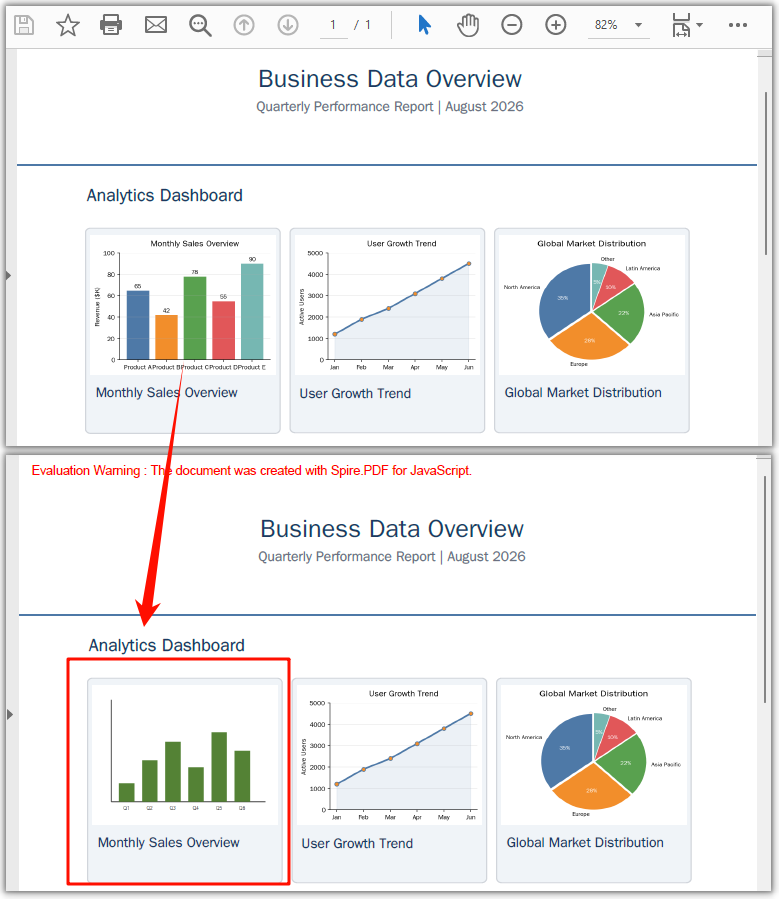
helper.ReplaceImage(images[0], newImage) swaps the content of the image at index 0 for newImage. The swap happens at the same position and with the same dimensions as the original. If the replacement has a different aspect ratio, it is stretched to fit the original placeholder.
Delete an image
Deleting shares the exact same setup as replacing — load the PDF, get the page, call GetImagesInfo. The only difference is the final call: instead of ReplaceImage, you call DeleteImage with the target info object, and the image is removed entirely, leaving its space blank.
// Everything above is identical to the replace example:
// load the PDF, get page 0, create the helper, call GetImagesInfo(page)

// Delete the first image on the page
helper.DeleteImage({ imageInfo: images[0] });
PDF document generated after deleting an image
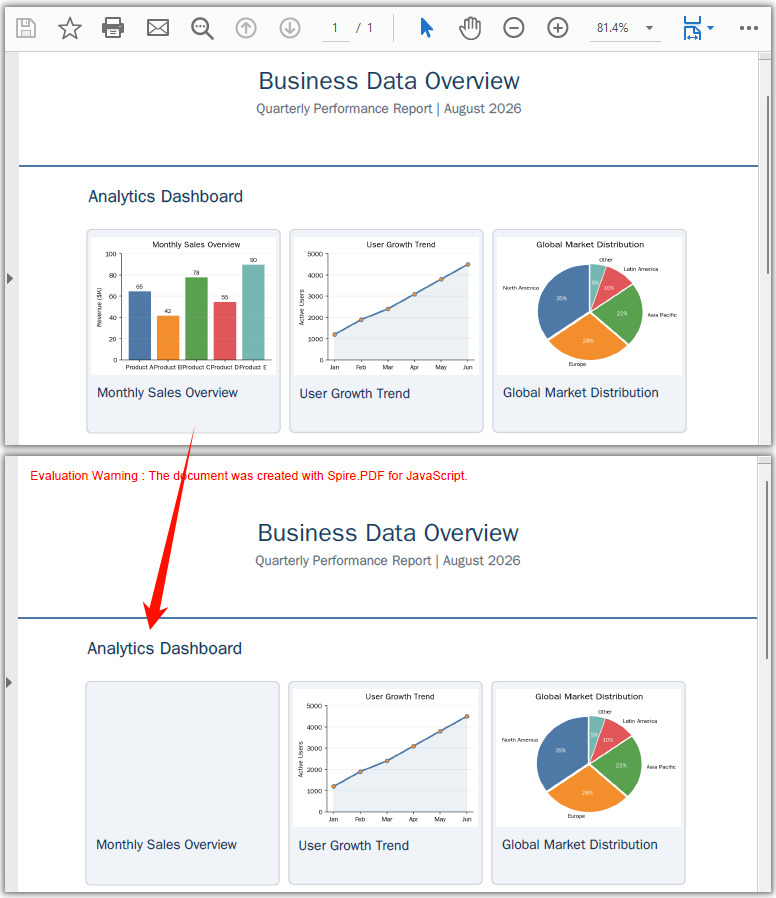
helper.DeleteImage({ imageInfo: images[0] }) removes the image at index 0. The surrounding text, graphics, and layout are untouched — the space it occupied is simply left empty, with no reflow.
Target images by position
When a page holds several images, you may not know which array index is the one you want. The Bounds property tells you where each image sits, and IntersectsWith lets you act on images inside a specific region — handy for clearing a header stamp or swapping a chart that always lands in the same spot.
// Get the image information on the page
let helper = new pdfModule.PdfImageHelper();
let images = helper.GetImagesInfo(page);

// Define the target region (e.g., a stamp area in the bottom-right)
let targetRect = new pdfModule.RectangleF({ x: 400, y: 700, width: 100, height: 80 });

// Iterate through the images and delete those within the target region
for (let i = 0; i < images.length; i++) {
  if (images[i].Bounds.IntersectsWith({ rect: targetRect })) {
    helper.DeleteImage({ imageInfo: images[i] });
    console.log(`Deleted image at position (${images[i].Bounds.X}, ${images[i].Bounds.Y})`);
  }
}
Bounds is a RectangleF with X, Y, Width, and Height, all in points (1 point = 1/72 inch). The origin (0, 0) is the top-left corner of the page.
Batch across all pages
To act on images throughout a multi-page document, loop the Pages collection and run the same logic per page. The example below deletes every image; swap DeleteImage for ReplaceImage to batch-replace instead (load the new image once before the loop).
const batchDeleteAllImages = async () => {
  const pdfModule = window.wasmModule?.spirepdf;
  if (!pdfModule) return;

  await window.spire.FetchFileToVFS('Business_Data_Overview.pdf', "", `${process.env.PUBLIC_URL}/data/`);

  let doc = new pdfModule.PdfDocument();
  doc.LoadFromFile('Business_Data_Overview.pdf');

  let helper = new pdfModule.PdfImageHelper();

  // Loop through all pages
  for (let pageIndex = 0; pageIndex < doc.Pages.Count; pageIndex++) {
    let page = doc.Pages.get_Item(pageIndex);
    let images = helper.GetImagesInfo(page);

    // Delete all images on this page
    for (let i = 0; i < images.length; i++) {
      helper.DeleteImage({ imageInfo: images[i] });
    }
    console.log(`Page ${pageIndex + 1}: deleted ${images.length} image(s)`);
  }

  const outputFileName = 'AllImagesDeleted.pdf';
  doc.SaveToFile({ fileName: outputFileName });
  doc.Close();

  const fileArray = window.dotnetRuntime.Module.FS.readFile(outputFileName);
  const blob = new Blob([fileArray], { type: 'application/pdf' });
  const url = URL.createObjectURL(blob);
  const a = document.createElement('a');
  a.href = url;
  a.download = outputFileName;
  a.click();
  URL.revokeObjectURL(url);
};
FAQ
How do I find the specific image I want to change?
GetImagesInfo returns the images in page order, so images[0], images[1], … give you the first, second, etc. When the order isn't obvious, read each object's Bounds property to see where it sits, and use Bounds.IntersectsWith to match images inside a known region. See Target images by position above.
Does replacing or deleting disturb the rest of the page?
No. Both operations touch only the image object itself. A replacement keeps the original position and placeholder size; a deletion leaves a blank gap. Text, graphics, and layout are unaffected, and the document is never reflowed.
Can I replace an image with one that has a different aspect ratio?
Yes — ReplaceImage stretches the new image to fill the original placeholder. If you need to preserve the new image's proportions, delete the old one and add the replacement with DrawImage at the exact size you want. See How to Add Images to a PDF in JavaScript (React).
How do I strip every image from a document?
Loop doc.Pages.Count, call GetImagesInfo per page, and DeleteImage on each entry — the Batch across all pages example shows the full code.
See Also
Extract Images from a PDF in JavaScript (React)
Table of Contents
You received a 40-page report and need the eight charts inside it for a slide deck, or you want to pull product photos out of a supplier's catalog. The catch: a PDF stores images in an internal stream format that the browser's built-in APIs can't read, so there is no "right-click, save image" path.
Spire.PDF for JavaScript reads those streams for you through its PdfImageHelper class. GetImagesInfo retrieves every image object on a page, and each one's Image.Save method writes it out as a standalone file. Everything runs in the browser via WebAssembly — the PDF never leaves the device and there's no server or external tool involved.
In this article you will learn how to:
- Retrieve image objects from a PDF page with
GetImagesInfo - Save each one to the VFS and trigger a download
- Walk every page in a multi-page document
- Apply a consistent naming scheme to the extracted files
- Use the extracted images directly inside your React UI
Prerequisites
This walkthrough assumes you have a React project with Spire.PDF for JavaScript installed and the WASM module initialized. For setup instructions, see Integrating Spire.PDF for JavaScript in a React Project.
You will need:
- A PDF that contains images, loaded into the VFS
- The WASM module reachable via
window.wasmModule.spirepdf
Extract images from a single page
The basic extraction workflow retrieves all images from one page, saves each to the VFS, and triggers a download:
- Load the PDF into the VFS and open it with
PdfDocument - Get the target page from the document
- Call
GetImagesInfoto retrieve an array of image info objects - Loop through the array, calling
images[i].Image.Save()to write each image to the VFS - Read from VFS and trigger a browser download for each extracted image
function App() {
  const extractImagesFromPdf = async () => {
    // Get the Spire.PDF WASM module
    const pdfModule = window.wasmModule?.spirepdf;

    // Check if the WASM module is ready
    if (!pdfModule) {
      alert('Spire.PDF is not ready yet');
      return;
    }

    // Load the PDF file into VFS
    const inputFileName = 'Business_Data_Overview.pdf';
    await window.spire.FetchFileToVFS(inputFileName, "", `${process.env.PUBLIC_URL}/data/`);

    // Create a PdfDocument object and load the PDF document
    let doc = new pdfModule.PdfDocument();
    doc.LoadFromFile(inputFileName);

    // Get the first page
    let page = doc.Pages.get_Item(0);

    // Create a PdfImageHelper object and get the image information on the first page
    let helper = new pdfModule.PdfImageHelper();
    let images = helper.GetImagesInfo(page);

    // Iterate through the images on the page, save each as a separate image file, and trigger download
    for (let i = 0; i < images.length; i++) {
      const outputFileName = `ExtractedImage_${i + 1}.png`;
      images[i].Image.Save({ fileName: outputFileName });

      // Read the extracted image file from VFS and trigger download
      const fileArray = window.dotnetRuntime.Module.FS.readFile(outputFileName);
      const blob = new Blob([fileArray], { type: 'image/png' });
      const url = URL.createObjectURL(blob);
      const a = document.createElement('a');
      a.href = url;
      a.download = outputFileName;
      a.click();
      URL.revokeObjectURL(url);
    }

    doc.Close();
  };

  return (
    <div style={{ textAlign: 'center', height: '300px' }}>
      <h1>Extract Images From PDF</h1>
      <button onClick={extractImagesFromPdf}>
        Generate
      </button>
    </div>
  );
}

export default App;
Image files extracted from the PDF
What the code does:
helper.GetImagesInfo(page)returns an array of image info objects for the specified page. Each object has anImageproperty that provides access to the image data.images[i].Image.Save({ fileName: outputFileName })writes the image to the VFS as a PNG file.- The VFS read + Blob + download pattern is the same used for PDF output, but with
type: 'image/png'instead oftype: 'application/pdf'. - Extraction is a read-only operation — the original PDF document is not modified. If you want to change or remove an image in place instead of just reading it out, see Replacing and Removing Images from PDFs in JavaScript (React).
Extract images from all pages
The example above only extracts from the first page. For a multi-page document like a product catalog or annual report, you typically want all images from every page. Simply add an outer loop through the document's pages:
const extractAllImages = async () => {
  const pdfModule = window.wasmModule?.spirepdf;
  if (!pdfModule) return;

  await window.spire.FetchFileToVFS('Business_Data_Overview.pdf', "", `${process.env.PUBLIC_URL}/data/`);

  let doc = new pdfModule.PdfDocument();
  doc.LoadFromFile('Business_Data_Overview.pdf');

  let helper = new pdfModule.PdfImageHelper();
  let imageCount = 0;

  // Loop through all pages in the document
  for (let pageIndex = 0; pageIndex < doc.Pages.Count; pageIndex++) {
    let page = doc.Pages.get_Item(pageIndex);
    let images = helper.GetImagesInfo(page);

    // Extract each image on this page
    for (let i = 0; i < images.length; i++) {
      imageCount++;
      const outputFileName = `Page${pageIndex + 1}_Image${i + 1}.png`;
      images[i].Image.Save({ fileName: outputFileName });

      const fileArray = window.dotnetRuntime.Module.FS.readFile(outputFileName);
      const blob = new Blob([fileArray], { type: 'image/png' });
      const url = URL.createObjectURL(blob);
      const a = document.createElement('a');
      a.href = url;
      a.download = outputFileName;
      a.click();
      URL.revokeObjectURL(url);
    }
  }

  console.log(`Total images extracted: ${imageCount}`);
  doc.Close();
};
Key difference from the single-page example: the outer for loop iterates through doc.Pages.Count, and the filename includes both the page number and image index (Page1_Image1.png, Page1_Image2.png, Page2_Image1.png, etc.) to keep extracted files organized.
Naming extracted files
A consistent naming strategy helps you track which image came from which page and position. Here are common patterns:
Sequential numbering — simplest, good for single-page extraction:
const outputFileName = `ExtractedImage_${i + 1}.png`;
// ExtractedImage_1.png, ExtractedImage_2.png, ...
Page and index — best for multi-page extraction, preserves source location:
const outputFileName = `Page${pageIndex + 1}_Image${i + 1}.png`;
// Page1_Image1.png, Page1_Image2.png, Page2_Image1.png, ...
Timestamped — useful when extracting from multiple documents in a session:
const timestamp = Date.now();
const outputFileName = `Extracted_${timestamp}_Page${pageIndex + 1}_${i + 1}.png`;
Based on source document name — helps track the origin:
const sourceName = 'Business_Data_Overview';
const outputFileName = `${sourceName}_p${pageIndex + 1}_img${i + 1}.png`;
// Business_Data_Overview_p1_img1.png, ...
Working with extracted images
Instead of (or in addition to) triggering downloads, you can use the extracted image data directly in your React application. For example, display the extracted images in a gallery:
const extractAndDisplay = async () => {
  const pdfModule = window.wasmModule?.spirepdf;
  if (!pdfModule) return;

  await window.spire.FetchFileToVFS('Business_Data_Overview.pdf', "", `${process.env.PUBLIC_URL}/data/`);

  let doc = new pdfModule.PdfDocument();
  doc.LoadFromFile('Business_Data_Overview.pdf');

  let helper = new pdfModule.PdfImageHelper();
  let extractedImageUrls = [];

  for (let pageIndex = 0; pageIndex < doc.Pages.Count; pageIndex++) {
    let page = doc.Pages.get_Item(pageIndex);
    let images = helper.GetImagesInfo(page);

    for (let i = 0; i < images.length; i++) {
      const tempName = `temp_p${pageIndex + 1}_${i + 1}.png`;
      images[i].Image.Save({ fileName: tempName });

      const fileArray = window.dotnetRuntime.Module.FS.readFile(tempName);
      const blob = new Blob([fileArray], { type: 'image/png' });
      const url = URL.createObjectURL(blob);
      extractedImageUrls.push(url);
    }
  }

  doc.Close();

  // Now you have an array of object URLs you can use in <img> tags
  // setExtractedImages(extractedImageUrls); // if using state
  console.log(`Extracted ${extractedImageUrls.length} images ready for display`);
};
This approach gives you object URLs that can be used directly in <img src={url} /> elements, making it easy to build a preview gallery, let users select specific images, or pass the images to other parts of your application. Once you have the image data, the drawing logic for adding it to a PDF is a natural next step.
Note: Remember to call
URL.revokeObjectURL(url)for each object URL when you're done with it to free memory. If you're displaying images in a gallery, revoke the URLs when the gallery component unmounts.
FAQ
Will extracting images modify the original PDF?
No. Image extraction is a read-only operation. GetImagesInfo reads the image data from the PDF without modifying the document, and Image.Save writes a copy to the VFS. The original PDF remains unchanged.
What format are extracted images saved in?
The examples in this article save extracted images as PNG files (.png). The file extension you pass to Image.Save determines the output format, so you can choose a different one if your use case calls for it.
How do I extract images from a specific page range?
Instead of looping through all pages with doc.Pages.Count, loop through your desired range. For example, to extract from pages 3 through 5 (0-indexed: 2 through 4):
for (let pageIndex = 2; pageIndex <= 4 && pageIndex < doc.Pages.Count; pageIndex++) {
  let page = doc.Pages.get_Item(pageIndex);
  let images = helper.GetImagesInfo(page);
  // ... save and download each image
}
Can I extract images and display them in my React app without downloading?
Yes. Instead of creating a download link, create an object URL with URL.createObjectURL(blob) and use it as the src of an <img> element. See the Working with extracted images section above for a code example.
What if a page has no images?
GetImagesInfo returns an empty array for pages with no images. The for loop simply doesn't execute, so no files are generated and no errors are thrown. This is safe to run on any page.
See Also
Transforme Documentos em Apresentações PowerPoint com IA em C#
Índice

Transformar documentos em apresentações do PowerPoint com IA em C# é mais do que conversão de formato. Um relatório de 30 páginas se tornar um deck de 10 slides significa que alguém leu o documento inteiro, decidiu quais 90% deixar de fora, reorganizou o que restou em uma narrativa e aplicou design visual. Isso é síntese editorial — a parte que as bibliotecas tradicionais do PowerPoint não fazem.
A parte interessante é o que é sintetizado. Em fluxos de trabalho reais, a fonte raramente é um único arquivo. Uma revisão trimestral de negócios extrai números de uma pasta de trabalho do Excel, a narrativa de um relatório do Word e uma fatura assinada de um PDF. O valor de um agente de documentos com IA não é "converter um .docx em .pptx" — é "ler os três e me dar um deck que conte a história entre eles." Este artigo mostra a maneira mais simples de fazer exatamente isso com o Spire.Agent.Office em C#: entregue ao agente todos os documentos mais uma instrução, e deixe-o gerar o deck em uma única chamada.
1. Uma Instrução, Muitas Fontes
O código tradicional do Spire.Office trata cada formato como uma ilha. Para construir um deck a partir de um relatório do Word mais uma planilha do Excel, você precisaria:
- Usar o
Spire.Docpara abrir o.docxe extrair o texto desejado. - Usar o
Spire.XLSpara ler a pasta de trabalho e calcular os números. - Usar o
Spire.Pdfse a fonte for um PDF. - Usar o
Spire.Presentationpara criar os slides um a um, posicionar cada caixa de texto e gráfico e calcular os layouts manualmente.
Isso são quatro superfícies de API, um analisador por formato e um motor de layout manual. No momento em que a estrutura de um documento muda, o código quebra.
O Spire.Agent.Office reduz tudo isso a uma única instrução. Você entrega ao agente todos os seus arquivos de origem e diz a ele qual história o deck deve contar. O agente lê cada formato, decide o que importa entre eles e produz os slides — sem código de layout manual.
O modelo mental é uma única etapa:
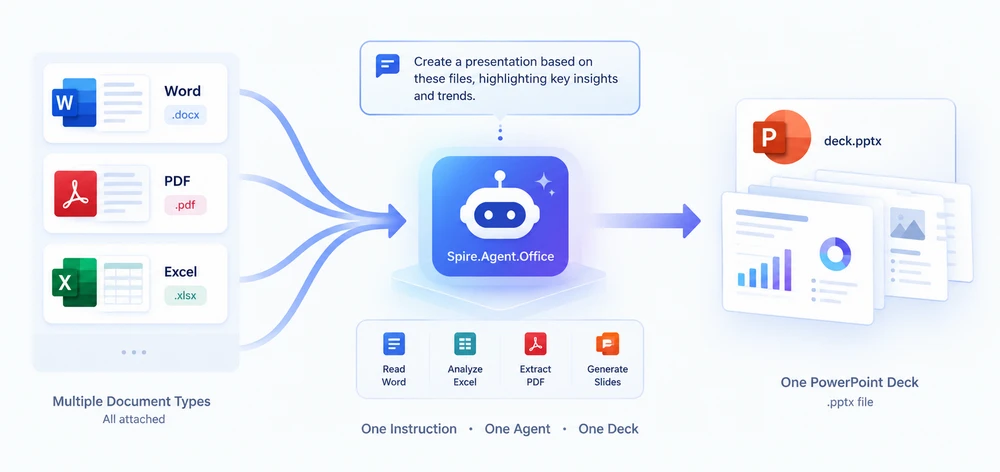
Em vez de escrever um analisador por formato, você deixa o agente ler cada arquivo e gerar o deck diretamente. Uma chamada, uma string de instrução, um arquivo .pptx.
2. O Que Você Precisa
- .NET 6+ (o exemplo tem como alvo
net10.0). - O pacote NuGet
Spire.Agent.Office. Ele traz transitivamente oSpire.Doc, oSpire.Pdf, oSpire.XLSe oSpire.Presentation, portanto você não precisa instalá-los separadamente. - Um
SpireToken(chave de API do Spire.Agent.Office). O agente se comunica com o serviço de IA, então um token válido é necessário para a geração de fato. - Importações de namespace:
using Spire.Agent.Office.AI;        // AIOptions, AIDocumentProcessor, AIResult
using Spire.Agent.Office.Extensions;// presentation.AI(...) extension
using Spire.Presentation;           // Presentation
3. A Receita Simples: Uma Chamada, Um Deck
A ideia central é de uma simplicidade radical: passe cada documento de origem como anexo, escreva uma instrução em linguagem natural e deixe o agente fazer tudo — leitura, compreensão, síntese, layout — em uma única chamada ExecuteInstruction.
string[] sources = new[]
{
    Path.Combine(sampleDir, "AI-Powered Document Processing Report.docx"),
    Path.Combine(sampleDir, "purchase-orders.xlsx"),
    Path.Combine(sampleDir, "invoice_INV-2026-0815.pdf")
};

string instruction =
    "Create a concise Q3 business review summary from the provided documents. " +
    "1. Use a clean blue theme; " +
    "2. Summarize business review, project status, customer pilot research, and platform performance; " +
    "3. Keep each slide focused on one key finding or metric; " +
    "4. Generate 5 slides.";

AIResult result = processor.ExecuteInstruction(
    ppt, instruction, savePath, sources,
    autonomousOutput: true, maxTurns: null);
Essa é a receita inteira: uma chamada de método, uma string de instrução. Sem analisadores por formato, sem arquivos intermediários, sem código de layout manual. O agente lê cada formato, decide o que importa entre eles e grava o deck diretamente em savePath.
O sinalizador autonomousOutput: true é o que faz isso funcionar — ele diz ao agente que ele pode gravar arquivos (incluindo o .pptx final) sem pedir confirmação a cada etapa. Defina maxTurns como null (ou um número grande) para que o agente tenha turnos suficientes para terminar.
4. Exemplo Completo: Um Deck a Partir de Word + PDF + Excel
Aqui está o programa completo. Aponte-o para um arquivo ou uma pasta, e ele constrói o deck em uma única chamada de IA:
using System;
using System.IO;
using System.Linq;
using Spire.Agent.Office.AI;
using Spire.Agent.Office.Extensions;
using Spire.Presentation;

class Program
{
    static void Main()
    {
        string instruction =
            "Create a concise Q3 business review summary from the provided documents. " +
            "1. Use a clean blue theme; " +
            "2. Summarize business review, project status, customer pilot research, and platform performance; " +
            "3. Keep each slide focused on one key finding or metric; " +
            "4. Generate 5 slides.";

        AIOptions options = new AIOptions { SpireToken = "sk-YourSpireToken", TimeoutMs = 1000000 };

        using (Presentation ppt = new Presentation())
        {
            AIResult result = ppt.AI(options).ExecuteInstruction(
                ppt, instruction, @"C:\Samples\Q3_Review.pptx", ResolveInputs(@"C:\Samples"),
                autonomousOutput: true, maxTurns: null);

            Console.WriteLine(result.Success ? "Success" : $"Error={result.ErrorMessage}");
        }
    }

    // Point at a file or a folder; a folder is filtered to supported document formats.
    static string[] ResolveInputs(string path) =>
        File.Exists(path) ? new[] { path }
        : Directory.GetFiles(path).Where(IsSupported).OrderBy(f => f).ToArray();

    static bool IsSupported(string file) =>
        new[] { ".doc", ".docx", ".xls", ".xlsx", ".ppt", ".pptx", ".pdf", ".txt", ".md" }
            .Contains(Path.GetExtension(file).ToLowerInvariant());
}
Esse é o programa inteiro. Além da própria chamada ao Agent, o único código é ResolveInputs, que apenas decide quais arquivos anexar: ele nunca lê nem analisa um documento. A instrução é a única parte que descreve o design (tema, número de slides, foco); a leitura, a decisão e o layout são tarefa do agente.
Uma chamada, cinco slides — o deck que o programa acima produz:

5. Como Funciona nos Bastidores
AIDocumentProcessoré obtido de umPresentationpor meio deppt.AI(options). O objetoPresentationé a tela na qual o agente desenha os slides.AIOptionscarrega a configuração:SpireToken(sua chave) eTimeoutMs(defina um valor grande para documentos reais — a análise de IA de documentos extensos leva tempo).ExecuteInstructionexecuta o agente. Você passa oPresentation, umainstructionem linguagem natural, osavePathpara o.pptxde saída e umstring[]de caminhos de arquivos de origem (qualquer combinação de Word, PDF, Excel, Markdown). ComautonomousOutput: true, o agente pode gravar arquivos — incluindo o deck final — sem pedir confirmação. Ele retorna umAIResultcomSuccess,ErrorMessageeOutputFiles(tudo o que o agente criou).maxTurnscontrola quantas etapas do agente são permitidas. Defina comonullpara nenhum limite, ou um número grande (por exemplo,80) para grandes conjuntos de documentos.GeneratePresentation(sourcePath, instruction, savePath)é o atalho dedicado quando você tem exatamente um documento de origem. Ele retorna umPPTGenerationResult(Success,GeneratedPages,TotalPages,OutputPath,ErrorMessage) em vez de umAIResult. SeusourcePathé um único arquivo, e é exatamente por isso que este artigo usa o caminho de múltiplos anexos doExecuteInstruction: é isso que permite que um deck se baseie em várias fontes em uma única chamada.
Por que não mesclar em Markdown primeiro? Você pode — veja a Variante B na Seção 6. Mas, para a maioria dos casos de uso, a abordagem de chamada única é mais simples, mais rápida e produz o mesmo resultado. O Markdown intermediário só é útil quando você quer inspecionar ou editar o conteúdo consolidado antes de gastar tokens com o deck.
6. Controle Preciso
A receita acima é deliberadamente mínima. Quando você precisa de mais controle, estas variações se baseiam na mesma chamada ExecuteInstruction.
Ajuste a instrução. A estrutura, o comprimento, o tema e os gráficos do deck são todos controlados pela string de instrução. Seja explícito:
// e.g. ask for a specific page count, theme, and a chart on a given slide
"Create a 12-slide deck. Light minimalist theme, accent colour #2E5AAC. " +
"Include a bar chart of monthly revenue on slide 5. Keep each slide to one key message.";
Variante A — resuma cada fonte você mesmo (mais previsível). Se você preferir instruir cada documento individualmente em vez de confiar em uma única instrução entre documentos, faça um loop com SummarizeDocument, que retorna o resumo do agente de um único arquivo como uma string:
var sb = new StringBuilder();
foreach (var file in sources)
    sb.AppendLine($"## {Path.GetFileName(file)}\n\n{processor.SummarizeDocument(file)}");
File.WriteAllText(Path.Combine(workDir, "consolidated.md"), sb.ToString());
Em seguida, passe o Markdown consolidado para ExecuteInstruction como a única fonte — você obtém um resumo separado por documento que pode ler e editar antes da geração.
Variante B — consolide em Markdown e depois gere (duas etapas). Para casos em que você quer um arquivo intermediário inspecionável, divida o trabalho em duas chamadas. A Etapa 1 usa ExecuteInstruction em modo autônomo para mesclar todas as fontes em um único arquivo Markdown; a Etapa 2 alimenta esse Markdown novamente no ExecuteInstruction para construir o deck:
// Step 1 — merge all documents into one Markdown file
string consolidateInstruction =
    "Read all the attached files. Merge their content into a SINGLE Markdown " +
    "document named 'output_consolidated.md'. Use one top-level heading per source, " +
    "preserve key facts / figures / tables, and drop boilerplate. Output ONLY that file.";
processor.ExecuteInstruction(ppt, consolidateInstruction,
    Path.Combine(workDir, "output_consolidated.pptx"), sources,
    autonomousOutput: true, maxTurns: 40);

string consolidatedMd = Path.Combine(workDir, "output_consolidated.md");

// Step 2 — generate the deck from the consolidated Markdown
string genInstruction =
    "Create a 9-slide quarterly business review deck from the consolidated material. " +
    "Professional corporate blue, clear hierarchy, speaker notes per slide.";
processor.ExecuteInstruction(ppt, genInstruction,
    Path.Combine(workDir, "QBR_Deck.pptx"), new[] { consolidatedMd },
    autonomousOutput: true, maxTurns: 40);
O trade-off: a Variante B oferece um arquivo Markdown inspecionável entre as duas chamadas, o que é útil para depuração ou quando a consolidação precisa de revisão humana. A receita de chamada única da Seção 3 é o padrão recomendado porque é mais simples e mais rápida.
Você também pode gostar de: Automatize o Processamento de Faturas com um Agente de IA no .NET — outro fluxo de trabalho repleto de documentos que entrega ao agente uma pasta de arquivos e recebe de volta um documento finalizado.
7. Reler e Inspecionar o Resultado
Após a geração, reabra o deck e verifique-o programaticamente:
using (Presentation deck = new Presentation())
{
    deck.LoadFromFile(savePath);
    Console.WriteLine($"Total slides: {deck.Slides.Count}");

    for (int i = 0; i < deck.Slides.Count; i++)
    {
        ISlide slide = deck.Slides[i];
        string title = slide.Title ?? "(no title)";
        Console.WriteLine($"Slide {i + 1}: {title}");
    }
}
É também aqui que se encaixa uma etapa de revisão humana: carregue o deck gerado, verifique os títulos e refine a instrução se algo estiver errado.
8. Perguntas Frequentes
O deck gerado tem o número errado de slides.
Se uma fonte for grande, a análise pode levar mais tempo do que o tempo limite padrão e o agente para antes de terminar. Defina AIOptions.TimeoutMs com um valor grande (por exemplo, 1000000 para cerca de 17 minutos) e informe um intervalo de páginas na instrução, por exemplo: "Mantenha o deck final com 8 a 12 slides."
O agente não inclui conteúdo de um dos documentos. Documentos complexos podem confundir uma única passagem. Nomeie explicitamente o conteúdo que você deseja na instrução ("inclua os resultados do relatório do Word", "preserve a tabela da planilha do Excel"). Se o problema persistir, tente a abordagem de duas etapas (Variante B na Seção 6) para inspecionar o Markdown consolidado antes da geração.
A chamada falha com "401 Invalid token".
O SpireToken foi rejeitado — confirme se ele é válido, se não expirou e se foi copiado corretamente para AIOptions.SpireToken.
Como faço para passar vários documentos?
ExecuteInstruction aceita um string[] de caminhos de arquivos como quarto argumento. Passe todos os arquivos de origem — qualquer combinação de .docx, .pdf, .xlsx, .md e outros — e o agente lê todos eles em uma única chamada. Com um único documento de origem, o atalho dedicado é GeneratePresentation(sourcePath, instruction, savePath); a chamada com múltiplos anexos acima é o que torna possível criar um deck a partir de várias fontes.
Obtenha Sua Chave SpireToken Entre em contato conosco para solicitar uma chave de API de avaliação ou comercial, ou solicite uma licença temporária. Configure-a no código:
AIOptions options = new AIOptions();
options.SpireToken = "sk-YourSpireToken";
options.TimeoutMs  = 1000000;
Veja Também
- Visão geral do produto Spire.Agent.Office — o SDK de agente de IA para Word, Excel, PowerPoint e PDF
- Introdução ao Spire.Agent.Office — instale o SDK e execute sua primeira instrução
- Gerar PPT a partir de Documentos — o tutorial oficial da API de apresentação usada neste artigo
- Geração em Lote de Contratos com Spire.Agent.Office — o mesmo padrão orientado por instruções aplicado à geração de documentos em massa
C#에서 AI로 문서를 PowerPoint 프레젠테이션으로 변환
AI를 사용해 C#에서 문서를 PowerPoint 프레젠테이션으로 변환하는 것은 단순한 형식 변환 그 이상입니다. 30페이지 보고서가 10장 슬라이드 덱이 된다는 것은 누군가 전체 문서를 읽고, 어떤 90%를 생략할지 결정하고, 남은 내용을 하나의 내러티브로 재구성하고, 시각 디자인을 적용했다는 뜻입니다. 이것이 바로 편집적 종합입니다 — 기존 PowerPoint 라이브러리가 하지 않는 부분입니다.
흥미로운 점은 무엇이 종합되는가입니다. 실제 워크플로에서 소스가 단일 파일인 경우는 드뭅니다. 분기별 비즈니스 리뷰는 Excel 통합 문서에서 숫자를, Word 보고서에서 서술을, PDF에서 서명된 인보이스를 가져옵니다. AI 문서 에이전트의 가치는 "하나의 .docx를 .pptx로 변환"하는 것이 아니라 "세 가지를 모두 읽고, 그 모두를 아우르는 하나의 덱을 만들어라"입니다. 이 글에서는 C#에서 Spire.Agent.Office로 이를 수행하는 가장 간단한 방법을 보여줍니다: 에이전트에 모든 문서와 하나의 지시를 전달하면 한 번의 호출로 덱을 생성합니다.
1. 하나의 지시, 여러 소스
기존 Spire.Office 코드는 각 형식을 섬처럼 다룹니다. Word 보고서와 Excel 시트로 덱을 만들려면 다음과 같이 해야 합니다:
Spire.Doc을 사용하여.docx를 열고 원하는 텍스트를 추출합니다.Spire.XLS를 사용하여 통합 문서를 읽고 수치를 계산합니다.- 소스가 PDF인 경우
Spire.Pdf를 사용합니다. Spire.Presentation을 사용하여 슬라이드를 하나씩 만들고, 모든 텍스트 상자와 차트의 위치를 지정하고, 레이아웃을 수동으로 계산합니다.
이는 네 개의 API 표면, 형식별 파서, 수동 레이아웃 엔진을 의미합니다. 문서 구조가 바뀌는 순간 코드가 깨집니다.
Spire.Agent.Office는 이를 하나의 지시로 축소합니다. 에이전트에 모든 소스 파일을 전달하고 덱이 어떤 이야기를 전해야 하는지 알려주기만 하면 됩니다. 에이전트는 각 형식을 읽고, 그들 사이에서 중요한 것이 무엇인지 판단하고, 슬라이드를 생성합니다 — 수동 레이아웃 코드가 없습니다.
멘탈 모델은 단일 단계입니다:
형식별 파서를 작성하는 대신, 에이전트가 모든 파일을 읽고 덱을 직접 생성하도록 합니다. 한 번의 호출, 하나의 지시 문자열, 하나의 .pptx 파일.
2. 필요한 항목
- .NET 6+ (샘플은
net10.0을 대상으로 합니다). Spire.Agent.OfficeNuGet 패키지. 이 패키지는Spire.Doc,Spire.Pdf,Spire.XLS,Spire.Presentation을 전이적으로 가져오므로 별도로 설치할 필요가 없습니다.SpireToken(Spire.Agent.Office API 키). 에이전트가 AI 서비스와 통신하므로 실제 생성에는 유효한 토큰이 필요합니다.- 네임스페이스 가져오기:
using Spire.Agent.Office.AI;        // AIOptions, AIDocumentProcessor, AIResult
using Spire.Agent.Office.Extensions;// presentation.AI(...) extension
using Spire.Presentation;           // Presentation
3. 간단한 방법: 한 번의 호출, 하나의 덱
핵심 아이디어는 근본적인 단순함입니다: 모든 소스 문서를 첨부 파일로 전달하고, 하나의 자연어 지시를 작성하면 에이전트가 읽기, 이해, 종합, 레이아웃 등 모든 작업을 단일 ExecuteInstruction 호출에서 수행합니다.
string[] sources = new[]
{
    Path.Combine(sampleDir, "AI-Powered Document Processing Report.docx"),
    Path.Combine(sampleDir, "purchase-orders.xlsx"),
    Path.Combine(sampleDir, "invoice_INV-2026-0815.pdf")
};

string instruction =
    "Create a concise Q3 business review summary from the provided documents. " +
    "1. Use a clean blue theme; " +
    "2. Summarize business review, project status, customer pilot research, and platform performance; " +
    "3. Keep each slide focused on one key finding or metric; " +
    "4. Generate 5 slides.";

AIResult result = processor.ExecuteInstruction(
    ppt, instruction, savePath, sources,
    autonomousOutput: true, maxTurns: null);
이것이 전부입니다: 하나의 메서드 호출, 하나의 지시 문자열. 형식별 파서도, 중간 파일도, 수동 레이아웃 코드도 없습니다. 에이전트는 각 형식을 읽고, 그들 사이에서 중요한 것을 판단하고, 덱을 savePath에 직접 작성합니다.
autonomousOutput: true 플래그가 이 작업을 가능하게 합니다 — 각 단계에서 확인을 요청하지 않고 파일(최종 .pptx 포함)을 작성할 수 있음을 에이전트에 알려줍니다. maxTurns는 null(또는 큰 숫자)로 설정하여 에이전트가 작업을 완료할 충분한 턴을 갖도록 하세요.
4. 전체 예제: Word + PDF + Excel로 하나의 덱 만들기
다음은 전체 프로그램입니다. 파일이나 폴더를 지정하면 단 한 번의 AI 호출로 덱을 만듭니다:
using System;
using System.IO;
using System.Linq;
using Spire.Agent.Office.AI;
using Spire.Agent.Office.Extensions;
using Spire.Presentation;

class Program
{
    static void Main()
    {
        string instruction =
            "Create a concise Q3 business review summary from the provided documents. " +
            "1. Use a clean blue theme; " +
            "2. Summarize business review, project status, customer pilot research, and platform performance; " +
            "3. Keep each slide focused on one key finding or metric; " +
            "4. Generate 5 slides.";

        AIOptions options = new AIOptions { SpireToken = "sk-YourSpireToken", TimeoutMs = 1000000 };

        using (Presentation ppt = new Presentation())
        {
            AIResult result = ppt.AI(options).ExecuteInstruction(
                ppt, instruction, @"C:\Samples\Q3_Review.pptx", ResolveInputs(@"C:\Samples"),
                autonomousOutput: true, maxTurns: null);

            Console.WriteLine(result.Success ? "Success" : $"Error={result.ErrorMessage}");
        }
    }

    // Point at a file or a folder; a folder is filtered to supported document formats.
    static string[] ResolveInputs(string path) =>
        File.Exists(path) ? new[] { path }
        : Directory.GetFiles(path).Where(IsSupported).OrderBy(f => f).ToArray();

    static bool IsSupported(string file) =>
        new[] { ".doc", ".docx", ".xls", ".xlsx", ".ppt", ".pptx", ".pdf", ".txt", ".md" }
            .Contains(Path.GetExtension(file).ToLowerInvariant());
}
이것이 전체 프로그램입니다. 에이전트 호출 자체를 제외하면 유일한 코드는 ResolveInputs이며, 이는 어떤 파일을 첨부할지만 결정합니다: 문서를 읽거나 파싱하지 않습니다. 디자인(테마, 슬라이드 수, 초점)을 설명하는 부분은 지시문뿐이며, 읽기, 판단, 레이아웃은 에이전트의 작업입니다.
한 번의 호출, 다섯 장의 슬라이드 — 위 프로그램이 생성하는 덱:
5. 내부 동작 방식
AIDocumentProcessor는ppt.AI(options)를 통해Presentation에서 가져옵니다.Presentation객체는 에이전트가 슬라이드를 그리는 캔버스입니다.AIOptions는 구성을 담습니다:SpireToken(키)과TimeoutMs(실제 문서에는 크게 설정하세요 — 큰 문서의 AI 분석에는 시간이 걸립니다).ExecuteInstruction은 에이전트를 실행합니다.Presentation, 자연어instruction, 출력.pptx의savePath, 그리고 소스 파일 경로의string[](Word, PDF, Excel, Markdown의 임의 조합)을 전달합니다.autonomousOutput: true이면 에이전트는 확인을 요청하지 않고 파일(최종 덱 포함)을 작성할 수 있습니다.Success,ErrorMessage,OutputFiles(에이전트가 생성한 모든 것)를 포함한AIResult를 반환합니다.maxTurns는 허용되는 에이전트 단계 수를 제어합니다. 제한 없음을 원하면null로, 큰 문서 집합에는 큰 숫자(예:80)로 설정하세요.GeneratePresentation(sourcePath, instruction, savePath)는 소스 문서가 정확히 하나일 때 사용하는 전용 단축 방법입니다.AIResult대신PPTGenerationResult(Success,GeneratedPages,TotalPages,OutputPath,ErrorMessage)를 반환합니다.sourcePath는 단일 파일이며, 이 글에서 다중 첨부ExecuteInstruction경로를 사용하는 이유가 바로 이것입니다: 한 번의 호출로 하나의 덱이 여러 소스를 활용할 수 있게 해줍니다.
먼저 Markdown으로 병합하면 안 될까요? 그렇게 할 수도 있습니다 — 섹션 6의 변형 B를 참조하세요. 하지만 대부분의 사용 사례에서는 단일 호출 방식이 더 간단하고 빠르며 동일한 결과를 생성합니다. 중간 Markdown은 덱에 토큰을 소비하기 전에 통합된 콘텐츠를 검사하거나 편집하려는 경우에만 유용합니다.
6. 정밀한 제어
위의 방법은 의도적으로 최소화되어 있습니다. 더 많은 제어가 필요할 때, 다음 변형들은 동일한 ExecuteInstruction 호출을 기반으로 합니다.
지시문을 조정하세요. 덱의 구조, 길이, 테마, 차트는 모두 지시 문자열로 제어됩니다. 명확하게 작성하세요:
// e.g. ask for a specific page count, theme, and a chart on a given slide
"Create a 12-slide deck. Light minimalist theme, accent colour #2E5AAC. " +
"Include a bar chart of monthly revenue on slide 5. Keep each slide to one key message.";
변형 A — 각 소스를 직접 요약하기(더 예측 가능). 각 문서를 개별적으로 프롬프트하는 편이 하나의 교차 문서 지시를 신뢰하는 것보다 낫다면, 단일 파일에 대한 에이전트의 요약을 string으로 반환하는 SummarizeDocument를 반복 호출하세요:
var sb = new StringBuilder();
foreach (var file in sources)
    sb.AppendLine($"## {Path.GetFileName(file)}\n\n{processor.SummarizeDocument(file)}");
File.WriteAllText(Path.Combine(workDir, "consolidated.md"), sb.ToString());
그런 다음 통합된 Markdown을 유일한 소스로 ExecuteInstruction에 전달하세요 — 생성 전에 읽고 편집할 수 있는 문서별 개별 요약을 얻습니다.
변형 B — Markdown으로 통합한 후 생성(2단계). 검사 가능한 중간 파일이 필요한 경우 작업을 두 번의 호출로 나눕니다. 1단계에서는 자율 모드의 ExecuteInstruction을 사용하여 모든 소스를 하나의 Markdown 파일로 병합하고, 2단계에서는 해당 Markdown을 다시 ExecuteInstruction에 전달하여 덱을 만듭니다:
// Step 1 — merge all documents into one Markdown file
string consolidateInstruction =
    "Read all the attached files. Merge their content into a SINGLE Markdown " +
    "document named 'output_consolidated.md'. Use one top-level heading per source, " +
    "preserve key facts / figures / tables, and drop boilerplate. Output ONLY that file.";
processor.ExecuteInstruction(ppt, consolidateInstruction,
    Path.Combine(workDir, "output_consolidated.pptx"), sources,
    autonomousOutput: true, maxTurns: 40);

string consolidatedMd = Path.Combine(workDir, "output_consolidated.md");

// Step 2 — generate the deck from the consolidated Markdown
string genInstruction =
    "Create a 9-slide quarterly business review deck from the consolidated material. " +
    "Professional corporate blue, clear hierarchy, speaker notes per slide.";
processor.ExecuteInstruction(ppt, genInstruction,
    Path.Combine(workDir, "QBR_Deck.pptx"), new[] { consolidatedMd },
    autonomousOutput: true, maxTurns: 40);
트레이드오프: 변형 B는 두 호출 사이에 검사 가능한 Markdown 파일을 제공하므로 디버깅이나 통합에 사람의 검토가 필요할 때 유용합니다. 섹션 3의 단일 호출 방법이 더 간단하고 빠르기 때문에 권장 기본값입니다.
다음도 참고하세요: .NET에서 AI 에이전트로 인보이스 처리 자동화하기 — 에이전트에 파일 폴더를 전달하고 완성된 문서를 받는 또 다른 문서 중심 워크플로입니다.
7. 결과 다시 읽고 검사하기
생성 후 덱을 다시 열고 프로그래밍 방식으로 확인하세요:
using (Presentation deck = new Presentation())
{
    deck.LoadFromFile(savePath);
    Console.WriteLine($"Total slides: {deck.Slides.Count}");

    for (int i = 0; i < deck.Slides.Count; i++)
    {
        ISlide slide = deck.Slides[i];
        string title = slide.Title ?? "(no title)";
        Console.WriteLine($"Slide {i + 1}: {title}");
    }
}
여기에 사람의 검토 단계도 들어갑니다: 생성된 덱을 로드하고, 제목을 확인하고, 문제가 있으면 지시문을 다듬으세요.
8. 자주 묻는 질문
생성된 덱의 슬라이드 수가 잘못되었습니다.
소스가 크면 분석이 기본 타임아웃보다 오래 걸려 에이전트가 조기에 중단될 수 있습니다. AIOptions.TimeoutMs를 큰 값(예: 약 17분에 해당하는 1000000)으로 설정하고, 지시문에 페이지 범위를 명시하세요(예: "최종 덱을 8–12장으로 유지하세요").
에이전트가 문서 중 하나의 내용을 포함하지 않습니다. 복잡한 문서는 한 번의 처리로 혼란을 줄 수 있습니다. 원하는 콘텐츠를 지시문에 명시하세요("Word 보고서의 결과를 포함하세요", "Excel 시트의 표를 보존하세요"). 문제가 지속되면 2단계 접근법(섹션 6의 변형 B)으로 생성 전에 통합 Markdown을 검사해 보세요.
호출이 "401 Invalid token"으로 실패합니다.
SpireToken이 거부되었습니다 — 유효하고 만료되지 않았으며 AIOptions.SpireToken에 올바르게 복사되었는지 확인하세요.
여러 문서를 어떻게 전달하나요?
ExecuteInstruction은 네 번째 인수로 파일 경로의 string[]을 받습니다. 모든 소스 파일 — .docx, .pdf, .xlsx, .md 등의 임의 조합 — 을 전달하면 에이전트가 한 번의 호출로 모두 읽습니다. 소스 문서가 하나인 경우 전용 단축 방법은 GeneratePresentation(sourcePath, instruction, savePath)이며, 위의 다중 첨부 호출이 여러 소스로 하나의 덱을 만들 수 있게 해줍니다.
SpireToken 키 받기 평가판 또는 상용 API 키를 요청하려면 문의하세요, 또는 임시 라이선스를 신청하세요. 코드에서 구성하세요:
AIOptions options = new AIOptions();
options.SpireToken = "sk-YourSpireToken";
options.TimeoutMs  = 1000000;
함께 보기
- Spire.Agent.Office 제품 개요 — Word, Excel, PowerPoint, PDF용 AI 에이전트 SDK
- Spire.Agent.Office 시작하기 — SDK 설치 및 첫 지시 실행
- 문서에서 PPT 생성하기 — 이 글에서 사용한 프레젠테이션 API의 공식 튜토리얼
- Spire.Agent.Office로 계약서 일괄 생성 — 대량 문서 생성에 적용된 동일한 지시 기반 패턴
Trasforma i documenti in presentazioni PowerPoint con l'IA in C#
Indice dei contenuti
Trasformare documenti in presentazioni PowerPoint con l'AI in C# è più di una semplice conversione di formato. Un report di 30 pagine che diventa una presentazione di 10 diapositive significa che qualcuno ha letto l'intero documento, ha deciso quale 90% escludere, ha riorganizzato ciò che rimaneva in una narrazione e ha applicato un design visivo. Questa è sintesi editoriale — la parte che le librerie PowerPoint tradizionali non fanno.
La parte interessante è cosa viene sintetizzato. Nei flussi di lavoro reali la fonte raramente è un singolo file. Una revisione aziendale trimestrale attinge numeri da un file Excel, la narrazione da un report Word e una fattura firmata da un PDF. Il valore di un agente documentale AI non è "convertire un .docx in .pptx" — è "leggi tutti e tre e dammi una presentazione che racconti la storia attraverso di essi." Questo articolo mostra il modo più semplice per farlo esattamente con Spire.Agent.Office in C#: consegna all'agente ogni documento più una istruzione, e lascia che generi la presentazione in una singola chiamata.
1. Una sola istruzione, molte fonti
Il codice tradizionale di Spire.Office tratta ogni formato come un'isola. Per costruire una presentazione da un report Word più un foglio Excel dovresti:
- Usare
Spire.Docper aprire il.docxed estrarre il testo che desideri. - Usare
Spire.XLSper leggere il workbook e calcolare i valori. - Usare
Spire.Pdfse una fonte è un PDF. - Usare
Spire.Presentationper creare le diapositive una per una, posizionare ogni casella di testo e grafico, e calcolare i layout manualmente.
Sono quattro superfici API, un parser per formato e un motore di layout manuale. Nel momento in cui la struttura di un documento cambia, il codice si rompe.
Spire.Agent.Office riduce tutto ciò a una singola istruzione. Consegni all'agente tutti i tuoi file di origine e gli dici quale storia deve raccontare la presentazione. L'agente legge ogni formato, decide cosa conta tra essi e produce le diapositive — senza codice di layout manuale.
Il modello mentale è un singolo passaggio:
Invece di scrivere un parser per ogni formato, lasci che l'agente legga ogni file e generi la presentazione direttamente. Una chiamata, una stringa di istruzione, un file .pptx.
2. Cosa ti serve
- .NET 6+ (l'esempio ha come target
net10.0). - Il pacchetto NuGet
Spire.Agent.Office. Include transitivamenteSpire.Doc,Spire.Pdf,Spire.XLSeSpire.Presentation, quindi non è necessario installarli separatamente. - Un
SpireToken(chiave API di Spire.Agent.Office). L'agente comunica con il servizio AI, quindi è necessario un token valido per la generazione effettiva. - Import degli spazi dei nomi:
using Spire.Agent.Office.AI;        // AIOptions, AIDocumentProcessor, AIResult
using Spire.Agent.Office.Extensions;// presentation.AI(...) extension
using Spire.Presentation;           // Presentation
3. La ricetta semplice: una chiamata, una presentazione
L'idea centrale è di una semplicità radicale: passa ogni documento di origine come allegato, scrivi una singola istruzione in linguaggio naturale e lascia che l'agente faccia tutto — lettura, comprensione, sintesi, layout — in una sola chiamata a ExecuteInstruction.
string[] sources = new[]
{
    Path.Combine(sampleDir, "AI-Powered Document Processing Report.docx"),
    Path.Combine(sampleDir, "purchase-orders.xlsx"),
    Path.Combine(sampleDir, "invoice_INV-2026-0815.pdf")
};

string instruction =
    "Create a concise Q3 business review summary from the provided documents. " +
    "1. Use a clean blue theme; " +
    "2. Summarize business review, project status, customer pilot research, and platform performance; " +
    "3. Keep each slide focused on one key finding or metric; " +
    "4. Generate 5 slides.";

AIResult result = processor.ExecuteInstruction(
    ppt, instruction, savePath, sources,
    autonomousOutput: true, maxTurns: null);
Questa è l'intera ricetta: una chiamata al metodo, una stringa di istruzione. Nessun parser per formato, nessun file intermedio, nessun codice di layout manuale. L'agente legge ogni formato, decide cosa conta tra essi e scrive la presentazione direttamente in savePath.
Il flag autonomousOutput: true è ciò che rende possibile tutto questo — dice all'agente che può scrivere file (incluso il .pptx finale) senza chiedere conferma a ogni passaggio. Imposta maxTurns su null (o un numero elevato) in modo che l'agente abbia turni sufficienti per terminare.
4. Esempio completo: una presentazione da Word + PDF + Excel
Ecco il programma completo. Puntalo su un file o una cartella, e costruisce la presentazione in una singola chiamata AI:
using System;
using System.IO;
using System.Linq;
using Spire.Agent.Office.AI;
using Spire.Agent.Office.Extensions;
using Spire.Presentation;

class Program
{
    static void Main()
    {
        string instruction =
            "Create a concise Q3 business review summary from the provided documents. " +
            "1. Use a clean blue theme; " +
            "2. Summarize business review, project status, customer pilot research, and platform performance; " +
            "3. Keep each slide focused on one key finding or metric; " +
            "4. Generate 5 slides.";

        AIOptions options = new AIOptions { SpireToken = "sk-YourSpireToken", TimeoutMs = 1000000 };

        using (Presentation ppt = new Presentation())
        {
            AIResult result = ppt.AI(options).ExecuteInstruction(
                ppt, instruction, @"C:\Samples\Q3_Review.pptx", ResolveInputs(@"C:\Samples"),
                autonomousOutput: true, maxTurns: null);

            Console.WriteLine(result.Success ? "Success" : $"Error={result.ErrorMessage}");
        }
    }

    // Point at a file or a folder; a folder is filtered to supported document formats.
    static string[] ResolveInputs(string path) =>
        File.Exists(path) ? new[] { path }
        : Directory.GetFiles(path).Where(IsSupported).OrderBy(f => f).ToArray();

    static bool IsSupported(string file) =>
        new[] { ".doc", ".docx", ".xls", ".xlsx", ".ppt", ".pptx", ".pdf", ".txt", ".md" }
            .Contains(Path.GetExtension(file).ToLowerInvariant());
}
Questo è l'intero programma. A parte la chiamata all'Agent stessa, l'unico codice è ResolveInputs, che decide semplicemente quali file allegare: non legge né analizza mai un documento. L'istruzione è l'unica parte che descrive il design (tema, numero di diapositive, focus); la lettura, le decisioni e il layout sono compito dell'agente.
Una chiamata, cinque diapositive — la presentazione che il programma sopra produce:
5. Come funziona dietro le quinte
AIDocumentProcessorsi ottiene da unPresentationtramiteppt.AI(options). L'oggettoPresentationè la tela su cui l'agente disegna le diapositive.AIOptionscontiene la configurazione:SpireToken(la tua chiave) eTimeoutMs(impostalo su un valore elevato per documenti reali — l'analisi AI di documenti di grandi dimensioni richiede tempo).ExecuteInstructionesegue l'agente. Passi ilPresentation, un'instructionin linguaggio naturale, ilsavePathper il.pptxdi output e unstring[]di percorsi dei file di origine (qualsiasi combinazione di Word, PDF, Excel, Markdown). ConautonomousOutput: truel'agente può scrivere file — inclusa la presentazione finale — senza chiedere conferma. Restituisce unAIResultconSuccess,ErrorMessageeOutputFiles(tutto ciò che l'agente ha creato).maxTurnscontrolla quanti passaggi dell'agente sono consentiti. Impostalo sunullper nessun limite, o su un numero elevato (ad esempio80) per grandi insiemi di documenti.GeneratePresentation(sourcePath, instruction, savePath)è la scorciatoia dedicata quando hai esattamente un documento di origine. Restituisce unPPTGenerationResult(Success,GeneratedPages,TotalPages,OutputPath,ErrorMessage) invece di unAIResult. Il suosourcePathè un singolo file, ed è esattamente per questo che questo articolo utilizza il percorsoExecuteInstructioncon allegati multipli: è ciò che permette a una presentazione di attingere a diverse fonti in una singola chiamata.
Perché non unire prima in Markdown? Puoi farlo — vedi la Variante B nella Sezione 6. Ma per la maggior parte dei casi d'uso l'approccio a chiamata singola è più semplice, più veloce e produce lo stesso risultato. Il Markdown intermedio è utile solo quando vuoi ispezionare o modificare il contenuto consolidato prima di spendere token per la presentazione.
6. Controllo preciso
La ricetta sopra è volutamente minimale. Quando hai bisogno di più controllo, queste varianti si basano sulla stessa chiamata ExecuteInstruction.
Metti a punto l'istruzione. La struttura, la lunghezza, il tema e i grafici della presentazione sono tutti controllati dalla stringa di istruzione. Sii esplicito:
// e.g. ask for a specific page count, theme, and a chart on a given slide
"Create a 12-slide deck. Light minimalist theme, accent colour #2E5AAC. " +
"Include a bar chart of monthly revenue on slide 5. Keep each slide to one key message.";
Variante A — riassumi tu stesso ogni fonte (più prevedibile). Se preferisci interrogare ogni documento individualmente piuttosto che affidarti a una singola istruzione trasversale, esegui in ciclo SummarizeDocument, che restituisce il riassunto di un singolo file prodotto dall'agente come string:
var sb = new StringBuilder();
foreach (var file in sources)
    sb.AppendLine($"## {Path.GetFileName(file)}\n\n{processor.SummarizeDocument(file)}");
File.WriteAllText(Path.Combine(workDir, "consolidated.md"), sb.ToString());
Poi passa il Markdown consolidato a ExecuteInstruction come unica fonte — ottieni un riassunto separato per documento che puoi leggere e modificare prima della generazione.
Variante B — consolida in Markdown, poi genera (due passaggi). Nei casi in cui desideri un file intermedio ispezionabile, dividi il lavoro in due chiamate. Il passaggio 1 usa ExecuteInstruction in modalità autonoma per unire tutte le fonti in un unico file Markdown; il passaggio 2 fornisce quel Markdown a ExecuteInstruction nuovamente per costruire la presentazione:
// Step 1 — merge all documents into one Markdown file
string consolidateInstruction =
    "Read all the attached files. Merge their content into a SINGLE Markdown " +
    "document named 'output_consolidated.md'. Use one top-level heading per source, " +
    "preserve key facts / figures / tables, and drop boilerplate. Output ONLY that file.";
processor.ExecuteInstruction(ppt, consolidateInstruction,
    Path.Combine(workDir, "output_consolidated.pptx"), sources,
    autonomousOutput: true, maxTurns: 40);

string consolidatedMd = Path.Combine(workDir, "output_consolidated.md");

// Step 2 — generate the deck from the consolidated Markdown
string genInstruction =
    "Create a 9-slide quarterly business review deck from the consolidated material. " +
    "Professional corporate blue, clear hierarchy, speaker notes per slide.";
processor.ExecuteInstruction(ppt, genInstruction,
    Path.Combine(workDir, "QBR_Deck.pptx"), new[] { consolidatedMd },
    autonomousOutput: true, maxTurns: 40);
Il compromesso: la Variante B ti offre un file Markdown ispezionabile tra le due chiamate, utile per il debug o quando il consolidamento necessita di revisione umana. La ricetta a chiamata singola della Sezione 3 è il default consigliato perché è più semplice e più veloce.
Potrebbe interessarti anche: Automatizzare l'elaborazione delle fatture con un agente AI in .NET — un altro flusso di lavoro ricco di documenti che consegna all'agente una cartella di file e ne riceve un documento finito.
7. Rileggi e ispeziona il risultato
Dopo la generazione, riapri la presentazione e verificala a livello di codice:
using (Presentation deck = new Presentation())
{
    deck.LoadFromFile(savePath);
    Console.WriteLine($"Total slides: {deck.Slides.Count}");

    for (int i = 0; i < deck.Slides.Count; i++)
    {
        ISlide slide = deck.Slides[i];
        string title = slide.Title ?? "(no title)";
        Console.WriteLine($"Slide {i + 1}: {title}");
    }
}
È anche il punto in cui si inserisce un passaggio di revisione umana: carica la presentazione generata, controlla i titoli e perfeziona l'istruzione se qualcosa non va.
8. FAQ
La presentazione generata ha un numero errato di diapositive.
Se una fonte è di grandi dimensioni, l'analisi può richiedere più tempo del timeout predefinito e l'agente si interrompe in anticipo. Imposta AIOptions.TimeoutMs su un valore elevato (ad esempio 1000000 per circa 17 minuti) e indica un intervallo di pagine nell'istruzione, ad esempio "Mantieni la presentazione finale tra 8 e 12 diapositive."
L'agente non include il contenuto di uno dei documenti. I documenti complessi possono confondere un singolo passaggio. Nomina esplicitamente nell'istruzione il contenuto che desideri ("includi i risultati del report Word", "preserva la tabella nel foglio Excel"). Se il problema persiste, prova l'approccio in due passaggi (Variante B nella Sezione 6) per ispezionare il Markdown consolidato prima della generazione.
La chiamata fallisce con "401 Invalid token".
Il SpireToken viene rifiutato — verifica che sia valido, non scaduto e copiato correttamente in AIOptions.SpireToken.
Come faccio a passare più documenti?
ExecuteInstruction accetta un string[] di percorsi di file come quarto argomento. Passa ogni file di origine — qualsiasi combinazione di .docx, .pdf, .xlsx, .md e altro — e l'agente li legge tutti in una singola chiamata. Con un singolo documento di origine, la scorciatoia dedicata è GeneratePresentation(sourcePath, instruction, savePath); la chiamata con allegati multipli sopra è ciò che rende possibile creare una presentazione da più fonti.
Ottieni la tua chiave SpireToken Contattaci per richiedere una chiave API di prova o commerciale, oppure richiedi una licenza temporanea. Configurala nel codice:
AIOptions options = new AIOptions();
options.SpireToken = "sk-YourSpireToken";
options.TimeoutMs  = 1000000;
Vedi anche
- Panoramica del prodotto Spire.Agent.Office — l'SDK agente AI per Word, Excel, PowerPoint e PDF
- Introduzione a Spire.Agent.Office — installa l'SDK ed esegui la tua prima istruzione
- Generare PPT da documenti — il tutorial ufficiale per l'API di presentazione utilizzata in questo articolo
- Generazione batch di contratti con Spire.Agent.Office — lo stesso pattern guidato da istruzioni applicato alla generazione di documenti in blocco