Intelligente Dokumentenverarbeitung in .NET: Aufbau von IDP-Pipelines
Inhaltsverzeichnis
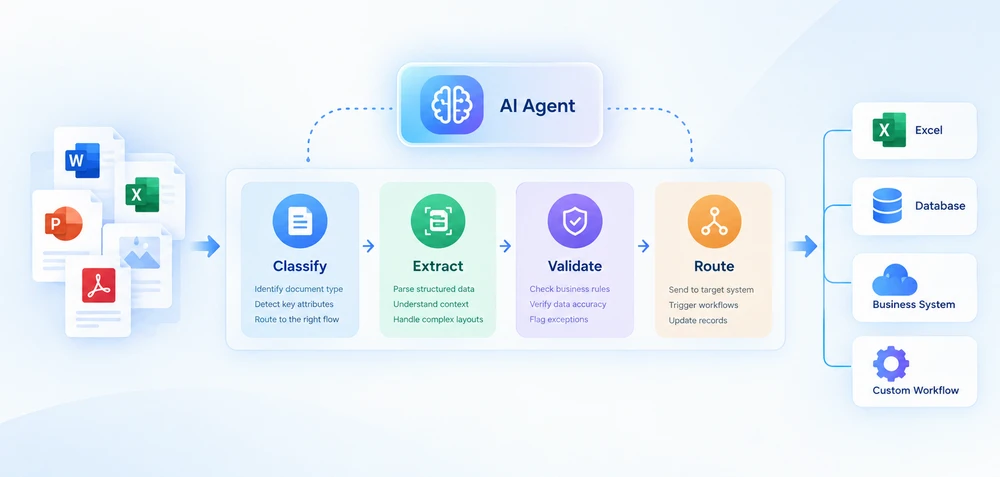
Intelligente Dokumentenverarbeitung (IDP) kombiniert KI-basiertes Dokumentenverständnis mit automatisierter Extraktion, Validierung und nachgelagerter Verarbeitung. Für .NET-Entwickler bedeutet die Implementierung von IDP in der Regel, KI-basiertes Dokumentenverständnis mit deterministischem Code zu verbinden, der Dateien, Geschäftsregeln und Systemintegration handhabt.
Dieser Leitfaden konzentriert sich auf IDP-Workflows für Office- und PDF-Dokumente in .NET. Er behandelt die vierstufige Pipeline-Architektur, zeigt C#-Implementierungsmuster und bietet einen Entscheidungsrahmen für die Wahl zwischen Eigenentwicklung und der Einführung einer Anbieterplattform.
Schnellnavigation
- Die vierstufige IDP-Pipeline
- Erstellen einer IDP-Pipeline in .NET
- Batch- und Multi-Dokumentenverarbeitung
- IDP in der Praxis
- Eigenentwicklung vs. Kauf: Wahl eines IDP-Ansatzes
1. Was ist intelligente Dokumentenverarbeitung?
Intelligente Dokumentenverarbeitung ist ein Automatisierungsansatz, der KI verwendet, um Dokumente zu klassifizieren, strukturierte Daten daraus zu extrahieren, die Ergebnisse anhand von Geschäftsregeln zu validieren und die Ausgabe an nachgelagerte Systeme weiterzuleiten. Im Gegensatz zur traditionellen OCR, die in erster Linie visuelle Inhalte in maschinenlesbaren Text umwandelt, fügt IDP Dokumentenklassifizierung, semantische Extraktion, Validierung und Workflow-Automatisierung hinzu. Es kann unterschiedliche Dokumentenlayouts verarbeiten, ohne sich vollständig auf feste Vorlagen zu verlassen.
Eine praktische IDP-Pipeline kann in vier Stufen organisiert werden: Klassifizierung, Extraktion, Validierung und Routing. Jede Stufe hat unterschiedliche Eingaben, Ausgaben und Fehlerarten. Der KI-Agent übernimmt Klassifizierung und Extraktion durch Natural-Language-Verständnis, während Validierung und Routing deterministischer Code bleiben, der Geschäftsregeln durchsetzt und in nachgelagerte Systeme integriert.
IDP vs. OCR, Dokumentenverarbeitung und Dokumentenintelligenz
Diese Begriffe werden oft synonym verwendet, beschreiben aber unterschiedliche Fähigkeiten:
| Technologie | Hauptrolle |
|---|---|
| OCR | Visuellen Inhalt in Text umwandeln |
| Dokumentenverarbeitung | Dateien lesen, bearbeiten, konvertieren oder generieren |
| Dokumentenintelligenz | Dokumenteninhalt verstehen und Bedeutung extrahieren |
| IDP | Dokumentenverständnis mit automatisierten Workflows kombinieren |
In der Praxis überschneiden sich diese Fähigkeiten oft. Eine IDP-Pipeline kann OCR für gescannte Dokumente, KI für semantisches Verständnis und Dokumentenverarbeitungs-APIs für deterministische Dateioperationen verwenden. Die Unterscheidung ist für die Architektur wichtig: Zu wissen, welche Schicht welche Verantwortung übernimmt, bestimmt, wie Sie das System erstellen und warten.
IDP bedeutet nicht, den gesamten Workflow durch KI zu ersetzen. Die KI übernimmt Verständnis und Extraktion; deterministischer Code übernimmt Validierung, Routing, Dateibearbeitung und Systemintegration. Diese Trennung macht IDP in der Produktion wartbar – Geschäftsregeln ändern sich häufiger als Dokumentformate, und Sie möchten diese Regeln in Code haben, den Sie kontrollieren, nicht in einem Modell-Prompt.
2. Die vierstufige IDP-Pipeline
Eine IDP-Pipeline ist kein einzelner API-Aufruf. Sie ist eine Abfolge von Stufen, jede mit unterschiedlichen Eingaben, Ausgaben und Fehlerarten. Diese Architektur zu verstehen, ist der Unterschied zwischen dem Erstellen einer Pipeline, die echte Dokumentenvielfalt bewältigt, und dem Schreiben eines Skripts, das bei der ersten unerwarteten Eingabe abbricht.
Eine praktische IDP-Pipeline kann in vier Stufen organisiert werden:
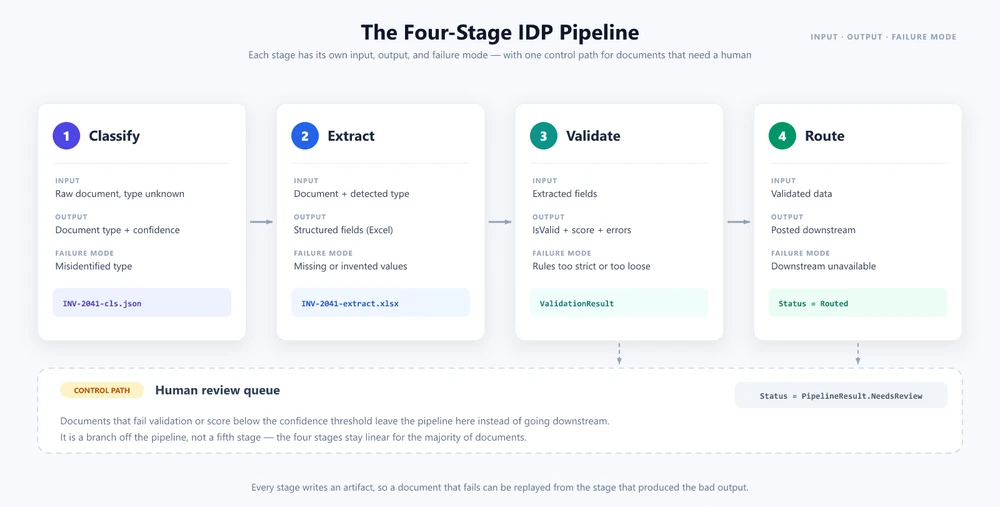
Stufe 1 – Klassifizierung
Die Pipeline erhält ein Dokument unbekannten Typs. Die Klassifizierung bestimmt, um welches Dokument es sich handelt – eine Rechnung, einen Vertrag, eine Bestellung, einen Beleg, einen Kontoauszug – und fügt Metadaten hinzu, die das nachgelagerte Verhalten steuern. In einem traditionellen System stützt sich die Klassifizierung auf Dateibenennungskonventionen, Ordnerpfade oder Vorlagenabgleich. In einer KI-gesteuerten Pipeline verwendet die Klassifizierung Natural-Language-Analyse: Der Agent liest den Dokumenteninhalt und bestimmt den Typ anhand semantischen Verständnisses.
Stufe 2 – Extraktion
Sobald der Dokumenttyp bekannt ist, zieht die Extraktion strukturierte Daten aus dem Dokument. Bei einer Rechnung bedeutet das Lieferantenname, Rechnungsnummer, Positionen, Summen, Steuerbeträge, Zahlungsbedingungen. Bei einem Vertrag bedeutet es Parteien, Wirksamkeitsdaten, Kündigungsklauseln, finanzielle Verpflichtungen. Die Extraktionsstufe wandelt unstrukturierte oder halbstrukturierte Dokumenteninhalte in ein strukturiertes Format (JSON, XML, Datenbankeinträge) um, das nachgelagerte Systeme nutzen können.
Stufe 3 – Validierung
Extrahierte Daten werden anhand von Geschäftsregeln geprüft. Stimmt die Rechnungssumme mit der Summe der Positionen überein? Ist der Lieferant in der Liste der zugelassenen Lieferanten? Ist der Vertrag von einem autorisierten Unterzeichner unterschrieben? Die Validierung erkennt Extraktionsfehler, markiert Anomalien und erzeugt einen Konfidenzwert, der bestimmt, ob das Dokument automatisch weitergeleitet werden kann oder eine menschliche Überprüfung erfordert.
Stufe 4 – Routing
Validierte Daten werden an das entsprechende nachgelagerte System gesendet: ein ERP für Rechnungsdaten, eine Vertragsmanagementplattform für Vertragsdaten, ein Dokumentenarchiv für alles andere. Routing kann auch nachgelagerte Workflows auslösen – Genehmigungsketten, Zahlungsabwicklung, Compliance-Prüfungen.
Menschliche Überprüfung ist ein Kontrollpfad und keine obligatorische Stufe: Dokumente, die die Validierung nicht bestehen oder unter einen Konfidenzschwellenwert fallen, können zur manuellen Prüfung weitergeleitet werden. Dadurch bleibt die vierstufige Pipeline für die Mehrheit der Dokumente linear, bietet aber einen kontrollierten Fallback für Randfälle.
Warum IDP mehr als einen KI-API-Aufruf benötigt
Jede Stufe hat unabhängige Fehlerarten. Die Klassifizierung kann einen Dokumenttyp falsch identifizieren. Die Extraktion kann Felder übersehen oder Werte halluzinieren. Die Validierung kann gültige Daten aufgrund zu strenger Regeln ablehnen. Das Routing kann aufgrund der Nichtverfügbarkeit nachgelagerter Systeme fehlschlagen. Eine robuste IDP-Pipeline behandelt jede Fehlerart unabhängig, mit Wiederholungslogik, Fallback-Verhalten und Audit-Protokollierung auf jeder Stufe.
3. Erstellen einer IDP-Pipeline in .NET
Eine Möglichkeit, diese Architektur in .NET zu implementieren, ist die Verwendung von Spire.Agent.Office, einem KI-Agenten-SDK, das Word-, Excel-, PowerPoint- und PDF-Dokumente über Natural-Language-Anweisungen verarbeitet. Das SDK stellt die AI()-Erweiterungsmethode für Dokumentobjekte (Document, PdfDocument, Workbook, Presentation) bereit, die eine AIOptions-Konfiguration akzeptiert und einen AIDocumentProcessor zurückgibt. Der Aufruf von ExecuteInstruction auf dem Prozessor führt die Anweisung aus und schreibt die Ausgabe in eine Datei, wobei ein AIResult mit den Eigenschaften Success und ErrorMessage zurückgegeben wird.
Voraussetzungen
<!-- NuGet package -->
<PackageReference Include="Spire.Agent.Office" Version="11.8.3" />
Die folgenden Beispiele konzentrieren sich auf die Pipeline-Architektur und die Spire.Agent.Office-Integration. Hilfsmethoden wie Ergebnisanalyse und nachgelagertes Routing werden der Kürze halber weggelassen.
3.1 Das Pipeline-Modell definieren
Die Pipeline benötigt Datenstrukturen, um Ergebnisse zwischen Stufen zu transportieren, und eine gemeinsame Konfiguration für den KI-Agenten.
using Spire.Agent.Office.AI;
using Spire.Agent.Office.Extensions;
using Spire.Doc;
using Spire.Pdf;
using Spire.Xls;
using Spire.Presentation;
using System.Collections.Concurrent;

public class ClassificationResult
{
    public string DocumentType { get; set; } = "Unknown";
    public double Confidence { get; set; }
    public string SourceFile { get; set; } = string.Empty;
}

public class ExtractionResult
{
    public Dictionary<string, string> Fields { get; set; } = new();
    public List<Dictionary<string, string>> LineItems { get; set; } = new();
    public string OutputPath { get; set; } = string.Empty;
}

public class ValidationResult
{
    public bool IsValid { get; set; }
    public List<string> Errors { get; set; } = new();
    public List<string> Warnings { get; set; } = new();
    public double ValidationScore { get; set; }
}

public class PipelineResult
{
    // Stage 4 outcomes. RunPipelineAsync records one of them on every
    // path, and ProcessBatchAsync counts by them, so the batch report
    // always adds up: Successful + Flagged + Errored == Total.
    public const string Routed = "Routed";
    public const string NeedsReview = "Flagged for review";
    public const string Failed = "Failed";

    // Non-null defaults keep a failed result object complete, so the
    // batch aggregator never has to null-check stage outputs.
    public ClassificationResult Classification { get; set; } = new();
    public ExtractionResult Extraction { get; set; } = new();
    public ValidationResult Validation { get; set; } = new();
    public List<string> AuditLog { get; set; } = new();
    public string Status { get; set; } = string.Empty;
}

public class BatchResult
{
    public int Total { get; set; }
    public int Successful { get; set; }
    public int Flagged { get; set; }
    public int Errored { get; set; }
    public List<PipelineResult> Results { get; set; } = new();
}

// Routing policy shared by validation (§3.3) and orchestration (§3.4)
static class RoutingPolicy
{
    // Minimum validation score required for automatic routing.
    public const double AutoRouteThreshold = 0.7;

    // Confidence budget shared across all optional-field warnings.
    // Spending the whole budget must be able to push a valid document
    // below AutoRouteThreshold — otherwise the routing check in §3.4
    // is dead code. Allocating a fixed budget instead of a flat
    // per-field penalty keeps that true when optional fields change.
    public const double OptionalFieldBudget = 0.4;
}

// Shared agent configuration
static AIOptions CreateAgentOptions(string workDir)
{
    string spireToken = Environment.GetEnvironmentVariable("SPIRE_TOKEN")
        ?? throw new InvalidOperationException("SPIRE_TOKEN not set.");

    AIOptions options = new AIOptions();
    options.SpireToken = spireToken;
    options.WorkDir = workDir;
    options.TimeoutMs = 300000;
    return options;
}
SpireToken wird zur Authentifizierung von Spire.Agent.Office verwendet. Das SDK verwaltet die KI-Serviceverbindung über AIOptions, sodass die Anwendung die zugrunde liegende Modell-API-Integration nicht direkt implementieren muss. WorkDir legt fest, wo der Agent während der Verarbeitung Zwischendateien speichert.
3.2 Dokumente mit einem KI-Agenten klassifizieren und extrahieren
Die Klassifizierung lädt das Dokument, bittet den Agenten, seinen Typ zu identifizieren, und schreibt das Ergebnis in eine JSON-Datei. Dasselbe Muster LoadFromFile → AI(options) → ExecuteInstruction funktioniert für jedes Dokumentformat – nur die Dokumentklasse ändert sich, und diese Zuordnung müssen Sie selbst schreiben. AI() bindet an einen konkreten Dokumenttyp: Ein PDF muss als PdfDocument geladen werden, eine Arbeitsmappe als Workbook, eine Präsentation als Presentation und eine Word-Datei als Document. Eine Datei an die falsche Klasse zu übergeben, fällt nicht auf einen generischen Reader zurück; es wird eine Ausnahme ausgelöst. Wählen Sie daher die Klasse anhand der Dateierweiterung aus, bevor Sie AI() aufrufen.
public ClassificationResult Classify(
    string filePath, string outputDir)
{
    AIOptions agentOptions = CreateAgentOptions(outputDir);
    string classifyPath = Path.Combine(outputDir,
        Path.GetFileNameWithoutExtension(filePath) + "-cls.json");

    string instruction =
        "Analyze this document and determine its type. " +
        "Return one of: Invoice, Contract, PurchaseOrder, " +
        "Receipt, BankStatement, Unknown. Include a confidence " +
        "score between 0 and 1. Save the result as JSON.";

    string ext = Path.GetExtension(filePath).ToLowerInvariant();
    AIResult? result = null;

    if (ext == ".pdf")
    {
        using (PdfDocument doc = new PdfDocument())
        {
            doc.LoadFromFile(filePath);
            result = doc.AI(agentOptions).ExecuteInstruction(
                doc, instruction, classifyPath, new string[] { });
        }
    }
    else if (ext == ".xlsx" || ext == ".xls")
    {
        using (Workbook doc = new Workbook())
        {
            doc.LoadFromFile(filePath);
            result = doc.AI(agentOptions).ExecuteInstruction(
                doc, instruction, classifyPath, new string[] { });
        }
    }
    else if (ext == ".pptx" || ext == ".ppt")
    {
        using (Presentation doc = new Presentation())
        {
            doc.LoadFromFile(filePath);
            result = doc.AI(agentOptions).ExecuteInstruction(
                doc, instruction, classifyPath, new string[] { });
        }
    }
    else
    {
        using (Document doc = new Document())
        {
            doc.LoadFromFile(filePath);
            result = doc.AI(agentOptions).ExecuteInstruction(
                doc, instruction, classifyPath, new string[] { });
        }
    }

    if (result != null && result.Success && File.Exists(classifyPath))
    {
        return ParseClassification(
            File.ReadAllText(classifyPath), filePath);
    }

    return new ClassificationResult
    {
        DocumentType = "Unknown",
        Confidence = 0,
        SourceFile = filePath
    };
}
Die Extraktion verwendet typspezifische Anweisungen, um strukturierte Felder aus dem Dokument zu ziehen:
public ExtractionResult Extract(
    string filePath, string documentType, string outputDir)
{
    AIOptions agentOptions = CreateAgentOptions(outputDir);
    string extractPath = Path.Combine(outputDir,
        Path.GetFileNameWithoutExtension(filePath) + "-extract.xlsx");

    string instruction = documentType switch
    {
        "Invoice" =>
            "Extract all invoice fields and write them as key-value " +
            "pairs in a sheet named 'Fields' with columns 'Field' and " +
            "'Value'. Use these exact field names: VendorName, " +
            "InvoiceNumber, IssueDate, DueDate, Subtotal, Tax, Total, " +
            "PONumber. Extract line items into a sheet named 'LineItems' " +
            "with columns: Description, Quantity, UnitPrice, Amount. " +
            "Write the extracted data to a structured Excel workbook.",

        "Contract" =>
            "Extract all contract fields and write them as key-value " +
            "pairs in a sheet named 'Fields' with columns 'Field' and " +
            "'Value'. Use these exact field names: Party1, Party2, " +
            "EffectiveDate, TerminationDate, ContractValue, " +
            "PaymentTerms, Signatory1, Signatory2. Extract key " +
            "obligations into a sheet named 'Obligations' with " +
            "columns: Description, Party, Deadline. Write the " +
            "extracted data to a structured Excel workbook.",

        "PurchaseOrder" =>
            "Extract all purchase order fields and write them as " +
            "key-value pairs in a sheet named 'Fields' with columns " +
            "'Field' and 'Value'. Use these exact field names: " +
            "PONumber, VendorName, IssueDate, ExpectedDeliveryDate, " +
            "ShippingAddress, Total. Extract requested items into a " +
            "sheet named 'LineItems' with columns: Description, " +
            "Quantity, UnitPrice, Amount. Write the extracted data " +
            "to a structured Excel workbook.",

        _ => "Extract all key fields and values from this document. " +
             "Write the extracted data to a structured Excel workbook."
    };

    string ext = Path.GetExtension(filePath).ToLowerInvariant();
    AIResult? result = null;

    if (ext == ".pdf")
    {
        using (PdfDocument doc = new PdfDocument())
        {
            doc.LoadFromFile(filePath);
            result = doc.AI(agentOptions).ExecuteInstruction(
                doc, instruction, extractPath, new string[] { });
        }
    }
    else if (ext == ".xlsx" || ext == ".xls")
    {
        using (Workbook doc = new Workbook())
        {
            doc.LoadFromFile(filePath);
            result = doc.AI(agentOptions).ExecuteInstruction(
                doc, instruction, extractPath, new string[] { });
        }
    }
    else if (ext == ".pptx" || ext == ".ppt")
    {
        using (Presentation doc = new Presentation())
        {
            doc.LoadFromFile(filePath);
            result = doc.AI(agentOptions).ExecuteInstruction(
                doc, instruction, extractPath, new string[] { });
        }
    }
    else
    {
        using (Document doc = new Document())
        {
            doc.LoadFromFile(filePath);
            result = doc.AI(agentOptions).ExecuteInstruction(
                doc, instruction, extractPath, new string[] { });
        }
    }

    if (result == null || !result.Success)
        throw new InvalidOperationException(
            $"Extraction failed: {result?.ErrorMessage}");

    return ReadExtractionResult(extractPath);
}
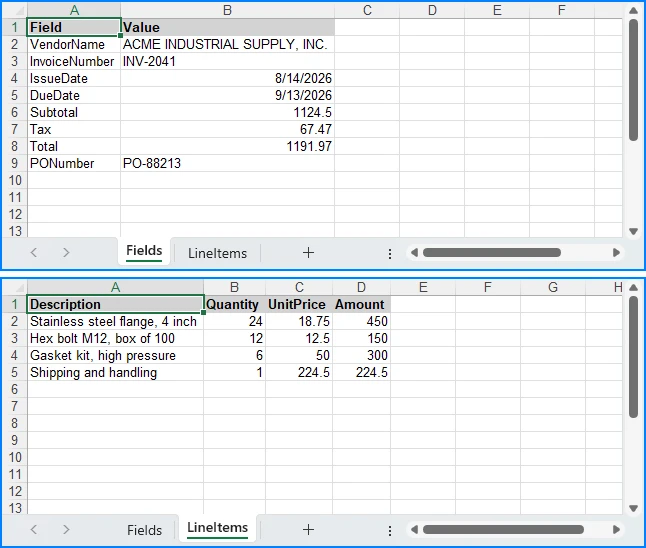
Jeder Dokumenttyp erhält eine eigene Anweisung, die dem Agenten sagt, nach welchen Feldern er suchen und welches Ausgabeformat er erzeugen soll. Der Agent liest das Quelldokument und schreibt eine strukturierte Excel-Arbeitsmappe nach extractPath. Die Anweisung legt die Form dieser Arbeitsmappe fest – die Benennung der Tabellenblätter, der Kopfzeilen und der exakten Feldnamen macht die Ausgabe nachgelagert parsebar. Eine Anweisung, die nur sagt: „Extrahiere die Rechnungsfelder“, kann bei jedem Lauf mit einem anderen Tabellennamen, einer anderen Kopfzeile oder einer anderen Schreibweise für dasselbe Feld zurückkommen, weil der Agent das Layout selbst festlegt. GetField im nächsten Abschnitt deckt die Variationen ab, die trotzdem durchrutschen.
Diese Trennung zwischen Agentenurteil und deterministischem Code wird ausführlicher in KI-Agent für die Dokumentenverarbeitung behandelt.
3.3 Extrahierte Daten mit C# validieren
Die Validierung ist reine C#-Logik – kein KI-Aufruf erforderlich. Der Agent hat bereits strukturierte Daten erzeugt; die Validierung prüft diese Daten anhand von Geschäftsregeln.
// Normalized field lookup: handles key variations like
// "VendorName" vs "Vendor Name" vs "vendor_name", and strips
// trailing qualifier words (e.g., "Total Amount Due" → "Total")
static string? GetField(
    Dictionary<string, string> fields, string key)
{
    string normalized = key.Replace(" ", "").ToLowerInvariant();
    foreach (var kvp in fields)
    {
        if (kvp.Key.Replace(" ", "").ToLowerInvariant() == normalized)
            return kvp.Value;
    }

    // Fallback: strip trailing qualifier words, one at a time, so
    // multi-word labels collapse all the way down to the field name
    // we asked for ("Total Amount Due" → "Total", "Invoice No"
    // → "Invoice"). Stripping is restarted after every match so the
    // result does not depend on the order of the suffix list.
    string[] suffixes = { "due", "amount", "no" };
    foreach (var kvp in fields)
    {
        string candidate = kvp.Key.Replace(" ", "")
            .ToLowerInvariant();

        bool stripped = true;
        while (stripped)
        {
            stripped = false;
            foreach (var suffix in suffixes)
            {
                if (candidate.Length > suffix.Length &&
                    candidate.EndsWith(suffix))
                {
                    candidate = candidate[..^suffix.Length];
                    stripped = true;
                    break;
                }
            }
        }

        if (candidate == normalized)
            return kvp.Value;
    }

    return null;
}

public ValidationResult Validate(
    ExtractionResult extracted, string documentType)
{
    var errors = new List<string>();
    var warnings = new List<string>();
    double confidence = 1.0;

    switch (documentType)
    {
        case "Invoice":
            // Rule 1a: Total must equal Subtotal + Tax. Runs only when
            // all three amounts were extracted — a missing Tax is
            // reported once, as a warning, instead of being turned
            // into a fabricated arithmetic error.
            var totalStr = GetField(extracted.Fields, "Total");
            var subtotalStr = GetField(extracted.Fields, "Subtotal");
            var taxStr = GetField(extracted.Fields, "Tax");

            if (decimal.TryParse(totalStr, out var total) &&
                decimal.TryParse(subtotalStr, out var subtotal) &&
                decimal.TryParse(taxStr, out var tax))
            {
                if (Math.Abs(total - (subtotal + tax)) > 0.01m)
                {
                    errors.Add(
                        $"Total mismatch: stated {total}, " +
                        $"calculated {subtotal + tax}");
                    confidence -= 0.3;
                }
            }

            // Rule 1b: Subtotal must equal the sum of the line items.
            // Line items are pre-tax, so they are checked against
            // Subtotal. Comparing them against the tax-inclusive Total
            // would reject every correctly extracted taxed invoice.
            if (decimal.TryParse(subtotalStr, out var subtotalBase) &&
                extracted.LineItems.Count > 0)
            {
                decimal lineItemSum = 0;
                foreach (var item in extracted.LineItems)
                {
                    var amtStr = GetField(item, "Amount");
                    if (decimal.TryParse(amtStr, out var amt))
                        lineItemSum += amt;
                }

                if (lineItemSum > 0 &&
                    Math.Abs(subtotalBase - lineItemSum) > 0.01m)
                {
                    errors.Add(
                        $"Line item mismatch: subtotal " +
                        $"{subtotalBase}, line items {lineItemSum}");
                    confidence -= 0.3;
                }
            }

            // Rule 2: Required fields must be present
            string[] required = { "VendorName", "InvoiceNumber",
                "IssueDate", "Total" };
            foreach (var field in required)
            {
                var value = GetField(extracted.Fields, field);
                if (string.IsNullOrEmpty(value))
                {
                    errors.Add($"Missing required field: {field}");
                    confidence -= 0.15;
                }
            }

            // Warnings: optional fields reduce confidence
            // but do not invalidate the document
            string[] optional = { "PONumber", "DueDate", "Tax" };
            double optionalPenalty =
                RoutingPolicy.OptionalFieldBudget / optional.Length;
            foreach (var field in optional)
            {
                var value = GetField(extracted.Fields, field);
                if (string.IsNullOrEmpty(value))
                {
                    warnings.Add(
                        $"Optional field missing: {field}");
                    confidence -= optionalPenalty;
                }
            }
            break;

        case "Contract":
            var party1 = GetField(extracted.Fields, "Party1");
            var party2 = GetField(extracted.Fields, "Party2");
            if (string.IsNullOrEmpty(party1) ||
                string.IsNullOrEmpty(party2))
            {
                errors.Add(
                    "Contract must identify at least two parties");
                confidence -= 0.25;
            }

            // Warnings: missing optional contract metadata
            string[] optionalContract =
                { "EffectiveDate", "ContractValue", "PaymentTerms" };
            double contractPenalty =
                RoutingPolicy.OptionalFieldBudget / optionalContract.Length;
            foreach (var field in optionalContract)
            {
                var value = GetField(extracted.Fields, field);
                if (string.IsNullOrEmpty(value))
                {
                    warnings.Add(
                        $"Optional field missing: {field}");
                    confidence -= contractPenalty;
                }
            }
            break;

        default:
            // Uncovered document types require human review
            errors.Add(
                $"No validation rules for type '{documentType}'");
            confidence -= 0.5;
            break;
    }

    // Hard guard: zero extracted fields is always invalid
    if (extracted.Fields.Count == 0)
    {
        errors.Add("No fields were extracted from the document");
        confidence -= 0.5;
    }

    return new ValidationResult
    {
        IsValid = errors.Count == 0,
        Errors = errors,
        Warnings = warnings,
        ValidationScore = Math.Max(0, confidence)
    };
}
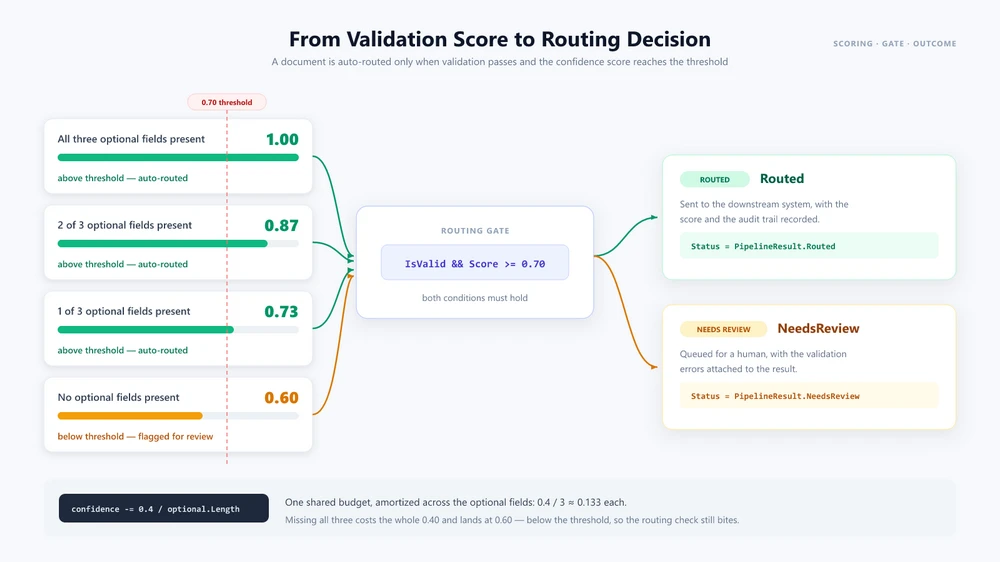
Die Validierung trennt harte Fehler von Qualitätswarnungen. Ein fehlendes Pflichtfeld, eine Summe, die nicht mit den Positionen abgestimmt werden kann, oder ein Dokumenttyp ohne Regeln erzeugt einen Eintrag in Errors, und das Dokument wird als ungültig behandelt. Ein optionales Feld, das nicht extrahiert werden konnte, senkt nur ValidationScore, sodass ein ansonsten einwandfreies Dokument weiterhin weitergeleitet wird. Der Abzug ist ein festes Budget, das über die optionalen Felder verteilt wird, statt einer pauschalen Strafe pro Feld: Bei drei optionalen Feldern und dem Budget von 0,4 im obigen Code hinterlässt ein fehlendes Feld einen Wert von 0,87 und zwei einen Wert von 0,73 – noch über der Auto-Routing-Schwelle von 0,7 –, sodass erst der Verlust aller drei den Wert auf 0,60 senkt und das Dokument zur Prüfung schickt. Diese beiden Signale getrennt zu halten, reserviert die menschliche Überprüfung für Dokumente, die sie tatsächlich benötigen.
3.4 Die Pipeline orchestrieren
Die Orchestrierungsmethode verbindet die Stufen miteinander und trifft Routing-Entscheidungen auf Grundlage der Validierungskonfidenz:
public async Task<PipelineResult> RunPipelineAsync(
    string filePath, string outputDir)
{
    var auditLog = new List<string>();
    string status;

    // Stage 1: Classify
    auditLog.Add($"[{DateTime.Now}] Classifying: {filePath}");
    var classification = Classify(filePath, outputDir);
    auditLog.Add($"  Type: {classification.DocumentType} " +
        $"(confidence: {classification.Confidence:P0})");

    // Stage 2: Extract
    auditLog.Add($"[{DateTime.Now}] Extracting fields...");
    var extraction = Extract(
        filePath, classification.DocumentType, outputDir);
    auditLog.Add($"  Extracted {extraction.Fields.Count} fields, " +
        $"{extraction.LineItems.Count} line items");

    // Stage 3: Validate
    auditLog.Add($"[{DateTime.Now}] Validating...");
    var validation = Validate(
        extraction, classification.DocumentType);
    auditLog.Add($"  Valid: {validation.IsValid}, " +
        $"Confidence: {validation.ValidationScore:P0}");

    if (!validation.IsValid)
    {
        foreach (var error in validation.Errors)
            auditLog.Add($"  ERROR: {error}");
    }

    // Stage 4: Route
    if (validation.IsValid &&
        validation.ValidationScore >= RoutingPolicy.AutoRouteThreshold)
    {
        auditLog.Add(
            $"[{DateTime.Now}] Routing to downstream system...");
        await RouteToDownstreamAsync(
            classification.DocumentType, extraction);
        auditLog.Add($"  Routed successfully");
        status = PipelineResult.Routed;
    }
    else
    {
        auditLog.Add(
            $"[{DateTime.Now}] Flagged for human review " +
            $"(confidence: {validation.ValidationScore:P0})");
        await FlagForReviewAsync(filePath, validation.Errors);
        status = PipelineResult.NeedsReview;
    }

    // Status is the stage-4 outcome the batch report counts by, so it
    // has to be set on every path out of this method.
    return new PipelineResult
    {
        Classification = classification,
        Extraction = extraction,
        Validation = validation,
        AuditLog = auditLog,
        Status = status
    };
}
Jede Stufe ist unabhängig testbar, hat ihre eigene Fehlerbehandlung und erzeugt Audit-Ausgaben. Das zurückgegebene PipelineResult zeichnet außerdem das Ergebnis der Stufe 4 in Status auf, was es dem Batch-Bericht im nächsten Abschnitt ermöglicht, Dokumente nach Ergebnis zu zählen, anstatt es aus der Validierungsnutzlast neu abzuleiten. In diesem Beispiel übernimmt der KI-Agent Klassifizierung und Extraktion durch Natural-Language-Anweisungen, während Validierung und Routing deterministische C#-Logik bleiben.
4. Batch- und Multi-Dokumentenverarbeitung
Eine Pipeline für einzelne Dokumente ist ein Ausgangspunkt. Produktions-IDP-Systeme verarbeiten täglich Hunderte oder Tausende von Dokumenten mit unterschiedlichen Typen, Prioritäten und nachgelagerten Zielen.
Parallele Batch-Verarbeitung
public async Task<BatchResult> ProcessBatchAsync(
    string inputDirectory, string outputDir,
    int maxConcurrency = 5)
{
    var files = Directory.GetFiles(inputDirectory);
    var semaphore = new SemaphoreSlim(maxConcurrency);
    var results = new ConcurrentBag<PipelineResult>();

    var tasks = files.Select(async file =>
    {
        await semaphore.WaitAsync();
        try
        {
            var result = await RunPipelineAsync(file, outputDir);
            results.Add(result);
        }
        catch (Exception ex)
        {
            results.Add(new PipelineResult
            {
                Status = $"{PipelineResult.Failed}: {ex.Message}",
                Validation = new ValidationResult
                {
                    IsValid = false,
                    Errors = new List<string> { ex.Message }
                },
                AuditLog = new List<string>
                    { $"Error processing {file}: {ex}" }
            });
        }
        finally
        {
            semaphore.Release();
        }
    });

    await Task.WhenAll(tasks);

    int successful = results.Count(
        r => r.Status == PipelineResult.Routed);
    int errored = results.Count(r => r.Status.StartsWith(
        PipelineResult.Failed));

    // Flagged is the remainder, so the report stays conserved by
    // construction: Successful + Flagged + Errored == Total. A result
    // that never reached stage 4 is counted as needing review instead
    // of being silently dropped from all three counters.
    return new BatchResult
    {
        Total = files.Length,
        Successful = successful,
        Flagged = results.Count - successful - errored,
        Errored = errored,
        Results = results.ToList()
    };
}
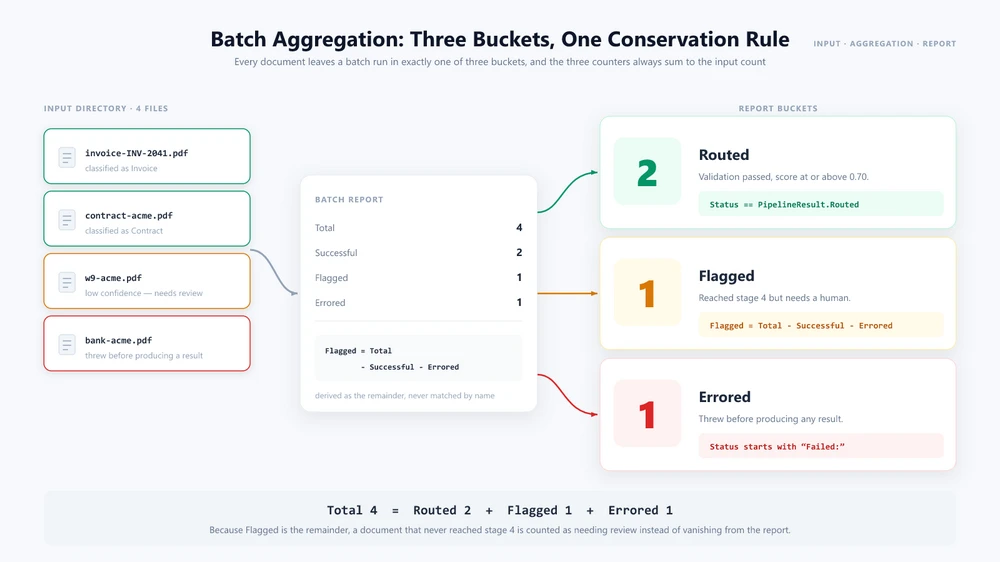
Der SemaphoreSlim begrenzt die Parallelität, um den KI-Service oder nachgelagerte Systeme nicht zu überlasten. Jedes Dokument wird unabhängig durch alle vier Stufen verarbeitet. Der Batch-Bericht sortiert die Ergebnisse in die drei Arten, wie ein Dokument die Pipeline verlassen kann: Routed (validiert und nachgelagert gesendet), Flagged (Stufe 4 erreicht, aber Überprüfung erforderlich) und Errored (Ausnahme vor Erzeugung eines Ergebnisses). Flagged wird als Rest berechnet, anstatt einen Status-String abzugleichen, sodass die drei Zähler immer Total ergeben – ein Dokument, das unerwartet fehlschlägt, wird als überprüfungsbedürftig gemeldet, anstatt aus dem Bericht zu verschwinden. Das angemessene Parallelitätslimit hängt von den Ratenbegrenzungen des KI-Service, der Dokumentgröße und den Anwendungsressourcen ab.
Dokumentübergreifende Workflows
Einige Geschäftsprozesse erfordern, dass mehrere Dokumente zusammen verarbeitet werden. Ein US-amerikanischer Lieferanten-Onboarding-Workflow könnte beispielsweise ein Steuerformular, einen Vertrag und einen Kontoauszug als eine Einheit verarbeiten – Daten aus jedem extrahieren, gegenseitig validieren und eine kombinierte Ausgabe erzeugen.
public async Task<OnboardingResult> ProcessVendorOnboardingAsync(
    string w9Path, string contractPath,
    string bankStatementPath, string outputDir)
{
    AIOptions agentOptions = CreateAgentOptions(outputDir);

    // Process all three documents in parallel
    var w9Task = RunPipelineAsync(w9Path, outputDir);
    var contractTask = RunPipelineAsync(contractPath, outputDir);
    var bankTask = RunPipelineAsync(bankStatementPath, outputDir);

    try
    {
        await Task.WhenAll(w9Task, contractTask, bankTask);
    }
    catch (Exception ex)
    {
        return new OnboardingResult
        {
            Status = "Failed",
            Issue = $"Document processing failed: {ex.Message}"
        };
    }

    var w9 = w9Task.Result;
    var contract = contractTask.Result;
    var bank = bankTask.Result;

    // Cross-validate: names must match across all documents
    var w9Name = GetField(w9.Extraction.Fields, "VendorName");
    var contractName = GetField(contract.Extraction.Fields, "Party2");
    var bankName = GetField(bank.Extraction.Fields, "AccountHolder");

    if (w9Name == null || contractName == null || bankName == null)
    {
        return new OnboardingResult
        {
            Status = "Flagged",
            Issue = "Could not extract vendor name from one or more documents"
        };
    }

    if (w9Name != contractName || contractName != bankName)
    {
        return new OnboardingResult
        {
            Status = "Flagged",
            Issue = $"Name mismatch: W-9='{w9Name}', " +
                $"Contract='{contractName}', Bank='{bankName}'"
        };
    }

    // Generate combined onboarding summary using the agent
    string summaryPath = Path.Combine(outputDir,
        $"onboarding-{w9Name}.docx");
    string[] attachments = { w9Path, contractPath, bankStatementPath };

    string summaryInstruction =
        $"Create a vendor onboarding summary for {w9Name}. " +
        "Read the attached W-9, contract, and bank statement. " +
        "Compile the vendor's legal name, tax ID, contract terms, " +
        "and banking details into a formatted Word document. " +
        "Save the summary to the output path.";

    using (Document summary = new Document())
    {
        summary.LoadFromFile(
            Path.Combine(AppContext.BaseDirectory,
                "templates", "onboarding-summary.docx"));

        AIResult result = summary.AI(agentOptions).ExecuteInstruction(
            summary, summaryInstruction, summaryPath, attachments);

        return new OnboardingResult
        {
            Status = result != null && result.Success
                ? "Complete" : "Failed",
            SummaryPath = result != null && result.Success
                ? summaryPath : null,
            Error = result?.ErrorMessage
        };
    }
}
Der Parameter attachments übergibt mehrere Dokumentpfade an den Agenten in einem einzigen Aufruf. Der Agent liest alle angehängten Dateien, schließt daraus und erzeugt eine kombinierte Ausgabe. Dies geht über die Texterkennungsrolle traditioneller OCR hinaus, indem es einem KI-Modell ermöglicht, über mehrere Dokumenteingaben zu schließen.
Wiederholung und menschliche Überprüfung
public async Task<PipelineResult> RunPipelineWithRetryAsync(
    string filePath, string outputDir, int maxRetries = 3)
{
    string lastError = "unknown";

    for (int attempt = 1; attempt <= maxRetries; attempt++)
    {
        try
        {
            var result = await RunPipelineAsync(filePath, outputDir);

            if (result.Validation.IsValid)
                return result;

            // Borderline confidence: retry in case the next pass
            // classifies or extracts the document differently
            if (result.Validation.ValidationScore >= 0.5 &&
                attempt < maxRetries)
            {
                continue;
            }

            return result;
        }
        catch (Exception ex)
        {
            lastError = ex.Message;

            if (attempt < maxRetries)
            {
                await Task.Delay(
                    TimeSpan.FromSeconds(Math.Pow(2, attempt)));
            }
        }
    }

    // Every attempt threw, so the loop ran out instead of returning.
    return new PipelineResult
    {
        Status = $"{PipelineResult.Failed} after {maxRetries} retries: " +
            lastError
    };
}
Dokumente, die die Validierung nicht bestehen oder unter den Konfidenzschwellenwert fallen, werden für die menschliche Überprüfung markiert, anstatt stillschweigend fehlzuschlagen. Die Wiederholungsstrategie verwendet exponentielles Backoff für vorübergehende Fehler und unternimmt erneute Versuche bei Grenzfällen, falls ein zweiter Durchlauf sie anders klassifiziert oder extrahiert.
5. IDP in der Praxis
Dieser Abschnitt zeigt, wie die Pipeline reale Geschäftsszenarien verarbeitet, die mehrere Dokumenttypen in einem einzigen Workflow umfassen.
Automatisierung der Kreditorenbuchhaltung
Eine Kreditorenbuchhaltungsabteilung erhält Rechnungen in gemischten Formaten – PDF, Excel, Word, gescannte Bilder. Jede Rechnung muss klassifiziert, extrahiert, gegen eine Bestellung validiert und an das ERP-System weitergeleitet werden.
public async Task<APResult> ProcessInvoiceAsync(
    string invoicePath, string outputDir)
{
    // Stages 1-3: Standard pipeline
    var pipeline = await RunPipelineAsync(invoicePath, outputDir);

    if (!pipeline.Validation.IsValid)
        return new APResult
        {
            Status = "Requires review",
            Errors = pipeline.Validation.Errors
        };

    // Cross-reference with purchase order
    var poNumber = GetField(pipeline.Extraction.Fields, "PONumber");
    if (string.IsNullOrEmpty(poNumber))
        return new APResult { Status = "No PO reference" };

    var poData = await _erpService.GetPurchaseOrderAsync(poNumber);
    if (poData == null)
        return new APResult { Status = "PO not found in ERP" };

    // Three-way match: invoice vs PO vs goods receipt
    var grData = await _erpService.GetGoodsReceiptAsync(poNumber);
    var matchResult = ThreeWayMatch(
        pipeline.Extraction, poData, grData);

    if (matchResult.IsMatch)
    {
        await _erpService.PostInvoiceForPaymentAsync(
            pipeline.Extraction);
        return new APResult { Status = "Posted for payment" };
    }

    return new APResult
    {
        Status = "Three-way match failed",
        Discrepancies = matchResult.Discrepancies
    };
}
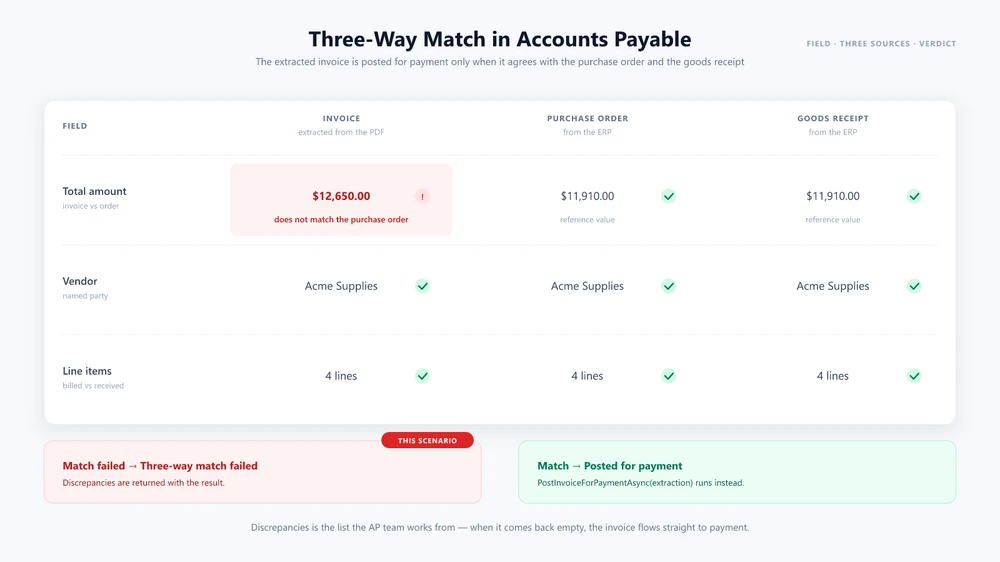
Das Tutorial zur Rechnungsverarbeitung behandelt dieses Szenario end-to-end: die Extraktionsanweisung, den Bestellvergleich und den Bericht, den das Finanzsystem konsumiert.
Vertragsanalyse
Ein Rechtsteam erhält Verträge von externen Parteien. Jeder Vertrag muss analysiert, Schlüsselbegriffe extrahiert, mit der Standardvorlage des Unternehmens verglichen und zur Überprüfung weitergeleitet werden, wenn nicht standardmäßige Klauseln gefunden werden. Der Agent verarbeitet den eingehenden Vertrag mit der angehängten Standardvorlage als Referenzdokument.
public async Task<ContractAnalysisResult> AnalyzeContractAsync(
    string contractPath, string outputDir)
{
    AIOptions agentOptions = CreateAgentOptions(outputDir);

    string analysisPath = Path.Combine(outputDir,
        $"contract-analysis-{DateTime.Now:yyyyMMdd}.docx");

    string[] attachments =
        { Path.Combine(AppContext.BaseDirectory,
            "templates", "standard-contract.docx") };

    string instruction =
        "Analyze this contract and compare it to the attached " +
        "standard template. Identify non-standard clauses, unusual " +
        "risk terms, or missing provisions. Generate a redline " +
        "summary document highlighting the differences and save " +
        "it to the output path.";

    string ext = Path.GetExtension(contractPath).ToLowerInvariant();
    AIResult? result = null;

    if (ext == ".pdf")
    {
        using (PdfDocument contract = new PdfDocument())
        {
            contract.LoadFromFile(contractPath);
            result = contract.AI(agentOptions).ExecuteInstruction(
                contract, instruction, analysisPath, attachments);
        }
    }
    else if (ext == ".pptx" || ext == ".ppt")
    {
        using (Presentation contract = new Presentation())
        {
            contract.LoadFromFile(contractPath);
            result = contract.AI(agentOptions).ExecuteInstruction(
                contract, instruction, analysisPath, attachments);
        }
    }
    else
    {
        using (Document contract = new Document())
        {
            contract.LoadFromFile(contractPath);
            result = contract.AI(agentOptions).ExecuteInstruction(
                contract, instruction, analysisPath, attachments);
        }
    }

    return new ContractAnalysisResult
    {
        Success = result != null && result.Success,
        AnalysisPath = result != null && result.Success
            ? analysisPath : null,
        Error = result?.ErrorMessage
    };
}
Dieser Workflow kombiniert Extraktion, dokumentübergreifenden Vergleich und Dokumentenerzeugung in einem Prozess und veranschaulicht, wie ein KI-Agent eine traditionelle IDP-Pipeline über die strukturierte Feldextraktion hinaus erweitern kann. Vertragsspezifische Muster – Überprüfung, Extraktion und Generierung aus einer Vorlage – werden im Leitfaden zur KI-Vertragsprüfung behandelt.
6. Eigenentwicklung vs. Kauf: Wahl eines IDP-Ansatzes
Der IDP-Markt wird von SaaS-Plattformen dominiert. Dieser Abschnitt hilft Entwicklern zu entscheiden, wann das Erstellen einer Pipeline in .NET die richtige Wahl ist und wann die Einführung einer Anbieterplattform praktischer ist.
Eigenentwicklung, wenn Sie eine enge Integration mit einer vorhandenen .NET-Anwendung, benutzerdefinierte Validierungsregeln oder Dokumentenerzeugung und -transformation neben der Extraktion benötigen. Das Erstellen der Orchestrierungsschicht in .NET gibt Ihnen mehr Kontrolle darüber, wo Dokumente gespeichert und wie sie verarbeitet werden. Die tatsächliche Datenresidenz hängt vom KI-Modell und der Servicekonfiguration ab.
Kauf, wenn OCR-intensive Workloads, vorgefertigte Extraktionsmodelle, verwaltete Infrastruktur oder schnelle Bereitstellung Priorität haben. Wenn Ihr Team keine .NET-Expertise hat oder sich auf andere Prioritäten konzentriert, nimmt eine verwaltete Plattform die Implementierungslast ab.
Entscheidungsrahmen:
| Faktor | Eigenentwicklung (.NET + KI-Agent) | Kauf (SaaS-IDP) |
|---|---|---|
| Integration | In-Process, .NET-nativ | Externer API-Aufruf |
| Datenresidenz | Abhängig von der Modellkonfiguration | Anbieter-Cloud |
| Dokumentoperationen | Extrahieren + Generieren + Transformieren + Konvertieren | Abhängig von der Plattform |
| Benutzerdefinierte Validierung | Volle Code-Kontrolle | Plattformkonfiguration |
| Benutzerdefinierter Workflow | Volle Code-Kontrolle | Plattformabhängig |
| Zeit bis zur Produktion | Wochen bis Monate | Tage bis Wochen |
| Kostenmodell | Feste API-Kosten + SDK-Lizenz | Preis pro Dokument |
Die richtige Wahl hängt von den Anforderungen Ihrer Anwendung, den Fähigkeiten Ihres Teams und den Dokumenttypen ab, die Sie verarbeiten. Viele Teams verwenden einen hybriden Ansatz: eine Anbieterplattform für die Massenextraktion standardisierter Formulare und eine benutzerdefinierte .NET-Pipeline für komplexe Workflows, die Dokumentenerzeugung, dokumentübergreifendes Schließen oder enge Systemintegration erfordern.
7. Häufig gestellte Fragen
Was ist intelligente Dokumentenverarbeitung (IDP)?
Intelligente Dokumentenverarbeitung ist ein Automatisierungsansatz, der KI und maschinelles Lernen verwendet, um Dokumente zu klassifizieren, strukturierte Daten zu extrahieren, die Ergebnisse anhand von Geschäftsregeln zu validieren und die Ausgabe an nachgelagerte Systeme weiterzuleiten. Im Gegensatz zur traditionellen OCR, die in erster Linie visuelle Inhalte in maschinenlesbaren Text umwandelt, fügt IDP Dokumentenklassifizierung, semantische Extraktion, Validierung und Workflow-Automatisierung hinzu. Es kann unterschiedliche Dokumentenlayouts verarbeiten, ohne sich vollständig auf feste Vorlagen zu verlassen.
Wie unterscheidet sich eine IDP-Pipeline von einem einzelnen LLM-API-Aufruf?
Ein einzelner LLM-Aufruf verarbeitet Text, behandelt aber keine Dateiformate, führt keine Dokumentoperationen aus und verwaltet keinen Pipeline-Zustand. Eine IDP-Pipeline orchestriert mehrere Stufen – Klassifizierung, Extraktion, Validierung, Routing –, jede mit unabhängiger Fehlerbehandlung, Wiederholungslogik und Audit-Protokollierung. Die Pipeline überbrückt außerdem KI-Schlussfolgerungen mit deterministischer Dateibearbeitung und stellt sicher, dass die Ausgabe die korrekte Formatierung beibehält.
Kann ich eine IDP-Pipeline ohne eine Anbieterplattform erstellen?
Ja. Mit einem .NET-KI-Agenten-SDK wie Spire.Agent.Office können Sie alle vier Pipeline-Stufen in C# implementieren. Das SDK bietet Natural-Language-Dokumentenverarbeitung für Word-, Excel-, PowerPoint- und PDF-Dateien mit deterministischer Dateiausgabe. Dieser Ansatz gibt volle Kontrolle über Validierungslogik und Routing-Regeln.
Welche Dokumentformate verarbeitet eine IDP-Pipeline?
Mit Spire.Agent.Office verarbeitet die Pipeline Word- (.docx, .doc), Excel- (.xlsx, .xls), PowerPoint- (.pptx, .ppt) und PDF-Dateien. Gescannte Dokumente können je nach Dokument und Verarbeitungs-Workflow einen OCR-Schritt vor der KI-basierten Extraktion erfordern. Die Pipeline kann im Rahmen der Routing-Stufe auch zwischen Formaten konvertieren.
Wie verbindet sich der KI-Agent mit dem Sprachmodell?
Spire.Agent.Office verwendet eine SpireToken-Eigenschaft in AIOptions, um sich beim KI-Service zu authentifizieren. Das SDK verwaltet die KI-Serviceverbindung über AIOptions, sodass die Anwendung die zugrunde liegende Modell-API-Integration nicht direkt implementieren muss. Dieses Design trennt Dokumentenverarbeitung von Modellkonfiguration, sodass Ihr Pipeline-Code unabhängig davon gleich bleibt, welches Modell den Agenten antreibt.
Wie genau ist die KI-basierte Dokumentenextraktion?
Die Extraktionsgenauigkeit hängt stark von der Dokumentqualität, Layoutvariabilität, OCR-Qualität, dem Modellverhalten und den Extraktionsanweisungen ab. Produktionssysteme sollten extrahierte Werte anhand deterministischer Geschäftsregeln validieren und unsichere Fälle zur menschlichen Überprüfung weiterleiten. Die Validierungsstufe trägt dazu bei, KI-basierte Extraktion in der Produktion zuverlässiger zu machen, indem sie extrahierte Werte gegen deterministische Regeln prüft und unsichere Ergebnisse zur Überprüfung weiterleitet.
Was ist der Unterschied zwischen IDP und OCR?
OCR (Optical Character Recognition) wandelt visuellen Dokumenteninhalt in maschinenlesbaren Text um. IDP baut auf dieser Fähigkeit auf, fügt aber KI-gesteuertes Verständnis, Validierung und Workflow-Automatisierung hinzu. Eine IDP-Pipeline kann OCR intern für gescannte Dokumente verwenden, aber OCR allein klassifiziert keine Dokumente, validiert keine extrahierten Daten und leitet keine Ergebnisse an nachgelagerte Systeme weiter.
Wie funktioniert die Batch-Verarbeitung in einer IDP-Pipeline?
Die Batch-Verarbeitung führt die Pipeline gleichzeitig über mehrere Dokumente aus, mit konfigurierbaren Parallelitätslimits zur Verwaltung der Ressourcennutzung. Jedes Dokument wird unabhängig durch alle vier Stufen verarbeitet, wobei die Ergebnisse in einem Batch-Bericht aggregiert werden. Fehlgeschlagene Dokumente werden zur Überprüfung markiert, ohne den Rest des Batches zu blockieren.
Bereit, eine IDP-Pipeline zu erstellen?
Wenn Sie intelligente Dokumentenverarbeitung in einer .NET-Anwendung erstellen, beginnen Sie mit dem Erste-Schritte-Leitfaden für Spire.Agent.Office, der die Installation des SDK und die Ausführung Ihrer ersten Anweisung in .NET behandelt.
Weiterführende Lektüre
- KI-Agent vs. reine LLM-API: Dokumentenschicht in .NET — was eine Dokumentenschicht gegenüber einem reinen LLM-API-Aufruf hinzufügt und wann welcher Ansatz passt
- Dokumente mit KI in C# in PowerPoint-Präsentationen umwandeln — dasselbe anweisungsgesteuerte Muster, angewendet auf Folienausgabe
Интеллектуальная обработка документов в .NET: создание конвейеров IDP
Содержание
Интеллектуальная обработка документов (IDP) сочетает понимание документов на основе AI с автоматизированным извлечением, валидацией и последующей обработкой. Для .NET-разработчиков внедрение IDP обычно означает соединение понимания документов на основе AI с детерминированным кодом, который отвечает за файлы, бизнес-правила и интеграцию с системами.
Это руководство посвящено рабочим процессам IDP для документов Office и PDF в .NET. В нём рассматривается архитектура четырёхэтапного конвейера, показаны шаблоны реализации на C# и приводится схема принятия решений при выборе между собственной разработкой и использованием платформы поставщика.
Быстрая навигация
- Четырёхэтапный конвейер IDP
- Создание конвейера IDP в .NET
- Пакетная и многодокументная обработка
- IDP на практике
- Создание или покупка: выбор подхода к IDP
1. Что такое интеллектуальная обработка документов?
Интеллектуальная обработка документов — это подход к автоматизации, который использует AI для классификации документов, извлечения из них структурированных данных, проверки результатов на соответствие бизнес-правилам и маршрутизации вывода в нижестоящие системы. В отличие от традиционного OCR, который в первую очередь преобразует визуальное содержимое в машиночитаемый текст, IDP добавляет классификацию документов, семантическое извлечение, валидацию и автоматизацию рабочих процессов. Он может обрабатывать различные макеты документов, не полагаясь полностью на фиксированные шаблоны.
Практический конвейер IDP можно организовать в четыре этапа: классификация, извлечение, валидация и маршрутизация. У каждого этапа есть свои входные данные, выходные данные и режимы отказа. AI-агент выполняет классификацию и извлечение через понимание естественного языка, тогда как валидация и маршрутизация остаются детерминированным кодом, который обеспечивает соблюдение бизнес-правил и интеграцию с нижестоящими системами.
IDP и OCR, обработка документов и интеллектуальный анализ документов
Эти термины часто используются взаимозаменяемо, но они описывают разные возможности:
| Технология | Основная роль |
|---|---|
| OCR | Преобразование визуального содержимого в текст |
| Обработка документов | Чтение, изменение, преобразование или создание файлов |
| Интеллектуальный анализ документов | Понимание содержимого документа и извлечение смысла |
| IDP | Сочетание понимания документов с автоматизированными рабочими процессами |
На практике эти возможности часто пересекаются. Конвейер IDP может использовать OCR для отсканированных документов, AI для семантического понимания и API обработки документов для детерминированных файловых операций. Это различие важно для архитектуры: понимание того, какой уровень за что отвечает, определяет, как вы строите и поддерживаете систему.
IDP не означает замену всего рабочего процесса AI. AI отвечает за понимание и извлечение; детерминированный код отвечает за валидацию, маршрутизацию, манипуляции с файлами и интеграцию с системами. Именно это разделение делает IDP поддерживаемым в производственной среде — бизнес-правила меняются чаще, чем форматы документов, и вы хотите, чтобы эти правила были в коде, который вы контролируете, а не в подсказке модели.
2. Четырёхэтапный конвейер IDP
Конвейер IDP — это не один вызов API. Это последовательность этапов, у каждого из которых свои входные данные, выходные данные и режимы отказа. Понимание этой архитектуры — это разница между созданием конвейера, который справляется с реальным разнообразием документов, и написанием скрипта, который ломается на первом же неожиданном входе.
Практический конвейер IDP можно организовать в четыре этапа:
Этап 1 — Классификация
Конвейер получает документ неизвестного типа. Классификация определяет, что это за документ — счёт, договор, заказ на покупку, квитанция, банковская выписка — и прикрепляет метаданные, которые управляют дальнейшим поведением. В традиционной системе классификация опирается на соглашения об именовании файлов, пути к папкам или сопоставление с шаблонами. В конвейере на основе AI классификация использует анализ естественного языка: агент читает содержимое документа и определяет его тип на основе семантического понимания.
Этап 2 — Извлечение
Когда тип документа известен, извлечение вытягивает структурированные данные из документа. Для счёта это означает название поставщика, номер счёта, позиции, итоги, суммы налога, условия оплаты. Для договора это стороны, даты вступления в силу, положения о расторжении, финансовые обязательства. Этап извлечения преобразует неструктурированное или полуструктурированное содержимое документа в структурированный формат (JSON, XML, записи базы данных), который могут использовать нижестоящие системы.
Этап 3 — Валидация
Извлечённые данные проверяются на соответствие бизнес-правилам. Совпадает ли итог счёта с суммой позиций? Есть ли поставщик в списке утверждённых поставщиков? Подписан ли договор уполномоченным лицом? Валидация выявляет ошибки извлечения, отмечает аномалии и формирует оценку уверенности, которая определяет, можно ли автоматически маршрутизировать документ или требуется проверка человеком.
Этап 4 — Маршрутизация
Проверенные данные отправляются в соответствующую нижестоящую систему: ERP для данных счёта, платформу управления договорами для данных договора, архив документов для всего остального. Маршрутизация также может запускать нижестоящие рабочие процессы — цепочки утверждения, обработку платежей, проверки соответствия.
Проверка человеком — это путь контроля, а не обязательный этап: документы, которые не прошли валидацию или оказались ниже порога уверенности, могут быть направлены на ручную проверку. Это сохраняет четырёхэтапный конвейер линейным для большинства документов, обеспечивая контролируемый запасной вариант для граничных случаев.
Почему IDP требует большего, чем вызов AI API
У каждого этапа есть независимые режимы отказа. Классификация может неверно определить тип документа. Извлечение может пропустить поля или выдать ошибочные значения. Валидация может отклонить допустимые данные из-за слишком строгих правил. Маршрутизация может не сработать из-за недоступности нижестоящей системы. Надёжный конвейер IDP обрабатывает каждый режим отказа независимо, с логикой повторных попыток, запасным поведением и журналированием аудита на каждом этапе.
3. Создание конвейера IDP в .NET
Один из способов реализовать эту архитектуру в .NET — использовать Spire.Agent.Office, SDK AI-агента, который обрабатывает документы Word, Excel, PowerPoint и PDF с помощью инструкций на естественном языке. SDK предоставляет метод расширения AI() для объектов документов (Document, PdfDocument, Workbook, Presentation), который принимает конфигурацию AIOptions и возвращает AIDocumentProcessor. Вызов ExecuteInstruction у процессора выполняет инструкцию и записывает вывод в файл, возвращая AIResult со свойствами Success и ErrorMessage.
Предварительные требования
<!-- NuGet package -->
<PackageReference Include="Spire.Agent.Office" Version="11.8.3" />
Примеры ниже посвящены архитектуре конвейера и интеграции Spire.Agent.Office. Вспомогательные методы, такие как разбор результатов и нижестоящая маршрутизация, для краткости опущены.
3.1. Определение модели конвейера
Конвейеру нужны структуры данных для передачи результатов между этапами и общая конфигурация для AI-агента.
using Spire.Agent.Office.AI;
using Spire.Agent.Office.Extensions;
using Spire.Doc;
using Spire.Pdf;
using Spire.Xls;
using Spire.Presentation;
using System.Collections.Concurrent;

public class ClassificationResult
{
    public string DocumentType { get; set; } = "Unknown";
    public double Confidence { get; set; }
    public string SourceFile { get; set; } = string.Empty;
}

public class ExtractionResult
{
    public Dictionary<string, string> Fields { get; set; } = new();
    public List<Dictionary<string, string>> LineItems { get; set; } = new();
    public string OutputPath { get; set; } = string.Empty;
}

public class ValidationResult
{
    public bool IsValid { get; set; }
    public List<string> Errors { get; set; } = new();
    public List<string> Warnings { get; set; } = new();
    public double ValidationScore { get; set; }
}

public class PipelineResult
{
    // Stage 4 outcomes. RunPipelineAsync records one of them on every
    // path, and ProcessBatchAsync counts by them, so the batch report
    // always adds up: Successful + Flagged + Errored == Total.
    public const string Routed = "Routed";
    public const string NeedsReview = "Flagged for review";
    public const string Failed = "Failed";

    // Non-null defaults keep a failed result object complete, so the
    // batch aggregator never has to null-check stage outputs.
    public ClassificationResult Classification { get; set; } = new();
    public ExtractionResult Extraction { get; set; } = new();
    public ValidationResult Validation { get; set; } = new();
    public List<string> AuditLog { get; set; } = new();
    public string Status { get; set; } = string.Empty;
}

public class BatchResult
{
    public int Total { get; set; }
    public int Successful { get; set; }
    public int Flagged { get; set; }
    public int Errored { get; set; }
    public List<PipelineResult> Results { get; set; } = new();
}

// Routing policy shared by validation (§3.3) and orchestration (§3.4)
static class RoutingPolicy
{
    // Minimum validation score required for automatic routing.
    public const double AutoRouteThreshold = 0.7;

    // Confidence budget shared across all optional-field warnings.
    // Spending the whole budget must be able to push a valid document
    // below AutoRouteThreshold — otherwise the routing check in §3.4
    // is dead code. Allocating a fixed budget instead of a flat
    // per-field penalty keeps that true when optional fields change.
    public const double OptionalFieldBudget = 0.4;
}

// Shared agent configuration
static AIOptions CreateAgentOptions(string workDir)
{
    string spireToken = Environment.GetEnvironmentVariable("SPIRE_TOKEN")
        ?? throw new InvalidOperationException("SPIRE_TOKEN not set.");

    AIOptions options = new AIOptions();
    options.SpireToken = spireToken;
    options.WorkDir = workDir;
    options.TimeoutMs = 300000;
    return options;
}
SpireToken используется для аутентификации Spire.Agent.Office. SDK управляет подключением к AI-сервису через AIOptions, поэтому приложению не нужно напрямую реализовывать интеграцию с API базовой модели. WorkDir задаёт, где агент хранит промежуточные файлы во время обработки.
3.2. Классификация и извлечение документов с помощью AI-агента
Классификация загружает документ, просит агента определить его тип и записывает результат в JSON-файл. Один и тот же шаблон LoadFromFile → AI(options) → ExecuteInstruction работает для всех форматов документов — меняется только класс документа, и этот выбор нужно написать самостоятельно. AI() привязывается к конкретному типу документа: PDF нужно загрузить как PdfDocument, книгу — как Workbook, презентацию — как Presentation, а файл Word — как Document. Передача файла неправильному классу не приводит к откату к универсальному средству чтения; она вызывает исключение, поэтому выберите класс по расширению файла перед вызовом AI().
public ClassificationResult Classify(
    string filePath, string outputDir)
{
    AIOptions agentOptions = CreateAgentOptions(outputDir);
    string classifyPath = Path.Combine(outputDir,
        Path.GetFileNameWithoutExtension(filePath) + "-cls.json");

    string instruction =
        "Analyze this document and determine its type. " +
        "Return one of: Invoice, Contract, PurchaseOrder, " +
        "Receipt, BankStatement, Unknown. Include a confidence " +
        "score between 0 and 1. Save the result as JSON.";

    string ext = Path.GetExtension(filePath).ToLowerInvariant();
    AIResult? result = null;

    if (ext == ".pdf")
    {
        using (PdfDocument doc = new PdfDocument())
        {
            doc.LoadFromFile(filePath);
            result = doc.AI(agentOptions).ExecuteInstruction(
                doc, instruction, classifyPath, new string[] { });
        }
    }
    else if (ext == ".xlsx" || ext == ".xls")
    {
        using (Workbook doc = new Workbook())
        {
            doc.LoadFromFile(filePath);
            result = doc.AI(agentOptions).ExecuteInstruction(
                doc, instruction, classifyPath, new string[] { });
        }
    }
    else if (ext == ".pptx" || ext == ".ppt")
    {
        using (Presentation doc = new Presentation())
        {
            doc.LoadFromFile(filePath);
            result = doc.AI(agentOptions).ExecuteInstruction(
                doc, instruction, classifyPath, new string[] { });
        }
    }
    else
    {
        using (Document doc = new Document())
        {
            doc.LoadFromFile(filePath);
            result = doc.AI(agentOptions).ExecuteInstruction(
                doc, instruction, classifyPath, new string[] { });
        }
    }

    if (result != null && result.Success && File.Exists(classifyPath))
    {
        return ParseClassification(
            File.ReadAllText(classifyPath), filePath);
    }

    return new ClassificationResult
    {
        DocumentType = "Unknown",
        Confidence = 0,
        SourceFile = filePath
    };
}
Извлечение использует инструкции, зависящие от типа, чтобы вытянуть структурированные поля из документа:
public ExtractionResult Extract(
    string filePath, string documentType, string outputDir)
{
    AIOptions agentOptions = CreateAgentOptions(outputDir);
    string extractPath = Path.Combine(outputDir,
        Path.GetFileNameWithoutExtension(filePath) + "-extract.xlsx");

    string instruction = documentType switch
    {
        "Invoice" =>
            "Extract all invoice fields and write them as key-value " +
            "pairs in a sheet named 'Fields' with columns 'Field' and " +
            "'Value'. Use these exact field names: VendorName, " +
            "InvoiceNumber, IssueDate, DueDate, Subtotal, Tax, Total, " +
            "PONumber. Extract line items into a sheet named 'LineItems' " +
            "with columns: Description, Quantity, UnitPrice, Amount. " +
            "Write the extracted data to a structured Excel workbook.",

        "Contract" =>
            "Extract all contract fields and write them as key-value " +
            "pairs in a sheet named 'Fields' with columns 'Field' and " +
            "'Value'. Use these exact field names: Party1, Party2, " +
            "EffectiveDate, TerminationDate, ContractValue, " +
            "PaymentTerms, Signatory1, Signatory2. Extract key " +
            "obligations into a sheet named 'Obligations' with " +
            "columns: Description, Party, Deadline. Write the " +
            "extracted data to a structured Excel workbook.",

        "PurchaseOrder" =>
            "Extract all purchase order fields and write them as " +
            "key-value pairs in a sheet named 'Fields' with columns " +
            "'Field' and 'Value'. Use these exact field names: " +
            "PONumber, VendorName, IssueDate, ExpectedDeliveryDate, " +
            "ShippingAddress, Total. Extract requested items into a " +
            "sheet named 'LineItems' with columns: Description, " +
            "Quantity, UnitPrice, Amount. Write the extracted data " +
            "to a structured Excel workbook.",

        _ => "Extract all key fields and values from this document. " +
             "Write the extracted data to a structured Excel workbook."
    };

    string ext = Path.GetExtension(filePath).ToLowerInvariant();
    AIResult? result = null;

    if (ext == ".pdf")
    {
        using (PdfDocument doc = new PdfDocument())
        {
            doc.LoadFromFile(filePath);
            result = doc.AI(agentOptions).ExecuteInstruction(
                doc, instruction, extractPath, new string[] { });
        }
    }
    else if (ext == ".xlsx" || ext == ".xls")
    {
        using (Workbook doc = new Workbook())
        {
            doc.LoadFromFile(filePath);
            result = doc.AI(agentOptions).ExecuteInstruction(
                doc, instruction, extractPath, new string[] { });
        }
    }
    else if (ext == ".pptx" || ext == ".ppt")
    {
        using (Presentation doc = new Presentation())
        {
            doc.LoadFromFile(filePath);
            result = doc.AI(agentOptions).ExecuteInstruction(
                doc, instruction, extractPath, new string[] { });
        }
    }
    else
    {
        using (Document doc = new Document())
        {
            doc.LoadFromFile(filePath);
            result = doc.AI(agentOptions).ExecuteInstruction(
                doc, instruction, extractPath, new string[] { });
        }
    }

    if (result == null || !result.Success)
        throw new InvalidOperationException(
            $"Extraction failed: {result?.ErrorMessage}");

    return ReadExtractionResult(extractPath);
}
Каждый тип документа получает отдельную инструкцию, которая сообщает агенту, какие поля искать и в каком формате создавать вывод. Агент читает исходный документ и записывает структурированную книгу Excel в extractPath. Именно инструкция задаёт форму этой книги — указание листов, заголовков и точных имён полей делает вывод пригодным для дальнейшего разбора. Инструкция, которая лишь говорит «извлеки поля счёта», может вернуть другое имя листа, другую строку заголовков или другое написание одного и того же поля при каждом запуске, потому что агент сам выбирает макет. GetField в следующем разделе покрывает вариации, которые всё равно проскользнут.
Это разделение между суждением агента и детерминированным кодом далее рассматривается в AI-агент для обработки документов.
3.3. Валидация извлечённых данных с помощью C#
Валидация — это чистая логика C#, вызов AI не нужен. Агент уже создал структурированные данные; валидация проверяет эти данные на соответствие бизнес-правилам.
// Normalized field lookup: handles key variations like
// "VendorName" vs "Vendor Name" vs "vendor_name", and strips
// trailing qualifier words (e.g., "Total Amount Due" → "Total")
static string? GetField(
    Dictionary<string, string> fields, string key)
{
    string normalized = key.Replace(" ", "").ToLowerInvariant();
    foreach (var kvp in fields)
    {
        if (kvp.Key.Replace(" ", "").ToLowerInvariant() == normalized)
            return kvp.Value;
    }

    // Fallback: strip trailing qualifier words, one at a time, so
    // multi-word labels collapse all the way down to the field name
    // we asked for ("Total Amount Due" → "Total", "Invoice No"
    // → "Invoice"). Stripping is restarted after every match so the
    // result does not depend on the order of the suffix list.
    string[] suffixes = { "due", "amount", "no" };
    foreach (var kvp in fields)
    {
        string candidate = kvp.Key.Replace(" ", "")
            .ToLowerInvariant();

        bool stripped = true;
        while (stripped)
        {
            stripped = false;
            foreach (var suffix in suffixes)
            {
                if (candidate.Length > suffix.Length &&
                    candidate.EndsWith(suffix))
                {
                    candidate = candidate[..^suffix.Length];
                    stripped = true;
                    break;
                }
            }
        }

        if (candidate == normalized)
            return kvp.Value;
    }

    return null;
}

public ValidationResult Validate(
    ExtractionResult extracted, string documentType)
{
    var errors = new List<string>();
    var warnings = new List<string>();
    double confidence = 1.0;

    switch (documentType)
    {
        case "Invoice":
            // Rule 1a: Total must equal Subtotal + Tax. Runs only when
            // all three amounts were extracted — a missing Tax is
            // reported once, as a warning, instead of being turned
            // into a fabricated arithmetic error.
            var totalStr = GetField(extracted.Fields, "Total");
            var subtotalStr = GetField(extracted.Fields, "Subtotal");
            var taxStr = GetField(extracted.Fields, "Tax");

            if (decimal.TryParse(totalStr, out var total) &&
                decimal.TryParse(subtotalStr, out var subtotal) &&
                decimal.TryParse(taxStr, out var tax))
            {
                if (Math.Abs(total - (subtotal + tax)) > 0.01m)
                {
                    errors.Add(
                        $"Total mismatch: stated {total}, " +
                        $"calculated {subtotal + tax}");
                    confidence -= 0.3;
                }
            }

            // Rule 1b: Subtotal must equal the sum of the line items.
            // Line items are pre-tax, so they are checked against
            // Subtotal. Comparing them against the tax-inclusive Total
            // would reject every correctly extracted taxed invoice.
            if (decimal.TryParse(subtotalStr, out var subtotalBase) &&
                extracted.LineItems.Count > 0)
            {
                decimal lineItemSum = 0;
                foreach (var item in extracted.LineItems)
                {
                    var amtStr = GetField(item, "Amount");
                    if (decimal.TryParse(amtStr, out var amt))
                        lineItemSum += amt;
                }

                if (lineItemSum > 0 &&
                    Math.Abs(subtotalBase - lineItemSum) > 0.01m)
                {
                    errors.Add(
                        $"Line item mismatch: subtotal " +
                        $"{subtotalBase}, line items {lineItemSum}");
                    confidence -= 0.3;
                }
            }

            // Rule 2: Required fields must be present
            string[] required = { "VendorName", "InvoiceNumber",
                "IssueDate", "Total" };
            foreach (var field in required)
            {
                var value = GetField(extracted.Fields, field);
                if (string.IsNullOrEmpty(value))
                {
                    errors.Add($"Missing required field: {field}");
                    confidence -= 0.15;
                }
            }

            // Warnings: optional fields reduce confidence
            // but do not invalidate the document
            string[] optional = { "PONumber", "DueDate", "Tax" };
            double optionalPenalty =
                RoutingPolicy.OptionalFieldBudget / optional.Length;
            foreach (var field in optional)
            {
                var value = GetField(extracted.Fields, field);
                if (string.IsNullOrEmpty(value))
                {
                    warnings.Add(
                        $"Optional field missing: {field}");
                    confidence -= optionalPenalty;
                }
            }
            break;

        case "Contract":
            var party1 = GetField(extracted.Fields, "Party1");
            var party2 = GetField(extracted.Fields, "Party2");
            if (string.IsNullOrEmpty(party1) ||
                string.IsNullOrEmpty(party2))
            {
                errors.Add(
                    "Contract must identify at least two parties");
                confidence -= 0.25;
            }

            // Warnings: missing optional contract metadata
            string[] optionalContract =
                { "EffectiveDate", "ContractValue", "PaymentTerms" };
            double contractPenalty =
                RoutingPolicy.OptionalFieldBudget / optionalContract.Length;
            foreach (var field in optionalContract)
            {
                var value = GetField(extracted.Fields, field);
                if (string.IsNullOrEmpty(value))
                {
                    warnings.Add(
                        $"Optional field missing: {field}");
                    confidence -= contractPenalty;
                }
            }
            break;

        default:
            // Uncovered document types require human review
            errors.Add(
                $"No validation rules for type '{documentType}'");
            confidence -= 0.5;
            break;
    }

    // Hard guard: zero extracted fields is always invalid
    if (extracted.Fields.Count == 0)
    {
        errors.Add("No fields were extracted from the document");
        confidence -= 0.5;
    }

    return new ValidationResult
    {
        IsValid = errors.Count == 0,
        Errors = errors,
        Warnings = warnings,
        ValidationScore = Math.Max(0, confidence)
    };
}
Валидация отделяет жёсткие сбои от предупреждений о качестве. Отсутствие обязательного поля, итог, который не сходится с позициями, или тип документа без правил создают запись в Errors, и документ считается недействительным. Необязательное поле, которое не удалось извлечь, только снижает ValidationScore, поэтому в остальном корректный документ всё равно маршрутизируется. Вычет — это фиксированный бюджет, распределённый между необязательными полями, а не одинаковая санкция за каждое поле: при трёх необязательных полях и бюджете 0.4 в приведённом коде одно отсутствующее поле оставляет оценку на уровне 0.87, а два — на уровне 0.73, всё ещё выше порога автоматической маршрутизации 0.7, поэтому только потеря всех трёх снижает её до 0.60 и отправляет документ на проверку. Сохранение этих двух сигналов раздельными — это то, что оставляет проверку человеком для документов, которые действительно в ней нуждаются.
3.4. Оркестрация конвейера
Метод оркестрации связывает этапы вместе и принимает решения о маршрутизации на основе уверенности валидации:
public async Task<PipelineResult> RunPipelineAsync(
    string filePath, string outputDir)
{
    var auditLog = new List<string>();
    string status;

    // Stage 1: Classify
    auditLog.Add($"[{DateTime.Now}] Classifying: {filePath}");
    var classification = Classify(filePath, outputDir);
    auditLog.Add($"  Type: {classification.DocumentType} " +
        $"(confidence: {classification.Confidence:P0})");

    // Stage 2: Extract
    auditLog.Add($"[{DateTime.Now}] Extracting fields...");
    var extraction = Extract(
        filePath, classification.DocumentType, outputDir);
    auditLog.Add($"  Extracted {extraction.Fields.Count} fields, " +
        $"{extraction.LineItems.Count} line items");

    // Stage 3: Validate
    auditLog.Add($"[{DateTime.Now}] Validating...");
    var validation = Validate(
        extraction, classification.DocumentType);
    auditLog.Add($"  Valid: {validation.IsValid}, " +
        $"Confidence: {validation.ValidationScore:P0}");

    if (!validation.IsValid)
    {
        foreach (var error in validation.Errors)
            auditLog.Add($"  ERROR: {error}");
    }

    // Stage 4: Route
    if (validation.IsValid &&
        validation.ValidationScore >= RoutingPolicy.AutoRouteThreshold)
    {
        auditLog.Add(
            $"[{DateTime.Now}] Routing to downstream system...");
        await RouteToDownstreamAsync(
            classification.DocumentType, extraction);
        auditLog.Add($"  Routed successfully");
        status = PipelineResult.Routed;
    }
    else
    {
        auditLog.Add(
            $"[{DateTime.Now}] Flagged for human review " +
            $"(confidence: {validation.ValidationScore:P0})");
        await FlagForReviewAsync(filePath, validation.Errors);
        status = PipelineResult.NeedsReview;
    }

    // Status is the stage-4 outcome the batch report counts by, so it
    // has to be set on every path out of this method.
    return new PipelineResult
    {
        Classification = classification,
        Extraction = extraction,
        Validation = validation,
        AuditLog = auditLog,
        Status = status
    };
}
Каждый этап можно тестировать независимо, у него есть собственная обработка ошибок, и он создаёт вывод аудита. Возвращаемый PipelineResult также записывает результат этапа 4 в Status, что позволяет пакетному отчёту в следующем разделе подсчитывать документы по результату, а не выводить его заново из полезной нагрузки валидации. В этом примере AI-агент выполняет классификацию и извлечение через инструкции на естественном языке, тогда как валидация и маршрутизация остаются детерминированной логикой C#.
4. Пакетная и многодокументная обработка
Конвейер для одного документа — это отправная точка. Производственные системы IDP ежедневно обрабатывают сотни или тысячи документов с разными типами, приоритетами и нижестоящими назначениями.
Параллельная пакетная обработка
public async Task<BatchResult> ProcessBatchAsync(
    string inputDirectory, string outputDir,
    int maxConcurrency = 5)
{
    var files = Directory.GetFiles(inputDirectory);
    var semaphore = new SemaphoreSlim(maxConcurrency);
    var results = new ConcurrentBag<PipelineResult>();

    var tasks = files.Select(async file =>
    {
        await semaphore.WaitAsync();
        try
        {
            var result = await RunPipelineAsync(file, outputDir);
            results.Add(result);
        }
        catch (Exception ex)
        {
            results.Add(new PipelineResult
            {
                Status = $"{PipelineResult.Failed}: {ex.Message}",
                Validation = new ValidationResult
                {
                    IsValid = false,
                    Errors = new List<string> { ex.Message }
                },
                AuditLog = new List<string>
                    { $"Error processing {file}: {ex}" }
            });
        }
        finally
        {
            semaphore.Release();
        }
    });

    await Task.WhenAll(tasks);

    int successful = results.Count(
        r => r.Status == PipelineResult.Routed);
    int errored = results.Count(r => r.Status.StartsWith(
        PipelineResult.Failed));

    // Flagged is the remainder, so the report stays conserved by
    // construction: Successful + Flagged + Errored == Total. A result
    // that never reached stage 4 is counted as needing review instead
    // of being silently dropped from all three counters.
    return new BatchResult
    {
        Total = files.Length,
        Successful = successful,
        Flagged = results.Count - successful - errored,
        Errored = errored,
        Results = results.ToList()
    };
}
SemaphoreSlim ограничивает параллелизм, чтобы не перегружать AI-сервис или нижестоящие системы. Каждый документ обрабатывается независимо через все четыре этапа. Пакетный отчёт распределяет результаты по трём способам, которыми документ может покинуть конвейер: Routed (проверен и отправлен дальше), Flagged (достиг этапа 4, но требует проверки) и Errored (выбросил исключение до получения результата). Flagged вычисляется как остаток, а не путём сопоставления строки состояния, поэтому три счётчика всегда в сумме дают Total — документ, который неожиданно даёт сбой, будет отчитан как требующий проверки, а не исчезнет из отчёта. Подходящий предел параллелизма зависит от ограничений скорости AI-сервиса, размера документов и ресурсов приложения.
Рабочие процессы с несколькими документами
Некоторые бизнес-процессы требуют совместной обработки нескольких документов. Например, рабочий процесс адаптации поставщика в США может обрабатывать налоговую форму, договор и банковскую выписку как единое целое — извлекать данные из каждого, перекрёстно проверять и создавать объединённый вывод.
public async Task<OnboardingResult> ProcessVendorOnboardingAsync(
    string w9Path, string contractPath,
    string bankStatementPath, string outputDir)
{
    AIOptions agentOptions = CreateAgentOptions(outputDir);

    // Process all three documents in parallel
    var w9Task = RunPipelineAsync(w9Path, outputDir);
    var contractTask = RunPipelineAsync(contractPath, outputDir);
    var bankTask = RunPipelineAsync(bankStatementPath, outputDir);

    try
    {
        await Task.WhenAll(w9Task, contractTask, bankTask);
    }
    catch (Exception ex)
    {
        return new OnboardingResult
        {
            Status = "Failed",
            Issue = $"Document processing failed: {ex.Message}"
        };
    }

    var w9 = w9Task.Result;
    var contract = contractTask.Result;
    var bank = bankTask.Result;

    // Cross-validate: names must match across all documents
    var w9Name = GetField(w9.Extraction.Fields, "VendorName");
    var contractName = GetField(contract.Extraction.Fields, "Party2");
    var bankName = GetField(bank.Extraction.Fields, "AccountHolder");

    if (w9Name == null || contractName == null || bankName == null)
    {
        return new OnboardingResult
        {
            Status = "Flagged",
            Issue = "Could not extract vendor name from one or more documents"
        };
    }

    if (w9Name != contractName || contractName != bankName)
    {
        return new OnboardingResult
        {
            Status = "Flagged",
            Issue = $"Name mismatch: W-9='{w9Name}', " +
                $"Contract='{contractName}', Bank='{bankName}'"
        };
    }

    // Generate combined onboarding summary using the agent
    string summaryPath = Path.Combine(outputDir,
        $"onboarding-{w9Name}.docx");
    string[] attachments = { w9Path, contractPath, bankStatementPath };

    string summaryInstruction =
        $"Create a vendor onboarding summary for {w9Name}. " +
        "Read the attached W-9, contract, and bank statement. " +
        "Compile the vendor's legal name, tax ID, contract terms, " +
        "and banking details into a formatted Word document. " +
        "Save the summary to the output path.";

    using (Document summary = new Document())
    {
        summary.LoadFromFile(
            Path.Combine(AppContext.BaseDirectory,
                "templates", "onboarding-summary.docx"));

        AIResult result = summary.AI(agentOptions).ExecuteInstruction(
            summary, summaryInstruction, summaryPath, attachments);

        return new OnboardingResult
        {
            Status = result != null && result.Success
                ? "Complete" : "Failed",
            SummaryPath = result != null && result.Success
                ? summaryPath : null,
            Error = result?.ErrorMessage
        };
    }
}
Параметр attachments передаёт несколько путей к документам агенту за один вызов. Агент читает все прикреплённые файлы, рассуждает по ним и создаёт объединённый вывод. Это выходит за рамки роли распознавания текста традиционного OCR, позволяя AI-модели рассуждать по нескольким входным документам.
Повторные попытки и проверка человеком
public async Task<PipelineResult> RunPipelineWithRetryAsync(
    string filePath, string outputDir, int maxRetries = 3)
{
    string lastError = "unknown";

    for (int attempt = 1; attempt <= maxRetries; attempt++)
    {
        try
        {
            var result = await RunPipelineAsync(filePath, outputDir);

            if (result.Validation.IsValid)
                return result;

            // Borderline confidence: retry in case the next pass
            // classifies or extracts the document differently
            if (result.Validation.ValidationScore >= 0.5 &&
                attempt < maxRetries)
            {
                continue;
            }

            return result;
        }
        catch (Exception ex)
        {
            lastError = ex.Message;

            if (attempt < maxRetries)
            {
                await Task.Delay(
                    TimeSpan.FromSeconds(Math.Pow(2, attempt)));
            }
        }
    }

    // Every attempt threw, so the loop ran out instead of returning.
    return new PipelineResult
    {
        Status = $"{PipelineResult.Failed} after {maxRetries} retries: " +
            lastError
    };
}
Документы, которые не проходят валидацию или оказываются ниже порога уверенности, помечаются для проверки человеком, а не молча завершаются сбоем. Стратегия повторных попыток использует экспоненциальную задержку для временных ошибок и повторяет граничные случаи в надежде, что вторая попытка классифицирует или извлечёт их иначе.
5. IDP на практике
В этом разделе показано, как конвейер обрабатывает реальные бизнес-сценарии, включающие несколько типов документов в одном рабочем процессе.
Автоматизация счетов к оплате
Отдел кредиторской задолженности получает счета в смешанных форматах — PDF, Excel, Word, отсканированные изображения. Каждый счёт нужно классифицировать, извлечь данные, проверить на соответствие заказу на покупку и направить в ERP-систему.
public async Task<APResult> ProcessInvoiceAsync(
    string invoicePath, string outputDir)
{
    // Stages 1-3: Standard pipeline
    var pipeline = await RunPipelineAsync(invoicePath, outputDir);

    if (!pipeline.Validation.IsValid)
        return new APResult
        {
            Status = "Requires review",
            Errors = pipeline.Validation.Errors
        };

    // Cross-reference with purchase order
    var poNumber = GetField(pipeline.Extraction.Fields, "PONumber");
    if (string.IsNullOrEmpty(poNumber))
        return new APResult { Status = "No PO reference" };

    var poData = await _erpService.GetPurchaseOrderAsync(poNumber);
    if (poData == null)
        return new APResult { Status = "PO not found in ERP" };

    // Three-way match: invoice vs PO vs goods receipt
    var grData = await _erpService.GetGoodsReceiptAsync(poNumber);
    var matchResult = ThreeWayMatch(
        pipeline.Extraction, poData, grData);

    if (matchResult.IsMatch)
    {
        await _erpService.PostInvoiceForPaymentAsync(
            pipeline.Extraction);
        return new APResult { Status = "Posted for payment" };
    }

    return new APResult
    {
        Status = "Three-way match failed",
        Discrepancies = matchResult.Discrepancies
    };
}
В руководстве по обработке счетов этот сценарий рассматривается от начала до конца: инструкция по извлечению, сравнение с заказом на покупку и отчёт, который использует финансовая система.
Анализ договоров
Юридическая команда получает договоры от внешних сторон. Каждый договор нужно проанализировать, извлечь ключевые условия, сравнить со стандартным шаблоном компании и направить на проверку, если обнаружены нестандартные положения. Агент обрабатывает входящий договор с прикреплённым стандартным шаблоном в качестве справочного документа.
public async Task<ContractAnalysisResult> AnalyzeContractAsync(
    string contractPath, string outputDir)
{
    AIOptions agentOptions = CreateAgentOptions(outputDir);

    string analysisPath = Path.Combine(outputDir,
        $"contract-analysis-{DateTime.Now:yyyyMMdd}.docx");

    string[] attachments =
        { Path.Combine(AppContext.BaseDirectory,
            "templates", "standard-contract.docx") };

    string instruction =
        "Analyze this contract and compare it to the attached " +
        "standard template. Identify non-standard clauses, unusual " +
        "risk terms, or missing provisions. Generate a redline " +
        "summary document highlighting the differences and save " +
        "it to the output path.";

    string ext = Path.GetExtension(contractPath).ToLowerInvariant();
    AIResult? result = null;

    if (ext == ".pdf")
    {
        using (PdfDocument contract = new PdfDocument())
        {
            contract.LoadFromFile(contractPath);
            result = contract.AI(agentOptions).ExecuteInstruction(
                contract, instruction, analysisPath, attachments);
        }
    }
    else if (ext == ".pptx" || ext == ".ppt")
    {
        using (Presentation contract = new Presentation())
        {
            contract.LoadFromFile(contractPath);
            result = contract.AI(agentOptions).ExecuteInstruction(
                contract, instruction, analysisPath, attachments);
        }
    }
    else
    {
        using (Document contract = new Document())
        {
            contract.LoadFromFile(contractPath);
            result = contract.AI(agentOptions).ExecuteInstruction(
                contract, instruction, analysisPath, attachments);
        }
    }

    return new ContractAnalysisResult
    {
        Success = result != null && result.Success,
        AnalysisPath = result != null && result.Success
            ? analysisPath : null,
        Error = result?.ErrorMessage
    };
}
Этот рабочий процесс объединяет извлечение, сравнение нескольких документов и создание документов в одном процессе, показывая, как AI-агент может расширить традиционный конвейер IDP за пределы извлечения структурированных полей. Шаблоны, специфичные для договоров — проверка, извлечение и создание по шаблону — рассматриваются в руководстве по AI-проверке договоров.
6. Создание или покупка: выбор подхода к IDP
Рынок IDP в основном занят SaaS-платформами. Этот раздел помогает разработчикам решить, когда создание конвейера в .NET — правильный выбор, а когда более практично использовать платформу поставщика.
Создавайте, когда вам нужна тесная интеграция с существующим .NET-приложением, пользовательские правила валидации или создание и преобразование документов вместе с извлечением. Создание слоя оркестрации в .NET даёт больше контроля над тем, где хранятся документы и как они обрабатываются. Фактическое размещение данных зависит от AI-модели и конфигурации сервиса.
Покупайте, когда приоритетом являются рабочие нагрузки с интенсивным OCR, готовые модели извлечения, управляемая инфраструктура или быстрое развёртывание. Если у вашей команды нет экспертизы в .NET или она сосредоточена на других приоритетах, управляемая платформа снимает бремя реализации.
Схема принятия решений:
| Фактор | Создание (.NET + AI-агент) | Покупка (SaaS IDP) |
|---|---|---|
| Интеграция | Внутри процесса, нативно для .NET | Внешний вызов API |
| Размещение данных | Зависит от конфигурации модели | Облако поставщика |
| Операции с документами | Извлечение + создание + преобразование + конвертация | Зависит от платформы |
| Пользовательская валидация | Полный контроль над кодом | Конфигурация платформы |
| Пользовательский рабочий процесс | Полный контроль над кодом | Зависит от платформы |
| Время до внедрения | От недель до месяцев | От дней до недель |
| Модель затрат | Фиксированная стоимость API + лицензия SDK | Оплата за документ |
Правильный выбор зависит от требований вашего приложения, возможностей команды и типов обрабатываемых документов. Многие команды используют гибридный подход: платформа поставщика для крупнообъёмного извлечения стандартизированных форм и пользовательский конвейер .NET для сложных рабочих процессов, требующих создания документов, рассуждений по нескольким документам или тесной интеграции с системами.
7. Часто задаваемые вопросы
Что такое интеллектуальная обработка документов (IDP)?
Интеллектуальная обработка документов — это подход к автоматизации, который использует AI и машинное обучение для классификации документов, извлечения структурированных данных, проверки результатов на соответствие бизнес-правилам и маршрутизации вывода в нижестоящие системы. В отличие от традиционного OCR, который в первую очередь преобразует визуальное содержимое в машиночитаемый текст, IDP добавляет классификацию документов, семантическое извлечение, валидацию и автоматизацию рабочих процессов. Он может обрабатывать различные макеты документов, не полагаясь полностью на фиксированные шаблоны.
Чем конвейер IDP отличается от одиночного вызова LLM API?
Одиночный вызов LLM обрабатывает текст, но не работает с форматами файлов, не выполняет операции с документами и не управляет состоянием конвейера. Конвейер IDP оркестрирует несколько этапов — классификацию, извлечение, валидацию, маршрутизацию — каждый с независимой обработкой ошибок, логикой повторных попыток и журналированием аудита. Конвейер также соединяет рассуждения AI с детерминированными манипуляциями с файлами, гарантируя, что вывод сохраняет правильное форматирование.
Можно ли создать конвейер IDP без платформы поставщика?
Да. Используя SDK AI-агента для .NET, такой как Spire.Agent.Office, вы можете реализовать все четыре этапа конвейера на C#. SDK обеспечивает обработку документов Word, Excel, PowerPoint и PDF с помощью естественного языка с детерминированным выводом файлов. Этот подход даёт полный контроль над логикой валидации и правилами маршрутизации.
Какие форматы документов поддерживает конвейер IDP?
С Spire.Agent.Office конвейер поддерживает файлы Word (.docx, .doc), Excel (.xlsx, .xls), PowerPoint (.pptx, .ppt) и PDF. Отсканированные документы могут требовать этапа OCR перед извлечением на основе AI, в зависимости от документа и рабочего процесса обработки. Конвейер также может конвертировать форматы в рамках этапа маршрутизации.
Как AI-агент подключается к языковой модели?
Spire.Agent.Office использует свойство SpireToken в AIOptions для аутентификации в AI-сервисе. SDK управляет подключением к AI-сервису через AIOptions, поэтому приложению не нужно напрямую реализовывать интеграцию с API базовой модели. Такая архитектура отделяет обработку документов от конфигурации модели, поэтому код вашего конвейера остаётся неизменным независимо от того, какая модель обеспечивает работу агента.
Насколько точно извлечение документов на основе AI?
Точность извлечения сильно зависит от качества документов, вариативности макета, качества OCR, поведения модели и инструкций по извлечению. Производственные системы должны проверять извлечённые значения на соответствие детерминированным бизнес-правилам и направлять неопределённые случаи на проверку человеком. Этап валидации помогает сделать извлечение на основе AI более надёжным в производственной среде, проверяя извлечённые значения по детерминированным правилам и направляя неопределённые результаты на проверку.
В чём разница между IDP и OCR?
OCR (Optical Character Recognition) преобразует визуальное содержимое документа в машиночитаемый текст. IDP строится на этой возможности, но добавляет понимание на основе AI, валидацию и автоматизацию рабочих процессов. Конвейер IDP может внутренне использовать OCR для отсканированных документов, но сам по себе OCR не классифицирует документы, не проверяет извлечённые данные и не маршрутизирует результаты в нижестоящие системы.
Как работает пакетная обработка в конвейере IDP?
Пакетная обработка запускает конвейер параллельно для нескольких документов с настраиваемыми ограничениями параллелизма для управления использованием ресурсов. Каждый документ обрабатывается независимо через все четыре этапа, а результаты агрегируются в пакетный отчёт. Документы с ошибками помечаются для проверки, не блокируя остальную часть пакета.
Готовы создать конвейер IDP?
Если вы создаёте интеллектуальную обработку документов в .NET-приложении, начните с руководства по началу работы со Spire.Agent.Office, в котором описаны установка SDK и запуск первой инструкции в .NET.
Дополнительные материалы
- AI-агент против сырого LLM API: слой документов в .NET — что слой документов добавляет по сравнению с прямым вызовом LLM API и когда подходит каждый подход
- Преобразование документов в презентации PowerPoint с помощью AI в C# — тот же управляемый инструкциями шаблон, применённый к выводу слайдов
Intelligent Document Processing in .NET: Building IDP Pipelines
Intelligent document processing (IDP) combines AI-based document understanding with automated extraction, validation, and downstream processing. For .NET developers, implementing IDP usually means connecting AI-based document understanding with deterministic code that handles files, business rules, and system integration.
This guide focuses on IDP workflows for Office and PDF documents in .NET. It covers the four-stage pipeline architecture, shows C# implementation patterns, and provides a decision framework for choosing between building in-house and adopting a vendor platform.
Quick Navigation
- The Four-Stage IDP Pipeline
- Building an IDP Pipeline in .NET
- Batch and Multi-Document Processing
- IDP in Practice
- Build vs Buy: Choosing an IDP Approach
1. What Is Intelligent Document Processing?
Intelligent document processing is an automation approach that uses AI to classify documents, extract structured data from them, validate the results against business rules, and route the output to downstream systems. Unlike traditional OCR, which primarily converts visual content into machine-readable text, IDP adds document classification, semantic extraction, validation, and workflow automation. It can handle varied document layouts without relying entirely on fixed templates.
A practical IDP pipeline can be organized into four stages: classify, extract, validate, and route. Each stage has distinct inputs, outputs, and failure modes. The AI agent handles classification and extraction through natural-language understanding, while validation and routing remain deterministic code that enforces business rules and integrates with downstream systems.
IDP vs. OCR, Document Processing, and Document Intelligence
These terms are often used interchangeably, but they describe different capabilities:
| Technology | Primary role |
|---|---|
| OCR | Convert visual content into text |
| Document processing | Read, manipulate, convert, or generate files |
| Document intelligence | Understand document content and extract meaning |
| IDP | Combine document understanding with automated workflows |
In practice, these capabilities often overlap. An IDP pipeline may use OCR for scanned documents, AI for semantic understanding, and document-processing APIs for deterministic file operations. The distinction matters for architecture: knowing which layer handles which responsibility determines how you build and maintain the system.
IDP does not mean replacing the entire workflow with AI. The AI handles understanding and extraction; deterministic code handles validation, routing, file manipulation, and system integration. This separation is what makes IDP maintainable in production—business rules change more often than document formats, and you want those rules in code you control, not in a model prompt.
2. The Four-Stage IDP Pipeline
An IDP pipeline is not a single API call. It is a sequence of stages, each with distinct inputs, outputs, and failure modes. Understanding this architecture is the difference between building a pipeline that handles real document variety and writing a script that breaks on the first unexpected input.
A practical IDP pipeline can be organized into four stages:
Stage 1 — Classification
The pipeline receives a document of unknown type. Classification determines what the document is—an invoice, a contract, a purchase order, a receipt, a bank statement—and attaches metadata that drives downstream behavior. In a traditional system, classification relies on file naming conventions, folder paths, or template matching. In an AI-driven pipeline, classification uses natural-language analysis: the agent reads the document content and determines its type based on semantic understanding.
Stage 2 — Extraction
Once the document type is known, extraction pulls structured data from the document. For an invoice, this means vendor name, invoice number, line items, totals, tax amounts, payment terms. For a contract, it means parties, effective dates, termination clauses, financial obligations. The extraction stage transforms unstructured or semi-structured document content into a structured format (JSON, XML, database records) that downstream systems can consume.
Stage 3 — Validation
Extracted data is checked against business rules. Does the invoice total match the sum of line items? Is the vendor in the approved vendor list? Is the contract signed by an authorized signatory? Validation catches extraction errors, flags anomalies, and produces a confidence score that determines whether the document can be auto-routed or requires human review.
Stage 4 — Routing
Validated data is sent to the appropriate downstream system: an ERP for invoice data, a contract management platform for contract data, a document archive for everything else. Routing may also trigger downstream workflows—approval chains, payment processing, compliance checks.
Human review is a control path rather than a mandatory stage: documents that fail validation or fall below a confidence threshold can be routed for manual review. This keeps the four-stage pipeline linear for the majority of documents while providing a controlled fallback for edge cases.
Why IDP needs more than an AI API call
Each stage has independent failure modes. Classification can misidentify a document type. Extraction can miss fields or hallucinate values. Validation can reject valid data due to overly strict rules. Routing can fail due to downstream system unavailability. A robust IDP pipeline handles each failure mode independently, with retry logic, fallback behavior, and audit logging at every stage.
3. Building an IDP Pipeline in .NET
One way to implement this architecture in .NET is to use Spire.Agent.Office, an AI agent SDK that processes Word, Excel, PowerPoint, and PDF documents via natural-language instructions. The SDK provides the AI() extension method on document objects (Document, PdfDocument, Workbook, Presentation), which accepts an AIOptions configuration and returns an AIDocumentProcessor. Calling ExecuteInstruction on the processor runs the instruction and writes output to a file, returning an AIResult with Success and ErrorMessage properties.
Prerequisites
<!-- NuGet package -->
<PackageReference Include="Spire.Agent.Office" Version="11.8.3" />
The examples below focus on the pipeline architecture and Spire.Agent.Office integration. Helper methods such as result parsing and downstream routing are omitted for brevity.
3.1 Define the Pipeline Model
The pipeline needs data structures to carry results between stages, and a shared configuration for the AI agent.
using Spire.Agent.Office.AI;
using Spire.Agent.Office.Extensions;
using Spire.Doc;
using Spire.Pdf;
using Spire.Xls;
using Spire.Presentation;
using System.Collections.Concurrent;

public class ClassificationResult
{
    public string DocumentType { get; set; } = "Unknown";
    public double Confidence { get; set; }
    public string SourceFile { get; set; } = string.Empty;
}

public class ExtractionResult
{
    public Dictionary<string, string> Fields { get; set; } = new();
    public List<Dictionary<string, string>> LineItems { get; set; } = new();
    public string OutputPath { get; set; } = string.Empty;
}

public class ValidationResult
{
    public bool IsValid { get; set; }
    public List<string> Errors { get; set; } = new();
    public List<string> Warnings { get; set; } = new();
    public double ValidationScore { get; set; }
}

public class PipelineResult
{
    // Stage 4 outcomes. RunPipelineAsync records one of them on every
    // path, and ProcessBatchAsync counts by them, so the batch report
    // always adds up: Successful + Flagged + Errored == Total.
    public const string Routed = "Routed";
    public const string NeedsReview = "Flagged for review";
    public const string Failed = "Failed";

    // Non-null defaults keep a failed result object complete, so the
    // batch aggregator never has to null-check stage outputs.
    public ClassificationResult Classification { get; set; } = new();
    public ExtractionResult Extraction { get; set; } = new();
    public ValidationResult Validation { get; set; } = new();
    public List<string> AuditLog { get; set; } = new();
    public string Status { get; set; } = string.Empty;
}

public class BatchResult
{
    public int Total { get; set; }
    public int Successful { get; set; }
    public int Flagged { get; set; }
    public int Errored { get; set; }
    public List<PipelineResult> Results { get; set; } = new();
}

// Routing policy shared by validation (§3.3) and orchestration (§3.4)
static class RoutingPolicy
{
    // Minimum validation score required for automatic routing.
    public const double AutoRouteThreshold = 0.7;

    // Confidence budget shared across all optional-field warnings.
    // Spending the whole budget must be able to push a valid document
    // below AutoRouteThreshold — otherwise the routing check in §3.4
    // is dead code. Allocating a fixed budget instead of a flat
    // per-field penalty keeps that true when optional fields change.
    public const double OptionalFieldBudget = 0.4;
}

// Shared agent configuration
static AIOptions CreateAgentOptions(string workDir)
{
    string spireToken = Environment.GetEnvironmentVariable("SPIRE_TOKEN")
        ?? throw new InvalidOperationException("SPIRE_TOKEN not set.");

    AIOptions options = new AIOptions();
    options.SpireToken = spireToken;
    options.WorkDir = workDir;
    options.TimeoutMs = 300000;
    return options;
}
SpireToken is used to authenticate Spire.Agent.Office. The SDK manages the AI service connection through AIOptions, so the application does not need to implement the underlying model API integration directly. WorkDir designates where the agent stores intermediate files during processing.
3.2 Classify and Extract Documents with an AI Agent
Classification loads the document, asks the agent to identify its type, and writes the result to a JSON file. The same LoadFromFile → AI(options) → ExecuteInstruction pattern works for every document format—only the document class changes, and that dispatch is yours to write. AI() binds to a concrete document type: a PDF has to be loaded as a PdfDocument, a workbook as a Workbook, a presentation as a Presentation, and a Word file as a Document. Handing a file to the wrong class does not fall back to a generic reader; it throws, so pick the class from the file extension before you call AI().
public ClassificationResult Classify(
    string filePath, string outputDir)
{
    AIOptions agentOptions = CreateAgentOptions(outputDir);
    string classifyPath = Path.Combine(outputDir,
        Path.GetFileNameWithoutExtension(filePath) + "-cls.json");

    string instruction =
        "Analyze this document and determine its type. " +
        "Return one of: Invoice, Contract, PurchaseOrder, " +
        "Receipt, BankStatement, Unknown. Include a confidence " +
        "score between 0 and 1. Save the result as JSON.";

    string ext = Path.GetExtension(filePath).ToLowerInvariant();
    AIResult? result = null;

    if (ext == ".pdf")
    {
        using (PdfDocument doc = new PdfDocument())
        {
            doc.LoadFromFile(filePath);
            result = doc.AI(agentOptions).ExecuteInstruction(
                doc, instruction, classifyPath, new string[] { });
        }
    }
    else if (ext == ".xlsx" || ext == ".xls")
    {
        using (Workbook doc = new Workbook())
        {
            doc.LoadFromFile(filePath);
            result = doc.AI(agentOptions).ExecuteInstruction(
                doc, instruction, classifyPath, new string[] { });
        }
    }
    else if (ext == ".pptx" || ext == ".ppt")
    {
        using (Presentation doc = new Presentation())
        {
            doc.LoadFromFile(filePath);
            result = doc.AI(agentOptions).ExecuteInstruction(
                doc, instruction, classifyPath, new string[] { });
        }
    }
    else
    {
        using (Document doc = new Document())
        {
            doc.LoadFromFile(filePath);
            result = doc.AI(agentOptions).ExecuteInstruction(
                doc, instruction, classifyPath, new string[] { });
        }
    }

    if (result != null && result.Success && File.Exists(classifyPath))
    {
        return ParseClassification(
            File.ReadAllText(classifyPath), filePath);
    }

    return new ClassificationResult
    {
        DocumentType = "Unknown",
        Confidence = 0,
        SourceFile = filePath
    };
}
Extraction uses type-specific instructions to pull structured fields from the document:
public ExtractionResult Extract(
    string filePath, string documentType, string outputDir)
{
    AIOptions agentOptions = CreateAgentOptions(outputDir);
    string extractPath = Path.Combine(outputDir,
        Path.GetFileNameWithoutExtension(filePath) + "-extract.xlsx");

    string instruction = documentType switch
    {
        "Invoice" =>
            "Extract all invoice fields and write them as key-value " +
            "pairs in a sheet named 'Fields' with columns 'Field' and " +
            "'Value'. Use these exact field names: VendorName, " +
            "InvoiceNumber, IssueDate, DueDate, Subtotal, Tax, Total, " +
            "PONumber. Extract line items into a sheet named 'LineItems' " +
            "with columns: Description, Quantity, UnitPrice, Amount. " +
            "Write the extracted data to a structured Excel workbook.",

        "Contract" =>
            "Extract all contract fields and write them as key-value " +
            "pairs in a sheet named 'Fields' with columns 'Field' and " +
            "'Value'. Use these exact field names: Party1, Party2, " +
            "EffectiveDate, TerminationDate, ContractValue, " +
            "PaymentTerms, Signatory1, Signatory2. Extract key " +
            "obligations into a sheet named 'Obligations' with " +
            "columns: Description, Party, Deadline. Write the " +
            "extracted data to a structured Excel workbook.",

        "PurchaseOrder" =>
            "Extract all purchase order fields and write them as " +
            "key-value pairs in a sheet named 'Fields' with columns " +
            "'Field' and 'Value'. Use these exact field names: " +
            "PONumber, VendorName, IssueDate, ExpectedDeliveryDate, " +
            "ShippingAddress, Total. Extract requested items into a " +
            "sheet named 'LineItems' with columns: Description, " +
            "Quantity, UnitPrice, Amount. Write the extracted data " +
            "to a structured Excel workbook.",

        _ => "Extract all key fields and values from this document. " +
             "Write the extracted data to a structured Excel workbook."
    };

    string ext = Path.GetExtension(filePath).ToLowerInvariant();
    AIResult? result = null;

    if (ext == ".pdf")
    {
        using (PdfDocument doc = new PdfDocument())
        {
            doc.LoadFromFile(filePath);
            result = doc.AI(agentOptions).ExecuteInstruction(
                doc, instruction, extractPath, new string[] { });
        }
    }
    else if (ext == ".xlsx" || ext == ".xls")
    {
        using (Workbook doc = new Workbook())
        {
            doc.LoadFromFile(filePath);
            result = doc.AI(agentOptions).ExecuteInstruction(
                doc, instruction, extractPath, new string[] { });
        }
    }
    else if (ext == ".pptx" || ext == ".ppt")
    {
        using (Presentation doc = new Presentation())
        {
            doc.LoadFromFile(filePath);
            result = doc.AI(agentOptions).ExecuteInstruction(
                doc, instruction, extractPath, new string[] { });
        }
    }
    else
    {
        using (Document doc = new Document())
        {
            doc.LoadFromFile(filePath);
            result = doc.AI(agentOptions).ExecuteInstruction(
                doc, instruction, extractPath, new string[] { });
        }
    }

    if (result == null || !result.Success)
        throw new InvalidOperationException(
            $"Extraction failed: {result?.ErrorMessage}");

    return ReadExtractionResult(extractPath);
}
Each document type gets a dedicated instruction that tells the agent which fields to look for and what output format to produce. The agent reads the source document and writes a structured Excel workbook to extractPath. The instruction is what fixes that workbook's shape—naming the sheets, the headers, and the exact field names is what makes the output parseable downstream. An instruction that only says "extract the invoice fields" can come back with a different sheet name, a different header row, or a different spelling for the same field on every run, because the agent decides the layout itself. GetField in the next section covers the variations that slip through anyway.
That split between agent judgment and deterministic code is covered further in AI Agent for Document Processing.
3.3 Validate Extracted Data with C#
Validation is pure C# logic—no AI call needed. The agent has already produced structured data; validation checks that data against business rules.
// Normalized field lookup: handles key variations like
// "VendorName" vs "Vendor Name" vs "vendor_name", and strips
// trailing qualifier words (e.g., "Total Amount Due" → "Total")
static string? GetField(
    Dictionary<string, string> fields, string key)
{
    string normalized = key.Replace(" ", "").ToLowerInvariant();
    foreach (var kvp in fields)
    {
        if (kvp.Key.Replace(" ", "").ToLowerInvariant() == normalized)
            return kvp.Value;
    }

    // Fallback: strip trailing qualifier words, one at a time, so
    // multi-word labels collapse all the way down to the field name
    // we asked for ("Total Amount Due" → "Total", "Invoice No"
    // → "Invoice"). Stripping is restarted after every match so the
    // result does not depend on the order of the suffix list.
    string[] suffixes = { "due", "amount", "no" };
    foreach (var kvp in fields)
    {
        string candidate = kvp.Key.Replace(" ", "")
            .ToLowerInvariant();

        bool stripped = true;
        while (stripped)
        {
            stripped = false;
            foreach (var suffix in suffixes)
            {
                if (candidate.Length > suffix.Length &&
                    candidate.EndsWith(suffix))
                {
                    candidate = candidate[..^suffix.Length];
                    stripped = true;
                    break;
                }
            }
        }

        if (candidate == normalized)
            return kvp.Value;
    }

    return null;
}

public ValidationResult Validate(
    ExtractionResult extracted, string documentType)
{
    var errors = new List<string>();
    var warnings = new List<string>();
    double confidence = 1.0;

    switch (documentType)
    {
        case "Invoice":
            // Rule 1a: Total must equal Subtotal + Tax. Runs only when
            // all three amounts were extracted — a missing Tax is
            // reported once, as a warning, instead of being turned
            // into a fabricated arithmetic error.
            var totalStr = GetField(extracted.Fields, "Total");
            var subtotalStr = GetField(extracted.Fields, "Subtotal");
            var taxStr = GetField(extracted.Fields, "Tax");

            if (decimal.TryParse(totalStr, out var total) &&
                decimal.TryParse(subtotalStr, out var subtotal) &&
                decimal.TryParse(taxStr, out var tax))
            {
                if (Math.Abs(total - (subtotal + tax)) > 0.01m)
                {
                    errors.Add(
                        $"Total mismatch: stated {total}, " +
                        $"calculated {subtotal + tax}");
                    confidence -= 0.3;
                }
            }

            // Rule 1b: Subtotal must equal the sum of the line items.
            // Line items are pre-tax, so they are checked against
            // Subtotal. Comparing them against the tax-inclusive Total
            // would reject every correctly extracted taxed invoice.
            if (decimal.TryParse(subtotalStr, out var subtotalBase) &&
                extracted.LineItems.Count > 0)
            {
                decimal lineItemSum = 0;
                foreach (var item in extracted.LineItems)
                {
                    var amtStr = GetField(item, "Amount");
                    if (decimal.TryParse(amtStr, out var amt))
                        lineItemSum += amt;
                }

                if (lineItemSum > 0 &&
                    Math.Abs(subtotalBase - lineItemSum) > 0.01m)
                {
                    errors.Add(
                        $"Line item mismatch: subtotal " +
                        $"{subtotalBase}, line items {lineItemSum}");
                    confidence -= 0.3;
                }
            }

            // Rule 2: Required fields must be present
            string[] required = { "VendorName", "InvoiceNumber",
                "IssueDate", "Total" };
            foreach (var field in required)
            {
                var value = GetField(extracted.Fields, field);
                if (string.IsNullOrEmpty(value))
                {
                    errors.Add($"Missing required field: {field}");
                    confidence -= 0.15;
                }
            }

            // Warnings: optional fields reduce confidence
            // but do not invalidate the document
            string[] optional = { "PONumber", "DueDate", "Tax" };
            double optionalPenalty =
                RoutingPolicy.OptionalFieldBudget / optional.Length;
            foreach (var field in optional)
            {
                var value = GetField(extracted.Fields, field);
                if (string.IsNullOrEmpty(value))
                {
                    warnings.Add(
                        $"Optional field missing: {field}");
                    confidence -= optionalPenalty;
                }
            }
            break;

        case "Contract":
            var party1 = GetField(extracted.Fields, "Party1");
            var party2 = GetField(extracted.Fields, "Party2");
            if (string.IsNullOrEmpty(party1) ||
                string.IsNullOrEmpty(party2))
            {
                errors.Add(
                    "Contract must identify at least two parties");
                confidence -= 0.25;
            }

            // Warnings: missing optional contract metadata
            string[] optionalContract =
                { "EffectiveDate", "ContractValue", "PaymentTerms" };
            double contractPenalty =
                RoutingPolicy.OptionalFieldBudget / optionalContract.Length;
            foreach (var field in optionalContract)
            {
                var value = GetField(extracted.Fields, field);
                if (string.IsNullOrEmpty(value))
                {
                    warnings.Add(
                        $"Optional field missing: {field}");
                    confidence -= contractPenalty;
                }
            }
            break;

        default:
            // Uncovered document types require human review
            errors.Add(
                $"No validation rules for type '{documentType}'");
            confidence -= 0.5;
            break;
    }

    // Hard guard: zero extracted fields is always invalid
    if (extracted.Fields.Count == 0)
    {
        errors.Add("No fields were extracted from the document");
        confidence -= 0.5;
    }

    return new ValidationResult
    {
        IsValid = errors.Count == 0,
        Errors = errors,
        Warnings = warnings,
        ValidationScore = Math.Max(0, confidence)
    };
}
Validation separates hard failures from quality warnings. A missing required field, a total that does not reconcile against the line items, or a document type with no rules produces an entry in Errors, and the document is treated as invalid. An optional field that could not be extracted only lowers ValidationScore, so a document that is otherwise sound still routes. The deduction is a fixed budget shared across the optional fields rather than a flat penalty per field: with three optional fields and the 0.4 budget in the code above, one missing field leaves the score at 0.87 and two leave it at 0.73—still above the 0.7 auto-route threshold—so only losing all three drops it to 0.60 and sends the document to review. Keeping those two signals separate is what reserves human review for documents that actually need it.
3.4 Orchestrate the Pipeline
The orchestration method wires the stages together and makes routing decisions based on validation confidence:
public async Task<PipelineResult> RunPipelineAsync(
    string filePath, string outputDir)
{
    var auditLog = new List<string>();
    string status;

    // Stage 1: Classify
    auditLog.Add($"[{DateTime.Now}] Classifying: {filePath}");
    var classification = Classify(filePath, outputDir);
    auditLog.Add($"  Type: {classification.DocumentType} " +
        $"(confidence: {classification.Confidence:P0})");

    // Stage 2: Extract
    auditLog.Add($"[{DateTime.Now}] Extracting fields...");
    var extraction = Extract(
        filePath, classification.DocumentType, outputDir);
    auditLog.Add($"  Extracted {extraction.Fields.Count} fields, " +
        $"{extraction.LineItems.Count} line items");

    // Stage 3: Validate
    auditLog.Add($"[{DateTime.Now}] Validating...");
    var validation = Validate(
        extraction, classification.DocumentType);
    auditLog.Add($"  Valid: {validation.IsValid}, " +
        $"Confidence: {validation.ValidationScore:P0}");

    if (!validation.IsValid)
    {
        foreach (var error in validation.Errors)
            auditLog.Add($"  ERROR: {error}");
    }

    // Stage 4: Route
    if (validation.IsValid &&
        validation.ValidationScore >= RoutingPolicy.AutoRouteThreshold)
    {
        auditLog.Add(
            $"[{DateTime.Now}] Routing to downstream system...");
        await RouteToDownstreamAsync(
            classification.DocumentType, extraction);
        auditLog.Add($"  Routed successfully");
        status = PipelineResult.Routed;
    }
    else
    {
        auditLog.Add(
            $"[{DateTime.Now}] Flagged for human review " +
            $"(confidence: {validation.ValidationScore:P0})");
        await FlagForReviewAsync(filePath, validation.Errors);
        status = PipelineResult.NeedsReview;
    }

    // Status is the stage-4 outcome the batch report counts by, so it
    // has to be set on every path out of this method.
    return new PipelineResult
    {
        Classification = classification,
        Extraction = extraction,
        Validation = validation,
        AuditLog = auditLog,
        Status = status
    };
}
Each stage is independently testable, has its own error handling, and produces audit output. The returned PipelineResult also records the stage 4 outcome in Status, which is what lets the batch report in the next section count documents by result instead of re-deriving it from the validation payload. In this example, the AI agent handles classification and extraction through natural-language instructions, while validation and routing remain deterministic C# logic.
4. Batch and Multi-Document Processing
A single-document pipeline is a starting point. Production IDP systems process hundreds or thousands of documents daily, with varying types, priorities, and downstream destinations.
Parallel Batch Processing
public async Task<BatchResult> ProcessBatchAsync(
    string inputDirectory, string outputDir,
    int maxConcurrency = 5)
{
    var files = Directory.GetFiles(inputDirectory);
    var semaphore = new SemaphoreSlim(maxConcurrency);
    var results = new ConcurrentBag<PipelineResult>();

    var tasks = files.Select(async file =>
    {
        await semaphore.WaitAsync();
        try
        {
            var result = await RunPipelineAsync(file, outputDir);
            results.Add(result);
        }
        catch (Exception ex)
        {
            results.Add(new PipelineResult
            {
                Status = $"{PipelineResult.Failed}: {ex.Message}",
                Validation = new ValidationResult
                {
                    IsValid = false,
                    Errors = new List<string> { ex.Message }
                },
                AuditLog = new List<string>
                    { $"Error processing {file}: {ex}" }
            });
        }
        finally
        {
            semaphore.Release();
        }
    });

    await Task.WhenAll(tasks);

    int successful = results.Count(
        r => r.Status == PipelineResult.Routed);
    int errored = results.Count(r => r.Status.StartsWith(
        PipelineResult.Failed));

    // Flagged is the remainder, so the report stays conserved by
    // construction: Successful + Flagged + Errored == Total. A result
    // that never reached stage 4 is counted as needing review instead
    // of being silently dropped from all three counters.
    return new BatchResult
    {
        Total = files.Length,
        Successful = successful,
        Flagged = results.Count - successful - errored,
        Errored = errored,
        Results = results.ToList()
    };
}
The SemaphoreSlim limits concurrency to avoid overwhelming the AI service or downstream systems. Each document is processed independently through all four stages. The batch report sorts results into the three ways a document can leave the pipeline: Routed (validated and sent downstream), Flagged (reached stage 4 but needs review), and Errored (threw before producing a result). Flagged is computed as the remainder rather than by matching a status string, so the three counters always sum to Total—a document that fails unexpectedly gets reported as needing review instead of vanishing from the report. The appropriate concurrency limit depends on the AI service's rate limits, document size, and application resources.
Cross-Document Workflows
Some business processes require multiple documents to be processed together. A U.S. vendor onboarding workflow, for example, might process a tax form, a contract, and a bank statement as a single unit—extracting data from each, cross-validating, and producing a combined output.
public async Task<OnboardingResult> ProcessVendorOnboardingAsync(
    string w9Path, string contractPath,
    string bankStatementPath, string outputDir)
{
    AIOptions agentOptions = CreateAgentOptions(outputDir);

    // Process all three documents in parallel
    var w9Task = RunPipelineAsync(w9Path, outputDir);
    var contractTask = RunPipelineAsync(contractPath, outputDir);
    var bankTask = RunPipelineAsync(bankStatementPath, outputDir);

    try
    {
        await Task.WhenAll(w9Task, contractTask, bankTask);
    }
    catch (Exception ex)
    {
        return new OnboardingResult
        {
            Status = "Failed",
            Issue = $"Document processing failed: {ex.Message}"
        };
    }

    var w9 = w9Task.Result;
    var contract = contractTask.Result;
    var bank = bankTask.Result;

    // Cross-validate: names must match across all documents
    var w9Name = GetField(w9.Extraction.Fields, "VendorName");
    var contractName = GetField(contract.Extraction.Fields, "Party2");
    var bankName = GetField(bank.Extraction.Fields, "AccountHolder");

    if (w9Name == null || contractName == null || bankName == null)
    {
        return new OnboardingResult
        {
            Status = "Flagged",
            Issue = "Could not extract vendor name from one or more documents"
        };
    }

    if (w9Name != contractName || contractName != bankName)
    {
        return new OnboardingResult
        {
            Status = "Flagged",
            Issue = $"Name mismatch: W-9='{w9Name}', " +
                $"Contract='{contractName}', Bank='{bankName}'"
        };
    }

    // Generate combined onboarding summary using the agent
    string summaryPath = Path.Combine(outputDir,
        $"onboarding-{w9Name}.docx");
    string[] attachments = { w9Path, contractPath, bankStatementPath };

    string summaryInstruction =
        $"Create a vendor onboarding summary for {w9Name}. " +
        "Read the attached W-9, contract, and bank statement. " +
        "Compile the vendor's legal name, tax ID, contract terms, " +
        "and banking details into a formatted Word document. " +
        "Save the summary to the output path.";

    using (Document summary = new Document())
    {
        summary.LoadFromFile(
            Path.Combine(AppContext.BaseDirectory,
                "templates", "onboarding-summary.docx"));

        AIResult result = summary.AI(agentOptions).ExecuteInstruction(
            summary, summaryInstruction, summaryPath, attachments);

        return new OnboardingResult
        {
            Status = result != null && result.Success
                ? "Complete" : "Failed",
            SummaryPath = result != null && result.Success
                ? summaryPath : null,
            Error = result?.ErrorMessage
        };
    }
}
The attachments parameter passes multiple document paths to the agent in a single call. The agent reads all attached files, reasons across them, and produces a combined output. This goes beyond the text-recognition role of traditional OCR by allowing an AI model to reason across multiple document inputs.
Retry and Human Review
public async Task<PipelineResult> RunPipelineWithRetryAsync(
    string filePath, string outputDir, int maxRetries = 3)
{
    string lastError = "unknown";

    for (int attempt = 1; attempt <= maxRetries; attempt++)
    {
        try
        {
            var result = await RunPipelineAsync(filePath, outputDir);

            if (result.Validation.IsValid)
                return result;

            // Borderline confidence: retry in case the next pass
            // classifies or extracts the document differently
            if (result.Validation.ValidationScore >= 0.5 &&
                attempt < maxRetries)
            {
                continue;
            }

            return result;
        }
        catch (Exception ex)
        {
            lastError = ex.Message;

            if (attempt < maxRetries)
            {
                await Task.Delay(
                    TimeSpan.FromSeconds(Math.Pow(2, attempt)));
            }
        }
    }

    // Every attempt threw, so the loop ran out instead of returning.
    return new PipelineResult
    {
        Status = $"{PipelineResult.Failed} after {maxRetries} retries: " +
            lastError
    };
}
Documents that fail validation or fall below the confidence threshold are flagged for human review rather than silently failing. The retry strategy uses exponential backoff for transient errors and re-attempts borderline cases on the chance that a second pass classifies or extracts them differently.
5. IDP in Practice
This section shows how the pipeline handles real business scenarios that involve multiple document types in a single workflow.
Accounts Payable Automation
An AP department receives invoices in mixed formats—PDF, Excel, Word, scanned images. Each invoice needs to be classified, extracted, validated against a purchase order, and routed to the ERP system.
public async Task<APResult> ProcessInvoiceAsync(
    string invoicePath, string outputDir)
{
    // Stages 1-3: Standard pipeline
    var pipeline = await RunPipelineAsync(invoicePath, outputDir);

    if (!pipeline.Validation.IsValid)
        return new APResult
        {
            Status = "Requires review",
            Errors = pipeline.Validation.Errors
        };

    // Cross-reference with purchase order
    var poNumber = GetField(pipeline.Extraction.Fields, "PONumber");
    if (string.IsNullOrEmpty(poNumber))
        return new APResult { Status = "No PO reference" };

    var poData = await _erpService.GetPurchaseOrderAsync(poNumber);
    if (poData == null)
        return new APResult { Status = "PO not found in ERP" };

    // Three-way match: invoice vs PO vs goods receipt
    var grData = await _erpService.GetGoodsReceiptAsync(poNumber);
    var matchResult = ThreeWayMatch(
        pipeline.Extraction, poData, grData);

    if (matchResult.IsMatch)
    {
        await _erpService.PostInvoiceForPaymentAsync(
            pipeline.Extraction);
        return new APResult { Status = "Posted for payment" };
    }

    return new APResult
    {
        Status = "Three-way match failed",
        Discrepancies = matchResult.Discrepancies
    };
}
The invoice processing tutorial covers this scenario end to end: the extraction instruction, the purchase-order comparison, and the report the finance system consumes.
Contract Analysis
A legal team receives contracts from external parties. Each contract needs to be analyzed, key terms extracted, compared against the company's standard template, and routed for review if non-standard clauses are found. The agent processes the incoming contract with the standard template attached as a reference document.
public async Task<ContractAnalysisResult> AnalyzeContractAsync(
    string contractPath, string outputDir)
{
    AIOptions agentOptions = CreateAgentOptions(outputDir);

    string analysisPath = Path.Combine(outputDir,
        $"contract-analysis-{DateTime.Now:yyyyMMdd}.docx");

    string[] attachments =
        { Path.Combine(AppContext.BaseDirectory,
            "templates", "standard-contract.docx") };

    string instruction =
        "Analyze this contract and compare it to the attached " +
        "standard template. Identify non-standard clauses, unusual " +
        "risk terms, or missing provisions. Generate a redline " +
        "summary document highlighting the differences and save " +
        "it to the output path.";

    string ext = Path.GetExtension(contractPath).ToLowerInvariant();
    AIResult? result = null;

    if (ext == ".pdf")
    {
        using (PdfDocument contract = new PdfDocument())
        {
            contract.LoadFromFile(contractPath);
            result = contract.AI(agentOptions).ExecuteInstruction(
                contract, instruction, analysisPath, attachments);
        }
    }
    else if (ext == ".pptx" || ext == ".ppt")
    {
        using (Presentation contract = new Presentation())
        {
            contract.LoadFromFile(contractPath);
            result = contract.AI(agentOptions).ExecuteInstruction(
                contract, instruction, analysisPath, attachments);
        }
    }
    else
    {
        using (Document contract = new Document())
        {
            contract.LoadFromFile(contractPath);
            result = contract.AI(agentOptions).ExecuteInstruction(
                contract, instruction, analysisPath, attachments);
        }
    }

    return new ContractAnalysisResult
    {
        Success = result != null && result.Success,
        AnalysisPath = result != null && result.Success
            ? analysisPath : null,
        Error = result?.ErrorMessage
    };
}
This workflow combines extraction, cross-document comparison, and document generation in one process, illustrating how an AI agent can extend a traditional IDP pipeline beyond structured field extraction. Contract-specific patterns—review, extraction, and generation from a template—are covered in the AI contract review guide.
6. Build vs Buy: Choosing an IDP Approach
The IDP market is dominated by SaaS platforms. This section helps developers decide when building a pipeline in .NET is the right choice and when adopting a vendor platform is more practical.
Build when you need tight integration with an existing .NET application, custom validation rules, or document generation and transformation alongside extraction. Building the orchestration layer in .NET gives you greater control over where documents are stored and how they are processed. Actual data residency depends on the AI model and service configuration.
Buy when OCR-heavy workloads, prebuilt extraction models, managed infrastructure, or rapid deployment are the priority. If your team does not have .NET expertise or is focused on other priorities, a managed platform removes the implementation burden.
Decision framework:
| Factor | Build (.NET + AI agent) | Buy (SaaS IDP) |
|---|---|---|
| Integration | In-process, .NET-native | External API call |
| Data residency | Depends on model config | Vendor cloud |
| Document operations | Extract + generate + transform + convert | Depends on platform |
| Custom validation | Full code control | Platform configuration |
| Custom workflow | Full code control | Platform-dependent |
| Time to production | Weeks to months | Days to weeks |
| Cost model | Fixed API cost + SDK license | Per-document pricing |
The right choice depends on your application's requirements, team capabilities, and the document types you process. Many teams use a hybrid approach: a vendor platform for high-volume extraction of standardized forms, and a custom .NET pipeline for complex workflows that require document generation, cross-document reasoning, or tight system integration.
7. Frequently Asked Questions
What is intelligent document processing (IDP)?
Intelligent document processing is an automation approach that uses AI and machine learning to classify documents, extract structured data, validate the results against business rules, and route the output to downstream systems. Unlike traditional OCR, which primarily converts visual content into machine-readable text, IDP adds document classification, semantic extraction, validation, and workflow automation. It can handle varied document layouts without relying entirely on fixed templates.
How does an IDP pipeline differ from a single LLM API call?
A single LLM call processes text but does not handle file formats, execute document operations, or manage pipeline state. An IDP pipeline orchestrates multiple stages—classification, extraction, validation, routing—each with independent error handling, retry logic, and audit logging. The pipeline also bridges AI reasoning with deterministic file manipulation, ensuring output preserves correct formatting.
Can I build an IDP pipeline without a vendor platform?
Yes. Using a .NET AI agent SDK like Spire.Agent.Office, you can implement all four pipeline stages in C#. The SDK provides natural-language document processing for Word, Excel, PowerPoint, and PDF files, with deterministic file output. This approach gives full control over validation logic and routing rules.
What document formats does an IDP pipeline handle?
With Spire.Agent.Office, the pipeline handles Word (.docx, .doc), Excel (.xlsx, .xls), PowerPoint (.pptx, .ppt), and PDF files. Scanned documents may require an OCR step before AI-based extraction, depending on the document and processing workflow. The pipeline can also convert between formats as part of the routing stage.
How does the AI agent connect to the language model?
Spire.Agent.Office uses a SpireToken property in AIOptions to authenticate with the AI service. The SDK manages the AI service connection through AIOptions, so the application does not need to implement the underlying model API integration directly. This design separates document processing from model configuration, so your pipeline code stays the same regardless of which model powers the agent.
How accurate is AI-based document extraction?
Extraction accuracy depends heavily on document quality, layout variability, OCR quality, model behavior, and the extraction instructions. Production systems should validate extracted values against deterministic business rules and route uncertain cases for human review. The validation stage helps make AI-based extraction more reliable in production by checking extracted values against deterministic rules and routing uncertain results for review.
What is the difference between IDP and OCR?
OCR (Optical Character Recognition) converts visual document content into machine-readable text. IDP builds on this capability but adds AI-driven understanding, validation, and workflow automation. An IDP pipeline may use OCR internally for scanned documents, but OCR alone does not classify documents, validate extracted data, or route results to downstream systems.
How does batch processing work in an IDP pipeline?
Batch processing runs the pipeline concurrently across multiple documents, with configurable concurrency limits to manage resource usage. Each document is processed independently through all four stages, with results aggregated into a batch report. Failed documents are flagged for review without blocking the rest of the batch.
Ready to Build an IDP Pipeline?
If you are building intelligent document processing in a .NET application, start with the Getting Started guide for Spire.Agent.Office, which covers installing the SDK and running your first instruction in .NET.
Further Reading
- AI Agent vs. Raw LLM API: Document Layer in .NET — what a document layer adds over a raw LLM API call, and when each approach fits
- Turn Documents into PowerPoint Presentations with AI in C# — the same instruction-driven pattern applied to slide output
Como Converter Páginas de PDF em Imagens em JavaScript (React)
Índice

Você cria uma lista de documentos para um cliente, e o cliente pergunta: "posso ver as páginas antes de baixar?" Assim, de repente, você tem uma funcionalidade de renderização que não planejou. O mesmo pedido aparece em todo lugar — uma faixa de miniaturas sob uma caixa de entrada, um cartão de pré-visualização colado em um chat, um slide retirado de uma apresentação e publicado em redes sociais. Em todos os casos, um PDF não pode ser exibido em linha, mas uma imagem de suas páginas pode.
Depois de fazer essa mudança, quatro decisões determinam se o trabalho será útil: quais páginas, qual formato, quão nítidas e como os arquivos chegam ao usuário. A maioria dos exemplos de conversão de PDF para imagem responde apenas à primeira e deixa você descobrir o resto em produção.
Spire.PDF for JavaScript renderiza páginas no navegador por meio de WebAssembly e entrega cada página como um fluxo de imagem. Todas essas quatro decisões são suas para tomar, e cada uma é um único argumento ou uma extensão de arquivo alterada. Os arquivos entram e saem por meio de um sistema de arquivos virtual (VFS), então nada é enviado a lugar algum.
Neste artigo, você aprenderá como:
- Renderizar todas as páginas de um PDF em PNG e baixar o conjunto como um ZIP
- Limitar a conversão a uma única página ou a um intervalo de páginas
- Alternar entre PNG, JPEG e BMP dependendo da finalidade da imagem
- Equilibrar nitidez e tamanho de arquivo usando DPI
- Entregar o resultado como um download, como arquivos individuais ou diretamente na sua interface React
- Corrigir texto ilegível ou em branco causado por fontes ausentes
Pré-requisitos
Este tutorial pressupõe um projeto React com o Spire.PDF for JavaScript instalado e o módulo WASM inicializado. Para configuração, consulte Integrating Spire.PDF for JavaScript in a React Project.
Você precisará de:
- Um PDF carregado no VFS
- O módulo WASM acessível em
window.wasmModule.spirepdf - O pacote
jszip, se você quiser agrupar várias páginas em um único download (npm install jszip)
Converter todas as páginas em PNG
O caso do documento completo é o que você usará com mais frequência: abrir o PDF, percorrer cada página, renderizar cada uma em um fluxo, gravar cada fluxo em uma pasta no VFS e, em seguida, compactar essa pasta em ZIP e entregá-la ao navegador como download.
import JSZip from "jszip";

function App() {
  const convertToImage = async () => {
    // Get the Spire.PDF WASM module
    const pdfModule = window.wasmModule?.spirepdf;

    // Check if the WASM module is ready
    if (!pdfModule) {
      alert('Spire.PDF is not ready yet');
      return;
    }

    // Load the PDF file and fonts into VFS
    await window.spire.FetchFileToVFS('ARIAL.TTF', '/Library/Fonts/', `${process.env.PUBLIC_URL}/font/`);
    const inputFileName = 'Flowers.pdf';
    await window.spire.FetchFileToVFS(inputFileName, "", `${process.env.PUBLIC_URL}/data/`);

    // Create PdfDocument object and load the PDF document
    let doc = new pdfModule.PdfDocument();
    doc.LoadFromFile(inputFileName);

    // Create an output directory to hold the converted images
    let outputDirectoryName = "ImagesFolders/";
    window.dotnetRuntime.Module.FS.mkdirTree(outputDirectoryName);

    // Loop through each page and save it as an image
    for (let i = 0; i < doc.Pages.Count; i++) {
      const outputFileName = outputDirectoryName + "ConvertedImages_" + i + ".png";
      let stream = doc.SaveAsImage({ pageIndex: i });
      stream.Save(outputFileName);
      stream.Dispose();
    }

    doc.Dispose();

    // Read the converted files from VFS and trigger download
    const zip = new JSZip();
    let items = await window.dotnetRuntime.Module.FS.readdir(outputDirectoryName);
    items = items.filter((item) => item !== "." && item !== "..");
    for (const item of items) {
      const itemPath = `${outputDirectoryName}/${item}`;
      const fileData = await window.dotnetRuntime.Module.FS.readFile(itemPath);
      zip.file(item, fileData);
    }

    // Convert the ZIP to a Blob and trigger the browser download
    const zipBlob = await zip.generateAsync({ type: "blob" });
    const url = URL.createObjectURL(zipBlob);
    const a = document.createElement('a');
    a.href = url;
    a.download = 'ImagesFolders';
    a.click();
    URL.revokeObjectURL(url);
  };

  return (
    <div style={{ textAlign: 'center', height: '300px' }}>
      <h1>Convert PDF To Image</h1>
      <button onClick={convertToImage}>
        Generate
      </button>
    </div>
  );
}

export default App;
Cada página do PDF exportada como uma imagem PNG via SaveAsImage e agrupada em um arquivo ZIP para download
O que o código faz:
doc.SaveAsImage({ pageIndex: i })renderiza uma página e retorna um fluxo de imagem. Os índices de página começam em zero, entãopageIndex: 0é a primeira página.stream.Save(outputFileName)grava esse fluxo no VFS. A extensão que você passa aqui define o formato — mais sobre isso abaixo.stream.Dispose()libera o fluxo antes que a próxima página seja renderizada. Omiti-lo em um documento longo desperdiça memória sem nenhum benefício.- A sequência
FS.mkdirTree→FS.readdir→FS.readFileexiste porque o módulo WASM grava em seu próprio sistema de arquivos, não na pasta de downloads do navegador. O JSZip é o que transforma essa pasta em algo que o usuário pode salvar. - A renderização é somente leitura. O PDF de origem é aberto, lido e descartado; ele nunca é modificado.
Observação: Isso produz uma imagem de cada página, que é o que você quer para pré-visualizações, miniaturas e compartilhamento. Se, em vez disso, você quiser os arquivos de imagem originais incorporados dentro do PDF — o gráfico ou foto real em sua resolução nativa, não uma captura de tela da página em que ele está — essa é uma operação diferente: consulte Extract Images from a PDF in JavaScript (React).
Converter apenas páginas específicas
Renderizar um documento de 200 páginas para produzir três miniaturas é trabalho desperdiçado. Como a varredura de páginas é apenas um laço for sobre doc.Pages.Count, restringi-lo é uma questão de alterar os limites.
Uma única página — a capa ou um anexo específico:
// Render only the first page
const outputFileName = outputDirectoryName + "cover.png";
let stream = doc.SaveAsImage({ pageIndex: 0 });
stream.Save(outputFileName);
stream.Dispose();
Um intervalo contíguo — páginas 3 a 5, usando índices baseados em zero de 2 a 4:
const startPage = 2;
const endPage = 4;

for (let i = startPage; i <= endPage && i < doc.Pages.Count; i++) {
  let stream = doc.SaveAsImage({ pageIndex: i });
  stream.Save(outputDirectoryName + "page_" + (i + 1) + ".png");
  stream.Dispose();
}
Um conjunto escolhido manualmente — páginas que não são próximas umas das outras:
const pagesToRender = [0, 7, 12];

for (const pageIndex of pagesToRender) {
  if (pageIndex >= doc.Pages.Count) continue;
  let stream = doc.SaveAsImage({ pageIndex });
  stream.Save(outputDirectoryName + "page_" + (pageIndex + 1) + ".png");
  stream.Dispose();
}
A verificação i < doc.Pages.Count é importante quando a lista de páginas vem da entrada do usuário em vez de uma constante fixa — um índice fora do intervalo é um erro em tempo de execução que você prefere não publicar.
Observe o (i + 1) nos nomes dos arquivos. Índices baseados em zero são corretos para a API e errados para humanos; nomear arquivos com o número da página que o usuário vê evita uma classe de tickets de suporte mais tarde.
Artigo recomendado: Quando você precisa dos objetos de imagem originais do PDF em vez de uma página renderizada — o gráfico ou foto incorporado em sua resolução nativa — consulte Extract Images from a PDF in JavaScript (React).
Escolher um formato de saída
O formato é decidido inteiramente pela extensão que você passa para stream.Save. Nada mais no fluxo de trabalho muda.
stream.Save(outputDirectoryName + "page_1.png");  // PNG
stream.Save(outputDirectoryName + "page_1.jpg");  // JPEG
stream.Save(outputDirectoryName + "page_1.bmp");  // BMP
| Formato | Extensão | O que você obtém | Use quando |
|---|---|---|---|
| PNG | .png |
Sem perdas. Bordas de texto e linhas finas permanecem nítidas. Arquivos maiores. | Páginas de documentos, pré-visualizações de interface, qualquer coisa com texto ou diagramas |
| JPEG | .jpg |
Com perdas. Muito menor. Sem transparência, e artefatos de compressão aparecem ao redor de textos pequenos. | Páginas fotográficas ou digitalizadas, anexos de e-mail, entrega com restrição de tamanho |
| BMP | .bmp |
Sem compressão. Muito grande. | Fluxos de trabalho legados que exigem especificamente bitmaps não comprimidos |
A regra prática: se a página for predominantemente texto, use PNG. A compressão do JPEG é ajustada para conteúdo fotográfico e, em uma página com muito texto, produz borrões visíveis ao redor das bordas dos glifos que nenhum ajuste de qualidade remove completamente. Se a página for uma foto digitalizada, o JPEG reduzirá drasticamente o tamanho do arquivo com pouco custo visível.
Definir a resolução (DPI)
SaveAsImage renderiza a 96 DPI por padrão, o que corresponde a uma tela típica. Essa é a configuração correta para miniaturas e pré-visualizações na tela. Não é suficiente quando alguém amplia, imprime a página ou alimenta a imagem em um OCR.
Passe dpiX e dpiY para alterá-la:
// Export each page as an image at 150 DPI
for (let i = 0; i < doc.Pages.Count; i++) {
  let stream = doc.SaveAsImage({ pageIndex: i, dpiX: 150, dpiY: 150 });
  stream.Save(outputDirectoryName + "highres_" + i + ".png");
  stream.Dispose();
}
A resolução não é uma melhoria gratuita — a contagem de pixels escala com o quadrado do DPI, então o custo aumenta rapidamente:
| DPI | Contagem de pixels relativa vs. 96 DPI | Comparável a | Razoável para |
|---|---|---|---|
| 96 (padrão) | 1× | Tela padrão | Miniaturas, pré-visualizações em linha, faixas de galeria |
| 150 | ~2,4× | Tela Retina, zoom leve | Anexos de e-mail, pré-visualizações que os usuários podem ampliar, impressão de rascunho |
| 300 | ~9,8× | Qualidade de impressão | Saída para impressão, entrada para OCR, masterizações de arquivo |
Duas coisas decorrem dessa tabela. Primeiro, passar de 96 para 300 multiplica o trabalho e o armazenamento por aproximadamente dez, então não use 300 em um documento de 200 páginas a menos que alguém realmente vá imprimi-lo. Segundo, dpiX e dpiY são argumentos separados por um motivo — normalmente são definidos com o mesmo valor, e defini-los de forma diferente esticará a página.
Empacotar ou pré-visualizar as imagens
Renderizar as páginas é metade do trabalho; a outra metade é entregá-las ao usuário. Três padrões cobrem quase tudo.
Agrupar tudo em um único ZIP — a abordagem do primeiro exemplo. Melhor quando o usuário deseja uma pasta de arquivos, e a única opção que escala para dezenas de páginas sem sobrecarregar o navegador com solicitações de download.
Baixar uma única imagem diretamente — sem necessidade de JSZip quando há apenas um arquivo:
const outputFileName = 'cover.png';
let stream = doc.SaveAsImage({ pageIndex: 0 });
stream.Save(outputFileName);
stream.Dispose();

const fileArray = window.dotnetRuntime.Module.FS.readFile(outputFileName);
const blob = new Blob([fileArray], { type: 'image/png' });
const url = URL.createObjectURL(blob);
const a = document.createElement('a');
a.href = url;
a.download = outputFileName;
a.click();
URL.revokeObjectURL(url);
Manter as imagens dentro da sua interface React — sem download algum. Essa é a escolha certa para painéis de pré-visualização e faixas de miniaturas, onde as imagens são temporárias e uma pasta de downloads cheia de arquivos page_1.png seria apenas desordem:
const renderPreviewStrip = async () => {
  const pdfModule = window.wasmModule?.spirepdf;
  if (!pdfModule) return;

  await window.spire.FetchFileToVFS('Flowers.pdf', "", `${process.env.PUBLIC_URL}/data/`);

  let doc = new pdfModule.PdfDocument();
  doc.LoadFromFile('Flowers.pdf');

  const previewUrls = [];

  for (let i = 0; i < doc.Pages.Count; i++) {
    const tempName = `preview_${i}.png`;
    let stream = doc.SaveAsImage({ pageIndex: i, dpiX: 72, dpiY: 72 });
    stream.Save(tempName);
    stream.Dispose();

    const fileArray = window.dotnetRuntime.Module.FS.readFile(tempName);
    const blob = new Blob([fileArray], { type: 'image/png' });
    previewUrls.push(URL.createObjectURL(blob));
  }

  doc.Dispose();

  // previewUrls can now be rendered as <img src={url} /> in a thumbnail strip
  return previewUrls;
};
Observe o dpiX: 72 no caso da pré-visualização: miniaturas não precisam de resolução total, e renderizá-las menores mantém a faixa responsiva. Lembre-se de chamar URL.revokeObjectURL(url) para cada URL quando o componente for desmontado, ou você vazará memória a cada nova renderização.
Você também pode gostar: Trabalhar a partir de um conjunto de imagens em vez de um PDF — montando digitalizações ou fotos em um único documento? Isso é Converting Images to PDF in JavaScript (React).
Corrigir texto ilegível: carregar fontes
Um PDF geralmente incorpora as fontes que usa, mas nem sempre — e quando não o faz, o renderizador precisa substituí-las por algo. No navegador, não há biblioteca de fontes do sistema operacional para recorrer, então uma fonte ausente se transforma em espaço em branco ou quadrados.
A solução é colocar o arquivo de fonte onde o tempo de execução WASM espera encontrá-lo antes de renderizar:
// Load a TrueType font into the VFS font directory before converting
await window.spire.FetchFileToVFS('ARIAL.TTF', '/Library/Fonts/', `${process.env.PUBLIC_URL}/font/`);
Vale a pena conhecer o ARIALUNI.TTF: ele cobre caracteres CJK comuns, além de latinos, o que o torna a opção padrão mais segura quando seus usuários enviam documentos em idiomas que você não enumerou. Se você só lida com documentos em inglês, uma fonte menor mantém o download mais leve.
Como isso é executado antes de qualquer página ser renderizada, uma verificação de fonte ausente no início da sua função de conversão é suficiente — você não precisa recarregar fontes a cada página.
Perguntas frequentes
A conversão de um PDF em imagens altera o PDF original?
Não. SaveAsImage renderiza páginas e retorna novos dados de imagem; o documento de origem é aberto somente para leitura e descartado depois. Seu PDF original permanece intacto.
Como faço para converter apenas a primeira página?
Chame SaveAsImage uma vez com pageIndex: 0 em vez de fazer um laço. Consulte Converter apenas páginas específicas.
Por que minha saída é maior que o PDF original?
Porque uma página renderizada armazena pixels, enquanto um PDF armazena instruções de desenho. Uma página de PDF com muito texto costuma ter alguns kilobytes; um PNG de 300 DPI dessa mesma página pode ter megabytes. Reduza para 96–150 DPI ou mude para JPEG se o tamanho importar mais que a fidelidade.
Posso exibir as imagens no meu aplicativo em vez de baixá-las?
Sim — crie URLs de objeto a partir dos dados da imagem e use-as como fontes de <img>. Consulte Empacotar ou pré-visualizar as imagens. Apenas lembre-se de revogar as URLs quando terminar.
Um documento muito longo causará problemas?
As páginas são renderizadas uma de cada vez dentro do laço, então o módulo WASM mantém aproximadamente uma imagem de página por vez em vez do documento inteiro. Para arquivos extremamente longos, converta em blocos e acrescente ao arquivo à medida que avança, em vez de manter todas as imagens em um array.
Qual é a diferença entre converter uma página em imagem e extrair imagens de um PDF?
Converter renderiza a página inteira — texto, layout, imagens, fundos — como uma única imagem plana. Extrair retira os objetos de imagem originais incorporados no documento em sua resolução nativa. Use a conversão para pré-visualizações e compartilhamento; use a extração quando precisar da arte original em si.
Para onde os arquivos convertidos realmente vão?
Para o sistema de arquivos virtual do WASM, não para o seu servidor nem para o disco do usuário. Nada sai do navegador — a única forma de os arquivos chegarem ao usuário é a etapa de download ou URL de objeto que você mesmo escreve.
Veja também
Procurando a direção inversa — transformar imagens de volta em um PDF? Isso é Converting Images to PDF in JavaScript (React). O restante do fluxo de trabalho de páginas de PDF em React:
JavaScript(React)에서 PDF 페이지를 이미지로 변환하는 방법
고객을 위해 문서 목록을 만들었는데, 고객이 이렇게 묻습니다. "다운로드하기 전에 페이지를 볼 수 있나요?" 그렇게 해서 계획에 없던 렌더링 기능을 하나 떠안게 됩니다. 같은 요청은 어디에서나 나타납니다. 받은편지함 아래의 썸네일 스트립, 채팅에 붙여 넣는 미리보기 카드, 슬라이드 덱에서 뽑아 소셜에 게시하는 한 장의 슬라이드 등이 그렇습니다. 어느 경우든 PDF는 인라인으로 표시할 수 없지만, 그 페이지를 담은 그림은 표시할 수 있습니다.
이렇게 전환이 이루어지면 네 가지 결정이 이 작업의 실용성을 좌우합니다. 어떤 페이지, 어떤 형식, 얼마나 선명하게, 그리고 파일이 사용자에게 어떻게 전달되는지입니다. 대부분의 PDF-이미지 변환 예제는 첫 번째 질문에만 답하고, 나머지는 프로덕션에서 직접 알아내도록 남겨 둡니다.
Spire.PDF for JavaScript는 WebAssembly를 통해 브라우저에서 페이지를 렌더링하고 각 페이지를 이미지 스트림으로 돌려줍니다. 이 네 가지 결정은 모두 여러분의 몫이며, 각각은 인수 하나를 바꾸거나 파일 확장자를 바꾸는 것으로 끝납니다. 파일은 가상 파일 시스템(VFS)을 통해 드나들기 때문에 어디에도 업로드되지 않습니다.
이 글에서는 다음 내용을 배웁니다.
- PDF의 모든 페이지를 PNG로 렌더링하고 그 결과를 ZIP으로 다운로드하기
- 단일 페이지 또는 페이지 범위로 변환 제한하기
- 이미지의 용도에 따라 PNG, JPEG, BMP 사이를 전환하기
- DPI를 사용해 선명도와 파일 크기를 맞바꾸기
- 결과를 다운로드, 개별 파일, 또는 React UI에 바로 전달하기
- 글꼴 누락으로 인한 깨진 텍스트나 빈 텍스트 해결하기
사전 준비 사항
이 안내는 Spire.PDF for JavaScript가 설치되고 WASM 모듈이 초기화된 React 프로젝트를 전제로 합니다. 설정 방법은 React 프로젝트에서 Spire.PDF for JavaScript 연동하기를 참고하세요.
다음이 필요합니다.
- VFS에 로드된 PDF
window.wasmModule.spirepdf에서 접근 가능한 WASM 모듈- 여러 페이지를 하나의 다운로드로 묶으려면
jszip패키지(npm install jszip)
모든 페이지를 PNG로 변환하기
전체 문서를 다루는 경우가 가장 자주 쓰게 되는 방식입니다. PDF를 열고, 모든 페이지를 순회하며 각각을 스트림으로 렌더링하고, 각 스트림을 VFS의 폴더에 기록한 다음, 그 폴더를 압축해 브라우저에 다운로드로 전달합니다.
import JSZip from "jszip";

function App() {
  const convertToImage = async () => {
    // Get the Spire.PDF WASM module
    const pdfModule = window.wasmModule?.spirepdf;

    // Check if the WASM module is ready
    if (!pdfModule) {
      alert('Spire.PDF is not ready yet');
      return;
    }

    // Load the PDF file and fonts into VFS
    await window.spire.FetchFileToVFS('ARIAL.TTF', '/Library/Fonts/', `${process.env.PUBLIC_URL}/font/`);
    const inputFileName = 'Flowers.pdf';
    await window.spire.FetchFileToVFS(inputFileName, "", `${process.env.PUBLIC_URL}/data/`);

    // Create PdfDocument object and load the PDF document
    let doc = new pdfModule.PdfDocument();
    doc.LoadFromFile(inputFileName);

    // Create an output directory to hold the converted images
    let outputDirectoryName = "ImagesFolders/";
    window.dotnetRuntime.Module.FS.mkdirTree(outputDirectoryName);

    // Loop through each page and save it as an image
    for (let i = 0; i < doc.Pages.Count; i++) {
      const outputFileName = outputDirectoryName + "ConvertedImages_" + i + ".png";
      let stream = doc.SaveAsImage({ pageIndex: i });
      stream.Save(outputFileName);
      stream.Dispose();
    }

    doc.Dispose();

    // Read the converted files from VFS and trigger download
    const zip = new JSZip();
    let items = await window.dotnetRuntime.Module.FS.readdir(outputDirectoryName);
    items = items.filter((item) => item !== "." && item !== "..");
    for (const item of items) {
      const itemPath = `${outputDirectoryName}/${item}`;
      const fileData = await window.dotnetRuntime.Module.FS.readFile(itemPath);
      zip.file(item, fileData);
    }

    // Convert the ZIP to a Blob and trigger the browser download
    const zipBlob = await zip.generateAsync({ type: "blob" });
    const url = URL.createObjectURL(zipBlob);
    const a = document.createElement('a');
    a.href = url;
    a.download = 'ImagesFolders';
    a.click();
    URL.revokeObjectURL(url);
  };

  return (
    <div style={{ textAlign: 'center', height: '300px' }}>
      <h1>Convert PDF To Image</h1>
      <button onClick={convertToImage}>
        Generate
      </button>
    </div>
  );
}

export default App;
PDF의 각 페이지가 SaveAsImage를 통해 PNG 이미지로 내보내지고, 다운로드용 ZIP 파일로 묶입니다
코드가 하는 일:
doc.SaveAsImage({ pageIndex: i })는 페이지 하나를 렌더링하고 이미지 스트림을 반환합니다. 페이지 인덱스는 0부터 시작하므로pageIndex: 0이 첫 페이지입니다.stream.Save(outputFileName)는 그 스트림을 VFS에 기록합니다. 여기서 전달하는 확장자가 형식을 결정합니다. 자세한 내용은 아래에서 다룹니다.stream.Dispose()는 다음 페이지를 렌더링하기 전에 스트림을 해제합니다. 긴 문서에서 이를 생략하면 아무 이득 없이 메모리만 낭비됩니다.FS.mkdirTree→FS.readdir→FS.readFile순서가 필요한 이유는 WASM 모듈이 브라우저의 다운로드 폴더가 아니라 자체 파일 시스템에 기록하기 때문입니다. 이 폴더를 사용자가 저장할 수 있는 형태로 바꿔 주는 것이 JSZip입니다.- 렌더링은 읽기 전용입니다. 원본 PDF는 열리고, 읽히고, 해제될 뿐 결코 수정되지 않습니다.
참고: 이 방식은 각 페이지의 그림을 만들어 내며, 이는 미리보기, 썸네일, 공유에 적합합니다. 그 대신 PDF 안에 포함된 원본 이미지 파일, 즉 차트나 사진 자체를 원래 해상도로 얻고 싶다면(그것이 놓여 있는 페이지의 스크린샷이 아니라) 이는 다른 작업입니다. JavaScript(React)에서 PDF의 이미지 추출하기를 참고하세요.
특정 페이지만 변환하기
썸네일 세 장을 만들기 위해 200페이지 문서를 렌더링하는 것은 낭비입니다. 페이지 순회는 doc.Pages.Count에 대한 for 루프일 뿐이므로, 범위를 좁히는 것은 경계값을 바꾸는 문제입니다.
단일 페이지 — 표지나 특정 자료 페이지:
// Render only the first page
const outputFileName = outputDirectoryName + "cover.png";
let stream = doc.SaveAsImage({ pageIndex: 0 });
stream.Save(outputFileName);
stream.Dispose();
연속된 범위 — 3페이지부터 5페이지까지, 0부터 시작하는 인덱스 2부터 4를 사용:
const startPage = 2;
const endPage = 4;

for (let i = startPage; i <= endPage && i < doc.Pages.Count; i++) {
  let stream = doc.SaveAsImage({ pageIndex: i });
  stream.Save(outputDirectoryName + "page_" + (i + 1) + ".png");
  stream.Dispose();
}
직접 고른 집합 — 서로 인접하지 않은 페이지들:
const pagesToRender = [0, 7, 12];

for (const pageIndex of pagesToRender) {
  if (pageIndex >= doc.Pages.Count) continue;
  let stream = doc.SaveAsImage({ pageIndex });
  stream.Save(outputDirectoryName + "page_" + (pageIndex + 1) + ".png");
  stream.Dispose();
}
i < doc.Pages.Count 검사는 페이지 목록이 하드코딩된 상수가 아니라 사용자 입력에서 올 때 중요합니다. 범위를 벗어난 인덱스는 출시하고 싶지 않은 런타임 오류입니다.
파일 이름에 있는 (i + 1)에 주목하세요. 0부터 시작하는 인덱스는 API에는 맞지만 사람에게는 맞지 않습니다. 사용자가 보는 페이지 번호로 파일 이름을 지정하면 나중에 생길 지원 문의 한 종류를 피할 수 있습니다.
추천 글: 렌더링된 페이지가 아니라 PDF에서 원본 이미지 개체를 꺼내야 할 때, 즉 포함된 차트나 사진을 원래 해상도로 얻고 싶을 때는 JavaScript(React)에서 PDF의 이미지 추출하기를 참고하세요.
출력 형식 선택하기
형식은 전적으로 stream.Save에 전달하는 확장자로 결정됩니다. 파이프라인의 다른 부분은 아무것도 바뀌지 않습니다.
stream.Save(outputDirectoryName + "page_1.png");  // PNG
stream.Save(outputDirectoryName + "page_1.jpg");  // JPEG
stream.Save(outputDirectoryName + "page_1.bmp");  // BMP
| 형식 | 확장자 | 결과물 | 다음 경우에 사용하세요 |
|---|---|---|---|
| PNG | .png |
무손실. 텍스트 가장자리와 가는 선이 선명하게 유지됩니다. 파일 크기가 더 큽니다. | 문서 페이지, UI 미리보기, 텍스트나 도표가 있는 모든 것 |
| JPEG | .jpg |
손실 압축. 훨씬 작습니다. 투명도를 지원하지 않으며, 작은 텍스트 주변에 압축 아티팩트가 나타납니다. | 사진이나 스캔 페이지, 이메일 첨부, 크기 제약이 있는 전달 |
| BMP | .bmp |
비압축. 매우 큽니다. | 비압축 비트맵을 특별히 요구하는 레거시 파이프라인 |
실용적인 규칙은 이렇습니다. 페이지가 대부분 텍스트라면 PNG를 사용하세요. JPEG의 압축은 사진 콘텐츠에 맞춰져 있어, 텍스트가 많은 페이지에서는 글리프 가장자리 주변에 눈에 띄는 번짐이 생기며, 어떤 품질 설정으로도 이를 완전히 없앨 수 없습니다. 페이지가 스캔한 사진이라면 JPEG는 눈에 띄는 손실 없이 파일 크기를 크게 줄여 줍니다.
해상도(DPI) 설정하기
SaveAsImage는 기본적으로 96 DPI로 렌더링하며, 이는 일반적인 화면과 일치합니다. 썸네일과 화면 미리보기에는 이 설정이 적절합니다. 하지만 누군가 확대하거나, 페이지를 인쇄하거나, 이미지를 OCR에 넣을 때는 충분하지 않습니다.
dpiX와 dpiY를 전달해 변경하세요:
// Export each page as an image at 150 DPI
for (let i = 0; i < doc.Pages.Count; i++) {
  let stream = doc.SaveAsImage({ pageIndex: i, dpiX: 150, dpiY: 150 });
  stream.Save(outputDirectoryName + "highres_" + i + ".png");
  stream.Dispose();
}
해상도는 공짜 업그레이드가 아닙니다. 픽셀 수는 DPI의 제곱에 비례해 늘어나므로 비용도 빠르게 치솟습니다:
| DPI | 96 DPI 대비 상대적 픽셀 수 | 비교 대상 | 적합한 용도 |
|---|---|---|---|
| 96 (기본값) | 1× | 일반 화면 | 썸네일, 인라인 미리보기, 갤러리 스트립 |
| 150 | ~2.4× | 레티나 디스플레이, 가벼운 확대 | 이메일 첨부, 사용자가 확대할 수 있는 미리보기, 초안 인쇄 |
| 300 | ~9.8× | 인쇄 품질 | 인쇄 출력, OCR 입력, 보관용 원본 |
이 표에서 두 가지가 따라옵니다. 첫째, 96에서 300으로 올리면 작업량과 저장 공간이 대략 열 배로 늘어나므로, 실제로 인쇄할 사람이 없다면 200페이지 문서에 300을 선택하지 마세요. 둘째, dpiX와 dpiY가 별도 인수인 데에는 이유가 있습니다. 보통은 같은 값으로 설정하며, 다르게 설정하면 페이지가 늘어나게 됩니다.
이미지 패키징 또는 미리보기
페이지를 렌더링하는 것이 절반이고, 나머지 절반은 그것을 사용자에게 전달하는 것입니다. 세 가지 패턴이면 거의 모든 경우를 다룰 수 있습니다.
모두 하나의 ZIP으로 묶기 — 첫 번째 예제의 방식입니다. 사용자가 파일 폴더를 원할 때 가장 좋으며, 수십 페이지로 확장해도 다운로드 프롬프트로 브라우저를 괴롭히지 않는 유일한 방법입니다.
단일 이미지를 바로 다운로드하기 — 파일이 하나뿐이라면 JSZip이 필요 없습니다:
const outputFileName = 'cover.png';
let stream = doc.SaveAsImage({ pageIndex: 0 });
stream.Save(outputFileName);
stream.Dispose();

const fileArray = window.dotnetRuntime.Module.FS.readFile(outputFileName);
const blob = new Blob([fileArray], { type: 'image/png' });
const url = URL.createObjectURL(blob);
const a = document.createElement('a');
a.href = url;
a.download = outputFileName;
a.click();
URL.revokeObjectURL(url);
이미지를 React UI 안에 유지하기 — 다운로드가 전혀 없습니다. 이미지가 임시적이고 page_1.png 파일로 가득 찬 다운로드 폴더가 오히려 어수선하기만 할 미리보기 창과 썸네일 스트립에 적합한 선택입니다:
const renderPreviewStrip = async () => {
  const pdfModule = window.wasmModule?.spirepdf;
  if (!pdfModule) return;

  await window.spire.FetchFileToVFS('Flowers.pdf', "", `${process.env.PUBLIC_URL}/data/`);

  let doc = new pdfModule.PdfDocument();
  doc.LoadFromFile('Flowers.pdf');

  const previewUrls = [];

  for (let i = 0; i < doc.Pages.Count; i++) {
    const tempName = `preview_${i}.png`;
    let stream = doc.SaveAsImage({ pageIndex: i, dpiX: 72, dpiY: 72 });
    stream.Save(tempName);
    stream.Dispose();

    const fileArray = window.dotnetRuntime.Module.FS.readFile(tempName);
    const blob = new Blob([fileArray], { type: 'image/png' });
    previewUrls.push(URL.createObjectURL(blob));
  }

  doc.Dispose();

  // previewUrls can now be rendered as <img src={url} /> in a thumbnail strip
  return previewUrls;
};
미리보기 사례에서 dpiX: 72를 사용한 점에 주목하세요. 썸네일에는 전체 해상도가 필요하지 않으며, 더 작게 렌더링하면 스트립의 반응성이 유지됩니다. 컴포넌트가 언마운트될 때 각 URL에 대해 URL.revokeObjectURL(url)를 호출하는 것을 잊지 마세요. 그렇지 않으면 다시 렌더링할 때마다 메모리가 누수됩니다.
이런 글도 좋아하실 수 있습니다: PDF가 아니라 이미지 집합으로 작업하며 스캔본이나 사진을 하나의 문서로 묶는 경우라면 JavaScript(React)에서 이미지를 PDF로 변환하기를 참고하세요.
깨진 텍스트 해결하기: 글꼴 로드
PDF는 보통 사용하는 글꼴을 포함하지만 항상 그런 것은 아니며, 포함하지 않을 때는 렌더러가 무언가로 대체해야 합니다. 브라우저에는 대체할 운영 체제 글꼴 라이브러리가 없으므로, 글꼴이 없으면 빈 공간이나 네모 상자로 나타납니다.
해결책은 렌더링하기 전에 WASM 런타임이 글꼴을 찾을 것으로 기대하는 위치에 글꼴 파일을 넣는 것입니다:
// Load a TrueType font into the VFS font directory before converting
await window.spire.FetchFileToVFS('ARIAL.TTF', '/Library/Fonts/', `${process.env.PUBLIC_URL}/font/`);
ARIALUNI.TTF는 알아 둘 가치가 있습니다. 일반적인 CJK 문자는 물론 라틴 문자도 포함하므로, 사용자가 어떤 언어의 문서를 업로드할지 미리 알 수 없을 때 더 안전한 기본값이 됩니다. 영어 문서만 다룬다면 더 작은 글꼴을 쓰면 다운로드가 가벼워집니다.
이는 어떤 페이지를 렌더링하기 전에 실행되므로, 변환 함수 시작 부분에서 글꼴 누락 검사를 한 번만 하면 충분합니다. 페이지마다 글꼴을 다시 로드할 필요는 없습니다.
자주 묻는 질문
PDF를 이미지로 변환하면 원본 PDF가 바뀌나요?
아니요. SaveAsImage는 페이지를 렌더링하고 새로운 이미지 데이터를 반환합니다. 원본 문서는 읽기 전용으로 열리고 이후 해제됩니다. 원본 PDF는 그대로입니다.
첫 페이지만 변환하려면 어떻게 하나요?
루프를 돌리는 대신 pageIndex: 0으로 SaveAsImage를 한 번 호출하세요. 특정 페이지만 변환하기를 참고하세요.
출력이 원본 PDF보다 큰 이유는 무엇인가요?
렌더링된 페이지는 픽셀을 저장하는 반면 PDF는 그리기 명령을 저장하기 때문입니다. 텍스트가 많은 PDF 페이지는 흔히 몇 킬로바이트에 불과하지만, 같은 페이지의 300 DPI PNG는 몇 메가바이트가 될 수 있습니다. 충실도보다 크기가 중요하다면 96~150 DPI로 낮추거나 JPEG로 전환하세요.
다운로드하는 대신 앱 안에 이미지를 표시할 수 있나요?
가능합니다. 이미지 데이터로 객체 URL을 만들어 <img> 소스로 사용하세요. 이미지 패키징 또는 미리보기를 참고하세요. 다만 작업이 끝나면 URL을 해제하는 것을 잊지 마세요.
아주 긴 문서는 문제를 일으키나요?
페이지는 루프 안에서 한 번에 하나씩 렌더링되므로, WASM 모듈은 문서 전체가 아니라 대략 페이지 이미지 하나만 유지합니다. 매우 긴 파일의 경우에는 모든 이미지를 배열에 보관하는 대신 청크 단위로 변환하고 진행하면서 아카이브에 추가하세요.
페이지를 이미지로 변환하는 것과 PDF에서 이미지를 추출하는 것의 차이는 무엇인가요?
변환은 텍스트, 레이아웃, 이미지, 배경을 포함한 페이지 전체를 하나의 평면 그림으로 렌더링합니다. 추출은 문서에 포함된 원본 이미지 개체를 원래 해상도로 꺼냅니다. 미리보기와 공유에는 변환을 사용하고, 원본 아트워크 자체가 필요할 때는 추출을 사용하세요.
변환된 파일은 실제로 어디로 가나요?
서버도 사용자 디스크도 아닌 WASM 가상 파일 시스템으로 갑니다. 브라우저 밖으로 나가는 것은 아무것도 없으며, 파일이 사용자에게 도달하는 유일한 방법은 직접 작성하는 다운로드 또는 객체 URL 단계입니다.
함께 보기
반대 방향, 즉 이미지를 다시 PDF로 바꾸는 방법을 찾고 계신가요? 그것은 JavaScript(React)에서 이미지를 PDF로 변환하기입니다. React에서의 나머지 PDF 페이지 파이프라인은 다음과 같습니다:
Come convertire pagine PDF in immagini in JavaScript (React)
Indice dei contenuti
Stai sviluppando un elenco di documenti per un cliente e il cliente chiede: "posso vedere le pagine prima di scaricarle?" Così, ti ritrovi con una funzionalità di rendering che non avevi previsto. La stessa richiesta emerge ovunque — una striscia di miniature sotto una casella di posta, una scheda di anteprima incollata in una chat, una diapositiva estratta da una presentazione e pubblicata sui social. In ogni caso un PDF non può essere mostrato inline, ma un'immagine delle sue pagine sì.
Una volta effettuato questo passaggio, quattro decisioni determinano se il lavoro è utilizzabile: quali pagine, quale formato, quanto nitide e come i file raggiungono l'utente. La maggior parte degli esempi di conversione da PDF a immagine risponde solo alla prima domanda e ti lascia scoprire il resto in produzione.
Spire.PDF for JavaScript esegue il rendering delle pagine nel browser tramite WebAssembly e ti restituisce ogni pagina come flusso di immagini. Tutte e quattro queste decisioni spettano a te, e ciascuna richiede un singolo argomento o una semplice modifica dell'estensione del file. I file entrano ed escono attraverso un file system virtuale (VFS), quindi nulla viene caricato da nessuna parte.
In questo articolo imparerai come:
- Eseguire il rendering di ogni pagina di un PDF in PNG e scaricare il set come ZIP
- Limitare la conversione a una singola pagina o a un intervallo di pagine
- Passare tra PNG, JPEG e BMP a seconda dell'uso previsto dell'immagine
- Bilanciare nitidezza e dimensione del file usando i DPI
- Consegnare il risultato come download, come file singoli o direttamente nella tua interfaccia React
- Correggere testo illeggibile o vuoto causato da font mancanti
Prerequisiti
Questa guida presuppone un progetto React con Spire.PDF for JavaScript installato e il modulo WASM inizializzato. Per la configurazione, consulta Integrare Spire.PDF for JavaScript in un progetto React.
Avrai bisogno di:
- Un PDF caricato nel VFS
- Il modulo WASM raggiungibile su
window.wasmModule.spirepdf - Il pacchetto
jszip, se vuoi raggruppare più pagine in un unico download (npm install jszip)
Convertire ogni pagina in PNG
Il caso dell'intero documento è quello a cui ricorrerai più spesso: apri il PDF, scorri ogni pagina, esegui il rendering di ciascuna in un flusso, scrivi ogni flusso in una cartella del VFS, quindi comprimi quella cartella in uno ZIP e la passi al browser come download.
import JSZip from "jszip";

function App() {
  const convertToImage = async () => {
    // Get the Spire.PDF WASM module
    const pdfModule = window.wasmModule?.spirepdf;

    // Check if the WASM module is ready
    if (!pdfModule) {
      alert('Spire.PDF is not ready yet');
      return;
    }

    // Load the PDF file and fonts into VFS
    await window.spire.FetchFileToVFS('ARIAL.TTF', '/Library/Fonts/', `${process.env.PUBLIC_URL}/font/`);
    const inputFileName = 'Flowers.pdf';
    await window.spire.FetchFileToVFS(inputFileName, "", `${process.env.PUBLIC_URL}/data/`);

    // Create PdfDocument object and load the PDF document
    let doc = new pdfModule.PdfDocument();
    doc.LoadFromFile(inputFileName);

    // Create an output directory to hold the converted images
    let outputDirectoryName = "ImagesFolders/";
    window.dotnetRuntime.Module.FS.mkdirTree(outputDirectoryName);

    // Loop through each page and save it as an image
    for (let i = 0; i < doc.Pages.Count; i++) {
      const outputFileName = outputDirectoryName + "ConvertedImages_" + i + ".png";
      let stream = doc.SaveAsImage({ pageIndex: i });
      stream.Save(outputFileName);
      stream.Dispose();
    }

    doc.Dispose();

    // Read the converted files from VFS and trigger download
    const zip = new JSZip();
    let items = await window.dotnetRuntime.Module.FS.readdir(outputDirectoryName);
    items = items.filter((item) => item !== "." && item !== "..");
    for (const item of items) {
      const itemPath = `${outputDirectoryName}/${item}`;
      const fileData = await window.dotnetRuntime.Module.FS.readFile(itemPath);
      zip.file(item, fileData);
    }

    // Convert the ZIP to a Blob and trigger the browser download
    const zipBlob = await zip.generateAsync({ type: "blob" });
    const url = URL.createObjectURL(zipBlob);
    const a = document.createElement('a');
    a.href = url;
    a.download = 'ImagesFolders';
    a.click();
    URL.revokeObjectURL(url);
  };

  return (
    <div style={{ textAlign: 'center', height: '300px' }}>
      <h1>Convert PDF To Image</h1>
      <button onClick={convertToImage}>
        Generate
      </button>
    </div>
  );
}

export default App;
Ogni pagina del PDF esportata come immagine PNG tramite SaveAsImage e raggruppata in un file ZIP per il download
Cosa fa il codice:
doc.SaveAsImage({ pageIndex: i })esegue il rendering di una pagina e restituisce un flusso di immagini. Gli indici delle pagine partono da zero, quindipageIndex: 0è la prima pagina.stream.Save(outputFileName)scrive quel flusso nel VFS. L'estensione che passi qui determina il formato — ne parleremo più avanti.stream.Dispose()rilascia il flusso prima che venga eseguito il rendering della pagina successiva. Ometterlo su un documento lungo spreca memoria senza alcun beneficio.- La sequenza
FS.mkdirTree→FS.readdir→FS.readFileesiste perché il modulo WASM scrive nel proprio file system, non nella cartella di download del browser. JSZip è ciò che trasforma quella cartella in qualcosa che l'utente può salvare. - Il rendering è di sola lettura. Il PDF di origine viene aperto, letto e rilasciato; non viene mai modificato.
Nota: Questo produce un'immagine di ogni pagina, che è ciò che serve per anteprime, miniature e condivisione. Se invece vuoi i file immagine originali incorporati nel PDF — il grafico o la foto reale alla loro risoluzione nativa, non uno screenshot della pagina che li contiene — si tratta di un'operazione diversa: consulta Estrarre immagini da un PDF in JavaScript (React).
Convertire solo pagine specifiche
Eseguire il rendering di un documento di 200 pagine per produrre tre miniature è lavoro sprecato. Poiché la scansione delle pagine è solo un ciclo for su doc.Pages.Count, restringerlo è questione di modificare i limiti.
Una singola pagina — la copertina o un allegato specifico:
// Render only the first page
const outputFileName = outputDirectoryName + "cover.png";
let stream = doc.SaveAsImage({ pageIndex: 0 });
stream.Save(outputFileName);
stream.Dispose();
Un intervallo contiguo — dalle pagine 3 alla 5, usando gli indici zero-based da 2 a 4:
const startPage = 2;
const endPage = 4;

for (let i = startPage; i <= endPage && i < doc.Pages.Count; i++) {
  let stream = doc.SaveAsImage({ pageIndex: i });
  stream.Save(outputDirectoryName + "page_" + (i + 1) + ".png");
  stream.Dispose();
}
Un insieme scelto a mano — pagine che non sono consecutive:
const pagesToRender = [0, 7, 12];

for (const pageIndex of pagesToRender) {
  if (pageIndex >= doc.Pages.Count) continue;
  let stream = doc.SaveAsImage({ pageIndex });
  stream.Save(outputDirectoryName + "page_" + (pageIndex + 1) + ".png");
  stream.Dispose();
}
Il controllo i < doc.Pages.Count è importante quando l'elenco delle pagine proviene dall'input dell'utente anziché da una costante codificata — un indice fuori intervallo è un errore di runtime che preferiresti non distribuire.
Nota il (i + 1) nei nomi dei file. Gli indici zero-based sono corretti per l'API e sbagliati per gli esseri umani; denominare i file in base al numero di pagina che l'utente vede evita in futuro una serie di richieste di supporto.
Articolo consigliato: quando hai bisogno degli oggetti immagine originali contenuti nel PDF anziché di una pagina renderizzata — il grafico o la foto incorporati alla loro risoluzione nativa — consulta Estrarre immagini da un PDF in JavaScript (React).
Scegliere un formato di output
Il formato è determinato interamente dall'estensione che passi a stream.Save. Nient'altro nella pipeline cambia.
stream.Save(outputDirectoryName + "page_1.png");  // PNG
stream.Save(outputDirectoryName + "page_1.jpg");  // JPEG
stream.Save(outputDirectoryName + "page_1.bmp");  // BMP
| Formato | Estensione | Cosa ottieni | Usalo quando |
|---|---|---|---|
| PNG | .png |
Senza perdita. I bordi del testo e le linee sottili rimangono nitidi. File più grandi. | Pagine di documenti, anteprime dell'interfaccia, qualsiasi cosa con testo o diagrammi |
| JPEG | .jpg |
Con perdita. Molto più piccoli. Nessuna trasparenza, e gli artefatti di compressione si notano attorno ai testi piccoli. | Pagine fotografiche o scansionate, allegati e-mail, consegna con vincoli di dimensione |
| BMP | .bmp |
Non compresso. Molto grandi. | Pipeline legacy che richiedono specificamente bitmap non compresse |
La regola pratica: se la pagina è prevalentemente testo, usa PNG. La compressione JPEG è ottimizzata per contenuti fotografici e, su una pagina ricca di testo, produce sbavature visibili attorno ai bordi dei glifi che nessuna impostazione di qualità riesce a eliminare del tutto. Se la pagina è una foto scansionata, JPEG ridurrà notevolmente la dimensione del file con un costo visivo minimo.
Impostare la risoluzione (DPI)
SaveAsImage esegue il rendering a 96 DPI per impostazione predefinita, che corrisponde a uno schermo tipico. È l'impostazione giusta per miniature e anteprime su schermo. Non è sufficiente quando qualcuno ingrandisce, stampa la pagina o inserisce l'immagine in un OCR.
Passa dpiX e dpiY per modificarla:
// Export each page as an image at 150 DPI
for (let i = 0; i < doc.Pages.Count; i++) {
  let stream = doc.SaveAsImage({ pageIndex: i, dpiX: 150, dpiY: 150 });
  stream.Save(outputDirectoryName + "highres_" + i + ".png");
  stream.Dispose();
}
La risoluzione non è un aggiornamento gratuito — il numero di pixel scala con il quadrato dei DPI, quindi il costo aumenta rapidamente:
| DPI | Numero di pixel relativo rispetto a 96 DPI | Comparabile a | Ragionevole per |
|---|---|---|---|
| 96 (predefinito) | 1× | Schermo standard | Miniature, anteprime inline, strisce di gallerie |
| 150 | ~2,4× | Display Retina, zoom leggero | Allegati e-mail, anteprime che gli utenti potrebbero ingrandire, stampa di bozze |
| 300 | ~9,8× | Qualità di stampa | Output di stampa, input OCR, master archivistici |
Da quella tabella derivano due considerazioni. Primo, passare da 96 a 300 moltiplica il lavoro e l'archiviazione di circa dieci volte, quindi non ricorrere a 300 su un documento di 200 pagine a meno che qualcuno non lo stamperà davvero. Secondo, dpiX e dpiY sono argomenti separati per una ragione — normalmente vengono impostati sullo stesso valore, e impostarli diversamente allungherà la pagina.
Impacchettare o visualizzare in anteprima le immagini
Eseguire il rendering delle pagine è metà del lavoro; l'altra metà è farle arrivare all'utente. Tre schemi coprono quasi tutto.
Raggruppa tutto in un unico ZIP — l'approccio del primo esempio. Ideale quando l'utente vuole una cartella di file, e l'unica opzione che scala a dozzine di pagine senza tempestare il browser di richieste di download.
Scarica una singola immagine direttamente — non serve JSZip quando c'è un solo file:
const outputFileName = 'cover.png';
let stream = doc.SaveAsImage({ pageIndex: 0 });
stream.Save(outputFileName);
stream.Dispose();

const fileArray = window.dotnetRuntime.Module.FS.readFile(outputFileName);
const blob = new Blob([fileArray], { type: 'image/png' });
const url = URL.createObjectURL(blob);
const a = document.createElement('a');
a.href = url;
a.download = outputFileName;
a.click();
URL.revokeObjectURL(url);
Mantieni le immagini all'interno della tua interfaccia React — nessun download. Questa è la scelta giusta per pannelli di anteprima e strisce di miniature, dove le immagini sono temporanee e una cartella di download piena di file page_1.png sarebbe solo disordine:
const renderPreviewStrip = async () => {
  const pdfModule = window.wasmModule?.spirepdf;
  if (!pdfModule) return;

  await window.spire.FetchFileToVFS('Flowers.pdf', "", `${process.env.PUBLIC_URL}/data/`);

  let doc = new pdfModule.PdfDocument();
  doc.LoadFromFile('Flowers.pdf');

  const previewUrls = [];

  for (let i = 0; i < doc.Pages.Count; i++) {
    const tempName = `preview_${i}.png`;
    let stream = doc.SaveAsImage({ pageIndex: i, dpiX: 72, dpiY: 72 });
    stream.Save(tempName);
    stream.Dispose();

    const fileArray = window.dotnetRuntime.Module.FS.readFile(tempName);
    const blob = new Blob([fileArray], { type: 'image/png' });
    previewUrls.push(URL.createObjectURL(blob));
  }

  doc.Dispose();

  // previewUrls can now be rendered as <img src={url} /> in a thumbnail strip
  return previewUrls;
};
Nota il dpiX: 72 nel caso dell'anteprima: le miniature non hanno bisogno della risoluzione completa, e renderizzarle più piccole mantiene la striscia reattiva. Ricorda di chiamare URL.revokeObjectURL(url) per ogni URL quando il componente viene smontato, altrimenti perderai memoria a ogni ri-renderizzazione.
Potrebbe interessarti anche: lavorare da un insieme di immagini anziché da un PDF — assemblare scansioni o foto in un unico documento? Si tratta di Convertire immagini in PDF in JavaScript (React).
Correggere il testo illeggibile: caricare i font
Di solito un PDF incorpora i font che utilizza, ma non sempre — e quando non lo fa, il renderer deve sostituirli con qualcos'altro. Nel browser non c'è una libreria di font del sistema operativo su cui fare affidamento, quindi un font mancante si trasforma in spazio vuoto o quadratini.
La soluzione è mettere il file del font dove il runtime WASM si aspetta di trovarlo prima di eseguire il rendering:
// Load a TrueType font into the VFS font directory before converting
await window.spire.FetchFileToVFS('ARIAL.TTF', '/Library/Fonts/', `${process.env.PUBLIC_URL}/font/`);
Vale la pena conoscere ARIALUNI.TTF: copre i caratteri CJK comuni oltre a quelli latini, il che lo rende il valore predefinito più sicuro quando i tuoi utenti caricano documenti in lingue che non hai enumerato. Se gestisci solo documenti in inglese, un font più piccolo mantiene il download più leggero.
Poiché questo viene eseguito prima che venga renderizzata qualsiasi pagina, un solo controllo dei font mancanti all'inizio della tua funzione di conversione è sufficiente — non è necessario ricaricare i font per ogni pagina.
Domande frequenti
La conversione di un PDF in immagini modifica il PDF originale?
No. SaveAsImage esegue il rendering delle pagine e restituisce nuovi dati immagine; il documento di origine viene aperto in sola lettura e rilasciato successivamente. Il tuo PDF originale rimane invariato.
Come faccio a convertire solo la prima pagina?
Chiama SaveAsImage una volta con pageIndex: 0 invece di usare un ciclo. Consulta Convertire solo pagine specifiche.
Perché il mio output è più grande del PDF originale?
Perché una pagina renderizzata memorizza pixel, mentre un PDF memorizza istruzioni di disegno. Una pagina PDF ricca di testo spesso pesa pochi kilobyte; un PNG a 300 DPI della stessa pagina può pesare megabyte. Passa a 96–150 DPI o usa JPEG se la dimensione conta più della fedeltà.
Posso mostrare le immagini nella mia app invece di scaricarle?
Sì — crea URL di oggetti dai dati immagine e usali come sorgenti <img>. Consulta Impacchettare o visualizzare in anteprima le immagini. Ricordati solo di revocare gli URL quando hai finito.
Un documento molto lungo causerà problemi?
Le pagine vengono renderizzate una alla volta all'interno del ciclo, quindi il modulo WASM mantiene all'incirca un'immagine di pagina alla volta anziché l'intero documento. Per file estremamente lunghi, converti a blocchi e aggiungi all'archivio man mano invece di conservare ogni immagine in un array.
Qual è la differenza tra convertire una pagina in un'immagine ed estrarre immagini da un PDF?
La conversione esegue il rendering dell'intera pagina — testo, layout, immagini, sfondi — come un'unica immagine piatta. L'estrazione preleva gli oggetti immagine originali incorporati nel documento alla loro risoluzione nativa. Usa la conversione per anteprime e condivisione; usa l'estrazione quando hai bisogno dell'opera grafica originale stessa.
Dove finiscono effettivamente i file convertiti?
Nel file system virtuale WASM, non sul tuo server né sul disco dell'utente. Nulla lascia il browser — l'unico modo in cui i file raggiungono l'utente è il passaggio di download o URL di oggetto che scrivi tu stesso.
Vedi anche
Cerchi la direzione opposta — trasformare le immagini di nuovo in un PDF? Si tratta di Convertire immagini in PDF in JavaScript (React). Il resto della pipeline delle pagine PDF in React:
Comment convertir des pages PDF en images en JavaScript (React)
Table des matières
Vous créez une liste de documents pour un client, et le client demande : « puis-je voir les pages avant de télécharger ? » Aussitôt, vous vous retrouvez avec une fonctionnalité de rendu que vous n'aviez pas prévue. La même demande surgit partout — une bande de vignettes sous une boîte de réception, une carte d'aperçu collée dans une conversation, une diapositive extraite d'un diaporama et publiée sur les réseaux sociaux. Dans tous les cas, un PDF ne peut pas être affiché en ligne, mais une image de ses pages le peut.
Une fois ce basculement opéré, quatre décisions déterminent si le travail est exploitable : quelles pages, quel format, quelle netteté, et comment les fichiers parviennent à l'utilisateur. La plupart des exemples de conversion PDF en image ne répondent qu'à la première et vous laissent découvrir le reste en production.
Spire.PDF for JavaScript effectue le rendu des pages dans le navigateur via WebAssembly et vous fournit chaque page sous forme de flux d'image. Ces quatre décisions vous appartiennent, et chacune se résume à un seul argument ou à une extension de fichier modifiée. Les fichiers entrent et sortent via un système de fichiers virtuel (VFS), donc rien n'est téléversé où que ce soit.
Dans cet article, vous apprendrez à :
- Effectuer le rendu de chaque page d'un PDF en PNG et télécharger l'ensemble sous forme de ZIP
- Limiter la conversion à une seule page ou à une plage de pages
- Basculer entre PNG, JPEG et BMP selon l'usage prévu de l'image
- Arbitrer entre netteté et taille de fichier à l'aide du DPI
- Livrer le résultat sous forme de téléchargement, de fichiers individuels, ou directement dans votre interface React
- Corriger le texte illisible ou vide causé par des polices manquantes
Prérequis
Ce guide suppose un projet React avec Spire.PDF for JavaScript installé et le module WASM initialisé. Pour l'installation, consultez Intégrer Spire.PDF for JavaScript dans un projet React.
Vous aurez besoin de :
- Un PDF chargé dans le VFS
- Le module WASM accessible à
window.wasmModule.spirepdf - Le paquet
jszip, si vous souhaitez regrouper plusieurs pages en un seul téléchargement (npm install jszip)
Convertir chaque page en PNG
Le cas du document complet est celui auquel vous aurez le plus souvent recours : ouvrez le PDF, parcourez chaque page, effectuez le rendu de chacune vers un flux, écrivez chaque flux dans un dossier du VFS, puis compressez ce dossier en ZIP et remettez-le au navigateur sous forme de téléchargement.
import JSZip from "jszip";

function App() {
  const convertToImage = async () => {
    // Get the Spire.PDF WASM module
    const pdfModule = window.wasmModule?.spirepdf;

    // Check if the WASM module is ready
    if (!pdfModule) {
      alert('Spire.PDF is not ready yet');
      return;
    }

    // Load the PDF file and fonts into VFS
    await window.spire.FetchFileToVFS('ARIAL.TTF', '/Library/Fonts/', `${process.env.PUBLIC_URL}/font/`);
    const inputFileName = 'Flowers.pdf';
    await window.spire.FetchFileToVFS(inputFileName, "", `${process.env.PUBLIC_URL}/data/`);

    // Create PdfDocument object and load the PDF document
    let doc = new pdfModule.PdfDocument();
    doc.LoadFromFile(inputFileName);

    // Create an output directory to hold the converted images
    let outputDirectoryName = "ImagesFolders/";
    window.dotnetRuntime.Module.FS.mkdirTree(outputDirectoryName);

    // Loop through each page and save it as an image
    for (let i = 0; i < doc.Pages.Count; i++) {
      const outputFileName = outputDirectoryName + "ConvertedImages_" + i + ".png";
      let stream = doc.SaveAsImage({ pageIndex: i });
      stream.Save(outputFileName);
      stream.Dispose();
    }

    doc.Dispose();

    // Read the converted files from VFS and trigger download
    const zip = new JSZip();
    let items = await window.dotnetRuntime.Module.FS.readdir(outputDirectoryName);
    items = items.filter((item) => item !== "." && item !== "..");
    for (const item of items) {
      const itemPath = `${outputDirectoryName}/${item}`;
      const fileData = await window.dotnetRuntime.Module.FS.readFile(itemPath);
      zip.file(item, fileData);
    }

    // Convert the ZIP to a Blob and trigger the browser download
    const zipBlob = await zip.generateAsync({ type: "blob" });
    const url = URL.createObjectURL(zipBlob);
    const a = document.createElement('a');
    a.href = url;
    a.download = 'ImagesFolders';
    a.click();
    URL.revokeObjectURL(url);
  };

  return (
    <div style={{ textAlign: 'center', height: '300px' }}>
      <h1>Convert PDF To Image</h1>
      <button onClick={convertToImage}>
        Generate
      </button>
    </div>
  );
}

export default App;
Chaque page du PDF exportée sous forme d'image PNG via SaveAsImage et regroupée dans un fichier ZIP à télécharger
Ce que fait le code :
doc.SaveAsImage({ pageIndex: i })effectue le rendu d'une page et renvoie un flux d'image. Les index de page sont basés sur zéro, doncpageIndex: 0correspond à la première page.stream.Save(outputFileName)écrit ce flux dans le VFS. L'extension que vous indiquez ici définit le format — nous y reviendrons ci-dessous.stream.Dispose()libère le flux avant le rendu de la page suivante. L'omettre sur un document long gaspille de la mémoire sans aucun bénéfice.- La séquence
FS.mkdirTree→FS.readdir→FS.readFileexiste parce que le module WASM écrit dans son propre système de fichiers, et non dans le dossier de téléchargement du navigateur. C'est JSZip qui transforme ce dossier en quelque chose que l'utilisateur peut enregistrer. - Le rendu est en lecture seule. Le PDF source est ouvert, lu et libéré ; il n'est jamais modifié.
Remarque : Cela produit une image de chaque page, ce que vous voulez pour les aperçus, les vignettes et le partage. Si vous souhaitez plutôt les fichiers image d'origine intégrés dans le PDF — le graphique ou la photo réels à leur résolution native, et non une capture d'écran de la page qui les contient — il s'agit d'une opération différente : consultez Extraire des images d'un PDF en JavaScript (React).
Convertir uniquement des pages spécifiques
Effectuer le rendu d'un document de 200 pages pour produire trois vignettes est un travail inutile. Comme le parcours des pages n'est qu'une boucle for sur doc.Pages.Count, le restreindre revient simplement à modifier les bornes.
Une seule page — la couverture ou une annexe précise :
// Render only the first page
const outputFileName = outputDirectoryName + "cover.png";
let stream = doc.SaveAsImage({ pageIndex: 0 });
stream.Save(outputFileName);
stream.Dispose();
Une plage contiguë — les pages 3 à 5, en utilisant les index basés sur zéro 2 à 4 :
const startPage = 2;
const endPage = 4;

for (let i = startPage; i <= endPage && i < doc.Pages.Count; i++) {
  let stream = doc.SaveAsImage({ pageIndex: i });
  stream.Save(outputDirectoryName + "page_" + (i + 1) + ".png");
  stream.Dispose();
}
Un ensemble choisi manuellement — des pages qui ne se suivent pas :
const pagesToRender = [0, 7, 12];

for (const pageIndex of pagesToRender) {
  if (pageIndex >= doc.Pages.Count) continue;
  let stream = doc.SaveAsImage({ pageIndex });
  stream.Save(outputDirectoryName + "page_" + (pageIndex + 1) + ".png");
  stream.Dispose();
}
La garde i < doc.Pages.Count importe lorsque la liste des pages provient d'une saisie utilisateur plutôt que d'une constante codée en dur — un index hors limites est une erreur d'exécution que vous préférez ne pas livrer.
Remarquez le (i + 1) dans les noms de fichiers. Les index basés sur zéro conviennent à l'API mais pas aux humains ; nommer les fichiers d'après le numéro de page que l'utilisateur voit évite toute une catégorie de tickets de support par la suite.
Article recommandé : Lorsque vous avez besoin des objets image d'origine contenus dans le PDF plutôt que d'une page rendue — le graphique ou la photo intégrés à leur résolution native — consultez Extraire des images d'un PDF en JavaScript (React).
Choisir un format de sortie
Le format est entièrement déterminé par l'extension que vous passez à stream.Save. Rien d'autre dans le pipeline ne change.
stream.Save(outputDirectoryName + "page_1.png");  // PNG
stream.Save(outputDirectoryName + "page_1.jpg");  // JPEG
stream.Save(outputDirectoryName + "page_1.bmp");  // BMP
| Format | Extension | Ce que vous obtenez | À privilégier lorsque |
|---|---|---|---|
| PNG | .png |
Sans perte. Les contours du texte et les lignes fines restent nets. Fichiers plus volumineux. | Pages de documents, aperçus d'interface, tout contenu comportant du texte ou des schémas |
| JPEG | .jpg |
Avec perte. Bien plus petits. Pas de transparence, et des artefacts de compression apparaissent autour des petits textes. | Pages photographiques ou numérisées, pièces jointes, livraison contrainte en taille |
| BMP | .bmp |
Non compressé. Très volumineux. | Pipelines hérités exigeant spécifiquement des bitmaps non compressés |
La règle pratique : si la page est essentiellement composée de texte, utilisez PNG. La compression JPEG est optimisée pour le contenu photographique et, sur une page riche en texte, elle produit un brouillage visible autour des contours des glyphes qu'aucun réglage de qualité ne parvient à éliminer complètement. Si la page est une photo numérisée, JPEG réduira considérablement la taille du fichier avec peu de perte visible.
Définir la résolution (DPI)
SaveAsImage effectue le rendu à 96 DPI par défaut, ce qui correspond à un écran classique. C'est le bon réglage pour les vignettes et les aperçus à l'écran. Ce n'est pas suffisant quand quelqu'un zoome, imprime la page ou soumet l'image à un OCR.
Passez dpiX et dpiY pour le modifier :
// Export each page as an image at 150 DPI
for (let i = 0; i < doc.Pages.Count; i++) {
  let stream = doc.SaveAsImage({ pageIndex: i, dpiX: 150, dpiY: 150 });
  stream.Save(outputDirectoryName + "highres_" + i + ".png");
  stream.Dispose();
}
La résolution n'est pas une amélioration gratuite — le nombre de pixels évolue avec le carré du DPI, donc le coût grimpe rapidement :
| DPI | Nombre de pixels relatif par rapport à 96 DPI | Comparable à | Raisonnable pour |
|---|---|---|---|
| 96 (par défaut) | 1× | Écran standard | Vignettes, aperçus intégrés, bandes de galerie |
| 150 | ~2,4× | Écran Retina, léger zoom | Pièces jointes, aperçus que les utilisateurs peuvent zoomer, impression de brouillon |
| 300 | ~9,8× | Qualité d'impression | Sortie d'impression, entrée OCR, masters d'archivage |
Deux conséquences découlent de ce tableau. Premièrement, passer de 96 à 300 multiplie le travail et le stockage par environ dix, donc n'optez pas pour 300 sur un document de 200 pages à moins que quelqu'un ait réellement l'intention de l'imprimer. Deuxièmement, dpiX et dpiY sont des arguments distincts pour une raison — ils sont normalement définis à la même valeur, et les définir différemment étirera la page.
Empaqueter ou prévisualiser les images
Effectuer le rendu des pages ne représente que la moitié du travail ; l'autre moitié consiste à les transmettre à l'utilisateur. Trois modèles couvrent presque tous les cas.
Tout regrouper dans un seul ZIP — l'approche du premier exemple. Idéal lorsque l'utilisateur souhaite un dossier de fichiers, et seule option qui passe à l'échelle pour des dizaines de pages sans submerger le navigateur de demandes de téléchargement.
Télécharger une seule image directement — JSZip n'est pas nécessaire lorsqu'il n'y a qu'un seul fichier :
const outputFileName = 'cover.png';
let stream = doc.SaveAsImage({ pageIndex: 0 });
stream.Save(outputFileName);
stream.Dispose();

const fileArray = window.dotnetRuntime.Module.FS.readFile(outputFileName);
const blob = new Blob([fileArray], { type: 'image/png' });
const url = URL.createObjectURL(blob);
const a = document.createElement('a');
a.href = url;
a.download = outputFileName;
a.click();
URL.revokeObjectURL(url);
Conserver les images dans votre interface React — aucun téléchargement. C'est le bon choix pour les panneaux d'aperçu et les bandes de vignettes, où les images sont temporaires et où un dossier de téléchargement rempli de fichiers page_1.png ne serait qu'encombrement :
const renderPreviewStrip = async () => {
  const pdfModule = window.wasmModule?.spirepdf;
  if (!pdfModule) return;

  await window.spire.FetchFileToVFS('Flowers.pdf', "", `${process.env.PUBLIC_URL}/data/`);

  let doc = new pdfModule.PdfDocument();
  doc.LoadFromFile('Flowers.pdf');

  const previewUrls = [];

  for (let i = 0; i < doc.Pages.Count; i++) {
    const tempName = `preview_${i}.png`;
    let stream = doc.SaveAsImage({ pageIndex: i, dpiX: 72, dpiY: 72 });
    stream.Save(tempName);
    stream.Dispose();

    const fileArray = window.dotnetRuntime.Module.FS.readFile(tempName);
    const blob = new Blob([fileArray], { type: 'image/png' });
    previewUrls.push(URL.createObjectURL(blob));
  }

  doc.Dispose();

  // previewUrls can now be rendered as <img src={url} /> in a thumbnail strip
  return previewUrls;
};
Remarquez le dpiX: 72 dans le cas de l'aperçu : les vignettes n'ont pas besoin de la pleine résolution, et les rendre plus petites garde la bande réactive. N'oubliez pas d'appeler URL.revokeObjectURL(url) pour chaque URL lorsque le composant est démonté, sinon vous fuirez de la mémoire à chaque nouveau rendu.
Vous aimerez peut-être aussi : Vous partez d'un ensemble d'images plutôt que d'un PDF — vous assemblez des numérisations ou des photos en un seul document ? C'est Convertir des images en PDF en JavaScript (React).
Corriger le texte illisible : charger les polices
Un PDF intègre généralement les polices qu'il utilise, mais pas toujours — et lorsqu'il ne le fait pas, le moteur de rendu doit substituer quelque chose. Dans le navigateur, aucune bibliothèque de polices du système d'exploitation ne peut servir de repli, donc une police manquante se transforme en espaces vides ou en carrés.
La solution consiste à placer le fichier de police là où le runtime WASM s'attend à le trouver avant d'effectuer le rendu :
// Load a TrueType font into the VFS font directory before converting
await window.spire.FetchFileToVFS('ARIAL.TTF', '/Library/Fonts/', `${process.env.PUBLIC_URL}/font/`);
ARIALUNI.TTF vaut la peine d'être connu : il couvre les caractères CJK courants ainsi que le latin, ce qui en fait la valeur par défaut la plus sûre lorsque vos utilisateurs téléversent des documents dans des langues que vous n'avez pas énumérées. Si vous ne traitez que des documents en anglais, une police plus petite allège le téléchargement.
Comme cela s'exécute avant le rendu de toute page, une seule vérification des polices manquantes au début de votre fonction de conversion suffit — vous n'avez pas besoin de recharger les polices page par page.
FAQ
La conversion d'un PDF en images modifie-t-elle le PDF d'origine ?
Non. SaveAsImage effectue le rendu des pages et renvoie de nouvelles données d'image ; le document source est ouvert en lecture seule puis libéré. Votre PDF d'origine reste intact.
Comment convertir uniquement la première page ?
Appelez SaveAsImage une seule fois avec pageIndex: 0 au lieu de boucler. Voir Convertir uniquement des pages spécifiques.
Pourquoi ma sortie est-elle plus volumineuse que le PDF d'origine ?
Parce qu'une page rendue stocke des pixels, tandis qu'un PDF stocke des instructions de dessin. Une page PDF riche en texte ne pèse souvent que quelques kilo-octets ; un PNG de cette même page à 300 DPI peut atteindre plusieurs méga-octets. Passez à 96–150 DPI ou optez pour JPEG si la taille importe plus que la fidélité.
Puis-je afficher les images dans mon application au lieu de les télécharger ?
Oui — créez des URL d'objet à partir des données d'image et utilisez-les comme sources <img>. Voir Empaqueter ou prévisualiser les images. Pensez simplement à révoquer les URL une fois terminé.
Un document très long posera-t-il des problèmes ?
Les pages sont rendues une à la fois dans la boucle, donc le module WASM ne conserve globalement qu'une image de page à la fois plutôt que le document entier. Pour les fichiers extrêmement longs, convertissez par blocs et ajoutez à l'archive au fur et à mesure plutôt que de conserver toutes les images dans un tableau.
Quelle est la différence entre convertir une page en image et extraire les images d'un PDF ?
La conversion effectue le rendu de la page entière — texte, mise en page, images, arrière-plans — sous forme d'une seule image aplatie. L'extraction récupère les objets image d'origine intégrés dans le document à leur résolution native. Utilisez la conversion pour les aperçus et le partage ; utilisez l'extraction lorsque vous avez besoin de l'illustration source elle-même.
Où vont réellement les fichiers convertis ?
Dans le système de fichiers virtuel WASM, ni sur votre serveur ni sur le disque de l'utilisateur. Rien ne quitte le navigateur — la seule façon pour les fichiers d'atteindre l'utilisateur est l'étape de téléchargement ou d'URL d'objet que vous écrivez vous-même.
Voir aussi
Vous cherchez la direction inverse — reconvertir des images en PDF ? C'est Convertir des images en PDF en JavaScript (React). Le reste du pipeline de pages PDF dans React :
Cómo convertir páginas PDF a imágenes en JavaScript (React)
Tabla de contenidos
Creas una lista de documentos para un cliente y el cliente pregunta: "¿puedo ver las páginas antes de descargarlas?". Y así, sin más, te haces cargo de una función de renderizado que no habías planificado. La misma petición aparece por todas partes: una tira de miniaturas bajo una bandeja de entrada, una tarjeta de vista previa pegada en un chat, una diapositiva extraída de una presentación y publicada en redes sociales. En todos los casos un PDF no se puede mostrar en línea, pero una imagen de sus páginas sí.
Una vez hecho ese cambio, cuatro decisiones determinan si el trabajo es utilizable: qué páginas, qué formato, con qué nitidez y cómo llegan los archivos al usuario. La mayoría de los ejemplos de conversión de PDF a imagen solo responden a la primera y te dejan descubrir el resto en producción.
Spire.PDF for JavaScript renderiza páginas en el navegador mediante WebAssembly y te entrega cada página como un flujo de imagen. Las cuatro decisiones son tuyas, y cada una consiste en un solo argumento o en cambiar una extensión de archivo. Los archivos entran y salen a través de un sistema de archivos virtual (VFS), así que no se sube nada a ningún sitio.
En este artículo aprenderás a:
- Renderizar todas las páginas de un PDF a PNG y descargar el conjunto como un ZIP
- Limitar la conversión a una sola página o a un rango de páginas
- Alternar entre PNG, JPEG y BMP según el uso que se le vaya a dar a la imagen
- Equilibrar la nitidez y el tamaño de archivo mediante los DPI
- Entregar el resultado como descarga, como archivos individuales o directamente en tu interfaz de React
- Corregir texto ilegible o en blanco causado por fuentes ausentes
Requisitos previos
Este tutorial supone un proyecto de React con Spire.PDF for JavaScript instalado y el módulo WASM inicializado. Para la configuración, consulta Integración de Spire.PDF for JavaScript en un proyecto de React.
Necesitarás:
- Un PDF cargado en el VFS
- El módulo WASM accesible en
window.wasmModule.spirepdf - El paquete
jszip, si quieres agrupar varias páginas en una sola descarga (npm install jszip)
Convertir todas las páginas a PNG
El caso del documento completo es el que usarás con más frecuencia: abrir el PDF, recorrer cada página, renderizar cada una a un flujo, escribir cada flujo en una carpeta del VFS, comprimir esa carpeta en un ZIP y entregarla al navegador como descarga.
import JSZip from "jszip";

function App() {
  const convertToImage = async () => {
    // Get the Spire.PDF WASM module
    const pdfModule = window.wasmModule?.spirepdf;

    // Check if the WASM module is ready
    if (!pdfModule) {
      alert('Spire.PDF is not ready yet');
      return;
    }

    // Load the PDF file and fonts into VFS
    await window.spire.FetchFileToVFS('ARIAL.TTF', '/Library/Fonts/', `${process.env.PUBLIC_URL}/font/`);
    const inputFileName = 'Flowers.pdf';
    await window.spire.FetchFileToVFS(inputFileName, "", `${process.env.PUBLIC_URL}/data/`);

    // Create PdfDocument object and load the PDF document
    let doc = new pdfModule.PdfDocument();
    doc.LoadFromFile(inputFileName);

    // Create an output directory to hold the converted images
    let outputDirectoryName = "ImagesFolders/";
    window.dotnetRuntime.Module.FS.mkdirTree(outputDirectoryName);

    // Loop through each page and save it as an image
    for (let i = 0; i < doc.Pages.Count; i++) {
      const outputFileName = outputDirectoryName + "ConvertedImages_" + i + ".png";
      let stream = doc.SaveAsImage({ pageIndex: i });
      stream.Save(outputFileName);
      stream.Dispose();
    }

    doc.Dispose();

    // Read the converted files from VFS and trigger download
    const zip = new JSZip();
    let items = await window.dotnetRuntime.Module.FS.readdir(outputDirectoryName);
    items = items.filter((item) => item !== "." && item !== "..");
    for (const item of items) {
      const itemPath = `${outputDirectoryName}/${item}`;
      const fileData = await window.dotnetRuntime.Module.FS.readFile(itemPath);
      zip.file(item, fileData);
    }

    // Convert the ZIP to a Blob and trigger the browser download
    const zipBlob = await zip.generateAsync({ type: "blob" });
    const url = URL.createObjectURL(zipBlob);
    const a = document.createElement('a');
    a.href = url;
    a.download = 'ImagesFolders';
    a.click();
    URL.revokeObjectURL(url);
  };

  return (
    <div style={{ textAlign: 'center', height: '300px' }}>
      <h1>Convert PDF To Image</h1>
      <button onClick={convertToImage}>
        Generate
      </button>
    </div>
  );
}

export default App;
Cada página del PDF exportada como una imagen PNG mediante SaveAsImage y empaquetada en un archivo ZIP para su descarga
Qué hace el código:
doc.SaveAsImage({ pageIndex: i })renderiza una página y devuelve un flujo de imagen. Los índices de página empiezan en cero, por lo quepageIndex: 0es la primera página.stream.Save(outputFileName)escribe ese flujo en el VFS. La extensión que indicas aquí determina el formato; hablaremos de ello más abajo.stream.Dispose()libera el flujo antes de renderizar la página siguiente. Omitirlo en un documento largo desperdicia memoria sin ningún beneficio.- La secuencia
FS.mkdirTree→FS.readdir→FS.readFileexiste porque el módulo WASM escribe en su propio sistema de archivos, no en la carpeta de descargas del navegador. JSZip es lo que convierte esa carpeta en algo que el usuario puede guardar. - El renderizado es de solo lectura. El PDF de origen se abre, se lee y se libera; nunca se modifica.
Nota: Esto produce una imagen de cada página, que es lo que quieres para vistas previas, miniaturas y para compartir. Si en cambio quieres los archivos de imagen originales incrustados dentro del PDF —el gráfico o la foto reales en su resolución nativa, no una captura de la página en la que se encuentran—, esa es otra operación: consulta Extraer imágenes de un PDF en JavaScript (React).
Convertir solo páginas específicas
Renderizar un documento de 200 páginas para producir tres miniaturas es trabajo desperdiciado. Dado que el recorrido de páginas no es más que un bucle for sobre doc.Pages.Count, acotarlo es cuestión de cambiar los límites.
Una sola página: la portada o un anexo concreto:
// Render only the first page
const outputFileName = outputDirectoryName + "cover.png";
let stream = doc.SaveAsImage({ pageIndex: 0 });
stream.Save(outputFileName);
stream.Dispose();
Un rango contiguo: de la página 3 a la 5, usando los índices basados en cero 2 a 4:
const startPage = 2;
const endPage = 4;

for (let i = startPage; i <= endPage && i < doc.Pages.Count; i++) {
  let stream = doc.SaveAsImage({ pageIndex: i });
  stream.Save(outputDirectoryName + "page_" + (i + 1) + ".png");
  stream.Dispose();
}
Un conjunto elegido a mano: páginas que no son consecutivas:
const pagesToRender = [0, 7, 12];

for (const pageIndex of pagesToRender) {
  if (pageIndex >= doc.Pages.Count) continue;
  let stream = doc.SaveAsImage({ pageIndex });
  stream.Save(outputDirectoryName + "page_" + (pageIndex + 1) + ".png");
  stream.Dispose();
}
La comprobación i < doc.Pages.Count importa cuando la lista de páginas proviene de la entrada del usuario y no de una constante codificada; un índice fuera de rango es un error en tiempo de ejecución que preferirás no publicar.
Fíjate en el (i + 1) de los nombres de archivo. Los índices basados en cero son correctos para la API e incorrectos para las personas; nombrar los archivos según el número de página que ve el usuario evita toda una clase de incidencias de soporte más adelante.
Artículo recomendado: cuando necesitas extraer del PDF los objetos de imagen originales en lugar de una página renderizada —el gráfico o la foto incrustados en su resolución nativa—, consulta Extraer imágenes de un PDF en JavaScript (React).
Elegir un formato de salida
El formato lo determina por completo la extensión que pasas a stream.Save. Nada más en el proceso cambia.
stream.Save(outputDirectoryName + "page_1.png");  // PNG
stream.Save(outputDirectoryName + "page_1.jpg");  // JPEG
stream.Save(outputDirectoryName + "page_1.bmp");  // BMP
| Formato | Extensión | Qué obtienes | Cuándo usarlo |
|---|---|---|---|
| PNG | .png |
Sin pérdida. Los bordes del texto y las líneas finas se mantienen nítidos. Archivos más grandes. | Páginas de documentos, vistas previas de la interfaz, cualquier cosa con texto o diagramas |
| JPEG | .jpg |
Con pérdida. Mucho más pequeños. Sin transparencia, y los artefactos de compresión se aprecian alrededor del texto pequeño. | Páginas fotográficas o escaneadas, archivos adjuntos de correo, entregas con limitaciones de tamaño |
| BMP | .bmp |
Sin comprimir. Muy grandes. | Flujos de trabajo heredados que exigen específicamente mapas de bits sin comprimir |
La regla práctica: si la página es principalmente texto, usa PNG. La compresión de JPEG está ajustada para contenido fotográfico y, en una página con mucho texto, produce manchas visibles alrededor de los bordes de los glifos que ningún ajuste de calidad elimina del todo. Si la página es una foto escaneada, JPEG reducirá drásticamente el tamaño del archivo con un coste visible mínimo.
Establecer la resolución (DPI)
SaveAsImage renderiza a 96 DPI de forma predeterminada, lo que coincide con una pantalla típica. Esa es la configuración adecuada para miniaturas y vistas previas en pantalla. No es suficiente cuando alguien amplía la imagen, imprime la página o introduce la imagen en un OCR.
Pasa dpiX y dpiY para cambiarla:
// Export each page as an image at 150 DPI
for (let i = 0; i < doc.Pages.Count; i++) {
  let stream = doc.SaveAsImage({ pageIndex: i, dpiX: 150, dpiY: 150 });
  stream.Save(outputDirectoryName + "highres_" + i + ".png");
  stream.Dispose();
}
La resolución no es una mejora gratuita: la cantidad de píxeles escala con el cuadrado de los DPI, así que el coste sube rápidamente:
| DPI | Cantidad relativa de píxeles frente a 96 DPI | Comparable a | Razonable para |
|---|---|---|---|
| 96 (predeterminado) | 1× | Pantalla estándar | Miniaturas, vistas previas en línea, tiras de galería |
| 150 | ~2.4× | Pantalla Retina, zoom ligero | Archivos adjuntos de correo, vistas previas que el usuario puede ampliar, impresión de borradores |
| 300 | ~9.8× | Calidad de impresión | Salida para impresión, entrada para OCR, originales de archivo |
De esa tabla se deducen dos cosas. Primera: pasar de 96 a 300 multiplica el trabajo y el almacenamiento por aproximadamente diez, así que no recurras a 300 en un documento de 200 páginas a menos que alguien vaya realmente a imprimirlo. Segunda: dpiX y dpiY son argumentos separados por una razón; normalmente se establecen con el mismo valor, y establecerlos de forma distinta deformará la página.
Empaquetar o previsualizar las imágenes
Renderizar las páginas es la mitad del trabajo; la otra mitad es hacerlas llegar al usuario. Tres patrones cubren casi todo.
Agrupar todo en un solo ZIP: el enfoque del primer ejemplo. Es lo mejor cuando el usuario quiere una carpeta de archivos, y la única opción que escala a docenas de páginas sin saturar el navegador con peticiones de descarga.
Descargar una sola imagen directamente: no se necesita JSZip cuando solo hay un archivo:
const outputFileName = 'cover.png';
let stream = doc.SaveAsImage({ pageIndex: 0 });
stream.Save(outputFileName);
stream.Dispose();

const fileArray = window.dotnetRuntime.Module.FS.readFile(outputFileName);
const blob = new Blob([fileArray], { type: 'image/png' });
const url = URL.createObjectURL(blob);
const a = document.createElement('a');
a.href = url;
a.download = outputFileName;
a.click();
URL.revokeObjectURL(url);
Mantener las imágenes dentro de tu interfaz de React: sin ninguna descarga. Esta es la elección correcta para paneles de vista previa y tiras de miniaturas, donde las imágenes son temporales y una carpeta de descargas llena de archivos page_1.png solo sería un estorbo:
const renderPreviewStrip = async () => {
  const pdfModule = window.wasmModule?.spirepdf;
  if (!pdfModule) return;

  await window.spire.FetchFileToVFS('Flowers.pdf', "", `${process.env.PUBLIC_URL}/data/`);

  let doc = new pdfModule.PdfDocument();
  doc.LoadFromFile('Flowers.pdf');

  const previewUrls = [];

  for (let i = 0; i < doc.Pages.Count; i++) {
    const tempName = `preview_${i}.png`;
    let stream = doc.SaveAsImage({ pageIndex: i, dpiX: 72, dpiY: 72 });
    stream.Save(tempName);
    stream.Dispose();

    const fileArray = window.dotnetRuntime.Module.FS.readFile(tempName);
    const blob = new Blob([fileArray], { type: 'image/png' });
    previewUrls.push(URL.createObjectURL(blob));
  }

  doc.Dispose();

  // previewUrls can now be rendered as <img src={url} /> in a thumbnail strip
  return previewUrls;
};
Fíjate en dpiX: 72 en el caso de la vista previa: las miniaturas no necesitan resolución completa, y renderizarlas más pequeñas mantiene la tira ágil. Recuerda llamar a URL.revokeObjectURL(url) para cada URL cuando el componente se desmonte, o tendrás fugas de memoria en cada re-renderizado.
También te puede interesar: ¿Trabajas a partir de un conjunto de imágenes en lugar de un PDF, reuniendo escaneos o fotos en un solo documento? Eso es Convertir imágenes a PDF en JavaScript (React).
Corregir texto ilegible: cargar fuentes
Un PDF normalmente incorpora las fuentes que utiliza, pero no siempre, y cuando no lo hace, el renderizador tiene que sustituirlas por algo. En el navegador no hay una biblioteca de fuentes del sistema operativo a la que recurrir, así que una fuente ausente se convierte en espacios en blanco o en cuadros.
La solución es colocar el archivo de fuente donde el entorno de ejecución WASM espera encontrarlo antes de renderizar:
// Load a TrueType font into the VFS font directory before converting
await window.spire.FetchFileToVFS('ARIAL.TTF', '/Library/Fonts/', `${process.env.PUBLIC_URL}/font/`);
Merece la pena conocer ARIALUNI.TTF: cubre caracteres CJK comunes además del latino, lo que la convierte en la opción predeterminada más segura cuando tus usuarios suben documentos en idiomas que no has enumerado. Si solo trabajas con documentos en inglés, una fuente más pequeña mantiene la descarga más ligera.
Como esto se ejecuta antes de que se renderice cualquier página, basta con una comprobación de fuentes ausentes al principio de tu función de conversión; no necesitas volver a cargar las fuentes en cada página.
Preguntas frecuentes
¿Convertir un PDF a imágenes modifica el PDF original?
No. SaveAsImage renderiza páginas y devuelve nuevos datos de imagen; el documento de origen se abre en modo de solo lectura y se libera después. Tu PDF original no se modifica.
¿Cómo convierto solo la primera página?
Llama a SaveAsImage una sola vez con pageIndex: 0 en lugar de usar un bucle. Consulta Convertir solo páginas específicas.
¿Por qué mi resultado es más grande que el PDF original?
Porque una página renderizada almacena píxeles, mientras que un PDF almacena instrucciones de dibujo. Una página de PDF con mucho texto suele ocupar unos pocos kilobytes; un PNG a 300 DPI de esa misma página puede ocupar megabytes. Baja a 96–150 DPI o cambia a JPEG si el tamaño importa más que la fidelidad.
¿Puedo mostrar las imágenes en mi aplicación en lugar de descargarlas?
Sí: crea URL de objeto a partir de los datos de imagen y úsalas como orígenes de <img>. Consulta Empaquetar o previsualizar las imágenes. Solo recuerda revocar las URL cuando termines.
¿Un documento muy largo causará problemas?
Las páginas se renderizan de una en una dentro del bucle, así que el módulo WASM mantiene aproximadamente una imagen de página a la vez en lugar de todo el documento. Para archivos extremadamente largos, convierte por fragmentos y ve añadiéndolos al archivo comprimido sobre la marcha en lugar de mantener todas las imágenes en un array.
¿Cuál es la diferencia entre convertir una página en una imagen y extraer imágenes de un PDF?
La conversión renderiza toda la página —texto, diseño, imágenes, fondos— como una sola imagen plana. La extracción saca los objetos de imagen originales incrustados en el documento en su resolución nativa. Usa la conversión para vistas previas y para compartir; usa la extracción cuando necesites el gráfico original en sí.
¿Adónde van realmente los archivos convertidos?
Al sistema de archivos virtual de WASM, no a tu servidor ni al disco del usuario. Nada sale del navegador; la única forma de que los archivos lleguen al usuario es el paso de descarga o de URL de objeto que tú mismo escribes.
Ver también
¿Buscas la dirección inversa, convertir imágenes de nuevo en un PDF? Eso es Convertir imágenes a PDF en JavaScript (React). El resto del flujo de trabajo con páginas PDF en React:
Wie man PDF-Seiten in JavaScript (React) in Bilder konvertiert
Inhaltsverzeichnis
Sie erstellen eine Dokumentliste für einen Kunden, und der Kunde fragt: "Kann ich die Seiten sehen, bevor ich sie herunterlade?" Und schon besitzen Sie eine Rendering-Funktion, die Sie nicht geplant hatten. Dieselbe Anfrage taucht überall auf – ein Thumbnail-Streifen unter einem Posteingang, eine Vorschaukarte, die in einen Chat eingefügt wird, eine Folie, die aus einem Deck gezogen und in sozialen Netzwerken gepostet wird. In jedem Fall kann ein PDF nicht inline angezeigt werden, aber ein Bild seiner Seiten schon.
Sobald diese Umstellung erfolgt ist, entscheiden vier Faktoren darüber, ob die Arbeit brauchbar ist: welche Seiten, welches Format, wie scharf und wie die Dateien zum Nutzer gelangen. Die meisten PDF-zu-Bild-Beispiele beantworten nur den ersten Punkt und überlassen es Ihnen, den Rest in der Produktion zu entdecken.
Spire.PDF for JavaScript rendert Seiten im Browser über WebAssembly und liefert Ihnen jede Seite als Bildstream. Alle vier dieser Entscheidungen treffen Sie selbst, und jede davon ist ein einzelnes Argument oder eine geänderte Dateiendung. Dateien werden über ein virtuelles Dateisystem (VFS) ein- und ausgegeben, sodass nichts irgendwohin hochgeladen wird.
In diesem Artikel erfahren Sie, wie Sie:
- jede Seite eines PDFs als PNG rendern und das Set als ZIP herunterladen
- die Konvertierung auf eine einzelne Seite oder einen Seitenbereich beschränken
- je nach Verwendungszweck des Bildes zwischen PNG, JPEG und BMP wechseln
- mithilfe von DPI Schärfe gegen Dateigröße abwägen
- das Ergebnis als Download, als einzelne Dateien oder direkt in Ihre React-UI liefern
- verstümmelten oder leeren Text aufgrund fehlender Schriftarten beheben
Voraussetzungen
Diese Schritt-für-Schritt-Anleitung setzt ein React-Projekt voraus, in dem Spire.PDF for JavaScript installiert und das WASM-Modul initialisiert ist. Informationen zur Einrichtung finden Sie unter Integrieren von Spire.PDF for JavaScript in ein React-Projekt.
Sie benötigen:
- Ein in das VFS geladenes PDF
- Das WASM-Modul, erreichbar unter
window.wasmModule.spirepdf - Das Paket
jszip, wenn Sie mehrere Seiten in einem Download bündeln möchten (npm install jszip)
Jede Seite in PNG konvertieren
Der Fall über das gesamte Dokument ist der, zu dem Sie am häufigsten greifen werden: PDF öffnen, jede Seite durchlaufen, jede in einen Stream rendern, jeden Stream in einen Ordner im VFS schreiben, diesen Ordner anschließend zippen und ihn dem Browser als Download übergeben.
import JSZip from "jszip";

function App() {
  const convertToImage = async () => {
    // Get the Spire.PDF WASM module
    const pdfModule = window.wasmModule?.spirepdf;

    // Check if the WASM module is ready
    if (!pdfModule) {
      alert('Spire.PDF is not ready yet');
      return;
    }

    // Load the PDF file and fonts into VFS
    await window.spire.FetchFileToVFS('ARIAL.TTF', '/Library/Fonts/', `${process.env.PUBLIC_URL}/font/`);
    const inputFileName = 'Flowers.pdf';
    await window.spire.FetchFileToVFS(inputFileName, "", `${process.env.PUBLIC_URL}/data/`);

    // Create PdfDocument object and load the PDF document
    let doc = new pdfModule.PdfDocument();
    doc.LoadFromFile(inputFileName);

    // Create an output directory to hold the converted images
    let outputDirectoryName = "ImagesFolders/";
    window.dotnetRuntime.Module.FS.mkdirTree(outputDirectoryName);

    // Loop through each page and save it as an image
    for (let i = 0; i < doc.Pages.Count; i++) {
      const outputFileName = outputDirectoryName + "ConvertedImages_" + i + ".png";
      let stream = doc.SaveAsImage({ pageIndex: i });
      stream.Save(outputFileName);
      stream.Dispose();
    }

    doc.Dispose();

    // Read the converted files from VFS and trigger download
    const zip = new JSZip();
    let items = await window.dotnetRuntime.Module.FS.readdir(outputDirectoryName);
    items = items.filter((item) => item !== "." && item !== "..");
    for (const item of items) {
      const itemPath = `${outputDirectoryName}/${item}`;
      const fileData = await window.dotnetRuntime.Module.FS.readFile(itemPath);
      zip.file(item, fileData);
    }

    // Convert the ZIP to a Blob and trigger the browser download
    const zipBlob = await zip.generateAsync({ type: "blob" });
    const url = URL.createObjectURL(zipBlob);
    const a = document.createElement('a');
    a.href = url;
    a.download = 'ImagesFolders';
    a.click();
    URL.revokeObjectURL(url);
  };

  return (
    <div style={{ textAlign: 'center', height: '300px' }}>
      <h1>Convert PDF To Image</h1>
      <button onClick={convertToImage}>
        Generate
      </button>
    </div>
  );
}

export default App;
Jede Seite des PDFs wird über SaveAsImage als PNG-Bild exportiert und in eine ZIP-Datei zum Herunterladen gebündelt
Was der Code tut:
doc.SaveAsImage({ pageIndex: i })rendert eine Seite und gibt einen Bildstream zurück. Seitenindizes sind nullbasiert,pageIndex: 0ist also die erste Seite.stream.Save(outputFileName)schreibt diesen Stream in das VFS. Die hier übergebene Dateiendung legt das Format fest – mehr dazu weiter unten.stream.Dispose()gibt den Stream frei, bevor die nächste Seite gerendert wird. Wenn Sie dies bei einem langen Dokument auslassen, wird ohne Nutzen Speicher verschwendet.- Die Abfolge
FS.mkdirTree→FS.readdir→FS.readFileexistiert, weil das WASM-Modul in sein eigenes Dateisystem schreibt und nicht in den Download-Ordner des Browsers. JSZip ist das, was diesen Ordner in etwas verwandelt, das der Nutzer speichern kann. - Das Rendern ist schreibgeschützt. Das Quell-PDF wird geöffnet, gelesen und freigegeben; es wird niemals verändert.
Hinweis: Dies erzeugt ein Bild jeder Seite, was genau das ist, was Sie für Vorschauen, Thumbnails und zum Teilen benötigen. Wenn Sie stattdessen die im PDF eingebetteten Originalbilddateien möchten – das eigentliche Diagramm oder Foto in seiner nativen Auflösung, nicht ein Screenshot der Seite, auf der es sich befindet –, ist das ein anderer Vorgang: siehe Bilder aus einem PDF in JavaScript (React) extrahieren.
Nur bestimmte Seiten konvertieren
Ein 200-seitiges Dokument zu rendern, um drei Thumbnails zu erzeugen, ist verschwendete Arbeit. Da der Seitendurchlauf nur eine for-Schleife über doc.Pages.Count ist, ist die Einschränkung nur eine Frage der Änderung der Grenzen.
Eine einzelne Seite – das Cover oder eine bestimmte Anlage:
// Render only the first page
const outputFileName = outputDirectoryName + "cover.png";
let stream = doc.SaveAsImage({ pageIndex: 0 });
stream.Save(outputFileName);
stream.Dispose();
Ein zusammenhängender Bereich – die Seiten 3 bis 5, unter Verwendung der nullbasierten Indizes 2 bis 4:
const startPage = 2;
const endPage = 4;

for (let i = startPage; i <= endPage && i < doc.Pages.Count; i++) {
  let stream = doc.SaveAsImage({ pageIndex: i });
  stream.Save(outputDirectoryName + "page_" + (i + 1) + ".png");
  stream.Dispose();
}
Eine handverlesene Auswahl – Seiten, die nicht nebeneinander liegen:
const pagesToRender = [0, 7, 12];

for (const pageIndex of pagesToRender) {
  if (pageIndex >= doc.Pages.Count) continue;
  let stream = doc.SaveAsImage({ pageIndex });
  stream.Save(outputDirectoryName + "page_" + (pageIndex + 1) + ".png");
  stream.Dispose();
}
Die Prüfung i < doc.Pages.Count ist wichtig, wenn die Seitenliste aus einer Benutzereingabe statt aus einer fest codierten Konstante stammt – ein Index außerhalb des gültigen Bereichs ist ein Laufzeitfehler, den Sie lieber nicht ausliefern möchten.
Beachten Sie das (i + 1) in den Dateinamen. Nullbasierte Indizes sind für die API richtig und für Menschen falsch; wenn Sie Dateien nach der Seitenzahl benennen, die der Nutzer sieht, vermeiden Sie später eine ganze Klasse von Support-Tickets.
Empfohlener Artikel: Wenn Sie die ursprünglichen Bild-Objekte aus dem PDF benötigen statt einer gerenderten Seite – das eingebettete Diagramm oder Foto in seiner nativen Auflösung –, siehe Bilder aus einem PDF in JavaScript (React) extrahieren.
Ein Ausgabeformat wählen
Das Format wird vollständig durch die Dateiendung bestimmt, die Sie an stream.Save übergeben. Nichts anderes in der Pipeline ändert sich.
stream.Save(outputDirectoryName + "page_1.png");  // PNG
stream.Save(outputDirectoryName + "page_1.jpg");  // JPEG
stream.Save(outputDirectoryName + "page_1.bmp");  // BMP
| Format | Dateiendung | Was Sie erhalten | Greifen Sie dazu, wenn |
|---|---|---|---|
| PNG | .png |
Verlustfrei. Textkanten und dünne Linien bleiben scharf. Größere Dateien. | Dokumentseiten, UI-Vorschauen, alles mit Text oder Diagrammen |
| JPEG | .jpg |
Verlustbehaftet. Deutlich kleiner. Keine Transparenz, und Kompressionsartefakte zeigen sich um kleine Schrift herum. | Fotografische oder gescannte Seiten, E-Mail-Anhänge, Lieferung mit Größenbeschränkung |
| BMP | .bmp |
Unkomprimiert. Sehr groß. | Legacy-Pipelines, die ausdrücklich unkomprimierte Bitmaps erfordern |
Die praktische Regel: Wenn die Seite überwiegend Text enthält, verwenden Sie PNG. Die Kompression von JPEG ist auf fotografische Inhalte abgestimmt und erzeugt auf einer textlastigen Seite sichtbare Verwischungen an den Zeichenrändern, die keine Qualitätseinstellung vollständig beseitigt. Handelt es sich bei der Seite um ein gescanntes Foto, reduziert JPEG die Dateigröße erheblich mit geringem sichtbaren Verlust.
Die Auflösung (DPI) festlegen
SaveAsImage rendert standardmäßig mit 96 DPI, was einem typischen Bildschirm entspricht. Das ist die richtige Einstellung für Thumbnails und Bildschirmvorschauen. Sie reicht nicht aus, wenn jemand hineinzoomt, die Seite druckt oder das Bild einer OCR zuführt.
Übergeben Sie dpiX und dpiY, um dies zu ändern:
// Export each page as an image at 150 DPI
for (let i = 0; i < doc.Pages.Count; i++) {
  let stream = doc.SaveAsImage({ pageIndex: i, dpiX: 150, dpiY: 150 });
  stream.Save(outputDirectoryName + "highres_" + i + ".png");
  stream.Dispose();
}
Auflösung ist kein kostenloses Upgrade – die Pixelanzahl skaliert mit dem Quadrat der DPI, sodass die Kosten schnell steigen:
| DPI | Relative Pixelanzahl im Vergleich zu 96 DPI | Vergleichbar mit | Angemessen für |
|---|---|---|---|
| 96 (Standard) | 1× | Standardbildschirm | Thumbnails, Inline-Vorschauen, Galerie-Leisten |
| 150 | ~2,4× | Retina-Display, leichtes Zoomen | E-Mail-Anhänge, Vorschauen, in die Nutzer hineinzoomen könnten, Probedrucke |
| 300 | ~9,8× | Druckqualität | Druckausgabe, OCR-Eingabe, Archiv-Master |
Zwei Dinge folgen aus dieser Tabelle. Erstens: Der Sprung von 96 auf 300 vervielfacht den Aufwand und den Speicherbedarf um etwa das Zehnfache, greifen Sie also bei einem 200-seitigen Dokument nicht zu 300, es sei denn, jemand wird es tatsächlich drucken. Zweitens: dpiX und dpiY sind aus gutem Grund separate Argumente – normalerweise werden sie auf denselben Wert gesetzt, und unterschiedliche Werte verzerren die Seite.
Die Bilder paketieren oder als Vorschau anzeigen
Das Rendern der Seiten ist die eine Hälfte der Arbeit; die andere Hälfte besteht darin, sie zum Nutzer zu bringen. Drei Muster decken fast alles ab.
Alles in eine ZIP-Datei bündeln – der Ansatz aus dem ersten Beispiel. Am besten geeignet, wenn der Nutzer einen Ordner mit Dateien möchte, und die einzige Option, die auf Dutzende Seiten skaliert, ohne den Browser mit Download-Aufforderungen zu bombardieren.
Ein einzelnes Bild direkt herunterladen – kein JSZip nötig, wenn es nur eine Datei gibt:
const outputFileName = 'cover.png';
let stream = doc.SaveAsImage({ pageIndex: 0 });
stream.Save(outputFileName);
stream.Dispose();

const fileArray = window.dotnetRuntime.Module.FS.readFile(outputFileName);
const blob = new Blob([fileArray], { type: 'image/png' });
const url = URL.createObjectURL(blob);
const a = document.createElement('a');
a.href = url;
a.download = outputFileName;
a.click();
URL.revokeObjectURL(url);
Die Bilder in Ihrer React-UI behalten – überhaupt kein Download. Dies ist die richtige Wahl für Vorschaubereiche und Thumbnail-Leisten, wo die Bilder temporär sind und ein Download-Ordner voller page_1.png-Dateien nur Ballast wäre:
const renderPreviewStrip = async () => {
  const pdfModule = window.wasmModule?.spirepdf;
  if (!pdfModule) return;

  await window.spire.FetchFileToVFS('Flowers.pdf', "", `${process.env.PUBLIC_URL}/data/`);

  let doc = new pdfModule.PdfDocument();
  doc.LoadFromFile('Flowers.pdf');

  const previewUrls = [];

  for (let i = 0; i < doc.Pages.Count; i++) {
    const tempName = `preview_${i}.png`;
    let stream = doc.SaveAsImage({ pageIndex: i, dpiX: 72, dpiY: 72 });
    stream.Save(tempName);
    stream.Dispose();

    const fileArray = window.dotnetRuntime.Module.FS.readFile(tempName);
    const blob = new Blob([fileArray], { type: 'image/png' });
    previewUrls.push(URL.createObjectURL(blob));
  }

  doc.Dispose();

  // previewUrls can now be rendered as <img src={url} /> in a thumbnail strip
  return previewUrls;
};
Beachten Sie dpiX: 72 im Vorschaufall: Thumbnails benötigen keine vollständige Auflösung, und wenn Sie sie kleiner rendern, bleibt die Leiste reaktionsschnell. Denken Sie daran, URL.revokeObjectURL(url) für jede URL aufzurufen, wenn die Komponente unmountet wird, sonst verlieren Sie bei jedem erneuten Rendern Speicher.
Das könnte Sie auch interessieren: Sie arbeiten mit einer Reihe von Bildern statt mit einem PDF – Sie möchten Scans oder Fotos zu einem einzigen Dokument zusammenfügen? Das ist Bilder in JavaScript (React) in PDF konvertieren.
Verstümmelten Text beheben: Schriftarten laden
Ein PDF bettet die verwendeten Schriftarten normalerweise ein, aber nicht immer – und wenn nicht, muss der Renderer etwas ersetzen. Im Browser gibt es keine Betriebssystem-Schriftartenbibliothek, auf die zurückgegriffen werden kann, sodass eine fehlende Schriftart zu Leerraum oder Kästchen wird.
Die Lösung besteht darin, die Schriftdatei dort abzulegen, wo die WASM-Laufzeit sie erwartet, bevor Sie rendern:
// Load a TrueType font into the VFS font directory before converting
await window.spire.FetchFileToVFS('ARIAL.TTF', '/Library/Fonts/', `${process.env.PUBLIC_URL}/font/`);
ARIALUNI.TTF ist es wert, gekannt zu werden: Es deckt gängige CJK-Zeichen ebenso ab wie lateinische Zeichen, was es zur sichereren Standardwahl macht, wenn Ihre Nutzer Dokumente in Sprachen hochladen, die Sie nicht aufgezählt haben. Wenn Sie ausschließlich englische Dokumente verarbeiten, hält eine kleinere Schriftart den Download leichter.
Da dies ausgeführt wird, bevor eine Seite gerendert wird, genügt eine Prüfung auf fehlende Schriftarten am Anfang Ihrer Konvertierungsfunktion – Sie müssen die Schriftarten nicht pro Seite neu laden.
FAQ
Verändert die Konvertierung eines PDFs in Bilder das ursprüngliche PDF?
Nein. SaveAsImage rendert Seiten und gibt neue Bilddaten zurück; das Quelldokument wird schreibgeschützt geöffnet und anschließend freigegeben. Ihr ursprüngliches PDF bleibt unberührt.
Wie konvertiere ich nur die erste Seite?
Rufen Sie SaveAsImage einmal mit pageIndex: 0 auf, statt eine Schleife zu verwenden. Siehe Nur bestimmte Seiten konvertieren.
Warum ist meine Ausgabe größer als das ursprüngliche PDF?
Weil eine gerenderte Seite Pixel speichert, während ein PDF Zeichenanweisungen speichert. Eine textlastige PDF-Seite umfasst oft nur wenige Kilobyte; ein PNG derselben Seite mit 300 DPI kann Megabyte groß sein. Reduzieren Sie auf 96–150 DPI oder wechseln Sie zu JPEG, wenn die Größe wichtiger ist als die Wiedergabetreue.
Kann ich die Bilder in meiner App anzeigen, anstatt sie herunterzuladen?
Ja – erstellen Sie Objekt-URLs aus den Bilddaten und verwenden Sie sie als <img>-Quellen. Siehe Die Bilder paketieren oder als Vorschau anzeigen. Denken Sie nur daran, die URLs freizugeben, wenn Sie fertig sind.
Verursacht ein sehr langes Dokument Probleme?
Seiten werden innerhalb der Schleife eine nach der anderen gerendert, sodass das WASM-Modul ungefähr jeweils ein Seitenbild hält statt des gesamten Dokuments. Bei extrem langen Dateien konvertieren Sie in Blöcken und hängen Sie sie nach und nach an das Archiv an, anstatt jedes Bild in einem Array zu halten.
Was ist der Unterschied zwischen dem Konvertieren einer Seite in ein Bild und dem Extrahieren von Bildern aus einem PDF?
Beim Konvertieren wird die gesamte Seite – Text, Layout, Bilder, Hintergründe – als ein flaches Bild gerendert. Beim Extrahieren werden die im Dokument eingebetteten ursprünglichen Bildobjekte in ihrer nativen Auflösung herausgezogen. Verwenden Sie die Konvertierung für Vorschauen und zum Teilen; verwenden Sie die Extraktion, wenn Sie die ursprüngliche Grafik selbst benötigen.
Wohin gelangen die konvertierten Dateien eigentlich?
In das virtuelle Dateisystem von WASM, nicht auf Ihren Server und nicht auf die Festplatte des Nutzers. Nichts verlässt den Browser – der einzige Weg, wie Dateien zum Nutzer gelangen, ist der Download- oder Objekt-URL-Schritt, den Sie selbst schreiben.
Siehe auch
Suchen Sie die umgekehrte Richtung – Bilder zurück in ein PDF verwandeln? Das ist Bilder in JavaScript (React) in PDF konvertieren. Der Rest der PDF-Seiten-Pipeline in React:
Как конвертировать страницы PDF в изображения в JavaScript (React)
Содержание
Вы создаёте список документов для клиента, а клиент спрашивает: «можно ли посмотреть страницы перед скачиванием?» И вот у вас уже есть функция рендеринга, которую вы не планировали. Тот же запрос возникает повсюду — полоса миниатюр под списком входящих, карточка предпросмотра, вставленная в чат, слайд, извлечённый из презентации и опубликованный в соцсетях. В каждом случае PDF нельзя показать прямо на странице, но изображение его страниц — можно.
Как только такой переключатель сделан, четыре решения определяют, будет ли работа пригодной к использованию: какие страницы, какой формат, насколько чётко и как файлы попадут к пользователю. Большинство примеров преобразования PDF в изображения отвечают только на первый вопрос и оставляют вам разбираться с остальными уже в продакшене.
Spire.PDF для JavaScript выполняет рендеринг страниц в браузере через WebAssembly и возвращает вам каждую страницу в виде потока изображения. Все четыре этих решения принимаете вы, и каждое из них — это один аргумент или изменённое расширение файла. Файлы перемещаются туда и обратно через виртуальную файловую систему (VFS), так что ничего никуда не загружается.
В этой статье вы узнаете, как:
- Отрендерить каждую страницу PDF в PNG и скачать набор в виде ZIP-архива
- Ограничить преобразование одной страницей или диапазоном страниц
- Переключаться между PNG, JPEG и BMP в зависимости от назначения изображения
- Уравновесить чёткость и размер файла с помощью DPI
- Доставить результат в виде загрузки, отдельных файлов или сразу в ваш интерфейс React
- Исправить искажённый или пустой текст, вызванный отсутствующими шрифтами
Предварительные требования
В этом руководстве предполагается, что у вас есть проект React с установленным Spire.PDF для JavaScript и инициализированным модулем WASM. О настройке см. Интеграция Spire.PDF для JavaScript в проект React.
Вам понадобится:
- PDF-файл, загруженный в VFS
- Модуль WASM, доступный по адресу
window.wasmModule.spirepdf - Пакет
jszip, если вы хотите объединить несколько страниц в одну загрузку (npm install jszip)
Преобразование каждой страницы в PNG
Случай с полным документом — тот, к которому вы будете обращаться чаще всего: открыть PDF, пройти по каждой странице, отрендерить каждую в поток, записать каждый поток в папку в VFS, затем заархивировать эту папку и передать её браузеру для скачивания.
import JSZip from "jszip";

function App() {
  const convertToImage = async () => {
    // Get the Spire.PDF WASM module
    const pdfModule = window.wasmModule?.spirepdf;

    // Check if the WASM module is ready
    if (!pdfModule) {
      alert('Spire.PDF is not ready yet');
      return;
    }

    // Load the PDF file and fonts into VFS
    await window.spire.FetchFileToVFS('ARIAL.TTF', '/Library/Fonts/', `${process.env.PUBLIC_URL}/font/`);
    const inputFileName = 'Flowers.pdf';
    await window.spire.FetchFileToVFS(inputFileName, "", `${process.env.PUBLIC_URL}/data/`);

    // Create PdfDocument object and load the PDF document
    let doc = new pdfModule.PdfDocument();
    doc.LoadFromFile(inputFileName);

    // Create an output directory to hold the converted images
    let outputDirectoryName = "ImagesFolders/";
    window.dotnetRuntime.Module.FS.mkdirTree(outputDirectoryName);

    // Loop through each page and save it as an image
    for (let i = 0; i < doc.Pages.Count; i++) {
      const outputFileName = outputDirectoryName + "ConvertedImages_" + i + ".png";
      let stream = doc.SaveAsImage({ pageIndex: i });
      stream.Save(outputFileName);
      stream.Dispose();
    }

    doc.Dispose();

    // Read the converted files from VFS and trigger download
    const zip = new JSZip();
    let items = await window.dotnetRuntime.Module.FS.readdir(outputDirectoryName);
    items = items.filter((item) => item !== "." && item !== "..");
    for (const item of items) {
      const itemPath = `${outputDirectoryName}/${item}`;
      const fileData = await window.dotnetRuntime.Module.FS.readFile(itemPath);
      zip.file(item, fileData);
    }

    // Convert the ZIP to a Blob and trigger the browser download
    const zipBlob = await zip.generateAsync({ type: "blob" });
    const url = URL.createObjectURL(zipBlob);
    const a = document.createElement('a');
    a.href = url;
    a.download = 'ImagesFolders';
    a.click();
    URL.revokeObjectURL(url);
  };

  return (
    <div style={{ textAlign: 'center', height: '300px' }}>
      <h1>Convert PDF To Image</h1>
      <button onClick={convertToImage}>
        Generate
      </button>
    </div>
  );
}

export default App;
Каждая страница PDF экспортируется как изображение PNG через SaveAsImage и упаковывается в ZIP-файл для скачивания
Что делает код:
doc.SaveAsImage({ pageIndex: i })выполняет рендеринг одной страницы и возвращает поток изображения. Индексы страниц начинаются с нуля, поэтомуpageIndex: 0— это первая страница.stream.Save(outputFileName)записывает этот поток в VFS. Расширение, которое вы здесь указываете, задаёт формат — подробнее об этом ниже.stream.Dispose()освобождает поток перед рендерингом следующей страницы. Если пропустить это на длинном документе, память будет расходоваться впустую без всякой пользы.- Последовательность
FS.mkdirTree→FS.readdir→FS.readFileсуществует потому, что модуль WASM записывает файлы в свою собственную файловую систему, а не в папку загрузок браузера. Именно JSZip превращает эту папку во что-то, что пользователь может сохранить. - Рендеринг работает только для чтения. Исходный PDF открывается, читается и освобождается; он никогда не изменяется.
Примечание: Это создаёт изображение каждой страницы, что и нужно для предпросмотров, миниатюр и обмена. Если же вы хотите получить оригинальные файлы изображений, встроенные в PDF, — фактический график или фотографию в их собственном разрешении, а не снимок страницы, на которой они находятся, — это другая операция: см. Извлечение изображений из PDF в JavaScript (React).
Преобразование только определённых страниц
Рендеринг документа из 200 страниц ради создания трёх миниатюр — это напрасная работа. Поскольку обход страниц — это всего лишь цикл for по doc.Pages.Count, сузить его — вопрос изменения границ.
Одна страница — обложка или конкретный экспонат:
// Render only the first page
const outputFileName = outputDirectoryName + "cover.png";
let stream = doc.SaveAsImage({ pageIndex: 0 });
stream.Save(outputFileName);
stream.Dispose();
Непрерывный диапазон — страницы с 3 по 5, с использованием индексов от 2 до 4 (начиная с нуля):
const startPage = 2;
const endPage = 4;

for (let i = startPage; i <= endPage && i < doc.Pages.Count; i++) {
  let stream = doc.SaveAsImage({ pageIndex: i });
  stream.Save(outputDirectoryName + "page_" + (i + 1) + ".png");
  stream.Dispose();
}
Вручную выбранный набор — страницы, которые не идут друг за другом:
const pagesToRender = [0, 7, 12];

for (const pageIndex of pagesToRender) {
  if (pageIndex >= doc.Pages.Count) continue;
  let stream = doc.SaveAsImage({ pageIndex });
  stream.Save(outputDirectoryName + "page_" + (pageIndex + 1) + ".png");
  stream.Dispose();
}
Проверка i < doc.Pages.Count важна, когда список страниц поступает от пользователя, а не задан константой в коде — индекс за пределами диапазона — это ошибка времени выполнения, которую вы вряд ли захотите выпустить в продакшен.
Обратите внимание на (i + 1) в именах файлов. Индексы, начинающиеся с нуля, правильны для API и неправильны для людей; именование файлов по номеру страницы, который видит пользователь, избавляет от целого класса обращений в поддержку в будущем.
Рекомендуемая статья: Когда вам нужны оригинальные объекты изображений из PDF, а не отрендеренная страница — встроенный график или фотография в собственном разрешении — см. Извлечение изображений из PDF в JavaScript (React).
Выбор формата вывода
Формат полностью определяется расширением, которое вы передаёте в stream.Save. Больше ничего в конвейере не меняется.
stream.Save(outputDirectoryName + "page_1.png");  // PNG
stream.Save(outputDirectoryName + "page_1.jpg");  // JPEG
stream.Save(outputDirectoryName + "page_1.bmp");  // BMP
| Формат | Расширение | Что вы получаете | Когда его выбирать |
|---|---|---|---|
| PNG | .png |
Без потерь. Края текста и тонкие линии остаются чёткими. Файлы крупнее. | Страницы документов, предпросмотры интерфейса, всё, что содержит текст или диаграммы |
| JPEG | .jpg |
С потерями. Намного меньше. Без прозрачности, и артефакты сжатия заметны вокруг мелкого текста. | Фотографические или отсканированные страницы, вложения электронной почты, доставка с ограничением по размеру |
| BMP | .bmp |
Без сжатия. Очень крупные. | Устаревшие конвейеры, которые специально требуют несжатых растровых изображений |
Практическое правило: если страница в основном текстовая, используйте PNG. Сжатие JPEG настроено на фотографический контент, и на странице с большим количеством текста оно создаёт заметные размытия вокруг краёв символов, которые не устраняются никакими настройками качества. Если страница — это отсканированная фотография, JPEG значительно сократит размер файла с малой видимой ценой.
Настройка разрешения (DPI)
SaveAsImage по умолчанию выполняет рендеринг с разрешением 96 DPI, что соответствует типичному экрану. Это правильная настройка для миниатюр и предпросмотров на экране. Её недостаточно, когда кто-то увеличивает изображение, печатает страницу или подаёт изображение на вход OCR.
Передайте dpiX и dpiY, чтобы изменить это:
// Export each page as an image at 150 DPI
for (let i = 0; i < doc.Pages.Count; i++) {
  let stream = doc.SaveAsImage({ pageIndex: i, dpiX: 150, dpiY: 150 });
  stream.Save(outputDirectoryName + "highres_" + i + ".png");
  stream.Dispose();
}
Разрешение — это не бесплатное улучшение: количество пикселей растёт пропорционально квадрату DPI, поэтому затраты быстро увеличиваются:
| DPI | Относительное количество пикселей по сравнению с 96 DPI | Сопоставимо с | Разумно для |
|---|---|---|---|
| 96 (по умолчанию) | 1× | Стандартный экран | Миниатюры, встроенные предпросмотры, галерейные полосы |
| 150 | ~2,4× | Экран Retina, лёгкое увеличение | Вложения электронной почты, предпросмотры, которые пользователи могут увеличить, черновая печать |
| 300 | ~9,8× | Печатное качество | Печать, входные данные для OCR, архивные мастер-копии |
Из этой таблицы следуют две вещи. Во-первых, переход с 96 на 300 умножает работу и объём хранилища примерно на десять, поэтому не выбирайте 300 для документа из 200 страниц, если кто-то действительно не собирается его печатать. Во-вторых, dpiX и dpiY — это отдельные аргументы не просто так: обычно им задают одинаковое значение, а при разных значениях страница будет растянута.
Упаковка или предпросмотр изображений
Рендеринг страниц — это половина работы; другая половина — донести их до пользователя. Три шаблона покрывают почти всё.
Объединить всё в один ZIP-архив — подход из первого примера. Лучше всего подходит, когда пользователю нужна папка с файлами, и это единственный вариант, который масштабируется на десятки страниц, не засыпая браузер запросами на скачивание.
Скачать одно изображение напрямую — JSZip не нужен, когда файл только один:
const outputFileName = 'cover.png';
let stream = doc.SaveAsImage({ pageIndex: 0 });
stream.Save(outputFileName);
stream.Dispose();

const fileArray = window.dotnetRuntime.Module.FS.readFile(outputFileName);
const blob = new Blob([fileArray], { type: 'image/png' });
const url = URL.createObjectURL(blob);
const a = document.createElement('a');
a.href = url;
a.download = outputFileName;
a.click();
URL.revokeObjectURL(url);
Оставить изображения внутри вашего интерфейса React — вообще без скачивания. Это правильный выбор для панелей предпросмотра и полос миниатюр, где изображения временны, а папка загрузок, полная файлов page_1.png, была бы просто беспорядком:
const renderPreviewStrip = async () => {
  const pdfModule = window.wasmModule?.spirepdf;
  if (!pdfModule) return;

  await window.spire.FetchFileToVFS('Flowers.pdf', "", `${process.env.PUBLIC_URL}/data/`);

  let doc = new pdfModule.PdfDocument();
  doc.LoadFromFile('Flowers.pdf');

  const previewUrls = [];

  for (let i = 0; i < doc.Pages.Count; i++) {
    const tempName = `preview_${i}.png`;
    let stream = doc.SaveAsImage({ pageIndex: i, dpiX: 72, dpiY: 72 });
    stream.Save(tempName);
    stream.Dispose();

    const fileArray = window.dotnetRuntime.Module.FS.readFile(tempName);
    const blob = new Blob([fileArray], { type: 'image/png' });
    previewUrls.push(URL.createObjectURL(blob));
  }

  doc.Dispose();

  // previewUrls can now be rendered as <img src={url} /> in a thumbnail strip
  return previewUrls;
};
Обратите внимание на dpiX: 72 в случае предпросмотра: миниатюрам не нужно полное разрешение, и их рендеринг в меньшем размере сохраняет отзывчивость полосы. Не забудьте вызывать URL.revokeObjectURL(url) для каждого URL при размонтировании компонента, иначе вы будете терять память при каждом повторном рендере.
Вам также может понравиться: Работа с набором изображений, а не с PDF — сборка сканов или фотографий в один документ? Это Преобразование изображений в PDF в JavaScript (React).
Исправление искажённого текста: загрузка шрифтов
PDF обычно встраивает используемые шрифты, но не всегда — и когда он этого не делает, средству рендеринга приходится что-то подставлять. В браузере нет библиотеки шрифтов операционной системы, к которой можно обратиться, поэтому отсутствующий шрифт превращается в пустое место или квадраты.
Решение — поместить файл шрифта туда, где среда выполнения WASM ожидает его найти, перед рендерингом:
// Load a TrueType font into the VFS font directory before converting
await window.spire.FetchFileToVFS('ARIAL.TTF', '/Library/Fonts/', `${process.env.PUBLIC_URL}/font/`);
О ARIALUNI.TTF стоит знать: он охватывает распространённые символы CJK, а также латиницу, что делает его более безопасным вариантом по умолчанию, когда ваши пользователи загружают документы на языках, которые вы не перечисляли. Если вы всегда имеете дело только с английскими документами, меньший шрифт сделает загрузку легче.
Поскольку это выполняется до рендеринга любой страницы, одной проверки отсутствующих шрифтов в начале вашей функции преобразования достаточно — вам не нужно перезагружать шрифты для каждой страницы.
Часто задаваемые вопросы
Изменяет ли преобразование PDF в изображения исходный PDF?
Нет. SaveAsImage выполняет рендеринг страниц и возвращает новые данные изображения; исходный документ открывается только для чтения и затем освобождается. Ваш исходный PDF остаётся нетронутым.
Как преобразовать только первую страницу?
Вызовите SaveAsImage один раз с pageIndex: 0 вместо цикла. См. Преобразование только определённых страниц.
Почему мой результат больше исходного PDF?
Потому что отрендеренная страница хранит пиксели, тогда как PDF хранит инструкции по отрисовке. Страница PDF с большим количеством текста часто занимает несколько килобайт; PNG той же страницы в 300 DPI может занимать мегабайты. Снизьте до 96–150 DPI или переключитесь на JPEG, если размер важнее точности.
Могу ли я показывать изображения в моём приложении вместо их скачивания?
Да — создайте объектные URL из данных изображения и используйте их как источники для <img>. См. Упаковка или предпросмотр изображений. Только не забудьте отозвать URL, когда закончите.
Вызовет ли проблемы очень длинный документ?
Страницы рендерятся по одной внутри цикла, поэтому модуль WASM хранит примерно одно изображение страницы за раз, а не весь документ. Для чрезвычайно длинных файлов преобразуйте по частям и добавляйте в архив по ходу, а не храните каждое изображение в массиве.
В чём разница между преобразованием страницы в изображение и извлечением изображений из PDF?
Преобразование рендерит всю страницу — текст, макет, изображения, фон — как одну плоскую картинку. Извлечение вытаскивает оригинальные объекты изображений, встроенные в документ, в их собственном разрешении. Используйте преобразование для предпросмотров и обмена; используйте извлечение, когда вам нужна сама исходная графика.
Куда на самом деле попадают преобразованные файлы?
В виртуальную файловую систему WASM, а не на ваш сервер и не на диск пользователя. Ничего не покидает браузер — единственный способ, которым файлы попадают к пользователю, — это шаг скачивания или создания объектного URL, который вы пишете сами.
См. также
Ищете обратное направление — превращение изображений обратно в PDF? Это Преобразование изображений в PDF в JavaScript (React). Остальная часть конвейера работы со страницами PDF в React: