Bilder in PDF in JavaScript (React) umwandeln

Einen Ordner voller Bilder jemandem zu übergeben, ist umständlich. Ein PDF ist eine einzige Datei, öffnet sich überall, lässt sich vorhersehbar drucken und – der Teil, der wirklich zählt – behält eine feste Reihenfolge bei. Deshalb werden gescannte Seiten, Fotoserien, Belegfotos und exportierte Design-Frames so oft zu einem PDF zusammengefügt, bevor sie irgendwohin gehen.
Dieses PDF im Browser zu erstellen, ist ein anderes Problem als das Rendern eines PDFs in ein Bild. Du dekodierst nicht etwas, das bereits existiert; du triffst Entscheidungen, die ein Dokumentformat normalerweise für dich treffen würde: Wie groß ist die Seite, wo sitzt das Bild darauf, was passiert, wenn ein Bild eine andere Form hat als die Seite, und in welcher Reihenfolge erscheinen die Seiten.
Spire.PDF for JavaScript macht diese Entscheidungen über eine Seiten-Leinwand zugänglich. Du fügst eine Seite hinzu, lädst ein Bild, zeichnest es in einer von dir berechneten Größe auf diese Seite und speicherst. Alles läuft clientseitig über WebAssembly, sodass die Bilder niemals hochgeladen werden.
Warum Bilder in PDFs landen
Die Szenarien haben alle dieselbe Form: mehrere Bilder, die sich wie ein einziges Dokument verhalten sollen.
- Gescannte oder fotografierte mehrseitige Dokumente — ein Vertrag, Seite für Seite fotografiert und zu einer einzigen Datei zusammengesetzt, die abgelegt oder per E-Mail versendet werden kann.
- Fotoserien und Portfolios — ein Bild pro Seite, in einer selbst gewählten Reihenfolge.
- Belege und Spesenabrechnungen — ein Dutzend Handyfotos, die die Buchhaltung als einen Anhang haben möchte.
- Design- und Diagramm-Exporte — Frames, die aus einem Tool exportiert und zu etwas Überprüfbarem zusammengestellt werden.
In jedem Fall geht es beim PDF nicht wirklich um das PDF-Format. Es geht darum, aus einem Haufen Bilder ein stabiles, einteiliges, geordnetes Artefakt zu machen.
Voraussetzungen
Diese Anleitung setzt ein React-Projekt mit installiertem Spire.PDF for JavaScript und initialisiertem WASM-Modul voraus. Zur Einrichtung siehe Integrating Spire.PDF for JavaScript in a React Project.
Du benötigst:
- Eine oder mehrere in das VFS geladene Bilddateien
- Das WASM-Modul, erreichbar unter
window.wasmModule.spirepdf
Ein Bild, eine Seite
Der grundlegende Ablauf besteht aus vier Schritten: ein Dokument erstellen, eine Seite hinzufügen, das Bild laden, es zeichnen. Der interessante Teil ist das Zeichnen — du musst entscheiden, wie groß das Bild auf der Seite sein soll.
function App() {
  const convertImageToPDF = async () => {
    // Get the Spire.PDF WASM module
    const pdfModule = window.wasmModule?.spirepdf;

    // Check if the WASM module is ready
    if (!pdfModule) {
      alert('Spire.PDF is not ready yet');
      return;
    }

    // Load the image file into VFS
    const inputFileName = 'Scenery.png';
    await window.spire.FetchFileToVFS(inputFileName, "", `${process.env.PUBLIC_URL}/data/`);

    // Create a PdfDocument object
    let doc = new pdfModule.PdfDocument();

    // Add a page
    let page = doc.Pages.Add();

    // Load the image
    let image = pdfModule.PdfImage.FromFile(inputFileName);

    // Calculate the scale ratio so the image fits the page completely
    let widthFitRate = image.PhysicalDimension.Width / page.Canvas.ClientSize.Width;
    let heightFitRate = image.PhysicalDimension.Height / page.Canvas.ClientSize.Height;
    let fitRate = Math.max(widthFitRate, heightFitRate);

    // Calculate the scaled dimensions of the image
    let fitWidth = image.PhysicalDimension.Width / fitRate;
    let fitHeight = image.PhysicalDimension.Height / fitRate;

    // Center the image on the page
    let x = (page.Canvas.ClientSize.Width - fitWidth) / 2;
    let y = (page.Canvas.ClientSize.Height - fitHeight) / 2;

    // Draw the image onto the page
    page.Canvas.DrawImage({ image: image, x: x, y: y, width: fitWidth, height: fitHeight });

    const outputFileName = 'ImageToPDF.pdf';

    // Save as PDF format
    doc.SaveToFile({ fileName: outputFileName, fileFormat: pdfModule.FileFormat.PDF });
    doc.Close();

    // Read the converted file from VFS and trigger download
    const fileArray = window.dotnetRuntime.Module.FS.readFile(outputFileName);
    const blob = new Blob([fileArray], { type: 'application/pdf' });
    const url = URL.createObjectURL(blob);
    const a = document.createElement('a');
    a.href = url;
    a.download = outputFileName;
    a.click();
    URL.revokeObjectURL(url);
  };

  return (
    <div style={{ textAlign: 'center', height: '300px' }}>
      <h1>Convert Image To PDF</h1>
      <button onClick={convertImageToPDF}>
        Generate
      </button>
    </div>
  );
}

export default App;
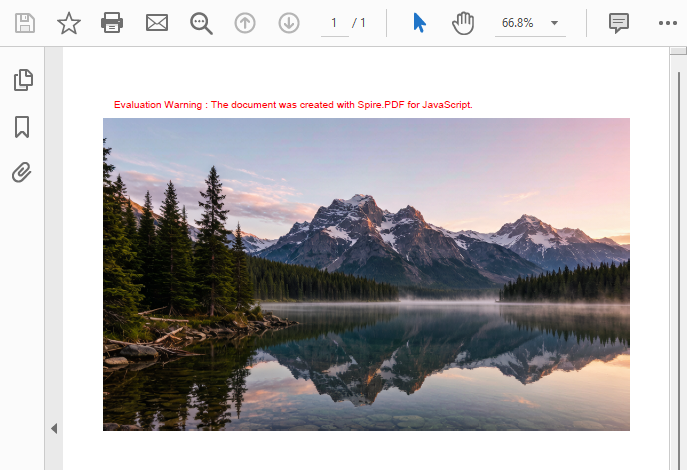
PDF-Dokument, das nach dem Laden eines Bildes über PdfImage.FromFile und dem Zeichnen mit Canvas.DrawImage erzeugt wurde
Lagere die Größenberechnung in einen Helfer aus, denn das ist der eine Teil dieses Codes, den du in jedem weiteren Rezept unten wiederverwenden wirst. Die Mathematik: Nimm page.Canvas.ClientSize — die zeichenbare Fläche der Seite, in Punkten — als dein Budget, vergleiche es mit der natürlichen PhysicalDimension des Bildes und teile beide Dimensionen durch einen einzigen Faktor, damit das Seitenverhältnis erhalten bleibt. Vergrabe es in einer Funktion, damit der fehleranfällige Teil an genau einer Stelle lebt:
// Contain: scale until the whole image fits inside the page
function fitContain(imgW, imgH, pageW, pageH) {
  const rate = Math.max(imgW / pageW, imgH / pageH);
  const width = imgW / rate;
  const height = imgH / rate;
  return { width, height, x: (pageW - width) / 2, y: (pageH - height) / 2 };
}
Jetzt schrumpft der Zeichenaufruf im obigen Beispiel auf drei Zeilen, und die Entscheidung „contain oder cover“ wandert aus der Mathematik heraus und in einen Funktionsnamen:
let page = doc.Pages.Add();
let box = fitContain(
  image.PhysicalDimension.Width, image.PhysicalDimension.Height,
  page.Canvas.ClientSize.Width, page.Canvas.ClientSize.Height
);
page.Canvas.DrawImage({ image: image, x: box.x, y: box.y, width: box.width, height: box.height });
Math.max ist die „Contain“-Wahl — skaliere anhand der restriktiveren Achse, damit das gesamte Bild sichtbar bleibt. Wenn du stattdessen die Seite füllen und den Überlauf abschneiden möchtest, ersetze es durch Math.min; der Abschnitt über Größenanpassung liefert dir das fitCover-Gegenstück und eine Variante mit Rand.
Viele Bilder, ein Dokument
Ein Bild pro Seite bedeutet ein Pages.Add() und ein DrawImage pro Bild. Durchlaufe ein Array von Dateinamen in einer Schleife, und die Array-Reihenfolge wird zur Seitenreihenfolge — genau das, was du willst, wenn der Benutzer gerade Miniaturansichten in eine Reihenfolge gezogen hat.
const combineImagesToPdf = async () => {
  const pdfModule = window.wasmModule?.spirepdf;
  if (!pdfModule) return;

  // The order of this array is the order of pages in the PDF
  const imageFiles = ['scan_01.png', 'scan_02.png', 'scan_03.png', 'scan_04.png'];

  for (const fileName of imageFiles) {
    await window.spire.FetchFileToVFS(fileName, "", `${process.env.PUBLIC_URL}/data/`);
  }

  let doc = new pdfModule.PdfDocument();

  for (const fileName of imageFiles) {
    let page = doc.Pages.Add();
    let image = pdfModule.PdfImage.FromFile(fileName);

    let box = fitContain(
      image.PhysicalDimension.Width, image.PhysicalDimension.Height,
      page.Canvas.ClientSize.Width, page.Canvas.ClientSize.Height
    );

    page.Canvas.DrawImage({ image: image, x: box.x, y: box.y, width: box.width, height: box.height });
  }

  const outputFileName = 'ScannedDocument.pdf';
  doc.SaveToFile({ fileName: outputFileName, fileFormat: pdfModule.FileFormat.PDF });
  doc.Close();

  const fileArray = window.dotnetRuntime.Module.FS.readFile(outputFileName);
  const blob = new Blob([fileArray], { type: 'application/pdf' });
  const url = URL.createObjectURL(blob);
  const a = document.createElement('a');
  a.href = url;
  a.download = outputFileName;
  a.click();
  URL.revokeObjectURL(url);
};
Zwei praktische Hinweise. Da jede Seite unabhängig dimensioniert wird, sind Bilder mit unterschiedlichen Abmessungen kein Problem — ein Querformatfoto und ein Hochformat-Scan können ohne spezielle Behandlung im selben Dokument stehen. Und da das gesamte Dokument vor SaveToFile im Speicher aufgebaut wird, erfolgt der Download am Ende nur einmal, unabhängig davon, wie viele Bilder hineingegangen sind.
Das könnte dir auch gefallen: Das Zusammensetzen von Bildern ist die Umkehrung des Renderns. Wenn du bereits ein PDF hast und jede seiner Seiten stattdessen als Bild möchtest, siehe How to Convert PDF Pages to Images in JavaScript (React).
Größenanpassung: Das Bild an die Seite anpassen
Es gibt zwei sinnvolle Möglichkeiten, ein Bild auf eine Seite zu setzen, und welche du willst, hängt davon ab, ob der Verlust eines Teils des Bildes akzeptabel ist.
Contain (Math.max) |
Cover (Math.min) |
|
|---|---|---|
| Was es tut | Skaliert, bis das gesamte Bild passt | Skaliert, bis die Seite gefüllt ist |
| Gesamtes Bild sichtbar | Ja | Nein — der Überlauf wird abgeschnitten |
| Leerraum | Möglich, auf einer Achse | Keiner |
| Geeignet für | Scans, Dokumente, alles, was vollständig bleiben muss | Randlose Fotos, Titelbilder, Folien |
Das erste Beispiel verwendet Contain — den fitContain-Helfer. Der Wechsel zu Cover ist das Spiegelbild dieser Funktion: Math.min statt Math.max, die Seite füllend und die Leinwand alles abschneiden lassend, was überläuft, mit Zentrierungs-Offsets, die negativ werden:
// Cover: fill the page, clipping whatever overflows
function fitCover(imgW, imgH, pageW, pageH) {
  const rate = Math.min(imgW / pageW, imgH / pageH);
  const width = imgW / rate;
  const height = imgH / rate;
  return {
    width, height,
    x: (pageW - width) / 2,   // negative when the image is wider than the page
    y: (pageH - height) / 2   // negative when it is taller
  };
}
Wenn du einen sichtbaren Rand anstelle einer randlosen Ausgabe möchtest, verkleinere den nutzbaren Bereich statt das Bild — führe das um den Rand reduzierte Budget in denselben fitContain-Helfer ein:
const margin = 36; // 36 points = 0.5 inch
let usableWidth = page.Canvas.ClientSize.Width - margin * 2;
let usableHeight = page.Canvas.ClientSize.Height - margin * 2;

let box = fitContain(
  image.PhysicalDimension.Width, image.PhysicalDimension.Height,
  usableWidth, usableHeight
);
page.Canvas.DrawImage({ image: image, x: box.x, y: box.y, width: box.width, height: box.height });
Eine Sache, die man über PhysicalDimension wissen sollte: Sie spiegelt die physische Größe des Bildes wider, die nicht immer seiner Pixelgröße entspricht. Ein Foto mit 4000 × 3000 Pixeln, das mit einem anderen DPI-Tag gespeichert wurde, meldet andere Zahlen als erwartet. Deshalb ist der oben beschriebene verhältnisbasierte Ansatz sicherer als fest codierte Pixelabmessungen — er funktioniert unabhängig davon, wie das Bild getaggt wurde.
Bilder aus dem Speicher laden
PdfImage.FromFile erwartet, dass sich das Bild bereits im VFS befindet. Dort liegen deine Bilder aber nicht immer — eine API-Antwort, ein Datenbank-Blob oder ein Canvas-Export liefern dir stattdessen Bytes im Speicher. PdfImage.FromStream nimmt diese Bytes direkt entgegen.
// Read image bytes from VFS and build a memory stream
let bytes = window.dotnetRuntime.Module.FS.readFile(inputFileName);
let stream = new pdfModule.Stream(bytes);

// Load the image from the memory stream
let image = pdfModule.PdfImage.FromStream(stream);
Von dort aus ist es wie bei jedem anderen Bild — die Größe berechnen und es zeichnen:
let page = doc.Pages.Add();
let box = fitContain(
  image.PhysicalDimension.Width, image.PhysicalDimension.Height,
  page.Canvas.ClientSize.Width, page.Canvas.ClientSize.Height
);
page.Canvas.DrawImage({ image: image, x: box.x, y: box.y, width: box.width, height: box.height });
Dieselbe bytes-Form funktioniert unabhängig davon, woher sie stammt. Wenn deine Bilder als ArrayBuffer von fetch ankommen, packe ihn in ein Uint8Array, bevor du den Stream konstruierst:
const response = await fetch('/api/images/invoice-001');
const bytes = new Uint8Array(await response.arrayBuffer());
let stream = new pdfModule.Stream(bytes);
let image = pdfModule.PdfImage.FromStream(stream);
Dies ist das Muster, zu dem du greifen solltest, wenn es sich um serverausgelöste Bilder, im State gehaltene Benutzer-Uploads oder etwas handelt, das zur Laufzeit von einem Canvas generiert wird — kein Umweg über das VFS erforderlich.
Empfohlener Artikel: Spire.PDF kann auch auf die Seiten eines PDFs zeichnen, das du bereits geöffnet hast, nicht nur auf die neuen Dokumente oben. Zum Platzieren von Bildern in einem bestehenden Dokument siehe How to Add Images to a PDF in JavaScript (React).
Häufige Probleme
Das Bild kommt gestreckt oder gestaucht heraus.
Das sind fast immer zwei verschiedene Skalierungsfaktoren. Berechne einen einzigen fitRate und teile sowohl Breite als auch Höhe durch ihn — skaliere die Achsen niemals unabhängig voneinander.
Das Bild ist winzig in der Mitte einer großen leeren Seite. Das ist zu erwarten, wenn das Seitenverhältnis des Bildes stark von dem der Seite abweicht. Ein Panoramafoto auf einer Hochformatseite hinterlässt immer Streifen oben und unten. Akzeptiere es entweder (korrekt für Dokumente), wechsle zu Cover oder verwende die randangepasste Version, um wenigstens den Leerraum symmetrisch zu halten.
Das Bild ist an den Rändern abgeschnitten.
Du verwendest absichtlich oder unabsichtlich das Cover-Verhalten. Prüfe, ob fitRate Math.min verwendet hat; wechsle zu Math.max, wenn das gesamte Bild sichtbar sein muss.
Ein hochauflösendes Foto erzeugt ein riesiges PDF.
Das Bild wird in seiner eigenen Auflösung eingebettet. Wenn die Dateigröße wichtig ist, skaliere vor dem Zeichnen herunter — zeichne es in Zielgröße auf ein Canvas, exportiere es und verwende diese Bytes mit PdfImage.FromStream.
Beim ersten Klick passiert nichts.
Das WASM-Modul lädt asynchron. Die Prüfung if (!pdfModule) return; existiert aus diesem Grund; in einer echten App solltest du den Button an die Bereitschaft des Moduls koppeln, statt eine Warnung anzuzeigen.
FAQ
Kann ich Bilder in ein bestehendes PDF einfügen, anstatt ein neues zu erstellen?
Ja. Die Beispiele hier erstellen ein neues Dokument, aber du kannst ein bestehendes PDF öffnen und auf dieselbe Weise auf seine Seiten zeichnen. Siehe How to Add Images to a PDF in JavaScript (React) für diesen Workflow.
Welche Bildformate kann ich laden?
Gängige Bitmap-Formate — PNG, JPEG, BMP und ähnliche — werden von PdfImage.FromFile und PdfImage.FromStream unterstützt. Verwende FromStream, wenn das Format zur Build-Zeit unbekannt ist oder die Bytes aus einer Netzwerkantwort stammen.
Kann ich die Seitenreihenfolge steuern?
Ja. Seiten werden in der Reihenfolge erstellt, in der du Pages.Add() aufrufst, also sortiert das Sortieren deines Dateinamen-Arrays die Ausgabe. Das ist der Mechanismus hinter Drag-and-Drop-Oberflächen zum Umsortieren: Ordne das Array um, baue das PDF neu.
Ist dafür ein Backend erforderlich?
Nein. Das Dokument wird im Browser durch das WebAssembly-Modul zusammengesetzt, und das fertige PDF wird als Bytes zurückgegeben, die du in einen Blob umwandelst. Die Bilder verlassen niemals das Gerät.
Kann ich Hoch- und Querformatbilder in einem PDF mischen?
Ja. Jede Seite wird unabhängig dimensioniert und gezeichnet, sodass ein Hochformat-Scan und ein Querformatfoto nebeneinander stehen können. Wenn du eine einheitliche Seitenausrichtung möchtest, ist das ein Grund, eine feste Seitengröße zu verwenden und die Bilder darauf skalieren zu lassen.
Ich habe ein PDF und möchte seine Seiten als Bilder, nicht umgekehrt.
Das ist die umgekehrte Operation — Rendern statt Zusammensetzen. Siehe How to Convert PDF Pages to Images in JavaScript (React).
Muss das Bild im VFS liegen?
Nur für FromFile. FromStream akzeptiert Bytes von überall — eine Fetch-Antwort, ein Canvas-Export oder ein State — und umgeht das VFS vollständig.
Siehe auch
Die Zusammenbau-Rezepte hier erstellen ein brandneues Dokument. Wenn deine Bilder in ein bestehendes PDF eingefügt werden sollen — auf Seiten zeichnen, die du bereits hast —, siehe How to Add Images to a PDF in JavaScript (React). Die anderen nützlichen Teile der Bild-zu-PDF-Pipeline:
Преобразование изображений в PDF на JavaScript (React)
Содержание
Папку с изображениями неудобно передавать кому-либо. PDF — это один файл, который открывается везде, предсказуемо печатается и — что на самом деле важно людям — сохраняет фиксированный порядок. Именно поэтому отсканированные страницы, наборы фотографий, фото чеков и экспортированные макеты дизайна так часто собираются в PDF, прежде чем куда-либо отправиться.
Создание такого PDF в браузере — задача иная, чем рендеринг PDF в изображение. Вы не декодируете что-то уже существующее; вы принимаете решения, которые обычно за вас принимает формат документа: каков размер страницы, где на ней расположено изображение, что происходит, если форма изображения отличается от формы страницы, и в каком порядке идут страницы.
Spire.PDF for JavaScript предоставляет доступ к этим решениям через холст страницы. Вы добавляете страницу, загружаете изображение, рисуете его на этой странице в вычисленном вами размере и сохраняете. Всё выполняется на стороне клиента через WebAssembly, поэтому изображения никуда не загружаются.
Почему изображения попадают в PDF
Все эти сценарии объединяет одно: несколько изображений, которые должны вести себя как один документ.
- Отсканированные или сфотографированные многостраничные документы — договор, сфотографированный страница за страницей и собранный в один файл, который можно подшить в дело или отправить по электронной почте.
- Наборы фотографий и портфолио — одно изображение на страницу, в выбранном кем-то порядке.
- Чеки и отчёты о расходах — дюжина фотографий с телефона, которые бухгалтерия хочет получить одним вложением.
- Экспорт макетов и диаграмм — кадры, экспортированные из инструмента и собранные во что-то, что можно просмотреть.
В каждом случае дело не столько в самом формате PDF. Речь о том, чтобы получить из груды изображений стабильный, единый упорядоченный артефакт.
Предварительные требования
В этом руководстве предполагается, что у вас есть проект на React с установленным Spire.PDF for JavaScript и инициализированным модулем WASM. О настройке см. Интеграция Spire.PDF for JavaScript в проект React.
Вам понадобится:
- Один или несколько файлов изображений, загруженных в VFS
- Модуль WASM, доступный по адресу
window.wasmModule.spirepdf
Одно изображение — одна страница
Базовый процесс состоит из четырёх шагов: создать документ, добавить страницу, загрузить изображение, нарисовать его. Самое интересное — это рисование: нужно решить, какого размера изображение должно быть на странице.
function App() {
  const convertImageToPDF = async () => {
    // Get the Spire.PDF WASM module
    const pdfModule = window.wasmModule?.spirepdf;

    // Check if the WASM module is ready
    if (!pdfModule) {
      alert('Spire.PDF is not ready yet');
      return;
    }

    // Load the image file into VFS
    const inputFileName = 'Scenery.png';
    await window.spire.FetchFileToVFS(inputFileName, "", `${process.env.PUBLIC_URL}/data/`);

    // Create a PdfDocument object
    let doc = new pdfModule.PdfDocument();

    // Add a page
    let page = doc.Pages.Add();

    // Load the image
    let image = pdfModule.PdfImage.FromFile(inputFileName);

    // Calculate the scale ratio so the image fits the page completely
    let widthFitRate = image.PhysicalDimension.Width / page.Canvas.ClientSize.Width;
    let heightFitRate = image.PhysicalDimension.Height / page.Canvas.ClientSize.Height;
    let fitRate = Math.max(widthFitRate, heightFitRate);

    // Calculate the scaled dimensions of the image
    let fitWidth = image.PhysicalDimension.Width / fitRate;
    let fitHeight = image.PhysicalDimension.Height / fitRate;

    // Center the image on the page
    let x = (page.Canvas.ClientSize.Width - fitWidth) / 2;
    let y = (page.Canvas.ClientSize.Height - fitHeight) / 2;

    // Draw the image onto the page
    page.Canvas.DrawImage({ image: image, x: x, y: y, width: fitWidth, height: fitHeight });

    const outputFileName = 'ImageToPDF.pdf';

    // Save as PDF format
    doc.SaveToFile({ fileName: outputFileName, fileFormat: pdfModule.FileFormat.PDF });
    doc.Close();

    // Read the converted file from VFS and trigger download
    const fileArray = window.dotnetRuntime.Module.FS.readFile(outputFileName);
    const blob = new Blob([fileArray], { type: 'application/pdf' });
    const url = URL.createObjectURL(blob);
    const a = document.createElement('a');
    a.href = url;
    a.download = outputFileName;
    a.click();
    URL.revokeObjectURL(url);
  };

  return (
    <div style={{ textAlign: 'center', height: '300px' }}>
      <h1>Convert Image To PDF</h1>
      <button onClick={convertImageToPDF}>
        Generate
      </button>
    </div>
  );
}

export default App;
PDF-документ, созданный после загрузки изображения через PdfImage.FromFile и его отрисовки с помощью Canvas.DrawImage
Вынесите расчёт размера в отдельную вспомогательную функцию, потому что это единственная часть этого кода, которую вы будете переиспользовать во всех остальных рецептах ниже. Математика: возьмите page.Canvas.ClientSize — область страницы, доступную для рисования, в пунктах — в качестве вашего бюджета, сравните её с естественным PhysicalDimension изображения и разделите оба измерения на единый коэффициент, чтобы сохранить соотношение сторон. Спрячьте это в функцию, чтобы подверженная ошибкам часть находилась ровно в одном месте:
// Contain: scale until the whole image fits inside the page
function fitContain(imgW, imgH, pageW, pageH) {
  const rate = Math.max(imgW / pageW, imgH / pageH);
  const width = imgW / rate;
  const height = imgH / rate;
  return { width, height, x: (pageW - width) / 2, y: (pageH - height) / 2 };
}
Теперь вызов отрисовки из примера выше сокращается до трёх строк, а решение «contain или cover» переходит из математики прямо в имя функции:
let page = doc.Pages.Add();
let box = fitContain(
  image.PhysicalDimension.Width, image.PhysicalDimension.Height,
  page.Canvas.ClientSize.Width, page.Canvas.ClientSize.Height
);
page.Canvas.DrawImage({ image: image, x: box.x, y: box.y, width: box.width, height: box.height });
Math.max — это выбор «contain»: масштабирование по более ограничивающей оси, чтобы всё изображение оставалось видимым. Если же вы хотите заполнить страницу и обрезать выходящее за края, замените на Math.min; в разделе о подгонке размера приведён аналог fitCover и вариант с полями.
Много изображений — один документ
Одно изображение на страницу означает один Pages.Add() и один DrawImage на каждое изображение. Пройдитесь циклом по массиву имён файлов — и порядок массива станет порядком страниц, что как раз то, что нужно, когда пользователь только что закончил перетаскивать миниатюры в нужную последовательность.
const combineImagesToPdf = async () => {
  const pdfModule = window.wasmModule?.spirepdf;
  if (!pdfModule) return;

  // The order of this array is the order of pages in the PDF
  const imageFiles = ['scan_01.png', 'scan_02.png', 'scan_03.png', 'scan_04.png'];

  for (const fileName of imageFiles) {
    await window.spire.FetchFileToVFS(fileName, "", `${process.env.PUBLIC_URL}/data/`);
  }

  let doc = new pdfModule.PdfDocument();

  for (const fileName of imageFiles) {
    let page = doc.Pages.Add();
    let image = pdfModule.PdfImage.FromFile(fileName);

    let box = fitContain(
      image.PhysicalDimension.Width, image.PhysicalDimension.Height,
      page.Canvas.ClientSize.Width, page.Canvas.ClientSize.Height
    );

    page.Canvas.DrawImage({ image: image, x: box.x, y: box.y, width: box.width, height: box.height });
  }

  const outputFileName = 'ScannedDocument.pdf';
  doc.SaveToFile({ fileName: outputFileName, fileFormat: pdfModule.FileFormat.PDF });
  doc.Close();

  const fileArray = window.dotnetRuntime.Module.FS.readFile(outputFileName);
  const blob = new Blob([fileArray], { type: 'application/pdf' });
  const url = URL.createObjectURL(blob);
  const a = document.createElement('a');
  a.href = url;
  a.download = outputFileName;
  a.click();
  URL.revokeObjectURL(url);
};
Два практических замечания. Поскольку каждая страница подгоняется независимо, изображения с разными размерами — не проблема: горизонтальная фотография и вертикальный скан могут находиться в одном документе без какой-либо особой обработки. А поскольку весь документ собирается в памяти до SaveToFile, скачивание происходит один раз в конце, независимо от того, сколько изображений было добавлено.
Вам также может понравиться: Сборка изображений — это обратная операция по отношению к рендерингу. Если у вас уже есть PDF и вы хотите получить каждую его страницу в виде картинки, см. Как преобразовать страницы PDF в изображения в JavaScript (React).
Подгонка размера: как вписать изображение в страницу
Есть два разумных способа разместить изображение на странице, и выбор зависит от того, допустима ли потеря части изображения.
Contain (Math.max) |
Cover (Math.min) |
|
|---|---|---|
| Что делает | Масштабирует, пока всё изображение не поместится | Масштабирует, пока страница не заполнится |
| Всё изображение видно | Да | Нет — выходящее за края обрезается |
| Пустое пространство | Возможно, по одной оси | Отсутствует |
| Подходит для | Сканов, документов, всего, что должно оставаться целым | Фотографий на всю страницу, обложек, слайдов |
В первом примере используется contain — вспомогательная функция fitContain. Переход к cover — это зеркальное отражение этой функции: Math.min вместо Math.max, заполнение страницы и предоставление холсту обрезать всё, что выходит за края, при этом смещения центрирования становятся отрицательными:
// Cover: fill the page, clipping whatever overflows
function fitCover(imgW, imgH, pageW, pageH) {
  const rate = Math.min(imgW / pageW, imgH / pageH);
  const width = imgW / rate;
  const height = imgH / rate;
  return {
    width, height,
    x: (pageW - width) / 2,   // negative when the image is wider than the page
    y: (pageH - height) / 2   // negative when it is taller
  };
}
Если вместо вывода от края до края вы хотите видимые поля, уменьшайте не изображение, а полезную область — передайте бюджет с учётом полей в ту же вспомогательную функцию fitContain:
const margin = 36; // 36 points = 0.5 inch
let usableWidth = page.Canvas.ClientSize.Width - margin * 2;
let usableHeight = page.Canvas.ClientSize.Height - margin * 2;

let box = fitContain(
  image.PhysicalDimension.Width, image.PhysicalDimension.Height,
  usableWidth, usableHeight
);
page.Canvas.DrawImage({ image: image, x: box.x, y: box.y, width: box.width, height: box.height });
Об PhysicalDimension стоит знать одно: оно отражает физический размер изображения, который не всегда совпадает с его размером в пикселях. Фотография 4000 × 3000, сохранённая с другим значением DPI, вернёт не те числа, которых вы могли бы ожидать. Именно поэтому подход на основе коэффициентов, описанный выше, надёжнее жёсткого задания размеров в пикселях — он работает независимо от того, как было помечено изображение.
Загрузка изображений из памяти
PdfImage.FromFile ожидает, что изображение уже находится в VFS. Но ваши изображения не всегда там — ответ API, blob из базы данных или экспорт из canvas дают вам байты в памяти. PdfImage.FromStream принимает эти байты напрямую.
// Read image bytes from VFS and build a memory stream
let bytes = window.dotnetRuntime.Module.FS.readFile(inputFileName);
let stream = new pdfModule.Stream(bytes);

// Load the image from the memory stream
let image = pdfModule.PdfImage.FromStream(stream);
Далее всё так же, как с любым другим изображением — вычислите размер и нарисуйте его:
let page = doc.Pages.Add();
let box = fitContain(
  image.PhysicalDimension.Width, image.PhysicalDimension.Height,
  page.Canvas.ClientSize.Width, page.Canvas.ClientSize.Height
);
page.Canvas.DrawImage({ image: image, x: box.x, y: box.y, width: box.width, height: box.height });
Одна и та же форма bytes подходит независимо от источника. Если ваши изображения приходят как ArrayBuffer из fetch, оберните его в Uint8Array перед созданием потока:
const response = await fetch('/api/images/invoice-001');
const bytes = new Uint8Array(await response.arrayBuffer());
let stream = new pdfModule.Stream(bytes);
let image = pdfModule.PdfImage.FromStream(stream);
Это шаблон, к которому стоит прибегать, когда PDF собирается из изображений, инициированных на сервере, загруженных пользователем файлов, хранящихся в состоянии, или чего-либо, сгенерированного во время выполнения на canvas — без обращения к VFS.
Рекомендуемая статья: Spire.PDF умеет также рисовать на страницах уже открытого PDF, а не только в новых документах, как выше. О размещении изображений в существующем документе см. Как добавить изображения в PDF в JavaScript (React).
Типичные проблемы
Изображение получается растянутым или сжатым.
Почти всегда причина в двух разных коэффициентах масштабирования. Вычислите единый fitRate и разделите на него и ширину, и высоту — никогда не масштабируйте оси независимо.
Изображение крошечное посреди большой пустой страницы. Это ожидаемо, когда соотношение сторон изображения сильно отличается от соотношения сторон страницы. Панорамная фотография на вертикальной странице всегда оставит полосы сверху и снизу. Либо смиритесь с этим (правильно для документов), либо переключитесь на cover, либо используйте вариант с полями, чтобы хотя бы пустое пространство оставалось симметричным.
Изображение обрезано по краям.
Вы используете поведение cover — намеренно или нет. Проверьте, использовал ли fitRate функцию Math.min; переключитесь на Math.max, если всё изображение должно быть видно.
Фотография высокого разрешения даёт огромный PDF.
Изображение встраивается со своим собственным разрешением. Если размер файла важен, уменьшите масштаб перед отрисовкой — нарисуйте его на canvas нужного размера, экспортируйте и используйте эти байты с PdfImage.FromStream.
При первом нажатии ничего не происходит.
Модуль WASM загружается асинхронно. Проверка if (!pdfModule) return; существует именно для этого; в настоящем приложении блокируйте кнопку до готовности модуля, а не показывайте alert.
Часто задаваемые вопросы
Можно ли вставлять изображения в существующий PDF вместо создания нового?
Да. Примеры здесь создают новый документ, но вы можете открыть существующий PDF и рисовать на его страницах точно так же. См. Как добавить изображения в PDF в JavaScript (React) для этого сценария.
Какие форматы изображений можно загружать?
Распространённые растровые форматы — PNG, JPEG, BMP и подобные — поддерживаются PdfImage.FromFile и PdfImage.FromStream. Используйте FromStream, когда формат неизвестен на этапе сборки или байты приходят из сетевого ответа.
Можно ли управлять порядком страниц?
Да. Страницы создаются в том порядке, в котором вы вызываете Pages.Add(), поэтому сортировка массива имён файлов сортирует и результат. Именно на этом механизме основаны интерфейсы с перетаскиванием для изменения порядка: измените порядок массива — пересоберите PDF.
Требуется ли здесь серверная часть?
Нет. Документ собирается в браузере модулем WebAssembly, а готовый PDF возвращается в виде байтов, которые вы превращаете в Blob. Изображения никогда не покидают устройство.
Можно ли смешивать вертикальные и горизонтальные изображения в одном PDF?
Да. Каждая страница подгоняется и рисуется независимо, поэтому вертикальный скан и горизонтальная фотография могут стоять рядом. Если вам нужна единая ориентация страниц, это повод использовать фиксированный размер страницы и позволить изображениям масштабироваться под него.
У меня есть PDF, и я хочу получить его страницы в виде изображений, а не наоборот.
Это обратная операция — рендеринг, а не сборка. См. Как преобразовать страницы PDF в изображения в JavaScript (React).
Нужно ли помещать изображение в VFS?
Только для FromFile. FromStream принимает байты из любого источника — ответа fetch, экспорта из canvas или состояния — и полностью обходится без VFS.
См. также
Рецепты сборки здесь создают совершенно новый документ. Если ваши изображения нужно поместить в существующий PDF — нарисовать на уже имеющихся страницах — см. Как добавить изображения в PDF в JavaScript (React). Другие полезные части конвейера «изображение → PDF»:
Converting Images to PDF in JavaScript (React)
A folder of images is awkward to hand to someone. A PDF is one file, opens everywhere, prints predictably, and — the part people actually care about — holds a fixed order. That is why scanned pages, photo sets, receipt photos, and exported design frames so often get assembled into a PDF before they go anywhere.
Building that PDF in the browser is a different problem from rendering a PDF to an image. You are not decoding something that already exists; you are making decisions a document format would normally make for you: how big is the page, where does the image sit on it, what happens when an image is a different shape from the page, and in what order do the pages come out.
Spire.PDF for JavaScript exposes those decisions through a page canvas. You add a page, load an image, draw it onto that page at a size you compute, and save. Everything runs client-side through WebAssembly, so the images never get uploaded.
Why images end up in PDFs
The scenarios share one shape: several images that need to behave like one document.
- Scanned or photographed multipage documents — a contract photographed page by page, reassembled into a single file that can be filed or emailed.
- Photo sets and portfolios — one image per page, in an order someone chose.
- Receipts and expense reports — a dozen phone photos that accounting wants as one attachment.
- Design and diagram exports — frames exported from a tool, collected into something reviewable.
In each case the PDF is not really about the PDF format. It is about getting a stable, single-file, ordered artifact out of a pile of images.
Prerequisites
This walkthrough assumes a React project with Spire.PDF for JavaScript installed and the WASM module initialized. For setup, see Integrating Spire.PDF for JavaScript in a React Project.
You will need:
- One or more image files loaded into the VFS
- The WASM module reachable at
window.wasmModule.spirepdf
One image, one page
The basic flow is four steps: create a document, add a page, load the image, draw it. The interesting part is the drawing — you have to decide how large the image should be on the page.
function App() {
  const convertImageToPDF = async () => {
    // Get the Spire.PDF WASM module
    const pdfModule = window.wasmModule?.spirepdf;

    // Check if the WASM module is ready
    if (!pdfModule) {
      alert('Spire.PDF is not ready yet');
      return;
    }

    // Load the image file into VFS
    const inputFileName = 'Scenery.png';
    await window.spire.FetchFileToVFS(inputFileName, "", `${process.env.PUBLIC_URL}/data/`);

    // Create a PdfDocument object
    let doc = new pdfModule.PdfDocument();

    // Add a page
    let page = doc.Pages.Add();

    // Load the image
    let image = pdfModule.PdfImage.FromFile(inputFileName);

    // Calculate the scale ratio so the image fits the page completely
    let widthFitRate = image.PhysicalDimension.Width / page.Canvas.ClientSize.Width;
    let heightFitRate = image.PhysicalDimension.Height / page.Canvas.ClientSize.Height;
    let fitRate = Math.max(widthFitRate, heightFitRate);

    // Calculate the scaled dimensions of the image
    let fitWidth = image.PhysicalDimension.Width / fitRate;
    let fitHeight = image.PhysicalDimension.Height / fitRate;

    // Center the image on the page
    let x = (page.Canvas.ClientSize.Width - fitWidth) / 2;
    let y = (page.Canvas.ClientSize.Height - fitHeight) / 2;

    // Draw the image onto the page
    page.Canvas.DrawImage({ image: image, x: x, y: y, width: fitWidth, height: fitHeight });

    const outputFileName = 'ImageToPDF.pdf';

    // Save as PDF format
    doc.SaveToFile({ fileName: outputFileName, fileFormat: pdfModule.FileFormat.PDF });
    doc.Close();

    // Read the converted file from VFS and trigger download
    const fileArray = window.dotnetRuntime.Module.FS.readFile(outputFileName);
    const blob = new Blob([fileArray], { type: 'application/pdf' });
    const url = URL.createObjectURL(blob);
    const a = document.createElement('a');
    a.href = url;
    a.download = outputFileName;
    a.click();
    URL.revokeObjectURL(url);
  };

  return (
    <div style={{ textAlign: 'center', height: '300px' }}>
      <h1>Convert Image To PDF</h1>
      <button onClick={convertImageToPDF}>
        Generate
      </button>
    </div>
  );
}

export default App;
PDF document generated after loading an image via PdfImage.FromFile and drawing it with Canvas.DrawImage
Extract the sizing into a helper, because it is the one piece of this code you will reuse in every other recipe below. The math: take page.Canvas.ClientSize — the drawable area of the page, in points — as your budget, compare it against the image's natural PhysicalDimension, and divide both dimensions by a single ratio so the aspect ratio survives. Bury it in a function so the bug-prone part lives in exactly one place:
// Contain: scale until the whole image fits inside the page
function fitContain(imgW, imgH, pageW, pageH) {
  const rate = Math.max(imgW / pageW, imgH / pageH);
  const width = imgW / rate;
  const height = imgH / rate;
  return { width, height, x: (pageW - width) / 2, y: (pageH - height) / 2 };
}
Now the draw call in the example above shrinks to three lines, and the "contain or cover" decision moves out of the math and into a function name:
let page = doc.Pages.Add();
let box = fitContain(
  image.PhysicalDimension.Width, image.PhysicalDimension.Height,
  page.Canvas.ClientSize.Width, page.Canvas.ClientSize.Height
);
page.Canvas.DrawImage({ image: image, x: box.x, y: box.y, width: box.width, height: box.height });
Math.max is the "contain" choice — scale by the more restrictive axis so the whole image stays visible. If you instead want to fill the page and clip the overflow, swap in Math.min; the section on sizing gives you the fitCover counterpart and a margin variant.
Many images, one document
One image per page means one Pages.Add() and one DrawImage per image. Loop over an array of filenames and the array order becomes the page order — which is exactly what you want when the user has just finished dragging thumbnails into sequence.
const combineImagesToPdf = async () => {
  const pdfModule = window.wasmModule?.spirepdf;
  if (!pdfModule) return;

  // The order of this array is the order of pages in the PDF
  const imageFiles = ['scan_01.png', 'scan_02.png', 'scan_03.png', 'scan_04.png'];

  for (const fileName of imageFiles) {
    await window.spire.FetchFileToVFS(fileName, "", `${process.env.PUBLIC_URL}/data/`);
  }

  let doc = new pdfModule.PdfDocument();

  for (const fileName of imageFiles) {
    let page = doc.Pages.Add();
    let image = pdfModule.PdfImage.FromFile(fileName);

    let box = fitContain(
      image.PhysicalDimension.Width, image.PhysicalDimension.Height,
      page.Canvas.ClientSize.Width, page.Canvas.ClientSize.Height
    );

    page.Canvas.DrawImage({ image: image, x: box.x, y: box.y, width: box.width, height: box.height });
  }

  const outputFileName = 'ScannedDocument.pdf';
  doc.SaveToFile({ fileName: outputFileName, fileFormat: pdfModule.FileFormat.PDF });
  doc.Close();

  const fileArray = window.dotnetRuntime.Module.FS.readFile(outputFileName);
  const blob = new Blob([fileArray], { type: 'application/pdf' });
  const url = URL.createObjectURL(blob);
  const a = document.createElement('a');
  a.href = url;
  a.download = outputFileName;
  a.click();
  URL.revokeObjectURL(url);
};
Two practical notes. Because each page is sized independently, images of different dimensions are fine — a landscape photo and a portrait scan can sit in the same document without any special handling. And because the whole document is built in memory before SaveToFile, the download happens once at the end regardless of how many images went in.
You may also like: Assembling images is the reverse of rendering. If you already have a PDF and want each of its pages as a picture instead, see How to Convert PDF Pages to Images in JavaScript (React).
Sizing: fit the image to the page
There are two reasonable ways to put an image on a page, and which one you want depends on whether losing part of the image is acceptable.
Contain (Math.max) |
Cover (Math.min) |
|
|---|---|---|
| What it does | Scales until the entire image fits | Scales until the page is filled |
| Whole image visible | Yes | No — the overflow is clipped |
| Empty space | Possible, on one axis | None |
| Right for | Scans, documents, anything that must stay complete | Full-bleed photos, cover pages, slides |
The first example uses contain — the fitContain helper. Switching to cover is the mirror of that function: Math.min instead of Math.max, filling the page and letting the canvas clip whatever overflows, with centering offsets that go negative:
// Cover: fill the page, clipping whatever overflows
function fitCover(imgW, imgH, pageW, pageH) {
  const rate = Math.min(imgW / pageW, imgH / pageH);
  const width = imgW / rate;
  const height = imgH / rate;
  return {
    width, height,
    x: (pageW - width) / 2,   // negative when the image is wider than the page
    y: (pageH - height) / 2   // negative when it is taller
  };
}
If you want a visible margin instead of edge-to-edge output, shrink the usable area rather than the image — feed the margin-adjusted budget into the same fitContain helper:
const margin = 36; // 36 points = 0.5 inch
let usableWidth = page.Canvas.ClientSize.Width - margin * 2;
let usableHeight = page.Canvas.ClientSize.Height - margin * 2;

let box = fitContain(
  image.PhysicalDimension.Width, image.PhysicalDimension.Height,
  usableWidth, usableHeight
);
page.Canvas.DrawImage({ image: image, x: box.x, y: box.y, width: box.width, height: box.height });
One thing worth knowing about PhysicalDimension: it reflects the image's physical size, which is not always its pixel size. A 4000 × 3000 photo saved with a different DPI tag will report different numbers than you might expect. This is why the ratio-based approach above is safer than hardcoding pixel dimensions — it works regardless of how the image was tagged.
Load images from memory
PdfImage.FromFile expects the image to already be in the VFS. That is not always where your images live — an API response, a database blob, or a canvas export all give you bytes in memory instead. PdfImage.FromStream takes those bytes directly.
// Read image bytes from VFS and build a memory stream
let bytes = window.dotnetRuntime.Module.FS.readFile(inputFileName);
let stream = new pdfModule.Stream(bytes);

// Load the image from the memory stream
let image = pdfModule.PdfImage.FromStream(stream);
From there it is the same as any other image — compute the size and draw it:
let page = doc.Pages.Add();
let box = fitContain(
  image.PhysicalDimension.Width, image.PhysicalDimension.Height,
  page.Canvas.ClientSize.Width, page.Canvas.ClientSize.Height
);
page.Canvas.DrawImage({ image: image, x: box.x, y: box.y, width: box.width, height: box.height });
The same bytes shape works regardless of where it came from. If your images arrive as an ArrayBuffer from fetch, wrap it in a Uint8Array before constructing the stream:
const response = await fetch('/api/images/invoice-001');
const bytes = new Uint8Array(await response.arrayBuffer());
let stream = new pdfModule.Stream(bytes);
let image = pdfModule.PdfImage.FromStream(stream);
This is the pattern to reach for when the PDF is assembled server-triggered images, user uploads held in state, or anything generated at runtime by a canvas — no round trip through the VFS required.
Recommended article: Spire.PDF can also draw onto the pages of a PDF you already have open, not just the new documents above. For placing images into an existing document, see How to Add Images to a PDF in JavaScript (React).
Common issues
The image comes out stretched or squashed.
This is almost always two different scale factors. Compute a single fitRate and divide both width and height by it — never scale the axes independently.
The image is tiny in the middle of a big empty page. Expected, when the image's aspect ratio is far from the page's. A panoramic photo on a portrait page will always leave bands above and below. Either accept it (correct for documents), switch to cover, or use the margin-adjusted version to at least keep the whitespace symmetric.
The image is cut off at the edges.
You are using cover behaviour, intentionally or not. Check whether fitRate used Math.min; switch to Math.max if the whole image must be visible.
A high-resolution photo produces a huge PDF.
The image is embedded at its own resolution. If file size matters, downscale before drawing — draw it to a canvas at the target size, export, and use those bytes with PdfImage.FromStream.
Nothing happens on the first click.
The WASM module loads asynchronously. The if (!pdfModule) return; guard exists for that reason; in a real app, gate the button on module readiness rather than alerting.
FAQ
Can I insert images into an existing PDF instead of creating a new one?
Yes. The examples here create a new document, but you can open an existing PDF and draw onto its pages the same way. See How to Add Images to a PDF in JavaScript (React) for that workflow.
Which image formats can I load?
Common bitmap formats — PNG, JPEG, BMP and similar — are supported by PdfImage.FromFile and PdfImage.FromStream. Use FromStream when the format is unknown at build time or the bytes come from a network response.
Can I control the page order?
Yes. Pages are created in the order you call Pages.Add(), so sorting your filename array sorts the output. That is the mechanism behind drag-to-reorder interfaces: reorder the array, rebuild the PDF.
Does this require a backend?
No. The document is assembled in the browser by the WebAssembly module, and the finished PDF is returned as bytes you turn into a Blob. Images never leave the device.
Can I mix portrait and landscape images in one PDF?
Yes. Each page is sized and drawn independently, so a portrait scan and a landscape photo can sit next to each other. If you want uniform page orientation, that is a reason to use a fixed page size and let the images scale to it.
I have a PDF and want its pages as images, not the other way round.
That is the reverse operation — rendering rather than assembling. See How to Convert PDF Pages to Images in JavaScript (React).
Do I need the image in the VFS?
Only for FromFile. FromStream accepts bytes from anywhere — a fetch response, a canvas export, or state — and skips the VFS entirely.
See Also
The assembly recipes here build a brand-new document. If your images need to go into an existing PDF — drawing onto pages you already have — see How to Add Images to a PDF in JavaScript (React). The other useful pieces of the image-PDF pipeline:
Agente de IA vs. API LLM Pura: Camada de Documentos no .NET
Índice
Um usuário envia um PDF de fatura e pergunta:
"Extraia os itens de linha, calcule o total e crie um relatório Excel formatado."
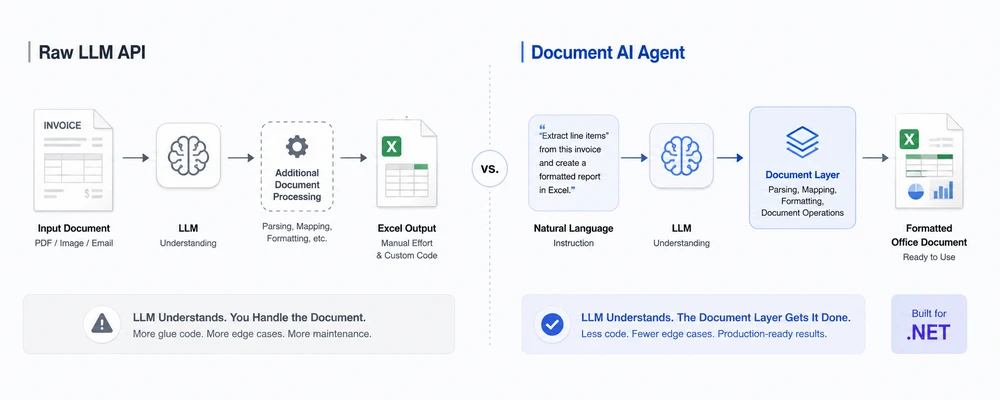
Um LLM moderno consegue entender a fatura e identificar as informações de que você precisa. Mas isso é apenas metade do problema. Sua aplicação ainda precisa transformar esse entendimento em um arquivo .xlsx real e formatado, com a estrutura documental necessária.
Esta é a lacuna entre entender um documento e operar sobre um documento. Uma API LLM bruta fornece capacidades de linguagem e raciocínio, mas não oferece, por si só, um fluxo de trabalho completo de manipulação de documentos do Office. Um agente de IA para documentos conecta o LLM a um SDK determinístico de processamento de documentos, de modo que o LLM determina o que deve acontecer e a camada de documentos realiza as operações de arquivo.
Navegação rápida
- O Problema: APIs de LLM brutas e arquivos de documento
- O que um agente de IA para documentos agrega
- Comparação lado a lado
- Quando usar cada abordagem
- Um exemplo mínimo em C#
- Por que usar o Spire.Agent.Office para equipes .NET
- Perguntas frequentes
1. O Problema: APIs de LLM brutas e arquivos de documento
Chamar gpt-4 ou claude diretamente para "processar este documento" falha de três maneiras que importam em produção. Essas preocupações tornam-se importantes assim que um fluxo de trabalho documental vai além da simples extração de texto e exige manipulação, validação e formatação confiáveis de arquivos.
1.1 LLMs não conseguem ler ou gravar arquivos do Office de forma confiável
Modelos de linguagem de grande porte conseguem entender o conteúdo de um documento quando o modelo e a API suportam o arquivo relevante ou a entrada multimodal, mas isso não fornece manipulação determinística de documentos. Um modelo pode ser capaz de analisar o texto, as tabelas ou o conteúdo visual de um PDF, mas isso não significa que ele possa modificar deterministicamente uma pasta de trabalho, preservar cada propriedade específica do Office e salvar o resultado como um arquivo .xlsx pronto para produção através da própria API do LLM. Quando um arquivo do Office é fornecido a uma API LLM bruta, o modelo pode receber conteúdo extraído ou transformado em vez de um objeto de pasta de trabalho nativo e editável. Mesmo quando o modelo consegue entender o conteúdo da pasta de trabalho, a API não oferece, por si só, operações determinísticas para preservar e modificar a estrutura nativa da pasta de trabalho (planilhas, intervalos nomeados, fórmulas, formatação condicional, células mescladas, formatos numéricos).
A análise de documentos por LLM bruto pode extrair informações semânticas úteis, mas a análise semântica é diferente de preservar e manipular a estrutura nativa do documento.
Escrever é o mesmo problema ao contrário. Uma API LLM bruta não fornece, por si só, uma camada determinística de manipulação de documentos do Office. Um LLM pode descrever o que um relatório deve conter, mas produzir um arquivo .docx ou .xlsx válido exige ferramentas adicionais. Para gerar saída real do Office a partir de um LLM bruto, você precisa construir um pipeline de reconstrução: interpretar a resposta de texto do modelo, mapear campos para células ou parágrafos, aplicar formatação e gravar o arquivo você mesmo. Esse pipeline não é trivial — e é a parte que quebra em produção.
1.2 A formatação não é garantida
Os fluxos de trabalho documentais carregam formatação que importa: cabeçalhos de coluna em um relatório de fatura, formatos numéricos em uma planilha financeira, preenchimentos condicionais que sinalizam discrepâncias, estilos de tabela em um relatório gerencial. Uma API LLM bruta retorna conteúdo gerado pelo modelo, como texto, JSON ou chamadas de ferramenta; ela não fornece, inerentemente, um documento do Office formatado como saída. A formatação pode ser difícil de preservar quando a resposta do modelo precisa ser reconstruída em um arquivo do Office — uma planilha do Excel sem formatos numéricos é uma planilha que alguém precisa corrigir manualmente antes que possa seguir para a contabilidade.
Mesmo quando o LLM produz saída estruturada (JSON, tabelas Markdown), saída estruturada não é saída de documento estruturado. JSON fornece dados estruturados, não um documento do Office estruturado. Uma resposta JSON pode descrever células, parágrafos, tabelas ou instruções de formatação, mas ainda é necessária uma camada adicional de processamento de documentos para aplicar essas instruções a um arquivo .xlsx, .docx, .pptx ou .pdf real. Você agora mantém um formatador, um mapeador de campos e um aplicador de estilos — nenhum dos quais o LLM ajuda.
1.3 Você reimplementa toda a orquestração
Um pipeline de documentos com LLM bruto não é uma única chamada de API. É uma pilha:
- Design de prompt — prompts modelados por templates que quebram quando o layout do documento muda
- Extração — ferramentas adicionais de processamento de documentos podem ser necessárias para extrair conteúdo estruturado de arquivos PDF, Word e Excel antes que o LLM o veja
- Análise (parsing) — lógica de análise de JSON para transformar a resposta do LLM em dados estruturados
- Lógica de nova tentativa — lidar com saídas alucinadas, limites de taxa e rejeições do filtro de conteúdo
- E/S de arquivos — ler entradas, gravar saídas, gerenciar arquivos temporários
- Validação de saída — verificar se o arquivo produzido é válido e bem formado antes de devolvê-lo ao usuário
Nesse ponto, você está construindo uma solução de processamento de documentos — com um LLM como um componente, não a solução em si. Cada novo tipo de documento, mudança de esquema ou formato de saída significa reajustar prompts e retestar peculiaridades específicas do modelo. A carga de manutenção cresce linearmente com o número de tipos de documento que você suporta.
2. O que um agente de IA para documentos agrega
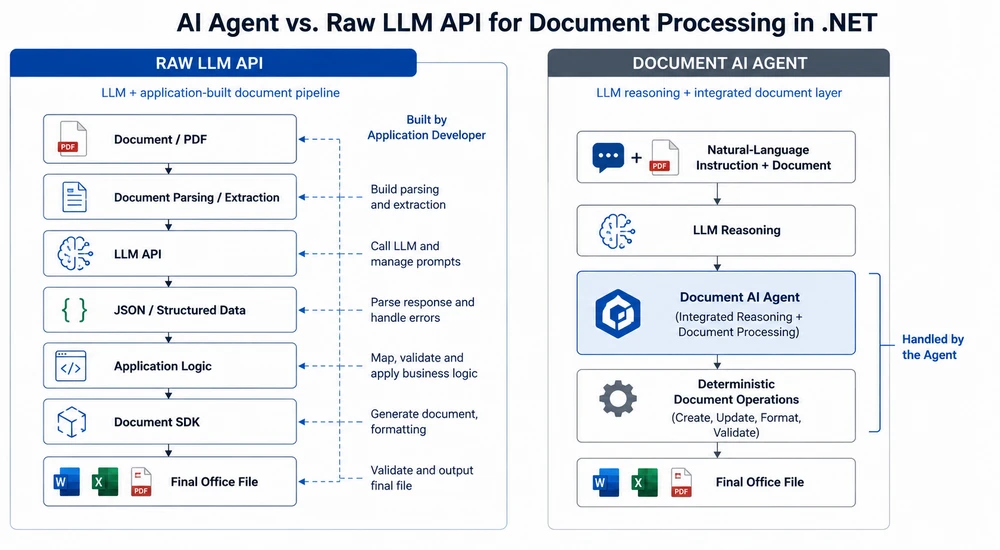
Um agente de IA para documentos resolve os três problemas acima ao combinar o LLM com uma camada determinística de processamento de documentos. A divisão de trabalho é clara:
- O LLM cuida do entendimento. Ele lê a instrução em linguagem natural, decide o que extrair ou gerar e determina a estrutura da saída.
- A camada de documentos cuida da execução. Ela lê e grava arquivos reais do Office e PDF, preserva a formatação, aplica estilos e usa operações documentais determinísticas para produzir um arquivo estruturalmente válido.
Em vez de pedir ao LLM para "descobrir" a estrutura do documento, o agente invoca operações documentais determinísticas. O modelo não precisa construir o formato do arquivo do Office por conta própria; ele produz a intenção, e a camada de documentos executa as operações de arquivo correspondentes.
As duas arquiteturas lado a lado:
Como isso se parece na prática
| Problema com LLM bruto | Como o agente resolve |
|---|---|
Sem manipulação nativa de .xlsx |
A camada de documentos lê e manipula a pasta de trabalho nativamente |
| Sem geração determinística de arquivos do Office | A camada de documentos cria o arquivo de saída |
| A formatação pode ser perdida durante a reconstrução | A camada de documentos lida com estilos e formatos numéricos |
| A estrutura gerada pelo modelo pode ser inconsistente | As operações documentais são determinísticas |
| Você constrói o pipeline ao redor | O SDK do agente fornece o fluxo de trabalho de processamento de documentos |
A principal percepção: o LLM é o cérebro, a camada de documentos é as mãos. Uma API LLM bruta oferece o cérebro e espera que você construa as mãos. Um agente de IA para documentos oferece ambos, integrados, em uma única chamada de SDK.
Um SDK de documentos sozinho pode manipular arquivos, mas não entende a intenção em linguagem natural. Um agente de IA combina essa camada documental determinística com um LLM para que os usuários possam descrever o fluxo de trabalho desejado em vez de implementar cada operação documental manualmente. O valor não é "SDK de documentos + IA" — é o pipeline: instrução em linguagem natural → raciocínio do LLM → operações documentais determinísticas.
Leitura recomendada: Agente de IA para Processamento de Documentos: O Que É e Como Funciona — o conceito de agente de IA para documentos explicado.
3. Comparação lado a lado
| Dimensão | API LLM bruta | Agente de IA para documentos |
|---|---|---|
| Entendimento de arquivo | Depende do modelo/API e do tipo de arquivo | A camada de documentos fornece acesso nativo ao documento |
| Manipulação de arquivo | Exige ferramentas ou bibliotecas documentais adicionais | Integrada à camada de processamento de documentos |
| Fidelidade de formatação | Depende da lógica de reconstrução | Tratada por APIs documentais determinísticas |
| Tratamento da saída | A resposta do LLM deve ser analisada e convertida em um arquivo | A camada de documentos realiza criação determinística de arquivos |
| Volume de código | Mais orquestração no lado da aplicação | Instrução em linguagem natural + configuração do SDK |
| Manutenção | Prompts, analisadores, mapeamentos e lógica de arquivos | Mais comportamento do fluxo de trabalho pode ser expresso em instruções |
| Processamento multiformato | Exige suporte específico por formato | Fluxo de trabalho unificado de processamento de documentos |
| Precisão semântica | Depende do modelo e do prompt | Ainda depende do modelo e da instrução |
| Validação de arquivo | Responsabilidade da aplicação | O SDK informa sucesso/falha do processamento |
| Integração .NET | SDK .NET ou integração HTTP, além de bibliotecas de processamento de documentos conforme necessário | SDK C# nativo com processamento de documentos |
| Melhor para | Tarefas de IA centradas em texto | Fluxos de trabalho documentais orientados por IA |
4. Quando usar cada abordagem
A comparação não é "o agente é sempre melhor". APIs LLM brutas e agentes de IA para documentos atendem a intenções diferentes, e escolher a ferramenta certa depende do que o fluxo de trabalho produz.
Use uma API LLM bruta quando
- A saída é texto, não um arquivo. Resumo, perguntas e respostas, classificação e redação são tarefas de texto para texto. Nenhuma camada de documentos é necessária.
- Você já tem uma pilha de LLM. Se sua equipe investiu em engenharia de prompts, RAG e infraestrutura de orquestração, adicionar um SDK de documentos pode ser desnecessário para fluxos de trabalho somente de texto.
- A entrada é texto simples ou Markdown. Se o material de origem já é texto — não
.pdfou.xlsx— o problema de extração desaparece, e uma chamada de LLM bruto é o caminho mais simples.
Use um agente de IA para documentos quando
- A saída deve ser um arquivo real do Office ou PDF. Se a entrega for uma pasta de trabalho
.xlsxpara contabilidade, um relatório.docxpara a gerência ou um.pdfpara distribuição, uma camada de processamento de documentos torna-se importante quando o fluxo de trabalho precisa produzir um arquivo do Office válido e formatado de forma confiável. - A entrada abrange vários formatos. PDFs, documentos do Word, arquivos do Excel e imagens digitalizadas chegando no mesmo fluxo de trabalho. Um LLM bruto precisa de uma biblioteca de extração separada por formato; um agente lida com todos eles em uma única instrução.
- A formatação é importante. Cabeçalhos de coluna, formatos numéricos, preenchimentos condicionais, estilos de tabela, fontes — se a equipe de negócios se preocupa com a aparência do arquivo, a camada de documentos é o que a preserva.
- Você está em .NET. Um SDK C# nativo que combina orquestração de IA com processamento de documentos pode reduzir a quantidade de integração no lado da aplicação em comparação com combinar um SDK de LLM com bibliotecas separadas de processamento de documentos.
- O fluxo de trabalho muda com frequência. Novos fornecedores, novos layouts de relatório, novas regras de validação — quando o gargalo é recodificar a cada mudança, editar uma instrução é mais rápido e mais barato.
Resumo da decisão
| Pergunta | API LLM bruta | Agente de IA para documentos |
|---|---|---|
| A saída é um arquivo real (Excel, Word, PDF)? | Exige ferramentas adicionais | Sim |
| A formatação precisa ser preservada? | Depende do seu pipeline de reconstrução | Tratada pela camada de documentos |
| As entradas estão em vários formatos do Office? | Exige extração específica por formato | Sim |
| É uma tarefa somente de texto (resumir, perguntas e respostas)? | Sim | Possível, mas desnecessário |
| Você precisa de manipulação nativa de documentos em .NET? | Exige uma biblioteca documental adicional | Integrada ao fluxo de trabalho |
| As regras do fluxo de trabalho mudarão com frequência? | Prompts e analisadores precisam ser reajustados | Mude o comportamento editando a instrução |
5. Um exemplo mínimo em C#
A diferença fica mais clara no código. Abaixo está a mesma tarefa — extrair dados de um PDF de fatura e produzir um relatório Excel formatado — implementada das duas maneiras.
Abordagem com API LLM bruta
// Simplified raw LLM pipeline — illustrative architecture, not production code.

// 1. Obtain document content using a document-processing tool
//    (This example uses extracted text to illustrate one common raw-LLM architecture;
//    some modern LLM APIs can also accept PDFs directly.)
string documentText = ExtractTextFromPdf(@"C:\invoices\supplier-a.pdf");

// 2. Send the extracted content to the LLM
string json = await CallLlmAsync(
    "Extract vendor, invoice date, line items, and total as JSON.",
    documentText);

// 3. Deserialize and validate the model response
InvoiceData data = JsonSerializer.Deserialize<InvoiceData>(json)
    ?? throw new InvalidOperationException("Invalid LLM response.");

// 4. Create the Excel file using a document library
using var workbook = new Workbook();
var sheet = workbook.AddWorksheet("Invoice");

// ... map data to cells and apply formatting
workbook.SaveToFile(@"C:\output\report.xlsx");
Pipeline ilustrativo: as chamadas de API e de biblioteca documental foram simplificadas para focar na arquitetura, em vez de um SDK específico de fornecedor.
Abordagem com agente de IA para documentos
// Document AI agent: one instruction, real file output
using Spire.Agent.Office.AI;
using Spire.Agent.Office.Extensions;
using Spire.Xls;

string? spireToken = Environment.GetEnvironmentVariable("SPIRE_TOKEN");
if (string.IsNullOrEmpty(spireToken))
    throw new InvalidOperationException("SPIRE_TOKEN is not set.");

AIOptions agentOptions = new AIOptions();
agentOptions.WorkDir = @"C:\output";
agentOptions.SpireToken = spireToken;

string instruction =
    "Read the attached invoice PDF, extract vendor name, invoice date, " +
    "line items (description, quantity, unit price, amount), and total. " +
    "Create a workbook with formatted headers, number formats for currency " +
    "columns, and a summary row. Save as a .xlsx file.";

string[] attachments = { @"C:\invoices\supplier-a.pdf" };

using (Workbook wb = new Workbook())
{
    AIResult result = wb.AI(agentOptions).ExecuteInstruction(
        wb,
        instruction,
        @"C:\output\report.xlsx",
        attachments);

    if (result == null || !result.Success)
        throw new InvalidOperationException(
            $"Processing failed: {result?.ErrorMessage}");
}
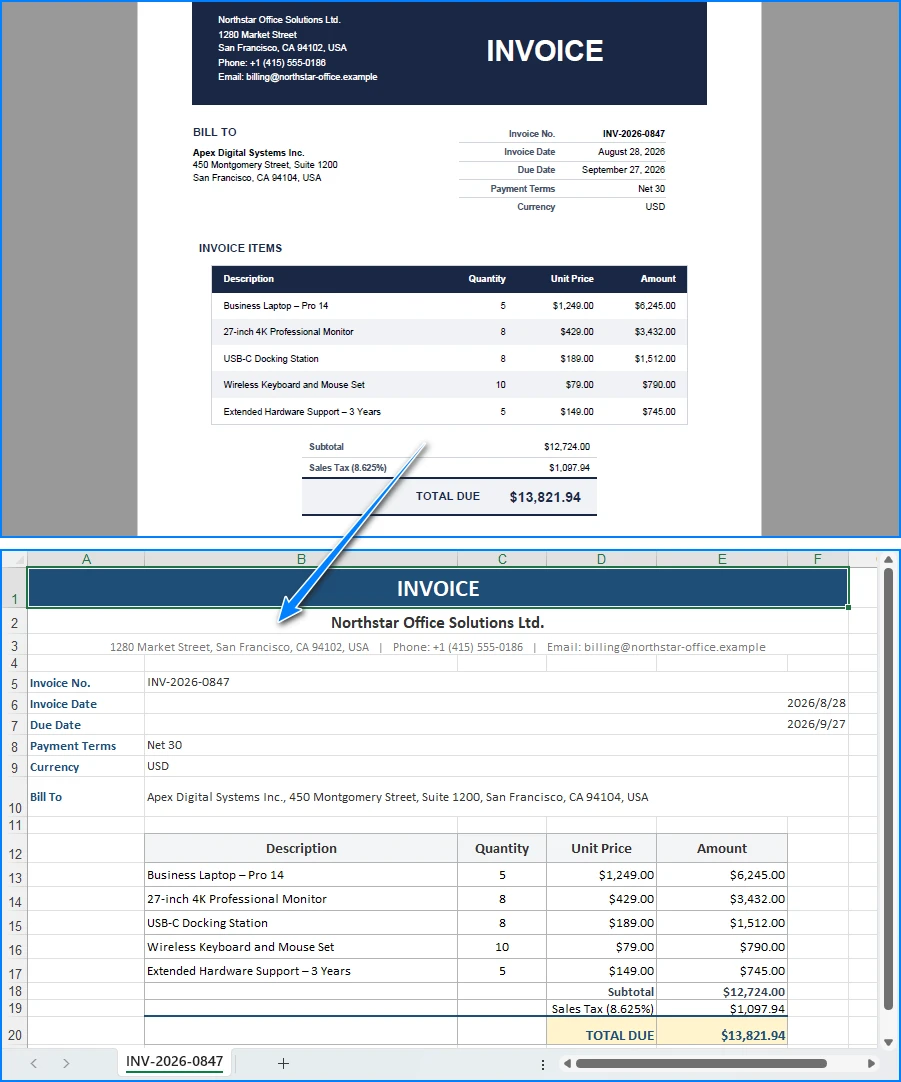
O agente lê o PDF da fatura e produz um relatório Excel formatado:
Principais chamadas de API
Workbook.AI(agentOptions)— anexa o processador de documentos de IA a um objeto de pasta de trabalhoExecuteInstruction(doc, instruction, savePath, attachments)— executa a instrução e grava o arquivo de saídaAIResult.Success/AIResult.ErrorMessage— verifica o resultado e expõe erros
A abordagem com LLM bruto são quatro problemas separados (extração, prompts, análise e gravação de arquivo) costurados. A abordagem com agente é uma instrução e uma verificação de resultado. Ambas as abordagens podem, em última análise, produzir um arquivo .xlsx, mas a abordagem com LLM bruto exige que você construa e mantenha a camada de geração de documentos por conta própria. O agente integra essa camada de processamento de documentos ao fluxo de trabalho, de modo que o LLM se concentra em interpretar a instrução enquanto o SDK cuida das operações documentais.
Você também pode gostar: Automatize o Processamento de Faturas com um Agente de IA em .NET — um fluxo de trabalho completo de extração, validação e geração de relatórios.
6. Por que usar o Spire.Agent.Office para equipes .NET
A comparação acima é deliberadamente neutra em relação a produtos; a mesma arquitetura (LLM + camada de documentos) funciona com qualquer modelo capaz e qualquer SDK de documentos. Onde o Spire.Agent.Office conquista seu lugar para equipes .NET é em três áreas específicas:
-
Processamento nativo multiformato. PDFs, documentos do Word, arquivos do Excel e fluxos de trabalho documentais baseados em imagens podem ser incorporados ao fluxo de trabalho do agente. O agente lê, extrai e gera nesses formatos em uma única instrução — sem biblioteca de extração por formato, sem formatador de saída por formato.
-
A formatação de documentos pode ser preservada por meio de operações documentais determinísticas. A camada de documentos mantém cabeçalhos de coluna, formatos numéricos, preenchimentos condicionais, estilos de tabela e fontes intactos. Ao trabalhar a partir de um modelo existente, instrua explicitamente o agente a preservar o layout e o estilo originais, e a saída permanecerá fiel ao modelo sem código extra.
-
Integração nativa com .NET. É um SDK C# que se encaixa em uma aplicação .NET existente. Sem serviço separado de processamento de documentos para construir ou manter, sem integração entre serviços, sem camada de orquestração HTTP. O exemplo acima captura a superfície principal de integração: configuração do SDK, uma instrução e uma verificação de resultado.
Se você já usa o Spire.Office para processamento de documentos, o agente é a próxima camada natural: o mesmo objeto Workbook ganha um processador AI() que transforma instruções em fluxos de trabalho executados. O SDK determinístico que você já conhece torna-se a camada de documentos que o agente chama.
7. Perguntas frequentes
Não posso simplesmente enviar o PDF diretamente para a API do LLM?
Pode. APIs modernas de LLM conseguem aceitar alguns tipos de documento diretamente, incluindo PDFs. A distinção importante é que a entrada de arquivo dá ao modelo acesso ao conteúdo do documento; ela não dá automaticamente à sua aplicação uma API determinística para modificar a estrutura original do Office e salvar um arquivo de saída pronto para produção. Por exemplo, um modelo pode identificar corretamente as tabelas de uma fatura em PDF, mas transformar esse entendimento em um .xlsx formatado ainda exige lógica de geração de documentos.
O que exatamente é uma "camada de documentos"?
Uma camada de documentos é um SDK determinístico que lê e grava arquivos do Office e PDF enquanto trabalha com suas estruturas documentais nativas. Ela cuida das operações que um LLM não consegue: abrir um .xlsx e preservar suas planilhas e fórmulas, gravar um .docx com estilos e cabeçalhos corretos, mesclar células, aplicar formatação condicional e criar saídas do Office/PDF estruturalmente válidas por meio de APIs documentais determinísticas. No Spire.Agent.Office, a camada de documentos é o SDK do Spire.Office; o LLM decide o que fazer, e a camada de documentos executa.
Isso é apenas RAG com etapas extras?
Não. RAG (geração aumentada por recuperação) concentra-se principalmente em recuperar informações relevantes para fundamentar as respostas do modelo. Um agente de IA para documentos adiciona outra responsabilidade: executar operações documentais e produzir ou modificar arquivos reais. Um agente de documentos lê e grava arquivos reais, preserva a formatação e produz saída estruturada que é um documento do Office válido, não uma resposta de texto.
Quais modelos de IA o Spire.Agent.Office suporta?
O Spire.Agent.Office conecta-se a um modelo de linguagem de grande porte por trás de uma chave SpireToken e suporta APIs de modelo hospedadas, bem como endpoints de modelo personalizados. Para dúvidas sobre quais provedores e protocolos de modelo são suportados em sua implantação, entre em contato com vendas.
Meus dados permanecem dentro do meu ambiente?
O SDK, os modelos e o processamento de documentos são executados dentro da sua aplicação — os arquivos não são enviados a um serviço documental de terceiros para armazenamento ou conversão. Para analisar o conteúdo, a IA precisa do texto relevante, e ele é enviado ao modelo para processamento. Se o endpoint do modelo estiver implantado dentro da sua própria rede e sua configuração não enviar conteúdo documental externamente, o conteúdo documental pode permanecer dentro da sua infraestrutura. Se você se conectar por meio de uma API de modelo hospedada, como OpenAI ou Azure OpenAI, o conteúdo relevante é transmitido a esse provedor de acordo com sua configuração.
Quando uma API LLM bruta é a escolha certa?
Para tarefas somente de texto em que nenhuma saída de arquivo é necessária: resumir um documento, responder perguntas sobre seu conteúdo, classificá-lo em uma categoria ou redigir uma resposta de e-mail. Se a entrada já é texto simples e a saída é texto simples, uma camada de documentos adiciona complexidade sem valor. O agente conquista seu lugar quando o fluxo de trabalho produz arquivos reais que precisam ser válidos e formatados.
Pronto para adicionar uma camada de documentos aos seus fluxos de trabalho com LLM?
Se sua aplicação processa faturas, contratos, relatórios ou qualquer fluxo de trabalho com documentos do Office, um agente de IA para documentos transforma uma instrução em linguagem natural em um arquivo real e formatado — sem construir um pipeline de extração e reconstrução. Siga o tutorial Introdução para executar seu primeiro fluxo de trabalho em .NET.
Leitura adicional
- Gerar documentos do Word a partir de dados do Excel em C# — geração de documentos orientada por dados com o SDK determinístico
- Crie um assistente de relatórios Excel com IA em C# — geração e análise automatizadas de relatórios
- Visão geral do produto Spire.Agent.Office — SDKs de agente de IA para cada formato de documento do Office
AI 에이전트 vs. Raw LLM API: .NET의 문서 계층
사용자가 인보이스 PDF를 업로드하고 다음과 같이 요청합니다.
"품목을 추출하고 합계를 계산한 다음 서식이 지정된 Excel 보고서를 만들어 주세요."
최신 LLM은 인보이스를 이해하고 필요한 정보를 식별할 수 있습니다. 하지만 그것은 문제의 절반에 불과합니다. 응용 프로그램은 여전히 그 이해를 실제 서식이 지정된 .xlsx 파일로 변환해야 하며, 요구되는 문서 구조를 갖추어야 합니다.
이것이 문서를 이해하는 것과 문서를 조작하는 것 사이의 차이입니다. 원시 LLM API는 언어 및 추론 기능을 제공하지만, 그 자체만으로 완전한 Office 문서 조작 워크플로우를 제공하지는 않습니다. 문서 AI 에이전트는 LLM을 결정론적 문서 처리 SDK에 연결하여, LLM이 무엇이 발생해야 하는지 결정하고 문서 레이어가 파일 작업을 수행하도록 합니다.
빠른 탐색
- 문제: 원시 LLM API와 문서 파일
- Document AI 에이전트가 추가하는 기능
- 나란히 비교
- 각 접근 방식을 사용해야 하는 경우
- C# 최소 예제
- .NET 팀을 위한 Spire.Agent.Office의 장점
- FAQ
1. 문제: 원시 LLM API와 문서 파일
gpt-4 또는 claude를 직접 호출하여 "이 문서를 처리하라"고 하는 방식은 운영 환경에서 중요한 세 가지 측면에서 실패합니다. 문서 워크플로우가 단순한 텍스트 추출을 넘어 안정적인 파일 조작, 검증, 서식 지정을 요구하게 되면 이러한 문제가 중요해집니다.
1.1 LLM은 Office 파일을 안정적으로 읽거나 쓸 수 없음
대규모 언어 모델은 모델과 API가 관련 파일 또는 다중 모달 입력을 지원할 때 문서 콘텐츠를 이해할 수 있지만, 그렇다고 해서 결정론적 문서 조작이 가능한 것은 아닙니다. 모델이 PDF의 텍스트, 표 또는 시각적 콘텐츠를 분석할 수는 있지만, 워크북을 결정론적으로 수정하고 모든 Office 고유 속성을 보존하며 결과를 프로덕션에 사용할 수 있는 .xlsx 파일로 LLM API 자체를 통해 저장할 수 있다는 뜻은 아닙니다. Office 파일이 원시 LLM API에 제공되면 모델은 네이티브 편집 가능한 워크북 객체 대신 추출되거나 변환된 콘텐츠를 받을 수 있습니다. 모델이 워크북의 콘텐츠를 이해할 수 있더라도 API 자체만으로는 워크북의 네이티브 구조(시트, 명명된 범위, 수식, 조건부 서식, 병합된 셀, 숫자 서식)를 보존하고 수정하기 위한 결정론적 작업을 제공하지 않습니다.
원시 LLM 문서 파싱은 유용한 의미 정보를 추출할 수 있지만, 의미 파싱은 네이티브 문서 구조를 보존하고 조작하는 것과는 다릅니다.
쓰기는 그 반대 방향의 동일한 문제입니다. 원시 LLM API는 그 자체만으로 결정론적 Office 문서 조작 레이어를 제공하지 않습니다. LLM은 보고서에 무엇이 포함되어야 하는지 설명할 수 있지만, 유효한 .docx 또는 .xlsx 파일을 생성하려면 추가 도구가 필요합니다. 원시 LLM에서 실제 Office 출력을 만들려면 재구성 파이프라인을 직접 구축해야 합니다. 모델의 텍스트 응답을 파싱하고, 필드를 셀이나 문단에 매핑하고, 서식을 적용하고, 파일을 직접 작성해야 합니다. 이 파이프라인은 간단하지 않으며, 운영 환경에서 문제가 되는 부분이기도 합니다.
1.2 서식이 보장되지 않음
문서 워크플로우에는 중요한 서식이 포함됩니다. 인보이스 보고서의 열 머리글, 재무 스프레드시트의 숫자 서식, 불일치를 표시하는 조건부 채우기, 관리 보고서의 테이블 스타일 등이 그 예입니다. 원시 LLM API는 텍스트, JSON 또는 도구 호출과 같은 모델 생성 콘텐츠를 반환하며, 본질적으로 서식이 지정된 Office 문서를 출력으로 제공하지는 않습니다. 모델의 응답을 Office 파일로 재구성해야 할 때 서식은 보존하기 어려울 수 있습니다. 숫자 서식이 없는 Excel 시트는 회계 부서로 보내기 전에 누군가 수동으로 고쳐야 하는 시트입니다.
LLM이 구조화된 출력(JSON, Markdown 테이블)을 생성하더라도 구조화된 출력은 구조화된 문서 출력이 아닙니다. JSON은 구조화된 Office 문서가 아닌 구조화된 데이터를 제공합니다. JSON 응답은 셀, 문단, 표 또는 서식 지침을 설명할 수 있지만, 실제 .xlsx, .docx, .pptx 또는 .pdf 파일에 이러한 지침을 적용하려면 여전히 추가 문서 처리 레이어가 필요합니다. 이제 서식 지정기, 필드 매퍼, 스타일 적용기를 유지 관리해야 하며, LLM은 그중 어느 것도 도와주지 않습니다.
1.3 전체 오케스트레이션을 직접 다시 구현해야 함
원시 LLM 문서 파이프라인은 단일 API 호출이 아닙니다. 그것은 스택입니다:
- 프롬프트 설계 — 문서 레이아웃이 변경되면 깨지는 템플릿 프롬프트
- 추출 — LLM이 콘텐츠를 보기 전에 PDF, Word, Excel 파일에서 구조화된 콘텐츠를 추출하기 위해 추가 문서 처리 도구가 필요할 수 있음
- 파싱 — LLM의 응답을 구조화된 데이터로 변환하는 JSON 파싱 로직
- 재시도 로직 — 환각 출력, 속도 제한, 콘텐츠 필터 거부 처리
- 파일 I/O — 입력 읽기, 출력 쓰기, 임시 파일 관리
- 출력 검증 — 생성된 파일이 사용자에게 반환되기 전에 유효하고 올바르게 구성되었는지 확인
이 시점에서 문서 처리 솔루션을 구축하고 있는 것입니다. LLM은 솔루션 자체가 아니라 한 구성 요소일 뿐입니다. 새로운 문서 유형, 스키마 변경 또는 출력 형식이 생길 때마다 프롬프트를 재조정하고 모델별 특성을 다시 테스트해야 합니다. 유지 관리 부담은 지원하는 문서 유형 수에 비례하여 증가합니다.
2. Document AI 에이전트가 추가하는 기능
문서 AI 에이전트는 LLM을 결정론적 문서 처리 레이어와 결합하여 위의 세 가지 문제를 해결합니다. 작업 분담은 명확합니다:
- LLM은 이해를 담당합니다. 자연어 지시문을 읽고, 무엇을 추출하거나 생성할지 결정하며, 출력 구조를 결정합니다.
- 문서 레이어는 실행을 담당합니다. 실제 Office 및 PDF 파일을 읽고 쓰고, 서식을 보존하고, 스타일을 적용하며, 결정론적 문서 작업을 사용하여 구조적으로 유효한 파일을 생성합니다.
LLM에게 문서 구조를 "스스로 파악"하도록 요청하는 대신, 에이전트는 결정론적 문서 작업을 호출합니다. 모델이 Office 파일 형식 자체를 구성할 필요는 없습니다. 모델은 의도를 생성하고, 문서 레이어가 해당 파일 작업을 수행합니다.
두 아키텍처를 나란히 비교하면 다음과 같습니다:
실제 적용 예시
| 원시 LLM의 문제 | 에이전트가 해결하는 방법 |
|---|---|
네이티브 .xlsx 조작 없음 |
문서 레이어가 워크북을 네이티브로 읽고 조작함 |
| 결정론적 Office 파일 생성 없음 | 문서 레이어가 출력 파일을 생성함 |
| 재구성 중 서식이 손실될 수 있음 | 문서 레이어가 스타일과 숫자 서식을 처리함 |
| 모델 생성 구조가 일관되지 않을 수 있음 | 문서 작업은 결정론적임 |
| 주변 파이프라인을 직접 구축해야 함 | 에이전트 SDK가 문서 처리 워크플로우를 제공함 |
핵심 통찰력: LLM은 두뇌이고, 문서 레이어는 손입니다. 원시 LLM API는 두뇌를 제공하고 손은 직접 만들기를 기대합니다. 문서 AI 에이전트는 하나의 SDK 호출로 통합된 둘 모두를 제공합니다.
문서 SDK 단독으로는 파일을 조작할 수 있지만 자연어 의도는 이해하지 못합니다. AI 에이전트는 결정론적 문서 레이어를 LLM과 결합하여 사용자가 모든 문서 작업을 수동으로 구현하는 대신 원하는 워크플로우를 설명할 수 있게 합니다. 가치는 "문서 SDK + AI"가 아니라 파이프라인, 즉 자연어 지시문 → LLM 추론 → 결정론적 문서 작업입니다.
추천 자료: AI 에이전트를 이용한 문서 처리: 개념 및 작동 방식 — 문서 AI 에이전트 개념 설명
3. 나란히 비교
| 기준 | 원시 LLM API | Document AI 에이전트 |
|---|---|---|
| 파일 이해 | 모델/API 및 파일 형식에 따라 다름 | 문서 레이어가 네이티브 문서 액세스를 제공함 |
| 파일 조작 | 도구 또는 추가 문서 라이브러리 필요 | 문서 처리 레이어에 내장됨 |
| 서식 충실도 | 재구성 로직에 따라 다름 | 결정론적 문서 API에 의해 처리됨 |
| 출력 처리 | LLM 응답을 파싱하여 파일로 변환해야 함 | 문서 레이어가 결정론적 파일 생성을 수행함 |
| 코드 규모 | 애플리케이션 측 오케스트레이션 증가 | 자연어 지시문 + SDK 설정 |
| 유지관리 | 프롬프트, 파서, 매핑 및 파일 로직 | 더 많은 워크플로우 동작을 지시문으로 표현 가능 |
| 다중 형식 처리 | 형식별 지원 필요 | 통합 문서 처리 워크플로우 |
| 의미론적 정확도 | 모델과 프롬프트에 따라 다름 | 여전히 모델과 지시문에 따라 다름 |
| 파일 검증 | 애플리케이션 책임 | SDK가 처리 성공/실패를 보고함 |
| .NET 통합 | .NET SDK 또는 HTTP 통합, 필요에 따라 문서 처리 라이브러리 추가 | 문서 처리가 포함된 네이티브 C# SDK |
| 적합한 용도 | 텍스트 중심 AI 작업 | AI 기반 문서 워크플로우 |
4. 각 접근 방식을 사용해야 하는 경우
"에이전트가 항상 더 낫다"는 의미는 아닙니다. 원시 LLM API와 문서 AI 에이전트는 서로 다른 목적을 위해 사용되며, 올바른 도구를 선택하는 것은 워크플로우가 무엇을 생성하는지에 따라 달라집니다.
원시 LLM API를 사용해야 하는 경우
- 출력이 텍스트이고 파일이 아닌 경우. 요약, 질문 응답, 분류, 초안 작성은 텍스트 입력-텍스트 출력 작업입니다. 문서 레이어가 필요 없습니다.
- 이미 LLM 스택을 보유한 경우. 팀이 프롬프트 엔지니어링, RAG, 오케스트레이션 인프라에 투자했다면 텍스트 전용 워크플로우에는 문서 SDK를 추가할 필요가 없을 수 있습니다.
- 입력이 일반 텍스트 또는 Markdown인 경우. 원본 자료가 이미 텍스트(
.pdf또는.xlsx가 아닌)라면 추출 문제는 사라지고 원시 LLM 호출이 가장 간단한 방법입니다.
Document AI 에이전트를 사용해야 하는 경우
- 출력이 실제 Office 또는 PDF 파일이어야 하는 경우. 산출물이 회계용
.xlsx워크북, 경영진용.docx보고서 또는 배포용.pdf인 경우, 워크플로우가 유효하고 서식이 지정된 Office 파일을 안정적으로 생성해야 할 때 문서 처리 레이어가 중요해집니다. - 입력이 여러 형식에 걸쳐 있는 경우. 동일한 워크플로우에 PDF, Word 문서, Excel 파일, 스캔 이미지가 함께 들어옵니다. 원시 LLM은 형식별로 별도의 추출 라이브러리가 필요하지만, 에이전트는 하나의 지시문으로 모두 처리합니다.
- 서식이 중요한 경우. 열 머리글, 숫자 서식, 조건부 채우기, 테이블 스타일, 글꼴 — 비즈니스 팀이 파일이 어떻게 보이는지 신경 쓴다면, 이를 보존하는 것은 문서 레이어의 역할입니다.
- .NET을 사용하는 경우. AI 오케스트레이션과 문서 처리를 결합한 네이티브 C# SDK는 LLM SDK를 별도의 문서 처리 라이브러리와 결합하는 것보다 애플리케이션 측 통합을 줄일 수 있습니다.
- 워크플로우가 자주 변경되는 경우. 새 공급업체, 새 보고서 레이아웃, 새 검증 규칙 — 변경 시마다 재코딩이 병목이라면 지시문을 편집하는 것이 더 빠르고 저렴합니다.
결정 요약
| 질문 | 원시 LLM API | Document AI 에이전트 |
|---|---|---|
| 출력이 실제 파일(Excel, Word, PDF)인가? | 추가 도구 필요 | 예 |
| 서식이 유지되어야 하는가? | 재구성 파이프라인에 따라 다름 | 문서 레이어가 처리함 |
| 입력이 여러 Office 형식인가? | 형식별 추출 필요 | 예 |
| 텍스트 전용 작업(요약, Q&A)인가? | 예 | 가능하지만 불필요함 |
| .NET에서 네이티브 문서 조작이 필요한가? | 추가 문서 라이브러리 필요 | 워크플로우에 내장됨 |
| 워크플로우 규칙이 자주 변경될 것인가? | 프롬프트와 파서 재조정 필요 | 지시문 편집으로 동작 변경 |
5. C# 최소 예제
차이는 코드에서 가장 명확합니다. 아래는 PDF 인보이스에서 데이터를 추출하여 서식이 지정된 Excel 보고서를 생성하는 동일한 작업을 두 가지 방식으로 구현한 것입니다.
원시 LLM API 방식
// Simplified raw LLM pipeline — illustrative architecture, not production code.

// 1. Obtain document content using a document-processing tool
//    (This example uses extracted text to illustrate one common raw-LLM architecture;
//    some modern LLM APIs can also accept PDFs directly.)
string documentText = ExtractTextFromPdf(@"C:\invoices\supplier-a.pdf");

// 2. Send the extracted content to the LLM
string json = await CallLlmAsync(
    "Extract vendor, invoice date, line items, and total as JSON.",
    documentText);

// 3. Deserialize and validate the model response
InvoiceData data = JsonSerializer.Deserialize<InvoiceData>(json)
    ?? throw new InvalidOperationException("Invalid LLM response.");

// 4. Create the Excel file using a document library
using var workbook = new Workbook();
var sheet = workbook.AddWorksheet("Invoice");

// ... map data to cells and apply formatting
workbook.SaveToFile(@"C:\output\report.xlsx");
설명용 파이프라인: 특정 공급업체 SDK가 아닌 아키텍처에 초점을 맞추기 위해 API 및 문서 라이브러리 호출을 단순화했습니다.
Document AI 에이전트 방식
// Document AI agent: one instruction, real file output
using Spire.Agent.Office.AI;
using Spire.Agent.Office.Extensions;
using Spire.Xls;

string? spireToken = Environment.GetEnvironmentVariable("SPIRE_TOKEN");
if (string.IsNullOrEmpty(spireToken))
    throw new InvalidOperationException("SPIRE_TOKEN is not set.");

AIOptions agentOptions = new AIOptions();
agentOptions.WorkDir = @"C:\output";
agentOptions.SpireToken = spireToken;

string instruction =
    "Read the attached invoice PDF, extract vendor name, invoice date, " +
    "line items (description, quantity, unit price, amount), and total. " +
    "Create a workbook with formatted headers, number formats for currency " +
    "columns, and a summary row. Save as a .xlsx file.";

string[] attachments = { @"C:\invoices\supplier-a.pdf" };

using (Workbook wb = new Workbook())
{
    AIResult result = wb.AI(agentOptions).ExecuteInstruction(
        wb,
        instruction,
        @"C:\output\report.xlsx",
        attachments);

    if (result == null || !result.Success)
        throw new InvalidOperationException(
            $"Processing failed: {result?.ErrorMessage}");
}
에이전트는 PDF 인보이스를 읽고 서식이 지정된 Excel 보고서를 생성합니다:
주요 API 호출
Workbook.AI(agentOptions)— AI 문서 프로세서를 워크북 객체에 연결ExecuteInstruction(doc, instruction, savePath, attachments)— 지시문을 실행하고 출력 파일을 작성AIResult.Success/AIResult.ErrorMessage— 결과 확인 및 오류 표시
원시 LLM 방식은 추출, 프롬프팅, 파싱, 파일 작성이라는 네 가지 개별 문제를 이어 붙인 것입니다. 에이전트 방식은 지시문 하나와 결과 확인 하나입니다. 두 방식 모두 궁극적으로 .xlsx 파일을 생성할 수 있지만, 원시 LLM 방식은 문서 생성 레이어를 직접 구축하고 유지 관리해야 합니다. 에이전트는 문서 처리 레이어를 워크플로우에 통합하므로, LLM은 지시문 해석에 집중하고 SDK는 문서 작업을 처리합니다.
관련 자료: .NET에서 AI 에이전트로 인보이스 처리 자동화 — 전체 추출, 검증 및 보고 워크플로우
6. .NET 팀을 위한 Spire.Agent.Office의 장점
위의 비교는 의도적으로 제품 중립적입니다. 동일한 아키텍처(LLM + 문서 레이어)는 모든 유능한 모델과 모든 문서 SDK에서 작동합니다. .NET 팀을 위해 Spire.Agent.Office가 자리잡는 이유는 세 가지 특정 영역입니다:
-
네이티브 다중 형식 처리. PDF, Word 문서, Excel 파일 및 이미지 기반 문서 워크플로우를 에이전트 워크플로우에 통합할 수 있습니다. 에이전트는 단일 지시문으로 이러한 형식을 읽고, 추출하고, 생성합니다. 형식별 추출 라이브러리도, 형식별 출력 포맷터도 필요 없습니다.
-
결정론적 문서 작업을 통한 문서 서식 보존. 문서 레이어는 열 머리글, 숫자 서식, 조건부 채우기, 테이블 스타일 및 글꼴을 그대로 유지합니다. 기존 템플릿에서 작업할 때 에이전트에게 원본 레이아웃과 스타일을 보존하도록 명시적으로 지시하면 추가 코드 없이 출력이 템플릿을 따릅니다.
-
네이티브 .NET 통합. 기존 .NET 응용 프로그램에 바로 통합되는 C# SDK입니다. 구축하거나 유지 관리할 별도의 문서 처리 서비스도, 서비스 간 연결 코드도, HTTP 오케스트레이션 레이어도 없습니다. 위의 예제는 SDK 설정, 지시문 하나, 결과 확인 하나라는 핵심 통합 지점을 보여줍니다.
이미 문서 처리용 Spire.Office를 사용하고 있다면 에이전트는 자연스러운 다음 레이어입니다. 익숙한 Workbook 객체에 지시문을 실행된 워크플로우로 변환하는 AI() 프로세서가 추가됩니다. 이미 알고 있는 결정론적 SDK가 에이전트가 호출하는 문서 레이어가 됩니다.
7. FAQ
PDF를 LLM API에 직접 보내면 안 되나요?
보낼 수 있습니다. 최신 LLM API는 PDF를 포함한 일부 문서 유형을 직접 수용할 수 있습니다. 중요한 차이점은 파일 입력이 모델에게 문서 콘텐츠에 대한 접근을 제공한다는 것이지, 원본 Office 구조를 수정하고 프로덕션에 사용할 수 있는 출력 파일을 저장하기 위한 결정론적 API를 응용 프로그램에 자동으로 제공하는 것은 아니라는 점입니다. 예를 들어 모델이 PDF에서 인보이스 테이블을 올바르게 식별할 수 있지만, 그 이해를 서식 있는 .xlsx 파일로 변환하려면 여전히 문서 생성 로직이 필요합니다.
"문서 레이어"란 정확히 무엇인가요?
문서 레이어는 Office 및 PDF 파일을 네이티브 문서 구조로 읽고 쓰는 결정론적 SDK입니다. LLM이 수행할 수 없는 작업을 처리합니다. .xlsx 파일을 열어 시트와 수식을 보존하고, 올바른 스타일과 머리글로 .docx를 작성하고, 셀을 병합하고, 조건부 서식을 적용하고, 결정론적 문서 API를 통해 구조적으로 유효한 Office/PDF 출력을 생성합니다. Spire.Agent.Office에서 문서 레이어는 Spire.Office SDK입니다. LLM이 무엇을 할지 결정하고 문서 레이어가 실행합니다.
단지 RAG에 단계만 추가된 것 아닌가요?
아닙니다. RAG(검색 증강 생성)는 주로 모델 응답의 근거가 될 관련 정보를 검색하는 데 중점을 둡니다. 문서 AI 에이전트는 문서 작업을 실행하고 실제 파일을 생성하거나 수정하는 또 다른 책임을 추가합니다. 문서 에이전트는 실제 파일을 읽고 쓰고, 서식을 보존하며, 텍스트 응답이 아닌 유효한 Office 문서인 구조화된 출력을 생성합니다.
Spire.Agent.Office는 어떤 AI 모델을 지원하나요?
Spire.Agent.Office는 SpireToken 키 뒤의 대규모 언어 모델에 연결되며 호스팅 모델 API와 사용자 지정 모델 엔드포인트를 지원합니다. 배포 환경에서 지원되는 공급자 및 모델 프로토콜에 대한 질문은 영업팀에 문의하세요.
내 데이터가 내 환경 안에 유지되나요?
SDK, 템플릿 및 문서 처리는 응용 프로그램 내부에서 실행됩니다. 파일이 저장 또는 변환을 위해 타사 문서 서비스에 업로드되지는 않습니다. 콘텐츠를 분석하려면 AI가 관련 텍스트가 필요하며, 해당 텍스트는 처리를 위해 모델로 전송됩니다. 모델 엔드포인트가 자체 네트워크 내에 배포되어 있고 구성이 문서 콘텐츠를 외부로 전송하지 않는다면 문서 콘텐츠는 인프라 내에 유지될 수 있습니다. OpenAI 또는 Azure OpenAI와 같은 호스팅 모델 API를 통해 연결하는 경우 관련 콘텐츠는 구성에 따라 해당 공급자에게 전송됩니다.
원시 LLM API가 적합한 경우는 언제인가요?
파일 출력이 필요 없는 텍스트 전용 작업의 경우입니다. 문서 요약, 콘텐츠에 대한 질문 응답, 범주 분류, 이메일 응답 초안 작성 등입니다. 입력이 이미 일반 텍스트이고 출력도 일반 텍스트라면 문서 레이어는 가치 없이 복잡성만 추가합니다. 에이전트는 워크플로우가 유효하고 서식이 지정된 실제 파일을 생성할 때 그 가치를 발휘합니다.
LLM 워크플로우에 문서 레이어를 추가할 준비가 되셨나요?
응용 프로그램이 인보이스, 계약서, 보고서 또는 기타 Office 문서 워크플로우를 처리한다면, 문서 AI 에이전트는 추출 및 재구성 파이프라인을 구축하지 않고도 하나의 자연어 지시문을 실제 서식 있는 파일로 변환합니다. 시작하기 튜토리얼을 따라 .NET에서 첫 워크플로우를 실행해 보세요.
추가 자료
- C#에서 Excel 데이터로 Word 문서 생성 — 결정론적 SDK를 사용한 데이터 기반 문서 생성
- C#에서 AI 기반 Excel 보고서 어시스턴트 만들기 — 자동화된 보고서 생성 및 분석
- Spire.Agent.Office 제품 개요 — 모든 Office 문서 형식을 위한 AI 에이전트 SDK
Agente AI vs. API LLM Grezza: Livello Documentale in .NET
Indice dei contenuti
Un utente carica un PDF di fattura e chiede:
"Estrai le voci, calcola il totale e crea un report Excel formattato."
Un moderno LLM può comprendere la fattura e identificare le informazioni necessarie. Ma questa è solo metà del problema. La tua applicazione deve comunque trasformare quella comprensione in un vero file .xlsx formattato con la struttura documentale richiesta.
Questo è il divario tra comprendere un documento e operare su un documento. Un'API LLM grezza fornisce capacità linguistiche e di ragionamento, ma non offre da sola un flusso di lavoro completo per la manipolazione di documenti Office. Un agente AI per documenti collega l'LLM a un SDK deterministico di elaborazione documentale, così l'LLM determina cosa dovrebbe accadere e il livello documentale esegue le operazioni sui file.
Navigazione rapida
- Il problema: API LLM grezze e file di documenti
- Cosa aggiunge un agente AI per documenti
- Confronto affiancato
- Quando usare ciascun approccio
- Un esempio minimale in C#
- Perché Spire.Agent.Office per i team .NET
- FAQ
1. Il problema: API LLM grezze e file di documenti
Chiamare gpt-4 o claude direttamente per "elaborare questo documento" fallisce in tre modi che contano in produzione. Queste criticità diventano importanti non appena un flusso di lavoro documentale va oltre la semplice estrazione di testo e richiede manipolazione affidabile dei file, validazione e formattazione.
1.1 Gli LLM non possono leggere o scrivere in modo affidabile i file Office
I modelli linguistici di grandi dimensioni possono comprendere il contenuto di un documento quando il modello e l'API supportano il tipo di file o l'input multimodale pertinente, ma questo non fornisce una manipolazione deterministica del documento. Un modello può essere in grado di analizzare testo, tabelle o contenuti visivi di un PDF, ma ciò non significa che possa modificare in modo deterministico una cartella di lavoro, preservare ogni proprietà specifica di Office e salvare il risultato come file .xlsx pronto per la produzione attraverso l'API LLM stessa. Quando un file Office viene fornito a un'API LLM grezza, il modello può ricevere contenuti estratti o trasformati anziché un oggetto cartella di lavoro nativo e modificabile. Anche quando il modello riesce a comprendere il contenuto della cartella di lavoro, l'API da sola non fornisce operazioni deterministiche per preservare e modificare la struttura nativa della cartella di lavoro (fogli, intervalli denominati, formule, formattazione condizionale, celle unite, formati numerici).
L'analisi dei documenti tramite LLM grezzi può estrarre informazioni semantiche utili, ma l'analisi semantica è diversa dalla conservazione e dalla manipolazione della struttura nativa del documento.
La scrittura è lo stesso problema al contrario. Un'API LLM grezza non fornisce, da sola, un livello deterministico di manipolazione dei documenti Office. Un LLM può descrivere cosa dovrebbe contenere un report, ma produrre un file .docx o .xlsx valido richiede strumenti aggiuntivi. Per ottenere un output Office reale da un LLM grezzo, devi costruire una pipeline di ricostruzione: analizzare la risposta testuale del modello, mappare i campi su celle o paragrafi, applicare la formattazione e scrivere tu stesso il file. Questa pipeline non è banale — ed è la parte che si rompe in produzione.
1.2 La formattazione non è garantita
I flussi di lavoro documentali portano con sé una formattazione importante: intestazioni di colonna in un report di fatturazione, formati numerici in un foglio elettronico finanziario, riempimenti condizionali che evidenziano discrepanze, stili di tabella in un report direzionale. Un'API LLM grezza restituisce contenuti generati dal modello, come testo, JSON o chiamate di strumenti; non fornisce intrinsecamente un documento Office formattato come output. La formattazione può essere difficile da preservare quando la risposta del modello deve essere ricostruita in un file Office — un foglio Excel senza formati numerici è un foglio che qualcuno deve correggere a mano prima che possa arrivare alla contabilità.
Anche quando l'LLM produce output strutturato (JSON, tabelle Markdown), l'output strutturato non è output di documento strutturato. Il JSON fornisce dati strutturati, non un documento Office strutturato. Una risposta JSON può descrivere celle, paragrafi, tabelle o istruzioni di formattazione, ma è comunque necessario un ulteriore livello di elaborazione documentale per applicare tali istruzioni a un file .xlsx, .docx, .pptx o .pdf reale. A questo punto devi mantenere un formattatore, un mapper di campi e un applicatore di stili — nessuno dei quali riceve aiuto dall'LLM.
1.3 Reimplementi l'intera orchestrazione
Una pipeline documentale basata su LLM grezzo non è una singola chiamata API. È uno stack:
- Progettazione del prompt — prompt basati su modelli che si rompono quando cambia il layout del documento
- Estrazione — potrebbero essere necessari strumenti aggiuntivi di elaborazione documenti per estrarre contenuti strutturati da file PDF, Word ed Excel prima che l'LLM li veda
- Parsing — logica di parsing JSON per trasformare la risposta dell'LLM in dati strutturati
- Logica di retry — gestione di output allucinati, limiti di velocità e rifiuti del filtro contenuti
- I/O dei file — lettura degli input, scrittura degli output, gestione dei file temporanei
- Validazione dell'output — verifica che il file prodotto sia valido e ben formato prima di restituirlo all'utente
A quel punto, stai costruendo una soluzione di elaborazione documenti — con un LLM come componente, non come soluzione stessa. Ogni nuovo tipo di documento, modifica dello schema o formato di output significa ritoccare i prompt e ricontrollare le peculiarità specifiche del modello. Il carico di manutenzione cresce linearmente con il numero di tipi di documento supportati.
2. Cosa aggiunge un agente AI per documenti
Un agente AI per documenti risolve i tre problemi sopra descritti accoppiando l'LLM a un livello deterministico di elaborazione documentale. La divisione del lavoro è chiara:
- L'LLM gestisce la comprensione. Legge l'istruzione in linguaggio naturale, decide cosa estrarre o generare e determina la struttura dell'output.
- Il livello documentale gestisce l'esecuzione. Legge e scrive file Office e PDF reali, preserva la formattazione, applica stili e utilizza operazioni documentali deterministiche per produrre un file strutturalmente valido.
Invece di chiedere all'LLM di "capire da solo" la struttura del documento, l'agente invoca operazioni documentali deterministiche. Il modello non deve costruire da sé il formato del file Office; produce l'intenzione e il livello documentale esegue le corrispondenti operazioni sui file.
Le due architetture affiancate:
Come appare in pratica
| Problema con LLM grezzo | Come lo risolve l'agente |
|---|---|
Nessuna manipolazione nativa dei file .xlsx |
Il livello documentale legge e manipola la cartella di lavoro in modo nativo |
| Nessuna generazione deterministica di file Office | Il livello documentale crea il file di output |
| La formattazione può essere persa durante la ricostruzione | Il livello documentale gestisce stili e formati numerici |
| La struttura generata dal modello può essere incoerente | Le operazioni documentali sono deterministiche |
| Devi costruire tu la pipeline circostante | L'SDK dell'agente fornisce il flusso di elaborazione documentale |
Il punto chiave: l'LLM è il cervello, il livello documentale sono le mani. Un'API LLM grezza ti dà il cervello e si aspetta che costruisca tu le mani. Un agente AI per documenti ti dà entrambi, integrati, in un'unica chiamata SDK.
Un SDK documentale da solo può manipolare file, ma non comprende l'intento in linguaggio naturale. Un agente AI combina quel livello documentale deterministico con un LLM, così gli utenti possono descrivere il flusso di lavoro desiderato invece di implementare manualmente ogni operazione documentale. Il valore non è "SDK documentale + AI" — è la pipeline: istruzione in linguaggio naturale → ragionamento LLM → operazioni documentali deterministiche.
Lettura consigliata: AI Agent per l'elaborazione documentale: cos'è e come funziona — il concetto di agente AI per documenti spiegato.
3. Confronto affiancato
| Dimensione | API LLM grezza | Agente AI per documenti |
|---|---|---|
| Comprensione dei file | Dipende dal modello/API e dal tipo di file | Il livello documentale fornisce accesso nativo ai documenti |
| Manipolazione dei file | Richiede strumenti o librerie documentali aggiuntive | Integrata nel livello di elaborazione documentale |
| Fedeltà della formattazione | Dipende dalla logica di ricostruzione | Gestita da API documentali deterministiche |
| Gestione dell'output | La risposta dell'LLM deve essere analizzata e convertita in un file | Il livello documentale esegue la creazione deterministica del file |
| Volume di codice | Maggiore orchestrazione lato applicazione | Istruzione in linguaggio naturale + configurazione SDK |
| Manutenzione | Prompt, parser, mapping e logica dei file | Più aspetti del flusso possono essere espressi nelle istruzioni |
| Elaborazione multiformato | Richiede supporto specifico per formato | Flusso di elaborazione documentale unificato |
| Accuratezza semantica | Dipende dal modello e dal prompt | Dipende comunque dal modello e dall'istruzione |
| Validazione dei file | Responsabilità dell'applicazione | L'SDK segnala successo/fallimento dell'elaborazione |
| Integrazione .NET | SDK .NET o integrazione HTTP, oltre a librerie di elaborazione documentale aggiuntive se necessario | SDK C# nativo con elaborazione documentale |
| Ideale per | Attività AI incentrate sul testo | Flussi di lavoro documentali basati sull'AI |
4. Quando usare ciascun approccio
Il confronto non è "l'agente è sempre migliore". Le API LLM grezze e gli agenti AI per documenti servono intenti diversi e scegliere lo strumento giusto dipende da ciò che il flusso di lavoro produce.
Usa un'API LLM grezza quando
- L'output è testo, non un file. Riepilogo, risposta a domande, classificazione e bozze sono attività da testo a testo. Non serve alcun livello documentale.
- Hai già uno stack LLM. Se il tuo team ha investito in prompt engineering, RAG e infrastruttura di orchestrazione, aggiungere un SDK documentale potrebbe essere superfluo per flussi di lavoro solo testo.
- L'input è testo semplice o Markdown. Se il materiale sorgente è già testo — non
.pdfo.xlsx— il problema dell'estrazione scompare e una chiamata LLM grezza è il percorso più semplice.
Usa un agente AI per documenti quando
- L'output deve essere un file Office o PDF reale. Se il risultato finale è una cartella di lavoro
.xlsxper la contabilità, un report.docxper la direzione o un.pdfper la distribuzione, un livello di elaborazione documentale diventa importante quando il flusso deve produrre in modo affidabile un file Office valido e formattato. - L'input copre più formati. PDF, documenti Word, file Excel e immagini scannerizzate che arrivano nello stesso flusso. Un LLM grezzo necessita di una libreria di estrazione separata per ogni formato; un agente gestisce tutti i formati con un'unica istruzione.
- La formattazione è importante. Intestazioni di colonna, formati numerici, riempimenti condizionali, stili di tabella, caratteri — se il team aziendale tiene a come appare il file, è il livello documentale a preservarlo.
- Sei in .NET. Un SDK C# nativo che combina orchestrazione AI ed elaborazione documentale può ridurre l'integrazione lato applicazione rispetto alla combinazione di un SDK LLM con librerie di elaborazione documentale separate.
- Il flusso di lavoro cambia spesso. Nuovi fornitori, nuovi layout di report, nuove regole di validazione — quando il collo di bottiglia è riscrivere il codice a ogni modifica, modificare un'istruzione è più veloce ed economico.
Riepilogo delle decisioni
| Domanda | API LLM grezza | Agente AI per documenti |
|---|---|---|
| L'output è un file reale (Excel, Word, PDF)? | Richiede strumenti aggiuntivi | Sì |
| La formattazione deve essere preservata? | Dipende dalla tua pipeline di ricostruzione | Gestita dal livello documentale |
| Gli input sono in più formati Office? | Richiede estrazione specifica per formato | Sì |
| È un'attività solo testo (riepilogo, Q&A)? | Sì | Possibile, ma non necessario |
| Hai bisogno di manipolazione nativa dei documenti in .NET? | Richiede una libreria documentale aggiuntiva | Integrato nel flusso di lavoro |
| Le regole del flusso cambieranno frequentemente? | Prompt e parser devono essere ritoccati | Modifica il comportamento modificando l'istruzione |
5. Un esempio minimale in C#
La differenza è più chiara nel codice. Di seguito lo stesso compito — estrarre dati da una fattura PDF e produrre un report Excel formattato — implementato in entrambi i modi.
Approccio con API LLM grezza
// Simplified raw LLM pipeline — illustrative architecture, not production code.

// 1. Obtain document content using a document-processing tool
//    (This example uses extracted text to illustrate one common raw-LLM architecture;
//    some modern LLM APIs can also accept PDFs directly.)
string documentText = ExtractTextFromPdf(@"C:\invoices\supplier-a.pdf");

// 2. Send the extracted content to the LLM
string json = await CallLlmAsync(
    "Extract vendor, invoice date, line items, and total as JSON.",
    documentText);

// 3. Deserialize and validate the model response
InvoiceData data = JsonSerializer.Deserialize<InvoiceData>(json)
    ?? throw new InvalidOperationException("Invalid LLM response.");

// 4. Create the Excel file using a document library
using var workbook = new Workbook();
var sheet = workbook.AddWorksheet("Invoice");

// ... map data to cells and apply formatting
workbook.SaveToFile(@"C:\output\report.xlsx");
Pipeline illustrativa: le chiamate API e della libreria documentale sono semplificate per concentrarsi sull'architettura piuttosto che su un SDK specifico del fornitore.
Approccio con agente AI per documenti
// Document AI agent: one instruction, real file output
using Spire.Agent.Office.AI;
using Spire.Agent.Office.Extensions;
using Spire.Xls;

string? spireToken = Environment.GetEnvironmentVariable("SPIRE_TOKEN");
if (string.IsNullOrEmpty(spireToken))
    throw new InvalidOperationException("SPIRE_TOKEN is not set.");

AIOptions agentOptions = new AIOptions();
agentOptions.WorkDir = @"C:\output";
agentOptions.SpireToken = spireToken;

string instruction =
    "Read the attached invoice PDF, extract vendor name, invoice date, " +
    "line items (description, quantity, unit price, amount), and total. " +
    "Create a workbook with formatted headers, number formats for currency " +
    "columns, and a summary row. Save as a .xlsx file.";

string[] attachments = { @"C:\invoices\supplier-a.pdf" };

using (Workbook wb = new Workbook())
{
    AIResult result = wb.AI(agentOptions).ExecuteInstruction(
        wb,
        instruction,
        @"C:\output\report.xlsx",
        attachments);

    if (result == null || !result.Success)
        throw new InvalidOperationException(
            $"Processing failed: {result?.ErrorMessage}");
}
L'agente legge la fattura PDF e produce un report Excel formattato:
Principali chiamate API
Workbook.AI(agentOptions)— collega il processore AI di documenti a un oggetto cartella di lavoroExecuteInstruction(doc, instruction, savePath, attachments)— esegue l'istruzione e scrive il file di outputAIResult.Success/AIResult.ErrorMessage— verifica il risultato e segnala gli errori
L'approccio con LLM grezzo è composto da quattro problemi separati (estrazione, prompt, parsing, scrittura del file) cuciti insieme. L'approccio agente è un'istruzione e un controllo del risultato. Entrambi gli approcci possono alla fine produrre un file .xlsx, ma l'approccio con LLM grezzo richiede di costruire e mantenere da soli il livello di generazione dei documenti. L'agente integra quel livello di elaborazione documentale nel flusso di lavoro, così l'LLM si concentra sull'interpretazione dell'istruzione mentre l'SDK gestisce le operazioni documentali.
Potrebbe interessarti anche: Automatizza l'elaborazione delle fatture con un agente AI in .NET — un flusso completo di estrazione, validazione e reporting.
6. Perché Spire.Agent.Office per i team .NET
Il confronto qui sopra è volutamente neutrale rispetto al prodotto; la stessa architettura (LLM + livello documentale) funziona con qualsiasi modello capace e qualsiasi SDK documentale. Dove Spire.Agent.Office trova il suo posto per i team .NET è in tre aree specifiche:
-
Elaborazione multiformato nativa. PDF, documenti Word, file Excel e flussi di lavoro documentali basati su immagini possono essere incorporati nel flusso dell'agente. L'agente legge, estrae e genera in questi formati con una singola istruzione — nessuna libreria di estrazione per formato, nessun formattatore di output per formato.
-
La formattazione dei documenti può essere preservata tramite operazioni documentali deterministiche. Il livello documentale mantiene intatte intestazioni di colonna, formati numerici, riempimenti condizionali, stili di tabella e caratteri. Quando si parte da un template esistente, istruisci esplicitamente l'agente a preservare il layout e lo stile originali e l'output rimane fedele al template senza codice aggiuntivo.
-
Integrazione nativa .NET. È un SDK C# che si inserisce in un'applicazione .NET esistente. Nessun servizio di elaborazione documentale separato da costruire o mantenere, nessuna infrastruttura tra servizi, nessun livello di orchestrazione HTTP. L'esempio precedente rappresenta la superficie di integrazione principale: configurazione SDK, un'istruzione e un controllo del risultato.
Se utilizzi già Spire.Office per l'elaborazione documentale, l'agente è il livello successivo naturale: lo stesso oggetto Workbook acquisisce un processore AI() che trasforma le istruzioni in flussi di lavoro eseguiti. L'SDK deterministico che già conosci diventa il livello documentale chiamato dall'agente.
7. FAQ
Non posso semplicemente inviare il PDF direttamente all'API LLM?
Puoi. Le API LLM moderne possono accettare direttamente alcuni tipi di documento, inclusi i PDF. La distinzione importante è che l'input di file dà al modello accesso al contenuto del documento; non dà automaticamente alla tua applicazione un'API deterministica per modificare la struttura Office originale e salvare un file di output pronto per la produzione. Ad esempio, un modello può identificare correttamente le tabelle di una fattura in un PDF, ma trasformare quella comprensione in un .xlsx formattato richiede comunque una logica di generazione del documento.
Che cos'è esattamente un "livello documentale"?
Un livello documentale è un SDK deterministico che legge e scrive file Office e PDF lavorando con le loro strutture documentali native. Gestisce le operazioni che un LLM non può fare: aprire un .xlsx e preservarne fogli e formule, scrivere un .docx con stili e intestazioni corretti, unire celle, applicare formattazione condizionale e creare output Office/PDF strutturalmente validi tramite API documentali deterministiche. In Spire.Agent.Office, il livello documentale è l'SDK Spire.Office; l'LLM decide cosa fare e il livello documentale lo esegue.
È solo RAG con passaggi in più?
No. La RAG (generazione aumentata da recupero) si concentra principalmente sul recupero di informazioni rilevanti per ancorare le risposte del modello. Un agente AI per documenti aggiunge un'altra responsabilità: eseguire operazioni documentali e produrre o modificare file reali. Un agente documentale legge e scrive file reali, preserva la formattazione e produce un output strutturato che è un documento Office valido, non una risposta testuale.
Quali modelli AI supporta Spire.Agent.Office?
Spire.Agent.Office si connette a un modello linguistico di grandi dimensioni tramite una chiave SpireToken e supporta API di modelli ospitati oltre a endpoint di modelli personalizzati. Per domande su quali provider e protocolli di modelli siano supportati nella tua implementazione, contatta le vendite.
I miei dati restano all'interno del mio ambiente?
L'SDK, i template e l'elaborazione documentale vengono eseguiti all'interno della tua applicazione — i file non vengono caricati su un servizio documentale di terze parti per l'archiviazione o la conversione. Per analizzare il contenuto, l'AI ha bisogno del testo pertinente e questo viene inviato al modello per l'elaborazione. Se l'endpoint del modello è distribuito all'interno della tua rete e la tua configurazione non invia contenuti documentali all'esterno, il contenuto dei documenti può rimanere nella tua infrastruttura. Se ti connetti tramite un'API di modello ospitato come OpenAI o Azure OpenAI, il contenuto pertinente viene trasmesso a quel fornitore secondo la tua configurazione.
Quando è giusto scegliere un'API LLM grezza?
Per attività esclusivamente testuali in cui non è richiesto alcun output di file: riassumere un documento, rispondere a domande sul suo contenuto, classificarlo in una categoria o redigere una bozza di risposta via email. Se l'input è già testo semplice e anche l'output è testo semplice, un livello documentale aggiunge complessità senza valore. L'agente trova la sua ragion d'essere quando il flusso produce file reali che devono essere validi e formattati.
Pronto ad aggiungere un livello documentale ai tuoi flussi di lavoro LLM?
Se la tua applicazione elabora fatture, contratti, report o qualsiasi flusso di documenti Office, un agente AI per documenti trasforma un'istruzione in linguaggio naturale in un file reale e formattato — senza dover costruire una pipeline di estrazione e ricostruzione. Segui il tutorial Per iniziare per eseguire il tuo primo flusso di lavoro in .NET.
Per approfondire
- Generare documenti Word da dati Excel in C# — generazione documentale guidata dai dati con l'SDK deterministico
- Creare un assistente per report Excel basato sull'AI in C# — automazione della generazione e dell'analisi dei report
- Panoramica del prodotto Spire.Agent.Office — SDK agente AI per ogni formato di documento Office
Agent IA vs API LLM brute : couche documentaire dans .NET
Un utilisateur télécharge une facture PDF et demande :
« Extrayez les lignes de facture, calculez le total et créez un rapport Excel formaté. »
Un LLM moderne peut comprendre la facture et identifier les informations dont vous avez besoin. Mais ce n'est que la moitié du problème. Votre application doit encore transformer cette compréhension en un véritable fichier .xlsx formaté avec la structure documentaire requise.
C'est l'écart entre comprendre un document et opérer sur un document. Une API LLM brute offre des capacités de langage et de raisonnement, mais elle ne fournit pas à elle seule un flux de travail complet de manipulation de documents Office. Un agent IA documentaire connecte le LLM à un SDK déterministe de traitement de documents, afin que le LLM détermine ce qui doit se passer et que la couche documentaire exécute les opérations sur les fichiers.
Navigation rapide
- Le problème : les API LLM brutes et les fichiers documentaires
- Ce qu'apporte un agent IA documentaire
- Comparaison côte à côte
- Quand utiliser chaque approche
- Un exemple minimal en C#
- Pourquoi Spire.Agent.Office pour les équipes .NET
- FAQ
1. Le problème : les API LLM brutes et les fichiers documentaires
Appeler gpt-4 ou claude directement pour « traiter ce document » échoue de trois manières qui comptent en production. Ces préoccupations deviennent importantes dès qu'un flux de travail documentaire dépasse la simple extraction de texte et exige une manipulation fiable des fichiers, une validation et une mise en forme.
1.1 Les LLM ne peuvent pas lire ni écrire les fichiers Office de manière fiable
Les grands modèles de langage peuvent comprendre le contenu d'un document lorsque le modèle et l'API prennent en charge le fichier concerné ou une entrée multimodale, mais cela ne fournit pas une manipulation documentaire déterministe. Un modèle peut être capable d'analyser le texte, les tableaux ou le contenu visuel d'un PDF, mais cela ne signifie pas qu'il peut modifier de manière déterministe un classeur, préserver chaque propriété spécifique à Office et enregistrer le résultat comme un fichier .xlsx prêt pour la production via l'API LLM elle-même. Lorsqu'un fichier Office est fourni à une API LLM brute, le modèle peut recevoir un contenu extrait ou transformé plutôt qu'un objet classeur natif et modifiable. Même lorsque le modèle peut comprendre le contenu du classeur, l'API ne fournit pas à elle seule des opérations déterministes pour préserver et modifier la structure native du classeur (feuilles, plages nommées, formules, mise en forme conditionnelle, cellules fusionnées, formats de nombres).
L'analyse documentaire par LLM brut peut extraire des informations sémantiques utiles, mais l'analyse sémantique est différente de la préservation et de la manipulation de la structure documentaire native.
L'écriture est le même problème en sens inverse. Une API LLM brute ne fournit pas, par elle-même, une couche déterministe de manipulation de documents Office. Un LLM peut décrire ce qu'un rapport devrait contenir, mais produire un fichier .docx ou .xlsx valide nécessite des outils supplémentaires. Pour produire une véritable sortie Office à partir d'un LLM brut, vous devez construire un pipeline de reconstruction : analyser la réponse textuelle du modèle, mapper les champs vers des cellules ou des paragraphes, appliquer la mise en forme et écrire le fichier vous-même. Ce pipeline est non trivial — et c'est la partie qui casse en production.
1.2 La mise en forme n'est pas garantie
Les flux de travail documentaires portent une mise en forme qui importe : les en-têtes de colonnes dans un rapport de factures, les formats de nombres dans une feuille de calcul financière, les remplissages conditionnels qui signalent les écarts, les styles de tableaux dans un rapport de gestion. Une API LLM brute renvoie un contenu généré par le modèle, tel que du texte, du JSON ou des appels d'outils ; elle ne fournit pas intrinsèquement un document Office formaté en sortie. La mise en forme peut être difficile à préserver lorsque la réponse du modèle doit être reconstruite dans un fichier Office — une feuille Excel sans formats de nombres est une feuille que quelqu'un doit corriger à la main avant qu'elle puisse être envoyée à la comptabilité.
Même lorsque le LLM produit une sortie structurée (JSON, tableaux Markdown), une sortie structurée n'est pas une sortie documentaire structurée. Le JSON vous donne des données structurées, pas un document Office structuré. Une réponse JSON peut décrire des cellules, des paragraphes, des tableaux ou des instructions de mise en forme, mais une couche supplémentaire de traitement de documents est toujours requise pour appliquer ces instructions à un véritable fichier .xlsx, .docx, .pptx ou .pdf. Vous devez alors maintenir un formateur, un mappeur de champs et un applicateur de styles — autant d'éléments que le LLM ne vous aide pas à gérer.
1.3 Vous réimplémentez toute l'orchestration
Un pipeline documentaire basé sur un LLM brut n'est pas un seul appel API. C'est une pile :
- Conception des invites — des invites basées sur des modèles qui cassent lorsque la disposition du document change
- Extraction — des outils supplémentaires de traitement de documents peuvent être nécessaires pour extraire le contenu structuré des fichiers PDF, Word et Excel avant que le LLM ne le voie
- Analyse — une logique d'analyse JSON pour transformer la réponse du LLM en données structurées
- Logique de nouvelle tentative — gestion des sorties hallucinées, des limites de débit et des rejets du filtre de contenu
- Entrées/sorties de fichiers — lecture des entrées, écriture des sorties, gestion des fichiers temporaires
- Validation de la sortie — vérification que le fichier produit est valide et bien formé avant de le renvoyer à l'utilisateur
À ce stade, vous construisez une solution de traitement de documents — avec un LLM comme composant, pas comme la solution elle-même. Chaque nouveau type de document, changement de schéma ou format de sortie signifie réajuster les invites et re-tester les particularités propres au modèle. La charge de maintenance croît linéairement avec le nombre de types de documents que vous prenez en charge.
2. Ce qu'apporte un agent IA documentaire
Un agent IA documentaire résout les trois problèmes ci-dessus en associant le LLM à une couche déterministe de traitement de documents. La répartition des tâches est claire :
- Le LLM gère la compréhension. Il lit l'instruction en langage naturel, décide quoi extraire ou générer et détermine la structure de la sortie.
- La couche documentaire gère l'exécution. Elle lit et écrit de véritables fichiers Office et PDF, préserve la mise en forme, applique les styles et utilise des opérations documentaires déterministes pour produire un fichier structurellement valide.
Au lieu de demander au LLM de « comprendre » la structure du document, l'agent invoque des opérations documentaires déterministes. Le modèle n'a pas besoin de construire lui-même le format de fichier Office ; il produit l'intention, et la couche documentaire exécute les opérations correspondantes sur les fichiers.
Les deux architectures côte à côte :
Ce que cela donne en pratique
| Problème avec un LLM brut | Comment l'agent le résout |
|---|---|
Pas de manipulation native du .xlsx |
La couche documentaire lit et manipule le classeur nativement |
| Pas de génération déterministe de fichiers Office | La couche documentaire crée le fichier de sortie |
| La mise en forme peut être perdue lors de la reconstruction | La couche documentaire gère les styles et les formats de nombres |
| La structure générée par le modèle peut être incohérente | Les opérations documentaires sont déterministes |
| Vous construisez le pipeline environnant | Le SDK de l'agent fournit le flux de travail de traitement de documents |
Le point clé : le LLM est le cerveau, la couche documentaire est les mains. Une API LLM brute vous donne le cerveau et attend que vous construisiez les mains. Un agent IA documentaire vous donne les deux, intégrés, en un seul appel SDK.
Un SDK documentaire seul peut manipuler des fichiers, mais il ne comprend pas l'intention exprimée en langage naturel. Un agent IA combine cette couche documentaire déterministe avec un LLM, afin que les utilisateurs puissent décrire le flux de travail souhaité au lieu d'implémenter manuellement chaque opération documentaire. La valeur ne réside pas dans « SDK documentaire + IA » — elle réside dans le pipeline : instruction en langage naturel → raisonnement du LLM → opérations documentaires déterministes.
Lecture recommandée : Agent IA pour le traitement de documents : ce que c'est et comment cela fonctionne — le concept d'agent IA documentaire expliqué.
3. Comparaison côte à côte
| Dimension | API LLM brute | Agent IA documentaire |
|---|---|---|
| Compréhension des fichiers | Dépend du modèle/de l'API et du type de fichier | La couche documentaire fournit un accès natif aux documents |
| Manipulation des fichiers | Nécessite des outils ou des bibliothèques documentaires supplémentaires | Intégrée dans la couche de traitement de documents |
| Fidélité de la mise en forme | Dépend de la logique de reconstruction | Gérée par des API documentaires déterministes |
| Gestion de la sortie | La réponse du LLM doit être analysée et convertie en fichier | La couche documentaire effectue la création déterministe du fichier |
| Volume de code | Plus d'orchestration côté application | Instruction en langage naturel + configuration du SDK |
| Maintenance | Invites, analyseurs, mappages et logique de fichiers | Une plus grande partie du comportement du flux de travail peut être exprimée dans les instructions |
| Traitement multi-format | Exige un support spécifique au format | Flux de travail unifié de traitement de documents |
| Précision sémantique | Dépend du modèle et de l'invite | Dépend toujours du modèle et de l'instruction |
| Validation des fichiers | Responsabilité de l'application | Le SDK rapporte le succès ou l'échec du traitement |
| Intégration .NET | SDK .NET ou intégration HTTP, plus bibliothèques de traitement de documents selon les besoins | SDK C# natif avec traitement de documents |
| Idéal pour | Tâches d'IA centrées sur le texte | Flux de travail documentaires pilotés par l'IA |
4. Quand utiliser chaque approche
La comparaison ne signifie pas que « l'agent est toujours meilleur ». Les API LLM brutes et les agents IA documentaires servent des intentions différentes, et le choix du bon outil dépend de ce que le flux de travail produit.
Utilisez une API LLM brute lorsque
- La sortie est du texte, pas un fichier. Le résumé, la réponse aux questions, la classification et la rédaction sont des tâches texte-entrée, texte-sortie. Aucune couche documentaire n'est nécessaire.
- Vous disposez déjà d'une pile LLM. Si votre équipe a investi dans l'ingénierie d'invites, le RAG et l'infrastructure d'orchestration, l'ajout d'un SDK documentaire peut être inutile pour des flux de travail uniquement textuels.
- L'entrée est du texte brut ou du Markdown. Si le matériau source est déjà du texte — pas du
.pdfou du.xlsx— le problème d'extraction disparaît, et un appel LLM brut est le chemin le plus simple.
Utilisez un agent IA documentaire lorsque
- La sortie doit être un véritable fichier Office ou PDF. Si le livrable est un classeur
.xlsxpour la comptabilité, un rapport.docxpour la direction ou un.pdfpour la distribution, une couche de traitement de documents devient importante lorsque le flux de travail doit produire de manière fiable un fichier Office valide et formaté. - L'entrée couvre plusieurs formats. Des PDF, des documents Word, des fichiers Excel et des images numérisées arrivent dans le même flux de travail. Un LLM brut a besoin d'une bibliothèque d'extraction distincte pour chaque format ; un agent les gère tous en une seule instruction.
- La mise en forme importe. En-têtes de colonnes, formats de nombres, remplissages conditionnels, styles de tableaux, polices — si l'équipe métier se soucie de l'apparence du fichier, c'est la couche documentaire qui la préserve.
- Vous êtes dans .NET. Un SDK C# natif qui combine l'orchestration IA avec le traitement de documents peut réduire la quantité d'intégration côté application par rapport à la combinaison d'un SDK LLM avec des bibliothèques de traitement de documents séparées.
- Le flux de travail change souvent. Nouveaux fournisseurs, nouvelles maquettes de rapports, nouvelles règles de validation — lorsque le goulot d'étranglement est le recodage à chaque changement, modifier une instruction est plus rapide et moins coûteux.
Résumé de la décision
| Question | API LLM brute | Agent IA documentaire |
|---|---|---|
| La sortie est-elle un vrai fichier (Excel, Word, PDF) ? | Nécessite des outils supplémentaires | Oui |
| La mise en forme doit-elle être préservée ? | Dépend de votre pipeline de reconstruction | Gérée par la couche documentaire |
| Les entrées sont-elles dans plusieurs formats Office ? | Nécessite une extraction spécifique au format | Oui |
| Est-ce une tâche uniquement textuelle (résumé, Q&R) ? | Oui | Possible, mais inutile |
| Avez-vous besoin d'une manipulation documentaire native dans .NET ? | Nécessite une bibliothèque documentaire supplémentaire | Intégrée au flux de travail |
| Les règles du flux de travail changeront-elles fréquemment ? | Les invites et les analyseurs doivent être réajustés | Modifiez le comportement en éditant l'instruction |
5. Un exemple minimal en C#
La différence est plus claire dans le code. Voici la même tâche — extraire des données d'une facture PDF et produire un rapport Excel formaté — implémentée des deux manières.
Approche avec une API LLM brute
// Simplified raw LLM pipeline — illustrative architecture, not production code.

// 1. Obtain document content using a document-processing tool
//    (This example uses extracted text to illustrate one common raw-LLM architecture;
//    some modern LLM APIs can also accept PDFs directly.)
string documentText = ExtractTextFromPdf(@"C:\invoices\supplier-a.pdf");

// 2. Send the extracted content to the LLM
string json = await CallLlmAsync(
    "Extract vendor, invoice date, line items, and total as JSON.",
    documentText);

// 3. Deserialize and validate the model response
InvoiceData data = JsonSerializer.Deserialize<InvoiceData>(json)
    ?? throw new InvalidOperationException("Invalid LLM response.");

// 4. Create the Excel file using a document library
using var workbook = new Workbook();
var sheet = workbook.AddWorksheet("Invoice");

// ... map data to cells and apply formatting
workbook.SaveToFile(@"C:\output\report.xlsx");
Pipeline illustratif : les appels API et de bibliothèque documentaire sont simplifiés pour se concentrer sur l'architecture plutôt que sur un SDK spécifique d'un fournisseur.
Approche avec un agent IA documentaire
// Document AI agent: one instruction, real file output
using Spire.Agent.Office.AI;
using Spire.Agent.Office.Extensions;
using Spire.Xls;

string? spireToken = Environment.GetEnvironmentVariable("SPIRE_TOKEN");
if (string.IsNullOrEmpty(spireToken))
    throw new InvalidOperationException("SPIRE_TOKEN is not set.");

AIOptions agentOptions = new AIOptions();
agentOptions.WorkDir = @"C:\output";
agentOptions.SpireToken = spireToken;

string instruction =
    "Read the attached invoice PDF, extract vendor name, invoice date, " +
    "line items (description, quantity, unit price, amount), and total. " +
    "Create a workbook with formatted headers, number formats for currency " +
    "columns, and a summary row. Save as a .xlsx file.";

string[] attachments = { @"C:\invoices\supplier-a.pdf" };

using (Workbook wb = new Workbook())
{
    AIResult result = wb.AI(agentOptions).ExecuteInstruction(
        wb,
        instruction,
        @"C:\output\report.xlsx",
        attachments);

    if (result == null || !result.Success)
        throw new InvalidOperationException(
            $"Processing failed: {result?.ErrorMessage}");
}
L'agent lit la facture PDF et produit un rapport Excel formaté :
Appels API clés
Workbook.AI(agentOptions)— attache le processeur de documents IA à un objet classeurExecuteInstruction(doc, instruction, savePath, attachments)— exécute l'instruction et écrit le fichier de sortieAIResult.Success/AIResult.ErrorMessage— vérifie le résultat et fait remonter les erreurs
L'approche avec LLM brut représente quatre problèmes distincts (extraction, invites, analyse, écriture de fichiers) reliés entre eux. L'approche agent est une seule instruction et une seule vérification du résultat. Les deux approches peuvent finalement produire un fichier .xlsx, mais l'approche avec LLM brut vous oblige à construire et à maintenir vous-même la couche de génération de documents. L'agent intègre cette couche de traitement de documents dans le flux de travail, de sorte que le LLM se concentre sur l'interprétation de l'instruction pendant que le SDK gère les opérations documentaires.
Vous aimerez peut-être aussi : Automatiser le traitement des factures avec un agent IA dans .NET — un flux de travail complet d'extraction, de validation et de génération de rapports.
6. Pourquoi Spire.Agent.Office pour les équipes .NET
La comparaison ci-dessus est délibérément neutre vis-à-vis des produits ; la même architecture (LLM + couche documentaire) fonctionne avec n'importe quel modèle compétent et n'importe quel SDK documentaire. Là où Spire.Agent.Office gagne sa place auprès des équipes .NET, c'est dans trois domaines spécifiques :
-
Traitement natif multi-format. Les PDF, les documents Word, les fichiers Excel et les flux de travail documentaires basés sur des images peuvent être intégrés dans le flux de travail de l'agent. L'agent lit, extrait et génère dans tous ces formats en une seule instruction — pas de bibliothèque d'extraction par format, pas de formateur de sortie par format.
-
La mise en forme des documents peut être préservée grâce à des opérations documentaires déterministes. La couche documentaire garde intacts les en-têtes de colonnes, les formats de nombres, les remplissages conditionnels, les styles de tableaux et les polices. Lorsque vous travaillez à partir d'un modèle existant, demandez explicitement à l'agent de préserver la mise en page et le style d'origine, et la sortie restera fidèle au modèle sans code supplémentaire.
-
Intégration .NET native. C'est un SDK C# qui s'intègre directement dans une application .NET existante. Pas de service de traitement de documents séparé à construire ou à maintenir, pas de connectique interservice, pas de couche d'orchestration HTTP. L'exemple ci-dessus capture la surface d'intégration essentielle : configuration du SDK, une instruction et une vérification du résultat.
Si vous utilisez déjà Spire.Office pour le traitement de documents, l'agent est la couche naturelle suivante : le même objet Workbook gagne un processeur AI() qui transforme les instructions en flux de travail exécutés. Le SDK déterministe que vous connaissez déjà devient la couche documentaire appelée par l'agent.
7. FAQ
Ne puis-je pas simplement envoyer le PDF directement à l'API LLM ?
Vous le pouvez. Les API LLM modernes peuvent accepter directement certains types de documents, y compris les PDF. La distinction importante est que l'entrée d'un fichier donne au modèle accès au contenu du document ; elle ne donne pas automatiquement à votre application une API déterministe pour modifier la structure Office d'origine et enregistrer un fichier de sortie prêt pour la production. Par exemple, un modèle peut identifier correctement les tableaux de factures dans un PDF, mais transformer cette compréhension en un .xlsx formaté nécessite toujours une logique de génération de documents.
Qu'est-ce qu'une « couche documentaire » exactement ?
Une couche documentaire est un SDK déterministe qui lit et écrit des fichiers Office et PDF en travaillant avec leurs structures documentaires natives. Elle gère les opérations qu'un LLM ne peut pas effectuer : ouvrir un .xlsx et préserver ses feuilles et formules, écrire un .docx avec des styles et des en-têtes corrects, fusionner des cellules, appliquer une mise en forme conditionnelle et créer une sortie Office/PDF structurellement valide grâce à des API documentaires déterministes. Dans Spire.Agent.Office, la couche documentaire est le SDK Spire.Office ; le LLM décide quoi faire, et la couche documentaire l'exécute.
Est-ce simplement du RAG avec des étapes supplémentaires ?
Non. Le RAG (génération augmentée par récupération) se concentre principalement sur la récupération d'informations pertinentes pour ancrer les réponses du modèle. Un agent IA documentaire ajoute une autre responsabilité : exécuter des opérations documentaires et produire ou modifier de véritables fichiers. Un agent documentaire lit et écrit de vrais fichiers, préserve la mise en forme et produit une sortie structurée qui est un document Office valide, et non une réponse textuelle.
Quels modèles d'IA Spire.Agent.Office prend-il en charge ?
Spire.Agent.Office se connecte à un grand modèle de langage derrière une clé SpireToken et prend en charge les API de modèles hébergés ainsi que les points de terminaison de modèles personnalisés. Pour toute question sur les fournisseurs et les protocoles de modèles pris en charge dans votre déploiement, contactez le service commercial.
Mes données restent-elles dans mon environnement ?
Le SDK, les modèles et le traitement des documents s'exécutent dans votre application — les fichiers ne sont pas téléchargés vers un service documentaire tiers pour stockage ou conversion. Pour analyser le contenu, l'IA a besoin du texte pertinent, et celui-ci est envoyé au modèle pour traitement. Si le point de terminaison du modèle est déployé dans votre propre réseau et que votre configuration n'envoie pas le contenu documentaire à l'extérieur, le contenu documentaire peut rester dans votre infrastructure. Si vous vous connectez via une API de modèle hébergée telle qu'OpenAI ou Azure OpenAI, le contenu pertinent est transmis à ce fournisseur conformément à votre configuration.
Quand une API LLM brute est-elle le bon choix ?
Pour les tâches uniquement textuelles où aucune sortie de fichier n'est nécessaire : résumer un document, répondre à des questions sur son contenu, le classer dans une catégorie ou rédiger une réponse par e-mail. Si l'entrée est déjà du texte brut et que la sortie est du texte brut, une couche documentaire ajoute de la complexité sans apporter de valeur. L'agent gagne sa place lorsque le flux de travail produit de véritables fichiers qui doivent être valides et formatés.
Prêt à ajouter une couche documentaire à vos flux de travail LLM ?
Si votre application traite des factures, des contrats, des rapports ou tout flux de travail de documents Office, un agent IA documentaire transforme une instruction en langage naturel en un fichier réel et formaté — sans construire de pipeline d'extraction et de reconstruction. Suivez le tutoriel Démarrage rapide pour exécuter votre premier flux de travail dans .NET.
Pour aller plus loin
- Générer des documents Word à partir de données Excel en C# — génération de documents pilotée par les données avec le SDK déterministe
- Créer un assistant de rapports Excel propulsé par l'IA en C# — génération et analyse automatisées de rapports
- Présentation du produit Spire.Agent.Office — SDK d'agents IA pour chaque format de document Office
Agente de IA vs. API de LLM directa: Capa de documentos en .NET
Índice de contenidos
Un usuario sube un PDF de factura y pregunta:
"Extrae las líneas de la factura, calcula el total y crea un informe de Excel con formato."
Un LLM moderno puede entender la factura e identificar la información que necesitas. Pero eso es solo la mitad del problema. Tu aplicación todavía tiene que convertir esa comprensión en un archivo .xlsx real y con formato, con la estructura de documento requerida.
Esta es la brecha entre entender un documento y operar sobre un documento. Una API de LLM directa proporciona capacidades de lenguaje y razonamiento, pero no ofrece por sí misma un flujo de trabajo completo de manipulación de documentos de Office. Un agente de IA de documentos conecta el LLM con un SDK determinista de procesamiento de documentos, de modo que el LLM determina qué debe ocurrir y la capa de documentos ejecuta las operaciones de archivo.
Navegación rápida
- El problema: las API de LLM directas y los archivos de documentos
- Qué aporta un agente de IA de documentos
- Comparación lado a lado
- Cuándo usar cada enfoque
- Un ejemplo mínimo en C#
- Por qué Spire.Agent.Office para equipos de .NET
- Preguntas frecuentes
1. El problema: las API de LLM directas y los archivos de documentos
Llamar directamente a gpt-4 o claude para "procesar este documento" falla de tres maneras que importan en producción. Estas preocupaciones se vuelven importantes en cuanto un flujo de trabajo documental va más allá de la extracción de texto simple y requiere una manipulación de archivos fiable, validación y formato.
1.1 Los LLM no pueden leer ni escribir archivos de Office de forma fiable
Los modelos de lenguaje de gran tamaño pueden comprender el contenido de un documento cuando el modelo y la API admiten el archivo correspondiente o una entrada multimodal, pero eso no proporciona una manipulación determinista de documentos. Un modelo puede ser capaz de analizar el texto, las tablas o el contenido visual de un PDF, pero eso no significa que pueda modificar de forma determinista un libro de trabajo, conservar cada propiedad específica de Office y guardar el resultado como un archivo .xlsx listo para producción a través de la propia API del LLM. Cuando un archivo de Office se proporciona a una API de LLM directa, el modelo puede recibir contenido extraído o transformado en lugar de un objeto de libro de trabajo nativo y editable. Incluso cuando el modelo puede comprender el contenido del libro de trabajo, la API no proporciona por sí misma operaciones deterministas para conservar y modificar la estructura nativa del libro (hojas, rangos con nombre, fórmulas, formato condicional, celdas combinadas, formatos de número).
El análisis de documentos mediante una API de LLM directa puede extraer información semántica útil, pero el análisis semántico es diferente de conservar y manipular la estructura nativa del documento.
Escribir el archivo es el mismo problema a la inversa. Una API de LLM directa no ofrece, por sí misma, una capa determinista de manipulación de documentos de Office. Un LLM puede describir lo que debería contener un informe, pero producir un archivo .docx o .xlsx válido requiere herramientas adicionales. Para generar una salida real de Office a partir de una API de LLM directa, tienes que construir un pipeline de reconstrucción: analizar la respuesta de texto del modelo, asignar campos a celdas o párrafos, aplicar formato y escribir el archivo tú mismo. Ese pipeline no es trivial, y es la parte que falla en producción.
1.2 El formato no está garantizado
Los flujos de trabajo documentales llevan un formato que importa: encabezados de columnas en un informe de factura, formatos de número en una hoja de cálculo financiera, rellenos condicionales que marcan discrepancias, estilos de tabla en un informe gerencial. Una API de LLM directa devuelve contenido generado por el modelo, como texto, JSON o llamadas a herramientas; no proporciona de forma inherente un documento de Office con formato como salida. El formato puede ser difícil de conservar cuando la respuesta del modelo debe reconstruirse en un archivo de Office: una hoja de Excel sin formatos de número es una hoja que alguien tiene que corregir a mano antes de que pueda ir a contabilidad.
Incluso cuando el LLM produce salida estructurada (JSON, tablas Markdown), la salida estructurada no es una salida de documento estructurado. JSON te da datos estructurados, no un documento de Office estructurado. Una respuesta JSON puede describir celdas, párrafos, tablas o instrucciones de formato, pero se sigue necesitando una capa adicional de procesamiento de documentos para aplicar esas instrucciones a un archivo .xlsx, .docx, .pptx o .pdf real. Ahora estás manteniendo un formateador, un mapeador de campos y un aplicador de estilos, y en nada de eso te ayuda el LLM.
1.3 Reimplementas toda la orquestación
Un pipeline de documentos con una API de LLM directa no es una sola llamada a la API. Es una pila:
- Diseño de indicaciones (prompts) — plantillas de indicaciones que se rompen cuando cambia el diseño del documento
- Extracción — pueden ser necesarias herramientas adicionales de procesamiento de documentos para extraer contenido estructurado de archivos PDF, Word y Excel antes de que el LLM lo vea
- Análisis sintáctico — lógica de análisis de JSON para convertir la respuesta del LLM en datos estructurados
- Lógica de reintentos — manejo de salidas alucinadas, límites de velocidad y rechazos del filtro de contenido
- E/S de archivos — leer entradas, escribir salidas, gestionar archivos temporales
- Validación de salida — comprobar que el archivo producido es válido y está bien formado antes de devolverlo al usuario
En ese punto, estás creando una solución de procesamiento de documentos, con un LLM como un componente, no como la solución en sí. Cada nuevo tipo de documento, cambio de esquema o formato de salida significa reajustar las indicaciones y volver a probar peculiaridades específicas del modelo. La carga de mantenimiento crece linealmente con el número de tipos de documento que soportas.
2. Qué aporta un agente de IA de documentos
Un agente de IA de documentos resuelve los tres problemas anteriores al combinar el LLM con una capa determinista de procesamiento de documentos. La división del trabajo es clara:
- El LLM se encarga de la comprensión. Lee la instrucción en lenguaje natural, decide qué extraer o generar y determina la estructura de la salida.
- La capa de documentos se encarga de la ejecución. Lee y escribe archivos reales de Office y PDF, conserva el formato, aplica estilos y utiliza operaciones deterministas de documentos para producir un archivo estructuralmente válido.
En lugar de pedirle al LLM que "deduzca" la estructura del documento, el agente invoca operaciones deterministas de documentos. El modelo no necesita construir por sí mismo el formato de archivo de Office; produce la intención, y la capa de documentos realiza las operaciones de archivo correspondientes.
Las dos arquitecturas lado a lado:
Así se ve en la práctica
| Problema con una API de LLM directa | Cómo lo resuelve el agente |
|---|---|
Sin manipulación nativa de .xlsx |
La capa de documentos lee y manipula el libro de trabajo de forma nativa |
| Sin generación determinista de archivos de Office | La capa de documentos crea el archivo de salida |
| El formato puede perderse durante la reconstrucción | La capa de documentos gestiona estilos y formatos de número |
| La estructura generada por el modelo puede ser inconsistente | Las operaciones de documentos son deterministas |
| Tú construyes todo el pipeline circundante | El SDK del agente proporciona el flujo de trabajo de procesamiento de documentos |
La idea clave: el LLM es el cerebro, la capa de documentos es las manos. Una API de LLM directa te da el cerebro y espera que construyas las manos. Un agente de IA de documentos te ofrece ambos, integrados, en una sola llamada al SDK.
Un SDK de documentos por sí solo puede manipular archivos, pero no entiende la intención en lenguaje natural. Un agente de IA combina esa capa determinista de documentos con un LLM para que los usuarios puedan describir el flujo de trabajo deseado en lugar de implementar manualmente cada operación de documento. El valor no es "SDK de documentos + IA", sino el pipeline: instrucción en lenguaje natural → razonamiento del LLM → operaciones deterministas de documentos.
Lectura recomendada: Agente de IA para procesamiento de documentos: qué es y cómo funciona — el concepto del agente de IA de documentos explicado.
3. Comparación lado a lado
| Dimensión | API de LLM directa | Agente de IA de documentos |
|---|---|---|
| Comprensión de archivos | Depende del modelo/API y del tipo de archivo | La capa de documentos proporciona acceso nativo al documento |
| Manipulación de archivos | Requiere herramientas o bibliotecas de documentos adicionales | Integrada en la capa de procesamiento de documentos |
| Fidelidad del formato | Depende de la lógica de reconstrucción | Gestionada por API deterministas de documentos |
| Manejo de la salida | La respuesta del LLM debe analizarse y convertirse en un archivo | La capa de documentos realiza la creación determinista de archivos |
| Volumen de código | Más orquestación en el lado de la aplicación | Instrucción en lenguaje natural + configuración del SDK |
| Mantenimiento | Indicaciones, analizadores, asignaciones y lógica de archivos | Más comportamiento del flujo de trabajo se puede expresar en instrucciones |
| Procesamiento multi-formato | Requiere soporte específico por formato | Flujo de procesamiento de documentos unificado |
| Precisión semántica | Depende del modelo y de la indicación | Sigue dependiendo del modelo y de la instrucción |
| Validación de archivos | Responsabilidad de la aplicación | El SDK informa del éxito o del fracaso del procesamiento |
| Integración con .NET | SDK de .NET o integración HTTP, más bibliotecas de procesamiento de documentos según sea necesario | SDK nativo de C# con procesamiento de documentos |
| Ideal para | Tareas de IA centradas en texto | Flujos de trabajo documentales impulsados por IA |
4. Cuándo usar cada enfoque
La comparación no significa que "el agente siempre es mejor". Las API de LLM directas y los agentes de IA de documentos sirven para intenciones diferentes, y elegir la herramienta adecuada depende de lo que produce el flujo de trabajo.
Usa una API de LLM directa cuando:
- La salida es texto, no un archivo. Resumir, responder preguntas, clasificar y redactar son tareas de texto de entrada y texto de salida. No se necesita ninguna capa de documentos.
- Ya tienes una pila de LLM. Si tu equipo ha invertido en ingeniería de indicaciones, RAG e infraestructura de orquestación, añadir un SDK de documentos puede ser innecesario para flujos de trabajo solo de texto.
- La entrada es texto plano o Markdown. Si el material de origen ya es texto (no
.pdfni.xlsx), el problema de extracción desaparece y una llamada directa a una API de LLM es el camino más sencillo.
Usa un agente de IA de documentos cuando:
- La salida debe ser un archivo real de Office o PDF. Si el entregable es un libro de
.xlsxpara contabilidad, un informe.docxpara la dirección o un.pdfpara distribución, una capa de procesamiento de documentos adquiere importancia cuando el flujo debe producir de forma fiable un archivo de Office válido y con formato. - La entrada abarca múltiples formatos. PDF, documentos de Word, archivos de Excel e imágenes escaneadas llegan en el mismo flujo de trabajo. Una API de LLM directa necesita una biblioteca de extracción separada por formato; un agente los maneja todos con una sola instrucción.
- El formato importa. Encabezados de columna, formatos de número, rellenos condicionales, estilos de tabla, fuentes: si al equipo de negocio le importa cómo se ve el archivo, la capa de documentos es lo que lo conserva.
- Estás en .NET. Un SDK nativo de C# que combina orquestación de IA con procesamiento de documentos puede reducir la cantidad de integración en la aplicación en comparación con combinar un SDK de LLM con bibliotecas separadas de procesamiento de documentos.
- El flujo de trabajo cambia a menudo. Nuevos proveedores, nuevos diseños de informes, nuevas reglas de validación: cuando el cuello de botella es volver a codificar en cada cambio, editar una instrucción es más rápido y más económico.
Resumen de decisión
| Pregunta | API de LLM directa | Agente de IA de documentos |
|---|---|---|
| ¿La salida es un archivo real (Excel, Word, PDF)? | Requiere herramientas adicionales | Sí |
| ¿El formato debe conservarse? | Depende de tu pipeline de reconstrucción | Lo gestiona la capa de documentos |
| ¿Las entradas están en múltiples formatos de Office? | Requiere extracción específica por formato | Sí |
| ¿Es una tarea solo de texto (resumir, preguntas y respuestas)? | Sí | Posible, pero innecesario |
| ¿Necesitas manipulación nativa de documentos en .NET? | Requiere una biblioteca de documentos adicional | Integrado en el flujo de trabajo |
| ¿Las reglas del flujo de trabajo cambiarán con frecuencia? | Las indicaciones y los analizadores necesitan reajustes | Cambia el comportamiento editando la instrucción |
5. Un ejemplo mínimo en C#
La diferencia se ve más claramente en el código. A continuación se muestra la misma tarea (extraer datos de una factura en PDF y producir un informe de Excel con formato) implementada de las dos maneras.
Enfoque con API de LLM directa
// Simplified raw LLM pipeline — illustrative architecture, not production code.

// 1. Obtain document content using a document-processing tool
//    (This example uses extracted text to illustrate one common raw-LLM architecture;
//    some modern LLM APIs can also accept PDFs directly.)
string documentText = ExtractTextFromPdf(@"C:\invoices\supplier-a.pdf");

// 2. Send the extracted content to the LLM
string json = await CallLlmAsync(
    "Extract vendor, invoice date, line items, and total as JSON.",
    documentText);

// 3. Deserialize and validate the model response
InvoiceData data = JsonSerializer.Deserialize<InvoiceData>(json)
    ?? throw new InvalidOperationException("Invalid LLM response.");

// 4. Create the Excel file using a document library
using var workbook = new Workbook();
var sheet = workbook.AddWorksheet("Invoice");

// ... map data to cells and apply formatting
workbook.SaveToFile(@"C:\output\report.xlsx");
Pipeline ilustrativo: las llamadas a la API y a la biblioteca de documentos están simplificadas para centrarse en la arquitectura en lugar de en un SDK de un proveedor específico.
Enfoque con agente de IA de documentos
// Document AI agent: one instruction, real file output
using Spire.Agent.Office.AI;
using Spire.Agent.Office.Extensions;
using Spire.Xls;

string? spireToken = Environment.GetEnvironmentVariable("SPIRE_TOKEN");
if (string.IsNullOrEmpty(spireToken))
    throw new InvalidOperationException("SPIRE_TOKEN is not set.");

AIOptions agentOptions = new AIOptions();
agentOptions.WorkDir = @"C:\output";
agentOptions.SpireToken = spireToken;

string instruction =
    "Read the attached invoice PDF, extract vendor name, invoice date, " +
    "line items (description, quantity, unit price, amount), and total. " +
    "Create a workbook with formatted headers, number formats for currency " +
    "columns, and a summary row. Save as a .xlsx file.";

string[] attachments = { @"C:\invoices\supplier-a.pdf" };

using (Workbook wb = new Workbook())
{
    AIResult result = wb.AI(agentOptions).ExecuteInstruction(
        wb,
        instruction,
        @"C:\output\report.xlsx",
        attachments);

    if (result == null || !result.Success)
        throw new InvalidOperationException(
            $"Processing failed: {result?.ErrorMessage}");
}
El agente lee la factura en PDF y produce un informe de Excel con formato:
Llamadas clave de la API
Workbook.AI(agentOptions)— adjunta el procesador de documentos de IA a un objeto de libro de trabajoExecuteInstruction(doc, instruction, savePath, attachments)— ejecuta la instrucción y escribe el archivo de salidaAIResult.Success/AIResult.ErrorMessage— verifica el resultado y muestra los errores
El enfoque con una API de LLM directa son cuatro problemas separados (extracción, indicaciones, análisis sintáctico y escritura de archivos) unidos. El enfoque con agente es una instrucción y una comprobación del resultado. Ambos enfoques pueden acabar produciendo un archivo .xlsx, pero el enfoque con API de LLM directa requiere que tú mismo construyas y mantengas la capa de generación de documentos. El agente integra esa capa de procesamiento de documentos en el flujo de trabajo, de modo que el LLM se centra en interpretar la instrucción mientras el SDK gestiona las operaciones de documentos.
También te puede interesar: Automatiza el procesamiento de facturas con un agente de IA en .NET — un flujo completo de extracción, validación y generación de informes.
6. Por qué Spire.Agent.Office para equipos de .NET
La comparación anterior es deliberadamente neutra respecto a productos; la misma arquitectura (LLM + capa de documentos) funciona con cualquier modelo capaz y cualquier SDK de documentos. Donde Spire.Agent.Office se gana un lugar para los equipos de .NET es en tres áreas específicas:
-
Procesamiento nativo multi-formato. Los PDF, documentos de Word, archivos de Excel y flujos de trabajo basados en imágenes pueden incorporarse al flujo de trabajo del agente. El agente lee, extrae y genera en todos estos formatos con una sola instrucción: sin biblioteca de extracción por formato, sin formateador de salida por formato.
-
El formato de los documentos se puede conservar mediante operaciones deterministas de documentos. La capa de documentos mantiene intactos los encabezados de columna, formatos de número, rellenos condicionales, estilos de tabla y fuentes. Cuando se trabaja a partir de una plantilla existente, indícale explícitamente al agente que conserve el diseño y el estilo originales, y la salida será fiel a la plantilla sin código adicional.
-
Integración nativa con .NET. Es un SDK de C# que se integra directamente en una aplicación .NET existente. No hay que crear ni mantener un servicio separado de procesamiento de documentos, ni conexiones entre servicios, ni capa de orquestación HTTP. El ejemplo anterior muestra la superficie de integración principal: configuración del SDK, una instrucción y una comprobación del resultado.
Si ya usas Spire.Office para el procesamiento de documentos, el agente es la siguiente capa natural: el mismo objeto Workbook gana un procesador AI() que convierte instrucciones en flujos de trabajo ejecutados. El SDK determinista que ya conoces se convierte en la capa de documentos a la que llama el agente.
7. Preguntas frecuentes
¿No puedo simplemente enviar el PDF directamente a la API del LLM?
Sí puedes. Las API de LLM modernas pueden aceptar directamente algunos tipos de documentos, incluidos los PDF. La distinción importante es que la entrada de archivos da al modelo acceso al contenido del documento; no le da automáticamente a tu aplicación una API determinista para modificar la estructura original de Office y guardar un archivo de salida listo para producción. Por ejemplo, un modelo puede identificar correctamente las tablas de una factura en un PDF, pero convertir esa comprensión en un .xlsx con formato sigue requiriendo lógica de generación de documentos.
¿Qué es exactamente una "capa de documentos"?
Una capa de documentos es un SDK determinista que lee y escribe archivos de Office y PDF trabajando con sus estructuras nativas de documento. Gestiona las operaciones que un LLM no puede hacer: abrir un .xlsx y conservar sus hojas y fórmulas, escribir un .docx con estilos y encabezados correctos, combinar celdas, aplicar formato condicional y crear una salida de Office/PDF estructuralmente válida mediante API deterministas de documentos. En Spire.Agent.Office, la capa de documentos es el SDK de Spire.Office; el LLM decide qué hacer y la capa de documentos lo hace.
¿Esto es solo RAG con pasos adicionales?
No. El RAG (generación aumentada por recuperación) se centra principalmente en recuperar información relevante para fundamentar las respuestas del modelo. Un agente de IA de documentos añade otra responsabilidad: ejecutar operaciones de documentos y producir o modificar archivos reales. Un agente de documentos lee y escribe archivos reales, conserva el formato y produce una salida estructurada que es un documento de Office válido, no una respuesta de texto.
¿Qué modelos de IA soporta Spire.Agent.Office?
Spire.Agent.Office se conecta a un modelo de lenguaje de gran tamaño mediante una clave SpireToken y admite API de modelos alojados, así como endpoints de modelos personalizados. Para preguntas sobre qué proveedores y protocolos de modelos se admiten en tu implementación, contacta con ventas.
¿Mis datos permanecen dentro de mi entorno?
El SDK, las plantillas y el procesamiento de documentos se ejecutan dentro de tu aplicación: los archivos no se cargan a un servicio de documentos de terceros para su almacenamiento o conversión. Para analizar el contenido, la IA necesita el texto relevante, y ese texto se envía al modelo para su procesamiento. Si el endpoint del modelo está implementado dentro de tu propia red y tu configuración no envía contenido de documentos al exterior, el contenido de los documentos puede permanecer dentro de tu infraestructura. Si te conectas a través de una API de modelo alojado como OpenAI o Azure OpenAI, el contenido relevante se transmite a ese proveedor según tu configuración.
¿Cuándo es una API de LLM directa la opción correcta?
Para tareas solo de texto en las que no se necesita salida de archivos: resumir un documento, responder preguntas sobre su contenido, clasificarlo en una categoría o redactar una respuesta de correo electrónico. Si la entrada ya es texto plano y la salida es texto plano, una capa de documentos añade complejidad sin valor. El agente se gana su lugar cuando el flujo de trabajo produce archivos reales que deben ser válidos y tener formato.
¿Listo para añadir una capa de documentos a tus flujos de trabajo con LLM?
Si tu aplicación procesa facturas, contratos, informes o cualquier flujo de trabajo con documentos de Office, un agente de IA de documentos convierte una sola instrucción en lenguaje natural en un archivo real y con formato, sin necesidad de crear un pipeline de extracción y reconstrucción. Sigue el tutorial de Introducción para ejecutar tu primer flujo de trabajo en .NET.
Lecturas adicionales
- Generar documentos de Word a partir de datos de Excel en C# — generación de documentos basada en datos con el SDK determinista
- Crea un asistente de informes de Excel con IA en C# — generación y análisis automatizados de informes
- Descripción general del producto Spire.Agent.Office — SDK de agentes de IA para cada formato de documento de Office
KI-Agent vs. rohe LLM-API: Dokumentebene in .NET
Ein Benutzer lädt eine Rechnung als PDF hoch und fragt:
"Extrahieren Sie die Positionen, berechnen Sie den Gesamtbetrag und erstellen Sie einen formatierten Excel-Bericht."
Ein modernes LLM kann die Rechnung verstehen und die benötigten Informationen ermitteln. Aber das ist nur die halbe Lösung. Ihre Anwendung muss dieses Verständnis immer noch in eine echte, formatierte .xlsx-Datei mit der geforderten Dokumentstruktur verwandeln.
Genau hier liegt die Lücke zwischen dem Verstehen eines Dokuments und dem Bearbeiten eines Dokuments. Eine reine LLM-API bietet Sprach- und Denkfähigkeiten, aber für sich genommen keinen vollständigen Workflow zur Bearbeitung von Office-Dokumenten. Ein Dokument-KI-Agent verbindet das LLM mit einem deterministischen SDK zur Dokumentverarbeitung, sodass das LLM bestimmt, was passieren soll, und die Dokumentebene die Dateioperationen ausführt.
Schnellnavigation
- Das Problem: Rohe LLM-APIs und Dokumentdateien
- Was ein Dokument-KI-Agent bietet
- Vergleich Seite an Seite
- Wann welcher Ansatz verwendet werden sollte
- Ein Minimalbeispiel in C#
- Warum Spire.Agent.Office für .NET-Teams
- FAQ
1. Das Problem: Rohe LLM-APIs und Dokumentdateien
Wenn Sie gpt-4 oder claude direkt mit der Anweisung „Verarbeiten Sie dieses Dokument“ aufrufen, scheitert das auf drei Arten, die in der Produktion eine Rolle spielen. Diese Punkte werden wichtig, sobald ein Dokument-Workflow über die einfache Textextraktion hinausgeht und zuverlässige Dateibearbeitung, Validierung und Formatierung erfordert.
1.1 LLMs können Office-Dateien nicht zuverlässig lesen oder schreiben
Große Sprachmodelle können Dokumentinhalte verstehen, wenn Modell und API den entsprechenden Dateityp oder multimodale Eingaben unterstützen – ein deterministisches Bearbeiten von Dokumenten ist damit jedoch nicht gegeben. Ein Modell kann den Text, die Tabellen oder die visuellen Inhalte einer PDF analysieren, aber das bedeutet nicht, dass es über die LLM-API selbst eine Arbeitsmappe deterministisch ändern, jede Office-spezifische Eigenschaft bewahren und das Ergebnis als produktionsreife .xlsx-Datei speichern kann. Wird eine Office-Datei an eine reine LLM-API übergeben, erhält das Modell möglicherweise extrahierte oder transformierte Inhalte statt eines nativen, bearbeitbaren Arbeitsmappenobjekts. Selbst wenn das Modell den Inhalt der Arbeitsmappe verstehen kann, bietet die API für sich genommen keine deterministischen Operationen zum Erhalten und Ändern der nativen Arbeitsmappenstruktur (Blätter, benannte Bereiche, Formeln, bedingte Formatierung, verbundene Zellen, Zahlenformate).
Die Dokumentanalyse durch ein direktes LLM kann nützliche semantische Informationen extrahieren, aber semantische Analyse ist etwas anderes als das Erhalten und Bearbeiten der nativen Dokumentstruktur.
Beim Schreiben tritt das gleiche Problem umgekehrt auf. Eine reine LLM-API stellt für sich genommen keine deterministische Office-Dokumentverarbeitungsebene bereit. Ein LLM kann beschreiben, was ein Bericht enthalten soll, aber um eine gültige .docx- oder .xlsx-Datei zu erzeugen, ist zusätzliche Werkzeugsoftware erforderlich. Um aus einer reinen LLM-API echte Office-Ausgabe zu erzeugen, müssen Sie eine Rekonstruktionspipeline aufbauen: Textantwort des Modells parsen, Felder auf Zellen oder Absätze abbilden, Formatierung anwenden und die Datei selbst schreiben. Diese Pipeline ist nicht trivial – und sie ist der Teil, der in der Produktion bricht.
1.2 Formatierung ist nicht garantiert
Dokument-Workflows tragen Formatierungen, die wichtig sind: Spaltenüberschriften in einem Rechnungsbericht, Zahlenformate in einer Finanztabelle, bedingte Füllungen, die Abweichungen markieren, Tabellenstile in einem Managementbericht. Eine reine LLM-API liefert modellgenerierte Inhalte wie Text, JSON oder Tool-Aufrufe; sie liefert nicht von sich aus ein formatiertes Office-Dokument als Ausgabe. Die Formatierung kann schwer zu erhalten sein, wenn die Antwort des Modells zu einer Office-Datei rekonstruiert werden muss – ein Excel-Blatt ohne Zahlenformate ist ein Blatt, das jemand von Hand korrigieren muss, bevor es an die Buchhaltung gehen kann.
Selbst wenn das LLM strukturierte Ausgaben erzeugt (JSON, Markdown-Tabellen), ist strukturierte Ausgabe keine strukturierte Dokumentausgabe. JSON liefert strukturierte Daten, kein strukturiertes Office-Dokument. Eine JSON-Antwort kann Zellen, Absätze, Tabellen oder Formatieranweisungen beschreiben, aber es ist weiterhin eine zusätzliche Dokumentverarbeitungsebene erforderlich, um diese Anweisungen auf eine echte .xlsx-, .docx-, .pptx- oder .pdf-Datei anzuwenden. Sie pflegen dann einen Formatierer, einen Feld-Mapper und einen Stil-Anwender – bei keinem davon hilft Ihnen das LLM.
1.3 Sie implementieren die gesamte Orchestrierung neu
Eine Pipeline mit reiner LLM-API ist nicht nur ein API-Aufruf. Sie ist ein Stapel:
- Prompt-Design – vorlagenbasierte Prompts, die brechen, wenn sich das Dokumentlayout ändert
- Extraktion – zusätzliche Dokumentverarbeitungswerkzeuge können erforderlich sein, um strukturierte Inhalte aus PDF-, Word- und Excel-Dateien zu extrahieren, bevor das LLM sie sieht
- Parsen – JSON-Parsing-Logik, um die Antwort des LLM in strukturierte Daten umzuwandeln
- Wiederholungslogik – Umgang mit halluzinierten Ausgaben, Ratenlimits und Ablehnungen durch Inhaltsfilter
- Datei-E/A – Lesen von Eingaben, Schreiben von Ausgaben, Verwalten temporärer Dateien
- Ausgabevalidierung – Prüfung, dass die erzeugte Datei gültig und wohlgeformt ist, bevor sie an den Benutzer zurückgegeben wird
An diesem Punkt bauen Sie eine Lösung zur Dokumentverarbeitung – mit einem LLM als Komponente, nicht als Lösung selbst. Jeder neue Dokumenttyp, jede Schemaänderung oder jedes neue Ausgabeformat bedeutet, Prompts neu abzustimmen und modellspezifische Eigenheiten erneut zu testen. Der Wartungsaufwand wächst linear mit der Anzahl der unterstützten Dokumenttypen.
2. Was ein Dokument-KI-Agent bietet
Ein Dokument-KI-Agent löst die drei oben genannten Probleme, indem er das LLM mit einer deterministischen Dokumentverarbeitungsebene kombiniert. Die Aufgabenteilung ist klar:
- Das LLM übernimmt das Verstehen. Es liest die natürlichsprachliche Anweisung, entscheidet, was extrahiert oder erzeugt werden soll, und bestimmt die Struktur der Ausgabe.
- Die Dokumentebene übernimmt die Ausführung. Sie liest und schreibt echte Office- und PDF-Dateien, erhält Formatierungen, wendet Stile an und nutzt deterministische Dokumentoperationen, um eine strukturell gültige Datei zu erzeugen.
Anstatt das LLM zu bitten, die Dokumentstruktur „herauszufinden“, ruft der Agent deterministische Dokumentoperationen auf. Das Modell muss das Office-Dateiformat nicht selbst konstruieren; es erzeugt die Absicht, und die Dokumentebene führt die entsprechenden Dateioperationen aus.
Die beiden Architekturen im Vergleich:
So sieht das in der Praxis aus
| Problem mit reinem LLM | Wie der Agent es löst |
|---|---|
Keine native .xlsx-Bearbeitung |
Die Dokumentebene liest und bearbeitet die Arbeitsmappe nativ |
| Keine deterministische Office-Dateigenerierung | Die Dokumentebene erstellt die Ausgabedatei |
| Formatierung kann bei der Rekonstruktion verloren gehen | Die Dokumentebene übernimmt Stile und Zahlenformate |
| Modellgenerierte Struktur kann inkonsistent sein | Dokumentoperationen sind deterministisch |
| Sie bauen die umgebende Pipeline | Das Agent-SDK bietet den Dokumentverarbeitungs-Workflow |
Der Kernpunkt: Das LLM ist das Gehirn, die Dokumentebene sind die Hände. Eine reine LLM-API gibt Ihnen das Gehirn und erwartet, dass Sie die Hände bauen. Ein Dokument-KI-Agent bietet Ihnen beides integriert in einem einzigen SDK-Aufruf.
Ein Dokument-SDK allein kann Dateien bearbeiten, versteht aber keine natürlichsprachliche Absicht. Ein KI-Agent kombiniert diese deterministische Dokumentebene mit einem LLM, sodass Benutzer den gewünschten Workflow beschreiben können, anstatt jede Dokumentoperation manuell zu implementieren. Der Wert liegt nicht in „Dokument-SDK + KI“, sondern in der Pipeline: natürlichsprachliche Anweisung → LLM-Schlussfolgerung → deterministische Dokumentoperationen.
Empfohlene Lektüre: KI-Agent für die Dokumentverarbeitung: Was es ist und wie es funktioniert – das Konzept des Dokument-KI-Agenten erklärt.
3. Vergleich Seite an Seite
| Dimension | Rohe LLM-API | Dokument-KI-Agent |
|---|---|---|
| Dateiverständnis | Hängt vom Modell/der API und dem Dateityp ab | Die Dokumentebene bietet nativen Dokumentzugriff |
| Dateibearbeitung | Erfordert Tools oder zusätzliche Dokumentbibliotheken | In der Dokumentverarbeitungsebene integriert |
| Formattreue | Hängt von der Rekonstruktionslogik ab | Wird durch deterministische Dokument-APIs sichergestellt |
| Ausgabeverarbeitung | Die LLM-Antwort muss geparst und in eine Datei konvertiert werden | Die Dokumentebene führt die deterministische Dateierstellung durch |
| Codeumfang | Mehr anwendungsseitige Orchestrierung | Natürlichsprachliche Anweisung + SDK-Einrichtung |
| Wartung | Prompts, Parser, Zuordnungen und Dateilogik | Mehr Workflow-Verhalten kann über Anweisungen ausgedrückt werden |
| Mehrformatverarbeitung | Erfordert formatspezifische Unterstützung | Einheitlicher Dokumentverarbeitungs-Workflow |
| Semantische Genauigkeit | Hängt vom Modell und Prompt ab | Hängt weiterhin vom Modell und der Anweisung ab |
| Dateivalidierung | Verantwortung der Anwendung | Das SDK meldet Verarbeitungserfolg/-fehlschlag |
| .NET-Integration | .NET-SDK- oder HTTP-Integration, bei Bedarf plus Dokumentverarbeitungsbibliotheken | Natives C#-SDK mit Dokumentverarbeitung |
| Am besten geeignet für | Textorientierte KI-Aufgaben | KI-gesteuerte Dokument-Workflows |
4. Wann welcher Ansatz verwendet werden sollte
Der Vergleich bedeutet nicht, dass der Agent immer besser ist. Rohe LLM-APIs und Dokument-KI-Agenten verfolgen unterschiedliche Ziele, und die Wahl des richtigen Werkzeugs hängt davon ab, was der Workflow erzeugen soll.
Verwenden Sie eine reine LLM-API, wenn:
- Die Ausgabe Text und keine Datei ist. Zusammenfassen, Fragenbeantwortung, Klassifikation und Entwürfe sind Text-in-Text-Aufgaben. Es ist keine Dokumentebene erforderlich.
- Sie bereits einen LLM-Stack haben. Wenn Ihr Team in Prompt-Engineering, RAG und Orchestrierungsinfrastruktur investiert hat, ist ein zusätzliches Dokument-SDK für reine Text-Workflows möglicherweise unnötig.
- Die Eingabe reiner Text oder Markdown ist. Wenn das Ausgangsmaterial bereits Text ist – nicht
.pdfoder.xlsx– entfällt das Extraktionsproblem, und ein direkter LLM-Aufruf ist der einfachste Weg.
Verwenden Sie einen Dokument-KI-Agenten, wenn:
- Die Ausgabe eine echte Office- oder PDF-Datei sein muss. Wenn das Ergebnis eine
.xlsx-Arbeitsmappe für die Buchhaltung, ein.docx-Bericht für das Management oder eine.pdf-Datei zur Verteilung sein soll, wird eine Dokumentverarbeitungsebene wichtig, wenn der Workflow zuverlässig eine gültige, formatierte Office-Datei erzeugen muss. - Die Eingabe mehrere Formate umfasst. PDFs, Word-Dokumente, Excel-Dateien und gescannte Bilder treffen im selben Workflow ein. Ein reines LLM benötigt pro Format eine separate Extraktionsbibliothek; ein Agent verarbeitet alle in einer Anweisung.
- Formatierung wichtig ist. Spaltenüberschriften, Zahlenformate, bedingte Füllungen, Tabellenstile, Schriftarten – wenn das Unternehmen Wert darauf legt, wie die Datei aussieht, ist die Dokumentebene der Teil, der diese Formate erhält.
- Sie in .NET arbeiten. Ein natives C#-SDK, das KI-Orchestrierung mit Dokumentverarbeitung kombiniert, kann den anwendungsseitigen Integrationsaufwand gegenüber der Kombination eines LLM-SDK mit separaten Dokumentverarbeitungsbibliotheken reduzieren.
- Der Workflow sich häufig ändert. Neue Lieferanten, neue Berichtslayouts, neue Validierungsregeln – wenn das Umkodieren bei jeder Änderung der Engpass ist, ist das Bearbeiten einer Anweisung schneller und günstiger.
Entscheidungshilfe
| Frage | Rohe LLM-API | Dokument-KI-Agent |
|---|---|---|
| Ist die Ausgabe eine echte Datei (Excel, Word, PDF)? | Erfordert zusätzliche Werkzeuge | Ja |
| Muss die Formatierung erhalten bleiben? | Hängt von Ihrer Rekonstruktionspipeline ab | Wird von der Dokumentebene übernommen |
| Sind Eingaben in mehreren Office-Formaten vorhanden? | Erfordert formatspezifische Extraktion | Ja |
| Handelt es sich um eine reine Textaufgabe (Zusammenfassen, Fragen & Antworten)? | Ja | Möglich, aber unnötig |
| Benötigen Sie native Dokumentbearbeitung in .NET? | Erfordert eine zusätzliche Dokumentbibliothek | In den Workflow integriert |
| Ändern sich die Workflow-Regeln häufig? | Prompts und Parser müssen neu abgestimmt werden | Verhalten durch Bearbeiten der Anweisung ändern |
5. Ein Minimalbeispiel in C#
Der Unterschied zeigt sich am deutlichsten im Code. Im Folgenden wird dieselbe Aufgabe – Daten aus einer PDF-Rechnung extrahieren und einen formatierten Excel-Bericht erzeugen – auf beide Arten implementiert.
Ansatz mit reiner LLM-API
// Simplified raw LLM pipeline — illustrative architecture, not production code.

// 1. Obtain document content using a document-processing tool
//    (This example uses extracted text to illustrate one common raw-LLM architecture;
//    some modern LLM APIs can also accept PDFs directly.)
string documentText = ExtractTextFromPdf(@"C:\invoices\supplier-a.pdf");

// 2. Send the extracted content to the LLM
string json = await CallLlmAsync(
    "Extract vendor, invoice date, line items, and total as JSON.",
    documentText);

// 3. Deserialize and validate the model response
InvoiceData data = JsonSerializer.Deserialize<InvoiceData>(json)
    ?? throw new InvalidOperationException("Invalid LLM response.");

// 4. Create the Excel file using a document library
using var workbook = new Workbook();
var sheet = workbook.AddWorksheet("Invoice");

// ... map data to cells and apply formatting
workbook.SaveToFile(@"C:\output\report.xlsx");
Illustrative Pipeline: API- und Dokumentbibliotheks-Aufrufe sind vereinfacht, um den Fokus auf die Architektur zu legen und nicht auf ein bestimmtes Anbieter-SDK.
Ansatz mit Dokument-KI-Agent
// Document AI agent: one instruction, real file output
using Spire.Agent.Office.AI;
using Spire.Agent.Office.Extensions;
using Spire.Xls;

string? spireToken = Environment.GetEnvironmentVariable("SPIRE_TOKEN");
if (string.IsNullOrEmpty(spireToken))
    throw new InvalidOperationException("SPIRE_TOKEN is not set.");

AIOptions agentOptions = new AIOptions();
agentOptions.WorkDir = @"C:\output";
agentOptions.SpireToken = spireToken;

string instruction =
    "Read the attached invoice PDF, extract vendor name, invoice date, " +
    "line items (description, quantity, unit price, amount), and total. " +
    "Create a workbook with formatted headers, number formats for currency " +
    "columns, and a summary row. Save as a .xlsx file.";

string[] attachments = { @"C:\invoices\supplier-a.pdf" };

using (Workbook wb = new Workbook())
{
    AIResult result = wb.AI(agentOptions).ExecuteInstruction(
        wb,
        instruction,
        @"C:\output\report.xlsx",
        attachments);

    if (result == null || !result.Success)
        throw new InvalidOperationException(
            $"Processing failed: {result?.ErrorMessage}");
}
Der Agent liest die PDF-Rechnung und erzeugt einen formatierten Excel-Bericht:
Wichtige API-Aufrufe
Workbook.AI(agentOptions)– fügt einer Arbeitsmappe den KI-Dokumentprozessor hinzuExecuteInstruction(doc, instruction, savePath, attachments)– führt die Anweisung aus und schreibt die AusgabedateiAIResult.Success/AIResult.ErrorMessage– prüft das Ergebnis und meldet Fehler
Der Ansatz mit reiner LLM-API besteht aus vier getrennten Problemen (Extraktion, Prompting, Parsen, Dateischreiben), die zusammengefügt werden. Der Agent-Ansatz besteht aus einer Anweisung und einer Ergebnischeckung. Beide Ansätze können letztlich eine .xlsx-Datei erzeugen, aber der Ansatz mit reiner LLM-API erfordert, dass Sie die Dokumentgenerierungsebene selbst bauen und pflegen. Der Agent integriert diese Dokumentverarbeitungsebene in den Workflow, sodass sich das LLM auf die Interpretation der Anweisung konzentrieren kann, während das SDK die Dokumentoperationen übernimmt.
Das könnte Ihnen auch gefallen: Rechnungsverarbeitung mit einem KI-Agenten in .NET automatisieren – ein vollständiger Workflow für Extraktion, Validierung und Berichterstellung.
6. Warum Spire.Agent.Office für .NET-Teams
Der obige Vergleich ist bewusst produktneutral; dieselbe Architektur (LLM + Dokumentebene) funktioniert mit jedem leistungsfähigen Modell und jedem Dokument-SDK. Wo sich Spire.Agent.Office für .NET-Teams auszeichnet, sind drei konkrete Bereiche:
-
Native Verarbeitung mehrerer Formate. PDFs, Word-Dokumente, Excel-Dateien und bildbasierte Dokument-Workflows können in den Agent-Workflow integriert werden. Der Agent liest, extrahiert und generiert diese Formate in einer einzigen Anweisung – keine formatspezifische Extraktionsbibliothek, kein formatspezifischer Ausgabe-Formatierer.
-
Dokumentformatierung kann durch deterministische Dokumentoperationen erhalten bleiben. Die Dokumentebene hält Spaltenüberschriften, Zahlenformate, bedingte Füllungen, Tabellenstile und Schriftarten intakt. Wenn Sie mit einer vorhandenen Vorlage arbeiten, weisen Sie den Agenten ausdrücklich an, das ursprüngliche Layout und die Formatierung beizubehalten, und die Ausgabe bleibt ohne zusätzlichen Code der Vorlage treu.
-
Native .NET-Integration. Es ist ein C#-SDK, das sich in eine bestehende .NET-Anwendung integrieren lässt. Kein separater Dokumentverarbeitungsdienst, der gebaut oder gewartet werden muss, keine dienstübergreifende Verkabelung, keine HTTP-Orchestrierungsebene. Das obige Beispiel zeigt den wesentlichen Integrationsumfang: SDK-Einrichtung, eine Anweisung und eine Ergebnischeckung.
Wenn Sie bereits Spire.Office für die Dokumentverarbeitung nutzen, ist der Agent die natürliche nächste Ebene: Dasselbe Workbook-Objekt erhält einen AI()-Prozessor, der Anweisungen in ausgeführte Workflows umwandelt. Das deterministische SDK, das Sie bereits kennen, wird zur Dokumentebene, die der Agent aufruft.
7. FAQ
Kann ich die PDF nicht einfach direkt an die LLM-API senden?
Das können Sie. Moderne LLM-APIs können einige Dokumenttypen direkt verarbeiten, einschließlich PDFs. Der wichtige Unterschied besteht darin, dass die Dateieingabe dem Modell Zugriff auf den Dokumentinhalt verschafft; das gibt Ihrer Anwendung nicht automatisch eine deterministische API zum Ändern der ursprünglichen Office-Struktur und zum Speichern einer produktionsreifen Ausgabedatei. Beispielsweise kann ein Modell Rechnungstabellen in einer PDF korrekt erkennen, aber um dieses Verständnis in eine formatierte .xlsx-Datei zu verwandeln, ist weiterhin Dokumenterzeugungslogik erforderlich.
Was genau ist eine „Dokumentebene“?
Eine Dokumentebene ist ein deterministisches SDK, das Office- und PDF-Dateien liest und schreibt und dabei mit deren nativen Dokumentstrukturen arbeitet. Sie übernimmt die Operationen, die ein LLM nicht ausführen kann: eine .xlsx-Datei öffnen und ihre Blätter und Formeln erhalten, eine .docx-Datei mit korrekten Stilen und Kopfzeilen schreiben, Zellen zusammenführen, bedingte Formatierung anwenden und strukturell gültige Office-/PDF-Ausgaben mithilfe deterministischer Dokument-APIs erzeugen. In Spire.Agent.Office ist die Dokumentebene das Spire.Office-SDK; das LLM entscheidet, was zu tun ist, und die Dokumentebene führt es aus.
Ist das nur RAG mit zusätzlichen Schritten?
Nein. RAG (Retrieval-Augmented Generation, abrufgestützte Generierung) konzentriert sich in erster Linie darauf, relevante Informationen abzurufen, um Modellantworten zu fundieren. Ein Dokument-KI-Agent übernimmt eine weitere Verantwortung: das Ausführen von Dokumentoperationen und das Erzeugen oder Ändern tatsächlicher Dateien. Ein Dokument-Agent liest und schreibt echte Dateien, erhält Formatierungen und erzeugt eine strukturierte Ausgabe, die ein gültiges Office-Dokument ist, keine Textantwort.
Welche KI-Modelle unterstützt Spire.Agent.Office?
Spire.Agent.Office verbindet sich über einen SpireToken-Schlüssel mit einem großen Sprachmodell und unterstützt gehostete Modell-APIs sowie benutzerdefinierte Modell-Endpunkte. Bei Fragen dazu, welche Anbieter und Modellprotokolle in Ihrer Bereitstellung unterstützt werden, kontaktieren Sie den Vertrieb.
Bleiben meine Daten in meiner Umgebung?
Das SDK, die Vorlagen und die Dokumentverarbeitung laufen in Ihrer Anwendung – Dateien werden nicht zur Speicherung oder Konvertierung an einen externen Dokumentdienst hochgeladen. Zur Analyse von Inhalten benötigt die KI den relevanten Text, und dieser wird zur Verarbeitung an das Modell gesendet. Wenn der Modell-Endpunkt in Ihrem eigenen Netzwerk bereitgestellt wird und Ihre Konfiguration keine Dokumentinhalte nach außen sendet, können Dokumentinhalte in Ihrer Infrastruktur bleiben. Wenn Sie über eine gehostete Modell-API wie OpenAI oder Azure OpenAI Verbindung herstellen, werden die relevanten Inhalte gemäß Ihrer Konfiguration an diesen Anbieter übertragen.
Wann ist eine reine LLM-API die richtige Wahl?
Für reine Textaufgaben, bei denen keine Datei als Ausgabe benötigt wird: ein Dokument zusammenfassen, Fragen zu seinem Inhalt beantworten, es in eine Kategorie einordnen oder einen E-Mail-Entwurf erstellen. Wenn die Eingabe bereits reiner Text ist und die Ausgabe reiner Text ist, fügt eine Dokumentebene Komplexität ohne Mehrwert hinzu. Der Agent ist dann die richtige Wahl, wenn der Workflow echte Dateien erzeugt, die gültig und formatiert sein müssen.
Bereit, Ihren LLM-Workflows eine Dokumentebene hinzuzufügen?
Wenn Ihre Anwendung Rechnungen, Verträge, Berichte oder andere Office-Dokument-Workflows verarbeitet, verwandelt ein Dokument-KI-Agent eine natürliche Sprachangabe in eine echte, formatierte Datei – ohne eine Extraktions- und Rekonstruktionspipeline zu bauen. Folgen Sie dem Tutorial Erste Schritte, um Ihren ersten Workflow in .NET auszuführen.
Weiterführende Lektüre
- Word-Dokumente aus Excel-Daten in C# generieren – datengetriebene Dokumentgenerierung mit dem deterministischen SDK
- Erstellen Sie einen KI-gestützten Excel-Berichtsassistenten in C# – automatisierte Berichtserstellung und -analyse
- Produktübersicht zu Spire.Agent.Office – KI-Agent-SDKs für jedes Office-Dokumentformat
AI-агент против сырого LLM API: слой документов в .NET
Пользователь загружает PDF-счёт и спрашивает:
«Извлеките позиции, рассчитайте итог и создайте форматированный отчёт Excel».
Современная LLM может понять счёт и определить нужную вам информацию. Но это лишь половина проблемы. Ваше приложение всё равно должно превратить это понимание в реальный форматированный файл .xlsx с требуемой структурой документа.
Это разрыв между пониманием документа и работой с документом. Прямой LLM API предоставляет языковые и аналитические способности, но сам по себе не обеспечивает полный рабочий процесс обработки документов Office. ИИ-агент для документов соединяет LLM с детерминированным SDK обработки документов, поэтому LLM определяет что должно произойти, а уровень работы с документами выполняет файловые операции.
Быстрая навигация
- Проблема: прямые LLM API и файлы документов
- Что даёт ИИ-агент для документов
- Сравнение подходов
- Когда использовать каждый подход
- Простой пример на C#
- Почему Spire.Agent.Office для .NET-команд
- Часто задаваемые вопросы
1. Проблема: прямые LLM API и файлы документов
Прямой вызов gpt-4 или claude с задачей «обработать этот документ» не срабатывает по трём важным для продакшена причинам. Эти проблемы становятся существенными, как только рабочий процесс с документами выходит за рамки простого извлечения текста и требует надёжной работы с файлами, их проверки и форматирования.
1.1 LLM не могут надёжно читать и записывать файлы Office
Большие языковые модели могут понимать содержимое документов, если модель и API поддерживают соответствующий файловый или мультимодальный ввод, но это не обеспечивает детерминированных операций с документами. Модель может анализировать текст, таблицы или визуальное содержимое PDF, но это не значит, что она может детерминированно изменять рабочую книгу, сохранять все специфические для Office свойства и через сам LLM API сохранять результат в виде готового к использованию в производстве файла .xlsx. Когда файл Office передаётся напрямую в LLM API, модель может получить извлечённое или преобразованное содержимое, а не нативный редактируемый объект рабочей книги. Даже если модель понимает содержимое рабочей книги, сам по себе API не предоставляет детерминированных операций для сохранения и изменения нативной структуры рабочей книги (листы, именованные диапазоны, формулы, условное форматирование, объединённые ячейки, числовые форматы).
Синтаксический разбор документов с помощью прямого LLM может извлекать полезную семантическую информацию, но семантический разбор отличается от сохранения и изменения нативной структуры документа.
С записью та же проблема, только наоборот. Прямой LLM API сам по себе не предоставляет детерминированного слоя для работы с документами Office. LLM может описать, что должно содержаться в отчёте, но создание корректного файла .docx или .xlsx требует дополнительных инструментов. Чтобы получить реальный вывод Office от прямого LLM, приходится строить конвейер восстановления: разбирать текстовый ответ модели, сопоставлять поля с ячейками или абзацами, применять форматирование и записывать файл самостоятельно. Такой конвейер нетривиален — и именно он ломается в продакшене.
1.2 Форматирование не гарантируется
Рабочие процессы с документами включают значимое форматирование: заголовки столбцов в счёте-отчёте, числовые форматы в финансовой таблице, условные заливки, отмечающие расхождения, стили таблиц в управленческом отчёте. Прямой LLM API возвращает содержимое, сгенерированное моделью, например текст, JSON или вызовы инструментов; он не предоставляет по своей природе форматированный документ Office на выходе. Форматирование сложно сохранить, когда ответ модели нужно восстановить в файл Office: лист Excel без числовых форматов придётся вручную исправлять, прежде чем он попадёт в бухгалтерию.
Даже когда LLM выдаёт структурированный вывод (JSON, таблицы Markdown), структурированный вывод — это не структурированный документ. JSON даёт вам структурированные данные, а не структурированный документ Office. JSON-ответ может описывать ячейки, абзацы, таблицы или инструкции по форматированию, но для применения этих инструкций к реальному файлу .xlsx, .docx, .pptx или .pdf всё равно требуется дополнительный слой обработки документов. В итоге вы сопровождаете форматтер, сопоставитель полей и модуль применения стилей — ни в одном из которых LLM не помогает.
1.3 Вы заново реализуете всю оркестрацию
Конвейер обработки документов на основе прямого LLM — это не один вызов API. Это целый стек:
- Проектирование промптов — шаблонные промпты, которые ломаются при изменении макета документа
- Извлечение — могут потребоваться дополнительные инструменты обработки документов для извлечения структурированного содержимого из PDF, Word и Excel до передачи его LLM
- Разбор — логика разбора JSON для преобразования ответа LLM в структурированные данные
- Логика повторов — обработка галлюцинированных ответов, ограничений скорости и отклонений из-за фильтра содержимого
- Файловый ввод-вывод — чтение входных данных, запись результатов, управление временными файлами
- Проверка результата — проверка того, что созданный файл корректен и хорошо сформирован, перед возвратом его пользователю
К этому моменту вы создаёте решение для обработки документов, где LLM — лишь один из компонентов, а не само решение. Каждый новый тип документов, изменение схемы или формат вывода означает перенастройку промптов и повторное тестирование специфических особенностей модели. Затраты на сопровождение растут линейно с количеством поддерживаемых типов документов.
2. Что даёт ИИ-агент для документов
ИИ-агент для документов решает три описанные выше проблемы, объединяя LLM с детерминированным слоем обработки документов. Разделение труда здесь чёткое:
- LLM отвечает за понимание. Он читает инструкцию на естественном языке, решает, что извлечь или сгенерировать, и определяет структуру вывода.
- Слой документов отвечает за исполнение. Он читает и записывает реальные файлы Office и PDF, сохраняет форматирование, применяет стили и использует детерминированные операции с документами для создания структурно корректного файла.
Вместо того чтобы просить LLM «разобраться» со структурой документа, агент выполняет детерминированные операции с документами. Модели не нужно самой формировать формат файла Office; она формирует намерение, а слой документов выполняет соответствующие файловые операции.
Две архитектуры рядом:
Как это выглядит на практике
| Проблема прямого LLM | Как агент решает её |
|---|---|
Нет нативной работы с .xlsx |
Слой документов читает и изменяет рабочую книгу нативно |
| Нет детерминированной генерации файлов Office | Слой документов создаёт выходной файл |
| Форматирование может теряться при восстановлении | Слой документов обрабатывает стили и числовые форматы |
| Структура, сгенерированная моделью, может быть непоследовательной | Операции с документами детерминированы |
| Вы создаёте окружающий конвейер | SDK агента предоставляет рабочий процесс обработки документов |
Ключевая мысль: LLM — это мозг, а слой документов — руки. Прямой LLM API даёт вам мозг и ожидает, что руки вы построите сами. ИИ-агент для документов даёт и то и другое, в интегрированном виде, одним вызовом SDK.
Сам по себе SDK документов может выполнять операции с файлами, но не понимает намерение, выраженное на естественном языке. ИИ-агент объединяет этот детерминированный слой документов с LLM, чтобы пользователи могли описывать нужный рабочий процесс вместо реализации каждой операции с документами вручную. Ценность не в «SDK документов + ИИ», а в конвейере: инструкция на естественном языке → рассуждение LLM → детерминированные операции с документами.
Рекомендуем почитать: ИИ-агент для обработки документов: что это такое и как работает — объяснение концепции ИИ-агента для документов.
3. Сравнение подходов
| Характеристика | Прямой LLM API | ИИ-агент для документов |
|---|---|---|
| Понимание файлов | Зависит от модели/API и типа файла | Слой документов обеспечивает нативный доступ к документам |
| Работа с файлами | Требует инструментов или дополнительных библиотек для работы с документами | Встроено в слой обработки документов |
| Точность форматирования | Зависит от логики восстановления | Обеспечивается детерминированными API документов |
| Обработка вывода | Ответ LLM нужно разобрать и преобразовать в файл | Слой документов выполняет детерминированное создание файлов |
| Объём кода | Больше оркестрации на стороне приложения | Инструкция на естественном языке + настройка SDK |
| Сопровождение | Промпты, парсеры, сопоставления и файловая логика | Больше поведения рабочего процесса можно выражать в инструкциях |
| Обработка нескольких форматов | Требует поддержки каждого формата отдельно | Единый рабочий процесс обработки документов |
| Семантическая точность | Зависит от модели и промпта | По-прежнему зависит от модели и инструкции |
| Проверка файлов | Ответственность приложения | SDK сообщает об успехе/ошибке обработки |
| .NET-интеграция | .NET SDK или HTTP-интеграция плюс библиотеки обработки документов по необходимости | Нативный C# SDK с обработкой документов |
| Лучше всего подходит для | Текстовых ИИ-задач | Управляемых ИИ рабочих процессов с документами |
4. Когда использовать каждый подход
Сравнение не означает, что «агент всегда лучше». Прямые LLM API и ИИ-агенты для документов служат разным целям, и выбор правильного инструмента зависит от того, что создаёт рабочий процесс.
Используйте прямой LLM API, когда
- Результат — это текст, а не файл. Суммаризация, ответы на вопросы, классификация и черновики — это задачи «текст на входе, текст на выходе». Слой документов здесь не нужен.
- У вас уже есть LLM-стек. Если ваша команда вложила силы в инженерию промптов, RAG и инфраструктуру оркестрации, добавление SDK документов может быть излишним для чисто текстовых рабочих процессов.
- Входные данные — это обычный текст или Markdown. Если исходный материал уже является текстом, а не
.pdfили.xlsx, проблема извлечения исчезает, и прямой вызов LLM — самый простой путь.
Используйте ИИ-агент для документов, когда
- Результатом должен быть реальный файл Office или PDF. Если итогом должен быть файл
.xlsxдля бухгалтерии, отчёт.docxдля руководства или.pdfдля распространения, слой обработки документов становится важным, когда рабочий процесс должен надёжно создавать корректный форматированный файл Office. - Входные данные включают несколько форматов. В одном процессе встречаются PDF, документы Word, файлы Excel и отсканированные изображения. Прямому LLM нужна отдельная библиотека извлечения для каждого формата; агент обрабатывает их все одной инструкцией.
- Форматирование имеет значение. Заголовки столбцов, числовые форматы, условная заливка, стили таблиц, шрифты — если бизнес-команде важно, как выглядит файл, именно слой документов сохраняет это.
- Вы работаете в .NET. Нативный C# SDK, сочетающий ИИ-оркестрацию с обработкой документов, может уменьшить объём интеграции на стороне приложения по сравнению с комбинированием LLM SDK с отдельными библиотеками обработки документов.
- Рабочий процесс часто меняется. Новые поставщики, новые макеты отчётов, новые правила проверки — когда узким местом становится переписывание кода под каждое изменение, редактирование инструкции быстрее и дешевле.
Сводное решение
| Вопрос | Прямой LLM API | ИИ-агент для документов |
|---|---|---|
| Результат — реальный файл (Excel, Word, PDF)? | Требует дополнительных инструментов | Да |
| Нужно ли сохранить форматирование? | Зависит от вашего конвейера восстановления | Обеспечивается слоем документов |
| Входные данные представлены в нескольких форматах Office? | Требует извлечения для каждого формата | Да |
| Это чисто текстовая задача (суммаризация, вопросы и ответы)? | Да | Возможно, но излишне |
| Нужна ли нативная работа с документами в .NET? | Требует дополнительной библиотеки документов | Встроено в рабочий процесс |
| Будут ли правила рабочего процесса часто меняться? | Промпты и парсеры нужно перенастраивать | Изменяйте поведение, редактируя инструкцию |
5. Простой пример на C#
Разница наиболее наглядна в коде. Ниже одна и та же задача — извлечь данные из PDF-счёта и создать форматированный отчёт Excel — реализована двумя способами.
Подход с прямым LLM API
// Simplified raw LLM pipeline — illustrative architecture, not production code.

// 1. Obtain document content using a document-processing tool
//    (This example uses extracted text to illustrate one common raw-LLM architecture;
//    some modern LLM APIs can also accept PDFs directly.)
string documentText = ExtractTextFromPdf(@"C:\invoices\supplier-a.pdf");

// 2. Send the extracted content to the LLM
string json = await CallLlmAsync(
    "Extract vendor, invoice date, line items, and total as JSON.",
    documentText);

// 3. Deserialize and validate the model response
InvoiceData data = JsonSerializer.Deserialize<InvoiceData>(json)
    ?? throw new InvalidOperationException("Invalid LLM response.");

// 4. Create the Excel file using a document library
using var workbook = new Workbook();
var sheet = workbook.AddWorksheet("Invoice");

// ... map data to cells and apply formatting
workbook.SaveToFile(@"C:\output\report.xlsx");
Иллюстративный конвейер: вызовы API и библиотек документов упрощены, чтобы сосредоточиться на архитектуре, а не на конкретном SDK поставщика.
Подход с ИИ-агентом для документов
// Document AI agent: one instruction, real file output
using Spire.Agent.Office.AI;
using Spire.Agent.Office.Extensions;
using Spire.Xls;

string? spireToken = Environment.GetEnvironmentVariable("SPIRE_TOKEN");
if (string.IsNullOrEmpty(spireToken))
    throw new InvalidOperationException("SPIRE_TOKEN is not set.");

AIOptions agentOptions = new AIOptions();
agentOptions.WorkDir = @"C:\output";
agentOptions.SpireToken = spireToken;

string instruction =
    "Read the attached invoice PDF, extract vendor name, invoice date, " +
    "line items (description, quantity, unit price, amount), and total. " +
    "Create a workbook with formatted headers, number formats for currency " +
    "columns, and a summary row. Save as a .xlsx file.";

string[] attachments = { @"C:\invoices\supplier-a.pdf" };

using (Workbook wb = new Workbook())
{
    AIResult result = wb.AI(agentOptions).ExecuteInstruction(
        wb,
        instruction,
        @"C:\output\report.xlsx",
        attachments);

    if (result == null || !result.Success)
        throw new InvalidOperationException(
            $"Processing failed: {result?.ErrorMessage}");
}
Агент читает PDF-счёт и создаёт форматированный отчёт Excel:
Ключевые вызовы API
Workbook.AI(agentOptions)— подключает ИИ-процессор документов к объекту рабочей книгиExecuteInstruction(doc, instruction, savePath, attachments)— выполняет инструкцию и записывает выходной файлAIResult.Success/AIResult.ErrorMessage— проверяет результат и возвращает ошибки
Подход с прямым LLM — это четыре отдельные проблемы (извлечение, промптинг, разбор, запись файла), соединённые вместе. Подход с агентом — одна инструкция и одна проверка результата. Оба подхода в конечном итоге могут создать файл .xlsx, но подход с прямым LLM требует, чтобы вы сами разрабатывали и сопровождали слой генерации документов. Агент встраивает этот слой обработки документов в рабочий процесс, поэтому LLM сосредоточен на интерпретации инструкции, а SDK выполняет операции с документами.
Вам также может понравиться: Автоматизация обработки счетов с помощью ИИ-агента в .NET — полный процесс извлечения, проверки и формирования отчётов.
6. Почему Spire.Agent.Office для .NET-команд
Приведённое выше сравнение намеренно нейтрально к продуктам; та же архитектура (LLM + слой документов) работает с любой подходящей моделью и любым SDK документов. Spire.Agent.Office занимает своё место для .NET-команд в трёх конкретных областях:
-
Нативная обработка нескольких форматов. PDF, документы Word, файлы Excel и рабочие процессы на основе изображений могут быть включены в рабочий процесс агента. Агент читает, извлекает и создаёт файлы в этих форматах по одной инструкции — без отдельной библиотеки извлечения и отдельного форматтера вывода для каждого формата.
-
Форматирование документов может сохраняться с помощью детерминированных операций с документами. Слой документов сохраняет заголовки столбцов, числовые форматы, условную заливку, стили таблиц и шрифты. При работе с существующим шаблоном явно укажите агенту сохранить исходный макет и оформление — и результат будет соответствовать шаблону без дополнительного кода.
-
Нативная интеграция с .NET. Это C# SDK, который легко встраивается в существующее .NET-приложение. Не нужно создавать и поддерживать отдельный сервис обработки документов, соединять сервисы между собой или организовывать HTTP-оркестрацию. Пример выше показывает основную поверхность интеграции: настройка SDK, одна инструкция и одна проверка результата.
Если вы уже используете Spire.Office для обработки документов, агент — это естественный следующий слой: тот же объект Workbook получает процессор AI(), который превращает инструкции в выполняемые рабочие процессы. Знакомый вам детерминированный SDK становится слоем документов, который вызывает агент.
7. Часто задаваемые вопросы
Разве нельзя просто отправить PDF напрямую в LLM API?
Можно. Современные LLM API могут принимать некоторые типы документов напрямую, включая PDF. Важное отличие в том, что файловый ввод даёт модели доступ к содержимому документа, но не даёт вашему приложению автоматически детерминированный API для изменения исходной структуры Office и сохранения готового к использованию выходного файла. Например, модель может правильно определить таблицы счёта в PDF, но для превращения этого понимания в форматированный файл .xlsx всё равно потребуется логика генерации документов.
Что именно представляет собой «слой документов»?
Слой документов — это детерминированный SDK, который читает и записывает файлы Office и PDF, работая с их нативными структурами. Он выполняет операции, которые LLM не может: открыть .xlsx, сохранив его листы и формулы, создать .docx с корректными стилями и заголовками, объединить ячейки, применить условное форматирование и создать структурно корректный файл Office/PDF через детерминированные API документов. В Spire.Agent.Office слой документов — это Spire.Office SDK; LLM решает, что сделать, а слой документов выполняет это.
Разве это не RAG с дополнительными шагами?
Нет. RAG (генерация с дополнением на основе поиска) в первую очередь сосредоточен на поиске релевантной информации для обоснования ответов модели. ИИ-агент для документов берёт на себя ещё одну задачу: выполнение операций с документами и создание или изменение реальных файлов. Документный агент читает и записывает настоящие файлы, сохраняет форматирование и создаёт структурированный вывод, который является корректным документом Office, а не текстовым ответом.
Какие ИИ-модели поддерживает Spire.Agent.Office?
Spire.Agent.Office подключается к большой языковой модели с использованием ключа SpireToken и поддерживает как размещённые модельные API, так и пользовательские конечные точки моделей. По вопросам о том, какие провайдеры и модельные протоколы поддерживаются в вашем развёртывании, обращайтесь в отдел продаж.
Остаются ли мои данные в моей среде?
SDK, шаблоны и обработка документов выполняются внутри вашего приложения — файлы не загружаются в сторонний сервис документов для хранения или конвертации. Для анализа содержимого ИИ нужен соответствующий текст, и он отправляется модели для обработки. Если конечная точка модели развёрнута в вашей собственной сети и ваша конфигурация не отправляет содержимое документов наружу, содержимое документов может оставаться в вашей инфраструктуре. Если вы подключаетесь через размещённый модельный API, например OpenAI или Azure OpenAI, соответствующее содержимое передаётся этому поставщику в соответствии с вашей конфигурацией.
Когда правильный выбор — прямой LLM API?
Для чисто текстовых задач, где файловый вывод не нужен: суммаризация документа, ответы на вопросы по его содержимому, классификация по категориям или подготовка черновика ответа по электронной почте. Если входные данные уже являются обычным текстом и выход также обычный текст, слой документов добавляет сложность без пользы. Агент оправдывает себя, когда рабочий процесс создаёт реальные файлы, которые должны быть корректными и форматированными.
Готовы добавить слой документов в свои LLM-процессы?
Если ваше приложение обрабатывает счета, договоры, отчёты или любые рабочие процессы с документами Office, ИИ-агент для документов превращает одну инструкцию на естественном языке в реальный форматированный файл — без создания конвейера извлечения и восстановления. Пройдите учебное руководство Начало работы, чтобы запустить свой первый рабочий процесс в .NET.
Дополнительные материалы
- Создание документов Word из данных Excel на C# — создание документов на основе данных с помощью детерминированного SDK
- Создание ИИ-ассистента для Excel-отчётов на C# — автоматизированная генерация и анализ отчётов
- Обзор продукта Spire.Agent.Office — SDK ИИ-агентов для всех форматов документов Office