AI Agent vs. Raw LLM API: Document Layer in .NET
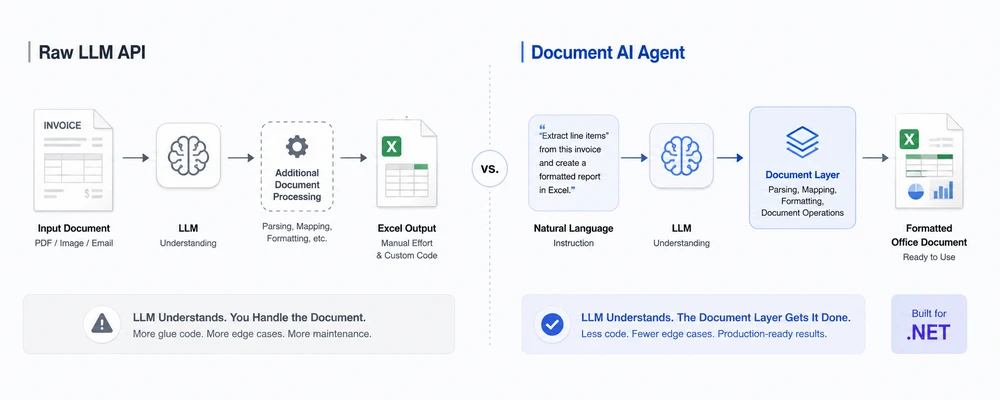
A user uploads an invoice PDF and asks:
"Extract the line items, calculate the total, and create a formatted Excel report."
A modern LLM can understand the invoice and identify the information you need. But that is only half of the problem. Your application still has to turn that understanding into a real, formatted .xlsx file with the required document structure.
This is the gap between understanding a document and operating on a document. A raw LLM API provides language and reasoning capabilities, but it does not by itself provide a complete Office document manipulation workflow. A document AI agent connects the LLM to a deterministic document-processing SDK, so the LLM determines what should happen and the document layer performs the file operations.
Quick Navigation
- The Problem: Raw LLM APIs and Document Files
- What a Document AI Agent Adds
- Side-by-Side Comparison
- When to Use Each Approach
- A Minimal Example in C#
- Why Spire.Agent.Office for .NET Teams
- FAQ
1. The Problem: Raw LLM APIs and Document Files
Calling gpt-4 or claude directly to "process this document" fails in three ways that matter in production. These concerns become important as soon as a document workflow moves beyond simple text extraction and requires reliable file manipulation, validation, and formatting.
1.1 LLMs Cannot Reliably Read or Write Office Files
Large language models can understand document content when the model and API support the relevant file or multimodal input, but that does not provide deterministic document manipulation. A model may be able to analyze the text, tables, or visual content of a PDF, but that does not mean it can deterministically modify a workbook, preserve every Office-specific property, and save the result as a production-ready .xlsx file through the LLM API itself. When an Office file is provided to a raw LLM API, the model may receive extracted or transformed content rather than a native, editable workbook object. Even when the model can understand the workbook's content, the API does not by itself provide deterministic operations for preserving and modifying the workbook's native structure (sheets, named ranges, formulas, conditional formatting, merged cells, number formats).
Raw LLM document parsing can extract useful semantic information, but semantic parsing is different from preserving and manipulating the native document structure.
Writing is the same problem in reverse. A raw LLM API does not, by itself, provide a deterministic Office document manipulation layer. An LLM can describe what a report should contain, but producing a valid .docx or .xlsx file requires additional tooling. To produce real Office output from a raw LLM, you have to build a reconstruction pipeline: parse the model's text response, map fields to cells or paragraphs, apply formatting, and write the file yourself. That pipeline is non-trivial — and it is the part that breaks in production.
1.2 Formatting Is Not Guaranteed
Document workflows carry formatting that matters: column headers in an invoice report, number formats in a financial spreadsheet, conditional fills that flag discrepancies, table styles in a management report. A raw LLM API returns model-generated content, such as text, JSON, or tool calls; it does not inherently provide a formatted Office document as the output. Formatting can be difficult to preserve when the model's response must be reconstructed into an Office file — an Excel sheet without number formats is a sheet someone has to fix by hand before it can go to accounting.
Even when the LLM produces structured output (JSON, Markdown tables), structured output is not structured document output. JSON gives you structured data, not a structured Office document. A JSON response can describe cells, paragraphs, tables, or formatting instructions, but an additional document-processing layer is still required to apply those instructions to a real .xlsx, .docx, .pptx, or .pdf file. You are now maintaining a formatter, a field mapper, and a style applier — none of which the LLM helps with.
1.3 You Reimplement the Entire Orchestration
A raw-LLM document pipeline is not one API call. It is a stack:
- Prompt design — templated prompts that break when the document layout changes
- Extraction — additional document-processing tools may be required to extract structured content from PDF, Word, and Excel files before the LLM sees it
- Parsing — JSON parsing logic to turn the LLM's response into structured data
- Retry logic — handling hallucinated outputs, rate limits, and content-filter rejections
- File I/O — reading inputs, writing outputs, managing temp files
- Output validation — checking that the produced file is valid and well-formed before returning it to the user
At that point, you are building a document-processing solution — with an LLM as one component, not the solution itself. Every new document type, schema change, or output format means re-tuning prompts and re-testing model-specific quirks. The maintenance burden grows linearly with the number of document types you support.
2. What a Document AI Agent Adds
A document AI agent solves the three problems above by pairing the LLM with a deterministic document-processing layer. The division of labor is clean:
- The LLM handles understanding. It reads the natural-language instruction, decides what to extract or generate, and determines the structure of the output.
- The document layer handles execution. It reads and writes real Office and PDF files, preserves formatting, applies styles, and uses deterministic document operations to produce a structurally valid file.
Instead of asking the LLM to "figure out" document structure, the agent invokes deterministic document operations. The model does not need to construct the Office file format itself; it produces the intent, and the document layer performs the corresponding file operations.
The two architectures side by side:
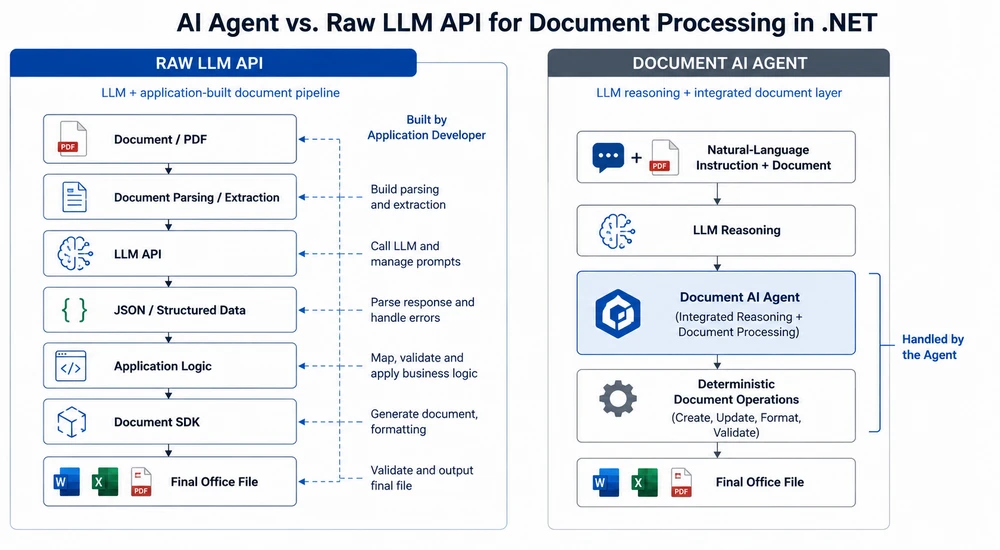
What This Looks Like in Practice
| Problem with raw LLM | How the agent solves it |
|---|---|
No native .xlsx manipulation |
Document layer reads and manipulates the workbook natively |
| No deterministic Office file generation | Document layer creates the output file |
| Formatting may be lost during reconstruction | Document layer handles styles and number formats |
| Model-generated structure may be inconsistent | Document operations are deterministic |
| You build the surrounding pipeline | Agent SDK provides the document-processing workflow |
The key insight: the LLM is the brain, the document layer is the hands. A raw LLM API gives you the brain and expects you to build the hands. A document AI agent gives you both, integrated, in one SDK call.
A document SDK alone can manipulate files, but it does not understand natural-language intent. An AI agent combines that deterministic document layer with an LLM so users can describe the desired workflow instead of implementing every document operation manually. The value is not "document SDK + AI" — it is the pipeline: natural-language instruction → LLM reasoning → deterministic document operations.
Recommended reading: AI Agent for Document Processing: What It Is and How It Works — the document AI agent concept explained.
3. Side-by-Side Comparison
| Dimension | Raw LLM API | Document AI Agent |
|---|---|---|
| File understanding | Depends on model/API and file type | Document layer provides native document access |
| File manipulation | Requires tools or additional document libraries | Built into the document-processing layer |
| Format fidelity | Depends on reconstruction logic | Handled by deterministic document APIs |
| Output handling | LLM response must be parsed and converted into a file | Document layer performs deterministic file creation |
| Code volume | More application-side orchestration | Natural-language instruction + SDK setup |
| Maintenance | Prompts, parsers, mappings and file logic | More workflow behavior can be expressed in instructions |
| Multi-format processing | Requires format-specific support | Unified document-processing workflow |
| Semantic accuracy | Depends on the model and prompt | Still depends on the model and instruction |
| File validation | Application responsibility | SDK reports processing success/failure |
| .NET integration | .NET SDK or HTTP integration, plus document-processing libraries as needed | Native C# SDK with document processing |
| Best for | Text-centric AI tasks | AI-driven document workflows |
4. When to Use Each Approach
The comparison is not "agent is always better." Raw LLM APIs and document AI agents serve different intents, and choosing the right tool depends on what the workflow produces.
Use a Raw LLM API When
- The output is text, not a file. Summarization, question answering, classification, and drafting are text-in, text-out tasks. No document layer is needed.
- You already have an LLM stack. If your team has invested in prompt engineering, RAG, and orchestration infrastructure, adding a document SDK may be unnecessary for text-only workflows.
- The input is plain text or Markdown. If the source material is already text — not
.pdfor.xlsx— the extraction problem disappears, and a raw LLM call is the simplest path.
Use a Document AI Agent When
- The output must be a real Office or PDF file. If the deliverable is an
.xlsxworkbook for accounting, a.docxreport for management, or a.pdffor distribution, a document-processing layer becomes important when the workflow must produce a valid, formatted Office file reliably. - The input spans multiple formats. PDFs, Word documents, Excel files, and scanned images arriving in the same workflow. A raw LLM needs a separate extraction library per format; an agent handles all of them in one instruction.
- Formatting matters. Column headers, number formats, conditional fills, table styles, fonts — if the business team cares about how the file looks, the document layer is what preserves it.
- You are in .NET. A native C# SDK that combines AI orchestration with document processing can reduce the amount of application-side integration compared with combining an LLM SDK with separate document-processing libraries.
- The workflow changes often. New suppliers, new report layouts, new validation rules — when the bottleneck is re-coding per change, editing an instruction is faster and cheaper.
Decision Summary
| Question | Raw LLM API | Document AI Agent |
|---|---|---|
| Is the output a real file (Excel, Word, PDF)? | Requires additional tooling | Yes |
| Does formatting need to survive? | Depends on your reconstruction pipeline | Handled by the document layer |
| Are inputs in multiple Office formats? | Requires format-specific extraction | Yes |
| Is this a text-only task (summarize, Q&A)? | Yes | Possible, but unnecessary |
| Do you need native document manipulation in .NET? | Requires an additional document library | Built into the workflow |
| Will the workflow rules change frequently? | Prompts and parsers need re-tuning | Change behavior by editing the instruction |
5. A Minimal Example in C#
The difference is clearest in code. Below is the same task — extract data from a PDF invoice and produce a formatted Excel report — implemented both ways.
Raw LLM API Approach
// Simplified raw LLM pipeline — illustrative architecture, not production code.

// 1. Obtain document content using a document-processing tool
//    (This example uses extracted text to illustrate one common raw-LLM architecture;
//    some modern LLM APIs can also accept PDFs directly.)
string documentText = ExtractTextFromPdf(@"C:\invoices\supplier-a.pdf");

// 2. Send the extracted content to the LLM
string json = await CallLlmAsync(
    "Extract vendor, invoice date, line items, and total as JSON.",
    documentText);

// 3. Deserialize and validate the model response
InvoiceData data = JsonSerializer.Deserialize<InvoiceData>(json)
    ?? throw new InvalidOperationException("Invalid LLM response.");

// 4. Create the Excel file using a document library
using var workbook = new Workbook();
var sheet = workbook.AddWorksheet("Invoice");

// ... map data to cells and apply formatting
workbook.SaveToFile(@"C:\output\report.xlsx");
Illustrative pipeline: API and document-library calls are simplified to focus on the architecture rather than a specific vendor SDK.
Document AI Agent Approach
// Document AI agent: one instruction, real file output
using Spire.Agent.Office.AI;
using Spire.Agent.Office.Extensions;
using Spire.Xls;

string? spireToken = Environment.GetEnvironmentVariable("SPIRE_TOKEN");
if (string.IsNullOrEmpty(spireToken))
    throw new InvalidOperationException("SPIRE_TOKEN is not set.");

AIOptions agentOptions = new AIOptions();
agentOptions.WorkDir = @"C:\output";
agentOptions.SpireToken = spireToken;

string instruction =
    "Read the attached invoice PDF, extract vendor name, invoice date, " +
    "line items (description, quantity, unit price, amount), and total. " +
    "Create a workbook with formatted headers, number formats for currency " +
    "columns, and a summary row. Save as a .xlsx file.";

string[] attachments = { @"C:\invoices\supplier-a.pdf" };

using (Workbook wb = new Workbook())
{
    AIResult result = wb.AI(agentOptions).ExecuteInstruction(
        wb,
        instruction,
        @"C:\output\report.xlsx",
        attachments);

    if (result == null || !result.Success)
        throw new InvalidOperationException(
            $"Processing failed: {result?.ErrorMessage}");
}
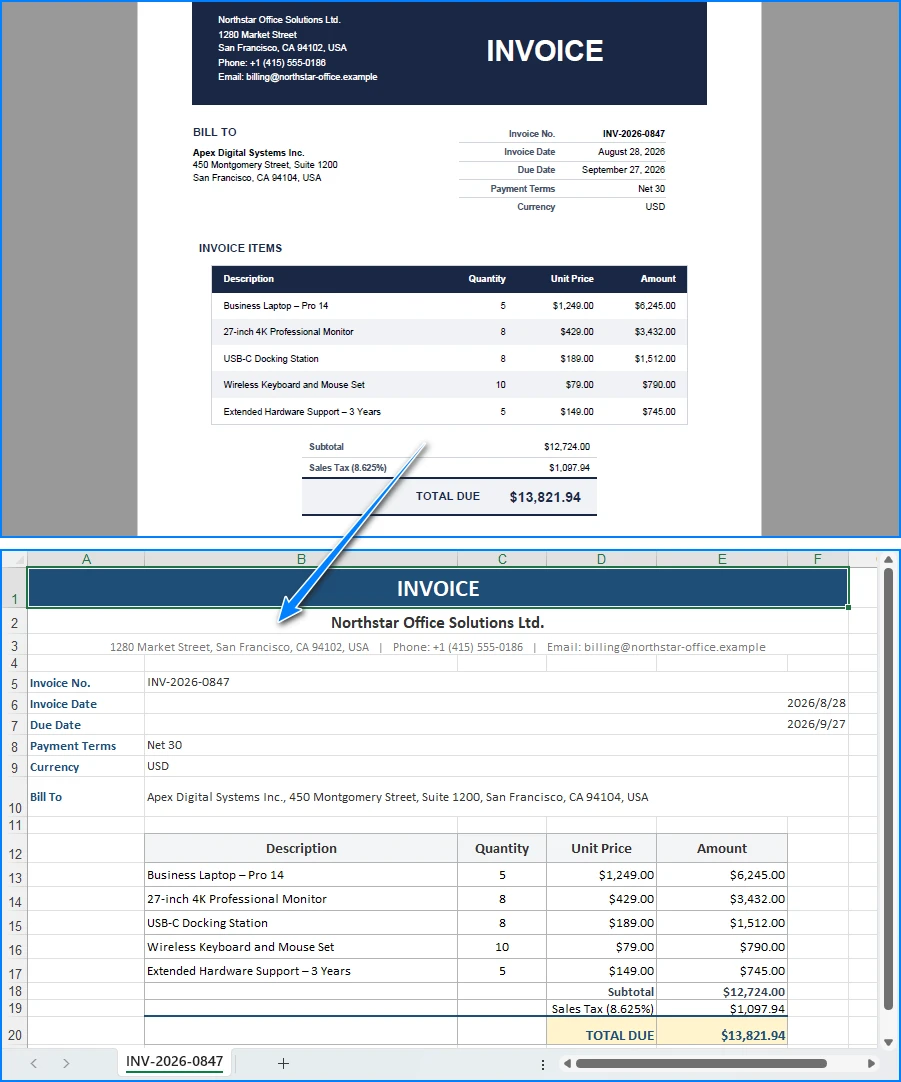
The agent reads the PDF invoice and produces a formatted Excel report:
Key API Calls
Workbook.AI(agentOptions)— attaches the AI document processor to a workbook objectExecuteInstruction(doc, instruction, savePath, attachments)— runs the instruction and writes the output fileAIResult.Success/AIResult.ErrorMessage— verifies the result and surfaces errors
The raw LLM approach is four separate problems (extraction, prompting, parsing, file writing) stitched together. The agent approach is one instruction and one result check. Both approaches can ultimately produce an .xlsx file, but the raw LLM approach requires you to build and maintain the document-generation layer yourself. The agent integrates that document-processing layer into the workflow, so the LLM focuses on interpreting the instruction while the SDK handles document operations.
You may also like: Automate Invoice Processing with an AI Agent in .NET — a full extraction, validation, and reporting workflow.
6. Why Spire.Agent.Office for .NET Teams
The comparison above is deliberately product-neutral; the same architecture (LLM + document layer) works with any capable model and any document SDK. Where Spire.Agent.Office earns its place for .NET teams is in three specific areas:
-
Native multi-format processing. PDFs, Word documents, Excel files, and image-based document workflows can be incorporated into the agent workflow. The agent reads, extracts, and generates across these formats in a single instruction — no per-format extraction library, no per-format output formatter.
-
Document formatting can be preserved through deterministic document operations. The document layer keeps column headers, number formats, conditional fills, table styles, and fonts intact. When working from an existing template, explicitly instruct the agent to preserve the original layout and styling, and the output stays true to the template without extra code.
-
Native .NET integration. It is a C# SDK that drops into an existing .NET application. No separate document-processing service to build or maintain, no cross-service plumbing, no HTTP orchestration layer. The example above captures the core integration surface: SDK setup, one instruction, and one result check.
If you already run Spire.Office for document processing, the agent is the natural next layer: the same Workbook object gains an AI() processor that turns instructions into executed workflows. The deterministic SDK you already know becomes the document layer the agent calls.
7. FAQ
Can't I just send the PDF directly to the LLM API?
You can. Modern LLM APIs can accept some document types directly, including PDFs. The important distinction is that file input gives the model access to document content; it does not automatically give your application a deterministic API for modifying the original Office structure and saving a production-ready output file. For example, a model may correctly identify invoice tables in a PDF, but turning that understanding into a formatted .xlsx still requires document-generation logic.
What exactly is a "document layer"?
A document layer is a deterministic SDK that reads and writes Office and PDF files while working with their native document structures. It handles the operations an LLM cannot: opening a .xlsx and preserving its sheets and formulas, writing a .docx with correct styles and headers, merging cells, applying conditional formatting, and creating structurally valid Office/PDF output through deterministic document APIs. In Spire.Agent.Office, the document layer is the Spire.Office SDK; the LLM decides what to do, and the document layer does it.
Is this just RAG with extra steps?
No. RAG (retrieval-augmented generation) primarily focuses on retrieving relevant information to ground model responses. A document AI agent adds another responsibility: executing document operations and producing or modifying actual files. A document agent reads and writes real files, preserves formatting, and produces structured output that is a valid Office document, not a text response.
Which AI models does Spire.Agent.Office support?
Spire.Agent.Office connects to a large language model behind a SpireToken key and supports hosted model APIs as well as custom model endpoints. For questions about which providers and model protocols are supported in your deployment, contact sales.
Does my data stay inside my environment?
The SDK, templates, and document processing run inside your application — files are not uploaded to a third-party document service for storage or conversion. To analyze content, the AI needs the relevant text, and it is sent to the model for processing. If the model endpoint is deployed within your own network and your configuration does not send document content externally, document content can remain within your infrastructure. If you connect through a hosted model API such as OpenAI or Azure OpenAI, the relevant content is transmitted to that provider per your configuration.
When is a raw LLM API the right choice?
For text-only tasks where no file output is needed: summarizing a document, answering questions about its content, classifying it into a category, or drafting an email response. If the input is already plain text and the output is plain text, a document layer adds complexity without value. The agent earns its place when the workflow produces real files that must be valid and formatted.
Ready to Add a Document Layer to Your LLM Workflows?
If your application processes invoices, contracts, reports, or any Office document workflow, a document AI agent turns one natural-language instruction into a real, formatted file — without building an extraction-and-reconstruction pipeline. Follow the Getting Started tutorial to run your first workflow in .NET.
Further Reading
- Generate Word Documents from Excel Data in C# -- data-driven document generation with the deterministic SDK
- Build an AI-Powered Excel Report Assistant in C# -- automated report generation and analysis
- Spire.Agent.Office product overview -- AI agent SDKs for every Office document format
Como Adicionar Imagens a um PDF em JavaScript (React)
Índice

Quando seu aplicativo React gera PDFs dinamicamente — uma fatura que precisa do logotipo da empresa, um relatório com um gráfico incorporado, um certificado com uma assinatura — você precisa posicionar imagens raster na página programaticamente. O JavaScript puro não consegue gravar na estrutura interna de um PDF, e montar um backend apenas para carimbar um logotipo é exagero para o que é, na verdade, uma tarefa do lado do cliente.
Spire.PDF for JavaScript compila um mecanismo PDF completo para WebAssembly, para que seu aplicativo React possa criar, editar e salvar PDFs inteiramente no navegador. Os arquivos passam por um sistema de arquivos virtual (VFS) no navegador; portanto, não há ida e volta pela rede. Com PdfImage e o método DrawImage do canvas da página, você controla exatamente onde e em qual tamanho cada imagem aparece.
Neste artigo, você aprenderá a:
- Carregar uma imagem no VFS e transformá-la em um objeto
PdfImage - Desenhá-la em uma página de PDF em uma posição e tamanho escolhidos
- Adicionar imagens a documentos PDF novos e existentes
- Dimensionar, centralizar e repetir imagens em várias páginas
- Acionar o download do PDF finalizado no navegador
Por que gerar PDFs no navegador
A alternativa usual é uma biblioteca no lado do servidor (iText, PDFBox e similares): o navegador envia os recursos, o servidor renderiza e o resultado retorna. Isso funciona, mas, para inserção de imagens, gera atrito:
- Latência — cada renderização espera uma ida e volta, o que pesa para arquivos grandes ou conexões lentas.
- Privacidade — os documentos e imagens de origem saem da máquina do usuário, um problema para qualquer informação sensível.
- Custo — a renderização de PDF consome muita CPU e não escala gratuitamente.
Com o Spire.PDF for JavaScript, todo o trabalho é executado no navegador por meio do WebAssembly. Depois que o módulo WASM é carregado, a renderização é local e instantânea, o arquivo nunca sai do dispositivo e você não gasta nada com tempo de servidor.
Pré-requisitos
Este tutorial pressupõe que você já tenha um projeto React com o Spire.PDF for JavaScript instalado e o módulo WASM inicializado. Caso contrário, siga primeiro Integrando o Spire.PDF for JavaScript em um Projeto React.
Você precisará de:
- Os arquivos
spire.pdf.base.jsespire.pdf.base.wasmna pastapublicdo seu projeto - O módulo WASM acessível via
window.wasmModule.spirepdf - Uma imagem para incorporar (PNG, JPEG etc.) colocada em um local de onde o VFS possa carregá-la
Adicionar uma imagem a um novo PDF
O cenário mais simples: criar um novo documento PDF e desenhar uma imagem na primeira página. As etapas principais são:
- Carregar a imagem no VFS usando
window.spire.FetchFileToVFS - Criar um
PdfDocumente adicionar uma página em branco - Criar um
PdfImagea partir do arquivo carregado comPdfImage.FromFile - Desenhar a imagem no canvas da página com
page.Canvas.DrawImage - Salvar e baixar o resultado
function App() {
  const addImageToPdf = async () => {
    // Get the Spire.PDF WASM module
    const pdfModule = window.wasmModule?.spirepdf;

    // Check if the WASM module is ready
    if (!pdfModule) {
      alert('Spire.PDF is not ready yet');
      return;
    }

    // Load the image into VFS
    const inputImageName = 'TreePic.png';
    await window.spire.FetchFileToVFS(inputImageName, "", `${process.env.PUBLIC_URL}/data/`);

    // Create a PdfDocument object
    let doc = new pdfModule.PdfDocument();

    // Add a page
    let page = doc.Pages.Add();

    // Load the image and scale its display size proportionally
    let image = pdfModule.PdfImage.FromFile(inputImageName);
    let width = image.Width * 0.6;
    let height = image.Height * 0.6;

    // Calculate the horizontal center position and set the vertical position
    let x = (page.Canvas.ClientSize.Width - width) / 2;
    let y = 60;

    // Draw the image at the specified position on the page
    page.Canvas.DrawImage({ image: image, x: x, y: y, width: width, height: height });

    // Define the output file name in PDF format
    const outputFileName = 'AddImage.pdf';

    // Save as PDF format
    doc.SaveToFile({ fileName: outputFileName });
    doc.Close();

    // Read the generated PDF file from VFS and trigger download
    const fileArray = window.dotnetRuntime.Module.FS.readFile(outputFileName);
    const blob = new Blob([fileArray], { type: 'application/pdf' });
    const url = URL.createObjectURL(blob);
    const a = document.createElement('a');
    a.href = url;
    a.download = outputFileName;
    a.click();
    URL.revokeObjectURL(url);
  };

  return (
    <div style={{ textAlign: 'center', height: '300px' }}>
      <h1>Add Image To PDF</h1>
      <button onClick={addImageToPdf}>
        Generate
      </button>
    </div>
  );
}

export default App;
Documento PDF gerado após adicionar uma imagem
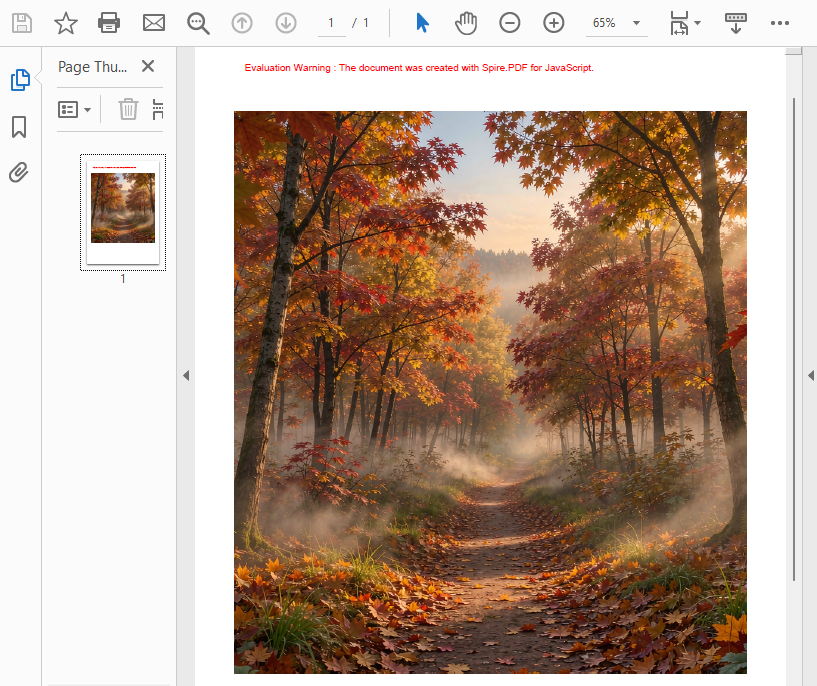
O que o código faz:
PdfImage.FromFile(inputImageName)lê a imagem do VFS e cria um objetoPdfImage. As dimensões originais em pixels estão disponíveis por meio deimage.Widtheimage.Height.page.Canvas.DrawImage(...)renderiza a imagem na página. Os parâmetrosxeydefinem a posição do canto superior esquerdo, ewidtheheightcontrolam o tamanho de exibição.- A imagem é dimensionada para 60% do tamanho original (
* 0.6) e centralizada horizontalmente usando(page.Canvas.ClientSize.Width - width) / 2.
Adicionar uma imagem a um PDF existente
Adicionar uma imagem a um documento existente segue o mesmo padrão — a única diferença é que, em vez de criar um novo PdfDocument, você carrega um do VFS e seleciona a página de destino.
const addImageToExistingPdf = async () => {
  const pdfModule = window.wasmModule?.spirepdf;
  if (!pdfModule) return;

  // Load both the PDF and the image into VFS
  await window.spire.FetchFileToVFS('Report.pdf', "", `${process.env.PUBLIC_URL}/data/`);
  await window.spire.FetchFileToVFS('Logo.png', "", `${process.env.PUBLIC_URL}/data/`);

  // Load the existing PDF
  let doc = new pdfModule.PdfDocument();
  doc.LoadFromFile('Report.pdf');

  // Get the first page (or any page you want)
  let page = doc.Pages.get_Item(0);

  // Load the image and draw it at the top-right corner
  let image = pdfModule.PdfImage.FromFile('Logo.png');
  let imgWidth = 80;
  let imgHeight = 40;
  let x = page.Canvas.ClientSize.Width - imgWidth - 30; // 30pt margin from right edge
  let y = 30; // 30pt from top

  page.Canvas.DrawImage({ image: image, x: x, y: y, width: imgWidth, height: imgHeight });

  // Save and download
  const outputFileName = 'ReportWithLogo.pdf';
  doc.SaveToFile({ fileName: outputFileName });
  doc.Close();

  const fileArray = window.dotnetRuntime.Module.FS.readFile(outputFileName);
  const blob = new Blob([fileArray], { type: 'application/pdf' });
  const url = URL.createObjectURL(blob);
  const a = document.createElement('a');
  a.href = url;
  a.download = outputFileName;
  a.click();
  URL.revokeObjectURL(url);
};
Diferença principal em relação ao exemplo de novo documento: doc.LoadFromFile('Report.pdf') carrega um PDF existente em vez de começar do zero, e doc.Pages.get_Item(0) recupera uma página do documento carregado. O restante da lógica de desenho é idêntico.
Quando a página já contém uma imagem que você precisa alterar em vez de sobrepor uma nova, consulte Substituindo e Removendo Imagens de PDFs em JavaScript (React).
Escala e posicionamento
O método DrawImage oferece a você controle total sobre onde e em qual tamanho a imagem aparece. Aqui estão os padrões mais comuns:
Dimensionamento proporcional — multiplique as duas dimensões pelo mesmo fator para preservar a proporção:
let scale = 0.5; // 50% of original size
let width = image.Width * scale;
let height = image.Height * scale;
Largura fixa, altura automática — defina a largura e calcule a altura para preservar a proporção:
let targetWidth = 200;
let width = targetWidth;
let height = image.Height * (targetWidth / image.Width);
Centralização horizontal — posicione a imagem a uma distância igual das margens esquerda e direita da página:
let x = (page.Canvas.ClientSize.Width - width) / 2;
Centralização vertical — posicione a imagem a uma distância igual do topo e da base da página:
let y = (page.Canvas.ClientSize.Height - height) / 2;
Posição personalizada — use coordenadas absolutas (a origem é o canto superior esquerdo; as unidades são pontos; 1 ponto = 1/72 de polegada):
let x = 72;  // 1 inch from left
let y = 144; // 2 inches from top
Adicionar imagens a várias páginas
Para adicionar a mesma imagem (por exemplo, um logotipo ou marca d'água) a todas as páginas de um documento, percorra a coleção Pages:
const addImageToAllPages = async () => {
  const pdfModule = window.wasmModule?.spirepdf;
  if (!pdfModule) return;

  await window.spire.FetchFileToVFS('Business_Data_Overview.pdf', "", `${process.env.PUBLIC_URL}/data/`);
  await window.spire.FetchFileToVFS('Logo.png', "", `${process.env.PUBLIC_URL}/data/`);

  let doc = new pdfModule.PdfDocument();
  doc.LoadFromFile('Business_Data_Overview.pdf');

  let image = pdfModule.PdfImage.FromFile('Logo.png');
  let imgWidth = 60;
  let imgHeight = 30;

  // Loop through all pages and draw the logo in the top-right corner
  for (let i = 0; i < doc.Pages.Count; i++) {
    let page = doc.Pages.get_Item(i);
    let x = page.Canvas.ClientSize.Width - imgWidth - 20;
    let y = 20;
    page.Canvas.DrawImage({ image: image, x: x, y: y, width: imgWidth, height: imgHeight });
  }

  const outputFileName = 'AllPagesWithLogo.pdf';
  doc.SaveToFile({ fileName: outputFileName });
  doc.Close();

  const fileArray = window.dotnetRuntime.Module.FS.readFile(outputFileName);
  const blob = new Blob([fileArray], { type: 'application/pdf' });
  const url = URL.createObjectURL(blob);
  const a = document.createElement('a');
  a.href = url;
  a.download = outputFileName;
  a.click();
  URL.revokeObjectURL(url);
};
Esse padrão é útil para adicionar marcas d'água, logotipos de empresa ou carimbos de página de forma uniforme em um documento com várias páginas.
Baixar o resultado
Depois de salvar o PDF no VFS com doc.SaveToFile(), você precisa lê-lo novamente e acionar o download no navegador. Esse padrão de duas etapas — salvar no VFS e, depois, ler do VFS — é usado em todos os exemplos do Spire.PDF for JavaScript:
// 1. Save the PDF to the VFS
doc.SaveToFile({ fileName: 'Output.pdf' });
doc.Close();

// 2. Read the file from VFS as a byte array
const fileArray = window.dotnetRuntime.Module.FS.readFile('Output.pdf');

// 3. Create a Blob and trigger download
const blob = new Blob([fileArray], { type: 'application/pdf' });
const url = URL.createObjectURL(blob);
const a = document.createElement('a');
a.href = url;
a.download = 'Output.pdf';
a.click();
URL.revokeObjectURL(url);
O mesmo padrão se aplica ao salvar imagens (use type: 'image/png' ou type: 'image/jpeg' no construtor do Blob).
Perguntas frequentes
Como controlo com precisão a posição e o tamanho de uma imagem?
Os parâmetros x e y de DrawImage definem as coordenadas do canto superior esquerdo da imagem (em pontos, em que 1 ponto = 1/72 de polegada). Os parâmetros width e height definem o tamanho de exibição. Para dimensionar proporcionalmente, leia image.Width e image.Height e multiplique ambos pelo mesmo fator. Para centralizar horizontalmente, calcule x = (page.Canvas.ClientSize.Width - width) / 2.
Posso adicionar várias imagens à mesma página?
Sim. Chame page.Canvas.DrawImage(...) uma vez para cada imagem, com coordenadas x/y diferentes. As imagens são desenhadas na ordem em que você chama o método; portanto, as imagens posteriores aparecem por cima das anteriores se houver sobreposição.
Quais formatos de imagem são suportados?
O Spire.PDF for JavaScript suporta formatos raster comuns, incluindo PNG, JPEG, BMP e GIF. Use PdfImage.FromFile(filename) para carregar qualquer um deles do VFS.
Adicionar uma imagem afeta o conteúdo existente na página?
Não. DrawImage adiciona um novo objeto de imagem à página sem modificar textos, gráficos ou outras imagens existentes. A imagem é desenhada sobre o conteúdo existente nas coordenadas especificadas. Para extrair uma imagem de um PDF existente e reutilizá-la em outro lugar, consulte Extrair imagens de um PDF em JavaScript (React).
Veja também
JavaScript(React)에서 PDF에 이미지 추가하는 방법
React 앱에서 PDF를 즉석에서 생성할 때(회사 로고가 필요한 인보이스, 차트가 포함된 보고서, 서명이 들어간 인증서 등) 페이지에 래스터 이미지를 프로그래밍 방식으로 배치해야 합니다. 순수 JavaScript만으로는 PDF의 내부 구조에 쓸 수 없으며, 로고 하나를 얹기 위해 백엔드를 구축하는 것은 사실상 클라이언트 측 작업에 과한 것입니다.
Spire.PDF for JavaScript는 전체 PDF 엔진을 WebAssembly로 컴파일하므로 React 앱에서 PDF를 완전히 브라우저에서 만들고, 편집하고, 저장할 수 있습니다. 파일은 브라우저 내 가상 파일 시스템(VFS)을 통해 이동하므로 네트워크 왕복이 없습니다. PdfImage와 페이지 캔버스의 DrawImage 메서드를 사용하면 각 이미지가 표시되는 위치와 크기를 정확하게 제어할 수 있습니다.
이 문서에서는 다음 방법을 알아봅니다:
- 이미지를 VFS에 로드하고
PdfImage객체로 변환 - 선택한 위치와 크기로 PDF 페이지에 이미지 그리기
- 새 PDF 문서와 기존 PDF 문서 모두에 이미지 추가
- 여러 페이지에서 이미지 크기 조정, 중앙 배치, 반복
- 완성된 PDF의 브라우저 다운로드 실행
브라우저에서 PDF를 생성하는 이유
일반적인 대안은 서버 측 라이브러리(iText, PDFBox 등)입니다. 브라우저가 자산을 업로드하고, 서버가 렌더링한 후 결과를 반환합니다. 이 방법도 작동하지만 이미지 삽입 작업에서는 다음과 같은 불편함이 있습니다:
- 지연 시간 — 모든 렌더링이 왕복을 기다리므로 대용량 파일이나 느린 연결 환경에서는 부담이 됩니다.
- 개인 정보 보호 — 원본 문서와 이미지가 사용자의 기기를 떠나므로 민감한 정보에는 문제가 됩니다.
- 비용 — PDF 렌더링은 CPU 사용량이 많고 무료로 확장되지 않습니다.
Spire.PDF for JavaScript를 사용하면 WebAssembly를 통해 전체 작업이 브라우저에서 실행됩니다. WASM 모듈이 로드되면 렌더링은 로컬에서 즉시 이루어지고 파일은 기기를 떠나지 않으며 서버 시간을 소비하지 않습니다.
전제 조건
이 연습에서는 이미 React 프로젝트에 Spire.PDF for JavaScript가 설치되어 있고 WASM 모듈이 초기화되어 있다고 가정합니다. 아니라면 먼저 React 프로젝트에 Spire.PDF for JavaScript 통합을 참조하세요.
필요한 항목:
- 프로젝트의
public폴더에 있는spire.pdf.base.js및spire.pdf.base.wasm파일 window.wasmModule.spirepdf를 통해 접근 가능한 WASM 모듈- VFS에서 로드할 수 있는 위치에 삽입할 이미지(PNG, JPEG 등)
새 PDF에 이미지 추가
가장 간단한 시나리오는 완전히 새로운 PDF 문서를 만들고 첫 번째 페이지에 이미지를 그리는 것입니다. 핵심 단계는 다음과 같습니다:
- 이미지를 VFS에 로드 —
window.spire.FetchFileToVFS사용 PdfDocument를 만들고 빈 페이지 추가PdfImage생성 — 로드된 파일에서PdfImage.FromFile사용- 페이지 캔버스에 이미지 그리기 —
page.Canvas.DrawImage사용 - 결과 저장 및 다운로드
function App() {
  const addImageToPdf = async () => {
    // Get the Spire.PDF WASM module
    const pdfModule = window.wasmModule?.spirepdf;

    // Check if the WASM module is ready
    if (!pdfModule) {
      alert('Spire.PDF is not ready yet');
      return;
    }

    // Load the image into VFS
    const inputImageName = 'TreePic.png';
    await window.spire.FetchFileToVFS(inputImageName, "", `${process.env.PUBLIC_URL}/data/`);

    // Create a PdfDocument object
    let doc = new pdfModule.PdfDocument();

    // Add a page
    let page = doc.Pages.Add();

    // Load the image and scale its display size proportionally
    let image = pdfModule.PdfImage.FromFile(inputImageName);
    let width = image.Width * 0.6;
    let height = image.Height * 0.6;

    // Calculate the horizontal center position and set the vertical position
    let x = (page.Canvas.ClientSize.Width - width) / 2;
    let y = 60;

    // Draw the image at the specified position on the page
    page.Canvas.DrawImage({ image: image, x: x, y: y, width: width, height: height });

    // Define the output file name in PDF format
    const outputFileName = 'AddImage.pdf';

    // Save as PDF format
    doc.SaveToFile({ fileName: outputFileName });
    doc.Close();

    // Read the generated PDF file from VFS and trigger download
    const fileArray = window.dotnetRuntime.Module.FS.readFile(outputFileName);
    const blob = new Blob([fileArray], { type: 'application/pdf' });
    const url = URL.createObjectURL(blob);
    const a = document.createElement('a');
    a.href = url;
    a.download = outputFileName;
    a.click();
    URL.revokeObjectURL(url);
  };

  return (
    <div style={{ textAlign: 'center', height: '300px' }}>
      <h1>Add Image To PDF</h1>
      <button onClick={addImageToPdf}>
        Generate
      </button>
    </div>
  );
}

export default App;
이미지를 추가한 후 생성된 PDF 문서
코드가 하는 일:
PdfImage.FromFile(inputImageName)은 VFS에서 이미지를 읽어PdfImage객체를 만듭니다. 원본 픽셀 크기는image.Width및image.Height를 통해 확인할 수 있습니다.page.Canvas.DrawImage(...)는 페이지에 이미지를 렌더링합니다.x및y매개변수는 왼쪽 위 모서리 위치를 설정하고,width및height는 표시 크기를 제어합니다.- 이미지는 원래 크기의 60%(
* 0.6)로 조정되고(page.Canvas.ClientSize.Width - width) / 2를 사용하여 가로 중앙에 배치됩니다.
기존 PDF에 이미지 추가
기존 문서에 이미지를 추가하는 방법도 같은 패턴을 따릅니다. 유일한 차이점은 새 PdfDocument를 만드는 대신 VFS에서 문서를 로드하고 대상 페이지를 선택한다는 점입니다.
const addImageToExistingPdf = async () => {
  const pdfModule = window.wasmModule?.spirepdf;
  if (!pdfModule) return;

  // Load both the PDF and the image into VFS
  await window.spire.FetchFileToVFS('Report.pdf', "", `${process.env.PUBLIC_URL}/data/`);
  await window.spire.FetchFileToVFS('Logo.png', "", `${process.env.PUBLIC_URL}/data/`);

  // Load the existing PDF
  let doc = new pdfModule.PdfDocument();
  doc.LoadFromFile('Report.pdf');

  // Get the first page (or any page you want)
  let page = doc.Pages.get_Item(0);

  // Load the image and draw it at the top-right corner
  let image = pdfModule.PdfImage.FromFile('Logo.png');
  let imgWidth = 80;
  let imgHeight = 40;
  let x = page.Canvas.ClientSize.Width - imgWidth - 30; // 30pt margin from right edge
  let y = 30; // 30pt from top

  page.Canvas.DrawImage({ image: image, x: x, y: y, width: imgWidth, height: imgHeight });

  // Save and download
  const outputFileName = 'ReportWithLogo.pdf';
  doc.SaveToFile({ fileName: outputFileName });
  doc.Close();

  const fileArray = window.dotnetRuntime.Module.FS.readFile(outputFileName);
  const blob = new Blob([fileArray], { type: 'application/pdf' });
  const url = URL.createObjectURL(blob);
  const a = document.createElement('a');
  a.href = url;
  a.download = outputFileName;
  a.click();
  URL.revokeObjectURL(url);
};
새 문서 예제와의 주요 차이점: doc.LoadFromFile('Report.pdf')는 처음부터 새로 시작하는 대신 기존 PDF를 로드하고, doc.Pages.get_Item(0)는 로드된 문서에서 페이지를 가져옵니다. 나머지 그리기 로직은 동일합니다.
페이지에 이미 이미지가 있어서 새 이미지를 위에 추가하는 것이 아니라 그 이미지를 변경해야 하는 경우 JavaScript(React)에서 PDF의 이미지 교체 및 제거를 참조하세요.
크기 조정 및 위치 지정
DrawImage 메서드를 사용하면 이미지가 표시되는 위치와 크기를 완전히 제어할 수 있습니다. 가장 일반적인 패턴은 다음과 같습니다:
비율 크기 조정 — 가로와 세로를 같은 배율로 곱하여 종횡비를 유지합니다:
let scale = 0.5; // 50% of original size
let width = image.Width * scale;
let height = image.Height * scale;
고정 너비, 자동 높이 — 너비를 설정하고 종횡비를 유지하도록 높이를 계산합니다:
let targetWidth = 200;
let width = targetWidth;
let height = image.Height * (targetWidth / image.Width);
가로 중앙 정렬 — 이미지를 페이지 왼쪽 및 오른쪽 여백에서 동일한 거리에 배치합니다:
let x = (page.Canvas.ClientSize.Width - width) / 2;
세로 중앙 정렬 — 이미지를 페이지 위쪽과 아래쪽에서 동일한 거리에 배치합니다:
let y = (page.Canvas.ClientSize.Height - height) / 2;
사용자 지정 위치 — 절대 좌표를 사용합니다(원점은 왼쪽 위, 단위는 포인트, 1포인트 = 1/72인치):
let x = 72;  // 1 inch from left
let y = 144; // 2 inches from top
여러 페이지에 이미지 추가
문서의 모든 페이지에 동일한 이미지(예: 로고 또는 워터마크)를 추가하려면 Pages 컬렉션을 반복합니다:
const addImageToAllPages = async () => {
  const pdfModule = window.wasmModule?.spirepdf;
  if (!pdfModule) return;

  await window.spire.FetchFileToVFS('Business_Data_Overview.pdf', "", `${process.env.PUBLIC_URL}/data/`);
  await window.spire.FetchFileToVFS('Logo.png', "", `${process.env.PUBLIC_URL}/data/`);

  let doc = new pdfModule.PdfDocument();
  doc.LoadFromFile('Business_Data_Overview.pdf');

  let image = pdfModule.PdfImage.FromFile('Logo.png');
  let imgWidth = 60;
  let imgHeight = 30;

  // Loop through all pages and draw the logo in the top-right corner
  for (let i = 0; i < doc.Pages.Count; i++) {
    let page = doc.Pages.get_Item(i);
    let x = page.Canvas.ClientSize.Width - imgWidth - 20;
    let y = 20;
    page.Canvas.DrawImage({ image: image, x: x, y: y, width: imgWidth, height: imgHeight });
  }

  const outputFileName = 'AllPagesWithLogo.pdf';
  doc.SaveToFile({ fileName: outputFileName });
  doc.Close();

  const fileArray = window.dotnetRuntime.Module.FS.readFile(outputFileName);
  const blob = new Blob([fileArray], { type: 'application/pdf' });
  const url = URL.createObjectURL(blob);
  const a = document.createElement('a');
  a.href = url;
  a.download = outputFileName;
  a.click();
  URL.revokeObjectURL(url);
};
이 패턴은 여러 페이지 문서 전체에 워터마크, 회사 로고 또는 페이지 스탬프를 균일하게 추가하는 데 유용합니다.
결과 다운로드
doc.SaveToFile()로 PDF를 VFS에 저장한 후에는 해당 파일을 다시 읽어 브라우저 다운로드를 실행해야 합니다. 이 두 단계 패턴(먼저 VFS에 저장한 다음 VFS에서 읽기)은 모든 Spire.PDF for JavaScript 예제에서 사용됩니다:
// 1. Save the PDF to the VFS
doc.SaveToFile({ fileName: 'Output.pdf' });
doc.Close();

// 2. Read the file from VFS as a byte array
const fileArray = window.dotnetRuntime.Module.FS.readFile('Output.pdf');

// 3. Create a Blob and trigger download
const blob = new Blob([fileArray], { type: 'application/pdf' });
const url = URL.createObjectURL(blob);
const a = document.createElement('a');
a.href = url;
a.download = 'Output.pdf';
a.click();
URL.revokeObjectURL(url);
이미지를 저장할 때도 동일한 패턴이 적용됩니다(Blob 생성자에서 type: 'image/png' 또는 type: 'image/jpeg' 사용).
자주 묻는 질문
이미지의 위치와 크기를 정밀하게 제어하려면 어떻게 해야 하나요?
DrawImage의 x 및 y 매개변수는 이미지 왼쪽 위 모서리의 좌표(포인트 단위, 1포인트 = 1/72인치)를 설정합니다. width와 height 매개변수는 표시 크기를 설정합니다. 비율을 유지하며 크기를 조정하려면 image.Width와 image.Height를 읽고 둘 다 같은 배수로 곱하세요. 가로로 중앙 정렬하려면 x = (page.Canvas.ClientSize.Width - width) / 2로 계산합니다.
한 페이지에 여러 이미지를 추가할 수 있나요?
네. 이미지마다 page.Canvas.DrawImage(...)를 서로 다른 x/y 좌표로 호출하면 됩니다. 이미지는 메서드를 호출한 순서대로 그려지므로 겹치는 경우 나중에 그린 이미지가 먼저 그린 이미지 위에 표시됩니다.
지원되는 이미지 형식은 무엇인가요?
Spire.PDF for JavaScript는 PNG, JPEG, BMP, GIF를 포함한 일반적인 래스터 형식을 지원합니다. PdfImage.FromFile(filename)을 사용하여 VFS에서 이 형식들을 로드하세요.
이미지를 추가하면 페이지의 기존 콘텐츠에 영향을 주나요?
아니요. DrawImage는 기존 텍스트, 그래픽, 다른 이미지를 수정하지 않고 페이지에 새 이미지 객체를 추가합니다. 이미지는 지정된 좌표의 기존 콘텐츠 위에 그려집니다. 기존 PDF에서 이미지를 추출하여 다른 곳에서 재사용하려면 JavaScript(React)에서 PDF에서 이미지 추출을 참조하세요.
참고 항목
Come aggiungere immagini a un PDF in JavaScript (React)
Indice dei contenuti
Quando la tua app React genera PDF al volo — una fattura che necessita del logo aziendale, un report con un grafico incorporato, un certificato con una firma — devi inserire le immagini raster sulla pagina in modo programmatico. Il semplice JavaScript non può scrivere nella struttura interna di un PDF, e configurare un backend solo per apporre un logo è eccessivo per quello che è in realtà un compito lato client.
Spire.PDF for JavaScript compila un motore PDF completo in WebAssembly, quindi la tua app React può creare, modificare e salvare PDF interamente nel browser. I file passano attraverso un Virtual File System (VFS) nel browser, quindi non c'è alcun viaggio di rete. Con PdfImage e il metodo DrawImage dell'area di disegno della pagina, puoi controllare esattamente dove e quanto grande appare ogni immagine.
In questo articolo imparerai come:
- Caricare un'immagine nel VFS e trasformarla in un oggetto
PdfImage - Disegnarla su una pagina PDF in una posizione e dimensione scelte
- Aggiungere immagini sia a nuovi documenti PDF sia a documenti esistenti
- Ridimensionare, centrare e ripetere immagini su più pagine
- Attivare il download nel browser del PDF finale
Perché generare PDF nel browser
L'alternativa usuale è una libreria lato server (iText, PDFBox e simili): il browser carica le risorse, il server esegue il rendering e il risultato torna indietro. Funziona, ma per l'aggiunta di immagini introduce attriti:
- Latenza — ogni rendering attende un viaggio di andata e ritorno, il che è penalizzante per file di grandi dimensioni o connessioni lente.
- Privacy — i documenti e le immagini sorgente lasciano la macchina dell'utente, un problema per qualsiasi dato sensibile.
- Costo — il rendering PDF richiede molta CPU e non scala gratuitamente.
Con Spire.PDF for JavaScript l'intero lavoro viene eseguito nel browser tramite WebAssembly. Una volta caricato il modulo WASM, il rendering è locale e immediato, il file non lascia mai il dispositivo e non paghi nulla in termini di tempo di elaborazione server.
Prerequisiti
Questa guida presuppone che tu abbia già un progetto React con Spire.PDF for JavaScript installato e il modulo WASM inizializzato. In caso contrario, segui prima Integrazione di Spire.PDF for JavaScript in un progetto React.
Avrai bisogno di:
- I file
spire.pdf.base.jsespire.pdf.base.wasmnella cartellapublicdel tuo progetto - Il modulo WASM raggiungibile tramite
window.wasmModule.spirepdf - Un'immagine da incorporare (PNG, JPEG, ecc.) posizionata dove il VFS possa caricarla
Aggiungere un'immagine a un nuovo PDF
Il caso più semplice: creare un documento PDF nuovo di zecca e disegnare un'immagine sulla sua prima pagina. I passaggi principali sono:
- Carica l'immagine nel VFS usando
window.spire.FetchFileToVFS - Crea un
PdfDocumente aggiungi una pagina vuota - Crea un
PdfImagedal file caricato conPdfImage.FromFile - Disegna l'immagine sull'area di disegno della pagina con
page.Canvas.DrawImage - Salva e scarica il risultato
function App() {
  const addImageToPdf = async () => {
    // Get the Spire.PDF WASM module
    const pdfModule = window.wasmModule?.spirepdf;

    // Check if the WASM module is ready
    if (!pdfModule) {
      alert('Spire.PDF is not ready yet');
      return;
    }

    // Load the image into VFS
    const inputImageName = 'TreePic.png';
    await window.spire.FetchFileToVFS(inputImageName, "", `${process.env.PUBLIC_URL}/data/`);

    // Create a PdfDocument object
    let doc = new pdfModule.PdfDocument();

    // Add a page
    let page = doc.Pages.Add();

    // Load the image and scale its display size proportionally
    let image = pdfModule.PdfImage.FromFile(inputImageName);
    let width = image.Width * 0.6;
    let height = image.Height * 0.6;

    // Calculate the horizontal center position and set the vertical position
    let x = (page.Canvas.ClientSize.Width - width) / 2;
    let y = 60;

    // Draw the image at the specified position on the page
    page.Canvas.DrawImage({ image: image, x: x, y: y, width: width, height: height });

    // Define the output file name in PDF format
    const outputFileName = 'AddImage.pdf';

    // Save as PDF format
    doc.SaveToFile({ fileName: outputFileName });
    doc.Close();

    // Read the generated PDF file from VFS and trigger download
    const fileArray = window.dotnetRuntime.Module.FS.readFile(outputFileName);
    const blob = new Blob([fileArray], { type: 'application/pdf' });
    const url = URL.createObjectURL(blob);
    const a = document.createElement('a');
    a.href = url;
    a.download = outputFileName;
    a.click();
    URL.revokeObjectURL(url);
  };

  return (
    <div style={{ textAlign: 'center', height: '300px' }}>
      <h1>Add Image To PDF</h1>
      <button onClick={addImageToPdf}>
        Generate
      </button>
    </div>
  );
}

export default App;
Documento PDF generato dopo l'aggiunta di un'immagine
Cosa fa il codice:
PdfImage.FromFile(inputImageName)legge l'immagine dal VFS e crea un oggettoPdfImage. Le dimensioni originali in pixel sono disponibili tramiteimage.Widtheimage.Height.page.Canvas.DrawImage(...)esegue il rendering dell'immagine sulla pagina. I parametrixeyimpostano la posizione dell'angolo superiore sinistro, mentrewidtheheightcontrollano le dimensioni di visualizzazione.- L'immagine viene ridimensionata al 60% della sua dimensione originale (
* 0.6) e centrata orizzontalmente usando(page.Canvas.ClientSize.Width - width) / 2.
Aggiungere un'immagine a un PDF esistente
Aggiungere un'immagine a un documento esistente segue lo stesso schema — l'unica differenza è che, invece di creare un nuovo PdfDocument, ne carichi uno dal VFS e selezioni la pagina di destinazione.
const addImageToExistingPdf = async () => {
  const pdfModule = window.wasmModule?.spirepdf;
  if (!pdfModule) return;

  // Load both the PDF and the image into VFS
  await window.spire.FetchFileToVFS('Report.pdf', "", `${process.env.PUBLIC_URL}/data/`);
  await window.spire.FetchFileToVFS('Logo.png', "", `${process.env.PUBLIC_URL}/data/`);

  // Load the existing PDF
  let doc = new pdfModule.PdfDocument();
  doc.LoadFromFile('Report.pdf');

  // Get the first page (or any page you want)
  let page = doc.Pages.get_Item(0);

  // Load the image and draw it at the top-right corner
  let image = pdfModule.PdfImage.FromFile('Logo.png');
  let imgWidth = 80;
  let imgHeight = 40;
  let x = page.Canvas.ClientSize.Width - imgWidth - 30; // 30pt margin from right edge
  let y = 30; // 30pt from top

  page.Canvas.DrawImage({ image: image, x: x, y: y, width: imgWidth, height: imgHeight });

  // Save and download
  const outputFileName = 'ReportWithLogo.pdf';
  doc.SaveToFile({ fileName: outputFileName });
  doc.Close();

  const fileArray = window.dotnetRuntime.Module.FS.readFile(outputFileName);
  const blob = new Blob([fileArray], { type: 'application/pdf' });
  const url = URL.createObjectURL(blob);
  const a = document.createElement('a');
  a.href = url;
  a.download = outputFileName;
  a.click();
  URL.revokeObjectURL(url);
};
Differenza principale rispetto all'esempio del nuovo documento: doc.LoadFromFile('Report.pdf') carica un PDF esistente invece di partire da zero, e doc.Pages.get_Item(0) recupera una pagina dal documento caricato. Il resto della logica di disegno è identico.
Quando la pagina contiene già un'immagine che devi modificare anziché sovrapporne una nuova, consulta Sostituire e rimuovere immagini da PDF in JavaScript (React).
Ridimensionamento e posizionamento
Il metodo DrawImage ti dà il pieno controllo su dove e quanto grande appare l'immagine. Ecco gli schemi più comuni:
Ridimensionamento proporzionale — moltiplica entrambe le dimensioni per lo stesso fattore per preservare le proporzioni:
let scale = 0.5; // 50% of original size
let width = image.Width * scale;
let height = image.Height * scale;
Larghezza fissa, altezza automatica — imposta la larghezza e calcola l'altezza per preservare le proporzioni:
let targetWidth = 200;
let width = targetWidth;
let height = image.Height * (targetWidth / image.Width);
Centratura orizzontale — posiziona l'immagine equidistante dai margini sinistro e destro della pagina:
let x = (page.Canvas.ClientSize.Width - width) / 2;
Centratura verticale — posiziona l'immagine equidistante dalla parte superiore e inferiore della pagina:
let y = (page.Canvas.ClientSize.Height - height) / 2;
Posizione personalizzata — usa coordinate assolute (l'origine è in alto a sinistra, le unità sono punti; 1 punto = 1/72 di pollice):
let x = 72;  // 1 inch from left
let y = 144; // 2 inches from top
Aggiungere immagini a più pagine
Per aggiungere la stessa immagine (ad es. un logo o una filigrana) a ogni pagina di un documento, scorri la raccolta Pages:
const addImageToAllPages = async () => {
  const pdfModule = window.wasmModule?.spirepdf;
  if (!pdfModule) return;

  await window.spire.FetchFileToVFS('Business_Data_Overview.pdf', "", `${process.env.PUBLIC_URL}/data/`);
  await window.spire.FetchFileToVFS('Logo.png', "", `${process.env.PUBLIC_URL}/data/`);

  let doc = new pdfModule.PdfDocument();
  doc.LoadFromFile('Business_Data_Overview.pdf');

  let image = pdfModule.PdfImage.FromFile('Logo.png');
  let imgWidth = 60;
  let imgHeight = 30;

  // Loop through all pages and draw the logo in the top-right corner
  for (let i = 0; i < doc.Pages.Count; i++) {
    let page = doc.Pages.get_Item(i);
    let x = page.Canvas.ClientSize.Width - imgWidth - 20;
    let y = 20;
    page.Canvas.DrawImage({ image: image, x: x, y: y, width: imgWidth, height: imgHeight });
  }

  const outputFileName = 'AllPagesWithLogo.pdf';
  doc.SaveToFile({ fileName: outputFileName });
  doc.Close();

  const fileArray = window.dotnetRuntime.Module.FS.readFile(outputFileName);
  const blob = new Blob([fileArray], { type: 'application/pdf' });
  const url = URL.createObjectURL(blob);
  const a = document.createElement('a');
  a.href = url;
  a.download = outputFileName;
  a.click();
  URL.revokeObjectURL(url);
};
Questo schema è utile per aggiungere filigrane, loghi aziendali o timbri in modo uniforme su tutte le pagine di un documento multipagina.
Scaricare il risultato
Dopo aver salvato il PDF nel VFS con doc.SaveToFile(), devi rileggerlo e attivare il download nel browser. Questo schema in due passaggi — salva nel VFS, poi leggi dal VFS — è usato in ogni esempio Spire.PDF for JavaScript:
// 1. Save the PDF to the VFS
doc.SaveToFile({ fileName: 'Output.pdf' });
doc.Close();

// 2. Read the file from VFS as a byte array
const fileArray = window.dotnetRuntime.Module.FS.readFile('Output.pdf');

// 3. Create a Blob and trigger download
const blob = new Blob([fileArray], { type: 'application/pdf' });
const url = URL.createObjectURL(blob);
const a = document.createElement('a');
a.href = url;
a.download = 'Output.pdf';
a.click();
URL.revokeObjectURL(url);
Lo stesso schema si applica quando salvi immagini (usa type: 'image/png' o type: 'image/jpeg' nel costruttore Blob).
FAQ
Come posso controllare con precisione posizione e dimensione di un'immagine?
I parametri x e y di DrawImage impostano le coordinate dell'angolo superiore sinistro dell'immagine (in punti, dove 1 punto = 1/72 di pollice). I parametri width e height impostano le dimensioni di visualizzazione. Per ridimensionare in modo proporzionale, leggi image.Width e image.Height e moltiplica entrambi per lo stesso fattore. Per centrare orizzontalmente, calcola x = (page.Canvas.ClientSize.Width - width) / 2.
Posso aggiungere più immagini alla stessa pagina?
Sì. Chiama page.Canvas.DrawImage(...) una volta per ogni immagine, con coordinate x/y diverse. Le immagini vengono disegnate nell'ordine in cui chiami il metodo, quindi le immagini successive appaiono sopra quelle precedenti se si sovrappongono.
Quali formati di immagine sono supportati?
Spire.PDF for JavaScript supporta i comuni formati raster, inclusi PNG, JPEG, BMP e GIF. Usa PdfImage.FromFile(filename) per caricarne uno qualsiasi dal VFS.
Aggiungere un'immagine influisce sul contenuto esistente della pagina?
No. DrawImage aggiunge un nuovo oggetto immagine alla pagina senza modificare testo, grafica o altre immagini esistenti. L'immagine viene disegnata sopra il contenuto esistente alle coordinate specificate. Per estrarre un'immagine da un PDF esistente e riutilizzarla altrove, consulta Estrarre immagini da un PDF in JavaScript (React).
Vedi anche
Comment ajouter des images à un PDF en JavaScript (React)
Sommaire
Lorsque votre application React génère des PDF à la volée — une facture qui doit comporter le logo d’une entreprise, un rapport avec un graphique intégré, un certificat portant une signature — vous devez placer des images raster sur la page par programmation. Le JavaScript standard ne peut pas écrire dans la structure interne d’un PDF, et mettre en place un backend uniquement pour ajouter un logo est excessif pour ce qui est en réalité une tâche côté client.
Spire.PDF pour JavaScript compile un moteur PDF complet en WebAssembly, ce qui permet à votre application React de créer, modifier et enregistrer des PDF entièrement dans le navigateur. Les fichiers transitent par un système de fichiers virtuel (VFS) dans le navigateur, ce qui évite tout aller-retour réseau. Avec PdfImage et la méthode DrawImage du canevas de la page, vous contrôlez précisément où et comment chaque image apparaît.
Dans cet article, vous apprendrez à :
- Charger une image dans le VFS et la transformer en objet
PdfImage - La dessiner sur une page PDF à une position et une taille choisies
- Ajouter des images à des documents PDF entièrement nouveaux et existants
- Mettre à l’échelle, centrer et répéter des images sur plusieurs pages
- Déclencher le téléchargement du PDF final dans le navigateur
Pourquoi générer des PDF dans le navigateur
L’alternative habituelle est une bibliothèque côté serveur (iText, PDFBox, etc.) : le navigateur envoie les ressources, le serveur effectue le rendu, puis le résultat revient. Cela fonctionne, mais pour l’ajout d’images, cela ajoute des frictions :
- Latence — chaque rendu attend un aller-retour, ce qui est pénalisant pour les fichiers volumineux ou les connexions lentes.
- Confidentialité — les documents et images sources quittent la machine de l’utilisateur, un problème pour toute donnée sensible.
- Coût — le rendu PDF est très gourmand en CPU et ne passe pas à l’échelle sans frais.
Avec Spire.PDF pour JavaScript, tout le travail s’exécute dans le navigateur via WebAssembly. Une fois le module WASM chargé, le rendu est local et instantané, le fichier ne quitte jamais l’appareil et aucun temps serveur n’est facturé.
Prérequis
Cette procédure suppose que vous disposez déjà d’un projet React avec Spire.PDF pour JavaScript installé et le module WASM initialisé. Dans le cas contraire, suivez d’abord Intégrer Spire.PDF pour JavaScript dans un projet React.
Vous aurez besoin de :
- Les fichiers
spire.pdf.base.jsetspire.pdf.base.wasmdans le dossierpublicde votre projet - Le module WASM accessible via
window.wasmModule.spirepdf - Une image à incorporer (PNG, JPEG, etc.) placée là où le VFS peut la charger
Ajouter une image à un nouveau PDF
Le scénario le plus simple consiste à créer un tout nouveau document PDF et à dessiner une image sur sa première page. Les étapes clés sont :
- Charger l’image dans le VFS à l’aide de
window.spire.FetchFileToVFS - Créer un
PdfDocumentet ajouter une page vierge - Créer un
PdfImageà partir du fichier chargé avecPdfImage.FromFile - Dessiner l’image sur le canevas de la page avec
page.Canvas.DrawImage - Enregistrer et télécharger le résultat
function App() {
  const addImageToPdf = async () => {
    // Get the Spire.PDF WASM module
    const pdfModule = window.wasmModule?.spirepdf;

    // Check if the WASM module is ready
    if (!pdfModule) {
      alert('Spire.PDF is not ready yet');
      return;
    }

    // Load the image into VFS
    const inputImageName = 'TreePic.png';
    await window.spire.FetchFileToVFS(inputImageName, "", `${process.env.PUBLIC_URL}/data/`);

    // Create a PdfDocument object
    let doc = new pdfModule.PdfDocument();

    // Add a page
    let page = doc.Pages.Add();

    // Load the image and scale its display size proportionally
    let image = pdfModule.PdfImage.FromFile(inputImageName);
    let width = image.Width * 0.6;
    let height = image.Height * 0.6;

    // Calculate the horizontal center position and set the vertical position
    let x = (page.Canvas.ClientSize.Width - width) / 2;
    let y = 60;

    // Draw the image at the specified position on the page
    page.Canvas.DrawImage({ image: image, x: x, y: y, width: width, height: height });

    // Define the output file name in PDF format
    const outputFileName = 'AddImage.pdf';

    // Save as PDF format
    doc.SaveToFile({ fileName: outputFileName });
    doc.Close();

    // Read the generated PDF file from VFS and trigger download
    const fileArray = window.dotnetRuntime.Module.FS.readFile(outputFileName);
    const blob = new Blob([fileArray], { type: 'application/pdf' });
    const url = URL.createObjectURL(blob);
    const a = document.createElement('a');
    a.href = url;
    a.download = outputFileName;
    a.click();
    URL.revokeObjectURL(url);
  };

  return (
    <div style={{ textAlign: 'center', height: '300px' }}>
      <h1>Add Image To PDF</h1>
      <button onClick={addImageToPdf}>
        Generate
      </button>
    </div>
  );
}

export default App;
Document PDF généré après ajout d’une image
Ce que fait ce code :
PdfImage.FromFile(inputImageName)lit l’image depuis le VFS et crée un objetPdfImage. Les dimensions d’origine en pixels sont disponibles viaimage.Widthetimage.Height.page.Canvas.DrawImage(...)rend l’image sur la page. Les paramètresxetydéfinissent la position du coin supérieur gauche, etwidthetheightcontrôlent la taille d’affichage.- L’image est mise à l’échelle à 60 % de sa taille d’origine (
* 0.6) et centrée horizontalement à l’aide de(page.Canvas.ClientSize.Width - width) / 2.
Ajouter une image à un PDF existant
L’ajout d’une image à un document existant suit le même modèle — la seule différence est qu’au lieu de créer un nouveau PdfDocument, vous en chargez un depuis le VFS et sélectionnez la page cible.
const addImageToExistingPdf = async () => {
  const pdfModule = window.wasmModule?.spirepdf;
  if (!pdfModule) return;

  // Load both the PDF and the image into VFS
  await window.spire.FetchFileToVFS('Report.pdf', "", `${process.env.PUBLIC_URL}/data/`);
  await window.spire.FetchFileToVFS('Logo.png', "", `${process.env.PUBLIC_URL}/data/`);

  // Load the existing PDF
  let doc = new pdfModule.PdfDocument();
  doc.LoadFromFile('Report.pdf');

  // Get the first page (or any page you want)
  let page = doc.Pages.get_Item(0);

  // Load the image and draw it at the top-right corner
  let image = pdfModule.PdfImage.FromFile('Logo.png');
  let imgWidth = 80;
  let imgHeight = 40;
  let x = page.Canvas.ClientSize.Width - imgWidth - 30; // 30pt margin from right edge
  let y = 30; // 30pt from top

  page.Canvas.DrawImage({ image: image, x: x, y: y, width: imgWidth, height: imgHeight });

  // Save and download
  const outputFileName = 'ReportWithLogo.pdf';
  doc.SaveToFile({ fileName: outputFileName });
  doc.Close();

  const fileArray = window.dotnetRuntime.Module.FS.readFile(outputFileName);
  const blob = new Blob([fileArray], { type: 'application/pdf' });
  const url = URL.createObjectURL(blob);
  const a = document.createElement('a');
  a.href = url;
  a.download = outputFileName;
  a.click();
  URL.revokeObjectURL(url);
};
Principale différence avec l’exemple du nouveau document : doc.LoadFromFile('Report.pdf') charge un PDF existant au lieu de partir de zéro, et doc.Pages.get_Item(0) récupère une page du document chargé. Le reste de la logique de dessin est identique.
Lorsque la page contient déjà une image que vous devez modifier plutôt que d’en superposer une nouvelle, consultez Remplacer et supprimer des images dans des PDF en JavaScript (React).
Mise à l’échelle et positionnement
La méthode DrawImage vous donne un contrôle total sur l’emplacement et la taille de l’image. Voici les modèles les plus courants :
Mise à l’échelle proportionnelle — multipliez les deux dimensions par le même facteur pour préserver le ratio hauteur/largeur :
let scale = 0.5; // 50% of original size
let width = image.Width * scale;
let height = image.Height * scale;
Largeur fixe, hauteur automatique — définissez la largeur et calculez la hauteur pour préserver le ratio :
let targetWidth = 200;
let width = targetWidth;
let height = image.Height * (targetWidth / image.Width);
Centrage horizontal — placez l’image à égale distance des marges gauche et droite de la page :
let x = (page.Canvas.ClientSize.Width - width) / 2;
Centrage vertical — placez l’image à égale distance du haut et du bas de la page :
let y = (page.Canvas.ClientSize.Height - height) / 2;
Position personnalisée — utilisez des coordonnées absolues (l’origine est en haut à gauche, les unités sont des points ; 1 point = 1/72 pouce) :
let x = 72;  // 1 inch from left
let y = 144; // 2 inches from top
Ajouter des images à plusieurs pages
Pour ajouter la même image (par exemple, un logo ou un filigrane) à chaque page d’un document, parcourez la collection Pages :
const addImageToAllPages = async () => {
  const pdfModule = window.wasmModule?.spirepdf;
  if (!pdfModule) return;

  await window.spire.FetchFileToVFS('Business_Data_Overview.pdf', "", `${process.env.PUBLIC_URL}/data/`);
  await window.spire.FetchFileToVFS('Logo.png', "", `${process.env.PUBLIC_URL}/data/`);

  let doc = new pdfModule.PdfDocument();
  doc.LoadFromFile('Business_Data_Overview.pdf');

  let image = pdfModule.PdfImage.FromFile('Logo.png');
  let imgWidth = 60;
  let imgHeight = 30;

  // Loop through all pages and draw the logo in the top-right corner
  for (let i = 0; i < doc.Pages.Count; i++) {
    let page = doc.Pages.get_Item(i);
    let x = page.Canvas.ClientSize.Width - imgWidth - 20;
    let y = 20;
    page.Canvas.DrawImage({ image: image, x: x, y: y, width: imgWidth, height: imgHeight });
  }

  const outputFileName = 'AllPagesWithLogo.pdf';
  doc.SaveToFile({ fileName: outputFileName });
  doc.Close();

  const fileArray = window.dotnetRuntime.Module.FS.readFile(outputFileName);
  const blob = new Blob([fileArray], { type: 'application/pdf' });
  const url = URL.createObjectURL(blob);
  const a = document.createElement('a');
  a.href = url;
  a.download = outputFileName;
  a.click();
  URL.revokeObjectURL(url);
};
Ce modèle est utile pour ajouter uniformément des filigranes, des logos d’entreprise ou des tampons de page à un document multipage.
Télécharger le résultat
Après avoir enregistré le PDF dans le VFS avec doc.SaveToFile(), vous devez le relire et déclencher son téléchargement dans le navigateur. Ce modèle en deux étapes — enregistrer dans le VFS, puis lire depuis le VFS — est utilisé dans chaque exemple Spire.PDF pour JavaScript :
// 1. Save the PDF to the VFS
doc.SaveToFile({ fileName: 'Output.pdf' });
doc.Close();

// 2. Read the file from VFS as a byte array
const fileArray = window.dotnetRuntime.Module.FS.readFile('Output.pdf');

// 3. Create a Blob and trigger download
const blob = new Blob([fileArray], { type: 'application/pdf' });
const url = URL.createObjectURL(blob);
const a = document.createElement('a');
a.href = url;
a.download = 'Output.pdf';
a.click();
URL.revokeObjectURL(url);
Le même modèle s’applique lors de l’enregistrement d’images (utilisez type: 'image/png' ou type: 'image/jpeg' dans le constructeur Blob).
FAQ
Comment contrôler précisément la position et la taille d’une image ?
Les paramètres x et y de DrawImage définissent les coordonnées du coin supérieur gauche de l’image (en points, où 1 point = 1/72 pouce). Les paramètres width et height définissent la taille d’affichage. Pour une mise à l’échelle proportionnelle, lisez image.Width et image.Height et multipliez les deux par le même facteur. Pour centrer horizontalement, calculez x = (page.Canvas.ClientSize.Width - width) / 2.
Puis-je ajouter plusieurs images sur la même page ?
Oui. Appelez page.Canvas.DrawImage(...) une fois pour chaque image, avec des coordonnées x/y différentes. Les images sont dessinées dans l’ordre où vous appelez la méthode ; ainsi, si elles se chevauchent, les images suivantes apparaissent au-dessus des précédentes.
Quels formats d’image sont pris en charge ?
Spire.PDF pour JavaScript prend en charge les formats raster courants, notamment PNG, JPEG, BMP et GIF. Utilisez PdfImage.FromFile(filename) pour charger l’un de ces formats depuis le VFS.
L’ajout d’une image affecte-t-il le contenu existant de la page ?
Non. DrawImage ajoute un nouvel objet image à la page sans modifier le texte, les graphiques ou les autres images existants. L’image est dessinée par-dessus le contenu existant aux coordonnées spécifiées. Pour extraire une image d’un PDF existant afin de la réutiliser ailleurs, consultez Extraire des images d’un PDF en JavaScript (React).
Voir aussi
Cómo agregar imágenes a un PDF en JavaScript (React)
Tabla de contenido
Cuando tu aplicación React genera PDFs sobre la marcha —una factura que necesita el logo de la empresa, un informe con un gráfico incrustado, un certificado que lleva una firma— tienes que colocar imágenes de mapa de bits en la página de forma programática. El JavaScript puro no puede escribir en la estructura interna de un PDF, y levantar un backend solo para estampar un logo es excesivo para lo que en realidad es una tarea del lado del cliente.
Spire.PDF for JavaScript compila un motor PDF completo a WebAssembly, por lo que tu aplicación React puede crear, editar y guardar PDFs enteramente en el navegador. Los archivos se mueven por un sistema de archivos virtual (VFS) dentro del navegador, por lo que no hay ningún viaje de ida y vuelta a la red. Con PdfImage y el método DrawImage del lienzo de la página, controlas exactamente dónde y con qué tamaño aparece cada imagen.
En este artículo aprenderás a:
- Cargar una imagen en el VFS y convertirla en un objeto
PdfImage - Dibujarla en una página PDF en una posición y tamaño elegidos
- Añadir imágenes tanto a documentos PDF nuevos como existentes
- Escalar, centrar y repetir imágenes en varias páginas
- Provocar la descarga en el navegador del PDF final
¿Por qué generar PDFs en el navegador?
La alternativa habitual es una biblioteca del lado del servidor (iText, PDFBox y similares): el navegador sube los archivos, el servidor los procesa y el resultado regresa. Eso funciona, pero para la inserción de imágenes añade fricción:
- Latencia — cada renderizado espera una ida y vuelta a la red, algo que penaliza en el caso de archivos grandes o conexiones lentas.
- Privacidad — los documentos e imágenes de origen salen del equipo del usuario, un problema para cualquier información sensible.
- Costo — el renderizado de PDF consume mucha CPU y no escala de forma gratuita.
Con Spire.PDF for JavaScript, todo el trabajo se ejecuta en el navegador gracias a WebAssembly. Una vez cargado el módulo WASM, el renderizado es local e instantáneo, el archivo nunca sale del dispositivo y no pagas nada por tiempo de servidor.
Requisitos previos
Este tutorial asume que ya tienes un proyecto React con Spire.PDF for JavaScript instalado y el módulo WASM inicializado. Si no es así, sigue primero la guía Integración de Spire.PDF for JavaScript en un proyecto React.
Necesitarás:
- Los archivos
spire.pdf.base.jsyspire.pdf.base.wasmen la carpetapublicde tu proyecto - El módulo WASM accesible a través de
window.wasmModule.spirepdf - Una imagen para incrustar (PNG, JPEG, etc.) colocada donde el VFS pueda cargarla
Añadir una imagen a un PDF nuevo
El escenario más sencillo: crear un documento PDF nuevo y dibujar una imagen en su primera página. Los pasos principales son:
- Cargar la imagen en el VFS usando
window.spire.FetchFileToVFS - Crear un
PdfDocumenty añadir una página en blanco - Crear un
PdfImagea partir del archivo cargado conPdfImage.FromFile - Dibujar la imagen en el lienzo de la página con
page.Canvas.DrawImage - Guardar y descargar el resultado
function App() {
  const addImageToPdf = async () => {
    // Get the Spire.PDF WASM module
    const pdfModule = window.wasmModule?.spirepdf;

    // Check if the WASM module is ready
    if (!pdfModule) {
      alert('Spire.PDF is not ready yet');
      return;
    }

    // Load the image into VFS
    const inputImageName = 'TreePic.png';
    await window.spire.FetchFileToVFS(inputImageName, "", `${process.env.PUBLIC_URL}/data/`);

    // Create a PdfDocument object
    let doc = new pdfModule.PdfDocument();

    // Add a page
    let page = doc.Pages.Add();

    // Load the image and scale its display size proportionally
    let image = pdfModule.PdfImage.FromFile(inputImageName);
    let width = image.Width * 0.6;
    let height = image.Height * 0.6;

    // Calculate the horizontal center position and set the vertical position
    let x = (page.Canvas.ClientSize.Width - width) / 2;
    let y = 60;

    // Draw the image at the specified position on the page
    page.Canvas.DrawImage({ image: image, x: x, y: y, width: width, height: height });

    // Define the output file name in PDF format
    const outputFileName = 'AddImage.pdf';

    // Save as PDF format
    doc.SaveToFile({ fileName: outputFileName });
    doc.Close();

    // Read the generated PDF file from VFS and trigger download
    const fileArray = window.dotnetRuntime.Module.FS.readFile(outputFileName);
    const blob = new Blob([fileArray], { type: 'application/pdf' });
    const url = URL.createObjectURL(blob);
    const a = document.createElement('a');
    a.href = url;
    a.download = outputFileName;
    a.click();
    URL.revokeObjectURL(url);
  };

  return (
    <div style={{ textAlign: 'center', height: '300px' }}>
      <h1>Add Image To PDF</h1>
      <button onClick={addImageToPdf}>
        Generate
      </button>
    </div>
  );
}

export default App;
Documento PDF generado después de añadir una imagen
Qué hace el código:
PdfImage.FromFile(inputImageName)lee la imagen del VFS y crea un objetoPdfImage. Las dimensiones originales en píxeles están disponibles medianteimage.Widthyimage.Height.page.Canvas.DrawImage(...)dibuja la imagen en la página. Los parámetrosxeyestablecen la posición de la esquina superior izquierda, ywidthyheightcontrolan el tamaño de visualización.- La imagen se escala al 60% de su tamaño original (
* 0.6) y se centra horizontalmente usando(page.Canvas.ClientSize.Width - width) / 2.
Añadir una imagen a un PDF existente
Añadir una imagen a un documento existente sigue el mismo patrón: la única diferencia es que, en lugar de crear un PdfDocument nuevo, cargas uno desde el VFS y seleccionas la página de destino.
const addImageToExistingPdf = async () => {
  const pdfModule = window.wasmModule?.spirepdf;
  if (!pdfModule) return;

  // Load both the PDF and the image into VFS
  await window.spire.FetchFileToVFS('Report.pdf', "", `${process.env.PUBLIC_URL}/data/`);
  await window.spire.FetchFileToVFS('Logo.png', "", `${process.env.PUBLIC_URL}/data/`);

  // Load the existing PDF
  let doc = new pdfModule.PdfDocument();
  doc.LoadFromFile('Report.pdf');

  // Get the first page (or any page you want)
  let page = doc.Pages.get_Item(0);

  // Load the image and draw it at the top-right corner
  let image = pdfModule.PdfImage.FromFile('Logo.png');
  let imgWidth = 80;
  let imgHeight = 40;
  let x = page.Canvas.ClientSize.Width - imgWidth - 30; // 30pt margin from right edge
  let y = 30; // 30pt from top

  page.Canvas.DrawImage({ image: image, x: x, y: y, width: imgWidth, height: imgHeight });

  // Save and download
  const outputFileName = 'ReportWithLogo.pdf';
  doc.SaveToFile({ fileName: outputFileName });
  doc.Close();

  const fileArray = window.dotnetRuntime.Module.FS.readFile(outputFileName);
  const blob = new Blob([fileArray], { type: 'application/pdf' });
  const url = URL.createObjectURL(blob);
  const a = document.createElement('a');
  a.href = url;
  a.download = outputFileName;
  a.click();
  URL.revokeObjectURL(url);
};
Diferencia clave con respecto al ejemplo de documento nuevo: doc.LoadFromFile('Report.pdf') carga un PDF existente en lugar de empezar de cero, y doc.Pages.get_Item(0) obtiene una página del documento cargado. El resto de la lógica de dibujo es idéntica.
Si la página ya contiene una imagen que necesitas cambiar en lugar de superponer una nueva, consulta Reemplazo y eliminación de imágenes de PDF en JavaScript (React).
Escalado y posición
El método DrawImage te da control total sobre dónde y con qué tamaño aparece la imagen. Estos son los patrones más comunes:
Escalado proporcional — multiplica ambas dimensiones por el mismo factor para mantener la relación de aspecto:
let scale = 0.5; // 50% of original size
let width = image.Width * scale;
let height = image.Height * scale;
Ancho fijo, altura automática — establece el ancho y calcula la altura para mantener la relación de aspecto:
let targetWidth = 200;
let width = targetWidth;
let height = image.Height * (targetWidth / image.Width);
Centrado horizontal — coloca la imagen a la misma distancia de los márgenes izquierdo y derecho de la página:
let x = (page.Canvas.ClientSize.Width - width) / 2;
Centrado vertical — coloca la imagen a la misma distancia de la parte superior e inferior de la página:
let y = (page.Canvas.ClientSize.Height - height) / 2;
Posición personalizada — usa coordenadas absolutas (el origen está en la esquina superior izquierda; las unidades son puntos; 1 punto = 1/72 pulgada):
let x = 72;  // 1 inch from left
let y = 144; // 2 inches from top
Añadir imágenes a varias páginas
Para añadir la misma imagen (por ejemplo, un logo o una marca de agua) a todas las páginas de un documento, recorre la colección Pages:
const addImageToAllPages = async () => {
  const pdfModule = window.wasmModule?.spirepdf;
  if (!pdfModule) return;

  await window.spire.FetchFileToVFS('Business_Data_Overview.pdf', "", `${process.env.PUBLIC_URL}/data/`);
  await window.spire.FetchFileToVFS('Logo.png', "", `${process.env.PUBLIC_URL}/data/`);

  let doc = new pdfModule.PdfDocument();
  doc.LoadFromFile('Business_Data_Overview.pdf');

  let image = pdfModule.PdfImage.FromFile('Logo.png');
  let imgWidth = 60;
  let imgHeight = 30;

  // Loop through all pages and draw the logo in the top-right corner
  for (let i = 0; i < doc.Pages.Count; i++) {
    let page = doc.Pages.get_Item(i);
    let x = page.Canvas.ClientSize.Width - imgWidth - 20;
    let y = 20;
    page.Canvas.DrawImage({ image: image, x: x, y: y, width: imgWidth, height: imgHeight });
  }

  const outputFileName = 'AllPagesWithLogo.pdf';
  doc.SaveToFile({ fileName: outputFileName });
  doc.Close();

  const fileArray = window.dotnetRuntime.Module.FS.readFile(outputFileName);
  const blob = new Blob([fileArray], { type: 'application/pdf' });
  const url = URL.createObjectURL(blob);
  const a = document.createElement('a');
  a.href = url;
  a.download = outputFileName;
  a.click();
  URL.revokeObjectURL(url);
};
Este patrón es útil para añadir marcas de agua, logos corporativos o sellos de página de manera uniforme a un documento con varias páginas.
Descargar el resultado
Después de guardar el PDF en el VFS con doc.SaveToFile(), debes leerlo de nuevo y activar la descarga en el navegador. Este patrón de dos pasos —guardar en el VFS y luego leer desde el VFS— se usa en todos los ejemplos de Spire.PDF for JavaScript:
// 1. Save the PDF to the VFS
doc.SaveToFile({ fileName: 'Output.pdf' });
doc.Close();

// 2. Read the file from VFS as a byte array
const fileArray = window.dotnetRuntime.Module.FS.readFile('Output.pdf');

// 3. Create a Blob and trigger download
const blob = new Blob([fileArray], { type: 'application/pdf' });
const url = URL.createObjectURL(blob);
const a = document.createElement('a');
a.href = url;
a.download = 'Output.pdf';
a.click();
URL.revokeObjectURL(url);
El mismo patrón se aplica al guardar imágenes (usa type: 'image/png' o type: 'image/jpeg' en el constructor del Blob).
Preguntas frecuentes
¿Cómo controlo con precisión la posición y el tamaño de una imagen?
Los parámetros x e y de DrawImage establecen las coordenadas de la esquina superior izquierda de la imagen (en puntos, donde 1 punto = 1/72 pulgada). Los parámetros width y height definen el tamaño de visualización. Para escalar proporcionalmente, lee image.Width y image.Height y multiplica ambos por el mismo factor. Para centrar horizontalmente, calcula x = (page.Canvas.ClientSize.Width - width) / 2.
¿Puedo añadir varias imágenes a la misma página?
Sí. Llama a page.Canvas.DrawImage(...) una vez por cada imagen, con coordenadas x/y diferentes. Las imágenes se dibujan en el orden en que llamas al método, por lo que las imágenes posteriores aparecen encima de las anteriores si se superponen.
¿Qué formatos de imagen son compatibles?
Spire.PDF for JavaScript admite formatos de mapa de bits comunes, incluyendo PNG, JPEG, BMP y GIF. Usa PdfImage.FromFile(filename) para cargar cualquiera de ellos desde el VFS.
¿Afecta añadir una imagen al contenido existente de la página?
No. DrawImage añade un nuevo objeto de imagen a la página sin modificar el texto, los gráficos ni otras imágenes existentes. La imagen se dibuja encima del contenido existente en las coordenadas especificadas. Para extraer una imagen de un PDF existente y poder reutilizarla en otro lugar, consulta Extracción de imágenes de un PDF en JavaScript (React).
Ver también
So fügen Sie Bilder zu einer PDF in JavaScript (React) hinzu
Inhaltsverzeichnis
Wenn Ihre React-App PDFs spontan erstellt – eine Rechnung mit Firmenlogo, ein Bericht mit eingebettetem Diagramm, ein Zertifikat mit Signatur – müssen Sie Rasterbilder programmatisch auf der Seite platzieren. Reines JavaScript kann nicht in die interne Struktur einer PDF-Datei schreiben, und nur für das Aufbringen eines Logos einen Backend-Server aufzusetzen, ist für eine eigentlich clientseitige Aufgabe übertrieben.
Spire.PDF for JavaScript kompiliert eine vollständige PDF-Engine zu WebAssembly, sodass Ihre React-App PDFs vollständig im Browser erstellen, bearbeiten und speichern kann. Dateien werden über ein In-Browser-Virtual-Dateisystem (VFS) bewegt, sodass kein Netzwerk-Roundtrip nötig ist. Mit PdfImage und der DrawImage-Methode der Seiten-Canvas legen Sie genau fest, wo und in welcher Größe jedes Bild erscheint.
In diesem Artikel erfahren Sie, wie Sie:
- Ein Bild in das VFS laden und in ein
PdfImage-Objekt umwandeln - Es an einer gewählten Position und Größe auf einer PDF-Seite zeichnen
- Bilder sowohl zu brandneuen als auch zu vorhandenen PDF-Dokumenten hinzufügen
- Bilder über mehrere Seiten hinweg skalieren, zentrieren und wiederholen
- Einen Browser-Download des fertigen PDFs auslösen
Warum PDFs im Browser erzeugen
Die übliche Alternative ist eine serverseitige Bibliothek (iText, PDFBox und Ähnliche): Der Browser lädt die Assets hoch, der Server rendert und das Ergebnis kommt zurück. Das funktioniert, bringt aber beim Aufbringen von Bildern zusätzliche Hürden mit sich:
- Latenz – jedes Rendern wartet auf einen Roundtrip, was bei großen Dateien oder langsamen Verbindungen schmerzt.
- Datenschutz – Quelldokumente und Bilder verlassen den Rechner des Benutzers, ein Problem bei sensiblen Inhalten.
- Kosten – PDF-Rendering ist rechenintensiv und lässt sich nicht kostenlos skalieren.
Mit Spire.PDF for JavaScript läuft die gesamte Aufgabe per WebAssembly im Browser. Sobald das WASM-Modul geladen ist, erfolgt das Rendern lokal und sofort; die Datei verlässt das Gerät nicht und Sie zahlen keine Serverzeit.
Voraussetzungen
Dieser Leitfaden setzt voraus, dass Sie bereits ein React-Projekt mit installiertem Spire.PDF for JavaScript und initialisiertem WASM-Modul haben. Falls nicht, folgen Sie zuerst Integrieren von Spire.PDF for JavaScript in ein React-Projekt.
Sie benötigen:
- Die Dateien
spire.pdf.base.jsundspire.pdf.base.wasmimpublic-Ordner Ihres Projekts - Das über
window.wasmModule.spirepdferreichbare WASM-Modul - Ein einzubettendes Bild (PNG, JPEG usw.), das an einem Ort abgelegt ist, von dem das VFS es laden kann
Ein Bild zu einem neuen PDF hinzufügen
Das einfachste Szenario: Erstellen Sie ein brandneues PDF-Dokument und zeichnen Sie ein Bild auf seine erste Seite. Die wichtigsten Schritte sind:
- Laden Sie das Bild in das VFS mit
window.spire.FetchFileToVFS - Erstellen Sie ein
PdfDocumentund fügen Sie eine leere Seite hinzu - Erstellen Sie aus der geladenen Datei ein
PdfImagemitPdfImage.FromFile - Zeichnen Sie das Bild mit
page.Canvas.DrawImageauf die Seiten-Canvas - Speichern und laden Sie das Ergebnis herunter
function App() {
  const addImageToPdf = async () => {
    // Get the Spire.PDF WASM module
    const pdfModule = window.wasmModule?.spirepdf;

    // Check if the WASM module is ready
    if (!pdfModule) {
      alert('Spire.PDF is not ready yet');
      return;
    }

    // Load the image into VFS
    const inputImageName = 'TreePic.png';
    await window.spire.FetchFileToVFS(inputImageName, "", `${process.env.PUBLIC_URL}/data/`);

    // Create a PdfDocument object
    let doc = new pdfModule.PdfDocument();

    // Add a page
    let page = doc.Pages.Add();

    // Load the image and scale its display size proportionally
    let image = pdfModule.PdfImage.FromFile(inputImageName);
    let width = image.Width * 0.6;
    let height = image.Height * 0.6;

    // Calculate the horizontal center position and set the vertical position
    let x = (page.Canvas.ClientSize.Width - width) / 2;
    let y = 60;

    // Draw the image at the specified position on the page
    page.Canvas.DrawImage({ image: image, x: x, y: y, width: width, height: height });

    // Define the output file name in PDF format
    const outputFileName = 'AddImage.pdf';

    // Save as PDF format
    doc.SaveToFile({ fileName: outputFileName });
    doc.Close();

    // Read the generated PDF file from VFS and trigger download
    const fileArray = window.dotnetRuntime.Module.FS.readFile(outputFileName);
    const blob = new Blob([fileArray], { type: 'application/pdf' });
    const url = URL.createObjectURL(blob);
    const a = document.createElement('a');
    a.href = url;
    a.download = outputFileName;
    a.click();
    URL.revokeObjectURL(url);
  };

  return (
    <div style={{ textAlign: 'center', height: '300px' }}>
      <h1>Add Image To PDF</h1>
      <button onClick={addImageToPdf}>
        Generate
      </button>
    </div>
  );
}

export default App;
PDF-Dokument, das nach dem Hinzufügen eines Bildes erzeugt wurde
Was der Code bewirkt:
PdfImage.FromFile(inputImageName)liest das Bild aus dem VFS und erstellt einPdfImage-Objekt. Die ursprünglichen Pixelmaße sind überimage.Widthundimage.Heightverfügbar.page.Canvas.DrawImage(...)rendert das Bild auf die Seite. Die Parameterxundysetzen die Position der oberen linken Ecke, undwidthundheightsteuern die Anzeigegröße.- Das Bild wird auf 60 % seiner Originalgröße skaliert (
* 0.6) und mit(page.Canvas.ClientSize.Width - width) / 2horizontal zentriert.
Ein Bild zu einem vorhandenen PDF hinzufügen
Das Hinzufügen eines Bilds zu einem vorhandenen Dokument folgt demselben Muster – der einzige Unterschied besteht darin, dass Sie statt eines neuen PdfDocument ein vorhandenes aus dem VFS laden und die Zielseite auswählen.
const addImageToExistingPdf = async () => {
  const pdfModule = window.wasmModule?.spirepdf;
  if (!pdfModule) return;

  // Load both the PDF and the image into VFS
  await window.spire.FetchFileToVFS('Report.pdf', "", `${process.env.PUBLIC_URL}/data/`);
  await window.spire.FetchFileToVFS('Logo.png', "", `${process.env.PUBLIC_URL}/data/`);

  // Load the existing PDF
  let doc = new pdfModule.PdfDocument();
  doc.LoadFromFile('Report.pdf');

  // Get the first page (or any page you want)
  let page = doc.Pages.get_Item(0);

  // Load the image and draw it at the top-right corner
  let image = pdfModule.PdfImage.FromFile('Logo.png');
  let imgWidth = 80;
  let imgHeight = 40;
  let x = page.Canvas.ClientSize.Width - imgWidth - 30; // 30pt margin from right edge
  let y = 30; // 30pt from top

  page.Canvas.DrawImage({ image: image, x: x, y: y, width: imgWidth, height: imgHeight });

  // Save and download
  const outputFileName = 'ReportWithLogo.pdf';
  doc.SaveToFile({ fileName: outputFileName });
  doc.Close();

  const fileArray = window.dotnetRuntime.Module.FS.readFile(outputFileName);
  const blob = new Blob([fileArray], { type: 'application/pdf' });
  const url = URL.createObjectURL(blob);
  const a = document.createElement('a');
  a.href = url;
  a.download = outputFileName;
  a.click();
  URL.revokeObjectURL(url);
};
Hauptunterschied zum Beispiel für neue Dokumente: doc.LoadFromFile('Report.pdf') lädt ein vorhandenes PDF, statt bei null zu beginnen, und doc.Pages.get_Item(0) ruft eine Seite aus dem geladenen Dokument ab. Die übrige Zeichenlogik ist identisch.
Wenn die Seite bereits ein Bild enthält, das Sie ändern müssen, statt ein neues darüberzulegen, lesen Sie Ersetzen und Entfernen von Bildern aus PDFs in JavaScript (React).
Skalierung und Positionierung
Die DrawImage-Methode bietet Ihnen volle Kontrolle darüber, wo und wie groß das Bild erscheint. Hier sind die gängigsten Muster:
Proportionale Skalierung – multiplizieren Sie beide Abmessungen mit demselben Faktor, um das Seitenverhältnis beizubehalten:
let scale = 0.5; // 50% of original size
let width = image.Width * scale;
let height = image.Height * scale;
Feste Breite, automatische Höhe – Breite festlegen und Höhe so berechnen, dass das Seitenverhältnis erhalten bleibt:
let targetWidth = 200;
let width = targetWidth;
let height = image.Height * (targetWidth / image.Width);
Horizontale Zentrierung – Bild mit gleichem Abstand zu den linken und rechten Seitenrändern platzieren:
let x = (page.Canvas.ClientSize.Width - width) / 2;
Vertikale Zentrierung – Bild mit gleichem Abstand zu oben und unten auf der Seite platzieren:
let y = (page.Canvas.ClientSize.Height - height) / 2;
Benutzerdefinierte Position – absolute Koordinaten verwenden (Ursprung ist oben links, Einheiten sind Punkte; 1 Punkt = 1/72 Zoll):
let x = 72;  // 1 inch from left
let y = 144; // 2 inches from top
Bilder zu mehreren Seiten hinzufügen
Um dasselbe Bild (z. B. ein Logo oder Wasserzeichen) auf jeder Seite eines Dokuments zu platzieren, durchlaufen Sie die Pages-Auflistung in einer Schleife:
const addImageToAllPages = async () => {
  const pdfModule = window.wasmModule?.spirepdf;
  if (!pdfModule) return;

  await window.spire.FetchFileToVFS('Business_Data_Overview.pdf', "", `${process.env.PUBLIC_URL}/data/`);
  await window.spire.FetchFileToVFS('Logo.png', "", `${process.env.PUBLIC_URL}/data/`);

  let doc = new pdfModule.PdfDocument();
  doc.LoadFromFile('Business_Data_Overview.pdf');

  let image = pdfModule.PdfImage.FromFile('Logo.png');
  let imgWidth = 60;
  let imgHeight = 30;

  // Loop through all pages and draw the logo in the top-right corner
  for (let i = 0; i < doc.Pages.Count; i++) {
    let page = doc.Pages.get_Item(i);
    let x = page.Canvas.ClientSize.Width - imgWidth - 20;
    let y = 20;
    page.Canvas.DrawImage({ image: image, x: x, y: y, width: imgWidth, height: imgHeight });
  }

  const outputFileName = 'AllPagesWithLogo.pdf';
  doc.SaveToFile({ fileName: outputFileName });
  doc.Close();

  const fileArray = window.dotnetRuntime.Module.FS.readFile(outputFileName);
  const blob = new Blob([fileArray], { type: 'application/pdf' });
  const url = URL.createObjectURL(blob);
  const a = document.createElement('a');
  a.href = url;
  a.download = outputFileName;
  a.click();
  URL.revokeObjectURL(url);
};
Dieses Muster ist nützlich, um Wasserzeichen, Firmenlogos oder Seitenstempel gleichmäßig über ein mehrseitiges Dokument zu verteilen.
Ergebnis herunterladen
Nachdem Sie das PDF mit doc.SaveToFile() im VFS gespeichert haben, müssen Sie es zurücklesen und einen Browser-Download auslösen. Dieses zweistufige Muster – erst ins VFS speichern, dann aus dem VFS lesen – wird in jedem Spire.PDF-for-JavaScript-Beispiel verwendet:
// 1. Save the PDF to the VFS
doc.SaveToFile({ fileName: 'Output.pdf' });
doc.Close();

// 2. Read the file from VFS as a byte array
const fileArray = window.dotnetRuntime.Module.FS.readFile('Output.pdf');

// 3. Create a Blob and trigger download
const blob = new Blob([fileArray], { type: 'application/pdf' });
const url = URL.createObjectURL(blob);
const a = document.createElement('a');
a.href = url;
a.download = 'Output.pdf';
a.click();
URL.revokeObjectURL(url);
Das gleiche Muster gilt beim Speichern von Bildern (verwenden Sie type: 'image/png' oder type: 'image/jpeg' im Blob-Konstruktor).
FAQ
Wie kann ich Position und Größe eines Bildes präzise steuern?
Die Parameter x und y von DrawImage legen die Koordinaten der oberen linken Ecke des Bildes fest (in Punkten, wobei 1 Punkt = 1/72 Zoll). Die Parameter width und height bestimmen die Anzeigegröße. Für eine proportionale Skalierung lesen Sie image.Width und image.Height und multiplizieren beide mit demselben Faktor. Für die horizontale Zentrierung berechnen Sie x = (page.Canvas.ClientSize.Width - width) / 2.
Kann ich einer Seite mehrere Bilder hinzufügen?
Ja. Rufen Sie page.Canvas.DrawImage(...) für jedes Bild einmal mit unterschiedlichen x/y-Koordinaten auf. Die Bilder werden in der Reihenfolge gezeichnet, in der Sie die Methode aufrufen, sodass spätere Bilder über früheren liegen, wenn sie sich überlappen.
Welche Bildformate werden unterstützt?
Spire.PDF for JavaScript unterstützt gängige Rasterformate wie PNG, JPEG, BMP und GIF. Verwenden Sie PdfImage.FromFile(filename), um eines dieser Formate aus dem VFS zu laden.
Beeinflusst das Hinzufügen eines Bildes vorhandene Inhalte auf der Seite?
Nein. DrawImage fügt der Seite ein neues Bildobjekt hinzu, ohne vorhandenen Text, Grafiken oder andere Bilder zu verändern. Das Bild wird an den angegebenen Koordinaten über den vorhandenen Inhalt gezeichnet. Wenn Sie ein Bild aus einem vorhandenen PDF herauslösen möchten, um es anderweitig wiederzuverwenden, lesen Sie Bilder aus einem PDF in JavaScript (React) extrahieren.
Siehe auch
Как добавить изображения в PDF на JavaScript (React)
Оглавление
Когда ваше React-приложение создаёт PDF-файлы на лету — счёт-фактуру, на которую нужно поместить логотип компании, отчёт со встроенной диаграммой или сертификат с подписью, — вам приходится программно размещать растровые изображения на странице. Обычный JavaScript не умеет записывать данные во внутреннюю структуру PDF, а поднимать бэкенд только ради добавления логотипа — избыточно для задачи, которая на самом деле решается на клиентской стороне.
Spire.PDF для JavaScript компилирует полноценный PDF-движок в WebAssembly, поэтому ваше React-приложение может создавать, редактировать и сохранять PDF-файлы полностью в браузере. Файлы передаются через встроенную в браузер виртуальную файловую систему (VFS), благодаря чему не требуется сетевой обмен данными. Используя PdfImage и метод DrawImage на холсте страницы, вы управляете точным расположением и размером каждого изображения.
В этой статье вы узнаете, как:
- Загрузить изображение в VFS и преобразовать его в объект
PdfImage - Нарисовать его на странице PDF в выбранной позиции и с заданным размером
- Добавлять изображения как в новые, так и в существующие PDF-документы
- Масштабировать, центрировать и повторять изображения на нескольких страницах
- Запустить скачивание готового PDF-файла в браузере
Зачем создавать PDF-файлы в браузере
Обычная альтернатива — серверная библиотека (iText, PDFBox и т. п.): браузер загружает ресурсы на сервер, сервер выполняет рендеринг, а результат возвращается обратно. Такой подход работает, но при встраивании изображений создаёт дополнительные трудности:
- Задержка — каждый рендер требует обмена данными по сети, что особенно ощутимо для больших файлов или медленных соединений.
- Конфиденциальность — исходные документы и изображения покидают устройство пользователя, что критично для любых чувствительных данных.
- Стоимость — рендеринг PDF требует значительных вычислительных ресурсов и не масштабируется бесплатно.
С помощью Spire.PDF для JavaScript вся задача выполняется в браузере через WebAssembly. После загрузки WASM-модуля рендеринг происходит локально и мгновенно, файл не покидает устройство, а серверное время не расходуется.
Предварительные требования
В этом руководстве предполагается, что у вас уже создан React-проект с установленным Spire.PDF для JavaScript и инициализированным WASM-модулем. Если нет, сначала выполните инструкции из статьи Интеграция Spire.PDF для JavaScript в проект React.
Вам понадобятся:
- Файлы
spire.pdf.base.jsиspire.pdf.base.wasmв папкеpublicвашего проекта - Модуль WASM, доступный через
window.wasmModule.spirepdf - Изображение, которое нужно встроить (PNG, JPEG и т. д.), расположенное там, откуда VFS сможет его загрузить
Добавление изображения в новый PDF
Самый простой сценарий: создать абсолютно новый PDF-документ и нарисовать изображение на его первой странице. Основные шаги выглядят так:
- Загрузите изображение в VFS, используя
window.spire.FetchFileToVFS - Создайте объект
PdfDocumentи добавьте пустую страницу - Создайте объект
PdfImageиз загруженного файла с помощьюPdfImage.FromFile - Нарисуйте изображение на холсте страницы с помощью
page.Canvas.DrawImage - Сохраните и скачайте результат
function App() {
  const addImageToPdf = async () => {
    // Get the Spire.PDF WASM module
    const pdfModule = window.wasmModule?.spirepdf;

    // Check if the WASM module is ready
    if (!pdfModule) {
      alert('Spire.PDF is not ready yet');
      return;
    }

    // Load the image into VFS
    const inputImageName = 'TreePic.png';
    await window.spire.FetchFileToVFS(inputImageName, "", `${process.env.PUBLIC_URL}/data/`);

    // Create a PdfDocument object
    let doc = new pdfModule.PdfDocument();

    // Add a page
    let page = doc.Pages.Add();

    // Load the image and scale its display size proportionally
    let image = pdfModule.PdfImage.FromFile(inputImageName);
    let width = image.Width * 0.6;
    let height = image.Height * 0.6;

    // Calculate the horizontal center position and set the vertical position
    let x = (page.Canvas.ClientSize.Width - width) / 2;
    let y = 60;

    // Draw the image at the specified position on the page
    page.Canvas.DrawImage({ image: image, x: x, y: y, width: width, height: height });

    // Define the output file name in PDF format
    const outputFileName = 'AddImage.pdf';

    // Save as PDF format
    doc.SaveToFile({ fileName: outputFileName });
    doc.Close();

    // Read the generated PDF file from VFS and trigger download
    const fileArray = window.dotnetRuntime.Module.FS.readFile(outputFileName);
    const blob = new Blob([fileArray], { type: 'application/pdf' });
    const url = URL.createObjectURL(blob);
    const a = document.createElement('a');
    a.href = url;
    a.download = outputFileName;
    a.click();
    URL.revokeObjectURL(url);
  };

  return (
    <div style={{ textAlign: 'center', height: '300px' }}>
      <h1>Add Image To PDF</h1>
      <button onClick={addImageToPdf}>
        Generate
      </button>
    </div>
  );
}

export default App;
PDF-документ, созданный после добавления изображения
Что делает этот код:
PdfImage.FromFile(inputImageName)читает изображение из VFS и создаёт объектPdfImage. Исходные размеры в пикселях доступны черезimage.Widthиimage.Height.page.Canvas.DrawImage(...)выводит изображение на страницу. Параметрыxиyзадают позицию верхнего левого угла, аwidthиheight— размер отображения.- Изображение масштабируется до 60% исходного размера (
* 0.6) и центрируется по горизонтали с помощью выражения(page.Canvas.ClientSize.Width - width) / 2.
Добавление изображения в существующий PDF
Добавление изображения в существующий документ выполняется по той же схеме — единственное отличие состоит в том, что вместо создания нового PdfDocument вы загружаете документ из VFS и выбираете нужную страницу.
const addImageToExistingPdf = async () => {
  const pdfModule = window.wasmModule?.spirepdf;
  if (!pdfModule) return;

  // Load both the PDF and the image into VFS
  await window.spire.FetchFileToVFS('Report.pdf', "", `${process.env.PUBLIC_URL}/data/`);
  await window.spire.FetchFileToVFS('Logo.png', "", `${process.env.PUBLIC_URL}/data/`);

  // Load the existing PDF
  let doc = new pdfModule.PdfDocument();
  doc.LoadFromFile('Report.pdf');

  // Get the first page (or any page you want)
  let page = doc.Pages.get_Item(0);

  // Load the image and draw it at the top-right corner
  let image = pdfModule.PdfImage.FromFile('Logo.png');
  let imgWidth = 80;
  let imgHeight = 40;
  let x = page.Canvas.ClientSize.Width - imgWidth - 30; // 30pt margin from right edge
  let y = 30; // 30pt from top

  page.Canvas.DrawImage({ image: image, x: x, y: y, width: imgWidth, height: imgHeight });

  // Save and download
  const outputFileName = 'ReportWithLogo.pdf';
  doc.SaveToFile({ fileName: outputFileName });
  doc.Close();

  const fileArray = window.dotnetRuntime.Module.FS.readFile(outputFileName);
  const blob = new Blob([fileArray], { type: 'application/pdf' });
  const url = URL.createObjectURL(blob);
  const a = document.createElement('a');
  a.href = url;
  a.download = outputFileName;
  a.click();
  URL.revokeObjectURL(url);
};
Ключевое отличие от примера с новым документом: doc.LoadFromFile('Report.pdf') загружает существующий PDF вместо создания пустого документа, а doc.Pages.get_Item(0) получает страницу из загруженного документа. Вся остальная логика отрисовки идентична.
Если на странице уже есть изображение, которое нужно изменить, а не наложить поверх новое, обратитесь к статье Замена и удаление изображений из PDF на JavaScript (React).
Масштабирование и позиционирование
Метод DrawImage даёт полный контроль над тем, где и в каком размере будет отображаться изображение. Ниже приведены самые частые сценарии:
Пропорциональное масштабирование — умножьте обе стороны на один и тот же коэффициент, чтобы сохранить пропорции:
let scale = 0.5; // 50% of original size
let width = image.Width * scale;
let height = image.Height * scale;
Фиксированная ширина и автоматическая высота — задайте ширину и вычислите высоту, сохранив соотношение сторон:
let targetWidth = 200;
let width = targetWidth;
let height = image.Height * (targetWidth / image.Width);
Центрирование по горизонтали — поместите изображение на одинаковом расстоянии от левого и правого краёв страницы:
let x = (page.Canvas.ClientSize.Width - width) / 2;
Центрирование по вертикали — поместите изображение на одинаковом расстоянии от верхнего и нижнего краёв страницы:
let y = (page.Canvas.ClientSize.Height - height) / 2;
Произвольное положение — используйте абсолютные координаты (начало координат — в верхнем левом углу, единицы измерения — пункты; 1 пункт = 1/72 дюйма):
let x = 72;  // 1 inch from left
let y = 144; // 2 inches from top
Добавление изображений на несколько страниц
Чтобы добавить одинаковое изображение (например, логотип или водяной знак) на каждую страницу документа, выполните перебор коллекции Pages:
const addImageToAllPages = async () => {
  const pdfModule = window.wasmModule?.spirepdf;
  if (!pdfModule) return;

  await window.spire.FetchFileToVFS('Business_Data_Overview.pdf', "", `${process.env.PUBLIC_URL}/data/`);
  await window.spire.FetchFileToVFS('Logo.png', "", `${process.env.PUBLIC_URL}/data/`);

  let doc = new pdfModule.PdfDocument();
  doc.LoadFromFile('Business_Data_Overview.pdf');

  let image = pdfModule.PdfImage.FromFile('Logo.png');
  let imgWidth = 60;
  let imgHeight = 30;

  // Loop through all pages and draw the logo in the top-right corner
  for (let i = 0; i < doc.Pages.Count; i++) {
    let page = doc.Pages.get_Item(i);
    let x = page.Canvas.ClientSize.Width - imgWidth - 20;
    let y = 20;
    page.Canvas.DrawImage({ image: image, x: x, y: y, width: imgWidth, height: imgHeight });
  }

  const outputFileName = 'AllPagesWithLogo.pdf';
  doc.SaveToFile({ fileName: outputFileName });
  doc.Close();

  const fileArray = window.dotnetRuntime.Module.FS.readFile(outputFileName);
  const blob = new Blob([fileArray], { type: 'application/pdf' });
  const url = URL.createObjectURL(blob);
  const a = document.createElement('a');
  a.href = url;
  a.download = outputFileName;
  a.click();
  URL.revokeObjectURL(url);
};
Этот приём удобно использовать для добавления водяных знаков, логотипов компании или штампов на все страницы многостраничного PDF-документа.
Скачивание результата
После сохранения PDF в VFS с помощью doc.SaveToFile() необходимо прочитать его обратно и инициировать скачивание в браузере. Эта двухэтапная схема — сохранение в VFS, затем чтение из VFS — используется во всех примерах Spire.PDF для JavaScript:
// 1. Save the PDF to the VFS
doc.SaveToFile({ fileName: 'Output.pdf' });
doc.Close();

// 2. Read the file from VFS as a byte array
const fileArray = window.dotnetRuntime.Module.FS.readFile('Output.pdf');

// 3. Create a Blob and trigger download
const blob = new Blob([fileArray], { type: 'application/pdf' });
const url = URL.createObjectURL(blob);
const a = document.createElement('a');
a.href = url;
a.download = 'Output.pdf';
a.click();
URL.revokeObjectURL(url);
Та же схема применяется при сохранении изображений (в конструкторе Blob укажите type: 'image/png' или type: 'image/jpeg').
Часто задаваемые вопросы
Как точно контролировать положение и размер изображения?
Параметры x и y метода DrawImage задают координаты верхнего левого угла изображения (в пунктах, где 1 пункт = 1/72 дюйма). Параметры width и height задают размер отображения. Чтобы масштабировать пропорционально, прочитайте image.Width и image.Height и умножьте оба значения на один и тот же коэффициент. Для центрирования по горизонтали вычислите x = (page.Canvas.ClientSize.Width - width) / 2.
Можно ли добавить на одну страницу несколько изображений?
Да. Вызывайте page.Canvas.DrawImage(...) для каждого изображения по отдельности, задавая разные координаты x/y. Изображения рисуются в том порядке, в котором вы вызываете метод, поэтому при перекрытии последующие изображения будут поверх предыдущих.
Какие форматы изображений поддерживаются?
Spire.PDF для JavaScript поддерживает распространённые растровые форматы: PNG, JPEG, BMP и GIF. Для загрузки любого из них из VFS используйте PdfImage.FromFile(filename).
Влияет ли добавление изображения на существующее содержимое страницы?
Нет. Метод DrawImage добавляет на страницу новый объект изображения, не изменяя существующий текст, графику и другие изображения. Изображение наносится поверх текущего содержимого в указанных координатах. Чтобы извлечь изображение из существующего PDF и использовать его в другом месте, обратитесь к статье Извлечение изображений из PDF на JavaScript (React).
См. также
How to Add Images to a PDF in JavaScript (React)
When your React app builds PDFs on the fly — an invoice that needs a company logo, a report with an embedded chart, a certificate carrying a signature — you have to place raster images onto the page programmatically. Plain JavaScript can't write into a PDF's internal structure, and standing up a backend just to stamp a logo is overkill for what is really a client-side task.
Spire.PDF for JavaScript compiles a full PDF engine to WebAssembly, so your React app can create, edit, and save PDFs entirely in the browser. Files move through an in-browser Virtual File System (VFS), so there's no network round-trip. With PdfImage and the page canvas's DrawImage method, you control exactly where and how large each image appears.
In this article, you will learn how to:
- Load an image into the VFS and turn it into a
PdfImageobject - Draw it onto a PDF page at a chosen position and size
- Add images to both brand-new and existing PDF documents
- Scale, center, and repeat images across multiple pages
- Trigger a browser download of the finished PDF
Why generate PDFs in the browser
The usual alternative is a server-side library (iText, PDFBox, and the like): the browser uploads the assets, the server renders, and the result comes back. That works, but for image stamping it adds friction:
- Latency — every render waits on a round-trip, which stings for large files or slow connections.
- Privacy — source documents and images leave the user's machine, a problem for anything sensitive.
- Cost — PDF rendering is CPU-heavy and doesn't scale for free.
With Spire.PDF for JavaScript the whole job runs in the browser via WebAssembly. Once the WASM module is loaded, rendering is local and instant, the file never leaves the device, and you pay nothing in server time.
Prerequisites
This walkthrough assumes you already have a React project with Spire.PDF for JavaScript installed and the WASM module initialized. If not, follow Integrating Spire.PDF for JavaScript in a React Project first.
You'll need:
- The
spire.pdf.base.jsandspire.pdf.base.wasmfiles in your project'spublicfolder - The WASM module reachable via
window.wasmModule.spirepdf - An image to embed (PNG, JPEG, etc.) placed where the VFS can load it
Add an image to a new PDF
The simplest scenario: create a brand-new PDF document and draw an image onto its first page. The core steps are:
- Load the image into the VFS using
window.spire.FetchFileToVFS - Create a
PdfDocumentand add a blank page - Create a
PdfImagefrom the loaded file withPdfImage.FromFile - Draw the image onto the page canvas with
page.Canvas.DrawImage - Save and download the result
function App() {
  const addImageToPdf = async () => {
    // Get the Spire.PDF WASM module
    const pdfModule = window.wasmModule?.spirepdf;

    // Check if the WASM module is ready
    if (!pdfModule) {
      alert('Spire.PDF is not ready yet');
      return;
    }

    // Load the image into VFS
    const inputImageName = 'TreePic.png';
    await window.spire.FetchFileToVFS(inputImageName, "", `${process.env.PUBLIC_URL}/data/`);

    // Create a PdfDocument object
    let doc = new pdfModule.PdfDocument();

    // Add a page
    let page = doc.Pages.Add();

    // Load the image and scale its display size proportionally
    let image = pdfModule.PdfImage.FromFile(inputImageName);
    let width = image.Width * 0.6;
    let height = image.Height * 0.6;

    // Calculate the horizontal center position and set the vertical position
    let x = (page.Canvas.ClientSize.Width - width) / 2;
    let y = 60;

    // Draw the image at the specified position on the page
    page.Canvas.DrawImage({ image: image, x: x, y: y, width: width, height: height });

    // Define the output file name in PDF format
    const outputFileName = 'AddImage.pdf';

    // Save as PDF format
    doc.SaveToFile({ fileName: outputFileName });
    doc.Close();

    // Read the generated PDF file from VFS and trigger download
    const fileArray = window.dotnetRuntime.Module.FS.readFile(outputFileName);
    const blob = new Blob([fileArray], { type: 'application/pdf' });
    const url = URL.createObjectURL(blob);
    const a = document.createElement('a');
    a.href = url;
    a.download = outputFileName;
    a.click();
    URL.revokeObjectURL(url);
  };

  return (
    <div style={{ textAlign: 'center', height: '300px' }}>
      <h1>Add Image To PDF</h1>
      <button onClick={addImageToPdf}>
        Generate
      </button>
    </div>
  );
}

export default App;
PDF document generated after adding an image
What the code does:
PdfImage.FromFile(inputImageName)reads the image from the VFS and creates aPdfImageobject. The original pixel dimensions are available viaimage.Widthandimage.Height.page.Canvas.DrawImage(...)renders the image onto the page. Thexandyparameters set the top-left corner position, andwidthandheightcontrol the display size.- The image is scaled to 60% of its original size (
* 0.6) and horizontally centered using(page.Canvas.ClientSize.Width - width) / 2.
Add an image to an existing PDF
Adding an image to an existing document follows the same pattern — the only difference is that instead of creating a new PdfDocument, you load one from the VFS and select the target page.
const addImageToExistingPdf = async () => {
  const pdfModule = window.wasmModule?.spirepdf;
  if (!pdfModule) return;

  // Load both the PDF and the image into VFS
  await window.spire.FetchFileToVFS('Report.pdf', "", `${process.env.PUBLIC_URL}/data/`);
  await window.spire.FetchFileToVFS('Logo.png', "", `${process.env.PUBLIC_URL}/data/`);

  // Load the existing PDF
  let doc = new pdfModule.PdfDocument();
  doc.LoadFromFile('Report.pdf');

  // Get the first page (or any page you want)
  let page = doc.Pages.get_Item(0);

  // Load the image and draw it at the top-right corner
  let image = pdfModule.PdfImage.FromFile('Logo.png');
  let imgWidth = 80;
  let imgHeight = 40;
  let x = page.Canvas.ClientSize.Width - imgWidth - 30; // 30pt margin from right edge
  let y = 30; // 30pt from top

  page.Canvas.DrawImage({ image: image, x: x, y: y, width: imgWidth, height: imgHeight });

  // Save and download
  const outputFileName = 'ReportWithLogo.pdf';
  doc.SaveToFile({ fileName: outputFileName });
  doc.Close();

  const fileArray = window.dotnetRuntime.Module.FS.readFile(outputFileName);
  const blob = new Blob([fileArray], { type: 'application/pdf' });
  const url = URL.createObjectURL(blob);
  const a = document.createElement('a');
  a.href = url;
  a.download = outputFileName;
  a.click();
  URL.revokeObjectURL(url);
};
Key difference from the new-document example: doc.LoadFromFile('Report.pdf') loads an existing PDF instead of starting from scratch, and doc.Pages.get_Item(0) retrieves a page from the loaded document. The rest of the drawing logic is identical.
When the page already holds an image you need to change rather than layer a new one on top, see Replacing and Removing Images from PDFs in JavaScript (React).
Scaling and positioning
The DrawImage method gives you full control over where and how large the image appears. Here are the most common patterns:
Proportional scaling — multiply both dimensions by the same factor to preserve the aspect ratio:
let scale = 0.5; // 50% of original size
let width = image.Width * scale;
let height = image.Height * scale;
Fixed width, auto height — set the width and calculate height to preserve the aspect ratio:
let targetWidth = 200;
let width = targetWidth;
let height = image.Height * (targetWidth / image.Width);
Horizontal centering — place the image equidistant from the left and right page margins:
let x = (page.Canvas.ClientSize.Width - width) / 2;
Vertical centering — place the image equidistant from the top and bottom of the page:
let y = (page.Canvas.ClientSize.Height - height) / 2;
Custom position — use absolute coordinates (origin is top-left, units are points; 1 point = 1/72 inch):
let x = 72;  // 1 inch from left
let y = 144; // 2 inches from top
Add images to multiple pages
To add the same image (e.g., a logo or watermark) to every page in a document, loop through the Pages collection:
const addImageToAllPages = async () => {
  const pdfModule = window.wasmModule?.spirepdf;
  if (!pdfModule) return;

  await window.spire.FetchFileToVFS('Business_Data_Overview.pdf', "", `${process.env.PUBLIC_URL}/data/`);
  await window.spire.FetchFileToVFS('Logo.png', "", `${process.env.PUBLIC_URL}/data/`);

  let doc = new pdfModule.PdfDocument();
  doc.LoadFromFile('Business_Data_Overview.pdf');

  let image = pdfModule.PdfImage.FromFile('Logo.png');
  let imgWidth = 60;
  let imgHeight = 30;

  // Loop through all pages and draw the logo in the top-right corner
  for (let i = 0; i < doc.Pages.Count; i++) {
    let page = doc.Pages.get_Item(i);
    let x = page.Canvas.ClientSize.Width - imgWidth - 20;
    let y = 20;
    page.Canvas.DrawImage({ image: image, x: x, y: y, width: imgWidth, height: imgHeight });
  }

  const outputFileName = 'AllPagesWithLogo.pdf';
  doc.SaveToFile({ fileName: outputFileName });
  doc.Close();

  const fileArray = window.dotnetRuntime.Module.FS.readFile(outputFileName);
  const blob = new Blob([fileArray], { type: 'application/pdf' });
  const url = URL.createObjectURL(blob);
  const a = document.createElement('a');
  a.href = url;
  a.download = outputFileName;
  a.click();
  URL.revokeObjectURL(url);
};
This pattern is useful for adding watermarks, company logos, or page stamps uniformly across a multi-page document.
Download the result
After saving the PDF to the VFS with doc.SaveToFile(), you need to read it back and trigger a browser download. This two-step pattern — save to VFS, then read from VFS — is used in every Spire.PDF for JavaScript example:
// 1. Save the PDF to the VFS
doc.SaveToFile({ fileName: 'Output.pdf' });
doc.Close();

// 2. Read the file from VFS as a byte array
const fileArray = window.dotnetRuntime.Module.FS.readFile('Output.pdf');

// 3. Create a Blob and trigger download
const blob = new Blob([fileArray], { type: 'application/pdf' });
const url = URL.createObjectURL(blob);
const a = document.createElement('a');
a.href = url;
a.download = 'Output.pdf';
a.click();
URL.revokeObjectURL(url);
The same pattern applies when saving images (use type: 'image/png' or type: 'image/jpeg' in the Blob constructor).
FAQ
How do I precisely control the position and size of an image?
The x and y parameters of DrawImage set the coordinates of the image's top-left corner (in points, where 1 point = 1/72 inch). The width and height parameters set the display size. To scale proportionally, read image.Width and image.Height and multiply both by the same factor. To center horizontally, calculate x = (page.Canvas.ClientSize.Width - width) / 2.
Can I add multiple images to the same page?
Yes. Call page.Canvas.DrawImage(...) once for each image, with different x/y coordinates. The images are drawn in the order you call the method, so later images appear on top of earlier ones if they overlap.
What image formats are supported?
Spire.PDF for JavaScript supports common raster formats including PNG, JPEG, BMP, and GIF. Use PdfImage.FromFile(filename) to load any of these from the VFS.
Does adding an image affect existing content on the page?
No. DrawImage adds a new image object to the page without modifying existing text, graphics, or other images. The image is drawn on top of the existing content at the specified coordinates. To pull an image out of an existing PDF so you can reuse it elsewhere, see Extract Images from a PDF in JavaScript (React).
See Also
Automate Invoice Processing with an AI Agent in .NET
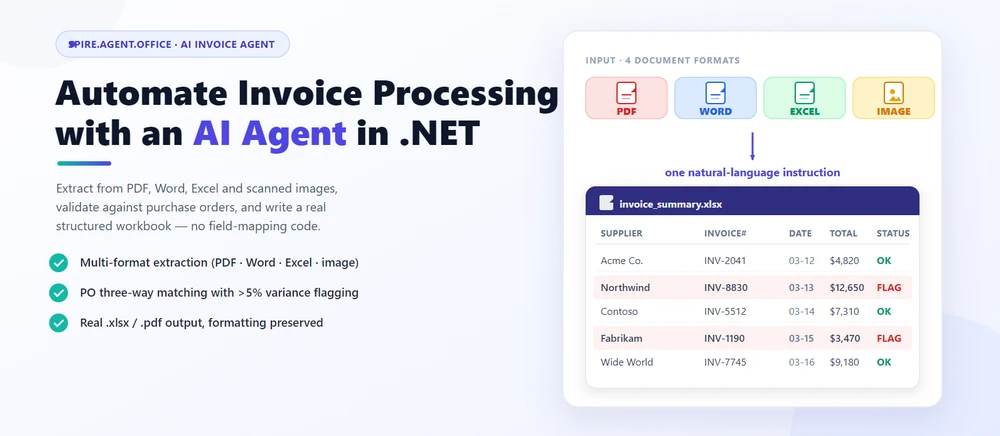
Automated invoice processing means reading incoming vendor invoices, extracting line items, validating them against purchase orders, and writing the results into a structured workbook your finance system can consume. In practice, this is document automation in .NET where a natural-language instruction replaces the field-mapping and layout code. Spire.Agent.Office is a document AI agent SDK that handles the language; a deterministic document layer guarantees real, well-formed Excel and PDF files.
Quick Navigation
- Why Invoice Processing Is a Good Fit for AI
- What an AI Invoice Agent Can and Cannot Do
- Common Invoice Processing Scenarios
- Three Ways to Automate Invoice Processing in .NET
- A Working Example: Extract, Validate, and Report in C#
- Why Use Spire.Agent.Office for AI Invoice Processing
- FAQ
1. Why Invoice Processing Is a Good Fit for AI
Invoice work in a developer's world is three repetitive jobs: reading (extracting vendor, date, line items, and totals from documents that arrive as PDFs, Word files, Excel sheets, or scanned images), checking (matching invoices against purchase orders and flagging discrepancies), and producing (writing the results into a structured workbook your accounting system can consume).
For .NET developers, the challenge is not only understanding invoice content; it is turning unstructured, multi-format documents into structured, repeatable workflows your application can own.
Three properties make these tasks ideal for a language model rather than hand-written rules:
- The input is multi-format. Incoming invoices arrive as PDF attachments, scanned images, Word documents, or Excel files — each with a different layout. Rules that handle one format break on the next; an LLM reads text directly regardless of file type.
- The output is document-shaped. The deliverable is a real
.xlsxor.pdfwith correct formatting, not a text blob. This is where a document layer earns its keep. - The volume changes constantly. Onboarding 50 new suppliers or reviewing 200 vendor invoices in a month means a config-driven solution, not re-coding per supplier.
In practice, extraction and validation go together: teams want invoices summarized and discrepancies flagged, and new invoices generated from a template plus structured data. For a deeper look at how a document AI agent is put together and where it fits in a content pipeline, see AI Agent for Document Processing: What It Is and How It Works.
2. What an AI Invoice Agent Can and Cannot Do
| Can do | Cannot do |
|---|---|
| Extract vendor, date, line items, totals from PDF, Word, Excel, and scanned images | Replace professional AP review for high-value or regulated transactions |
| Match invoices against purchase orders and flag discrepancies | Guarantee matching accuracy on intentionally ambiguous or fraudulent invoices |
| Generate structured workbooks or PDF reports in batch | Negotiate or accept terms on your behalf |
| Keep formatting, table styles, and fonts intact | Interpret new or ambiguous supplier terms; route to procurement |
| Run inside your own application (no cloud upload) | Guarantee output is error-free without review |
The division of labor: the agent automates the reading, extraction, and validation (the hours an AP clerk would spend), while a human reviewer owns the final sign-off. That boundary is what keeps the tool useful and the process defensible.
3. Common Invoice Processing Scenarios
Invoice processing spans more than one-off extraction. The same pattern (an instruction, invoice files, and optional reference data) covers the scenarios teams search for most:
| Scenario | Example instruction |
|---|---|
| Multi-format invoice extraction | "Extract vendor, date, line items, and totals from these invoices and merge into one worksheet." |
| PO three-way matching | "Compare each invoice against purchase orders and flag discrepancies over 5%." |
| Batch invoice reporting | "Generate a summary workbook with total amount by supplier, flagged discrepancies, and a printable report." |
| Duplicate detection | "Identify potential duplicate invoices by comparing vendor, date, and amount across the inbox." |
| Approval workflow routing | "Route invoices above $10,000 to the approval queue and below to auto-approve." |
Each scenario is the same architecture: an instruction in, a real document out.
4. Three Ways to Automate Invoice Processing in .NET
| Approach | Code volume | Format fidelity | Maintenance | Best for |
|---|---|---|---|---|
| Document AI agent (LLM + document layer) | One instruction + ~10 lines | High (real Excel/PDF files) | Low (change behavior by editing instructions) | Teams automating invoices without building an LLM pipeline |
| Raw LLM API (OpenAI/Claude + your own code) | High (prompts, parsing, file I/O) | Low (LLMs don't natively read/write Office files) | High (you own RAG, routing, errors) | Teams that already run an LLM stack |
| Traditional SDK (Spire.Office or similar) | Dozens of lines per document type | High (deterministic) | High (every mapping is code) | Fixed, well-specified invoices that rarely change |
The key point: an LLM cannot read a PDF invoice without a document-processing layer, and a traditional SDK cannot understand a natural-language request. A document AI agent combines both.
That is not to say the traditional route is wrong. For fixed, well-specified invoices that rarely change, a deterministic SDK is often the right call, and Spire.Office still serves that need. If that is your situation, Generate Word Documents from Excel Data in C# demonstrates the classic data-driven document generation workflow. The agent earns its place when supplier layouts, input formats, and validation rules change often enough that re-coding becomes the bottleneck.
Why a Raw LLM API Is Not Enough for Invoice Processing
Calling gpt-4 or claude directly to "extract data from this invoice" fails in three ways that matter in production:
- It cannot reliably read or write Office files. LLMs see text, not
.xlsxand.pdfstructure. Reading a PDF invoice, keeping a line-item table intact, or producing a valid Excel workbook usually requires a separate extraction and reconstruction pipeline you have to build yourself. - Formatting is not guaranteed. Invoice reports carry column headers, number formats, and conditional fills that matter to the accounting team. A raw LLM returns text, and the formatting you lose is exactly what AP departments care about.
- You reimplement the whole orchestration. Prompt design, field mapping, error handling, file I/O, and output validation become your code to own and maintain.
A document AI agent pairs the model's language understanding with deterministic document APIs: the model decides what to extract or match, and the document layer guarantees the file is real and well-formed. That is the difference between a demo and a workflow a team can ship.
5. A Working Example: Extract, Validate, and Report in C#
Below is a task the AP team repeats every month: processing incoming vendor invoices, extracting data from mismatched formats, validating against purchase orders, and producing a structured workbook. The implementation uses Spire.Agent.Office for .NET, an AI agent that processes Word, Excel, PowerPoint, and PDF documents through natural-language instructions. The example is designed around that workflow rather than copied from a tutorial; the official Getting Started and AI Contract Review in C# tutorials document the API setup step by step, while this section focuses on the C# integration patterns.
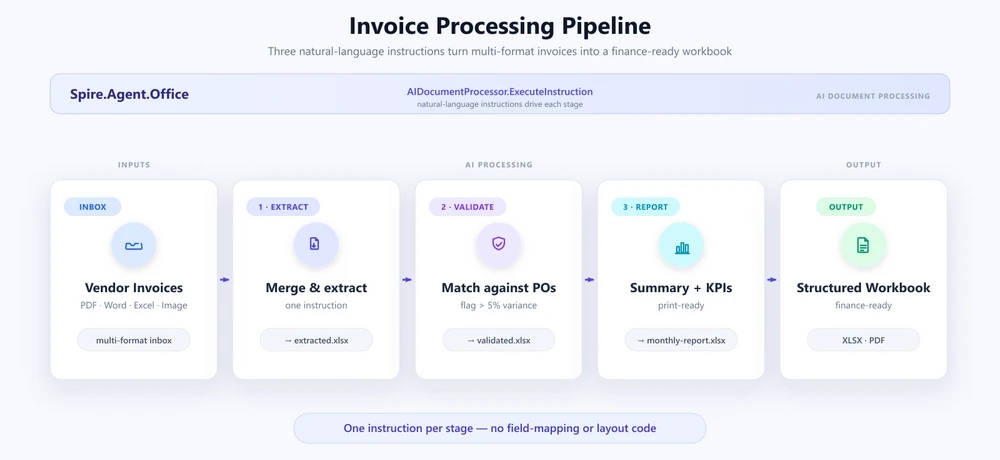
1. Extract data from every invoice in the inbox. Configure the agent once, then read the inbox folder and have each invoice parsed into a single merged table:
using System.IO;
using Spire.Agent.Office.AI;
using Spire.Agent.Office.Extensions;
using Spire.Doc;
using Spire.Pdf;
using Spire.Xls;

AIOptions agentOptions = new AIOptions();
agentOptions.WorkDir = @"C:\ap-invoices\output";
agentOptions.SpireToken = spireToken;

string extractPrompt =
    "Read every vendor invoice file in the inbox (PDF, Word, Excel, or images) and extract " +
    "each supplier's information: company name, invoice number, issue date, due date, line " +
    "items (description, quantity, unit price, amount), subtotal, tax, and total. Merge the " +
    "results into one worksheet with columns: Supplier, InvoiceNumber, IssueDate, DueDate, " +
    "Description, Quantity, UnitPrice, LineAmount, Subtotal, Tax, Total. Skip duplicate header " +
    "rows and save as a workbook.";

Directory.CreateDirectory(@"C:\ap-invoices\output");

string[] invoiceFiles = Directory.GetFiles(@"C:\ap-invoices\inbox", "*.*");
The agent handles the multi-format challenge — PDFs, scanned images, Word documents, and Excel files all flow through the same instruction without format-specific code:
using (Workbook extracted = new Workbook())
{
    AIResult result = extracted.AI(agentOptions).ExecuteInstruction(
        extracted,
        extractPrompt,
        @"C:\ap-invoices\output\extracted.xlsx",
        invoiceFiles);

    if (result == null || !result.Success)
        throw new InvalidOperationException(
            $"Extraction failed: {result?.ErrorMessage}");
}
Key API Calls
Workbook.AI(agentOptions)— attaches the AI document processor to a workbook objectExecuteInstruction(doc, instruction, savePath, attachments)— runs the extraction and writes the merged workbookAIResult.Success/AIResult.ErrorMessage— verifies the result and surfaces errors
Output
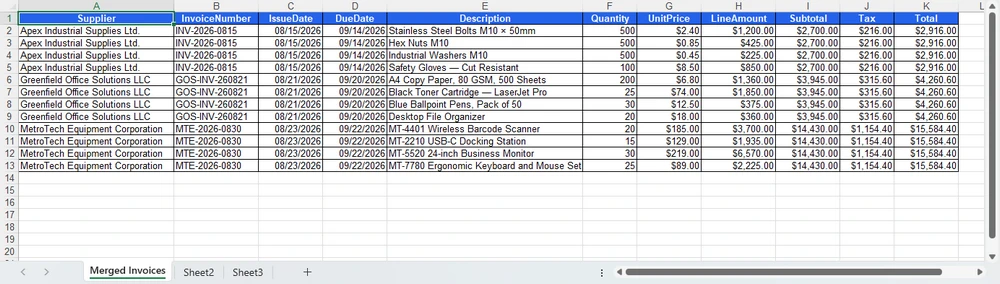
2. Validate against purchase orders. Load the extracted file and state the matching rule in plain English. The agent adds a Validation sheet and leaves the source data untouched:
using (Workbook validation = new Workbook())
{
    validation.LoadFromFile(@"C:\ap-invoices\output\extracted.xlsx");

    string[] poFiles = { @"C:\ap-invoices\data\purchase-orders.xlsx" };

    AIResult result = validation.AI(agentOptions).ExecuteInstruction(
        validation,
        "Add a 'Validation' sheet. Compare each invoice line item against the purchase orders " +
        "in the attachments, flag invoices where the total differs from the PO by more than 5%, " +
        "flag line items whose description does not match the PO. Highlight discrepancies in red " +
        "and add a 'Reason' column explaining each discrepancy. Leave the original data sheets unchanged.",
        @"C:\ap-invoices\output\validated.xlsx",
        poFiles);

    if (result == null || !result.Success)
        throw new InvalidOperationException(
            $"Validation failed: {result?.ErrorMessage}");
}
The Validation sheet lands alongside the source data, with the flagged rows, red fills, and Reason column applied by the instruction:
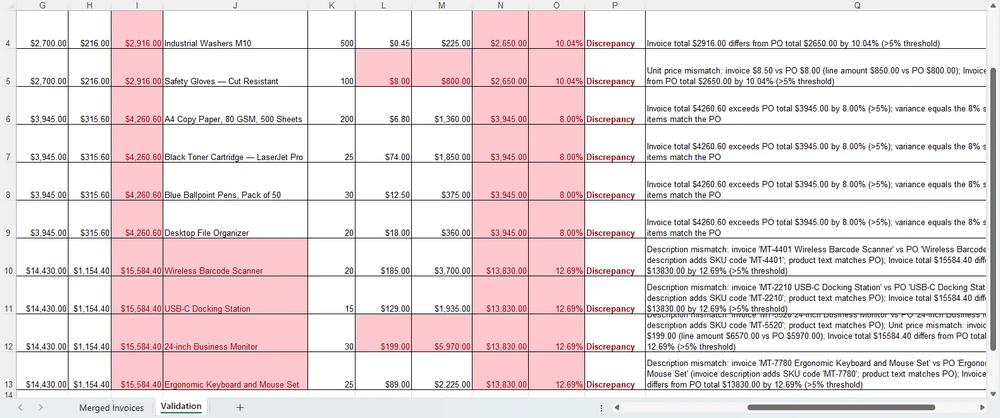
3. Report. Compose the summary from section 5 and export it. The savePath alone chooses the format — .xlsx here, .pdf for distribution:
using (Workbook report = new Workbook())
{
    report.LoadFromFile(@"C:\ap-invoices\output\validated.xlsx");

    AIResult result = report.AI(agentOptions).ExecuteInstruction(
        report,
        "Produce a processing report. Add a 'Summary' sheet at the front with a KPI block " +
        "(total invoices processed, total amount, count of flagged discrepancies, top supplier by " +
        "volume), a detail table grouped by supplier, and a discrepancy summary. Format it for print " +
        "and save the finished workbook.",
        @"C:\ap-invoices\output\monthly-report.xlsx");

    if (result == null || !result.Success)
        throw new InvalidOperationException(
            $"Report generation failed: {result?.ErrorMessage}");
}
The Summary sheet lands at the front of the workbook, ready for print or PDF export:
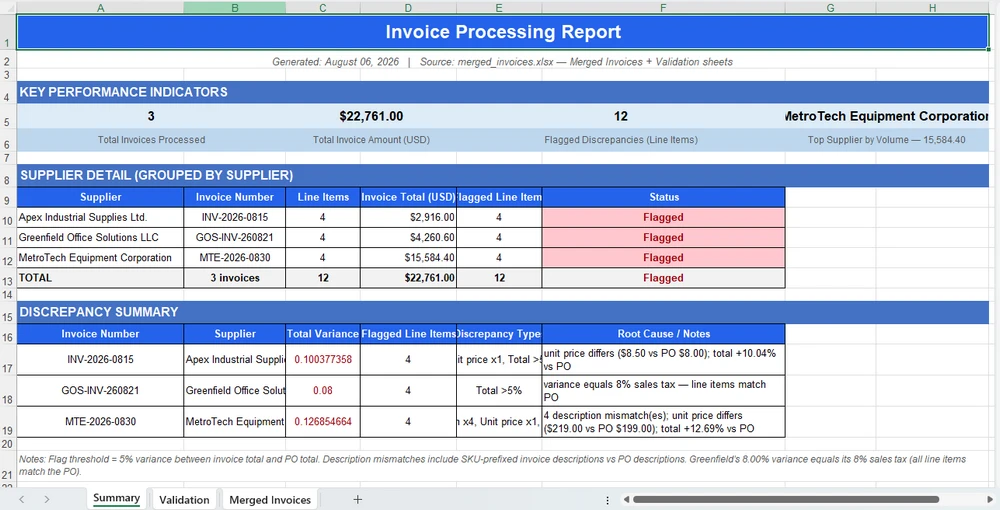
Why This Is Different: Traditional SDK vs. AI Agent
The value of the agent is clearest side by side. With the traditional SDK you locate each field by header string, hardcode every validation threshold, and write every cell by cell — and re-tune all of it when a supplier changes their layout or the rule changes. The sketch below (simplified for illustration) shows the shape of that work:
// Traditional SDK (illustrative): every field is located and extracted
// by header string, thresholds are hardcoded, and output is written cell by cell
foreach (string file in invoiceFiles)
{
    Workbook wb = new Workbook();
    wb.LoadFromFile(file);
    Worksheet sheet = wb.Worksheets[0];

    // Fails the moment a supplier changes "Total Due" to "Amount Payable".
    int totalCol = FindColumnByHeader(sheet, "Total Due");
    int vendorCol = FindColumnByHeader(sheet, "Vendor Name");

    for (int r = sheet.LastRow; r >= 2; r--)
    {
        double invoiceTotal = double.Parse(sheet.Range[r, totalCol].Text);
        double poTotal = GetPoTotal(sheet.Range[r, 1].Text);
        double diff = Math.Abs(invoiceTotal - poTotal) / poTotal;

        // One hardcoded threshold; a construction supplier triggers false alarms.
        if (diff > 0.05) sheet.Range[r, totalCol].Style.Color = Color.Red;
    }
    // ... then merge, then validate, then summary -- hundreds of lines per supplier and per month.
}
The AI agent replaces that orchestration with one instruction:
validation.AI(agentOptions).ExecuteInstruction(
    validation,
    "Add a 'Validation' sheet. Compare each invoice line item against the purchase orders " +
    "in the attachments, flag invoices where the total differs from the PO by more than 5%, " +
    "flag line items whose description does not match the PO. Highlight discrepancies in red " +
    "and add a 'Reason' column explaining each discrepancy. Leave the original data sheets unchanged.",
    @"C:\ap-invoices\output\validated.xlsx",
    poFiles);
Both produce the same validation workbook. Where the SDK grows a FindColumnByHeader call for every field, a threshold comparison for every rule, and a cell write for every fill, the agent absorbs the same work into one instruction. When a supplier changes their layout or the finance team changes the variance threshold, you edit the instruction, not the code.
6. Why Use Spire.Agent.Office for AI Invoice Processing
The three-way comparison above is deliberately product-neutral; the same pattern works with any capable LLM. Where Spire.Agent.Office earns its place for .NET teams is in three specific areas:
- Native multi-format invoice processing. PDFs, Word documents, Excel files, and scanned images are first-class citizens, not formats you bolt on. The agent reads and extracts from all four formats in a single instruction.
- Formatting is preserved. Invoice reports carry column headers, number formats, and conditional fills that must survive processing. The agent's document layer keeps them intact. Include "preserve the original document layout and styling" in your instruction and the output stays true to the template.
- Native .NET integration. It is a C# SDK that drops into an existing .NET application. No separate document-processing service to build or maintain, no cross-service plumbing. The example above is the whole integration surface.
If you already run Spire.Office for document processing, the agent is the natural next layer: the same Workbook object gains an AI() processor that turns instructions into executed workflows.
7. FAQ
Can AI invoice processing work with scanned images?
Yes. The extraction example above loads scanned image files alongside PDFs and Word documents, and the agent reads and analyzes each file in its native format. For scanned images with no extractable text layer, the agent works with the image content directly. If the scan quality is poor, consider running OCR first for best results.
Can invoice data stay inside my environment?
Yes, with one important nuance. Spire.Agent.Office runs from your own application, so the SDK, templates, and document processing stay inside your environment. Invoice files are not uploaded to a third-party document service for storage or conversion. To analyze invoice content, the AI needs the relevant text, and it is sent to the model for processing; that is an inherent step of any AI workflow. If you deploy your own model on your local network, the content stays entirely within your infrastructure. If you connect through a hosted model API such as OpenAI or Azure OpenAI, the relevant content is transmitted to that provider over the network per your configuration.
Can I use my own AI model with Spire.Agent.Office?
Yes. Spire.Agent.Office supports flexible AI model integration and is compatible with mainstream AI infrastructure, including hosted model APIs and privately deployed models. You can point the agent at your own endpoint. See the integration tutorial for setup details; for questions about which providers are supported in your deployment, contact your account team at sales@e-iceblue.com.
Which model does Spire.Agent.Office use for invoice processing?
Spire.Agent.Office connects to a large language model behind a SpireToken key. You describe the extraction or validation task in natural language, and the agent orchestrates the underlying document-processing tools. The model handles understanding; the document layer guarantees formatting and file fidelity.
Can it process invoices in batch?
Yes. One instruction applied to a folder of invoice files, and the agent produces one consolidated workbook with all extracted data. Both field extraction and cross-document matching are supported. For the agent to pick up every invoice, keep the inbox folder organized and avoid blank files; if the number of processed invoices does not match the inbox count, check the data source first.
Will the AI change my workbook's formatting?
Not if you say so. Include a phrase like "preserve the original document layout, styling, and fonts" in your instruction; the official tutorial documents this exact fix.
How is this different from using a raw LLM API?
A raw LLM cannot reliably read, edit, or write Word and Excel files on its own; it needs a document-processing layer. A document AI agent pairs the LLM's language understanding with deterministic document APIs, so the output is a real, well-formed file.
Ready to Automate Your Invoice Processing?
Extraction, validation, and report composition are the fastest places to get value: point the agent at the inbox, describe the processing rules, and get a structured workbook or PDF out. Follow the Getting Started tutorial to run your first invoice workflow in .NET.
Further Reading
- Spire.Agent.Office product overview -- AI agent SDKs for every Office document format
- AI Agent for Document Processing: What It Is and How It Works -- the document AI agent concept explained
- Generate Word Documents from Excel Data in C# -- data-driven document generation with the deterministic SDK
- AI Contract Review in C# -- the same agent workflow applied to Word and PDF documents