Substituindo e Removendo Imagens de PDFs em JavaScript (React)

Um PDF que você produziu no último trimestre ainda circula internamente, mas seu logotipo foi reformulado no mês passado e um gráfico mostra números que já não são verdadeiros. Você não quer reconstruir o documento do zero — você só precisa trocar a imagem desatualizada pela nova, ou remover completamente um carimbo ou marca d'água obsoleto.
O Spire.PDF para JavaScript realiza ambas as tarefas no navegador por meio de sua classe PdfImageHelper. A ideia central é a mesma para qualquer uma das operações: primeiro localizar a imagem na página, depois agir sobre ela. GetImagesInfo lê os metadados da imagem, ReplaceImage troca o conteúdo por um novo, preservando o local original, e DeleteImage remove o objeto e deixa o espaço em branco. Sem servidor, sem upload, sem Adobe Acrobat.
Neste artigo, você aprenderá como:
- Localizar todas as imagens de uma página com
GetImagesInfo - Substituir uma imagem mantendo sua posição e tamanho originais
- Excluir uma imagem e deixar um espaço em branco limpo
- Escolher a imagem certa pela sua posição quando você não sabe seu índice
- Limpar imagens em todas as páginas de um documento
Pré-requisitos
Este tutorial pressupõe que você tenha um projeto React com o Spire.PDF para JavaScript instalado e o módulo WASM inicializado. Se você ainda não configurou isso, siga Integrando o Spire.PDF para JavaScript em um projeto React.
Você precisará de:
- Um PDF que já contenha pelo menos uma imagem, carregado no VFS
- (Para substituição) um novo arquivo de imagem para trocar
- O módulo WASM acessível via
window.wasmModule.spirepdf
Como o Spire.PDF localiza imagens
Tanto a substituição quanto a exclusão partem do mesmo passo: descobrir quais imagens estão na página e onde elas ficam. O método PdfImageHelper.GetImagesInfo(page) retorna um array de objetos de informação de imagem. Cada objeto expõe:
Image— os dados da imagem em si (usados ao substituir, ou ao extrair imagens do PDF)Bounds— umRectangleFque descreve a posição e o tamanho da imagem na página
// Create a PdfImageHelper and inspect the first page
let helper = new pdfModule.PdfImageHelper();
let images = helper.GetImagesInfo(page);

console.log(`Found ${images.length} image(s) on this page`);
for (let i = 0; i < images.length; i++) {
  console.log(`Image ${i}: position=(${images[i].Bounds.X}, ${images[i].Bounds.Y}), size=${images[i].Bounds.Width}x${images[i].Bounds.Height}`);
}
O índice do array segue a ordem em que as imagens aparecem na página, então images[0] é a primeira, images[1] a segunda, e assim por diante. Depois de ter esse array, substituir ou excluir é uma única chamada de método — abordada nas próximas duas seções.
Substituir uma imagem
A substituição mantém o layout do documento intacto: a nova imagem herda a posição e o tamanho do espaço reservado original, então nada ao seu redor se desloca. As etapas são: carregar o PDF e a imagem de substituição no VFS, abrir o PDF, chamar GetImagesInfo e então chamar ReplaceImage com o objeto de informação de destino e a nova imagem.
function App() {
  const replaceImageInPdf = async () => {
    // Get the Spire.PDF WASM module
    const pdfModule = window.wasmModule?.spirepdf;

    // Check if the WASM module is ready
    if (!pdfModule) {
      alert('Spire.PDF is not ready yet');
      return;
    }

    // Load the PDF file into VFS
    const inputFileName = 'Business_Data_Overview.pdf';
    await window.spire.FetchFileToVFS(inputFileName, "", `${process.env.PUBLIC_URL}/data/`);

    // Load the new image used for replacement into VFS
    const newImageName = 'ChartImage.png';
    await window.spire.FetchFileToVFS(newImageName, "", `${process.env.PUBLIC_URL}/data/`);

    // Create a PdfDocument object and load the PDF document
    let doc = new pdfModule.PdfDocument();
    doc.LoadFromFile(inputFileName);

    // Get the first page
    let page = doc.Pages.get_Item(0);

    // Create a PdfImageHelper object and get the image information on the page
    let helper = new pdfModule.PdfImageHelper();
    let images = helper.GetImagesInfo(page);

    // Load the new image and replace the first image on the page
    let newImage = pdfModule.PdfImage.FromFile(newImageName);
    helper.ReplaceImage(images[0], newImage);

    // Define the output file name in PDF format
    const outputFileName = 'ReplaceImage.pdf';

    // Save as PDF format
    doc.SaveToFile({ fileName: outputFileName });
    doc.Close();

    // Read the generated PDF file from VFS and trigger download
    const fileArray = window.dotnetRuntime.Module.FS.readFile(outputFileName);
    const blob = new Blob([fileArray], { type: 'application/pdf' });
    const url = URL.createObjectURL(blob);
    const a = document.createElement('a');
    a.href = url;
    a.download = outputFileName;
    a.click();
    URL.revokeObjectURL(url);
  };

  return (
    <div style={{ textAlign: 'center', height: '300px' }}>
      <h1>Replace Image In PDF</h1>
      <button onClick={replaceImageInPdf}>
        Generate
      </button>
    </div>
  );
}

export default App;
Documento PDF gerado após substituir uma imagem
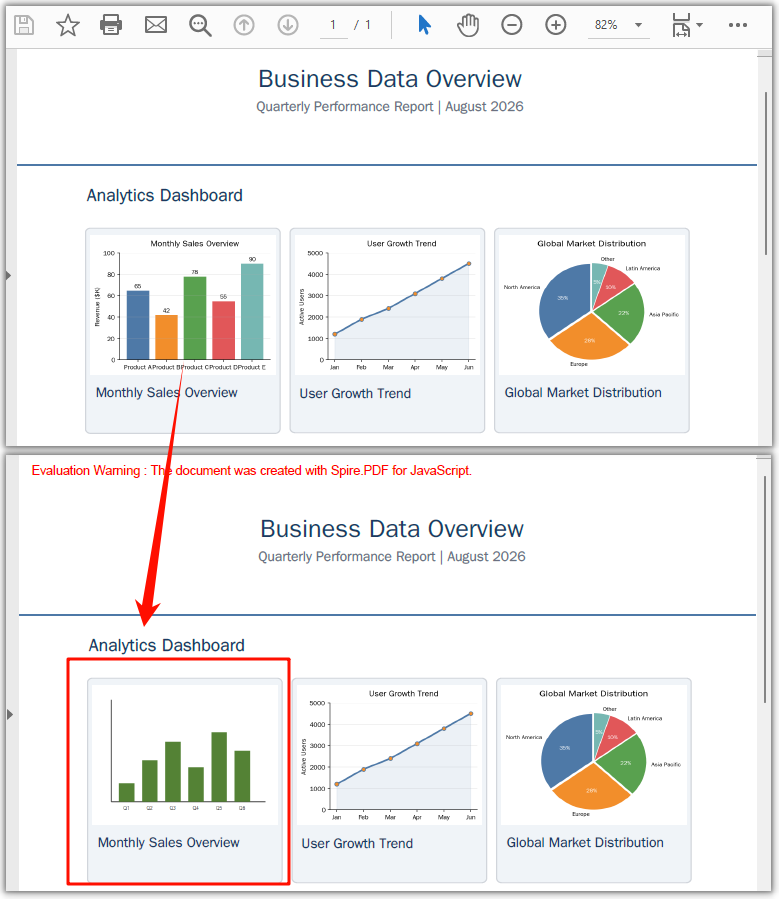
helper.ReplaceImage(images[0], newImage) troca o conteúdo da imagem no índice 0 por newImage. A troca ocorre na mesma posição e com as mesmas dimensões da original. Se a substituição tiver uma proporção diferente, ela é esticada para caber no espaço reservado original.
Excluir uma imagem
A exclusão compartilha exatamente a mesma configuração da substituição — carregue o PDF, obtenha a página, chame GetImagesInfo. A única diferença é a chamada final: em vez de ReplaceImage, você chama DeleteImage com o objeto de informação de destino, e a imagem é removida totalmente, deixando seu espaço em branco.
// Everything above is identical to the replace example:
// load the PDF, get page 0, create the helper, call GetImagesInfo(page)

// Delete the first image on the page
helper.DeleteImage({ imageInfo: images[0] });
Documento PDF gerado após excluir uma imagem
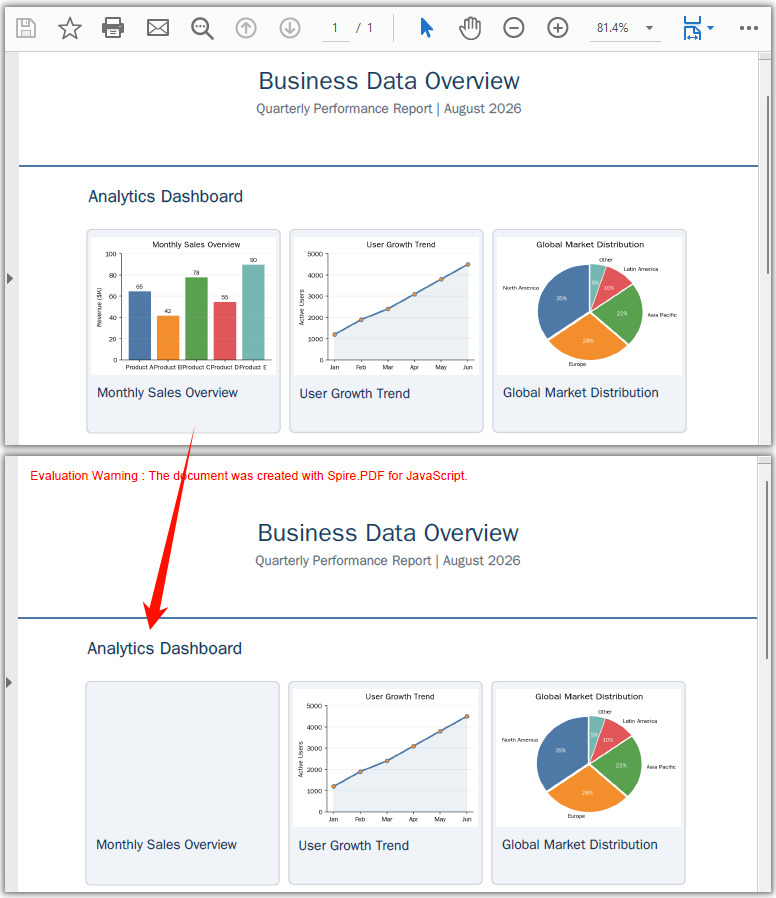
helper.DeleteImage({ imageInfo: images[0] }) remove a imagem no índice 0. O texto, os gráficos e o layout ao redor permanecem intactos — o espaço que ela ocupava é simplesmente deixado vazio, sem reflow.
Direcionar imagens por posição
Quando uma página contém várias imagens, você pode não saber qual índice do array é o que você deseja. A propriedade Bounds informa onde cada imagem está, e IntersectsWith permite agir sobre imagens dentro de uma região específica — útil para limpar um carimbo de cabeçalho ou trocar um gráfico que sempre fica no mesmo lugar.
// Get the image information on the page
let helper = new pdfModule.PdfImageHelper();
let images = helper.GetImagesInfo(page);

// Define the target region (e.g., a stamp area in the bottom-right)
let targetRect = new pdfModule.RectangleF({ x: 400, y: 700, width: 100, height: 80 });

// Iterate through the images and delete those within the target region
for (let i = 0; i < images.length; i++) {
  if (images[i].Bounds.IntersectsWith({ rect: targetRect })) {
    helper.DeleteImage({ imageInfo: images[i] });
    console.log(`Deleted image at position (${images[i].Bounds.X}, ${images[i].Bounds.Y})`);
  }
}
Bounds é um RectangleF com X, Y, Width e Height, todos em pontos (1 ponto = 1/72 polegada). A origem (0, 0) é o canto superior esquerdo da página.
Processar em lote em todas as páginas
Para agir sobre imagens em todo um documento com várias páginas, percorra a coleção Pages e execute a mesma lógica em cada página. O exemplo abaixo exclui todas as imagens; troque DeleteImage por ReplaceImage para substituir em lote (carregue a nova imagem uma vez antes do loop).
const batchDeleteAllImages = async () => {
  const pdfModule = window.wasmModule?.spirepdf;
  if (!pdfModule) return;

  await window.spire.FetchFileToVFS('Business_Data_Overview.pdf', "", `${process.env.PUBLIC_URL}/data/`);

  let doc = new pdfModule.PdfDocument();
  doc.LoadFromFile('Business_Data_Overview.pdf');

  let helper = new pdfModule.PdfImageHelper();

  // Loop through all pages
  for (let pageIndex = 0; pageIndex < doc.Pages.Count; pageIndex++) {
    let page = doc.Pages.get_Item(pageIndex);
    let images = helper.GetImagesInfo(page);

    // Delete all images on this page
    for (let i = 0; i < images.length; i++) {
      helper.DeleteImage({ imageInfo: images[i] });
    }
    console.log(`Page ${pageIndex + 1}: deleted ${images.length} image(s)`);
  }

  const outputFileName = 'AllImagesDeleted.pdf';
  doc.SaveToFile({ fileName: outputFileName });
  doc.Close();

  const fileArray = window.dotnetRuntime.Module.FS.readFile(outputFileName);
  const blob = new Blob([fileArray], { type: 'application/pdf' });
  const url = URL.createObjectURL(blob);
  const a = document.createElement('a');
  a.href = url;
  a.download = outputFileName;
  a.click();
  URL.revokeObjectURL(url);
};
Perguntas frequentes
Como encontro a imagem específica que desejo alterar?
GetImagesInfo retorna as imagens na ordem da página, então images[0], images[1], … fornecem a primeira, a segunda, etc. Quando a ordem não é óbvia, leia a propriedade Bounds de cada objeto para ver onde ele está e use Bounds.IntersectsWith para corresponder a imagens dentro de uma região conhecida. Consulte Direcionar imagens por posição acima.
Substituir ou excluir afeta o restante da página?
Não. Ambas as operações afetam apenas o objeto de imagem em si. Uma substituição mantém a posição original e o tamanho do espaço reservado; uma exclusão deixa uma lacuna em branco. Texto, gráficos e layout não são afetados, e o documento nunca passa por reflow.
Posso substituir uma imagem por outra com proporção diferente?
Sim — ReplaceImage estica a nova imagem para preencher o espaço reservado original. Se você precisar preservar as proporções da nova imagem, exclua a antiga e adicione a substituta com DrawImage no tamanho exato desejado. Consulte Como adicionar imagens a um PDF em JavaScript (React).
Como removo todas as imagens de um documento?
Percorra doc.Pages.Count, chame GetImagesInfo em cada página e DeleteImage em cada entrada — o exemplo Processar em lote em todas as páginas mostra o código completo.
Veja também
JavaScript(React)에서 PDF 이미지 교체 및 제거
지난 분기에 만든 PDF가 아직도 내부에서 유통되고 있지만, 지난달에 로고가 리브랜딩되었고 한 차트에는 더 이상 사실이 아닌 숫자가 표시됩니다. 문서를 처음부터 다시 만들고 싶지는 않을 것입니다. 오래된 이미지를 새 이미지로 교체하거나, 더 이상 사용하지 않는 스탬프나 워터마크를 완전히 제거하기만 하면 됩니다.
Spire.PDF for JavaScript는 PdfImageHelper 클래스를 통해 브라우저에서 두 작업을 모두 처리합니다. 두 작업의 핵심 개념은 동일합니다. 먼저 페이지에서 이미지를 찾은 다음, 해당 이미지에 작업을 수행합니다. GetImagesInfo는 이미지 메타데이터를 읽고, ReplaceImage는 원래 위치를 유지하면서 새 콘텐츠로 교체하며, DeleteImage는 객체를 제거하고 공간을 비워 둡니다. 서버도, 업로드도, Adobe Acrobat도 필요하지 않습니다.
이 문서에서는 다음 방법을 알아봅니다:
GetImagesInfo로 페이지의 모든 이미지 찾기- 원래 위치와 크기를 유지하면서 이미지 교체하기
- 이미지를 삭제하고 깨끗한 빈 공간 남기기
- 인덱스를 모를 때 위치로 올바른 이미지 선택하기
- 문서의 모든 페이지에서 이미지 정리하기
사전 요구 사항
이 연습에서는 Spire.PDF for JavaScript가 설치되어 있고 WASM 모듈이 초기화된 React 프로젝트가 있다고 가정합니다. 아직 설정하지 않았다면 React 프로젝트에 Spire.PDF for JavaScript 통합하기를 따르세요.
필요한 항목:
- 이미지가 하나 이상 포함되어 있고 VFS에 로드된 PDF
- (교체용) 새로 넣을 이미지 파일
window.wasmModule.spirepdf를 통해 접근할 수 있는 WASM 모듈
Spire.PDF가 이미지를 찾는 방법
교체와 삭제는 모두 같은 단계에서 시작합니다. 페이지에 어떤 이미지가 있고 어디에 있는지 파악하는 것입니다. PdfImageHelper.GetImagesInfo(page) 메서드는 이미지 정보 객체의 배열을 반환합니다. 각 객체는 다음을 제공합니다:
Image— 이미지 데이터 자체(교체할 때 또는 PDF에서 이미지 추출할 때 사용)Bounds— 페이지에서 이미지의 위치와 크기를 설명하는RectangleF
// Create a PdfImageHelper and inspect the first page
let helper = new pdfModule.PdfImageHelper();
let images = helper.GetImagesInfo(page);

console.log(`Found ${images.length} image(s) on this page`);
for (let i = 0; i < images.length; i++) {
  console.log(`Image ${i}: position=(${images[i].Bounds.X}, ${images[i].Bounds.Y}), size=${images[i].Bounds.Width}x${images[i].Bounds.Height}`);
}
배열 인덱스는 페이지에 이미지가 나타나는 순서를 따르므로 images[0]이 첫 번째, images[1]이 두 번째입니다. 이 배열을 얻고 나면 교체 또는 삭제는 단일 메서드 호출로 수행할 수 있으며, 이는 다음 두 섹션에서 다룹니다.
이미지 교체
교체는 문서 레이아웃을 그대로 유지합니다. 새 이미지는 원래 위치와 자리 표시자 크기를 상속하므로 주변 요소가 이동하지 않습니다. 단계는 다음과 같습니다. PDF와 교체 이미지를 VFS에 로드하고, PDF를 열고, GetImagesInfo를 호출한 다음, 대상 정보 객체와 새 이미지로 ReplaceImage를 호출합니다.
function App() {
  const replaceImageInPdf = async () => {
    // Get the Spire.PDF WASM module
    const pdfModule = window.wasmModule?.spirepdf;

    // Check if the WASM module is ready
    if (!pdfModule) {
      alert('Spire.PDF is not ready yet');
      return;
    }

    // Load the PDF file into VFS
    const inputFileName = 'Business_Data_Overview.pdf';
    await window.spire.FetchFileToVFS(inputFileName, "", `${process.env.PUBLIC_URL}/data/`);

    // Load the new image used for replacement into VFS
    const newImageName = 'ChartImage.png';
    await window.spire.FetchFileToVFS(newImageName, "", `${process.env.PUBLIC_URL}/data/`);

    // Create a PdfDocument object and load the PDF document
    let doc = new pdfModule.PdfDocument();
    doc.LoadFromFile(inputFileName);

    // Get the first page
    let page = doc.Pages.get_Item(0);

    // Create a PdfImageHelper object and get the image information on the page
    let helper = new pdfModule.PdfImageHelper();
    let images = helper.GetImagesInfo(page);

    // Load the new image and replace the first image on the page
    let newImage = pdfModule.PdfImage.FromFile(newImageName);
    helper.ReplaceImage(images[0], newImage);

    // Define the output file name in PDF format
    const outputFileName = 'ReplaceImage.pdf';

    // Save as PDF format
    doc.SaveToFile({ fileName: outputFileName });
    doc.Close();

    // Read the generated PDF file from VFS and trigger download
    const fileArray = window.dotnetRuntime.Module.FS.readFile(outputFileName);
    const blob = new Blob([fileArray], { type: 'application/pdf' });
    const url = URL.createObjectURL(blob);
    const a = document.createElement('a');
    a.href = url;
    a.download = outputFileName;
    a.click();
    URL.revokeObjectURL(url);
  };

  return (
    <div style={{ textAlign: 'center', height: '300px' }}>
      <h1>Replace Image In PDF</h1>
      <button onClick={replaceImageInPdf}>
        Generate
      </button>
    </div>
  );
}

export default App;
이미지를 교체한 후 생성된 PDF 문서
helper.ReplaceImage(images[0], newImage)는 인덱스 0의 이미지 콘텐츠를 newImage로 바꿉니다. 교체는 원본과 동일한 위치와 동일한 크기로 이루어집니다. 교체 이미지의 가로세로 비율이 다르면 원래 자리 표시자에 맞게 늘어납니다.
이미지 삭제
삭제는 교체와 완전히 동일한 설정을 공유합니다. PDF를 로드하고, 페이지를 가져오고, GetImagesInfo를 호출합니다. 유일한 차이는 마지막 호출입니다. ReplaceImage 대신 대상 정보 객체로 DeleteImage를 호출하면 이미지가 완전히 제거되고 해당 공간은 비어 있게 됩니다.
// Everything above is identical to the replace example:
// load the PDF, get page 0, create the helper, call GetImagesInfo(page)

// Delete the first image on the page
helper.DeleteImage({ imageInfo: images[0] });
이미지를 삭제한 후 생성된 PDF 문서
helper.DeleteImage({ imageInfo: images[0] })는 인덱스 0의 이미지를 제거합니다. 주변 텍스트, 그래픽, 레이아웃은 변경되지 않으며, 이미지가 차지하던 공간은 리플로우 없이 그냥 비어 있게 됩니다.
위치로 이미지 지정
페이지에 여러 이미지가 있을 때 원하는 이미지가 어느 배열 인덱스인지 모를 수 있습니다. Bounds 속성은 각 이미지의 위치를 알려주고, IntersectsWith를 사용하면 특정 영역 안의 이미지에 작업할 수 있습니다. 머리글 스탬프를 지우거나 항상 같은 위치에 놓이는 차트를 교체할 때 유용합니다.
// Get the image information on the page
let helper = new pdfModule.PdfImageHelper();
let images = helper.GetImagesInfo(page);

// Define the target region (e.g., a stamp area in the bottom-right)
let targetRect = new pdfModule.RectangleF({ x: 400, y: 700, width: 100, height: 80 });

// Iterate through the images and delete those within the target region
for (let i = 0; i < images.length; i++) {
  if (images[i].Bounds.IntersectsWith({ rect: targetRect })) {
    helper.DeleteImage({ imageInfo: images[i] });
    console.log(`Deleted image at position (${images[i].Bounds.X}, ${images[i].Bounds.Y})`);
  }
}
Bounds는 X, Y, Width, Height를 가진 RectangleF이며, 모두 포인트 단위입니다(1포인트 = 1/72인치). 원점 (0, 0)은 페이지의 왼쪽 위 모서리입니다.
모든 페이지 일괄 처리
여러 페이지 문서 전체에서 이미지에 작업하려면 Pages 컬렉션을 반복하면서 페이지마다 동일한 로직을 실행합니다. 아래 예제는 모든 이미지를 삭제합니다. 대신 일괄 교체하려면 DeleteImage를 ReplaceImage로 바꾸세요(반복 전에 새 이미지를 한 번 로드).
const batchDeleteAllImages = async () => {
  const pdfModule = window.wasmModule?.spirepdf;
  if (!pdfModule) return;

  await window.spire.FetchFileToVFS('Business_Data_Overview.pdf', "", `${process.env.PUBLIC_URL}/data/`);

  let doc = new pdfModule.PdfDocument();
  doc.LoadFromFile('Business_Data_Overview.pdf');

  let helper = new pdfModule.PdfImageHelper();

  // Loop through all pages
  for (let pageIndex = 0; pageIndex < doc.Pages.Count; pageIndex++) {
    let page = doc.Pages.get_Item(pageIndex);
    let images = helper.GetImagesInfo(page);

    // Delete all images on this page
    for (let i = 0; i < images.length; i++) {
      helper.DeleteImage({ imageInfo: images[i] });
    }
    console.log(`Page ${pageIndex + 1}: deleted ${images.length} image(s)`);
  }

  const outputFileName = 'AllImagesDeleted.pdf';
  doc.SaveToFile({ fileName: outputFileName });
  doc.Close();

  const fileArray = window.dotnetRuntime.Module.FS.readFile(outputFileName);
  const blob = new Blob([fileArray], { type: 'application/pdf' });
  const url = URL.createObjectURL(blob);
  const a = document.createElement('a');
  a.href = url;
  a.download = outputFileName;
  a.click();
  URL.revokeObjectURL(url);
};
자주 묻는 질문
변경하려는 특정 이미지를 어떻게 찾나요?
GetImagesInfo는 페이지 순서대로 이미지를 반환하므로 images[0], images[1], …은 첫 번째, 두 번째 이미지를 나타냅니다. 순서가 명확하지 않으면 각 객체의 Bounds 속성을 읽어 위치를 확인하고, Bounds.IntersectsWith를 사용해 알려진 영역 안의 이미지를 찾으세요. 위의 위치로 이미지 지정을 참고하세요.
교체하거나 삭제하면 페이지의 나머지 부분이 영향을 받나요?
아니요. 두 작업 모두 이미지 객체 자체만 건드립니다. 교체는 원래 위치와 자리 표시자 크기를 유지하고, 삭제는 빈 공간을 남깁니다. 텍스트, 그래픽, 레이아웃은 영향을 받지 않으며 문서가 리플로우되지 않습니다.
가로세로 비율이 다른 이미지로 교체할 수 있나요?
예 — ReplaceImage는 새 이미지를 원래 자리 표시자에 맞게 늘립니다. 새 이미지의 비율을 유지해야 한다면 이전 이미지를 삭제하고 원하는 정확한 크기로 DrawImage를 사용해 교체 이미지를 추가하세요. JavaScript(React)에서 PDF에 이미지를 추가하는 방법을 참고하세요.
문서에서 모든 이미지를 제거하려면 어떻게 하나요?
doc.Pages.Count를 반복하고, 페이지마다 GetImagesInfo를 호출하고, 각 항목에 DeleteImage를 호출하세요. 모든 페이지 일괄 처리 예제에 전체 코드가 나와 있습니다.
참고 항목
Sostituire e rimuovere immagini dai PDF in JavaScript (React)
Un PDF che hai prodotto lo scorso trimestre circola ancora internamente, ma il suo logo è stato aggiornato il mese scorso e un grafico mostra numeri che non sono più veritieri. Non vuoi ricostruire il documento da zero — ti serve soltanto sostituire l'immagine obsoleta con quella nuova, oppure rimuovere completamente un timbro o una filigrana ormai superati.
Spire.PDF per JavaScript gestisce entrambe le operazioni nel browser tramite la sua classe PdfImageHelper. L'idea di fondo è la stessa per entrambe le operazioni: prima individuare l'immagine sulla pagina, poi agire su di essa. GetImagesInfo legge i metadati dell'immagine, ReplaceImage inserisce il nuovo contenuto preservando la posizione originale, mentre DeleteImage rimuove l'oggetto e lascia lo spazio vuoto. Nessun server, nessun caricamento, nessun Adobe Acrobat.
In questo articolo imparerai come:
- Individuare ogni immagine su una pagina con
GetImagesInfo - Sostituire un'immagine mantenendone la posizione e le dimensioni originali
- Eliminare un'immagine e lasciare uno spazio vuoto pulito
- Scegliere l'immagine giusta in base alla sua posizione quando non ne conosci l'indice
- Pulire le immagini su tutte le pagine di un documento
Prerequisiti
Questo tutorial presuppone che tu abbia un progetto React con Spire.PDF per JavaScript installato e il modulo WASM inizializzato. Se non hai ancora configurato tutto ciò, segui Integrare Spire.PDF per JavaScript in un progetto React.
Ti serviranno:
- Un PDF che contenga già almeno un'immagine, caricato nel VFS
- (Per la sostituzione) un nuovo file immagine da inserire
- Il modulo WASM raggiungibile tramite
window.wasmModule.spirepdf
Come Spire.PDF individua le immagini
Sia la sostituzione che l'eliminazione partono dallo stesso passaggio: capire quali immagini sono presenti sulla pagina e dove si trovano. Il metodo PdfImageHelper.GetImagesInfo(page) restituisce un array di oggetti di informazioni sull'immagine. Ogni oggetto espone:
Image— i dati dell'immagine stessa (usati durante la sostituzione, o durante l'estrazione delle immagini dal PDF)Bounds— unRectangleFche descrive la posizione e le dimensioni dell'immagine sulla pagina
// Create a PdfImageHelper and inspect the first page
let helper = new pdfModule.PdfImageHelper();
let images = helper.GetImagesInfo(page);

console.log(`Found ${images.length} image(s) on this page`);
for (let i = 0; i < images.length; i++) {
  console.log(`Image ${i}: position=(${images[i].Bounds.X}, ${images[i].Bounds.Y}), size=${images[i].Bounds.Width}x${images[i].Bounds.Height}`);
}
L'indice dell'array segue l'ordine in cui le immagini compaiono sulla pagina, quindi images[0] è la prima, images[1] la seconda, e così via. Una volta ottenuto questo array, sostituire o eliminare è una singola chiamata a un metodo — trattata nelle due sezioni seguenti.
Sostituire un'immagine
La sostituzione mantiene intatto il layout del documento: la nuova immagine eredita la posizione e le dimensioni del segnaposto originale, quindi nulla intorno ad essa si sposta. I passaggi sono: caricare il PDF e l'immagine di sostituzione nel VFS, aprire il PDF, chiamare GetImagesInfo, quindi chiamare ReplaceImage con l'oggetto di informazioni di destinazione e la nuova immagine.
function App() {
  const replaceImageInPdf = async () => {
    // Get the Spire.PDF WASM module
    const pdfModule = window.wasmModule?.spirepdf;

    // Check if the WASM module is ready
    if (!pdfModule) {
      alert('Spire.PDF is not ready yet');
      return;
    }

    // Load the PDF file into VFS
    const inputFileName = 'Business_Data_Overview.pdf';
    await window.spire.FetchFileToVFS(inputFileName, "", `${process.env.PUBLIC_URL}/data/`);

    // Load the new image used for replacement into VFS
    const newImageName = 'ChartImage.png';
    await window.spire.FetchFileToVFS(newImageName, "", `${process.env.PUBLIC_URL}/data/`);

    // Create a PdfDocument object and load the PDF document
    let doc = new pdfModule.PdfDocument();
    doc.LoadFromFile(inputFileName);

    // Get the first page
    let page = doc.Pages.get_Item(0);

    // Create a PdfImageHelper object and get the image information on the page
    let helper = new pdfModule.PdfImageHelper();
    let images = helper.GetImagesInfo(page);

    // Load the new image and replace the first image on the page
    let newImage = pdfModule.PdfImage.FromFile(newImageName);
    helper.ReplaceImage(images[0], newImage);

    // Define the output file name in PDF format
    const outputFileName = 'ReplaceImage.pdf';

    // Save as PDF format
    doc.SaveToFile({ fileName: outputFileName });
    doc.Close();

    // Read the generated PDF file from VFS and trigger download
    const fileArray = window.dotnetRuntime.Module.FS.readFile(outputFileName);
    const blob = new Blob([fileArray], { type: 'application/pdf' });
    const url = URL.createObjectURL(blob);
    const a = document.createElement('a');
    a.href = url;
    a.download = outputFileName;
    a.click();
    URL.revokeObjectURL(url);
  };

  return (
    <div style={{ textAlign: 'center', height: '300px' }}>
      <h1>Replace Image In PDF</h1>
      <button onClick={replaceImageInPdf}>
        Generate
      </button>
    </div>
  );
}

export default App;
Documento PDF generato dopo la sostituzione di un'immagine
helper.ReplaceImage(images[0], newImage) sostituisce il contenuto dell'immagine all'indice 0 con newImage. La sostituzione avviene nella stessa posizione e con le stesse dimensioni dell'originale. Se l'immagine sostitutiva ha un rapporto d'aspetto diverso, viene allungata per adattarsi al segnaposto originale.
Eliminare un'immagine
L'eliminazione condivide esattamente la stessa configurazione della sostituzione — caricare il PDF, ottenere la pagina, chiamare GetImagesInfo. L'unica differenza è la chiamata finale: invece di ReplaceImage, chiami DeleteImage con l'oggetto di informazioni di destinazione, e l'immagine viene rimossa completamente, lasciando il suo spazio vuoto.
// Everything above is identical to the replace example:
// load the PDF, get page 0, create the helper, call GetImagesInfo(page)

// Delete the first image on the page
helper.DeleteImage({ imageInfo: images[0] });
Documento PDF generato dopo l'eliminazione di un'immagine
helper.DeleteImage({ imageInfo: images[0] }) rimuove l'immagine all'indice 0. Il testo, la grafica e il layout circostanti rimangono intatti — lo spazio che occupava viene semplicemente lasciato vuoto, senza alcun riflusso.
Individuare le immagini per posizione
Quando una pagina contiene diverse immagini, potresti non sapere quale indice dell'array corrisponda a quella che desideri. La proprietà Bounds ti indica dove si trova ciascuna immagine, e IntersectsWith ti permette di agire sulle immagini all'interno di una regione specifica — utile per rimuovere un timbro nell'intestazione o sostituire un grafico che si trova sempre nello stesso punto.
// Get the image information on the page
let helper = new pdfModule.PdfImageHelper();
let images = helper.GetImagesInfo(page);

// Define the target region (e.g., a stamp area in the bottom-right)
let targetRect = new pdfModule.RectangleF({ x: 400, y: 700, width: 100, height: 80 });

// Iterate through the images and delete those within the target region
for (let i = 0; i < images.length; i++) {
  if (images[i].Bounds.IntersectsWith({ rect: targetRect })) {
    helper.DeleteImage({ imageInfo: images[i] });
    console.log(`Deleted image at position (${images[i].Bounds.X}, ${images[i].Bounds.Y})`);
  }
}
Bounds è un RectangleF con X, Y, Width e Height, tutti espressi in punti (1 punto = 1/72 di pollice). L'origine (0, 0) è l'angolo in alto a sinistra della pagina.
Elaborazione in batch su tutte le pagine
Per agire sulle immagini in un documento composto da più pagine, esegui un ciclo sulla collezione Pages e applica la stessa logica a ogni pagina. L'esempio seguente elimina ogni immagine; sostituisci DeleteImage con ReplaceImage per effettuare invece una sostituzione in batch (carica la nuova immagine una volta sola prima del ciclo).
const batchDeleteAllImages = async () => {
  const pdfModule = window.wasmModule?.spirepdf;
  if (!pdfModule) return;

  await window.spire.FetchFileToVFS('Business_Data_Overview.pdf', "", `${process.env.PUBLIC_URL}/data/`);

  let doc = new pdfModule.PdfDocument();
  doc.LoadFromFile('Business_Data_Overview.pdf');

  let helper = new pdfModule.PdfImageHelper();

  // Loop through all pages
  for (let pageIndex = 0; pageIndex < doc.Pages.Count; pageIndex++) {
    let page = doc.Pages.get_Item(pageIndex);
    let images = helper.GetImagesInfo(page);

    // Delete all images on this page
    for (let i = 0; i < images.length; i++) {
      helper.DeleteImage({ imageInfo: images[i] });
    }
    console.log(`Page ${pageIndex + 1}: deleted ${images.length} image(s)`);
  }

  const outputFileName = 'AllImagesDeleted.pdf';
  doc.SaveToFile({ fileName: outputFileName });
  doc.Close();

  const fileArray = window.dotnetRuntime.Module.FS.readFile(outputFileName);
  const blob = new Blob([fileArray], { type: 'application/pdf' });
  const url = URL.createObjectURL(blob);
  const a = document.createElement('a');
  a.href = url;
  a.download = outputFileName;
  a.click();
  URL.revokeObjectURL(url);
};
Domande frequenti
Come faccio a trovare l'immagine specifica che voglio modificare?
GetImagesInfo restituisce le immagini nell'ordine della pagina, quindi images[0], images[1], … ti danno la prima, la seconda e così via. Quando l'ordine non è evidente, leggi la proprietà Bounds di ogni oggetto per vedere dove si trova, e usa Bounds.IntersectsWith per individuare le immagini all'interno di una regione nota. Vedi Individuare le immagini per posizione sopra.
La sostituzione o l'eliminazione disturbano il resto della pagina?
No. Entrambe le operazioni agiscono solo sull'oggetto immagine stesso. Una sostituzione mantiene la posizione e le dimensioni del segnaposto originale; un'eliminazione lascia uno spazio vuoto. Testo, grafica e layout non sono interessati, e il documento non viene mai riformattato.
Posso sostituire un'immagine con una che ha un rapporto d'aspetto diverso?
Sì — ReplaceImage allunga la nuova immagine per riempire il segnaposto originale. Se hai bisogno di preservare le proporzioni della nuova immagine, elimina quella vecchia e aggiungi la sostitutiva con DrawImage alle dimensioni esatte che desideri. Vedi Come aggiungere immagini a un PDF in JavaScript (React).
Come faccio a rimuovere ogni immagine da un documento?
Esegui un ciclo su doc.Pages.Count, chiama GetImagesInfo per ogni pagina e DeleteImage su ogni voce — l'esempio Elaborazione in batch su tutte le pagine mostra il codice completo.
Vedi anche
Remplacer et supprimer des images dans des PDF en JavaScript (React)
Un PDF que vous avez produit le trimestre dernier circule encore en interne, mais son logo a été remanié le mois dernier et un graphique affiche des chiffres qui ne sont plus exacts. Vous ne voulez pas reconstruire le document à partir de zéro — vous avez simplement besoin de remplacer l'image obsolète par la nouvelle, ou de supprimer entièrement un tampon ou un filigrane devenu inutile.
Spire.PDF for JavaScript gère ces deux tâches dans le navigateur via sa classe PdfImageHelper. L'idée de base est la même pour les deux opérations : d'abord localiser l'image sur la page, puis agir dessus. GetImagesInfo lit les métadonnées de l'image, ReplaceImage insère le nouveau contenu tout en préservant l'emplacement d'origine, et DeleteImage supprime l'objet et laisse l'espace vide. Pas de serveur, pas de téléversement, pas d'Adobe Acrobat.
Dans cet article, vous apprendrez à :
- Localiser chaque image d'une page avec
GetImagesInfo - Remplacer une image tout en conservant sa position et sa taille d'origine
- Supprimer une image et laisser un espace vide propre
- Choisir la bonne image par sa position lorsque vous ne connaissez pas son index
- Nettoyer les images sur toutes les pages d'un document
Prérequis
Ce didacticiel suppose que vous disposez d'un projet React avec Spire.PDF for JavaScript installé et le module WASM initialisé. Si ce n'est pas encore fait, suivez Intégrer Spire.PDF for JavaScript dans un projet React.
Vous aurez besoin de :
- Un PDF contenant déjà au moins une image, chargé dans le VFS
- (Pour le remplacement) un nouveau fichier image à échanger
- Le module WASM accessible via
window.wasmModule.spirepdf
Comment Spire.PDF localise les images
Le remplacement et la suppression commencent par la même étape : déterminer quelles images se trouvent sur la page et où elles se situent. La méthode PdfImageHelper.GetImagesInfo(page) renvoie un tableau d'objets d'informations sur les images. Chaque objet expose :
Image— les données de l'image elle-même (utilisées lors du remplacement, ou lors de l'extraction d'images à partir du PDF)Bounds— unRectangleFdécrivant la position et la taille de l'image sur la page
// Create a PdfImageHelper and inspect the first page
let helper = new pdfModule.PdfImageHelper();
let images = helper.GetImagesInfo(page);

console.log(`Found ${images.length} image(s) on this page`);
for (let i = 0; i < images.length; i++) {
  console.log(`Image ${i}: position=(${images[i].Bounds.X}, ${images[i].Bounds.Y}), size=${images[i].Bounds.Width}x${images[i].Bounds.Height}`);
}
L'index du tableau suit l'ordre d'apparition des images sur la page, donc images[0] est la première, images[1] la deuxième, et ainsi de suite. Une fois ce tableau obtenu, remplacer ou supprimer ne nécessite qu'un seul appel de méthode — abordé dans les deux sections suivantes.
Remplacer une image
Le remplacement préserve la mise en page du document : la nouvelle image hérite de la position et de la taille de l'espace réservé d'origine, donc rien autour d'elle ne se déplace. Les étapes sont les suivantes : charger le PDF et l'image de remplacement dans le VFS, ouvrir le PDF, appeler GetImagesInfo, puis appeler ReplaceImage avec l'objet d'informations cible et la nouvelle image.
function App() {
  const replaceImageInPdf = async () => {
    // Get the Spire.PDF WASM module
    const pdfModule = window.wasmModule?.spirepdf;

    // Check if the WASM module is ready
    if (!pdfModule) {
      alert('Spire.PDF is not ready yet');
      return;
    }

    // Load the PDF file into VFS
    const inputFileName = 'Business_Data_Overview.pdf';
    await window.spire.FetchFileToVFS(inputFileName, "", `${process.env.PUBLIC_URL}/data/`);

    // Load the new image used for replacement into VFS
    const newImageName = 'ChartImage.png';
    await window.spire.FetchFileToVFS(newImageName, "", `${process.env.PUBLIC_URL}/data/`);

    // Create a PdfDocument object and load the PDF document
    let doc = new pdfModule.PdfDocument();
    doc.LoadFromFile(inputFileName);

    // Get the first page
    let page = doc.Pages.get_Item(0);

    // Create a PdfImageHelper object and get the image information on the page
    let helper = new pdfModule.PdfImageHelper();
    let images = helper.GetImagesInfo(page);

    // Load the new image and replace the first image on the page
    let newImage = pdfModule.PdfImage.FromFile(newImageName);
    helper.ReplaceImage(images[0], newImage);

    // Define the output file name in PDF format
    const outputFileName = 'ReplaceImage.pdf';

    // Save as PDF format
    doc.SaveToFile({ fileName: outputFileName });
    doc.Close();

    // Read the generated PDF file from VFS and trigger download
    const fileArray = window.dotnetRuntime.Module.FS.readFile(outputFileName);
    const blob = new Blob([fileArray], { type: 'application/pdf' });
    const url = URL.createObjectURL(blob);
    const a = document.createElement('a');
    a.href = url;
    a.download = outputFileName;
    a.click();
    URL.revokeObjectURL(url);
  };

  return (
    <div style={{ textAlign: 'center', height: '300px' }}>
      <h1>Replace Image In PDF</h1>
      <button onClick={replaceImageInPdf}>
        Generate
      </button>
    </div>
  );
}

export default App;
Document PDF généré après le remplacement d'une image
helper.ReplaceImage(images[0], newImage) remplace le contenu de l'image à l'index 0 par newImage. Le remplacement s'effectue à la même position et avec les mêmes dimensions que l'original. Si l'image de remplacement a un rapport d'aspect différent, elle est étirée pour s'adapter à l'espace réservé d'origine.
Supprimer une image
La suppression partage exactement la même configuration que le remplacement — charger le PDF, obtenir la page, appeler GetImagesInfo. La seule différence réside dans l'appel final : au lieu de ReplaceImage, vous appelez DeleteImage avec l'objet d'informations cible, et l'image est entièrement supprimée, laissant son espace vide.
// Everything above is identical to the replace example:
// load the PDF, get page 0, create the helper, call GetImagesInfo(page)

// Delete the first image on the page
helper.DeleteImage({ imageInfo: images[0] });
Document PDF généré après la suppression d'une image
helper.DeleteImage({ imageInfo: images[0] }) supprime l'image à l'index 0. Le texte, les graphiques et la mise en page environnants restent intacts — l'espace qu'elle occupait est simplement laissé vide, sans reflow.
Cibler les images par position
Lorsqu'une page contient plusieurs images, vous ne savez peut-être pas quel index de tableau correspond à celle que vous souhaitez. La propriété Bounds vous indique où se situe chaque image, et IntersectsWith vous permet d'agir sur les images situées dans une région spécifique — pratique pour effacer un tampon d'en-tête ou remplacer un graphique qui se trouve toujours au même endroit.
// Get the image information on the page
let helper = new pdfModule.PdfImageHelper();
let images = helper.GetImagesInfo(page);

// Define the target region (e.g., a stamp area in the bottom-right)
let targetRect = new pdfModule.RectangleF({ x: 400, y: 700, width: 100, height: 80 });

// Iterate through the images and delete those within the target region
for (let i = 0; i < images.length; i++) {
  if (images[i].Bounds.IntersectsWith({ rect: targetRect })) {
    helper.DeleteImage({ imageInfo: images[i] });
    console.log(`Deleted image at position (${images[i].Bounds.X}, ${images[i].Bounds.Y})`);
  }
}
Bounds est un RectangleF avec X, Y, Width et Height, tous en points (1 point = 1/72 pouce). L'origine (0, 0) est le coin supérieur gauche de la page.
Traiter par lots sur toutes les pages
Pour agir sur les images d'un document de plusieurs pages, parcourez la collection Pages et exécutez la même logique pour chaque page. L'exemple ci-dessous supprime toutes les images ; remplacez DeleteImage par ReplaceImage pour effectuer un remplacement par lots à la place (chargez la nouvelle image une fois avant la boucle).
const batchDeleteAllImages = async () => {
  const pdfModule = window.wasmModule?.spirepdf;
  if (!pdfModule) return;

  await window.spire.FetchFileToVFS('Business_Data_Overview.pdf', "", `${process.env.PUBLIC_URL}/data/`);

  let doc = new pdfModule.PdfDocument();
  doc.LoadFromFile('Business_Data_Overview.pdf');

  let helper = new pdfModule.PdfImageHelper();

  // Loop through all pages
  for (let pageIndex = 0; pageIndex < doc.Pages.Count; pageIndex++) {
    let page = doc.Pages.get_Item(pageIndex);
    let images = helper.GetImagesInfo(page);

    // Delete all images on this page
    for (let i = 0; i < images.length; i++) {
      helper.DeleteImage({ imageInfo: images[i] });
    }
    console.log(`Page ${pageIndex + 1}: deleted ${images.length} image(s)`);
  }

  const outputFileName = 'AllImagesDeleted.pdf';
  doc.SaveToFile({ fileName: outputFileName });
  doc.Close();

  const fileArray = window.dotnetRuntime.Module.FS.readFile(outputFileName);
  const blob = new Blob([fileArray], { type: 'application/pdf' });
  const url = URL.createObjectURL(blob);
  const a = document.createElement('a');
  a.href = url;
  a.download = outputFileName;
  a.click();
  URL.revokeObjectURL(url);
};
FAQ
Comment trouver l'image précise que je souhaite modifier ?
GetImagesInfo renvoie les images dans l'ordre de la page, donc images[0], images[1], … vous donnent la première, la deuxième, etc. Lorsque l'ordre n'est pas évident, lisez la propriété Bounds de chaque objet pour voir où il se situe, et utilisez Bounds.IntersectsWith pour faire correspondre les images à l'intérieur d'une région connue. Voir Cibler les images par position ci-dessus.
Le remplacement ou la suppression perturbe-t-il le reste de la page ?
Non. Les deux opérations ne touchent que l'objet image lui-même. Un remplacement conserve la position et la taille de l'espace réservé d'origine ; une suppression laisse un espace vide. Le texte, les graphiques et la mise en page ne sont pas affectés, et le document n'est jamais reflué.
Puis-je remplacer une image par une autre ayant un rapport d'aspect différent ?
Oui — ReplaceImage étire la nouvelle image pour remplir l'espace réservé d'origine. Si vous devez préserver les proportions de la nouvelle image, supprimez l'ancienne et ajoutez la remplaçante avec DrawImage à la taille exacte souhaitée. Voir Comment ajouter des images à un PDF en JavaScript (React).
Comment supprimer toutes les images d'un document ?
Parcourez doc.Pages.Count, appelez GetImagesInfo pour chaque page et DeleteImage sur chaque entrée — l'exemple Traiter par lots sur toutes les pages montre le code complet.
Voir aussi
Reemplazar y eliminar imágenes de PDF en JavaScript (React)
Un PDF que produjo el trimestre pasado aún circula internamente, pero a su logotipo se le cambió la marca el mes pasado y un gráfico muestra números que ya no son correctos. No quiere reconstruir el documento desde cero; solo necesita cambiar la imagen obsoleta por la nueva, o eliminar por completo un sello o marca de agua obsoletos.
Spire.PDF for JavaScript maneja ambas tareas en el navegador a través de su clase PdfImageHelper. La idea central es la misma para cualquiera de las dos operaciones: primero localizar la imagen en la página y luego actuar sobre ella. GetImagesInfo lee los metadatos de la imagen, ReplaceImage intercambia el contenido nuevo mientras conserva el lugar original, y DeleteImage elimina el objeto y deja el espacio en blanco. Sin servidor, sin carga, sin Adobe Acrobat.
En este artículo aprenderá a:
- Localizar cada imagen en una página con
GetImagesInfo - Reemplazar una imagen manteniendo su posición y tamaño originales
- Eliminar una imagen y dejar un espacio en blanco limpio
- Elegir la imagen correcta por su posición cuando no conoce su índice
- Limpiar imágenes en todas las páginas de un documento
Requisitos previos
Este tutorial asume que tiene un proyecto de React con Spire.PDF for JavaScript instalado y el módulo WASM inicializado. Si aún no lo ha configurado, siga Integrar Spire.PDF for JavaScript en un proyecto de React.
Necesitará:
- Un PDF que ya contenga al menos una imagen, cargado en el VFS
- (Para reemplazo) un nuevo archivo de imagen para intercambiar
- El módulo WASM accesible mediante
window.wasmModule.spirepdf
Cómo localiza Spire.PDF las imágenes
Tanto el reemplazo como la eliminación comienzan con el mismo paso: determinar qué imágenes hay en la página y dónde se encuentran. El método PdfImageHelper.GetImagesInfo(page) devuelve una matriz de objetos de información de imágenes. Cada objeto expone:
Image— los datos de la imagen en sí (se usan al reemplazar o al extraer imágenes del PDF)Bounds— unRectangleFque describe la posición y el tamaño de la imagen en la página
// Create a PdfImageHelper and inspect the first page
let helper = new pdfModule.PdfImageHelper();
let images = helper.GetImagesInfo(page);

console.log(`Found ${images.length} image(s) on this page`);
for (let i = 0; i < images.length; i++) {
  console.log(`Image ${i}: position=(${images[i].Bounds.X}, ${images[i].Bounds.Y}), size=${images[i].Bounds.Width}x${images[i].Bounds.Height}`);
}
El índice de la matriz sigue el orden en que las imágenes aparecen en la página, por lo que images[0] es la primera, images[1] la segunda, y así sucesivamente. Una vez que tenga esta matriz, reemplazar o eliminar es una sola llamada a método, que se cubre en las siguientes dos secciones.
Reemplazar una imagen
Reemplazar mantiene intacto el diseño del documento: la nueva imagen hereda la posición y el tamaño del marcador de posición originales, por lo que nada a su alrededor se desplaza. Los pasos son: cargar el PDF y la imagen de reemplazo en el VFS, abrir el PDF, llamar a GetImagesInfo y luego llamar a ReplaceImage con el objeto de información de destino y la nueva imagen.
function App() {
  const replaceImageInPdf = async () => {
    // Get the Spire.PDF WASM module
    const pdfModule = window.wasmModule?.spirepdf;

    // Check if the WASM module is ready
    if (!pdfModule) {
      alert('Spire.PDF is not ready yet');
      return;
    }

    // Load the PDF file into VFS
    const inputFileName = 'Business_Data_Overview.pdf';
    await window.spire.FetchFileToVFS(inputFileName, "", `${process.env.PUBLIC_URL}/data/`);

    // Load the new image used for replacement into VFS
    const newImageName = 'ChartImage.png';
    await window.spire.FetchFileToVFS(newImageName, "", `${process.env.PUBLIC_URL}/data/`);

    // Create a PdfDocument object and load the PDF document
    let doc = new pdfModule.PdfDocument();
    doc.LoadFromFile(inputFileName);

    // Get the first page
    let page = doc.Pages.get_Item(0);

    // Create a PdfImageHelper object and get the image information on the page
    let helper = new pdfModule.PdfImageHelper();
    let images = helper.GetImagesInfo(page);

    // Load the new image and replace the first image on the page
    let newImage = pdfModule.PdfImage.FromFile(newImageName);
    helper.ReplaceImage(images[0], newImage);

    // Define the output file name in PDF format
    const outputFileName = 'ReplaceImage.pdf';

    // Save as PDF format
    doc.SaveToFile({ fileName: outputFileName });
    doc.Close();

    // Read the generated PDF file from VFS and trigger download
    const fileArray = window.dotnetRuntime.Module.FS.readFile(outputFileName);
    const blob = new Blob([fileArray], { type: 'application/pdf' });
    const url = URL.createObjectURL(blob);
    const a = document.createElement('a');
    a.href = url;
    a.download = outputFileName;
    a.click();
    URL.revokeObjectURL(url);
  };

  return (
    <div style={{ textAlign: 'center', height: '300px' }}>
      <h1>Replace Image In PDF</h1>
      <button onClick={replaceImageInPdf}>
        Generate
      </button>
    </div>
  );
}

export default App;
Documento PDF generado después de reemplazar una imagen
helper.ReplaceImage(images[0], newImage) intercambia el contenido de la imagen en el índice 0 por newImage. El intercambio ocurre en la misma posición y con las mismas dimensiones que la original. Si el reemplazo tiene una relación de aspecto diferente, se estira para ajustarse al marcador de posición original.
Eliminar una imagen
Eliminar comparte exactamente la misma configuración que reemplazar: cargue el PDF, obtenga la página, llame a GetImagesInfo. La única diferencia es la llamada final: en lugar de ReplaceImage, llama a DeleteImage con el objeto de información de destino, y la imagen se elimina por completo, dejando su espacio en blanco.
// Everything above is identical to the replace example:
// load the PDF, get page 0, create the helper, call GetImagesInfo(page)

// Delete the first image on the page
helper.DeleteImage({ imageInfo: images[0] });
Documento PDF generado después de eliminar una imagen
helper.DeleteImage({ imageInfo: images[0] }) elimina la imagen en el índice 0. El texto, los gráficos y el diseño circundantes no se modifican: el espacio que ocupaba simplemente se deja vacío, sin redistribución.
Seleccionar imágenes por posición
Cuando una página contiene varias imágenes, es posible que no sepa qué índice de la matriz es el que desea. La propiedad Bounds le indica dónde se encuentra cada imagen, e IntersectsWith le permite actuar sobre imágenes dentro de una región específica; resulta útil para borrar un sello de encabezado o cambiar un gráfico que siempre queda en el mismo lugar.
// Get the image information on the page
let helper = new pdfModule.PdfImageHelper();
let images = helper.GetImagesInfo(page);

// Define the target region (e.g., a stamp area in the bottom-right)
let targetRect = new pdfModule.RectangleF({ x: 400, y: 700, width: 100, height: 80 });

// Iterate through the images and delete those within the target region
for (let i = 0; i < images.length; i++) {
  if (images[i].Bounds.IntersectsWith({ rect: targetRect })) {
    helper.DeleteImage({ imageInfo: images[i] });
    console.log(`Deleted image at position (${images[i].Bounds.X}, ${images[i].Bounds.Y})`);
  }
}
Bounds es un RectangleF con X, Y, Width y Height, todos en puntos (1 punto = 1/72 pulgada). El origen (0, 0) es la esquina superior izquierda de la página.
Procesar por lotes en todas las páginas
Para actuar sobre imágenes en todo un documento de varias páginas, recorra la colección Pages y ejecute la misma lógica por página. El ejemplo siguiente elimina todas las imágenes; cambie DeleteImage por ReplaceImage para reemplazar por lotes en su lugar (cargue la nueva imagen una vez antes del bucle).
const batchDeleteAllImages = async () => {
  const pdfModule = window.wasmModule?.spirepdf;
  if (!pdfModule) return;

  await window.spire.FetchFileToVFS('Business_Data_Overview.pdf', "", `${process.env.PUBLIC_URL}/data/`);

  let doc = new pdfModule.PdfDocument();
  doc.LoadFromFile('Business_Data_Overview.pdf');

  let helper = new pdfModule.PdfImageHelper();

  // Loop through all pages
  for (let pageIndex = 0; pageIndex < doc.Pages.Count; pageIndex++) {
    let page = doc.Pages.get_Item(pageIndex);
    let images = helper.GetImagesInfo(page);

    // Delete all images on this page
    for (let i = 0; i < images.length; i++) {
      helper.DeleteImage({ imageInfo: images[i] });
    }
    console.log(`Page ${pageIndex + 1}: deleted ${images.length} image(s)`);
  }

  const outputFileName = 'AllImagesDeleted.pdf';
  doc.SaveToFile({ fileName: outputFileName });
  doc.Close();

  const fileArray = window.dotnetRuntime.Module.FS.readFile(outputFileName);
  const blob = new Blob([fileArray], { type: 'application/pdf' });
  const url = URL.createObjectURL(blob);
  const a = document.createElement('a');
  a.href = url;
  a.download = outputFileName;
  a.click();
  URL.revokeObjectURL(url);
};
Preguntas frecuentes
¿Cómo encuentro la imagen específica que quiero cambiar?
GetImagesInfo devuelve las imágenes en el orden de la página, por lo que images[0], images[1], … le dan la primera, la segunda, etc. Cuando el orden no es obvio, lea la propiedad Bounds de cada objeto para ver dónde se encuentra, y use Bounds.IntersectsWith para hacer coincidir imágenes dentro de una región conocida. Consulte Seleccionar imágenes por posición arriba.
¿Reemplazar o eliminar altera el resto de la página?
No. Ambas operaciones tocan únicamente el objeto de imagen en sí. Un reemplazo conserva la posición original y el tamaño del marcador de posición; una eliminación deja un hueco en blanco. El texto, los gráficos y el diseño no se ven afectados, y el documento nunca se redistribuye.
¿Puedo reemplazar una imagen por otra que tenga una relación de aspecto diferente?
Sí; ReplaceImage estira la nueva imagen para llenar el marcador de posición original. Si necesita conservar las proporciones de la nueva imagen, elimine la anterior y agregue el reemplazo con DrawImage en el tamaño exacto que desee. Consulte Cómo agregar imágenes a un PDF en JavaScript (React).
¿Cómo elimino todas las imágenes de un documento?
Recorra doc.Pages.Count, llame a GetImagesInfo por página y DeleteImage en cada entrada; el ejemplo Procesar por lotes en todas las páginas muestra el código completo.
Véase también
Ersetzen und Entfernen von Bildern aus PDFs in JavaScript (React)
Ein PDF, das Sie im letzten Quartal erstellt haben, zirkuliert noch intern, aber sein Logo wurde letzten Monat neu gebrandet und ein Diagramm zeigt Zahlen, die nicht mehr stimmen. Sie möchten das Dokument nicht von Grund auf neu erstellen – Sie müssen nur das veraltete Bild gegen das neue austauschen oder einen veralteten Stempel oder ein Wasserzeichen vollständig entfernen.
Spire.PDF for JavaScript erledigt beide Aufgaben im Browser über seine PdfImageHelper-Klasse. Der Grundgedanke ist bei beiden Vorgängen derselbe: Zuerst das Bild auf der Seite lokalisieren, dann darauf einwirken. GetImagesInfo liest die Bildmetadaten, ReplaceImage tauscht neuen Inhalt ein, während die ursprüngliche Position erhalten bleibt, und DeleteImage entfernt das Objekt und lässt den Bereich leer. Kein Server, kein Upload, kein Adobe Acrobat.
In diesem Artikel erfahren Sie, wie Sie:
- Jedes Bild auf einer Seite mit
GetImagesInfolokalisieren - Ein Bild ersetzen und dabei seine ursprüngliche Position und Größe beibehalten
- Ein Bild löschen und einen sauberen leeren Bereich hinterlassen
- Das richtige Bild anhand seiner Position auswählen, wenn Sie seinen Index nicht kennen
- Bilder auf allen Seiten eines Dokuments bereinigen
Voraussetzungen
Diese exemplarische Vorgehensweise setzt voraus, dass Sie über ein React-Projekt mit installiertem Spire.PDF for JavaScript und initialisiertem WASM-Modul verfügen. Wenn Sie das noch nicht eingerichtet haben, folgen Sie der Anleitung Spire.PDF for JavaScript in ein React-Projekt integrieren.
Sie benötigen:
- Ein PDF, das bereits mindestens ein Bild enthält und in das VFS geladen wurde
- (Für das Ersetzen) eine neue Bilddatei zum Austauschen
- Das WASM-Modul, erreichbar über
window.wasmModule.spirepdf
Wie Spire.PDF Bilder lokalisiert
Sowohl Ersetzen als auch Löschen beginnen mit demselben Schritt: herauszufinden, welche Bilder sich auf der Seite befinden und wo sie liegen. Die Methode PdfImageHelper.GetImagesInfo(page) gibt ein Array von Bildinformationsobjekten zurück. Jedes Objekt stellt bereit:
Image– die Bilddaten selbst (verwendet beim Ersetzen oder beim Extrahieren von Bildern aus dem PDF)Bounds– einRectangleF, das die Position und Größe des Bildes auf der Seite beschreibt
// Create a PdfImageHelper and inspect the first page
let helper = new pdfModule.PdfImageHelper();
let images = helper.GetImagesInfo(page);

console.log(`Found ${images.length} image(s) on this page`);
for (let i = 0; i < images.length; i++) {
  console.log(`Image ${i}: position=(${images[i].Bounds.X}, ${images[i].Bounds.Y}), size=${images[i].Bounds.Width}x${images[i].Bounds.Height}`);
}
Der Array-Index folgt der Reihenfolge, in der die Bilder auf der Seite erscheinen, sodass images[0] das erste ist, images[1] das zweite und so weiter. Sobald Sie dieses Array haben, ist das Ersetzen oder Löschen ein einzelner Methodenaufruf – behandelt in den nächsten beiden Abschnitten.
Ein Bild ersetzen
Beim Ersetzen bleibt das Dokumentlayout intakt: Das neue Bild übernimmt die Position und die Platzhaltergröße des Originals, sodass sich nichts um es herum verschiebt. Die Schritte sind: das PDF und das Ersatzbild in das VFS laden, das PDF öffnen, GetImagesInfo aufrufen und dann ReplaceImage mit dem Zielinformationsobjekt und dem neuen Bild aufrufen.
function App() {
  const replaceImageInPdf = async () => {
    // Get the Spire.PDF WASM module
    const pdfModule = window.wasmModule?.spirepdf;

    // Check if the WASM module is ready
    if (!pdfModule) {
      alert('Spire.PDF is not ready yet');
      return;
    }

    // Load the PDF file into VFS
    const inputFileName = 'Business_Data_Overview.pdf';
    await window.spire.FetchFileToVFS(inputFileName, "", `${process.env.PUBLIC_URL}/data/`);

    // Load the new image used for replacement into VFS
    const newImageName = 'ChartImage.png';
    await window.spire.FetchFileToVFS(newImageName, "", `${process.env.PUBLIC_URL}/data/`);

    // Create a PdfDocument object and load the PDF document
    let doc = new pdfModule.PdfDocument();
    doc.LoadFromFile(inputFileName);

    // Get the first page
    let page = doc.Pages.get_Item(0);

    // Create a PdfImageHelper object and get the image information on the page
    let helper = new pdfModule.PdfImageHelper();
    let images = helper.GetImagesInfo(page);

    // Load the new image and replace the first image on the page
    let newImage = pdfModule.PdfImage.FromFile(newImageName);
    helper.ReplaceImage(images[0], newImage);

    // Define the output file name in PDF format
    const outputFileName = 'ReplaceImage.pdf';

    // Save as PDF format
    doc.SaveToFile({ fileName: outputFileName });
    doc.Close();

    // Read the generated PDF file from VFS and trigger download
    const fileArray = window.dotnetRuntime.Module.FS.readFile(outputFileName);
    const blob = new Blob([fileArray], { type: 'application/pdf' });
    const url = URL.createObjectURL(blob);
    const a = document.createElement('a');
    a.href = url;
    a.download = outputFileName;
    a.click();
    URL.revokeObjectURL(url);
  };

  return (
    <div style={{ textAlign: 'center', height: '300px' }}>
      <h1>Replace Image In PDF</h1>
      <button onClick={replaceImageInPdf}>
        Generate
      </button>
    </div>
  );
}

export default App;
Nach dem Ersetzen eines Bildes generiertes PDF-Dokument
helper.ReplaceImage(images[0], newImage) tauscht den Inhalt des Bildes bei Index 0 gegen newImage aus. Der Austausch erfolgt an derselben Position und mit denselben Abmessungen wie beim Original. Wenn das Ersatzbild ein anderes Seitenverhältnis hat, wird es gestreckt, um in den ursprünglichen Platzhalter zu passen.
Ein Bild löschen
Beim Löschen ist das Setup genau dasselbe wie beim Ersetzen – das PDF laden, die Seite abrufen, GetImagesInfo aufrufen. Der einzige Unterschied ist der abschließende Aufruf: Statt ReplaceImage rufen Sie DeleteImage mit dem Zielinformationsobjekt auf, und das Bild wird vollständig entfernt, sodass sein Bereich leer bleibt.
// Everything above is identical to the replace example:
// load the PDF, get page 0, create the helper, call GetImagesInfo(page)

// Delete the first image on the page
helper.DeleteImage({ imageInfo: images[0] });
Nach dem Löschen eines Bildes generiertes PDF-Dokument
helper.DeleteImage({ imageInfo: images[0] }) entfernt das Bild bei Index 0. Der umgebende Text, die Grafiken und das Layout bleiben unverändert – der von ihm eingenommene Bereich bleibt einfach leer, ohne Neufluss.
Bilder anhand der Position ansprechen
Wenn eine Seite mehrere Bilder enthält, wissen Sie möglicherweise nicht, welcher Array-Index der gewünschte ist. Die Bounds-Eigenschaft sagt Ihnen, wo jedes Bild liegt, und mit IntersectsWith können Sie auf Bilder innerhalb eines bestimmten Bereichs einwirken – praktisch, um einen Kopfzeilenstempel zu entfernen oder ein Diagramm auszutauschen, das immer an derselben Stelle landet.
// Get the image information on the page
let helper = new pdfModule.PdfImageHelper();
let images = helper.GetImagesInfo(page);

// Define the target region (e.g., a stamp area in the bottom-right)
let targetRect = new pdfModule.RectangleF({ x: 400, y: 700, width: 100, height: 80 });

// Iterate through the images and delete those within the target region
for (let i = 0; i < images.length; i++) {
  if (images[i].Bounds.IntersectsWith({ rect: targetRect })) {
    helper.DeleteImage({ imageInfo: images[i] });
    console.log(`Deleted image at position (${images[i].Bounds.X}, ${images[i].Bounds.Y})`);
  }
}
Bounds ist ein RectangleF mit X, Y, Width und Height, alle in Punkten (1 Punkt = 1/72 Zoll). Der Ursprung (0, 0) ist die obere linke Ecke der Seite.
Stapelverarbeitung über alle Seiten
Um auf Bilder in einem mehrseitigen Dokument einzuwirken, durchlaufen Sie die Pages-Auflistung und führen dieselbe Logik pro Seite aus. Das folgende Beispiel löscht jedes Bild; tauschen Sie DeleteImage gegen ReplaceImage aus, um stattdessen stapelweise zu ersetzen (laden Sie das neue Bild einmal vor der Schleife).
const batchDeleteAllImages = async () => {
  const pdfModule = window.wasmModule?.spirepdf;
  if (!pdfModule) return;

  await window.spire.FetchFileToVFS('Business_Data_Overview.pdf', "", `${process.env.PUBLIC_URL}/data/`);

  let doc = new pdfModule.PdfDocument();
  doc.LoadFromFile('Business_Data_Overview.pdf');

  let helper = new pdfModule.PdfImageHelper();

  // Loop through all pages
  for (let pageIndex = 0; pageIndex < doc.Pages.Count; pageIndex++) {
    let page = doc.Pages.get_Item(pageIndex);
    let images = helper.GetImagesInfo(page);

    // Delete all images on this page
    for (let i = 0; i < images.length; i++) {
      helper.DeleteImage({ imageInfo: images[i] });
    }
    console.log(`Page ${pageIndex + 1}: deleted ${images.length} image(s)`);
  }

  const outputFileName = 'AllImagesDeleted.pdf';
  doc.SaveToFile({ fileName: outputFileName });
  doc.Close();

  const fileArray = window.dotnetRuntime.Module.FS.readFile(outputFileName);
  const blob = new Blob([fileArray], { type: 'application/pdf' });
  const url = URL.createObjectURL(blob);
  const a = document.createElement('a');
  a.href = url;
  a.download = outputFileName;
  a.click();
  URL.revokeObjectURL(url);
};
Häufig gestellte Fragen
Wie finde ich das spezifische Bild, das ich ändern möchte?
GetImagesInfo gibt die Bilder in Seitenreihenfolge zurück, sodass images[0], images[1], … Ihnen das erste, zweite usw. liefern. Wenn die Reihenfolge nicht offensichtlich ist, lesen Sie die Bounds-Eigenschaft jedes Objekts, um zu sehen, wo es liegt, und verwenden Sie Bounds.IntersectsWith, um Bilder innerhalb eines bekannten Bereichs abzugleichen. Siehe oben unter Bilder anhand der Position ansprechen.
Beeinträchtigt das Ersetzen oder Löschen den Rest der Seite?
Nein. Beide Vorgänge berühren nur das Bildobjekt selbst. Ein Ersetzen behält die ursprüngliche Position und Platzhaltergröße bei; ein Löschen hinterlässt eine leere Lücke. Text, Grafiken und Layout bleiben unverändert, und das Dokument wird nie neu umgebrochen.
Kann ich ein Bild durch eines mit einem anderen Seitenverhältnis ersetzen?
Ja – ReplaceImage streckt das neue Bild, um den ursprünglichen Platzhalter auszufüllen. Wenn Sie die Proportionen des neuen Bildes beibehalten müssen, löschen Sie das alte und fügen Sie den Ersatz mit DrawImage in der gewünschten exakten Größe hinzu. Siehe Wie man Bilder zu einem PDF in JavaScript (React) hinzufügt.
Wie entferne ich jedes Bild aus einem Dokument?
Durchlaufen Sie doc.Pages.Count, rufen Sie GetImagesInfo pro Seite auf und DeleteImage für jeden Eintrag – das Beispiel unter Stapelverarbeitung über alle Seiten zeigt den vollständigen Code.
Siehe auch
Замена и удаление изображений из PDF в JavaScript (React)
PDF-документ, созданный вами в прошлом квартале, всё ещё распространяется внутри компании, но его логотип был изменён в прошлом месяце, а на одной диаграмме указаны числа, которые уже не соответствуют действительности. Вы не хотите пересоздавать документ с нуля — вам просто нужно заменить устаревшее изображение на новое или полностью удалить устаревший штамп или водяной знак.
Spire.PDF для JavaScript выполняет обе задачи прямо в браузере с помощью своего класса PdfImageHelper. Основная идея одинакова для обеих операций: сначала найти изображение на странице, затем выполнить действие над ним. GetImagesInfo считывает метаданные изображения, ReplaceImage подставляет новое содержимое, сохраняя исходное место, а DeleteImage удаляет объект и оставляет пространство пустым. Никакого сервера, никакой загрузки, никакого Adobe Acrobat.
В этой статье вы узнаете, как:
- Найти все изображения на странице с помощью
GetImagesInfo - Заменить изображение, сохранив его исходное положение и размер
- Удалить изображение и оставить чистое пустое место
- Выбрать нужное изображение по его положению, когда вы не знаете его индекс
- Очистить изображения на всех страницах документа
Предварительные требования
Это руководство предполагает, что у вас есть проект React с установленным Spire.PDF для JavaScript и инициализированным модулем WASM. Если вы ещё не настроили это, следуйте инструкции Интеграция Spire.PDF для JavaScript в проект React.
Вам понадобится:
- PDF-файл, который уже содержит хотя бы одно изображение, загруженный в VFS
- (Для замены) новый файл изображения для подстановки
- Модуль WASM, доступный через
window.wasmModule.spirepdf
Как Spire.PDF находит изображения
И замена, и удаление начинаются с одного и того же шага: определения того, какие изображения есть на странице и где они расположены. Метод PdfImageHelper.GetImagesInfo(page) возвращает массив объектов с информацией об изображениях. Каждый объект предоставляет:
Image— сами данные изображения (используется при замене или при извлечении изображений из PDF)Bounds— объектRectangleF, описывающий положение и размер изображения на странице
// Create a PdfImageHelper and inspect the first page
let helper = new pdfModule.PdfImageHelper();
let images = helper.GetImagesInfo(page);

console.log(`Found ${images.length} image(s) on this page`);
for (let i = 0; i < images.length; i++) {
  console.log(`Image ${i}: position=(${images[i].Bounds.X}, ${images[i].Bounds.Y}), size=${images[i].Bounds.Width}x${images[i].Bounds.Height}`);
}
Индекс массива соответствует порядку появления изображений на странице, поэтому images[0] — это первое изображение, images[1] — второе и так далее. Получив этот массив, замена или удаление выполняется одним вызовом метода — об этом рассказывается в следующих двух разделах.
Замена изображения
Замена сохраняет макет документа неизменным: новое изображение наследует положение и размер заполнителя оригинала, поэтому ничего вокруг не сдвигается. Шаги таковы: загрузить PDF и изображение для замены в VFS, открыть PDF, вызвать GetImagesInfo, затем вызвать ReplaceImage с целевым объектом информации и новым изображением.
function App() {
  const replaceImageInPdf = async () => {
    // Get the Spire.PDF WASM module
    const pdfModule = window.wasmModule?.spirepdf;

    // Check if the WASM module is ready
    if (!pdfModule) {
      alert('Spire.PDF is not ready yet');
      return;
    }

    // Load the PDF file into VFS
    const inputFileName = 'Business_Data_Overview.pdf';
    await window.spire.FetchFileToVFS(inputFileName, "", `${process.env.PUBLIC_URL}/data/`);

    // Load the new image used for replacement into VFS
    const newImageName = 'ChartImage.png';
    await window.spire.FetchFileToVFS(newImageName, "", `${process.env.PUBLIC_URL}/data/`);

    // Create a PdfDocument object and load the PDF document
    let doc = new pdfModule.PdfDocument();
    doc.LoadFromFile(inputFileName);

    // Get the first page
    let page = doc.Pages.get_Item(0);

    // Create a PdfImageHelper object and get the image information on the page
    let helper = new pdfModule.PdfImageHelper();
    let images = helper.GetImagesInfo(page);

    // Load the new image and replace the first image on the page
    let newImage = pdfModule.PdfImage.FromFile(newImageName);
    helper.ReplaceImage(images[0], newImage);

    // Define the output file name in PDF format
    const outputFileName = 'ReplaceImage.pdf';

    // Save as PDF format
    doc.SaveToFile({ fileName: outputFileName });
    doc.Close();

    // Read the generated PDF file from VFS and trigger download
    const fileArray = window.dotnetRuntime.Module.FS.readFile(outputFileName);
    const blob = new Blob([fileArray], { type: 'application/pdf' });
    const url = URL.createObjectURL(blob);
    const a = document.createElement('a');
    a.href = url;
    a.download = outputFileName;
    a.click();
    URL.revokeObjectURL(url);
  };

  return (
    <div style={{ textAlign: 'center', height: '300px' }}>
      <h1>Replace Image In PDF</h1>
      <button onClick={replaceImageInPdf}>
        Generate
      </button>
    </div>
  );
}

export default App;
PDF-документ, созданный после замены изображения
helper.ReplaceImage(images[0], newImage) заменяет содержимое изображения с индексом 0 на newImage. Замена происходит в той же позиции и с теми же размерами, что и оригинал. Если у заменяющего изображения другое соотношение сторон, оно растягивается, чтобы заполнить исходный заполнитель.
Удаление изображения
Удаление использует точно такую же подготовку, как и замена — загрузите PDF, получите страницу, вызовите GetImagesInfo. Единственное отличие — в финальном вызове: вместо ReplaceImage вы вызываете DeleteImage с целевым объектом информации, и изображение полностью удаляется, оставляя своё место пустым.
// Everything above is identical to the replace example:
// load the PDF, get page 0, create the helper, call GetImagesInfo(page)

// Delete the first image on the page
helper.DeleteImage({ imageInfo: images[0] });
PDF-документ, созданный после удаления изображения
helper.DeleteImage({ imageInfo: images[0] }) удаляет изображение с индексом 0. Окружающий текст, графика и макет остаются нетронутыми — занимаемое им пространство просто остаётся пустым, без перекомпоновки.
Выбор изображений по положению
Когда на странице несколько изображений, вы можете не знать, какой индекс массива соответствует нужному. Свойство Bounds подсказывает, где находится каждое изображение, а IntersectsWith позволяет воздействовать на изображения внутри определённой области — удобно для удаления штампа в колонтитуле или замены диаграммы, которая всегда находится в одном и том же месте.
// Get the image information on the page
let helper = new pdfModule.PdfImageHelper();
let images = helper.GetImagesInfo(page);

// Define the target region (e.g., a stamp area in the bottom-right)
let targetRect = new pdfModule.RectangleF({ x: 400, y: 700, width: 100, height: 80 });

// Iterate through the images and delete those within the target region
for (let i = 0; i < images.length; i++) {
  if (images[i].Bounds.IntersectsWith({ rect: targetRect })) {
    helper.DeleteImage({ imageInfo: images[i] });
    console.log(`Deleted image at position (${images[i].Bounds.X}, ${images[i].Bounds.Y})`);
  }
}
Bounds — это RectangleF с X, Y, Width и Height, все значения в пунктах (1 пункт = 1/72 дюйма). Начало координат (0, 0) — это верхний левый угол страницы.
Пакетная обработка на всех страницах
Чтобы выполнить действия с изображениями во всём многостраничном документе, пройдите циклом по коллекции Pages и выполните ту же логику для каждой страницы. Пример ниже удаляет все изображения; замените DeleteImage на ReplaceImage, чтобы вместо этого выполнить пакетную замену (загрузите новое изображение один раз перед циклом).
const batchDeleteAllImages = async () => {
  const pdfModule = window.wasmModule?.spirepdf;
  if (!pdfModule) return;

  await window.spire.FetchFileToVFS('Business_Data_Overview.pdf', "", `${process.env.PUBLIC_URL}/data/`);

  let doc = new pdfModule.PdfDocument();
  doc.LoadFromFile('Business_Data_Overview.pdf');

  let helper = new pdfModule.PdfImageHelper();

  // Loop through all pages
  for (let pageIndex = 0; pageIndex < doc.Pages.Count; pageIndex++) {
    let page = doc.Pages.get_Item(pageIndex);
    let images = helper.GetImagesInfo(page);

    // Delete all images on this page
    for (let i = 0; i < images.length; i++) {
      helper.DeleteImage({ imageInfo: images[i] });
    }
    console.log(`Page ${pageIndex + 1}: deleted ${images.length} image(s)`);
  }

  const outputFileName = 'AllImagesDeleted.pdf';
  doc.SaveToFile({ fileName: outputFileName });
  doc.Close();

  const fileArray = window.dotnetRuntime.Module.FS.readFile(outputFileName);
  const blob = new Blob([fileArray], { type: 'application/pdf' });
  const url = URL.createObjectURL(blob);
  const a = document.createElement('a');
  a.href = url;
  a.download = outputFileName;
  a.click();
  URL.revokeObjectURL(url);
};
Часто задаваемые вопросы
Как найти конкретное изображение, которое я хочу изменить?
GetImagesInfo возвращает изображения в порядке их следования на странице, поэтому images[0], images[1], … дают вам первое, второе и т. д. Когда порядок неочевиден, прочитайте свойство Bounds каждого объекта, чтобы увидеть, где оно расположено, и используйте Bounds.IntersectsWith для сопоставления изображений внутри известной области. См. раздел Выбор изображений по положению выше.
Нарушают ли замена или удаление остальную часть страницы?
Нет. Обе операции затрагивают только сам объект изображения. Замена сохраняет исходное положение и размер заполнителя; удаление оставляет пустой промежуток. Текст, графика и макет не затрагиваются, и документ никогда не перекомпоновывается.
Могу ли я заменить изображение на такое, у которого другое соотношение сторон?
Да — ReplaceImage растягивает новое изображение, чтобы заполнить исходный заполнитель. Если вам нужно сохранить пропорции нового изображения, удалите старое и добавьте замену с помощью DrawImage точно нужного вам размера. См. Как добавить изображения в PDF на JavaScript (React).
Как удалить все изображения из документа?
Пройдите циклом по doc.Pages.Count, вызовите GetImagesInfo для каждой страницы и DeleteImage для каждой записи — пример Пакетная обработка на всех страницах показывает полный код.
См. также
How to Convert PDF Pages to Images in JavaScript (React)

You build a document list for a client, and the client asks: "can I see the pages before downloading?" Just like that, you own a rendering feature you did not plan for. The same request shows up everywhere — a thumbnail strip under an inbox, a preview card pasted into a chat, a slide pulled from a deck and posted to social. In every case a PDF cannot be shown inline, but a picture of its pages can.
Once that switch is made, four decisions decide whether the work is usable: which pages, which format, how sharp, and how the files reach the user. Most PDF-to-image samples answer only the first one and leave you to discover the rest in production.
Spire.PDF for JavaScript renders pages in the browser through WebAssembly and hands you each page as an image stream. All four of those decisions are yours to make, and each one is a single argument or a changed file extension. Files move in and out through a virtual file system (VFS), so nothing is uploaded anywhere.
In this article you will learn how to:
- Render every page of a PDF to PNG and download the set as a ZIP
- Limit conversion to a single page or a range of pages
- Switch between PNG, JPEG, and BMP depending on what the image is for
- Trade sharpness against file size using DPI
- Deliver the result as a download, as individual files, or straight into your React UI
- Fix garbled or blank text caused by missing fonts
Prerequisites
This walkthrough assumes a React project with Spire.PDF for JavaScript installed and the WASM module initialized. For setup, see Integrating Spire.PDF for JavaScript in a React Project.
You will need:
- A PDF loaded into the VFS
- The WASM module reachable at
window.wasmModule.spirepdf - The
jszippackage, if you want to bundle multiple pages into one download (npm install jszip)
Convert every page to PNG
The full-document case is the one you will reach for most often: open the PDF, walk every page, render each to a stream, write each stream to a folder in the VFS, then zip that folder and hand it to the browser as a download.
import JSZip from "jszip";

function App() {
  const convertToImage = async () => {
    // Get the Spire.PDF WASM module
    const pdfModule = window.wasmModule?.spirepdf;

    // Check if the WASM module is ready
    if (!pdfModule) {
      alert('Spire.PDF is not ready yet');
      return;
    }

    // Load the PDF file and fonts into VFS
    await window.spire.FetchFileToVFS('ARIAL.TTF', '/Library/Fonts/', `${process.env.PUBLIC_URL}/font/`);
    const inputFileName = 'Flowers.pdf';
    await window.spire.FetchFileToVFS(inputFileName, "", `${process.env.PUBLIC_URL}/data/`);

    // Create PdfDocument object and load the PDF document
    let doc = new pdfModule.PdfDocument();
    doc.LoadFromFile(inputFileName);

    // Create an output directory to hold the converted images
    let outputDirectoryName = "ImagesFolders/";
    window.dotnetRuntime.Module.FS.mkdirTree(outputDirectoryName);

    // Loop through each page and save it as an image
    for (let i = 0; i < doc.Pages.Count; i++) {
      const outputFileName = outputDirectoryName + "ConvertedImages_" + i + ".png";
      let stream = doc.SaveAsImage({ pageIndex: i });
      stream.Save(outputFileName);
      stream.Dispose();
    }

    doc.Dispose();

    // Read the converted files from VFS and trigger download
    const zip = new JSZip();
    let items = await window.dotnetRuntime.Module.FS.readdir(outputDirectoryName);
    items = items.filter((item) => item !== "." && item !== "..");
    for (const item of items) {
      const itemPath = `${outputDirectoryName}/${item}`;
      const fileData = await window.dotnetRuntime.Module.FS.readFile(itemPath);
      zip.file(item, fileData);
    }

    // Convert the ZIP to a Blob and trigger the browser download
    const zipBlob = await zip.generateAsync({ type: "blob" });
    const url = URL.createObjectURL(zipBlob);
    const a = document.createElement('a');
    a.href = url;
    a.download = 'ImagesFolders';
    a.click();
    URL.revokeObjectURL(url);
  };

  return (
    <div style={{ textAlign: 'center', height: '300px' }}>
      <h1>Convert PDF To Image</h1>
      <button onClick={convertToImage}>
        Generate
      </button>
    </div>
  );
}

export default App;
Each page of the PDF exported as a PNG image via SaveAsImage and bundled into a ZIP file for download
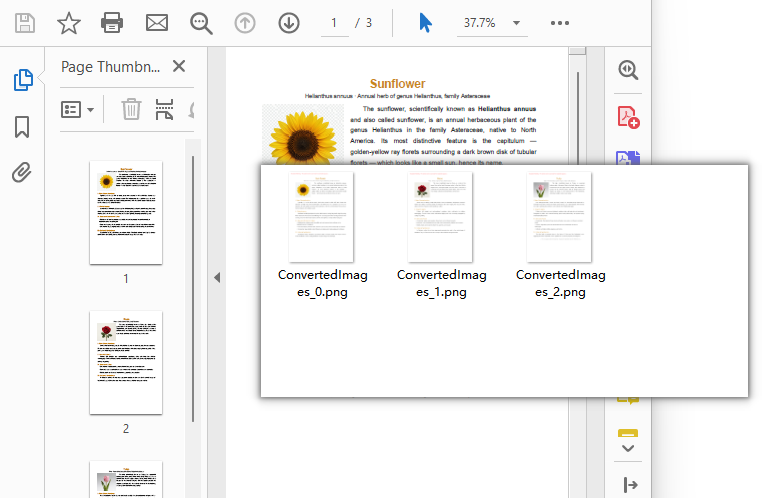
What the code does:
doc.SaveAsImage({ pageIndex: i })renders one page and returns an image stream. Page indexes are zero-based, sopageIndex: 0is the first page.stream.Save(outputFileName)writes that stream into the VFS. The extension you pass here sets the format — more on that below.stream.Dispose()releases the stream before the next page is rendered. Skipping it on a long document wastes memory for no benefit.- The
FS.mkdirTree→FS.readdir→FS.readFilesequence exists because the WASM module writes to its own file system, not to the browser's download folder. JSZip is what turns that folder into something the user can save. - Rendering is read-only. The source PDF is opened, read, and disposed; it is never modified.
Note: This produces a picture of each page, which is what you want for previews, thumbnails, and sharing. If you instead want the original image files embedded inside the PDF — the actual chart or photo at its native resolution, not a screenshot of the page it sits on — that is a different operation: see Extract Images from a PDF in JavaScript (React).
Convert specific pages only
Rendering a 200-page document to produce three thumbnails is wasted work. Since the page walk is just a for loop over doc.Pages.Count, narrowing it is a matter of changing the bounds.
A single page — the cover or a specific exhibit:
// Render only the first page
const outputFileName = outputDirectoryName + "cover.png";
let stream = doc.SaveAsImage({ pageIndex: 0 });
stream.Save(outputFileName);
stream.Dispose();
A contiguous range — pages 3 through 5, using zero-based indexes 2 through 4:
const startPage = 2;
const endPage = 4;

for (let i = startPage; i <= endPage && i < doc.Pages.Count; i++) {
  let stream = doc.SaveAsImage({ pageIndex: i });
  stream.Save(outputDirectoryName + "page_" + (i + 1) + ".png");
  stream.Dispose();
}
A hand-picked set — pages that are not next to each other:
const pagesToRender = [0, 7, 12];

for (const pageIndex of pagesToRender) {
  if (pageIndex >= doc.Pages.Count) continue;
  let stream = doc.SaveAsImage({ pageIndex });
  stream.Save(outputDirectoryName + "page_" + (pageIndex + 1) + ".png");
  stream.Dispose();
}
The i < doc.Pages.Count guard matters when the page list comes from user input rather than a hardcoded constant — an out-of-range index is a runtime error you would rather not ship.
Note the (i + 1) in the filenames. Zero-based indexes are right for the API and wrong for humans; naming files after the page number the user sees avoids a class of support tickets later.
Recommended article: When you need the original image objects out of the PDF rather than a rendered page — the embedded chart or photo at its native resolution — see Extract Images from a PDF in JavaScript (React).
Choose an output format
The format is decided entirely by the extension you pass to stream.Save. Nothing else in the pipeline changes.
stream.Save(outputDirectoryName + "page_1.png");  // PNG
stream.Save(outputDirectoryName + "page_1.jpg");  // JPEG
stream.Save(outputDirectoryName + "page_1.bmp");  // BMP
| Format | Extension | What you get | Reach for it when |
|---|---|---|---|
| PNG | .png |
Lossless. Text edges and thin lines stay crisp. Larger files. | Document pages, UI previews, anything with text or diagrams |
| JPEG | .jpg |
Lossy. Much smaller. No transparency, and compression artifacts show around small text. | Photographic or scanned pages, email attachments, size-constrained delivery |
| BMP | .bmp |
Uncompressed. Very large. | Legacy pipelines that specifically require uncompressed bitmaps |
The practical rule: if the page is mostly text, use PNG. JPEG's compression is tuned for photographic content, and on a text-heavy page it produces visible smudging around glyph edges that no amount of quality setting fully removes. If the page is a scanned photo, JPEG will cut the file size dramatically with little visible cost.
Set the resolution (DPI)
SaveAsImage renders at 96 DPI by default, which matches a typical screen. That is the right setting for thumbnails and on-screen previews. It is not enough when someone zooms in, prints the page, or feeds the image into OCR.
Pass dpiX and dpiY to change it:
// Export each page as an image at 150 DPI
for (let i = 0; i < doc.Pages.Count; i++) {
  let stream = doc.SaveAsImage({ pageIndex: i, dpiX: 150, dpiY: 150 });
  stream.Save(outputDirectoryName + "highres_" + i + ".png");
  stream.Dispose();
}
Resolution is not a free upgrade — pixel count scales with the square of the DPI, so the cost climbs quickly:
| DPI | Relative pixel count vs. 96 DPI | Comparable to | Reasonable for |
|---|---|---|---|
| 96 (default) | 1× | Standard screen | Thumbnails, inline previews, gallery strips |
| 150 | ~2.4× | Retina display, light zoom | Email attachments, previews users may zoom, draft printing |
| 300 | ~9.8× | Print quality | Print output, OCR input, archival masters |
Two things follow from that table. First, going from 96 to 300 multiplies the work and the storage by roughly ten, so don't reach for 300 on a 200-page document unless someone is actually going to print it. Second, dpiX and dpiY are separate arguments for a reason — they are normally set to the same value, and setting them differently will stretch the page.
Package or preview the images
Rendering the pages is half the job; the other half is getting them to the user. Three patterns cover nearly everything.
Bundle everything into one ZIP — the approach in the first example. Best when the user wants a folder of files, and the only option that scales to dozens of pages without hammering the browser with download prompts.
Download a single image directly — no JSZip needed when there is only one file:
const outputFileName = 'cover.png';
let stream = doc.SaveAsImage({ pageIndex: 0 });
stream.Save(outputFileName);
stream.Dispose();

const fileArray = window.dotnetRuntime.Module.FS.readFile(outputFileName);
const blob = new Blob([fileArray], { type: 'image/png' });
const url = URL.createObjectURL(blob);
const a = document.createElement('a');
a.href = url;
a.download = outputFileName;
a.click();
URL.revokeObjectURL(url);
Keep the images inside your React UI — no download at all. This is the right choice for preview panes and thumbnail strips, where the images are temporary and a download folder full of page_1.png files would just be clutter:
const renderPreviewStrip = async () => {
  const pdfModule = window.wasmModule?.spirepdf;
  if (!pdfModule) return;

  await window.spire.FetchFileToVFS('Flowers.pdf', "", `${process.env.PUBLIC_URL}/data/`);

  let doc = new pdfModule.PdfDocument();
  doc.LoadFromFile('Flowers.pdf');

  const previewUrls = [];

  for (let i = 0; i < doc.Pages.Count; i++) {
    const tempName = `preview_${i}.png`;
    let stream = doc.SaveAsImage({ pageIndex: i, dpiX: 72, dpiY: 72 });
    stream.Save(tempName);
    stream.Dispose();

    const fileArray = window.dotnetRuntime.Module.FS.readFile(tempName);
    const blob = new Blob([fileArray], { type: 'image/png' });
    previewUrls.push(URL.createObjectURL(blob));
  }

  doc.Dispose();

  // previewUrls can now be rendered as <img src={url} /> in a thumbnail strip
  return previewUrls;
};
Note the dpiX: 72 in the preview case: thumbnails don't need full resolution, and rendering them smaller keeps the strip responsive. Remember to call URL.revokeObjectURL(url) for each URL when the component unmounts, or you will leak memory on every re-render.
You may also like: Working from a set of images rather than a PDF — assembling scans or photos into a single document? That is Converting Images to PDF in JavaScript (React).
Fix garbled text: load fonts
A PDF usually embeds the fonts it uses, but not always — and when it doesn't, the renderer has to substitute something. In the browser there is no operating system font library to fall back on, so a missing font turns into blank space or boxes.
The fix is to put the font file where the WASM runtime expects to find it before you render:
// Load a TrueType font into the VFS font directory before converting
await window.spire.FetchFileToVFS('ARIAL.TTF', '/Library/Fonts/', `${process.env.PUBLIC_URL}/font/`);
ARIALUNI.TTF is worth knowing about: it covers common CJK characters as well as Latin, which makes it the safer default when your users upload documents in languages you haven't enumerated. If you only ever handle English documents, a smaller font keeps the download lighter.
Because this runs before any page is rendered, one missing-font check at the start of your conversion function is enough — you don't need to reload fonts per page.
FAQ
Does converting a PDF to images change the original PDF?
No. SaveAsImage renders pages and returns new image data; the source document is opened read-only and disposed afterward. Your original PDF is untouched.
How do I convert just the first page?
Call SaveAsImage once with pageIndex: 0 instead of looping. See Convert specific pages only.
Why is my output bigger than the original PDF?
Because a rendered page stores pixels, while a PDF stores drawing instructions. A text-heavy PDF page is often a few kilobytes; a 300 DPI PNG of that same page can be megabytes. Drop to 96–150 DPI or switch to JPEG if size matters more than fidelity.
Can I show the images in my app instead of downloading them?
Yes — build object URLs from the image data and use them as <img> sources. See Package or preview the images. Just remember to revoke the URLs when you're done.
Will a very long document cause problems?
Pages are rendered one at a time inside the loop, so the WASM module holds roughly one page image at a time rather than the whole document. For extremely long files, convert in chunks and append to the archive as you go rather than holding every image in an array.
What's the difference between converting a page to an image and extracting images from a PDF?
Converting renders the whole page — text, layout, images, backgrounds — as one flat picture. Extracting pulls out the original image objects embedded in the document at their native resolution. Use conversion for previews and sharing; use extraction when you need the source artwork itself.
Where do the converted files actually go?
Into the WASM virtual file system, not your server and not the user's disk. Nothing leaves the browser — the only way files reach the user is the download or object-URL step you write yourself.
See Also
Looking for the reverse direction — turning images back into a PDF? That is Converting Images to PDF in JavaScript (React). The rest of the PDF page pipeline in React:
Extrair Imagens de um PDF em JavaScript (React)
Recebeu um relatório de 40 páginas e precisa dos oito gráficos que contém para uma apresentação, ou quer extrair fotografias de produtos do catálogo de um fornecedor. O problema: um PDF armazena imagens num formato de fluxo interno que as APIs nativas do navegador não conseguem ler, por isso não existe um caminho de "clique com o botão direito, guardar imagem".
Spire.PDF for JavaScript lê esses fluxos por si através da sua classe PdfImageHelper. GetImagesInfo recupera todos os objetos de imagem de uma página, e o método Image.Save de cada um escreve-os como um ficheiro autónomo. Tudo é executado no navegador através de WebAssembly — o PDF nunca sai do dispositivo e não há qualquer servidor ou ferramenta externa envolvida.
Neste artigo vai aprender a:
- Recuperar objetos de imagem de uma página PDF com
GetImagesInfo - Guardar cada um no VFS e acionar uma transferência
- Percorrer todas as páginas de um documento com várias páginas
- Aplicar um esquema de nomenclatura consistente aos ficheiros extraídos
- Utilizar as imagens extraídas diretamente na sua interface React
Pré-requisitos
Este guia pressupõe que tem um projeto React com o Spire.PDF for JavaScript instalado e o módulo WASM inicializado. Para instruções de configuração, consulte Integrar o Spire.PDF for JavaScript num projeto React.
Vai precisar de:
- Um PDF que contenha imagens, carregado no VFS
- O módulo WASM acessível através de
window.wasmModule.spirepdf
Extrair imagens de uma única página
O fluxo de trabalho básico de extração recupera todas as imagens de uma página, guarda cada uma no VFS e aciona uma transferência:
- Carregue o PDF no VFS e abra-o com
PdfDocument - Obtenha a página de destino a partir do documento
- Chame
GetImagesInfopara recuperar um array de objetos de informação de imagem - Percorra o array, chamando
images[i].Image.Save()para escrever cada imagem no VFS - Leia do VFS e acione uma transferência do navegador para cada imagem extraída
function App() {
  const extractImagesFromPdf = async () => {
    // Get the Spire.PDF WASM module
    const pdfModule = window.wasmModule?.spirepdf;

    // Check if the WASM module is ready
    if (!pdfModule) {
      alert('Spire.PDF is not ready yet');
      return;
    }

    // Load the PDF file into VFS
    const inputFileName = 'Business_Data_Overview.pdf';
    await window.spire.FetchFileToVFS(inputFileName, "", `${process.env.PUBLIC_URL}/data/`);

    // Create a PdfDocument object and load the PDF document
    let doc = new pdfModule.PdfDocument();
    doc.LoadFromFile(inputFileName);

    // Get the first page
    let page = doc.Pages.get_Item(0);

    // Create a PdfImageHelper object and get the image information on the first page
    let helper = new pdfModule.PdfImageHelper();
    let images = helper.GetImagesInfo(page);

    // Iterate through the images on the page, save each as a separate image file, and trigger download
    for (let i = 0; i < images.length; i++) {
      const outputFileName = `ExtractedImage_${i + 1}.png`;
      images[i].Image.Save({ fileName: outputFileName });

      // Read the extracted image file from VFS and trigger download
      const fileArray = window.dotnetRuntime.Module.FS.readFile(outputFileName);
      const blob = new Blob([fileArray], { type: 'image/png' });
      const url = URL.createObjectURL(blob);
      const a = document.createElement('a');
      a.href = url;
      a.download = outputFileName;
      a.click();
      URL.revokeObjectURL(url);
    }

    doc.Close();
  };

  return (
    <div style={{ textAlign: 'center', height: '300px' }}>
      <h1>Extract Images From PDF</h1>
      <button onClick={extractImagesFromPdf}>
        Generate
      </button>
    </div>
  );
}

export default App;
Ficheiros de imagem extraídos do PDF
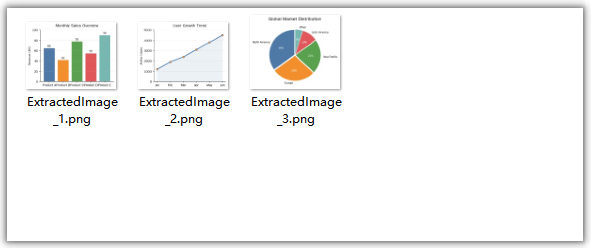
O que o código faz:
helper.GetImagesInfo(page)devolve um array de objetos de informação de imagem para a página especificada. Cada objeto tem uma propriedadeImageque dá acesso aos dados da imagem.images[i].Image.Save({ fileName: outputFileName })escreve a imagem no VFS como um ficheiro PNG.- O padrão de leitura do VFS + Blob + transferência é o mesmo utilizado para a saída de PDF, mas com
type: 'image/png'em vez detype: 'application/pdf'. - A extração é uma operação apenas de leitura — o documento PDF original não é modificado. Se quiser alterar ou remover uma imagem no local em vez de apenas a extrair, consulte Substituir e remover imagens de PDFs em JavaScript (React).
Extrair imagens de todas as páginas
O exemplo acima extrai apenas da primeira página. Para um documento com várias páginas, como um catálogo de produtos ou um relatório anual, normalmente quer todas as imagens de todas as páginas. Basta adicionar um ciclo externo pelas páginas do documento:
const extractAllImages = async () => {
  const pdfModule = window.wasmModule?.spirepdf;
  if (!pdfModule) return;

  await window.spire.FetchFileToVFS('Business_Data_Overview.pdf', "", `${process.env.PUBLIC_URL}/data/`);

  let doc = new pdfModule.PdfDocument();
  doc.LoadFromFile('Business_Data_Overview.pdf');

  let helper = new pdfModule.PdfImageHelper();
  let imageCount = 0;

  // Loop through all pages in the document
  for (let pageIndex = 0; pageIndex < doc.Pages.Count; pageIndex++) {
    let page = doc.Pages.get_Item(pageIndex);
    let images = helper.GetImagesInfo(page);

    // Extract each image on this page
    for (let i = 0; i < images.length; i++) {
      imageCount++;
      const outputFileName = `Page${pageIndex + 1}_Image${i + 1}.png`;
      images[i].Image.Save({ fileName: outputFileName });

      const fileArray = window.dotnetRuntime.Module.FS.readFile(outputFileName);
      const blob = new Blob([fileArray], { type: 'image/png' });
      const url = URL.createObjectURL(blob);
      const a = document.createElement('a');
      a.href = url;
      a.download = outputFileName;
      a.click();
      URL.revokeObjectURL(url);
    }
  }

  console.log(`Total images extracted: ${imageCount}`);
  doc.Close();
};
Principal diferença em relação ao exemplo de página única: o ciclo for externo itera através de doc.Pages.Count, e o nome do ficheiro inclui tanto o número da página como o índice da imagem (Page1_Image1.png, Page1_Image2.png, Page2_Image1.png, etc.) para manter os ficheiros extraídos organizados.
Nomear os ficheiros extraídos
Uma estratégia de nomenclatura consistente ajuda-o a acompanhar qual imagem veio de que página e posição. Aqui estão padrões comuns:
Numeração sequencial — a mais simples, adequada para extração de uma única página:
const outputFileName = `ExtractedImage_${i + 1}.png`;
// ExtractedImage_1.png, ExtractedImage_2.png, ...
Página e índice — a melhor para extração de várias páginas, preserva a localização de origem:
const outputFileName = `Page${pageIndex + 1}_Image${i + 1}.png`;
// Page1_Image1.png, Page1_Image2.png, Page2_Image1.png, ...
Com marca temporal — útil ao extrair de vários documentos numa sessão:
const timestamp = Date.now();
const outputFileName = `Extracted_${timestamp}_Page${pageIndex + 1}_${i + 1}.png`;
Baseado no nome do documento de origem — ajuda a acompanhar a origem:
const sourceName = 'Business_Data_Overview';
const outputFileName = `${sourceName}_p${pageIndex + 1}_img${i + 1}.png`;
// Business_Data_Overview_p1_img1.png, ...
Trabalhar com as imagens extraídas
Em vez de (ou além de) acionar transferências, pode utilizar os dados das imagens extraídas diretamente na sua aplicação React. Por exemplo, apresente as imagens extraídas numa galeria:
const extractAndDisplay = async () => {
  const pdfModule = window.wasmModule?.spirepdf;
  if (!pdfModule) return;

  await window.spire.FetchFileToVFS('Business_Data_Overview.pdf', "", `${process.env.PUBLIC_URL}/data/`);

  let doc = new pdfModule.PdfDocument();
  doc.LoadFromFile('Business_Data_Overview.pdf');

  let helper = new pdfModule.PdfImageHelper();
  let extractedImageUrls = [];

  for (let pageIndex = 0; pageIndex < doc.Pages.Count; pageIndex++) {
    let page = doc.Pages.get_Item(pageIndex);
    let images = helper.GetImagesInfo(page);

    for (let i = 0; i < images.length; i++) {
      const tempName = `temp_p${pageIndex + 1}_${i + 1}.png`;
      images[i].Image.Save({ fileName: tempName });

      const fileArray = window.dotnetRuntime.Module.FS.readFile(tempName);
      const blob = new Blob([fileArray], { type: 'image/png' });
      const url = URL.createObjectURL(blob);
      extractedImageUrls.push(url);
    }
  }

  doc.Close();

  // Now you have an array of object URLs you can use in <img> tags
  // setExtractedImages(extractedImageUrls); // if using state
  console.log(`Extracted ${extractedImageUrls.length} images ready for display`);
};
Esta abordagem dá-lhe URLs de objetos que podem ser utilizados diretamente em elementos <img src={url} />, facilitando a criação de uma galeria de pré-visualização, permitindo que os utilizadores selecionem imagens específicas ou passando as imagens para outras partes da sua aplicação. Assim que tiver os dados da imagem, a lógica de desenho para adicioná-la a um PDF é o próximo passo natural.
Nota: Lembre-se de chamar
URL.revokeObjectURL(url)para cada URL de objeto quando já não precisar dele, para libertar memória. Se estiver a apresentar imagens numa galeria, revoguw os URLs quando o componente da galeria for desmontado.
Perguntas frequentes
A extração de imagens irá modificar o PDF original?
Não. A extração de imagens é uma operação apenas de leitura. GetImagesInfo lê os dados da imagem do PDF sem modificar o documento, e Image.Save escreve uma cópia no VFS. O PDF original permanece inalterado.
Em que formato são guardadas as imagens extraídas?
Os exemplos neste artigo guardam as imagens extraídas como ficheiros PNG (.png). A extensão de ficheiro que passa para Image.Save determina o formato de saída, por isso pode escolher um diferente se o seu caso de uso assim o exigir.
Como posso extrair imagens de um intervalo específico de páginas?
Em vez de percorrer todas as páginas com doc.Pages.Count, percorra o intervalo pretendido. Por exemplo, para extrair das páginas 3 a 5 (indexado a partir de 0: 2 a 4):
for (let pageIndex = 2; pageIndex <= 4 && pageIndex < doc.Pages.Count; pageIndex++) {
  let page = doc.Pages.get_Item(pageIndex);
  let images = helper.GetImagesInfo(page);
  // ... save and download each image
}
Posso extrair imagens e apresentá-las na minha aplicação React sem as transferir?
Sim. Em vez de criar uma ligação de transferência, crie um URL de objeto com URL.createObjectURL(blob) e utilize-o como src de um elemento <img>. Consulte a secção Trabalhar com as imagens extraídas acima para ver um exemplo de código.
E se uma página não tiver imagens?
GetImagesInfo devolve um array vazio para páginas sem imagens. O ciclo for simplesmente não é executado, por isso não são gerados ficheiros nem lançados erros. É seguro executá-lo em qualquer página.
Ver também
JavaScript(React)에서 PDF 이미지 추출하기
40페이지 분량의 보고서를 받았고 슬라이드 덱에 넣을 8개의 차트가 필요하거나, 공급업체 카탈로그에서 제품 사진을 추출하고 싶을 수 있습니다. 문제는 PDF가 브라우저의 기본 제공 API로는 읽을 수 없는 내부 스트림 형식으로 이미지를 저장한다는 점입니다. 따라서 "마우스 오른쪽 버튼 클릭 후 이미지 저장" 경로가 없습니다.
Spire.PDF for JavaScript는 PdfImageHelper 클래스를 통해 이러한 스트림을 읽어줍니다. GetImagesInfo는 페이지의 모든 이미지 객체를 검색하고, 각 객체의 Image.Save 메서드는 이를 독립 실행형 파일로 기록합니다. 모든 것이 WebAssembly를 통해 브라우저에서 실행되므로 PDF가 기기를 떠나지 않으며 서버나 외부 도구가 필요하지 않습니다.
이 문서에서는 다음 방법을 알아봅니다:
GetImagesInfo로 PDF 페이지에서 이미지 객체 검색- 각 이미지를 VFS에 저장하고 다운로드 트리거
- 여러 페이지 문서의 모든 페이지 순회
- 추출된 파일에 일관된 이름 지정 체계 적용
- 추출된 이미지를 React UI 내에서 직접 사용
사전 요구 사항
이 연습에서는 Spire.PDF for JavaScript가 설치되고 WASM 모듈이 초기화된 React 프로젝트가 있다고 가정합니다. 설정 지침은 React 프로젝트에서 Spire.PDF for JavaScript 통합을 참조하세요.
다음이 필요합니다:
- 이미지가 포함되어 있고 VFS에 로드된 PDF
window.wasmModule.spirepdf를 통해 접근할 수 있는 WASM 모듈
단일 페이지에서 이미지 추출
기본 추출 워크플로는 한 페이지에서 모든 이미지를 검색하고, 각 이미지를 VFS에 저장한 다음 다운로드를 트리거합니다:
- PDF를 VFS에 로드하고
PdfDocument로 엽니다 - 문서에서 대상 페이지를 가져옵니다
GetImagesInfo를 호출하여 이미지 정보 객체 배열을 검색합니다- 배열을 반복하면서
images[i].Image.Save()를 호출하여 각 이미지를 VFS에 기록합니다 - VFS에서 읽고 추출된 각 이미지에 대해 브라우저 다운로드를 트리거합니다
function App() {
  const extractImagesFromPdf = async () => {
    // Get the Spire.PDF WASM module
    const pdfModule = window.wasmModule?.spirepdf;

    // Check if the WASM module is ready
    if (!pdfModule) {
      alert('Spire.PDF is not ready yet');
      return;
    }

    // Load the PDF file into VFS
    const inputFileName = 'Business_Data_Overview.pdf';
    await window.spire.FetchFileToVFS(inputFileName, "", `${process.env.PUBLIC_URL}/data/`);

    // Create a PdfDocument object and load the PDF document
    let doc = new pdfModule.PdfDocument();
    doc.LoadFromFile(inputFileName);

    // Get the first page
    let page = doc.Pages.get_Item(0);

    // Create a PdfImageHelper object and get the image information on the first page
    let helper = new pdfModule.PdfImageHelper();
    let images = helper.GetImagesInfo(page);

    // Iterate through the images on the page, save each as a separate image file, and trigger download
    for (let i = 0; i < images.length; i++) {
      const outputFileName = `ExtractedImage_${i + 1}.png`;
      images[i].Image.Save({ fileName: outputFileName });

      // Read the extracted image file from VFS and trigger download
      const fileArray = window.dotnetRuntime.Module.FS.readFile(outputFileName);
      const blob = new Blob([fileArray], { type: 'image/png' });
      const url = URL.createObjectURL(blob);
      const a = document.createElement('a');
      a.href = url;
      a.download = outputFileName;
      a.click();
      URL.revokeObjectURL(url);
    }

    doc.Close();
  };

  return (
    <div style={{ textAlign: 'center', height: '300px' }}>
      <h1>Extract Images From PDF</h1>
      <button onClick={extractImagesFromPdf}>
        Generate
      </button>
    </div>
  );
}

export default App;
PDF에서 추출된 이미지 파일
코드가 하는 일:
helper.GetImagesInfo(page)는 지정된 페이지에 대한 이미지 정보 객체 배열을 반환합니다. 각 객체에는 이미지 데이터에 접근할 수 있는Image속성이 있습니다.images[i].Image.Save({ fileName: outputFileName })는 이미지를 PNG 파일로 VFS에 기록합니다.- VFS 읽기 + Blob + 다운로드 패턴은 PDF 출력에 사용되는 것과 동일하지만
type: 'application/pdf'대신type: 'image/png'를 사용합니다. - 추출은 읽기 전용 작업입니다 — 원본 PDF 문서는 수정되지 않습니다. 이미지를 단순히 읽어오는 대신 그 자리에서 변경하거나 제거하려면 JavaScript(React)에서 PDF의 이미지 교체 및 제거를 참조하세요.
모든 페이지에서 이미지 추출
위 예제는 첫 번째 페이지에서만 추출합니다. 제품 카탈로그나 연간 보고서와 같은 여러 페이지 문서의 경우 일반적으로 모든 페이지의 모든 이미지를 원합니다. 문서의 페이지를 순회하는 외부 루프를 추가하기만 하면 됩니다:
const extractAllImages = async () => {
  const pdfModule = window.wasmModule?.spirepdf;
  if (!pdfModule) return;

  await window.spire.FetchFileToVFS('Business_Data_Overview.pdf', "", `${process.env.PUBLIC_URL}/data/`);

  let doc = new pdfModule.PdfDocument();
  doc.LoadFromFile('Business_Data_Overview.pdf');

  let helper = new pdfModule.PdfImageHelper();
  let imageCount = 0;

  // Loop through all pages in the document
  for (let pageIndex = 0; pageIndex < doc.Pages.Count; pageIndex++) {
    let page = doc.Pages.get_Item(pageIndex);
    let images = helper.GetImagesInfo(page);

    // Extract each image on this page
    for (let i = 0; i < images.length; i++) {
      imageCount++;
      const outputFileName = `Page${pageIndex + 1}_Image${i + 1}.png`;
      images[i].Image.Save({ fileName: outputFileName });

      const fileArray = window.dotnetRuntime.Module.FS.readFile(outputFileName);
      const blob = new Blob([fileArray], { type: 'image/png' });
      const url = URL.createObjectURL(blob);
      const a = document.createElement('a');
      a.href = url;
      a.download = outputFileName;
      a.click();
      URL.revokeObjectURL(url);
    }
  }

  console.log(`Total images extracted: ${imageCount}`);
  doc.Close();
};
단일 페이지 예제와의 주요 차이점: 외부 for 루프가 doc.Pages.Count를 반복하며, 파일 이름에 페이지 번호와 이미지 인덱스가 모두 포함됩니다(Page1_Image1.png, Page1_Image2.png, Page2_Image1.png 등). 이렇게 하면 추출된 파일을 체계적으로 관리할 수 있습니다.
추출된 파일 이름 지정
일관된 이름 지정 전략은 어떤 이미지가 어느 페이지와 위치에서 왔는지 추적하는 데 도움이 됩니다. 일반적인 패턴은 다음과 같습니다:
순차 번호 매기기 — 가장 간단하며 단일 페이지 추출에 적합합니다:
const outputFileName = `ExtractedImage_${i + 1}.png`;
// ExtractedImage_1.png, ExtractedImage_2.png, ...
페이지 및 인덱스 — 다중 페이지 추출에 가장 적합하며 원본 위치를 유지합니다:
const outputFileName = `Page${pageIndex + 1}_Image${i + 1}.png`;
// Page1_Image1.png, Page1_Image2.png, Page2_Image1.png, ...
타임스탬프 — 한 세션에서 여러 문서를 추출할 때 유용합니다:
const timestamp = Date.now();
const outputFileName = `Extracted_${timestamp}_Page${pageIndex + 1}_${i + 1}.png`;
원본 문서 이름 기반 — 출처 추적에 도움이 됩니다:
const sourceName = 'Business_Data_Overview';
const outputFileName = `${sourceName}_p${pageIndex + 1}_img${i + 1}.png`;
// Business_Data_Overview_p1_img1.png, ...
추출된 이미지 작업
다운로드를 트리거하는 대신(또는 추가로) 추출된 이미지 데이터를 React 애플리케이션에서 직접 사용할 수 있습니다. 예를 들어 추출된 이미지를 갤러리에 표시할 수 있습니다:
const extractAndDisplay = async () => {
  const pdfModule = window.wasmModule?.spirepdf;
  if (!pdfModule) return;

  await window.spire.FetchFileToVFS('Business_Data_Overview.pdf', "", `${process.env.PUBLIC_URL}/data/`);

  let doc = new pdfModule.PdfDocument();
  doc.LoadFromFile('Business_Data_Overview.pdf');

  let helper = new pdfModule.PdfImageHelper();
  let extractedImageUrls = [];

  for (let pageIndex = 0; pageIndex < doc.Pages.Count; pageIndex++) {
    let page = doc.Pages.get_Item(pageIndex);
    let images = helper.GetImagesInfo(page);

    for (let i = 0; i < images.length; i++) {
      const tempName = `temp_p${pageIndex + 1}_${i + 1}.png`;
      images[i].Image.Save({ fileName: tempName });

      const fileArray = window.dotnetRuntime.Module.FS.readFile(tempName);
      const blob = new Blob([fileArray], { type: 'image/png' });
      const url = URL.createObjectURL(blob);
      extractedImageUrls.push(url);
    }
  }

  doc.Close();

  // Now you have an array of object URLs you can use in <img> tags
  // setExtractedImages(extractedImageUrls); // if using state
  console.log(`Extracted ${extractedImageUrls.length} images ready for display`);
};
이 접근 방식을 사용하면 <img src={url} /> 요소에 직접 사용할 수 있는 객체 URL을 얻을 수 있으므로 미리보기 갤러리를 만들거나, 사용자가 특정 이미지를 선택하게 하거나, 이미지를 애플리케이션의 다른 부분에 전달하기 쉽습니다. 이미지 데이터를 확보한 후에는 PDF에 이미지를 추가하는 그리기 로직이 자연스러운 다음 단계입니다.
참고: 사용을 마친 각 객체 URL에 대해
URL.revokeObjectURL(url)를 호출하여 메모리를 해제해야 합니다. 갤러리에서 이미지를 표시하는 경우 갤러리 컴포넌트가 언마운트될 때 URL을 해제하세요.
FAQ
이미지를 추출하면 원본 PDF가 수정되나요?
아니요. 이미지 추출은 읽기 전용 작업입니다. GetImagesInfo는 문서를 수정하지 않고 PDF에서 이미지 데이터를 읽으며, Image.Save는 VFS에 복사본을 기록합니다. 원본 PDF는 변경되지 않습니다.
추출된 이미지는 어떤 형식으로 저장되나요?
이 문서의 예제는 추출된 이미지를 PNG 파일(.png)로 저장합니다. Image.Save에 전달하는 파일 확장자가 출력 형식을 결정하므로 사용 사례에 따라 다른 형식을 선택할 수 있습니다.
특정 페이지 범위에서 이미지를 추출하려면 어떻게 하나요?
doc.Pages.Count로 모든 페이지를 반복하는 대신 원하는 범위를 반복하세요. 예를 들어 3페이지부터 5페이지까지(0부터 시작하는 인덱스로 2~4) 추출하려면:
for (let pageIndex = 2; pageIndex <= 4 && pageIndex < doc.Pages.Count; pageIndex++) {
  let page = doc.Pages.get_Item(pageIndex);
  let images = helper.GetImagesInfo(page);
  // ... save and download each image
}
다운로드하지 않고 이미지를 추출하여 React 앱에 표시할 수 있나요?
예. 다운로드 링크를 만드는 대신 URL.createObjectURL(blob)으로 객체 URL을 만들고 이를 <img> 요소의 src로 사용하세요. 위의 추출된 이미지 작업 섹션에서 코드 예제를 참조하세요.
페이지에 이미지가 없으면 어떻게 되나요?
GetImagesInfo는 이미지가 없는 페이지에 대해 빈 배열을 반환합니다. for 루프가 실행되지 않으므로 파일이 생성되지 않고 오류도 발생하지 않습니다. 모든 페이지에서 안전하게 실행할 수 있습니다.