Converti rapidamente i dati XML annidati in Excel senza errori
La conversione da XML a XLSX è un requisito comune nell'elaborazione dei dati, nei flussi di lavoro di reporting e nelle attività di integrazione dei sistemi. XML rimane uno dei formati più comunemente usati per dati strutturati o semi-strutturati, ma il formato XLSX di Excel è molto più comodo per l'analisi, il filtraggio, la visualizzazione e la condivisione con utenti non tecnici.
Sebbene l'idea di base di trasformare i file XML in file XLSX sembri semplice, i file XML del mondo reale variano ampiamente nella struttura. Alcuni assomigliano a tabelle di database pulite, mentre altri contengono nodi profondamente nidificati, attributi o contenuti misti.
Questa guida fornisce una spiegazione dettagliata e pratica su come convertire XML in XLSX utilizzando strumenti online, Microsoft Excel e l'automazione con Python. Discute anche come gestire scenari complessi come grandi set di dati, elementi nidificati, campi opzionali e la conversione inversa da XLSX a XML.
Panoramica dei Metodi:
- Convertitori Online da XML a XLSX
- Funzionalità di Importazione XML di Excel
- Convertire XML in XLSX Usando l'Automazione con Python
- Script Personalizzati o API per Flussi di Lavoro Aziendali
1. Comprendere la Conversione da XML a XLSX
XML (Extensible Markup Language) è un semplice formato di testo che memorizza i dati utilizzando tag, formando una struttura ad albero in cui gli elementi genitore contengono figli e le informazioni possono apparire come elementi o attributi. XLSX, al contrario, è strettamente basato su righe e colonne, quindi convertire XML in XLSX significa appiattire questo albero in una tabella mantenendo i dati significativi.
Per un XML semplice—ad esempio, un file con nodi <item> ripetuti—ogni nodo diventa naturalmente una riga e i suoi figli diventano colonne. Ma l'XML del mondo reale contiene spesso:
- dettagli nidificati
- nodi che appaiono solo in alcuni record
- dati memorizzati negli attributi
- spazi dei nomi utilizzati nei sistemi aziendali
Tali variazioni richiedono decisioni su come appiattire la gerarchia. Alcuni strumenti lo fanno automatically, mentre altri necessitano di una mappatura manuale. Questa guida copre sia i casi semplici che quelli complessi, incluso come convertire XML in XLSX senza aprire Excel, cosa comune nei flussi di lavoro automatizzati.
2. Metodo 1: Convertire XML in XLSX Online
I convertitori online da XML a XLSX—come Convertion Tools, AConvert, o DataConverter.io—sono comodi quando hai bisogno di una trasformazione rapida senza installare software. Il processo è in genere molto semplice:
-
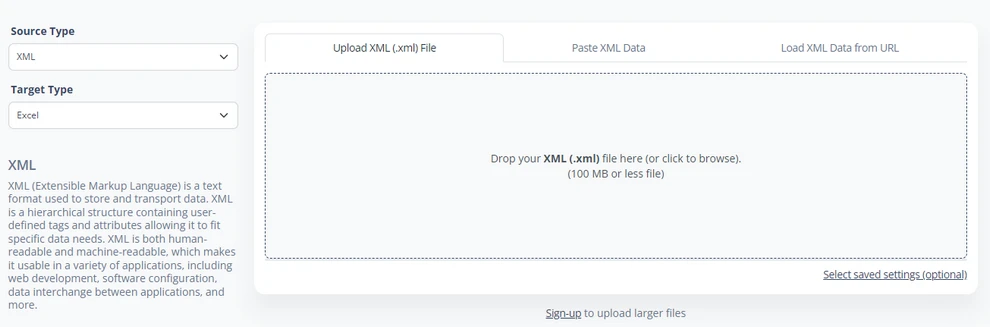
Visita un sito web che supporta la conversione da XML a XLSX (come DataConverter.io).
-
Carica il tuo file XML o incolla la stringa XML.
-
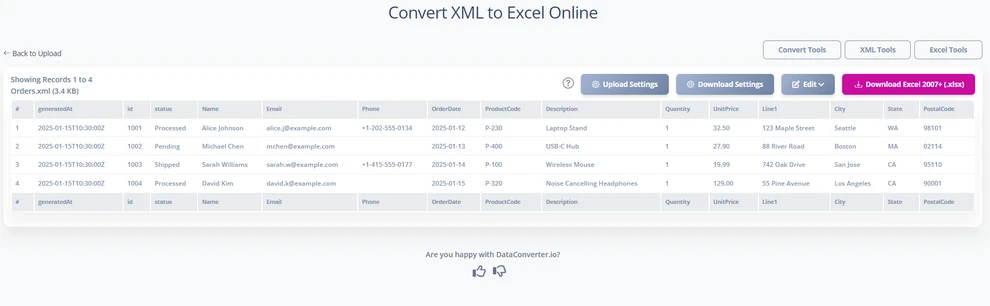
Alcuni convertitori ti permettono di modificare la mappatura prima della conversione.
-
Fai clic su Scarica per scaricare il file .xlsx generato.
Questo metodo funziona bene per attività una tantum e per file XML con strutture semplici in cui la mappatura automatica è solitamente accurata.
Vantaggi
- Veloce, nessuna installazione richiesta.
- Adatto per strutture XML semplici o moderate.
- Ideale per conversioni una tantum o occasionali.
Limitazioni
- Comprensione limitata di schemi, spazi dei nomi e gerarchie nidificate.
- Un XML profondo potrebbe essere appiattito in modo errato, produrre nomi di colonna generici o perdere campi opzionali.
- Limiti di dimensione per il caricamento e possibili blocchi del browser con file di grandi dimensioni.
Nonostante questi vincoli, gli strumenti online rimangono una scelta pratica per conversioni rapide e su piccola scala da XML a XLSX.
Potrebbe piacerti anche: Come Convertire File CSV in Excel.
3. Metodo 2: Convertire XML in XLSX in Excel
Excel fornisce supporto nativo per l'importazione di XML, e per molti utenti, questo è il metodo più trasparente e controllabile. Se usato correttamente, Excel può leggere le strutture XML, applicare mappature personalizzabili e salvare il risultato convertito directly come file XLSX.
3.1 Aprire XML Direttamente in Excel
Quando apri un file XML tramite File → Apri, Excel tenta di dedurre uno schema e convertire i dati in una tabella. La sequenza corretta per questo metodo è:
-
Vai su File → Apri e seleziona il file XML.
-
Quando richiesto, scegli “Come tabella XML”.

-
Excel carica l'XML e mappa automaticamente i nodi figli alle colonne.
Questo funziona bene per le strutture XML "piatte", in cui ogni elemento ripetuto corrisponde ordinatamente a una riga. Tuttavia, l'XML gerarchico causa spesso problemi: i nodi nidificati possono essere espansi in colonne ripetute, oppure Excel potrebbe chiederti di definire manualmente una tabella XML se non riesce a determinare una mappatura chiara.
Questo metodo di apertura diretta rimane utile quando l'XML assomiglia a un elenco di record in stile database e hai bisogno di un modo rapido per ispezionare o lavorare con i dati.
3.2 Importare XML tramite la Scheda Dati di Excel
Per i file XML strutturati—specialmente quelli basati su schemi XSD—Excel fornisce un metodo di importazione più intuitivo tramite la scheda Dati. Questo approccio ti dà il controllo su come gli elementi XML vengono mappati al foglio di lavoro senza utilizzare manualmente il riquadro Origine XML.
Passaggi:
-
Apri una cartella di lavoro di Excel o creane una nuova.
-
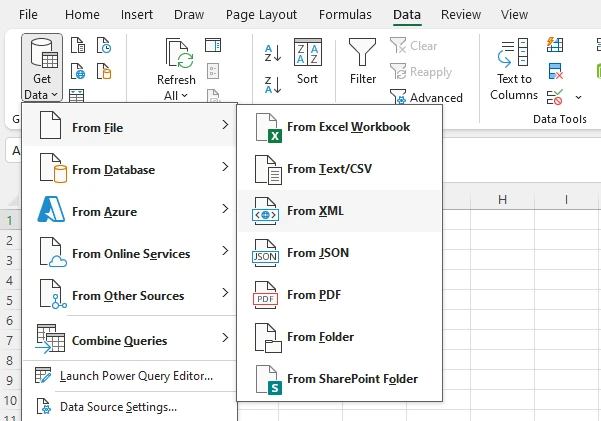
Vai su Dati → Recupera dati → Da file → Da XML.
-
Seleziona il tuo file XML e fai clic su Importa.
-
Fai clic su Trasforma dati nella finestra pop-up.
-
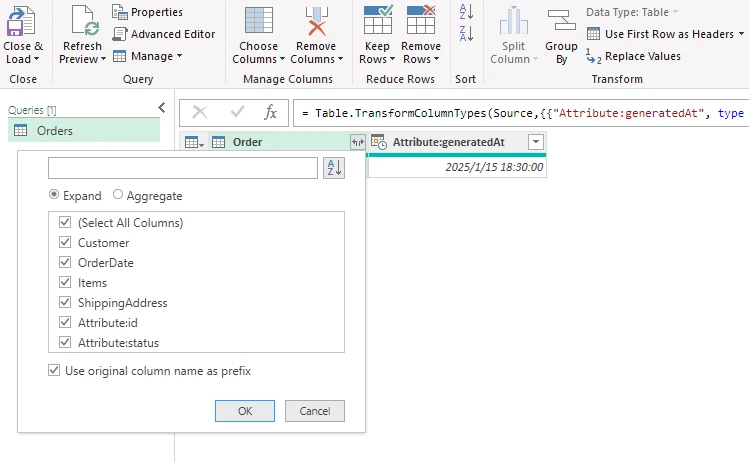
Nella finestra dell'Editor di Power Query, seleziona gli elementi o le tabelle che desideri caricare.
-
Fai clic su Chiudi e carica per salvare le modifiche, e i dati convertiti appariranno in un nuovo foglio di lavoro.
Questo metodo consente a Excel di interpretare automaticamente la struttura XML e mapparla in una tabella. Funziona bene per l'XML gerarchico perché puoi selezionare quali sezioni caricare, mantenendo intatti i campi opzionali e le relazioni.
Questo approccio è particolarmente utile per:
- Importare dati da moduli elettronici governativi
- Lavorare con XML esportato da ERP/CRM
- Gestire standard specifici del settore come UBL o HL7
Utilizzando questo flusso di lavoro, puoi controllare in modo efficiente come i dati XML vengono rappresentati in Excel, riducendo al minimo i passaggi di mappatura manuale.
3.3 Salvare i Dati XML Importati come File XLSX
Una volta che i dati XML sono stati importati con successo—sia aprendo direttamente il file XML sia utilizzando Dati → Recupera dati → Da XML—il passaggio finale consiste semplicemente nel salvare la cartella di lavoro nel formato nativo .xlsx di Excel. A questo punto, i dati si comportano come qualsiasi altra tabella di Excel, il che significa che puoi regolare liberamente la larghezza delle colonne, applicare filtri, formattare le celle o aggiungere formule.
Per salvare l'XML convertito come file XLSX:
- Vai su File → Salva con nome.
- Scegli Cartella di lavoro di Excel (*.xlsx) come tipo di file.
- Specifica una posizione e fai clic su Salva.
Di seguito è riportata un'anteprima della tabella di Excel importata da XML:
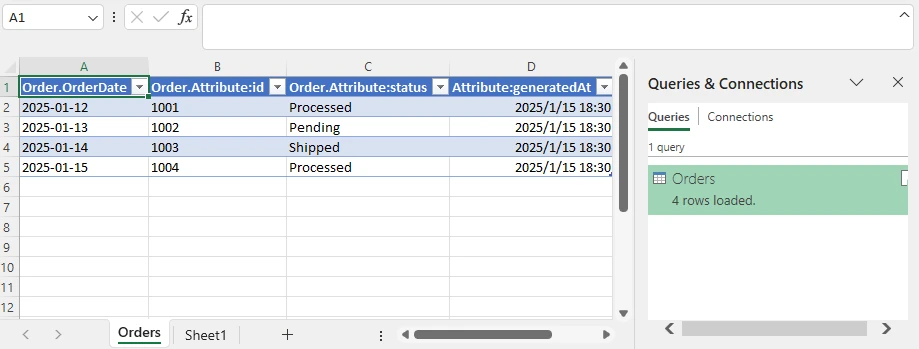
Se il file XML si basa su uno schema XSD e la mappatura viene preservata, Excel può persino esportare nuovamente il foglio di lavoro modificato in XML. Tuttavia, per strutture XML profondamente nidificate, potrebbe essere ancora necessaria una pre-elaborazione o delle regolazioni manuali prima dell'esportazione.
4. Metodo 3: Convertire XML in XLSX Usando Python
Python è una scelta eccellente per convertire XML in XLSX when you require automation, large-scale processing, or the ability to perform XML to XLSX conversion without opening Excel. Python scripts can run on servers, schedule tasks, and handle hundreds or thousands of XML files consistently.
4.1 Parsing di XML in Python
Il parsing di XML è il primo passo nel flusso di lavoro. Le librerie di Python xml.etree.ElementTree o lxml forniscono un parsing basato su eventi o ad albero. Ti permettono di scorrere ogni nodo, estrarre attributi, gestire spazi dei nomi ed elaborare dati profondamente nidificati.
La sfida principale è definire come ogni nodo XML si mappa a una riga di Excel. La maggior parte dei flussi di lavoro utilizza:
- una mappatura predefinita (ad es. uno “schema” definito nel codice), o
- una logica di appiattimento automatico che converte ricorsivamente i nodi in colonne.
Esempio di Parsing XML di Base:
Il seguente codice Python dimostra come eseguire il parsing di un file XML e appiattirlo in un elenco di dizionari, che può essere utilizzato per generare un file XLSX.
import xml.etree.ElementTree as ET

xml_file = "Orders.xml"

# Recursively flatten an XML element into a flat dictionary
def flatten(e, prefix=""):
    r = {}
    # Add attributes
    for k, v in e.attrib.items():
        r[prefix + k] = v
    # Add children
    for c in e:
        key = prefix + c.tag
        # Scalar node (no children, has text)
        if len(c) == 0 and c.text and c.text.strip():
            r[key] = c.text.strip()
        else:
            # Nested node → recurse
            r.update(flatten(c, key + "_"))
    return r

# Parse XML
root = ET.parse(xml_file).getroot()

# Flatten all <Order> elements
rows = [flatten(order) for order in root.iter("Order")]

# Collect headers
headers = sorted({k for row in rows for k in row})
Questo frammento di codice illustra come appiattire ricorsivamente i nodi e gli attributi XML in una struttura adatta per Excel. Per XML complessi, ciò garantisce che nessun dato venga perso e che ogni nodo si mappi alla colonna corretta.
4.2 Generare File XLSX da XML Analizzato
Una volta che l'XML è stato analizzato e appiattito, il passo successivo è scrivere i dati in un file Excel .xlsx. Librerie Python come Free Spire.XLS for Python enable full spreadsheet creation without needing Excel installed, which is ideal for Linux servers or cloud environments.
Installa Free Spire.XLS for Python:
pip install spire.xls.free
Passaggi per generare XLSX:
- Crea una nuova cartella di lavoro.
- Scrivi intestazioni e righe dai dati appiattiti.
- Facoltativamente, applica stili per una migliore leggibilità.
- Salva la cartella di lavoro come
.xlsx.
Esempio Python:
Questo esempio dimostra come generare un file XLSX dai dati XML analizzati.
from spire.xls import Workbook, BuiltInStyles

xlsx_output = "output/XMLToExcel1.xlsx"

wb = Workbook()
ws = wb.Worksheets.get_Item(0)

# Header row
for col, h in enumerate(headers, 1):
    ws.Range.get_Item(1, col).Value = h

# Data rows
for row_idx, row in enumerate(rows, 2):
    for col_idx, h in enumerate(headers, 1):
        ws.Range.get_Item(row_idx, col_idx).Value = row.get(h, "")

# Apply styles (optional)
ws.AllocatedRange.Rows.get_Item(0).BuiltInStyle = BuiltInStyles.Heading2
for row in range(1, ws.AllocatedRange.Rows.Count):
    if row % 2 == 0:
        ws.AllocatedRange.Rows.get_Item(row).BuiltInStyle = BuiltInStyles.Accent2_20
    else:
        ws.AllocatedRange.Rows.get_Item(row).BuiltInStyle = BuiltInStyles.Accent2_40

# Save to XLSX
wb.SaveToFile(xlsx_output)
print("Done!")
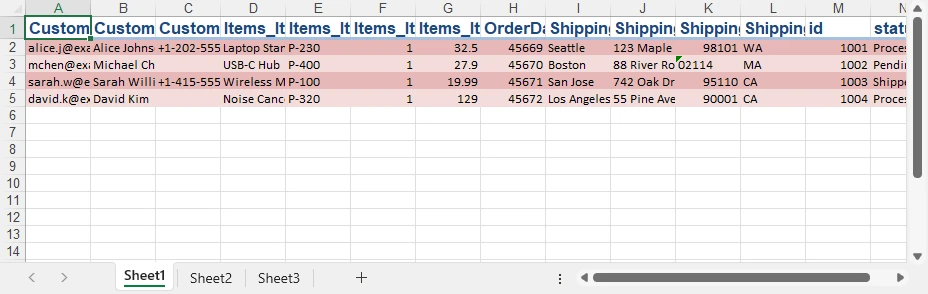
Dopo aver eseguito lo script, ogni nodo XML viene appiattito in righe, con colonne che rappresentano attributi ed elementi figli. Questo approccio supporta più fogli di lavoro, nomi di colonna personalizzati e l'integrazione con ulteriori trasformazioni dei dati.
Di seguito è riportata l'anteprima del file XLSX generato:
Per ulteriori esempi su come scrivere diversi tipi di dati in file Excel utilizzando Python, consulta la nostra guida Python write data to Excel.
4.3 Gestione di XML Complessi
L'XML aziendale contiene spesso modelli irregolari. Usando Python, puoi:
- appiattire ricorsivamente elementi nidificati
- promuovere gli attributi a colonne normali
- saltare elementi irrilevanti
- creare più fogli per sezioni gerarchiche
- gestire campi mancanti o opzionali assegnando valori predefiniti
L'esempio sopra mostra un singolo file XML; la stessa logica può essere estesa per gestire strutture complesse senza perdita di dati.
Se stai lavorando con file Office Open XML (OOXML), puoi anche caricarli direttamente e salvarli come file XLSX utilizzando Free Spire.XLS for Python. Dai un'occhiata a Come convertire OOXML in XLSX con Python.
4.4 Conversione in Blocco
La forza di Python diventa particolarmente evidente quando si convertono grandi cartelle di file XML. Uno script può:
- scansionare directory,
- analizzare ogni file utilizzando la stessa logica di appiattimento,
- generare file XLSX coerenti automaticamente.
Ciò elimina il lavoro manuale e garantisce una conversione affidabile e priva di errori tra progetti o set di dati.
Il seguente frammento di codice illustra un approccio semplice per la conversione in blocco di più file XML in XLSX.
import os

input_dir = "xml_folder"
output_dir = "xlsx_folder"

for file_name in os.listdir(input_dir):
    if file_name.endswith(".xml"):
        xml_path = os.path.join(input_dir, file_name)

        # Parse XML and generate XLSX (using previously defined logic)
        convert_xml_to_xlsx(xml_path, output_dir)
5. Metodo 4: Script Personalizzati o API per Flussi di Lavoro Aziendali
Mentre i metodi precedenti sono adatti per conversioni una tantum o in blocco, gli ambienti aziendali richiedono spesso soluzioni automatizzate, standardizzate e scalabili per la conversione da XML a XLSX. Molti formati XML aziendali seguono standard di settore, coinvolgono schemi complessi con campi obbligatori e facoltativi e sono integrati in pipeline di dati più ampie.
In questi casi, le aziende sviluppano tipicamente script personalizzati o flussi di lavoro basati su API per gestire le conversioni in modo affidabile. Per esempio:
- Esportazioni ERP o CRM: le esportazioni XML giornaliere contenenti fatture o ordini vengono convertite automaticamente in XLSX e inserite nei dashboard di reporting.
- Pipeline ETL: i dati XML da più sistemi vengono convalidati, normalizzati e convertiti durante i processi di Estrazione-Trasformazione-Caricamento.
- Integrazione cloud: script o API vengono eseguiti su piattaforme cloud (AWS Lambda, Azure Functions) per elaborare file XML su larga scala senza intervento manuale.
I principali vantaggi di questo approccio includono:
- Garantire la conformità dello schema tramite la convalida XSD.
- Mantenere regole di mappatura coerenti tra più sistemi.
- Automatizzare le conversioni come parte dei normali processi aziendali.
- Integrazione perfetta con servizi cloud e piattaforme di automazione del flusso di lavoro.
Questo flusso di lavoro è ideale per scenari in cui la conversione XML è un'attività ricorrente, parte di un sistema di reporting aziendale o richiesta per la conformità con gli standard di dati del settore.
Strumenti come Spire.XLS for Python can also be integrated into these workflows to generate XLSX files programmatically on servers or cloud functions, enabling reliable, Excel-free conversion within automated enterprise pipelines.
6. Risoluzione dei Problemi della Conversione da XML a XLSX
A seconda del metodo scelto—strumenti online, Excel o Python—possono sorgere problemi diversi durante la conversione XML. Comprendere questi problemi comuni aiuta a garantire che il file XLSX finale sia completo e accurato.
XML Profondamente Nidificato o Irregolare
Le strutture nidificate possono essere difficili da appiattire in un unico foglio.
- Excel potrebbe richiedere una mappatura manuale o la suddivisione in più fogli.
- Python consente l'appiattimento ricorsivo o la creazione di più fogli programmaticamente.
Elementi Mancanti o Facoltativi
Non tutti i nodi XML compaiono in ogni record. Garantire la coerenza delle colonne utilizzando celle vuote per i campi mancanti, anziché saltarli, per evitare dati disallineati.
Attributi vs. Elementi
Decidi quali attributi dovrebbero diventare colonne e quali possono rimanere interni.
- Excel potrebbe richiedere la mappatura.
- Python può estrarre tutti gli attributi in modo flessibile utilizzando il parsing ricorsivo.
Errori di Codifica
Una codifica dei caratteri errata può causare errori di analisi.
- Assicurati che l'XML dichiari correttamente la codifica (
UTF-8,UTF-16, ecc.). - Suggerimento Python:
ET.parse(xml_file, parser=ET.XMLParser(encoding='utf-8'))aiuta a gestire la codifica in modo esplicito.
File XML di Grandi Dimensioni
File XML molto grandi possono superare i limiti del browser o di Excel.
- Gli strumenti online potrebbero fallire o bloccarsi.
- Excel potrebbe non rispondere.
- Python può utilizzare parser di streaming come
iterparseper elaborare file di grandi dimensioni con un utilizzo minimo della memoria.
7. Domande Frequenti
Ecco alcune domande frequenti sulla conversione da XML a XLSX:
1. Come convertire un file XML in XLSX?
Puoi convertire XML in XLSX usando Excel, strumenti online, o l'automazione con Python, a seconda delle tue esigenze.
- Per file semplici e veloci, gli strumenti online sono convenienti (vedi Sezione 2).
- Per file con XML strutturato o nidificato, l'importazione dati di Excel offre controllo (vedi Sezione 3).
- Per l'elaborazione su larga scala o automatizzata, Python offre piena flessibilità (vedi Sezione 4).
2. Come apro un file XML in Excel?
Excel può importare XML come tabella. L'XML semplice si apre direttamente, mentre l'XML complesso o gerarchico può richiedere la mappatura tramite il flusso di lavoro Scheda Dati → Recupera dati → Da XML (vedi Sezione 3.2).
3. Come posso convertire XML in altri formati?
Oltre a XLSX, l'XML può essere convertito in CSV, JSON o database utilizzando script Python o strumenti specializzati. Le librerie Python come xml.etree.ElementTree o lxml consentono di analizzare e trasformare l'XML in vari formati programmaticamente.
4. Come convertire XML in Excel online gratuitamente?
I convertitori online gratuiti possono gestire semplici conversioni da XML a XLSX senza installare software. Sono ideali per file di piccole o moderate dimensioni ma possono avere difficoltà con XML profondamente nidificato o grandi set di dati (vedi Sezione 2).
8. Conclusione
La conversione da XML a XLSX assume molteplici forme a seconda della struttura dei dati e degli strumenti disponibili. I convertitori online offrono comodità per attività rapide, mentre Excel fornisce un maggiore controllo con la mappatura XML e il supporto degli schemi. Quando sono richieste automazione, grandi set di dati o regole di mappatura personalizzate, Python è la soluzione più flessibile e robusta.
Che il tuo flusso di lavoro coinvolga semplici elenchi XML, dati aziendali profondamente nidificati o elaborazione in blocco su larga scala, i metodi in questa guida offrono modi pratici e affidabili per convertire XML in XLSX e gestire i dati in modo efficace tra i sistemi.
Vedi Anche
Convertir rápidamente datos XML anidados a Excel sin errores
Tabla de Contenidos
Convertir XML a XLSX es un requisito común en el procesamiento de datos, flujos de trabajo de informes y tareas de integración de sistemas. XML sigue siendo uno de los formatos más utilizados para datos estructurados o semiestructurados, pero el formato XLSX de Excel es mucho más conveniente para el análisis, filtrado, visualización y para compartir con usuarios no técnicos.
Aunque la idea básica de transformar archivos XML en archivos XLSX parece simple, los archivos XML del mundo real varían mucho en su estructura. Algunos se asemejan a tablas de bases de datos limpias, mientras que otros contienen nodos profundamente anidados, atributos o contenido mixto.
Esta guía proporciona una explicación detallada y práctica de cómo convertir XML a XLSX utilizando herramientas en línea, Microsoft Excel y la automatización con Python. También se analiza cómo manejar escenarios complejos como grandes conjuntos de datos, elementos anidados, campos opcionales y la conversión inversa de XLSX a XML.
Resumen de Métodos:
- Conversores de XML a XLSX en Línea
- Funciones de Importación de XML en Excel
- Convertir XML a XLSX Usando Automatización con Python
- Scripts Personalizados o API para Flujos de Trabajo Empresariales
1. Entendiendo la Conversión de XML a XLSX
XML (Lenguaje de Marcado Extensible) es un formato de texto simple que almacena datos usando etiquetas, formando una estructura en forma de árbol donde los elementos padres contienen hijos, y la información puede aparecer como elementos o atributos. XLSX, por el contrario, se basa estrictamente en filas y columnas, por lo que convertir XML a XLSX significa aplanar este árbol en una tabla manteniendo los datos significativos.
Para XML sencillos, por ejemplo, un archivo con nodos <item> repetidos, cada nodo se convierte naturalmente en una fila y sus hijos en columnas. Pero el XML del mundo real a menudo contiene:
- detalles anidados
- nodos que solo aparecen en algunos registros
- datos almacenados en atributos
- espacios de nombres utilizados en sistemas empresariales
Tales variaciones requieren decisiones sobre cómo aplanar la jerarquía. Algunas herramientas lo hacen automáticamente, mientras que otras necesitan un mapeo manual. Esta guía cubre tanto casos simples como complejos, incluyendo cómo convertir XML a XLSX sin abrir Excel, lo cual es común en flujos de trabajo automatizados.
2. Método 1: Convertir XML a XLSX en Línea
Los conversores de XML a XLSX en línea, como Convertion Tools, AConvert o DataConverter.io, son convenientes cuando se necesita una transformación rápida sin instalar software. El proceso suele ser muy simple:
-
Visite un sitio web que admita la conversión de XML a XLSX (como DataConverter.io).
-
Suba su archivo XML o pegue la cadena XML.
-
Algunos conversores le permiten editar el mapeo antes de la conversión.
-
Haga clic en Descargar para bajar el archivo .xlsx generado.
Este método funciona bien para tareas únicas y para archivos XML con estructuras sencillas donde el mapeo automático suele ser preciso.
Ventajas
- Rápido, no requiere instalación.
- Adecuado para estructuras XML simples o moderadas.
- Ideal para conversiones únicas u ocasionales.
Limitaciones
- Comprensión limitada de esquemas, espacios de nombres y jerarquías anidadas.
- El XML profundo puede aplanarse incorrectamente, producir nombres de columna genéricos o perder campos opcionales.
- Límites de tamaño de carga y posibles bloqueos del navegador con archivos grandes.
A pesar de estas limitaciones, las herramientas en línea siguen siendo una opción práctica para conversiones rápidas y a pequeña escala de XML a XLSX.
También te puede interesar: Cómo Convertir Archivos CSV a Excel.
3. Método 2: Convertir XML a XLSX en Excel
Excel proporciona soporte nativo para la importación de XML, y para muchos usuarios, este es el método más transparente y controlable. Cuando se usa correctamente, Excel puede leer estructuras XML, aplicar mapeos personalizables y guardar el resultado convertido directamente como un archivo XLSX.
3.1 Abriendo XML Directamente en Excel
Cuando abre un archivo XML a través de Archivo → Abrir, Excel intenta inferir un esquema y convertir los datos en una tabla. La secuencia correcta para este método es:
-
Vaya a Archivo → Abrir y seleccione el archivo XML.
-
Cuando se le solicite, elija “Como una tabla XML”.
-
Excel carga el XML y mapea automáticamente los nodos hijos a las columnas.
Esto funciona bien para estructuras XML "planas", donde cada elemento repetido corresponde nítidamente a una fila. Sin embargo, el XML jerárquico a menudo causa problemas: los nodos anidados pueden expandirse en columnas repetidas, o Excel puede pedirle que defina una tabla XML manually si no puede determinar un mapeo claro.
Este método de apertura directa sigue siendo útil cuando el XML se asemeja a una lista de registros de estilo de base de datos y necesita una forma rápida de inspeccionar o trabajar con los datos.
3.2 Importando XML a través de la Pestaña de Datos de Excel
Para archivos XML estructurados, especialmente aquellos basados en esquemas XSD, Excel proporciona un método de importación más fácil de usar a través de la pestaña Datos. Este enfoque le da control sobre cómo se mapean los elementos XML a la hoja de trabajo sin usar manualmente el panel Origen XML.
Pasos:
-
Abra un libro de Excel o cree uno nuevo.
-
Vaya a Datos → Obtener Datos → Desde Archivo → Desde XML.
-
Seleccione su archivo XML y haga clic en Importar.
-
Haga clic en Transformar Datos en la ventana emergente.
-
En la ventana del Editor de Power Query, seleccione los elementos o tablas que desea cargar.
-
Haga clic en Cerrar y Cargar para guardar los cambios, y los datos convertidos aparecerán en una nueva hoja de trabajo.
Este método permite a Excel interpretar automáticamente la estructura XML y mapearla en una tabla. Funciona bien para XML jerárquico porque puede seleccionar qué secciones cargar, manteniendo intactos los campos opcionales y las relaciones.
Este enfoque es especialmente útil para:
- Importar datos de formularios electrónicos del gobierno
- Trabajar con XML exportado de ERP/CRM
- Manejar estándares específicos de la industria como UBL o HL7
Al utilizar este flujo de trabajo, puede controlar de manera eficiente cómo se representan los datos XML en Excel, minimizando los pasos de mapeo manual.
3.3 Guardando los Datos XML Importados como un Archivo XLSX
Una vez que los datos XML se han importado con éxito, ya sea abriendo directamente el archivo XML o usando Datos → Obtener Datos → Desde XML, el paso final es simplemente guardar el libro en el formato nativo .xlsx de Excel. En esta etapa, los datos se comportan como cualquier otra tabla de Excel, lo que significa que puede ajustar libremente el ancho de las columnas, aplicar filtros, formatear celdas o agregar fórmulas.
Para guardar el XML convertido como un archivo XLSX:
- Vaya a Archivo → Guardar como.
- Elija Libro de Excel (*.xlsx) como el tipo de archivo.
- Especifique una ubicación y haga clic en Guardar.
A continuación se muestra una vista previa de la tabla de Excel importada desde XML:
Si el archivo XML se basa en un esquema XSD y se conserva el mapeo, Excel puede incluso exportar la hoja de trabajo modificada de nuevo a XML. Sin embargo, para estructuras XML profundamente anidadas, aún podrían ser necesarios algunos ajustes de preprocesamiento o manuales antes de la exportación.
4. Método 3: Convertir XML a XLSX Usando Python
Python es una excelente opción para convertir XML a XLSX cuando se requiere automatización, procesamiento a gran escala o la capacidad de realizar la conversión de XML a XLSX sin abrir Excel. Los scripts de Python pueden ejecutarse en servidores, programar tareas y manejar cientos o miles de archivos XML de manera consistente.
4.1 Analizando XML en Python
El análisis de XML es el primer paso en el flujo de trabajo. Las bibliotecas de Python xml.etree.ElementTree o lxml proporcionan un análisis basado en eventos o en árboles. Le permiten recorrer cada nodo, extraer atributos, manejar espacios de nombres y procesar datos profundamente anidados.
El principal desafío es definir cómo cada nodo XML se asigna a una fila de Excel. La mayoría de los flujos de trabajo utilizan:
- un mapeo predefinido (por ejemplo, un “esquema” definido en el código), o
- una lógica de aplanamiento automático que convierte recursivamente los nodos en columnas.
Ejemplo Básico de Análisis XML:
El siguiente código de Python demuestra cómo analizar un archivo XML y aplanarlo en una lista de diccionarios, que se puede usar para generar un archivo XLSX.
import xml.etree.ElementTree as ET

xml_file = "Orders.xml"

# Recursively flatten an XML element into a flat dictionary
def flatten(e, prefix=""):
    r = {}
    # Add attributes
    for k, v in e.attrib.items():
        r[prefix + k] = v
    # Add children
    for c in e:
        key = prefix + c.tag
        # Scalar node (no children, has text)
        if len(c) == 0 and c.text and c.text.strip():
            r[key] = c.text.strip()
        else:
            # Nested node → recurse
            r.update(flatten(c, key + "_"))
    return r

# Parse XML
root = ET.parse(xml_file).getroot()

# Flatten all <Order> elements
rows = [flatten(order) for order in root.iter("Order")]

# Collect headers
headers = sorted({k for row in rows for k in row})
Este fragmento de código ilustra cómo aplanar recursivamente los nodos y atributos XML en una estructura adecuada para Excel. Para XML complejo, esto asegura que no se pierdan datos y que cada nodo se asigne a la columna correcta.
4.2 Generando Archivos XLSX a partir de XML Analizado
Una vez que el XML se analiza y se aplana, el siguiente paso es escribir los datos en un archivo .xlsx de Excel. Las bibliotecas de Python como Free Spire.XLS for Python permiten la creación completa de hojas de cálculo sin necesidad de tener Excel instalado, lo cual es ideal para servidores Linux o entornos en la nube.
Instalar Free Spire.XLS for Python:
pip install spire.xls.free
Pasos para generar XLSX:
- Crear un nuevo libro de trabajo.
- Escribir encabezados y filas a partir de los datos aplanados.
- Opcionalmente, aplicar estilos para una mejor legibilidad.
- Guardar el libro como
.xlsx.
Ejemplo de Python:
Este ejemplo demuestra cómo generar un archivo XLSX a partir de los datos XML analizados.
from spire.xls import Workbook, BuiltInStyles

xlsx_output = "output/XMLToExcel1.xlsx"

wb = Workbook()
ws = wb.Worksheets.get_Item(0)

# Header row
for col, h in enumerate(headers, 1):
    ws.Range.get_Item(1, col).Value = h

# Data rows
for row_idx, row in enumerate(rows, 2):
    for col_idx, h in enumerate(headers, 1):
        ws.Range.get_Item(row_idx, col_idx).Value = row.get(h, "")

# Apply styles (optional)
ws.AllocatedRange.Rows.get_Item(0).BuiltInStyle = BuiltInStyles.Heading2
for row in range(1, ws.AllocatedRange.Rows.Count):
    if row % 2 == 0:
        ws.AllocatedRange.Rows.get_Item(row).BuiltInStyle = BuiltInStyles.Accent2_20
    else:
        ws.AllocatedRange.Rows.get_Item(row).BuiltInStyle = BuiltInStyles.Accent2_40

# Save to XLSX
wb.SaveToFile(xlsx_output)
print("Done!")
Después de ejecutar el script, cada nodo XML se aplana en filas, con columnas que representan atributos y elementos hijos. Este enfoque admite múltiples hojas de trabajo, nombres de columna personalizados e integración con transformaciones de datos adicionales.
A continuación se muestra la vista previa del archivo XLSX generado:
Para más ejemplos de cómo escribir diferentes tipos de datos en archivos de Excel usando Python, consulte nuestra guía para escribir datos en Excel con Python.
4.3 Manejo de XML Complejo
El XML empresarial a menudo contiene patrones irregulares. Usando Python, puede:
- aplanar recursivamente elementos anidados
- promover atributos a columnas normales
- omitir elementos irrelevantes
- crear múltiples hojas para secciones jerárquicas
- manejar campos faltantes u opcionales asignando valores predeterminados
El ejemplo anterior muestra un solo archivo XML; la misma lógica se puede extender para manejar estructuras complejas sin pérdida de datos.
Si está trabajando con archivos Office Open XML (OOXML), también puede cargarlos directamente y guardarlos como archivos XLSX usando Free Spire.XLS for Python. Consulte Cómo convertir OOXML a XLSX con Python.
4.4 Conversión por Lotes
La fortaleza de Python se vuelve especialmente clara al convertir grandes carpetas de archivos XML. Un script puede:
- escanear directorios,
- analizar cada archivo usando la misma lógica de aplanamiento,
- generar archivos XLSX consistentes automáticamente.
Esto elimina el trabajo manual y garantiza una conversión confiable y sin errores en todos los proyectos o conjuntos de datos.
El siguiente fragmento de código ilustra un enfoque simple para la conversión por lotes de múltiples archivos XML a XLSX.
import os

input_dir = "xml_folder"
output_dir = "xlsx_folder"

for file_name in os.listdir(input_dir):
    if file_name.endswith(".xml"):
        xml_path = os.path.join(input_dir, file_name)

        # Parse XML and generate XLSX (using previously defined logic)
        convert_xml_to_xlsx(xml_path, output_dir)
5. Método 4: Scripts Personalizados o API para Flujos de Trabajo Empresariales
Si bien los métodos anteriores son adecuados para conversiones únicas o por lotes, los entornos empresariales a menudo requieren soluciones automatizadas, estandarizadas y escalables para la conversión de XML a XLSX. Muchos formatos XML empresariales siguen estándares de la industria, involucran esquemas complejos con campos obligatorios y opcionales, y están integrados en canalizaciones de datos más amplias.
En estos casos, las empresas suelen desarrollar scripts personalizados o flujos de trabajo basados en API para manejar las conversiones de manera confiable. Por ejemplo:
- Exportaciones de ERP o CRM: las exportaciones diarias de XML que contienen facturas o pedidos se convierten automáticamente a XLSX y se introducen en los paneles de informes.
- Canalizaciones ETL: los datos XML de múltiples sistemas se validan, normalizan y convierten durante los procesos de Extracción-Transformación-Carga.
- Integración en la nube: los scripts o las API se ejecutan en plataformas en la nube (AWS Lambda, Azure Functions) para procesar archivos XML a gran escala sin intervención manual.
Los beneficios clave de este enfoque incluyen:
- Asegurar el cumplimiento del esquema mediante la validación XSD.
- Mantener reglas de mapeo consistentes en múltiples sistemas.
- Automatizar las conversiones como parte de los procesos comerciales regulares.
- Integración perfecta con servicios en la nube y plataformas de automatización de flujos de trabajo.
Este flujo de trabajo es ideal para escenarios donde la conversión de XML es una tarea recurrente, parte de un sistema de informes empresarial o requerida para el cumplimiento de los estándares de datos de la industria.
Herramientas como Spire.XLS for Python también se pueden integrar en estos flujos de trabajo para generar archivos XLSX mediante programación en servidores o funciones en la nube, lo que permite una conversión confiable y sin Excel dentro de las canalizaciones empresariales automatizadas.
6. Solución de Problemas en la Conversión de XML a XLSX
Dependiendo del método que elija (herramientas en línea, Excel o Python), pueden surgir diferentes problemas durante la conversión de XML. Comprender estos problemas comunes ayuda a garantizar que su archivo XLSX final esté completo y sea preciso.
XML Profundamente Anidado o Irregular
Las estructuras anidadas pueden ser difíciles de aplanar en una sola hoja.
- Excel puede requerir un mapeo manual o la división en múltiples hojas.
- Python permite el aplanamiento recursivo o la creación de múltiples hojas mediante programación.
Elementos Faltantes u Opcionales
No todos los nodos XML aparecen en cada registro. Asegure la consistencia de las columnas usando celdas en blanco para los campos faltantes, en lugar de omitirlos, para evitar datos desalineados.
Atributos vs. Elementos
Decida qué atributos deben convertirse en columnas y cuáles pueden permanecer internos.
- Excel puede solicitar un mapeo.
- Python puede extraer todos los atributos de forma flexible utilizando el análisis recursivo.
Errores de Codificación
Una codificación de caracteres incorrecta puede causar fallas en el análisis.
- Asegúrese de que el XML declare la codificación correctly (
UTF-8,UTF-16, etc.). - Consejo de Python:
ET.parse(xml_file, parser=ET.XMLParser(encoding='utf-8'))ayuda a manejar la codificación explícitamente.
Archivos XML Grandes
Los archivos XML muy grandes pueden exceder los límites del navegador o de Excel.
- Las herramientas en línea pueden fallar o congelarse.
- Excel puede dejar de responder.
- Python puede usar analizadores de transmisión como
iterparsepara procesar archivos grandes con un uso mínimo de memoria.
7. Preguntas Frecuentes
Aquí hay algunas preguntas frecuentes sobre la conversión de XML a XLSX:
1. ¿Cómo convertir un archivo XML a XLSX?
Puede convertir XML a XLSX usando Excel, herramientas en línea o automatización con Python, según sus necesidades.
- Para archivos rápidos y simples, las herramientas en línea son convenientes (ver Sección 2).
- Para archivos con XML estructurado o anidado, la importación de datos de Excel ofrece control (ver Sección 3).
- Para el procesamiento a gran escala o automatizado, Python proporciona una flexibilidad total (ver Sección 4).
2. ¿Cómo abro un archivo XML en Excel?
Excel puede importar XML como una tabla. El XML simple se abre directamente, mientras que el XML complejo o jerárquico puede requerir un mapeo a través del flujo de trabajo Pestaña de Datos → Obtener Datos → Desde XML (ver Sección 3.2).
3. ¿Cómo puedo convertir XML a otros formatos?
Además de XLSX, el XML se puede convertir a CSV, JSON o bases de datos utilizando scripts de Python o herramientas especializadas. Las bibliotecas de Python como xml.etree.ElementTree o lxml permiten analizar y transformar XML en varios formatos mediante programación.
4. ¿Cómo convertir XML a Excel en línea de forma gratuita?
Los conversores en línea gratuitos pueden manejar conversiones sencillas de XML a XLSX sin instalar software. Son ideales para archivos pequeños o moderados, pero pueden tener dificultades con XML profundamente anidado o grandes conjuntos de datos (ver Sección 2).
8. Conclusión
La conversión de XML a XLSX toma múltiples formas dependiendo de la estructura de sus datos y las herramientas disponibles. Los conversores en línea ofrecen comodidad para tareas rápidas, mientras que Excel proporciona un mayor control con el mapeo de XML y el soporte de esquemas. Cuando se requiere automatización, grandes conjuntos de datos o reglas de mapeo personalizadas, Python es la solución más flexible y robusta.
Ya sea que su flujo de trabajo implique listas XML simples, datos comerciales profundamente anidados o procesamiento por lotes a gran escala, los métodos de esta guía ofrecen formas prácticas y confiables de convertir XML a XLSX y administrar los datos de manera efectiva en todos los sistemas.
Ver También
Verschachtelte XML-Daten schnell und fehlerfrei in Excel konvertieren
Inhaltsverzeichnis
Die Konvertierung von XML in XLSX ist eine häufige Anforderung bei der Datenverarbeitung, in Berichtsworkflows und bei Systemintegrationsaufgaben. XML ist nach wie vor eines der am häufigsten verwendeten Formate für strukturierte oder semistrukturierte Daten, aber das XLSX-Format von Excel ist weitaus praktischer für die Analyse, Filterung, Visualisierung und den Austausch mit nicht-technischen Benutzern.
Obwohl die Grundidee der Umwandlung von XML-Dateien in XLSX-Dateien einfach klingt, variieren reale XML-Dateien stark in ihrer Struktur. Einige ähneln sauberen Datenbanktabellen, während andere tief verschachtelte Knoten, Attribute oder gemischten Inhalt enthalten.
Diese Anleitung bietet eine detaillierte, praktische Erklärung, wie man XML in XLSX konvertiert, indem man Online-Tools, Microsoft Excel und Python-Automatisierung verwendet. Sie erörtert auch, wie man komplexe Szenarien wie große Datensätze, verschachtelte Elemente, optionale Felder und die umgekehrte Konvertierung von XLSX zurück in XML handhabt.
Methodenübersicht:
- Online-XML-zu-XLSX-Konverter
- Excel-XML-Importfunktionen
- XML mit Python-Automatisierung in XLSX konvertieren
- Benutzerdefinierte Skripte oder APIs für Unternehmens-Workflows
1. Die XML-zu-XLSX-Konvertierung verstehen
XML (Extensible Markup Language) ist ein einfaches Textformat, das Daten mithilfe von Tags speichert und eine baumartige Struktur bildet, in der übergeordnete Elemente untergeordnete Elemente enthalten und Informationen entweder als Elemente oder als Attribute erscheinen können. XLSX hingegen ist streng zeilen- und spaltenbasiert, sodass die Konvertierung von XML in XLSX bedeutet, diesen Baum in eine Tabelle zu glätten und dabei die Daten aussagekräftig zu halten.
Bei einfachem XML – zum Beispiel einer Datei mit wiederholten <item>-Knoten – wird jeder Knoten natürlich zu einer Zeile und seine untergeordneten Elemente zu Spalten. Aber reale XML-Dateien enthalten oft:
- verschachtelte Details
- Knoten, die nur in einigen Datensätzen vorkommen
- in Attributen gespeicherte Daten
- in Unternehmenssystemen verwendete Namensräume
Solche Variationen erfordern Entscheidungen darüber, wie die Hierarchie abgeflacht werden soll. Einige Tools tun dies automatisch, während andere eine manuelle Zuordnung erfordern. Diese Anleitung behandelt sowohl einfache als auch komplexe Fälle, einschließlich der Konvertierung von XML in XLSX, ohne Excel zu öffnen, was in automatisierten Workflows üblich ist.
2. Methode 1: XML online in XLSX konvertieren
Online-XML-zu-XLSX-Konverter – wie Convertion Tools, AConvert oder DataConverter.io – sind praktisch, wenn Sie eine schnelle Umwandlung ohne Softwareinstallation benötigen. Der Prozess ist normalerweise sehr einfach:
-
Besuchen Sie eine Website, die die XML-zu-XLSX-Konvertierung unterstützt (z. B. DataConverter.io).
-
Laden Sie Ihre XML-Datei hoch oder fügen Sie den XML-String ein.
-
Einige Konverter ermöglichen es Ihnen, die Zuordnung vor der Konvertierung zu bearbeiten.
-
Klicken Sie auf Herunterladen, um die generierte .xlsx-Datei herunterzuladen.
Diese Methode eignet sich gut für einmalige Aufgaben und für XML-Dateien mit einfachen Strukturen, bei denen die automatische Zuordnung normalerweise korrekt ist.
Vorteile
- Schnell, keine Installation erforderlich.
- Geeignet für einfache oder moderate XML-Strukturen.
- Ideal für einmalige oder gelegentliche Konvertierungen.
Einschränkungen
- Begrenztes Verständnis von Schemas, Namensräumen und verschachtelten Hierarchien.
- Tief verschachteltes XML kann falsch abgeflacht werden, generische Spaltennamen erzeugen oder optionale Felder verlieren.
- Upload-Größenbeschränkungen und mögliche Browser-Abstürze bei großen Dateien.
Trotz dieser Einschränkungen bleiben Online-Tools eine praktische Wahl für schnelle, kleine XML-zu-XLSX-Konvertierungen.
Das könnte Ihnen auch gefallen: Wie man CSV-Dateien in Excel-Dateien konvertiert.
3. Methode 2: XML in Excel in XLSX konvertieren
Excel bietet native Unterstützung für den XML-Import, und für viele Benutzer ist dies die transparenteste und kontrollierbarste Methode. Bei richtiger Anwendung kann Excel XML-Strukturen lesen, anpassbare Zuordnungen anwenden und das konvertierte Ergebnis direkt als XLSX-Datei speichern.
3.1 XML direkt in Excel öffnen
Wenn Sie eine XML-Datei über Datei → Öffnen öffnen, versucht Excel, ein Schema abzuleiten und die Daten in eine Tabelle zu konvertieren. Die richtige Reihenfolge für diese Methode ist:
-
Gehen Sie zu Datei → Öffnen und wählen Sie die XML-Datei aus.
-
Wenn Sie dazu aufgefordert werden, wählen Sie „Als XML-Tabelle“.
-
Excel lädt die XML-Datei und ordnet untergeordnete Knoten automatisch Spalten zu.
Dies funktioniert gut für „flache“ XML-Strukturen, bei denen jedes sich wiederholende Element sauber einer Zeile entspricht. Hierarchisches XML verursacht jedoch oft Probleme: Verschachtelte Knoten können zu wiederholten Spalten erweitert werden, oder Excel fordert Sie möglicherweise auf, eine XML-Tabelle manuell zu definieren, wenn es keine klare Zuordnung ermitteln kann.
Diese direkte Öffnungsmethode bleibt nützlich, wenn die XML-Datei einer datenbankähnlichen Liste von Datensätzen ähnelt und Sie eine schnelle Möglichkeit benötigen, die Daten zu überprüfen oder damit zu arbeiten.
3.2 XML über die Registerkarte „Daten“ in Excel importieren
Für strukturierte XML-Dateien – insbesondere solche, die auf XSD-Schemas basieren – bietet Excel eine benutzerfreundlichere Importmethode über die Registerkarte „Daten“. Dieser Ansatz gibt Ihnen die Kontrolle darüber, wie XML-Elemente dem Arbeitsblatt zugeordnet werden, ohne den XML-Quellbereich manuell zu verwenden.
Schritte:
-
Öffnen Sie eine Excel-Arbeitsmappe oder erstellen Sie eine neue.
-
Gehen Sie zu Daten → Daten abrufen → Aus Datei → Aus XML.
-
Wählen Sie Ihre XML-Datei aus und klicken Sie auf Importieren.
-
Klicken Sie im Popup-Fenster auf Daten transformieren.
-
Wählen Sie im Power Query-Editor-Fenster die Elemente oder Tabellen aus, die Sie laden möchten.
-
Klicken Sie auf Schließen & Laden, um die Änderungen zu speichern, und die konvertierten Daten werden in einem neuen Arbeitsblatt angezeigt.
Diese Methode ermöglicht es Excel, die XML-Struktur automatisch zu interpretieren und in eine Tabelle zuzuordnen. Sie funktioniert gut für hierarchisches XML, da Sie auswählen können, welche Abschnitte geladen werden sollen, wobei optionale Felder und Beziehungen erhalten bleiben.
Dieser Ansatz ist besonders nützlich für:
- Importieren von Daten aus E-Formularen von Behörden
- Arbeiten mit aus ERP/CRM exportiertem XML
- Umgang mit branchenspezifischen Standards wie UBL oder HL7
Durch die Verwendung dieses Workflows können Sie effizient steuern, wie XML-Daten in Excel dargestellt werden, und gleichzeitig manuelle Zuordnungsschritte minimieren.
3.3 Speichern der importierten XML-Daten als XLSX-Datei
Sobald die XML-Daten erfolgreich importiert wurden – sei es durch direktes Öffnen der XML-Datei oder über Daten → Daten abrufen → Aus XML – besteht der letzte Schritt einfach darin, die Arbeitsmappe im nativen .xlsx-Format von Excel zu speichern. In diesem Stadium verhalten sich die Daten wie jede andere Excel-Tabelle, was bedeutet, dass Sie die Spaltenbreiten frei anpassen, Filter anwenden, Zellen formatieren oder Formeln hinzufügen können.
So speichern Sie die konvertierte XML-Datei als XLSX-Datei:
- Gehen Sie zu Datei → Speichern unter.
- Wählen Sie Excel-Arbeitsmappe (*.xlsx) als Dateityp.
- Geben Sie einen Speicherort an und klicken Sie auf Speichern.
Unten sehen Sie eine Vorschau der aus XML importierten Excel-Tabelle:
Wenn die XML-Datei auf einem XSD-Schema basiert und die Zuordnung beibehalten wird, kann Excel das geänderte Arbeitsblatt sogar wieder nach XML exportieren. Bei tief verschachtelten XML-Strukturen können jedoch vor dem Export noch einige Vorverarbeitungen oder manuelle Anpassungen erforderlich sein.
4. Methode 3: XML mit Python in XLSX konvertieren
Python ist eine ausgezeichnete Wahl für die Konvertierung von XML in XLSX, wenn Sie Automatisierung, groß angelegte Verarbeitung oder die Möglichkeit benötigen, die XML-zu-XLSX-Konvertierung ohne Excel zu öffnen durchzuführen. Python-Skripte können auf Servern ausgeführt werden, Aufgaben planen und Hunderte oder Tausende von XML-Dateien konsistent verarbeiten.
4.1 Parsen von XML in Python
Das Parsen von XML ist der erste Schritt im Workflow. Die Python-Bibliotheken xml.etree.ElementTree oder lxml bieten ereignisbasiertes oder baumbasiertes Parsen. Sie ermöglichen es Ihnen, jeden Knoten zu durchlaufen, Attribute zu extrahieren, Namensräume zu behandeln und tief verschachtelte Daten zu verarbeiten.
Die größte Herausforderung besteht darin, zu definieren, wie jeder XML-Knoten einer Excel-Zeile zugeordnet wird. Die meisten Workflows verwenden entweder:
- eine vordefinierte Zuordnung (z. B. ein im Code definiertes „Schema“) oder
- eine Logik zum automatischen Abflachen, die Knoten rekursiv in Spalten umwandelt.
Beispiel für das Parsen von Kern-XML:
Der folgende Python-Code zeigt, wie eine XML-Datei geparst und in eine Liste von Wörterbüchern abgeflacht wird, die zur Generierung einer XLSX-Datei verwendet werden kann.
import xml.etree.ElementTree as ET

xml_file = "Orders.xml"

# Recursively flatten an XML element into a flat dictionary
def flatten(e, prefix=""):
    r = {}
    # Add attributes
    for k, v in e.attrib.items():
        r[prefix + k] = v
    # Add children
    for c in e:
        key = prefix + c.tag
        # Scalar node (no children, has text)
        if len(c) == 0 and c.text and c.text.strip():
            r[key] = c.text.strip()
        else:
            # Nested node → recurse
            r.update(flatten(c, key + "_"))
    return r

# Parse XML
root = ET.parse(xml_file).getroot()

# Flatten all <Order> elements
rows = [flatten(order) for order in root.iter("Order")]

# Collect headers
headers = sorted({k for row in rows for k in row})
Dieser Ausschnitt veranschaulicht, wie XML-Knoten und -Attribute rekursiv in eine für Excel geeignete Struktur abgeflacht werden. Bei komplexem XML wird so sichergestellt, dass keine Daten verloren gehen und jeder Knoten der richtigen Spalte zugeordnet wird.
4.2 Generieren von XLSX-Dateien aus geparstem XML
Sobald die XML-Datei geparst und abgeflacht ist, besteht der nächste Schritt darin, die Daten in eine Excel-.xlsx-Datei zu schreiben. Python-Bibliotheken wie Free Spire.XLS for Python ermöglichen die vollständige Erstellung von Tabellenkalkulationen, ohne dass Excel installiert sein muss, was ideal für Linux-Server oder Cloud-Umgebungen ist.
Installieren Sie Free Spire.XLS for Python:
pip install spire.xls.free
Schritte zum Generieren von XLSX:
- Erstellen Sie eine neue Arbeitsmappe.
- Schreiben Sie Kopfzeilen und Zeilen aus den abgeflachten Daten.
- Wenden Sie optional Stile für eine bessere Lesbarkeit an.
- Speichern Sie die Arbeitsmappe als
.xlsx.
Python-Beispiel:
Dieses Beispiel zeigt, wie eine XLSX-Datei aus den geparsten XML-Daten generiert wird.
from spire.xls import Workbook, BuiltInStyles

xlsx_output = "output/XMLToExcel1.xlsx"

wb = Workbook()
ws = wb.Worksheets.get_Item(0)

# Header row
for col, h in enumerate(headers, 1):
    ws.Range.get_Item(1, col).Value = h

# Data rows
for row_idx, row in enumerate(rows, 2):
    for col_idx, h in enumerate(headers, 1):
        ws.Range.get_Item(row_idx, col_idx).Value = row.get(h, "")

# Apply styles (optional)
ws.AllocatedRange.Rows.get_Item(0).BuiltInStyle = BuiltInStyles.Heading2
for row in range(1, ws.AllocatedRange.Rows.Count):
    if row % 2 == 0:
        ws.AllocatedRange.Rows.get_Item(row).BuiltInStyle = BuiltInStyles.Accent2_20
    else:
        ws.AllocatedRange.Rows.get_Item(row).BuiltInStyle = BuiltInStyles.Accent2_40

# Save to XLSX
wb.SaveToFile(xlsx_output)
print("Done!")
Nach dem Ausführen des Skripts wird jeder XML-Knoten in Zeilen abgeflacht, wobei die Spalten Attribute und untergeordnete Elemente darstellen. Dieser Ansatz unterstützt mehrere Arbeitsblätter, benutzerdefinierte Spaltennamen und die Integration mit weiteren Datentransformationen.
Unten sehen Sie die Vorschau der generierten XLSX-Datei:
Weitere Beispiele zum Schreiben verschiedener Datentypen in Excel-Dateien mit Python finden Sie in unserer Anleitung zum Schreiben von Daten in Excel mit Python.
4.3 Umgang mit komplexem XML
Geschäfts-XML enthält oft unregelmäßige Muster. Mit Python können Sie:
- verschachtelte Elemente rekursiv abflachen
- Attribute zu normalen Spalten hochstufen
- irrelevante Elemente überspringen
- mehrere Blätter für hierarchische Abschnitte erstellen
- fehlende oder optionale Felder durch Zuweisung von Standardwerten behandeln
Das obige Beispiel zeigt eine einzelne XML-Datei; die gleiche Logik kann erweitert werden, um komplexe Strukturen ohne Datenverlust zu behandeln.
Wenn Sie mit Office Open XML (OOXML)-Dateien arbeiten, können Sie diese auch direkt laden und als XLSX-Dateien mit Free Spire.XLS for Python speichern. Sehen Sie sich an, wie man OOXML mit Python in XLSX konvertiert.
4.4 Stapelkonvertierung
Die Stärke von Python wird besonders deutlich bei der Konvertierung großer Ordner mit XML-Dateien. Ein Skript kann:
- Verzeichnisse durchsuchen,
- jede Datei mit der gleichen Abflachungslogik parsen,
- automatisch konsistente XLSX-Dateien generieren.
Dies eliminiert manuelle Arbeit und gewährleistet eine zuverlässige, fehlerfreie Konvertierung über Projekte oder Datensätze hinweg.
Der folgende Ausschnitt veranschaulicht einen einfachen Ansatz zur Stapelkonvertierung mehrerer XML-Dateien in XLSX.
import os

input_dir = "xml_folder"
output_dir = "xlsx_folder"

for file_name in os.listdir(input_dir):
    if file_name.endswith(".xml"):
        xml_path = os.path.join(input_dir, file_name)

        # Parse XML and generate XLSX (using previously defined logic)
        convert_xml_to_xlsx(xml_path, output_dir)
5. Methode 4: Benutzerdefinierte Skripte oder APIs für Unternehmens-Workflows
Während die vorherigen Methoden für einmalige oder Stapelkonvertierungen geeignet sind, erfordern Unternehmensumgebungen oft automatisierte, standardisierte und skalierbare Lösungen für die XML-zu-XLSX-Konvertierung. Viele Geschäfts-XML-Formate folgen Industriestandards, beinhalten komplexe Schemas mit obligatorischen und optionalen Feldern und sind in breitere Datenpipelines integriert.
In diesen Fällen entwickeln Unternehmen typischerweise benutzerdefinierte Skripte oder API-basierte Workflows, um Konvertierungen zuverlässig zu handhaben. Zum Beispiel:
- ERP- oder CRM-Exporte: Tägliche XML-Exporte, die Rechnungen oder Bestellungen enthalten, werden automatisch in XLSX konvertiert und in Reporting-Dashboards eingespeist.
- ETL-Pipelines: XML-Daten aus mehreren Systemen werden während der Extract-Transform-Load-Prozesse validiert, normalisiert und konvertiert.
- Cloud-Integration: Skripte oder APIs laufen auf Cloud-Plattformen (AWS Lambda, Azure Functions), um große XML-Dateien ohne manuellen Eingriff zu verarbeiten.
Die Hauptvorteile dieses Ansatzes sind:
- Sicherstellung der Schema-Konformität durch XSD-Validierung.
- Aufrechterhaltung konsistenter Zuordnungsregeln über mehrere Systeme hinweg.
- Automatisierung von Konvertierungen als Teil regulärer Geschäftsprozesse.
- Nahtlose Integration mit Cloud-Diensten und Workflow-Automatisierungsplattformen.
Dieser Workflow ist ideal für Szenarien, in denen die XML-Konvertierung eine wiederkehrende Aufgabe ist, Teil eines Unternehmensberichtssystems ist oder zur Einhaltung von Branchendatenstandards erforderlich ist.
Tools wie Spire.XLS for Python können auch in diese Workflows integriert werden, um XLSX-Dateien programmatisch auf Servern oder in Cloud-Funktionen zu generieren, was eine zuverlässige, Excel-freie Konvertierung innerhalb automatisierter Unternehmenspipelines ermöglicht.
6. Fehlerbehebung bei der XML-zu-XLSX-Konvertierung
Abhängig von der gewählten Methode – Online-Tools, Excel oder Python – können während der XML-Konvertierung unterschiedliche Probleme auftreten. Das Verständnis dieser häufigen Probleme hilft sicherzustellen, dass Ihre endgültige XLSX-Datei vollständig und korrekt ist.
Tief verschachteltes oder unregelmäßiges XML
Verschachtelte Strukturen können schwierig in ein einziges Blatt abzuflachen sein.
- Excel erfordert möglicherweise eine manuelle Zuordnung oder Aufteilung in mehrere Blätter.
- Python ermöglicht rekursives Abflachen oder das programmgesteuerte Erstellen mehrerer Blätter.
Fehlende oder optionale Elemente
Nicht alle XML-Knoten erscheinen in jedem Datensatz. Stellen Sie die Spaltenkonsistenz sicher, indem Sie leere Zellen für fehlende Felder verwenden, anstatt sie zu überspringen, um falsch ausgerichtete Daten zu vermeiden.
Attribute vs. Elemente
Entscheiden Sie, welche Attribute zu Spalten werden sollen und welche intern bleiben können.
- Excel fordert möglicherweise zur Zuordnung auf.
- Python kann alle Attribute flexibel mithilfe von rekursivem Parsen extrahieren.
Kodierungsfehler
Falsche Zeichenkodierung kann zu Parsing-Fehlern führen.
- Stellen Sie sicher, dass die XML-Datei die Kodierung korrekt deklariert (
UTF-8,UTF-16, etc.). - Python-Tipp:
ET.parse(xml_file, parser=ET.XMLParser(encoding='utf-8'))hilft, die Kodierung explizit zu behandeln.
Große XML-Dateien
Sehr große XML-Dateien können die Grenzen von Browsern oder Excel überschreiten.
- Online-Tools können fehlschlagen oder einfrieren.
- Excel reagiert möglicherweise nicht mehr.
- Python kann Streaming-Parser wie
iterparseverwenden, um große Dateien mit minimalem Speicherverbrauch zu verarbeiten.
7. Häufig gestellte Fragen
Hier sind einige häufig gestellte Fragen zur XML-zu-XLSX-Konvertierung:
1. Wie konvertiert man eine XML-Datei in XLSX?
Sie können XML je nach Bedarf mit Excel, Online-Tools oder Python-Automatisierung in XLSX konvertieren.
- Für schnelle, einfache Dateien sind Online-Tools praktisch (siehe Abschnitt 2).
- Für Dateien mit strukturiertem oder verschachteltem XML bietet der Datenimport von Excel Kontrolle (siehe Abschnitt 3).
- Für groß angelegte oder automatisierte Verarbeitung bietet Python volle Flexibilität (siehe Abschnitt 4).
2. Wie öffne ich eine XML-Datei in Excel?
Excel kann XML als Tabelle importieren. Einfaches XML wird direkt geöffnet, während komplexes oder hierarchisches XML möglicherweise eine Zuordnung über den Workflow Registerkarte „Daten“ → „Daten abrufen“ → „Aus XML“ erfordert (siehe Abschnitt 3.2).
3. Wie kann ich XML in andere Formate konvertieren?
Neben XLSX kann XML mit Python-Skripten oder speziellen Tools in CSV, JSON oder Datenbanken konvertiert werden. Python-Bibliotheken wie xml.etree.ElementTree oder lxml ermöglichen das Parsen und Umwandeln von XML in verschiedene Formate programmgesteuert.
4. Wie konvertiert man XML kostenlos online in Excel?
Kostenlose Online-Konverter können unkomplizierte XML-zu-XLSX-Konvertierungen ohne Softwareinstallation durchführen. Sie sind ideal für kleine oder moderate Dateien, können aber bei tief verschachteltem XML oder großen Datensätzen Schwierigkeiten haben (siehe Abschnitt 2).
8. Fazit
Die XML-zu-XLSX-Konvertierung kann je nach Struktur Ihrer Daten und den verfügbaren Tools verschiedene Formen annehmen. Online-Konverter bieten Komfort für schnelle Aufgaben, während Excel eine größere Kontrolle mit XML-Zuordnung und Schema-Unterstützung bietet. Wenn Automatisierung, große Datensätze oder benutzerdefinierte Zuordnungsregeln erforderlich sind, ist Python die flexibelste und robusteste Lösung.
Unabhängig davon, ob Ihr Workflow einfache XML-Listen, tief verschachtelte Geschäftsdaten oder eine groß angelegte Stapelverarbeitung umfasst, bieten die Methoden in dieser Anleitung praktische und zuverlässige Möglichkeiten, XML in XLSX zu konvertieren und die Daten systemübergreifend effektiv zu verwalten.
Siehe auch
Convertir rapidement des données XML imbriquées en Excel sans erreurs
Table des matières
La conversion de XML en XLSX est une exigence courante dans le traitement des données, les flux de travail de reporting et les tâches d'intégration de systèmes. Le XML reste l'un des formats les plus utilisés pour les données structurées ou semi-structurées, mais le format XLSX d'Excel est beaucoup plus pratique pour l'analyse, le filtrage, la visualisation et le partage avec des utilisateurs non techniques.
Bien que l'idée de base de transformer des fichiers XML en fichiers XLSX semble simple, les fichiers XML du monde réel varient considérablement dans leur structure. Certains ressemblent à des tables de base de données propres, tandis que d'autres contiennent des nœuds profondément imbriqués, des attributs ou du contenu mixte.
Ce guide fournit une explication détaillée et pratique sur la façon de convertir XML en XLSX en utilisant des outils en ligne, Microsoft Excel et l'automatisation avec Python. Il aborde également la manière de gérer des scénarios complexes tels que les grands ensembles de données, les éléments imbriqués, les champs optionnels et la conversion inverse de XLSX vers XML.
Aperçu des méthodes :
- Convertisseurs XML en XLSX en ligne
- Fonctionnalités d'importation XML d'Excel
- Convertir XML en XLSX avec l'automatisation Python
- Scripts personnalisés ou API pour les flux de travail d'entreprise
1. Comprendre la conversion de XML en XLSX
XML (Extensible Markup Language) est un format de texte simple qui stocke des données à l'aide de balises, formant une structure arborescente où les éléments parents contiennent des enfants, et les informations peuvent apparaître sous forme d'éléments ou d'attributs. XLSX, en revanche, est strictement basé sur des lignes et des colonnes, donc convertir du XML en XLSX signifie aplatir cette arborescence en une table tout en conservant la signification des données.
Pour un XML simple — par exemple, un fichier avec des nœuds <item> répétés — chaque nœud devient naturellement une ligne et ses enfants deviennent des colonnes. Mais le XML du monde réel contient souvent :
- des détails imbriqués
- des nœuds qui n'apparaissent que dans certains enregistrements
- des données stockées dans des attributs
- des espaces de noms utilisés dans les systèmes d'entreprise
De telles variations nécessitent de prendre des décisions sur la manière d'aplatir la hiérarchie. Certains outils le font automatiquement, tandis que d'autres nécessitent un mappage manuel. Ce guide couvre à la fois les cas simples et complexes, y compris comment convertir du XML en XLSX sans ouvrir Excel, ce qui est courant dans les flux de travail automatisés.
2. Méthode 1 : Convertir XML en XLSX en ligne
Les convertisseurs XML vers XLSX en ligne — tels que Convertion Tools, AConvert ou DataConverter.io — sont pratiques lorsque vous avez besoin d'une transformation rapide sans installer de logiciel. Le processus est généralement très simple :
-
Visitez un site web qui prend en charge la conversion XML vers XLSX (comme DataConverter.io).
-
Téléchargez votre fichier XML ou collez la chaîne XML.
-
Certains convertisseurs vous permettent de modifier le mappage avant la conversion.
-
Cliquez sur Télécharger pour télécharger le fichier .xlsx généré.
Cette méthode fonctionne bien pour les tâches ponctuelles et pour les fichiers XML avec des structures simples où le mappage automatique est généralement précis.
Avantages
- Rapide, aucune installation requise.
- Convient aux structures XML simples ou modérées.
- Idéal pour les conversions ponctuelles ou occasionnelles.
Limites
- Compréhension limitée des schémas, des espaces de noms et des hiérarchies imbriquées.
- Le XML profond peut être aplati incorrectement, produire des noms de colonnes génériques ou perdre des champs optionnels.
- Limites de taille de téléversement et gels possibles du navigateur avec des fichiers volumineux.
Malgré ces contraintes, les outils en ligne restent un choix pratique pour les conversions XML vers XLSX rapides et à petite échelle.
Vous aimerez peut-être aussi : Comment convertir des fichiers CSV en fichiers Excel.
3. Méthode 2 : Convertir XML en XLSX dans Excel
Excel offre un support natif pour l'importation XML, et pour de nombreux utilisateurs, c'est la méthode la plus transparente et la plus contrôlable. Lorsqu'il est utilisé correctement, Excel peut lire les structures XML, appliquer des mappages personnalisables et enregistrer le résultat converti directement en tant que fichier XLSX.
3.1 Ouvrir un XML directement dans Excel
Lorsque vous ouvrez un fichier XML via Fichier → Ouvrir, Excel tente d'inférer un schéma et de convertir les données en une table. La séquence correcte pour cette méthode est :
-
Allez dans Fichier → Ouvrir et sélectionnez le fichier XML.
-
Lorsque vous y êtes invité, choisissez « En tant que table XML ».
-
Excel charge le XML et mappe automatiquement les nœuds enfants aux colonnes.
Cela fonctionne bien pour les structures XML « plates », où chaque élément répétitif correspond parfaitement à une ligne. Cependant, le XML hiérarchique pose souvent des problèmes : les nœuds imbriqués peuvent être développés en colonnes répétées, ou Excel peut vous inviter à définir manuellement une table XML s'il ne peut pas déterminer un mappage clair.
Cette méthode d'ouverture directe reste utile lorsque le XML ressemble à une liste d'enregistrements de style base de données et que vous avez besoin d'un moyen rapide d'inspecter ou de travailler avec les données.
3.2 Importer un XML via l'onglet Données d'Excel
Pour les fichiers XML structurés — en particulier ceux basés sur des schémas XSD — Excel propose une méthode d'importation plus conviviale via l'onglet Données. Cette approche vous donne le contrôle sur la manière dont les éléments XML sont mappés à la feuille de calcul sans utiliser manuellement le volet Source XML.
Étapes :
-
Ouvrez un classeur Excel ou créez-en un nouveau.
-
Allez dans Données → Obtenir des données → À partir d'un fichier → À partir de XML.
-
Sélectionnez votre fichier XML et cliquez sur Importer.
-
Cliquez sur Transformer les données dans la fenêtre contextuelle.
-
Dans la fenêtre de l'Éditeur Power Query, sélectionnez les éléments ou les tables que vous souhaitez charger.
-
Cliquez sur Fermer & Charger pour enregistrer les modifications, et les données converties apparaîtront dans une nouvelle feuille de calcul.
Cette méthode permet à Excel d'interpréter automatiquement la structure XML et de la mapper dans une table. Elle fonctionne bien pour le XML hiérarchique car vous pouvez sélectionner les sections à charger, en conservant intacts les champs optionnels et les relations.
Cette approche est particulièrement utile pour :
- Importer des données de formulaires électroniques gouvernementaux
- Travailler avec des XML exportés d'ERP/CRM
- Gérer des normes spécifiques à l'industrie telles que UBL ou HL7
En utilisant ce flux de travail, vous pouvez contrôler efficacement la manière dont les données XML sont représentées dans Excel tout en minimisant les étapes de mappage manuel.
3.3 Enregistrer les données XML importées en tant que fichier XLSX
Une fois les données XML importées avec succès — que ce soit en ouvrant directement le fichier XML ou en utilisant Données → Obtenir des données → À partir de XML — l'étape finale consiste simplement à enregistrer le classeur au format natif d'Excel .xlsx. À ce stade, les données se comportent comme n'importe quelle autre table Excel, ce qui signifie que vous pouvez librement ajuster la largeur des colonnes, appliquer des filtres, formater des cellules ou ajouter des formules.
Pour enregistrer le XML converti en tant que fichier XLSX :
- Allez dans Fichier → Enregistrer sous.
- Choisissez Classeur Excel (*.xlsx) comme type de fichier.
- Spécifiez un emplacement et cliquez sur Enregistrer.
Voici un aperçu de la table Excel importée à partir du XML :
Si le fichier XML est basé sur un schéma XSD et que le mappage est préservé, Excel peut même exporter la feuille de calcul modifiée vers XML. Cependant, pour les structures XML profondément imbriquées, un certain prétraitement ou des ajustements manuels peuvent encore être nécessaires avant l'exportation.
4. Méthode 3 : Convertir XML en XLSX avec Python
Python est un excellent choix pour convertir du XML en XLSX lorsque vous avez besoin d'automatisation, de traitement à grande échelle ou de la capacité d'effectuer une conversion XML vers XLSX sans ouvrir Excel. Les scripts Python peuvent s'exécuter sur des serveurs, planifier des tâches et gérer des centaines ou des milliers de fichiers XML de manière cohérente.
4.1 Analyse (Parsing) du XML en Python
L'analyse (parsing) du XML est la première étape du flux de travail. Les bibliothèques Python xml.etree.ElementTree ou lxml fournissent une analyse basée sur les événements ou sur une arborescence. Elles vous permettent de parcourir chaque nœud, d'extraire des attributs, de gérer les espaces de noms et de traiter des données profondément imbriquées.
Le principal défi consiste à définir comment chaque nœud XML correspond à une ligne Excel. La plupart des flux de travail utilisent soit :
- un mappage prédéfini (par exemple, un « schéma » défini dans le code), ou
- une logique d'aplatissement automatique qui convertit récursivement les nœuds en colonnes.
Exemple d'analyse XML de base :
Le code Python suivant montre comment analyser un fichier XML et l'aplatir en une liste de dictionnaires, qui peut être utilisée pour générer un fichier XLSX.
import xml.etree.ElementTree as ET

xml_file = "Orders.xml"

# Recursively flatten an XML element into a flat dictionary
def flatten(e, prefix=""):
    r = {}
    # Add attributes
    for k, v in e.attrib.items():
        r[prefix + k] = v
    # Add children
    for c in e:
        key = prefix + c.tag
        # Scalar node (no children, has text)
        if len(c) == 0 and c.text and c.text.strip():
            r[key] = c.text.strip()
        else:
            # Nested node → recurse
            r.update(flatten(c, key + "_"))
    return r

# Parse XML
root = ET.parse(xml_file).getroot()

# Flatten all <Order> elements
rows = [flatten(order) for order in root.iter("Order")]

# Collect headers
headers = sorted({k for row in rows for k in row})
Cet extrait illustre comment aplatir récursivement les nœuds et attributs XML en une structure adaptée à Excel. Pour un XML complexe, cela garantit qu'aucune donnée n'est perdue et que chaque nœud correspond à la bonne colonne.
4.2 Générer des fichiers XLSX à partir du XML analysé
Une fois le XML analysé et aplati, l'étape suivante consiste à écrire les données dans un fichier Excel .xlsx. Des bibliothèques Python telles que Free Spire.XLS for Python permettent la création complète de feuilles de calcul sans avoir besoin d'installer Excel, ce qui est idéal pour les serveurs Linux ou les environnements cloud.
Installer Free Spire.XLS for Python :
pip install spire.xls.free
Étapes pour générer un XLSX :
- Créer un nouveau classeur.
- Écrire les en-têtes et les lignes à partir des données aplaties.
- Optionnellement, appliquer des styles pour une meilleure lisibilité.
- Enregistrer le classeur en tant que
.xlsx.
Exemple Python :
Cet exemple montre comment générer un fichier XLSX à partir des données XML analysées.
from spire.xls import Workbook, BuiltInStyles

xlsx_output = "output/XMLToExcel1.xlsx"

wb = Workbook()
ws = wb.Worksheets.get_Item(0)

# Header row
for col, h in enumerate(headers, 1):
    ws.Range.get_Item(1, col).Value = h

# Data rows
for row_idx, row in enumerate(rows, 2):
    for col_idx, h in enumerate(headers, 1):
        ws.Range.get_Item(row_idx, col_idx).Value = row.get(h, "")

# Apply styles (optional)
ws.AllocatedRange.Rows.get_Item(0).BuiltInStyle = BuiltInStyles.Heading2
for row in range(1, ws.AllocatedRange.Rows.Count):
    if row % 2 == 0:
        ws.AllocatedRange.Rows.get_Item(row).BuiltInStyle = BuiltInStyles.Accent2_20
    else:
        ws.AllocatedRange.Rows.get_Item(row).BuiltInStyle = BuiltInStyles.Accent2_40

# Save to XLSX
wb.SaveToFile(xlsx_output)
print("Done!")
Après l'exécution du script, chaque nœud XML est aplati en lignes, avec des colonnes représentant les attributs et les éléments enfants. Cette approche prend en charge plusieurs feuilles de calcul, des noms de colonnes personnalisés et l'intégration avec d'autres transformations de données.
Voici un aperçu du fichier XLSX généré :
Pour plus d'exemples sur l'écriture de différents types de données dans des fichiers Excel avec Python, consultez notre guide sur l'écriture de données dans Excel avec Python.
4.3 Gérer le XML complexe
Le XML commercial contient souvent des motifs irréguliers. En utilisant Python, vous pouvez :
- aplatir récursivement les éléments imbriqués
- promouvoir les attributs en colonnes normales
- ignorer les éléments non pertinents
- créer plusieurs feuilles pour les sections hiérarchiques
- gérer les champs manquants ou optionnels en attribuant des valeurs par défaut
L'exemple ci-dessus montre un seul fichier XML ; la même logique peut être étendue pour gérer des structures complexes sans perte de données.
Si vous travaillez avec des fichiers Office Open XML (OOXML), vous pouvez également les charger directement et les enregistrer en tant que fichiers XLSX en utilisant Free Spire.XLS for Python. Consultez Comment convertir OOXML en XLSX avec Python.
4.4 Conversion par lots
La force de Python devient particulièrement évidente lors de la conversion de grands dossiers de fichiers XML. Un script peut :
- scanner les répertoires,
- analyser chaque fichier en utilisant la même logique d'aplatissement,
- générer automatiquement des fichiers XLSX cohérents.
Cela élimine le travail manuel et garantit une conversion fiable et sans erreur sur l'ensemble des projets ou des ensembles de données.
L'extrait suivant illustre une approche simple pour la conversion par lots de plusieurs fichiers XML en XLSX.
import os

input_dir = "xml_folder"
output_dir = "xlsx_folder"

for file_name in os.listdir(input_dir):
    if file_name.endswith(".xml"):
        xml_path = os.path.join(input_dir, file_name)

        # Parse XML and generate XLSX (using previously defined logic)
        convert_xml_to_xlsx(xml_path, output_dir)
5. Méthode 4 : Scripts personnalisés ou API pour les flux de travail d'entreprise
Alors que les méthodes précédentes conviennent aux conversions ponctuelles ou par lots, les environnements d'entreprise nécessitent souvent des solutions automatisées, standardisées et évolutives pour la conversion de XML en XLSX. De nombreux formats XML commerciaux suivent des normes industrielles, impliquent des schémas complexes avec des champs obligatoires et optionnels, et sont intégrés dans des pipelines de données plus larges.
Dans ces cas, les entreprises développent généralement des scripts personnalisés ou des flux de travail basés sur des API pour gérer les conversions de manière fiable. Par exemple :
- Exportations ERP ou CRM : Les exportations XML quotidiennes contenant des factures ou des commandes sont automatiquement converties en XLSX et intégrées dans des tableaux de bord de reporting.
- Pipelines ETL : Les données XML de plusieurs systèmes sont validées, normalisées et converties pendant les processus d'extraction, de transformation et de chargement (ETL).
- Intégration cloud : Des scripts ou des API s'exécutent sur des plateformes cloud (AWS Lambda, Azure Functions) pour traiter des fichiers XML à grande échelle sans intervention manuelle.
Les principaux avantages de cette approche incluent :
- Assurer la conformité au schéma par la validation XSD.
- Maintenir des règles de mappage cohérentes sur plusieurs systèmes.
- Automatiser les conversions dans le cadre des processus métier réguliers.
- S'intégrer de manière transparente avec les services cloud et les plateformes d'automatisation des flux de travail.
Ce flux de travail est idéal pour les scénarios où la conversion XML est une tâche récurrente, fait partie d'un système de reporting d'entreprise ou est requise pour la conformité avec les normes de données de l'industrie.
Des outils comme Spire.XLS for Python peuvent également être intégrés dans ces flux de travail pour générer des fichiers XLSX par programmation sur des serveurs ou des fonctions cloud, permettant une conversion fiable et sans Excel au sein des pipelines d'entreprise automatisés.
6. Dépannage de la conversion XML en XLSX
Selon la méthode que vous choisissez — outils en ligne, Excel ou Python — différents problèmes peuvent survenir lors de la conversion XML. Comprendre ces problèmes courants aide à garantir que votre fichier XLSX final est complet et précis.
XML profondément imbriqué ou irrégulier
Les structures imbriquées peuvent être difficiles à aplatir en une seule feuille.
- Excel peut nécessiter un mappage manuel ou une division en plusieurs feuilles.
- Python permet l'aplatissement récursif ou la création de plusieurs feuilles par programmation.
Éléments manquants ou optionnels
Tous les nœuds XML n'apparaissent pas dans chaque enregistrement. Assurez la cohérence des colonnes en utilisant des cellules vides pour les champs manquants, plutôt que de les sauter, pour éviter les données mal alignées.
Attributs vs Éléments
Décidez quels attributs doivent devenir des colonnes et lesquels peuvent rester internes.
- Excel peut demander un mappage.
- Python peut extraire tous les attributs de manière flexible en utilisant une analyse récursive.
Erreurs d'encodage
Un encodage de caractères incorrect peut provoquer des échecs d'analyse.
- Assurez-vous que le XML déclare correctement l'encodage (
UTF-8,UTF-16, etc.). - Astuce Python :
ET.parse(xml_file, parser=ET.XMLParser(encoding='utf-8'))aide à gérer explicitement l'encodage.
Fichiers XML volumineux
Les fichiers XML très volumineux peuvent dépasser les limites du navigateur ou d'Excel.
- Les outils en ligne peuvent échouer ou se bloquer.
- Excel peut ne plus répondre.
- Python peut utiliser des analyseurs en flux comme
iterparsepour traiter de gros fichiers avec une utilisation minimale de la mémoire.
7. Questions fréquemment posées
Voici quelques questions fréquemment posées sur la conversion de XML en XLSX :
1. Comment convertir un fichier XML en XLSX ?
Vous pouvez convertir du XML en XLSX en utilisant Excel, des outils en ligne ou l'automatisation avec Python, selon vos besoins.
- Pour les fichiers simples et rapides, les outils en ligne sont pratiques (voir la section 2).
- Pour les fichiers avec du XML structuré ou imbriqué, l'importation de données d'Excel offre un contrôle (voir la section 3).
- Pour le traitement à grande échelle ou automatisé, Python offre une flexibilité totale (voir la section 4).
2. Comment ouvrir un fichier XML dans Excel ?
Excel peut importer du XML en tant que table. Le XML simple s'ouvre directement, tandis que le XML complexe ou hiérarchique peut nécessiter un mappage via le flux de travail Données → Obtenir des données → À partir de XML (voir la section 3.2).
3. Comment puis-je convertir du XML en d'autres formats ?
Outre XLSX, le XML peut être converti en CSV, JSON ou bases de données à l'aide de scripts Python ou d'outils spécialisés. Des bibliothèques Python telles que xml.etree.ElementTree ou lxml permettent d'analyser et de transformer le XML en divers formats par programmation.
4. Comment convertir du XML en Excel en ligne gratuitement ?
Les convertisseurs en ligne gratuits peuvent gérer des conversions XML vers XLSX simples sans installer de logiciel. Ils sont idéaux pour les fichiers de petite ou moyenne taille mais peuvent avoir des difficultés avec le XML profondément imbriqué ou les grands ensembles de données (voir la section 2).
8. Conclusion
La conversion de XML en XLSX prend plusieurs formes en fonction de la structure de vos données et des outils disponibles. Les convertisseurs en ligne offrent une commodité pour les tâches rapides, tandis qu'Excel offre un plus grand contrôle avec le mappage XML et le support des schémas. Lorsque l'automatisation, les grands ensembles de données ou les règles de mappage personnalisées sont nécessaires, Python est la solution la plus flexible et la plus robuste.
Que votre flux de travail implique de simples listes XML, des données commerciales profondément imbriquées ou un traitement par lots à grande échelle, les méthodes de ce guide offrent des moyens pratiques et fiables de convertir du XML en XLSX et de gérer efficacement les données sur plusieurs systèmes.
Voir aussi
Быстрое преобразование вложенных данных XML в Excel без ошибок
Преобразование XML в XLSX — это обычное требование в задачах обработки данных, рабочих процессах отчетности и системной интеграции. XML остается одним из наиболее часто используемых форматов для структурированных или полуструктурированных данных, но формат XLSX в Excel гораздо удобнее для анализа, фильтрации, визуализации и обмена с нетехническими пользователями.
Хотя основная идея преобразования файлов XML в файлы XLSX кажется простой, реальные файлы XML сильно различаются по структуре. Некоторые напоминают чистые таблицы базы данных, в то время как другие содержат глубоко вложенные узлы, атрибуты или смешанное содержимое.
Это руководство предоставляет подробное, практическое объяснение того, как преобразовать XML в XLSX с помощью онлайн-инструментов, Microsoft Excel и автоматизации на Python. В нем также обсуждается, как обрабатывать сложные сценарии, такие как большие наборы данных, вложенные элементы, необязательные поля и обратное преобразование из XLSX обратно в XML.
Обзор методов:
- Онлайн-конвертеры XML в XLSX
- Функции импорта XML в Excel
- Преобразование XML в XLSX с помощью автоматизации на Python
- Пользовательские скрипты или API для корпоративных рабочих процессов
1. Понимание преобразования XML в XLSX
XML (расширяемый язык разметки) — это простой текстовый формат, который хранит данные с помощью тегов, образуя древовидную структуру, где родительские элементы содержат дочерние, а информация может отображаться как в виде элементов, так и в виде атрибутов. XLSX, напротив, строго основан на строках и столбцах, поэтому преобразование XML в XLSX означает сведение этого дерева в таблицу с сохранением значимости данных.
Для простого XML — например, файла с повторяющимися узлами <item> — каждый узел естественным образом становится строкой, а его дочерние элементы — столбцами. Но реальный XML часто содержит:
- вложенные детали
- узлы, которые появляются только в некоторых записях
- данные, хранящиеся в атрибутах
- пространства имен, используемые в корпоративных системах
Такие вариации требуют принятия решений о том, как свести иерархию. Некоторые инструменты делают это автоматически, в то время как другие требуют ручного сопоставления. Это руководство охватывает как простые, так и сложные случаи, включая то, как преобразовать XML в XLSX, не открывая Excel, что часто встречается в автоматизированных рабочих процессах.
2. Метод 1: Преобразование XML в XLSX онлайн
Онлайн-конвертеры XML в XLSX, такие как Convertion Tools, AConvert или DataConverter.io, удобны, когда вам нужно быстрое преобразование без установки программного обеспечения. Процесс обычно очень прост:
-
Посетите веб-сайт, поддерживающий преобразование XML в XLSX (например, DataConverter.io).
-
Загрузите свой XML-файл или вставьте XML-строку.
-
Некоторые конвертеры позволяют редактировать сопоставление перед преобразованием.
-
Нажмите «Скачать», чтобы загрузить сгенерированный файл .xlsx.
Этот метод хорошо подходит для одноразовых задач и для файлов XML с простой структурой, где автоматическое сопоставление обычно является точным.
Преимущества
- Быстро, не требует установки.
- Подходит для простых или умеренно сложных структур XML.
- Идеально для одноразовых или редких преобразований.
Ограничения
- Ограниченное понимание схем, пространств имен и вложенных иерархий.
- Глубокий XML может быть неправильно сведен, что приведет к созданию общих имен столбцов или потере необязательных полей.
- Ограничения на размер загружаемого файла и возможные зависания браузера при работе с большими файлами.
Несмотря на эти ограничения, онлайн-инструменты остаются практичным выбором для быстрых, мелкомасштабных преобразований XML в XLSX.
Вам также может понравиться: Как конвертировать файлы CSV в Excel.
3. Метод 2: Преобразование XML в XLSX в Excel
Excel обеспечивает встроенную поддержку импорта XML, и для многих пользователей это самый прозрачный и контролируемый метод. При правильном использовании Excel может считывать структуры XML, применять настраиваемые сопоставления и сохранять преобразованный результат непосредственно в виде файла XLSX.
3.1 Открытие XML непосредственно в Excel
Когда вы открываете XML-файл через Файл → Открыть, Excel пытается определить схему и преобразовать данные в таблицу. Правильная последовательность для этого метода:
-
Перейдите в Файл → Открыть и выберите XML-файл.
-
При появлении запроса выберите «Как XML-таблицу».
-
Excel загружает XML и автоматически сопоставляет дочерние узлы со столбцами.
Это хорошо работает для «плоских» структур XML, где каждый повторяющийся элемент аккуратно соответствует строке. Однако иерархический XML часто вызывает проблемы: вложенные узлы могут быть развернуты в повторяющиеся столбцы, или Excel может предложить вам определить XML-таблицу вручную, если не сможет определить четкое сопоставление.
Этот метод прямого открытия остается полезным, когда XML напоминает список записей в стиле базы данных, и вам нужен быстрый способ проверить или поработать с данными.
3.2 Импорт XML через вкладку «Данные» в Excel
Для структурированных XML-файлов, особенно основанных на схемах XSD, Excel предоставляет более удобный метод импорта через вкладку «Данные». Этот подход дает вам контроль над тем, как элементы XML сопоставляются с рабочим листом, без ручного использования панели «Источник XML».
Шаги:
-
Откройте книгу Excel или создайте новую.
-
Перейдите в Данные → Получить данные → Из файла → Из XML.
-
Выберите свой XML-файл и нажмите «Импорт».
-
Нажмите «Преобразовать данные» во всплывающем окне.
-
В окне редактора Power Query выберите элементы или таблицы, которые вы хотите загрузить.
-
Нажмите «Закрыть и загрузить», чтобы сохранить изменения, и преобразованные данные появятся на новом листе.
Этот метод позволяет Excel автоматически интерпретировать структуру XML и сопоставлять ее с таблицей. Он хорошо работает для иерархического XML, потому что вы можете выбрать, какие разделы загружать, сохраняя необязательные поля и отношения нетронутыми.
Этот подход особенно полезен для:
- Импорта данных государственных электронных форм
- Работы с экспортированным XML из ERP/CRM
- Обработки отраслевых стандартов, таких как UBL или HL7
Используя этот рабочий процесс, вы можете эффективно контролировать, как данные XML представлены в Excel, минимизируя шаги ручного сопоставления.
3.3 Сохранение импортированных данных XML в виде файла XLSX
После успешного импорта данных XML — будь то путем прямого открытия файла XML или с помощью Данные → Получить данные → Из XML — последним шагом является простое сохранение книги в собственном формате Excel .xlsx. На этом этапе данные ведут себя как любая другая таблица Excel, что означает, что вы можете свободно настраивать ширину столбцов, применять фильтры, форматировать ячейки или добавлять формулы.
Чтобы сохранить преобразованный XML в виде файла XLSX:
- Перейдите в Файл → Сохранить как.
- Выберите тип файла Книга Excel (*.xlsx).
- Укажите местоположение и нажмите «Сохранить».
Ниже приведен предварительный просмотр таблицы Excel, импортированной из XML:
Если XML-файл основан на схеме XSD и сопоставление сохранено, Excel может даже экспортировать измененный лист обратно в XML. Однако для глубоко вложенных структур XML перед экспортом все еще может потребоваться некоторая предварительная обработка или ручная настройка.
4. Метод 3: Преобразование XML в XLSX с помощью Python
Python — отличный выбор для преобразования XML в XLSX, когда вам требуется автоматизация, крупномасштабная обработка или возможность выполнять преобразование XML в XLSX, не открывая Excel. Скрипты Python могут работать на серверах, планировать задачи и последовательно обрабатывать сотни или тысячи файлов XML.
4.1 Разбор XML в Python
Разбор XML — это первый шаг в рабочем процессе. Библиотеки Python xml.etree.ElementTree или lxml предоставляют разбор на основе событий или дерева. Они позволяют вам проходить по каждому узлу, извлекать атрибуты, обрабатывать пространства имен и обрабатывать глубоко вложенные данные.
Основная задача — определить, как каждый узел XML сопоставляется со строкой Excel. Большинство рабочих процессов используют либо:
- предопределенное сопоставление (например, «схема», определенная в коде), или
- логику автоматического сведения, которая рекурсивно преобразует узлы в столбцы.
Пример основного разбора XML:
Следующий код Python демонстрирует, как разобрать XML-файл и свести его в список словарей, который можно использовать для создания файла XLSX.
import xml.etree.ElementTree as ET

xml_file = "Orders.xml"

# Recursively flatten an XML element into a flat dictionary
def flatten(e, prefix=""):
    r = {}
    # Add attributes
    for k, v in e.attrib.items():
        r[prefix + k] = v
    # Add children
    for c in e:
        key = prefix + c.tag
        # Scalar node (no children, has text)
        if len(c) == 0 and c.text and c.text.strip():
            r[key] = c.text.strip()
        else:
            # Nested node → recurse
            r.update(flatten(c, key + "_"))
    return r

# Parse XML
root = ET.parse(xml_file).getroot()

# Flatten all <Order> elements
rows = [flatten(order) for order in root.iter("Order")]

# Collect headers
headers = sorted({k for row in rows for k in row})
Этот фрагмент иллюстрирует, как рекурсивно свести узлы и атрибуты XML в структуру, подходящую для Excel. Для сложного XML это гарантирует, что данные не будут потеряны и что каждый узел будет сопоставлен с правильным столбцом.
4.2 Создание файлов XLSX из разобранного XML
После того, как XML разобран и сведен, следующим шагом является запись данных в файл Excel .xlsx. Библиотеки Python, такие как Free Spire.XLS for Python, позволяют создавать полноценные электронные таблицы без необходимости установки Excel, что идеально подходит для серверов Linux или облачных сред.
Установите Free Spire.XLS for Python:
pip install spire.xls.free
Шаги для создания XLSX:
- Создайте новую книгу.
- Запишите заголовки и строки из сведенных данных.
- При желании примените стили для лучшей читаемости.
- Сохраните книгу как
.xlsx.
Пример на Python:
Этот пример демонстрирует, как сгенерировать файл XLSX из разобранных данных XML.
from spire.xls import Workbook, BuiltInStyles

xlsx_output = "output/XMLToExcel1.xlsx"

wb = Workbook()
ws = wb.Worksheets.get_Item(0)

# Header row
for col, h in enumerate(headers, 1):
    ws.Range.get_Item(1, col).Value = h

# Data rows
for row_idx, row in enumerate(rows, 2):
    for col_idx, h in enumerate(headers, 1):
        ws.Range.get_Item(row_idx, col_idx).Value = row.get(h, "")

# Apply styles (optional)
ws.AllocatedRange.Rows.get_Item(0).BuiltInStyle = BuiltInStyles.Heading2
for row in range(1, ws.AllocatedRange.Rows.Count):
    if row % 2 == 0:
        ws.AllocatedRange.Rows.get_Item(row).BuiltInStyle = BuiltInStyles.Accent2_20
    else:
        ws.AllocatedRange.Rows.get_Item(row).BuiltInStyle = BuiltInStyles.Accent2_40

# Save to XLSX
wb.SaveToFile(xlsx_output)
print("Done!")
После запуска скрипта каждый узел XML сводится в строки, а столбцы представляют атрибуты и дочерние элементы. Этот подход поддерживает несколько листов, настраиваемые имена столбцов и интеграцию с дальнейшими преобразованиями данных.
Ниже приведен предварительный просмотр сгенерированного файла XLSX:
Для получения дополнительных примеров записи различных типов данных в файлы Excel с помощью Python см. наше руководство по записи данных в Excel на Python.
4.3 Обработка сложного XML
Бизнес-XML часто содержит нерегулярные шаблоны. Используя Python, вы можете:
- рекурсивно сводить вложенные элементы
- преобразовывать атрибуты в обычные столбцы
- пропускать нерелевантные элементы
- создавать несколько листов для иерархических разделов
- обрабатывать отсутствующие или необязательные поля, назначая значения по умолчанию
Приведенный выше пример показывает один XML-файл; та же логика может быть расширена для обработки сложных структур без потери данных.
Если вы работаете с файлами Office Open XML (OOXML), вы также можете напрямую загружать их и сохранять как файлы XLSX с помощью Free Spire.XLS for Python. Ознакомьтесь с разделом Как преобразовать OOXML в XLSX с помощью Python.
4.4 Пакетное преобразование
Сила Python становится особенно очевидной при преобразовании больших папок с XML-файлами. Скрипт может:
- сканировать каталоги,
- разбирать каждый файл, используя ту же логику сведения,
- автоматически генерировать согласованные файлы XLSX.
Это устраняет ручную работу и обеспечивает надежное, безошибочное преобразование в рамках проектов или наборов данных.
Следующий фрагмент иллюстрирует простой подход к пакетному преобразованию нескольких файлов XML в XLSX.
import os

input_dir = "xml_folder"
output_dir = "xlsx_folder"

for file_name in os.listdir(input_dir):
    if file_name.endswith(".xml"):
        xml_path = os.path.join(input_dir, file_name)

        # Parse XML and generate XLSX (using previously defined logic)
        convert_xml_to_xlsx(xml_path, output_dir)
5. Метод 4: Пользовательские скрипты или API для корпоративных рабочих процессов
Хотя предыдущие методы подходят для одноразовых или пакетных преобразований, корпоративные среды часто требуют автоматизированных, стандартизированных и масштабируемых решений для преобразования XML в XLSX. Многие форматы бизнес-XML соответствуют отраслевым стандартам, включают сложные схемы с обязательными и необязательными полями и интегрированы в более широкие конвейеры данных.
В этих случаях компании обычно разрабатывают пользовательские скрипты или рабочие процессы на основе API для надежной обработки преобразований. Например:
- Экспорт из ERP или CRM: ежедневные экспорты XML, содержащие счета-фактуры или заказы, автоматически преобразуются в XLSX и передаются в панели отчетности.
- Конвейеры ETL: данные XML из нескольких систем проверяются, нормализуются и преобразуются в ходе процессов извлечения, преобразования и загрузки.
- Облачная интеграция: скрипты или API работают на облачных платформах (AWS Lambda, Azure Functions) для обработки крупномасштабных файлов XML без ручного вмешательства.
Ключевые преимущества этого подхода включают:
- Обеспечение соответствия схеме посредством проверки XSD.
- Поддержание согласованных правил сопоставления в нескольких системах.
- Автоматизация преобразований в рамках регулярных бизнес-процессов.
- Бесшовная интеграция с облачными сервисами и платформами автоматизации рабочих процессов.
Этот рабочий процесс идеален для сценариев, где преобразование XML является повторяющейся задачей, частью корпоративной системы отчетности или требуется для соответствия отраслевым стандартам данных.
Инструменты, такие как Spire.XLS for Python, также могут быть интегрированы в эти рабочие процессы для программного создания файлов XLSX на серверах или в облачных функциях, обеспечивая надежное преобразование без Excel в рамках автоматизированных корпоративных конвейеров.
6. Устранение неполадок при преобразовании XML в XLSX
В зависимости от выбранного вами метода — онлайн-инструменты, Excel или Python — во время преобразования XML могут возникать различные проблемы. Понимание этих распространенных проблем помогает гарантировать, что ваш окончательный файл XLSX будет полным и точным.
Глубоко вложенный или нерегулярный XML
Вложенные структуры может быть трудно свести в один лист.
- Excel может потребовать ручного сопоставления или разделения на несколько листов.
- Python позволяет рекурсивно сводить или программно создавать несколько листов.
Отсутствующие или необязательные элементы
Не все узлы XML появляются в каждой записи. Обеспечьте согласованность столбцов, используя пустые ячейки для отсутствующих полей, а не пропуская их, чтобы избежать смещения данных.
Атрибуты и элементы
Решите, какие атрибуты должны стать столбцами, а какие могут остаться внутренними.
- Excel может запросить сопоставление.
- Python может гибко извлекать все атрибуты с помощью рекурсивного разбора.
Ошибки кодировки
Неправильная кодировка символов может привести к сбоям разбора.
- Убедитесь, что в XML правильно объявлена кодировка (
UTF-8,UTF-16и т. д.). - Совет по Python:
ET.parse(xml_file, parser=ET.XMLParser(encoding='utf-8'))помогает явно обрабатывать кодировку.
Большие XML-файлы
Очень большие XML-файлы могут превышать ограничения браузера или Excel.
- Онлайн-инструменты могут давать сбой или зависать.
- Excel может перестать отвечать.
- Python может использовать потоковые парсеры, такие как
iterparse, для обработки больших файлов с минимальным использованием памяти.
7. Часто задаваемые вопросы
Вот несколько часто задаваемых вопросов о преобразовании XML в XLSX:
1. Как преобразовать файл XML в XLSX?
Вы можете преобразовать XML в XLSX с помощью Excel, онлайн-инструментов или автоматизации на Python, в зависимости от ваших потребностей.
- Для быстрых и простых файлов удобны онлайн-инструменты (см. Раздел 2).
- Для файлов со структурированным или вложенным XML импорт данных Excel предлагает контроль (см. Раздел 3).
- Для крупномасштабной или автоматизированной обработки Python предоставляет полную гибкость (см. Раздел 4).
2. Как открыть XML-файл в Excel?
Excel может импортировать XML как таблицу. Простой XML открывается напрямую, в то время как сложный или иерархический XML может потребовать сопоставления через рабочий процесс Данные → Получить данные → Из XML (см. Раздел 3.2).
3. Как я могу преобразовать XML в другие форматы?
Помимо XLSX, XML можно преобразовать в CSV, JSON или базы данных с помощью скриптов Python или специализированных инструментов. Библиотеки Python, такие как xml.etree.ElementTree или lxml, позволяют программно разбирать и преобразовывать XML в различные форматы.
4. Как бесплатно преобразовать XML в Excel онлайн?
Бесплатные онлайн-конвертеры могут выполнять простые преобразования XML в XLSX без установки программного обеспечения. Они идеально подходят для небольших или средних файлов, но могут испытывать трудности с глубоко вложенным XML или большими наборами данных (см. Раздел 2).
8. Заключение
Преобразование XML в XLSX принимает различные формы в зависимости от структуры ваших данных и доступных инструментов. Онлайн-конвертеры предлагают удобство для быстрых задач, в то время как Excel обеспечивает больший контроль с поддержкой сопоставления XML и схем. Когда требуются автоматизация, большие наборы данных или настраиваемые правила сопоставления, Python является наиболее гибким и надежным решением.
Независимо от того, включает ли ваш рабочий процесс простые списки XML, глубоко вложенные бизнес-данные или крупномасштабную пакетную обработку, методы, описанные в этом руководстве, предлагают практичные и надежные способы преобразования XML в XLSX и эффективного управления данными в разных системах.
Смотрите также
Como Definir a Área de Impressão no Excel: Manual, VBA e Python
Você já enfrentou a frustração de imprimir uma planilha do Excel apenas para obter páginas de dados irrelevantes ou folhas em branco intermináveis? Aprender a definir a área de impressão no Excel é a solução essencial que transforma trabalhos de impressão caóticos em documentos profissionais e precisos.
Neste guia passo a passo, exploraremos vários métodos para definir a área de impressão no Excel de forma eficiente, garantindo que seus documentos impressos sejam bem organizados e visualmente atraentes.
- O que é uma Área de Impressão no Excel
- Por que você deve definir a área de impressão no Excel
- Como definir a área de impressão no Excel manualmente
- Configurar Área de Impressão para Várias Planilhas Automaticamente Usando VBA
- Definir em Lote a Área de Impressão para Vários Arquivos Excel Usando Python
- Problemas Comuns da Área de Impressão e Como Corrigi-los
- Conclusão: Comparação Rápida dos Métodos de Área de Impressão
O que é uma Área de Impressão no Excel?
Uma área de impressão no Excel é um intervalo definido de células que você especifica para imprimir, excluindo todas as outras células da planilha. Quando você define uma área de impressão, o Excel memoriza sua seleção e imprimirá apenas essas células até que você limpe ou altere a configuração.
Por que você deve definir a área de impressão no Excel?
Definir uma área de impressão no Excel oferece várias vantagens importantes:
- Eficiência: Economiza papel e tinta, garantindo que apenas os dados relevantes sejam impressos.
- Relatórios Mais Limpos: Impede que dados desnecessários poluam suas impressões, tornando-as mais profissionais.
- Personalização: Permite imprimir seções específicas sem alterar o layout dos seus dados.
Como Definir a Área de Impressão no Excel Manualmente
O Excel oferece vários métodos para personalizar a área de impressão. Abaixo, exploraremos cada método em detalhes, ajudando você a escolher a melhor opção para sua situação.
1. Definir Área de Impressão Usando o Recurso Definir Área de Impressão
O recurso Definir Área de Impressão é o método mais comum e direto para definir o intervalo de impressão no Excel. É ideal para usuários que precisam imprimir uma seleção específica sem configuração avançada.
Passos:
-
Selecione as células que deseja imprimir.
-
Vá para a guia Layout da Página na Faixa de Opções.
-
No grupo Configurar Página, clique em Área de Impressão > Definir Área de Impressão.
Este método salva sua seleção como a área de impressão, e o Excel imprimirá apenas as células selecionadas.
Dica:
- Se você quiser remover a área de impressão mais tarde, vá para Layout da Página > Limpar Área de Impressão. Isso redefinirá a área de impressão e permitirá que você a redefina conforme necessário.
Você também pode se interessar por: Destacar Duplicatas no Excel: 4 Métodos Fáceis.
2. Definir Área de Impressão com a Caixa de Diálogo Configurar Página
Para usuários que precisam de mais controle sobre as configurações de impressão, a Caixa de Diálogo Configurar Página oferece opções avançadas. Isso permite que você insira ou ajuste manualmente a área de impressão com mais precisão.
Passos:
-
Vá para a guia Layout da Página na Faixa de Opções.
-
No grupo Configurar Página, clique no pequeno ícone de seta no canto inferior direito para abrir a Caixa de Diálogo Configurar Página.
-
Na caixa de diálogo, selecione a guia Planilha.
-
No campo Área de Impressão, digite manualmente o intervalo de células (por exemplo, $A$1:$F$20) ou use o seletor de intervalo para selecionar visualmente as células.
-
Ajuste outras configurações, como títulos de impressão, linhas de grade ou cabeçalhos, conforme necessário.
-
Clique em OK para aplicar a área de impressão.
Dica:
- Se você deseja que a área de impressão se ajuste automaticamente ao adicionar ou remover dados, considere converter seu intervalo em uma Tabela do Excel. O Excel atualizará a área de impressão dinamicamente quando os dados mudarem.
3. Imprimir Células Específicas Usando Atalhos de Teclado
Se você prefere velocidade, pode definir sua área de impressão usando um simples atalho de teclado. Este método é perfeito para definir rapidamente áreas de impressão sem navegar pelos menus.
Passos:
-
Selecione o intervalo que deseja imprimir.
-
Pressione Alt → P → R → S em sequência para definir a área de impressão.
Este atalho define instantaneamente sua área de impressão para as células selecionadas.
Dica:
- O atalho de teclado funciona melhor quando você define áreas de impressão com frequência e deseja economizar tempo. No entanto, pode não oferecer as mesmas opções de personalização que a caixa de diálogo Configurar Página.
4. Definir Várias Áreas de Impressão em uma Planilha
O Excel também permite definir várias áreas de impressão em uma única planilha. Isso é útil quando você deseja imprimir seções não contíguas separadamente.
Passos:
-
Selecione o primeiro intervalo a ser incluído na área de impressão.
-
Mantenha pressionada a tecla Ctrl e selecione intervalos adicionais.
-
Vá para Layout da Página > Área de Impressão > Definir Área de Impressão.
Cada intervalo selecionado será impresso em uma página separada, tornando-o ideal para relatórios com várias seções.
Dica:
- Depois de definir várias áreas de impressão, o Excel insere automaticamente quebras de página entre cada área. Se precisar ajustar onde as quebras de página ocorrem, vá para a guia Layout da Página e use Quebras para modificá-las.
Configurar Área de Impressão para Várias Planilhas Automaticamente Usando VBA
Se você está trabalhando com pastas de trabalho grandes que contêm várias planilhas, pode economizar tempo automatizando o processo de definição de áreas de impressão em todas as planilhas usando VBA. Este método é ideal para usuários que precisam realizar configurações da área de impressão do Excel com frequência.
Aqui está um código VBA simples para definir a área de impressão para todas as planilhas:
Sub SetPrintArea()
    Dim ws As Worksheet
    Dim printAreaAddress As String
    printAreaAddress = "A1:F20" ' Especifique o intervalo a ser impresso

    ' Percorrer todas as planilhas na pasta de trabalho e definir a área de impressão
    For Each ws In ThisWorkbook.Worksheets
        ws.PageSetup.PrintArea = printAreaAddress
    Next ws
End Sub
Passos para Usar Este Código VBA:
-
Pressione Alt + F11 para abrir o editor do VBA.
-
Clique em Inserir > Módulo para criar um novo módulo.
-
Cole o código no módulo.
-
Pressione F5 para executar a macro.
Este código aplicará a área de impressão (por exemplo, A1:F20) a todas as planilhas em sua pasta de trabalho.
Dica:
- Você pode alterar o printAreaAddress para qualquer intervalo que precisar, como "B2:D15", dependendo dos seus requisitos de área de impressão.
Precisa saber mais sobre a propriedade PageSetup.PrintArea neste script VBA? Consulte o guia oficial da Microsoft: Propriedade PageSetup.PrintArea (Excel).
Definir em Lote a Área de Impressão para Vários Arquivos Excel Usando Python
Para processar em lote vários arquivos do Excel e definir áreas de impressão automaticamente, o Python oferece uma solução poderosa. Usando a biblioteca Spire.XLS for Python, você pode ler e atualizar arquivos do Excel em massa sem depender do próprio Excel, tornando-o perfeito para execução no lado do servidor ou tarefas de automação.

Veja como processar em lote áreas de impressão para vários arquivos do Excel usando Python:
Passos:
-
Instale a biblioteca Spire.XLS do PyPI usando pip:
pip install spire-xls -
Use o seguinte código para processar em lote arquivos do Excel e definir áreas de impressão:
from spire.xls import *
import os

# Defina a pasta que contém os arquivos do Excel
source_folder = "caminho_para_seus_arquivos_excel"  # Atualize com o caminho da sua pasta
target_folder = "caminho_para_arquivos_modificados"    # Caminho para salvar os arquivos modificados

# Crie a pasta de destino se ela não existir
if not os.path.exists(target_folder):
    os.makedirs(target_folder)

# Defina o intervalo da área de impressão (ajuste conforme necessário)
print_area = "A1:F20"

# Percorrer todos os arquivos do Excel na pasta
for file_name in os.listdir(source_folder):
    if file_name.endswith((".xlsx", ".xls")):
        try:
            # Carregue a pasta de trabalho
            file_path = os.path.join(source_folder, file_name)
            workbook = Workbook()
            workbook.LoadFromFile(file_path)

            # Defina a área de impressão para a primeira planilha
            sheet = workbook.Worksheets[0]
            sheet.PageSetup.PrintArea = print_area

            # Salve o arquivo modificado
            new_file_name = f"modified_{file_name}"
            new_file_path = os.path.join(target_folder, new_file_name)
            workbook.SaveToFile(new_file_path, FileFormat.Version2016)

            print(f"Processado: {file_name} -> {new_file_name}")

        except Exception as e:
            print(f"Erro ao processar {file_name}: {str(e)}")
            continue

print(f"\nProcesso em lote concluído! Arquivos modificados salvos em: {target_folder}")
Este script Python processa todos os arquivos do Excel em uma pasta, ajusta a área de impressão para cada arquivo e salva os arquivos modificados em um novo diretório.
Dica:
- Além de ajustar a seleção de impressão, o Spire.XLS oferece opções de configuração de página, como margens, tamanho do papel e dimensionamento. Para mais detalhes, consulte a documentação oficial: Python: Definir Opções de Configuração de Página no Excel.
Problemas Comuns da Área de Impressão e Como Corrigi-los
Às vezes, você pode encontrar problemas ao trabalhar com áreas de impressão. Abaixo estão alguns problemas comuns e suas soluções:
- Área de Impressão Não Reconhecida pelo Excel
- Problema: O Excel pode não reconhecer a área de impressão, muitas vezes devido a configurações corrompidas ou seleção incorreta de células.
- Solução: Vá para Layout da Página > Limpar Área de Impressão e, em seguida, redefina a área de impressão.
- Colunas Cortadas na Visualização de Impressão
- Problema: As colunas podem ser cortadas na visualização de impressão, deixando parte do conteúdo fora da página impressa.
- Solução: Ajuste as margens ou use as opções Ajustar Escala na guia Layout da Página para garantir que todo o conteúdo caiba na área imprimível.
- Linhas ou Colunas Ocultas Incluídas na Área de Impressão
- Problema: Linhas ou colunas ocultas podem ser incluídas involuntariamente na área de impressão, fazendo com que dados indesejados sejam impressos.
- Solução: Reexiba quaisquer linhas ou colunas ocultas antes de definir a área de impressão.
- Linhas de Grade Não Impressas
- Problema: Embora as linhas de grade estejam visíveis no Excel, elas podem não aparecer no documento impresso.
- Solução: Na guia Layout da Página, em Opções de Planilha, marque a caixa Imprimir ao lado de Linhas de Grade para garantir que elas apareçam na impressão.
Conclusão: Comparação Rápida dos Métodos de Área de Impressão
Aqui está uma comparação rápida dos métodos de área de impressão do Excel:
| Método | Prós | Contras | Ideal Para |
|---|---|---|---|
| Recurso Definir Área de Impressão | Simples e intuitivo | Não é ideal para processamento em lote | Configurações de impressão únicas, uso ocasional |
| Caixa de Diálogo Configurar Página | Configurações avançadas e seleção visual | Mais passos necessários | Configurações de impressão personalizadas para documentos complexos |
| Atalhos de Teclado | Rápido e eficiente | Limitado a uma área de impressão | Usuários regulares que precisam de configurações rápidas de área de impressão |
| VBA | Automatiza tarefas em várias planilhas | Requer conhecimento de VBA | Grandes pastas de trabalho ou tarefas recorrentes |
| Python | Processa vários arquivos sem abrir o Excel | Requer conhecimento de Python | Processamento em lote para grandes volumes de arquivos Excel |
Como escolher o melhor método:
- Para tarefas simples e únicas: Use o recurso integrado Definir Área de Impressão.
- Para mais controle sobre as configurações de impressão: Use a Caixa de Diálogo Configurar Página.
- Para configurações rápidas: Use Atalhos de Teclado.
- Para automatizar tarefas em várias planilhas: Use VBA.
- Para processar vários arquivos de uma vez: Use Python.
Perguntas Frequentes: Área de Impressão do Excel
P1: Posso definir várias áreas de impressão em uma única planilha do Excel?
R1: Sim! Ao selecionar intervalos não adjacentes enquanto mantém pressionada a tecla Ctrl, você pode definir várias áreas de impressão. Cada seleção será impressa em uma página separada.
P2: Como limpar uma área de impressão definida anteriormente?
R2: Vá para Layout da Página → Área de Impressão → Limpar Área de Impressão, ou use o atalho de teclado Alt → P → R → C.
P3: A área de impressão é salva quando eu fecho o Excel?
R3: Sim, quando você salva sua pasta de trabalho após definir uma área de impressão, o Excel preserva essa configuração no arquivo.
P4: A área de impressão pode ser atualizada automaticamente conforme os dados mudam?
R4: Sim! Converta seu intervalo para uma Tabela do Excel (Ctrl + T), e a área de impressão se ajustará automaticamente à medida que você adiciona dados.
Veja Também
Excel에서 인쇄 영역을 설정하는 방법: 수동, VBA 및 Python
Excel 스프레드시트를 인쇄할 때 관련 없는 데이터나 끝없는 빈 페이지만 나와서 답답했던 적이 있습니까? Excel에서 인쇄 영역을 설정하는 방법을 배우는 것은 혼란스러운 인쇄 작업을 전문적이고 정확한 문서로 바꾸는 필수적인 해결책입니다.
이 단계별 가이드에서는 Excel에서 인쇄 영역을 효율적으로 설정하는 여러 가지 방법을 살펴보고 인쇄된 문서가 잘 정리되고 시각적으로 매력적이도록 보장합니다.
- Excel의 인쇄 영역이란 무엇입니까
- Excel에서 인쇄 영역을 설정해야 하는 이유
- Excel에서 수동으로 인쇄 영역을 설정하는 방법
- VBA를 사용하여 여러 시트의 인쇄 영역을 자동으로 구성
- Python을 사용하여 여러 Excel 파일의 인쇄 영역을 일괄 설정
- 일반적인 인쇄 영역 문제 및 해결 방법
- 결론: 인쇄 영역 방법의 빠른 비교
Excel의 인쇄 영역이란 무엇입니까?
Excel의 인쇄 영역은 워크시트의 다른 모든 셀을 제외하고 인쇄하도록 지정하는 정의된 셀 범위입니다. 인쇄 영역을 정의하면 Excel은 선택 사항을 기억하고 설정을 지우거나 변경할 때까지 해당 셀만 인쇄합니다.
Excel에서 인쇄 영역을 설정해야 하는 이유?
Excel에서 인쇄 영역을 설정하면 몇 가지 주요 이점이 있습니다.
- 효율성: 관련 데이터만 인쇄되도록 하여 용지와 잉크를 절약합니다.
- 더 깔끔한 보고서: 불필요한 데이터가 인쇄물을 어지럽히는 것을 방지하여 더 전문적으로 만듭니다.
- 사용자 지정: 데이터 레이아웃을 변경하지 않고 특정 섹션을 인쇄할 수 있습니다.
Excel에서 수동으로 인쇄 영역을 설정하는 방법
Excel은 인쇄 영역을 사용자 지정하는 여러 가지 방법을 제공합니다. 아래에서는 각 방법을 자세히 살펴보고 상황에 가장 적합한 옵션을 선택하는 데 도움을 드립니다.
1. 인쇄 영역 설정 기능을 사용하여 인쇄 영역 설정
인쇄 영역 설정 기능은 Excel에서 인쇄 범위를 정의하는 가장 일반적이고 간단한 방법입니다. 고급 구성 없이 특정 선택 항목을 인쇄해야 하는 사용자에게 이상적입니다.
단계:
-
인쇄할 셀을 선택합니다.
-
리본의 페이지 레이아웃 탭으로 이동합니다.
-
페이지 설정 그룹에서 인쇄 영역 > 인쇄 영역 설정을 클릭합니다.
이 방법은 선택 항목을 인쇄 영역으로 저장하고 Excel은 선택한 셀만 인쇄합니다.
팁:
- 나중에 인쇄 영역을 제거하려면 페이지 레이아웃 > 인쇄 영역 지우기로 이동하십시오. 이렇게 하면 인쇄 영역이 재설정되고 필요에 따라 다시 정의할 수 있습니다.
관심 있을 만한 다른 내용: Excel에서 중복 항목 강조: 4가지 쉬운 방법.
2. 페이지 설정 대화 상자로 인쇄 영역 정의
인쇄 설정을 더 많이 제어해야 하는 사용자를 위해 페이지 설정 대화 상자는 고급 옵션을 제공합니다. 이를 통해 인쇄 영역을 더 정확하게 수동으로 입력하거나 조정할 수 있습니다.
단계:
-
리본의 페이지 레이아웃 탭으로 이동합니다.
-
페이지 설정 그룹에서 오른쪽 하단 모서리에 있는 작은 화살표 아이콘을 클릭하여 페이지 설정 대화 상자를 엽니다.
-
대화 상자에서 시트 탭을 선택합니다.
-
인쇄 영역 필드에 셀 범위(예: $A$1:$F$20)를 수동으로 입력하거나 범위 선택기를 사용하여 셀을 시각적으로 선택합니다.
-
필요에 따라 인쇄 제목, 눈금선 또는 머리글과 같은 다른 설정을 조정합니다.
-
확인을 클릭하여 인쇄 영역을 적용합니다.
팁:
- 데이터를 추가하거나 제거할 때 인쇄 영역이 자동으로 조정되도록 하려면 범위를 Excel 표로 변환하는 것을 고려하십시오. 데이터가 변경되면 Excel이 인쇄 영역을 동적으로 업데이트합니다.
3. 바로 가기 키를 사용하여 특정 셀 인쇄
속도를 선호하는 경우 간단한 바로 가기 키를 사용하여 인쇄 영역을 설정할 수 있습니다. 이 방법은 메뉴를 탐색하지 않고 인쇄 영역을 빠르게 정의하는 데 적합합니다.
단계:
-
인쇄할 범위를 선택합니다.
-
Alt → P → R → S를 순서대로 눌러 인쇄 영역을 설정합니다.
이 바로 가기는 선택한 셀에 대한 인쇄 영역을 즉시 정의합니다.
팁:
- 바로 가기 키는 인쇄 영역을 자주 정의하고 시간을 절약하려는 경우에 가장 잘 작동합니다. 그러나 페이지 설정 대화 상자와 동일한 사용자 지정 옵션을 제공하지 않을 수 있습니다.
4. 시트에 여러 인쇄 영역 설정
Excel에서는 하나의 워크시트 내에 여러 인쇄 영역을 정의할 수도 있습니다. 이는 인접하지 않은 섹션을 별도로 인쇄하려는 경우에 유용합니다.
단계:
-
인쇄 영역에 포함할 첫 번째 범위를 선택합니다.
-
Ctrl 키를 누른 상태에서 추가 범위를 선택합니다.
-
페이지 레이아웃 > 인쇄 영역 > 인쇄 영역 설정으로 이동합니다.
선택한 각 범위는 별도의 페이지에 인쇄되므로 여러 섹션이 있는 보고서에 이상적입니다.
팁:
- 여러 인쇄 영역을 설정하면 Excel은 각 영역 사이에 자동으로 페이지 나누기를 삽입합니다. 페이지 나누기가 발생하는 위치를 조정해야 하는 경우 페이지 레이아웃 탭으로 이동하여 나누기를 사용하여 수정하십시오.
VBA를 사용하여 여러 시트의 인쇄 영역을 자동으로 구성
여러 시트가 포함된 대용량 통합 문서로 작업하는 경우 VBA를 사용하여 모든 시트에서 인쇄 영역을 설정하는 프로세스를 자동화하여 시간을 절약할 수 있습니다. 이 방법은 Excel 인쇄 영역 설정을 자주 수행해야 하는 사용자에게 이상적입니다.
다음은 모든 시트의 인쇄 영역을 설정하는 간단한 VBA 코드입니다.
Sub SetPrintArea()
    Dim ws As Worksheet
    Dim printAreaAddress As String
    printAreaAddress = "A1:F20" ' 인쇄할 범위 지정

    ' 통합 문서의 모든 시트를 반복하고 인쇄 영역을 설정합니다.
    For Each ws In ThisWorkbook.Worksheets
        ws.PageSetup.PrintArea = printAreaAddress
    Next ws
End Sub
이 VBA 코드를 사용하는 단계:
-
Alt + F11을 눌러 VBA 편집기를 엽니다.
-
삽입 > 모듈을 클릭하여 새 모듈을 만듭니다.
-
코드를 모듈에 붙여넣습니다.
-
F5 키를 눌러 매크로를 실행합니다.
이 코드는 인쇄 영역(예: A1:F20)을 통합 문서의 모든 시트에 적용합니다.
팁:
- 인쇄 영역 요구 사항에 따라 printAreaAddress를 "B2:D15"와 같은 필요한 범위로 변경할 수 있습니다.
이 VBA 스크립트의 PageSetup.PrintArea 속성에 대해 더 자세히 알고 싶으십니까? Microsoft의 공식 가이드를 참조하십시오: PageSetup.PrintArea 속성(Excel).
Python을 사용하여 여러 Excel 파일의 인쇄 영역을 일괄 설정
여러 Excel 파일을 일괄 처리하고 인쇄 영역을 자동으로 정의하기 위해 Python은 강력한 솔루션을 제공합니다. Spire.XLS for Python 라이브러리를 사용하면 Excel 자체에 의존하지 않고도 대량으로 Excel 파일을 읽고 업데이트할 수 있으므로 서버 측 실행이나 자동화 작업에 적합합니다.
다음은 Python을 사용하여 여러 Excel 파일의 인쇄 영역을 일괄 처리하는 방법입니다.
단계:
-
pip를 사용하여 PyPI에서 Spire.XLS 라이브러리를 설치합니다.
pip install spire-xls -
다음 코드를 사용하여 Excel 파일을 일괄 처리하고 인쇄 영역을 설정합니다.
from spire.xls import *
import os

# Excel 파일이 포함된 폴더 정의
source_folder = "path_to_your_excel_files"  # 폴더 경로로 업데이트
target_folder = "path_to_modified_files"    # 수정된 파일을 저장할 경로

# 대상 폴더가 없으면 생성
if not os.path.exists(target_folder):
    os.makedirs(target_folder)

# 인쇄 영역 범위 정의(필요에 따라 조정)
print_area = "A1:F20"

# 폴더의 모든 Excel 파일을 반복
for file_name in os.listdir(source_folder):
    if file_name.endswith((".xlsx", ".xls")):
        try:
            # 통합 문서 로드
            file_path = os.path.join(source_folder, file_name)
            workbook = Workbook()
            workbook.LoadFromFile(file_path)

            # 첫 번째 워크시트의 인쇄 영역 설정
            sheet = workbook.Worksheets[0]
            sheet.PageSetup.PrintArea = print_area

            # 수정된 파일 저장
            new_file_name = f"modified_{file_name}"
            new_file_path = os.path.join(target_folder, new_file_name)
            workbook.SaveToFile(new_file_path, FileFormat.Version2016)

            print(f"처리됨: {file_name} -> {new_file_name}")

        except Exception as e:
            print(f"{file_name} 처리 중 오류: {str(e)}")
            continue

print(f"\n일괄 처리가 완료되었습니다! 수정된 파일이 저장된 위치: {target_folder}")
이 Python 스크립트는 폴더의 모든 Excel 파일을 처리하고 각 파일의 인쇄 영역을 조정한 다음 수정된 파일을 새 디렉터리에 저장합니다.
팁:
- 인쇄 선택 조정 외에도 Spire.XLS는 여백, 용지 크기 및 배율과 같은 페이지 설정 옵션을 제공합니다. 자세한 내용은 공식 설명서를 참조하십시오: Python: Excel에서 페이지 설정 옵션 설정.
일반적인 인쇄 영역 문제 및 해결 방법
때로는 인쇄 영역으로 작업할 때 문제가 발생할 수 있습니다. 다음은 몇 가지 일반적인 문제와 해결 방법입니다.
- Excel에서 인쇄 영역을 인식하지 못함
- 문제: Excel이 손상된 설정이나 잘못된 셀 선택으로 인해 인쇄 영역을 인식하지 못할 수 있습니다.
- 해결책: 페이지 레이아웃 > 인쇄 영역 지우기로 이동한 다음 인쇄 영역을 다시 정의하십시오.
- 인쇄 미리 보기에서 열이 잘림
- 문제: 인쇄 미리 보기에서 열이 잘려 내용의 일부가 인쇄된 페이지에서 벗어날 수 있습니다.
- 해결책: 여백을 조정하거나 페이지 레이아웃 탭 아래의 배율 맞춤 옵션을 사용하여 모든 내용이 인쇄 가능 영역에 맞도록 합니다.
- 인쇄 영역에 숨겨진 행 또는 열 포함
- 문제: 숨겨진 행이나 열이 의도치 않게 인쇄 영역에 포함되어 원치 않는 데이터가 인쇄될 수 있습니다.
- 해결책: 인쇄 영역을 설정하기 전에 숨겨진 행이나 열을 모두 숨기기 취소합니다.
- 눈금선이 인쇄되지 않음
- 문제: Excel에서는 눈금선이 보이지만 인쇄된 문서에는 나타나지 않을 수 있습니다.
- 해결책: 페이지 레이아웃 탭의 시트 옵션 아래에서 눈금선 옆의 인쇄 확인란을 선택하여 인쇄물에 나타나도록 합니다.
결론: 인쇄 영역 방법의 빠른 비교
다음은 Excel 인쇄 영역 방법의 빠른 비교입니다.
| 방법 | 장점 | 단점 | 가장 적합한 대상 |
|---|---|---|---|
| 인쇄 영역 설정 기능 | 간단하고 직관적 | 일괄 처리에 이상적이지 않음 | 일회성 인쇄 설정, 가끔 사용 |
| 페이지 설정 대화 상자 | 고급 설정 및 시각적 선택 | 더 많은 단계 필요 | 복잡한 문서에 대한 사용자 지정 인쇄 설정 |
| 바로 가기 키 | 빠르고 효율적 | 하나의 인쇄 영역으로 제한 | 빠른 인쇄 영역 설정이 필요한 일반 사용자 |
| VBA | 여러 시트에서 작업 자동화 | VBA 지식 필요 | 대용량 통합 문서 또는 반복 작업 |
| Python | Excel을 열지 않고 여러 파일 처리 | Python 지식 필요 | 대용량 Excel 파일의 일괄 처리 |
최상의 방법을 선택하는 방법:
- 간단한 일회성 작업의 경우: 내장된 인쇄 영역 설정 기능을 사용합니다.
- 인쇄 설정을 더 많이 제어하려면: 페이지 설정 대화 상자를 사용합니다.
- 빠른 설정을 위해: 바로 가기 키를 사용합니다.
- 여러 시트에서 작업을 자동화하려면: VBA를 사용합니다.
- 한 번에 여러 파일을 처리하려면: Python을 사용합니다.
자주 묻는 질문: Excel 인쇄 영역
Q1: 하나의 Excel 시트에 여러 인쇄 영역을 설정할 수 있습니까?
A1: 예! Ctrl 키를 누른 상태에서 인접하지 않은 범위를 선택하여 여러 인쇄 영역을 정의할 수 있습니다. 각 선택 항목은 별도의 페이지에 인쇄됩니다.
Q2: 이전에 정의된 인쇄 영역을 지우려면 어떻게 합니까?
A2: 페이지 레이아웃 → 인쇄 영역 → 인쇄 영역 지우기로 이동하거나 바로 가기 키 Alt → P → R → C를 사용합니다.
Q3: Excel을 닫으면 인쇄 영역이 저장됩니까?
A3: 예, 인쇄 영역을 설정한 후 통합 문서를 저장하면 Excel은 이 설정을 파일 내에 보존합니다.
Q4: 데이터가 변경되면 인쇄 영역이 자동으로 업데이트될 수 있습니까?
A4: 예! 범위를 Excel 표(Ctrl + T)로 변환하면 데이터를 추가할 때 인쇄 영역이 자동으로 조정됩니다.
참고 항목
Come impostare l'area di stampa in Excel: Manuale, VBA e Python
Hai mai provato la frustrazione di stampare un foglio di calcolo Excel solo per ottenere pagine di dati irrilevanti o infiniti fogli bianchi? Imparare come impostare l'area di stampa in Excel è la soluzione essenziale che trasforma i lavori di stampa caotici in documenti professionali e precisi.
In questa guida passo-passo, esploreremo diversi metodi per impostare l'area di stampa in Excel in modo efficiente, garantendo che i tuoi documenti stampati siano ben organizzati e visivamente accattivanti.
- Cos'è un'area di stampa in Excel
- Perché dovresti impostare l'area di stampa in Excel
- Come impostare manualmente l'area di stampa in Excel
- Configurare automaticamente l'area di stampa per più fogli usando VBA
- Impostare in batch l'area di stampa per più file Excel usando Python
- Problemi comuni con l'area di stampa e come risolverli
- Conclusione: confronto rapido dei metodi per l'area di stampa
Cos'è un'area di stampa in Excel?
Un'area di stampa in Excel è un intervallo di celle definito che specifichi di stampare, escludendo tutte le altre celle del foglio di lavoro. Quando definisci un'area di stampa, Excel ricorda la tua selezione e stamperà solo quelle celle finché non cancelli o modifichi l'impostazione.
Perché dovresti impostare l'area di stampa in Excel?
Impostare un'area di stampa in Excel offre diversi vantaggi chiave:
- Efficienza: consente di risparmiare carta e inchiostro garantendo che vengano stampati solo i dati pertinenti.
- Report più puliti: impedisce che dati non necessari ingombrino le stampe, rendendole più professionali.
- Personalizzazione: consente di stampare sezioni specifiche senza modificare il layout dei dati.
Come impostare manualmente l'area di stampa in Excel
Excel offre diversi metodi per personalizzare l'area di stampa. Di seguito, esploreremo ogni metodo in dettaglio, aiutandoti a scegliere l'opzione migliore per la tua situazione.
1. Impostare l'area di stampa utilizzando la funzione Imposta area di stampa
La funzione Imposta area di stampa è il metodo più comune e diretto per definire l'intervallo di stampa in Excel. È ideale per gli utenti che devono stampare una selezione specifica senza configurazioni avanzate.
Passaggi:
-
Seleziona le celle che vuoi stampare.
-
Vai alla scheda Layout di pagina sulla barra multifunzione.
-
Nel gruppo Imposta pagina, fai clic su Area di stampa > Imposta area di stampa.
Questo metodo salva la tua selezione come area di stampa ed Excel stamperà solo le celle selezionate.
Suggerimento:
- Se desideri rimuovere l'area di stampa in un secondo momento, vai su Layout di pagina > Cancella area di stampa. Ciò ripristinerà l'area di stampa e ti consentirà di ridefinirla secondo necessità.
Potrebbe interessarti anche: Evidenziare i duplicati in Excel: 4 metodi semplici.
2. Definire l'area di stampa con la finestra di dialogo Imposta pagina
Per gli utenti che necessitano di un maggiore controllo sulle impostazioni di stampa, la finestra di dialogo Imposta pagina offre opzioni avanzate. Ciò consente di inserire o regolare manualmente l'area di stampa in modo più preciso.
Passaggi:
-
Vai alla scheda Layout di pagina sulla barra multifunzione.
-
Nel gruppo Imposta pagina, fai clic sulla piccola icona a forma di freccia nell'angolo in basso a destra per aprire la finestra di dialogo Imposta pagina.
-
Nella finestra di dialogo, seleziona la scheda Foglio.
-
Nel campo Area di stampa, digita manualmente l'intervallo di celle (ad es. $A$1:$F$20) o utilizza il selettore di intervallo per selezionare visivamente le celle.
-
Regola altre impostazioni come titoli di stampa, griglie o intestazioni secondo necessità.
-
Fai clic su OK per applicare l'area di stampa.
Suggerimento:
- Se desideri che l'area di stampa si adatti automaticamente man mano che aggiungi o rimuovi dati, valuta la possibilità di convertire il tuo intervallo in una tabella di Excel. Excel aggiornerà dinamicamente l'area di stampa quando i dati cambiano.
3. Stampare celle specifiche utilizzando le scorciatoie da tastiera
Se preferisci la velocità, puoi impostare la tua area di stampa utilizzando una semplice scorciatoia da tastiera. Questo metodo è perfetto per definire rapidamente le aree di stampa senza navigare tra i menu.
Passaggi:
-
Seleziona l'intervallo che vuoi stampare.
-
Premi Alt → P → R → S in sequenza per impostare l'area di stampa.
Questa scorciatoia definisce istantaneamente la tua area di stampa per le celle selezionate.
Suggerimento:
- La scorciatoia da tastiera funziona meglio quando definisci frequentemente le aree di stampa e vuoi risparmiare tempo. Tuttavia, potrebbe non offrire le stesse opzioni di personalizzazione della finestra di dialogo Imposta pagina.
4. Impostare più aree di stampa su un foglio
Excel consente anche di definire più aree di stampa all'interno di un unico foglio di lavoro. Ciò è utile quando si desidera stampare sezioni non contigue separatamente.
Passaggi:
-
Seleziona il primo intervallo da includere nell'area di stampa.
-
Tieni premuto il tasto Ctrl e seleziona intervalli aggiuntivi.
-
Vai su Layout di pagina > Area di stampa > Imposta area di stampa.
Ogni intervallo selezionato verrà stampato su una pagina separata, rendendolo ideale per report con più sezioni.
Suggerimento:
- Dopo aver impostato più aree di stampa, Excel inserisce automaticamente interruzioni di pagina tra ciascuna area. Se devi regolare dove si verificano le interruzioni di pagina, vai alla scheda Layout di pagina e usa Interruzioni per modificarle.
Configurare automaticamente l'area di stampa per più fogli usando VBA
Se lavori con cartelle di lavoro di grandi dimensioni che contengono più fogli, puoi risparmiare tempo automatizzando il processo di impostazione delle aree di stampa su tutti i fogli utilizzando VBA. Questo metodo è ideale per gli utenti che devono eseguire frequentemente le impostazioni dell'area di stampa di Excel.
Ecco un semplice codice VBA per impostare l'area di stampa per tutti i fogli:
Sub SetPrintArea()
    Dim ws As Worksheet
    Dim printAreaAddress As String
    printAreaAddress = "A1:F20" ' Specifica l'intervallo da stampare

    ' Scorre tutti i fogli nella cartella di lavoro e imposta l'area di stampa
    For Each ws In ThisWorkbook.Worksheets
        ws.PageSetup.PrintArea = printAreaAddress
    Next ws
End Sub
Passaggi per utilizzare questo codice VBA:
-
Premi Alt + F11 per aprire l'editor VBA.
-
Fai clic su Inserisci > Modulo per creare un nuovo modulo.
-
Incolla il codice nel modulo.
-
Premi F5 per eseguire la macro.
Questo codice applicherà l'area di stampa (ad es. A1:F20) a tutti i fogli della tua cartella di lavoro.
Suggerimento:
- Puoi modificare printAreaAddress in qualsiasi intervallo di cui hai bisogno, come "B2:D15", a seconda dei requisiti della tua area di stampa.
Hai bisogno di saperne di più sulla proprietà PageSetup.PrintArea in questo script VBA? Consulta la guida ufficiale di Microsoft: Proprietà PageSetup.PrintArea (Excel).
Impostare in batch l'area di stampa per più file Excel usando Python
Per l'elaborazione in batch di più file Excel e la definizione automatica delle aree di stampa, Python offre una soluzione potente. Utilizzando la libreria Spire.XLS for Python, puoi leggere e aggiornare i file Excel in blocco senza fare affidamento su Excel stesso, rendendolo perfetto per l'esecuzione lato server o le attività di automazione.
Ecco come elaborare in batch le aree di stampa per più file Excel utilizzando Python:
Passaggi:
-
Installa la libreria Spire.XLS da PyPI usando pip:
pip install spire-xls -
Utilizza il seguente codice per elaborare in batch i file Excel e impostare le aree di stampa:
from spire.xls import *
import os

# Definisci la cartella contenente i file Excel
source_folder = "percorso_dei_tuoi_file_excel"  # Aggiorna con il percorso della tua cartella
target_folder = "percorso_dei_file_modificati"    # Percorso per salvare i file modificati

# Crea la cartella di destinazione se non esiste
if not os.path.exists(target_folder):
    os.makedirs(target_folder)

# Definisci l'intervallo dell'area di stampa (regola secondo necessità)
print_area = "A1:F20"

# Scorre tutti i file Excel nella cartella
for file_name in os.listdir(source_folder):
    if file_name.endswith((".xlsx", ".xls")):
        try:
            # Carica la cartella di lavoro
            file_path = os.path.join(source_folder, file_name)
            workbook = Workbook()
            workbook.LoadFromFile(file_path)

            # Imposta l'area di stampa per il primo foglio di lavoro
            sheet = workbook.Worksheets[0]
            sheet.PageSetup.PrintArea = print_area

            # Salva il file modificato
            new_file_name = f"modified_{file_name}"
            new_file_path = os.path.join(target_folder, new_file_name)
            workbook.SaveToFile(new_file_path, FileFormat.Version2016)

            print(f"Elaborato: {file_name} -> {new_file_name}")

        except Exception as e:
            print(f"Errore durante l'elaborazione di {file_name}: {str(e)}")
            continue

print(f"\nProcesso batch completato! File modificati salvati in: {target_folder}")
Questo script Python elabora tutti i file Excel in una cartella, regola l'area di stampa per ogni file e salva i file modificati in una nuova directory.
Suggerimento:
- Oltre a regolare la selezione di stampa, Spire.XLS offre opzioni di impostazione della pagina come margini, dimensioni della carta e ridimensionamento. Per maggiori dettagli, fare riferimento alla documentazione ufficiale: Python: Impostare le opzioni di impostazione della pagina in Excel.
Problemi comuni con l'area di stampa e come risolverli
A volte, potresti riscontrare problemi quando lavori con le aree di stampa. Di seguito sono riportati alcuni problemi comuni e le loro soluzioni:
- Area di stampa non riconosciuta da Excel
- Problema: Excel potrebbe non riconoscere l'area di stampa, spesso a causa di impostazioni danneggiate o di una selezione di celle errata.
- Soluzione: Vai su Layout di pagina > Cancella area di stampa, quindi ridefinisci l'area di stampa.
- Colonne tagliate nell'anteprima di stampa
- Problema: le colonne potrebbero essere tagliate nell'anteprima di stampa, lasciando parte del contenuto fuori dalla pagina stampata.
- Soluzione: regola i margini o utilizza le opzioni Adatta alla pagina nella scheda Layout di pagina per garantire che tutto il contenuto rientri nell'area stampabile.
- Righe o colonne nascoste incluse nell'area di stampa
- Problema: righe o colonne nascoste potrebbero essere incluse involontariamente nell'area di stampa, causando la stampa di dati indesiderati.
- Soluzione: scopri eventuali righe o colonne nascoste prima di impostare l'area di stampa.
- Griglie non stampate
- Problema: anche se le griglie sono visibili in Excel, potrebbero non apparire nel documento stampato.
- Soluzione: nella scheda Layout di pagina, in Opzioni foglio, seleziona la casella Stampa accanto a Griglia per assicurarti che appaiano sulla stampa.
Conclusione: confronto rapido dei metodi per l'area di stampa
Ecco un rapido confronto dei metodi per l'area di stampa di Excel:
| Metodo | Pro | Contro | Ideale per |
|---|---|---|---|
| Funzione Imposta area di stampa | Semplice e intuitivo | Non ideale per l'elaborazione in batch | Impostazioni di stampa una tantum, uso occasionale |
| Finestra di dialogo Imposta pagina | Impostazioni avanzate e selezione visiva | Richiede più passaggi | Impostazioni di stampa personalizzate per documenti complessi |
| Scorciatoie da tastiera | Veloce ed efficiente | Limitato a un'area di stampa | Utenti abituali che necessitano di impostazioni rapide dell'area di stampa |
| VBA | Automatizza le attività su più fogli | Richiede la conoscenza di VBA | Cartelle di lavoro di grandi dimensioni o attività ricorrenti |
| Python | Elabora più file senza aprire Excel | Richiede la conoscenza di Python | Elaborazione in batch per grandi volumi di file Excel |
Come scegliere il metodo migliore:
- Per attività semplici e una tantum: utilizzare la funzione Imposta area di stampa integrata.
- Per un maggiore controllo sulle impostazioni di stampa: utilizzare la finestra di dialogo Imposta pagina.
- Per impostazioni rapide: utilizzare le scorciatoie da tastiera.
- Per automatizzare le attività su più fogli: utilizzare VBA.
- Per elaborare più file contemporaneamente: utilizzare Python.
FAQ: Area di stampa di Excel
D1: Posso impostare più aree di stampa in un unico foglio di Excel?
R1: Sì! Selezionando intervalli non adiacenti tenendo premuto Ctrl, puoi definire più aree di stampa. Ogni selezione verrà stampata su una pagina separata.
D2: Come cancellare un'area di stampa definita in precedenza?
R2: Vai su Layout di pagina → Area di stampa → Cancella area di stampa o utilizza la scorciatoia da tastiera Alt → P → R → C.
D3: L'area di stampa viene salvata quando chiudo Excel?
R3: Sì, quando salvi la cartella di lavoro dopo aver impostato un'area di stampa, Excel conserva questa impostazione all'interno del file.
D4: L'area di stampa può aggiornarsi automaticamente al variare dei dati?
R4: Sì! Converti il tuo intervallo in una tabella di Excel (Ctrl + T) e l'area di stampa si adatterà automaticamente man mano che aggiungi dati.
Vedi anche
Comment définir la zone d'impression dans Excel : Manuel, VBA et Python
Avez-vous déjà été frustré en imprimant une feuille de calcul Excel pour n'obtenir que des pages de données non pertinentes ou des feuilles blanches sans fin ? Apprendre à définir la zone d'impression dans Excel est la solution essentielle qui transforme les travaux d'impression chaotiques en documents professionnels et précis.
Dans ce guide étape par étape, nous explorerons plusieurs méthodes pour définir efficacement la zone d'impression dans Excel, garantissant que vos documents imprimés soient bien organisés et visuellement attrayants.
- Qu'est-ce qu'une zone d'impression dans Excel
- Pourquoi devriez-vous définir la zone d'impression dans Excel
- Comment définir manuellement la zone d'impression dans Excel
- Configurer automatiquement la zone d'impression pour plusieurs feuilles avec VBA
- Définir par lot la zone d'impression pour plusieurs fichiers Excel avec Python
- Problèmes courants de zone d'impression et comment les résoudre
- Conclusion : Comparaison rapide des méthodes de zone d'impression
Qu'est-ce qu'une zone d'impression dans Excel ?
Une zone d'impression dans Excel est une plage de cellules définie que vous spécifiez pour l'impression, à l'exclusion de toutes les autres cellules de la feuille de calcul. Lorsque vous définissez une zone d'impression, Excel mémorise votre sélection et n'imprimera que ces cellules jusqu'à ce que vous effaciez ou modifiiez le paramètre.
Pourquoi devriez-vous définir la zone d'impression dans Excel ?
La définition d'une zone d'impression dans Excel offre plusieurs avantages clés :
- Efficacité : Cela économise du papier et de l'encre en garantissant que seules les données pertinentes sont imprimées.
- Rapports plus propres : Cela empêche les données inutiles d'encombrer vos impressions, les rendant plus professionnelles.
- Personnalisation : Cela vous permet d'imprimer des sections spécifiques sans modifier la disposition de vos données.
Comment définir manuellement la zone d'impression dans Excel
Excel propose plusieurs méthodes pour personnaliser la zone d'impression. Ci-dessous, nous explorerons chaque méthode en détail, vous aidant à choisir la meilleure option pour votre situation.
1. Définir la zone d'impression à l'aide de la fonctionnalité Définir la zone d'impression
La fonctionnalité Définir la zone d'impression est la méthode la plus courante et la plus simple pour définir la plage d'impression dans Excel. Elle est idéale pour les utilisateurs qui ont besoin d'imprimer une sélection spécifique without advanced configuration.
Étapes :
-
Sélectionnez les cellules que vous souhaitez imprimer.
-
Allez dans l'onglet Mise en page du ruban.
-
Dans le groupe Mise en page, cliquez sur Zone d'impression > Définir la zone d'impression.
Cette méthode enregistre votre sélection comme zone d'impression, et Excel n'imprimera que les cellules sélectionnées.
Conseil :
- Si vous souhaitez supprimer la zone d'impression plus tard, allez dans Mise en page > Effacer la zone d'impression. Cela réinitialisera la zone d'impression et vous permettra de la redéfinir au besoin.
Vous pourriez également être intéressé par : Surligner les doublons dans Excel : 4 méthodes faciles.
2. Définir la zone d'impression avec la boîte de dialogue Mise en page
Pour les utilisateurs qui ont besoin de plus de contrôle sur les paramètres d'impression, la boîte de dialogue Mise en page offre des options avancées. Cela vous permet de saisir ou d'ajuster manuellement la zone d'impression avec plus de précision.
Étapes :
-
Allez dans l'onglet Mise en page du ruban.
-
Dans le groupe Mise en page, cliquez sur la petite icône de flèche dans le coin inférieur droit pour ouvrir la boîte de dialogue Mise en page.
-
Dans la boîte de dialogue, sélectionnez l'onglet Feuille.
-
Dans le champ Zone d'impression, saisissez manuellement la plage de cellules (par exemple, $A$1:$F$20) ou utilisez le sélecteur de plage pour sélectionner visuellement les cellules.
-
Ajustez les autres paramètres comme les titres à imprimer, le quadrillage ou les en-têtes au besoin.
-
Cliquez sur OK pour appliquer la zone d'impression.
Conseil :
- Si vous souhaitez que la zone d'impression s'ajuste automatically as you add or remove data, consider converting your range into an Excel Table. Excel will update the print area dynamically when data changes.
3. Imprimer des cellules spécifiques à l'aide de raccourcis clavier
Si vous préférez la vitesse, vous pouvez définir votre zone d'impression à l'aide d'un simple raccourci clavier. Cette méthode est parfaite pour définir rapidement des zones d'impression sans naviguer dans les menus.
Étapes :
-
Sélectionnez la plage que vous souhaitez imprimer.
-
Appuyez sur Alt → P → R → S en séquence pour définir la zone d'impression.
Ce raccourci définit instantanément votre zone d'impression pour les cellules sélectionnées.
Conseil :
- Le raccourci clavier fonctionne mieux lorsque vous définissez fréquemment des zones d'impression et que vous souhaitez gagner du temps. However, it may not offer the same customization options as the Page Setup dialog.
4. Définir plusieurs zones d'impression sur une feuille
Excel vous permet également de définir plusieurs zones d'impression au sein d'une même feuille de calcul. C'est utile lorsque vous souhaitez imprimer des sections non contiguës séparément.
Étapes :
-
Sélectionnez la première plage à inclure dans la zone d'impression.
-
Maintenez la touche Ctrl enfoncée et sélectionnez des plages supplémentaires.
-
Allez dans Mise en page > Zone d'impression > Définir la zone d'impression.
Chaque plage sélectionnée s'imprimera sur une page distincte, ce qui est idéal pour les rapports comportant plusieurs sections.
Conseil :
- Après avoir défini plusieurs zones d'impression, Excel insère automatiquement des sauts de page entre chaque zone. Si vous devez ajuster l'emplacement des sauts de page, allez dans l'onglet Mise en page et utilisez Sauts de page pour les modifier.
Configurer automatiquement la zone d'impression pour plusieurs feuilles avec VBA
Si vous travaillez avec de grands classeurs contenant plusieurs feuilles, vous pouvez gagner du temps en automatisant le processus de définition des zones d'impression sur toutes les feuilles à l'aide de VBA. Cette méthode est idéale pour les utilisateurs qui doivent effectuer fréquemment les réglages de la zone d'impression d'Excel.
Voici un code VBA simple pour définir la zone d'impression pour toutes les feuilles :
Sub SetPrintArea()
    Dim ws As Worksheet
    Dim printAreaAddress As String
    printAreaAddress = "A1:F20" ' Spécifiez la plage à imprimer

    ' Parcourir toutes les feuilles du classeur et définir la zone d'impression
    For Each ws In ThisWorkbook.Worksheets
        ws.PageSetup.PrintArea = printAreaAddress
    Next ws
End Sub
Étapes pour utiliser ce code VBA :
-
Appuyez sur Alt + F11 pour ouvrir l'éditeur VBA.
-
Cliquez sur Insertion > Module pour créer un nouveau module.
-
Collez le code dans le module.
-
Appuyez sur F5 pour exécuter la macro.
Ce code appliquera la zone d'impression (par exemple, A1:F20) à toutes les feuilles de votre classeur.
Conseil :
- Vous pouvez modifier le printAreaAddress pour n'importe quelle plage dont vous avez besoin, comme "B2:D15", en fonction de vos besoins en matière de zone d'impression.
Besoin d'en savoir plus sur la propriété PageSetup.PrintArea dans ce script VBA ? Consultez le guide officiel de Microsoft : Propriété PageSetup.PrintArea (Excel).
Définir par lot la zone d'impression pour plusieurs fichiers Excel avec Python
Pour le traitement par lot de plusieurs fichiers Excel et la définition automatique des zones d'impression, Python offre une solution puissante. En utilisant la bibliothèque Spire.XLS for Python, vous pouvez lire et mettre à jour des fichiers Excel en masse sans dépendre d'Excel lui-même, ce qui le rend parfait pour l'exécution côté serveur ou les tâches d'automatisation.
Voici comment traiter par lot les zones d'impression pour plusieurs fichiers Excel à l'aide de Python :
Étapes :
-
Installez la bibliothèque Spire.XLS depuis PyPI en utilisant pip :
pip install spire-xls -
Utilisez le code suivant pour traiter par lot les fichiers Excel et définir les zones d'impression :
from spire.xls import *
import os

# Définir le dossier contenant les fichiers Excel
source_folder = "path_to_your_excel_files"  # Mettre à jour avec le chemin de votre dossier
target_folder = "path_to_modified_files"    # Chemin pour enregistrer les fichiers modifiés

# Créer le dossier cible s'il n'existe pas
if not os.path.exists(target_folder):
    os.makedirs(target_folder)

# Définir la plage de la zone d'impression (ajuster au besoin)
print_area = "A1:F20"

# Parcourir tous les fichiers Excel dans le dossier
for file_name in os.listdir(source_folder):
    if file_name.endswith((".xlsx", ".xls")):
        try:
            # Charger le classeur
            file_path = os.path.join(source_folder, file_name)
            workbook = Workbook()
            workbook.LoadFromFile(file_path)

            # Définir la zone d'impression pour la première feuille de calcul
            sheet = workbook.Worksheets[0]
            sheet.PageSetup.PrintArea = print_area

            # Enregistrer le fichier modifié
            new_file_name = f"modified_{file_name}"
            new_file_path = os.path.join(target_folder, new_file_name)
            workbook.SaveToFile(new_file_path, FileFormat.Version2016)

            print(f"Processed: {file_name} -> {new_file_name}")

        except Exception as e:
            print(f"Error processing {file_name}: {str(e)}")
            continue

print(f"\nBatch process completed! Modified files saved to: {target_folder}")
Ce script Python traite tous les fichiers Excel d'un dossier, ajuste la zone d'impression pour chaque fichier et enregistre les fichiers modifiés dans un nouveau répertoire.
Conseil :
- En plus de l'ajustement de la sélection d'impression, Spire.XLS offre des options de mise en page comme les marges, la taille du papier et la mise à l'échelle. Pour plus de détails, consultez la documentation officielle : Python : Définir les options de mise en page dans Excel.
Problèmes courants de zone d'impression et comment les résoudre
Parfois, vous pouvez rencontrer des problèmes lorsque vous travaillez avec des zones d'impression. Voici quelques problèmes courants et leurs solutions :
- Zone d'impression non reconnue par Excel
- Problème : Excel peut ne pas reconnaître la zone d'impression, souvent en raison de paramètres corrompus ou d'une sélection de cellules incorrecte.
- Solution : Allez dans Mise en page > Effacer la zone d'impression, puis redéfinissez la zone d'impression.
- Colonnes coupées dans l'aperçu avant impression
- Problème : Les colonnes peuvent être coupées dans l'aperçu avant impression, laissant une partie du contenu hors de la page imprimée.
- Solution : Ajustez les marges ou utilisez les options Mettre à l'échelle pour ajuster sous l'onglet Mise en page pour vous assurer que tout le contenu tient dans la zone imprimable.
- Lignes ou colonnes masquées incluses dans la zone d'impression
- Problème : Des lignes ou des colonnes masquées peuvent être incluses involontairement dans la zone d'impression, entraînant l'impression de données indésirables.
- Solution : Affichez toutes les lignes ou colonnes masquées avant de définir la zone d'impression.
- Quadrillage non imprimé
- Problème : Même si le quadrillage est visible dans Excel, il peut ne pas apparaître dans le document imprimé.
- Solution : Dans l'onglet Mise en page, sous Options de la feuille, cochez la case Imprimer à côté de Quadrillage pour vous assurer qu'ils apparaissent sur l'impression.
Conclusion : Comparaison rapide des méthodes de zone d'impression
Voici une comparaison rapide des méthodes de zone d'impression d'Excel :
| Méthode | Avantages | Inconvénients | Idéal pour |
|---|---|---|---|
| Fonctionnalité Définir la zone d'impression | Simple et intuitif | Pas idéal pour le traitement par lot | Configurations d'impression uniques, usage occasionnel |
| Boîte de dialogue Mise en page | Paramètres avancés et sélection visuelle | Plus d'étapes requises | Paramètres d'impression personnalisés pour les documents complexes |
| Raccourcis clavier | Rapide et efficace | Limité à une seule zone d'impression | Utilisateurs réguliers ayant besoin de configurations rapides de la zone d'impression |
| VBA | Automatise les tâches sur plusieurs feuilles | Nécessite des connaissances en VBA | Grands classeurs ou tâches récurrentes |
| Python | Traite plusieurs fichiers sans ouvrir Excel | Nécessite des connaissances en Python | Traitement par lot pour de grands volumes de fichiers Excel |
Comment choisir la meilleure méthode :
- Pour les tâches simples et uniques : utilisez la fonctionnalité intégrée Définir la zone d'impression.
- Pour plus de contrôle sur les paramètres d'impression : utilisez la boîte de dialogue Mise en page.
- Pour des configurations rapides : utilisez les raccourcis clavier.
- Pour automatiser les tâches sur plusieurs feuilles : utilisez VBA.
- Pour traiter plusieurs fichiers à la fois : utilisez Python.
FAQ : Zone d'impression Excel
Q1 : Puis-je définir plusieurs zones d'impression dans une seule feuille Excel ?
R1 : Oui ! En sélectionnant des plages non adjacentes tout en maintenant la touche Ctrl enfoncée, vous pouvez définir plusieurs zones d'impression. Chaque sélection s'imprimera sur une page distincte.
Q2 : Comment effacer une zone d'impression previously defined?
R2 : Allez dans Mise en page → Zone d'impression → Effacer la zone d'impression, ou utilisez le raccourci clavier Alt → P → R → C.
Q3 : La zone d'impression est-elle enregistrée lorsque je ferme Excel ?
R3 : Oui, lorsque vous enregistrez votre classeur après avoir défini une zone d'impression, Excel conserve ce paramètre dans le fichier.
Q4 : La zone d'impression peut-elle se mettre à jour automatiquement lorsque les données changent ?
R4 : Oui ! Convertissez votre plage en tableau Excel (Ctrl + T), et la zone d'impression s'ajustera automatiquement à mesure que vous ajoutez des données.
Voir aussi
Cómo establecer el área de impresión en Excel: Manual, VBA y Python
Tabla de Contenidos
¿Alguna vez te has enfrentado a la frustración de imprimir una hoja de cálculo de Excel solo para obtener páginas de datos irrelevantes o un sinfín de hojas en blanco? Aprender a establecer el área de impresión en Excel es la solución esencial que transforma los trabajos de impresión caóticos en documentos profesionales y precisos.
En esta guía paso a paso, exploraremos múltiples métodos para establecer el área de impresión en Excel de manera eficiente, asegurando que tus documentos impresos estén bien organizados y sean visualmente atractivos.
- ¿Qué es un Área de Impresión en Excel?
- ¿Por qué deberías establecer el área de impresión en Excel?
- Cómo establecer el área de impresión en Excel manualmente
- Configurar el área de impresión para múltiples hojas automáticamente usando VBA
- Establecer por lotes el área de impresión para múltiples archivos de Excel usando Python
- Problemas comunes del área de impresión y cómo solucionarlos
- Conclusión: Comparación rápida de los métodos de área de impresión
¿Qué es un Área de Impresión en Excel?
Un área de impresión en Excel es un rango de celdas definido que especificas para imprimir, excluyendo todas las demás celdas de la hoja de trabajo. Cuando defines un área de impresión, Excel recuerda tu selección y solo imprimirá esas celdas hasta que borres o cambies la configuración.
¿Por qué deberías establecer el área de impresión en Excel?
Establecer un área de impresión en Excel ofrece varias ventajas clave:
- Eficiencia: Ahorra papel y tinta al asegurar que solo se impriman los datos relevantes.
- Informes más Limpios: Evita que datos innecesarios abarroten tus impresiones, haciéndolas más profesionales.
- Personalización: Te permite imprimir secciones específicas sin cambiar el diseño de tus datos.
Cómo establecer el área de impresión en Excel manualmente
Excel proporciona varios métodos para personalizar el área de impresión. A continuación, exploraremos cada método en detalle, ayudándote a elegir la mejor opción para tu situación.
1. Establecer el área de impresión usando la función Establecer área de impresión
La función Establecer área de impresión es el método más común y directo para definir el rango de impresión en Excel. Es ideal para usuarios que necesitan imprimir una selección específica sin una configuración avanzada.
Pasos:
-
Selecciona las celdas que quieres imprimir.
-
Ve a la pestaña Diseño de página en la Cinta de opciones.
-
En el grupo Configurar página, haz clic en Área de impresión > Establecer área de impresión.
Este método guarda tu selección como el área de impresión, y Excel imprimirá solo las celdas seleccionadas.
Consejo:
- Si quieres eliminar el área de impresión más tarde, ve a Diseño de página > Borrar área de impresión. Esto restablecerá el área de impresión y te permitirá redefinirla según sea necesario.
También te podría interesar: Resaltar duplicados en Excel: 4 métodos fáciles.
2. Definir el área de impresión con el cuadro de diálogo Configurar página
Para los usuarios que necesitan más control sobre la configuración de impresión, el cuadro de diálogo Configurar página ofrece opciones avanzadas. Esto te permite introducir o ajustar manualmente el área de impresión con mayor precisión.
Pasos:
-
Ve a la pestaña Diseño de página en la Cinta de opciones.
-
En el grupo Configurar página, haz clic en el pequeño icono de flecha en la esquina inferior derecha para abrir el cuadro de diálogo Configurar página.
-
En el cuadro de diálogo, selecciona la pestaña Hoja.
-
En el campo Área de impresión, escribe manualmente el rango de celdas (p. ej., $A$1:$F$20) o usa el selector de rango para seleccionar visualmente las celdas.
-
Ajusta otras configuraciones como títulos de impresión, líneas de cuadrícula o encabezados según sea necesario.
-
Haz clic en Aceptar para aplicar el área de impresión.
Consejo:
- Si quieres que el área de impresión se ajuste automáticamente a medida que agregas o eliminas datos, considera convertir tu rango en una Tabla de Excel. Excel actualizará el área de impresión dinámicamente cuando los datos cambien.
3. Imprimir celdas específicas usando atajos de teclado
Si prefieres la velocidad, puedes establecer tu área de impresión usando un simple atajo de teclado. Este método es perfecto para definir rápidamente áreas de impresión sin navegar por los menús.
Pasos:
-
Selecciona el rango que quieres imprimir.
-
Presiona Alt → P → R → S en secuencia para establecer el área de impresión.
Este atajo define instantáneamente tu área de impresión para las celdas seleccionadas.
Consejo:
- El atajo de teclado funciona mejor cuando defines áreas de impresión con frecuencia y quieres ahorrar tiempo. Sin embargo, puede que no ofrezca las mismas opciones de personalización que el cuadro de diálogo Configurar página.
4. Establecer múltiples áreas de impresión en una hoja
Excel también te permite definir múltiples áreas de impresión dentro de una misma hoja de trabajo. Esto es útil cuando quieres imprimir secciones no contiguas por separado.
Pasos:
-
Selecciona el primer rango para incluir en el área de impresión.
-
Mantén presionada la tecla Ctrl y selecciona rangos adicionales.
-
Ve a Diseño de página > Área de impresión > Establecer área de impresión.
Cada rango seleccionado se imprimirá en una página separada, lo que lo hace ideal para informes con múltiples secciones.
Consejo:
- Después de establecer múltiples áreas de impresión, Excel inserta automáticamente saltos de página entre cada área. Si necesitas ajustar dónde ocurren los saltos de página, ve a la pestaña Diseño de página y usa Saltos para modificarlos.
Configurar el área de impresión para múltiples hojas automáticamente usando VBA
Si estás trabajando con libros de trabajo grandes que contienen múltiples hojas, puedes ahorrar tiempo automatizando el proceso de establecer áreas de impresión en todas las hojas usando VBA. Este método es ideal para usuarios que necesitan realizar configuraciones del área de impresión de Excel con frecuencia.
Aquí hay un código VBA simple para establecer el área de impresión para todas las hojas:
Sub SetPrintArea()
    Dim ws As Worksheet
    Dim printAreaAddress As String
    printAreaAddress = "A1:F20" ' Especifica el rango a imprimir

    ' Recorre todas las hojas del libro y establece el área de impresión
    For Each ws In ThisWorkbook.Worksheets
        ws.PageSetup.PrintArea = printAreaAddress
    Next ws
End Sub
Pasos para usar este código VBA:
-
Presiona Alt + F11 para abrir el editor de VBA.
-
Haz clic en Insertar > Módulo para crear un nuevo módulo.
-
Pega el código en el módulo.
-
Presiona F5 para ejecutar la macro.
Este código aplicará el área de impresión (p. ej., A1:F20) a todas las hojas de tu libro de trabajo.
Consejo:
- Puedes cambiar la printAreaAddress a cualquier rango que necesites, como "B2:D15", dependiendo de tus requisitos de área de impresión.
¿Necesitas aprender más sobre la propiedad PageSetup.PrintArea en este script de VBA? Consulta la guía oficial de Microsoft: Propiedad PageSetup.PrintArea (Excel).
Establecer por lotes el área de impresión para múltiples archivos de Excel usando Python
Para procesar por lotes múltiples archivos de Excel y definir áreas de impresión automáticamente, Python ofrece una solución poderosa. Usando la biblioteca Spire.XLS for Python, puedes leer y actualizar archivos de Excel en masa sin depender de Excel, lo que lo hace perfecto para la ejecución del lado del servidor o tareas de automatización.
A continuación, se explica cómo procesar por lotes las áreas de impresión para múltiples archivos de Excel usando Python:
Pasos:
-
Instala la biblioteca Spire.XLS desde PyPI usando pip:
pip install spire-xls -
Usa el siguiente código para procesar por lotes archivos de Excel y establecer áreas de impresión:
from spire.xls import *
import os

# Define la carpeta que contiene los archivos de Excel
source_folder = "ruta_a_tus_archivos_excel"  # Actualiza con la ruta de tu carpeta
target_folder = "ruta_para_archivos_modificados"    # Ruta para guardar los archivos modificados

# Crea la carpeta de destino si no existe
if not os.path.exists(target_folder):
    os.makedirs(target_folder)

# Define el rango del área de impresión (ajusta según sea necesario)
print_area = "A1:F20"

# Recorre todos los archivos de Excel en la carpeta
for file_name in os.listdir(source_folder):
    if file_name.endswith((".xlsx", ".xls")):
        try:
            # Carga el libro de trabajo
            file_path = os.path.join(source_folder, file_name)
            workbook = Workbook()
            workbook.LoadFromFile(file_path)

            # Establece el área de impresión para la primera hoja de trabajo
            sheet = workbook.Worksheets[0]
            sheet.PageSetup.PrintArea = print_area

            # Guarda el archivo modificado
            new_file_name = f"modified_{file_name}"
            new_file_path = os.path.join(target_folder, new_file_name)
            workbook.SaveToFile(new_file_path, FileFormat.Version2016)

            print(f"Procesado: {file_name} -> {new_file_name}")

        except Exception as e:
            print(f"Error al procesar {file_name}: {str(e)}")
            continue

print(f"\n¡Proceso por lotes completado! Archivos modificados guardados en: {target_folder}")
Este script de Python procesa todos los archivos de Excel en una carpeta, ajusta el área de impresión para cada archivo y guarda los archivos modificados en un nuevo directorio.
Consejo:
- Además de ajustar la selección de impresión, Spire.XLS ofrece opciones de configuración de página como márgenes, tamaño de papel y escalado. Para más detalles, consulta la documentación oficial: Python: Establecer opciones de configuración de página en Excel.
Problemas comunes del área de impresión y cómo solucionarlos
A veces, puedes encontrar problemas al trabajar con áreas de impresión. A continuación se presentan algunos problemas comunes y sus soluciones:
- Área de impresión no reconocida por Excel
- Problema: Excel puede no reconocer el área de impresión, a menudo debido a configuraciones corruptas o una selección de celdas incorrecta.
- Solución: Ve a Diseño de página > Borrar área de impresión, y luego redefine el área de impresión.
- Columnas cortadas en la vista previa de impresión
- Problema: Las columnas pueden aparecer cortadas en la vista previa de impresión, dejando parte del contenido fuera de la página impresa.
- Solución: Ajusta los márgenes o usa las opciones de Ajustar a escala en la pestaña Diseño de página para asegurar que todo el contenido quepa en el área imprimible.
- Filas o columnas ocultas incluidas en el área de impresión
- Problema: Las filas o columnas ocultas pueden incluirse involuntariamente en el área de impresión, lo que provoca que se impriman datos no deseados.
- Solución: Muestra las filas o columnas ocultas antes de establecer el área de impresión.
- Líneas de cuadrícula no impresas
- Problema: Aunque las líneas de cuadrícula son visibles en Excel, puede que no aparezcan en el documento impreso.
- Solución: En la pestaña Diseño de página, en Opciones de la hoja, marca la casilla Imprimir junto a Líneas de división para asegurar que aparezcan en la impresión.
Conclusión: Comparación rápida de los métodos de área de impresión
Aquí tienes una comparación rápida de los métodos de área de impresión de Excel:
| Método | Pros | Contras | Ideal para |
|---|---|---|---|
| Función Establecer área de impresión | Simple e intuitivo | No es ideal para el procesamiento por lotes | Configuraciones de impresión únicas, uso ocasional |
| Cuadro de diálogo Configurar página | Configuraciones avanzadas y selección visual | Requiere más pasos | Configuraciones de impresión personalizadas para documentos complejos |
| Atajos de teclado | Rápido y eficiente | Limitado a un área de impresión | Usuarios habituales que necesitan configuraciones rápidas del área de impresión |
| VBA | Automatiza tareas en múltiples hojas | Requiere conocimientos de VBA | Libros de trabajo grandes o tareas recurrentes |
| Python | Procesa múltiples archivos sin abrir Excel | Requiere conocimientos de Python | Procesamiento por lotes para grandes volúmenes de archivos de Excel |
Cómo elegir el mejor método:
- Para tareas simples y únicas: Usa la función integrada Establecer área de impresión.
- Para un mayor control sobre la configuración de impresión: Usa el cuadro de diálogo Configurar página.
- Para configuraciones rápidas: Usa los atajos de teclado.
- Para automatizar tareas en múltiples hojas: Usa VBA.
- Para procesar múltiples archivos a la vez: Usa Python.
Preguntas frecuentes: Área de impresión de Excel
P1: ¿Puedo establecer múltiples áreas de impresión en una hoja de Excel?
R1: ¡Sí! Al seleccionar rangos no adyacentes mientras mantienes presionada la tecla Ctrl, puedes definir múltiples áreas de impresión. Cada selección se imprimirá en una página separada.
P2: ¿Cómo borrar un área de impresión previamente definida?
R2: Ve a Diseño de página → Área de impresión → Borrar área de impresión, o usa el atajo de teclado Alt → P → R → C.
P3: ¿Se guarda el área de impresión cuando cierro Excel?
R3: Sí, cuando guardas tu libro de trabajo después de establecer un área de impresión, Excel conserva esta configuración dentro del archivo.
P4: ¿Puede el área de impresión actualizarse automáticamente a medida que cambian los datos?
R4: ¡Sí! Convierte tu rango a una Tabla de Excel (Ctrl + T), y el área de impresión se ajustará automáticamente a medida que agregues datos.