Как свести PDF: 5 методов (Adobe, онлайн и Python)
Когда вы хотите запретить редактирование ваших PDF-файлов, сведение документа часто является самым простым и эффективным решением. Однако многие пользователи не знают, что на самом деле означает сведенный PDF-файл и как его создать.
В этой статье мы объясним, что значит свести PDF-файл, и покажем вам, как свести PDF-документ, используя несколько практических подходов. К ним относятся использование Adobe Acrobat, Google Chrome, онлайн-инструментов и программных библиотек, которые помогут вам легко защитить ваши PDF-файлы как в Windows, так и в Mac.
- Что значит свести PDF
- Как свести PDF в Adobe Acrobat
- Как свести PDF без Acrobat
- Свести PDF программно с помощью Free Spire.PDF
- Как свести PDF-документ на Mac
- Часто задаваемые вопросы о сведении PDF
Что значит свести PDF (и зачем это может понадобиться)
Прежде чем углубляться в конкретные инструменты, стоит уточнить, что на самом деле означает «сведение» в контексте PDF-файлов и почему это важно в повседневных рабочих процессах.
Сведение PDF означает преобразование интерактивных элементов, таких как текст, аннотации или изображения, в статическое содержимое страницы. Документ сохраняет тот же внешний вид, но пользователи больше не могут вводить текст в новые абзацы, переключать флажки или изменять аннотации. Другими словами, сведение превращает рабочий или черновой PDF в окончательную, нередактируемую версию.
Это особенно полезно, когда вам нужно сдать окончательный отчет, поделиться контрактами, выставить счета или архивировать документы. Сведение помогает предотвратить непреднамеренные правки и обеспечивает единообразное отображение PDF на разных устройствах и в программах просмотра. Также важно отметить, что сведение отличается от защиты PDF-файлов паролем, поскольку защита паролем в основном контролирует, кто может открывать или редактировать файл, но не удаляет навсегда возможность изменять содержимое PDF.
Как свести PDF в Adobe Acrobat
Adobe Acrobat — это часто первый инструмент, о котором думают люди, когда сталкиваются со сложными задачами с PDF. Поскольку он полностью поддерживает стандарт PDF, он предлагает надежные способы сведения документов, содержащих формы, комментарии или другие интерактивные элементы.
Adobe Acrobat позволяет свести PDF-файл, воссоздав документ с помощью функции печати. Этот подход создает статический PDF-файл, который выглядит так же, как оригинал, но не может быть отредактирован.
- Откройте PDF-файл в Adobe Acrobat.
- Используйте инструмент «Допечатная подготовка» (Print Production), чтобы свести поля форм и аннотации, или перейдите в «Файл» → «Печать» (File → Print) и выберите «Adobe PDF» в качестве принтера, чтобы воссоздать документ как сведенный PDF.
- Сохраните полученный файл как новый сведенный PDF.
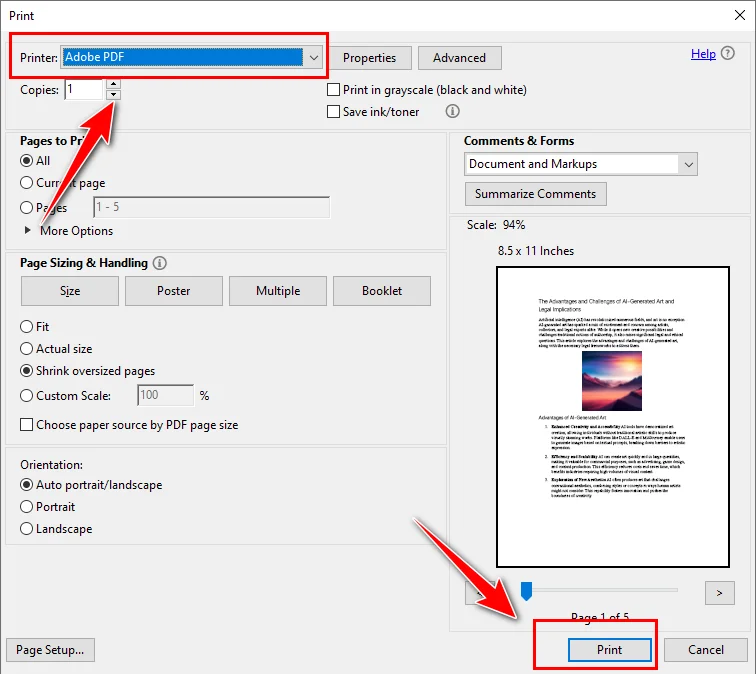
Adobe Acrobat — хороший выбор, если вы часто работаете с PDF-файлами и предпочитаете настольный визуальный интерфейс. Однако для него требуется платная лицензия, и он не предназначен для автоматизированной или крупномасштабной обработки.
Как свести PDF без Acrobat
Не у всех есть доступ к Adobe Acrobat, и многие пользователи ищут способы свести PDF без установки платного программного обеспечения. В таких случаях альтернативные методы все еще могут справиться с задачей, хотя они могут потребовать некоторых компромиссов.
Как свести PDF с помощью Google Chrome
Google Chrome предоставляет простой и надежный способ свести PDF-документ без установки дополнительного программного обеспечения. Открыв PDF в Chrome и распечатав его в новый PDF-файл, он будет преобразован в статический документ.
Вот подробные шаги по сведению PDF с помощью Chrome:
- Откройте PDF-файл в Google Chrome.
- Нажмите Ctrl + P (или Cmd + P на Mac), чтобы открыть диалоговое окно печати.
- Выберите «Сохранить как PDF» в качестве принтера назначения.
- Нажмите «Сохранить», чтобы создать сведенный PDF-файл.
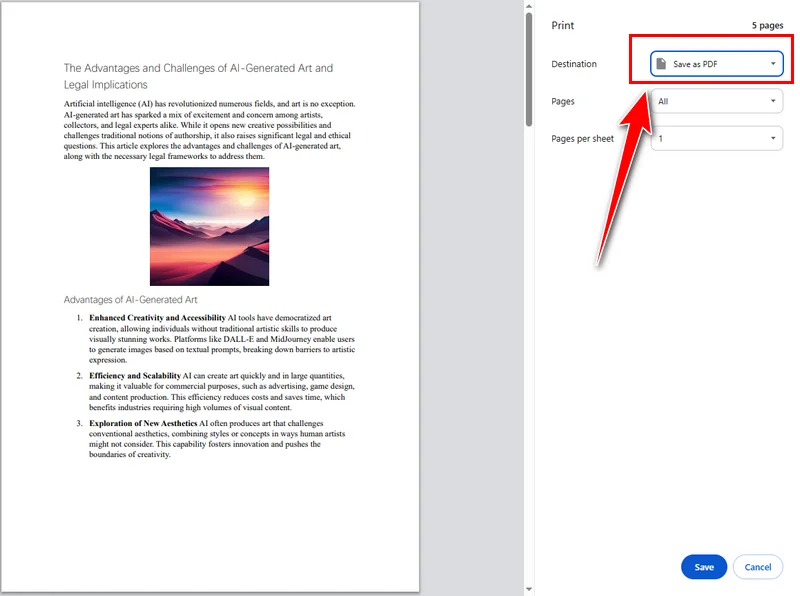
Этот метод бесплатный и работает как в Windows, так и в Mac. Однако он предлагает ограниченный контроль над обработкой PDF, а Google Chrome зависит от браузерной среды, что делает его менее подходящим для офлайн- или контролируемых рабочих процессов.
Как свести PDF с помощью бесплатных онлайн-инструментов
Онлайн-инструменты для PDF популярны, потому что они работают прямо в браузере и не требуют установки. Сервисы, такие как Smallpdf и Sejda PDF, позволяют пользователям быстро свести PDF-файл, что делает их обычным выбором для редких, краткосрочных задач.
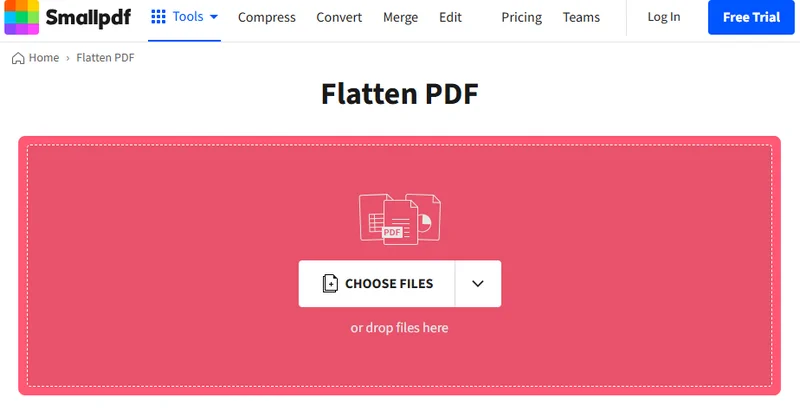
Эти инструменты обычно следуют простому рабочему процессу в браузере. На примере Smallpdf процесс обычно выглядит следующим образом:
- Перейдите на сайт онлайн-инструмента.
- Загрузите PDF-файл, который вы хотите свести, после чего инструмент обработает его автоматически.
- Загрузите сведенный PDF-файл и сохраните его на своем локальном устройстве.
Эти инструменты полезны, если вам нужно бесплатно свести PDF, и документ не содержит конфиденциальной информации. Тем не менее, они часто имеют ограничения, такие как размер файла и ограничения на использование. Для профессиональных или конфиденциальных документов эти факторы следует учитывать.
Как программно свести PDF с помощью Free Spire.PDF
Для разработчиков, работающих с автоматизированными системами, сведение PDF часто является частью более крупного рабочего процесса, а не разовой задачей. В таких случаях Free Spire.PDF for Python позволяет вам свести PDF-документ, сведя его интерактивные поля форм с помощью кода, гарантируя, что конечный результат будет нередактируемым, сохраняя при этом исходный внешний вид.
Общая идея проста: загрузите PDF, включите сведение форм и сохраните результат. Как только поля форм сведены, все введенные пользователем данные отображаются непосредственно на странице, и документ становится статическим PDF.
from spire.pdf.common import *
from spire.pdf import *

# Specify the input and output PDF file paths
input_file = "Form.pdf"
output_file = "FlattenAll.pdf"

# Create an object of the PdfDocument class
doc = PdfDocument()
# Load a PDF file
doc.LoadFromFile(input_file)

# Flatten all forms in the PDF file
doc.Form.IsFlatten = True

# Save the result file
doc.SaveToFile(output_file)
doc.Close()
Этот подход особенно полезен, когда сведение необходимо интегрировать в автоматизированные системы, при обработке файлов в пакетах или при работе с большими PDF-документами.
Как свести PDF-документ на Mac
В macOS, помимо Chrome и онлайн-инструментов, вы также можете свести PDF с помощью Preview. Будучи встроенным приложением, Preview позволяет сводить PDF-файлы прямо на Mac без установки какого-либо стороннего программного обеспечения, что делает его удобным и простым вариантом для быстрых, безопасных и офлайн-задач.
Вот как это работает:
- Откройте PDF-файл в Preview.
- Выберите «Печать» и сохраните результат как новый PDF-файл.

Этот метод хорошо работает для небольших проектов. Однако, если вам нужны более сложные операции с PDF, помимо сведения, такие как установка PDF только для чтения, редактирование полей форм или программная обработка документов, лучшим выбором будут Adobe Acrobat или Free Spire.PDF.
Часто задаваемые вопросы о сведении PDF
В1: Как мне свести PDF-файл?
Вы можете свести PDF-файл с помощью Adobe Acrobat, Google Chrome, онлайн-инструментов для PDF или программно с помощью библиотек, таких как Free Spire.PDF.
В2: Какое сочетание клавиш для сведения PDF?
В общем, в Adobe Acrobat вы часто можете использовать Ctrl + P, чтобы свести PDF путем его печати, в то время как другие инструменты могут использовать другие сочетания клавиш.
В3: Сжатие PDF — это то же самое, что и его сведение?
Нет. Сжатие PDF уменьшает его размер файла, в то время как сведение удаляет интерактивные элементы и делает документ нередактируемым.
Заключение
Не существует единого лучшего метода для каждой ситуации. Adobe Acrobat хорошо подходит для ручных, настольных рабочих процессов. Google Chrome и онлайн-инструменты подходят для быстрых, редких задач. Для автоматизированной обработки документов Free Spire.PDF предлагает наибольшую гибкость и контроль.
Понимая, как работает каждый метод, вы можете эффективно свести PDF-документ в соответствии с вашими потребностями.
Также читайте
Como Duplicar uma Página em um PDF Facilmente e com Eficácia (3 Maneiras)
Ao preparar um modelo de contrato, poder duplicar uma página em um PDF pode economizar muito tempo e esforço. No entanto, essa tarefa costuma ser mais difícil do que parece, e muitas pessoas não sabem como copiar uma página em um PDF de forma eficaz. Neste guia, apresentaremos três métodos práticos — usando o Adobe Acrobat, uma biblioteca de programação gratuita e ferramentas online simples — para que você possa escolher a abordagem que melhor se adapta ao seu fluxo de trabalho.
- Duplicar uma Página Usando o Adobe Acrobat
- Duplicar Páginas Usando o Free Spire.PDF
- Duplicar uma Página em um PDF Online
- Qual Método Você Deve Escolher
- Perguntas Frequentes
1. Duplicar uma Página Usando o Adobe Acrobat DC (Versão Paga)
Se você usa as ferramentas da Adobe regularmente, esta é a solução mais direta. É especialmente adequada para pessoas que lidam com PDFs com frequência e não têm experiência com programação. Se você simplesmente precisa de uma maneira direta de copiar páginas em um PDF durante o trabalho diário de escritório — o Acrobat DC oferece a experiência mais familiar e fácil de usar.
Como duplicar uma página no Adobe Acrobat DC
- Abra seu PDF no Adobe Acrobat DC.
- Vá para Ferramentas e encontre a ferramenta Organizar Páginas.
- Selecione a página que deseja duplicar.
- Mantenha pressionada a tecla Ctrl e arraste a página selecionada para a posição onde deseja que a cópia apareça.
- Solte o mouse e o Acrobat criará uma duplicata dessa página automaticamente.
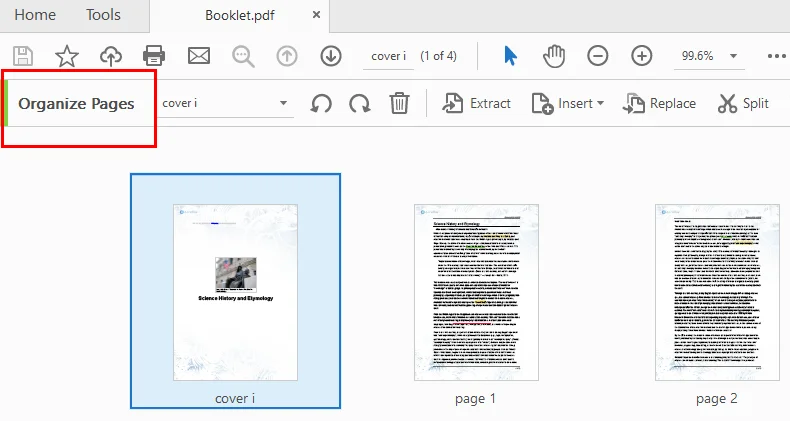
Esta simples ação de arrastar e copiar é muitas vezes a maneira mais rápida de duplicar uma página sem usar menus.
Observações:
- Apenas a versão paga suporta a duplicação de páginas de PDF.
- O Acrobat é confiável, mas pode parecer pesado para tarefas ocasionais.
- PDFs grandes podem levar um momento para serem processados.
2. Duplicar Páginas Usando o Free Spire.PDF
Quando você precisa duplicar muitas páginas ou integrar a tarefa a um fluxo de trabalho automatizado, o Free Spire.PDF se torna uma escolha muito melhor. Esta biblioteca gratuita permite que os desenvolvedores copiem páginas em arquivos PDF programaticamente, eliminando a necessidade de edição manual. Ela também oferece controle total sobre onde as páginas duplicadas são inseridas, tornando as operações em grande escala ou repetidas mais eficientes.
Instruções para duplicar uma página em PDF com o Free Spire.PDF
- Instale o Free Spire.PDF e importe os módulos relevantes.
- Crie uma instância PdfDocument e carregue um documento PDF.
- Selecione a página que deseja duplicar.
- Crie um modelo com base na página usando o PdfPageBase.CreateTemplate().
- Insira uma nova página com PdfDocument.Pages.Insert e desenhe o modelo na página com PdfPageBase.Canvas.DrawTemplate.
- Salve o PDF modificado.
O código Python abaixo mostra como duplicar a primeira página de um PDF e inseri-la como a segunda página no arquivo original.
from spire.pdf.common import *
from spire.pdf import *

# Create a PdfDocument object
pdf = PdfDocument()

# Load a PDF file from disk
pdf.LoadFromFile("/input/sample.pdf")

# Get the first page
page = pdf.Pages[0]

# Get the size of the page
size = page.Size

# Create a template based on the page
template = page.CreateTemplate()

# Add a new page of the same size at the end
#page = pdf.Pages.Add(size, PdfMargins(0.0))
# Insert a new page at the specified location
page = pdf.Pages.Insert(1, size, PdfMargins(0.0))

# Draw the template on the newly added page
page.Canvas.DrawTemplate(template, PointF(0.0, 0.0))

# Save the PDF file
pdf.SaveToFile("/output/CopyPDFPages.pdf");
pdf.Close()
Aqui está a visualização do arquivo PDF de saída: 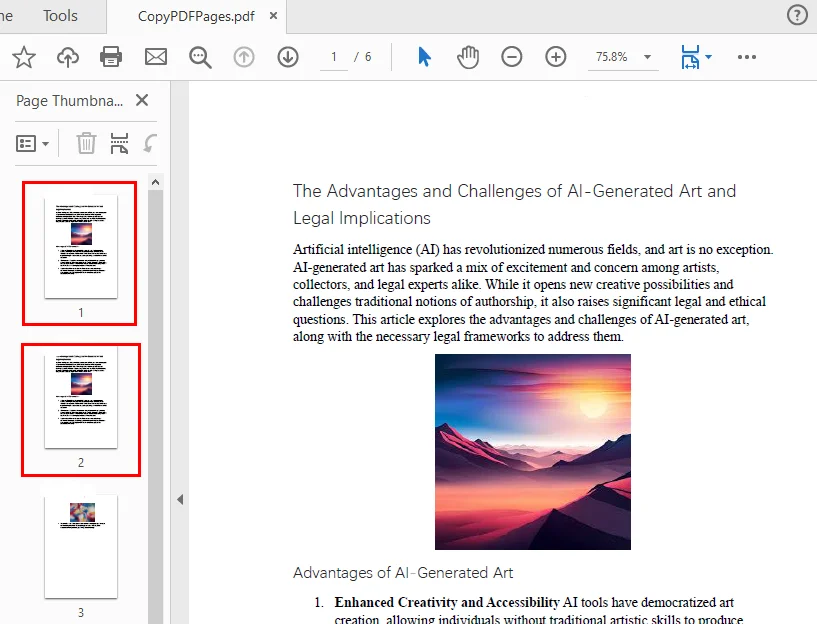
Este estilo de fluxo de trabalho é perfeito para gerar páginas de formulário repetidas, produzir grandes lotes de documentos ou dar suporte à automação do lado do servidor.
3. Duplicar Páginas em PDF Online (Ferramentas Gratuitas)
As ferramentas online funcionam melhor quando você só precisa duplicar uma página ocasionalmente e prefere não instalar software adicional. Elas são especialmente convenientes quando você está trabalhando em um dispositivo móvel ou computador compartilhado, ou simplesmente quer a maneira mais rápida de fazer uma alteração rápida. Desde que seu documento não contenha informações sensíveis ou confidenciais, usar uma ferramenta de PDF baseada em navegador é a opção mais simples e acessível.
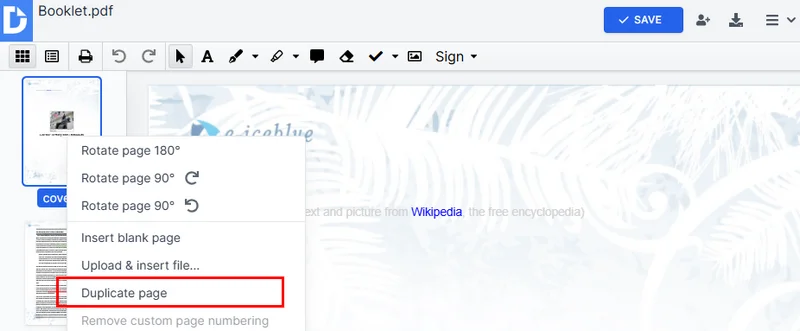
Durante a pesquisa, descobrimos que algumas ferramentas online concluem esta tarefa extraindo uma página e, em seguida, inserindo-a por meio de uma ferramenta separada de “adicionar página”, como o PDFgear. Outras fornecem um editor de PDF online onde você pode simplesmente duplicar uma página diretamente, como o DocHub. Nesta seção, focaremos no fluxo de trabalho desta última abordagem.
Como copiar páginas de um documento PDF usando ferramentas online
- Acesse o DocHub e abra a ferramenta Duplicar Páginas em um PDF.
- Carregue seu PDF e espere que ele seja processado.
- Nas miniaturas de página do lado esquerdo, encontre a página que deseja copiar.
- Clique com o botão direito na página e selecione Duplicar página no menu.
- Clique em Salvar à direita e, em seguida, baixe o PDF atualizado para o seu computador.
Prós
- Rápido e gratuito
- Nenhuma instalação necessária
- Funciona em qualquer dispositivo
Contras
- Não é ideal para documentos confidenciais
- Os limites de tamanho de arquivo variam
- Não é adequado para tarefas em massa ou automação
4. Qual Método Você Deve Escolher?
Esta seção fornece uma tabela de comparação dos três métodos, mostrando suas vantagens, usuários adequados e custos, ajudando você a identificar rapidamente a abordagem que melhor se adapta às suas necessidades atuais.
| Método | Melhor Para | Custo | Pontos Fortes | Limitações |
|---|---|---|---|---|
| Adobe Acrobat DC | Usuários de escritório regulares | Pago | Confiável, fácil de usar | O Reader não suporta duplicação |
| Free Spire.PDF | Desenvolvedores / automação | Gratuito | Operações em lote, flexível | Requer conhecimento de programação |
| Ferramentas online | Tarefas ocasionais | Gratuito | Rápido, sem instalação | Preocupações com privacidade, limites de arquivo |
Se você trabalha com PDFs diariamente, o Acrobat DC é a opção mais refinada. Se você precisa de automação ou cópia de páginas de PDF em lote, o Free Spire.PDF é a melhor maneira. Para pequenas edições únicas, as ferramentas online oferecem a solução mais rápida.
Conclusão
Duplicar uma página em um PDF não precisa ser complicado. Esteja você copiando um formulário, repetindo uma planilha ou preparando modelos de documentos consistentes, a ferramenta certa pode economizar tempo e reduzir o esforço. O Acrobat DC oferece a interface mais suave, o Free Spire.PDF se destaca na automação e as ferramentas online são perfeitas para edições rápidas e simples. Escolha o método que corresponde ao seu fluxo de trabalho e você poderá copiar páginas de PDF com facilidade sempre que precisar.
Perguntas Frequentes sobre Duplicação de Páginas em PDF
1. Como eu duplico uma página em um PDF?
Você pode duplicar uma página em um PDF usando o Adobe Acrobat, ferramentas online gratuitas ou uma biblioteca de programação como o Free Spire.PDF. As ferramentas online permitem copiar páginas rapidamente sem instalar software, enquanto o Acrobat oferece uma interface mais profissional. Para automação ou tarefas em lote, o Free Spire.PDF é ideal.
2. Posso copiar apenas uma página de um documento PDF?
Sim, a maioria dos editores de PDF permite selecionar e duplicar uma única página. No Adobe Acrobat, use a ferramenta Organizar Páginas. Em editores online como o DocHub, você pode selecionar uma miniatura de página e duplicá-la. As bibliotecas de programação também permitem controle preciso sobre a cópia de páginas individuais.
3. Como eu duplico uma página de PDF várias vezes?
Duplicar uma página várias vezes pode ser feito manualmente ou programaticamente. No Acrobat, você pode repetir o processo de arrastar e copiar. Com o Free Spire.PDF, você pode clonar uma página várias vezes em um loop e inseri-la onde for necessário.
4. Posso copiar uma página de PDF para o Word ou outro formato?
Sim, você pode extrair uma página de PDF e salvá-la como um documento do Word ou outro formato. Muitas ferramentas online suportam a conversão de páginas específicas para o Word. Para mais controle, as bibliotecas de PDF permitem extrair páginas e exportá-las programaticamente.
Leia Também:
PDF에서 페이지를 쉽고 효과적으로 복제하는 방법 (3가지 방법)
계약서 템플릿을 준비할 때 PDF에서 페이지를 복제할 수 있으면 많은 시간과 노력을 절약할 수 있습니다. 그러나 이 작업은 종종 말처럼 쉽지 않으며, 많은 사람들이 PDF에서 페이지를 효과적으로 복사하는 방법을 잘 모릅니다. 이 가이드에서는 Adobe Acrobat, 무료 프로그래밍 라이브러리, 간단한 온라인 도구를 사용하는 세 가지 실용적인 방법을 안내하여 워크플로에 가장 적합한 접근 방식을 선택할 수 있도록 도와드립니다.
1. Adobe Acrobat DC(유료 버전)를 사용하여 페이지 복제
Adobe 도구를 정기적으로 사용하는 경우 이것이 가장 직접적인 해결책입니다. 특히 PDF를 자주 다루고 코딩 경험이 없는 사람들에게 적합합니다. 일상적인 사무 작업 중에 PDF에서 페이지를 복사하는 간단한 방법이 필요한 경우 Acrobat DC는 가장 친숙하고 사용자 친화적인 경험을 제공합니다.
Adobe Acrobat DC에서 페이지를 복제하는 방법
- Adobe Acrobat DC에서 PDF를 엽니다.
- 도구로 이동하여 페이지 구성 도구를 찾습니다.
- 복제할 페이지를 선택합니다.
- Ctrl 키를 누른 상태에서 선택한 페이지를 사본이 나타나게 할 위치로 드래그합니다.
- 마우스를 놓으면 Acrobat이 해당 페이지의 복제본을 자동으로 만듭니다.
이 간단한 드래그 앤 카피 동작은 메뉴를 사용하지 않고 페이지를 복제하는 가장 빠른 방법인 경우가 많습니다.
참고:
- 유료 버전만 PDF 페이지 복제를 지원합니다.
- Acrobat은 신뢰할 수 있지만 가끔씩 하는 작업에는 무겁게 느껴질 수 있습니다.
- 큰 PDF는 처리하는 데 시간이 걸릴 수 있습니다.
2. Free Spire.PDF를 사용하여 페이지 복제
많은 페이지를 복제하거나 작업을 자동화된 워크플로에 통합해야 하는 경우 Free Spire.PDF가 훨씬 더 나은 선택이 됩니다. 이 무료 라이브러리를 사용하면 개발자가 프로그래밍 방식으로 PDF 파일의 페이지를 복사할 수 있으므로 수동 편집이 필요 없습니다. 또한 복제된 페이지가 삽입되는 위치를 완벽하게 제어할 수 있어 대규모 또는 반복적인 작업을 보다 효율적으로 수행할 수 있습니다.
Free Spire.PDF로 PDF 페이지를 복제하는 지침
- Free Spire.PDF 설치 및 관련 모듈 가져오기.
- PdfDocument 인스턴스를 만들고 PDF 문서를 로드합니다.
- 복제할 페이지를 선택합니다.
- PdfPageBase.CreateTemplate()을 사용하여 페이지를 기반으로 템플릿을 만듭니다.
- PdfDocument.Pages.Insert로 새 페이지를 삽입하고 PdfPageBase.Canvas.DrawTemplate으로 페이지에 템플릿을 그립니다.
- 수정된 PDF를 저장합니다.
아래 Python 코드는 PDF의 첫 페이지를 복제하여 원본 파일의 두 번째 페이지로 삽입하는 방법을 보여줍니다.
from spire.pdf.common import *
from spire.pdf import *

# Create a PdfDocument object
pdf = PdfDocument()

# Load a PDF file from disk
pdf.LoadFromFile("/input/sample.pdf")

# Get the first page
page = pdf.Pages[0]

# Get the size of the page
size = page.Size

# Create a template based on the page
template = page.CreateTemplate()

# Add a new page of the same size at the end
#page = pdf.Pages.Add(size, PdfMargins(0.0))
# Insert a new page at the specified location
page = pdf.Pages.Insert(1, size, PdfMargins(0.0))

# Draw the template on the newly added page
page.Canvas.DrawTemplate(template, PointF(0.0, 0.0))

# Save the PDF file
pdf.SaveToFile("/output/CopyPDFPages.pdf");
pdf.Close()
다음은 출력 PDF 파일의 미리보기입니다:
이러한 스타일의 워크플로는 반복되는 양식 페이지를 생성하거나, 대량의 문서를 생성하거나, 서버 측 자동화를 지원하는 데 적합합니다.
3. 온라인에서 PDF 페이지 복제(무료 도구)
온라인 도구는 가끔 페이지를 복제해야 하고 추가 소프트웨어를 설치하고 싶지 않을 때 가장 잘 작동합니다. 모바일 장치나 공유 컴퓨터에서 작업하거나 단순히 가장 빠른 방법으로 빠르게 변경하고 싶을 때 특히 편리합니다. 문서에 민감하거나 기밀 정보가 포함되어 있지 않은 한 브라우저 기반 PDF 도구를 사용하는 것이 가장 간단하고 접근하기 쉬운 옵션입니다.
조사 중에 일부 온라인 도구는 PDFgear와 같이 페이지를 추출한 다음 별도의 "페이지 추가" 도구를 통해 삽입하여 이 작업을 완료한다는 것을 발견했습니다. 다른 도구는 DocHub와 같이 페이지를 직접 복제할 수 있는 온라인 PDF 편집기를 제공합니다. 이 섹션에서는 후자의 접근 방식의 워크플로에 중점을 둘 것입니다.
온라인 도구를 사용하여 PDF 문서에서 페이지를 복사하는 방법
- DocHub로 이동하여 PDF에서 페이지 복제 도구를 엽니다.
- PDF를 업로드하고 처리될 때까지 기다립니다.
- 왼쪽 페이지 축소판에서 복사할 페이지를 찾습니다.
- 페이지를 마우스 오른쪽 버튼으로 클릭하고 메뉴에서 페이지 복제를 선택합니다.
- 오른쪽에서 저장을 클릭한 다음 업데이트된 PDF를 컴퓨터에 다운로드합니다.
장점
- 빠르고 무료
- 설치 필요 없음
- 모든 장치에서 작동
단점
- 기밀 문서에는 적합하지 않음
- 파일 크기 제한이 다름
- 대량 작업이나 자동화에는 적합하지 않음
4. 어떤 방법을 선택해야 할까요?
이 섹션에서는 세 가지 방법의 장점, 적합한 사용자 및 비용을 보여주는 비교표를 제공하여 현재 요구 사항에 가장 적합한 접근 방식을 신속하게 식별하는 데 도움을 줍니다.
| 방법 | 가장 적합한 대상 | 비용 | 강점 | 제한 사항 |
|---|---|---|---|---|
| Adobe Acrobat DC | 일반 사무 사용자 | 유료 | 신뢰성, 사용 용이성 | Reader는 복제를 지원하지 않음 |
| Free Spire.PDF | 개발자 / 자동화 | 무료 | 일괄 작업, 유연성 | 코딩 지식 필요 |
| 온라인 도구 | 가끔 하는 작업 | 무료 | 빠름, 설치 필요 없음 | 개인 정보 보호 문제, 파일 제한 |
매일 PDF로 작업하는 경우 Acrobat DC가 가장 세련된 옵션입니다. 자동화 또는 일괄 PDF 페이지 복사가 필요한 경우 Free Spire.PDF가 더 나은 방법입니다. 작은 일회성 편집의 경우 온라인 도구가 가장 빠른 솔루션을 제공합니다.
결론
PDF에서 페이지를 복제하는 것이 복잡할 필요는 없습니다. 양식을 복사하든, 워크시트를 반복하든, 일관된 문서 템플릿을 준비하든, 올바른 도구를 사용하면 시간을 절약하고 노력을 줄일 수 있습니다. Acrobat DC는 가장 부드러운 인터페이스를 제공하고, Free Spire.PDF는 자동화에 뛰어나며, 온라인 도구는 빠르고 간단한 편집에 적합합니다. 워크플로에 맞는 방법을 선택하면 필요할 때마다 쉽게 PDF 페이지를 복사할 수 있습니다.
PDF 페이지 복제에 대한 자주 묻는 질문
1. PDF에서 페이지를 어떻게 복제하나요?
Adobe Acrobat, 무료 온라인 도구 또는 Free Spire.PDF와 같은 프로그래밍 라이브러리를 사용하여 PDF에서 페이지를 복제할 수 있습니다. 온라인 도구를 사용하면 소프트웨어를 설치하지 않고도 페이지를 빠르게 복사할 수 있으며 Acrobat은 보다 전문적인 인터페이스를 제공합니다. 자동화 또는 일괄 작업의 경우 Free Spire.PDF가 이상적입니다.
2. PDF 문서에서 한 페이지만 복사할 수 있나요?
예, 대부분의 PDF 편집기에서는 단일 페이지를 선택하고 복제할 수 있습니다. Adobe Acrobat에서는 페이지 구성 도구를 사용하세요. DocHub와 같은 온라인 편집기에서는 페이지 축소판을 선택하고 복제할 수 있습니다. 프로그래밍 라이브러리를 사용하면 개별 페이지 복사를 정밀하게 제어할 수도 있습니다.
3. PDF 페이지를 여러 번 복제하려면 어떻게 해야 하나요?
페이지를 여러 번 복제하는 것은 수동 또는 프로그래밍 방식으로 수행할 수 있습니다. Acrobat에서는 드래그 앤 카피 프로세스를 반복할 수 있습니다. Free Spire.PDF를 사용하면 루프에서 페이지를 여러 번 복제하고 필요한 곳에 삽입할 수 있습니다.
4. PDF 페이지를 Word나 다른 형식으로 복사할 수 있나요?
예, PDF 페이지를 추출하여 Word 문서나 다른 형식으로 저장할 수 있습니다. 많은 온라인 도구에서 특정 페이지를 Word로 변환하는 것을 지원합니다. 더 많은 제어를 위해 PDF 라이브러리를 사용하면 페이지를 추출하고 프로그래밍 방식으로 내보낼 수 있습니다.
또한 읽기:
Come duplicare una pagina in un PDF in modo facile ed efficace (3 modi)
Quando si prepara un modello di contratto, essere in grado di duplicare una pagina in un PDF può far risparmiare molto tempo e fatica. Tuttavia, questo compito è spesso più difficile di quanto sembri e molte persone non sanno come copiare una pagina in un PDF in modo efficace. In questa guida, ti illustreremo tre metodi pratici — utilizzando Adobe Acrobat, una libreria di programmazione gratuita e semplici strumenti online — in modo che tu possa scegliere l'approccio che meglio si adatta al tuo flusso di lavoro.
- Duplicare una pagina utilizzando Adobe Acrobat
- Duplicare pagine utilizzando Free Spire.PDF
- Duplicare una pagina in un PDF online
- Quale metodo dovresti scegliere
- Domande frequenti
1. Duplicare una pagina utilizzando Adobe Acrobat DC (versione a pagamento)
Se usi regolarmente gli strumenti di Adobe, questa è la soluzione più diretta. È particolarmente adatta per le persone che gestiscono frequentemente i PDF e non hanno esperienza con la programmazione. Se hai semplicemente bisogno di un modo semplice per copiare pagine in un PDF durante il lavoro d'ufficio quotidiano, Acrobat DC offre l'esperienza più familiare e intuitiva.
Come duplicare una pagina in Adobe Acrobat DC
- Apri il tuo PDF in Adobe Acrobat DC.
- Vai su Strumenti e trova lo strumento Organizza pagine.
- Seleziona la pagina che desideri duplicare.
- Tieni premuto il tasto Ctrl, quindi trascina la pagina selezionata nella posizione in cui desideri che appaia la copia.
- Rilascia il mouse e Acrobat creerà automaticamente un duplicato di quella pagina.
Questa semplice azione di trascinamento e copia è spesso il modo più rapido per duplicare una pagina senza utilizzare i menu.
Note:
- Solo la versione a pagamento supporta la duplicazione delle pagine PDF.
- Acrobat è affidabile ma può sembrare pesante per attività occasionali.
- I PDF di grandi dimensioni potrebbero richiedere un momento per l'elaborazione.
2. Duplicare pagine utilizzando Free Spire.PDF
Quando è necessario duplicare molte pagine o integrare l'attività in un flusso di lavoro automatizzato, Free Spire.PDF diventa una scelta molto migliore. Questa libreria gratuita consente agli sviluppatori di copiare pagine in file PDF programmaticamente, eliminando la necessità di modifiche manuali. Ti dà anche il pieno controllo su dove vengono inserite le pagine duplicate, rendendo più efficienti le operazioni su larga scala o ripetute.
Istruzioni per duplicare una pagina in PDF con Free Spire.PDF
- Installa Free Spire.PDF e importa i moduli pertinenti.
- Crea un'istanza di PdfDocument e carica un documento PDF.
- Seleziona la pagina che desideri duplicare.
- Crea un modello basato sulla pagina utilizzando PdfPageBase.CreateTemplate().
- Inserisci una nuova pagina con PdfDocument.Pages.Insert e disegna il modello sulla pagina con PdfPageBase.Canvas.DrawTemplate.
- Salva il PDF modificato.
Il codice Python seguente mostra come duplicare la prima pagina di un PDF e inserirla come seconda pagina nel file originale.
from spire.pdf.common import *
from spire.pdf import *

# Create a PdfDocument object
pdf = PdfDocument()

# Load a PDF file from disk
pdf.LoadFromFile("/input/sample.pdf")

# Get the first page
page = pdf.Pages[0]

# Get the size of the page
size = page.Size

# Create a template based on the page
template = page.CreateTemplate()

# Add a new page of the same size at the end
#page = pdf.Pages.Add(size, PdfMargins(0.0))
# Insert a new page at the specified location
page = pdf.Pages.Insert(1, size, PdfMargins(0.0))

# Draw the template on the newly added page
page.Canvas.DrawTemplate(template, PointF(0.0, 0.0))

# Save the PDF file
pdf.SaveToFile("/output/CopyPDFPages.pdf");
pdf.Close()
Ecco l'anteprima del file PDF di output:
Questo stile di flusso di lavoro è perfetto per generare pagine di moduli ripetute, produrre grandi lotti di documenti o supportare l'automazione lato server.
3. Duplicare pagine in PDF online (strumenti gratuiti)
Gli strumenti online funzionano meglio quando è necessario duplicare una pagina solo occasionalmente e si preferisce non installare software aggiuntivo. Sono particolarmente convenienti quando si lavora su un dispositivo mobile o un computer condiviso, o semplicemente si desidera il modo più veloce per apportare una modifica rapida. Finché il documento non contiene informazioni sensibili o riservate, l'utilizzo di uno strumento PDF basato su browser è l'opzione più semplice e accessibile.
Durante la ricerca, abbiamo scoperto che alcuni strumenti online completano questa attività estraendo una pagina e quindi inserendola tramite uno strumento separato "aggiungi pagina", come PDFgear. Altri forniscono un editor PDF online in cui è possibile semplicemente duplicare una pagina direttamente, come DocHub. In questa sezione, ci concentreremo sul flusso di lavoro di quest'ultimo approccio.
Come copiare pagine da un documento PDF utilizzando strumenti online
- Vai su DocHub e apri lo strumento Duplica pagine in un PDF.
- Carica il tuo PDF e attendi che venga elaborato.
- Nelle miniature delle pagine sul lato sinistro, trova la pagina che desideri copiare.
- Fai clic con il pulsante destro del mouse sulla pagina e seleziona Duplica pagina dal menu.
- Fai clic su Salva a destra, quindi scarica il PDF aggiornato sul tuo computer.
Pro
- Veloce e gratuito
- Nessuna installazione richiesta
- Funziona su qualsiasi dispositivo
Contro
- Non ideale per documenti riservati
- I limiti delle dimensioni dei file variano
- Non adatto per attività in blocco o automazione
4. Quale metodo dovresti scegliere?
Questa sezione fornisce una tabella di confronto dei tre metodi, mostrando i loro vantaggi, gli utenti adatti e i costi, aiutandoti a identificare rapidamente l'approccio che meglio si adatta alle tue esigenze attuali.
| Metodo | Ideale per | Costo | Punti di forza | Limitazioni |
|---|---|---|---|---|
| Adobe Acrobat DC | Utenti d'ufficio regolari | A pagamento | Affidabile, facile da usare | Reader non supporta la duplicazione |
| Free Spire.PDF | Sviluppatori / automazione | Gratuito | Operazioni in batch, flessibile | Richiede conoscenze di programmazione |
| Strumenti online | Attività occasionali | Gratuito | Veloce, nessuna installazione | Preoccupazioni per la privacy, limiti di file |
Se lavori quotidianamente con i PDF, Acrobat DC è l'opzione più raffinata. Se hai bisogno di automazione o di copiare pagine PDF in batch, Free Spire.PDF è la strada migliore. Per piccole modifiche una tantum, gli strumenti online offrono la soluzione più rapida.
Conclusione
Duplicare una pagina in un PDF non deve essere complicato. Che tu stia copiando un modulo, ripetendo un foglio di lavoro o preparando modelli di documenti coerenti, lo strumento giusto può far risparmiare tempo e ridurre lo sforzo. Acrobat DC offre l'interfaccia più fluida, Free Spire.PDF eccelle nell'automazione e gli strumenti online sono perfetti per modifiche rapide e semplici. Scegli il metodo che corrisponde al tuo flusso di lavoro e sarai in grado di copiare le pagine PDF con facilità ogni volta che ne avrai bisogno.
Domande frequenti sulla duplicazione di pagine in PDF
1. Come posso duplicare una pagina in un PDF?
Puoi duplicare una pagina in un PDF utilizzando Adobe Acrobat, strumenti online gratuiti o una libreria di programmazione come Free Spire.PDF. Gli strumenti online ti consentono di copiare rapidamente le pagine senza installare software, mentre Acrobat fornisce un'interfaccia più professionale. Per l'automazione o le attività in batch, Free Spire.PDF è l'ideale.
2. Posso copiare solo una pagina da un documento PDF?
Sì, la maggior parte degli editor PDF consente di selezionare e duplicare una singola pagina. In Adobe Acrobat, utilizza lo strumento Organizza pagine. Negli editor online come DocHub, puoi selezionare la miniatura di una pagina e duplicarla. Le librerie di programmazione consentono anche un controllo preciso sulla copia di singole pagine.
3. Come posso duplicare una pagina PDF più volte?
La duplicazione di una pagina più volte può essere eseguita manualmente o programmaticamente. In Acrobat, puoi ripetere il processo di trascinamento e copia. Con Free Spire.PDF, puoi clonare una pagina più volte in un ciclo e inserirla dove necessario.
4. Posso copiare una pagina PDF in Word o in un altro formato?
Sì, puoi estrarre una pagina PDF e salvarla come documento Word o in un altro formato. Molti strumenti online supportano la conversione di pagine specifiche in Word. Per un maggiore controllo, le librerie PDF consentono di estrarre pagine ed esportarle programmaticamente.
Leggi anche:
Comment dupliquer une page dans un PDF facilement et efficacement (3 méthodes)
Table des matières
Lors de la préparation d'un modèle de contrat, pouvoir dupliquer une page dans un PDF peut faire gagner beaucoup de temps et d'efforts. Cependant, cette tâche est souvent plus difficile qu'il n'y paraît, et de nombreuses personnes ne savent pas comment copier efficacement une page dans un PDF. Dans ce guide, nous vous présenterons trois méthodes pratiques — en utilisant Adobe Acrobat, une bibliothèque de programmation gratuite et des outils en ligne simples — afin que vous puissiez choisir l'approche qui correspond le mieux à votre flux de travail.
- Dupliquer une page avec Adobe Acrobat
- Dupliquer des pages avec Free Spire.PDF
- Dupliquer une page d'un PDF en ligne
- Quelle méthode choisir
- FAQ
1. Dupliquer une page avec Adobe Acrobat DC (version payante)
Si vous utilisez régulièrement les outils d'Adobe, c'est la solution la plus directe. Elle est particulièrement adaptée aux personnes qui manipulent fréquemment des PDF et n'ont aucune expérience en programmation. Si vous avez simplement besoin d'un moyen simple de copier des pages dans un PDF dans le cadre de votre travail de bureau quotidien, Acrobat DC offre l'expérience la plus familière et la plus conviviale.
Comment dupliquer une page dans Adobe Acrobat DC
- Ouvrez votre PDF dans Adobe Acrobat DC.
- Allez dans Outil et trouvez l'outil Organiser les pages.
- Sélectionnez la page que vous souhaitez dupliquer.
- Maintenez la touche Ctrl enfoncée, puis faites glisser la page sélectionnée à l'endroit où vous souhaitez que la copie apparaisse.
- Relâchez la souris, et Acrobat créera automatiquement une copie de cette page.
Cette simple action de glisser-copier est souvent le moyen le plus rapide de dupliquer une page sans utiliser les menus.
Remarques :
- Seule la version payante prend en charge la duplication de pages PDF.
- Acrobat est fiable mais peut sembler lourd pour des tâches occasionnelles.
- Le traitement des PDF volumineux peut prendre un certain temps.
2. Dupliquer des pages avec Free Spire.PDF
Lorsque vous devez dupliquer de nombreuses pages ou intégrer la tâche dans un flux de travail automatisé, Free Spire.PDF devient un bien meilleur choix. Cette bibliothèque gratuite permet aux développeurs de copier des pages dans des fichiers PDF par programmation, éliminant ainsi le besoin d'édition manuelle. Elle vous donne également un contrôle total sur l'endroit où les pages dupliquées sont insérées, ce qui rend les opérations à grande échelle ou répétées plus efficaces.
Instructions pour dupliquer une page dans un PDF avec Free Spire.PDF
- Installez Free Spire.PDF et importez les modules pertinents.
- Créez une instance PdfDocument et chargez un document PDF.
- Sélectionnez la page que vous souhaitez dupliquer.
- Créez un modèle basé sur la page en utilisant PdfPageBase.CreateTemplate().
- Insérez une nouvelle page avec PdfDocument.Pages.Insert et dessinez le modèle sur la page avec PdfPageBase.Canvas.DrawTemplate.
- Enregistrez le PDF modifié.
Le code Python ci-dessous montre comment dupliquer la première page d'un PDF et l'insérer en tant que deuxième page dans le fichier d'origine.
from spire.pdf.common import *
from spire.pdf import *

# Create a PdfDocument object
pdf = PdfDocument()

# Load a PDF file from disk
pdf.LoadFromFile("/input/sample.pdf")

# Get the first page
page = pdf.Pages[0]

# Get the size of the page
size = page.Size

# Create a template based on the page
template = page.CreateTemplate()

# Add a new page of the same size at the end
#page = pdf.Pages.Add(size, PdfMargins(0.0))
# Insert a new page at the specified location
page = pdf.Pages.Insert(1, size, PdfMargins(0.0))

# Draw the template on the newly added page
page.Canvas.DrawTemplate(template, PointF(0.0, 0.0))

# Save the PDF file
pdf.SaveToFile("/output/CopyPDFPages.pdf");
pdf.Close()
Voici l'aperçu du fichier PDF de sortie :
Ce style de flux de travail est parfait pour générer des pages de formulaire répétées, produire de grands lots de documents ou prendre en charge l'automatisation côté serveur.
3. Dupliquer des pages dans un PDF en ligne (outils gratuits)
Les outils en ligne fonctionnent mieux lorsque vous n'avez besoin de dupliquer une page qu'occasionnellement et que vous préférez ne pas installer de logiciel supplémentaire. Ils sont particulièrement pratiques lorsque vous travaillez sur un appareil mobile ou un ordinateur partagé, ou si vous voulez simplement le moyen le plus rapide d'apporter une modification rapide. Tant que votre document ne contient pas d'informations sensibles ou confidentielles, l'utilisation d'un outil PDF basé sur un navigateur est l'option la plus simple et la plus accessible.
Au cours de nos recherches, nous avons constaté que certains outils en ligne accomplissent cette tâche en extrayant une page, puis en l'insérant via un outil distinct « ajouter une page », comme PDFgear. D'autres fournissent un éditeur de PDF en ligne où vous pouvez simplement dupliquer une page directement, comme DocHub. Dans cette section, nous nous concentrerons sur le flux de travail de cette dernière approche.
Comment copier des pages d'un document PDF à l'aide d'outils en ligne
- Allez sur DocHub et ouvrez l'outil Duplicate Pages in a PDF.
- Téléchargez votre PDF et attendez qu'il soit traité.
- Dans les vignettes de page sur le côté gauche, trouvez la page que vous souhaitez copier.
- Faites un clic droit sur la page et sélectionnez Dupliquer la page dans le menu.
- Cliquez sur Enregistrer à droite, puis téléchargez le PDF mis à jour sur votre ordinateur.
Avantages
- Rapide et gratuit
- Aucune installation requise
- Fonctionne sur n'importe quel appareil
Inconvénients
- Non idéal pour les documents confidentiels
- Les limites de taille de fichier varient
- Ne convient pas aux tâches en masse ou à l'automatisation
4. Quelle méthode choisir ?
Cette section fournit un tableau comparatif des trois méthodes, montrant leurs avantages, les utilisateurs appropriés et les coûts, vous aidant à identifier rapidement l'approche qui correspond le mieux à vos besoins actuels.
| Méthode | Idéal pour | Coût | Points forts | Limites |
|---|---|---|---|---|
| Adobe Acrobat DC | Utilisateurs de bureau réguliers | Payant | Fiable, facile à utiliser | Le lecteur ne prend pas en charge la duplication |
| Free Spire.PDF | Développeurs / automatisation | Gratuit | Opérations par lots, flexible | Nécessite des connaissances en programmation |
| Outils en ligne | Tâches occasionnelles | Gratuit | Rapide, sans installation | Problèmes de confidentialité, limites de fichiers |
Si vous travaillez quotidiennement avec des PDF, Acrobat DC est l'option la plus aboutie. Si vous avez besoin d'automatisation ou de copie de pages PDF par lots, Free Spire.PDF est la meilleure solution. Pour les petites modifications ponctuelles, les outils en ligne offrent la solution la plus rapide.
Conclusion
Dupliquer une page dans un PDF ne doit pas être compliqué. Que vous copiez un formulaire, répétiez une feuille de calcul ou prépariez des modèles de documents cohérents, le bon outil peut vous faire gagner du temps et réduire vos efforts. Acrobat DC offre l'interface la plus fluide, Free Spire.PDF excelle dans l'automatisation et les outils en ligne sont parfaits pour des modifications rapides et simples. Choisissez la méthode qui correspond à votre flux de travail, et vous pourrez copier des pages PDF en toute simplicité chaque fois que vous en aurez besoin.
FAQ sur la duplication de pages dans un PDF
1. Comment dupliquer une page dans un PDF ?
Vous pouvez dupliquer une page dans un PDF en utilisant Adobe Acrobat, des outils en ligne gratuits ou une bibliothèque de programmation comme Free Spire.PDF. Les outils en ligne vous permettent de copier des pages rapidement sans installer de logiciel, tandis qu'Acrobat offre une interface plus professionnelle. Pour l'automatisation ou les tâches par lots, Free Spire.PDF est idéal.
2. Puis-je copier une seule page d'un document PDF ?
Oui, la plupart des éditeurs de PDF vous permettent de sélectionner et de dupliquer une seule page. Dans Adobe Acrobat, utilisez l'outil Organiser les pages. Dans les éditeurs en ligne comme DocHub, vous pouvez sélectionner une vignette de page et la dupliquer. Les bibliothèques de programmation permettent également un contrôle précis sur la copie de pages individuelles.
3. Comment dupliquer une page PDF plusieurs fois ?
La duplication d'une page plusieurs fois peut être effectuée manuellement ou par programmation. Dans Acrobat, vous pouvez répéter le processus de glisser-copier. Avec Free Spire.PDF, vous pouvez cloner une page plusieurs fois dans une boucle et l'insérer où vous le souhaitez.
4. Puis-je copier une page PDF dans Word ou un autre format ?
Oui, vous pouvez extraire une page PDF et l'enregistrer en tant que document Word ou dans un autre format. De nombreux outils en ligne prennent en charge la conversion de pages spécifiques en Word. Pour plus de contrôle, les bibliothèques PDF vous permettent d'extraire des pages et de les exporter par programmation.
À lire également :
Cómo duplicar una página en un PDF fácil y efectivamente (3 formas)
Tabla de Contenidos
Al preparar una plantilla de contrato, poder duplicar una página en un PDF puede ahorrar mucho tiempo y esfuerzo. Sin embargo, esta tarea suele ser más difícil de lo que parece, y muchas personas no están seguras de cómo copiar una página en un PDF de manera efectiva. En esta guía, te mostraremos tres métodos prácticos —usando Adobe Acrobat, una biblioteca de programación gratuita y herramientas en línea sencillas— para que puedas elegir el enfoque que mejor se adapte a tu flujo de trabajo.
- Duplicar una Página Usando Adobe Acrobat
- Duplicar Páginas Usando Free Spire.PDF
- Duplicar una Página en un PDF en Línea
- ¿Qué Método Deberías Elegir?
- Preguntas Frecuentes
1. Duplicar una Página Usando Adobe Acrobat DC (Versión de Pago)
Si usas las herramientas de Adobe con regularidad, esta es la solución más directa. Es especialmente adecuada para personas que manejan PDFs con frecuencia y no tienen experiencia en programación. Si simplemente necesitas una forma sencilla de copiar páginas en un PDF durante el trabajo diario de oficina, Acrobat DC ofrece la experiencia más familiar y fácil de usar.
Cómo duplicar una página en Adobe Acrobat DC
- Abre tu PDF en Adobe Acrobat DC.
- Ve a Herramientas y busca la herramienta Organizar páginas.
- Selecciona la página que quieres duplicar.
- Mantén presionada la tecla Ctrl, luego arrastra la página seleccionada a la posición donde quieres que aparezca la copia.
- Suelta el ratón y Acrobat creará un duplicado de esa página automáticamente.
Esta sencilla acción de arrastrar y copiar suele ser la forma más rápida de duplicar una página sin usar menús.
Notas:
- Solo la versión de pago admite la duplicación de páginas PDF.
- Acrobat es fiable pero puede resultar pesado para tareas ocasionales.
- Los PDF grandes pueden tardar un momento en procesarse.
2. Duplicar Páginas Usando Free Spire.PDF
Cuando necesitas duplicar muchas páginas o integrar la tarea en un flujo de trabajo automatizado, Free Spire.PDF se convierte en una opción mucho mejor. Esta biblioteca gratuita permite a los desarrolladores copiar páginas en archivos PDF de forma programática, eliminando la necesidad de edición manual. También te da control total sobre dónde se insertan las páginas duplicadas, lo que hace que las operaciones a gran escala o repetidas sean más eficientes.
Instrucciones para duplicar una página en PDF con Free Spire.PDF
- Instala Free Spire.PDF e importa los módulos relevantes.
- Crea una instancia de PdfDocument y carga un documento PDF.
- Selecciona la página que quieres duplicar.
- Crea una plantilla basada en la página usando PdfPageBase.CreateTemplate().
- Inserta una nueva página con PdfDocument.Pages.Insert y dibuja la plantilla en la página con PdfPageBase.Canvas.DrawTemplate.
- Guarda el PDF modificado.
El siguiente código de Python muestra cómo duplicar la primera página de un PDF e insertarla como la segunda página en el archivo original.
from spire.pdf.common import *
from spire.pdf import *

# Create a PdfDocument object
pdf = PdfDocument()

# Load a PDF file from disk
pdf.LoadFromFile("/input/sample.pdf")

# Get the first page
page = pdf.Pages[0]

# Get the size of the page
size = page.Size

# Create a template based on the page
template = page.CreateTemplate()

# Add a new page of the same size at the end
#page = pdf.Pages.Add(size, PdfMargins(0.0))
# Insert a new page at the specified location
page = pdf.Pages.Insert(1, size, PdfMargins(0.0))

# Draw the template on the newly added page
page.Canvas.DrawTemplate(template, PointF(0.0, 0.0))

# Save the PDF file
pdf.SaveToFile("/output/CopyPDFPages.pdf");
pdf.Close()
Aquí está la vista previa del archivo PDF de salida:
Este estilo de flujo de trabajo es perfecto para generar páginas de formularios repetidas, producir grandes lotes de documentos o admitir la automatización del lado del servidor.
3. Duplicar Páginas en PDF en Línea (Herramientas Gratuitas)
Las herramientas en línea funcionan mejor cuando solo necesitas duplicar una página ocasionalmente y prefieres no instalar software adicional. Son especialmente convenientes cuando trabajas en un dispositivo móvil o en un ordenador compartido, o simplemente quieres la forma más rápida de hacer un cambio rápido. Siempre que tu documento no contenga información sensible o confidencial, usar una herramienta de PDF basada en el navegador es la opción más simple y accesible.
Durante la investigación, descubrimos que algunas herramientas en línea completan esta tarea extrayendo una página y luego insertándola a través de una herramienta separada de "agregar página", como PDFgear. Otras proporcionan un editor de PDF en línea donde puedes simplemente duplicar una página directamente, como DocHub. En esta sección, nos centraremos en el flujo de trabajo de este último enfoque.
Cómo copiar páginas de un documento PDF usando herramientas en línea
- Ve a DocHub y abre la herramienta Duplicar Páginas en un PDF.
- Sube tu PDF y espera a que se procese.
- En las miniaturas de página del lado izquierdo, busca la página que quieres copiar.
- Haz clic derecho en la página y selecciona Duplicar página en el menú.
- Haz clic en Guardar a la derecha, luego descarga el PDF actualizado a tu ordenador.
Ventajas
- Rápido y gratuito
- No requiere instalación
- Funciona en cualquier dispositivo
Desventajas
- No es ideal para documentos confidenciales
- Los límites de tamaño de archivo varían
- No es adecuado para tareas masivas o automatización
4. ¿Qué Método Deberías Elegir?
Esta sección proporciona una tabla comparativa de los tres métodos, mostrando sus ventajas, usuarios adecuados y costos, ayudándote a identificar rápidamente el enfoque que mejor se adapte a tus necesidades actuales.
| Método | Ideal Para | Costo | Fortalezas | Limitaciones |
|---|---|---|---|---|
| Adobe Acrobat DC | Usuarios de oficina habituales | De pago | Fiable, fácil de usar | El lector no admite la duplicación |
| Free Spire.PDF | Desarrolladores / automatización | Gratis | Operaciones por lotes, flexible | Requiere conocimientos de programación |
| Herramientas en línea | Tareas ocasionales | Gratis | Rápido, sin instalación | Preocupaciones de privacidad, límites de archivo |
Si trabajas con PDFs a diario, Acrobat DC es la opción más pulida. Si necesitas automatización o copiado de páginas PDF por lotes, Free Spire.PDF es la mejor manera. Para pequeñas ediciones puntuales, las herramientas en línea ofrecen la solución más rápida.
Conclusión
Duplicar una página en un PDF no tiene por qué ser complicado. Ya sea que estés copiando un formulario, repitiendo una hoja de trabajo o preparando plantillas de documentos consistentes, la herramienta adecuada puede ahorrar tiempo y reducir el esfuerzo. Acrobat DC ofrece la interfaz más fluida, Free Spire.PDF sobresale en la automatización y las herramientas en línea son perfectas para ediciones rápidas y sencillas. Elige el método que se ajuste a tu flujo de trabajo y podrás copiar páginas de PDF con facilidad siempre que lo necesites.
Preguntas Frecuentes sobre la Duplicación de Páginas en PDF
1. ¿Cómo duplico una página en un PDF?
Puedes duplicar una página en un PDF usando Adobe Acrobat, herramientas en línea gratuitas o una biblioteca de programación como Free Spire.PDF. Las herramientas en línea te permiten copiar páginas rápidamente sin instalar software, mientras que Acrobat proporciona una interfaz más profesional. Para tareas de automatización o por lotes, Free Spire.PDF es ideal.
2. ¿Puedo copiar solo una página de un documento PDF?
Sí, la mayoría de los editores de PDF te permiten seleccionar y duplicar una sola página. En Adobe Acrobat, usa la herramienta Organizar páginas. En editores en línea como DocHub, puedes seleccionar la miniatura de una página y duplicarla. Las bibliotecas de programación también permiten un control preciso sobre la copia de páginas individuales.
3. ¿Cómo duplico una página de PDF varias veces?
Duplicar una página varias veces se puede hacer manual o programáticamente. En Acrobat, puedes repetir el proceso de arrastrar y copiar. Con Free Spire.PDF, puedes clonar una página varias veces en un bucle e insertarla donde sea necesario.
4. ¿Puedo copiar una página de PDF a Word u otro formato?
Sí, puedes extraer una página de PDF y guardarla como un documento de Word u otro formato. Muchas herramientas en línea admiten la conversión de páginas específicas a Word. Para un mayor control, las bibliotecas de PDF te permiten extraer páginas y exportarlas de forma programática.
También te puede interesar:
So duplizieren Sie eine Seite in einer PDF-Datei einfach und effektiv (3 Wege)
Beim Erstellen einer Vertragsvorlage kann das Duplizieren einer Seite in einem PDF viel Zeit und Mühe sparen. Diese Aufgabe ist jedoch oft schwieriger, als es klingt, und viele Leute sind sich nicht sicher, wie man eine Seite in einem PDF effektiv kopiert. In diesem Leitfaden führen wir Sie durch drei praktische Methoden – mit Adobe Acrobat, einer kostenlosen Programmierbibliothek und einfachen Online-Tools – damit Sie den Ansatz wählen können, der am besten zu Ihrem Arbeitsablauf passt.
- Eine Seite mit Adobe Acrobat duplizieren
- Seiten mit Free Spire.PDF duplizieren
- Eine Seite in einem PDF online duplizieren
- Welche Methode sollten Sie wählen
- Häufig gestellte Fragen
1. Eine Seite mit Adobe Acrobat DC duplizieren (kostenpflichtige Version)
Wenn Sie die Tools von Adobe regelmäßig verwenden, ist dies die direkteste Lösung. Sie eignet sich besonders für Personen, die häufig mit PDFs arbeiten und keine Programmiererfahrung haben. Wenn Sie einfach eine unkomplizierte Möglichkeit benötigen, Seiten in einem PDF während der täglichen Büroarbeit zu kopieren, bietet Acrobat DC die vertrauteste und benutzerfreundlichste Erfahrung.
So duplizieren Sie eine Seite in Adobe Acrobat DC
- Öffnen Sie Ihr PDF in Adobe Acrobat DC.
- Gehen Sie zu Werkzeuge und suchen Sie das Werkzeug Seiten organisieren.
- Wählen Sie die Seite aus, die Sie duplizieren möchten.
- Halten Sie die Strg-Taste gedrückt und ziehen Sie die ausgewählte Seite an die Position, an der die Kopie erscheinen soll.
- Lassen Sie die Maustaste los, und Acrobat erstellt automatisch ein Duplikat dieser Seite.
Diese einfache Drag-and-Copy-Aktion ist oft der schnellste Weg, eine Seite ohne Verwendung von Menüs zu duplizieren.
Hinweise:
- Nur die kostenpflichtige Version unterstützt die Duplizierung von PDF-Seiten.
- Acrobat ist zuverlässig, kann aber für gelegentliche Aufgaben schwerfällig wirken.
- Große PDFs können einen Moment zur Verarbeitung benötigen.
2. Seiten mit Free Spire.PDF duplizieren
Wenn Sie viele Seiten duplizieren oder die Aufgabe in einen automatisierten Arbeitsablauf integrieren müssen, ist Free Spire.PDF eine viel bessere Wahl. Diese kostenlose Bibliothek ermöglicht es Entwicklern, Seiten in PDF-Dateien programmgesteuert zu kopieren, wodurch die manuelle Bearbeitung entfällt. Sie gibt Ihnen auch die volle Kontrolle darüber, wo die duplizierten Seiten eingefügt werden, was groß angelegte oder wiederholte Operationen effizienter macht.
Anweisungen zum Duplizieren einer Seite in PDF mit Free Spire.PDF
- Installieren Sie Free Spire.PDF und importieren Sie die relevanten Module.
- Erstellen Sie eine PdfDocument-Instanz und laden Sie ein PDF-Dokument.
- Wählen Sie die Seite aus, die Sie duplizieren möchten.
- Erstellen Sie eine Vorlage basierend auf der Seite mit PdfPageBase.CreateTemplate().
- Fügen Sie eine neue Seite mit PdfDocument.Pages.Insert ein und zeichnen Sie die Vorlage mit PdfPageBase.Canvas.DrawTemplate auf die Seite.
- Speichern Sie das geänderte PDF.
Der folgende Python-Code zeigt, wie die erste Seite eines PDFs dupliziert und als zweite Seite in die Originaldatei eingefügt wird.
from spire.pdf.common import *
from spire.pdf import *

# Create a PdfDocument object
pdf = PdfDocument()

# Load a PDF file from disk
pdf.LoadFromFile("/input/sample.pdf")

# Get the first page
page = pdf.Pages[0]

# Get the size of the page
size = page.Size

# Create a template based on the page
template = page.CreateTemplate()

# Add a new page of the same size at the end
#page = pdf.Pages.Add(size, PdfMargins(0.0))
# Insert a new page at the specified location
page = pdf.Pages.Insert(1, size, PdfMargins(0.0))

# Draw the template on the newly added page
page.Canvas.DrawTemplate(template, PointF(0.0, 0.0))

# Save the PDF file
pdf.SaveToFile("/output/CopyPDFPages.pdf");
pdf.Close()
Hier ist die Vorschau der ausgegebenen PDF-Datei:
Dieser Arbeitsablaufstil eignet sich perfekt zum Erstellen wiederholter Formularseiten, zur Erstellung großer Dokumentenchargen oder zur Unterstützung der serverseitigen Automatisierung.
3. Seiten in PDF online duplizieren (kostenlose Tools)
Online-Tools eignen sich am besten, wenn Sie nur gelegentlich eine Seite duplizieren müssen und keine zusätzliche Software installieren möchten. Sie sind besonders praktisch, wenn Sie auf einem mobilen Gerät oder einem gemeinsam genutzten Computer arbeiten oder einfach nur den schnellsten Weg für eine schnelle Änderung suchen. Solange Ihr Dokument keine sensiblen oder vertraulichen Informationen enthält, ist die Verwendung eines browserbasierten PDF-Tools die einfachste und zugänglichste Option.
Während der Recherche haben wir festgestellt, dass einige Online-Tools diese Aufgabe erledigen, indem sie eine Seite extrahieren und sie dann über ein separates „Seite hinzufügen“-Tool, wie z. B. PDFgear, einfügen. Andere bieten einen Online-PDF-Editor, in dem Sie eine Seite einfach direkt duplizieren können, wie z. B. DocHub. In diesem Abschnitt konzentrieren wir uns auf den Arbeitsablauf des letzteren Ansatzes.
So kopieren Sie Seiten aus einem PDF-Dokument mit Online-Tools
- Gehen Sie zu DocHub und öffnen Sie das Werkzeug Seiten in einem PDF duplizieren.
- Laden Sie Ihr PDF hoch und warten Sie, bis es verarbeitet ist.
- Suchen Sie in den Seiten-Miniaturansichten auf der linken Seite die Seite, die Sie kopieren möchten.
- Klicken Sie mit der rechten Maustaste auf die Seite und wählen Sie Seite duplizieren aus dem Menü.
- Klicken Sie rechts auf Speichern und laden Sie dann das aktualisierte PDF auf Ihren Computer herunter.
Vorteile
- Schnell und kostenlos
- Keine Installation erforderlich
- Funktioniert auf jedem Gerät
Nachteile
- Nicht ideal für vertrauliche Dokumente
- Dateigrößenbeschränkungen variieren
- Nicht für Massenaufgaben oder Automatisierung geeignet
4. Welche Methode sollten Sie wählen?
Dieser Abschnitt enthält eine Vergleichstabelle der drei Methoden, die ihre Vorteile, geeigneten Benutzer und Kosten aufzeigt und Ihnen hilft, schnell den Ansatz zu finden, der Ihren aktuellen Anforderungen am besten entspricht.
| Methode | Am besten für | Kosten | Stärken | Einschränkungen |
|---|---|---|---|---|
| Adobe Acrobat DC | Reguläre Büronutzer | Kostenpflichtig | Zuverlässig, einfach zu bedienen | Reader unterstützt keine Duplizierung |
| Free Spire.PDF | Entwickler / Automatisierung | Kostenlos | Batch-Operationen, flexibel | Erfordert Programmierkenntnisse |
| Online-Tools | Gelegentliche Aufgaben | Kostenlos | Schnell, keine Installation | Datenschutzbedenken, Dateibeschränkungen |
Wenn Sie täglich mit PDFs arbeiten, ist Acrobat DC die ausgefeilteste Option. Wenn Sie Automatisierung oder das Stapelkopieren von PDF-Seiten benötigen, ist Free Spire.PDF der bessere Weg. Für kleine einmalige Bearbeitungen bieten Online-Tools die schnellste Lösung.
Fazit
Das Duplizieren einer Seite in einem PDF muss nicht kompliziert sein. Ob Sie ein Formular kopieren, ein Arbeitsblatt wiederholen oder konsistente Dokumentvorlagen vorbereiten, das richtige Werkzeug kann Zeit sparen und den Aufwand reduzieren. Acrobat DC bietet die reibungsloseste Benutzeroberfläche, Free Spire.PDF zeichnet sich durch Automatisierung aus, und Online-Tools sind perfekt für schnelle, einfache Bearbeitungen. Wählen Sie die Methode, die zu Ihrem Arbeitsablauf passt, und Sie können PDF-Seiten bei Bedarf problemlos kopieren.
Häufig gestellte Fragen zum Duplizieren von Seiten in PDF
1. Wie dupliziere ich eine Seite in einem PDF?
Sie können eine Seite in einem PDF mit Adobe Acrobat, kostenlosen Online-Tools oder einer Programmierbibliothek wie Free Spire.PDF duplizieren. Mit Online-Tools können Sie Seiten schnell kopieren, ohne Software zu installieren, während Acrobat eine professionellere Benutzeroberfläche bietet. Für Automatisierungs- oder Stapelaufgaben ist Free Spire.PDF ideal.
2. Kann ich nur eine Seite aus einem PDF-Dokument kopieren?
Ja, die meisten PDF-Editoren ermöglichen es Ihnen, eine einzelne Seite auszuwählen und zu duplizieren. In Adobe Acrobat verwenden Sie das Werkzeug Seiten organisieren. In Online-Editoren wie DocHub können Sie eine Seiten-Miniaturansicht auswählen und duplizieren. Programmierbibliotheken ermöglichen ebenfalls eine präzise Kontrolle über das Kopieren einzelner Seiten.
3. Wie dupliziere ich eine PDF-Seite mehrmals?
Das mehrfache Duplizieren einer Seite kann manuell oder programmgesteuert erfolgen. In Acrobat können Sie den Drag-and-Copy-Vorgang wiederholen. Mit Free Spire.PDF können Sie eine Seite in einer Schleife mehrmals klonen und an beliebiger Stelle einfügen.
4. Kann ich eine PDF-Seite in Word oder ein anderes Format kopieren?
Ja, Sie können eine PDF-Seite extrahieren und als Word-Dokument oder in einem anderen Format speichern. Viele Online-Tools unterstützen die Konvertierung bestimmter Seiten in Word. Für mehr Kontrolle ermöglichen PDF-Bibliotheken das programmgesteuerte Extrahieren und Exportieren von Seiten.
Lesen Sie auch:
Как легко и эффективно дублировать страницу в PDF (3 способа)
При подготовке шаблона договора возможность дублировать страницу в PDF может сэкономить много времени и усилий. Однако эта задача часто оказывается сложнее, чем кажется, и многие не знают, как эффективно скопировать страницу в PDF. В этом руководстве мы рассмотрим три практических метода — с использованием Adobe Acrobat, бесплатной программной библиотеки и простых онлайн-инструментов — чтобы вы могли выбрать подход, который лучше всего подходит для вашего рабочего процесса.
- Дублирование страницы с помощью Adobe Acrobat
- Дублирование страниц с помощью Free Spire.PDF
- Дублирование страницы в PDF онлайн
- Какой метод выбрать
- Часто задаваемые вопросы
1. Дублирование страницы с помощью Adobe Acrobat DC (платная версия)
Если вы регулярно пользуетесь инструментами Adobe, это самое прямое решение. Оно особенно подходит для людей, которые часто работают с PDF-файлами и не имеют опыта в программировании. Если вам просто нужен простой способ копировать страницы в PDF в повседневной офисной работе — Acrobat DC предоставляет самый привычный и удобный интерфейс.
Как дублировать страницу в Adobe Acrobat DC
- Откройте ваш PDF в Adobe Acrobat DC.
- Перейдите в Инструменты и найдите инструмент Организовать страницы.
- Выберите страницу, которую хотите дублировать.
- Удерживая клавишу Ctrl, перетащите выбранную страницу на позицию, где должна появиться копия.
- Отпустите кнопку мыши, и Acrobat автоматически создаст дубликат этой страницы.
Это простое действие перетаскивания и копирования часто является самым быстрым способом дублировать страницу без использования меню.
Примечания:
- Только платная версия поддерживает дублирование страниц PDF.
- Acrobat надежен, но может показаться громоздким для редких задач.
- Обработка больших PDF-файлов может занять некоторое время.
2. Дублирование страниц с помощью Free Spire.PDF
Когда вам нужно дублировать много страниц или интегрировать задачу в автоматизированный рабочий процесс, Free Spire.PDF становится гораздо лучшим выбором. Эта бесплатная библиотека позволяет разработчикам программно копировать страницы в PDF, устраняя необходимость в ручном редактировании. Она также дает вам полный контроль над тем, куда вставляются дублированные страницы, что делает крупномасштабные или повторяющиеся операции более эффективными.
Инструкции по дублированию страницы в PDF с помощью Free Spire.PDF
- Установите Free Spire.PDF и импортируйте соответствующие модули.
- Создайте экземпляр PdfDocument и загрузите PDF-документ.
- Выберите страницу, которую хотите дублировать.
- Создайте шаблон на основе страницы с помощью PdfPageBase.CreateTemplate().
- Вставьте новую страницу с помощью PdfDocument.Pages.Insert и нарисуйте шаблон на странице с помощью PdfPageBase.Canvas.DrawTemplate.
- Сохраните измененный PDF.
Приведенный ниже код Python показывает, как дублировать первую страницу PDF и вставить ее как вторую страницу в исходный файл.
from spire.pdf.common import *
from spire.pdf import *

# Create a PdfDocument object
pdf = PdfDocument()

# Load a PDF file from disk
pdf.LoadFromFile("/input/sample.pdf")

# Get the first page
page = pdf.Pages[0]

# Get the size of the page
size = page.Size

# Create a template based on the page
template = page.CreateTemplate()

# Add a new page of the same size at the end
#page = pdf.Pages.Add(size, PdfMargins(0.0))
# Insert a new page at the specified location
page = pdf.Pages.Insert(1, size, PdfMargins(0.0))

# Draw the template on the newly added page
page.Canvas.DrawTemplate(template, PointF(0.0, 0.0))

# Save the PDF file
pdf.SaveToFile("/output/CopyPDFPages.pdf");
pdf.Close()
Вот предварительный просмотр выходного PDF-файла:
Этот стиль рабочего процесса идеально подходит для создания повторяющихся страниц форм, производства больших партий документов или поддержки автоматизации на стороне сервера.
3. Дублирование страниц в PDF онлайн (бесплатные инструменты)
Онлайн-инструменты лучше всего подходят, когда вам нужно лишь изредка дублировать страницу и вы предпочитаете не устанавливать дополнительное программное обеспечение. Они особенно удобны, когда вы работаете на мобильном устройстве или общем компьютере, или просто хотите самый быстрый способ внести быстрое изменение. Пока ваш документ не содержит конфиденциальной информации, использование браузерного инструмента для PDF является самым простым и доступным вариантом.
В ходе исследования мы обнаружили, что некоторые онлайн-инструменты выполняют эту задачу, извлекая страницу, а затем вставляя ее с помощью отдельного инструмента «добавить страницу», такого как PDFgear. Другие предоставляют онлайн-редактор PDF, где вы можете просто дублировать страницу напрямую, например, DocHub. В этом разделе мы сосредоточимся на рабочем процессе последнего подхода.
Как копировать страницы из PDF-документа с помощью онлайн-инструментов
- Перейдите в DocHub и откройте инструмент Дублировать страницы в PDF.
- Загрузите ваш PDF и подождите, пока он будет обработан.
- В миниатюрах страниц слева найдите страницу, которую хотите скопировать.
- Щелкните правой кнопкой мыши по странице и выберите Дублировать страницу в меню.
- Нажмите Сохранить справа, затем загрузите обновленный PDF на свой компьютер.
Плюсы
- Быстро и бесплатно
- Не требует установки
- Работает на любом устройстве
Минусы
- Не подходит для конфиденциальных документов
- Ограничения на размер файла различаются
- Не подходит для массовых задач или автоматизации
4. Какой метод выбрать?
В этом разделе представлена сравнительная таблица трех методов, показывающая их преимущества, подходящих пользователей и затраты, что поможет вам быстро определить подход, который наилучшим образом соответствует вашим текущим потребностям.
| Метод | Лучше всего подходит для | Стоимость | Преимущества | Ограничения |
|---|---|---|---|---|
| Adobe Acrobat DC | Обычные офисные пользователи | Платно | Надежный, простой в использовании | Reader не поддерживает дублирование |
| Free Spire.PDF | Разработчики / автоматизация | Бесплатно | Пакетные операции, гибкость | Требуются знания в программировании |
| Онлайн-инструменты | Редкие задачи | Бесплатно | Быстро, без установки | Проблемы с конфиденциальностью, ограничения по файлам |
Если вы работаете с PDF ежедневно, Acrobat DC — самый отточенный вариант. Если вам нужна автоматизация или пакетное копирование страниц PDF, Free Spire.PDF — лучший способ. Для небольших разовых правок онлайн-инструменты предлагают самое быстрое решение.
Заключение
Дублирование страницы в PDF не должно быть сложным. Независимо от того, копируете ли вы форму, повторяете рабочий лист или готовите согласованные шаблоны документов, правильный инструмент может сэкономить время и уменьшить усилия. Acrobat DC предлагает самый плавный интерфейс, Free Spire.PDF превосходен в автоматизации, а онлайн-инструменты идеально подходят для быстрых и простых правок. Выберите метод, который соответствует вашему рабочему процессу, и вы сможете с легкостью копировать страницы PDF, когда вам это понадобится.
Часто задаваемые вопросы о дублировании страниц в PDF
1. Как дублировать страницу в PDF?
Вы можете дублировать страницу в PDF с помощью Adobe Acrobat, бесплатных онлайн-инструментов или программной библиотеки, такой как Free Spire.PDF. Онлайн-инструменты позволяют быстро копировать страницы без установки программного обеспечения, в то время как Acrobat предоставляет более профессиональный интерфейс. Для автоматизации или пакетных задач Free Spire.PDF является идеальным решением.
2. Могу ли я скопировать только одну страницу из PDF-документа?
Да, большинство редакторов PDF позволяют выбрать и дублировать одну страницу. В Adobe Acrobat используйте инструмент Организовать страницы. В онлайн-редакторах, таких как DocHub, вы можете выбрать миниатюру страницы и дублировать ее. Программные библиотеки также позволяют точно контролировать копирование отдельных страниц.
3. Как дублировать страницу PDF несколько раз?
Дублирование страницы несколько раз можно выполнить вручную или программно. В Acrobat вы можете повторить процесс перетаскивания и копирования. С помощью Free Spire.PDF вы можете клонировать страницу несколько раз в цикле и вставлять ее в нужное место.
4. Могу ли я скопировать страницу PDF в Word или другой формат?
Да, вы можете извлечь страницу PDF и сохранить ее как документ Word или в другом формате. Многие онлайн-инструменты поддерживают преобразование определенных страниц в Word. Для большего контроля библиотеки PDF позволяют извлекать страницы и экспортировать их программно.
Читайте также:
Converter Rapidamente Dados XML Aninhados para Excel Sem Erros
Converter XML para XLSX é um requisito comum no processamento de dados, fluxos de trabalho de relatórios e tarefas de integração de sistemas. O XML continua a ser um dos formatos mais utilizados para dados estruturados ou semiestruturados, mas o formato XLSX do Excel é muito mais conveniente para análise, filtragem, visualização e partilha com utilizadores não técnicos.
Embora a ideia básica de transformar arquivos XML em arquivos XLSX pareça simples, os arquivos XML do mundo real variam muito em estrutura. Alguns assemelham-se a tabelas de bases de dados limpas, enquanto outros contêm nós profundamente aninhados, atributos ou conteúdo misto.
Este guia fornece uma explicação detalhada e prática de como converter XML para XLSX usando ferramentas online, Microsoft Excel e automação com Python. Ele também discute como lidar com cenários complexos, como grandes conjuntos de dados, elementos aninhados, campos opcionais e a conversão inversa de XLSX de volta para XML.
Visão Geral dos Métodos:
- Conversores Online de XML para XLSX
- Recursos de Importação de XML do Excel
- Converter XML para XLSX Usando Automação com Python
- Scripts Personalizados ou APIs para Fluxos de Trabalho Empresariais
1. Entendendo a Conversão de XML para XLSX
XML (Extensible Markup Language) é um formato de texto simples que armazena dados usando tags, formando uma estrutura em árvore onde os elementos pais contêm filhos, e a informação pode aparecer como elementos ou atributos. O XLSX, por outro lado, é estritamente baseado em linhas e colunas, então converter XML para XLSX significa achatar essa árvore numa tabela, mantendo os dados significativos.
Para XML simples — por exemplo, um arquivo com nós <item> repetidos — cada nó torna-se naturalmente uma linha e os seus filhos tornam-se colunas. Mas o XML do mundo real contém frequentemente:
- detalhes aninhados
- nós que aparecem apenas em alguns registos
- dados armazenados em atributos
- namespaces usados em sistemas empresariais
Tais variações exigem decisões sobre como achatar a hierarquia. Algumas ferramentas fazem isso automaticamente, enquanto outras precisam de mapeamento manual. Este guia abrange casos simples e complexos, incluindo como converter XML para XLSX sem abrir o Excel, o que é comum em fluxos de trabalho automatizados.
2. Método 1: Converter XML para XLSX Online
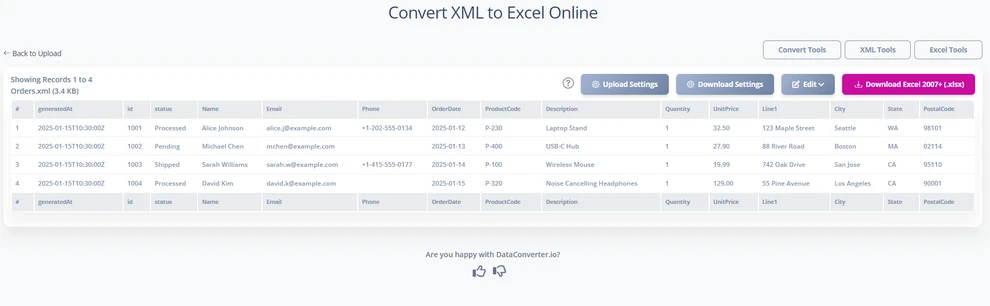
Conversores online de XML para XLSX — como Convertion Tools, AConvert ou DataConverter.io — são convenientes quando você precisa de uma transformação rápida sem instalar software. O processo é geralmente muito simples:
-
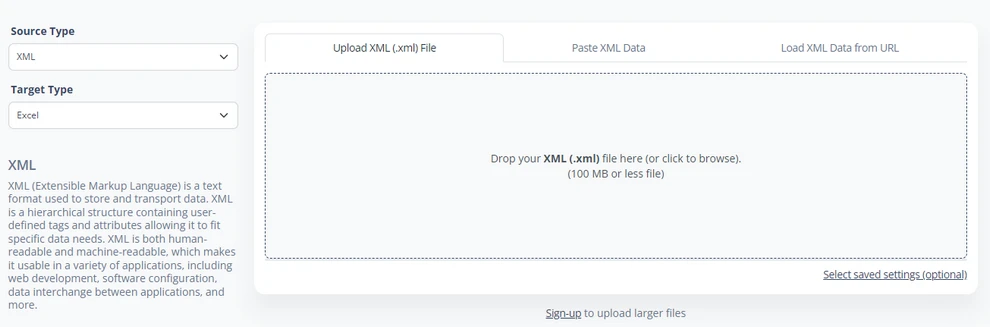
Visite um site que suporte a conversão de XML para XLSX (como DataConverter.io).
-
Carregue o seu ficheiro XML ou cole a string XML.
-
Alguns conversores permitem que você edite o mapeamento antes da conversão.
-
Clique em Baixar para baixar o arquivo .xlsx gerado.
Este método funciona bem para tarefas únicas e para arquivos XML com estruturas simples, onde o mapeamento automático geralmente é preciso.
Vantagens
- Rápido, sem necessidade de instalação.
- Adequado para estruturas XML simples ou moderadas.
- Ideal para conversões únicas ou ocasionais.
Limitações
- Compreensão limitada de esquemas, namespaces e hierarquias aninhadas.
- XML profundo pode ser achatado incorretamente, produzir nomes de coluna genéricos ou perder campos opcionais.
- Limites de tamanho de upload e possíveis congelamentos do navegador com arquivos grandes.
Apesar dessas restrições, as ferramentas online continuam a ser uma escolha prática para conversões rápidas e de pequena escala de XML para XLSX.
Você também pode gostar: Como Converter Arquivos CSV para Excel.
3. Método 2: Converter XML para XLSX no Excel
O Excel oferece suporte nativo para importação de XML e, para muitos utilizadores, este é o método mais transparente e controlável. Quando usado corretamente, o Excel pode ler estruturas XML, aplicar mapeamentos personalizáveis e salvar o resultado convertido diretamente como um arquivo XLSX.
3.1 Abrindo XML Diretamente no Excel
Quando você abre um arquivo XML através de Arquivo → Abrir, o Excel tenta inferir um esquema e converter os dados em uma tabela. A sequência correta para este método é:
-
Vá para Arquivo → Abrir e selecione o arquivo XML.
-
Quando solicitado, escolha “Como uma tabela XML”.

-
O Excel carrega o XML e mapeia automaticamente os nós filhos para as colunas.
Isso funciona bem para estruturas XML "planas", onde cada elemento repetido corresponde perfeitamente a uma linha. No entanto, o XML hierárquico geralmente causa problemas: nós aninhados podem ser expandidos em colunas repetidas, ou o Excel pode solicitar que você defina uma tabela XML manualmente se não conseguir determinar um mapeamento claro.
Este método de abertura direta continua útil quando o XML se assemelha a uma lista de registros no estilo de banco de dados e você precisa de uma maneira rápida de inspecionar ou trabalhar com os dados.
3.2 Importando XML através da Aba de Dados do Excel
Para arquivos XML estruturados — especialmente aqueles baseados em esquemas XSD — o Excel fornece um método de importação mais amigável através da aba Dados. Essa abordagem oferece controle sobre como os elementos XML são mapeados para a planilha sem usar manualmente o painel Origem XML.
Passos:
-
Abra uma pasta de trabalho do Excel ou crie uma nova.
-
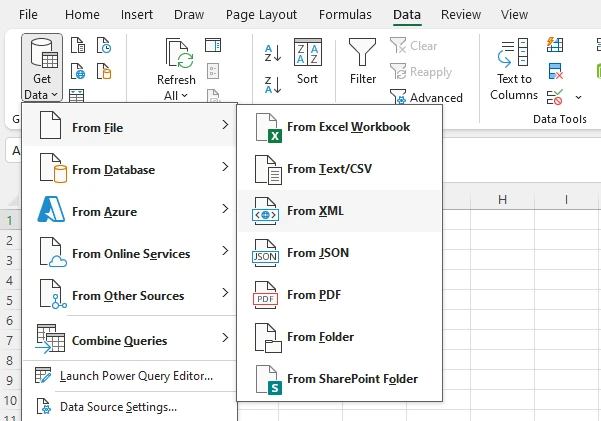
Vá para Dados → Obter Dados → Do Arquivo → Do XML.
-
Selecione o seu arquivo XML e clique em Importar.
-
Clique em Transformar Dados na janela pop-up.
-
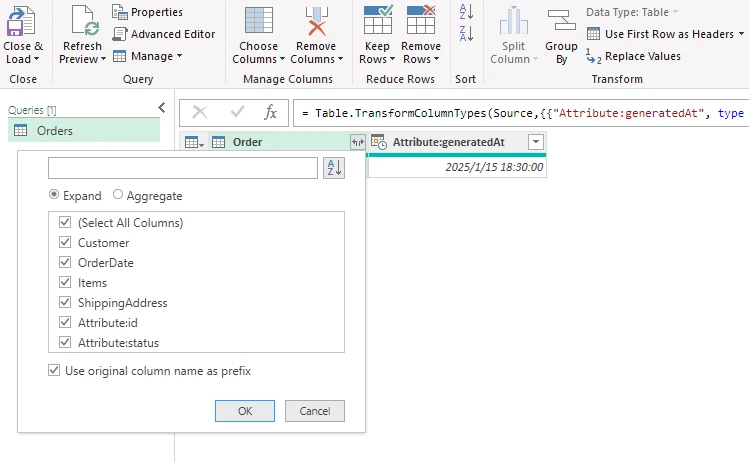
Na janela do Editor do Power Query, selecione os elementos ou tabelas que deseja carregar.
-
Clique em Fechar e Carregar para salvar as alterações, e os dados convertidos aparecerão em uma nova planilha.
Este método permite que o Excel interprete automaticamente a estrutura XML e a mapeie para uma tabela. Funciona bem para XML hierárquico porque você pode selecionar quais seções carregar, mantendo campos opcionais e relacionamentos intactos.
Esta abordagem é especialmente útil para:
- Importar dados de formulários eletrônicos do governo
- Trabalhar com XML exportado de ERP/CRM
- Lidar com padrões específicos da indústria, como UBL ou HL7
Ao usar este fluxo de trabalho, você pode controlar eficientemente como os dados XML são representados no Excel, minimizando as etapas de mapeamento manual.
3.3 Salvando os Dados XML Importados como um Arquivo XLSX
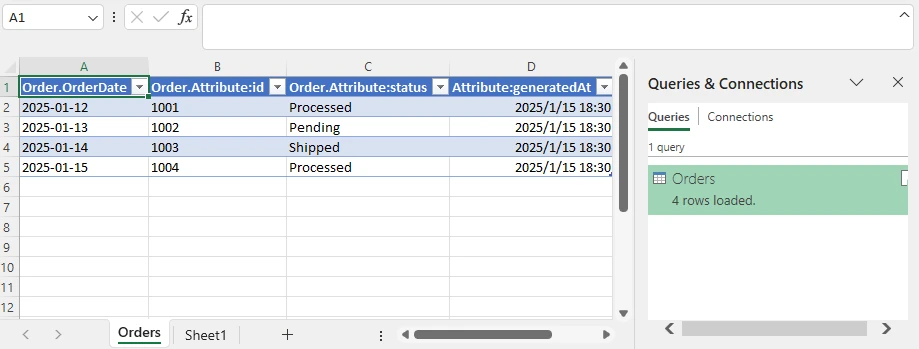
Uma vez que os dados XML tenham sido importados com sucesso — seja abrindo diretamente o arquivo XML ou usando Dados → Obter Dados → Do XML — o passo final é simplesmente salvar a pasta de trabalho no formato nativo do Excel .xlsx. Nesta fase, os dados comportam-se como qualquer outra tabela do Excel, o que significa que pode ajustar livremente a largura das colunas, aplicar filtros, formatar células ou adicionar fórmulas.
Para salvar o XML convertido como um arquivo XLSX:
- Vá para Arquivo → Salvar Como.
- Escolha Pasta de Trabalho do Excel (*.xlsx) como o tipo de arquivo.
- Especifique um local e clique em Salvar.
Abaixo está uma pré-visualização da tabela do Excel importada do XML:
Se o arquivo XML for baseado em um esquema XSD e o mapeamento for preservado, o Excel pode até mesmo exportar a planilha modificada de volta para XML. No entanto, para estruturas XML profundamente aninhadas, algum pré-processamento ou ajustes manuais ainda podem ser necessários antes da exportação.
4. Método 3: Converter XML para XLSX Usando Python
O Python é uma excelente escolha para converter XML para XLSX quando você precisa de automação, processamento em larga escala ou a capacidade de realizar a conversão de XML para XLSX sem abrir o Excel. Scripts Python podem ser executados em servidores, agendar tarefas e lidar com centenas ou milhares de arquivos XML de forma consistente.
4.1 Analisando XML em Python
A análise de XML é o primeiro passo no fluxo de trabalho. As bibliotecas xml.etree.ElementTree ou lxml do Python fornecem análise baseada em eventos ou em árvore. Elas permitem que você percorra cada nó, extraia atributos, lide com namespaces e processe dados profundamente aninhados.
O principal desafio é definir como cada nó XML mapeia para uma linha do Excel. A maioria dos fluxos de trabalho usa:
- um mapeamento predefinido (por exemplo, um "esquema" definido no código), ou
- uma lógica de achatamento automático que converte recursivamente os nós em colunas.
Exemplo de Análise de XML Principal:
O código Python a seguir demonstra como analisar um arquivo XML e achatá-lo em uma lista de dicionários, que pode ser usada para gerar um arquivo XLSX.
import xml.etree.ElementTree as ET

xml_file = "Orders.xml"

# Achata recursivamente um elemento XML num dicionário plano
def flatten(e, prefix=""):
    r = {}
    # Adicionar atributos
    for k, v in e.attrib.items():
        r[prefix + k] = v
    # Adicionar filhos
    for c in e:
        key = prefix + c.tag
        # Nó escalar (sem filhos, tem texto)
        if len(c) == 0 and c.text and c.text.strip():
            r[key] = c.text.strip()
        else:
            # Nó aninhado → recursão
            r.update(flatten(c, key + "_"))
    return r

# Analisar XML
root = ET.parse(xml_file).getroot()

# Achatar todos os elementos <Order>
rows = [flatten(order) for order in root.iter("Order")]

# Coletar cabeçalhos
headers = sorted({k for row in rows for k in row})
Este trecho de código ilustra como achatar recursivamente nós e atributos XML em uma estrutura adequada para o Excel. Para XML complexo, isso garante que nenhum dado seja perdido e que cada nó seja mapeado para a coluna correta.
4.2 Gerando Arquivos XLSX a partir de XML Analisado
Uma vez que o XML é analisado e achatado, o próximo passo é escrever os dados em um arquivo Excel .xlsx. Bibliotecas Python como Free Spire.XLS for Python permitem a criação completa de planilhas sem a necessidade de ter o Excel instalado, o que é ideal para servidores Linux ou ambientes em nuvem.
Instalar o Free Spire.XLS para Python:
pip install spire.xls.free
Passos para gerar XLSX:
- Crie uma nova pasta de trabalho.
- Escreva cabeçalhos e linhas a partir dos dados achatados.
- Opcionalmente, aplique estilos para melhor legibilidade.
- Salve a pasta de trabalho como
.xlsx.
Exemplo em Python:
Este exemplo demonstra como gerar um arquivo XLSX a partir dos dados XML analisados.
from spire.xls import Workbook, BuiltInStyles

xlsx_output = "output/XMLToExcel1.xlsx"

wb = Workbook()
ws = wb.Worksheets.get_Item(0)

# Linha de cabeçalho
for col, h in enumerate(headers, 1):
    ws.Range.get_Item(1, col).Value = h

# Linhas de dados
for row_idx, row in enumerate(rows, 2):
    for col_idx, h in enumerate(headers, 1):
        ws.Range.get_Item(row_idx, col_idx).Value = row.get(h, "")

# Aplicar estilos (opcional)
ws.AllocatedRange.Rows.get_Item(0).BuiltInStyle = BuiltInStyles.Heading2
for row in range(1, ws.AllocatedRange.Rows.Count):
    if row % 2 == 0:
        ws.AllocatedRange.Rows.get_Item(row).BuiltInStyle = BuiltInStyles.Accent2_20
    else:
        ws.AllocatedRange.Rows.get_Item(row).BuiltInStyle = BuiltInStyles.Accent2_40

# Salvar em XLSX
wb.SaveToFile(xlsx_output)
print("Feito!")
Após executar o script, cada nó XML é achatado em linhas, com colunas representando atributos e elementos filhos. Essa abordagem suporta várias planilhas, nomes de coluna personalizados e integração com transformações de dados adicionais.
Abaixo está a pré-visualização do arquivo XLSX gerado:
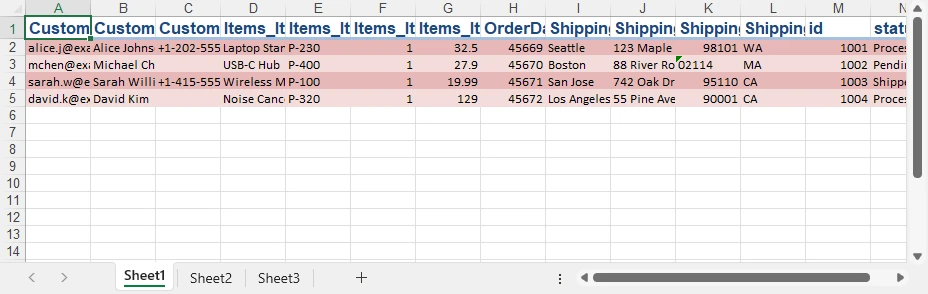
Para mais exemplos de escrita de diferentes tipos de dados em arquivos Excel usando Python, consulte nosso guia de escrita de dados em Excel com Python.
4.3 Lidando com XML Complexo
O XML de negócios geralmente contém padrões irregulares. Usando Python, você pode:
- achatar recursivamente elementos aninhados
- promover atributos para colunas normais
- ignorar elementos irrelevantes
- criar várias planilhas para seções hierárquicas
- lidar com campos ausentes ou opcionais atribuindo padrões
O exemplo acima mostra um único arquivo XML; a mesma lógica pode ser estendida para lidar com estruturas complexas sem perda de dados.
Se você está trabalhando com arquivos Office Open XML (OOXML), também pode carregá-los diretamente e salvá-los como arquivos XLSX usando o Free Spire.XLS para Python. Confira Como Converter OOXML para XLSX com Python.
4.4 Conversão em Lote
A força do Python torna-se especialmente clara ao converter grandes pastas de arquivos XML. Um script pode:
- verificar diretórios,
- analisar cada arquivo usando a mesma lógica de achatamento,
- gerar arquivos XLSX consistentes automaticamente.
Isso elimina o trabalho manual e garante uma conversão confiável e sem erros em projetos ou conjuntos de dados.
O trecho a seguir ilustra uma abordagem simples para converter vários arquivos XML em XLSX em lote.
import os

input_dir = "xml_folder"
output_dir = "xlsx_folder"

for file_name in os.listdir(input_dir):
    if file_name.endswith(".xml"):
        xml_path = os.path.join(input_dir, file_name)

        # Analisar XML e gerar XLSX (usando a lógica definida anteriormente)
        convert_xml_to_xlsx(xml_path, output_dir)
5. Método 4: Scripts Personalizados ou APIs para Fluxos de Trabalho Empresariais
Embora os métodos anteriores sejam adequados para conversões únicas ou em lote, os ambientes empresariais geralmente exigem soluções automatizadas, padronizadas e escaláveis para a conversão de XML para XLSX. Muitos formatos XML de negócios seguem padrões da indústria, envolvem esquemas complexos com campos obrigatórios e opcionais e são integrados em pipelines de dados mais amplos.
Nestes casos, as empresas normalmente desenvolvem scripts personalizados ou fluxos de trabalho baseados em API para lidar com as conversões de forma confiável. Por exemplo:
- Exportações de ERP ou CRM: Exportações diárias de XML contendo faturas ou pedidos são convertidas automaticamente para XLSX e alimentadas em painéis de relatórios.
- Pipelines de ETL: Dados XML de múltiplos sistemas são validados, normalizados e convertidos durante os processos de Extração-Transformação-Carga.
- Integração na nuvem: Scripts ou APIs são executados em plataformas de nuvem (AWS Lambda, Azure Functions) para processar arquivos XML em grande escala sem intervenção manual.
Os principais benefícios desta abordagem incluem:
- Garantir a conformidade do esquema através da validação XSD.
- Manter regras de mapeamento consistentes em múltiplos sistemas.
- Automatizar conversões como parte dos processos de negócio regulares.
- Integrar-se perfeitamente com serviços em nuvem e plataformas de automação de fluxo de trabalho.
Este fluxo de trabalho é ideal para cenários onde a conversão de XML é uma tarefa recorrente, parte de um sistema de relatórios empresariais ou necessária para conformidade com os padrões de dados da indústria.
Ferramentas como Spire.XLS for Python também podem ser integradas nesses fluxos de trabalho para gerar arquivos XLSX programaticamente em servidores ou funções na nuvem, permitindo uma conversão confiável e sem Excel dentro de pipelines empresariais automatizados.
6. Solução de Problemas na Conversão de XML para XLSX
Dependendo do método que você escolher — ferramentas online, Excel ou Python — diferentes problemas podem surgir durante a conversão de XML. Entender esses problemas comuns ajuda a garantir que seu arquivo XLSX final esteja completo e preciso.
XML Profundamente Aninhado ou Irregular
Estruturas aninhadas podem ser difíceis de achatar em uma única planilha.
- O Excel pode exigir mapeamento manual ou divisão em várias planilhas.
- O Python permite o achatamento recursivo ou a criação de várias planilhas programaticamente.
Elementos Ausentes ou Opcionais
Nem todos os nós XML aparecem em todos os registros. Garanta a consistência das colunas usando células em branco para campos ausentes, em vez de pulá-los, para evitar dados desalinhados.
Atributos vs. Elementos
Decida quais atributos devem se tornar colunas e quais podem permanecer internos.
- O Excel pode solicitar o mapeamento.
- O Python pode extrair todos os atributos de forma flexível usando análise recursiva.
Erros de Codificação
A codificação de caracteres incorreta pode causar falhas na análise.
- Certifique-se de que o XML declara a codificação corretamente (
UTF-8,UTF-16, etc.). - Dica de Python:
ET.parse(xml_file, parser=ET.XMLParser(encoding='utf-8'))ajuda a lidar com a codificação explicitamente.
Arquivos XML Grandes
Arquivos XML muito grandes podem exceder os limites do navegador ou do Excel.
- As ferramentas online podem falhar ou congelar.
- O Excel pode deixar de responder.
- O Python pode usar analisadores de streaming como
iterparsepara processar arquivos grandes com uso mínimo de memória.
7. Perguntas Frequentes
Aqui estão algumas perguntas frequentes sobre a conversão de XML para XLSX:
1. Como converter um arquivo XML para XLSX?
Você pode converter XML para XLSX usando Excel, ferramentas online ou automação com Python, dependendo de suas necessidades.
- Para arquivos rápidos e simples, as ferramentas online são convenientes (veja a Seção 2).
- Para arquivos com XML estruturado ou aninhado, a importação de dados do Excel oferece controle (veja a Seção 3).
- Para processamento em larga escala ou automatizado, o Python oferece total flexibilidade (veja a Seção 4).
2. Como abro um arquivo XML no Excel?
O Excel pode importar XML como uma tabela. XML simples abre diretamente, enquanto XML complexo ou hierárquico pode exigir mapeamento através do fluxo de trabalho Aba Dados → Obter Dados → Do XML (veja a Seção 3.2).
3. Como posso converter XML para outros formatos?
Além de XLSX, o XML pode ser convertido para CSV, JSON ou bancos de dados usando scripts Python ou ferramentas especializadas. Bibliotecas Python como xml.etree.ElementTree ou lxml permitem analisar e transformar XML em vários formatos programaticamente.
4. Como converter XML para Excel online gratuitamente?
Conversores online gratuitos podem lidar com conversões diretas de XML para XLSX sem a necessidade de instalar software. Eles são ideais para arquivos pequenos ou moderados, mas podem ter dificuldades com XML profundamente aninhado ou grandes conjuntos de dados (veja a Seção 2).
8. Conclusão
A conversão de XML para XLSX assume várias formas, dependendo da estrutura dos seus dados e das ferramentas disponíveis. Os conversores online oferecem conveniência para tarefas rápidas, enquanto o Excel oferece maior controle com mapeamento de XML e suporte a esquemas. Quando são necessárias automação, grandes conjuntos de dados ou regras de mapeamento personalizadas, o Python é a solução mais flexível e robusta.
Se o seu fluxo de trabalho envolve listas XML simples, dados de negócios profundamente aninhados ou processamento em lote em grande escala, os métodos neste guia oferecem maneiras práticas e confiáveis de converter XML para XLSX e gerenciar os dados de forma eficaz em todos os sistemas.
Veja Também
중첩된 XML 데이터를 오류 없이 Excel로 빠르게 변환
XML을 XLSX로 변환하는 것은 데이터 처리, 보고 워크플로우 및 시스템 통합 작업에서 일반적인 요구 사항입니다. XML은 구조화되거나 반구조화된 데이터에 가장 일반적으로 사용되는 형식 중 하나이지만, Excel의 XLSX 형식은 비기술적 사용자와의 분석, 필터링, 시각화 및 공유에 훨씬 더 편리합니다.
XML 파일을 XLSX 파일로 변환하는 기본 아이디어는 간단하게 들릴 수 있지만, 실제 XML 파일은 구조가 매우 다양합니다. 일부는 깨끗한 데이터베이스 테이블과 유사하지만, 다른 일부는 깊이 중첩된 노드, 속성 또는 혼합된 콘텐츠를 포함합니다.
이 가이드는 온라인 도구, Microsoft Excel 및 Python 자동화를 사용하여 XML을 XLSX로 변환하는 방법에 대한 상세하고 실용적인 설명을 제공합니다. 또한 대용량 데이터 세트, 중첩된 요소, 선택적 필드 및 XLSX에서 XML로의 역변환과 같은 복잡한 시나리오를 처리하는 방법도 논의합니다.
방법 개요:
- 온라인 XML을 XLSX로 변환기
- Excel XML 가져오기 기능
- Python 자동화를 사용하여 XML을 XLSX로 변환
- 엔터프라이즈 워크플로우를 위한 사용자 지정 스크립트 또는 API
1. XML에서 XLSX로의 변환 이해하기
XML(Extensible Markup Language)은 태그를 사용하여 데이터를 저장하는 간단한 텍스트 형식으로, 부모 요소가 자식 요소를 포함하고 정보가 요소 또는 속성으로 나타날 수 있는 트리 구조를 형성합니다. 반면 XLSX는 엄격하게 행과 열 기반이므로 XML을 XLSX로 변환하는 것은 데이터를 의미 있게 유지하면서 이 트리를 테이블로 평탄화하는 것을 의미합니다.
예를 들어, 반복되는 <item> 노드가 있는 파일과 같은 간단한 XML의 경우 각 노드는 자연스럽게 행이 되고 그 자식은 열이 됩니다. 그러나 실제 XML에는 종종 다음이 포함됩니다.
- 중첩된 세부 정보
- 일부 레코드에만 나타나는 노드
- 속성에 저장된 데이터
- 엔터프라이즈 시스템에서 사용되는 네임스페이스
이러한 변형은 계층 구조를 평탄화하는 방법에 대한 결정이 필요합니다. 일부 도구는 이를 자동으로 수행하지만 다른 도구는 수동 매핑이 필요합니다. 이 가이드는 자동화된 워크플로우에서 일반적인 Excel을 열지 않고 XML을 XLSX로 변환하는 방법을 포함하여 간단하고 복잡한 경우를 모두 다룹니다.
2. 방법 1: 온라인에서 XML을 XLSX로 변환
Convertion Tools, AConvert 또는 DataConverter.io와 같은 온라인 XML-to-XLSX 변환기는 소프트웨어를 설치하지 않고 빠른 변환이 필요할 때 편리합니다. 프로세스는 일반적으로 매우 간단합니다.
-
XML-to-XLSX 변환을 지원하는 웹사이트(DataConverter.io 등)를 방문하십시오.
-
XML 파일을 업로드하거나 XML 문자열을 붙여넣습니다.
-
일부 변환기는 변환 전에 매핑을 편집할 수 있도록 허용합니다.
-
생성된 .xlsx 파일을 다운로드하려면 다운로드를 클릭하십시오.
이 방법은 일회성 작업과 자동 매핑이 일반적으로 정확한 간단한 구조의 XML 파일에 적합합니다.
장점
- 빠르고 설치가 필요 없습니다.
- 간단하거나 중간 정도의 XML 구조에 적합합니다.
- 일회성 또는 가끔 변환에 이상적입니다.
제한 사항
- 스키마, 네임스페이스 및 중첩된 계층에 대한 이해가 제한적입니다.
- 깊은 XML이 잘못 평탄화되거나, 일반적인 열 이름이 생성되거나, 선택적 필드가 손실될 수 있습니다.
- 대용량 파일의 경우 업로드 크기 제한 및 브라우저 정지 가능성이 있습니다.
이러한 제약에도 불구하고 온라인 도구는 빠르고 소규모의 XML-to-XLSX 변환에 실용적인 선택입니다.
관심 있을 만한 다른 글: CSV를 Excel 파일로 변환하는 방법.
3. 방법 2: Excel에서 XML을 XLSX로 변환
Excel은 XML 가져오기를 기본적으로 지원하며, 많은 사용자에게 이것이 가장 투명하고 제어 가능한 방법입니다. 올바르게 사용하면 Excel은 XML 구조를 읽고, 사용자 지정 가능한 매핑을 적용하고, 변환된 결과를 XLSX 파일로 직접 저장할 수 있습니다.
3.1 Excel에서 직접 XML 열기
파일 → 열기를 통해 XML 파일을 열면 Excel은 스키마를 유추하고 데이터를 테이블로 변환하려고 시도합니다. 이 방법에 대한 올바른 순서는 다음과 같습니다.
-
파일 → 열기로 이동하여 XML 파일을 선택합니다.
-
메시지가 표시되면 "XML 테이블로"를 선택합니다.
-
Excel이 XML을 로드하고 자식 노드를 열에 자동으로 매핑합니다.
이것은 각 반복 요소가 행에 깔끔하게 해당하는 "평평한" XML 구조에 잘 작동합니다. 그러나 계층적 XML은 종종 문제를 일으킵니다. 중첩된 노드가 반복되는 열로 확장되거나 Excel이 명확한 매핑을 결정할 수 없는 경우 XML 테이블을 수동으로 정의하라는 메시지가 표시될 수 있습니다.
이 직접 열기 방법은 XML이 데이터베이스 스타일의 레코드 목록과 유사하고 데이터를 빠르게 검사하거나 작업해야 할 때 유용합니다.
3.2 Excel의 데이터 탭을 통해 XML 가져오기
구조화된 XML 파일, 특히 XSD 스키마를 기반으로 하는 파일의 경우 Excel은 데이터 탭을 통해 더 사용자 친화적인 가져오기 방법을 제공합니다. 이 접근 방식을 사용하면 XML 원본 창을 수동으로 사용하지 않고도 XML 요소가 워크시트에 매핑되는 방식을 제어할 수 있습니다.
단계:
-
Excel 통합 문서를 열거나 새로 만듭니다.
-
데이터 → 데이터 가져오기 → 파일에서 → XML에서로 이동합니다.
-
XML 파일을 선택하고 가져오기를 클릭합니다.
-
팝업 창에서 데이터 변환을 클릭합니다.
-
파워 쿼리 편집기 창에서 로드할 요소 또는 테이블을 선택합니다.
-
변경 사항을 저장하려면 닫기 및 로드를 클릭하면 변환된 데이터가 새 워크시트에 나타납니다.
이 방법을 사용하면 Excel이 XML 구조를 자동으로 해석하고 테이블에 매핑할 수 있습니다. 로드할 섹션을 선택하여 선택적 필드와 관계를 그대로 유지할 수 있으므로 계층적 XML에 잘 작동합니다.
이 접근 방식은 특히 다음에 유용합니다.
- 정부 전자 양식 데이터 가져오기
- ERP/CRM에서 내보낸 XML 작업
- UBL 또는 HL7과 같은 산업별 표준 처리
이 워크플로우를 사용하면 수동 매핑 단계를 최소화하면서 Excel에서 XML 데이터가 표시되는 방식을 효율적으로 제어할 수 있습니다.
3.3 가져온 XML 데이터를 XLSX 파일로 저장
XML 파일을 직접 열거나 데이터 → 데이터 가져오기 → XML에서를 사용하여 XML 데이터를 성공적으로 가져온 후 마지막 단계는 통합 문서를 Excel의 기본 .xlsx 형식으로 저장하는 것입니다. 이 단계에서 데이터는 다른 Excel 테이블처럼 작동하므로 열 너비를 자유롭게 조정하고, 필터를 적용하고, 셀 서식을 지정하거나, 수식을 추가할 수 있습니다.
변환된 XML을 XLSX 파일로 저장하려면:
- 파일 → 다른 이름으로 저장으로 이동합니다.
- 파일 형식으로 Excel 통합 문서(*.xlsx)를 선택합니다.
- 위치를 지정하고 저장을 클릭합니다.
아래는 XML에서 가져온 Excel 테이블의 미리보기입니다.
XML 파일이 XSD 스키마를 기반으로 하고 매핑이 유지되는 경우 Excel은 수정된 워크시트를 다시 XML로 내보낼 수도 있습니다. 그러나 깊이 중첩된 XML 구조의 경우 내보내기 전에 일부 전처리 또는 수동 조정이 여전히 필요할 수 있습니다.
4. 방법 3: Python을 사용하여 XML을 XLSX로 변환
Python은 자동화, 대규모 처리 또는 Excel을 열지 않고 XML을 XLSX로 변환하는 기능이 필요할 때 XML을 XLSX로 변환하는 데 탁월한 선택입니다. Python 스크립트는 서버에서 실행하고, 작업을 예약하고, 수백 또는 수천 개의 XML 파일을 일관되게 처리할 수 있습니다.
4.1 Python에서 XML 구문 분석
XML 구문 분석은 워크플로우의 첫 번째 단계입니다. Python의 xml.etree.ElementTree 또는 lxml 라이브러리는 이벤트 기반 또는 트리 기반 구문 분석을 제공합니다. 이를 통해 각 노드를 탐색하고, 속성을 추출하고, 네임스페이스를 처리하고, 깊이 중첩된 데이터를 처리할 수 있습니다.
주요 과제는 각 XML 노드가 Excel 행에 매핑되는 방식을 정의하는 것입니다. 대부분의 워크플로우는 다음 중 하나를 사용합니다.
- 사전 정의된 매핑(예: 코드에 정의된 "스키마") 또는
- 노드를 열로 재귀적으로 변환하는 자동 평탄화 논리.
핵심 XML 구문 분석 예제:
다음 Python 코드는 XML 파일을 구문 분석하고 XLSX 파일을 생성하는 데 사용할 수 있는 사전 목록으로 평탄화하는 방법을 보여줍니다.
import xml.etree.ElementTree as ET

xml_file = "Orders.xml"

# XML 요소를 평평한 사전으로 재귀적으로 평탄화
def flatten(e, prefix=""):
    r = {}
    # 속성 추가
    for k, v in e.attrib.items():
        r[prefix + k] = v
    # 자식 추가
    for c in e:
        key = prefix + c.tag
        # 스칼라 노드 (자식 없음, 텍스트 있음)
        if len(c) == 0 and c.text and c.text.strip():
            r[key] = c.text.strip()
        else:
            # 중첩된 노드 → 재귀
            r.update(flatten(c, key + "_"))
    return r

# XML 구문 분석
root = ET.parse(xml_file).getroot()

# 모든 <Order> 요소 평탄화
rows = [flatten(order) for order in root.iter("Order")]

# 헤더 수집
headers = sorted({k for row in rows for k in row})
이 스니펫은 XML 노드와 속성을 Excel에 적합한 구조로 재귀적으로 평탄화하는 방법을 보여줍니다. 복잡한 XML의 경우 데이터가 손실되지 않고 각 노드가 올바른 열에 매핑되도록 합니다.
4.2 구문 분석된 XML에서 XLSX 파일 생성
XML을 구문 분석하고 평탄화한 후 다음 단계는 데이터를 Excel .xlsx 파일에 쓰는 것입니다. Free Spire.XLS for Python과 같은 Python 라이브러리를 사용하면 Excel을 설치할 필요 없이 전체 스프레드시트를 생성할 수 있으므로 Linux 서버나 클라우드 환경에 이상적입니다.
Free Spire.XLS for Python 설치:
pip install spire.xls.free
XLSX 생성 단계:
- 새 통합 문서를 만듭니다.
- 평탄화된 데이터에서 헤더와 행을 씁니다.
- 선택적으로 가독성을 높이기 위해 스타일을 적용합니다.
- 통합 문서를
.xlsx로 저장합니다.
Python 예제:
이 예제는 구문 분석된 XML 데이터에서 XLSX 파일을 생성하는 방법을 보여줍니다.
from spire.xls import Workbook, BuiltInStyles

xlsx_output = "output/XMLToExcel1.xlsx"

wb = Workbook()
ws = wb.Worksheets.get_Item(0)

# 헤더 행
for col, h in enumerate(headers, 1):
    ws.Range.get_Item(1, col).Value = h

# 데이터 행
for row_idx, row in enumerate(rows, 2):
    for col_idx, h in enumerate(headers, 1):
        ws.Range.get_Item(row_idx, col_idx).Value = row.get(h, "")

# 스타일 적용 (선택 사항)
ws.AllocatedRange.Rows.get_Item(0).BuiltInStyle = BuiltInStyles.Heading2
for row in range(1, ws.AllocatedRange.Rows.Count):
    if row % 2 == 0:
        ws.AllocatedRange.Rows.get_Item(row).BuiltInStyle = BuiltInStyles.Accent2_20
    else:
        ws.AllocatedRange.Rows.get_Item(row).BuiltInStyle = BuiltInStyles.Accent2_40

# XLSX로 저장
wb.SaveToFile(xlsx_output)
print("완료!")
스크립트를 실행하면 각 XML 노드가 행으로 평탄화되고 열은 속성과 자식 요소를 나타냅니다. 이 접근 방식은 여러 워크시트, 사용자 지정 열 이름 및 추가 데이터 변환과의 통합을 지원합니다.
아래는 생성된 XLSX 파일의 미리보기입니다.
Python을 사용하여 다양한 유형의 데이터를 Excel 파일에 쓰는 방법에 대한 더 많은 예제는 Python으로 Excel에 데이터 쓰기 가이드를 참조하십시오.
4.3 복잡한 XML 처리
비즈니스 XML에는 종종 불규칙한 패턴이 포함됩니다. Python을 사용하면 다음을 수행할 수 있습니다.
- 중첩된 요소를 재귀적으로 평탄화
- 속성을 일반 열로 승격
- 관련 없는 요소 건너뛰기
- 계층적 섹션에 대해 여러 시트 만들기
- 기본값을 할당하여 누락되거나 선택적인 필드 처리
위의 예는 단일 XML 파일을 보여줍니다. 동일한 논리를 데이터 손실 없이 복잡한 구조를 처리하도록 확장할 수 있습니다.
Office Open XML(OOXML) 파일로 작업하는 경우 Free Spire.XLS for Python을 사용하여 직접 로드하고 XLSX 파일로 저장할 수도 있습니다. Python으로 OOXML을 XLSX로 변환하는 방법을 확인하십시오.
4.4 일괄 변환
Python의 강점은 대량의 XML 파일 폴더를 변환할 때 특히 분명해집니다. 스크립트는 다음을 수행할 수 있습니다.
- 디렉토리 스캔,
- 동일한 평탄화 논리를 사용하여 각 파일 구문 분석,
- 일관된 XLSX 파일을 자동으로 생성합니다.
이렇게 하면 수동 작업이 제거되고 프로젝트 또는 데이터 세트 전반에 걸쳐 안정적이고 오류 없는 변환이 보장됩니다.
다음 스니펫은 여러 XML 파일을 XLSX로 일괄 변환하는 간단한 접근 방식을 보여줍니다.
import os

input_dir = "xml_folder"
output_dir = "xlsx_folder"

for file_name in os.listdir(input_dir):
    if file_name.endswith(".xml"):
        xml_path = os.path.join(input_dir, file_name)

        # XML 구문 분석 및 XLSX 생성 (이전에 정의된 논리 사용)
        convert_xml_to_xlsx(xml_path, output_dir)
5. 방법 4: 엔터프라이즈 워크플로우를 위한 사용자 지정 스크립트 또는 API
이전 방법은 일회성 또는 일괄 변환에 적합하지만 엔터프라이즈 환경에서는 종종 XML에서 XLSX로의 변환을 위해 자동화되고 표준화되며 확장 가능한 솔루션이 필요합니다. 많은 비즈니스 XML 형식은 산업 표준을 따르고, 필수 및 선택적 필드가 있는 복잡한 스키마를 포함하며, 더 넓은 데이터 파이프라인에 통합됩니다.
이러한 경우 회사는 일반적으로 변환을 안정적으로 처리하기 위해 사용자 지정 스크립트 또는 API 기반 워크플로우를 개발합니다. 예를 들어:
- ERP 또는 CRM 내보내기: 송장 또는 주문이 포함된 일일 XML 내보내기는 자동으로 XLSX로 변환되어 보고 대시보드에 제공됩니다.
- ETL 파이프라인: 여러 시스템의 XML 데이터는 추출-변환-로드 프로세스 중에 유효성이 검사되고, 정규화되고, 변환됩니다.
- 클라우드 통합: 스크립트 또는 API는 클라우드 플랫폼(AWS Lambda, Azure Functions)에서 실행되어 수동 개입 없이 대규모 XML 파일을 처리합니다.
이 접근 방식의 주요 이점은 다음과 같습니다.
- XSD 유효성 검사를 통해 스키마 준수 보장.
- 여러 시스템에서 일관된 매핑 규칙 유지.
- 정기적인 비즈니스 프로세스의 일부로 변환 자동화.
- 클라우드 서비스 및 워크플로우 자동화 플랫폼과 원활하게 통합.
이 워크플로우는 XML 변환이 반복적인 작업이거나, 엔터프라이즈 보고 시스템의 일부이거나, 산업 데이터 표준 준수를 위해 필요한 시나리오에 이상적입니다.
Spire.XLS for Python과 같은 도구는 이러한 워크플로우에 통합되어 서버 또는 클라우드 기능에서 프로그래밍 방식으로 XLSX 파일을 생성하여 자동화된 엔터프라이즈 파이프라인 내에서 안정적인 Excel 없는 변환을 가능하게 할 수도 있습니다.
6. XML에서 XLSX로의 변환 문제 해결
선택한 방법(온라인 도구, Excel 또는 Python)에 따라 XML 변환 중에 다른 문제가 발생할 수 있습니다. 이러한 일반적인 문제를 이해하면 최종 XLSX 파일이 완전하고 정확하도록 보장하는 데 도움이 됩니다.
깊이 중첩되거나 불규칙한 XML
중첩된 구조는 단일 시트로 평탄화하기 어려울 수 있습니다.
- Excel은 수동 매핑 또는 여러 시트로 분할해야 할 수 있습니다.
- Python은 재귀적 평탄화 또는 프로그래밍 방식으로 여러 시트 생성을 허용합니다.
누락되거나 선택적인 요소
모든 XML 노드가 모든 레코드에 나타나는 것은 아닙니다. 데이터가 잘못 정렬되는 것을 방지하기 위해 누락된 필드를 건너뛰는 대신 빈 셀을 사용하여 열 일관성을 보장하십시오.
속성 대 요소
어떤 속성이 열이 되어야 하고 어떤 속성이 내부적으로 유지될 수 있는지 결정하십시오.
- Excel은 매핑을 요청할 수 있습니다.
- Python은 재귀적 구문 분석을 사용하여 모든 속성을 유연하게 추출할 수 있습니다.
인코딩 오류
잘못된 문자 인코딩은 구문 분석 실패를 유발할 수 있습니다.
- XML이 인코딩을 올바르게 선언했는지 확인하십시오(
UTF-8,UTF-16등). - Python 팁:
ET.parse(xml_file, parser=ET.XMLParser(encoding='utf-8'))는 인코딩을 명시적으로 처리하는 데 도움이 됩니다.
대용량 XML 파일
매우 큰 XML 파일은 브라우저 또는 Excel 제한을 초과할 수 있습니다.
- 온라인 도구는 실패하거나 정지될 수 있습니다.
- Excel은 응답하지 않을 수 있습니다.
- Python은
iterparse와 같은 스트리밍 파서를 사용하여 최소한의 메모리 사용으로 대용량 파일을 처리할 수 있습니다.
7. 자주 묻는 질문
다음은 XML에서 XLSX로의 변환에 대해 자주 묻는 질문입니다.
1. XML 파일을 XLSX로 변환하는 방법은 무엇입니까?
필요에 따라 Excel, 온라인 도구 또는 Python 자동화를 사용하여 XML을 XLSX로 변환할 수 있습니다.
- 빠르고 간단한 파일의 경우 온라인 도구가 편리합니다(섹션 2 참조).
- 구조화되거나 중첩된 XML이 있는 파일의 경우 Excel의 데이터 가져오기가 제어를 제공합니다(섹션 3 참조).
- 대규모 또는 자동화된 처리의 경우 Python이 완전한 유연성을 제공합니다(섹션 4 참조).
2. Excel에서 XML 파일을 어떻게 여나요?
Excel은 XML을 테이블로 가져올 수 있습니다. 간단한 XML은 직접 열리지만 복잡하거나 계층적인 XML은 데이터 탭 → 데이터 가져오기 → XML에서 워크플로우를 통해 매핑해야 할 수 있습니다(섹션 3.2 참조).
3. XML을 다른 형식으로 어떻게 변환할 수 있나요?
XLSX 외에도 XML은 Python 스크립트 또는 특수 도구를 사용하여 CSV, JSON 또는 데이터베이스로 변환할 수 있습니다. xml.etree.ElementTree 또는 lxml과 같은 Python 라이브러리를 사용하면 프로그래밍 방식으로 XML을 다양한 형식으로 구문 분석하고 변환할 수 있습니다.
4. 온라인에서 무료로 XML을 Excel로 변환하는 방법은 무엇입니까?
무료 온라인 변환기는 소프트웨어를 설치하지 않고도 간단한 XML-to-XLSX 변환을 처리할 수 있습니다. 작거나 중간 크기의 파일에 이상적이지만 깊이 중첩된 XML이나 대용량 데이터 세트에는 어려움을 겪을 수 있습니다(섹션 2 참조).
8. 결론
XML에서 XLSX로의 변환은 데이터 구조와 사용 가능한 도구에 따라 여러 형태를 취합니다. 온라인 변환기는 빠른 작업을 위한 편의성을 제공하는 반면, Excel은 XML 매핑 및 스키마 지원으로 더 큰 제어 기능을 제공합니다. 자동화, 대용량 데이터 세트 또는 사용자 지정 매핑 규칙이 필요한 경우 Python이 가장 유연하고 강력한 솔루션입니다.
워크플로우에 간단한 XML 목록, 깊이 중첩된 비즈니스 데이터 또는 대규모 일괄 처리가 포함되든, 이 가이드의 방법은 XML을 XLSX로 변환하고 시스템 전반에서 데이터를 효과적으로 관리하는 실용적이고 신뢰할 수 있는 방법을 제공합니다.