Translating an Office document involves more than converting sentences from one language to another. A Word file may contain headings, tables, images, hyperlinks, headers, and footers. An Excel workbook may include formulas, numbers, charts, and formatted cells. A PowerPoint presentation may rely heavily on text boxes, shapes, themes, and carefully arranged slide layouts.
If the text is simply extracted, translated, and written back without considering these structures, the resulting document can easily lose its original appearance or even break important content such as formulas and layouts.
This article demonstrates how to build an AI-powered document translator in C# using Spire.Agent.Office for .NET. We will translate Word, Excel, and PowerPoint files while preserving their native Office structure and formatting as much as possible.
The examples cover three different translation scenarios:
- Word: English → Simplified Chinese
- Excel: English → French
- PowerPoint: Japanese → English
1. What Is an AI Document Translator?
A conventional translation workflow usually focuses on text alone. The content is extracted from a document, translated into another language, and then returned as plain text or inserted back into a new file.
This approach works well when formatting is not important. However, Office documents often contain much more than text. Word files may include headings, tables, images, hyperlinks, headers, and footers. Excel workbooks may contain formulas, numerical data, merged cells, charts, and formatted ranges. PowerPoint presentations may rely on text boxes, shapes, themes, and carefully designed slide layouts.
An AI document translator goes a step further. Instead of treating the file as a simple container of text, it translates the editable content while preserving the document's native structure and visual organization as much as possible.
The following diagram illustrates the difference between conventional text translation and AI-powered document translation:
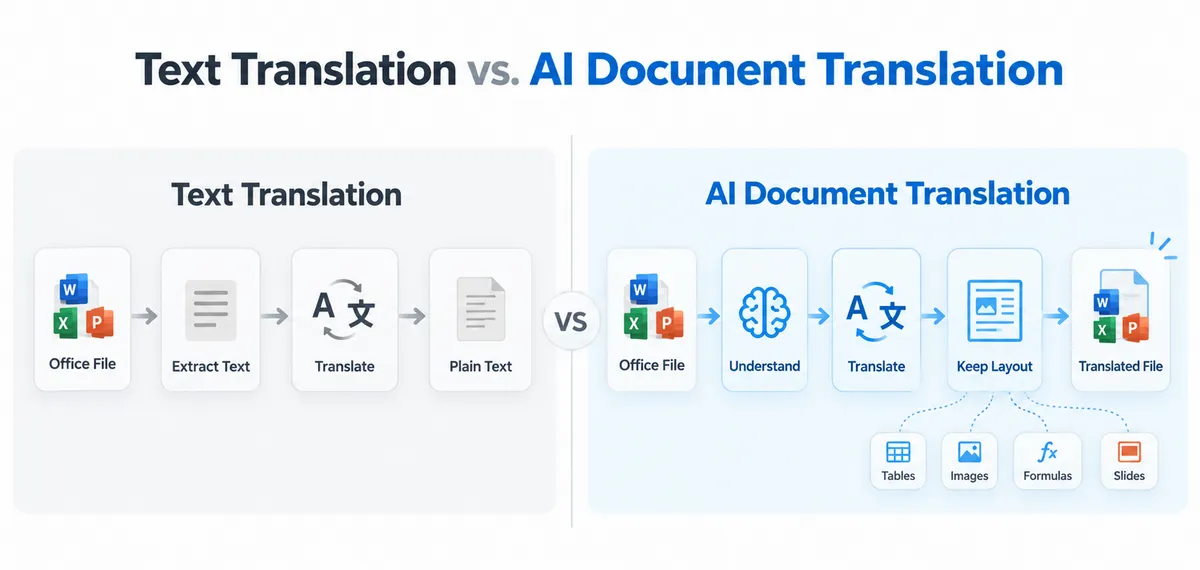
With AI-powered document translation, the expected result is not just translated text. The output remains an editable Office file, such as a translated .docx, .xlsx, or .pptx, with its original structure, formatting, tables, images, formulas, and layout retained where possible.
This makes the workflow especially useful when translated documents need to remain ready for editing, sharing, publishing, or further business processing.
2. Set Up Spire.Agent.Office for .NET
Before running the examples, create a .NET project and install Spire.Agent.Office through NuGet.
You can install the package using the .NET CLI:
dotnet add package Spire.Agent.Office
The AI features require a SpireToken. Configure an AIOptions instance and assign the token:
AIOptions options = new AIOptions
{
    SpireToken = "your spireToken"
};
A temporary SpireToken for evaluation and testing can be requested from Spire temporary license page.
The general processing pattern is similar across Word, Excel, and PowerPoint:
Load Office file
      ↓
Create AI processor
      ↓
Execute natural-language instruction
      ↓
Save translated Office file
The main difference between the three examples is the Office document object being processed and the translation rules defined in the instruction.
3. Translate Word Documents with AI
Word documents can contain much more than ordinary paragraphs. A typical business document may include headings, tables, images, hyperlinks, headers, footers, lists, and different text styles.
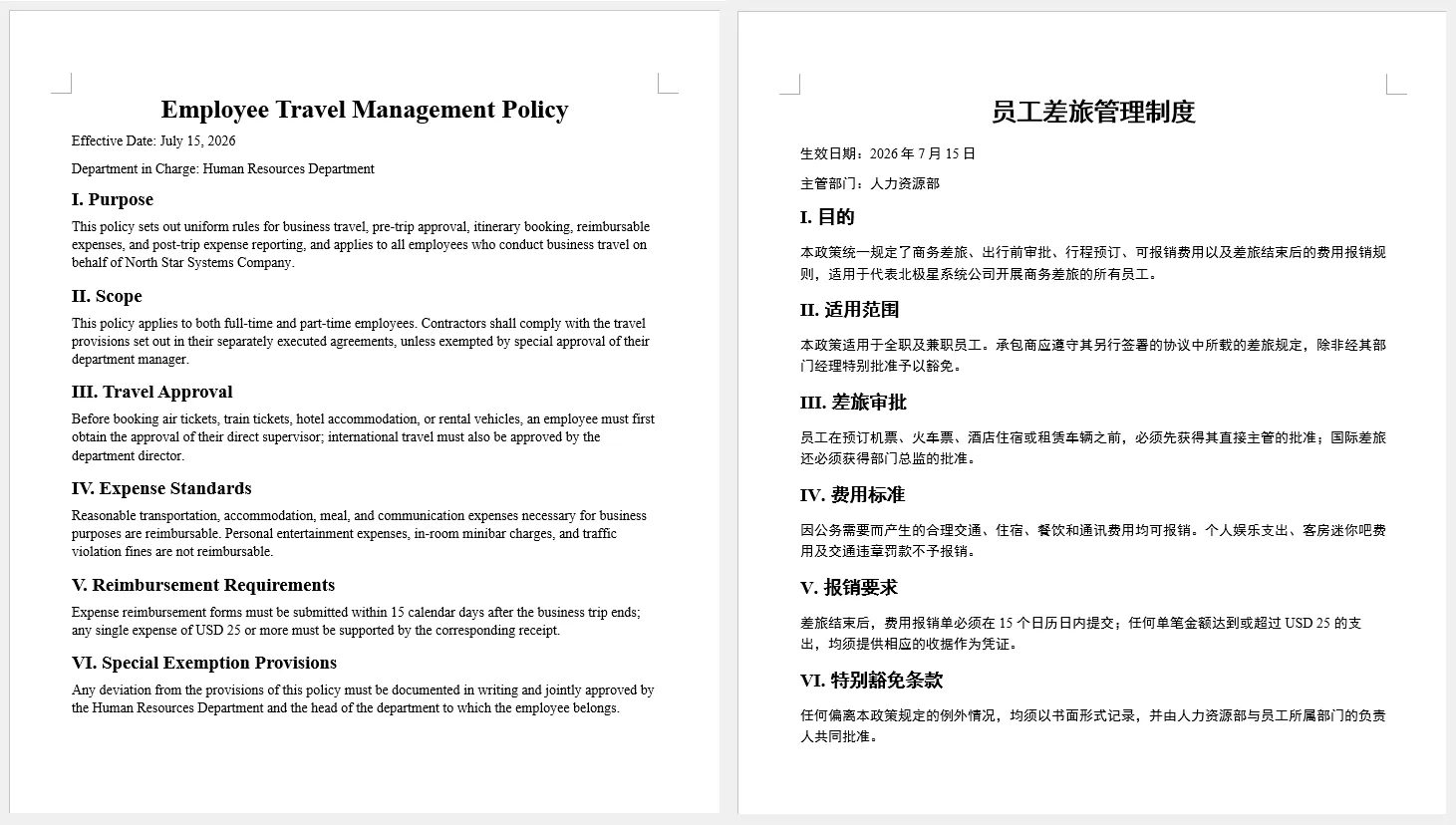
In this example, we translate an English Word document into Simplified Chinese while asking the AI to preserve the document structure and visual formatting.
An additional consideration is font compatibility. Fonts commonly used for English text may not contain all Simplified Chinese characters. The instruction therefore allows the AI to use a suitable Chinese font when the original font does not support the translated characters.
using System;
using Spire.Agent.Office.AI;
using Spire.Agent.Office.Extensions;
using Spire.Doc;

string inputPath = @"E:\Documents\Input.docx";
string outputPath = @"E:\Documents\Translated.docx";
string spireToken = "your spireToken";

string instruction = """
Translate all English text in this Word document into Simplified Chinese.

Requirements:
1. Preserve the original document structure, layout, styles, tables, images, headers, footers, and other elements.
2. Preserve the original formatting as much as possible, including font size, color, bold, alignment, and spacing.
3. Keep the original font if it supports Simplified Chinese. Otherwise, use an appropriate Chinese font such as Microsoft YaHei or SimSun.
4. Translate text in paragraphs, headings, tables, headers, footers, and other editable text areas.
5. Do not translate URLs, email addresses, product names, API names, code, model numbers, or technical identifiers.
6. Do not add explanations, comments, or extra content.
7. Ensure the translated Chinese text displays correctly and keep the final document visually close to the original.
""";

AIOptions options = new AIOptions
{
    SpireToken = spireToken
};

using (Document doc = new Document())
{
    doc.LoadFromFile(inputPath);
    AIDocumentProcessor processor = doc.AI(options);
    AIResult result = processor.ExecuteInstruction(
        doc,
        instruction,
        outputPath
    );

    if (result.Success)
    {
        Console.WriteLine($"Translation completed: {outputPath}");
    }
    else
    {
        Console.WriteLine($"Translation failed: {result.ErrorMessage}");
    }
}
The important part of this example is that the AI is not asked to rebuild the document from scratch. It translates the editable text while retaining the surrounding Word structure.
In the actual test, the translated document preserved the original headings, paragraph formatting, table structure, images, hyperlinks, headers, and footers while replacing the English content with Simplified Chinese.
This type of workflow can be useful for translating reports, manuals, policies, proposals, internal documentation, and other formatted Word files.
4. Translate Excel Workbooks with AI
Excel translation requires a different strategy.
A workbook may contain textual content that should be translated, but it can also contain:
- Numbers
- Dates
- Percentages
- Currency values
- Formulas
- Function names
- Charts
- Images
- Hyperlinks
A translation process should therefore avoid treating every cell value as ordinary text.
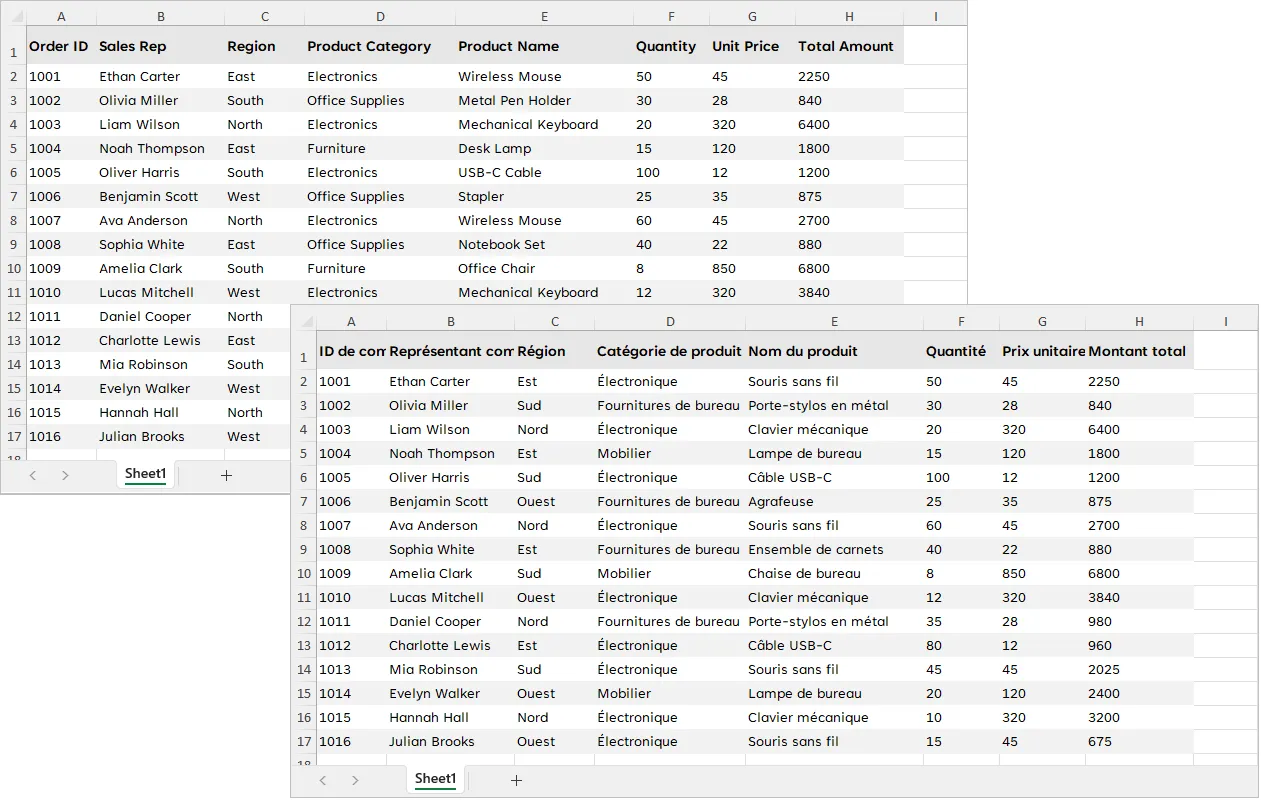
In this example, the workbook is translated from English to French . Because both languages primarily use the Latin alphabet, the original fonts can usually be preserved.
using System;
using Spire.Agent.Office.AI;
using Spire.Agent.Office.Extensions;
using Spire.Xls;

string inputPath = @"E:\Documents\Input.xlsx";
string outputPath = @"E:\Documents\Translated.xlsx";
string spireToken = "your spireToken";

string instruction = """
Translate all English text in this Excel workbook into French.

Requirements:
1. Translate textual content in cells, worksheets, tables, and other editable text areas.
2. Preserve the original workbook structure, worksheets, rows, columns, merged cells, and formatting.
3. Keep formulas, numbers, dates, percentages, currency values, and other non-text data unchanged.
4. Preserve cell formatting as much as possible, including font size, color, bold, alignment, borders, and fills.
5. Preserve the original font whenever possible, since French uses the Latin alphabet. If a font does not support required French characters, use a compatible font.
6. Preserve charts, images, hyperlinks, and other workbook elements.
7. Do not translate URLs, email addresses, person names, model numbers, formulas, function names, or technical identifiers.
8. Do not add explanations, comments, or extra content.
9. Ensure the translated French text displays correctly and keep the workbook visually close to the original.
""";

AIOptions options = new AIOptions
{
    SpireToken = spireToken
};

using (Workbook workbook = new Workbook())
{
    workbook.LoadFromFile(inputPath);
    AIDocumentProcessor processor = workbook.AI(options);
    AIResult result = processor.ExecuteInstruction(
        workbook,
        instruction,
        outputPath
    );

    if (result.Success)
    {
        Console.WriteLine($"Translation completed: {outputPath}");
    }
    else
    {
        Console.WriteLine($"Translation failed: {result.ErrorMessage}");
    }
}
The instruction explicitly separates translatable text from data that should remain unchanged.
For example, product names or descriptions may be translated into French, while a value such as:
$12,500
or a formula such as:
=SUM(C2:C10)
should remain functional.
In the test result, the workbook retained its worksheet structure and formatting while the English textual content was translated into French.
This approach is particularly useful for multilingual product catalogs, financial reports, inventory sheets, sales reports, planning workbooks, and other Excel files that combine text with structured data.
5. Translate PowerPoint Presentations with AI
PowerPoint translation presents another challenge: translated text must fit back into an existing visual layout.
Presentation content may appear in:
- Slide titles
- Text boxes
- Shapes
- Tables
- Captions
- Diagram labels
At the same time, the translation process should preserve slide themes, backgrounds, images, charts, and other visual elements.
In this example, a Japanese presentation is translated into English .
using System;
using Spire.Agent.Office.AI;
using Spire.Agent.Office.Extensions;
using Spire.Presentation;

string inputPath = @"E:\Documents\Input.pptx";
string outputPath = @"E:\Documents\Translated.pptx";
string spireToken = "your spireToken";

string instruction = """
Translate all Japanese text in this PowerPoint presentation into English.

Requirements:
1. Translate slide titles, body text, text boxes, table text, captions, and other editable text.
2. Preserve the original slide order, layout, theme, background, shapes, images, charts, and other elements.
3. Preserve text formatting as much as possible, including font size, color, bold, alignment, and spacing.
4. Since the target language is English, use an appropriate Latin font when the original Japanese font is not suitable for English text, while keeping the visual style as close to the original as possible.
5. Keep translated text inside its original text box or shape whenever possible, and make reasonable layout adjustments if needed.
6. Do not translate URLs, email addresses, product names, model numbers, API names, code, or technical identifiers.
7. Do not add explanations, comments, notes, or extra slides.
8. Ensure the translated English text displays correctly and keep the presentation visually close to the original.
""";

AIOptions options = new AIOptions
{
    SpireToken = spireToken
};

using (Presentation ppt = new Presentation())
{
    ppt.LoadFromFile(inputPath);
    AIDocumentProcessor processor = ppt.AI(options);
    AIResult result = processor.ExecuteInstruction(
        ppt,
        instruction,
        outputPath
    );

    if (result.Success)
    {
        Console.WriteLine($"Translation completed: {outputPath}");
    }
    else
    {
        Console.WriteLine($"Translation failed: {result.ErrorMessage}");
    }
}
Unlike Word documents, presentations often use fixed-size text boxes. Translation can therefore affect line wrapping and visual balance.
The instruction tells the AI to keep translated content inside the original shapes whenever possible and make reasonable adjustments when necessary.
In the test, the Japanese text was successfully translated into English while the original slide structure, theme, shapes, images, and overall presentation layout were preserved.
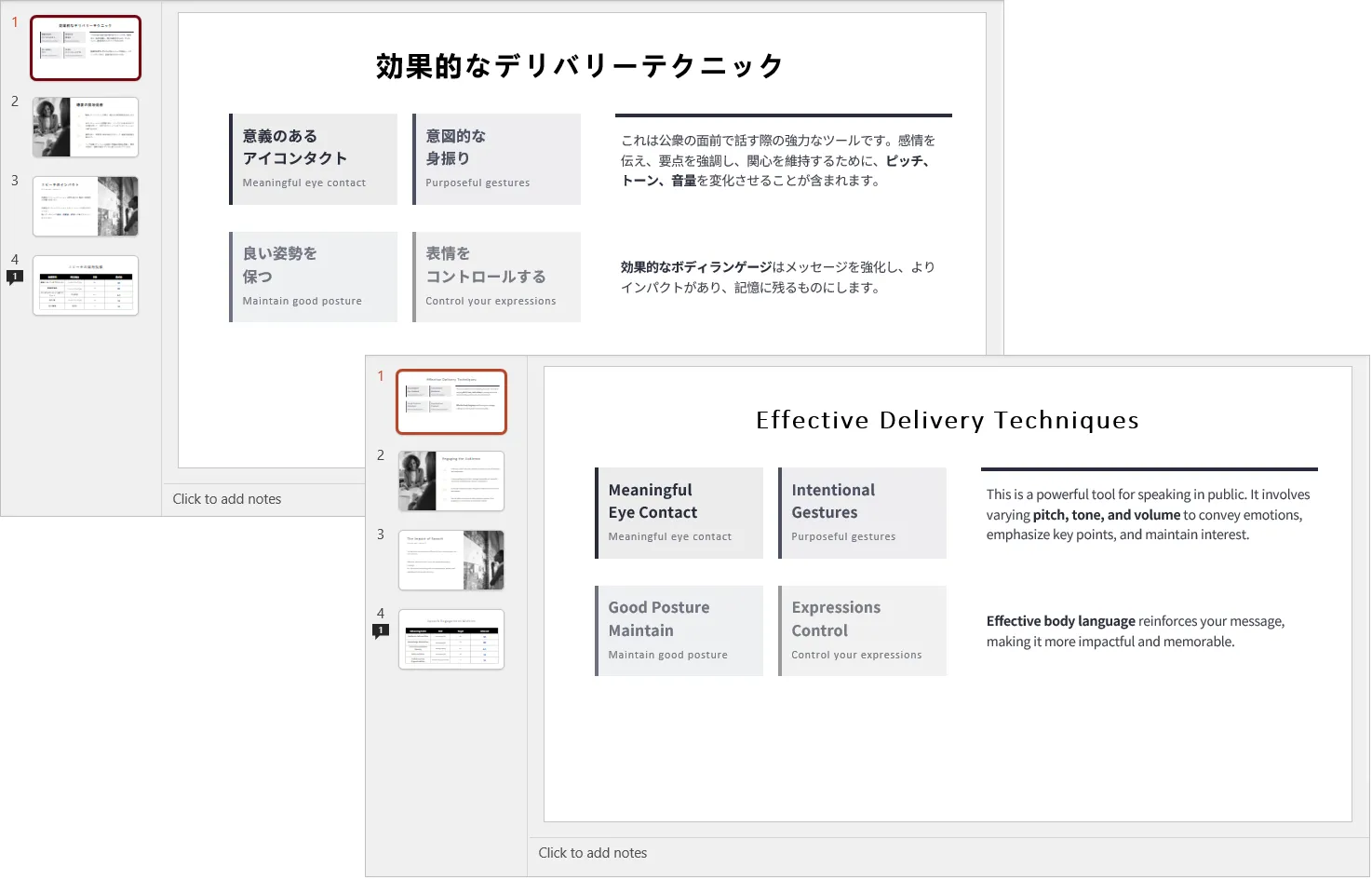
This makes the approach useful for translating training materials, product presentations, sales decks, internal reports, conference slides, and other presentation files.
6. Handle Fonts and Language-Specific Formatting
Font compatibility is an important consideration when translating documents across different writing systems.
For translations between languages that share the same writing system, such as:
English → French
English → German
Spanish → English
the existing font can usually be retained.
However, when translating between Latin text and CJK languages, the original font may not contain the required characters.
For example:
English → Simplified Chinese
English → Japanese
English → Korean
In such cases, forcing the original font to remain unchanged may lead to missing glyphs, boxes, or inconsistent fallback fonts.
A more flexible instruction is:
Keep the original font if it supports the target language.
Otherwise, use an appropriate font that fully supports the
target-language characters.
For Simplified Chinese, fonts such as Microsoft YaHei or SimSun can be used when necessary.
The same concept applies in reverse. When translating Japanese PowerPoint content into English, retaining a Japanese font may technically work, but a suitable Latin font can provide a more natural appearance.
Font replacement should therefore be treated as a conditional operation rather than a mandatory rule.
The goal is to preserve:
- Font size
- Weight
- Color
- Alignment
- Paragraph spacing
- Visual hierarchy
while allowing the font family itself to change when required for language compatibility.
7. How AI Preserves Document Structure and Formatting
One of the key differences between AI-powered document translation and conventional text translation is how the document is handled during the translation process.
Spire.Agent.Office is built on Spire.Office for .NET, which provides APIs for working with the native structure of Office documents. Instead of treating a Word, Excel, or PowerPoint file as a block of plain text, the document can be processed as a collection of structured elements.
For example, when processing a Word document, Spire.Office for .NET can work with document elements such as:
- Sections
- Paragraphs and text ranges
- Tables and table cells
- Images
- Hyperlinks
- Text formatting and styles, including fonts, font sizes, colors, alignment, and other properties
This makes it possible to separate the document structure from the text that needs to be translated .
The general workflow can be illustrated as follows:
Office Document → Identify Document Elements → Extract Translatable Text → AI Translation → Replace Original Text → Save the Existing Document Structure
For example, consider a Word document containing a heading, several paragraphs, a table, and an image. The translation process does not need to recreate the document from scratch. Instead, the existing document elements remain in place while the translatable text is replaced with its translated content.
The AI model is responsible for the language transformation, while Spire.Office for .NET provides the document-level access needed to work with the existing Office structure.
This approach is also why translation instructions can specify both what should be translated and what should remain unchanged . For example, an instruction can request that paragraph text, table content, headers, and footers be translated while URLs, formulas, images, technical identifiers, and other non-translatable elements are preserved.
How This Works Across Office Formats
| Format | Content to Translate | Structure and Elements to Preserve |
|---|---|---|
| Word | Paragraphs, headings, tables, headers, and footers | Sections, styles, images, hyperlinks, formatting |
| Excel | Text in cells, tables, and other editable text areas | Worksheets, formulas, values, formatting, charts, images |
| PowerPoint | Titles, text boxes, tables, and captions | Slides, themes, shapes, images, layouts, formatting |
The important point is that AI handles the translation, while the Office document model provides the structure in which the translation takes place . This combination allows Spire.Agent.Office to generate a translated Office file without requiring the entire document to be rebuilt from translated plain text.
As a result, the output can retain the original document structure and formatting while replacing the source-language content with the translated text.
8. Conclusion
With Spire.Agent.Office for .NET, the same AI-driven approach can be applied across Word, Excel, and PowerPoint: load the original Office file, describe the translation requirements in natural language, and generate a translated document while preserving its native structure and formatting as much as possible.
The three examples in this article demonstrate different translation scenarios:
- Word: English → Simplified Chinese
- Excel: English → French
- PowerPoint: Japanese → English
Despite the differences between these file formats, the underlying workflow remains consistent. The AI agent translates editable content while respecting document-specific elements such as Word styles and tables, Excel formulas and cell formatting, and PowerPoint shapes and slide layouts.
The key advantage is that the output remains an editable Office document rather than becoming a separate block of translated text.
By combining AI language understanding with native Office document processing, Spire.Agent.Office makes it possible to automate document translation while retaining much of the original layout, formatting, and embedded content.
FAQs
1. Can Spire.Agent.Office translate Word, Excel, and PowerPoint files directly?
Yes. The AI processor can operate on Word Document, Excel Workbook, and PowerPoint Presentation objects. The translation instruction is applied to the loaded Office file, and the result can be saved as a new file in the same Office format.
2. Will the original document formatting be preserved after translation?
The AI instruction can explicitly require the original formatting and structure to be preserved. In the examples above, the translated files retained their document structure and visual formatting well during testing.
However, translated text can differ significantly in length from the source text, so complex layouts should still be reviewed after processing.
3. Can Excel formulas and numerical data remain unchanged during translation?
Yes. The instruction can tell the AI to translate textual content only while preserving formulas, numbers, percentages, currency values, dates, and other non-text data.
This is important when translating workbooks that combine business text with calculations or structured data.
4. How should fonts be handled when translating between different writing systems?
If the original font supports the target-language characters, it can usually be retained.
If it does not, the instruction should allow the AI to choose a compatible font. For example, an English-to-Chinese translation may use Microsoft YaHei or SimSun when the original Latin font does not adequately support Chinese characters.
5. Can I prevent specific content from being translated?
Yes. The instruction can define content that should remain unchanged, such as URLs, email addresses, product names, model numbers, API names, code snippets, formulas, and other technical identifiers.
This is particularly useful for technical, financial, engineering, and product documentation.