
Turning documents into PowerPoint presentations with AI in C# is more than format conversion. A 30-page report becoming a 10-slide deck means someone read the full document, decided which 90% to leave out, reorganized what remained into a narrative, and applied visual design. That is editorial synthesis — the part traditional PowerPoint libraries do not do.
The interesting part is what gets synthesized. In real workflows the source is rarely a single file. A quarterly business review pulls numbers from an Excel workbook, narrative from a Word report, and a signature invoice from a PDF. The value of an AI document agent is not "convert one .docx to .pptx" — it is "read all three, and give me one deck that tells the story across them." This article shows the simplest way to do exactly that with Spire.Agent.Office in C#: hand the agent every document plus one instruction, and let it generate the deck in a single call.
1. One Instruction, Many Sources
Traditional Spire.Office code treats each format as an island. To build a deck from a Word report plus an Excel sheet you would:
- Use
Spire.Docto open the.docxand pull the text you want. - Use
Spire.XLSto read the workbook and compute the figures. - Use
Spire.Pdfif a source is a PDF. - Use
Spire.Presentationto create slides one by one, position every text box and chart, and calculate layouts by hand.
That is four API surfaces, a parser per format, and a manual layout engine. The moment a document's structure changes, the code breaks.
Spire.Agent.Office collapses that into one instruction. You hand the agent all your source files and tell it what story the deck should tell. The agent reads each format, decides what matters across them, and produces the slides — no manual layout code.
The mental model is a single step:
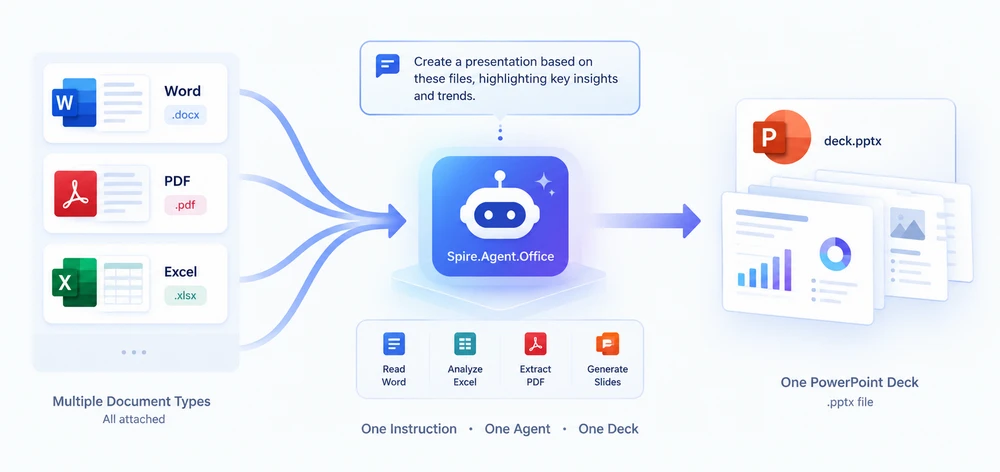
Instead of writing a parser per format, you let the agent read every file and generate the deck directly. One call, one instruction string, one .pptx file.
2. What You Need
-
.NET 6+ (the sample targets
net10.0). - The
Spire.Agent.OfficeNuGet package. It transitively brings inSpire.Doc,Spire.Pdf,Spire.XLS, andSpire.Presentation, so you do not install them separately. - A
SpireToken(Spire.Agent.Office API key). The agent talks to the AI service, so a valid token is required for the actual generation. - Namespace imports:
using Spire.Agent.Office.AI;        // AIOptions, AIDocumentProcessor, AIResult
using Spire.Agent.Office.Extensions;// presentation.AI(...) extension
using Spire.Presentation;           // Presentation
3. The Simple Recipe: One Call, One Deck
The core idea is radical simplicity: pass every source document as attachments, write one natural-language instruction, and let the agent do everything — reading, understanding, synthesis, layout — in a single ExecuteInstruction call.
string[] sources = new[]
{
    Path.Combine(sampleDir, "AI-Powered Document Processing Report.docx"),
    Path.Combine(sampleDir, "purchase-orders.xlsx"),
    Path.Combine(sampleDir, "invoice_INV-2026-0815.pdf")
};

string instruction =
    "Create a concise Q3 business review summary from the provided documents. " +
    "1. Use a clean blue theme; " +
    "2. Summarize business review, project status, customer pilot research, and platform performance; " +
    "3. Keep each slide focused on one key finding or metric; " +
    "4. Generate 5 slides.";

AIResult result = processor.ExecuteInstruction(
    ppt, instruction, savePath, sources,
    autonomousOutput: true, maxTurns: null);
That is the whole recipe: one method call, one instruction string. No per-format parsers, no intermediate files, no manual layout code. The agent reads each format, decides what matters across them, and writes the deck directly to savePath.
The autonomousOutput: true flag is what makes this work — it tells the agent it may write files (including the final .pptx) without asking for confirmation at each step. Set maxTurns to null (or a large number) so the agent has enough turns to finish.
4. Full Example: One Deck from Word + PDF + Excel
Here is the complete program. Point it at a file or a folder, and it builds the deck in a single AI call:
using System;
using System.IO;
using System.Linq;
using Spire.Agent.Office.AI;
using Spire.Agent.Office.Extensions;
using Spire.Presentation;

class Program
{
    static void Main()
    {
        string instruction =
            "Create a concise Q3 business review summary from the provided documents. " +
            "1. Use a clean blue theme; " +
            "2. Summarize business review, project status, customer pilot research, and platform performance; " +
            "3. Keep each slide focused on one key finding or metric; " +
            "4. Generate 5 slides.";

        AIOptions options = new AIOptions { SpireToken = "sk-YourSpireToken", TimeoutMs = 1000000 };

        using (Presentation ppt = new Presentation())
        {
            AIResult result = ppt.AI(options).ExecuteInstruction(
                ppt, instruction, @"C:\Samples\Q3_Review.pptx", ResolveInputs(@"C:\Samples"),
                autonomousOutput: true, maxTurns: null);

            Console.WriteLine(result.Success ? "Success" : $"Error={result.ErrorMessage}");
        }
    }

    // Point at a file or a folder; a folder is filtered to supported document formats.
    static string[] ResolveInputs(string path) =>
        File.Exists(path) ? new[] { path }
        : Directory.GetFiles(path).Where(IsSupported).OrderBy(f => f).ToArray();

    static bool IsSupported(string file) =>
        new[] { ".doc", ".docx", ".xls", ".xlsx", ".ppt", ".pptx", ".pdf", ".txt", ".md" }
            .Contains(Path.GetExtension(file).ToLowerInvariant());
}
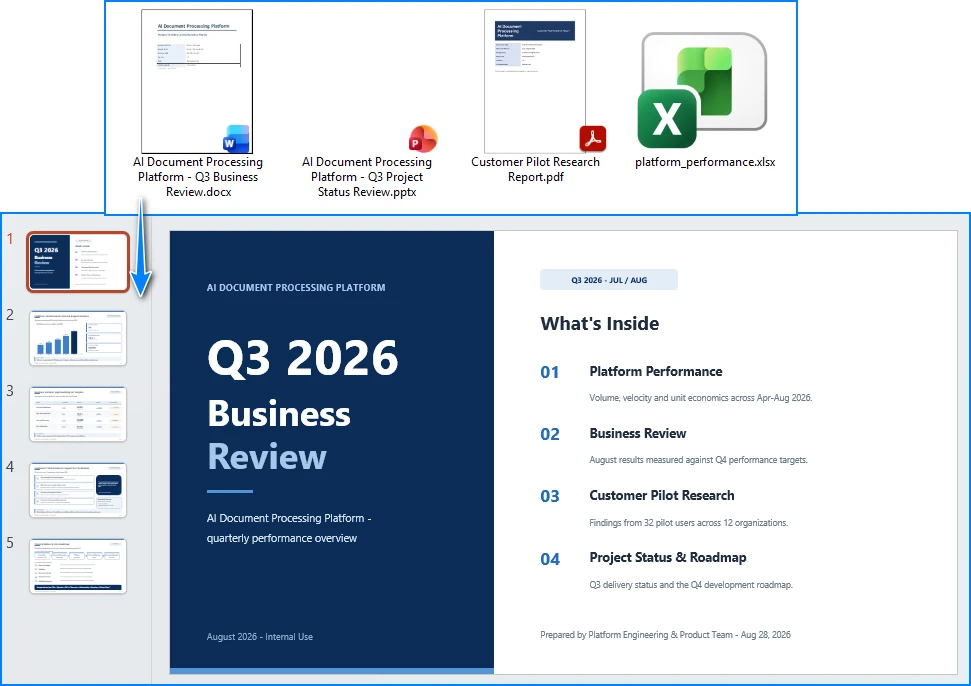
That is the whole program. Apart from the Agent call itself, the only code is ResolveInputs, which just decides which files to attach: it never reads or parses a document. The instruction is the only part that describes the design (theme, slide count, focus); the reading, deciding, and layout are the agent's job.
One call, five slides — the deck the program above produces:
5. How It Works Under the Hood
-
AIDocumentProcessoris obtained from aPresentationviappt.AI(options). ThePresentationobject is the canvas the agent draws slides onto. -
AIOptionscarries the configuration:SpireToken(your key) andTimeoutMs(set it large for real documents — AI analysis of big docs takes time). -
ExecuteInstructionruns the agent. You pass thePresentation, a natural-languageinstruction, thesavePathfor the output.pptx, and astring[]of source file paths (any mix of Word, PDF, Excel, Markdown). WithautonomousOutput: truethe agent may write files — including the final deck — without asking for confirmation. It returns anAIResultwithSuccess,ErrorMessage, andOutputFiles(everything the agent created). -
maxTurnscontrols how many agent steps are allowed. Set it tonullfor no limit, or a large number (e.g.80) for big document sets. -
GeneratePresentation(sourcePath, instruction, savePath)is the dedicated shortcut when you have exactly one source document. It returns aPPTGenerationResult(Success,GeneratedPages,TotalPages,OutputPath,ErrorMessage) instead of anAIResult. ItssourcePathis a single file, which is exactly why this article uses the multi-attachmentExecuteInstructionpath: that is what lets one deck draw on several sources in a single call.
Why not merge into Markdown first? You can — see Variant B in Section 6. But for most use cases the single-call approach is simpler, faster, and produces the same result. The intermediate Markdown is useful only when you want to inspect or edit the consolidated content before spending tokens on the deck.
6. Precise Control
The recipe above is deliberately minimal. When you need more control, these variations build on the same ExecuteInstruction call.
Tune the instruction. The deck's structure, length, theme, and charts are all controlled by the instruction string. Be explicit:
// e.g. ask for a specific page count, theme, and a chart on a given slide
"Create a 12-slide deck. Light minimalist theme, accent colour #2E5AAC. " +
"Include a bar chart of monthly revenue on slide 5. Keep each slide to one key message.";
Variant A — summarize each source yourself (more predictable). If you would rather prompt each document individually than trust one cross-document instruction, loop SummarizeDocument, which returns the agent's summary of a single file as a string:
var sb = new StringBuilder();
foreach (var file in sources)
    sb.AppendLine($"## {Path.GetFileName(file)}\n\n{processor.SummarizeDocument(file)}");
File.WriteAllText(Path.Combine(workDir, "consolidated.md"), sb.ToString());
Then pass the consolidated Markdown to ExecuteInstruction as the sole source — you get a separate, per-document summary you can read and edit before generation.
Variant B — consolidate into Markdown, then generate (two-step). For cases where you want an inspectable intermediate file, split the work into two calls. Step 1 uses ExecuteInstruction in autonomous mode to merge all sources into one Markdown file; Step 2 feeds that Markdown to ExecuteInstruction again to build the deck:
// Step 1 — merge all documents into one Markdown file
string consolidateInstruction =
    "Read all the attached files. Merge their content into a SINGLE Markdown " +
    "document named 'output_consolidated.md'. Use one top-level heading per source, " +
    "preserve key facts / figures / tables, and drop boilerplate. Output ONLY that file.";
processor.ExecuteInstruction(ppt, consolidateInstruction,
    Path.Combine(workDir, "output_consolidated.pptx"), sources,
    autonomousOutput: true, maxTurns: 40);

string consolidatedMd = Path.Combine(workDir, "output_consolidated.md");

// Step 2 — generate the deck from the consolidated Markdown
string genInstruction =
    "Create a 9-slide quarterly business review deck from the consolidated material. " +
    "Professional corporate blue, clear hierarchy, speaker notes per slide.";
processor.ExecuteInstruction(ppt, genInstruction,
    Path.Combine(workDir, "QBR_Deck.pptx"), new[] { consolidatedMd },
    autonomousOutput: true, maxTurns: 40);
The trade-off: Variant B gives you an inspectable Markdown file between the two calls, which is useful for debugging or when the consolidation needs human review. The single-call recipe in Section 3 is the recommended default because it is simpler and faster.
You may also like: Automate Invoice Processing with an AI Agent in .NET — another document-heavy workflow that hands the agent a folder of files and gets a finished document back.
7. Read Back and Inspect the Result
After generation, reopen the deck and verify it programmatically:
using (Presentation deck = new Presentation())
{
    deck.LoadFromFile(savePath);
    Console.WriteLine($"Total slides: {deck.Slides.Count}");

    for (int i = 0; i < deck.Slides.Count; i++)
    {
        ISlide slide = deck.Slides[i];
        string title = slide.Title ?? "(no title)";
        Console.WriteLine($"Slide {i + 1}: {title}");
    }
}
This is also where a human review step fits: load the generated deck, check the titles, and refine the instruction if something is off.
8. FAQ
The generated deck has the wrong number of slides.
If a source is large, analysis can take longer than the default timeout and the agent stops early. Set AIOptions.TimeoutMs to a large value (e.g. 1000000 for ~17 minutes) and state a page range in the instruction, e.g. "Keep the final deck to 8–12 slides."
The agent does not include content from one of the documents. Complex documents can confuse a single pass. Name the content you want explicitly in the instruction ("include the findings from the Word report", "preserve the table in the Excel sheet"). If the problem persists, try the two-step approach (Variant B in Section 6) to inspect the consolidated Markdown before generation.
The call fails with "401 Invalid token".
The SpireToken is rejected — confirm it is valid, not expired, and copied correctly into AIOptions.SpireToken.
How do I pass multiple documents?
ExecuteInstruction accepts a string[] of file paths as its fourth argument. Pass every source file — any mix of .docx, .pdf, .xlsx, .md, and more — and the agent reads them all in one call. With a single source document, the dedicated shortcut is GeneratePresentation(sourcePath, instruction, savePath); the multi-attachment call above is what makes one deck from several sources possible.
Get Your SpireToken Key Contact us to request a trial or commercial API key, or apply for a temporary license. Configure it in code:
AIOptions options = new AIOptions();
options.SpireToken = "sk-YourSpireToken";
options.TimeoutMs  = 1000000;
See Also
- Spire.Agent.Office product overview — the AI agent SDK for Word, Excel, PowerPoint, and PDF
- Getting Started with Spire.Agent.Office — install the SDK and run your first instruction
- Generate PPT from Documents — the official tutorial for the presentation API used in this article
- Batch Contract Generation with Spire.Agent.Office — the same instruction-driven pattern applied to bulk document generation