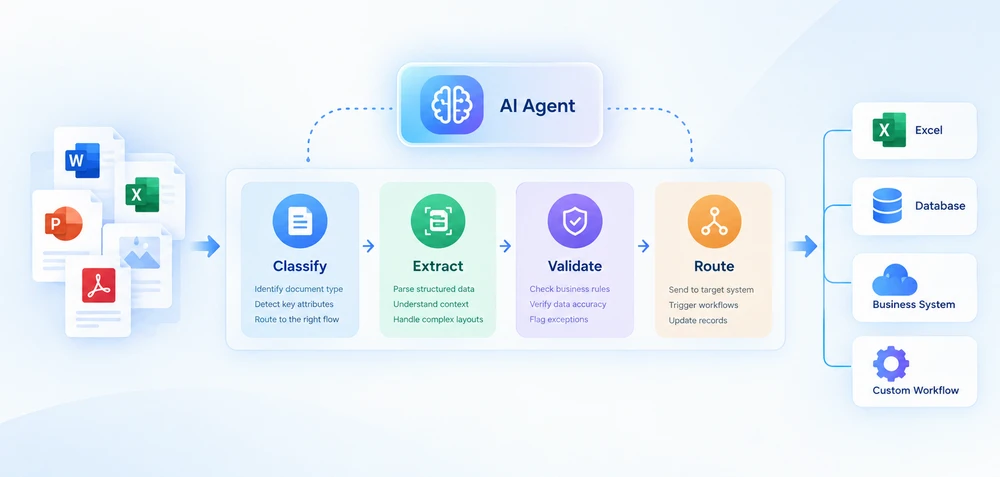
Intelligent document processing (IDP) combines AI-based document understanding with automated extraction, validation, and downstream processing. For .NET developers, implementing IDP usually means connecting AI-based document understanding with deterministic code that handles files, business rules, and system integration.
This guide focuses on IDP workflows for Office and PDF documents in .NET. It covers the four-stage pipeline architecture, shows C# implementation patterns, and provides a decision framework for choosing between building in-house and adopting a vendor platform.
Quick Navigation
- The Four-Stage IDP Pipeline
- Building an IDP Pipeline in .NET
- Batch and Multi-Document Processing
- IDP in Practice
- Build vs Buy: Choosing an IDP Approach
1. What Is Intelligent Document Processing?
Intelligent document processing is an automation approach that uses AI to classify documents, extract structured data from them, validate the results against business rules, and route the output to downstream systems. Unlike traditional OCR, which primarily converts visual content into machine-readable text, IDP adds document classification, semantic extraction, validation, and workflow automation. It can handle varied document layouts without relying entirely on fixed templates.
A practical IDP pipeline can be organized into four stages: classify, extract, validate, and route. Each stage has distinct inputs, outputs, and failure modes. The AI agent handles classification and extraction through natural-language understanding, while validation and routing remain deterministic code that enforces business rules and integrates with downstream systems.
IDP vs. OCR, Document Processing, and Document Intelligence
These terms are often used interchangeably, but they describe different capabilities:
| Technology | Primary role |
|---|---|
| OCR | Convert visual content into text |
| Document processing | Read, manipulate, convert, or generate files |
| Document intelligence | Understand document content and extract meaning |
| IDP | Combine document understanding with automated workflows |
In practice, these capabilities often overlap. An IDP pipeline may use OCR for scanned documents, AI for semantic understanding, and document-processing APIs for deterministic file operations. The distinction matters for architecture: knowing which layer handles which responsibility determines how you build and maintain the system.
IDP does not mean replacing the entire workflow with AI. The AI handles understanding and extraction; deterministic code handles validation, routing, file manipulation, and system integration. This separation is what makes IDP maintainable in production—business rules change more often than document formats, and you want those rules in code you control, not in a model prompt.
2. The Four-Stage IDP Pipeline
An IDP pipeline is not a single API call. It is a sequence of stages, each with distinct inputs, outputs, and failure modes. Understanding this architecture is the difference between building a pipeline that handles real document variety and writing a script that breaks on the first unexpected input.
A practical IDP pipeline can be organized into four stages:
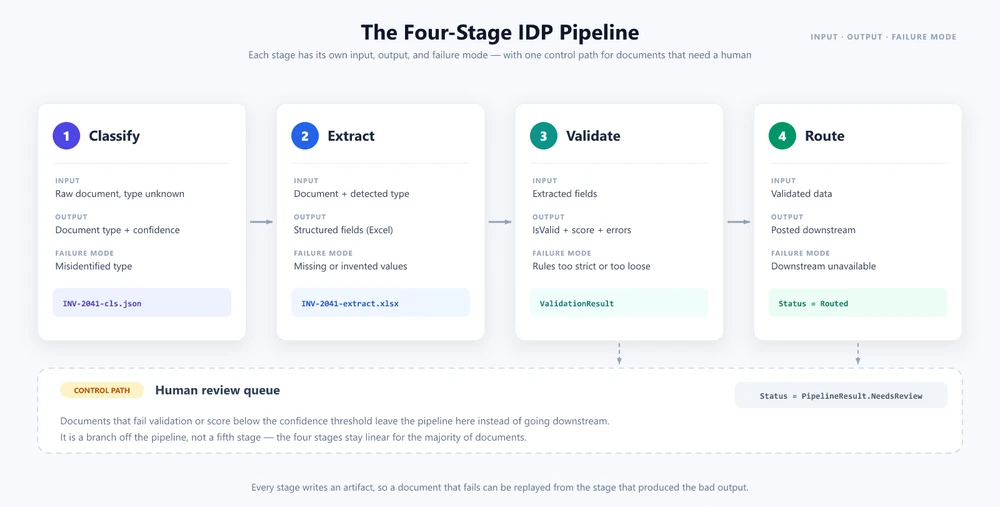
Stage 1 — Classification
The pipeline receives a document of unknown type. Classification determines what the document is—an invoice, a contract, a purchase order, a receipt, a bank statement—and attaches metadata that drives downstream behavior. In a traditional system, classification relies on file naming conventions, folder paths, or template matching. In an AI-driven pipeline, classification uses natural-language analysis: the agent reads the document content and determines its type based on semantic understanding.
Stage 2 — Extraction
Once the document type is known, extraction pulls structured data from the document. For an invoice, this means vendor name, invoice number, line items, totals, tax amounts, payment terms. For a contract, it means parties, effective dates, termination clauses, financial obligations. The extraction stage transforms unstructured or semi-structured document content into a structured format (JSON, XML, database records) that downstream systems can consume.
Stage 3 — Validation
Extracted data is checked against business rules. Does the invoice total match the sum of line items? Is the vendor in the approved vendor list? Is the contract signed by an authorized signatory? Validation catches extraction errors, flags anomalies, and produces a confidence score that determines whether the document can be auto-routed or requires human review.
Stage 4 — Routing
Validated data is sent to the appropriate downstream system: an ERP for invoice data, a contract management platform for contract data, a document archive for everything else. Routing may also trigger downstream workflows—approval chains, payment processing, compliance checks.
Human review is a control path rather than a mandatory stage: documents that fail validation or fall below a confidence threshold can be routed for manual review. This keeps the four-stage pipeline linear for the majority of documents while providing a controlled fallback for edge cases.
Why IDP needs more than an AI API call
Each stage has independent failure modes. Classification can misidentify a document type. Extraction can miss fields or hallucinate values. Validation can reject valid data due to overly strict rules. Routing can fail due to downstream system unavailability. A robust IDP pipeline handles each failure mode independently, with retry logic, fallback behavior, and audit logging at every stage.
3. Building an IDP Pipeline in .NET
One way to implement this architecture in .NET is to use Spire.Agent.Office, an AI agent SDK that processes Word, Excel, PowerPoint, and PDF documents via natural-language instructions. The SDK provides the AI() extension method on document objects (Document, PdfDocument, Workbook, Presentation), which accepts an AIOptions configuration and returns an AIDocumentProcessor. Calling ExecuteInstruction on the processor runs the instruction and writes output to a file, returning an AIResult with Success and ErrorMessage properties.
Prerequisites
<!-- NuGet package -->
<PackageReference Include="Spire.Agent.Office" Version="11.8.3" />
The examples below focus on the pipeline architecture and Spire.Agent.Office integration. Helper methods such as result parsing and downstream routing are omitted for brevity.
3.1 Define the Pipeline Model
The pipeline needs data structures to carry results between stages, and a shared configuration for the AI agent.
using Spire.Agent.Office.AI;
using Spire.Agent.Office.Extensions;
using Spire.Doc;
using Spire.Pdf;
using Spire.Xls;
using Spire.Presentation;
using System.Collections.Concurrent;

public class ClassificationResult
{
    public string DocumentType { get; set; } = "Unknown";
    public double Confidence { get; set; }
    public string SourceFile { get; set; } = string.Empty;
}

public class ExtractionResult
{
    public Dictionary<string, string> Fields { get; set; } = new();
    public List<Dictionary<string, string>> LineItems { get; set; } = new();
    public string OutputPath { get; set; } = string.Empty;
}

public class ValidationResult
{
    public bool IsValid { get; set; }
    public List<string> Errors { get; set; } = new();
    public List<string> Warnings { get; set; } = new();
    public double ValidationScore { get; set; }
}

public class PipelineResult
{
    // Stage 4 outcomes. RunPipelineAsync records one of them on every
    // path, and ProcessBatchAsync counts by them, so the batch report
    // always adds up: Successful + Flagged + Errored == Total.
    public const string Routed = "Routed";
    public const string NeedsReview = "Flagged for review";
    public const string Failed = "Failed";

    // Non-null defaults keep a failed result object complete, so the
    // batch aggregator never has to null-check stage outputs.
    public ClassificationResult Classification { get; set; } = new();
    public ExtractionResult Extraction { get; set; } = new();
    public ValidationResult Validation { get; set; } = new();
    public List<string> AuditLog { get; set; } = new();
    public string Status { get; set; } = string.Empty;
}

public class BatchResult
{
    public int Total { get; set; }
    public int Successful { get; set; }
    public int Flagged { get; set; }
    public int Errored { get; set; }
    public List<PipelineResult> Results { get; set; } = new();
}

// Routing policy shared by validation (§3.3) and orchestration (§3.4)
static class RoutingPolicy
{
    // Minimum validation score required for automatic routing.
    public const double AutoRouteThreshold = 0.7;

    // Confidence budget shared across all optional-field warnings.
    // Spending the whole budget must be able to push a valid document
    // below AutoRouteThreshold — otherwise the routing check in §3.4
    // is dead code. Allocating a fixed budget instead of a flat
    // per-field penalty keeps that true when optional fields change.
    public const double OptionalFieldBudget = 0.4;
}

// Shared agent configuration
static AIOptions CreateAgentOptions(string workDir)
{
    string spireToken = Environment.GetEnvironmentVariable("SPIRE_TOKEN")
        ?? throw new InvalidOperationException("SPIRE_TOKEN not set.");

    AIOptions options = new AIOptions();
    options.SpireToken = spireToken;
    options.WorkDir = workDir;
    options.TimeoutMs = 300000;
    return options;
}
SpireToken is used to authenticate Spire.Agent.Office. The SDK manages the AI service connection through AIOptions, so the application does not need to implement the underlying model API integration directly. WorkDir designates where the agent stores intermediate files during processing.
3.2 Classify and Extract Documents with an AI Agent
Classification loads the document, asks the agent to identify its type, and writes the result to a JSON file. The same LoadFromFile → AI(options) → ExecuteInstruction pattern works for every document format—only the document class changes, and that dispatch is yours to write. AI() binds to a concrete document type: a PDF has to be loaded as a PdfDocument, a workbook as a Workbook, a presentation as a Presentation, and a Word file as a Document. Handing a file to the wrong class does not fall back to a generic reader; it throws, so pick the class from the file extension before you call AI().
public ClassificationResult Classify(
    string filePath, string outputDir)
{
    AIOptions agentOptions = CreateAgentOptions(outputDir);
    string classifyPath = Path.Combine(outputDir,
        Path.GetFileNameWithoutExtension(filePath) + "-cls.json");

    string instruction =
        "Analyze this document and determine its type. " +
        "Return one of: Invoice, Contract, PurchaseOrder, " +
        "Receipt, BankStatement, Unknown. Include a confidence " +
        "score between 0 and 1. Save the result as JSON.";

    string ext = Path.GetExtension(filePath).ToLowerInvariant();
    AIResult? result = null;

    if (ext == ".pdf")
    {
        using (PdfDocument doc = new PdfDocument())
        {
            doc.LoadFromFile(filePath);
            result = doc.AI(agentOptions).ExecuteInstruction(
                doc, instruction, classifyPath, new string[] { });
        }
    }
    else if (ext == ".xlsx" || ext == ".xls")
    {
        using (Workbook doc = new Workbook())
        {
            doc.LoadFromFile(filePath);
            result = doc.AI(agentOptions).ExecuteInstruction(
                doc, instruction, classifyPath, new string[] { });
        }
    }
    else if (ext == ".pptx" || ext == ".ppt")
    {
        using (Presentation doc = new Presentation())
        {
            doc.LoadFromFile(filePath);
            result = doc.AI(agentOptions).ExecuteInstruction(
                doc, instruction, classifyPath, new string[] { });
        }
    }
    else
    {
        using (Document doc = new Document())
        {
            doc.LoadFromFile(filePath);
            result = doc.AI(agentOptions).ExecuteInstruction(
                doc, instruction, classifyPath, new string[] { });
        }
    }

    if (result != null && result.Success && File.Exists(classifyPath))
    {
        return ParseClassification(
            File.ReadAllText(classifyPath), filePath);
    }

    return new ClassificationResult
    {
        DocumentType = "Unknown",
        Confidence = 0,
        SourceFile = filePath
    };
}
Extraction uses type-specific instructions to pull structured fields from the document:
public ExtractionResult Extract(
    string filePath, string documentType, string outputDir)
{
    AIOptions agentOptions = CreateAgentOptions(outputDir);
    string extractPath = Path.Combine(outputDir,
        Path.GetFileNameWithoutExtension(filePath) + "-extract.xlsx");

    string instruction = documentType switch
    {
        "Invoice" =>
            "Extract all invoice fields and write them as key-value " +
            "pairs in a sheet named 'Fields' with columns 'Field' and " +
            "'Value'. Use these exact field names: VendorName, " +
            "InvoiceNumber, IssueDate, DueDate, Subtotal, Tax, Total, " +
            "PONumber. Extract line items into a sheet named 'LineItems' " +
            "with columns: Description, Quantity, UnitPrice, Amount. " +
            "Write the extracted data to a structured Excel workbook.",

        "Contract" =>
            "Extract all contract fields and write them as key-value " +
            "pairs in a sheet named 'Fields' with columns 'Field' and " +
            "'Value'. Use these exact field names: Party1, Party2, " +
            "EffectiveDate, TerminationDate, ContractValue, " +
            "PaymentTerms, Signatory1, Signatory2. Extract key " +
            "obligations into a sheet named 'Obligations' with " +
            "columns: Description, Party, Deadline. Write the " +
            "extracted data to a structured Excel workbook.",

        "PurchaseOrder" =>
            "Extract all purchase order fields and write them as " +
            "key-value pairs in a sheet named 'Fields' with columns " +
            "'Field' and 'Value'. Use these exact field names: " +
            "PONumber, VendorName, IssueDate, ExpectedDeliveryDate, " +
            "ShippingAddress, Total. Extract requested items into a " +
            "sheet named 'LineItems' with columns: Description, " +
            "Quantity, UnitPrice, Amount. Write the extracted data " +
            "to a structured Excel workbook.",

        _ => "Extract all key fields and values from this document. " +
             "Write the extracted data to a structured Excel workbook."
    };

    string ext = Path.GetExtension(filePath).ToLowerInvariant();
    AIResult? result = null;

    if (ext == ".pdf")
    {
        using (PdfDocument doc = new PdfDocument())
        {
            doc.LoadFromFile(filePath);
            result = doc.AI(agentOptions).ExecuteInstruction(
                doc, instruction, extractPath, new string[] { });
        }
    }
    else if (ext == ".xlsx" || ext == ".xls")
    {
        using (Workbook doc = new Workbook())
        {
            doc.LoadFromFile(filePath);
            result = doc.AI(agentOptions).ExecuteInstruction(
                doc, instruction, extractPath, new string[] { });
        }
    }
    else if (ext == ".pptx" || ext == ".ppt")
    {
        using (Presentation doc = new Presentation())
        {
            doc.LoadFromFile(filePath);
            result = doc.AI(agentOptions).ExecuteInstruction(
                doc, instruction, extractPath, new string[] { });
        }
    }
    else
    {
        using (Document doc = new Document())
        {
            doc.LoadFromFile(filePath);
            result = doc.AI(agentOptions).ExecuteInstruction(
                doc, instruction, extractPath, new string[] { });
        }
    }

    if (result == null || !result.Success)
        throw new InvalidOperationException(
            $"Extraction failed: {result?.ErrorMessage}");

    return ReadExtractionResult(extractPath);
}
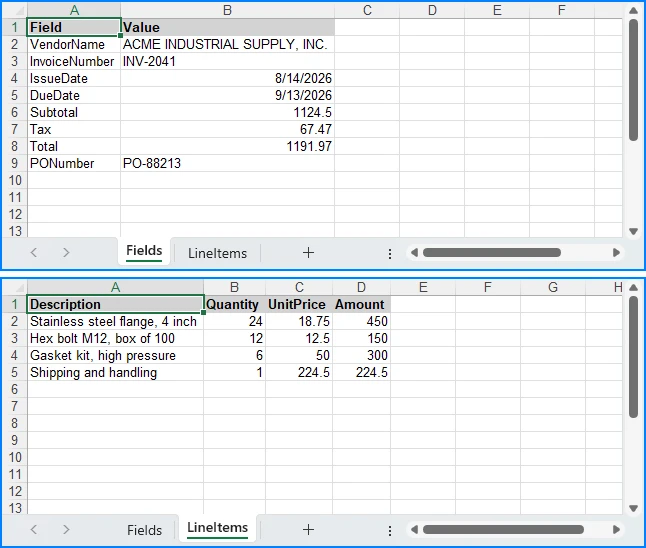
Each document type gets a dedicated instruction that tells the agent which fields to look for and what output format to produce. The agent reads the source document and writes a structured Excel workbook to extractPath. The instruction is what fixes that workbook's shape—naming the sheets, the headers, and the exact field names is what makes the output parseable downstream. An instruction that only says "extract the invoice fields" can come back with a different sheet name, a different header row, or a different spelling for the same field on every run, because the agent decides the layout itself. GetField in the next section covers the variations that slip through anyway.
That split between agent judgment and deterministic code is covered further in AI Agent for Document Processing.
3.3 Validate Extracted Data with C#
Validation is pure C# logic—no AI call needed. The agent has already produced structured data; validation checks that data against business rules.
// Normalized field lookup: handles key variations like
// "VendorName" vs "Vendor Name" vs "vendor_name", and strips
// trailing qualifier words (e.g., "Total Amount Due" → "Total")
static string? GetField(
    Dictionary<string, string> fields, string key)
{
    string normalized = key.Replace(" ", "").ToLowerInvariant();
    foreach (var kvp in fields)
    {
        if (kvp.Key.Replace(" ", "").ToLowerInvariant() == normalized)
            return kvp.Value;
    }

    // Fallback: strip trailing qualifier words, one at a time, so
    // multi-word labels collapse all the way down to the field name
    // we asked for ("Total Amount Due" → "Total", "Invoice No"
    // → "Invoice"). Stripping is restarted after every match so the
    // result does not depend on the order of the suffix list.
    string[] suffixes = { "due", "amount", "no" };
    foreach (var kvp in fields)
    {
        string candidate = kvp.Key.Replace(" ", "")
            .ToLowerInvariant();

        bool stripped = true;
        while (stripped)
        {
            stripped = false;
            foreach (var suffix in suffixes)
            {
                if (candidate.Length > suffix.Length &&
                    candidate.EndsWith(suffix))
                {
                    candidate = candidate[..^suffix.Length];
                    stripped = true;
                    break;
                }
            }
        }

        if (candidate == normalized)
            return kvp.Value;
    }

    return null;
}

public ValidationResult Validate(
    ExtractionResult extracted, string documentType)
{
    var errors = new List<string>();
    var warnings = new List<string>();
    double confidence = 1.0;

    switch (documentType)
    {
        case "Invoice":
            // Rule 1a: Total must equal Subtotal + Tax. Runs only when
            // all three amounts were extracted — a missing Tax is
            // reported once, as a warning, instead of being turned
            // into a fabricated arithmetic error.
            var totalStr = GetField(extracted.Fields, "Total");
            var subtotalStr = GetField(extracted.Fields, "Subtotal");
            var taxStr = GetField(extracted.Fields, "Tax");

            if (decimal.TryParse(totalStr, out var total) &&
                decimal.TryParse(subtotalStr, out var subtotal) &&
                decimal.TryParse(taxStr, out var tax))
            {
                if (Math.Abs(total - (subtotal + tax)) > 0.01m)
                {
                    errors.Add(
                        $"Total mismatch: stated {total}, " +
                        $"calculated {subtotal + tax}");
                    confidence -= 0.3;
                }
            }

            // Rule 1b: Subtotal must equal the sum of the line items.
            // Line items are pre-tax, so they are checked against
            // Subtotal. Comparing them against the tax-inclusive Total
            // would reject every correctly extracted taxed invoice.
            if (decimal.TryParse(subtotalStr, out var subtotalBase) &&
                extracted.LineItems.Count > 0)
            {
                decimal lineItemSum = 0;
                foreach (var item in extracted.LineItems)
                {
                    var amtStr = GetField(item, "Amount");
                    if (decimal.TryParse(amtStr, out var amt))
                        lineItemSum += amt;
                }

                if (lineItemSum > 0 &&
                    Math.Abs(subtotalBase - lineItemSum) > 0.01m)
                {
                    errors.Add(
                        $"Line item mismatch: subtotal " +
                        $"{subtotalBase}, line items {lineItemSum}");
                    confidence -= 0.3;
                }
            }

            // Rule 2: Required fields must be present
            string[] required = { "VendorName", "InvoiceNumber",
                "IssueDate", "Total" };
            foreach (var field in required)
            {
                var value = GetField(extracted.Fields, field);
                if (string.IsNullOrEmpty(value))
                {
                    errors.Add($"Missing required field: {field}");
                    confidence -= 0.15;
                }
            }

            // Warnings: optional fields reduce confidence
            // but do not invalidate the document
            string[] optional = { "PONumber", "DueDate", "Tax" };
            double optionalPenalty =
                RoutingPolicy.OptionalFieldBudget / optional.Length;
            foreach (var field in optional)
            {
                var value = GetField(extracted.Fields, field);
                if (string.IsNullOrEmpty(value))
                {
                    warnings.Add(
                        $"Optional field missing: {field}");
                    confidence -= optionalPenalty;
                }
            }
            break;

        case "Contract":
            var party1 = GetField(extracted.Fields, "Party1");
            var party2 = GetField(extracted.Fields, "Party2");
            if (string.IsNullOrEmpty(party1) ||
                string.IsNullOrEmpty(party2))
            {
                errors.Add(
                    "Contract must identify at least two parties");
                confidence -= 0.25;
            }

            // Warnings: missing optional contract metadata
            string[] optionalContract =
                { "EffectiveDate", "ContractValue", "PaymentTerms" };
            double contractPenalty =
                RoutingPolicy.OptionalFieldBudget / optionalContract.Length;
            foreach (var field in optionalContract)
            {
                var value = GetField(extracted.Fields, field);
                if (string.IsNullOrEmpty(value))
                {
                    warnings.Add(
                        $"Optional field missing: {field}");
                    confidence -= contractPenalty;
                }
            }
            break;

        default:
            // Uncovered document types require human review
            errors.Add(
                $"No validation rules for type '{documentType}'");
            confidence -= 0.5;
            break;
    }

    // Hard guard: zero extracted fields is always invalid
    if (extracted.Fields.Count == 0)
    {
        errors.Add("No fields were extracted from the document");
        confidence -= 0.5;
    }

    return new ValidationResult
    {
        IsValid = errors.Count == 0,
        Errors = errors,
        Warnings = warnings,
        ValidationScore = Math.Max(0, confidence)
    };
}
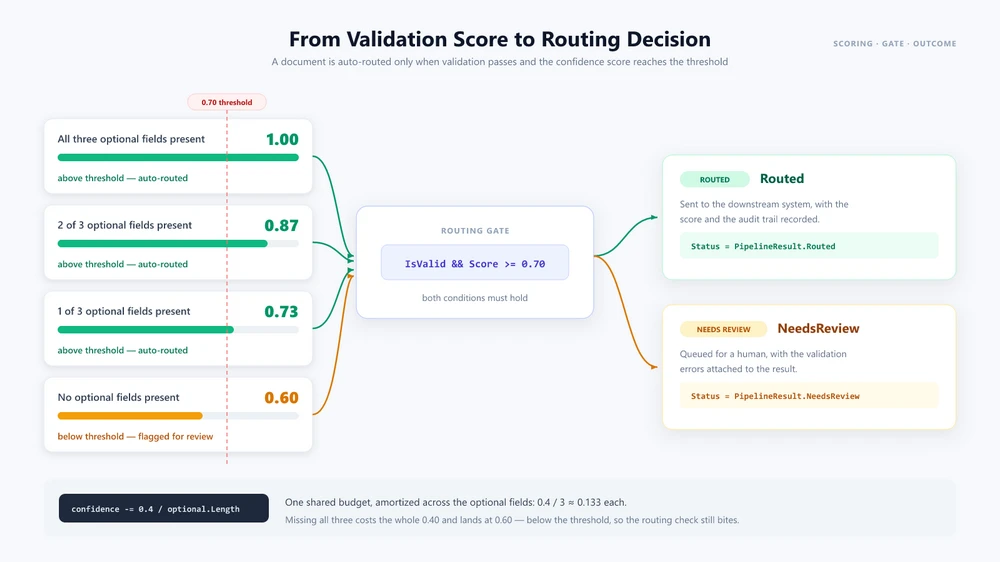
Validation separates hard failures from quality warnings. A missing required field, a total that does not reconcile against the line items, or a document type with no rules produces an entry in Errors, and the document is treated as invalid. An optional field that could not be extracted only lowers ValidationScore, so a document that is otherwise sound still routes. The deduction is a fixed budget shared across the optional fields rather than a flat penalty per field: with three optional fields and the 0.4 budget in the code above, one missing field leaves the score at 0.87 and two leave it at 0.73—still above the 0.7 auto-route threshold—so only losing all three drops it to 0.60 and sends the document to review. Keeping those two signals separate is what reserves human review for documents that actually need it.
3.4 Orchestrate the Pipeline
The orchestration method wires the stages together and makes routing decisions based on validation confidence:
public async Task<PipelineResult> RunPipelineAsync(
    string filePath, string outputDir)
{
    var auditLog = new List<string>();
    string status;

    // Stage 1: Classify
    auditLog.Add($"[{DateTime.Now}] Classifying: {filePath}");
    var classification = Classify(filePath, outputDir);
    auditLog.Add($"  Type: {classification.DocumentType} " +
        $"(confidence: {classification.Confidence:P0})");

    // Stage 2: Extract
    auditLog.Add($"[{DateTime.Now}] Extracting fields...");
    var extraction = Extract(
        filePath, classification.DocumentType, outputDir);
    auditLog.Add($"  Extracted {extraction.Fields.Count} fields, " +
        $"{extraction.LineItems.Count} line items");

    // Stage 3: Validate
    auditLog.Add($"[{DateTime.Now}] Validating...");
    var validation = Validate(
        extraction, classification.DocumentType);
    auditLog.Add($"  Valid: {validation.IsValid}, " +
        $"Confidence: {validation.ValidationScore:P0}");

    if (!validation.IsValid)
    {
        foreach (var error in validation.Errors)
            auditLog.Add($"  ERROR: {error}");
    }

    // Stage 4: Route
    if (validation.IsValid &&
        validation.ValidationScore >= RoutingPolicy.AutoRouteThreshold)
    {
        auditLog.Add(
            $"[{DateTime.Now}] Routing to downstream system...");
        await RouteToDownstreamAsync(
            classification.DocumentType, extraction);
        auditLog.Add($"  Routed successfully");
        status = PipelineResult.Routed;
    }
    else
    {
        auditLog.Add(
            $"[{DateTime.Now}] Flagged for human review " +
            $"(confidence: {validation.ValidationScore:P0})");
        await FlagForReviewAsync(filePath, validation.Errors);
        status = PipelineResult.NeedsReview;
    }

    // Status is the stage-4 outcome the batch report counts by, so it
    // has to be set on every path out of this method.
    return new PipelineResult
    {
        Classification = classification,
        Extraction = extraction,
        Validation = validation,
        AuditLog = auditLog,
        Status = status
    };
}
Each stage is independently testable, has its own error handling, and produces audit output. The returned PipelineResult also records the stage 4 outcome in Status, which is what lets the batch report in the next section count documents by result instead of re-deriving it from the validation payload. In this example, the AI agent handles classification and extraction through natural-language instructions, while validation and routing remain deterministic C# logic.
4. Batch and Multi-Document Processing
A single-document pipeline is a starting point. Production IDP systems process hundreds or thousands of documents daily, with varying types, priorities, and downstream destinations.
Parallel Batch Processing
public async Task<BatchResult> ProcessBatchAsync(
    string inputDirectory, string outputDir,
    int maxConcurrency = 5)
{
    var files = Directory.GetFiles(inputDirectory);
    var semaphore = new SemaphoreSlim(maxConcurrency);
    var results = new ConcurrentBag<PipelineResult>();

    var tasks = files.Select(async file =>
    {
        await semaphore.WaitAsync();
        try
        {
            var result = await RunPipelineAsync(file, outputDir);
            results.Add(result);
        }
        catch (Exception ex)
        {
            results.Add(new PipelineResult
            {
                Status = $"{PipelineResult.Failed}: {ex.Message}",
                Validation = new ValidationResult
                {
                    IsValid = false,
                    Errors = new List<string> { ex.Message }
                },
                AuditLog = new List<string>
                    { $"Error processing {file}: {ex}" }
            });
        }
        finally
        {
            semaphore.Release();
        }
    });

    await Task.WhenAll(tasks);

    int successful = results.Count(
        r => r.Status == PipelineResult.Routed);
    int errored = results.Count(r => r.Status.StartsWith(
        PipelineResult.Failed));

    // Flagged is the remainder, so the report stays conserved by
    // construction: Successful + Flagged + Errored == Total. A result
    // that never reached stage 4 is counted as needing review instead
    // of being silently dropped from all three counters.
    return new BatchResult
    {
        Total = files.Length,
        Successful = successful,
        Flagged = results.Count - successful - errored,
        Errored = errored,
        Results = results.ToList()
    };
}
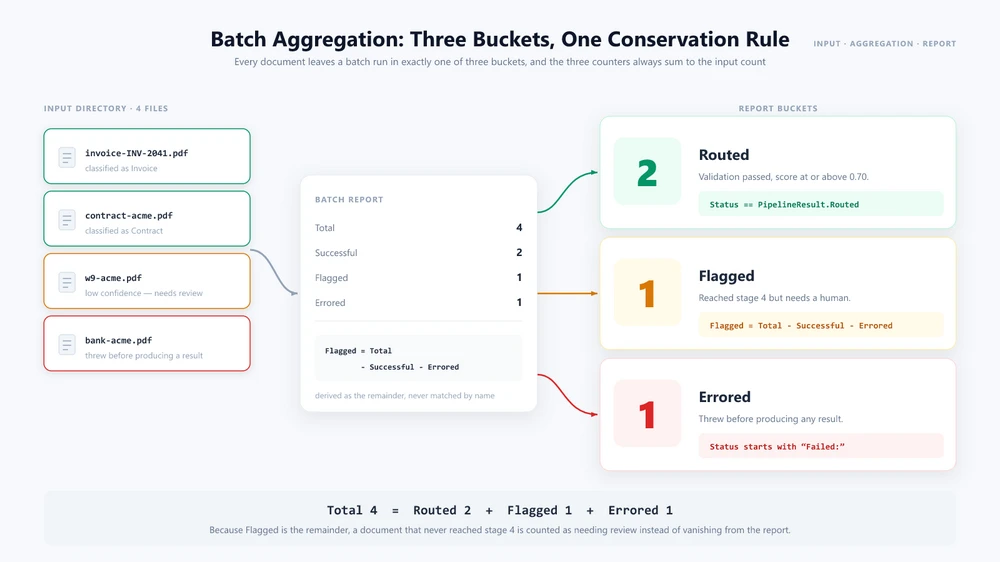
The SemaphoreSlim limits concurrency to avoid overwhelming the AI service or downstream systems. Each document is processed independently through all four stages. The batch report sorts results into the three ways a document can leave the pipeline: Routed (validated and sent downstream), Flagged (reached stage 4 but needs review), and Errored (threw before producing a result). Flagged is computed as the remainder rather than by matching a status string, so the three counters always sum to Total—a document that fails unexpectedly gets reported as needing review instead of vanishing from the report. The appropriate concurrency limit depends on the AI service's rate limits, document size, and application resources.
Cross-Document Workflows
Some business processes require multiple documents to be processed together. A U.S. vendor onboarding workflow, for example, might process a tax form, a contract, and a bank statement as a single unit—extracting data from each, cross-validating, and producing a combined output.
public async Task<OnboardingResult> ProcessVendorOnboardingAsync(
    string w9Path, string contractPath,
    string bankStatementPath, string outputDir)
{
    AIOptions agentOptions = CreateAgentOptions(outputDir);

    // Process all three documents in parallel
    var w9Task = RunPipelineAsync(w9Path, outputDir);
    var contractTask = RunPipelineAsync(contractPath, outputDir);
    var bankTask = RunPipelineAsync(bankStatementPath, outputDir);

    try
    {
        await Task.WhenAll(w9Task, contractTask, bankTask);
    }
    catch (Exception ex)
    {
        return new OnboardingResult
        {
            Status = "Failed",
            Issue = $"Document processing failed: {ex.Message}"
        };
    }

    var w9 = w9Task.Result;
    var contract = contractTask.Result;
    var bank = bankTask.Result;

    // Cross-validate: names must match across all documents
    var w9Name = GetField(w9.Extraction.Fields, "VendorName");
    var contractName = GetField(contract.Extraction.Fields, "Party2");
    var bankName = GetField(bank.Extraction.Fields, "AccountHolder");

    if (w9Name == null || contractName == null || bankName == null)
    {
        return new OnboardingResult
        {
            Status = "Flagged",
            Issue = "Could not extract vendor name from one or more documents"
        };
    }

    if (w9Name != contractName || contractName != bankName)
    {
        return new OnboardingResult
        {
            Status = "Flagged",
            Issue = $"Name mismatch: W-9='{w9Name}', " +
                $"Contract='{contractName}', Bank='{bankName}'"
        };
    }

    // Generate combined onboarding summary using the agent
    string summaryPath = Path.Combine(outputDir,
        $"onboarding-{w9Name}.docx");
    string[] attachments = { w9Path, contractPath, bankStatementPath };

    string summaryInstruction =
        $"Create a vendor onboarding summary for {w9Name}. " +
        "Read the attached W-9, contract, and bank statement. " +
        "Compile the vendor's legal name, tax ID, contract terms, " +
        "and banking details into a formatted Word document. " +
        "Save the summary to the output path.";

    using (Document summary = new Document())
    {
        summary.LoadFromFile(
            Path.Combine(AppContext.BaseDirectory,
                "templates", "onboarding-summary.docx"));

        AIResult result = summary.AI(agentOptions).ExecuteInstruction(
            summary, summaryInstruction, summaryPath, attachments);

        return new OnboardingResult
        {
            Status = result != null && result.Success
                ? "Complete" : "Failed",
            SummaryPath = result != null && result.Success
                ? summaryPath : null,
            Error = result?.ErrorMessage
        };
    }
}
The attachments parameter passes multiple document paths to the agent in a single call. The agent reads all attached files, reasons across them, and produces a combined output. This goes beyond the text-recognition role of traditional OCR by allowing an AI model to reason across multiple document inputs.
Retry and Human Review
public async Task<PipelineResult> RunPipelineWithRetryAsync(
    string filePath, string outputDir, int maxRetries = 3)
{
    string lastError = "unknown";

    for (int attempt = 1; attempt <= maxRetries; attempt++)
    {
        try
        {
            var result = await RunPipelineAsync(filePath, outputDir);

            if (result.Validation.IsValid)
                return result;

            // Borderline confidence: retry in case the next pass
            // classifies or extracts the document differently
            if (result.Validation.ValidationScore >= 0.5 &&
                attempt < maxRetries)
            {
                continue;
            }

            return result;
        }
        catch (Exception ex)
        {
            lastError = ex.Message;

            if (attempt < maxRetries)
            {
                await Task.Delay(
                    TimeSpan.FromSeconds(Math.Pow(2, attempt)));
            }
        }
    }

    // Every attempt threw, so the loop ran out instead of returning.
    return new PipelineResult
    {
        Status = $"{PipelineResult.Failed} after {maxRetries} retries: " +
            lastError
    };
}
Documents that fail validation or fall below the confidence threshold are flagged for human review rather than silently failing. The retry strategy uses exponential backoff for transient errors and re-attempts borderline cases on the chance that a second pass classifies or extracts them differently.
5. IDP in Practice
This section shows how the pipeline handles real business scenarios that involve multiple document types in a single workflow.
Accounts Payable Automation
An AP department receives invoices in mixed formats—PDF, Excel, Word, scanned images. Each invoice needs to be classified, extracted, validated against a purchase order, and routed to the ERP system.
public async Task<APResult> ProcessInvoiceAsync(
    string invoicePath, string outputDir)
{
    // Stages 1-3: Standard pipeline
    var pipeline = await RunPipelineAsync(invoicePath, outputDir);

    if (!pipeline.Validation.IsValid)
        return new APResult
        {
            Status = "Requires review",
            Errors = pipeline.Validation.Errors
        };

    // Cross-reference with purchase order
    var poNumber = GetField(pipeline.Extraction.Fields, "PONumber");
    if (string.IsNullOrEmpty(poNumber))
        return new APResult { Status = "No PO reference" };

    var poData = await _erpService.GetPurchaseOrderAsync(poNumber);
    if (poData == null)
        return new APResult { Status = "PO not found in ERP" };

    // Three-way match: invoice vs PO vs goods receipt
    var grData = await _erpService.GetGoodsReceiptAsync(poNumber);
    var matchResult = ThreeWayMatch(
        pipeline.Extraction, poData, grData);

    if (matchResult.IsMatch)
    {
        await _erpService.PostInvoiceForPaymentAsync(
            pipeline.Extraction);
        return new APResult { Status = "Posted for payment" };
    }

    return new APResult
    {
        Status = "Three-way match failed",
        Discrepancies = matchResult.Discrepancies
    };
}
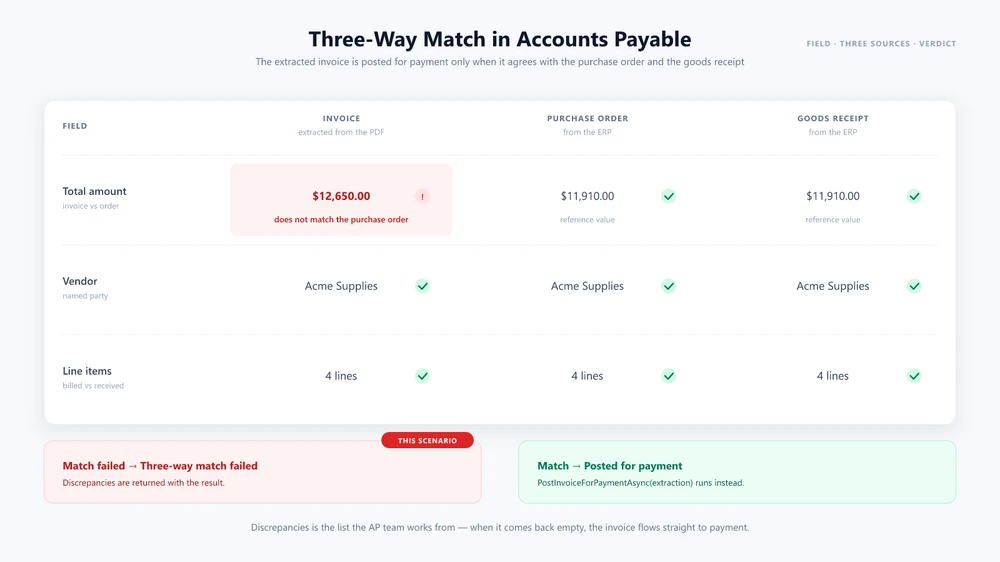
The invoice processing tutorial covers this scenario end to end: the extraction instruction, the purchase-order comparison, and the report the finance system consumes.
Contract Analysis
A legal team receives contracts from external parties. Each contract needs to be analyzed, key terms extracted, compared against the company's standard template, and routed for review if non-standard clauses are found. The agent processes the incoming contract with the standard template attached as a reference document.
public async Task<ContractAnalysisResult> AnalyzeContractAsync(
    string contractPath, string outputDir)
{
    AIOptions agentOptions = CreateAgentOptions(outputDir);

    string analysisPath = Path.Combine(outputDir,
        $"contract-analysis-{DateTime.Now:yyyyMMdd}.docx");

    string[] attachments =
        { Path.Combine(AppContext.BaseDirectory,
            "templates", "standard-contract.docx") };

    string instruction =
        "Analyze this contract and compare it to the attached " +
        "standard template. Identify non-standard clauses, unusual " +
        "risk terms, or missing provisions. Generate a redline " +
        "summary document highlighting the differences and save " +
        "it to the output path.";

    string ext = Path.GetExtension(contractPath).ToLowerInvariant();
    AIResult? result = null;

    if (ext == ".pdf")
    {
        using (PdfDocument contract = new PdfDocument())
        {
            contract.LoadFromFile(contractPath);
            result = contract.AI(agentOptions).ExecuteInstruction(
                contract, instruction, analysisPath, attachments);
        }
    }
    else if (ext == ".pptx" || ext == ".ppt")
    {
        using (Presentation contract = new Presentation())
        {
            contract.LoadFromFile(contractPath);
            result = contract.AI(agentOptions).ExecuteInstruction(
                contract, instruction, analysisPath, attachments);
        }
    }
    else
    {
        using (Document contract = new Document())
        {
            contract.LoadFromFile(contractPath);
            result = contract.AI(agentOptions).ExecuteInstruction(
                contract, instruction, analysisPath, attachments);
        }
    }

    return new ContractAnalysisResult
    {
        Success = result != null && result.Success,
        AnalysisPath = result != null && result.Success
            ? analysisPath : null,
        Error = result?.ErrorMessage
    };
}
This workflow combines extraction, cross-document comparison, and document generation in one process, illustrating how an AI agent can extend a traditional IDP pipeline beyond structured field extraction. Contract-specific patterns—review, extraction, and generation from a template—are covered in the AI contract review guide.
6. Build vs Buy: Choosing an IDP Approach
The IDP market is dominated by SaaS platforms. This section helps developers decide when building a pipeline in .NET is the right choice and when adopting a vendor platform is more practical.
Build when you need tight integration with an existing .NET application, custom validation rules, or document generation and transformation alongside extraction. Building the orchestration layer in .NET gives you greater control over where documents are stored and how they are processed. Actual data residency depends on the AI model and service configuration.
Buy when OCR-heavy workloads, prebuilt extraction models, managed infrastructure, or rapid deployment are the priority. If your team does not have .NET expertise or is focused on other priorities, a managed platform removes the implementation burden.
Decision framework:
| Factor | Build (.NET + AI agent) | Buy (SaaS IDP) |
|---|---|---|
| Integration | In-process, .NET-native | External API call |
| Data residency | Depends on model config | Vendor cloud |
| Document operations | Extract + generate + transform + convert | Depends on platform |
| Custom validation | Full code control | Platform configuration |
| Custom workflow | Full code control | Platform-dependent |
| Time to production | Weeks to months | Days to weeks |
| Cost model | Fixed API cost + SDK license | Per-document pricing |
The right choice depends on your application's requirements, team capabilities, and the document types you process. Many teams use a hybrid approach: a vendor platform for high-volume extraction of standardized forms, and a custom .NET pipeline for complex workflows that require document generation, cross-document reasoning, or tight system integration.
7. Frequently Asked Questions
What is intelligent document processing (IDP)?
Intelligent document processing is an automation approach that uses AI and machine learning to classify documents, extract structured data, validate the results against business rules, and route the output to downstream systems. Unlike traditional OCR, which primarily converts visual content into machine-readable text, IDP adds document classification, semantic extraction, validation, and workflow automation. It can handle varied document layouts without relying entirely on fixed templates.
How does an IDP pipeline differ from a single LLM API call?
A single LLM call processes text but does not handle file formats, execute document operations, or manage pipeline state. An IDP pipeline orchestrates multiple stages—classification, extraction, validation, routing—each with independent error handling, retry logic, and audit logging. The pipeline also bridges AI reasoning with deterministic file manipulation, ensuring output preserves correct formatting.
Can I build an IDP pipeline without a vendor platform?
Yes. Using a .NET AI agent SDK like Spire.Agent.Office, you can implement all four pipeline stages in C#. The SDK provides natural-language document processing for Word, Excel, PowerPoint, and PDF files, with deterministic file output. This approach gives full control over validation logic and routing rules.
What document formats does an IDP pipeline handle?
With Spire.Agent.Office, the pipeline handles Word (.docx, .doc), Excel (.xlsx, .xls), PowerPoint (.pptx, .ppt), and PDF files. Scanned documents may require an OCR step before AI-based extraction, depending on the document and processing workflow. The pipeline can also convert between formats as part of the routing stage.
How does the AI agent connect to the language model?
Spire.Agent.Office uses a SpireToken property in AIOptions to authenticate with the AI service. The SDK manages the AI service connection through AIOptions, so the application does not need to implement the underlying model API integration directly. This design separates document processing from model configuration, so your pipeline code stays the same regardless of which model powers the agent.
How accurate is AI-based document extraction?
Extraction accuracy depends heavily on document quality, layout variability, OCR quality, model behavior, and the extraction instructions. Production systems should validate extracted values against deterministic business rules and route uncertain cases for human review. The validation stage helps make AI-based extraction more reliable in production by checking extracted values against deterministic rules and routing uncertain results for review.
What is the difference between IDP and OCR?
OCR (Optical Character Recognition) converts visual document content into machine-readable text. IDP builds on this capability but adds AI-driven understanding, validation, and workflow automation. An IDP pipeline may use OCR internally for scanned documents, but OCR alone does not classify documents, validate extracted data, or route results to downstream systems.
How does batch processing work in an IDP pipeline?
Batch processing runs the pipeline concurrently across multiple documents, with configurable concurrency limits to manage resource usage. Each document is processed independently through all four stages, with results aggregated into a batch report. Failed documents are flagged for review without blocking the rest of the batch.
Ready to Build an IDP Pipeline?
If you are building intelligent document processing in a .NET application, start with the Getting Started guide for Spire.Agent.Office, which covers installing the SDK and running your first instruction in .NET.
Further Reading
- AI Agent vs. Raw LLM API: Document Layer in .NET — what a document layer adds over a raw LLM API call, and when each approach fits
- Turn Documents into PowerPoint Presentations with AI in C# — the same instruction-driven pattern applied to slide output