Rich Text Format (RTF) has long served as a universal format for cross‑platform document exchange. However, modern web browsers lack native support for RTF files. If you need to publish RTF‑based content online, converting RTF to HTML is the most practical solution.
This tutorial walks you through three main approaches: no-code online RTF to HTML converters, programmatic conversion with C#/.NET libraries, and Microsoft Word export.
- Why Convert RTF to HTML?
- Method 1: Online RTF to HTML Converter (No Code)
- Method 2: Programmatically Convert RTF to HTML in C#
- Method 3: Microsoft Word Native Export RTF to HTML
- Conclusion: Choose the Right Conversion Method
- Frequently Asked Questions (FAQs)
Why Convert RTF to HTML?
Converting RTF to HTML unlocks several benefits:
- Web compatibility: HTML renders natively in every browser without plugins or downloads.
- SEO visibility: HTML content can be indexed by search engines, unlike RTF files.
- Responsive design: HTML can be styled with CSS to adapt to different screen sizes.
-
Accessibility: Semantic HTML (
<strong>,<em>,<p>) is more accessible to screen readers than raw RTF markup.
The main challenge is that RTF and HTML use different markup models. A good converter preserves essential formatting, including bold/italic text, paragraphs, font colors, hyperlinks, and tables, while discarding RTF‑specific control commands that have no HTML equivalent.
Method 1: Online RTF to HTML Converter (No Code)
If you only need to convert a small handful of RTF files and you do not want to install software or write programming code, an online RTF to HTML converter is the fastest approach. These web‑based tools are perfect for ad‑hoc, one‑off document‑conversion jobs.
General steps to convert RTF to HTML online:
- Open a trusted online RTF to HTML converter.
- Click Upload / Choose File, select your .rtf document.
- Confirm your target output format is set to HTML.
- Click Convert and download the generated .html file.
- If the converter creates a companion image folder, keep it with the HTML file.
Example of using FreeConvert:
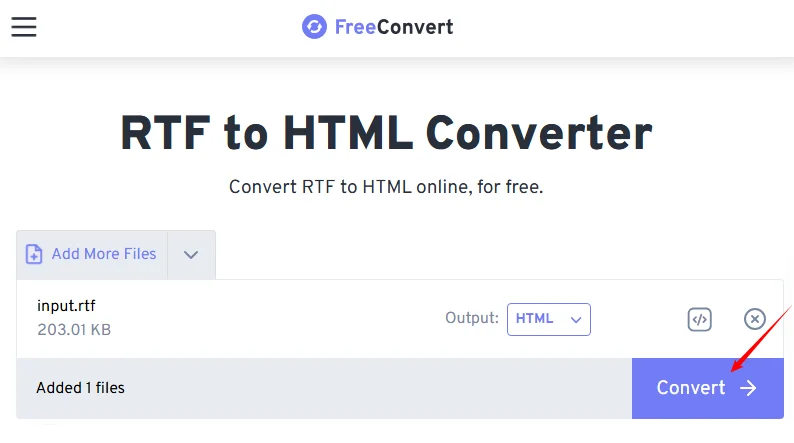
Online converters are convenient, but they do not scale well for batch processing or automated workflows. They also require uploading documents to a third party, so avoid using them for sensitive content.
ALSO READ: HTML to RTF (Rich Text): Online, Word, Pandoc & C#
Method 2: Programmatically Convert RTF to HTML in C#
For bulk file processing, automated pipelines, intranet systems, or sensitive documents that cannot leave your local server environment, developer‑driven conversion is the gold standard. All processing runs locally on your hardware, eliminating third‑party data‑privacy risks.
Free Spire.Doc for .NET is a free .NET library that enables developers to load and transform RTF files into HTML without Microsoft Word dependencies. It retains paragraphs, bold/italic formatting, font colors, hyperlinks, tables, and embedded images. Images can either be saved as separate disk files or embedded inline as Base64 inside the HTML markup.
⚠️ Note: The free library has document-size limits. Test large or complex documents before relying on it for production-scale migration.
Full C# Code Sample: RTF to HTML with Image Extraction
This sample loads a local .rtf file, configures HTML export options to manage image output, and saves the final web‑ready HTML file locally.
using Spire.Doc;

class RtfToHtmlDemo
{
    static void Main()
    {
        // Load source RTF
        Document doc = new Document();
        doc.LoadFromFile("F:\\input.rtf", FileFormat.Rtf);

        // Set HTML export options
        HtmlExportOptions options = doc.HtmlExportOptions;
        options.ImagesPath = "html_images"; // Extract images here
        options.ImageEmbedded = false; // Disable Base64 embedding

        // Export clean HTML
        doc.SaveToFile("Rtf2Html.html", FileFormat.Html);
        doc.Close();
    }
}
How the example works:
-
doc.LoadFromFile(inputPath, FileFormat.Rtf)loads the RTF file into aDocumentobject. -
HtmlExportOptionscontrols how images are handled during export. -
ImagesPathspecifies the folder where extracted images are written. -
ImageEmbedded = falsekeeps images as separate files and references them with relative<img src="/...">paths. Set it totrueif you need a self-contained HTML file with Base64-embedded images. -
doc.SaveToFile(outputPath, FileFormat.Html)writes the HTML output.
The converted HTML file:
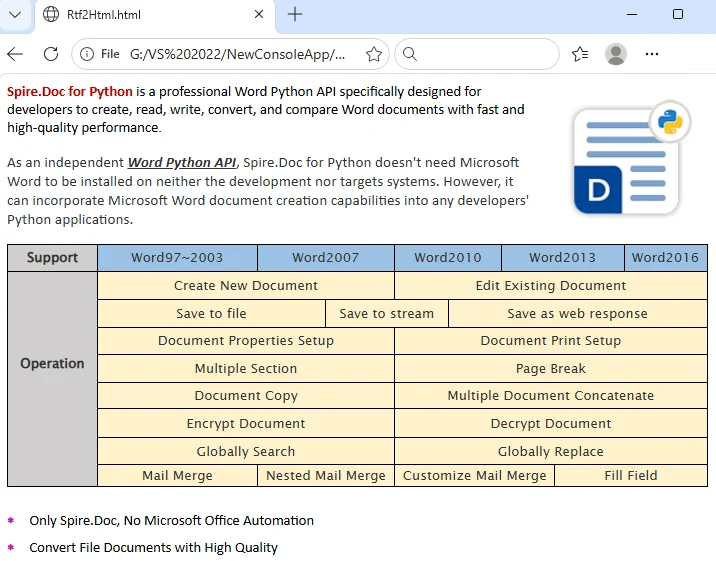
Bonus Tip: The same HTML export engine used for RTF conversion can also process native .docx and .doc files at scale, making Word-to-HTML conversion a practical way to migrate entire documentation libraries into searchable, web-ready pages.
Method 3: Microsoft Word Native Export RTF to HTML
If you already own Microsoft Word, you can open RTF files and export HTML directly. Be aware that default Word HTML output produces bloated, proprietary markup filled with mso‑ prefixed Office‑specific CSS styles.
Use this workflow only when visual fidelity to the original RTF document is your top priority. Plan for post‑export HTML cleanup before web publication.
Step-by-Step Guide:
- Open your .rtf in Microsoft Word.
- Remove page-only elements such as headers, footers, and text boxes that are unsuitable for web content.
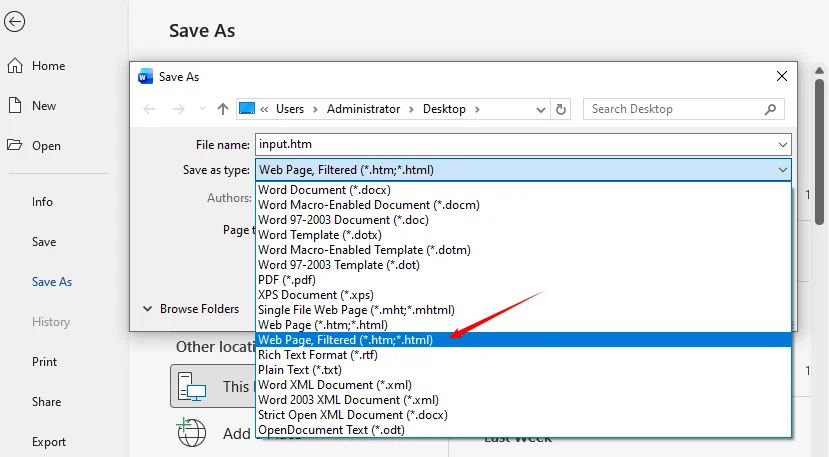
- Navigate to File → Save As → Choose “
Web Page, Filtered (*.htm; *.html)”.
⚠️ Important warning: Do NOT select the standard “Web Page” option. Filtered mode strips out most proprietary Microsoft Office markup to reduce HTML bloat. The unfiltered export produces extremely bloated HTML code unsuitable for web publishing.
- Select the output folder and click Save.
- Word will create an HTML file + a folder for embedded images
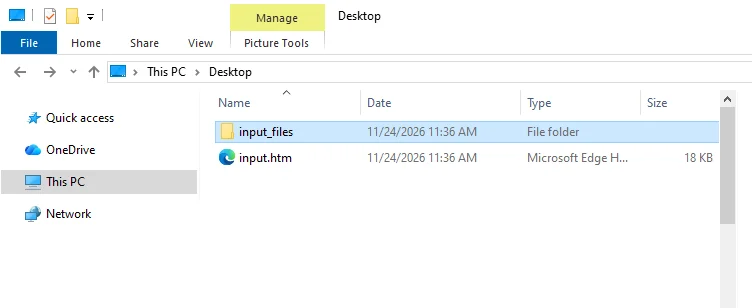
Known limitations of Word‑exported HTML
Even Filtered‑mode Word HTML still carries many inline style attributes. Manual or automated cleanup is required before deployment to a website or CMS:
- Remove redundant inline style attributes that duplicate your site’s global CSS rules
- Swap hard‑coded font‑size and color values for your website’s existing CSS classes
- Validate and fix relative image paths after moving HTML and asset folders to your web server
- Strip leftover Office‑specific conditional HTML comments that serve zero purpose in browsers
Conclusion: Choose the Right Conversion Method
The best conversion method depends on how many files you need to convert, whether the documents contain sensitive information, and how clean the final HTML must be. The table below summarizes the main trade-offs.
| Method | Best For | Preserves Formatting | Batch / Automation Support | Dependencies |
|---|---|---|---|---|
| Online converter | One‑off tasks, small file volumes | Moderate | No (single‑file only) | Web browser |
| C#/.NET + Free Spire.Doc | .NET apps, backend services, batch jobs | Good | Excellent | .NET + Free Spire.Doc |
| Microsoft Word | Visual fidelity, manual publishing | High | Poor / manual‑only | Installed Microsoft Word |
In short, converting RTF to HTML is an essential workflow for bringing legacy desktop documents onto modern websites, help centers, intranets, and CMS platforms. Use online converters for occasional jobs, Free Spire.Doc for automated and sensitive document workflows, and Word only when visual fidelity outweighs the cost of cleaning up proprietary markup.
Frequently Asked Questions (FAQs)
Q1: Why do images disappear after I convert RTF to HTML?
A: Most conversion tools extract embedded RTF images into a separate sub‑directory. If you move or upload your HTML file without also copying the companion image folder, <img> src links break. Avoid mass Base64 embedding for many large images. Always keep your HTML file and its associated image directory together when uploading files to a web server.
Q2: Can I run bulk batch conversion for many RTF files at once?
A: Most online RTF‑HTML converters limit batch sizes. For large archives of .rtf files, automate conversion with C# using Free Spire.Doc to loop through folders of source documents. This is the most efficient method for migrating legacy document libraries to HTML for your website.
Q3: Why are tables or lists missing from the HTML?
A: Many lightweight converters do not fully support RTF tables, nested tables, or automatic numbering. RTF table syntax is complex, and full support requires a mature conversion engine. Free Spire.Doc supports tables, but the free edition has size limits; for very large or complex documents, test the output or use the commercial edition.
Q4: Can I convert RTF to HTML without installing anything?
A: Yes. Online converters work entirely in the browser. However, online converters have file-size limits and upload your documents to a third party, which may not be acceptable for sensitive content.