Citing a PDF in MLA requires more than simply adding “PDF” to a reference. The citation format depends on what the PDF contains, such as a book, journal article, or report, and where you accessed it. Once the citation is prepared, it must also be formatted correctly in the Works Cited list.
This guide explains how to cite a PDF in MLA, how to format the citation in Microsoft Word, and how to automate the formatting of multiple entries with Python.
- MLA Citation Requirements for PDF Documents
- Format a PDF Citation in MLA Quickly with Microsoft Word
- Format Multiple MLA PDF Citations with Python
- Get MLA Citation Information with Google Scholar or MyBib
- FAQs
MLA Citation Requirements for PDF Documents
MLA does not use one fixed citation format for every PDF. Instead, cite the work according to its type and include the relevant publication and access information.
Depending on the source, an MLA citation may include:
- Author
- Title
- Container, such as a journal, website, or database
- Publisher
- Publication date
- Page range, when applicable
- DOI or URL, when applicable
The ninth edition of the MLA Handbook, published in 2021, provides the current MLA documentation guidelines.
MLA PDF Citation Examples
- For a standalone book available as a PDF, the citation may follow the standard book format:
Chomsky, Noam. Media Control: The Spectacular Achievements of Propaganda. Seven Stories Press, 1997.
- For a journal article available as a PDF:
Rawls, John. “Kantian Constructivism in Moral Theory.” The Journal of Philosophy, vol. 77, no. 9, 1980, pp. 515–572.
A PDF downloaded from a website may require additional information about the website or the PDF version. MLA allows the description PDF download when it helps clarify the format of the source.
The exact citation should therefore be checked against the original source before formatting the final Works Cited entry.
How to Format a PDF Citation in MLA Quickly with Microsoft Word
After preparing your citation, you can use Microsoft Word to apply the formatting required for a Works Cited list. MLA recommends a 0.5-inch hanging indent and double spacing.
Follow these steps:
- Step 1: Select the citation entries in your Works Cited list.
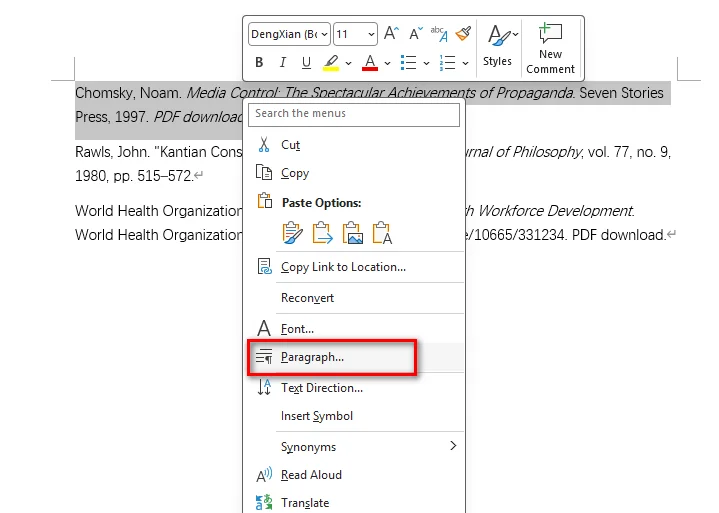
- Step 2: Right-click the selection, choose Paragraph.
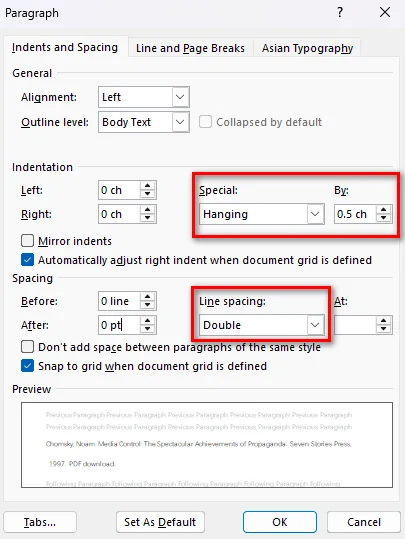
- Step 3: Under Indentation, set Special to Hanging and By to 0.5 inches. And under Spacing, set Before and After to 0 pt, set Line spacing to Double, and click OK.
You can also press Ctrl + T on Windows or Command + T on Mac to apply a hanging indent quickly.
Avoid using spaces, tabs, or manual line breaks to create the indent. Paragraph formatting keeps the entries aligned when you edit the citation text.
Note: If you also need to place the original PDF in a Word document, see How to Insert a PDF into Word for methods to insert PDF content while preserving its layout and editability.
How to Format Multiple MLA PDF Citations with Python
Microsoft Word is convenient when you only need to format a few citations. For applications that generate reports, process user-submitted documents, or create large Works Cited lists, formatting citation entries programmatically can be more efficient.
Free Spire.Doc for Python is a standalone Python library for creating, editing, formatting, and converting Word documents without requiring Microsoft Word. It provides paragraph-formatting properties that can be used to create the hanging indent required for MLA citations.
You can combine LeftIndent with a negative FirstLineIndent. For a 0.5-inch hanging indent, set both values to 36 points in opposite directions.
The following example creates multiple MLA citation entries and applies the required formatting automatically:
from spire.doc import *
from spire.doc.common import *

# Create a document and section
doc = Document()
section = doc.AddSection()

# Sample MLA citation entries
citations = [
    "Chomsky, Noam. Media Control: The Spectacular Achievements of Propaganda. Seven Stories Press, 1997.",
    'Rawls, John. "Kantian Constructivism in Moral Theory." The Journal of Philosophy, vol. 77, no. 9, 1980, pp. 515–572.'
]

# Add and format each citation
for citation in citations:
    paragraph = section.AddParagraph()
    paragraph.AppendText(citation)

    # Apply a 0.5-inch hanging indent
    paragraph.Format.LeftIndent = 36.0
    paragraph.Format.FirstLineIndent = -36.0

    # Apply double spacing and remove paragraph spacing
    paragraph.Format.LineSpacingRule = LineSpacingRule.Multiple
    paragraph.Format.LineSpacing = 24.0
    paragraph.Format.BeforeSpacing = 0.0
    paragraph.Format.AfterSpacing = 0.0

# Save the document
doc.SaveToFile("MLA_PDF_Citations.docx", FileFormat.Docx2013)
doc.Close()

In the example, LeftIndent = 36.0 moves the paragraph content 0.5 inches to the right, while FirstLineIndent = -36.0 moves the first line back to the left margin. Together, they create a hanging indent.
The code also sets BeforeSpacing and AfterSpacing to 0.0 and uses LineSpacingRule.Multiple with LineSpacing = 24.0 to produce double spacing in this Free Spire.Doc configuration.
This approach is useful when you already have citation strings and need to generate a consistently formatted Word document from many entries.
Get MLA Citation Information with Google Scholar or MyBib
If you need help collecting citation information, tools such as Google Scholar and MyBib can provide a useful starting point.
Google Scholar provides a Cite option for many search results, while MyBib can generate MLA-style citations from available source information.
However, generated citations should still be checked against the original source. A citation tool may not always identify the source type, publication details, or PDF access method correctly.
A practical workflow is:
- Identify the type of work contained in the PDF.
- Collect the required publication information.
- Generate or prepare the MLA citation.
- Check the citation against the original source.
- Format the completed entries manually in Word or automatically with Python.
Frequently Asked Questions
Do I need to add “PDF download” to every MLA citation?
No. PDF download is not required for every PDF citation. It can be used as a description when you want to clarify that you consulted a PDF version of the source.
Does MLA use the same format for every PDF?
No. The citation depends on the type of work and how you accessed it. A book, journal article, and report downloaded from a website may require different citation information.
How do I format a PDF citation in an MLA Works Cited list?
Use a 0.5-inch hanging indent and double spacing for the citation entries. In Microsoft Word, you can apply the formatting through the Paragraph settings or use Ctrl + T on Windows.
Can I format multiple MLA PDF citations with Python?
Yes. If the citation text is already prepared, Free Spire.Doc for Python can create Word documents and apply consistent paragraph formatting to multiple citation entries. Properties such as LeftIndent and FirstLineIndent can be combined to create a hanging indent.
Conclusion
Citing a PDF in MLA becomes easier when you separate the process into two parts: preparing the citation based on the source and formatting the finished entry correctly. For a few citations, Microsoft Word provides a quick way to apply the required hanging indent and double spacing. When you need to format many entries consistently, Free Spire.Doc for Python can automate the process and generate a ready-to-use Word document.