Have you ever copied text from a website or another document and found that its font, color, size, and spacing look completely different in Word? You can fix this by clearing the unwanted formatting instead of retyping the text. This guide shows you how to clear formatting in Word using built-in tools, keyboard shortcuts, and plain-text pasting. You'll also learn how to use Python to automate formatting cleanup in Word documents.
Clear All Formatting in Word with the Built-in Button
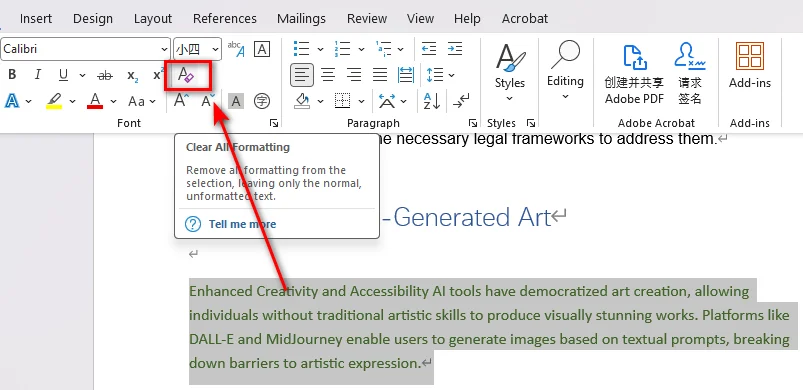
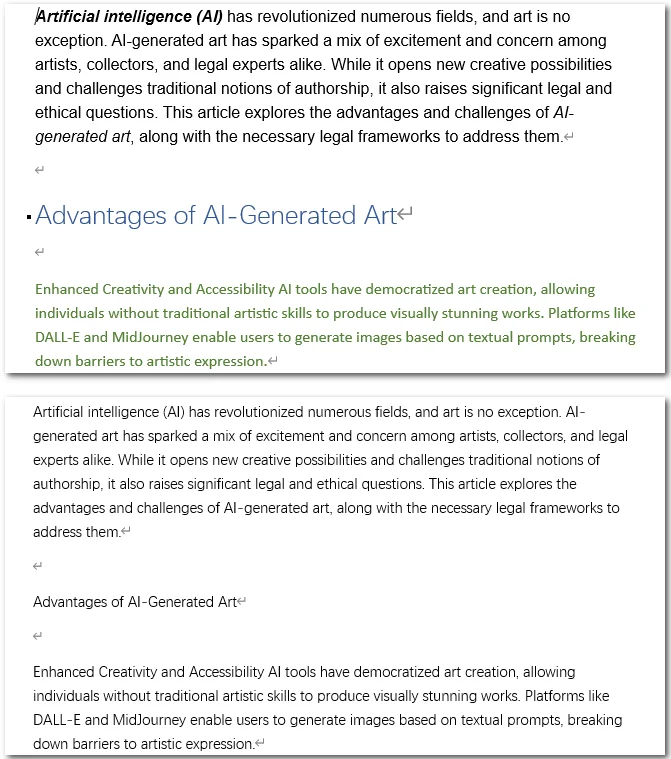
The quickest way to remove text formatting in Word is to use the built-in Clear All Formatting button. It clears many formatting settings, including font changes, bold, italics, and font colors. It can also reset paragraph formatting and affect heading and list formatting.
This method works well when you want to restore selected text to the formatting defined by its underlying style. You can also select the entire document if you want to clear formatting from multiple paragraphs at once.
Steps to Clear Formatting in Word
- Step 1: Open your Word document.
- Step 2: Select the text whose formatting you want to remove. To clear formatting throughout the document, press Ctrl + A on Windows to select all content.
- Step 3: Go to the Home tab.
- Step 4: In the Font group, click Clear All Formatting.
Note: Clearing formatting does not remove table structures or all page layout settings. Check the document afterward and adjust any remaining formatting as needed.
You may like: How to Remove Page Breaks in Word (4 Easy Methods)
Remove Formatting in Word with Keyboard Shortcuts
Word formatting generally falls into two categories: character formatting, which controls the appearance of text, and paragraph formatting, which affects settings such as indentation and alignment. If you only need to reset specific formatting, keyboard shortcuts can be quicker than using the ribbon.
- Ctrl + Spacebar: Clears direct character formatting, such as manually applied fonts, font sizes, colors, bold, and italics. The selected text reverts to the character formatting defined by its underlying style.
- Ctrl + Q: Clears direct paragraph formatting, including manually applied indentation, alignment, and paragraph spacing. The selected paragraphs revert to the paragraph formatting defined by their underlying styles.
These shortcuts work in Word for Windows. Because they clear direct formatting rather than formatting defined by styles, the text or paragraphs may look unchanged if their appearance already comes from the underlying styles.
Remove Unwanted Formatting by Pasting Text as Plain Text
Sometimes, the easiest way to remove unwanted formatting is to prevent it from entering your document in the first place. When you copy content from a website, email, PDF, or another Word document, the copied content may include its original fonts, colors, and other formatting. Pasting it as plain text helps you avoid these inconsistencies.
Use Word's Keep Text Only Option
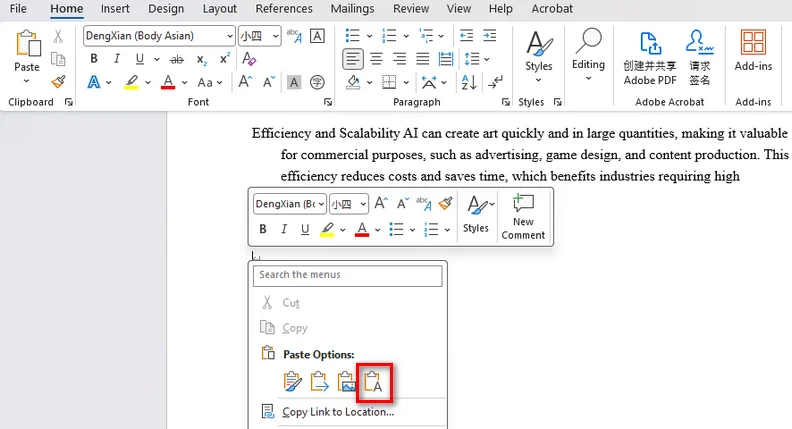
Word provides a Keep Text Only paste option that removes most source formatting while retaining the text. This method is especially useful when you want to copy information from different sources into a report or an existing document.
- Step 1: Copy the text you need from the source document or website.
- Step 2: Open your Word document and place the cursor where you want to insert the text.
- Step 3: Right click to open the paste options and select Keep Text Only.
Use a Plain Text Editor
If you cannot find the Keep Text Only option, you can use a plain-text editor as an alternative. This approach is simple and works with content copied from many different applications.
- Step 1: Copy the text from the original source.
- Step 2: Paste it into a plain-text editor, such as Notepad on Windows.
- Step 3: Select and copy the text from the editor.
- Step 4: Paste the text into your Word document.
Note: Both methods can remove more than just unwanted text formatting. Hyperlinks may lose their clickable properties, and tables and list structures may not be preserved as they were in the original content. If you need to retain these elements, use Word's regular paste options instead.
Clear Text Formatting in Word Documents Using Python
Word's built-in tools work well for clearing formatting in individual documents. However, if you need to apply the same changes to multiple Word files or integrate formatting cleanup into an automated document-processing workflow, Python can save time and effort.
Free Spire.Doc for Python provides simple APIs for working with Word documents and their formatting without installing Microsoft Word. In the following example, we'll use it to clear character and paragraph formatting in a Word document.
Install Free Spire.Doc for Python
Install Free Spire.Doc in your Python environment with the following command:
pip install Spire.Doc.Free
Remove Formatting from a Word Document
Free Spire.Doc for Python provides separate APIs for clearing character and paragraph formatting: CharacterFormat.ClearFormatting() and Paragraph.Format.ClearFormatting().
The following example iterates through the paragraphs in each section, clears their formatting, and saves the result as a new Word document.
from spire.doc import *
from spire.doc.common import *

# Create a Document object
document = Document()

# Load the input Word document
document.LoadFromFile("/sample with format.docx")

# Process paragraphs in each section
for i in range(document.Sections.Count):
    section = document.Sections.get_Item(i)

    for j in range(section.Paragraphs.Count):
        paragraph = section.Paragraphs.get_Item(j)

        # Apply the Normal style and clear paragraph formatting
        paragraph.ApplyStyle(BuiltinStyle.Normal)
        paragraph.Format.ClearFormatting()

        # Clear character formatting from text ranges
        for k in range(paragraph.ChildObjects.Count):
            obj = paragraph.ChildObjects.get_Item(k)

            if isinstance(obj, TextRange):
                obj.CharacterFormat.ClearFormatting()

# Save the result to a new Word document
document.SaveToFile("/output.docx", FileFormat.Docx2013)

# Close the document
document.Close()
The script processes paragraphs directly contained in each section. It does not recursively process content inside tables, headers and footers, or text boxes, so those areas may need additional handling.
Frequently Asked Questions
How Do I Remove All Formatting from a Word Document?
Press Ctrl + A to select the document's content, then go to Home > Clear All Formatting. This clears formatting from the selected content without deleting the text.
What Is the Shortcut to Clear Formatting in Word?
In Word for Windows, use Ctrl + Spacebar to clear direct character formatting or Ctrl + Q to clear direct paragraph formatting. To clear formatting from the entire document, use the Clear All Formatting button.
How Do I Fix Formatting Issues That Remain After Clearing Formatting?
Clear All Formatting does not remove table structures, page breaks, or section breaks. You may need to adjust table properties or remove unwanted breaks separately.
How Do I Remove Formatting from Multiple Word Documents?
You can use Python with Free Spire.Doc for Python to automate formatting cleanup across multiple Word documents. Extend the script to handle any additional document elements you need to process.
Conclusion
Clearing formatting in Word is easy with built-in tools and keyboard shortcuts. If you want to prevent unwanted formatting when copying text, use the Keep Text Only option. For repetitive tasks or large numbers of Word documents, Free Spire.Doc for Python lets you automate character and paragraph formatting cleanup with code. Choose the method that best fits your needs, and check the results to make sure your document looks the way you want.