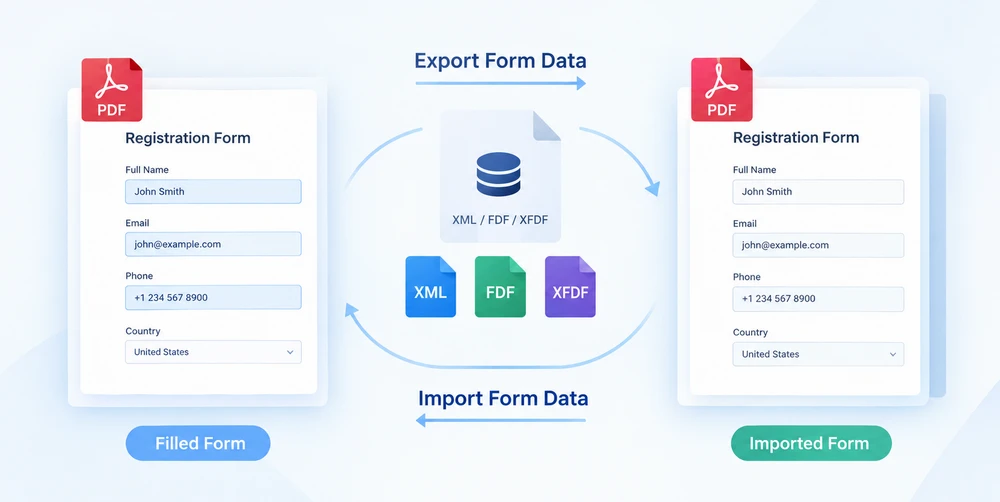
When a PDF form is filled out, the entered values fuse with the visual layout into a sealed artifact. Migrating those entries onto a different template means retyping every field by hand. The way out is to treat form data as a portable asset: extract field values into a standalone data file, then feed it back into a blank copy of the form to reproduce all entries in one automatic pass. This export-then-import cycle is what Spire.PDF for JavaScript delivers through PdfFormWidget.ExportData and PdfFormWidget.ImportData.
Both methods accept three file formats: XML, FDF, and XFDF. Switching between them is nothing more than changing a DataFormat enum value — the calling convention remains identical; only the on-disk structure of the output file changes. Because Spire.PDF for JavaScript runs entirely in the browser on top of WebAssembly, the whole round-trip executes locally through a virtual file system (VFS), with no backend server involved and no document ever leaving the client.
This article walks through the complete data flow:
- Export form data — pull field values out of a filled form
- Import form data — push those values back into a blank form
For installation and project setup, see Integrate Spire.PDF for JavaScript in a React Project. The examples below assume Spire.PDF is installed and the WebAssembly module is initialized.
Three Form Data Formats at a Glance
Before diving into code, it helps to understand the three formats that ExportData and ImportData work with. All three carry the same payload — a set of field-name/value pairs — but they package it in different ways. Picking the right one up front saves friction later when the data file needs to be shared, inspected, or fed into another tool.
| Format | Enum value | File structure | Human-readable | Best for |
|---|---|---|---|---|
| XML | DataFormat.Xml |
Adobe form-data XML; the field name becomes the element name, the value sits as element content | Yes | Quick inspection, debugging, simple tooling |
| FDF | DataFormat.Fdf |
Forms Data Format; a text structure starting with %FDF-, where /T holds the field name and /V the value |
No | Compact inter-program transfer |
| XFDF | DataFormat.XFdf |
XFDF, standard XML; one <field name="…"> per field, with the value inside <value>
|
Yes | Version control, cross-system interchange |
All three are lossless with respect to field values — nothing is dropped or transformed during export or import. The choice between them is purely about workflow fit, which we return to in the format selection guide below.
Export PDF Form Data
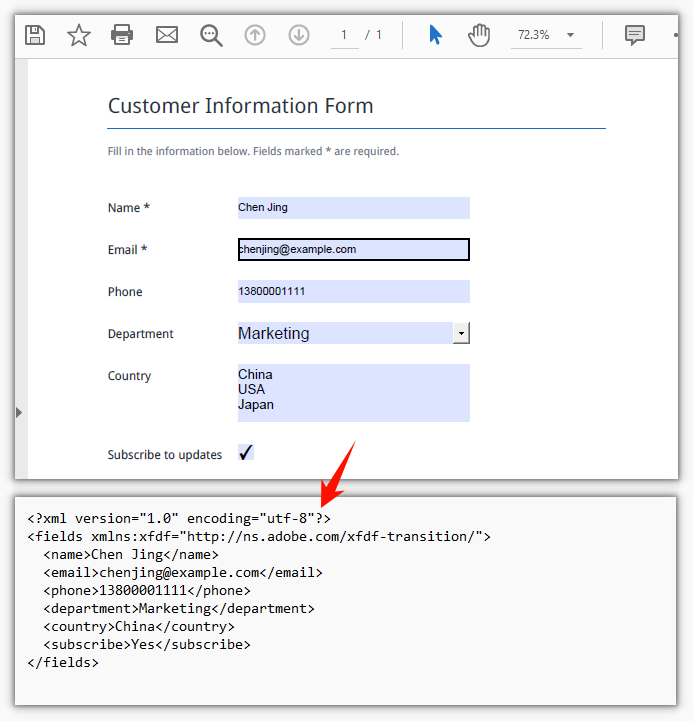
The first half of the round-trip is extraction. PdfFormWidget.ExportData takes every field value in the form and writes it out to a single data file. The second argument — a DataFormat enum — controls which format is written. The third argument is the form name; for an unnamed AcroForm, pass an empty string.
The example below loads a filled-in customer information form, wraps its form handle in a PdfFormWidget, and exports the field values to an XML file. The FDF and XFDF variants are included as commented-out lines — uncomment any one to switch formats without touching anything else:
function App() {
  const exportFormData = async () => {
    // Get the Spire.PDF WASM module
    const pdfModule = window.wasmModule?.spirepdf;

    // Check that the module is ready
    if (!pdfModule) {
      alert('Spire.PDF is not ready yet');
      return;
    }

    // Load the PDF file to be exported into the VFS
    const inputFileName = 'CustomerInformationForm.pdf';
    await window.spire.FetchFileToVFS(inputFileName, "", `${process.env.PUBLIC_URL}/data/`);

    // Create a PdfDocument object and load the PDF document
    const doc = new pdfModule.PdfDocument();
    doc.LoadFromFile(inputFileName);

    // Build a PdfFormWidget from the document's form handle to reach the data export API
    const formWidget = new pdfModule.PdfFormWidget(doc.Form.H);

    // This demo exports XML
    const dataFiles = [
      { fileName: 'FormData.xml', format: pdfModule.DataFormat.Xml },
      // { fileName: 'FormData.fdf', format: pdfModule.DataFormat.Fdf },
      // { fileName: 'FormData.xfdf', format: pdfModule.DataFormat.XFdf },
    ];

    for (const item of dataFiles) {
      // The third parameter is the form name; pass an empty string for an unnamed form
      formWidget.ExportData(item.fileName, item.format, '');
    }
    doc.Close();

    // Read the generated file from the VFS and trigger the download
    for (const item of dataFiles) {
      const fileArray = window.dotnetRuntime.Module.FS.readFile(item.fileName);
      const blob = new Blob([fileArray], { type: 'application/octet-stream' });
      const url = URL.createObjectURL(blob);
      const a = document.createElement('a');
      a.href = url;
      a.download = item.fileName;
      a.click();
      URL.revokeObjectURL(url);
    }
  };

  return (
    <div style={{ textAlign: 'center', height: '300px' }}>
      <h1>Export Form Data</h1>
      <button onClick={exportFormData}>
        Export
      </button>
    </div>
  );
}

export default App;
Once the export call finishes, the data file resides in the virtual file system. The code then reads it back from the VFS and triggers a browser download so the file can be saved, shared, or archived alongside other form data:
Import PDF Form Data
The second half of the round-trip is rehydration. PdfFormWidget.ImportData reads a data file and writes each value back into the matching form field by name. The DataFormat parameter tells the parser how to interpret the file contents — it has nothing to do with the file extension, so the declared format must match the actual format of the file.
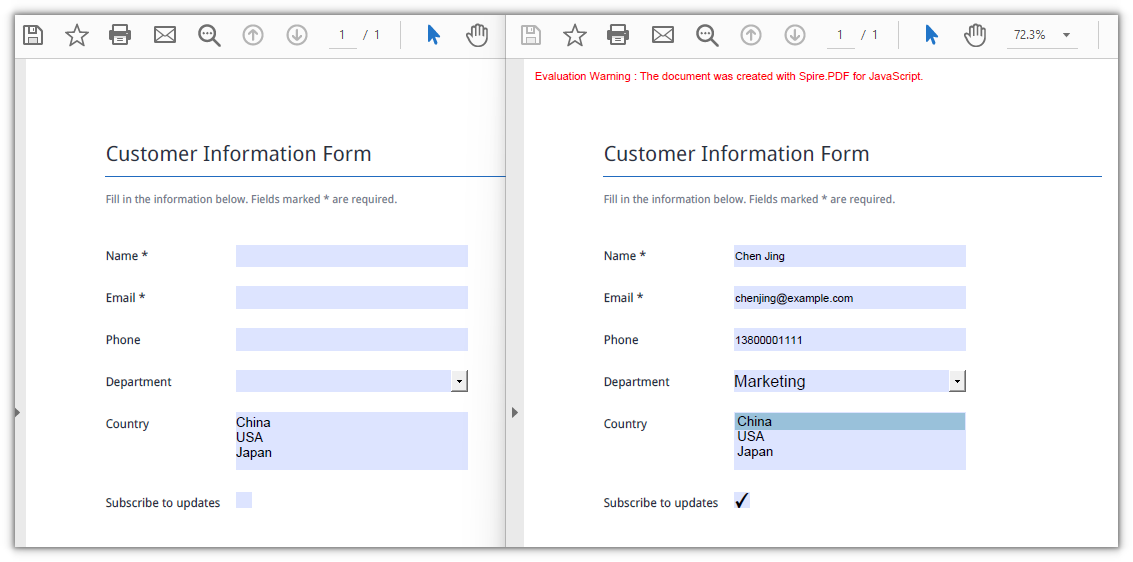
The target here is a blank copy of the original form. The template goes out empty; when the data file comes back, every field is populated in a single pass — no manual re-entry, no field-by-field copying, no need to key everything in a second time:
function App() {
  const importFormData = async () => {
    // Get the Spire.PDF WASM module
    const pdfModule = window.wasmModule?.spirepdf;

    // Check that the module is ready
    if (!pdfModule) {
      alert('Spire.PDF is not ready yet');
      return;
    }

    // Load the blank form to be filled into the VFS
    const inputFileName = 'BlankCustomerInformationForm.pdf';
    await window.spire.FetchFileToVFS(inputFileName, "", `${process.env.PUBLIC_URL}/data/`);

    // This demo refills from the XML data file
    const dataFiles = [
      { fileName: 'FormData.xml', format: pdfModule.DataFormat.Xml, outputFileName: 'ImportedXMLData.pdf' },
      // { fileName: 'FormData.fdf', format: pdfModule.DataFormat.Fdf, outputFileName: 'ImportedFDFData.pdf' },
      // { fileName: 'FormData.xfdf', format: pdfModule.DataFormat.XFdf, outputFileName: 'ImportedXFDFData.pdf' },
    ];

    for (const item of dataFiles) {
      // The data file also has to be loaded into the VFS first
      await window.spire.FetchFileToVFS(item.fileName, "", `${process.env.PUBLIC_URL}/data/`);

      const doc = new pdfModule.PdfDocument();
      doc.LoadFromFile(inputFileName);

      // Read the data file and write the values back into the fields by name
      const formWidget = new pdfModule.PdfFormWidget(doc.Form.H);
      formWidget.ImportData(item.fileName, item.format);

      doc.SaveToFile(item.outputFileName);
      doc.Close();

      // Read the generated file from the VFS and trigger the download
      const fileArray = window.dotnetRuntime.Module.FS.readFile(item.outputFileName);
      const blob = new Blob([fileArray], { type: 'application/pdf' });
      const url = URL.createObjectURL(blob);
      const a = document.createElement('a');
      a.href = url;
      a.download = item.outputFileName;
      a.click();
      URL.revokeObjectURL(url);
    }
  };

  return (
    <div style={{ textAlign: 'center', height: '300px' }}>
      <h1>Import Form Data</h1>
      <button onClick={importFormData}>
        Import
      </button>
    </div>
  );
}

export default App;
After the import call completes, the previously blank form is fully populated and ready to be saved or displayed. The result is a new PDF with every field filled in from the data file:
Choosing the Right Data Format
All three formats hold identical field values, so the decision comes down to structure and tool support rather than data fidelity. Here is how to think about each one in the context of a form data round-trip:
-
FDF produces the smallest files. It starts with
%FDF-and uses a compact text notation where/Tcarries the field name and/Vthe value. This makes it efficient for passing data between form-handling programs, but the contents are not easily read by a person and do not play well with text tools or version-control systems. -
XFDF is standard XML with one
<field>element per field. Because it is well-formed XML, it can be diffed, merged, and inspected with ordinary text tools, making it the safest choice when the data file enters version control, needs human review, or must interoperate with another system. - XML (Adobe form-data XML) puts the field name directly in the element name, giving the most straightforward structure of the three. It is ideal when you simply want a readable list of field names and values without any extra ceremony.
In short: use FDF for round trips that stay inside a single program; use XFDF when the file crosses tool or team boundaries; use XML when readability is the top priority.
FAQ
Some fields are still empty after import
Cause: ImportData matches by field name, so the names in the data file must match the field names in the form exactly — including case and whitespace. A field that does not match is silently skipped; there is no error and no return value indicating a mismatch. Only the fields whose names align receive a value.
Solution: Before importing, walk the form's field collection and print the actual names, then compare them against the data file:
const fields = formWidget.FieldsWidget;
for (let i = 0; i < fields.Count; i++) {
  console.log(fields.get_Item({ index: i }).Name);
}
Import throws Xml_MessageWithErrorPosition or "not a valid FDF file"
Cause: ImportData parses the file according to the format named by the second parameter and never inspects the file extension. When the content does not match the declared format, parsing fails immediately: XML files report Xml_MessageWithErrorPosition, Xml_InvalidRootData, and a non-FDF file reports The source is not a valid FDF file because it does not start with "%FDF-".
Solution: Pass the DataFormat that matches the file's actual content, and use the original exported data file rather than one that has been re-saved in a different format.