Whether you are preparing a final contract, submitting a thesis, or sharing a report with clients, removing internal comments, highlights, and review notes helps to maintain a professional appearance and prevents accidental data exposure.
In this guide, we will show you how to remove comments from PDF documents with three approaches. Depending on your needs, you can use Adobe Acrobat, free online tools, or an automated Python script.
- How to Delete All Comments in Adobe
- Remove Comments from PDF Online
- Remove Annotations from PDF Automatically with Python
- FAQs
How to Delete All Comments in Adobe
Adobe Acrobat is one of the most popular ways to manage and clean up PDFs. It allows you to remove comments using built-in features. Here is how to delete all comments in Adobe using two different approaches.
1. Bulk Select via the Comment Pane
This method is useful when you want to remove annotations from PDF quickly without hassle. Here are the detailed steps:
- Step 1. Open a PDF in Adobe Acrobat.
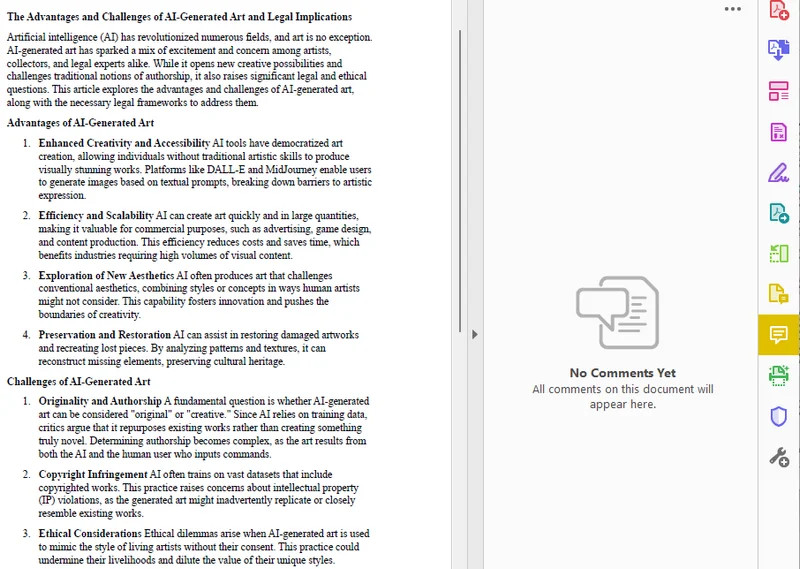
- Step 2. Open the comment panel by clicking the Comment icon in the right-hand toolbar.
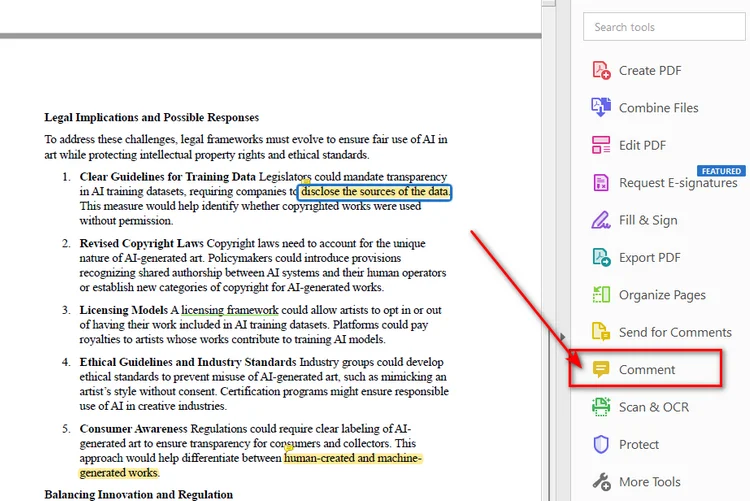
- Step 3. Left-click the first comment at the top of the panel.
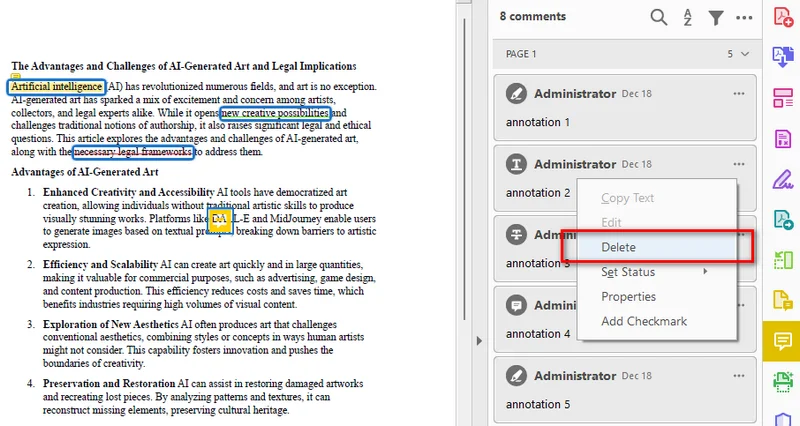
- Step 4. Scroll down to the bottom of the list, hold down the Shift key on your keyboard, and click the last comment to select all annotations.
- Step 5. Right-click anywhere on the highlighted list and select Delete.
2. Use the Sanitize Document Feature
If you are dealing with a highly confidential document, manual deletion might miss hidden data. Acrobat's Sanitize feature can remove hidden information, including comments, metadata, and other private content.
- Step 1. Go to the top menu and select Tools -> Redact.
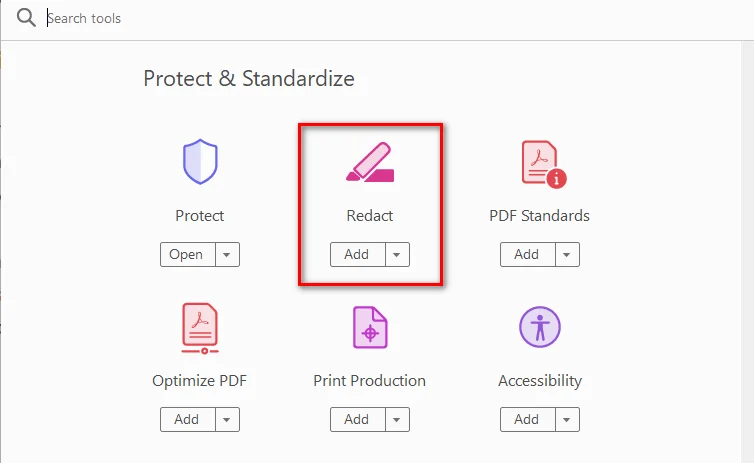
- Step 2. Click on the Sanitize Document button in the top bar.
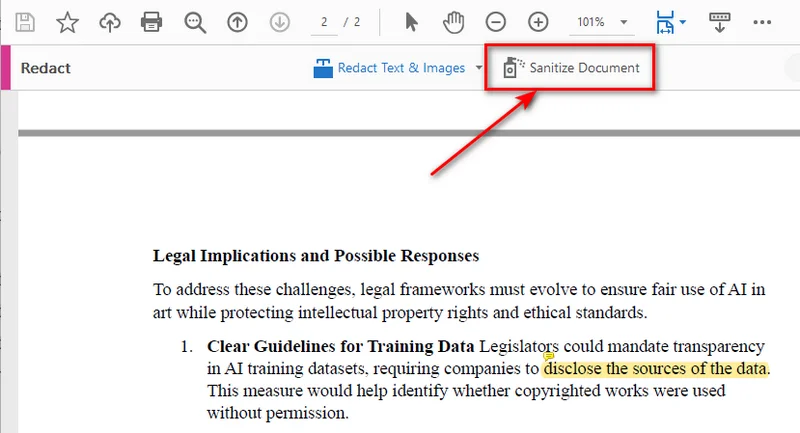
- Step 3. A pop-up will appear. Click OK to permanently strip all hidden comments, revision histories, and private metadata.
Note: Using this way, Adobe will automatically create a new and clean version of PDF. This leaves your original PDF untouched, making it perfect for keeping an internal copy with your comments intact while creating a clean draft for others.
You may like: How to Make a PDF Read Only in 2025 (A Complete Guide)
How to Remove Comments from PDF Online (Without Adobe)
While Adobe Acrobat is highly powerful, most of its advanced features, including full comment management, require a paid subscription. If you only need to delete comments in PDF documents once or twice, using a web-based PDF editor is a better alternative. With platforms like Smallpdf, you can upload files directly in a browser and start editing instantly. The biggest advantages are that these tools are usually free, lightweight, and require no installation, making them a convenient option for quick PDF edits.
Steps to Remove Comments Online:
- Step 1. Search for online PDF editors in a browser.
- Step 2. Upload the PDF file to the editor.
- Step 3. Click any annotation on the page, and tap the trash can icon to delete the comment.
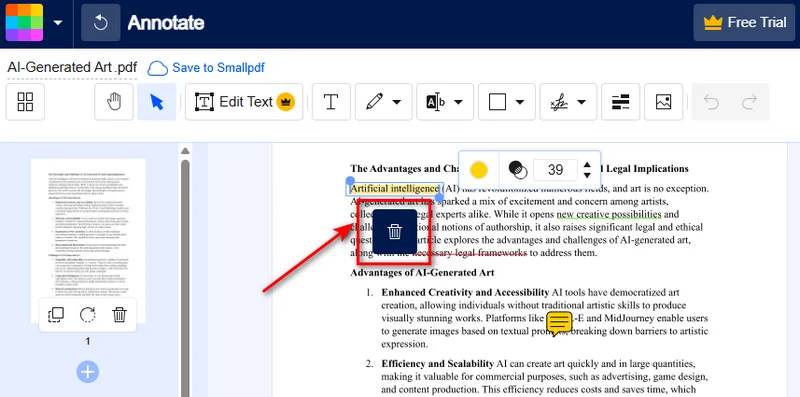
While online tools are free and convenient, keep two things in mind: First, avoid uploading PDFs with sensitive financial data or trade secrets to third-party servers. Second, most web tools require you to delete comments one by one. If your document has dozens of notes or contains confidential data, try Adobe Acrobat or the Python method below.
How to Remove Annotations from PDF Automatically with Python
For developers or users who need to process multiple PDFs regularly, automation can save significant time compared with manual editing. If you need to automate document workflows or process large batches of files, you can remove all comments from PDF documents using a Python script.
In official PDF specifications, interactive elements like sticky notes, text markups, and shapes are technically called "annotations." Using the Free Spire.PDF for Python library, you can easily clear these elements out of the file structure automatically. As a standalone component, it allows you to process PDF files locally without relying on Adobe Acrobat, which is useful for automated batch processing.
Python Code to Clear PDF Comments
With the help of Free Spire.PDF, we can delete annotations from PDFs with two main steps: loop through each PDF page, access the annotation collection of each page and remove all annotation objects.
Here's the code example:
from spire.pdf.common import *
from spire.pdf import *

# Load the target PDF document from your local directory
pdf = PdfDocument()
pdf.LoadFromFile("/input/sample.pdf")

# Loop through all pages to remove all comments from pdf
for i in range(pdf.Pages.Count):
    page = pdf.Pages.get_Item(i)

    # Clear all sticky notes, highlights, and annotations on the current page
    page.AnnotationsWidget.Clear()

# Save the clean PDF
pdf.SaveToFile("/output/commentremoved.pdf")
pdf.Close()
FAQs about Removing Comments from PDF
Q1: How to remove comments from a PDF document for free?
A: You can use free web tools like Smallpdf to upload, clean, and download your file in seconds. However, if security is your top priority, using the Free Spire.PDF library is a better alternative. It runs entirely offline on your local machine, allowing you to batch-clean confidential documents for free with zero data leak risks.
Q2: Will removing comments also delete the highlight effect in the PDF?
A: Yes. In PDFs, highlights, underlines, and strikethroughs are classified as text markup annotations. When you remove annotations from PDF via Adobe's Sanitize tool, online editors, or Python scripts, these visual highlights will be deleted along with the sticky notes.
Q3: How do I hide comments instead of deleting them in Adobe?
A: If you want to keep the feedback for later but need a clean view right now, you can open the Comment pane in Adobe Acrobat and click the Hide All Comments icon at the top of the panel.
Conclusion
Knowing how to remove comments from PDF files helps you prepare clean and professional documents before sharing them. Whether you use Adobe Acrobat, an online PDF editor, or a Python script with Free Spire.PDF, you can easily delete comments based on your specific needs. Choose Adobe Acrobat for detailed manual editing, online tools for quick one-time tasks, or Python automation when you need to process multiple PDF files efficiently.