Adding a text box to a PDF is useful when you need to place additional text, notes, or input areas on a page. While the task is straightforward, not everyone knows how to add a text box to a PDF. This guide covers three ways to do it: Adobe Acrobat for desktop editing, Google Docs as a free workaround, and Free Spire.PDF for Python for batch PDF form creation.
- Add a Text Box to a PDF with Adobe Acrobat
- Add a Text Box to a PDF with Google Docs
- Add an Interactive Text Box to a PDF with Python
- Which Method Should You Choose?
- FAQs
Add a Text Box to a PDF with Adobe Acrobat
Adobe Acrobat provides several ways to add text to a PDF. You can use the Edit tool to place new text directly on the page, or use the Comment tools to add a text box annotation without changing the original PDF content. Choose the option that matches how you want the text box to work.
Add Text Directly to a PDF
If you want the text to become part of the PDF content, use the Edit tool:
- Step 1: Open your PDF file in Adobe Acrobat.
- Step 2: Click Edit PDF in the side panel to reveal the top editing toolbar.
- Step 3: Select Add Text from the toolbar, then click and drag on the page to draw a text box.
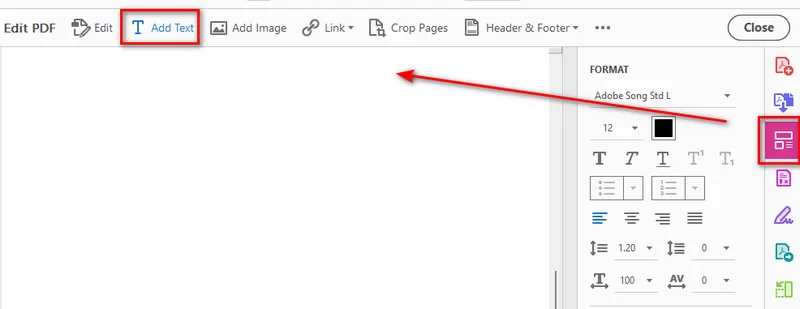
- Step 4: Type the content you want to add inside the box.
- Step 5: Use the right-hand panel to adjust font, size, alignment, and other properties as needed.
Add a Text Box as a Comment
If you want to add a text box without changing the original PDF content, you can use Acrobat’s Comment tools. This adds the text box as an annotation that can be edited or removed separately from the document content.
- Step 1: Open your PDF file in Adobe Acrobat.
- Step 2: Select Comment from the toolbar.
- Step 3: Choose Add text box from the Comment tool.
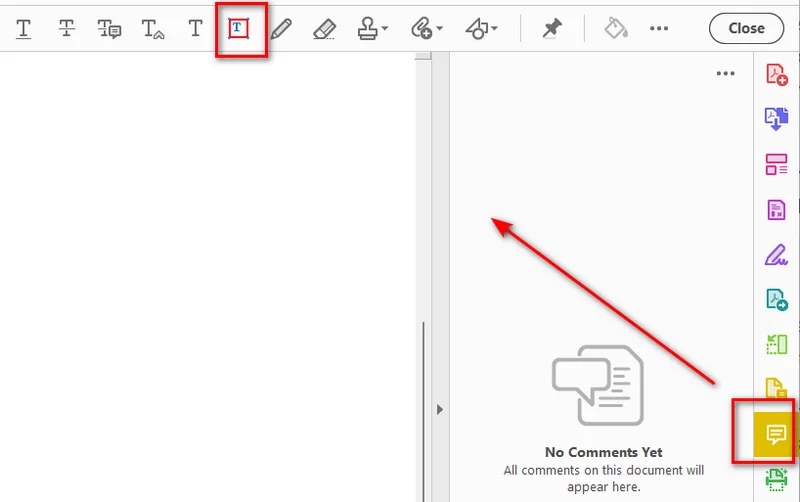
- Step 4: Click on the page to insert the text box.
- Step 5: Enter your text and adjust the text box properties as needed.
Note: Keep in mind that text box annotations float above the document layer, which might block surrounding text.
Tip: If you need to add regular text to PDF files programmatically, you can use Python to add text to PDF files instead of editing them manually.
Add a Text Box to a PDF with Google Docs
If you prefer a quick online solution, you can use Google Docs to get the job done directly in your web browser. This approach involves two simple parts: first, uploading your PDF to Google Drive and converting it to Google Docs, and second, using the built-in Drawing tool to insert your text box before exporting the file back to PDF. Here are the detailed steps.
Convert the PDF to Google Docs
- Step 1: Open Google Drive in your web browser and upload a PDF file into your drive.
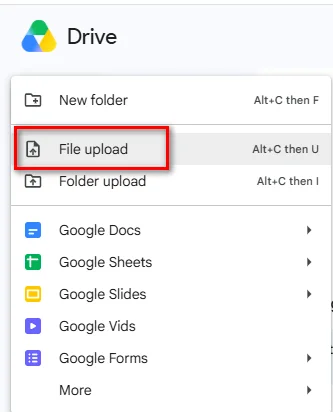
- Step 2: Right-click the uploaded PDF, select Open with, and choose Google Docs.
Create and Export the Text Box
Once the PDF content has been converted to Google Docs, you can create a text box through the Drawing tool:
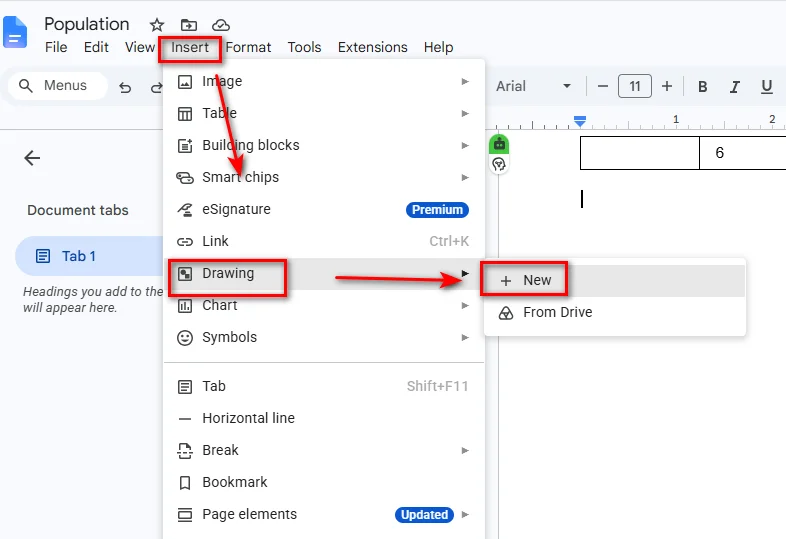
- Step 1: Place your cursor where you want the text box to appear, then select Insert > Drawing > + New.
- Step 2: Click the Text Box icon in the top toolbar of the Drawing window.
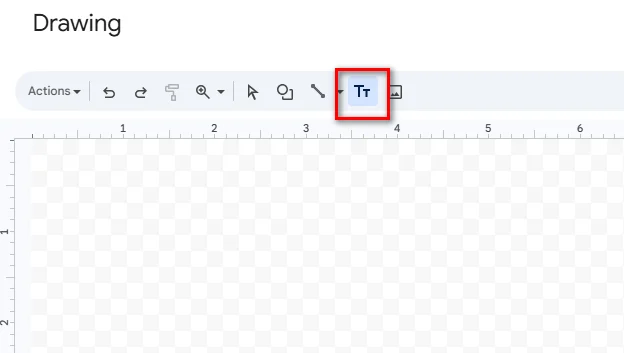
- Step 3: Click and drag on the canvas to draw the box, then enter your text inside.
- Step 4: Click Save and Close in the top right corner to insert the text box into your Google Docs document.
- Step 5: Select File > Download > PDF Document (.pdf) to save the edited document back to your computer.
Tip: Google Docs is a practical option for simple, text-heavy PDFs. If the original file contains complex layouts, multi-column tables, or precisely positioned graphics, check the converted document carefully before exporting it back to PDF.
Add an Interactive Text Box to a PDF with Python
If you need to add text fields programmatically or incorporate PDF form creation into an automated workflow, a PDF library can eliminate repetitive manual editing. With Python, you can create an interactive text box that users can click and fill in with a PDF reader.
Install Free Spire.PDF for Python
Free Spire.PDF for Python is a PDF library that allows developers to create, read, edit, and convert PDF documents programmatically. It also provides support for PDF form fields, including interactive text fields through the PdfTextBoxField class.
Install the package with:
pip install Spire.Pdf.Free
Create an Interactive Text Box Field
The following example creates a new PDF document, adds an interactive text box field to its first page, configures its appearance, and saves the file.
import spire.pdf as pdf

# Create a new PDF document
doc = pdf.PdfDocument()

# Add a new blank page
page = doc.Pages.Add()

# Allow form fields to be created in the PDF
doc.AllowCreateForm = True

# Create an interactive text box field
text_box = pdf.PdfTextBoxField(page, "user_input_field")

# Set the location and dimensions
text_box.Bounds = pdf.RectangleF(50.0, 50.0, 300.0, 40.0)

# Set default text
text_box.Text = "Click here to enter your text..."

# Configure the font and border
font = pdf.PdfTrueTypeFont(
    "Arial",
    12.0,
    pdf.PdfFontStyle.Regular,
    True
)
text_box.Font = font
text_box.BorderWidth = 1.0
text_box.BorderStyle = pdf.PdfBorderStyle.Solid

# Allow multiple lines of text
text_box.Multiline = True

# Add the text field to the PDF form
doc.Form.Fields.Add(text_box)

# Save the generated PDF
doc.SaveToFile("/output/output_textbox.pdf", pdf.FileFormat.PDF)
doc.Close()
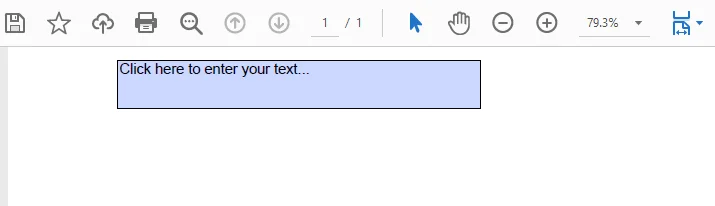
PdfTextBoxField creates an interactive form field, allowing users to open the resulting PDF in a PDF viewer and directly click to enter or edit content inside the box.
The programmatic approach is particularly useful when building automated document-generation workflows that require creating dynamic forms, invoices, or application templates from scratch.
Which Method Should You Choose?
The right method depends on how you want to add and use the text box.
| Solution | Best For | Pros | Cons |
|---|---|---|---|
| Adobe Acrobat | Desktop editing and PDF annotations | Precise positioning and formatting controls | Some editing and form features require a paid plan |
| Google Docs | Simple, free PDF editing workarounds | Free and requires no desktop PDF editor | PDF layout may change during conversion |
| Free Spire.PDF for Python | Developers and automated workflows | Programmatic control and interactive PDF form support | Requires basic Python programming knowledge |
Choose Adobe Acrobat when you need to add a text box manually and want precise control over its position and appearance. Use Google Docs when you need a free solution for a relatively simple document and can accept possible layout changes. For applications that need to create or modify interactive PDF fields programmatically, Free Spire.PDF for Python provides a code-based approach.
You may like: How to Create a Fillable PDF – 3 Ways to Make PDF Editable
Frequently Asked Questions
Q1: Can I add a text box to a PDF for free using Google Docs?
Yes. You can upload a PDF to Google Drive, open it with Google Docs, and use Insert > Drawing > Text Box to add text. You can then download the edited document as a PDF.
Q2: Why can't I edit text in a PDF text box after saving?
A text box can be added as regular PDF content, an annotation, or an interactive form field. If text was added as regular content or flattened during export, it is no longer an editable form field. To let PDF readers enter or change the text, you need to create an interactive form text field.
Q3: Do I need Adobe Acrobat installed to run Free Spire.PDF for Python scripts?
No. Free Spire.PDF works independently of Adobe Acrobat. You can use the Python library to create and modify PDF documents without installing Adobe Acrobat.
Conclusion
Adding a text box to a PDF is straightforward once you choose the right method. Adobe Acrobat is suitable for adding text boxes manually, while Google Docs provides an online workaround for simpler documents. If you need interactive text fields in an automated PDF workflow, Free Spire.PDF for Python lets you create them programmatically.