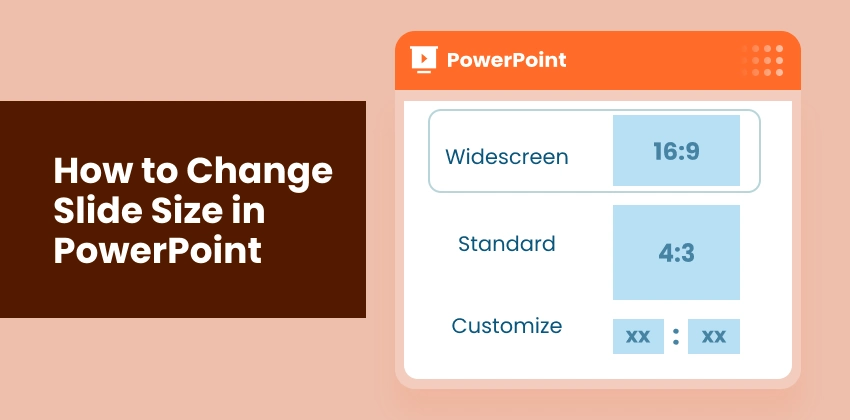
Changing the slide size in PowerPoint is necessary when preparing presentations for different screens, formats, and output requirements. Using the wrong slide size can cause content to be cut off, stretched, or misaligned, while adjusting it properly ensures your slides look polished, professional, and well-aligned.
In this guide, you'll learn three practical ways to change slide size in PowerPoint — from manual adjustments to automation with VBA and Python — without affecting your existing layouts.
- Why Change Slide Size in PowerPoint
- Understand Common PowerPoint Slide Sizes
- Change Slide Size in PowerPoint Manually
- Change Slide Size in PowerPoint Automatically Using VBA
- Batch Resize PowerPoint Slides Using Python
- Troubleshooting and Best Practices for Changing Slide Size in PowerPoint
Why Change Slide Size in PowerPoint?
PowerPoint uses default slide dimensions, which don't always fit real-world presentation needs. Changing slide size helps you:
- Display correctly on different screens - ensure slides look perfect on widescreen monitors, projectors, or laptops.
- Prevent content issues - avoid text, images, or charts being cut off, stretched, or misaligned.
- Prepare for printing or PDF export - optimize slides for handouts, reports, or digital sharing.
- Adapt for digital platforms - design slides for video presentations, websites, or social media posts.
- Maintain consistency across devices - keep layouts intact when sharing presentations with colleagues or clients.
By starting with the right slide size, you can reduce formatting problems and ensure your content looks professional in every scenario.
Understand Common PowerPoint Slide Sizes
Before you change the slide size, it's important to understand the most commonly used PowerPoint slide sizes and their typical use cases.
| Slide Size | Aspect Ratio | Dimensions | Typical Use Cases |
|---|---|---|---|
| Standard | 4:3 | 10 × 7.5 in | Older projectors, printed handouts, legacy presentations |
| Widescreen | 16:9 | 13.333 × 7.5 in | Modern monitors, laptops, TVs, online presentations |
| Custom Slide Size | Custom | Any width × height | Posters, social media graphics, digital signage, video content |
Tip: For most modern screens and online sharing, the 16:9 widescreen format is recommended.
Change Slide Size in PowerPoint Manually
If you want full control over your presentation's layout, PowerPoint lets you manually change slide size to fit screens, print formats, or digital platforms. Here's how to do it.
Steps to change slide size in PowerPoint manually:
-
Open your presentation in PowerPoint and select any slide.
-
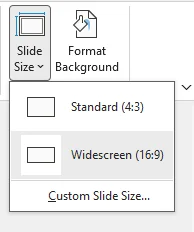
Navigate to the Design tab on the ribbon and click Slide Size on the far right.

-
Choose a size option:
- Preset Sizes: Select Standard (4:3) or Widescreen (16:9) for common formats.
- Custom Slide Size: Enter your desired width and height for specialized layouts, such as posters, social media slides, or video content.
-
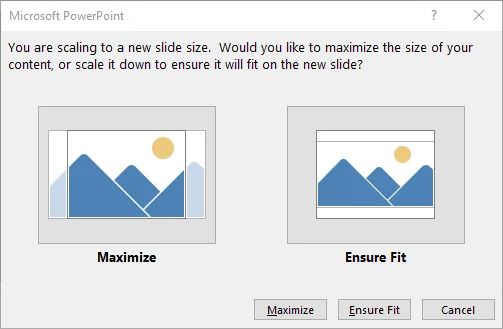
Choose how to scale your content when prompted:
- Maximize: Enlarges your content to fill the new slide size (may cause some objects to overflow).
- Ensure Fit: Scales content down to fit the slide safely (recommended for most layouts).
-
PowerPoint applies the new slide size and scales content immediately. Review each slide for alignment, text, and images.
Pros:
- Quick and fast for a single presentation
- Full control over slide dimensions
- No additional software required
Cons:
- Can be time-consuming if you need to resize multiple presentations
Tip: Using Ensure Fit provides the best results without breaking your layout.
For official guidance, see Change the size of your PowerPoint slides from Microsoft.
Change Slide Size in PowerPoint Automatically Using VBA
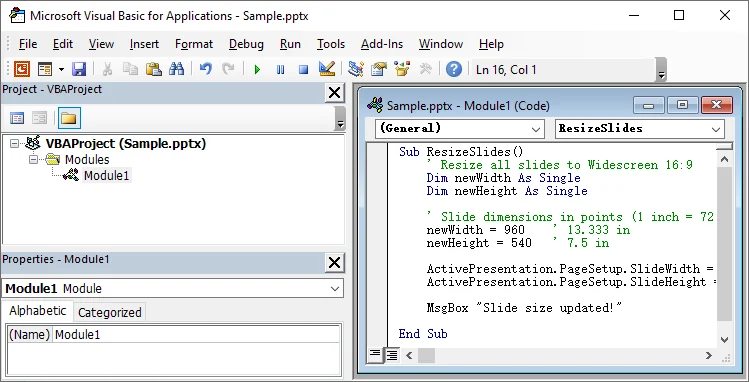
If you are comfortable with VBA, you can run a script directly within PowerPoint to automate slide resizing. This method is ideal for users handling repeated resizing tasks who prefer not to rely on external libraries.
Steps to change slide size in PowerPoint automatically using VBA:
-
Open your PowerPoint presentation.
-
Press Alt + F11 to open the VBA Editor.
-
Click Insert → Module to insert a new module.
-
Paste the following code:
Sub ResizeSlides() ' Resize all slides to Widescreen 16:9 Dim newWidth As Single Dim newHeight As Single ' Slide dimensions in points (1 inch = 72 points) newWidth = 960 ' 13.333 in newHeight = 540 ' 7.5 in ActivePresentation.PageSetup.SlideWidth = newWidth ActivePresentation.PageSetup.SlideHeight = newHeight MsgBox "Slide size updated!" End Sub -
Press F5 to execute the macro.
-
Review all slides to ensure content is aligned and layouts are intact.
Pros:
- Automates resizing for all slides directly in PowerPoint
- No need for additional software or external scripts
Cons:
- Requires basic knowledge of VBA
- Slide content may still need minor adjustments after resizing
Tip: Always back up your presentation before running macros, as changes cannot be undone.
You might also be interested in: How to Split PPT - 3 Easy Methods (Manual, Online & Python)
Batch Resize PowerPoint Slides Using Python
For batch operations across multiple presentations, Python lets you automatically change slide size in PowerPoint, saving time and ensuring consistent formatting across all files. This method is especially useful for large-scale projects where manual adjustment would be impractical.
Using libraries like Spire.Presentation for Python, you can quickly resize slides in dozens or hundreds of presentations in one go. Beyond resizing, it also lets you add, delete, reorder, or copy slides, giving you full control over slide content and layout management.
Steps to batch change slide size in PowerPoint:
-
Install Spire.Presentation for Python from PyPI:
pip install spire.presentation -
Place all PowerPoint files to resize in a folder, e.g., presentations/.
-
Create a Python script to loop through all PowerPoint files in the folder and batch resize slides for each.
from spire.presentation import * import os import glob # Set input and output folder paths input_folder = "presentations/" output_folder = "resized_presentations/" # Create output folder if it doesn't exist os.makedirs(output_folder, exist_ok=True) # Loop through all PPTX files in the input folder for file_path in glob.glob(os.path.join(input_folder, "*.pptx")): # Create a Presentation instance presentation = Presentation() # Load the presentation presentation.LoadFromFile(file_path) # Set slide size to Widescreen 16:9 presentation.SlideSize.Type = SlideSizeType.Screen16x9 # Save the resized presentation output_file = os.path.join(output_folder, "resized_" + os.path.basename(file_path)) presentation.SaveToFile(output_file, FileFormat.Pptx2016) # Release resources presentation.Dispose() print("Batch resizing completed.") -
Run the script to resize all presentations automatically.
Pros:
- Efficient for multiple presentations
Cons:
- Requires basic Python knowledge
- Additional library installation needed
- Slide content may require minor manual adjustment
Tips:
- The script can be modified to use custom slide dimensions instead of standard Widescreen (16:9), see Spire.Presentation's official support document.
- Test on one or two presentations first before running a full batch to ensure layouts scale correctly.
Troubleshooting and Best Practices for Changing Slide Size in PowerPoint
No matter which method you choose to change slide size in PowerPoint, you may still encounter layout issues or unexpected content misalignment. Knowing how to troubleshoot common problems and follow best practices helps ensure your presentation displays correctly across devices without scaling or alignment problems.
Common Issues and How to Fix Them
- Text cut off: Content exceeds new slide margins → Reduce font size or adjust text boxes.
- Images stretched: Aspect ratio not locked → Lock the aspect ratio before resizing.
- Misaligned objects: Auto-scaling changes spacing → Use Align tools or adjust in Slide Master.
- Inconsistent layouts: Slides use different masters → Apply changes consistently in Slide Master.
Best Practices to Change Slide Size in PowerPoint
- Decide slide dimensions early: Choose the correct slide size before adding most of your content.
- Use 16:9 for modern displays: Ideal for widescreens, laptops, and online presentations.
- Keep important content within safe margins: Prevents objects from being cut off after resizing.
- Test on the target device or screen: Ensures the presentation displays correctly.
Tip: Before resizing an existing presentation, always save a backup copy-especially when using VBA macros or Python scripts.
Conclusion
Changing slide size in PowerPoint can be done in several ways, and the best method depends on your workflow and presentation needs:
- Manual resizing - Best for quick edits or single presentations.
- VBA automation - Ideal for repeatable resizing tasks within PowerPoint.
- Python batch resizing - Perfect for large-scale projects or automated workflows.
By selecting the right method, you can confidently resize PowerPoint slides without breaking layouts, maintain consistent formatting, and save time when working with multiple files.
Looking for more high-quality PowerPoint tutorials? Check out our free PPT resources.
FAQs: Change Slide Size in PowerPoint
Q1: What is the best slide size for PowerPoint presentations?
A1: For most modern presentations, Widescreen (16:9) is recommended. It works best on laptops, monitors, TVs, and online meeting platforms. Standard (4:3) is mainly used for older projectors or printed handouts.
Q2: Does changing slide size affect animations or transitions in PowerPoint?
A2: Changing slide size does not remove animations or transitions, but it may affect their visual positioning or timing. Review slides after resizing to ensure everything plays correctly.
Q3: How to change slide size in PowerPoint without breaking layouts?
A3: Use the Ensure Fit option when resizing, keep important content within safe margins, and review slides after resizing. Minor manual adjustments may still be needed for complex layouts.
Q4: How to resize slides across multiple PowerPoint presentations at once?
A4: Use Python along with libraries like Spire.Presentation to batch resize multiple PowerPoint files automatically.
Q5: Can I change slide size in PowerPoint for only one slide?
A5: No. PowerPoint applies slide size to the entire presentation, not individual slides. If you need different slide sizes, create separate presentations or adjust content visually on a single slide.