Comments are useful when you need to explain a value, leave feedback, or discuss a cell with others. In Excel, you can add a comment directly from the worksheet, automate the process with VBA, or use Python to work with comments in Excel files programmatically. This guide covers several ways to add comments in Excel, from a quick manual method to automated processing with Free Spire.XLS for Python.
- How to Add a Comment in Excel Directly
- How to Add Comments to Excel with VBA
- How to Add Comments to Excel with Python
- FAQs
How to Add a Comment in Excel Directly
If you only need to add a few comments, Excel itself provides a quick way to do it. You can add a comment directly from a cell's context menu or use the Review tab. These methods are suitable when you are working with a workbook manually and do not need to process a large number of cells.
1. Add a Comment from the Right-Click Menu
- Step 1: Select the cell where you want to add a comment.
- Step 2: Right-click the cell.
- Step 3: Select Insert Comment.
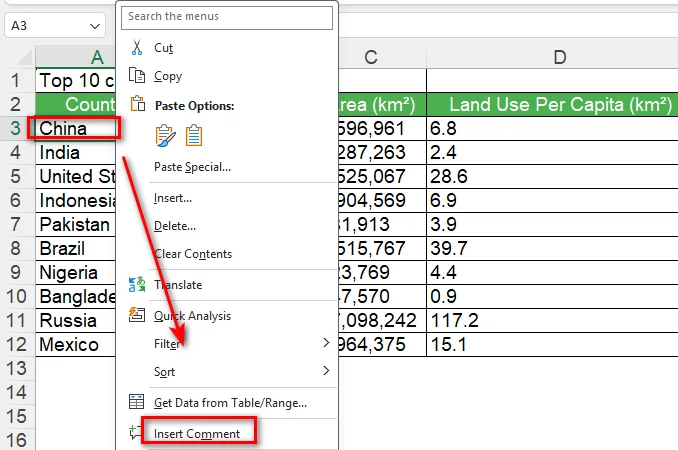
- Step 4: Type your comment in the comment box.
- Step 5: Click anywhere outside the comment box to finish.
Excel adds the comment to the selected cell. If you are working with other people, they can reply to the comment and continue the discussion in the same thread.
2. Insert a Comment from the Review Tab
You can also insert a comment from the Excel ribbon. This is useful when you are already working with the tools on the Review tab.
- Step 1: Select the cell that you want to comment on.
- Step 2: Open the Review tab.
- Step 3: Select New Comment.
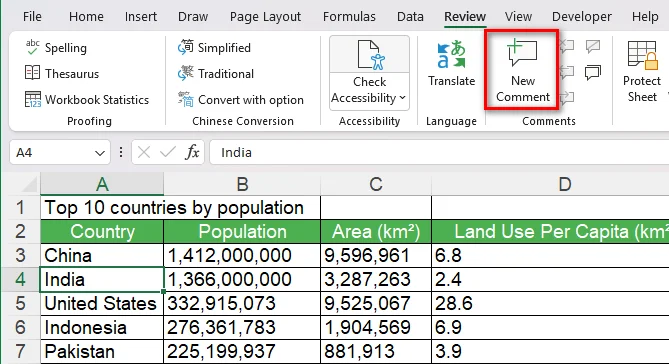
- Step 4: Type comments in the comment box.
- Step 5: Click anywhere outside the comment box to finish.
This approach provides the same basic result as using the right-click menu, so you can use whichever workflow feels more convenient.
Tip: If you also want to improve the overall appearance of your worksheet, you can use Excel’s built-in formatting features to quickly adjust cells, tables, and other elements. See our guide to Auto Format in Excel for more details.
How to Add Comments to Excel with VBA
Manual comments work well for small worksheets, but they can become repetitive when you need to add similar comments to several cells. VBA lets you automate this work directly inside Excel.
Before writing the macro, you need to open Excel's VBA editor and create a module. Once the module is ready, you can paste the code and run it from Excel.
1. Open the VBA Editor
- Step 1: Open the Excel workbook you want to edit.
- Step 2: Press Alt + F11 to open the Microsoft Visual Basic for Applications editor.
- Step 3: In the VBA editor, select Insert > Module.
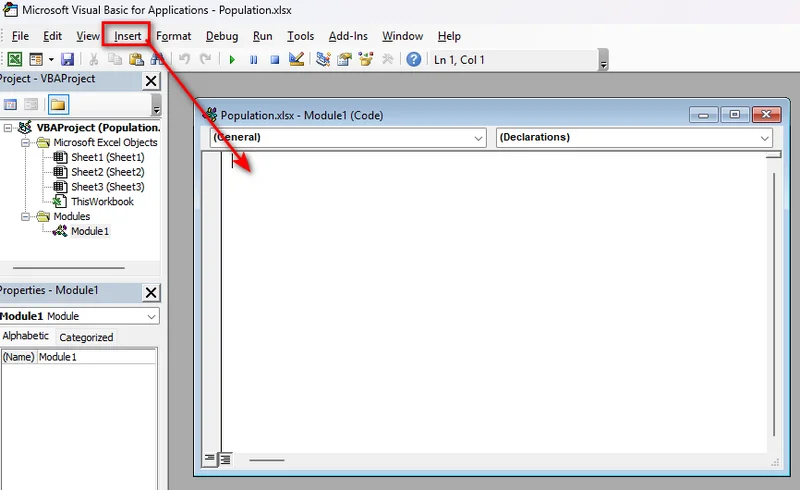
- Step 4: Paste the VBA code into the new module.
2. Add a Comment to a Cell
You can use VBA to add a comment to a specific cell in Excel:
Sub AddComment()

    Range("B4").AddComment "Please review this value."

End Sub
Run the macro, and Excel adds the specified comment to cell B4.
3. Add Comments to Multiple Cells
If several cells need comments, you can use a loop:
Sub AddComments()

    Dim cell As Range

    For Each cell In Range("B4:B8")
        cell.AddComment "Please review this value."
    Next cell

End Sub
This approach is useful when the same type of comment needs to be added across a range.
Note: The VBA AddComment method is associated with Excel's older comment model. In current Microsoft 365 versions, the newer New Comment command creates threaded comments, while older comments are referred to as notes.
How to Add Comments to Excel with Python
Python is a better fit when comment creation is part of a larger Excel-processing workflow. For example, you may need to add comments to files generated by another system or process Excel workbooks automatically.
Free Spire.XLS for Python provides APIs for working with Excel files without installing Microsoft Excel. You can load a workbook, access a cell, add a comment, customize its appearance, and save the result.
1. Install Free Spire.XLS for Python
Install the library with pip:
pip install Spire.Xls.Free
Once installed, you can use it to read and modify Excel workbooks from Python.
2. Add a Comment to a Cell
The following example loads an existing workbook and adds a comment to cell B4.
from spire.xls import *
from spire.xls.common import *

inputFile = "sample.xlsx"
outputFile = "CommentWithAuthor.xlsx"

# Create a Workbook object
workbook = Workbook()

# Load the Excel workbook
workbook.LoadFromFile(inputFile)

# Get the first worksheet
sheet = workbook.Worksheets[0]

# Get the cell where the comment will be added
cell = sheet.Range["B4"]

# Set the comment author and content
author = "Lucy"
text = "Test comment with author"

# Add a comment to the cell
comment = cell.AddComment()
comment.Text = author + ":\n" + text

# Save the result
workbook.SaveToFile(outputFile, ExcelVersion.Version2013)
workbook.Dispose()
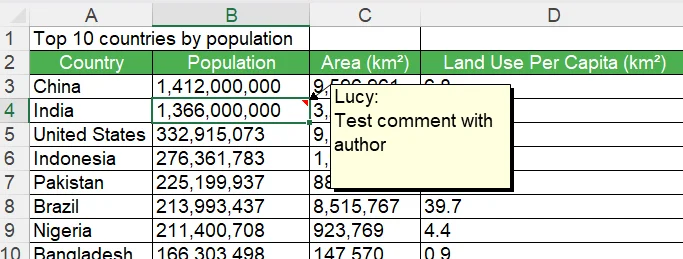
The code first creates a Workbook object and loads the source Excel file with LoadFromFile(). It then gets the first worksheet through workbook.Worksheets[0] and uses sheet.Range["B4"] to access the target cell. Finally, AddComment() creates a comment for that cell, while comment.Text sets its content before the modified workbook is saved.
3. Customize the Comment
Besides adding plain text in comment box, you can also control the appearance of it. For example, you can change its width and visibility and apply formatting to part of the comment text.
# Set the comment size and visibility
comment.Width = 200
comment.Visible = True

# Create a font for the author name
font = workbook.CreateFont()
font.FontName = "Segoe Script"
font.KnownColor = ExcelColors.Blue
font.IsBold = True

# Apply the font to the author name
comment.RichText.SetFont(0, len(author), font)
The image below shows the comment added with this code. As you can see, the comment box uses a different font and text color from the default format shown in the previous step:
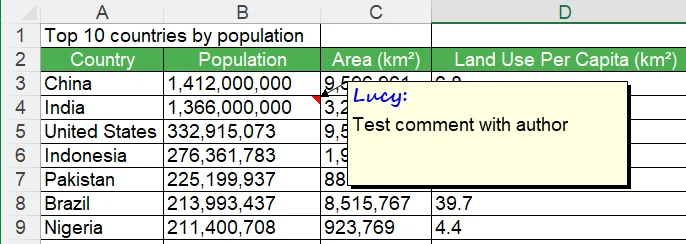
In this short script, Width controls the comment box width, while Visible determines whether the comment is displayed. The RichText object lets you format part of the comment text, such as making the author name bold.
Tip: Once you know how to add and customize comments with Python, you may also need to update or remove existing comments. See our guide on Edit or Remove Comments in Excel for more details.
Conclusion
Adding a comment in Excel can be as simple as selecting a cell and choosing New Comment. If you need to automate repetitive comment tasks within Excel, VBA can also help. When you need a more efficient way to add comments programmatically, Free Spire.XLS for Python is a practical choice. It lets you add comments to multiple cells and customize their appearance with just a few lines of code. Choose the method that best fits your needs!
FAQs
Can I Add a Comment to a Specific Cell in Excel?
Yes. Select the cell, right-click it, and choose New Comment. You can also add a comment through the Review tab.
Can I Add Comments to Multiple Cells at Once?
Yes. It is recommended to use VBA or Python to automate the process when several cells need similar comments.
Can I Customize the Appearance of an Excel Comment?
Yes. With Free Spire.XLS for Python, you can adjust properties such as the comment width and visibility and apply rich-text formatting to the comment text.
What Is the Difference Between an Excel Comment and a Note?
In current Excel, threaded comments are designed for discussions and replies, while notes are used for simple annotations. Notes were called comments in earlier versions of Excel.