
PDF tables often contain data you need to sort, filter, or analyze in Excel. Copying and pasting can leave that data in a single column or disrupt its row structure. Excel’s built-in From PDF feature offers a more direct way to import detected tables into worksheet cells.
This guide explains how to import PDF tables with Power Query, combine tables across multiple pages, preserve leading zeros, and check spaces in wrapped text. It also includes a Python workflow for extracting tables from a folder of PDF files into Excel workbooks.
The Power Query steps below use Excel for Windows with the From PDF connector available. Start with a text-based PDF; scanned pages require an OCR workflow before their table data can be extracted.
- Import PDF Tables into Excel with Power Query
- Combine Tables Across Multiple Pages
- Preserve Leading Zeros in ID Columns
- Verify Wrapped Text and Load the Final Table
- Automate PDF Table Extraction to Excel with Python
- Frequently Asked Questions
- Conclusion
1. Import PDF Tables into Excel with Power Query
Excel’s From PDF feature lets you identify tables in a PDF and import their data into worksheet cells. Open the table in Power Query Editor to review its contents before loading it.
- Open Excel and select Data → Get Data → From File → From PDF.
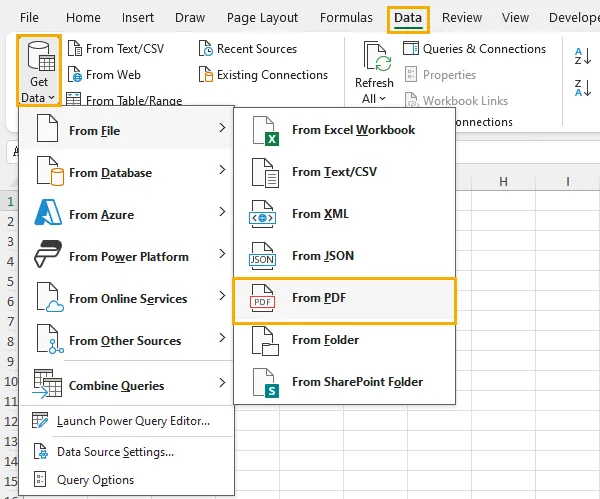
- Select your PDF file and click Import.
- In the Navigator window, select a detected Table entry to preview its contents. Check that it contains the rows and columns you need.
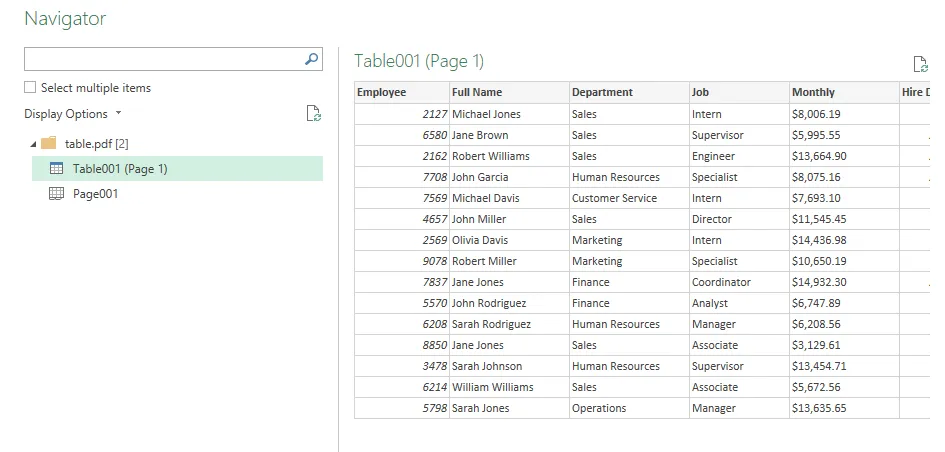
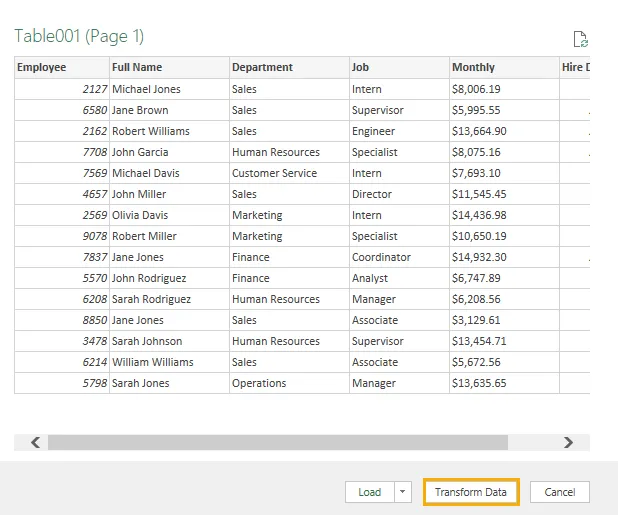
- Click Transform Data to open Power Query Editor.
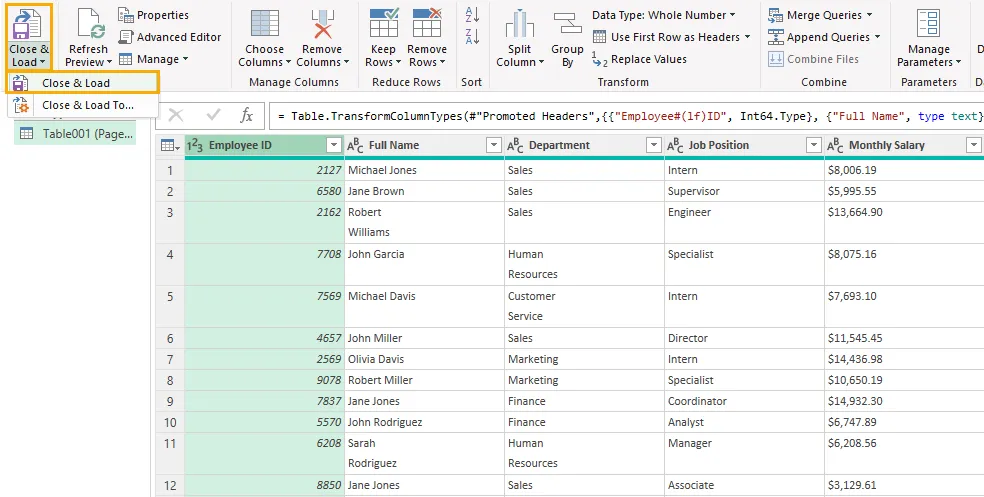
- Review the table, then select Home → Close & Load to load it into an Excel worksheet.
If the preview is already correct and no adjustments are needed, you can click Load directly in Navigator.
For tables that require combining or cleaning, make the adjustments described in the following sections before loading the final result.
2. Combine Tables Across Multiple Pages
Power Query may recognize a table spanning several PDF pages as one table or as separate tables. Check the entries in Navigator before deciding whether to append them.
When Power Query Detects One Table
Consistent headers repeated on each page can help Power Query recognize the entire table. In Navigator, it may appear as a single entry such as Table001 (Page 1–3) .
Select that entry and check the preview. If it contains all the required records, click Load , or choose Transform Data to make adjustments first. No append operation is needed.
When Power Query Detects Separate Tables
If only the first page contains headers, Power Query may detect the continuation pages as separate tables with generic column names such as Column1, Column2, and Column3.
To combine them:
- In Navigator, enable Select multiple items.
- Select the tables belonging to the same cross-page table and check their previews.
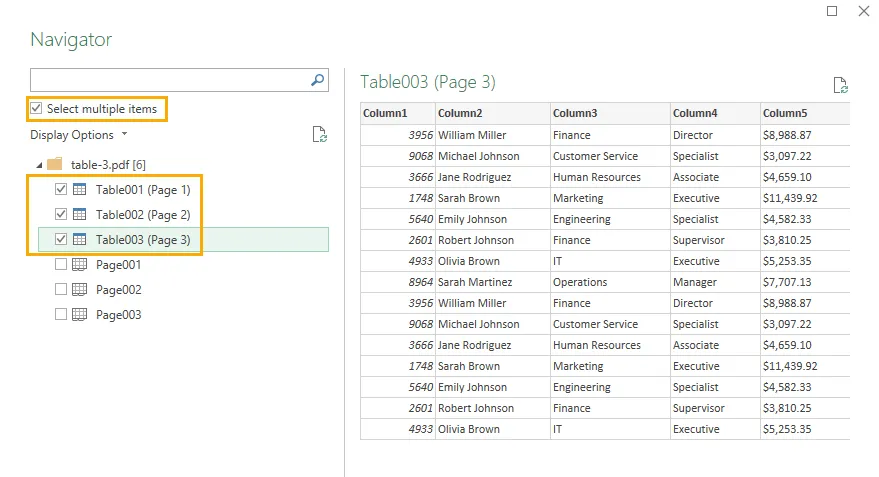
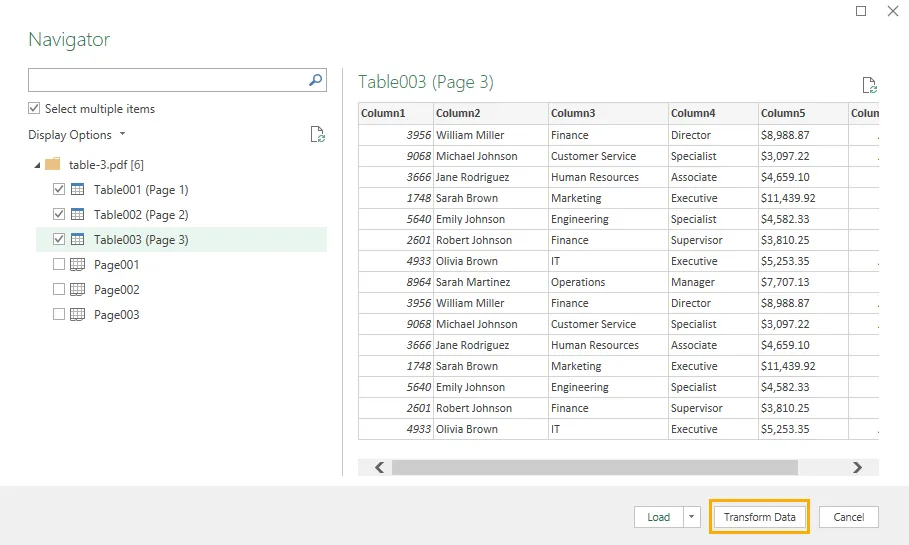
- Click Transform Data. Each selected table appears as a separate query in Power Query Editor.
- Use the first table’s headers as a reference and rename the corresponding columns in the continuation tables. For example, rename
Column1toEmployee IDandColumn2toFull Name.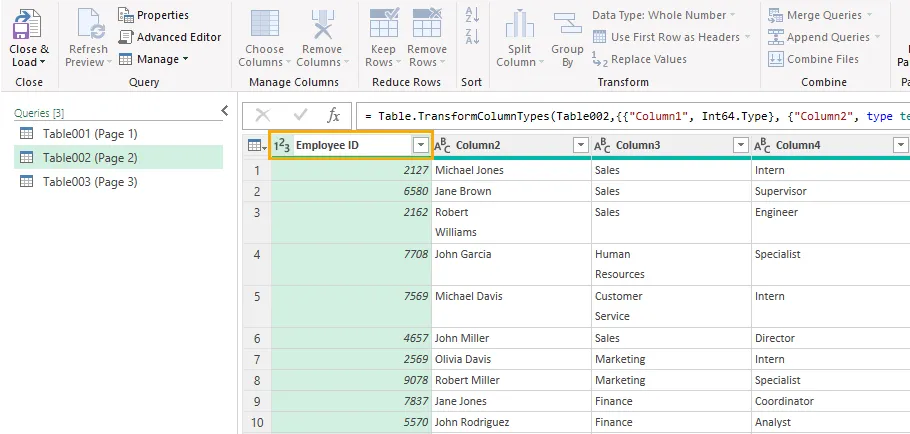
- Check that corresponding column names match exactly, including any spaces, before appending.
Single-word headers such as Department usually do not need to be retyped. Pay closer attention to multi-word headers, especially those that wrap onto multiple lines in the PDF.
For example, Employee and ID may appear on separate lines in the source cell. Navigator can display the header as Employee ID , even though its actual name contains a line break rather than a space. Renaming another table’s column to Employee ID with a normal space would then create a mismatch.
For a wrapped header, right-click the column in the first query and select Rename . Select the entire existing name and manually type a single-line name, such as Employee ID. Use that exact name for the corresponding columns in the other queries. Avoid copying the original wrapped header, which may retain the hidden line break.
Once the column names are consistent:
- Select one query and choose Home → Append Queries ▼ → Append Queries as New.
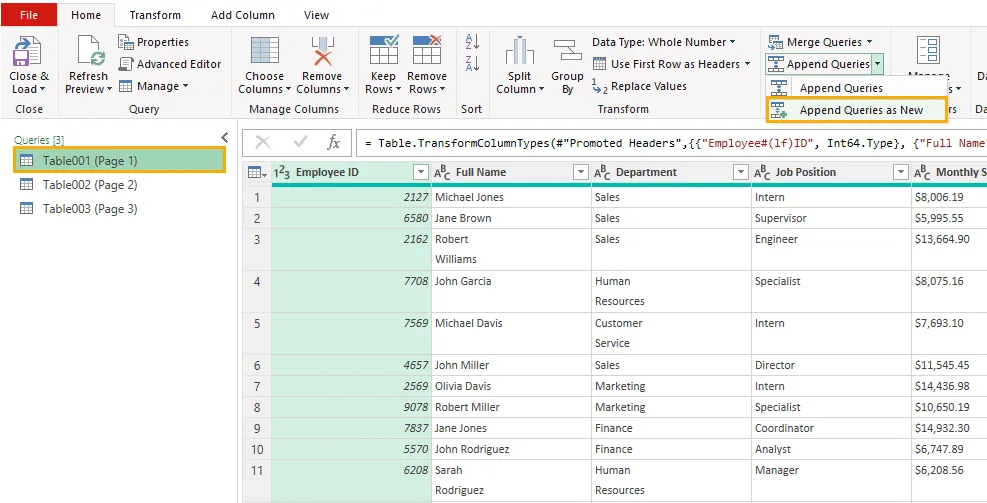
- Choose Two tables or Three or more tables , depending on the number of queries.
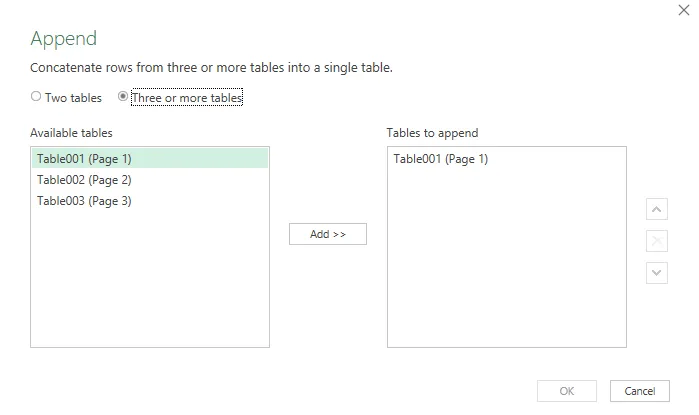
- Select the tables to append. For three or more tables, add them to the Tables to append list and arrange them in PDF page order.
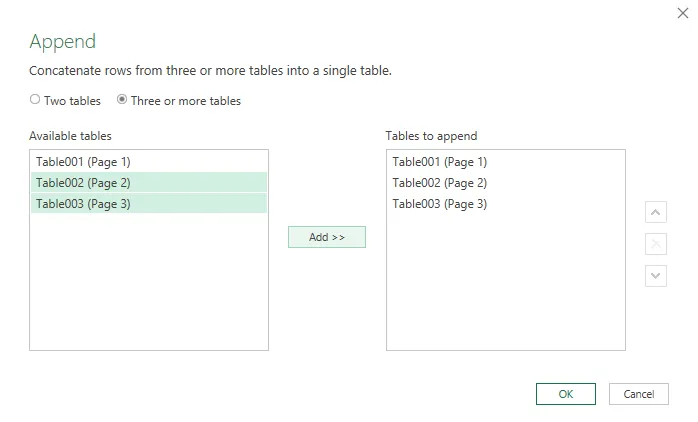
- Click OK to create the combined query.
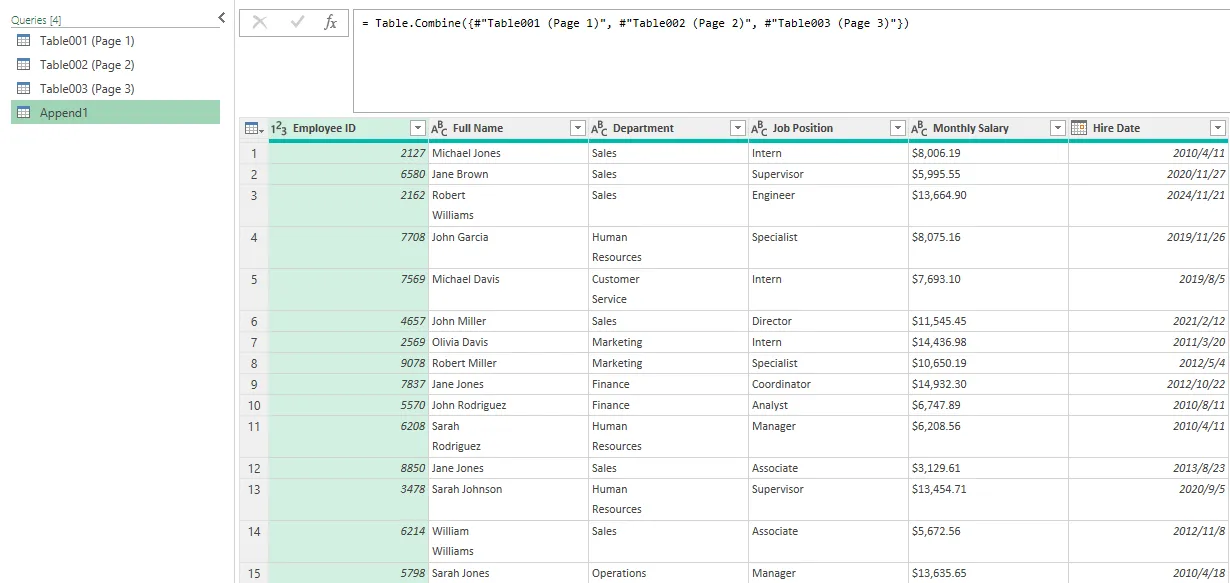
Power Query appends data by matching column names, rather than column positions. If the result contains two apparently identical columns or unexpected null values, return to the source queries and check their names for hidden line breaks or extra spaces.
Finally, review the combined table for missing records, repeated header rows, and unwanted page-footer text before loading it into Excel.
3. Preserve Leading Zeros in ID Columns
Employee IDs, product codes, and similar identifiers may contain leading zeros. If Power Query assigns a numeric data type to these values, an ID such as 00123 may appear as 123.
To preserve the original ID:
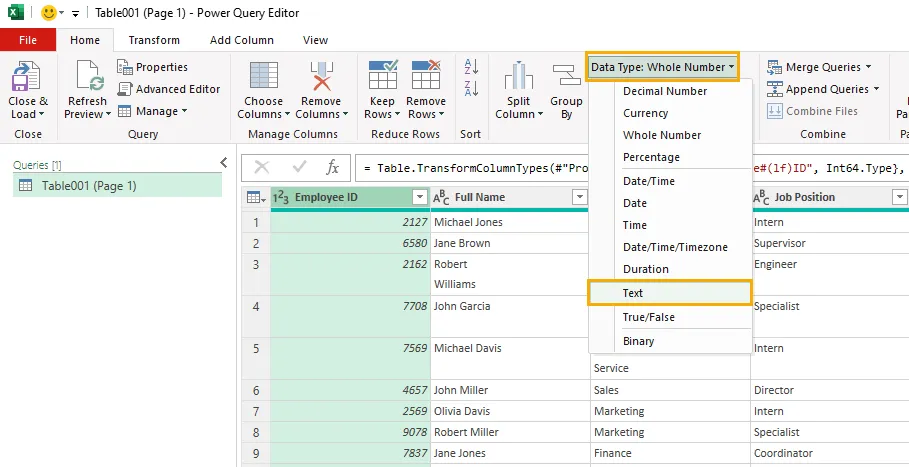
- In Power Query Editor, select the Employee ID column.
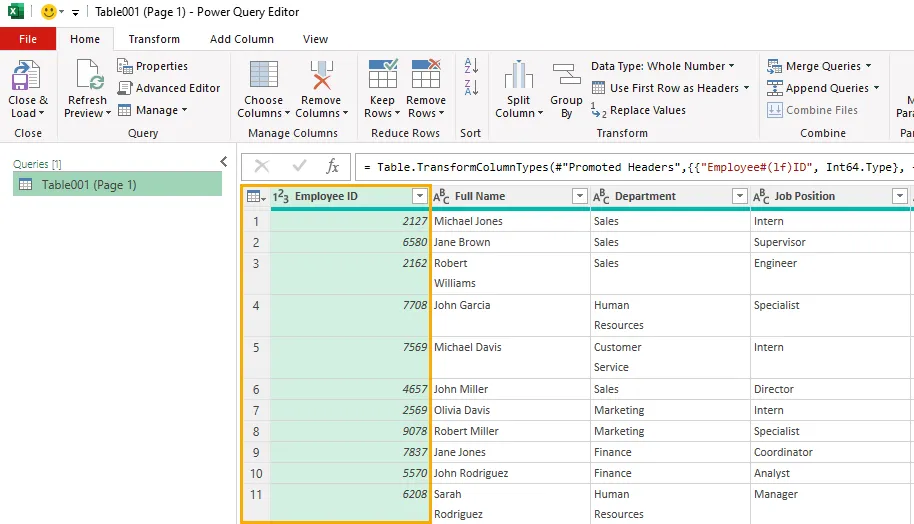
- Open the Data Type menu and change Whole Number to Text.
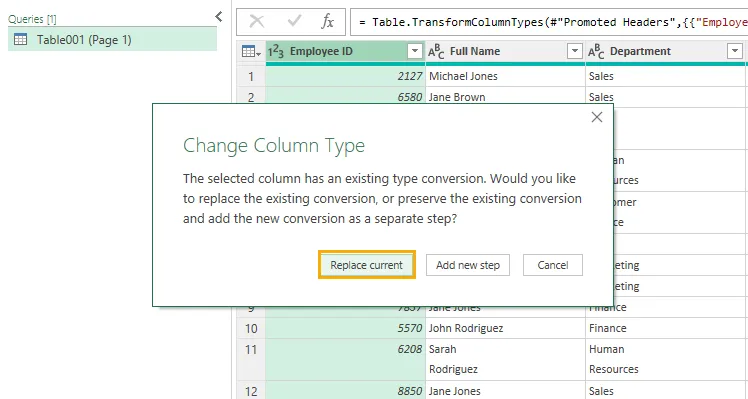
- If prompted to replace the existing type conversion, choose Replace current.
- Check that the values display their leading zeros—for example,
00123instead of123.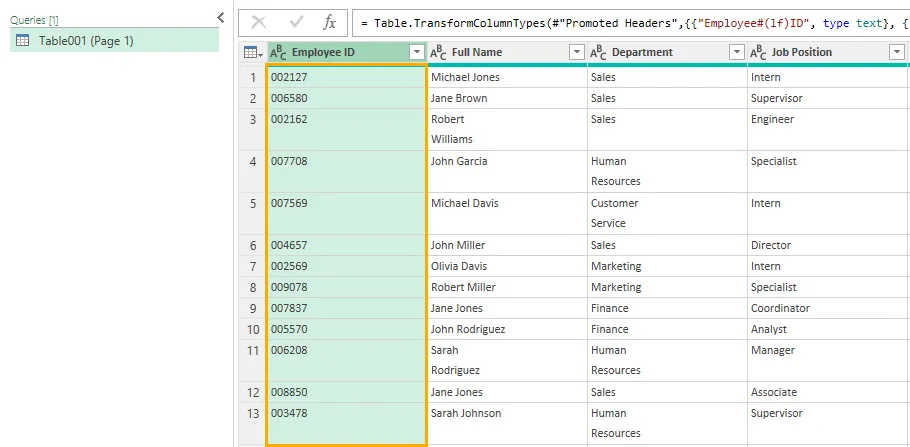
Treat identifiers as text even when they contain only digits. Their purpose is to identify records, rather than serve as values for calculations.
Make this adjustment before loading the data into Excel. If changing the type does not restore the zeros, compare the values with the original PDF; missing zeros cannot be inferred reliably unless the identifiers follow a known fixed-length rule.
4. Verify Wrapped Text and Load the Final Table
Text that wraps onto multiple lines in a PDF cell may be joined without a space during import. For example, a name displayed as Robert on one line and Williams on the next may become RobertWilliams.
Check columns containing names, addresses, and descriptions against the original PDF. Correct confirmed spacing errors individually. For a specific incorrect value, select the column and use Transform → Replace Values to replace it with the correct text.
Avoid applying a general rule that inserts spaces wherever text was wrapped. A single word can also wrap across lines: Coordinato followed by r should become Coordinator , without a space.
Before loading the final table, verify that:
- The record count matches the source table.
- Records at page boundaries are complete.
- ID columns retain their leading zeros.
- Wrapped text has the correct spacing.
- Numeric and date columns use appropriate data types.
Then select Home → Close & Load ▼ → Close & Load To , choose Table , and select the destination worksheet.
If you appended several page-level queries, load only the final combined query as a worksheet table. Set the intermediate queries to Only Create Connection so they remain available to the combined query without creating separate worksheet tables.
5. Automate PDF Table Extraction to Excel with Python
Power Query provides an interactive way to import and prepare PDF table data. When you need to process multiple PDF files repeatedly, you can automate the extraction with Python.
The following example uses Spire.PDF for Python to detect tables and read their cell contents, and openpyxl , an open-source Excel library, to write the extracted data to XLSX files. Each PDF produces one workbook, with each detected table saved to a separate worksheet.
Install the Libraries
Install both packages:
pip install Spire.PDF openpyxl
Batch Extraction Code
Update INPUT_FOLDER and OUTPUT_FOLDER to match your directories. The script reads PDF files directly from the input folder, examines every page, and saves the resulting workbooks to the output folder.
from pathlib import Path

from spire.pdf import PdfDocument, PdfTableExtractor
from openpyxl import Workbook
from openpyxl.styles import Alignment


INPUT_FOLDER = Path(r"E:\Documents\input")
OUTPUT_FOLDER = Path(r"E:\Documents\output")


def extract_pdf_tables_to_excel(pdf_path, output_path):
    doc = PdfDocument()

    try:
        doc.LoadFromFile(str(pdf_path))
        extractor = PdfTableExtractor(doc)

        workbook = Workbook()
        workbook.remove(workbook.active)
        table_count = 0

        # Extract tables from every page.
        for page_index in range(doc.Pages.Count):
            tables = extractor.ExtractTable(page_index)

            if tables is None:
                continue

            for table_index in range(len(tables)):
                table = tables[table_index]
                row_count = table.GetRowCount()
                column_count = table.GetColumnCount()

                if row_count == 0 or column_count == 0:
                    continue

                sheet = workbook.create_sheet(
                    title=f"Page{page_index + 1}_Table{table_index + 1}"
                )

                for row_index in range(row_count):
                    for column_index in range(column_count):
                        text = table.GetText(row_index, column_index)

                        cell = sheet.cell(
                            row=row_index + 1,
                            column=column_index + 1
                        )

                        # Preserve extracted values as literal text.
                        cell.value = text if text is not None else ""
                        cell.data_type = "s"
                        cell.number_format = "@"
                        cell.alignment = Alignment(
                            vertical="top",
                            wrap_text=True
                        )

                for column_cells in sheet.columns:
                    column_letter = column_cells[0].column_letter
                    sheet.column_dimensions[column_letter].width = 22

                table_count += 1

        if table_count == 0:
            print(f"Skipped: {pdf_path.name} — no tables detected.")
            return

        workbook.save(str(output_path))
        print(
            f"Saved: {output_path.name} "
            f"({table_count} tables)"
        )

    finally:
        doc.Close()


def main():
    if not INPUT_FOLDER.is_dir():
        raise FileNotFoundError(
            f"Input folder not found: {INPUT_FOLDER}"
        )

    OUTPUT_FOLDER.mkdir(parents=True, exist_ok=True)

    pdf_files = sorted(
        (
            path for path in INPUT_FOLDER.iterdir()
            if path.is_file() and path.suffix.lower() == ".pdf"
        ),
        key=lambda path: path.name.lower()
    )

    if not pdf_files:
        print("No PDF files found in the input folder.")
        return

    for pdf_path in pdf_files:
        output_path = OUTPUT_FOLDER / f"{pdf_path.stem}.xlsx"

        try:
            extract_pdf_tables_to_excel(pdf_path, output_path)
        except Exception as error:
            print(f"Failed: {pdf_path.name} — {error}")


if __name__ == "__main__":
    main()
The script calls ExtractTable() for each PDF page, then reads each detected table with GetRowCount(), GetColumnCount(), and GetText(). The extracted cells are written to their corresponding rows and columns in a new worksheet.
Files without detected tables are skipped. If one PDF fails to process, the script reports the error and continues with the remaining files.
You May Also Like: Extract Tables from PDF Using Python
Output and Considerations
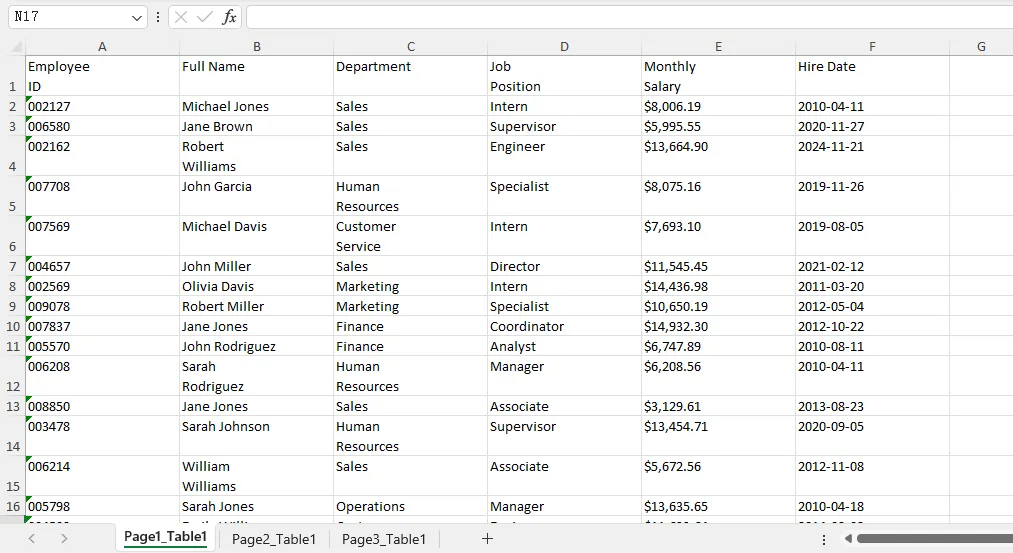
A PDF named report.pdf produces a workbook named report.xlsx. Worksheet names identify the source page and table, such as Page1_Table1, Page1_Table2, and Page2_Table1.
All extracted values are written as text. This preserves leading zeros present in the extracted content, such as 00123, and prevents text beginning with = from being interpreted as an Excel formula. Amounts and dates also remain text and may need conversion before calculations or date-based analysis.
This example exports table data rather than reproducing the PDF’s original appearance. It does not recreate source fonts, borders, or merged-cell formatting, and it does not correct extraction errors such as missing spaces. If a cross-page table is detected as separate tables, those parts are saved to separate worksheets rather than automatically combined.
Review the generated workbook against the source PDF before using its data. Running the script again overwrites existing XLSX files with the same names in the output folder.
6. Frequently Asked Questions
Why can’t I find the From PDF option in Excel?
The available connectors depend on your Excel version and platform. Check Data → Get Data → From File for From PDF . If it is missing, verify whether your installation supports the PDF connector. The Power Query import steps in this guide assume that the option is available.
Can I import a scanned PDF table using these methods?
A scanned PDF stores its page content as images. The workflows shown here do not include OCR, so they are intended for text-based PDFs. For scanned documents, use an OCR tool that can recognize table structure and export structured data, then check the extracted values against the source.
Will the imported Excel table look exactly like the PDF?
These methods focus on extracting cell data for use in Excel. They do not guarantee that the PDF’s fonts, colors, borders, column widths, or merged cells will be reproduced. Apply Excel formatting after import if you need a particular appearance.
Can I refresh the Power Query table when the PDF changes?
Yes. If the source PDF is updated at the same file path, use Data → Refresh All to rerun the query. Review the result afterward, especially if the number of pages, detected tables, or column structure has changed. Those changes may require adjustments to the query.
7. Conclusion
Importing PDF tables into Excel involves more than detecting rows and columns. Power Query provides a practical starting point, but the next steps depend on the result: a cross-page table may be ready to load as one table, or its sections may need matching column names before they can be appended. Leading zeros and spaces in wrapped text also deserve attention because an apparently clean table can still contain altered values.
For recurring tasks, the Python workflow extends this process to a folder of PDFs, saving each file as a workbook with separate worksheets for its detected tables. Choose the workflow that suits your workload, then compare the output with the source PDF—particularly identifiers, multi-line text, and records at page boundaries. These checks help ensure that the imported data is ready for filtering, calculations, and further analysis.