
Java (485)
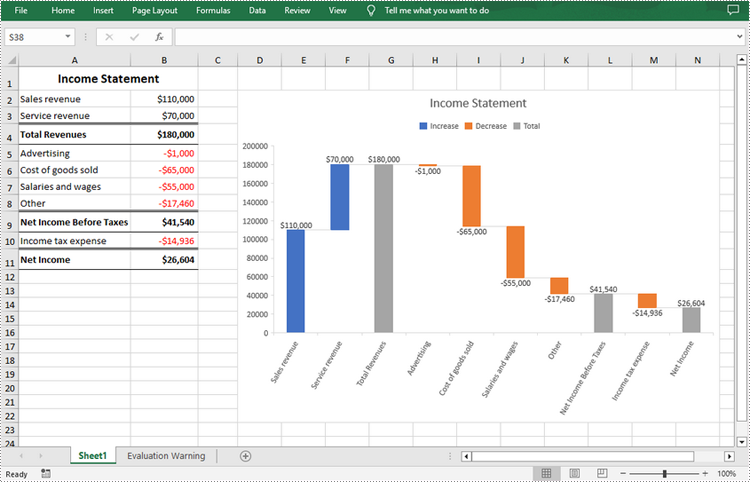
A waterfall chart, also called a bridge chart or a cascade chart, is one of the most visually descriptive charts in Excel. It shows the cumulative effect of positive and negative contributions over a period of time, which is useful in many scenarios where quantitative analysis is required, such as visualizing profit and loss statements, showing budget changes in a project, or monitoring shop inventories. In this article, you will learn how to create a waterfall chart in Excel in Java using Spire.XLS for Java.
Install Spire.XLS for Java
First of all, you're required to add the Spire.Xls.jar file as a dependency in your Java program. The JAR file can be downloaded from this link. If you use Maven, you can easily import the JAR file in your application by adding the following code to your project's pom.xml file.
<repositories>
    <repository>
        <id>com.e-iceblue</id>
        <name>e-iceblue</name>
        <url>https://repo.e-iceblue.com/nexus/content/groups/public/</url>
    </repository>
</repositories>
<dependencies>
    <dependency>
        <groupId>e-iceblue</groupId>
        <artifactId>spire.xls</artifactId>
        <version>16.8.4</version>
    </dependency>
</dependencies>
Create a Waterfall Chart in Excel in Java
Waterfall charts are ideal for analyzing financial statements. To create a waterfall chart, you could first add a chart to a specified worksheet using Worksheet.getCharts().add() method, and then set the chart type to Waterfall using Chart.setChartType(ExcelChartType.WaterFall) method. The following are the detailed steps.
- Create a Workbook instance.
- Load a sample Excel document using Workbook.loadFromFile() method.
- Get a specified worksheet by its index using Workbook.getWorksheets().get() method.
- Add a chart to the worksheet Worksheet.getCharts().add() method, and then set the chart type to waterfall using Chart.setChartType(ExcelChartType.WaterFall) method.
- Set data range for the chart using Chart.setDataRange() method.
- Set position and title of the chart.
- Get a specified data series of the chart, and then set specific data points in the chart as totals or subtotals using ChartSerie.getDataPoints().get().setAsTotal() method.
- Show the connector lines between data points using ChartSerie.getFormat().showConnectorLines(true) method.
- Show data labels for data points, and set the legend position of the chart.
- Save the result document using Workbook.saveToFile() method.
- Java
import com.spire.xls.*;

public class WaterfallChart {
    public static void main(String []args){
        //Create a Workbook object
        Workbook workbook=new Workbook();

        //Load a sample Excel document
        workbook.loadFromFile("data.xlsx");

        //Get the first worksheet
        Worksheet sheet=workbook.getWorksheets().get(0);

        //Add a waterfall chart to the worksheet
        Chart chart=sheet.getCharts().add();
        chart.setChartType(ExcelChartType.WaterFall);

        //Set data range for the chart
        chart.setDataRange(sheet.getRange().get("A2:B11"));

        //Set position of the chart
        chart.setLeftColumn(4);
        chart.setTopRow(2);
        chart.setRightColumn(15);
        chart.setBottomRow(23);

        //Set chart title
        chart.setChartTitle("Income Statement");

        //Set specific data points in the chart as totals or subtotals
        chart.getSeries().get(0).getDataPoints().get(2).setAsTotal(true);
        chart.getSeries().get(0).getDataPoints().get(7).setAsTotal(true);
        chart.getSeries().get(0).getDataPoints().get(9).setAsTotal(true);

        //Show the connector lines between data points
        chart.getSeries().get(0).getFormat().showConnectorLines(true);

        //Show data labels for data points
        chart.getSeries().get(0).getDataPoints().getDefaultDataPoint().getDataLabels().hasValue(true);
        chart.getSeries().get(0).getDataPoints().getDefaultDataPoint().getDataLabels().setSize(8);

        //Set the legend position of the chart
        chart.getLegend().setPosition(LegendPositionType.Top);

        //Save the result document
        workbook.saveToFile("WaterfallChart.xlsx",FileFormat.Version2016);
    }
}
Apply for a Temporary License
If you'd like to remove the evaluation message from the generated documents, or to get rid of the function limitations, please request a 30-day trial license for yourself.
A list is an effective way to organize information and present it clearly and logically. The elements in the list stand out from other parts of the text, encouraging readers to pay attention to them. Depending on your requirements, you can add numbered lists, bulleted lists or multi-level lists to your Word documents. This article demonstrates how to create these types of lists in a Word document in Java using Spire.Doc for Java.
- Insert a Numbered List in Word in Java
- Insert a Bulleted List in Word in Java
- Insert a Multi-Level Numbered List in Word in Java
- Insert a Multi-Level Mixed-Type List in Word in Java
Install Spire.Doc for Java
First, you're required to add the Spire.Doc.jar file as a dependency in your Java program. The JAR file can be downloaded from this link. If you use Maven, you can easily import the JAR file in your application by adding the following code to your project's pom.xml file.
<repositories>
    <repository>
        <id>com.e-iceblue</id>
        <name>e-iceblue</name>
        <url>https://repo.e-iceblue.com/nexus/content/groups/public/</url>
    </repository>
</repositories>
<dependencies>
    <dependency>
        <groupId>e-iceblue</groupId>
        <artifactId>spire.doc</artifactId>
        <version>14.8.4</version>
    </dependency>
</dependencies>
Insert a Numbered List in Word in Java
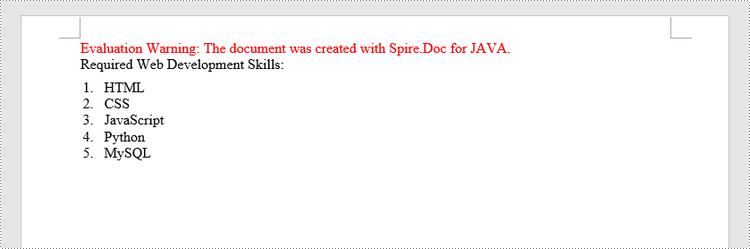
Spire.Doc for Java offers the ListStyle class that you can use to create a numbered list style or a bulleted style. Then, the list style can be applied to a paragraph using Paragraph.getListFormat().applyStyle() method. The steps to create a numbered list are as follows.
- Create a Document object.
- Add a section using Document.addSection() method.
- Create an instance of ListStyle class, specifying the list type to Numbered.
- Get a specific level of the list using ListStyle.getLevels().get(index) method, and set the numbering type using ListLevel.setPatternType() method.
- Add the list style to the document using Document.getListStyles().add() method.
- Add several paragraphs to the document using Section.addParagraph() method.
- Apply the list style to a specific paragraph using Paragraph.getListFormat().applyStyle() method.
- Specify the list level using Paragraph.getListFormat().setListLevelNumber() method.
- Save the document to a Word file using Document.saveToFile() method.
- Java
import com.spire.doc.*;
import com.spire.doc.documents.*;
import com.spire.doc.collections.ListLevelCollection;

public class InsertNumberedList {
    public static void main(String[] args) {
        //Create a Document object
        Document document = new Document();

        //Add a section
        Section section = document.addSection();

        //Create a numbered list style
        ListStyle listStyle =document.getStyles().add(ListType.Numbered, "numberList");
        ListLevelCollection levels = listStyle.getListRef().getLevels();
        levels.get(0).setPatternType(ListPatternType.Decimal_Half_Width);
        levels.get(0).setTextPosition(20);

        //Add a paragraph
        Paragraph paragraph = section.addParagraph();
        paragraph.appendText("Required Web Development Skills:");
        paragraph.getFormat().setAfterSpacing(5);

        //Add a paragraph and apply the numbered list style to it
        paragraph = section.addParagraph();
        paragraph.appendText("HTML");
        paragraph.getListFormat().applyStyle("numberedList");
        paragraph.getListFormat().setListLevelNumber(0);

        //Add another four paragraphs and apply the numbered list style to them
        paragraph = section.addParagraph();
        paragraph.appendText("CSS");
        paragraph.getListFormat().applyStyle("numberedList");
        paragraph.getListFormat().setListLevelNumber(0);

        paragraph = section.addParagraph();
        paragraph.appendText("JavaScript");
        paragraph.getListFormat().applyStyle("numberedList");
        paragraph.getListFormat().setListLevelNumber(0);

        paragraph = section.addParagraph();
        paragraph.appendText("Python");
        paragraph.getListFormat().applyStyle("numberedList");
        paragraph.getListFormat().setListLevelNumber(0);

        paragraph = section.addParagraph();
        paragraph.appendText("MySQL");
        paragraph.getListFormat().applyStyle("numberedList");
        paragraph.getListFormat().setListLevelNumber(0);

        //Save the document to file
        document.saveToFile("output/NumberedList.docx", FileFormat.Docx);
    }
}
Insert a Bulleted List in Word in Java
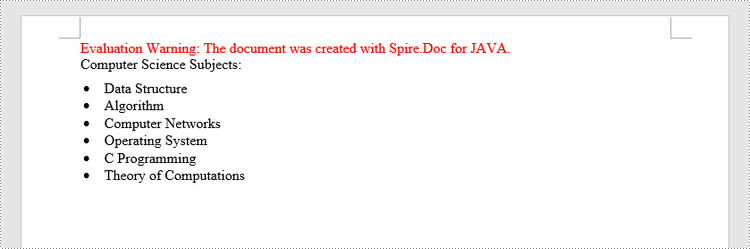
The process of creating a bulleted list is similar to that of creating a numbered list. The difference is that when creating a list style, you must specify the list type as Bulleted and set a bullet symbol for it. The following are the detailed steps.
- Create a Document object.
- Add a section using Document.addSection() method.
- Create an instance of ListStyle class, specifying the list type to Bulleted.
- Get a specific level of the list using ListStyle.getLevels().get(index) method, and set the bullet symbol using ListLevel.setBulletCharacter() method.
- Add the list style to the document using Document.getListStyles().add() method.
- Add several paragraphs to the document using Section.addParagraph() method.
- Apply the list style to a specific paragraph using Paragraph.getListFormat().applyStyle() method.
- Specify the list level using Paragraph.getListFormat().setListLevelNumber() method.
- Save the document to a Word file using Document.saveToFile() method.
- Java
import com.spire.doc.*;
import com.spire.doc.documents.*;
import com.spire.doc.collections.ListLevelCollection;

public class InsertBulletedList {
    public static void main(String[] args) {
        //Create a Document object
        Document document = new Document();

        //Add a section
        Section section = document.addSection();

        //Create a bulleted list style
        ListStyle numberList =document.getStyles().add(ListType.Bulleted, "bulletedList");
        ListLevelCollection Levels = numberList.getListRef().getLevels();
        Levels.get(0).setBulletCharacter("\u00B7");
        Levels.get(0).getCharacterFormat().setFontName("Symbol");
        Levels.get(0).setTextPosition(20);

        //Add a paragraph
        Paragraph paragraph = section.addParagraph();
        paragraph.appendText("Computer Science Subjects:");
        paragraph.getFormat().setAfterSpacing(5);

        //Add a paragraph and apply the bulleted list style to it
        paragraph = section.addParagraph();
        paragraph.appendText("Data Structure");
        paragraph.getListFormat().applyStyle("bulletedList");
        paragraph.getListFormat().setListLevelNumber(0);

        //Add another five paragraphs and apply the bulleted list style to them
        paragraph = section.addParagraph();
        paragraph.appendText("Algorithm");
        paragraph.getListFormat().applyStyle("bulletedList");
        paragraph.getListFormat().setListLevelNumber(0);

        paragraph = section.addParagraph();
        paragraph.appendText("Computer Networks");
        paragraph.getListFormat().applyStyle("bulletedList");
        paragraph.getListFormat().setListLevelNumber(0);

        paragraph = section.addParagraph();
        paragraph.appendText("Operating System");
        paragraph.getListFormat().applyStyle("bulletedList");
        paragraph.getListFormat().setListLevelNumber(0);

        paragraph = section.addParagraph();
        paragraph.appendText("C Programming");
        paragraph.getListFormat().applyStyle("bulletedList");
        paragraph.getListFormat().setListLevelNumber(0);

        paragraph = section.addParagraph();
        paragraph.appendText("Theory of Computations");
        paragraph.getListFormat().applyStyle("bulletedList");
        paragraph.getListFormat().setListLevelNumber(0);

        //Save the document to file
        document.saveToFile("output/BulletedList.docx", FileFormat.Docx);
    }
}
Insert a Multi-Level Numbered List in Word in Java
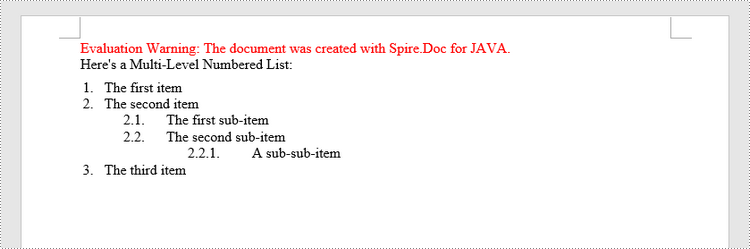
A multi-level list consists of at least two different levels. Each level of a nested list can be accessed using ListStyle.getLevels().get(index) method. Through ListLevel object, you can set the numbering type and prefix for a certain level. The following are the steps to create a multi-level numbered list in Word.
- Create a Document object.
- Add a section using Document.addSection() method.
- Create an instance of ListStyle class, specifying the list type to Numbered.
- Get a specific level of the list using ListStyle.getLevels().get(index) method, and set the numbering type and prefix.
- Add the list style to the document using Document.getListStyles().add() method.
- Add several paragraphs to the document using Section.addParagraph() method.
- Apply the list style to a specific paragraph using Paragraph.getListFormat().applyStyle() method.
- Specify the list level using Paragraph.getListFormat().setListLevelNumber() method.
- Save the document to a Word file using Document.saveToFile() method.
- Java
import com.spire.doc.*;
import com.spire.doc.documents.*;
import com.spire.doc.collections.ListLevelCollection;

public class InsertMultilevelNumberedList  {
    public static void main(String[] args) {
        //Create a Document object
        Document document = new Document();

        //Add a section
        Section section = document.addSection();

        //Create a numbered list style, specifying number prefix and pattern type of each level
        ListStyle listStyle =document.getStyles().add(ListType.Numbered, "nestedStyle");
        ListLevelCollection levels = listStyle.getListRef().getLevels();
        levels.get(0).setPatternType(ListPatternType.Arabic);
        levels.get(0).setTextPosition(20);
        levels.get(1).setNumberPrefix("\u0000.");
        levels.get(1).setPatternType(ListPatternType.Arabic);
        levels.get(2).setNumberPrefix("\u0000.\u0001.");
        levels.get(2).setPatternType(ListPatternType.Arabic);

        //Add a paragraph
        Paragraph paragraph = section.addParagraph();
        paragraph.appendText("Here's a Multi-Level Numbered List:");
        paragraph.getFormat().setAfterSpacing(5f);

        //Add a paragraph and apply the numbered list style to it
        paragraph = section.addParagraph();
        paragraph.appendText("The first item");
        paragraph.getListFormat().applyStyle("nestedStyle");
        paragraph.getListFormat().setListLevelNumber(0);

        //Add another five paragraphs and apply the numbered list stype to them
        paragraph = section.addParagraph();
        paragraph.appendText("The second item");
        paragraph.getListFormat().applyStyle("nestedStyle");
        paragraph.getListFormat().setListLevelNumber(0);

        paragraph = section.addParagraph();
        paragraph.appendText("The first sub-item");
        paragraph.getListFormat().applyStyle("nestedStyle");
        paragraph.getListFormat().setListLevelNumber(1);

        paragraph = section.addParagraph();
        paragraph.appendText("The second sub-item");
        paragraph.getListFormat().continueListNumbering();
        paragraph.getListFormat().applyStyle("nestedStyle");

        paragraph = section.addParagraph();
        paragraph.appendText("A sub-sub-item");
        paragraph.getListFormat().applyStyle("nestedStyle");
        paragraph.getListFormat().setListLevelNumber(2);

        paragraph = section.addParagraph();
        paragraph.appendText("The third item");
        paragraph.getListFormat().applyStyle("nestedStyle");
        paragraph.getListFormat().setListLevelNumber(0);

        //Save the document to file
        document.saveToFile("output/MultilevelNumberedList.docx", FileFormat.Docx);
    }
}
Insert a Multi-Level Mixed-Type List in Word in Java
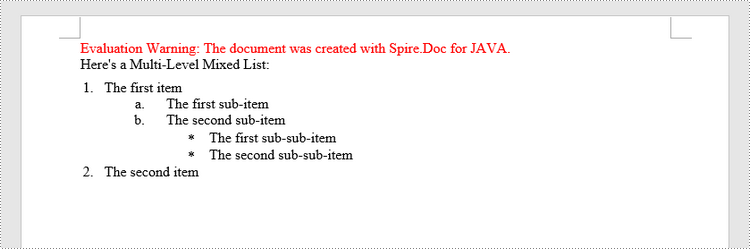
In some cases, you may want to mix number and symbol in a multi-level list. To create a mixed-type list, you just need to create a numbered list style and a bulleted list style and apply them to different paragraphs. The detailed steps are as follows.
- Create a Document object.
- Add a section using Document.addSection() method.
- Create a numbered list style and a bulleted list style.
- Add several paragraphs to the document using Section.addParagraph() method.
- Apply different list style to different paragraphs using Paragraph.getListFormat().applyStyle() method.
- Save the document to a Word file using Document.saveToFile() method.
- Java
import com.spire.doc.*;
import com.spire.doc.documents.*;
import com.spire.doc.collections.ListLevelCollection;

public class InsertMultilevelMixedTypeList  {
    public static void main(String[] args) {
        //Create a Document object
        Document document = new Document();

        //Add a section
        Section section = document.addSection();

        //Create a numbered list style
        ListStyle numberedListStyle =document.getStyles().add(ListType.Numbered, "numberedStyle");
        ListLevelCollection levels = numberedListStyle.getListRef().getLevels();
        levels.get(0).setPatternType(ListPatternType.Arabic);
        levels.get(0).setTextPosition(20);
        levels.get(1).setPatternType(ListPatternType.Low_Letter);

        //Create a bulleted list style
        ListStyle bulletedListStyle = document.getStyles().add(ListType.Bulleted,"bulletedStyle");
        ListLevelCollection levels_bulletedListStyle = bulletedListStyle.getListRef().getLevels();
        levels_bulletedListStyle.get(2).setBulletCharacter("\u002A");
        levels_bulletedListStyle.get(2).getCharacterFormat().setFontName("Symbol");

        //Add a paragraph
        Paragraph paragraph = section.addParagraph();
        paragraph.appendText("Here's a Multi-Level Mixed List:");
        paragraph.getFormat().setAfterSpacing(5f);

        //Add a paragraph and apply the numbered list style to it
        paragraph = section.addParagraph();
        paragraph.appendText("The first item");
        paragraph.getListFormat().applyStyle("numberedStyle");
        paragraph.getListFormat().setListLevelNumber(0);

        //Add another five paragraphs and apply different list stype to them
        paragraph = section.addParagraph();
        paragraph.appendText("The first sub-item");
        paragraph.getListFormat().applyStyle("numberedStyle");
        paragraph.getListFormat().setListLevelNumber(1);

        paragraph = section.addParagraph();
        paragraph.appendText("The second sub-item");
        paragraph.getListFormat().setListLevelNumber(1);
        paragraph.getListFormat().applyStyle("numberedStyle");

        paragraph = section.addParagraph();
        paragraph.appendText("The first sub-sub-item");
        paragraph.getListFormat().applyStyle("bulletedStyle");
        paragraph.getListFormat().setListLevelNumber(2);

        paragraph = section.addParagraph();
        paragraph.appendText("The second sub-sub-item");
        paragraph.getListFormat().applyStyle("bulletedStyle");
        paragraph.getListFormat().setListLevelNumber(2);

        paragraph = section.addParagraph();
        paragraph.appendText("The second item");
        paragraph.getListFormat().applyStyle("numberedStyle");
        paragraph.getListFormat().setListLevelNumber(0);

        //Save the document to file
        document.saveToFile("output/MultilevelMixedList.docx", FileFormat.Docx);
    }
}
Apply for a Temporary License
If you'd like to remove the evaluation message from the generated documents, or to get rid of the function limitations, please request a 30-day trial license for yourself.
PDF is a popular and widely used file format, but when it comes to giving presentations to others in meetings, classes or other scenarios, PowerPoint is always preferred over PDF files because it contains rich presentation effects that can better capture the attention of your audience. In this article, you will learn how to convert an existing PDF file to a PowerPoint presentation using Spire.PDF for Java.
Install Spire.PDF for Java
First of all, you're required to add the Spire.Pdf.jar file as a dependency in your Java program. The JAR file can be downloaded from this link. If you use Maven, you can easily import the JAR file in your application by adding the following code to your project's pom.xml file.
<repositories>
    <repository>
        <id>com.e-iceblue</id>
        <name>e-iceblue</name>
        <url>https://repo.e-iceblue.com/nexus/content/groups/public/</url>
    </repository>
</repositories>
<dependencies>
    <dependency>
        <groupId>e-iceblue</groupId>
        <artifactId>spire.pdf</artifactId>
        <version>12.9.0</version>
    </dependency>
</dependencies>
Convert PDF to PowerPoint Presentation in Java
From Version 9.2.1, Spire.PDF for Java supports converting PDF to PPTX using PdfDocument.saveToFile() method. With this method, each page of your PDF file will be converted to a single slide in PowerPoint. Below are the steps to convert a PDF file to an editable PowerPoint document.
- Create a PdfDocument instance.
- Load a sample PDF document using PdfDocument.loadFromFile() method.
- Save the document as a PowerPoint document using PdfDocument.saveToFile(String filename, FileFormat.PPTX) method.
- Java
import com.spire.pdf.FileFormat;
import com.spire.pdf.PdfDocument;

public class PDFtoPowerPoint {
    public static void main(String[] args) {

        //Create a PdfDocument instance
        PdfDocument pdfDocument = new PdfDocument();

        //Load a sample PDF document
        pdfDocument.loadFromFile("sample.pdf");

        //Convert PDF to PPTX document
        pdfDocument.saveToFile("PDFtoPowerPoint.pptx", FileFormat.PPTX);
    }
}

Apply for a Temporary License
If you'd like to remove the evaluation message from the generated documents, or to get rid of the function limitations, please request a 30-day trial license for yourself.
