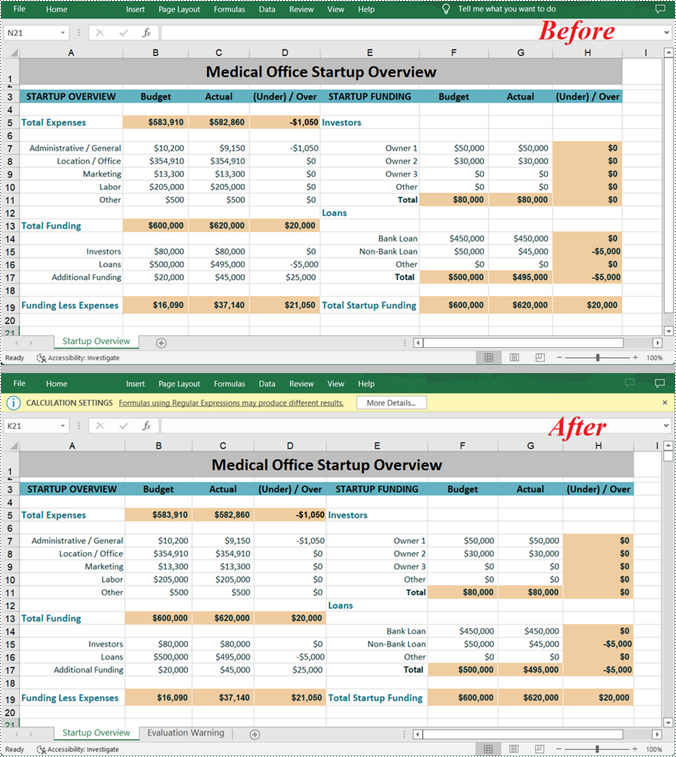
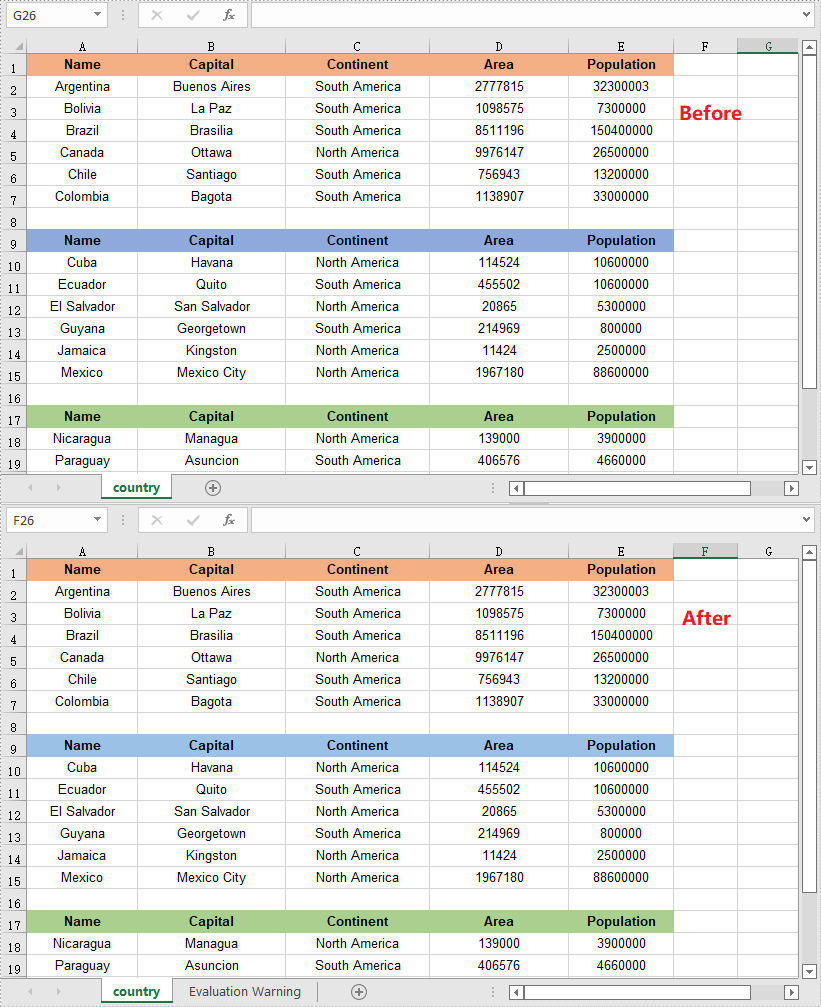
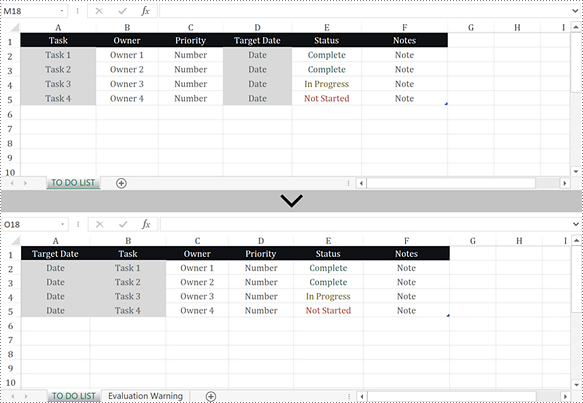
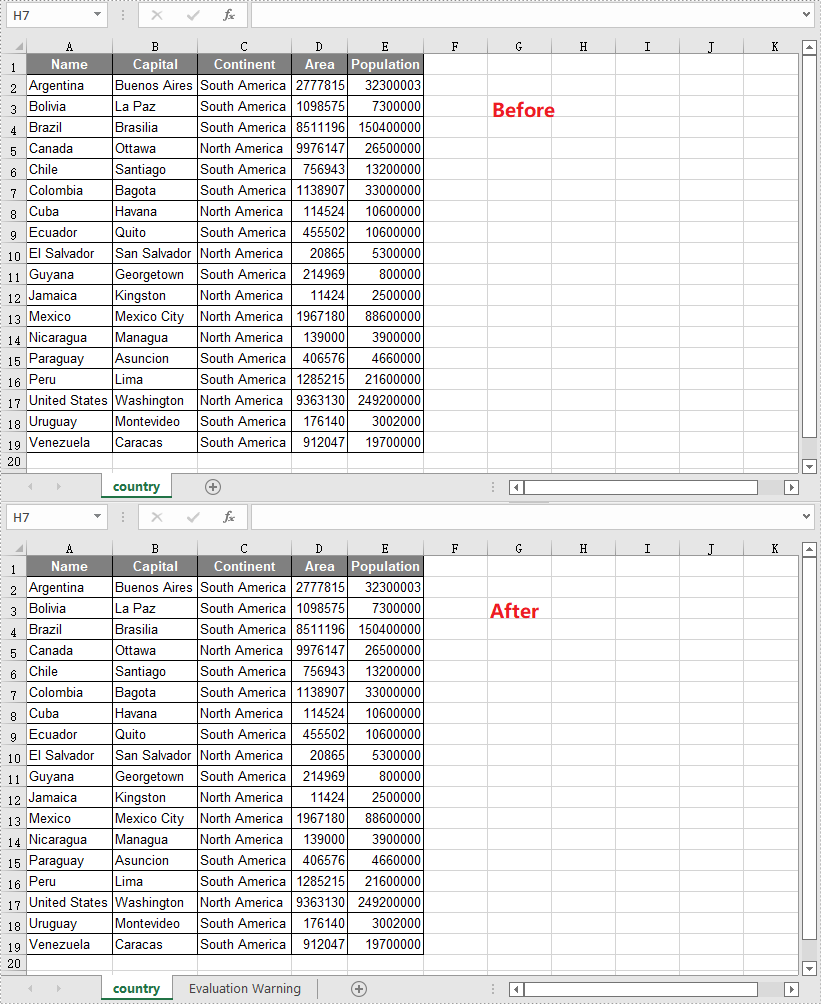
Visual guide of java write to excel

Looking to automate Excel data entry in Java? Manually inputting data into Excel worksheets is time-consuming and error-prone, especially when dealing with large datasets. The good news is that with the right Java Excel library, you can streamline this process. This comprehensive guide explores three efficient methods to write data to Excel in Java using the powerful Spire.XLS for Java library, covering basic cell-by-cell entries, bulk array inserts, and DataTable exports.

Prerequisites: Setup & Installation

Before you start, you’ll need to add Spire.XLS for Java to your project. Here’s how to do it quickly:

Option 1: Download the JAR File

Option 2: Use Maven

If you’re using Maven, add the following repository and dependency to your pom.xml file. This automatically downloads and integrates the library:

<repositories>
    <repository>
        <id>com.e-iceblue</id>
        <name>e-iceblue</name>
        <url>https://repo.e-iceblue.com/nexus/content/groups/public/</url>
    </repository>
</repositories>
<dependency>
    <groupId>e-iceblue</groupId>
    <artifactId>spire.xls</artifactId>
    <version>15.7.7</version>
</dependency>

3 Ways to Write Data to Excel using Java

Spire.XLS for Java offers flexible methods to write data, tailored to different scenarios. Let’s explore each with complete code samples, explanations, and use cases.

1. Write Text or Numbers to Excel Cells

Need to populate individual cells with text or numbers? Spire.XLS lets you directly target a specific cell using row/column indices (e.g., (2,1) for row 2, column 1) or Excel-style references (e.g., "A1", "B3"):

How It Works:

  • Use the Worksheet.get(int row, int column) or Worksheet.get(String name) method to access a specific Excel cell.
  • Use the setValue() method to write a text value to the cell.
  • Use the setNumberValue() method to write a numeric value to the cell.

**Java code to write data to Excel: **

import com.spire.xls.*;

public class WriteToCells {

    public static void main(String[] args) {

        // Create a Workbook object
        Workbook workbook = new Workbook();

        // Get the first worksheet
        Worksheet worksheet = workbook.getWorksheets().get(0);

        // Write data to specific cells
        worksheet.get("A1").setValue("Name");
        worksheet.get("B1").setValue("Age");
        worksheet.get("C1").setValue("Department");
        worksheet.get("D1").setValue("Hiredate");
        worksheet.get(2,1).setValue("Hazel");
        worksheet.get(2,2).setNumberValue(29);
        worksheet.get(2,3).setValue("Marketing");
        worksheet.get(2,4).setValue("2019-07-01");
        worksheet.get(3,1).setValue("Tina");
        worksheet.get(3,2).setNumberValue(31);
        worksheet.get(3,3).setValue("Technical Support");
        worksheet.get(3,4).setValue("2015-04-27");

        // Autofit column widths
        worksheet.getAllocatedRange().autoFitColumns();

        // Apply a style to the first row
        CellStyle style = workbook.getStyles().addStyle("newStyle");
        style.getFont().isBold(true);
        worksheet.getRange().get(1,1,1,4).setStyle(style);

        // Save to an Excel file
        workbook.saveToFile("output/WriteToCells.xlsx", ExcelVersion.Version2016);
    }
}
When to use this: Small datasets where you need precise control over cell placement (e.g., adding a title, single-row entries).

Write data to specific cells in Excel.

2. Write Arrays to Excel Worksheets

For bulk data, writing arrays (1D or 2D) is far more efficient than updating cells one by one. Spire.XLS for Java allows inserting arrays into a contiguous cell range.

insertArray() Method Explained:

The insertArray() method handles 1D arrays (single rows) and 2D arrays (multiple rows/columns) effortlessly. Its parameters are:

  • Object[] array/ Object[][] array: The 1D or 2D array containing data to insert.
  • int firstRow: The starting row index (1-based).
  • int firstColumn: The starting column index (1-based).
  • boolean isVertical: A boolean indicating the insertion direction:
    • false: Insert horizontally (left to right).
    • true: Insert vertically (top to bottom).

**Java code to insert arrays into Excel: **

import com.spire.xls.*;

public class WriteArrayToWorksheet {

    public static void main(String[] args) {

        // Create a Workbook instance
        Workbook workbook = new Workbook();

        // Get the first worksheet
        Worksheet worksheet = workbook.getWorksheets().get(0);

        // Create a one-dimensional array
        Object[] oneDimensionalArray = {"January", "February", "March", "April","May", "June"};

        // Write the array to the first row of the worksheet
        worksheet.insertArray(oneDimensionalArray, 1, 1, false);

        // Create a two-dimensional array
        Object[][] twoDimensionalArray = {
                {"Name", "Age", "Sex", "Dept.", "Tel."},
                {"John", "25", "Male", "Development","654214"},
                {"Albert", "24", "Male", "Support","624847"},
                {"Amy", "26", "Female", "Sales","624758"}
        };

        // Write the array to the worksheet starting from the cell A3
        worksheet.insertArray(twoDimensionalArray, 3, 1);

        // Autofit column width in the located range
        worksheet.getAllocatedRange().autoFitColumns();

        // Apply a style to the first and the third row
        CellStyle style = workbook.getStyles().addStyle("newStyle");
        style.getFont().isBold(true);
        worksheet.getRange().get(1,1,1,6).setStyle(style);
        worksheet.getRange().get(3,1,3,6).setStyle(style);

        // Save to an Excel file
        workbook.saveToFile("WriteArrays.xlsx", ExcelVersion.Version2016);
    }
}

When to use this: Sequential data (e.g., inventory logs, user lists) that needs bulk insertion.

Insert 1D and 2D arrays into an Excel sheet.

3. Write DataTable to Excel

If your data is stored in a DataTable (e.g., from a database), Spire.XLS lets you directly export it to Excel with insertDataTable(), preserving structure and column headers.

insertDataTable() Method Explained:

The insertDataTable() method is a sophisticated bulk-insert operation designed specifically for transferring structured data collections into Excel. Its parameters are:

  • DataTable dataTable: The DataTable object containing the data to insert.
  • boolean columnHeaders: A boolean indicating whether to include column names from the DataTable as headers in Excel.
    • true: Inserts column names as the first row.
    • false: Skips column names; data starts from the first row.
  • int firstRow: The starting row index (1-based).
  • int firstColumn: The starting column index (1-based).
  • boolean transTypes: A boolean indicating whether to preserve data types.

Java code to export DataTable to Excel:

import com.spire.xls.*;
import com.spire.xls.data.table.DataRow;
import com.spire.xls.data.table.DataTable;

public class WriteDataTableToWorksheet {

    public static void main(String[] args) throws Exception {

        // Create a Workbook instance
        Workbook workbook = new Workbook();

        // Get the first worksheet
        Worksheet worksheet = workbook.getWorksheets().get(0);

        // Create a DataTable object
        DataTable dataTable = new DataTable();
        dataTable.getColumns().add("SKU", Integer.class);
        dataTable.getColumns().add("NAME", String.class);
        dataTable.getColumns().add("PRICE", String.class);

        // Create rows and add data
        DataRow dr = dataTable.newRow();
        dr.setInt(0, 512900512);
        dr.setString(1,"Wireless Mouse M200");
        dr.setString(2,"$85");
        dataTable.getRows().add(dr);
        dr = dataTable.newRow();
        dr.setInt(0,512900637);
        dr.setString(1,"B100 Cored Mouse ");
        dr.setString(2,"$99");
        dataTable.getRows().add(dr);
        dr = dataTable.newRow();
        dr.setInt(0,512901829);
        dr.setString(1,"Gaming Mouse");
        dr.setString(2,"$125");
        dataTable.getRows().add(dr);
        dr = dataTable.newRow();
        dr.setInt(0,512900386);
        dr.setString(1,"ZM Optical Mouse");
        dr.setString(2,"$89");
        dataTable.getRows().add(dr);

        // Write datatable to the worksheet
        worksheet.insertDataTable(dataTable,true,1,1,true);

        // Autofit column width in the located range
        worksheet.getAllocatedRange().autoFitColumns();

        // Apply a style to the first row
        CellStyle style = workbook.getStyles().addStyle("newStyle");
        style.getFont().isBold(true);
        worksheet.getRange().get(1,1,1,3).setStyle(style);

        // Save to an Excel file
        workbook.saveToFile("output/WriteDataTable.xlsx", ExcelVersion.Version2016);
    }
}

When to use this: Database exports, CRM data, or any structured data stored in a DataTable (e.g., SQL query results, CSV imports).

Export a Datatable to an Excel worksheet.

Performance Tips for Large Datasets

  • Use bulk operations (insertArray()/insertDataTable()) instead of writing cells one by one.
  • Disable auto-fit columns or styling during data insertion, then apply them once after all data is written.
  • For datasets with 100,000+ rows, consider streaming mode to reduce memory usage.

Frequently Asked Questions

Q1: What Excel formats does Spire.XLS support for writing data?

A: Spire.XLS for Java supports all major Excel formats, including:

  • Legacy formats: XLS (Excel 97-2003)
  • Modern formats: XLSX, XLSM (macro-enabled), XLSB, and more.

You can specify the output format when saving Excel with the saveToFile() method.

Q2: How do I format cells (colors, fonts, borders) when writing data?

A: Spire.XLS offers robust styling options. Check these guides:

Q3: How do I avoid the "Evaluation Warning" in output files?

A: To remove the evaluation sheets, get a 30-day free trial license here and then apply the license key in your code before creating the Workbook object:

com.spire.xls.license.LicenseProvider.setLicenseKey("Key");

Workbook workbook = new Workbook();

Final Thoughts

Mastering Excel export functionality is crucial for Java developers in data-driven applications. The Spire.XLS for Java library provides three efficient approaches to write data to Excel in Java:

  • Precision control with cell-by-cell writing
  • High-performance bulk inserts using arrays
  • Database-style exporting with DataTables

Each method serves distinct use cases - from simple reports to complex enterprise data exports. By following the examples in the article, developers can easily create and write to Excel files in Java applications.

The Excel print options (also known as sheet options) allow you to control the print options when printing Excel documents. Spire.XLS for Java offers the PageSetup class to set the print options, such as print area, print titles and print order. This article will demonstrate how to set different printing settings using Spire.XLS for Java from the following aspects:

  • Set the print area in Excel
  • Print titles in Excel
  • Print gridlines in Excel
  • Print comments in Excel
  • Print Excel in black and white mode
  • Set print quality
  • Set the print order of worksheet pages

Install Spire.XLS for Java

First, you're required to add the Spire.Xls.jar file as a dependency in your Java program. The JAR file can be downloaded from this link. If you use Maven, you can easily import the JAR file in your application by adding the following code to your project's pom.xml file.

<repositories>
    <repository>
        <id>com.e-iceblue</id>
        <name>e-iceblue</name>
        <url>https://repo.e-iceblue.com/nexus/content/groups/public/</url>
    </repository>
</repositories>
<dependencies>
    <dependency>
        <groupId>e-iceblue</groupId>
        <artifactId>spire.xls</artifactId>
        <version>16.3.2</version>
    </dependency>
</dependencies>

Setting Excel Print Options via Page Setup

The detailed steps of controlling the Excel printing settings are as follows.

  • Create a Workbook object.
  • Load a sample Excel document using Workbook.loadFromFile() method.
  • Get a specified worksheet using Workbook.getWorksheets().get() method.
  • Get the PageSetup object of the first worksheet.
  • Select a specific print area of a worksheet using PageSetup.setPrintArea() method.
  • Set the rows to repeat at top when printing using PageSetup.setPrintTitleRows() method.
  • Set printing with gridlines using PageSetup.isPrintGridlines(true) method.
  • Set printing with comments using PageSetup.setPrintComments() method.
  • Print worksheet in black & white mode using PageSetup.setBlackAndWhite(true) method.
  • Set the printing quality using PageSetup.setPrintQuality() method.
  • Set the printing order using PageSetup.setOrder() method.
  • Save the document to another file using Workbook.saveToFile() method.
  • Java
import com.spire.xls.*;

public class pageSetupForPrinting {

    public static void main(String[] args) throws Exception {

        //Create a workbook
        Workbook workbook = new Workbook();

        //Load the Excel document from disk
        workbook.loadFromFile("Sample.xlsx");

        //Get the first worksheet
        Worksheet worksheet = workbook.getWorksheets().get(0);

        //Get the PageSetup object of the first worksheet
        PageSetup pageSetup = worksheet.getPageSetup();

        //Specifying the print area
        pageSetup.setPrintArea("A1:D10");

        //Define row numbers 1 as title rows
        pageSetup.setPrintTitleRows("$1:$2");

        //Allow to print with row/column headings
        pageSetup.isPrintHeadings(true);

        //Allow to print with gridlines
        pageSetup.isPrintGridlines(true);

        //Allow to print comments as displayed on worksheet
        pageSetup.setPrintComments(PrintCommentType.InPlace);

        //Set printing quality
        pageSetup.setPrintQuality(150);
        
        //Allow to print worksheet in black & white mode
        pageSetup.setBlackAndWhite(true);
        //Set the printing order
        pageSetup.setOrder(OrderType.OverThenDown);

        //Save the document to file
        workbook.saveToFile("PagePrintOptions.xlsx", ExcelVersion.Version2016);
    }
}

Java: Set Excel Print Options Through Page Setup

Apply for a Temporary License

If you'd like to remove the evaluation message from the generated documents, or to get rid of the function limitations, please request a 30-day trial license for yourself.

Java: Convert Text Files to PDF

2022-08-02 01:17:45 Written by Koohji

Text files can be easily edited by any text editing program. If you want to prevent changes when others view the files, you can convert them to PDF. In this article, we will demonstrate how to convert text files to PDF in Java using Spire.PDF for Java.

Install Spire.PDF for Java

First of all, you're required to add the Spire.Pdf.jar file as a dependency in your Java program. The JAR file can be downloaded from this link. If you use Maven, you can easily import the JAR file in your application by adding the following code to your project's pom.xml file.

<repositories>
    <repository>
        <id>com.e-iceblue</id>
        <name>e-iceblue</name>
        <url>https://repo.e-iceblue.com/nexus/content/groups/public/</url>
    </repository>
</repositories>
<dependencies>
    <dependency>
        <groupId>e-iceblue</groupId>
        <artifactId>spire.pdf</artifactId>
        <version>12.4.4</version>
    </dependency>
</dependencies>

Convert Text Files to PDF in Java

The following are the main steps to convert a text file to PDF using Spire.PDF for Java:

  • Read the text in the text file into a String object.
  • Create a PdfDocument instance and add a page to the PDF file using PdfDocument.getPages().add() method.
  • Create a PdfTextWidget instance from the text.
  • Draw the text onto the PDF page using PdfTextWidget.draw() method.
  • Save the result file using PdfDocument.saveToFile() method.
  • Java
import com.spire.pdf.FileFormat;
import com.spire.pdf.PdfDocument;
import com.spire.pdf.PdfPageBase;
import com.spire.pdf.graphics.*;

import java.awt.geom.Rectangle2D;
import java.io.BufferedReader;
import java.io.FileReader;
import java.io.IOException;

public class ConvertTextToPdf {
    public static void main(String[] args) throws Exception {
        //Read the text from the text file
        String text = readTextFromFile("Input.txt");

        //Create a PdfDocument instance
        PdfDocument pdf = new PdfDocument();
        //Add a page
        PdfPageBase page = pdf.getPages().add();

        //Create a PdfFont instance
        PdfFont font = new PdfFont(PdfFontFamily.Helvetica, 11);

        //Create a PdfTextLayout instance
        PdfTextLayout textLayout = new PdfTextLayout();
        textLayout.setBreak(PdfLayoutBreakType.Fit_Page);
        textLayout.setLayout(PdfLayoutType.Paginate);

        //Create a PdfStringFormat instance
        PdfStringFormat format = new PdfStringFormat();
        format.setLineSpacing(20f);

        //Create a PdfTextWidget instance from the text
        PdfTextWidget textWidget = new PdfTextWidget(text, font, PdfBrushes.getBlack());
        //Set string format
        textWidget.setStringFormat(format);

        //Draw the text at the specified location of the page
        Rectangle2D.Float bounds = new Rectangle2D.Float();
        bounds.setRect(0,25,page.getCanvas().getClientSize().getWidth(),page.getCanvas().getClientSize().getHeight());
        textWidget.draw(page, bounds, textLayout);

        //Save the result file
        pdf.saveToFile("TextToPdf.pdf", FileFormat.PDF);
    }
    public static String readTextFromFile(String fileName) throws IOException {
        StringBuffer sb = new StringBuffer();
        BufferedReader br = new BufferedReader(new FileReader(fileName));
        String content = null;
        while ((content = br.readLine()) != null) {
            sb.append(content);
            sb.append("\n");
        }
        return sb.toString();
    }
}

Java: Convert Text Files to PDF

Apply for a Temporary License

If you'd like to remove the evaluation message from the generated documents, or to get rid of the function limitations, please request a 30-day trial license for yourself.

page 14