
Java (485)
Document properties in Excel are important pieces of metadata that provide additional information about a workbook. If you are managing multiple Excel workbooks and want to keep track of information like author, title, and other relevant metadata, you can read their document properties to quickly gather this information. Besides, in certain situations, you may need to delete document properties from Excel. For instance, if sensitive data is inadvertently stored in document properties, you may need to delete these document properties before sharing the workbook to ensure data security and confidentiality. This article will show you how to read or delete document properties from Excel in Java using Spire.XLS for Java library.
- Read Standard and Custom Document Properties from Excel in Java
- Delete Standard and Custom Document Properties from Excel in Java
Install Spire.XLS for Java
First of all, you're required to add the Spire.Xls.jar file as a dependency in your Java program. The JAR file can be downloaded from this link. If you use Maven, you can easily import the JAR file in your application by adding the following code to your project's pom.xml file.
<repositories>
    <repository>
        <id>com.e-iceblue</id>
        <name>e-iceblue</name>
        <url>https://repo.e-iceblue.com/nexus/content/groups/public/</url>
    </repository>
</repositories>
<dependencies>
    <dependency>
        <groupId>e-iceblue</groupId>
        <artifactId>spire.xls</artifactId>
        <version>16.8.4</version>
    </dependency>
</dependencies>
Read Standard and Custom Document Properties from Excel in Java
Standard document properties are pre-built properties included in every Excel file. These properties can include information such as the author, title, subject, keywords, and other details about the file. Custom document properties in Excel are user-defined, meaning that users can create them according to their specific needs. The value of custom document properties can be assigned as text, date time, numeric values, or simply a yes or no.
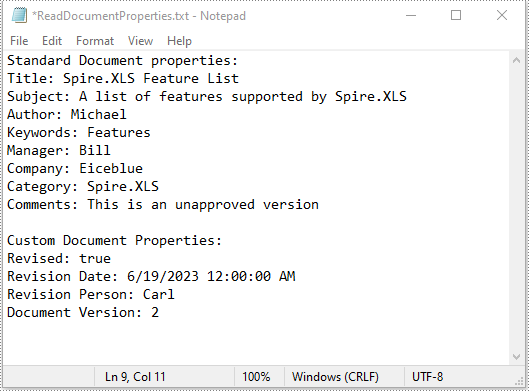
The following steps demonstrate how to read standard document properties and custom document properties of an Excel file using Spire.XLS for Java:
- Initialize an instance of the Workbook class.
- Load an Excel file using the Workbook.loadFromFile() method.
- Initialize an instance of the StringBuilder class for storing the standard and custom document properties.
- Get the collection of all standard document properties of the file using the Workbook.getDocumentProperties() method.
- Get specific standard document properties using the corresponding methods under the BuiltInDocumentProperties class.
- Append the standard document properties to the StringBuilder instance.
- Get the collection of all custom document properties of the file using the Workbook.getCustomDocumentProperties() method.
- Iterate through the collection.
- Get the name and value of each custom document property using the IDocumentProperty.getName() and IDocumentProperty.getValue() methods and append them to the StringBuilder instance.
- Write the content of the StringBuilder instance into a text file.
- Java
import com.spire.xls.Workbook;
import com.spire.xls.collections.BuiltInDocumentProperties;
import com.spire.xls.core.ICustomDocumentProperties;

import java.io.BufferedWriter;
import java.io.FileWriter;
import java.io.IOException;

public class ReadStandardDocumentProperties {
    public static void main(String[] args) throws IOException {
        //Initialize an instance of the Workbook class.
        Workbook workbook = new Workbook();
        //Load an Excel file
        workbook.loadFromFile("Sample.xlsx");

        //Initialize an instance of the StringBuilder instance
        StringBuilder sb = new StringBuilder();

        //Get the collection of all standard document properties
        BuiltInDocumentProperties standardProperties = workbook.getDocumentProperties();

        //Get specific standard document properties
        String title = standardProperties.getTitle();
        String subject = standardProperties.getSubject();
        String author = standardProperties.getAuthor();
        String keywords = standardProperties.getKeywords();
        String manager = standardProperties.getManager();
        String company = standardProperties.getCompany();
        String category = standardProperties.getCategory();
        String comments = standardProperties.getComments();

        //Append the standard document properties to the StringBuilder instance
        sb.append("Standard Document properties:"
                +"\r\nTitle: " + title
                + "\r\nSubject: " + subject
                + "\r\nAuthor: " + author
                + "\r\nKeywords: "+ keywords
                + "\r\nManager: " + manager.toString()
                + "\r\nCompany: " + company.toString()
                + "\r\nCategory: " + category.toString()
                + "\r\nComments: " + comments.toString()
        );

        sb.append("\r\n\nCustom Document Properties:");

        //Get the collection of all custom document properties
        ICustomDocumentProperties customProperties = workbook.getCustomDocumentProperties();
        //Iterate through the collection
        for(int i =0; i < customProperties.getCount(); i++)
        {
            //Append the name and value of each custom document property to the StringBuilder instance
            sb.append("\r\n" + customProperties.get(i).getName() + ": " + customProperties.get(i).getValue());
        }

        //Write the content of the StringBuilder instance into a text file
        String output = "ReadDocumentProperties.txt";
        FileWriter fw = new FileWriter(output, true);
        BufferedWriter bw = new BufferedWriter(fw);
        bw.append(sb);
        bw.close();
        fw.close();
        workbook.dispose();
    }
}
Delete Standard and Custom Document Properties from Excel in Java
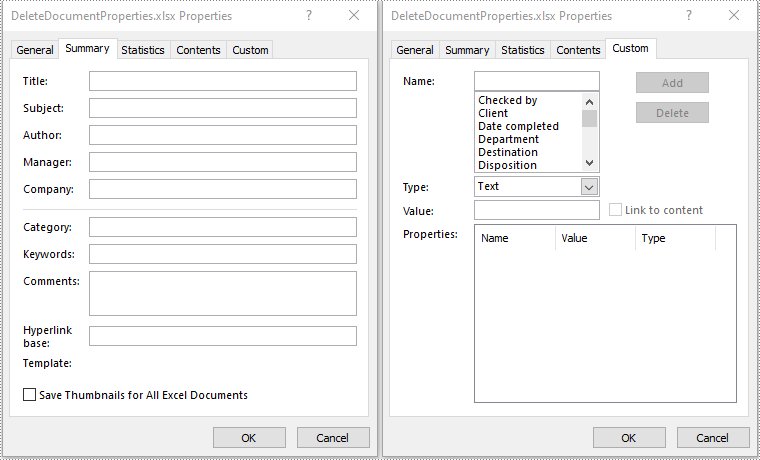
You can easily delete standard document properties from an Excel file by setting their values as empty. For custom document properties, you can use the ICustomDocumentProperties.remove() method to delete them.
The following steps demonstrate how to delete standard and custom document properties from an Excel file using Spire.XLS for Java:
- Initialize an instance of the Workbook class.
- Load an Excel file using the Workbook.loadFromFile() method.
- Get the collection of all standard document properties of the file using the Workbook.getDocumentProperties() method.
- Set the values of specific standard document properties as empty using the corresponding methods under the BuiltInDocumentProperties class.
- Get the collection of all custom document properties of the file using the Workbook.getCustomDocumentProperties() method.
- Iterate through the collection.
- Delete each custom document property from the collection using the ICustomDocumentProperties.remove() method.
- Save the result file using the Workbook.saveToFile() method.
- Java
import com.spire.xls.ExcelVersion;
import com.spire.xls.Workbook;
import com.spire.xls.collections.BuiltInDocumentProperties;
import com.spire.xls.core.ICustomDocumentProperties;

public class DeleteDocumentProperties {
    public static void main(String[] args) {
        //Initialize an instance of the Workbook class.
        Workbook workbook = new Workbook();
        //Load an Excel file
        workbook.loadFromFile("Sample.xlsx");

        //Get the collection of all standard document properties
        BuiltInDocumentProperties standardProperties = workbook.getDocumentProperties();

        //Set the value of each standard document property as empty
        standardProperties.setTitle("");
        standardProperties.setSubject("");
        standardProperties.setAuthor("");
        standardProperties.setManager("");
        standardProperties.setCompany("");
        standardProperties.setCategory("");
        standardProperties.setKeywords("");
        standardProperties.setComments("");

        //Get the collection of all custom document properties
        ICustomDocumentProperties customProperties = workbook.getCustomDocumentProperties();
        //Iterate through the collection
        for(int i = customProperties.getCount() - 1; i >= 0; i--)
        {
            //Delete each custom document property from the collection by its name
            customProperties.remove(customProperties.get(i).getName());
        }

        //Save the result file
        workbook.saveToFile("DeleteDocumentProperties.xlsx", ExcelVersion.Version2016);
        workbook.dispose();
    }
}
Apply for a Temporary License
If you'd like to remove the evaluation message from the generated documents, or to get rid of the function limitations, please request a 30-day trial license for yourself.
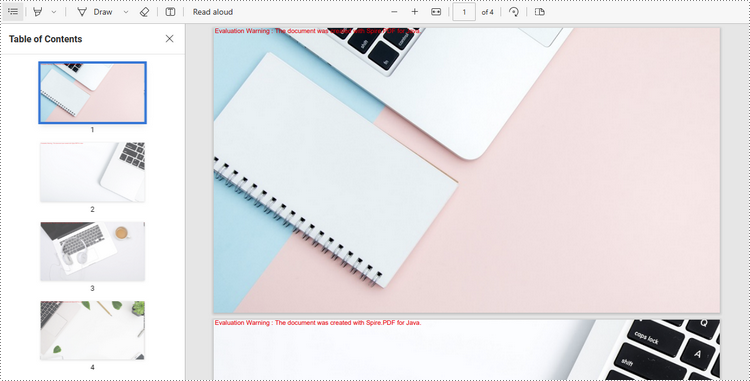
Combining multiple images into a single PDF document is an efficient method for those who want to store or distribute their images in a more organized way. Converting these images into a single PDF file not only saves storage space but also ensures that all images are kept together in one place, making it easier and more convenient to share or transfer them. In this article, you will learn how to merge several images into a single PDF document in Java using Spire.PDF for Java.
Install Spire.PDF for Java
First of all, you're required to add the Spire.Pdf.jar file as a dependency in your Java program. The JAR file can be downloaded from this link. If you use Maven, you can easily import the JAR file in your application by adding the following code to your project's pom.xml file.
<repositories>
    <repository>
        <id>com.e-iceblue</id>
        <name>e-iceblue</name>
        <url>https://repo.e-iceblue.com/nexus/content/groups/public/</url>
    </repository>
</repositories>
<dependencies>
    <dependency>
        <groupId>e-iceblue</groupId>
        <artifactId>spire.pdf</artifactId>
        <version>12.9.0</version>
    </dependency>
</dependencies>
Convert Multiple Images into a Single PDF Document in Java
In order to convert all the images in a folder to a PDF, we iterate through each image, add a new page to the PDF with the same size as the image, and then draw the image onto the new page. The following are the detailed steps.
- Create a PdfDocument object.
- Set the page margins to zero using PdfDocument.getPageSettings().setMargins() method.
- Get the folder where the images are stored.
- Iterate through each image file in the folder, and get the width and height of a specific image.
- Add a new page that has the same width and height as the image to the PDF document using PdfDocument.getPages().add() method.
- Draw the image on the page using PdfPageBase.getCanvas().drawImage() method.
- Save the document using PdfDocument.saveToFile() method.
- Java
import com.spire.pdf.PdfDocument;
import com.spire.pdf.PdfPageBase;
import com.spire.pdf.graphics.PdfImage;

import java.awt.*;
import java.io.File;

public class ConvertMultipleImagesIntoPdf {

    public static void main(String[] args) {

        //Create a PdfDocument object
        PdfDocument doc = new PdfDocument();

        //Set the page margins to 0
        doc.getPageSettings().setMargins(0);

        //Get the folder where the images are stored
        File folder = new File("C:/Users/Administrator/Desktop/Images");

        //Iterate through the files in the folder
        for (File file : folder.listFiles())
        {
            //Load a particular image
            PdfImage pdfImage = PdfImage.fromFile(file.getPath());

            //Get the image width and height
            int width = pdfImage.getWidth();
            int height = pdfImage.getHeight();

            //Add a page that has the same size as the image
            PdfPageBase page = doc.getPages().add(new Dimension(width, height));

            //Draw image at (0, 0) of the page
            page.getCanvas().drawImage(pdfImage, 0, 0, width, height);
        }

        //Save to file
        doc.saveToFile("CombineImagesToPdf.pdf");
        doc.dispose();
    }
}
Apply for a Temporary License
If you'd like to remove the evaluation message from the generated documents, or to get rid of the function limitations, please request a 30-day trial license for yourself.
Converting a PDF document to an image format like JPEG or PNG can be useful for a variety of reasons, such as making it easier to share the content on social media, embedding it into a website, or including it in a presentation. Converting PDF to images can also avoid printing issues caused by the printers that do not support PDF format well enough. In this article, you will learn how to convert PDF to JPEG or PNG in Java using Spire.PDF for Java.
Install Spire.PDF for Java
First, you're required to add the Spire.Pdf.jar file as a dependency in your Java program. The JAR file can be downloaded from this link. If you use Maven, you can easily import the JAR file in your application by adding the following code to your project's pom.xml file.
<repositories>
    <repository>
        <id>com.e-iceblue</id>
        <name>e-iceblue</name>
        <url>https://repo.e-iceblue.com/nexus/content/groups/public/</url>
    </repository>
</repositories>
<dependencies>
    <dependency>
        <groupId>e-iceblue</groupId>
        <artifactId>spire.pdf</artifactId>
        <version>12.9.0</version>
    </dependency>
</dependencies>
Convert PDF to JPEG in Java
The PdfDocument.saveAsImage() method provided by Spire.PDF for Java enables the conversion of a particular page from a PDF document into a BufferedImage object, which can be saved as a file in .jpg or .png format. The following are the steps to convert each page of a PDF document to a JPEG image file.
- Create a PdfDocument object.
- Load a PDF file using PdfDocument.loadFromFile() method.
- Iterate through each page of the PDF document.
- Convert a specific page into a BufferedImage object using PdfDocument.saveAsImage() method.
- Re-create a BufferedImage in RGB type with the same width and height as the converted image.
- Write the image data as a .jpg file using ImageIO.write() method.
- Java
import com.spire.pdf.PdfDocument;
import com.spire.pdf.graphics.PdfImageType;

import javax.imageio.ImageIO;
import java.awt.image.BufferedImage;
import java.io.File;
import java.io.IOException;

public class ConvertPdfToJpeg {

    public static void main(String[] args) throws IOException {

        //Create a PdfDocument instance
        PdfDocument pdf = new PdfDocument();

        //Load a sample PDF document
        pdf.loadFromFile("C:\\Users\\Administrator\\Desktop\\Input.pdf");

        //Loop through the pages
        for (int i = 0; i < pdf.getPages().getCount(); i++) {

            //Save the current page as a buffered image
            BufferedImage image = pdf.saveAsImage(i, PdfImageType.Bitmap, 300, 300);

            //Re-create a buffered image in RGB type
            BufferedImage newImg = new BufferedImage(image.getWidth(), image.getHeight(), BufferedImage.TYPE_INT_RGB);
            newImg.getGraphics().drawImage(image, 0, 0, null);

            //Write the image data as a .jpg file
            File file = new File("C:\\Users\\Administrator\\Desktop\\Output\\" + String.format(("ToImage-%d.jpg"), i));
            ImageIO.write(newImg, "JPEG", file);
        }
        pdf.close();
    }
}
Convert PDF to PNG in Java
The steps to convert PDF to PNG using Spire.PDF for Java are as follows.
- Create a PdfDocument object.
- Load a PDF file using PdfDocument.loadFromFile() method.
- Iterate through each page of the PDF document.
- Convert a specific page into a BufferedImage object using PdfDocument.saveAsImage() method.
- Write the image data as a .png file using ImageIO.write() method.
- Java
import com.spire.pdf.*;
import javax.imageio.ImageIO;
import java.awt.image.BufferedImage;
import java.io.File;
import java.io.IOException;

public class ConvertPdfToPng {

    public static void main(String[] args) throws IOException {

        //Create a PdfDocument object
        PdfDocument doc = new PdfDocument();

        //Load a sample PDF document
        doc.loadFromFile("C:\\Users\\Administrator\\Desktop\\Input.pdf");

        //Make the background of the generated PNG files transparent
        //doc.getConvertOptions().setPdfToImageOptions(0);

        //Loop through the pages
        for (int i = 0; i < doc.getPages().getCount(); i++) {

            //Save the current page as a buffered image
            BufferedImage image = doc.saveAsImage(i);

            //Write the image data as a .png file
            File file = new File("C:\\Users\\Administrator\\Desktop\\Output\\" + String.format("ToImage-%d.png", i));
            ImageIO.write(image, "png", file);
        }
        doc.close();
    }
}
If the background of the PDF document is white and you want to make it transparent when converted to PNG, you can add following line of code before you save each page to a BufferedImage object.
- Java
doc.getConvertOptions().setPdfToImageOptions(0);
Apply for a Temporary License
If you'd like to remove the evaluation message from the generated documents, or to get rid of the function limitations, please request a 30-day trial license for yourself.
