
Java (485)
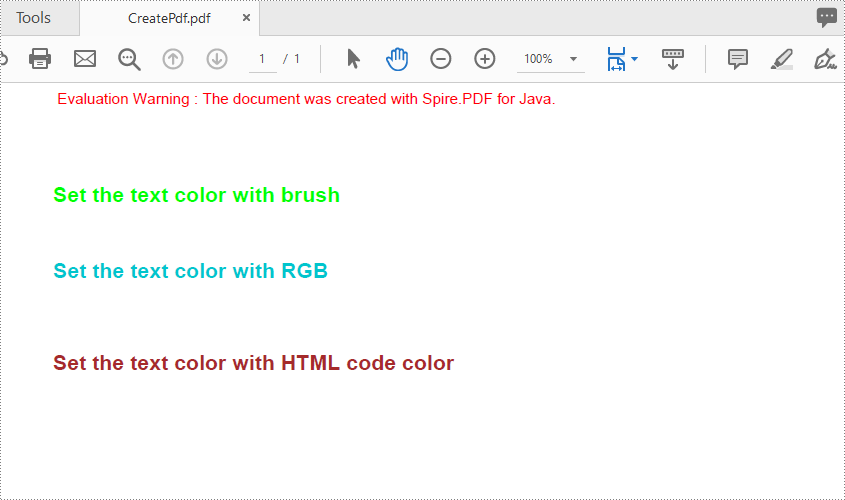
When you are drawing text into a PDF, you may need to define colorful brushes or pens in order to make the page more vivid. This article shows how to set the text string’s color space in a PDF document using Spire.PDF for Java.
Install Spire.PDF for Java
First, you need to add the Spire.Pdf.jar file as a dependency in your Java program. The JAR file can be downloaded from this link. If you use Maven, you can easily import the JAR file by adding the following code to your project's pom.xml file.
<repositories>
    <repository>
        <id>com.e-iceblue</id>
        <name>e-iceblue</name>
        <url>https://repo.e-iceblue.com/nexus/content/groups/public/</url>
    </repository>
</repositories>
<dependencies>
    <dependency>
        <groupId>e-iceblue</groupId>
        <artifactId>spire.pdf</artifactId>
        <version>12.9.0</version>
    </dependency>
</dependencies>
Set the Font Color for the Text String on PDF
Spire.PDF for Java offers PdfSolidBrush class to set the brush color for the text. It supports to define the brush color based on a particular RGB color space or a HTML color code.
- Create a PdfDocument object.
- Add a new page in the PDF using PdfDocument.getPages().add() method.
- Create a PdfSolidBrush object based on a particular RGB color space or a HTML color code.
- Create an object of PdfTrueTypeFont to set the font name, size and style.
- Draw text on the page at the specified location using PdfPageBase.getCanvas().drawString() method.
- Save the document to another PDF using PdfDocument.saveToFile() method.
- Java
import com.spire.pdf.PdfDocument;
import com.spire.pdf.PdfPageBase;
import com.spire.pdf.graphics.PdfRGBColor;
import com.spire.pdf.graphics.PdfSolidBrush;
import com.spire.pdf.graphics.PdfTrueTypeFont;

import java.awt.*;

       public class pdfBrush {
            public static void main(String[] args) throws Exception {


                //Create a PdfDocument object
                PdfDocument doc = new PdfDocument();
                //Add a page
                PdfPageBase page = doc.getPages().add();

                //Set the location
                float y = 30;

                //Create solid brush object and define the color
                PdfRGBColor rgb1 = new PdfRGBColor(Color.green);
                PdfSolidBrush brush1 = new PdfSolidBrush(rgb1);

                //RGB Color
                PdfRGBColor rgb2 = new PdfRGBColor(0,197,205);
                PdfSolidBrush brush2 = new PdfSolidBrush(rgb2);

                //HTML code color
                Color color = Color.decode("#A52A2A");
                PdfSolidBrush brush3 = new PdfSolidBrush(new PdfRGBColor(color));

                //Create true type font object
                Font font = new Font("Arial", java.awt.Font.BOLD, 14);
                PdfTrueTypeFont trueTypeFont = new PdfTrueTypeFont(font);

                //Draw text
                page.getCanvas().drawString("Set the text color with brush", trueTypeFont, brush1, 0, (y = y + 30f));
                page.getCanvas().drawString("Set the text color with RGB", trueTypeFont, brush2, 0, (y = y + 50f));
                page.getCanvas().drawString("Set the text color with HTML code color", trueTypeFont, brush3, 0, (y = y + 60f));

                //Save to file
                doc.saveToFile("output/CreatePdf.pdf");

            }
        }
Apply for a Temporary License
If you'd like to remove the evaluation message from the generated documents, or to get rid of the function limitations, please request a 30-day trial license for yourself.
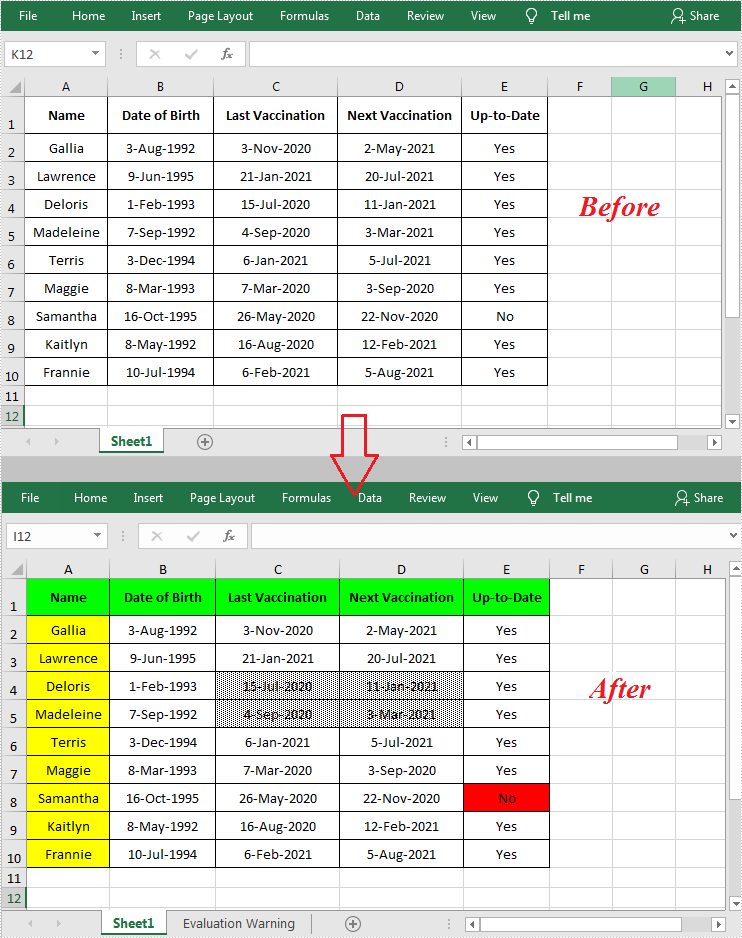
When working with an Excel document that contains a lot of data, setting color or pattern for selected cells can make it very easy for users to locate specific types of information. In Microsoft Excel, you can achieve this function by simply clicking the "Fill Color" button on the formatting toolbar. In this article, you will learn how to programmatically set background color and pattern style for a specified cell or cell range in Excel using Spire.XLS for Java.
Install Spire.XLS for Java
First, you're required to add the Spire.Xls.jar file as a dependency in your Java program. The JAR file can be downloaded from this link. If you use Maven, you can easily import the JAR file in your application by adding the following code to your project's pom.xml file.
<repositories>
    <repository>
        <id>com.e-iceblue</id>
        <name>e-iceblue</name>
        <url>https://repo.e-iceblue.com/nexus/content/groups/public/</url>
    </repository>
</repositories>
<dependencies>
    <dependency>
        <groupId>e-iceblue</groupId>
        <artifactId>spire.xls</artifactId>
        <version>16.8.4</version>
    </dependency>
</dependencies>
Set Background Color and Pattern for Excel Cells
The detailed steps are as follows.
- Create a Workbook object.
- Load a sample Excel document using Workbook.loadFromFile() method.
- Get a specified worksheet using Workbook.getWorksheets().get() method.
- Get a specified cell range using Worksheet.getRange().get() method.
- Set background color for the specified cell range using CellRange.getStyle().setColor() method.
- Set fill pattern style for the specified cell range using CellRange.getStyle().setFillPattern() method.
- Save the result to another file using Workbook.saveToFile() method.
- Java
import com.spire.xls.*;
import java.awt.*;

public class CellBackground {
    public static void main(String[] args) {
        //Create a Workbook object
        Workbook workbook = new Workbook();

        //Load a sample Excel document
        workbook.loadFromFile("C:\\Users\\Administrator\\Desktop\\data.xlsx");

        //Get the first worksheet
        Worksheet worksheet= workbook.getWorksheets().get(0);

        //Set background color for range "A1:E1" and "A2:A10"
        worksheet.getRange().get("A1:E1").getStyle().setColor(Color.green);
        worksheet.getRange().get("A2:A10").getStyle().setColor(Color.yellow);

        //Set background color for cell E8
        worksheet.getRange().get("E8").getStyle().setColor(Color.red);

        //Set fill pattern style for range "C4:D5"
        worksheet.getRange().get("C4:D5").getStyle().setFillPattern(ExcelPatternType.Percent25Gray);

        //Save the document
        workbook.saveToFile("CellBackground.xlsx", ExcelVersion.Version2013);
    }
}
Apply for a Temporary License
If you'd like to remove the evaluation message from the generated documents, or to get rid of the function limitations, please request a 30-day trial license for yourself.
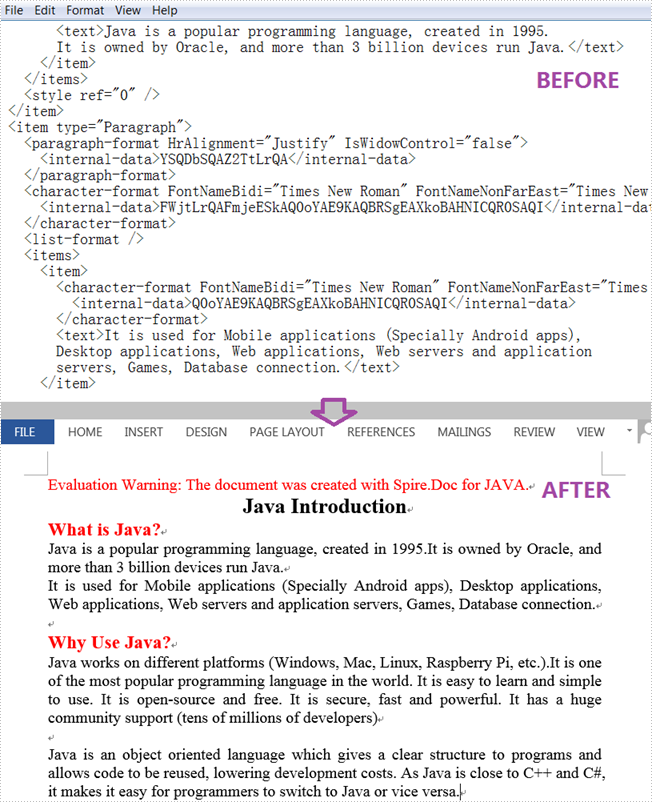
An XML file is a plain text file that uses custom tags to display a document's structure and other features. In daily work, you sometimes need to convert Word to XML for storing and organizing data, or convert XML to Word for working on them more easily and efficiently. This article will demonstrate how to programmatically convert XML to Word using Spire.Doc for Java.
Install Spire.Doc for Java
First of all, you're required to add the Spire.Doc.jar file as a dependency in your Java program. The JAR file can be downloaded from this link. If you use Maven, you can easily import the JAR file in your application by adding the following code to your project's pom.xml file.
<repositories>
    <repository>
        <id>com.e-iceblue</id>
        <name>e-iceblue</name>
        <url>https://repo.e-iceblue.com/nexus/content/groups/public/</url>
    </repository>
</repositories>
<dependencies>
    <dependency>
        <groupId>e-iceblue</groupId>
        <artifactId>spire.doc</artifactId>
        <version>14.8.4</version>
    </dependency>
</dependencies>
Convert XML to Word
The following are steps to convert XML to Word using Spire.Doc for Java.
- Create a Document instance.
- Load an XML sample document using Document.loadFromFile() method.
- Save the document as a Word file using Document.saveToFile() method.
- Java
import com.spire.doc.Document;
import com.spire.doc.FileFormat;

public class XMLToWord {
    public static void main(String[] args) {
        //Create a Document instance
        Document document = new Document();

        //Load an XML sample document
        document.loadFromFile(sample.xml");

        //Save the document to Word
        document.saveToFile("output/XMLToWord.docx", FileFormat.Docx );
    }
}
Apply for a Temporary License
If you'd like to remove the evaluation message from the generated documents, or to get rid of the function limitations, please request a 30-day trial license for yourself.
