
Java (485)
The drop-down list in Excel enables users to select a desired item from a pre-defined list of items as input data. It restricts the input of unwanted or ambiguous data and reduces the occurrence of spelling errors, which is a great option for speeding up data entry tasks. In this article, you will learn how to programmatically create a drop-down list in Excel using Spire.XLS for Java.
- Create a Drop-Down List Based on Values in a Cell Range
- Create a Drop-Down List Based on Values in a String Array
Install Spire.XLS for Java
First of all, you're required to add the Spire.Xls.jar file as a dependency in your Java program. The JAR file can be downloaded from this link. If you use Maven, you can easily import the JAR file in your application by adding the following code to your project's pom.xml file.
<repositories>
    <repository>
        <id>com.e-iceblue</id>
        <name>e-iceblue</name>
        <url>https://repo.e-iceblue.com/nexus/content/groups/public/</url>
    </repository>
</repositories>
<dependencies>
    <dependency>
        <groupId>e-iceblue</groupId>
        <artifactId>spire.xls</artifactId>
        <version>16.8.4</version>
    </dependency>
</dependencies>
Create a Drop-Down List Based on Values in a Cell Range
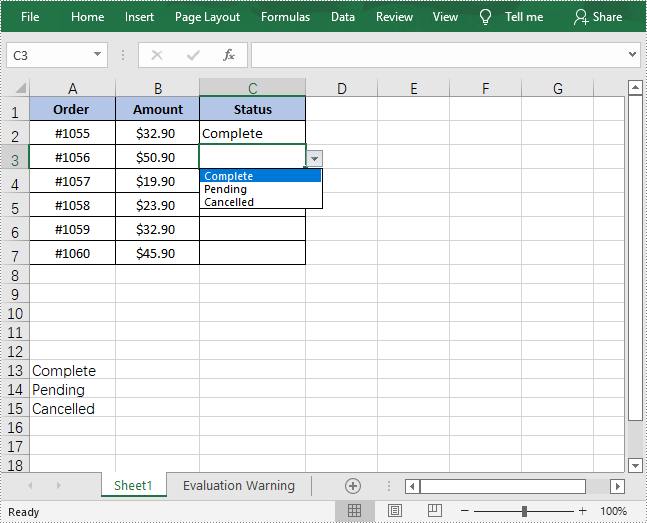
With Spire.XLS for Java, you can add values to a range of cells and then refer to that range of cells as the data validation source to create a drop-down list. This method might be slightly time-consuming, but it allows you to easily update the items in the drop-down list by directly modifying the values in the cells of the result document. The detailed steps are as follows.
- Create a Workbook object.
- Load a sample Excel document using Workbook.loadFromFile() method.
- Get a specified worksheet using Workbook.getWorksheets().get() method.
- Get a specified cell or cell range using Worksheet.getCellRange() method.
- Add values to specified cells using CellRange.setValue() method.
- Get data validation of the specified cell range using CellRange.getDataValidation() method.
- Create a drop-down list by referring to a specified data range as the data validation source using Validation.setDataRange() method.
- Save the result document using Workbook.saveToFile() method.
- Java
import com.spire.xls.*;

public class DropdownList {
    public static void main(String[] args) {

        //Create a Workbook object
        Workbook workbook = new Workbook();

        //Load a sample Excel document
        workbook.loadFromFile("input.xlsx");

        //Get the first worksheet
        Worksheet sheet = workbook.getWorksheets().get(0);

        //Add values to specified cells
        sheet.getCellRange("A13").setValue("Complete");
        sheet.getCellRange("A14").setValue("Pending");
        sheet.getCellRange("A15").setValue("Cancelled");

        //Create a drop-down list by referring to a specified data range as the data validation source
        sheet.getCellRange("C2:C7").getDataValidation().setDataRange(sheet.getCellRange("A13:A15"));

        //Save the result document
        workbook.saveToFile("ExcelDropdownList.xlsx", ExcelVersion.Version2013);
    }
}
Create a Drop-Down List Based on Values in a String Array
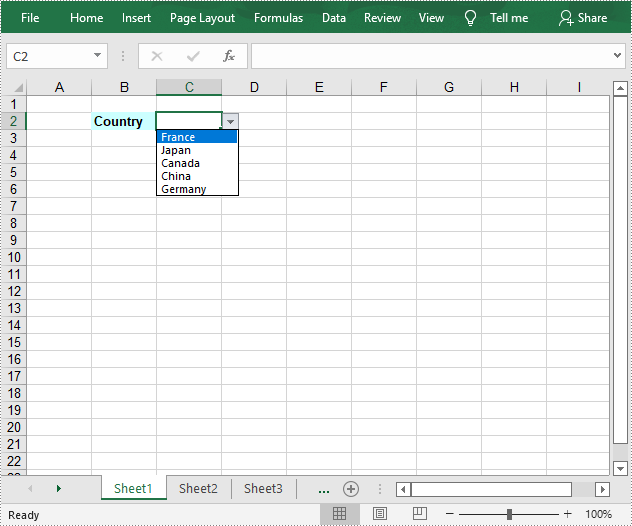
In Excel, you can create a drop-down list by manually entering a list of values in the “Source” box of the Data Validation menu. By doing this, you don't need to add data in Excel cells, which keeps your Excel document neat and organized. The following steps shows how to use Spire.XLS for Java to achieve the same functionality.
- Create a Workbook object.
- Get a specified worksheet using Workbook.getWorksheets().get() method.
- Add text to a cell and set its font style.
- Get a specified cell or cell range using Worksheet.getCellRange() method.
- Get data validation of the specified cell range using CellRange.getDataValidation() method.
- Set the values of the drop-down list using Validation.setValues() method.
- Create a drop-down list in the specified cell by setting the values of Validation.isSuppressDropDownArrow() method to false.
- Save the result document using Workbook.saveToFile() method.
- Java
import com.spire.xls.*;

public class DropdownList2 {
    public static void main(String[] args) {

        //Create a Workbook object
        Workbook workbook = new Workbook();

        //Get the first worksheet
        Worksheet sheet = workbook.getWorksheets().get(0);

        //Add text to cell B2 and set its font style
        sheet.getCellRange("B2").setValue("Country");
        sheet.getCellRange("B2").getStyle().getFont().isBold(true);
        sheet.getCellRange("B2").getStyle().setKnownColor(ExcelColors.LightTurquoise);

        //Set the values of the drop-down list
        sheet.getCellRange("C2").getDataValidation().setValues(new String[]{"France", "Japan", "Canada", "China", "Germany"});

        //Create a drop-down list in the specified cell
        sheet.getCellRange("C2").getDataValidation().isSuppressDropDownArrow(false);

        //Save the result document
        workbook.saveToFile("ExcelDropdownList2.xlsx", ExcelVersion.Version2013);
    }
}
Apply for a Temporary License
If you'd like to remove the evaluation message from the generated documents, or to get rid of the function limitations, please request a 30-day trial license for yourself.
When you have a fairly long Word document that requires teamwork, it may be necessary to split the document into several shorter files and assign them to different people to speed up the workflow. Instead of manually cutting and pasting, this article will demonstrate how to programmatically split a Word document using Spire.Doc for Java .
Install Spire.Doc for Java
First, you're required to add the Spire.Doc.jar file as a dependency in your Java program. The JAR file can be downloaded from this link. If you use Maven, you can easily import the JAR file in your application by adding the following code to your project's pom.xml file.
<repositories>
    <repository>
        <id>com.e-iceblue</id>
        <name>e-iceblue</name>
        <url>https://repo.e-iceblue.com/nexus/content/groups/public/</url>
    </repository>
</repositories>
<dependencies>
    <dependency>
        <groupId>e-iceblue</groupId>
        <artifactId>spire.doc</artifactId>
        <version>14.8.4</version>
    </dependency>
</dependencies>
Split a Word Document by Page Break
A Word document can contain multiple pages separated by page breaks. To split a Word document by page break, you can refer to the below steps and code.
- Create a Document instance.
- Load a sample Word document using Document.loadFromFile() method.
- Create a new Word document and add a section to it.
- Traverse through all body child objects of each section in the original document and determine whether the child object is a paragraph or a table.
- If the child object of the section is a table, directly add it to the section of new document using Section.getBody().getChildObjects().add() method.
- If the child object of the section is a paragraph, first add the paragraph object to the section of the new document. Then traverse through all child objects of the paragraph and determine whether the child object is a page break.
- If the child object is a page break, get its index and then remove the page break from its paragraph by index.
- Save the new Word document and then repeat the above processes.
- Java
import com.spire.doc.*;
import com.spire.doc.documents.*;

public class splitDocByPageBreak {
    public static void main(String[] args) throws Exception {
        // Create a Document instance
        Document original = new Document();

        // Load a sample Word document
        original.loadFromFile("E:\\Files\\SplitByPageBreak.docx");

        // Create a new Word document and add a section to it
        Document newWord = new Document();
        Section section = newWord.addSection();
        int index = 0;

        //Traverse through all sections of original document
        for (int s = 0; s < original.getSections().getCount(); s++) {
            Section sec = original.getSections().get(s);

            //Traverse through all body child objects of each section.
            for (int c = 0; c < sec.getBody().getChildObjects().getCount(); c++) {
                DocumentObject obj = sec.getBody().getChildObjects().get(c);
                if (obj instanceof Paragraph) {
                    Paragraph para = (Paragraph) obj;
                    sec.cloneSectionPropertiesTo(section);

                    //Add paragraph object in original section into section of new document
                    section.getBody().getChildObjects().add(para.deepClone());
                    for (int i = 0; i < para.getChildObjects().getCount(); i++) {
                        DocumentObject parobj = para.getChildObjects().get(i);
                        if (parobj instanceof Break) {
                            Break break1 = (Break) parobj;
                            if (break1.getBreakType().equals(BreakType.Page_Break)) {

                                //Get the index of page break in paragraph
                                int indexId = para.getChildObjects().indexOf(parobj);

                                //Remove the page break from its paragraph
                                Paragraph newPara = (Paragraph) section.getBody().getLastParagraph();
                                newPara.getChildObjects().removeAt(indexId);

                                //Save the new Word document
                                newWord.saveToFile("output/result"+index+".docx", FileFormat.Docx);
                                index++;

                                //Create a new document and add a section
                                newWord = new Document();
                                section = newWord.addSection();

                                //Add paragraph object in original section into section of new document
                                section.getBody().getChildObjects().add(para.deepClone());
                                if (section.getParagraphs().get(0).getChildObjects().getCount() == 0) {

                                    //Remove the first blank paragraph
                                    section.getBody().getChildObjects().removeAt(0);
                                } else {

                                    //Remove the child objects before the page break
                                    while (indexId >= 0) {
                                        section.getParagraphs().get(0).getChildObjects().removeAt(indexId);
                                        indexId--;
                                    }
                                }
                            }
                        }
                    }
                }
                if (obj instanceof Table) {
                    //Add table object in original section into section of new document
                    section.getBody().getChildObjects().add(obj.deepClone());
                }
            }
        }

        //Save to file
        newWord.saveToFile("output/result"+index+".docx", FileFormat.Docx);
    }
}

Split a Word Document by Section Break
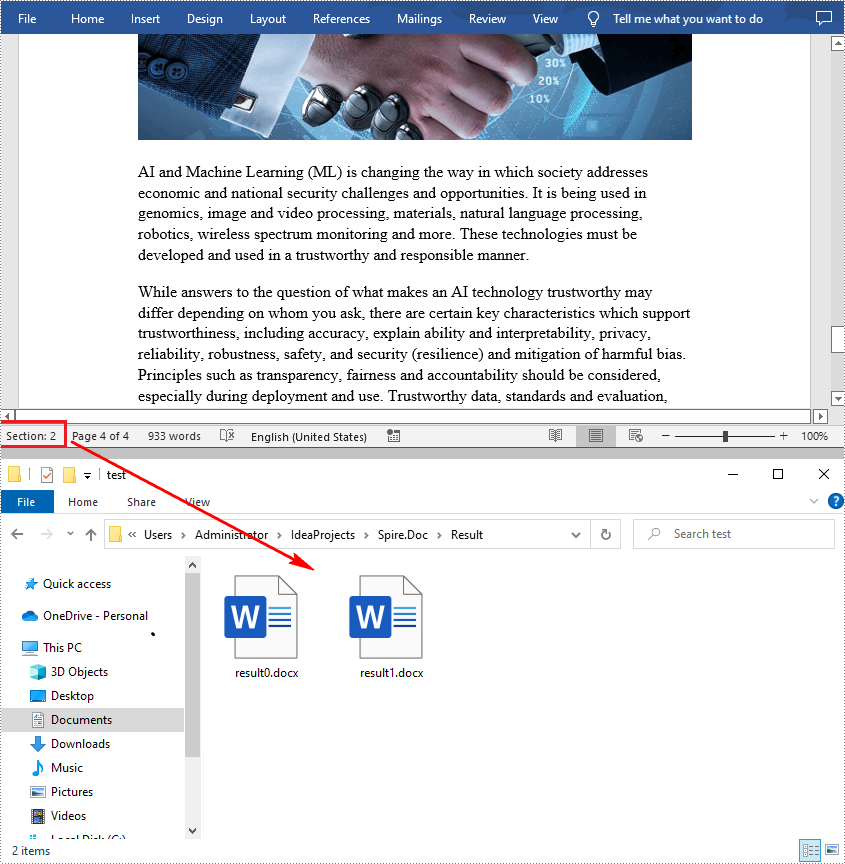
In Word, a section is a part of a document that contains its own page formatting. For documents that contain multiple sections, Spire.Doc for .NET also supports splitting documents by section breaks. The detailed steps are as follows.
- Create a Document instance.
- Load a sample Word document using Document.LoadFromFile() method.
- Define a new Word document object.
- Traverse through all sections of the original Word document.
- Clone each section of the original document using Section.deepClone() method.
- Add the cloned section to the new document as a new section using Document.getSections().add() method.
- Save the result document using Document.saveToFile() method.
- Java
import com.spire.doc.*;
public class splitDocBySectionBreak {
    public static void main(String[] args) throws Exception {
        //Create Document instance
        Document document = new Document();

        //Load a sample Word document
        document.loadFromFile("E:\\Files\\SplitBySectionBreak.docx");

        //Define a new Word document object
        Document newWord;

        //Traverse through all sections of the original Word document
        for (int i = 0; i < document.getSections().getCount(); i++){
            newWord = new Document();

            //Clone each section of the original document and add it to the new document as new section
            newWord.getSections().add(document.getSections().get(i).deepClone());

            //Save the result document
            newWord.saveToFile("Result/result"+i+".docx");
        }
    }
}
Apply for a Temporary License
If you'd like to remove the evaluation message from the generated documents, or to get rid of the function limitations, please request a 30-day trial license for yourself.
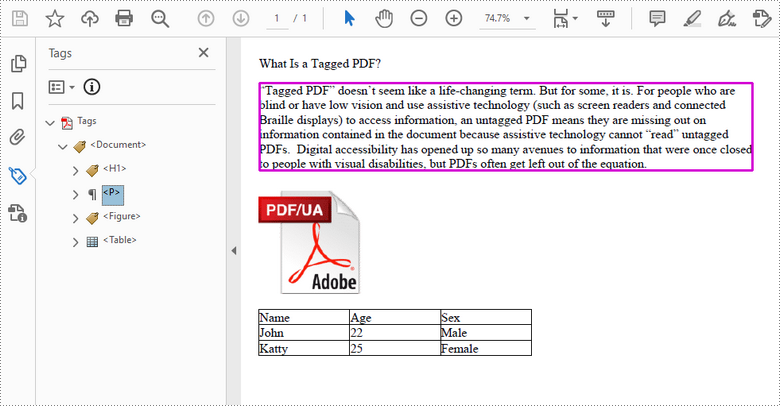
A tagged PDF is a PDF document that contains tags that are pretty similar to HTML code. Tags provide a logical structure that governs how the content of the PDF is presented through assistive technology. Each tag identifies the associated content element, for example heading level 1 <H1>, paragraph <P>, image <Figure>, or table <Table>. In this article, you will learn how to create a tagged PDF document in Java using Spire.PDF for Java.
Install Spire.PDF for Java
First of all, you're required to add the Spire.Pdf.jar file as a dependency in your Java program. The JAR file can be downloaded from this link. If you use Maven, you can easily import the JAR file in your application by adding the following code to your project's pom.xml file.
<repositories>
    <repository>
        <id>com.e-iceblue</id>
        <name>e-iceblue</name>
        <url>https://repo.e-iceblue.com/nexus/content/groups/public/</url>
    </repository>
</repositories>
<dependencies>
    <dependency>
        <groupId>e-iceblue</groupId>
        <artifactId>spire.pdf</artifactId>
        <version>12.9.0</version>
    </dependency>
</dependencies>
Create a Tagged PDF in Java
To add structure elements in a tagged PDF document, we must first create an object of PdfTaggedContent class. Then, add an element to the root using PdfTaggedContent.getStructureTreeRoot().appendChildElement() method. The following are the detailed steps to add a "heading" element to a tagged PDF using Spire.PDF for Java.
- Create a PdfDocument object and add a page to it using PdfDocument.getPages().add() method.
- Create an object of PdfTaggedContent class.
- Make the document compliance to PDF/UA identification using PdfTaggedContent.setPdfUA1Identification() method.
- Add a "document" element to the root of the document using PdfTaggedContent.getStructureTreeRoot().appendChildElement() method.
- Add a "heading" element under the "document" element using PdfStructureElement.appendChildElement() method.
- Add a start tag using PdfStructureElement.beginMarkedContent() method, which indicates the beginning of the heading element.
- Draw heading text on the page using PdfPageBase.getCanvas().drawString() method.
- Add an end tag using PdfStructureElement.beginMarkedContent() method, which implies the heading element ends here.
- Save the document to a PDF file using PdfDocument.saveToFile() method.
The following code snippet provides an example on how to create various elements including document, heading, paragraph, figure and table in a tagged PDF document in Java.
- Java
import com.spire.pdf.*;
import com.spire.pdf.graphics.*;
import com.spire.pdf.interchange.taggedpdf.PdfStandardStructTypes;
import com.spire.pdf.interchange.taggedpdf.PdfStructureElement;
import com.spire.pdf.interchange.taggedpdf.PdfTaggedContent;
import com.spire.pdf.tables.PdfTable;

import java.awt.*;
import java.awt.geom.Point2D;
import java.awt.geom.Rectangle2D;

public class CreateTaggedPdf {

    public static void main(String[] args) throws Exception {

        //Create a PdfDocument object
        PdfDocument doc = new PdfDocument();

        //Add a page
        PdfPageBase page = doc.getPages().add(PdfPageSize.A4, new PdfMargins(20));

        //Set tab order
        page.setTabOrder(TabOrder.Structure);

        //Create an object of PdfTaggedContent class
        PdfTaggedContent taggedContent = new PdfTaggedContent(doc);

        //Set language and title for the document
        taggedContent.setLanguage("en-US");
        taggedContent.setTitle("Create Tagged PDF in Java");

        //Set PDF/UA1 identification
        taggedContent.setPdfUA1Identification();

        //Create font and brush
        PdfTrueTypeFont font = new PdfTrueTypeFont(new Font("Times New Roman",Font.PLAIN,14), true);
        PdfSolidBrush brush = new PdfSolidBrush(new PdfRGBColor(Color.BLACK));

        //Add a "document" element
        PdfStructureElement document = taggedContent.getStructureTreeRoot().appendChildElement(PdfStandardStructTypes.Document);

        //Add a "heading" element
        PdfStructureElement heading1 = document.appendChildElement(PdfStandardStructTypes.HeadingLevel1);
        heading1.beginMarkedContent(page);
        String headingText = "What Is a Tagged PDF?";
        page.getCanvas().drawString(headingText, font, brush, new Point2D.Float(0, 0));
        heading1.endMarkedContent(page);

        //Add a "paragraph" element
        PdfStructureElement paragraph = document.appendChildElement(PdfStandardStructTypes.Paragraph);
        paragraph.beginMarkedContent(page);
        String paragraphText = "Tagged PDF doesn’t seem like a life-changing term. But for some, it is. For people who are " +
                "blind or have low vision and use assistive technology (such as screen readers and connected Braille displays) to " +
                "access information, an untagged PDF means they are missing out on information contained in the document because assistive " +
                "technology cannot “read” untagged PDFs.  Digital accessibility has opened up so many avenues to information that were once " +
                "closed to people with visual disabilities, but PDFs often get left out of the equation.";
        Rectangle2D.Float rect = new Rectangle2D.Float(0, 30, (float) page.getCanvas().getClientSize().getWidth(), (float) page.getCanvas().getClientSize().getHeight());
        page.getCanvas().drawString(paragraphText, font, brush, rect);
        paragraph.endMarkedContent(page);

        //Add a "figure" element
        PdfStructureElement figure = document.appendChildElement(PdfStandardStructTypes.Figure);
        figure.beginMarkedContent(page);
        PdfImage image = PdfImage.fromFile("C:\\Users\\Administrator\\Desktop\\pdfua.png");
        page.getCanvas().drawImage(image, new Point2D.Float(0, 150));
        figure.endMarkedContent(page);

        //Add a "table" element
        PdfStructureElement table = document.appendChildElement(PdfStandardStructTypes.Table);
        table.beginMarkedContent(page);
        PdfTable pdfTable = new PdfTable();
        pdfTable.getStyle().getDefaultStyle().setFont(font);
        String[] data = {"Name;Age;Sex",
                "John;22;Male",
                "Katty;25;Female"
        };
        String[][] dataSource = new String[data.length][];
        for (int i = 0; i < data.length; i++) {
            dataSource[i] = data[i].split("[;]", -1);
        }
        pdfTable.setDataSource(dataSource);
        pdfTable.getStyle().setShowHeader(true);
        pdfTable.draw(page.getCanvas(), new Point2D.Float(0, 280), 300f);
        table.endMarkedContent(page);

        //Save the document to file
        doc.saveToFile("output/CreatePDFUA.pdf");
    }
}
Apply for a Temporary License
If you'd like to remove the evaluation message from the generated documents, or to get rid of the function limitations, please request a 30-day trial license for yourself.
