
Reading Excel files directly in a web application is useful for many scenarios, such as displaying spreadsheet data on a webpage, importing business records, analyzing worksheet content, or extracting specific data for further processing. In React applications, developers may also need to distinguish between different Excel data types, including text, numbers, formulas, dates, and Boolean values.
Spire.XLS for JavaScript provides APIs for loading and manipulating Excel files in JavaScript applications. With it, you can access worksheets and cells, retrieve different types of cell values, and extract embedded images without requiring Microsoft Excel. This article demonstrates how to read Excel files with JavaScript in React, including reading worksheet data, retrieving different cell value types, and extracting images.
On this page:
- Install Spire.XLS for JavaScript in a React Project
- Read Excel Data with JavaScript in React
- Read Different Types of Cell Data from Excel
- Read Images from Excel Worksheets
- Conclusion
- FAQs
Install Spire.XLS for JavaScript in a React Project
Before working with Excel files, install Spire.XLS for JavaScript in your React project.
Open a terminal in the project directory and run:
npm i spire.office
After installing the package, copy the required Spire.XLS JavaScript and WebAssembly runtime files to the public directory of the React project.
For detailed instructions on setting up the library and its WebAssembly runtime, refer to: How to Integrate Spire.XLS for JavaScript in a React Project
Once the runtime is configured, Excel files can be loaded into the Spire virtual file system and processed in the browser.
Read Excel Data with JavaScript in React
A common requirement when reading Excel files is to retrieve all used data from a worksheet and display it in a web interface.
Spire.XLS provides the AllocatedRange property to obtain the range of cells that are currently in use. You can then loop through its rows and columns and retrieve each cell's value.
The main steps are as follows:
- Load and initialize the Spire.XLS WebAssembly module.
- Load the Excel file into the Spire virtual file system.
- Create a
Workbookobject and load the Excel file. - Access the desired worksheet.
- Get the worksheet's allocated range.
- Iterate through the cells and retrieve their values.
- Store the extracted values in React state and display them in an HTML table.
The following example reads data from the first worksheet of an Excel file named Data.xlsx and displays the retrieved values in a React table.
import React, { useState, useEffect } from 'react';

function App() {
  const [wasmModule, setWasmModule] = useState(null);
  const [tableData, setTableData] = useState([]);
  const [status, setStatus] = useState('Loading Excel runtime...');
  const [error, setError] = useState('');

  useEffect(() => {
    (async () => {
      try {
        const publicUrl = process.env.PUBLIC_URL || '';
        const spireModule = await import(
          /* webpackIgnore: true */
          `${publicUrl}/spire.xls.js`
        );

        const xlsModule = spireModule.spirexls || window.spirexls;

        if (!xlsModule) {
          throw new Error('Spire XLS module was not initialized.');
        }

        window.wasmModule = xlsModule;
        setWasmModule(xlsModule);
        setStatus('Excel runtime ready.');
      } catch (err) {
        console.error('Failed to load Spire XLS runtime:', err);
        setError(err.message || 'Failed to load Spire XLS runtime.');
        setStatus('');
      }
    })();
  }, []);

  const loadExcelToVfs = async (fileName) => {
    const publicUrl = process.env.PUBLIC_URL || '';
    const response = await fetch(`${publicUrl}/${fileName}`);

    if (!response.ok) {
      throw new Error(
        `Failed to load ${fileName}: ${response.status} ${response.statusText}`
      );
    }

    if (!window.dotnetRuntime?.Module?.FS) {
      throw new Error('Spire virtual file system is not ready.');
    }

    const fileBytes = new Uint8Array(await response.arrayBuffer());

    window.dotnetRuntime.Module.FS.writeFile(
      fileName,
      fileBytes,
      { flags: 'w+' }
    );

    return fileName;
  };

  const readExcelData = async () => {
    if (!wasmModule) {
      setError('Excel runtime is not ready yet.');
      return;
    }

    setError('');
    setStatus('Reading Excel file...');

    const workbook = new wasmModule.Workbook();

    try {
      const inputFile = await loadExcelToVfs('Data.xlsx');
      workbook.LoadFromFile(inputFile);

      const sheet = workbook.Worksheets.get(0);
      const range = sheet.AllocatedRange;
      const rows = [];

      if (range) {
        const firstRow = range.Row;
        const firstColumn = range.Column;

        const lastRow =
          range.LastRow || firstRow + range.RowCount - 1;

        const lastColumn =
          range.LastColumn || firstColumn + range.ColumnCount - 1;

        for (let r = firstRow; r <= lastRow; r++) {
          const row = [];

          for (let c = firstColumn; c <= lastColumn; c++) {
            row.push(sheet.get(r, c).Value);
          }

          rows.push(row);
        }
      }

      setTableData(rows);
      setStatus(`Loaded ${rows.length} rows.`);
    } catch (err) {
      console.error('Failed to read Excel file:', err);
      setError(err.message || 'Failed to read Excel file.');
      setStatus('');
    } finally {
      workbook.Dispose();
    }
  };

  return (
    <div style={{ textAlign: 'center', padding: 30 }}>
      <h1>Read Excel in JavaScript</h1>

      <button onClick={readExcelData} disabled={!wasmModule}>
        Read Excel File
      </button>

      {status && <p>{status}</p>}

      {error && (
        <p style={{ color: 'crimson' }}>
          {error}
        </p>
      )}

      {tableData.length > 0 && (
        <table
          border="1"
          cellPadding="8"
          style={{
            margin: '20px auto',
            borderCollapse: 'collapse'
          }}
        >
          <tbody>
            {tableData.map((row, ri) => (
              <tr key={ri}>
                {row.map((cell, ci) => (
                  <td key={ci}>{cell}</td>
                ))}
              </tr>
            ))}
          </tbody>
        </table>
      )}
    </div>
  );
}

export default App;
Code Explanation
The example first dynamically loads the Spire.XLS JavaScript runtime:
const spireModule = await import(
  /* webpackIgnore: true */
  `${publicUrl}/spire.xls.js`
);

const xlsModule = spireModule.spirexls || window.spirexls;
Since Spire.XLS uses a WebAssembly runtime, the source Excel file is then loaded into its virtual file system:
const fileBytes = new Uint8Array(await response.arrayBuffer());

window.dotnetRuntime.Module.FS.writeFile(
  fileName,
  fileBytes,
  { flags: 'w+' }
);
Next, create a Workbook object and load the Excel file:
const workbook = new wasmModule.Workbook();
workbook.LoadFromFile(inputFile);
The first worksheet can be accessed using:
const sheet = workbook.Worksheets.get(0);
To avoid iterating through unnecessary empty cells, the example retrieves the worksheet's used area through AllocatedRange:
const range = sheet.AllocatedRange;
The starting and ending rows and columns are then determined from this range. A nested loop is used to access each cell:
for (let r = firstRow; r <= lastRow; r++) {
  const row = [];

  for (let c = firstColumn; c <= lastColumn; c++) {
    row.push(sheet.get(r, c).Value);
  }

  rows.push(row);
}
Finally, the resulting two-dimensional array is stored in the tableData React state and rendered as an HTML table.
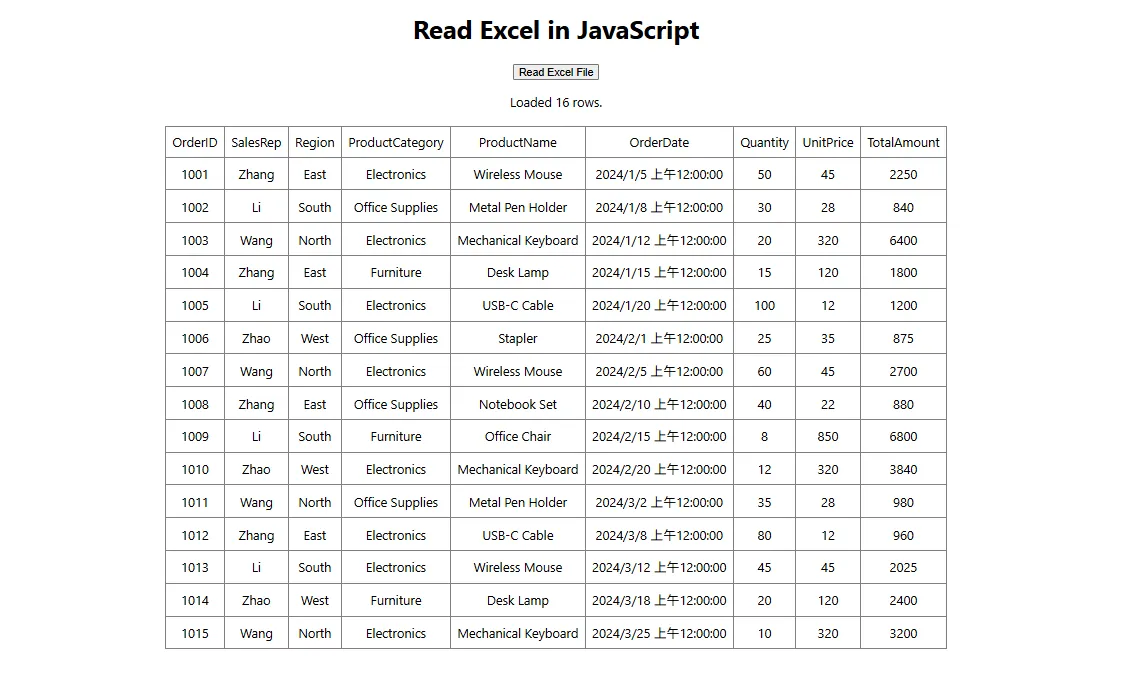
This approach is useful when building spreadsheet viewers, Excel import interfaces, reporting pages, or other applications where worksheet data needs to be presented directly in the browser.
Read Different Types of Cell Data from Excel
Excel cells can contain different kinds of data. Depending on the content you need to retrieve, Spire.XLS provides different properties or methods for accessing the underlying cell value.
The following table lists some commonly used options:
| Data to Read | API |
|---|---|
| Text | cell.Text |
| Number | cell.NumberValue |
| Formula | cell.Formula |
| Formula calculation result | cell.FormulaValue |
| Date and time | cell.DateTimeValue |
| Boolean value | cell.BooleanValue |
| Number or text value | cell.Value |
| Date, Boolean, or other value | cell.Value2 |
For example, first access a particular cell:
const cell = sheet.get(rowIndex, colIndex);
You can then retrieve its content according to the expected data type.
Read Text
Use the Text property to retrieve the text representation of a cell:
const text = sheet.get(rowIndex, colIndex).Text;
This is useful when the displayed textual content of a cell is required.
Read Numbers
To obtain a numeric value, use NumberValue:
const number = sheet.get(rowIndex, colIndex).NumberValue;
This can be useful when worksheet values will be used for calculations or numeric processing in JavaScript.
Read Formulas and Formula Results
Excel cells may contain formulas rather than static values. The formula expression itself can be retrieved through the Formula property:
const formula = sheet.get(rowIndex, colIndex).Formula;
For example, a formula cell may contain an expression such as:
=SUM(B2:B10)
If you need the calculated result of the formula instead of the formula expression, use:
const formulaResult = sheet.get(rowIndex, colIndex).FormulaValue;
Being able to retrieve both the formula and its result is useful for spreadsheet analysis and auditing applications.
Read Dates
Excel stores date and time information as a specialized cell value. You can retrieve it using:
const date = sheet.get(rowIndex, colIndex).DateTimeValue;
The returned date value can then be formatted or processed according to the requirements of the React application.
Read Boolean Values
For cells containing Boolean values such as TRUE or FALSE, use:
const bool = sheet.get(rowIndex, colIndex).BooleanValue;
Read General Cell Values
When a cell may contain either a number or text, the Value property provides a convenient general-purpose option:
const value = sheet.get(rowIndex, colIndex).Value;
For values such as dates, Boolean values, or other underlying Excel data types, Value2 can also be used:
const value = sheet.get(rowIndex, colIndex).Value2;
Choosing the appropriate property based on the expected Excel data type makes it easier to preserve the original meaning of the worksheet content when processing it in JavaScript.
Read Images from Excel Worksheets
In addition to cell data, Excel worksheets can contain embedded pictures. Spire.XLS for JavaScript allows you to access these images through the worksheet's Pictures collection.
The following example retrieves the first picture from a worksheet and saves it as a PNG file:
let pic = sheet.Pictures.get(0);

const outputFileName = 'ReadImages-out.png';

pic.Picture.Save(outputFileName);
Because the image is saved inside the Spire WebAssembly virtual file system, it can then be read back into JavaScript:
const modifiedFileArray = window.dotnetRuntime.Module.FS.readFile(outputFileName);
Next, create a JavaScript Blob from the resulting image data:
const modifiedFile = new Blob(
  [modifiedFileArray],
  { type: 'image/png' }
);
The resulting Blob can be used for further browser-side operations. For example, you can create an object URL and display the extracted image directly in a React component:
const imageUrl = URL.createObjectURL(modifiedFile);
Then use the generated URL as the source of an HTML image element:
<img src={imageUrl} alt="Extracted from Excel" />
If a worksheet contains multiple pictures, you can iterate through the Pictures collection and process each image individually.
This capability is useful for applications that need to extract product images, logos, charts saved as pictures, document assets, or other visual content embedded in Excel worksheets.
Conclusion
Reading Excel files in React makes it possible to bring spreadsheet data directly into browser-based workflows. With Spire.XLS for JavaScript, developers can load Excel workbooks, access worksheets and used ranges, iterate through cells, and retrieve data without relying on Microsoft Excel.
In addition to general cell values, Spire.XLS allows JavaScript applications to access specific data types such as text, numbers, formulas, formula results, dates, and Boolean values. Embedded worksheet images can also be retrieved and converted into browser-compatible objects for display or further processing.
These features can be used to build Excel viewers, data import tools, reporting systems, spreadsheet analysis interfaces, and other React applications that need to work with Excel content.
FAQs
Can JavaScript Read Excel Files in a React Application?
Yes. JavaScript can read Excel files in React with the help of an Excel-processing library such as Spire.XLS for JavaScript. After loading the Excel file into the WebAssembly virtual file system, you can access its worksheets, cells, formulas, images, and other spreadsheet content directly in the browser.
How Do I Read All Used Cells in an Excel Worksheet?
You can use the worksheet's AllocatedRange property to determine the range that contains data. After obtaining its starting and ending rows and columns, iterate through the range and access individual cells using:
sheet.get(rowIndex, colIndex)
This avoids unnecessarily iterating through large areas of empty worksheet cells.
How Can I Read an Excel Formula and Its Calculated Result Separately?
Use the Formula property to retrieve the formula expression:
const formula = sheet.get(rowIndex, colIndex).Formula;
Use CalculatedValue when you need the calculated value of the formula:
const result = sheet.get(rowIndex, colIndex).FormulaValue;
This makes it possible to inspect both the formula logic and its resulting value.
Can I Extract Images from Excel with JavaScript?
Yes. Images embedded in a worksheet can be accessed through the Pictures collection. After retrieving a picture, you can save it to the Spire virtual file system, read the generated image bytes, and convert them into a JavaScript Blob. The Blob can then be displayed, downloaded, or processed further in the browser.
Get a Free License
Spire.XLS for JavaScript offers a 30-day full-featured free trial license with no functional limitations. Apply here to evaluate before purchasing.

