
JavaScript (261)
Set and Remove Editable Ranges in Word Documents with JavaScript in React
2026-09-21 02:59:40 Written by Amy ZhaoIn documents such as contracts, forms, and official templates, you often want the person filling them in to modify only a few specific places — signature details, project name, acceptance conclusion — while every other clause has to stay exactly as it is. Setting an editable range on a document pins down "what may be changed" precisely and leaves everything else read-only. Spire.Doc for JavaScript does this entirely in the browser via WebAssembly, using a virtual file system (VFS) to manage fonts and file resources — no backend server required.
This article covers two core features:
For installation and project setup, refer to Integrating Spire.Doc for JavaScript in a React Project. The examples below assume Spire.Doc is installed and the WebAssembly module is initialized.
Set an Editable Range
Setting an editable range involves three stages: first, load the font files and the target Word document into the WASM virtual file system via FetchFileToVFS; then instantiate a Document and load the file, call Protect to make the whole document read-only, and create a pair of PermissionStart and PermissionEnd markers that share the same id to mark the specified paragraph as an editable range; finally, save the document, read the generated file from VFS, wrap it as a Blob, and trigger a browser download.
function App() {
  const SetEditableRange = async () => {
    const docModule = window.wasmModule?.spiredoc;
    if (!docModule) {
      alert('Spire.Doc is not ready yet');
      return;
    }

    // Load the input document into VFS
    const inputFileName = "SetEditableRange.docx";
    await window.spire.FetchFileToVFS(inputFileName, "", `${process.env.PUBLIC_URL}static/data/`);

    // Create a document object and load the document
    const doc = new docModule.Document();
    doc.LoadFromFile(inputFileName);

    // Protect the whole document: everything outside the editable range is read-only
    doc.Protect({ type: docModule.ProtectionType.AllowOnlyReading, password: "password" });

    // Create the permission markers: a start and an end with the same id form one editable range
    const start = new docModule.PermissionStart(doc, "testID");
    const end = new docModule.PermissionEnd(doc, "testID");

    // Insert the markers into the first paragraph: the start at the beginning, the end appended at the end
    doc.Sections.get_Item(0).Paragraphs.get_Item(0).ChildObjects.Insert(0, start);
    doc.Sections.get_Item(0).Paragraphs.get_Item(0).ChildObjects.Add(end);

    // Save the document
    const outputFileName = "Set Editable Range.docx";
    doc.SaveToFile({ fileName: outputFileName, fileFormat: docModule.FileFormat.Docx2013 });
    doc.Dispose();

    const modifiedFileArray = window.dotnetRuntime.Module.FS.readFile(outputFileName);
    const blob = new Blob([modifiedFileArray], { type: 'application/vnd.openxmlformats-officedocument.wordprocessingml.document' });
    const url = URL.createObjectURL(blob);
    const a = document.createElement('a');
    a.href = url;
    a.download = outputFileName;
    a.click();
    URL.revokeObjectURL(url);
  };

 return (
    <div style={{ textAlign: 'center', height: '300px' }}>
      <h1>Set Editable Range in a Word Document</h1>
      <button onClick={SetEditableRange}>
        Generate
      </button>
    </div>
  );
}
export default App;
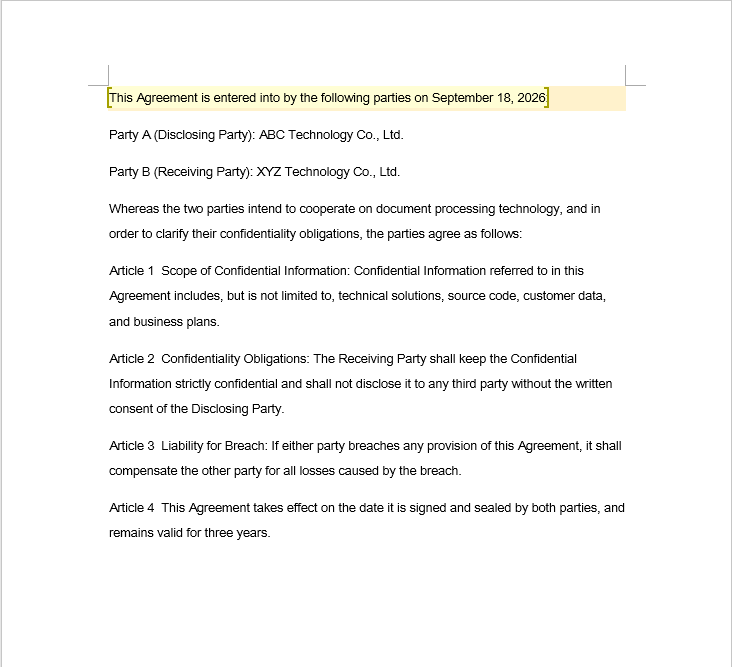
In the sample document, the places that need to be filled in are highlighted with light shading (a visual hint only — it has nothing to do with how the editable range is set). Once the editable range has been set, only the shaded paragraph can be modified, and the remaining clauses are read-only in Word.
Remove an Editable Range
Removing an editable range takes a single pass: walk each section and each paragraph of the document in turn, look for the PermissionStart and PermissionEnd objects in the paragraph's ChildObjects collection, and remove each one you find from the collection.
There is one detail that is easy to trip over: ChildObjects.Remove shrinks the collection immediately, so the indexes of the remaining elements all shift forward. The index must therefore not be incremented while removing, or every marker you delete causes the one right behind it to be skipped, leaving markers behind.
function App() {
  const RemoveEditableRange = async () => {
    const docModule = window.wasmModule?.spiredoc;
    if (!docModule) {
      alert('Spire.Doc is not ready yet');
      return;
    }

      // Load the input document into VFS
      const inputFileName = "RemoveEditableRange.docx";
      await window.spire.FetchFileToVFS(inputFileName, "", `${process.env.PUBLIC_URL}static/data/`);

      // Create a document object and load the document
      const doc = new docModule.Document();
      doc.LoadFromFile(inputFileName);

      // Iterate over every section and paragraph and delete the permission markers
      for (let i = 0; i < doc.Sections.Count; i++) {
        const section = doc.Sections.get_Item(i);
        for (let j = 0; j < section.Body.Paragraphs.Count; j++) {
          const paragraph = section.Body.Paragraphs.get_Item(j);

          // Remove on a match; the collection shrinks, so the index is not incremented
          for (let k = 0; k < paragraph.ChildObjects.Count;) {
            const obj = paragraph.ChildObjects.get_Item(k);
            if (obj instanceof docModule.PermissionStart || obj instanceof docModule.PermissionEnd) {
              paragraph.ChildObjects.Remove(obj);
            } else {
              k++;
            }
          }
        }
      }

      // Save the document
      const outputFileName = "Remove Editable Range.docx";
      doc.SaveToFile({ fileName: outputFileName, fileFormat: docModule.FileFormat.Docx2013 });

    // Release resources
    doc.Dispose();

    const modifiedFileArray = window.dotnetRuntime.Module.FS.readFile(outputFileName);
    const blob = new Blob([modifiedFileArray], { type: 'application/vnd.openxmlformats-officedocument.wordprocessingml.document' });
    const url = URL.createObjectURL(blob);
    const a = document.createElement('a');
    a.href = url;
    a.download = outputFileName;
    a.click();
    URL.revokeObjectURL(url);
  };

 return (
    <div style={{ textAlign: 'center', height: '300px' }}>
      <h1>Remove Editable Ranges from a Word Document</h1>
      <button onClick={RemoveEditableRange}>
        Generate
      </button>
    </div>
  );
}
export default App;
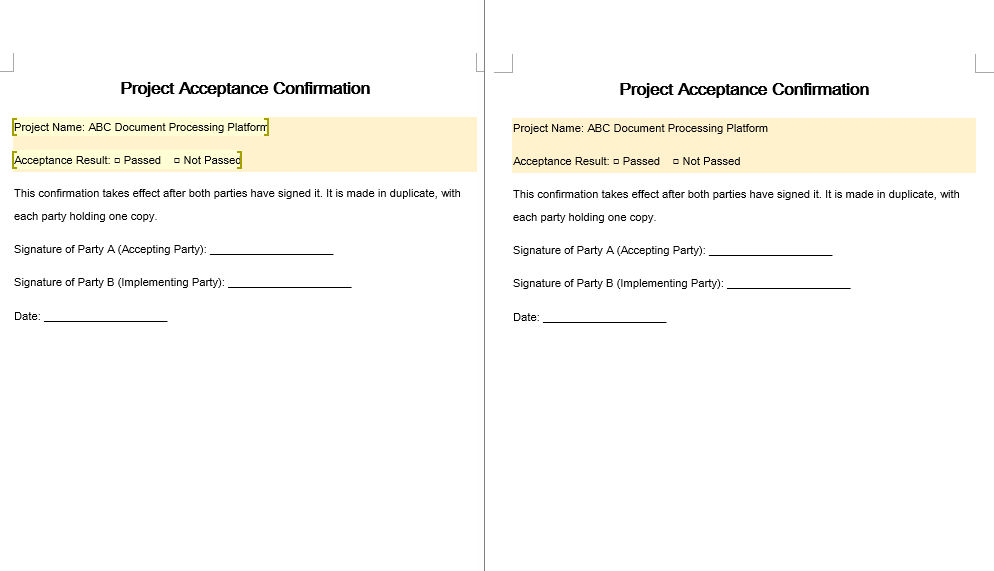
Removing the markers only affects how the editable area is divided; the text content and the formatting of the document do not change in any way.
FAQ
The editable range is set, but the content inside it still cannot be edited
Cause: The permission markers only take effect together with the document's editing restriction. If PermissionStart and PermissionEnd are inserted without calling Protect, the document never enters the protected state and the markers have no effect whatsoever; on top of that, the ids of the two markers must match exactly before Word recognizes them as one single editable range.
Solution: Enable the editing restriction first, and then create the paired markers with the same id:
// Enable protection first so that the markers mean something
document.Protect({ type: wasmModule.ProtectionType.AllowOnlyReading, password: "password" });

// The start and the end must use the same id
const start = new wasmModule.PermissionStart(document, "testID");
const end = new wasmModule.PermissionEnd(document, "testID");
Some markers are missed when removing editable ranges
Cause: ChildObjects.Remove shifts the indexes of all the subsequent elements in the collection forward. If the index is incremented while removing inside a for loop, every object that is removed causes the one right behind it to be skipped, and the more markers are left in the document, the more obvious the misses become.
Solution: Switch to "remove on a match, do not increment the index", or collect the objects to be removed first and then iterate backwards:
for (let k = 0; k < paragraph.ChildObjects.Count;) {
  const obj = paragraph.ChildObjects.get_Item(k);
  if (obj instanceof wasmModule.PermissionStart || obj instanceof wasmModule.PermissionEnd) {
    paragraph.ChildObjects.Remove(obj);
    // Do not increment k here: check the new object at the current index
  } else {
    k++;
  }
}
The document is still read-only after the markers are removed
Cause: PermissionStart and PermissionEnd only mark "which areas may be edited"; removing them does not turn off the document's editing restriction. The protection is still in effect, so at that point the whole document cannot be edited.
Solution: If the protection is no longer needed, call Unprotect after removing the markers; if the document was protected with a password, pass the password that was used at the time:
document.Unprotect("password");
Get a Free License
Spire.Doc for JavaScript offers a 30-day full-featured free trial license with no functional limitations. Apply here to evaluate before purchasing.
Add, Delete, and Replace Images in Word with JavaScript in React
2026-09-21 02:34:17 Written by Amy ZhaoWorking with images in Word documents is one of the most common requirements in day-to-day office development. Whether you are adding a company logo to a contract template, cleaning up leftover placeholder pictures in a document, or batch-replacing the stamps and icons in a report, manipulating images dynamically keeps document content in sync with your business data. Spire.Doc for JavaScript handles Word image processing entirely in the browser via WebAssembly, using a virtual file system (VFS) to manage fonts, documents, and image resources — no backend server required.
This article covers three core features:
- Add an image to a Word document
- Delete images from a Word document
- Replace images in a Word document
For installation and project setup, refer to Integrating Spire.Doc for JavaScript in a React Project. The examples below assume Spire.Doc is installed and the WebAssembly module is initialized.
Add an Image to a Word Document
Adding an image involves three phases: first, load the font files, the target Word document, and the image to be inserted into the WASM virtual file system via FetchFileToVFS; then instantiate a Document and load the file, get the target section and create a DocPicture object, call LoadImage to load the image and set its position, size, and text wrapping style, then use ChildObjects.Insert to insert the picture at the specified position in the specified paragraph; finally, save the document, read the generated file from VFS, wrap it as a Blob, and trigger a browser download.
function App() {
  const insertImage = async () => {
    const docModule = window.wasmModule?.spiredoc;
    if (!docModule) {
      alert('Spire.Doc is not ready yet');
      return;
    }
    // Load the input document into VFS
    const inputFileName = "BlankTemplate.docx";
    await window.spire.FetchFileToVFS(inputFileName, "", `${process.env.PUBLIC_URL}static/data/`);

    // Load the image file to be inserted into VFS
    const inputImgFileName = "Word.png";
    await window.spire.FetchFileToVFS(inputImgFileName, "", `${process.env.PUBLIC_URL}static/data/`);

    // Load the document
    let doc = new docModule.Document();
    doc.LoadFromFile(inputFileName);

    // Get the first section
    let section = doc.Sections.get_Item(0);

    // Add a heading paragraph
    let paragraph = section.AddParagraph();
    paragraph.AppendText("The sample demonstrates how to insert an image into a document.");
    paragraph.ApplyStyle({ builtinStyle: docModule.BuiltinStyle.Heading2 });

    // Add a new paragraph to hold the picture
    paragraph = section.AddParagraph();
    paragraph.AppendText("This is a picture.");

    // Create a picture object and load the image file
    let picture = new docModule.DocPicture(doc);
    picture.LoadImage({ imgFile: inputImgFileName });

    // Set the position of the picture
    picture.HorizontalPosition = 50.0;
    picture.VerticalPosition = 60.0;

    // Set the size of the picture
    picture.Width = 200;
    picture.Height = 200;

    // Set the text wrapping style of the picture
    picture.TextWrappingStyle = docModule.TextWrappingStyle.Through;

    // Insert the picture at the beginning of the paragraph (index 0)
    paragraph.ChildObjects.Insert(0, picture);

    // Save the document
    const outputFileName = "Insert Image.docx";
    doc.SaveToFile({ fileName: outputFileName, fileFormat: docModule.FileFormat.Docx });
    // Release resources
    doc.Dispose();

    const modifiedFileArray = window.dotnetRuntime.Module.FS.readFile(outputFileName);
    const blob = new Blob([modifiedFileArray], { type: 'application/vnd.openxmlformats-officedocument.wordprocessingml.document' });
    const url = URL.createObjectURL(blob);
    const a = document.createElement('a');
    a.href = url;
    a.download = outputFileName;
    a.click();
    URL.revokeObjectURL(url);
  };

 return (
    <div style={{ textAlign: 'center', height: '300px' }}>
      <h1>Insert an Image into a Word Document</h1>
      <button onClick={insertImage}>
        Generate
      </button>
    </div>
  );
}
export default App;
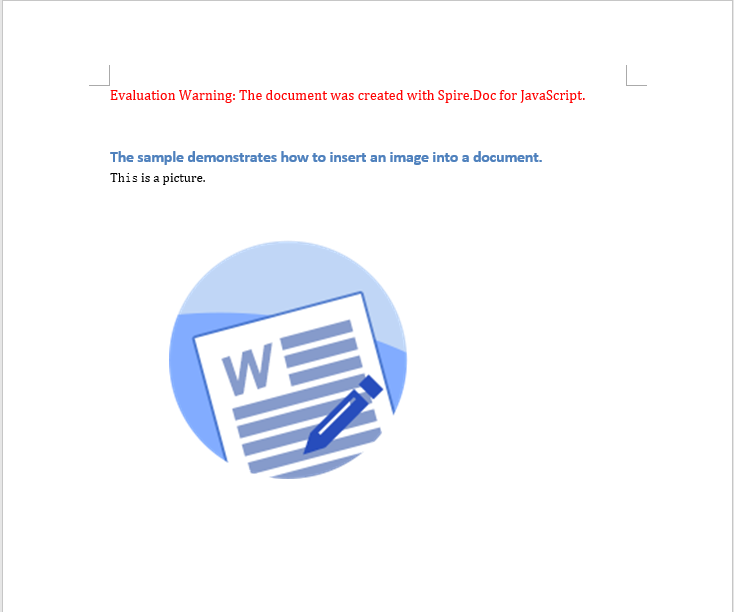
The code above loads the picture through DocPicture, sets its absolute position to (50, 60) and its size to 200×200, applies the Through text wrapping style, and finally inserts it at the beginning of the second paragraph
Delete Images from a Word Document
Deleting images also involves three phases: first, load the font files and the Word document to be processed into the WASM virtual file system via FetchFileToVFS; then instantiate a Document and load the file, walk the sections, the paragraphs, and the child objects inside each paragraph level by level, and use DocumentObjectType.Picture to determine whether an object is a picture — if it is, call ChildObjects.Remove to remove it from the paragraph; finally, save the document, read the generated file from VFS, wrap it as a Blob, and trigger a browser download.
function App() {
  const RemoveImage = async () => {
    const docModule = window.wasmModule?.spiredoc;
    if (!docModule) {
      alert('Spire.Doc is not ready yet');
      return;
    }
   // Load the input document into VFS
      const inputFileName = "ImageTemplate.docx";
      await window.spire.FetchFileToVFS(inputFileName, "", `${process.env.PUBLIC_URL}/static/data/`);

      // Load the document
      let doc = new docModule.Document();
      doc.LoadFromFile(inputFileName);

      let removedCount = 0;

      // Iterate over every section and paragraph and delete the pictures in each paragraph
      for (let i = 0; i < doc.Sections.Count; i++) {
        let sec = doc.Sections.get_Item(i);
        for (let j = 0; j < sec.Paragraphs.Count; j++) {
          let para = sec.Paragraphs.get_Item(j);

          // Collect all the picture objects in the paragraph
          let pictures = [];
          for (let k = 0; k < para.ChildObjects.Count; k++) {
            let docObj = para.ChildObjects.get_Item(k);
            if (docObj.DocumentObjectType == docModule.DocumentObjectType.Picture) {
              pictures.push(docObj);
            }
          }

          // Remove the pictures from the paragraph one by one
          for (let m = 0; m < pictures.length; m++) {
            para.ChildObjects.Remove(pictures[m]);
            removedCount++;
          }
        }
      }

      // Save the document
      const outputFileName = "Delete Image.docx";
      doc.SaveToFile({ fileName: outputFileName, fileFormat: docModule.FileFormat.Docx });
    // Release resources
    doc.Dispose();

    const modifiedFileArray = window.dotnetRuntime.Module.FS.readFile(outputFileName);
    const blob = new Blob([modifiedFileArray], { type: 'application/vnd.openxmlformats-officedocument.wordprocessingml.document' });
    const url = URL.createObjectURL(blob);
    const a = document.createElement('a');
    a.href = url;
    a.download = outputFileName;
    a.click();
    URL.revokeObjectURL(url);
  };

 return (
    <div style={{ textAlign: 'center', height: '300px' }}>
      <h1>Delete Images from a Word Document</h1>
      <button onClick={RemoveImage}>
        Generate
      </button>
    </div>
  );
}
export default App;
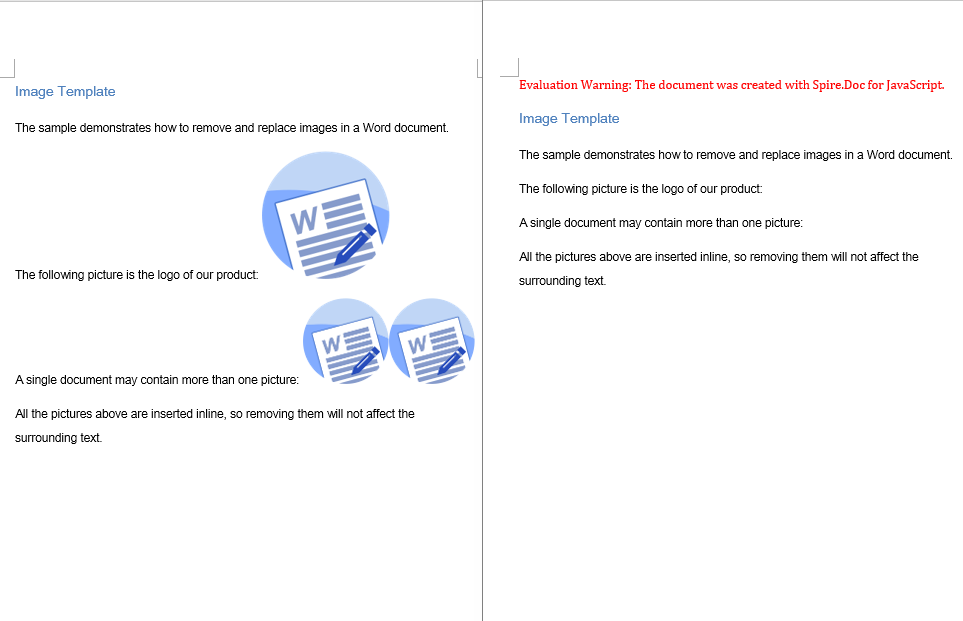
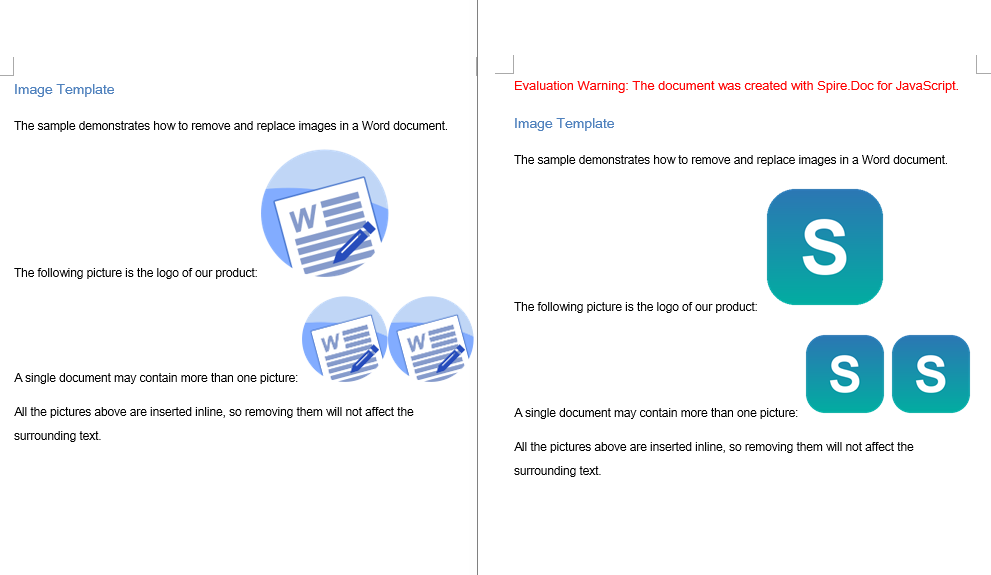
The code above walks the document structure and removes every picture object, while the text content and formatting in the paragraphs stay unchanged. The picture on the left is the document before deletion, and the one on the right is the same document after all the images have been removed
Replace Images in a Word Document
Replacing an image can be seen as a combination of deleting and adding. It involves three phases: first, load the font files, the target Word document, and the new image file into the WASM virtual file system via FetchFileToVFS; then walk the sections and paragraphs, locate the picture objects and record their index within the paragraph, their original size, and their text wrapping style, call ChildObjects.Remove to remove the old picture, and then create a new DocPicture and insert it at the original index with the same parameters; finally, save the document, read the generated file from VFS, wrap it as a Blob, and trigger a browser download.
function App() {
  const ReplaceImage = async () => {
    const docModule = window.wasmModule?.spiredoc;
    if (!docModule) {
      alert('Spire.Doc is not ready yet');
      return;
    }

      // Load the input document into VFS
      const inputFileName = "ImageTemplate.docx";
      await window.spire.FetchFileToVFS(inputFileName, "", `${process.env.PUBLIC_URL}/static/data/`);

      // Load the new picture that will take the place of the old ones into VFS
      const inputImgFileName = "NewLogo.png";
      await window.spire.FetchFileToVFS(inputImgFileName, "", `${process.env.PUBLIC_URL}/static/data/`);

      // Load the document
      let doc = new docModule.Document();
      doc.LoadFromFile(inputFileName);

      // Iterate over every section and paragraph and replace the pictures in each paragraph
      for (let i = 0; i < doc.Sections.Count; i++) {
        let sec = doc.Sections.get_Item(i);
        for (let j = 0; j < sec.Paragraphs.Count; j++) {
          let para = sec.Paragraphs.get_Item(j);

          // Collect the picture objects in the paragraph along with their index in ChildObjects
          let pictures = [];
          for (let k = 0; k < para.ChildObjects.Count; k++) {
            let docObj = para.ChildObjects.get_Item(k);
            if (docObj.DocumentObjectType == docModule.DocumentObjectType.Picture) {
              pictures.push({ index: k, picture: docObj });
            }
          }

          // Iterate backwards so that removing an object does not shift the remaining indexes
          for (let m = pictures.length - 1; m >= 0; m--) {
            let index = pictures[m].index;
            let picture = pictures[m].picture;

            // Record the size and the text wrapping style of the original picture
            let width = picture.Width;
            let height = picture.Height;
            let wrappingStyle = picture.TextWrappingStyle;

            // Remove the original picture
            para.ChildObjects.Remove(picture);

            // Create a new picture that keeps the size and wrapping style of the original one
            let newPicture = new docModule.DocPicture(doc);
            newPicture.LoadImage({ imgFile: inputImgFileName });
            newPicture.Width = width;
            newPicture.Height = height;
            newPicture.TextWrappingStyle = wrappingStyle;

            // Insert the new picture at the original index
            para.ChildObjects.Insert(index, newPicture);
          }
        }
      }

      // Save the document
      const outputFileName = "Replace Image.docx";
      doc.SaveToFile({ fileName: outputFileName, fileFormat: docModule.FileFormat.Docx });
    // Release resources
    doc.Dispose();

    const modifiedFileArray = window.dotnetRuntime.Module.FS.readFile(outputFileName);
    const blob = new Blob([modifiedFileArray], { type: 'application/vnd.openxmlformats-officedocument.wordprocessingml.document' });
    const url = URL.createObjectURL(blob);
    const a = document.createElement('a');
    a.href = url;
    a.download = outputFileName;
    a.click();
    URL.revokeObjectURL(url);
  };

 return (
    <div style={{ textAlign: 'center', height: '300px' }}>
      <h1>Replace Images in a Word Document</h1>
      <button onClick={ReplaceImage}>
        Generate
      </button>
    </div>
  );
}
export default App;
The code above removes each original picture while inserting the new picture at the index the original one occupied, reusing its size and its wrapping style, so the layout of the document is exactly the same as before the replacement
FAQ
The inserted image does not show up, or the image file cannot be found
Cause: The image file has not been loaded into the WASM virtual file system, or the path passed to FetchFileToVFS does not match the actual location of the file, so LoadImage cannot read the image data from VFS.
Solution: Load the image into VFS with FetchFileToVFS before inserting it, and make sure the target file name matches the file name passed to LoadImage:
await window.spire.FetchFileToVFS(
  'Word.png', '', `${process.env.PUBLIC_URL}static/data/`
);
let picture = new wasmModule.DocPicture(doc);
picture.LoadImage({ imgFile: 'Word.png' });
Images are left behind, or end up misplaced, after deletion or replacement
Cause: ChildObjects.Remove shifts the indexes of all subsequent child objects forward. If you read ChildObjects.Count while removing objects in the same loop, some of the pictures are skipped; and when replacing, inserting at the new index taken after the removal puts the picture at the wrong position.
Solution: Collect the picture objects and their original indexes in one pass first, then iterate backwards over that collection, and insert the new picture at the original index that was recorded:
// Collect the pictures and their indexes first
pictures.push({ index: k, picture: docObj });

// Then iterate backwards, removing each picture and inserting the new one back at its original index
for (let m = pictures.length - 1; m >= 0; m--) {
  para.ChildObjects.Remove(pictures[m].picture);
  para.ChildObjects.Insert(pictures[m].index, newPicture);
}
Get a Free License
Spire.Doc for JavaScript offers a 30-day full-featured free trial license with no functional limitations. Apply here to evaluate before purchasing.
Add, Delete, and Modify Shapes in Word with JavaScript in React
2026-09-21 02:33:48 Written by Amy ZhaoWorking with shapes in Word documents is one of the most common requirements in day-to-day office development. Whether you are stamping a rounded-rectangle signature box onto a contract template, annotating approval steps with a group of flowchart shapes, cleaning up leftover decorative shapes in a document, or restyling the shapes in an old template to match a new brand palette, manipulating shapes dynamically keeps document content in sync with your business data. Spire.Doc for JavaScript handles Word shapes entirely in the browser via WebAssembly, using a virtual file system (VFS) to manage fonts, documents, and image resources — no backend server required.
This article covers three core features:
For installation and project setup, refer to Integrating Spire.Doc for JavaScript in a React Project. The examples below assume Spire.Doc is installed and the WebAssembly module is initialized.
Add Shapes to a Word Document
Adding shapes involves three phases: first, load the font files into the WASM virtual file system via FetchFileToVFS; then instantiate a Document, add a section and a paragraph in turn, and call Paragraph.AppendShape to insert a shape of the specified type and size into the paragraph, anchoring it to the page with HorizontalOrigin/VerticalOrigin while setting its absolute coordinates through HorizontalPosition/VerticalPosition; finally, save the document, read the generated file from VFS, wrap it as a Blob, and trigger a browser download.
function App() {
  const appendShape = async () => {

    const docModule = window.wasmModule?.spiredoc;

    if (!docModule) {
      alert('Spire.Doc is not ready yet');
      return;
    }

      // Create a new document
    const doc = new docModule.Document();

      // Add a section
    let sec = doc.AddSection();

      // Add a paragraph to hold the shapes
    let paragraph = sec.AddParagraph();

    let x = 60, y = 40, lineCount = 0;
    for (let i = 1; i < 20; i++) {
      if (lineCount > 0 && lineCount % 8 == 0) {
        // Start a new page once 8 rows are filled, and reset the starting coordinates
        paragraph.AppendBreak(docModule.BreakType.PageBreak);
        x = 60;
        y = 40;
        lineCount = 0;
      }

        // Add a shape and set its size
      let shape = paragraph.AppendShape(50, 50, docModule.ShapeType.fromValue(i));

      // Position the shape in absolute coordinates relative to the page
      shape.HorizontalOrigin = docModule.HorizontalOrigin.Page;
      shape.HorizontalPosition = x;
      shape.VerticalOrigin = docModule.VerticalOrigin.Page;
      shape.VerticalPosition = y + 50;

      // Calculate the coordinates of the next shape
      x = x + shape.Width + 50;
      if (i > 0 && i % 5 == 0) {
        y = y + shape.Height + 120;
        lineCount++;
        x = 60;
        }
    }

    // Save the document
    const outputFileName = "Add Shapes.docx";
    doc.SaveToFile({ fileName: outputFileName, fileFormat: docModule.FileFormat.Docx });
    // Release resources
    doc.Dispose();

    const modifiedFileArray = window.dotnetRuntime.Module.FS.readFile(outputFileName);
    const blob = new Blob([modifiedFileArray], { type: 'application/vnd.openxmlformats-officedocument.wordprocessingml.document' });
    const url = URL.createObjectURL(blob);
    const a = document.createElement('a');
    a.href = url;
    a.download = outputFileName;
    a.click();
    URL.revokeObjectURL(url);
  };

 return (
    <div style={{ textAlign: 'center', height: '300px' }}>
      <h1>Add Shapes to a Word Document</h1>
      <button onClick={appendShape}>
        Generate
      </button>
    </div>
  );
}
export default App;
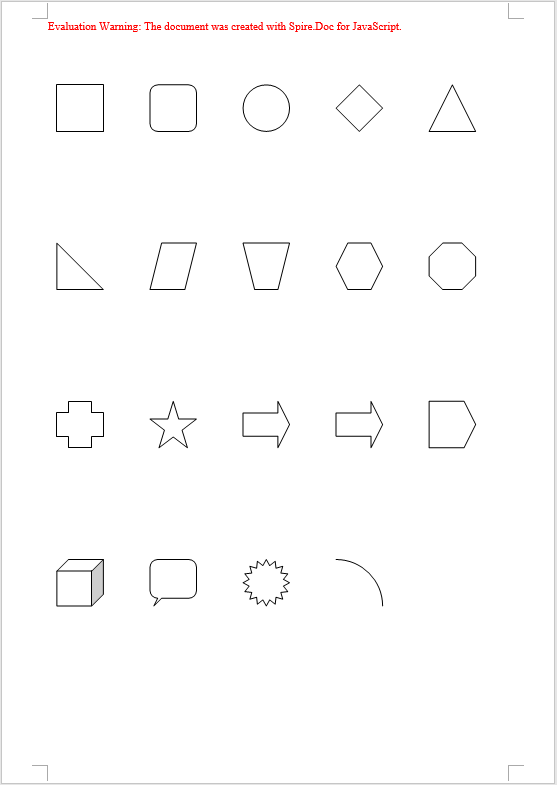
The code above inserts 19 different preset shapes in a loop, each 50×50, retrieving the shape type one by one with ShapeType.fromValue(i) and laying them out in rows and columns from the page origin — 5 shapes per row, and an automatic page break via AppendBreak once 8 rows are filled
When you need to insert several related shapes at once — building a flowchart out of rectangles, parallelograms, and arrows, for example — you can instead call Paragraph.AppendShapeGroup to create a shape group first, then add text boxes, arrows, and other child shapes to it with ChildObjects.Add so they are laid out together. Coordinates inside a shape group are relative to the group itself, so you need to work out the scale factor with Width / 1000.0 and Height / 1000.0, then divide the target coordinates of each child shape by that factor before assigning them to HorizontalPosition/VerticalPosition. A text box is created with new wasmModule.TextBox(doc) and its outline specified through SetShapeType; its Format.LineColor sets the stroke color in exactly the same way as StrokeColor does for a regular shape.
Delete Shapes from a Word Document
Deleting shapes involves three phases: first, load the font files and the Word document to be processed into the WASM virtual file system via FetchFileToVFS; then instantiate a Document and load the file, walk the sections and paragraphs of the document level by level, and use DocumentObjectType to determine whether a child object in a paragraph is a shape — regular shapes and text boxes in a document both exist as type Shape, shape groups are ShapeGroup, while a text box created in memory with new wasmModule.TextBox(doc) and not yet saved is reported separately as TextBox, so all three types must be checked; once identified, collect the objects and remove them from the paragraph one by one with ChildObjects.Remove; finally, save the document, read the generated file from VFS, wrap it as a Blob, and trigger a browser download.
function App() {
  const removeShape = async () => {
    const docModule = window.wasmModule?.spiredoc;
    if (!docModule) {
      alert('Spire.Doc is not ready yet');
      return;
    }
    const inputFileName = 'ShapeTemplate.docx';
    await window.spire.FetchFileToVFS(inputFileName, '', `${process.env.PUBLIC_URL}static/data/`);

   // Load the document
    let doc = new docModule.Document();
    doc.LoadFromFile(inputFileName);

    let removedCount = 0;

    // Iterate over every section and paragraph and delete the shapes in each paragraph
    for (let i = 0; i < doc.Sections.Count; i++) {
      let sec = doc.Sections.get_Item(i);
      for (let j = 0; j < sec.Paragraphs.Count; j++) {
        let para = sec.Paragraphs.get_Item(j);

        // Collect the shapes in the paragraph in one pass: regular shapes and text boxes are Shape, shape groups are ShapeGroup
        let shapes = [];
        for (let k = 0; k < para.ChildObjects.Count; k++) {
          let docObj = para.ChildObjects.get_Item(k);
          let objType = docObj.DocumentObjectType;
          if (objType == docModule.DocumentObjectType.Shape
            || objType == docModule.DocumentObjectType.ShapeGroup
            || objType == docModule.DocumentObjectType.TextBox) {
              shapes.push(docObj);
    }
        }

        // Remove the shapes from the paragraph one by one
        for (let m = 0; m < shapes.length; m++) {
         para.ChildObjects.Remove(shapes[m]);
         removedCount++;
        }
      }
    }

    // Save the document
    const outputFileName = "Delete Shapes.docx";
    doc.SaveToFile({ fileName: outputFileName, fileFormat: docModule.FileFormat.Docx });

    // Release resources
    doc.Dispose();

    const modifiedFileArray = window.dotnetRuntime.Module.FS.readFile(outputFileName);
    const blob = new Blob([modifiedFileArray], { type: 'application/vnd.openxmlformats-officedocument.wordprocessingml.document' });
    const url = URL.createObjectURL(blob);
    const a = document.createElement('a');
    a.href = url;
    a.download = outputFileName;
    a.click();
    URL.revokeObjectURL(url);
  };

 return (
    <div style={{ textAlign: 'center', height: '300px' }}>
      <h1>Delete Shapes from a Word Document</h1>
      <button onClick={removeShape}>
        Generate
      </button>
    </div>
  );
}
export default App;
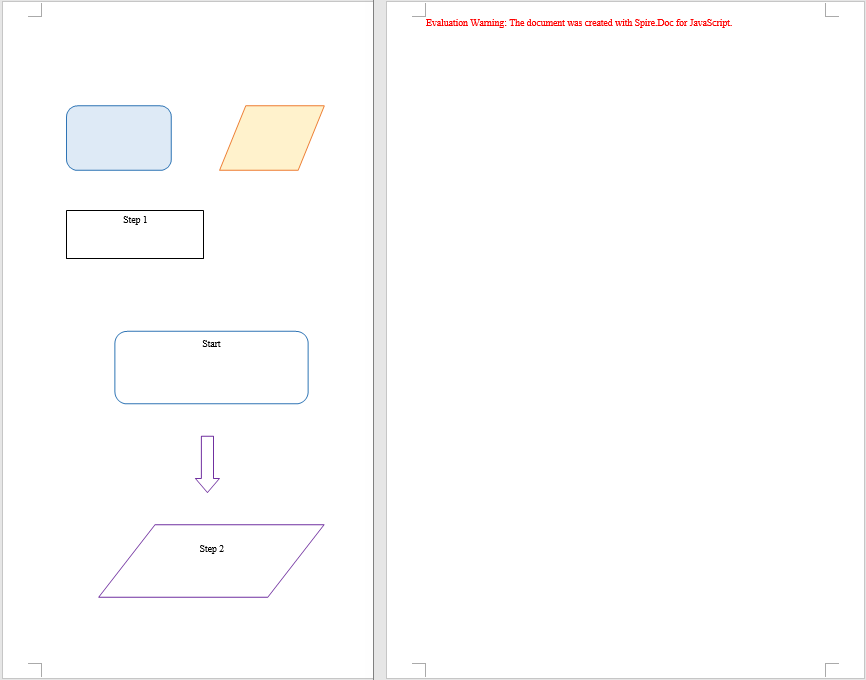
The code above walks the document structure and removes every shape on the page, while the text content and formatting in the paragraphs stay unchanged
Modify Shapes in a Word Document
Modifying shapes involves three phases: first, load the font files and the Word document to be processed into the WASM virtual file system via FetchFileToVFS; then instantiate a Document and load the file, walk the sections and paragraphs to locate the shape objects within them, and for regular shapes and text boxes set FillColor and StrokeColor directly to change the colors and set Rotation, Width, and Height to adjust the rotation angle and size, while for a shape group you drill down into its ChildObjects and modify each child shape in turn; finally, save the document, read the generated file from VFS, wrap it as a Blob, and trigger a browser download.
function App() {
  const modifyShape = async () => {
    const docModule = window.wasmModule?.spiredoc;
    if (!docModule) {
      alert('Spire.Doc is not ready yet');
      return;
    }
    const inputFileName = 'ShapeTemplate.docx';
    await window.spire.FetchFileToVFS(inputFileName, '', `${process.env.PUBLIC_URL}static/data/`);

    // Load the document
    let doc = new docModule.Document();
    doc.LoadFromFile(inputFileName);

    // Iterate over every section and paragraph and modify the shapes in each paragraph
    for (let i = 0; i < doc.Sections.Count; i++) {
      let sec = doc.Sections.get_Item(i);
      for (let j = 0; j < sec.Paragraphs.Count; j++) {
        let para = sec.Paragraphs.get_Item(j);
        for (let k = 0; k < para.ChildObjects.Count; k++) {
          let docObj = para.ChildObjects.get_Item(k);
          let objType = docObj.DocumentObjectType;

          // Modify the fill color, outline color, rotation, and size of regular shapes and text boxes
          if (objType == docModule.DocumentObjectType.Shape) {
            docObj.FillColor = docModule.Color.get_Orange();
            docObj.StrokeColor = docModule.Color.get_Red();
            docObj.Rotation = 15;
            docObj.Width = docObj.Width * 1.2;
            docObj.Height = docObj.Height * 1.2;
          }

          // Modify a shape group: drill into the group and change the outline color of each child shape
          if (objType == docModule.DocumentObjectType.ShapeGroup) {
            for (let n = 0; n < docObj.ChildObjects.Count; n++) {
              let child = docObj.ChildObjects.get_Item(n);
              child.StrokeColor = docModule.Color.get_Purple();
            }
          }
        }
      }
    }

    // Save the document
    const outputFileName = "Modify Shapes.docx";
    doc.SaveToFile({ fileName: outputFileName, fileFormat: docModule.FileFormat.Docx });

    // Release resources
    doc.Dispose();

    const modifiedFileArray = window.dotnetRuntime.Module.FS.readFile(outputFileName);
    const blob = new Blob([modifiedFileArray], { type: 'application/vnd.openxmlformats-officedocument.wordprocessingml.document' });
    const url = URL.createObjectURL(blob);
    const a = document.createElement('a');
    a.href = url;
    a.download = outputFileName;
    a.click();
    URL.revokeObjectURL(url);
  };

 return (
    <div style={{ textAlign: 'center', height: '300px' }}>
      <h1>Modify Existing Shapes in a Word Document</h1>
      <button onClick={modifyShape}>
        Generate
      </button>
    </div>
  );
}
export default App;
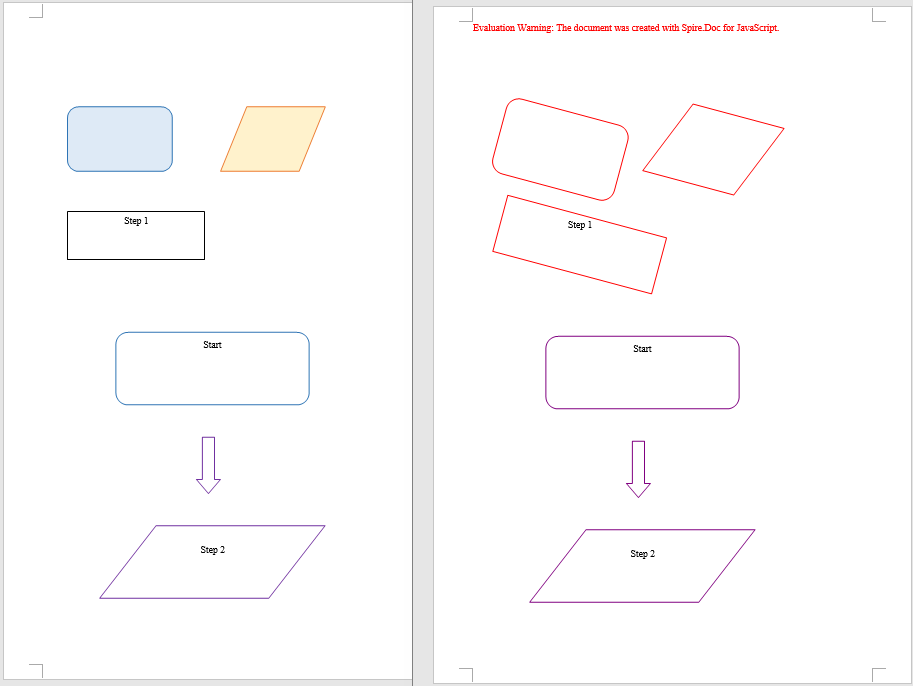
The code above keeps each shape's original position and text while restyling every shape in the document with an orange fill and a red outline, scaling it up to 120% and rotating it 15 degrees, and the child shapes inside shape groups get the new outline color as well
FAQ
Shapes end up misplaced or pushed off the page after being added
Cause: The meaning of the coordinates in HorizontalPosition/VerticalPosition depends on the frame of reference (the origin). If HorizontalOrigin/VerticalOrigin are not set explicitly, the coordinates default to the paragraph or the column, so they shift along with paragraph indentation and page margins, and the shape drifts away from the intended position.
Solution: Specify the frame of reference with HorizontalOrigin/VerticalOrigin first, and then set the coordinate values:
// Position the shape relative to the page
shape.HorizontalOrigin = wasmModule.HorizontalOrigin.Page;
shape.HorizontalPosition = x;
shape.VerticalOrigin = wasmModule.VerticalOrigin.Page;
shape.VerticalPosition = y + 50;
Some objects are missed when deleting shapes
Cause: In Spire.Doc a shape does not have just one DocumentObjectType: regular shapes and text boxes are uniformly Shape, shape groups are ShapeGroup, and a text box created in memory and not yet saved is TextBox. Checking only for Shape will miss shape groups and unsaved text boxes. On top of that, ChildObjects.Remove shifts the indexes of all subsequent child objects forward, so reading ChildObjects.Count while removing during the same loop will also skip some objects.
Solution: Collect all three types into an array in one pass first, then process the array one item at a time; when modifying the child shapes inside a shape group, drill down into its ChildObjects and iterate separately:
// Collect the shape objects of all three types first
if (objType == wasmModule.DocumentObjectType.Shape
  || objType == wasmModule.DocumentObjectType.ShapeGroup
  || objType == wasmModule.DocumentObjectType.TextBox) {
  shapes.push(docObj);
}

// Then remove them together
for (let m = 0; m < shapes.length; m++) {
  para.ChildObjects.Remove(shapes[m]);
}
Get a Free License
Spire.Doc for JavaScript offers a 30-day full-featured free trial license with no functional limitations. Apply here to evaluate before purchasing.
Product catalogs, checklists, step-by-step instructions, and clause summaries all read most clearly in a PDF when they are laid out as lists. Typing them out one by one in an editor is workable, but once the entries have to follow the data — exporting a category table or a to-do list to PDF, for example — manual layout stops keeping up: the number of entries, the numbering order, and the indentation levels all have to come from the data.
This article shows how to use Spire.PDF for JavaScript to create unordered lists, ordered lists, and multilevel lists, where unordered lists come in two forms: built-in markers and image markers. It runs on WebAssembly to create and save PDF documents directly in the browser, doing all the work locally and reading and writing files through a virtual file system (VFS) with no backend involved.
This article covers four core features:
- Create an Unordered List in a PDF Page
- Create an Unordered List with Images in a PDF Page
- Create an Ordered List in a PDF Page
- Create a Multilevel List in a PDF Page
Different list types use different classes and marker objects. Pick from the table below:
| List type | List class | Marker configuration | Common values |
|---|---|---|---|
| Unordered list (built-in markers) | PdfList |
PdfMarker + PdfUnorderedMarkerStyle |
Disk, Square, Circle, Asterisk |
| Unordered list (image markers) | PdfList |
the image parameter of PdfMarker (the style becomes CustomImage automatically) |
Any image, scaled to the text line height |
| Ordered list (numbers) | PdfSortedList |
PdfOrderedMarker + PdfNumberStyle (Suffix changes the number suffix, StartNumber changes the starting number) |
Numeric, LowerLatin, UpperLatin, LowerRoman, UpperRoman |
| Multilevel list (nested) | PdfList / PdfSortedList + the list item's SubList |
each level's own Marker and Indent |
the top level and the sublevel can each use a different marker or number style |
For installation and project configuration, see Integrate Spire.PDF for JavaScript into a React Project. The examples below assume Spire.PDF is installed and the WebAssembly module is initialized.
Create an Unordered List in a PDF Page
Spire.PDF for JavaScript provides PdfList to create lists, switching the marker shape through the PdfUnorderedMarkerStyle enumeration.
function App() {
  const createBulletLists = async () => {
    // Get the Spire.PDF WASM module
    const pdfModule = window.wasmModule?.spirepdf;

    // Check whether the module is ready
    if (!pdfModule) {
      alert('Spire.PDF is not ready yet');
      return;
    }

    // Load the font into the VFS for the list text
    await window.spire.FetchFileToVFS('ARIAL UNICODE MS.TTF', '/Library/Fonts/', `${process.env.PUBLIC_URL}/font/`);

    // Create a PDF document and add a blank page
    const doc = new pdfModule.PdfDocument();
    const page = doc.Pages.Add();

    // Font and item content for the list
    const font = new pdfModule.PdfTrueTypeFont({ fontFile: '/Library/Fonts/ARIAL UNICODE MS.TTF', size: 12 });
    const items = ['Fruit Juice', 'Condiments', 'Confectionery', 'Dairy Products', 'Grains & Cereals', 'Meat & Poultry', 'Fruits & Vegetables', 'Seafood'];

    // First list: add items one by one, with Square markers
    const list = new pdfModule.PdfList({ font: font });
    for (const item of items) {
      list.Items.Add(item);
    }
    list.Marker = new pdfModule.PdfMarker({ style: pdfModule.PdfUnorderedMarkerStyle.Square });
    // Brush affects both the marker and the list text
    list.Brush = new pdfModule.PdfSolidBrush({ pdfRGBColor: new pdfModule.PdfRGBColor({ color: pdfModule.Color.get_Navy() }) });
    list.Indent = 10;
    list.TextIndent = 6;
    const first = list.Draw({ page: page, x: 0, y: 40 });

    // Second list drawn below the first one, with Circle markers
    const list2 = new pdfModule.PdfList({ font: font });
    for (const item of items) {
      list2.Items.Add(item);
    }
    list2.Marker = new pdfModule.PdfMarker({ style: pdfModule.PdfUnorderedMarkerStyle.Circle });
    list2.Brush = pdfModule.PdfBrushes.get_Black();
    list2.Indent = 10;
    list2.TextIndent = 6;
    list2.Draw({ page: page, x: 0, y: first.Bounds.Bottom + 20 });

    // Save and read back from the VFS to trigger the download
    const outputFileName = 'BulletList.pdf';
    doc.SaveToFile(outputFileName);
    doc.Close();

    const fileArray = window.dotnetRuntime.Module.FS.readFile(outputFileName);
    const blob = new Blob([fileArray], { type: 'application/pdf' });
    const url = URL.createObjectURL(blob);
    const a = document.createElement('a');
    a.href = url;
    a.download = outputFileName;
    a.click();
    URL.revokeObjectURL(url);
  };

  return (
    <div style={{ textAlign: 'center', height: '300px' }}>
      <h1>Create an Unordered List</h1>
      <button onClick={createBulletLists}>
        Create
      </button>
    </div>
  );
}

export default App;
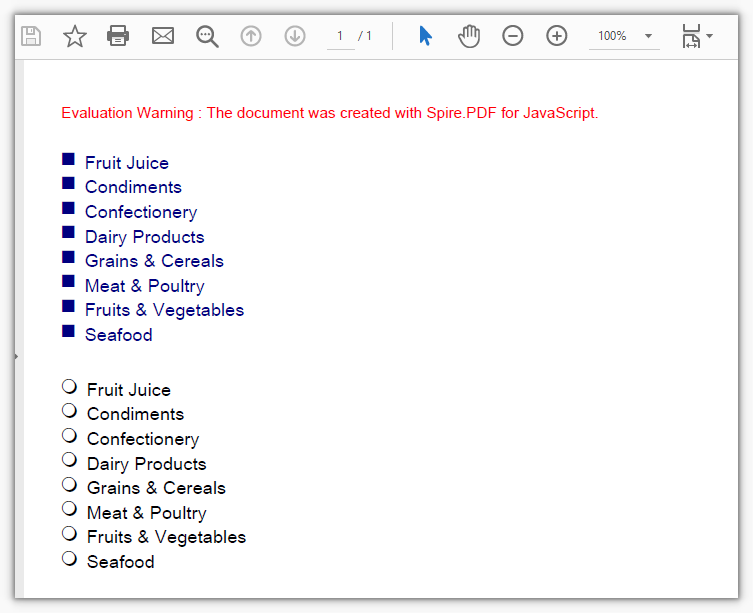
Two unordered lists of the same content, using Square and Circle markers
Create an Unordered List with Images in a PDF Page
Spire.PDF for JavaScript also provides PdfImage to read an image; hand it to PdfMarker and it becomes the bullet marker, with the style switching to CustomImage automatically.
function App() {
  const createImageBulletList = async () => {
    // Get the Spire.PDF WASM module
    const pdfModule = window.wasmModule?.spirepdf;

    // Check whether the module is ready
    if (!pdfModule) {
      alert('Spire.PDF is not ready yet');
      return;
    }

    // Load the font and the bullet image into the VFS
    await window.spire.FetchFileToVFS('ARIAL UNICODE MS.TTF', '/Library/Fonts/', `${process.env.PUBLIC_URL}/font/`);
    await window.spire.FetchFileToVFS('logo.png', '', `${process.env.PUBLIC_URL}/data/`);

    // Create a PDF document and add a blank page
    const doc = new pdfModule.PdfDocument();
    const page = doc.Pages.Add();

    // Font and item content for the list
    const font = new pdfModule.PdfTrueTypeFont({ fontFile: '/Library/Fonts/ARIAL UNICODE MS.TTF', size: 12 });
    const items = ['Fruit Juice', 'Condiments', 'Confectionery', 'Dairy Products', 'Grains & Cereals', 'Meat & Poultry', 'Fruits & Vegetables', 'Seafood'];

    // Read the image and hand it to PdfMarker as the marker; the style becomes CustomImage automatically
    const image = pdfModule.PdfImage.FromFile('logo.png');
    const marker = new pdfModule.PdfMarker({ image: image });

    // Add items one by one and apply the image marker
    const list = new pdfModule.PdfList({ font: font });
    for (const item of items) {
      list.Items.Add(item);
    }
    list.Marker = marker;
    list.Brush = pdfModule.PdfBrushes.get_Black();
    list.Indent = 10;
    list.TextIndent = 6;
    list.Draw({ page: page, x: 0, y: 40 });

    // Save and read back from the VFS to trigger the download
    const outputFileName = 'ImageBulletList.pdf';
    doc.SaveToFile(outputFileName);
    doc.Close();

    const fileArray = window.dotnetRuntime.Module.FS.readFile(outputFileName);
    const blob = new Blob([fileArray], { type: 'application/pdf' });
    const url = URL.createObjectURL(blob);
    const a = document.createElement('a');
    a.href = url;
    a.download = outputFileName;
    a.click();
    URL.revokeObjectURL(url);
  };

  return (
    <div style={{ textAlign: 'center', height: '300px' }}>
      <h1>Create an Unordered List with Images</h1>
      <button onClick={createImageBulletList}>
        Create
      </button>
    </div>
  );
}

export default App;
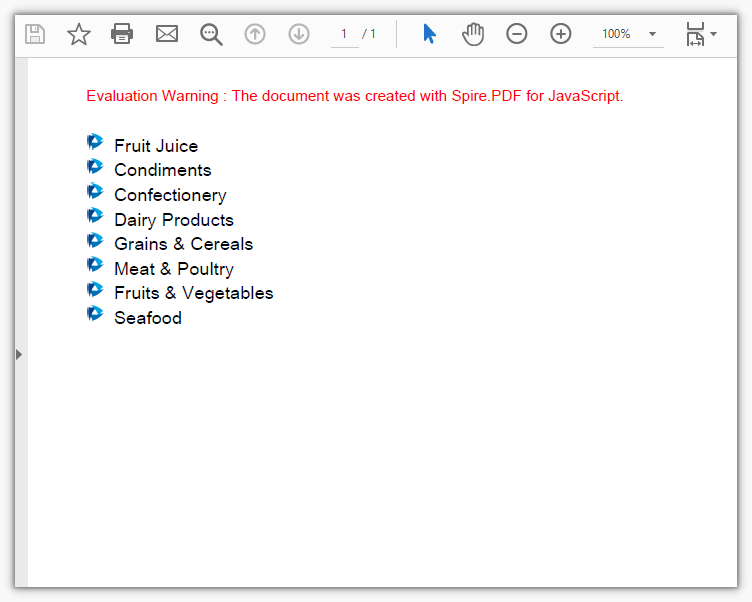
An unordered list using logo.png as the bullet marker
Create an Ordered List in a PDF Page
An ordered list is created by PdfSortedList, its numbers increment automatically with the items, and the number format is decided by the PdfNumberStyle enumeration on PdfOrderedMarker.
function App() {
  const createOrderedLists = async () => {
    // Get the Spire.PDF WASM module
    const pdfModule = window.wasmModule?.spirepdf;

    // Check whether the module is ready
    if (!pdfModule) {
      alert('Spire.PDF is not ready yet');
      return;
    }

    // Load the font into the VFS for the list text
    await window.spire.FetchFileToVFS('ARIAL UNICODE MS.TTF', '/Library/Fonts/', `${process.env.PUBLIC_URL}/font/`);

    // Create a PDF document and add a blank page
    const doc = new pdfModule.PdfDocument();
    const page = doc.Pages.Add();

    // Font and item content for the list
    const font = new pdfModule.PdfTrueTypeFont({ fontFile: '/Library/Fonts/ARIAL UNICODE MS.TTF', size: 12 });
    const items = ['Fruit Juice', 'Condiments', 'Confectionery', 'Dairy Products'];

    // First list: Arabic numerals, with "." as the default number suffix
    const list = new pdfModule.PdfSortedList({
      marker: new pdfModule.PdfOrderedMarker({ style: pdfModule.PdfNumberStyle.Numeric, font: font }),
    });
    list.Font = font;
    for (const item of items) {
      list.Items.Add(item);
    }
    list.Indent = 12;
    list.TextIndent = 6;
    list.Brush = pdfModule.PdfBrushes.get_Black();
    const first = list.Draw({ page: page, x: 0, y: 40 });

    // Second list: uppercase Roman numerals, with the suffix changed to ")"
    const marker = new pdfModule.PdfOrderedMarker({ style: pdfModule.PdfNumberStyle.UpperRoman, font: font });
    marker.Suffix = ')';
    const list2 = new pdfModule.PdfSortedList({ marker: marker });
    list2.Font = font;
    for (const item of items) {
      list2.Items.Add(item);
    }
    list2.Indent = 12;
    list2.TextIndent = 6;
    list2.Brush = pdfModule.PdfBrushes.get_Black();
    list2.Draw({ page: page, x: 0, y: first.Bounds.Bottom + 20 });

    // Save and read back from the VFS to trigger the download
    const outputFileName = 'NumberedList.pdf';
    doc.SaveToFile(outputFileName);
    doc.Close();

    const fileArray = window.dotnetRuntime.Module.FS.readFile(outputFileName);
    const blob = new Blob([fileArray], { type: 'application/pdf' });
    const url = URL.createObjectURL(blob);
    const a = document.createElement('a');
    a.href = url;
    a.download = outputFileName;
    a.click();
    URL.revokeObjectURL(url);
  };

  return (
    <div style={{ textAlign: 'center', height: '300px' }}>
      <h1>Create an Ordered List</h1>
      <button onClick={createOrderedLists}>
        Create
      </button>
    </div>
  );
}

export default App;
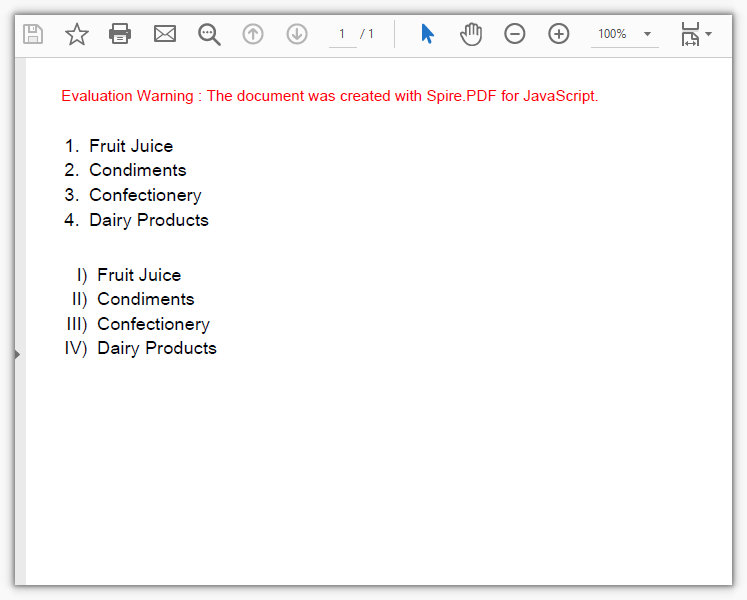
Ordered lists created with Arabic numerals and uppercase Roman numerals
Create a Multilevel List in a PDF Page
A multilevel list is built on the SubList property of an item: attach a sublist to an item and it gains one more level, with the indentation decided by the sublist's own Indent.
function App() {
  const createMultilevelList = async () => {
    // Get the Spire.PDF WASM module
    const pdfModule = window.wasmModule?.spirepdf;

    // Check whether the module is ready
    if (!pdfModule) {
      alert('Spire.PDF is not ready yet');
      return;
    }

    // Load the font into the VFS for the list text
    await window.spire.FetchFileToVFS('ARIAL UNICODE MS.TTF', '/Library/Fonts/', `${process.env.PUBLIC_URL}/font/`);

    // Create a PDF document and add a blank page
    const doc = new pdfModule.PdfDocument();
    const page = doc.Pages.Add();

    // Font and grouped data for the list
    const font = new pdfModule.PdfTrueTypeFont({ fontFile: '/Library/Fonts/ARIAL UNICODE MS.TTF', size: 12 });
    const groups = [
      { title: 'Beverages & Dairy', children: ['Fruit Juice', 'Dairy Products'] },
      { title: 'Fresh Produce & Grains', children: ['Grains & Cereals', 'Fruits & Vegetables'] },
      { title: 'Meat & Seafood', children: ['Meat & Poultry', 'Seafood'] },
    ];

    // Top-level list: Arabic numerals
    const root = new pdfModule.PdfSortedList({
      marker: new pdfModule.PdfOrderedMarker({ style: pdfModule.PdfNumberStyle.Numeric, font: font }),
    });
    root.Font = font;
    root.Indent = 10;
    root.TextIndent = 6;
    root.Brush = pdfModule.PdfBrushes.get_Black();

    // Attach a sublist to each top-level item, with Disk markers indented by 18 points
    for (const group of groups) {
      const item = root.Items.Add(group.title);
      const sub = new pdfModule.PdfList({ font: font });
      for (const child of group.children) {
        sub.Items.Add(child);
      }
      sub.Marker = new pdfModule.PdfMarker({ style: pdfModule.PdfUnorderedMarkerStyle.Disk });
      sub.Indent = 18;
      sub.TextIndent = 6;
      sub.Brush = pdfModule.PdfBrushes.get_Black();
      item.SubList = sub;
    }

    // Draw the whole multilevel list starting from the top of the page
    root.Draw({ page: page, x: 0, y: 40 });

    // Save and read back from the VFS to trigger the download
    const outputFileName = 'MultilevelList.pdf';
    doc.SaveToFile(outputFileName);
    doc.Close();

    const fileArray = window.dotnetRuntime.Module.FS.readFile(outputFileName);
    const blob = new Blob([fileArray], { type: 'application/pdf' });
    const url = URL.createObjectURL(blob);
    const a = document.createElement('a');
    a.href = url;
    a.download = outputFileName;
    a.click();
    URL.revokeObjectURL(url);
  };

  return (
    <div style={{ textAlign: 'center', height: '300px' }}>
      <h1>Create a Multilevel List</h1>
      <button onClick={createMultilevelList}>
        Create
      </button>
    </div>
  );
}

export default App;
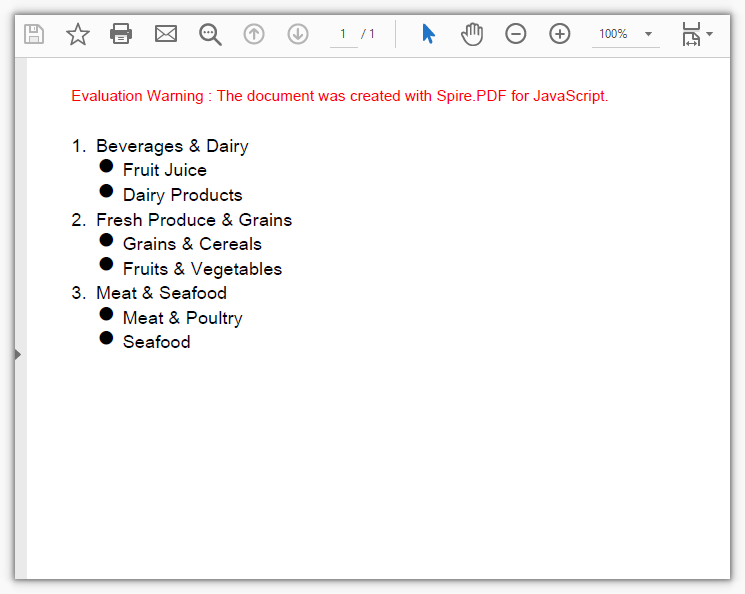
A two-level list made of numbered top-level items and bulleted sublists
FAQ
The list item text does not show up
Cause: List items use the font on the Font property. If it is not set, or the font file has not been loaded into the virtual file system yet, only the bullet markers are left on the page and the text never appears.
Solution: Load the font file into /Library/Fonts/ first, then hand the font object to the list's Font:
// Load the font file into the virtual file system
await window.spire.FetchFileToVFS('ARIAL UNICODE MS.TTF', '/Library/Fonts/', `${process.env.PUBLIC_URL}/font/`);

// Create the font from that file and pass it in when constructing the list (assigning it to list.Font afterwards works the same way)
const font = new pdfModule.PdfTrueTypeFont({ fontFile: '/Library/Fonts/ARIAL UNICODE MS.TTF', size: 12 });
const list = new pdfModule.PdfList({ font: font });
"Ambiguous call" is thrown when creating a list
Cause: PdfList, PdfSortedList, and PdfMarker all have multiple overloads, so positional arguments leave the runtime unable to tell which one to use; it throws Ambiguous call: arguments (object) match multiple overloads. and lists the available key names in the error. Positional arguments in list.Draw(page, x, y) are rejected the same way.
Solution: Switch to object notation and spell out the parameter names:
// This throws: new pdfModule.PdfList(font)
const list = new pdfModule.PdfList({ font: font });
const sortedList = new pdfModule.PdfSortedList({ marker: marker });
const marker2 = new pdfModule.PdfMarker({ style: pdfModule.PdfUnorderedMarkerStyle.Disk });

// Drawing works the same way: list.Draw(page, 0, 40) throws, so write
list.Draw({ page: page, x: 0, y: 40 });
"IO_FileNotFound_FileName" is thrown when using an image as the bullet marker
Cause: PdfImage.FromFile reads a path inside the virtual file system, so it throws IO_FileNotFound_FileName when the image has not been loaded with FetchFileToVFS first — having the image on disk does not count.
Solution: Load the image into the virtual file system first, then read it with the same file name:
// Load the image into the virtual file system
await window.spire.FetchFileToVFS('logo.png', '', `${process.env.PUBLIC_URL}/data/`);

// Read it with the same file name
const image = pdfModule.PdfImage.FromFile('logo.png');
const marker = new pdfModule.PdfMarker({ image: image });
Get a Free License
If you want to remove the evaluation message from the resulting documents, or to get rid of the feature limitations, contact sales for a temporary license valid for 30 days.
A chart plots averages, and an average says nothing about how steady the underlying readings were. The same rising line can sit on top of six near-identical measurements or six wildly scattered ones -- the curve alone will not tell you which. Error bars supply that missing layer: a short segment drawn at each data point marks the spread or uncertainty around it, so the reader can see how much confidence each turn of the line deserves. Percentage error bars derive their range from a fixed proportion of the value, while standard error bars derive theirs from the data itself, and the two suit different situations. Spire.XLS for JavaScript performs both directly in the browser through WebAssembly, managing input and output files with a virtual file system (VFS) and requiring no backend service.
This article covers two key features:
For installation and project setup, see Integrating Spire.XLS for JavaScript in a React Project. The examples below assume Spire.XLS is installed and the WebAssembly module has been initialised.
Add percentage error bars to a line chart
A percentage error bar takes the value of each data point as its base and works out the range from the given percentage. Set it to 10, and a point valued at 4.0 gets an error amount of 0.4; which side of the data point that length is drawn on is decided by a separate parameter. This kind of error bar expresses a tolerance -- a production target allowed to drift by a tenth, or an instrument reading with a fixed relative precision. Error bars belong to a series, so the series object has to be fetched first and its ErrorBar method called on it. The steps are:
- Load the font and the test data file into the VFS.
- Load the workbook and get the first worksheet.
- Add a line chart whose data range is the planned output column.
- Use the month column as the category labels.
- Add a percentage error bar to the series, setting its direction and amount, then save the workbook.
The complete code example below shows how to add percentage error bars to a line chart in React:
function App() {
  const addPercentageErrorBar = async () => {
    // Get the Spire.XLS WASM module
    const xlsModule = window.wasmModule?.spirexls;

    // Check if the module is ready
    if (!xlsModule) {
      alert('Spire.Xls is not ready yet');
      return;
    }

    // Load the font and the test data file into the VFS
    await window.spire.FetchFileToVFS('ARIAL.TTF', '/Library/Fonts/', `${process.env.PUBLIC_URL}/font/`);
    const inputFileName = 'ErrorBarChartData.xlsx';
    await window.spire.FetchFileToVFS(inputFileName, '', `${process.env.PUBLIC_URL}data/`);

    // Load the workbook and get the first worksheet
    const workbook = new xlsModule.Workbook();
    workbook.LoadFromFile({ fileName: inputFileName });
    const sheet = workbook.Worksheets.get(0);

    // Add a line chart whose data range is the planned output column
    const chart = sheet.Charts.Add({ chartType: xlsModule.ExcelChartType.Line });
    chart.ChartTitle = "Planned Output";
    chart.ChartTitleArea.IsBold = true;
    chart.ChartTitleArea.Size = 12;
    chart.DataRange = sheet.Range.get("B1:B7");
    chart.SeriesDataFromRange = false;

    // Set the chart position on the worksheet
    chart.TopRow = 9;
    chart.BottomRow = 26;
    chart.LeftColumn = 1;
    chart.RightColumn = 9;

    // Get the series and use the month column as its category labels
    const serie = chart.Series.get(0);
    serie.CategoryLabels = sheet.Range.get("A2:A7");

    // Add a percentage error bar to the series: plus direction, 10% of the value
    serie.ErrorBar({
      bIsY: true,
      include: xlsModule.ErrorBarIncludeType.Plus,
      type: xlsModule.ErrorBarType.Percentage,
      numberValue: 10.0,
    });

    // Save the workbook
    const outputFileName = "PercentageErrorBar.xlsx";
    workbook.SaveToFile({ fileName: outputFileName });

    // Dispose of the workbook object to free resources
    workbook.Dispose();

    // Read the result file from the VFS and trigger the download
    const fileArray = window.dotnetRuntime.Module.FS.readFile(outputFileName);
    const blob = new Blob([fileArray], { type: 'application/vnd.openxmlformats-officedocument.spreadsheetml.sheet' });
    const url = URL.createObjectURL(blob);
    const a = document.createElement('a');
    a.href = url;
    a.download = outputFileName;
    a.click();
    URL.revokeObjectURL(url);
  };

  return (
    <div style={{ textAlign: 'center', height: '300px' }}>
      <h1>Percentage Error Bars</h1>
      <button onClick={addPercentageErrorBar}>Start</button>
    </div>
  );
}

export default App;
After running, the effect of adding percentage error bars to a line chart:
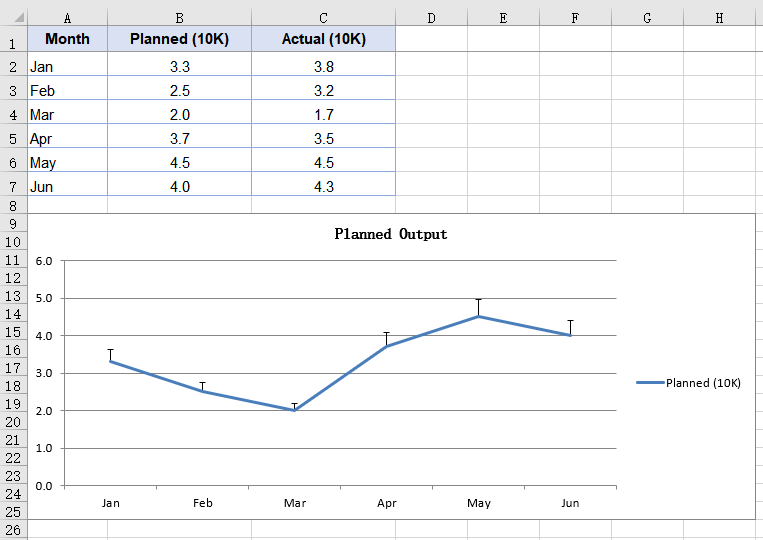
Add standard error bars to a column chart
A standard error bar takes no percentage from you; it computes the standard error of the series itself, so a series with scattered values automatically gets longer error bars. That is the division of labour between the two kinds: the standard error bar describes how steady the data is, the percentage one describes how far you are willing to let it drift. Column charts are usually there to compare several groups side by side, and hanging a standard error bar on each group shows at a glance which one's readings cluster more tightly. The steps are:
- Load the font and the test data file into the VFS.
- Load the workbook and get the first worksheet.
- Add a column chart covering both the planned and the actual output columns.
- Add a standard error bar to each of the two series.
- Save the workbook.
The complete code example below shows how to add standard error bars to a column chart in React:
function App() {
  const addStandardErrorBar = async () => {
    // Get the Spire.XLS WASM module
    const xlsModule = window.wasmModule?.spirexls;

    // Check if the module is ready
    if (!xlsModule) {
      alert('Spire.Xls is not ready yet');
      return;
    }

    // Load the font and the test data file into the VFS
    await window.spire.FetchFileToVFS('ARIAL.TTF', '/Library/Fonts/', `${process.env.PUBLIC_URL}/font/`);
    const inputFileName = 'ErrorBarChartData.xlsx';
    await window.spire.FetchFileToVFS(inputFileName, '', `${process.env.PUBLIC_URL}data/`);

    // Load the workbook and get the first worksheet
    const workbook = new xlsModule.Workbook();
    workbook.LoadFromFile({ fileName: inputFileName });
    const sheet = workbook.Worksheets.get(0);

    // Add a column chart covering both the planned and the actual output columns
    const chart = sheet.Charts.Add({ chartType: xlsModule.ExcelChartType.ColumnClustered });
    chart.ChartTitle = "Planned vs. Actual Output";
    chart.ChartTitleArea.IsBold = true;
    chart.ChartTitleArea.Size = 12;
    chart.DataRange = sheet.Range.get("B1:C7");
    chart.SeriesDataFromRange = false;

    // Set the chart position on the worksheet
    chart.TopRow = 9;
    chart.BottomRow = 26;
    chart.LeftColumn = 1;
    chart.RightColumn = 9;

    // Get the first series and use the month column as its category labels
    const serie = chart.Series.get(0);
    serie.CategoryLabels = sheet.Range.get("A2:A7");

    // Draw a standard error bar on the first series, minus direction
    serie.ErrorBar({
      bIsY: true,
      include: xlsModule.ErrorBarIncludeType.Minus,
      type: xlsModule.ErrorBarType.StandardError,
      numberValue: 0.3,
    });

    // Draw a standard error bar on the second series as well, both directions
    const serie2 = chart.Series.get(1);
    serie2.ErrorBar({
      bIsY: true,
      include: xlsModule.ErrorBarIncludeType.Both,
      type: xlsModule.ErrorBarType.StandardError,
      numberValue: 0.5,
    });

    // Save the workbook
    const outputFileName = "StandardErrorBar.xlsx";
    workbook.SaveToFile({ fileName: outputFileName });

    // Dispose of the workbook object to free resources
    workbook.Dispose();

    // Read the result file from the VFS and trigger the download
    const fileArray = window.dotnetRuntime.Module.FS.readFile(outputFileName);
    const blob = new Blob([fileArray], { type: 'application/vnd.openxmlformats-officedocument.spreadsheetml.sheet' });
    const url = URL.createObjectURL(blob);
    const a = document.createElement('a');
    a.href = url;
    a.download = outputFileName;
    a.click();
    URL.revokeObjectURL(url);
  };

  return (
    <div style={{ textAlign: 'center', height: '300px' }}>
      <h1>Standard Error Bars</h1>
      <button onClick={addStandardErrorBar}>Start</button>
    </div>
  );
}

export default App;
After running, the effect of adding standard error bars to a column chart:
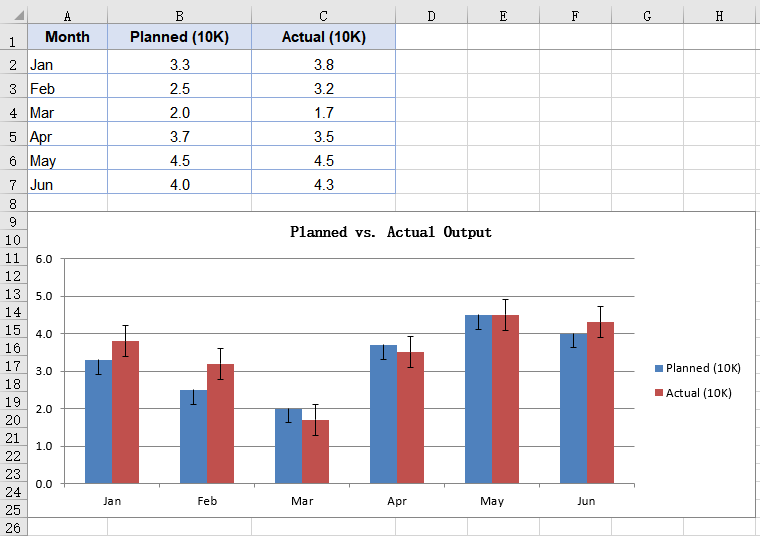
FAQ
Which directions do error bars support?
The direction comes from the include parameter of ErrorBar, which takes three values from ErrorBarIncludeType:
| Value | Effect |
|---|---|
Both |
Both directions, a segment drawn above and below the data point |
Minus |
Negative only, drawn below the data point |
Plus |
Positive only, drawn above the data point |
// Draw it in both directions
serie.ErrorBar({
  bIsY: true,
  include: xlsModule.ErrorBarIncludeType.Both,
  type: xlsModule.ErrorBarType.Percentage,
  numberValue: 10.0,
});
Direction only decides which side of the data point the error bar is drawn on, and does not change its length. The same parameters give the same error amount in all three directions.
Which error amount types are supported?
The error amount type comes from the type parameter of ErrorBar, which takes five values from ErrorBarType:
| Type | Description |
|---|---|
Fixed |
A fixed value, given by numberValue |
Percentage |
A percentage of each data point's value |
StandardDeviation |
A standard deviation, given by numberValue |
StandardError |
A standard error, computed from the series data; numberValue plays no part |
Custom |
Custom ranges,needs a different overload |
The first four take their amount in numberValue:
serie.ErrorBar({
  bIsY: true,
  include: xlsModule.ErrorBarIncludeType.Both,
  type: xlsModule.ErrorBarType.StandardDeviation,
  numberValue: 2,
});
Get a Free License
Spire.XLS for JavaScript offers a 30-day full-featured free trial license with no functional limitations. Apply here to evaluate before purchasing.
Converting a Word document to HTML preserves the original paragraph structure, styles, and images while rendering directly in the browser, which makes it widely useful for online preview, content publishing, and full-text search. Spire.Doc for JavaScript performs this conversion entirely in the browser via WebAssembly, using a virtual file system (VFS) to manage input and output files — no backend server required.
This article covers two core features:
For installation and project setup, refer to Integrating Spire.Doc for JavaScript in a React Project. The examples below assume Spire.Doc is installed and the WebAssembly module is initialized.
Convert Word to HTML
Converting Word to HTML involves three stages: first, load the font file and the target Word file into the WASM virtual file system via FetchFileToVFS; then instantiate a Document, load the file, use HtmlExportOptions to specify that both CSS and images are output in embedded form, and call SaveToFile to save the document as HTML; finally, read the generated HTML file from VFS, wrap it as a Blob, and trigger a browser download.
function App() {
  const wordToHtml = async () => {
    // Get the Spire.Doc WASM module
    const docModule = window.wasmModule?.spiredoc;

    // Check if the module is ready
    if (!docModule) {
      alert('Spire.Doc is not ready yet');
      return;
    }

    // Load fonts and the Word file into VFS
    await window.spire.FetchFileToVFS('ARIALUNI.TTF', '/Library/Fonts/', `${process.env.PUBLIC_URL}/static/font/`);
    const inputFileName = 'ToHtml.docx';
    await window.spire.FetchFileToVFS(inputFileName, '', `${process.env.PUBLIC_URL}/static/data/`);

    // Load the Word document
    const wordDocument = new docModule.Document();
    wordDocument.LoadFromFile(inputFileName);

    // Embed the CSS styles into the HTML and embed images as Base64
    wordDocument.HtmlExportOptions.CssStyleSheetType = docModule.CssStyleSheetType.Internal;
    wordDocument.HtmlExportOptions.ImageEmbedded = true;

    // Convert the document to HTML
    const outputFileName = 'ToHtml-result.html';
    wordDocument.SaveToFile({ fileName: outputFileName, fileFormat: docModule.FileFormat.Html });

    // Read the converted file from VFS and trigger download
    const fileArray = window.dotnetRuntime.Module.FS.readFile(outputFileName);
    const blob = new Blob([fileArray], { type: 'text/html;charset=utf-8' });
    const url = URL.createObjectURL(blob);
    const a = window.document.createElement('a');
    a.href = url;
    a.download = outputFileName;
    a.click();
    URL.revokeObjectURL(url);

    // Release resources
    wordDocument.Dispose();
  };

  return (
    <div style={{ textAlign: 'center', height: '300px' }}>
      <h1>Convert Word To HTML</h1>
      <button onClick={wordToHtml}>
        Generate
      </button>
    </div>
  );
}

export default App;
HTML page generated from a Word document via SaveToFile
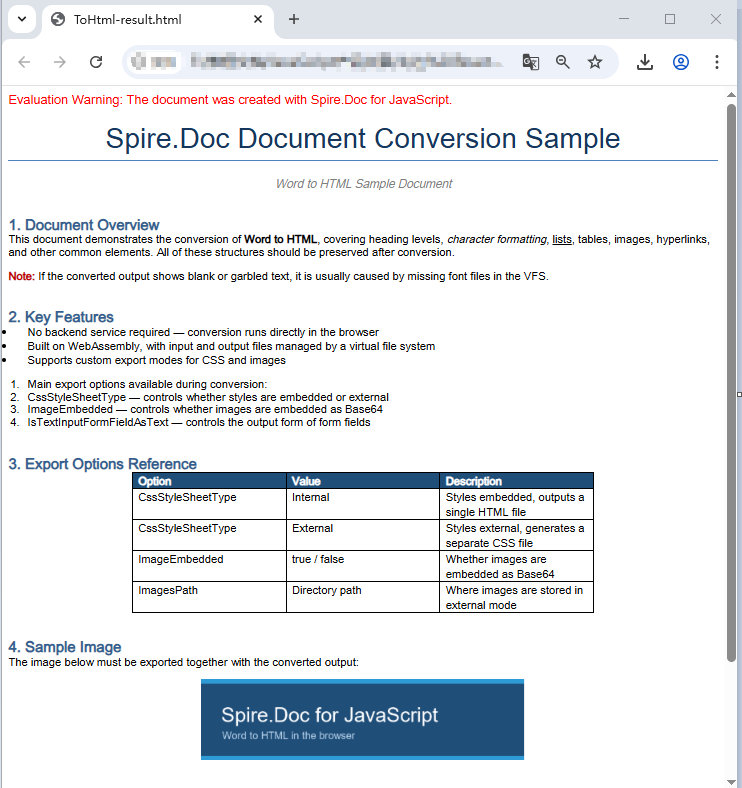
Convert Word to HTML with export options
The output in the previous section is a single HTML file with CSS and images embedded in it. When a document is large, or when you want to maintain styles centrally and reuse image resources, you usually need to export CSS and images as separate files. HtmlExportOptions provides the corresponding settings, allowing HTML, style sheets, and images to be output separately.
The conversion flow is similar to the previous section, except that the result is a directory: you need to create the directory in VFS first, then use properties such as CssStyleSheetFileName and ImagesPath to specify where each type of resource is stored. Once conversion is complete, read that directory recursively, package everything into a zip, and download it in one go.
import JSZip from 'jszip';

function App() {
  const wordToHtmlWithOptions = async () => {
    // Get the Spire.Doc WASM module
    const docModule = window.wasmModule?.spiredoc;

    // Check if the module is ready
    if (!docModule) {
      alert('Spire.Doc is not ready yet');
      return;
    }

    // Load fonts and the Word file into VFS
    await window.spire.FetchFileToVFS('ARIALUNI.TTF', '/Library/Fonts/', `${process.env.PUBLIC_URL}/static/font/`);
    const inputFileName = 'ToHtml.docx';
    await window.spire.FetchFileToVFS(inputFileName, '', `${process.env.PUBLIC_URL}/static/data/`);

    // Create the output directory in VFS
    const outputDirectoryName = 'ToHTMLFolder/';
    window.dotnetRuntime.Module.FS.mkdirTree(outputDirectoryName);

    // Load the Word document
    const wordDocument = new docModule.Document();
    wordDocument.LoadFromFile(inputFileName);

    // Export the CSS styles to a separate file
    wordDocument.HtmlExportOptions.CssStyleSheetFileName = outputDirectoryName + 'sample.css';
    wordDocument.HtmlExportOptions.CssStyleSheetType = docModule.CssStyleSheetType.External;

    // Export images to a separate directory
    wordDocument.HtmlExportOptions.ImageEmbedded = false;
    wordDocument.HtmlExportOptions.ImagesPath = outputDirectoryName + 'Demo/';

    // Export form fields as plain text
    wordDocument.HtmlExportOptions.IsTextInputFormFieldAsText = true;

    // Convert the document to HTML
    const outputFileName = 'ToHtmlExportOption-out.html';
    wordDocument.SaveToFile({ fileName: outputFileName, fileFormat: docModule.FileFormat.Html });

    // Release resources
    wordDocument.Dispose();

    // Read the output directory recursively and write each level of files into the zip
    const zip = new JSZip();
    const addFilesToZip = async (folderPath, zipFolder) => {
      let items = await window.dotnetRuntime.Module.FS.readdir(folderPath);
      items = items.filter((item) => item !== '.' && item !== '..');
      for (const item of items) {
        const itemPath = `${folderPath}/${item}`;
        try {
          const fileData = await window.dotnetRuntime.Module.FS.readFile(itemPath);
          zipFolder.file(item, fileData);
        } catch (error) {
          const zipSubFolder = zipFolder.folder(item);
          await addFilesToZip(itemPath, zipSubFolder);
        }
      }
    };

    // Package the HTML file together with the resource directory
    zip.file(outputFileName, window.dotnetRuntime.Module.FS.readFile(outputFileName));
    await addFilesToZip(outputDirectoryName, zip);
    const zipBlob = await zip.generateAsync({ type: 'blob' });
    const url = URL.createObjectURL(zipBlob);

    // Trigger download
    const a = window.document.createElement('a');
    a.href = url;
    a.download = 'ToHTMLFolder.zip';
    a.click();
    URL.revokeObjectURL(url);
  };

  return (
    <div style={{ textAlign: 'center', height: '300px' }}>
      <h1>Convert Word To HTML With Export Options</h1>
      <button onClick={wordToHtmlWithOptions}>
        Generate
      </button>
    </div>
  );
}

export default App;
HTML, CSS, and image files generated after configuring the export options
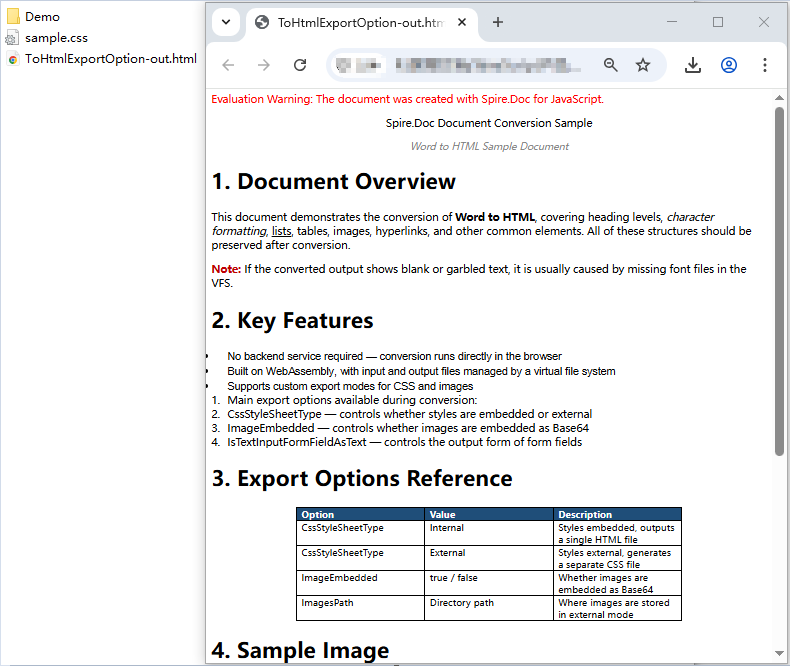
Note that Spire.Doc does not write images directly into the directory pointed to by ImagesPath. Instead, it creates an external_images subdirectory underneath it to hold the images. As a result, the output directory typically forms a hierarchy such as Demo/external_images/*.png, which must be read level by level — this is why addFilesToZip is implemented recursively in the example above.
FAQ
Fonts in the exported HTML do not match the original document
Cause: The font files are missing from the WASM virtual file system. Spire.Doc reads fonts from VFS during conversion to perform layout calculations and font name resolution. If the fonts are not preloaded, the fonts used in the original document are replaced with substitute fonts, and the font-family in the exported CSS will not match the original. If the original document uses a symbol font such as Wingdings, the corresponding characters will also appear garbled.
Solution: Load the font files into VFS via FetchFileToVFS before conversion. For Chinese, Japanese, and Korean documents, use a font with broad coverage such as ARIALUNI.TTF:
await window.spire.FetchFileToVFS(
  'ARIALUNI.TTF', '/Library/Fonts/', '/'
);
Exported HTML loses its styles and images when opened
Cause: In external mode (CssStyleSheetType.External combined with ImageEmbedded = false), CSS and images are output as separate files to the specified directory, and the HTML keeps only relative path references. If you download the HTML file on its own, the browser cannot find the corresponding style sheet and images, and the page degrades into unstyled plain text.
Solution: Package the HTML file together with the resource directory and download them as a whole, so that the relative path references remain valid (see the addFilesToZip example above). If you do not need separate resource files, you can switch to embedded mode instead:
wordDocument.HtmlExportOptions.CssStyleSheetType = docModule.CssStyleSheetType.Internal;
wordDocument.HtmlExportOptions.ImageEmbedded = true;
Get a Free License
Spire.Doc for JavaScript offers a 30-day full-featured free trial license with no functional limitations. Apply here to evaluate before purchasing.
Multi-Level Labels with a Secondary Axis in React with JavaScript
2026-09-18 06:28:49 Written by liu taliaWhen the categories in a chart are themselves layered -- a region that contains months, or a year that contains quarters -- squeezing both columns into a single row of labels leaves the reader guessing which region or which month a data point belongs to. Layered data brings a second problem with it: sales run into the millions while a growth rate sits in the low teens, and on one shared value axis the growth rate flattens into a line pinned to the baseline. Multi-level category labels and the secondary axis solve these two problems respectively. Spire.XLS for JavaScript performs both directly in the browser through WebAssembly, managing input and output files with a virtual file system (VFS) and requiring no backend service.
This article covers two key features:
For installation and project setup, see Integrating Spire.XLS for JavaScript in a React Project. The examples below assume Spire.XLS is installed and the WebAssembly module has been initialised.
Create a Chart with Multi-Level Category Labels
Multi-level category labels are drawn by the category axis, and how many levels that axis has depends on how many columns the series' category labels point at. In the test data the outer labels are already merged by region, so the code only has to make the category labels span both the outer and the inner column. The steps are:
- Load the font and the test data file into the VFS.
- Load the workbook and get the worksheet.
- Add a column chart and add a named sales series.
- Point the category labels at both the region and the month column.
- Turn on multi-level labels for the category axis and save the workbook.
The complete code example below creates a chart with multi-level category labels in React:
function App() {
  const createMultiLevelChart = async () => {
    // Get the Spire.XLS WASM module
    const xlsModule = window.wasmModule?.spirexls;

    // Check if the module is ready
    if (!xlsModule) {
      alert('Spire.Xls is not ready yet');
      return;
    }

    // Load the font and the test data file into the VFS
    await window.spire.FetchFileToVFS('ARIAL.TTF', '/Library/Fonts/', `${process.env.PUBLIC_URL}/font/`);
    const inputFileName = 'MultiLevelChartData.xlsx';
    await window.spire.FetchFileToVFS(inputFileName, '', `${process.env.PUBLIC_URL}data/`);

    // Load the workbook and get the first worksheet
    const workbook = new xlsModule.Workbook();
    workbook.LoadFromFile({ fileName: inputFileName });
    const sheet = workbook.Worksheets.get(0);

    // Add a column chart
    const chart = sheet.Charts.Add({ chartType: xlsModule.ExcelChartType.ColumnClustered });
    chart.ChartTitle = "Sales";
    chart.Legend.Delete();

    // Add the sales series and give it a name
    const serie = chart.Series.Add({ name: "Sales", serieType: xlsModule.ExcelChartType.ColumnClustered });
    serie.Values = sheet.Range.get("C2:C7");

    // Point the category labels at both the region and the month column
    serie.CategoryLabels = sheet.Range.get("A2:B7");

    // Turn on multi-level category labels so each level gets its own row
    chart.PrimaryCategoryAxis.MultiLevelLable = true;

    // Place the chart on the worksheet
    chart.LeftColumn = 5;
    chart.TopRow = 1;
    chart.RightColumn = 14;

    // Save the workbook
    const outputFileName = "MultiLevelLabels.xlsx";
    workbook.SaveToFile({ fileName: outputFileName });

    // Dispose of the workbook object to free resources
    workbook.Dispose();

    // Read the result file from the VFS and trigger the download
    const fileArray = window.dotnetRuntime.Module.FS.readFile(outputFileName);
    const blob = new Blob([fileArray], { type: 'application/vnd.openxmlformats-officedocument.spreadsheetml.sheet' });
    const url = URL.createObjectURL(blob);
    const a = document.createElement('a');
    a.href = url;
    a.download = outputFileName;
    a.click();
    URL.revokeObjectURL(url);
  };

  return (
    <div style={{ textAlign: 'center', height: '300px' }}>
      <h1>Multi-Level Labels</h1>
      <button onClick={createMultiLevelChart}>Start</button>
    </div>
  );
}

export default App;
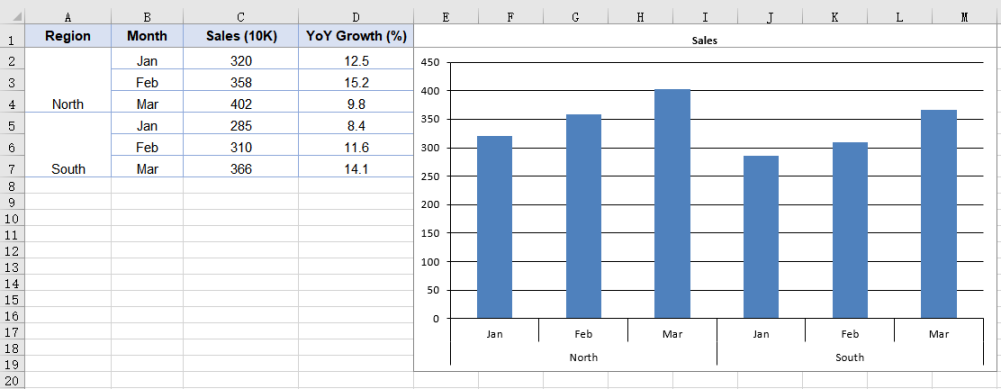
How many levels the category axis has is decided by how many columns CategoryLabels points at, so binding a single-column range still yields a single level of labels; MultiLevelLable controls whether those levels are laid out as multiple rows.
After running, the effect of creating a chart with multi-level category labels:
Add a Secondary Axis to the Chart
When two series in the same chart differ sharply in magnitude, sharing one value axis squashes the smaller of the two into a line pinned to the baseline, and its movement can no longer be read. A secondary axis is meant for exactly that case: it gives the series a value axis of its own, so each scale spreads across its own range without interfering with the other. The way to do it is to move the series off the primary axis and draw it as a line -- a line takes up no bar width, so it reads clearly against the column series sharing the same categories. The steps are:
- Load the font and the test data file into the VFS.
- Load the workbook and get the worksheet.
- Add a column chart and add a named sales series.
- Add the growth series as a line.
- Move the growth series to the secondary axis and save the workbook.
The complete code example below adds a secondary axis to the chart in React:
function App() {
  const addSecondaryAxis = async () => {
    // Get the Spire.XLS WASM module
    const xlsModule = window.wasmModule?.spirexls;

    // Check if the module is ready
    if (!xlsModule) {
      alert('Spire.Xls is not ready yet');
      return;
    }

    // Load the font and the test data file into the VFS
    await window.spire.FetchFileToVFS('ARIAL.TTF', '/Library/Fonts/', `${process.env.PUBLIC_URL}/font/`);
    const inputFileName = 'MultiLevelChartData.xlsx';
    await window.spire.FetchFileToVFS(inputFileName, '', `${process.env.PUBLIC_URL}data/`);

    // Load the workbook and get the first worksheet
    const workbook = new xlsModule.Workbook();
    workbook.LoadFromFile({ fileName: inputFileName });
    const sheet = workbook.Worksheets.get(0);

    // Add a column chart
    const chart = sheet.Charts.Add({ chartType: xlsModule.ExcelChartType.ColumnClustered });
    chart.ChartTitle = "Sales and YoY Growth";

    // Add the sales series, which stays on the primary axis
    const salesSerie = chart.Series.Add({ name: "Sales", serieType: xlsModule.ExcelChartType.ColumnClustered });
    salesSerie.Values = sheet.Range.get("C2:C7");

    // Point the category labels at both the region and the month column
    salesSerie.CategoryLabels = sheet.Range.get("A2:B7");

    // Add the growth series as a line
    const growthSerie = chart.Series.Add({ name: "YoY Growth", serieType: xlsModule.ExcelChartType.Line });
    growthSerie.Values = sheet.Range.get("D2:D7");

    // Move the growth series to the secondary axis so it plots on its own percentage scale
    growthSerie.UsePrimaryAxis = false;

    // Turn on multi-level category labels
    chart.PrimaryCategoryAxis.MultiLevelLable = true;

    // Place the chart on the worksheet
    chart.LeftColumn = 5;
    chart.TopRow = 1;
    chart.RightColumn = 14;

    // Save the workbook
    const outputFileName = "SecondaryAxis.xlsx";
    workbook.SaveToFile({ fileName: outputFileName });

    // Dispose of the workbook object to free resources
    workbook.Dispose();

    // Read the result file from the VFS and trigger the download
    const fileArray = window.dotnetRuntime.Module.FS.readFile(outputFileName);
    const blob = new Blob([fileArray], { type: 'application/vnd.openxmlformats-officedocument.spreadsheetml.sheet' });
    const url = URL.createObjectURL(blob);
    const a = document.createElement('a');
    a.href = url;
    a.download = outputFileName;
    a.click();
    URL.revokeObjectURL(url);
  };

  return (
    <div style={{ textAlign: 'center', height: '300px' }}>
      <h1>Secondary Axis</h1>
      <button onClick={addSecondaryAxis}>Start</button>
    </div>
  );
}

export default App;
UsePrimaryAxis = false affects only the series it is set on; the other series stay on the primary axis. The chart gains a second pair of value and category axes as a result, giving it two separate scale ranges. Series.Add takes the series name at the same time, so the legend shows the name passed in rather than an auto-generated "Series 1".
After running, the effect of adding a secondary axis to the chart:
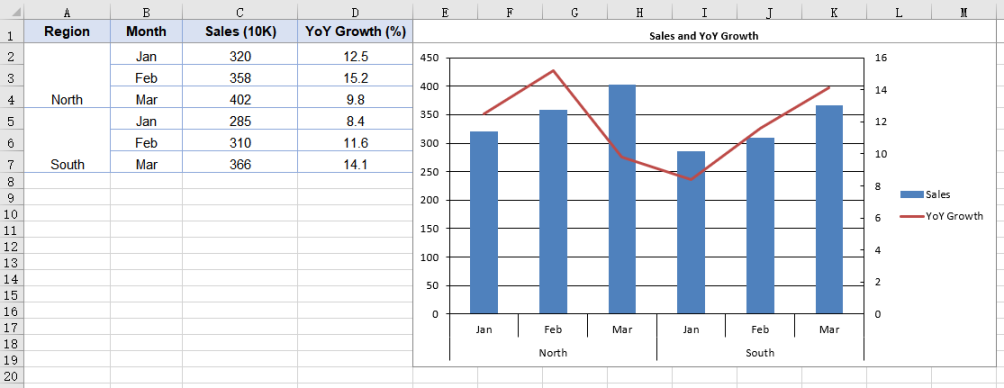
Frequently Asked Questions
Why does the category axis show only one level of labels?
Cause: How many levels the category axis has is decided by the range CategoryLabels points at. If that is a single-column range such as B2:B7, the range holds only one level of category information, and setting PrimaryCategoryAxis.MultiLevelLable to true will still give you one level of labels -- the property controls whether multiple levels are expanded, not whether a level of data is created.
Solution: Point CategoryLabels at a multi-column range that includes the outer labels; the cells the outer labels occupy then need to be merged in the data:
// Cover both columns with the category labels; the outer label cells need merging in the data
serie.CategoryLabels = sheet.Range.get("A2:B7");
Why do the two value axes have different scales?
Cause: The primary and secondary value axes work out their scales independently of each other, and MinValue, MaxValue and MajorUnit on PrimaryValueAxis apply to the primary axis only -- changing them leaves the secondary axis untouched. When the two series differ sharply in magnitude, the range the secondary axis picks for itself is often not a good fit.
Solution: Give the secondary axis its own scale through chart.SecondaryValueAxis:
// Give the secondary axis a 0-20 scale with a major unit of 5
chart.SecondaryValueAxis.MinValue = 0;
chart.SecondaryValueAxis.MaxValue = 20;
chart.SecondaryValueAxis.MajorUnit = 5;
Set the scale after the series has been moved to the secondary axis: while no series uses the secondary axis, the assignment is accepted but never written to the file.
Get a Free License
Spire.XLS for JavaScript offers a 30-day full-featured free trial license with no functional limitations. Apply here to evaluate before purchasing.
Apply Color Scales & Icon Sets in Excel in React with JavaScript
2026-09-18 06:26:39 Written by liu taliaIn a sales report, a grade sheet, or a metrics dashboard, how values compare matters more than the values themselves. Inserting a chart for every column makes the worksheet crowded, while data bars, color scales, and icon sets show magnitude right inside the cells—through bar length, color intensity, and icon shape—without consuming extra rows or columns. All three belong to Excel conditional formatting, found under Home → Conditional Formatting in the Excel UI.Spire.XLS for JavaScript performs this work directly in the browser through WebAssembly, managing input and output files with a virtual file system (VFS) and requiring no backend service.
This article covers three key features:
For installation and project setup, see Integrating Spire.XLS for JavaScript in a React Project. The examples below assume Spire.XLS is already installed and the WebAssembly module has been initialized.
Apply Data Bars to a Cell Range
Data bars draw a horizontal colored band inside each cell, and the length of the band is proportional to how large the value is compared with the rest of the selected range. With Spire.XLS for JavaScript, ConditionalFormats.Add creates a conditional format collection, AddRange binds it to a range, and AddCondition returns the condition object; setting FormatType to ConditionalFormatType.DataBar produces data bars, whose fill color is controlled by DataBar.BarColor. The steps are as follows:
- Load the font and the test data file into the VFS.
- Load the workbook and get the worksheet.
- Call
ConditionalFormats.Addto create a conditional format, and bind the data range withAddRange. - Call
AddConditionto add a condition, setFormatTypetoDataBar, and set the bar color. - Save the workbook.
The complete code example below applies data bars to a sales figures table in React:
function App() {
  const applyDataBars = async () => {
    // Get the Spire.XLS WASM module
    const xlsModule = window.wasmModule?.spirexls;

    // Check whether the module is ready
    if (!xlsModule) {
      alert('Spire.Xls is not ready yet');
      return;
    }

    // Load the font and the test data file into the VFS
    await window.spire.FetchFileToVFS('ARIAL.TTF', '/Library/Fonts/', `${process.env.PUBLIC_URL}/font/`);
    const inputFileName = 'SalesData.xlsx';
    await window.spire.FetchFileToVFS(inputFileName, '', `${process.env.PUBLIC_URL}data/`);

    // Load the workbook and get the first worksheet
    const workbook = new xlsModule.Workbook();
    workbook.LoadFromFile({ fileName: inputFileName });
    const sheet = workbook.Worksheets.get(0);

    // Select the data range that receives the data bars
    const dataRange = sheet.Range.get("B2:E9");

    // Create a conditional format and bind it to that range
    const xcfs = sheet.ConditionalFormats.Add();
    xcfs.AddRange(dataRange);

    // Add a data bar condition and set the bar color
    const format = xcfs.AddCondition();
    format.FormatType = xlsModule.ConditionalFormatType.DataBar;
    format.DataBar.BarColor = xlsModule.Color.get_CadetBlue();

    // Save the workbook
    const outputFileName = "ApplyDataBars.xlsx";
    workbook.SaveToFile({ fileName: outputFileName, version: xlsModule.ExcelVersion.Version2010 });

    // Dispose of the workbook object to free resources
    workbook.Dispose();

    // Read the result file from the VFS and trigger the download
    const fileArray = window.dotnetRuntime.Module.FS.readFile(outputFileName);
    const blob = new Blob([fileArray], { type: 'application/vnd.openxmlformats-officedocument.spreadsheetml.sheet' });
    const url = URL.createObjectURL(blob);
    const a = document.createElement('a');
    a.href = url;
    a.download = outputFileName;
    a.click();
    URL.revokeObjectURL(url);
  };

  return (
    <div style={{ textAlign: 'center', height: '300px' }}>
      <h1>Apply Data Bars</h1>
      <button onClick={applyDataBars}>Start</button>
    </div>
  );
}

export default App;
After running, the effect of applying data bars to a cell range:
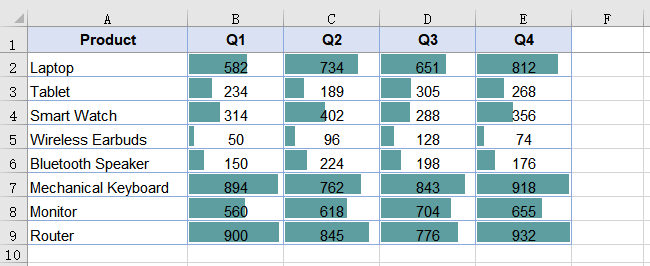
Apply Color Scales to a Cell Range
A color scale uses shading to express magnitude: the larger a cell's value is within the range, the closer its color sits to the high end of the scale. Color scales are added through the same ConditionalFormats API as data bars—the only difference is setting FormatType to ConditionalFormatType.ColorScale. No color arguments are required; when none are specified, the result is a two-color scale that takes orange at the range minimum and pale yellow at the maximum, with intermediate values shaded proportionally between the two. The steps are as follows:
- Load the font and the test data file into the VFS.
- Load the workbook and get the worksheet.
- Call
ConditionalFormats.Addto create a conditional format, and bind the data range withAddRange. - Call
AddConditionto add a condition, and setFormatTypetoColorScale. - Save the workbook.
The complete code example below applies color scales to a sales figures table in React:
function App() {
  const applyColorScales = async () => {
    // Get the Spire.XLS WASM module
    const xlsModule = window.wasmModule?.spirexls;

    // Check whether the module is ready
    if (!xlsModule) {
      alert('Spire.Xls is not ready yet');
      return;
    }

    // Load the font and the test data file into the VFS
    await window.spire.FetchFileToVFS('ARIAL.TTF', '/Library/Fonts/', `${process.env.PUBLIC_URL}/font/`);
    const inputFileName = 'SalesData.xlsx';
    await window.spire.FetchFileToVFS(inputFileName, '', `${process.env.PUBLIC_URL}data/`);

    // Load the workbook and get the first worksheet
    const workbook = new xlsModule.Workbook();
    workbook.LoadFromFile({ fileName: inputFileName });
    const sheet = workbook.Worksheets.get(0);

    // Select the data range that receives the color scales
    const dataRange = sheet.Range.get("B2:E9");

    // Create a conditional format and bind it to that range
    const xcfs = sheet.ConditionalFormats.Add();
    xcfs.AddRange(dataRange);

    // Add a color scale condition; colors transition with the values
    const format = xcfs.AddCondition();
    format.FormatType = xlsModule.ConditionalFormatType.ColorScale;

    // Save the workbook
    const outputFileName = "ApplyColorScales.xlsx";
    workbook.SaveToFile({ fileName: outputFileName, version: xlsModule.ExcelVersion.Version2010 });

    // Dispose of the workbook object to free resources
    workbook.Dispose();

    // Read the result file from the VFS and trigger the download
    const fileArray = window.dotnetRuntime.Module.FS.readFile(outputFileName);
    const blob = new Blob([fileArray], { type: 'application/vnd.openxmlformats-officedocument.spreadsheetml.sheet' });
    const url = URL.createObjectURL(blob);
    const a = document.createElement('a');
    a.href = url;
    a.download = outputFileName;
    a.click();
    URL.revokeObjectURL(url);
  };

  return (
    <div style={{ textAlign: 'center', height: '300px' }}>
      <h1>Apply Color Scales</h1>
      <button onClick={applyColorScales}>Start</button>
    </div>
  );
}

export default App;
After running, the effect of applying color scales to a cell range:
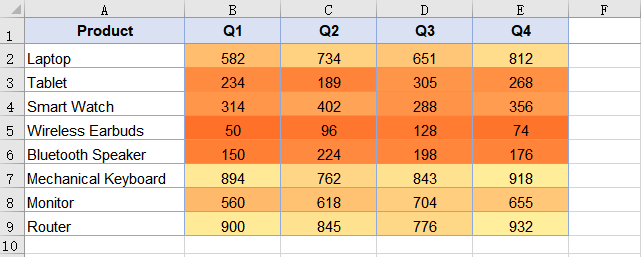
Apply Icon Sets to a Cell Range
An icon set places a different icon in each cell according to the band its value falls into—for example, red, yellow, and green traffic lights for low, medium, and high. It uses the same API: set FormatType to ConditionalFormatType.IconSet and pick an icon style with IconSet.IconSetType; the example uses IconSetType.ThreeTrafficLights1. The steps are as follows:
- Load the font and the test data file into the VFS.
- Load the workbook and get the worksheet.
- Call
ConditionalFormats.Addto create a conditional format, and bind the data range withAddRange. - Call
AddConditionto add a condition, setFormatTypetoIconSet, and specify the icon set type. - Save the workbook.
The complete code example below applies icon sets to a sales figures table in React:
function App() {
  const applyIconSets = async () => {
    // Get the Spire.XLS WASM module
    const xlsModule = window.wasmModule?.spirexls;

    // Check whether the module is ready
    if (!xlsModule) {
      alert('Spire.Xls is not ready yet');
      return;
    }

    // Load the font and the test data file into the VFS
    await window.spire.FetchFileToVFS('ARIAL.TTF', '/Library/Fonts/', `${process.env.PUBLIC_URL}/font/`);
    const inputFileName = 'SalesData.xlsx';
    await window.spire.FetchFileToVFS(inputFileName, '', `${process.env.PUBLIC_URL}data/`);

    // Load the workbook and get the first worksheet
    const workbook = new xlsModule.Workbook();
    workbook.LoadFromFile({ fileName: inputFileName });
    const sheet = workbook.Worksheets.get(0);

    // Select the data range that receives the icon sets
    const dataRange = sheet.Range.get("B2:E9");

    // Create a conditional format and bind it to that range
    const xcfs = sheet.ConditionalFormats.Add();
    xcfs.AddRange(dataRange);

    // Add an icon set condition and set the icon style to three traffic lights
    const format = xcfs.AddCondition();
    format.FormatType = xlsModule.ConditionalFormatType.IconSet;
    format.IconSet.IconSetType = xlsModule.IconSetType.ThreeTrafficLights1;

    // Save the workbook
    const outputFileName = "ApplyIconSets.xlsx";
    workbook.SaveToFile({ fileName: outputFileName, version: xlsModule.ExcelVersion.Version2010 });

    // Dispose of the workbook object to free resources
    workbook.Dispose();

    // Read the result file from the VFS and trigger the download
    const fileArray = window.dotnetRuntime.Module.FS.readFile(outputFileName);
    const blob = new Blob([fileArray], { type: 'application/vnd.openxmlformats-officedocument.spreadsheetml.sheet' });
    const url = URL.createObjectURL(blob);
    const a = document.createElement('a');
    a.href = url;
    a.download = outputFileName;
    a.click();
    URL.revokeObjectURL(url);
  };

  return (
    <div style={{ textAlign: 'center', height: '300px' }}>
      <h1>Apply Icon Sets</h1>
      <button onClick={applyIconSets}>Start</button>
    </div>
  );
}

export default App;
An icon set divides the range into bands, so the same icon covers a different span of values in different ranges.
After running, the effect of applying icon sets to a cell range:
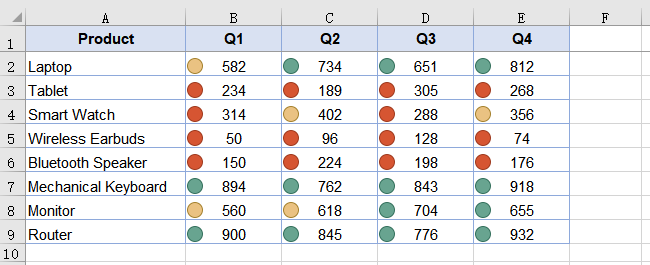
FAQ
Why do the text cells in the target range get no data bars?
Cause: A data bar expresses how large a value is relative to the rest of the range, so only numeric cells are shaded and text cells inside the range are skipped. Even when the range covers the product-name column or the header row, those cells show no bars—the result still covers the numeric area alone.
Solution: This is the expected behavior and needs no workaround; just keep the range limited to the numeric area. If the numeric area itself shows no bars either, check that the range passed to AddRange matches where the data actually is.
Can the color and border of a data bar be customized?
Cause: A data bar's appearance is controlled by the DataBar property of the condition object. The fill color comes from DataBar.BarColor; setting only FormatType without BarColor yields the default blue bars. Data bars have no border by default, so assigning BarBorder.Color on its own has no effect.
Solution: Set the border type through DataBar.BarBorder.Type first, then set the border color—the two go together:
// Set the border type first so that the border color takes effect
format.DataBar.BarBorder.Type = xlsModule.DataBarBorderType.DataBarBorderSolid;
format.DataBar.BarBorder.Color = xlsModule.Color.get_Red();

// Fill color of the bar
format.DataBar.BarColor = xlsModule.Color.get_GreenYellow();
Get a Free License
Spire.XLS for JavaScript offers a 30-day full-featured free trial license with no functional limitations. Apply here to evaluate before purchasing.
Converting a Word document to images is the most common approach for online preview, thumbnail generation, and preventing content from being copied at will — the resulting images keep a consistent layout on any device. Spire.Doc for JavaScript performs this conversion directly in the browser via WebAssembly, managing input and output files through a virtual file system (VFS) — no backend server required.
This article covers two core features:
For installation and project setup, refer to Integrating Spire.Doc for JavaScript in a React Project. The examples below assume Spire.Doc is installed and the WebAssembly module is initialized.
Page to Image
Converting a document page to an image involves three stages: first, load the font file and the target Word document into the WASM virtual file system via FetchFileToVFS; then instantiate a Document, load the document, call SaveImageToStreams with a pageIndex to render the specified page as an image, and save it to VFS; finally, read the generated image file from VFS, wrap it as a Blob, and create a download link.
import React from 'react';

function App() {
  const ToImage = async () => {
    // Get the Spire.Doc WASM module
    const docModule = window.wasmModule?.spiredoc;

    if (!docModule) {
      alert('Spire.Doc is not ready yet');
      return;
    }

    // Load the font file into the virtual file system (VFS)
    await window.spire.FetchFileToVFS('ARIALUNI.TTF', '/Library/Fonts/', `${process.env.PUBLIC_URL}/font/`);
    const inputFileName = 'ToImage.docx';
    // Load the target Word document into VFS
    await window.spire.FetchFileToVFS(inputFileName, '', `${process.env.PUBLIC_URL}data/`);

    // Create a Document instance and load the document
    const doc = new docModule.Document();
    doc.LoadFromFile(inputFileName);

    // Define the output file name
    const outputFileName = "ToImage-result.png";

    // Convert the first page to an image stream and save it to VFS
    let img = doc.SaveImageToStreams({ pageIndex: 0, type: docModule.ImageType.Bitmap });
    img.Save(outputFileName);

    // Release resources
    doc.Dispose();

    // Read the generated file from VFS and wrap it as a Blob
    const modifiedFileArray = window.dotnetRuntime.Module.FS.readFile(outputFileName);
    const blob = new Blob([modifiedFileArray], {  type: 'image/png'});
    const url = URL.createObjectURL(blob);
    const a = document.createElement('a');
    a.href = url;
    a.download = outputFileName;
    a.click();
    URL.revokeObjectURL(url);
  };

  return (
    <div style={{ textAlign: 'center', height: '300px' }}>
      <h1>Convert a Specified Page to an Image</h1>
      <button onClick={ToImage}>
        Generate
      </button>
    </div>
  );
}

export default App;
PNG image generated from a document page via SaveImageToStreams
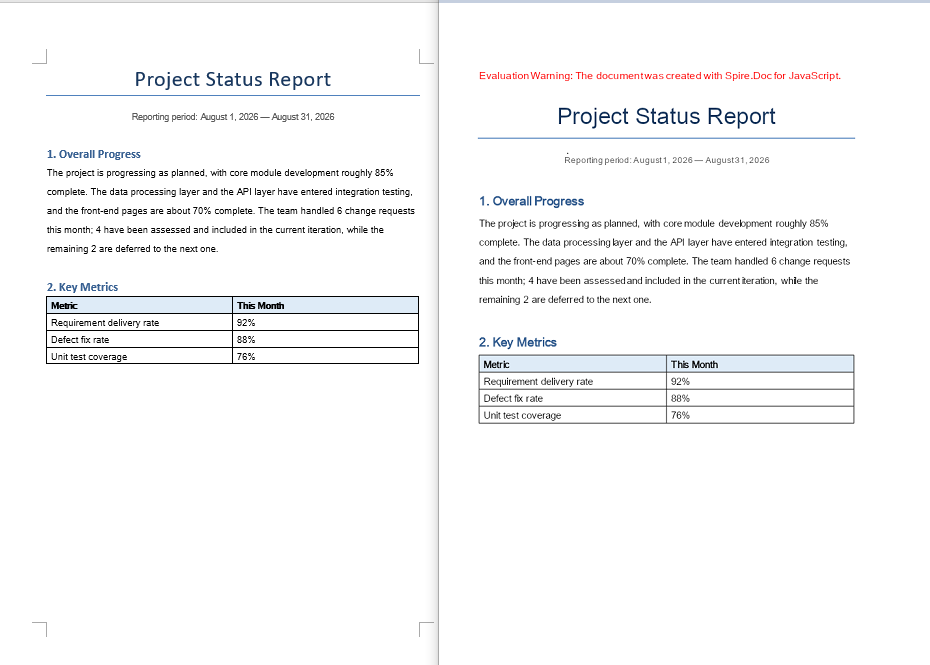
Document Object to Image
Besides whole-page conversion, real projects often need to export a single element of a document as an image — for example, generating a preview image for a table, or extracting a shape from a document as standalone material. Paragraphs, tables, table rows, table cells, and shapes can all be copied into a newly created Document via the Clone method, and then rendered into an image with SaveImageToStreams. The conversion results are written uniformly to an output directory in VFS, and finally packaged into a single ZIP file with JSZip for the user to download.
Note that a shape cannot be added directly to a paragraph of a newly created document. The example first saves the document to a memory stream and then reloads it, so that the shape obtains a complete layout context in the new document before being rendered.
import React from 'react';
import JSZip from "jszip";

function App() {
  const ToImage = async () => {
    // Get the Spire.Doc WASM module
    const docModule = window.wasmModule?.spiredoc;

    if (!docModule) {
      alert('Spire.Doc is not ready yet');
      return;
    }

    // Load the font file into the virtual file system (VFS)
    await window.spire.FetchFileToVFS('ARIALUNI.TTF', '/Library/Fonts/', `${process.env.PUBLIC_URL}/font/`);
    // Load the target Word document into VFS
    const inputFileName = "ConvertObjectToImage.docx";
    await window.spire.FetchFileToVFS(inputFileName, "", `${process.env.PUBLIC_URL}/data/`);

    // Define and create the output directory in VFS
    const outputDirectoryName = "outputFolder/";
    await window.dotnetRuntime.Module.FS.mkdirTree(outputDirectoryName);

    // Create a Document instance and load the document
    const doc = new docModule.Document();
    doc.LoadFromFile(inputFileName);

    // Get the first section and its body
    let section = doc.Sections.get_Item(0);
    let body = section.Body;

    // Get the first paragraph and convert it to an image
    let paragraph = body.Paragraphs.get_Item(0);
    let imageStream1 = ConvertParagraphToImage(paragraph, docModule);
    let imageFile1 = outputDirectoryName + "ConvertParagraphToImage.png";
    window.dotnetRuntime.Module.FS.writeFile(imageFile1, imageStream1.Save());

    // Get the first table and convert it to an image
    let table = body.Tables.get_Item(0);
    let imageStream2 = ConvertTableToImage(table, docModule);
    let imageFile2 = outputDirectoryName + "ConvertTableToImage.jpg";
    window.dotnetRuntime.Module.FS.writeFile(imageFile2, imageStream2.Save());

    // Get the first row of the first table and convert it to an image
    let row = table.Rows.get_Item(0);
    let imageStream3 = ConvertTableRowToImage(row, docModule);
    let imageFile3 = outputDirectoryName + "ConvertTableRowToImage.bmp";
    window.dotnetRuntime.Module.FS.writeFile(imageFile3, imageStream3.Save());

    // Get the first cell of the first row and convert it to an image
    let cell = row.Cells.get_Item(0);
    let imageStream4 = ConvertTableCellToImage(cell, docModule);
    let imageFile4 = outputDirectoryName + "ConvertTableCellToImage.png";
    window.dotnetRuntime.Module.FS.writeFile(imageFile4, imageStream4.Save());

    // Iterate over the paragraphs and convert the shapes in them to images
    for (let i = 0; i < section.Paragraphs.Count; i++) {
      let para = section.Body.Paragraphs.get_Item(i);
      for (let j = 0; j < para.ChildObjects.Count; j++) {
        let docObj = para.ChildObjects.get_Item(j);
        if (docObj.DocumentObjectType == docModule.DocumentObjectType.Shape) {
          let imageStream5 = ConvertShapeToImage(docObj, docModule);
          let imageFile5 = outputDirectoryName + "ConvertShapeToImage-" + j + ".png";

          window.dotnetRuntime.Module.FS.writeFile(imageFile5, imageStream5.Save());
          i++;
        }
      }
    }

    // Release resources
    doc.Dispose();

    // Package all images in the output directory into a ZIP file
    const zip = new JSZip();
    const addFilesToZip = async (folderPath, zipFolder) => {
      let items = await window.dotnetRuntime.Module.FS.readdir(folderPath);
      items = items.filter((item) => item !== "." && item !== "..");
      for (const item of items) {
        const itemPath = `${folderPath}/${item}`;
        try {
          const fileData = await window.dotnetRuntime.Module.FS.readFile(itemPath);
          zipFolder.file(item, fileData);
        } catch (error) {
          const zipSubFolder = zipFolder.folder(item);
          await addFilesToZip(itemPath, zipSubFolder);
        }
      }
    };

    await addFilesToZip(outputDirectoryName, zip);
    const zipBlob = await zip.generateAsync({ type: "blob" });
    // Read the generated file from VFS and wrap it as a Blob
    const url = URL.createObjectURL(zipBlob);
    const a = document.createElement('a');
    a.href = url;
    a.download = "ConvertObjectToImage_out.zip";
    a.click();
    URL.revokeObjectURL(url);
  };

  // Convert a paragraph to an image
  function ConvertParagraphToImage(paragraph, docModule) {
    let doc = new docModule.Document();
    let section = doc.AddSection();

    section.Body.ChildObjects.Add(paragraph.Clone());
    let imageStream = doc.SaveImageToStreams({ pageIndex: 0, type: docModule.ImageType.Bitmap });
    doc.Close();
    return imageStream;
  }

  // Convert a table to an image
  function ConvertTableToImage(table, docModule) {
    let doc = new docModule.Document();
    let section = doc.AddSection();

    section.Body.ChildObjects.Add(table.Clone());

    let imageStream = doc.SaveImageToStreams({ pageIndex: 0, type: docModule.ImageType.Bitmap });
    doc.Close();
    return imageStream;
  }

  // Convert a table row to an image
  function ConvertTableRowToImage(tableRow, docModule) {
    let doc = new docModule.Document();
    let section = doc.AddSection();
    let table = section.AddTable();
    table.Rows.Add(tableRow.Clone());
    let imageStream = doc.SaveImageToStreams({ pageIndex: 0, type: docModule.ImageType.Bitmap });
    doc.Close();
    return imageStream;
  }

  // Convert a table cell to an image
  function ConvertTableCellToImage(tableCell, docModule) {
    let doc = new docModule.Document();
    let section = doc.AddSection();
    let table = section.AddTable();
    table.AddRow().Cells.Add(tableCell.Clone());
    let imageStream = doc.SaveImageToStreams({ pageIndex: 0, type: docModule.ImageType.Bitmap });
    doc.Close();
    return imageStream;
  }

  // Convert a shape to an image
  function ConvertShapeToImage(shape, docModule) {
    let doc = new docModule.Document();
    let section = doc.AddSection();
    section.AddParagraph().ChildObjects.Add(shape.Clone());
    let memoryStream = new docModule.Stream();
    doc.SaveToStream({ stream: memoryStream, fileFormat: docModule.FileFormat.Docx });
    doc.LoadFromStream({ stream: memoryStream, fileFormat: docModule.FileFormat.Docx });
    let imageStream = doc.SaveImageToStreams({ pageIndex: 0, type: docModule.ImageType.Bitmap });
    memoryStream.Close();
    doc.Close();
    return imageStream;
  }

  return (
    <div style={{ textAlign: 'center', height: '300px' }}>
      <h1>Convert Elements to Images</h1>
      <button onClick={ToImage}>
        Generate
      </button>
    </div>
  );
}

export default App;
Images inside the ZIP file generated after converting the document objects
FAQ
Missing or garbled text in the generated image
Cause: The font files required for rendering are missing from the WASM virtual file system. SaveImageToStreams reads fonts from VFS when rendering text — if they are not preloaded, text areas will be left blank or appear garbled.
Solution: Load the font files into VFS via FetchFileToVFS before conversion:
await window.spire.FetchFileToVFS(
  'ARIALUNI.TTF', '/Library/Fonts/',
  `${process.env.PUBLIC_URL}/static/font/`
);
Only the first page is generated
Cause: Each call to SaveImageToStreams renders only the single page specified by pageIndex. The example always passes 0, so a multi-page document only outputs an image of the first page.
Solution: Get the total page count via PageCount and iterate page by page, generating a separate image file for each page:
for (let i = 0; i < doc.PageCount; i++) {
  let img = doc.SaveImageToStreams({
    pageIndex: i, type: wasmModule.ImageType.Bitmap
  });
  img.Save(`ToImage-page-${i + 1}.png`);
}
Get a Free License
If you wish to remove the evaluation message from the resulting document, or to eliminate functional limitations, please contact our sales team to request a 30-day temporary license.
Add a Table of Contents to an Existing Word Document with JavaScript in React
2026-09-18 06:15:33 Written by Amy ZhaoA more common situation in real-world work is a document that is already written and has a complete chapter structure, but no table of contents was generated at the time. There is no need to rearrange the content — adding a TOC field on top of the existing heading styles is enough to produce a complete table of contents with page numbers and hyperlinks. The table of contents is generated and saved entirely in the browser, so files such as contracts and proposals never have to be uploaded to a server, which removes one step from the handling process.
This article takes a "2026 Annual Product and Technology Report" as an example and introduces four ways to add a table of contents to an existing document. The sample is based on Spire.Doc for JavaScript. The library runs in the browser as a WebAssembly module, and reads and writes fonts and document files through a virtual file system (VFS).
Compared with creating a new document, adding a table of contents to an existing document involves two extra key steps: loading the original document from VFS with LoadFromFile, and specifying the position of the TOC paragraph with Paragraphs.Insert. AddParagraph always appends a new paragraph to the end of its section, so inserting the TOC field directly on it makes the table of contents appear at the end of the document, which is the most common problem with existing documents.
This article covers the following topics:
- Add a Table of Contents at the Start of the Document
- Add a Table of Contents at a Specified Position
- Add a Custom Table of Contents
- Update the Page Numbers of an Existing Table of Contents
For installation and project setup, refer to Integrating Spire.Doc for JavaScript in a React Project. The examples below assume that Spire.Doc is installed and the WebAssembly module is initialized, and that the sample document AddTocToExisting.docx is placed in the public/data/ directory of the project.
Add a Table of Contents at the Start of the Document
To add a table of contents at the start of the document, first write the TOC field into a new paragraph with AppendTOC, then move that paragraph to the very beginning of the document with Paragraphs.Insert(0, tocPara). AppendTOC takes a start level and an end level, and the table of contents collects only the headings that fall within that range:
| Usage | Scope |
|---|---|
AppendTOC(1, 3) |
Heading 1 to Heading 3 |
AppendTOC(1, 2) |
Heading 1 to Heading 2 |
AppendTOC(2, 3) |
Heading 2 to Heading 3 |
The example passes (1, 3), so the table of contents collects four chapters, ten second-level headings and two third-level headings, 16 entries in total. A page break is appended to the end of the TOC paragraph, so the existing content moves back by one page and the table of contents takes page 1 on its own.
The specific steps are as follows:
- Get the Spire.Doc WASM module and confirm that it is ready.
- Load the body font
msyh.ttc, the bold fontmsyhbd.ttcand the sample documentAddTocToExisting.docxinto the virtual file system (VFS). - Create a
Documentobject, load the existing document withLoadFromFile, and get the first section. - Create a new paragraph, call
AppendTOC(1, 3)to write the TOC field, and append a page break withAppendBreak. - Move the TOC paragraph to the very beginning of the document with
Paragraphs.Insert(0, tocPara), and insert a "Table of Contents" heading paragraph above it. - Call
UpdateTableOfContentsto update the entries and page numbers, save the document withSaveToFile, and read the result from VFS to trigger the download.
The code for adding a table of contents at the start of the document is as follows:
function App() {
  const addTocAtStart = async () => {
    // Get the Spire.Doc WASM module
    const docModule = window.wasmModule?.spiredoc;

    // Make sure the WASM module has fully loaded
    if (!docModule) {
      alert('Spire.Doc is not ready yet');
      return;
    }

    // Load the fonts and the sample document into VFS
    await window.spire.FetchFileToVFS('msyh.ttc', '/Library/Fonts/', `${process.env.PUBLIC_URL}/font/`);
    await window.spire.FetchFileToVFS('msyhbd.ttc', '/Library/Fonts/', `${process.env.PUBLIC_URL}/font/`);
    const inputFileName = 'AddTocToExisting.docx';
    await window.spire.FetchFileToVFS(inputFileName, '', `${process.env.PUBLIC_URL}/data/`);

    // Create a document instance and load the existing document
    const doc = new docModule.Document();
    doc.LoadFromFile({ fileName: inputFileName });

    // Get the first section of the document
    const section = doc.Sections.get_Item(0);

    // Create a new paragraph and insert the TOC field, collecting Heading 1 through Heading 3 entries
    const tocPara = section.AddParagraph();
    tocPara.AppendTOC(1, 3);

    // The TOC takes a page of its own, so the existing content starts on a new page
    tocPara.AppendBreak(docModule.BreakType.PageBreak);

    // Move the TOC paragraph to the very beginning of the document
    section.Paragraphs.Insert(0, tocPara);

    // TOC page header: the TOC entries carry no heading line, so a "Table of Contents" line is added here
    const titleFormat = new docModule.CharacterFormat(doc);
    titleFormat.FontName = 'Microsoft YaHei';
    titleFormat.FontSize = 18;
    titleFormat.Bold = true;
    titleFormat.TextColor = docModule.Color.FromArgb(31, 40, 70);
    const titlePara = section.AddParagraph();
    titlePara.AppendText('Table of Contents').ApplyCharacterFormat(titleFormat);
    titlePara.Format.AfterSpacing = 14;
    section.Paragraphs.Insert(0, titlePara);

    // Update the TOC to fill in entries and page numbers
    doc.UpdateTableOfContents();

    // Define the output file name and save
    const outputFileName = 'Add a TOC at the Start of the Document.docx';
    doc.SaveToFile({ fileName: outputFileName, fileFormat: docModule.FileFormat.Docx2013 });

    // Release resources
    doc.Dispose();

    // Read the generated file from VFS and trigger the download
    const fileArray = window.dotnetRuntime.Module.FS.readFile(outputFileName);
    const blob = new Blob([fileArray], { type: 'application/vnd.openxmlformats-officedocument.wordprocessingml.document' });
    const url = URL.createObjectURL(blob);
    const a = document.createElement('a');
    a.href = url;
    a.download = outputFileName;
    a.click();
    URL.revokeObjectURL(url);
  };

  return (
    <div style={{ textAlign: 'center', height: '300px' }}>
      <h1>Add a Table of Contents at the Start of the Document</h1>
      <button onClick={addTocAtStart}>
        Generate
      </button>
    </div>
  );
}

export default App;
The table of contents is placed at the very beginning of the document and takes a page of its own, while the original cover, body text and footer page numbering stay unchanged. Because the table of contents occupies page 1, Chapter 1 of the body moves to page 3, and the page numbers in the table of contents are refreshed accordingly:
Table of contents page after adding a table of contents at the start of the document

Add a Table of Contents at a Specified Position
To add a table of contents at a specified position, only one thing changes: the index passed to Paragraphs.Insert is no longer 0 but the target position. The index is calculated in the order of the child objects in the body, and every paragraph and table takes one position, so the index in the paragraph collection cannot be used directly to find the insertion point. The example first walks Body.ChildObjects, finds the paragraph that has the Heading 1 style applied, and passes that object position to Paragraphs.Insert, so the table of contents lands before Chapter 1: the cover stays on page 1 and the table of contents starts on page 2.
The specific steps are as follows:
- Get the Spire.Doc WASM module and confirm that it is ready.
- Load the body font
msyh.ttc, the bold fontmsyhbd.ttcand the sample documentAddTocToExisting.docxinto the virtual file system (VFS). - Create a
Documentobject, load the existing document, and get the first section. - Walk the
Body.ChildObjectsof the first section, find the position of the first Heading 1 paragraph, and use it as the insertion index for the table of contents. - Create a new paragraph, call
AppendTOC(1, 3)to write the TOC field and append a page break, insert it before Chapter 1 withParagraphs.Insert(index, tocPara), and add the "Table of Contents" heading paragraph. - Call
UpdateTableOfContentsto update the entries and page numbers, save the document, and read the result from VFS to trigger the download.
The code for adding a table of contents at a specified position is as follows:
function App() {
  const addTocAtPosition = async () => {
    // Get the Spire.Doc WASM module
    const docModule = window.wasmModule?.spiredoc;

    // Make sure the WASM module has fully loaded
    if (!docModule) {
      alert('Spire.Doc is not ready yet');
      return;
    }

    // Load the fonts and the sample document into VFS
    await window.spire.FetchFileToVFS('msyh.ttc', '/Library/Fonts/', `${process.env.PUBLIC_URL}/font/`);
    await window.spire.FetchFileToVFS('msyhbd.ttc', '/Library/Fonts/', `${process.env.PUBLIC_URL}/font/`);
    const inputFileName = 'AddTocToExisting.docx';
    await window.spire.FetchFileToVFS(inputFileName, '', `${process.env.PUBLIC_URL}/data/`);

    // Create a document instance and load the existing document
    const doc = new docModule.Document();
    doc.LoadFromFile({ fileName: inputFileName });

    // Get the first section of the document
    const section = doc.Sections.get_Item(0);

    // Locate the Chapter 1 heading among the body objects; tables also take a position, so paragraph-collection indexes cannot be used directly
    let insertIndex = 0;
    const children = section.Body.ChildObjects;
    for (let i = 0; i < children.Count; i++) {
      const obj = children.get_Item(i);
      if (obj.DocumentObjectType === docModule.DocumentObjectType.Paragraph && obj.StyleName === 'Heading1') {
        insertIndex = i;
        break;
      }
    }

    // Create a new paragraph and insert the TOC field, collecting Heading 1 through Heading 3 entries
    const tocPara = section.AddParagraph();
    tocPara.AppendTOC(1, 3);
    tocPara.AppendBreak(docModule.BreakType.PageBreak);

    // Insert the TOC before Chapter 1: cover → TOC → body
    section.Paragraphs.Insert(insertIndex, tocPara);

    // TOC page header
    const titleFormat = new docModule.CharacterFormat(doc);
    titleFormat.FontName = 'Microsoft YaHei';
    titleFormat.FontSize = 18;
    titleFormat.Bold = true;
    titleFormat.TextColor = docModule.Color.FromArgb(31, 40, 70);
    const titlePara = section.AddParagraph();
    titlePara.AppendText('Table of Contents').ApplyCharacterFormat(titleFormat);
    titlePara.Format.AfterSpacing = 14;
    section.Paragraphs.Insert(insertIndex, titlePara);

    // Update the TOC to fill in entries and page numbers
    doc.UpdateTableOfContents();

    // Define the output file name and save
    const outputFileName = 'Add a TOC at a Specified Position.docx';
    doc.SaveToFile({ fileName: outputFileName, fileFormat: docModule.FileFormat.Docx2013 });

    // Release resources
    doc.Dispose();

    // Read the generated file from VFS and trigger the download
    const fileArray = window.dotnetRuntime.Module.FS.readFile(outputFileName);
    const blob = new Blob([fileArray], { type: 'application/vnd.openxmlformats-officedocument.wordprocessingml.document' });
    const url = URL.createObjectURL(blob);
    const a = document.createElement('a');
    a.href = url;
    a.download = outputFileName;
    a.click();
    URL.revokeObjectURL(url);
  };

  return (
    <div style={{ textAlign: 'center', height: '300px' }}>
      <h1>Add a Table of Contents at a Specified Position</h1>
      <button onClick={addTocAtPosition}>
        Generate
      </button>
    </div>
  );
}

export default App;
The table of contents lands between the cover and the body text: the cover is still page 1, the table of contents starts on page 2, and the body starts on page 3:
Table of contents inserted after the cover

Add a Custom Table of Contents
To add a custom table of contents, construct a TableOfContent object instead and pass a field switch string to its constructor. The difference from AppendTOC lies in how it is inserted: the TOC object has to be added to a paragraph manually, the field separator and field end marks have to be completed, and the object then has to be assigned to Document.TOC. The commonly used field switches are as follows:
| Switch | Description |
|---|---|
\o "1-2" |
Collects entries by built-in heading styles; here it means collecting Heading 1 to Heading 2 |
\h |
Writes hyperlinks for the TOC entries, so that a click jumps to the corresponding chapter |
\z |
Hides page numbers and tab leaders in Web Layout view |
\u |
Collects entries by the outline level of the paragraphs |
The example uses \o "1-2" \h \z \u, so the table of contents collects only four chapters and ten second-level headings, 14 entries in total, and third-level headings such as 2.2.1 and 2.2.2 no longer appear.
The specific steps are as follows:
- Get the Spire.Doc WASM module and confirm that it is ready.
- Load the body font
msyh.ttc, the bold fontmsyhbd.ttcand the sample documentAddTocToExisting.docxinto the virtual file system (VFS). - Create a
Documentobject, load the existing document, and get the first section. - Construct the TOC object with
new TableOfContent(doc, '{\\o "1-2" \\h \\z \\u}'), add it to a new paragraph, and complete the field separator and field end marks. - Assign the TOC object to
doc.TOC, insert it at the very beginning of the document withParagraphs.Insert(0, tocPara), and add the "Table of Contents" heading paragraph. - Call
UpdateTableOfContentsto update the entries and page numbers, save the document, and read the result from VFS to trigger the download.
The code for adding a custom table of contents is as follows:
function App() {
  const addCustomToc = async () => {
    // Get the Spire.Doc WASM module
    const docModule = window.wasmModule?.spiredoc;

    // Make sure the WASM module has fully loaded
    if (!docModule) {
      alert('Spire.Doc is not ready yet');
      return;
    }

    // Load the fonts and the sample document into VFS
    await window.spire.FetchFileToVFS('msyh.ttc', '/Library/Fonts/', `${process.env.PUBLIC_URL}/font/`);
    await window.spire.FetchFileToVFS('msyhbd.ttc', '/Library/Fonts/', `${process.env.PUBLIC_URL}/font/`);
    const inputFileName = 'AddTocToExisting.docx';
    await window.spire.FetchFileToVFS(inputFileName, '', `${process.env.PUBLIC_URL}/data/`);

    // Create a document instance and load the existing document
    const doc = new docModule.Document();
    doc.LoadFromFile({ fileName: inputFileName });

    // Get the first section of the document
    const section = doc.Sections.get_Item(0);

    // Build a TOC object with custom field switches: collect Heading 1 to Heading 2, with hyperlinked entries
    const toc = new docModule.TableOfContent(doc, '{\\o "1-2" \\h \\z \\u}');
    const tocPara = section.AddParagraph();
    tocPara.Items.Add(toc);

    // Complete the field separator and field end marks
    tocPara.AppendFieldMark(docModule.FieldMarkType.FieldSeparator);
    tocPara.AppendText('TOC');
    tocPara.AppendFieldMark(docModule.FieldMarkType.FieldEnd);
    tocPara.AppendBreak(docModule.BreakType.PageBreak);

    // Bind this TOC to the document
    doc.TOC = toc;

    // Move the TOC paragraph to the very beginning of the document
    section.Paragraphs.Insert(0, tocPara);

    // TOC page header
    const titleFormat = new docModule.CharacterFormat(doc);
    titleFormat.FontName = 'Microsoft YaHei';
    titleFormat.FontSize = 18;
    titleFormat.Bold = true;
    titleFormat.TextColor = docModule.Color.FromArgb(31, 40, 70);
    const titlePara = section.AddParagraph();
    titlePara.AppendText('Table of Contents').ApplyCharacterFormat(titleFormat);
    titlePara.Format.AfterSpacing = 14;
    section.Paragraphs.Insert(0, titlePara);

    // Update the TOC to fill in entries and page numbers
    doc.UpdateTableOfContents();

    // Define the output file name and save
    const outputFileName = 'Add a Custom TOC.docx';
    doc.SaveToFile({ fileName: outputFileName, fileFormat: docModule.FileFormat.Docx2013 });

    // Release resources
    doc.Dispose();

    // Read the generated file from VFS and trigger the download
    const fileArray = window.dotnetRuntime.Module.FS.readFile(outputFileName);
    const blob = new Blob([fileArray], { type: 'application/vnd.openxmlformats-officedocument.wordprocessingml.document' });
    const url = URL.createObjectURL(blob);
    const a = document.createElement('a');
    a.href = url;
    a.download = outputFileName;
    a.click();
    URL.revokeObjectURL(url);
  };

  return (
    <div style={{ textAlign: 'center', height: '300px' }}>
      <h1>Add a Custom Table of Contents</h1>
      <button onClick={addCustomToc}>
        Generate
      </button>
    </div>
  );
}

export default App;
The TOC entries stop at second-level headings, and the original third-level headings no longer enter the table of contents:
Two-level table of contents generated by the custom table of contents

Limit the Collected Levels with Field Switches
The field switch string determines the behavior of the table of contents, and adjusting the level range after \o changes the collection scope: change it to \o "1-3" and third-level headings enter the table of contents again; remove \h and the entries no longer carry hyperlinks, so the table of contents becomes a plain text page reference:
// Collect third-level headings and no longer write hyperlinks
const toc = new docModule.TableOfContent(doc, '{\\o "1-3" \\z \\u}');
Update the Page Numbers of an Existing Table of Contents
To update the page numbers of an existing table of contents, call UpdateTableOfContents before saving. The TOC entries and page numbers are the result of a field calculation, and they are written according to the layout at the moment the field is updated, so the TOC object does not have to be rebuilt. The example loads a document that already has a table of contents (the result of the first feature), appends Chapter 5 to the end of the body text, and then updates the table of contents.
The specific steps are as follows:
- Get the Spire.Doc WASM module and confirm that it is ready.
- Load the fonts and the sample document
WithTOC.docx, which already has a table of contents, into the virtual file system (VFS). - Create a
Documentobject, load the document, and get the first section. - Append a page break, a Chapter 5 heading and a paragraph of body text to the end of the body: apply the Heading 1 style to the heading, and keep the font and size of the original document for the body text.
- Call
UpdateTableOfContentsto update the table of contents, so that the entry and page number of the new chapter are written as well. - Save the result with
SaveToFile, and read the file from VFS to trigger the download.
The code for updating the page numbers of an existing table of contents is as follows:
function App() {
  const updateToc = async () => {
    // Get the Spire.Doc WASM module
    const docModule = window.wasmModule?.spiredoc;

    // Make sure the WASM module has fully loaded
    if (!docModule) {
      alert('Spire.Doc is not ready yet');
      return;
    }

    // Load the fonts and the sample document that already has a TOC into VFS
    await window.spire.FetchFileToVFS('msyh.ttc', '/Library/Fonts/', `${process.env.PUBLIC_URL}/font/`);
    await window.spire.FetchFileToVFS('msyhbd.ttc', '/Library/Fonts/', `${process.env.PUBLIC_URL}/font/`);
    const inputFileName = 'WithTOC.docx';
    await window.spire.FetchFileToVFS(inputFileName, '', `${process.env.PUBLIC_URL}/data/`);

    // Create a document instance and load the existing document
    const doc = new docModule.Document();
    doc.LoadFromFile({ fileName: inputFileName });

    // Get the first section of the document
    const section = doc.Sections.get_Item(0);

    // Append a chapter at the end of the body: page break first, then the heading and the text
    const breakPara = section.AddParagraph();
    breakPara.AppendBreak(docModule.BreakType.PageBreak);

    const headingPara = section.AddParagraph();
    headingPara.AppendText('Chapter 5  Follow-up Plan');
    headingPara.ApplyStyle({ builtinStyle: docModule.BuiltinStyle.Heading1 });

    // The appended text keeps the font of the original document
    const bodyFormat = new docModule.CharacterFormat(doc);
    bodyFormat.FontName = 'Microsoft YaHei';
    bodyFormat.FontSize = 10.5;
    const bodyPara = section.AddParagraph();
    bodyPara.AppendText('The 2027 plan brings template management and permission auditing into the platform and opens a batch-fill API for business systems to call directly.').ApplyCharacterFormat(bodyFormat);

    // Update the TOC so the new chapter's entry and page number are written
    doc.UpdateTableOfContents();

    // Define the output file name and save
    const outputFileName = 'Update TOC Page Numbers.docx';
    doc.SaveToFile({ fileName: outputFileName, fileFormat: docModule.FileFormat.Docx2013 });

    // Release resources
    doc.Dispose();

    // Read the generated file from VFS and trigger the download
    const fileArray = window.dotnetRuntime.Module.FS.readFile(outputFileName);
    const blob = new Blob([fileArray], { type: 'application/vnd.openxmlformats-officedocument.wordprocessingml.document' });
    const url = URL.createObjectURL(blob);
    const a = document.createElement('a');
    a.href = url;
    a.download = outputFileName;
    a.click();
    URL.revokeObjectURL(url);
  };

  return (
    <div style={{ textAlign: 'center', height: '300px' }}>
      <h1>Update the Page Numbers of an Existing Table of Contents</h1>
      <button onClick={updateToc}>
        Generate
      </button>
    </div>
  );
}

export default App;
After the page numbers are updated, a "Chapter 5 Follow-up Plan" entry is added at the end of the table of contents, its page number points to page 9, and the original entries stay unchanged:
Chapter 5 appended to the end of the table of contents after its page numbers are updated
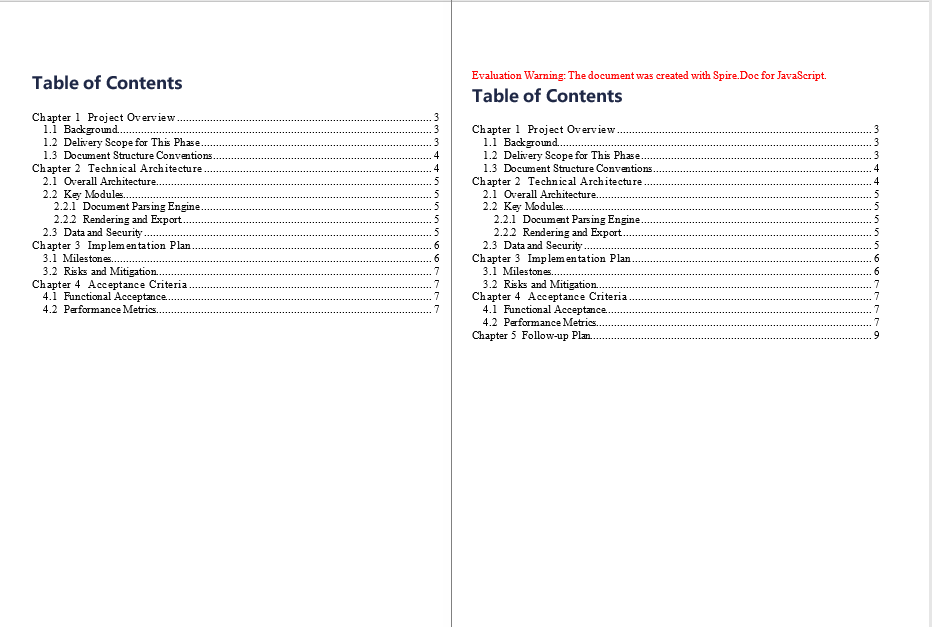
FAQ
Why does the table of contents I add appear at the end of the document
Cause: AddParagraph appends the new paragraph to the end of its section, so calling AppendTOC on it or adding a TableOfContent object to it naturally places the table of contents at the end. The content of an existing document has already been laid out, and its position does not move forward by itself.
Solution: Create the TOC paragraph first, then move it to the target position with Paragraphs.Insert:
const tocPara = section.AddParagraph();
tocPara.AppendTOC(1, 3);
section.Paragraphs.Insert(0, tocPara);
Why are the body headings missing from the table of contents
Cause: The table of contents collects entries by heading style or outline level. If the chapter headings in the original document were only made bold manually or given a larger font size, without built-in heading styles such as Heading 1 to Heading 3 applied, no collectable paragraph can be found after updating, and the table of contents may be empty or only report "No table of contents entries found".
Solution: After loading the document, call ApplyStyle on the paragraphs that should appear in the table of contents to apply a built-in heading style, and then update the table of contents:
const headingPara = section.Paragraphs.get_Item(2);
headingPara.ApplyStyle({ builtinStyle: docModule.BuiltinStyle.Heading1 });
Why is the position of the table of contents a few paragraphs off after specifying an index with Paragraphs.Insert
Cause: The index of Paragraphs.Insert is calculated in the order of the child objects in the body, and every paragraph and table takes one position. The more tables a document contains, the further the position of the same paragraph drifts between the paragraph collection and the body objects, so using the index of the paragraph collection directly is often a few paragraphs off.
Solution: Walk Body.ChildObjects to find the target paragraph and use its object position as the index:
let insertIndex = 0;
const children = section.Body.ChildObjects;
for (let i = 0; i < children.Count; i++) {
  const obj = children.get_Item(i);
  if (obj.DocumentObjectType === docModule.DocumentObjectType.Paragraph && obj.StyleName === 'Heading1') {
    insertIndex = i;
    break;
  }
}
The page numbers in the table of contents do not match the actual pages
Cause: The page numbers of the table of contents are written from the layout at the moment the field is updated, and they are not synchronized automatically if content or headings are added or removed afterwards. In addition, inserting a table of contents at the start of the document moves the existing content back as a whole, so the page numbers change accordingly, which is an expected result.
Solution: Call UpdateTableOfContents again before saving, so that the entries and page numbers are recalculated from the latest content:
doc.UpdateTableOfContents();
doc.SaveToFile({ fileName: outputFileName, fileFormat: docModule.FileFormat.Docx2013 });
Updating a custom table of contents throws ArgumentOutOfRange, or shows only the word TOC
Cause: After a TableOfContent object is added to a paragraph, if the field separator, the field end mark, or the assignment to Document.TOC is missing, the TOC field is incomplete: without the marks the page may show only placeholder text, and without the binding, updating is likely to throw an index-out-of-range exception.
Solution: The following three steps have to be completed together before the update is called:
const toc = new docModule.TableOfContent(doc, '{\\o "1-2" \\h \\z \\u}');
const tocPara = section.AddParagraph();
tocPara.Items.Add(toc);

tocPara.AppendFieldMark(docModule.FieldMarkType.FieldSeparator);
tocPara.AppendText('TOC');
tocPara.AppendFieldMark(docModule.FieldMarkType.FieldEnd);

doc.TOC = toc;
Get a Free License
Spire.Doc for JavaScript offers a 30-day full-featured free trial license with no functional limitations. Apply here to evaluate before purchasing.
