.NET (1327)
Children categories
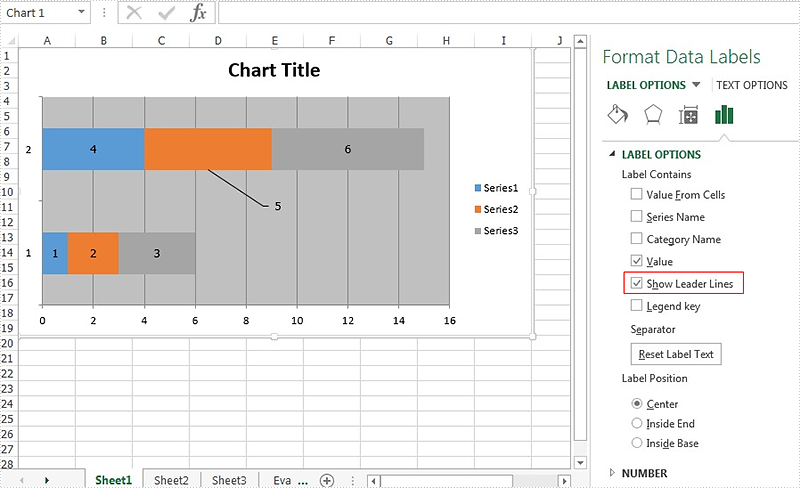
The leader line on Excel chart is very helpful since it gives a visual connection between a data label and its corresponding data point. Spire.XLS offers a property of DataLabels.ShowLeaderLines to enable developers to show or hide the leader lines easily. This article will focus on demonstrating how to show the leader line on Excel stacked bar chart in C#.
Note: Before Start, please ensure that you have download the latest version of Spire.XLS (V7.8.64 or above) and add Spire.xls.dll in the bin folder as the reference of Visual Studio.
Here comes to the code snippet of how to show the leader line on Excel stacked bar chart in C#.
Step 1: Create a new excel document instance and get the first worksheet.
Workbook book = new Workbook();
Worksheet sheet = book.Worksheets[0];
Step 2: Add some data to the Excel sheet cell range.
sheet.Range["A1"].Value = "1";
sheet.Range["A2"].Value = "2";
sheet.Range["A3"].Value = "3";
sheet.Range["B1"].Value = "4";
sheet.Range["B2"].Value = "5";
sheet.Range["B3"].Value = "6";
Step 3: Create a bar chart and define the data for it.
Chart chart = sheet.Charts.Add(ExcelChartType.BarStacked);
chart.DataRange = sheet.Range["A1:B3"];
Step 4: Set the property of HasValue and ShowLeaderLines for DataLabels.
foreach (ChartSerie cs in chart.Series)
  {
    cs.DataPoints.DefaultDataPoint.DataLabels.HasValue = true;
    cs.DataPoints.DefaultDataPoint.DataLabels.ShowLeaderLines = true;
  }
Step 5: Save the document to file and set the excel version.
book.Version = ExcelVersion.Version2013;
book.SaveToFile("result.xlsx", FileFormat.Version2013);
Effective screenshots:
Full codes:
using Spire.Xls;
using Spire.Xls.Charts;
using Spire.Xls.Core.Spreadsheet.Charts;
using System.Drawing;
namespace ShowLeaderLine
{
    class Program
    {

        static void Main(string[] args)
        {
            Workbook book = new Workbook();
            Worksheet sheet = book.Worksheets[0];

            sheet.Range["A1"].Value = "1";
            sheet.Range["A2"].Value = "2";
            sheet.Range["A3"].Value = "3";
            sheet.Range["B1"].Value = "4";
            sheet.Range["B2"].Value = "5";
            sheet.Range["B3"].Value = "6";

            Chart chart = sheet.Charts.Add(ExcelChartType.BarStacked);
            chart.DataRange = sheet.Range["A1:B3"];

            foreach (ChartSerie cs in chart.Series)
            {
                cs.DataPoints.DefaultDataPoint.DataLabels.HasValue = true;
                cs.DataPoints.DefaultDataPoint.DataLabels.ShowLeaderLines = true;
            }

            book.Version = ExcelVersion.Version2013;
            book.SaveToFile("result.xlsx", FileFormat.Version2013);
        }

    }
}
Simple introduction about Word XML
Word XML is a special XML format, which makes Word be able to manipulate the Word documents stored in XML format. It can be divided into two types: WordML(supported by Word 2003) and WordXML(supported by Word 2007). If external applications support Word XML and the generated data follow the Word XML structure, then the data can be processed by Word. In this way, Word XML has become the bridge between Word and other external applications, any XML- formatted document based on Word XML structure can be opened, edited and saved in Word.
Using C#/VB.NET to convert Word to Word XML via Spire.Doc
Spire.Doc enables users to convert word document to Word XML format easily by using the doc.SaveToFile() method. Now, please follow the detail steps below:
Note: Before start, please download Spire.Doc and install it correctly, then add Spire.Doc.dll file from Bin folder as the reference of your project.
This is the screenshot of the original word document:

Step 1: Create a new document instance.
Document doc = new Document();
Step 2: Load the sample word document from file.
doc.LoadFromFile("Spire.Doc for .NET.docx");
Step 3: Save the word document as Word XML format.
For word 2003:
doc.SaveToFile("DocxToWordML.xml", FileFormat.WordML);

For word 2007:
doc.SaveToFile("DocxToWordXML.xml", FileFormat.WordXml);
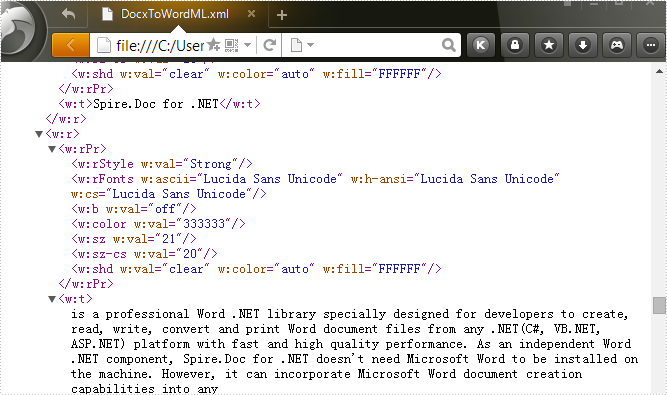
Effective screenshot:
Full codes:
using Spire.Doc;

namespace Convert_Word_to_Word_XML
{
    class Program
    {
        static void Main(string[] args)
        {
            Document doc = new Document();
            doc.LoadFromFile("Spire.Doc for .NET.docx");
            doc.SaveToFile("DocxToWordML.xml", FileFormat.WordML);
            //doc.SaveToFile("DocxToWordXML.xml", FileFormat.WordXml);
        }
    }
}
Imports Spire.Doc
Namespace Convert_Word_to_Word_XML
	Class Program
		Private Shared Sub Main(args As String())
			Dim doc As New Document()
			doc.LoadFromFile("Spire.Doc for .NET.docx")
			doc.SaveToFile("DocxToWordML.xml", FileFormat.WordML)
			'doc.SaveToFile("DocxToWordXML.xml", FileFormat.WordXml);
		End Sub
	End Class
End Namespace
After a PDF document is digitally signed with signature, the PDF has been locked to prevent changes or allow the detection of changes. In this article, we'll introduce how to detect if a signed PDF was modified using Spire.PDF.
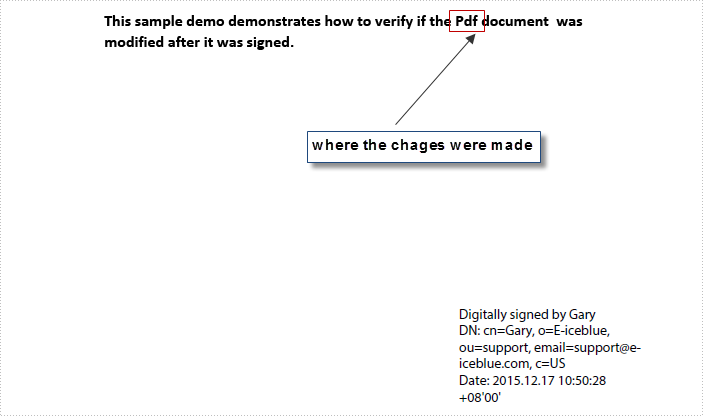
In order to test this function, we created a PDF document and signed the PDF with digital signature, then changed the word 'PDF' in the sample document into 'Pdf' and saved it as another file. Here is what the modified PDF document looking like:
Code Snippet:
Step 1: Create a Window Forms Application and design form1 as following.
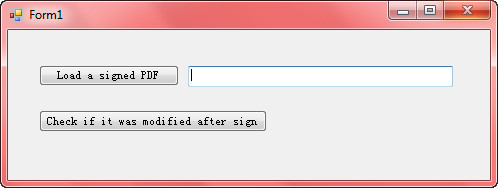
Step 2: Double click 'Load' button to write following code, which will allow us to find a PDF file from folder and return the file path in textBox1.Text.
private void btnLoad_Click(object sender, EventArgs e)
{
    OpenFileDialog fileName = new OpenFileDialog();
    fileName.InitialDirectory = Application.StartupPath;
    fileName.Filter = "All files|*.pdf";
    if (fileName.ShowDialog() == DialogResult.OK)
    {
        string Path = fileName.FileName.ToString();
        textBox1.Text = Path;
    }
}
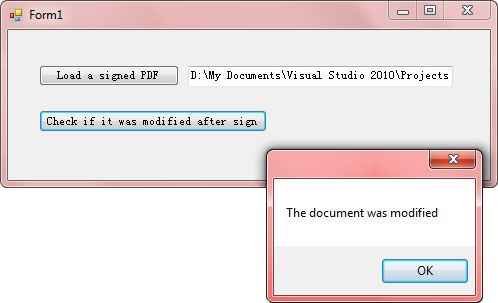
Step 3: Enter following code to the button of 'Check'. In this part, we get all signatures in the PDF document, and then call PdfSignature.VerifyDocModified() method to detect if the document was altered after signed. If it was modified return true, otherwise false.
private void btnCheck_Click(object sender, EventArgs e)
{
    //get signatures from PDF
    List signatures = new List();
    using (PdfDocument pdf = new PdfDocument(textBox1.Text))
    {
        PdfFormWidget form = pdf.Form as PdfFormWidget;
        for (int i = 0; i < form.FieldsWidget.Count; i++)
        {
            PdfSignatureFieldWidget field = form.FieldsWidget[i] as PdfSignatureFieldWidget;
            if (field != null && field.Signature != null)
            {
                PdfSignature signature = field.Signature;
                signatures.Add(signature);
            }
        }
        PdfSignature signatureOne = signatures[0];
        //detect if the PDF was modified
        bool modified = signatureOne.VerifyDocModified();
        if (modified == true)
        {
            MessageBox.Show("The document was modified");
        }
    }
}
Run the program and load the modified document, you'll get following output after clicking 'Check' button.
Full Code:
private void btnLoad_Click(object sender, EventArgs e)
{
    OpenFileDialog fileName = new OpenFileDialog();
    fileName.InitialDirectory = Application.StartupPath;
    fileName.Filter = "All files|*.pdf";
    if (fileName.ShowDialog() == DialogResult.OK)
    {
        string Path = fileName.FileName.ToString();
        textBox1.Text = Path;
    }
}
private void btnCheck_Click(object sender, EventArgs e)
{
    //get signatures from PDF
    List signatures = new List();
    using (PdfDocument pdf = new PdfDocument(textBox1.Text))
    {
        PdfFormWidget form = pdf.Form as PdfFormWidget;
        for (int i = 0; i < form.FieldsWidget.Count; i++)
        {
            PdfSignatureFieldWidget field = form.FieldsWidget[i] as PdfSignatureFieldWidget;
            if (field != null && field.Signature != null)
            {
                PdfSignature signature = field.Signature;
                signatures.Add(signature);
            }
        }
        PdfSignature signatureOne = signatures[0];
        //detect if the PDF was modified
        bool modified = signatureOne.VerifyDocModified();
        if (modified == true)
        {
            MessageBox.Show("The document was modified");
        }
    }
}
The colorful excel font makes the whole excel document attractive and it is easy to give more importance to some data we'd like to show to others. With the help of Spire.XLS, developers can easily set Excel font and copy formatting from one place and apply it to another. This article will focus on demonstrating how to clone Excel font style directly when adding the new text to Excel worksheet in C#.
Note: Before Start, please ensure that you have download the latest version of Spire.XLS (V7.8.64 or above) and add Spire.xls.dll in the bin folder as the reference of Visual Studio.
Here comes to the code snippet of how to clone cell style for the text in Excel worksheets.
Step 1: Create a new excel document instance and get the first worksheet.
Workbook book = new Workbook();
Worksheet sheet = book.Worksheets[0];
Step 2: Add the text to the Excel sheet cell range A1.
sheet.Range["A1"].Text = "Text1";
Step 3: Set A1 cell range's CellStyle.
CellStyle style = book.Styles.Add("style");
style.Font.FontName = "Calibri";
style.Font.Color = Color.Red;
style.Font.Size = 12;
style.Font.IsBold = true;
style.Font.IsItalic = true;
sheet.Range["A1"].CellStyleName = style.Name
Step 4: Use the method style.clone() to clone the same style for B2 cell range.
CellStyle csOrieign = style.clone();
sheet.Range["B2"].Text = "Text2";
sheet.Range["B2"].CellStyleName = csOrieign.Name;
Step 5: Clone the same style for C3 cell range and then reset the font color for the text.
CellStyle csGreen = style.clone();
csGreen.Font.Color = Color.Green;
sheet.Range["C3"].Text = "Text3";
sheet.Range["C3"].CellStyleName = csGreen.Name;
Step 6: Save the document to file and set the excel version.
book.SaveToFile("sample2.xlsx", ExcelVersion.Version2010);
Effective screenshots:

Full codes:
using Spire.Xls;
using System.Drawing;
namespace CloneExcelFont
{
    class Program
    {
        static void Main(string[] args)
        {
            Workbook book = new Workbook();
            Worksheet sheet = book.Worksheets[0];

            sheet.Range["A1"].Text = "Text1";
            CellStyle style = book.Styles.Add("style");

            style.Font.FontName = "Calibri";
            style.Font.Color = Color.Red;
            style.Font.Size = 12;
            style.Font.IsBold = true;
            style.Font.IsItalic = true;
            sheet.Range["A1"].CellStyleName = style.Name;

            CellStyle csOrieign = style.clone();
            sheet.Range["B2"].Text = "Text2";
            sheet.Range["B2"].CellStyleName = csOrieign.Name;

            CellStyle csGreen = style.clone();
            csGreen.Font.Color = Color.Green;
            sheet.Range["C3"].Text = "Text3";
            sheet.Range["C3"].CellStyleName = csGreen.Name;

            book.SaveToFile("sample2.xlsx", ExcelVersion.Version2010);

        }
    }
}
Retrieve data from one excel worksheet and extract to a new excel file in C#
2015-12-14 02:47:26 Written by KoohjiSearching data is a powerful data processing function of Microsoft excel, but it doesn't allow users to extract the selected data to a new excel file directly. It's almost impossible for us to copy data row by row manually from one excel file to another, so it cannot entirely meet our requirements especially when we want to retrieve and extract the interesting data from a large excel file.
This article will demonstrate how to retrieve data from one excel worksheet and extract to a new excel file with Spire.XLS in C#.
Note: Before start, please download and install Spire.XLS correctly. Then add Spire.XLS.dll file as reference of your project.
Below is the screenshot of the original excel worksheet:
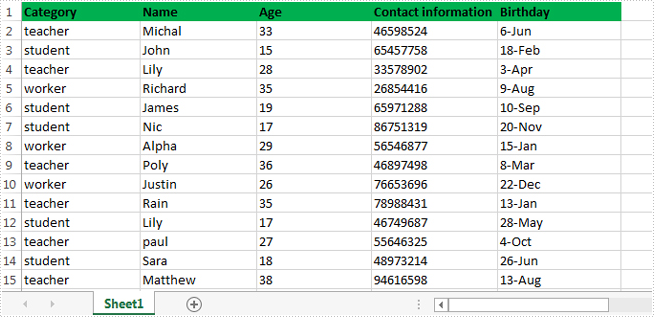
In this sample, all of the data related to teacher were extracted to a new excel file.
Detail steps overview:
Step 1: Create a new workbook instance and get the first worksheet.
Workbook newBook = new Workbook();
Worksheet newSheet = newBook.Worksheets[0];
Step 2: Create a new workbook instance and load the sample excel file.
Workbook workbook = new Workbook();
workbook.LoadFromFile("Information.xlsx");
Step 3: Get the worksheet where you want to retrieve and extract data from. In this sample, it's the first worksheet.
Worksheet sheet = workbook.Worksheets[0];
Step 4: Retrieve data and extract to the first worksheet of the new excel workbook.
int i = 1;
int columnCount = sheet.Columns.Count();
foreach (CellRange range in sheet.Columns[0])
{
    if (range.Text == "teacher")
        {
            CellRange sourceRange = sheet.Range[range.Row, 1, range.Row, columnCount];
            CellRange destRange = newSheet.Range[i, 1, i, columnCount];
            sheet.Copy(sourceRange, destRange, true);
            i++;
        }
}
Step 5: Save the target file as NewForm.xlsx.
newBook.SaveToFile("NewForm.xlsx", ExcelVersion.Version2010);
Effective screenshot:

Full codes:
using System.Linq;
using Spire.Xls;

namespace Retrieve_and_extract_data
{
    class Program
    {
        static void Main(string[] args)
        {
            Workbook newBook = new Workbook();
            Worksheet newSheet = newBook.Worksheets[0];
            Workbook workbook = new Workbook();
            workbook.LoadFromFile("Information.xlsx");
            Worksheet sheet = workbook.Worksheets[0];
            int i = 1;
            int columnCount = sheet.Columns.Count();
            foreach (CellRange range in sheet.Columns[0])
            {
                if (range.Text == "teacher")
                {
                    CellRange sourceRange = sheet.Range[range.Row, 1, range.Row, columnCount];
                    CellRange destRange = newSheet.Range[i, 1, i, columnCount];
                    sheet.Copy(sourceRange, destRange, true);
                    i++;
                }
            }
            newBook.SaveToFile("NewForm.xlsx", ExcelVersion.Version2010);

        }
    }
}
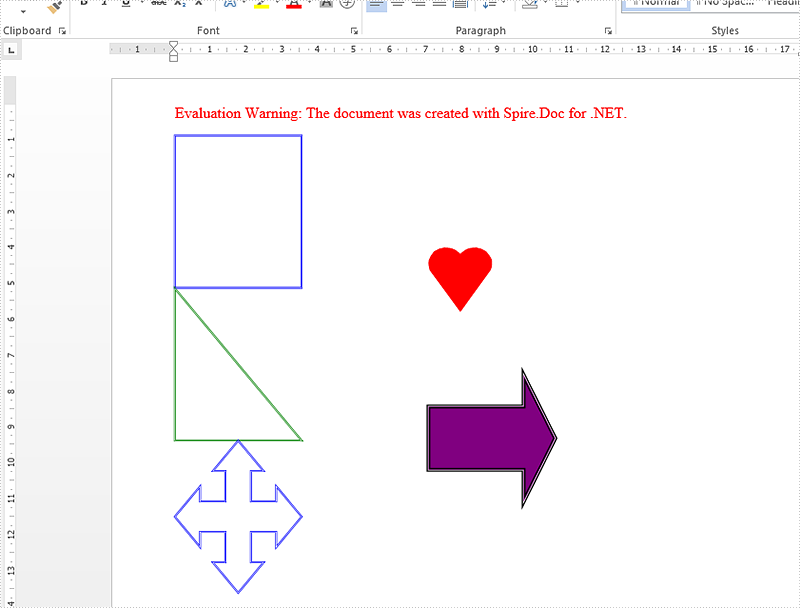
MS Word allows users to select a shape from shapes menu, drag and place it to any desired location on the page. From Spire.Doc Version 6.0 or above, we added a new feature to work with shape using code. The following section will present how to insert shapes and shape group in a Word document at the specified locations using Spire.Doc.
Code Snippets:
Step 1: Initialize a new instance of Document class.
Document doc = new Document();
Step 2: Add a new section to Word document, and add a paragraph to the section.
Section sec = doc.AddSection();
Paragraph para1 =sec.AddParagraph();
Step 3: Add shapes to the paragraph by calling AppendShape() method. In order to locate where the shape will be placed, you can just set the HorizontalPosition and VerticalPosition properties of ShapeObject class. We can also format the shape by set the FillColor,StrokeColor and LineStyle properties.
ShapeObject shape1 = para1.AppendShape(50, 50, ShapeType.Heart);

shape1.FillColor = Color.Red;
shape1.StrokeColor = Color.Red;
shape1.HorizontalPosition = 200;
shape1.VerticalPosition = 100;

ShapeObject shape2 = para1.AppendShape(100, 100, ShapeType.Arrow);

shape2.FillColor = Color.Purple;
shape2.StrokeColor = Color.Black;
shape2.LineStyle = ShapeLineStyle.Double;
shape2.StrokeWeight = 3;
shape2.HorizontalPosition = 200;
shape2.VerticalPosition = 200;
Step 4: Add a new paragraph and insert a shape group to the paragraph by calling AppendShapeGroup() method.
Paragraph para2 = sec.AddParagraph();
ShapeGroup shapegr = para2.AppendShapeGroup(200, 400);

shapegr.ChildObjects.Add(new ShapeObject(doc, ShapeType.Rectangle)
{
    Width = 500,
    Height = 300,
    LineStyle = ShapeLineStyle.ThickThin,
    StrokeColor = System.Drawing.Color.Blue,

    StrokeWeight = 1.5,
});
shapegr.ChildObjects.Add(new ShapeObject(doc, ShapeType.RightTriangle)
{
    Width = 500,
    Height = 300,
    VerticalPosition = 301,
    LineStyle = ShapeLineStyle.ThickThin,
    StrokeColor = System.Drawing.Color.Green,
    StrokeWeight = 1.5,
});
shapegr.ChildObjects.Add(new ShapeObject(doc, ShapeType.QuadArrow)
{
    Width = 500,
    Height = 300,
    VerticalPosition = 601,
    LineStyle = ShapeLineStyle.ThickThin,
    StrokeColor = System.Drawing.Color.Blue,
    StrokeWeight = 1.5,
});
Step 5: Save the document to file.
doc.SaveToFile("InsertShapes.docx", FileFormat.Docx2010);
Result:
Full code:
using Spire.Doc;
using Spire.Doc.Documents;
using Spire.Doc.Fields;
using System.Drawing;
namespace InsertShape
{
    class Program
    {
        static void Main(string[] args)
        {
            Document doc = new Document();
            Section sec = doc.AddSection();
            Paragraph para1 = sec.AddParagraph();

            ShapeObject shape1 = para1.AppendShape(50, 50, ShapeType.Heart);

            shape1.FillColor = Color.Red;
            shape1.StrokeColor = Color.Red;
            shape1.HorizontalPosition = 200;
            shape1.VerticalPosition = 100;

            ShapeObject shape2 = para1.AppendShape(100, 100, ShapeType.Arrow);

            shape2.FillColor = Color.Purple;
            shape2.StrokeColor = Color.Black;
            shape2.LineStyle = ShapeLineStyle.Double;
            shape2.StrokeWeight = 3;
            shape2.HorizontalPosition = 200;
            shape2.VerticalPosition = 200;

            Paragraph para2 = sec.AddParagraph();
            ShapeGroup shapegr = para2.AppendShapeGroup(200, 400);

            shapegr.ChildObjects.Add(new ShapeObject(doc, ShapeType.Rectangle)
            {
                Width = 500,
                Height = 300,
                LineStyle = ShapeLineStyle.ThickThin,
                StrokeColor = System.Drawing.Color.Blue,

                StrokeWeight = 1.5,
            });
            shapegr.ChildObjects.Add(new ShapeObject(doc, ShapeType.RightTriangle)
            {
                Width = 500,
                Height = 300,
                VerticalPosition = 301,
                LineStyle = ShapeLineStyle.ThickThin,
                StrokeColor = System.Drawing.Color.Green,
                StrokeWeight = 1.5,
            });
            shapegr.ChildObjects.Add(new ShapeObject(doc, ShapeType.QuadArrow)
            {
                Width = 500,
                Height = 300,
                VerticalPosition = 601,
                LineStyle = ShapeLineStyle.ThickThin,
                StrokeColor = System.Drawing.Color.Blue,
                StrokeWeight = 1.5,
            });

            doc.SaveToFile("InsertShapes.docx", FileFormat.Docx2010);
        }
    }
}
Imports Spire.Doc
Imports Spire.Doc.Documents
Imports Spire.Doc.Fields
Imports System.Drawing
Namespace InsertShape
	Class Program
		Private Shared Sub Main(args As String())
			Dim doc As New Document()
			Dim sec As Section = doc.AddSection()
			Dim para1 As Paragraph = sec.AddParagraph()

			Dim shape1 As ShapeObject = para1.AppendShape(50, 50, ShapeType.Heart)

			shape1.FillColor = Color.Red
			shape1.StrokeColor = Color.Red
			shape1.HorizontalPosition = 200
			shape1.VerticalPosition = 100

			Dim shape2 As ShapeObject = para1.AppendShape(100, 100, ShapeType.Arrow)

			shape2.FillColor = Color.Purple
			shape2.StrokeColor = Color.Black
			shape2.LineStyle = ShapeLineStyle.[Double]
			shape2.StrokeWeight = 3
			shape2.HorizontalPosition = 200
			shape2.VerticalPosition = 200

			Dim para2 As Paragraph = sec.AddParagraph()
			Dim shapegr As ShapeGroup = para2.AppendShapeGroup(200, 400)


			shapegr.ChildObjects.Add(New ShapeObject(doc, ShapeType.Rectangle) With { _
				Key .Width = 500, _
				Key .Height = 300, _
				Key .LineStyle = ShapeLineStyle.ThickThin, _
				Key .StrokeColor = System.Drawing.Color.Blue, _
				Key .StrokeWeight = 1.5 _
			})
			shapegr.ChildObjects.Add(New ShapeObject(doc, ShapeType.RightTriangle) With { _
				Key .Width = 500, _
				Key .Height = 300, _
				Key .VerticalPosition = 301, _
				Key .LineStyle = ShapeLineStyle.ThickThin, _
				Key .StrokeColor = System.Drawing.Color.Green, _
				Key .StrokeWeight = 1.5 _
			})
			shapegr.ChildObjects.Add(New ShapeObject(doc, ShapeType.QuadArrow) With { _
				Key .Width = 500, _
				Key .Height = 300, _
				Key .VerticalPosition = 601, _
				Key .LineStyle = ShapeLineStyle.ThickThin, _
				Key .StrokeColor = System.Drawing.Color.Blue, _
				Key .StrokeWeight = 1.5 _
			})

			doc.SaveToFile("InsertShapes.docx", FileFormat.Docx2010)
		End Sub
	End Class
End Namespace
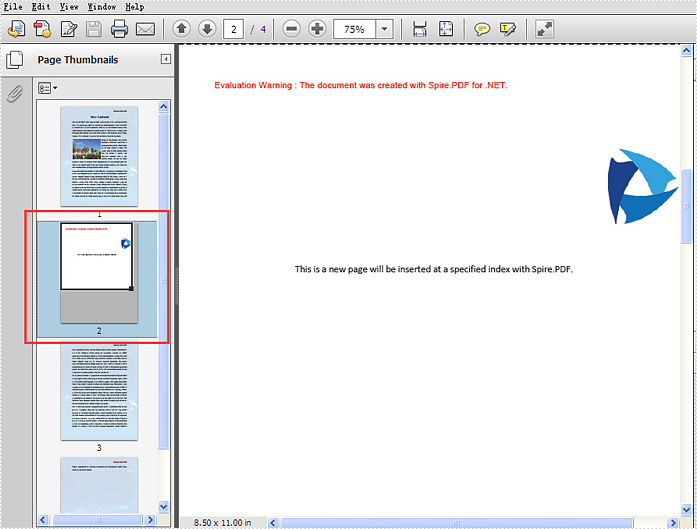
Spire.PDF offers a method of PdfDocument.MergeFiles(); to enable developers to merge PDF files easily and conveniently. This article will show you how to insert a new page from the first PDF into the second PDF file at a specified index by using the method of Pages.Insert(); offered by Spire.PDF.
Note: Before Start, please download the latest version of Spire.PDF and add Spire.PDF.dll in the bin folder as the reference of Visual Studio.
Here comes to the steps of how to insert the page from the first PDF (sample.pdf) into the second PDF (test.pdf) at a specified index:
Step 1: Create the first PDF document and load file.
PdfDocument doc1 = new PdfDocument();
doc1.LoadFromFile("sample.pdf");
Step 2: Create the second PDF document and load file.
PdfDocument doc2 = new PdfDocument();
doc2.LoadFromFile("test.pdf");
Step 3: Get the first page and its size from the first PDF document.
PdfPageBase page = doc1.Pages[0];
SizeF size = page.Size;
Step 4: Inserts a new blank page with the specified size at the specified index into the second PDF.
PdfPageBase newPage = doc2.Pages.Insert(1, size);
Step 5: Copy the contents on the page into the second PDF.
newPage.Canvas.DrawTemplate(page.CreateTemplate(), new PointF(0, 0));
Step 6: Save the document to file.
doc2.SaveToFile("result.pdf");
Effective screenshot of insert a new PDF page to an existing PDF at a specified index:
Full codes:
using Spire.Pdf;
using System.Drawing;

namespace InsertNewPage
{
    class Program
    {
        static void Main(string[] args)
        {
            PdfDocument doc1 = new PdfDocument();
            doc1.LoadFromFile("sample.pdf");
            PdfDocument doc2 = new PdfDocument();
            doc2.LoadFromFile("test.pdf");

            PdfPageBase page = doc1.Pages[0];
            SizeF size = page.Size;

            PdfPageBase newPage = doc2.Pages.Insert(1, size);
            newPage.Canvas.DrawTemplate(page.CreateTemplate(), new PointF(0, 0));

            doc2.SaveToFile("result.pdf");
        }
    }
}
Microsoft PowerPoint lets you hide specific slides so they won’t appear during the slide show. You can also unhide the hidden slides at any time if you wish them to be visible in future presentations. In this article, you will learn how to hide or unhide slides in PowerPoint in C# and VB.NET using Spire.Presentation for .NET library.
Install Spire.Presentation for .NET
To begin with, you need to add the DLL files included in the Spire.Presentation for.NET package as references in your .NET project. The DLL files can be either downloaded from this link or installed via NuGet.
PM> Install-Package Spire.Presentation
Hide or Unhide Slides in PowerPoint in C# and VB.NET
The following are the steps to hide or unhide a slide in PowerPoint:
- Create an instance of Presentation class.
- Load a PowerPoint document using Presentation.LoadFromFile() method.
- Get the slide that you want to hide or unhide by its index using Presentation.Slides[index] property.
- Hide or unhide the slide by setting the ISlide.Hidden property as true or false.
- Save the result document using Presentation.SaveToFile() method.
- C#
- VB.NET
using Spire.Presentation;

namespace HideOrUnhideSlides
{
    class Program
    {
        static void Main(string[] args)
        {
            //Create a Presentation instance
            Presentation ppt = new Presentation();
            //Load a PowerPoint document
            ppt.LoadFromFile("Sample.pptx");

            //Get the first slide
            ISlide slide = ppt.Slides[0];

            //Hide the slide
            slide.Hidden = true;
            //Unhide the slide
            //slide.Hidden = false;

            //Save the result document
            ppt.SaveToFile("Result.pptx", FileFormat.Pptx2013);
        }
    }
}
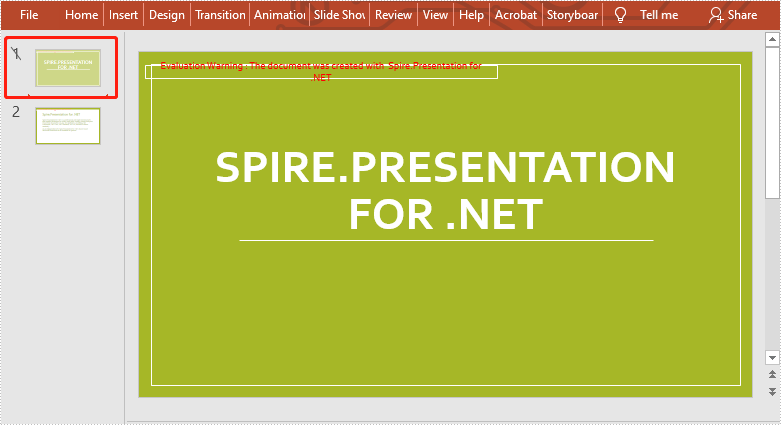
The following is the result document after hiding the first slide:
Apply for a Temporary License
If you'd like to remove the evaluation message from the generated documents, or to get rid of the function limitations, please request a 30-day trial license for yourself.
How to Add, Select and Remove an Item in Combo Box in C#, VB.NET
2015-12-03 02:00:16 Written by KoohjiA combo box is a commonly-used GUI widget. It is a combination of a drop-down list or list box and a single-line textbox, allowing the user either to type a value directly into the control or choose from the list of existing options. In this article, we'll introduce how to programmatically manage the item of combo box in Word file using Spire.Doc.
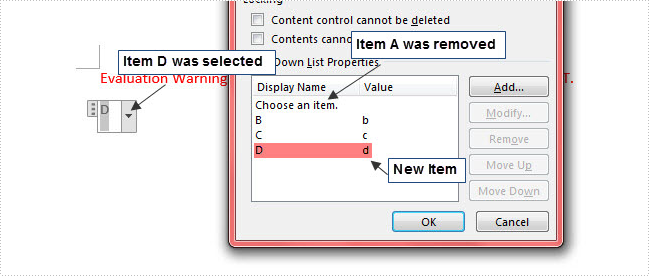
Here is a combo box in the sample Word document, which contains three items including A, B and C. In the following section, we'll add, select and remove an item in the combo box using code.

Code Snippet:
Step 1: Initialize a new instance of Document class and load the sample Word file.
Document document = new Document();
document.LoadFromFile( "test.docx");
Step 2: Get the combo box from the file.
foreach (Section section in document.Sections)
{
    foreach (Body body in section.ChildObjects)
    {
        foreach (DocumentObject bodyObj in body.ChildObjects)
        {
            if (bodyObj is StructureDocumentTag)
            {
                if ((bodyObj as StructureDocumentTag).SDTProperties.SDTType == SdtType.ComboBox)
                {
                    SdtComboBox combo = (bodyObj as StructureDocumentTag).SDTProperties.ControlProperties as SdtComboBox;

               }
            }
        }
    }

}
Step 3: Create a new item and set two parameters for it: display text and value. Call ListItems.Add() method to add the new item into combo box.
SdtListItem item = new SdtListItem("D","d");
combo.ListItems.Add(item);
Step 4: Call ListItems.RemoveAt() method to remove an item by its index.
combo.ListItems.RemoveAt(0);
Step 5: Call ListItems.SelectedValue() to choose an item from combo box.
combo.ListItems.SelectedValue = sdtItem;
Step 6: Save and launch the file.
document.SaveToFile("result.docx", FileFormat.Docx2013);
System.Diagnostics.Process.Start("result.docx");
Output:
Entire Code:
using Spire.Doc;
using Spire.Doc.Documents;
namespace IteminCombo
    class Program
    {
        static void Main(string[] args)
        {
            Document document = new Document();
            document.LoadFromFile("test.docx");
            foreach (Section section in document.Sections)
            {
                foreach (Body body in section.ChildObjects)
                {
                    foreach (DocumentObject bodyObj in body.ChildObjects)
                    {
                        if (bodyObj is StructureDocumentTag)
                        {
                            if ((bodyObj as StructureDocumentTag).SDTProperties.SDTType == SdtType.ComboBox)
                            {
                                SdtComboBox combo = (bodyObj as StructureDocumentTag).SDTProperties.ControlProperties as SdtComboBox;
                                SdtListItem item = new SdtListItem("D", "d");
                                combo.ListItems.Add(item);
                                foreach (SdtListItem sdtItem in combo.ListItems)
                                {
                                    if (string.CompareOrdinal(sdtItem.Value, "d") == 0)
                                    {
                                        combo.ListItems.SelectedValue = sdtItem;
                                    }
                                }
                                combo.ListItems.RemoveAt(1);
                            }
                        }
                    }
                }

            }
            document.SaveToFile("result.docx", FileFormat.Docx2013);
            System.Diagnostics.Process.Start("result.docx");
        }
    }
}
Dim document As New Document()
document.LoadFromFile("test.docx")
For Each section As Section In document.Sections
	For Each body As Body In section.ChildObjects
		For Each bodyObj As DocumentObject In body.ChildObjects
			If TypeOf bodyObj Is StructureDocumentTag Then
				If TryCast(bodyObj, StructureDocumentTag).SDTProperties.SDTType = SdtType.ComboBox Then
					Dim combo As SdtComboBox = TryCast(TryCast(bodyObj, StructureDocumentTag).SDTProperties.ControlProperties, SdtComboBox)
					Dim item As New SdtListItem("D", "d")
					combo.ListItems.Add(item)
					For Each sdtItem As SdtListItem In combo.ListItems
						If String.CompareOrdinal(sdtItem.Value, "d") = 0 Then
							combo.ListItems.SelectedValue = sdtItem
						End If
					Next
					combo.ListItems.RemoveAt(1)
				End If
			End If
		Next

	Next
Next
document.SaveToFile("result.docx", FileFormat.Docx2013)
System.Diagnostics.Process.Start("result.docx")
Turning to the previous page, the next page, the first page, the last page, or even switch to any existing target page is the frequently used manipulation, which helps us to save a lot of time on viewing a PDF document with multiple pages on website.
How can we achieve this function programmatically in ASP.NET? Spire.PDFViewer for ASP.NET provides developers the feature of paging which allows users to turn page according to their requirements. This article will demonstrate how to realize paging with Spire.PDFViewer for ASP.NET.
Note: Please download Spire.PDFViewer for ASP.NET and install it correctly.
Then follow the detail steps below:
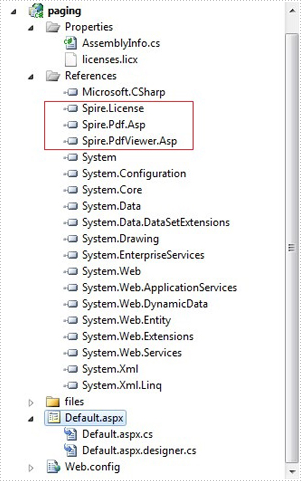
Step 1: create a new project and add the .dll files from bin folder of Spire.PDFViewer as references.
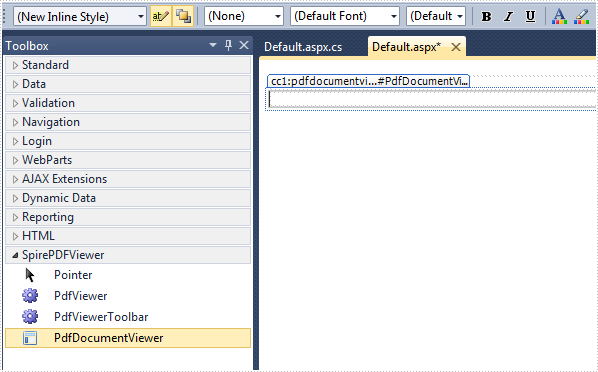
Step 2: Add the PDFDocumentViewer control of Spire.PDFViewer into toolbox and drag it into Deafault.aspx.
Step 3: Paging.
Main code:
Section 1: Call the LoadFromFile() method of PdfDocumentViewer to load a sample PDF file in Default.aspx.cs. Note that you have to add the following if statement and !IsPostBack property before loading the pdf file.
protected void Page_Load(object sender, EventArgs e)
        {
            if (!IsPostBack)
            {
                //load the sample PDF file
                this.PdfDocumentViewer1.CacheInterval = 1000;
                this.PdfDocumentViewer1.CacheTime = 1200;
                this.PdfDocumentViewer1.CacheNumberImage = 1000;
                this.PdfDocumentViewer1.ScrollInterval = 300;
                this.PdfDocumentViewer1.ZoomFactor = 1f;
                this.PdfDocumentViewer1.CustomErrorMessages = "";
                this.PdfDocumentViewer1.LoadFromFile("files/PDFViewer.pdf");
            }
        }
Section 2: Drag four buttons and a textbox from toolbox into Deafault.aspx, set their properties as below.
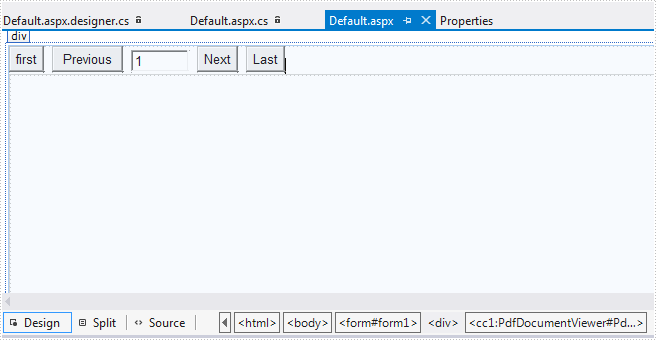
The generated source code in Deafault.aspx:
<div>
        <input type="button" id="btnFirst" value="first" onclick="pdfdocumentviewer1.FirstPage()" />
        <input type="button" id="btnPrevious" value="Previous" onclick="pdfdocumentviewer1.PreviousPage()" />
        <input type="text" id="PdfDocumentViewer1_PdfViewerCurrentPage" value="1" style="width: 50px;" />
        <span id="PdfDocumentViewer1_PdfViwerCountPage"></span>
        <input type="button" id="btnNext" value="Next" onclick="pdfdocumentviewer1.NextPage()" />
        <input type="button" id="btnLast" value="Last" onclick="pdfdocumentviewer1.LastPage()" />

        <cc1:PdfDocumentViewer id="PdfDocumentViewer1" runat="server">
        </cc1:PdfDocumentViewer>
</div>
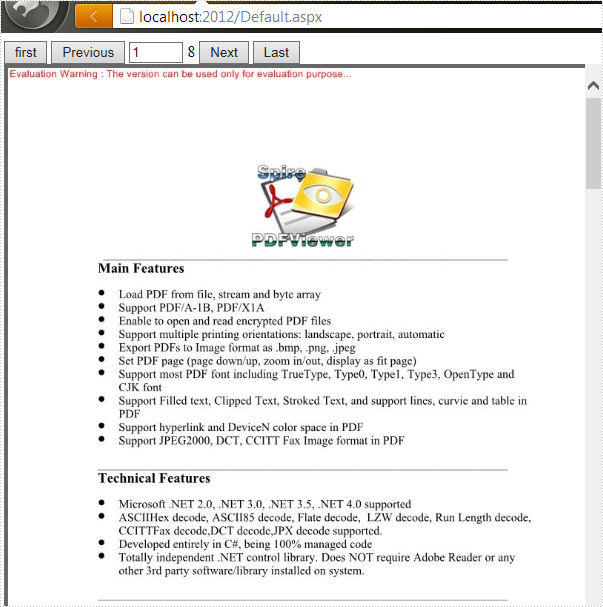
Run the project and you'll get the following output: