
Knowledgebase (2370)
Children categories
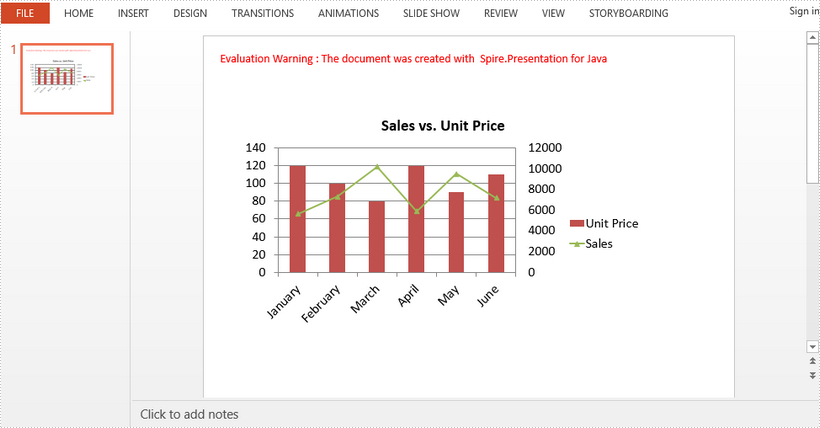
A combination chart is a chart that combines at least two chart types in a single chart. This article introduces how to combine clustered column and line chart in PowerPoint using Spire.Presentation for Java.
import com.spire.presentation.FileFormat;
import com.spire.presentation.Presentation;
import com.spire.presentation.charts.ChartType;
import com.spire.presentation.charts.IChart;
import com.spire.presentation.drawing.FillFormatType;

import java.awt.geom.Rectangle2D;

public class CombinationChart {

    public static void main(String[] args) throws Exception {

        //create a PowerPoint document
        Presentation presentation = new Presentation();

        //insert a column clustered chart
        Rectangle2D.Double rect = new   Rectangle2D.Double(50, 100, 550, 300);
        IChart chart = presentation.getSlides().get(0).getShapes().appendChart(ChartType.COLUMN_CLUSTERED, rect);

        //set chart title
        chart.getChartTitle().getTextProperties().setText("Sales vs. Unit Price");
        chart.getChartTitle().getTextProperties().isCentered(true);
        chart.getChartTitle().setHeight(30);
        chart.hasTitle(true);

        //write data to chart as chart data
        chart.getChartData().get(0,0).setText("Month");
        chart.getChartData().get(0,1).setText("Unit Price");
        chart.getChartData().get(0,2).setText("Sales");
        chart.getChartData().get(1,0).setText("January");
        chart.getChartData().get(1,1).setNumberValue(120);
        chart.getChartData().get(1,2).setNumberValue(5600);
        chart.getChartData().get(2,0).setText("February");
        chart.getChartData().get(2,1).setNumberValue(100);
        chart.getChartData().get(2,2).setNumberValue(7300);
        chart.getChartData().get(3,0).setText("March");
        chart.getChartData().get(3,1).setNumberValue(80);
        chart.getChartData().get(3,2).setNumberValue(10200);
        chart.getChartData().get(4,0).setText("April");
        chart.getChartData().get(4,1).setNumberValue(120);
        chart.getChartData().get(4,2).setNumberValue(5900);
        chart.getChartData().get(5,0).setText("May");
        chart.getChartData().get(5,1).setNumberValue(90);
        chart.getChartData().get(5,2).setNumberValue(9500);
        chart.getChartData().get(6,0).setText("June");
        chart.getChartData().get(6,1).setNumberValue(110);
        chart.getChartData().get(6,2).setNumberValue(7200);

        //set series labels
        chart.getSeries().setSeriesLabel(chart.getChartData().get("B1", "C1"));

        //set categories labels
        chart.getCategories().setCategoryLabels(chart.getChartData().get("A2", "A7"));

        //assign data to series values
        chart.getSeries().get(0).setValues(chart.getChartData().get("B2", "B7"));
        chart.getSeries().get(1).setValues(chart.getChartData().get("C2", "C7"));

        //change the chart type of series 2 to line with markers
        chart.getSeries().get(1).setType(ChartType.LINE_MARKERS);

        //plot data of series 2 on the secondary axis
        chart.getSeries().get(1).setUseSecondAxis(true);

        //hide grid links of secondary axis
        chart.getSecondaryValueAxis().getMajorGridTextLines().setFillType(FillFormatType.NONE);

        //set overlap
        chart.setOverLap(-50);

        //set gap width
        chart.setGapDepth(200);

        //save the document
        presentation.saveToFile("CombinationChart.pptx", FileFormat.PPTX_2010);
    }
}
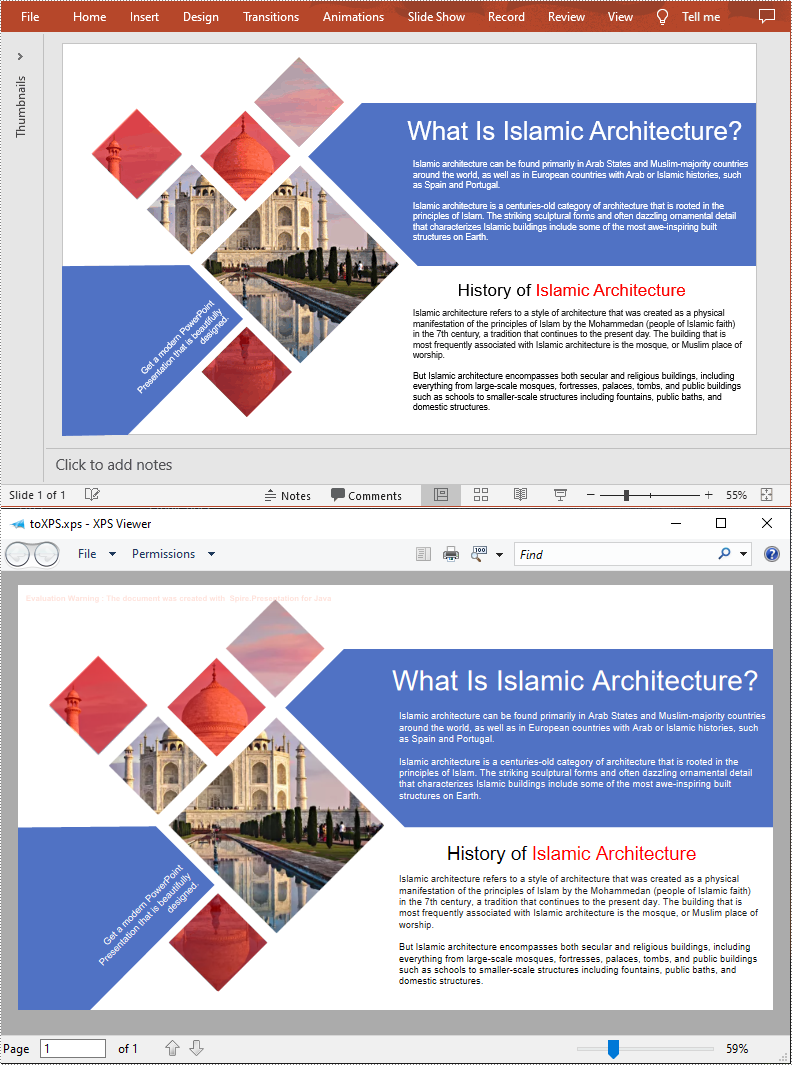
XPS (XML Paper Specification) is a fixed-format document described by an XML-based language. It maintains a consistent appearance for documents, which is an ideal file format for publishing, archiving and transmitting. This article will demonstrate how to programmatically convert PowerPoint to XPS using Spire.Presentation for Java.
Install Spire.Presentation for Java
First of all, you're required to add the Spire.Presentation.jar file as a dependency in your Java program. The JAR file can be downloaded from this link. If you use Maven, you can easily import the JAR file in your application by adding the following code to your project's pom.xml file.
<repositories>
    <repository>
        <id>com.e-iceblue</id>
        <name>e-iceblue</name>
        <url>https://repo.e-iceblue.com/nexus/content/groups/public/</url>
    </repository>
</repositories>
<dependencies>
    <dependency>
        <groupId>e-iceblue</groupId>
        <artifactId>spire.presentation</artifactId>
        <version>11.7.2</version>
    </dependency>
</dependencies>
Convert PowerPoint to XPS
The detailed steps are as follows:
- Create a Presentation instance.
- Load a sample PowerPoint document using Presentation.loadFromFile() method.
- Save the PowerPoint document to XPS using Presentation.saveToFile(java.lang.String file, FileFormat fileFormat) method.
- Java
import com.spire.presentation.*;

public class PowerPointtoXPS {
    public static void main(String[] args) throws Exception{

        //Create a Presentation instance
        Presentation ppt = new Presentation();

        //Load a sample PowerPoint file
        ppt.loadFromFile("E:\\Files\\test.pptx");

        //Save to XPS file
        ppt.saveToFile("toXPS.xps", FileFormat.XPS);
        ppt.dispose();
    }
}
Apply for a Temporary License
If you'd like to remove the evaluation message from the generated documents, or to get rid of the function limitations, please request a 30-day trial license for yourself.
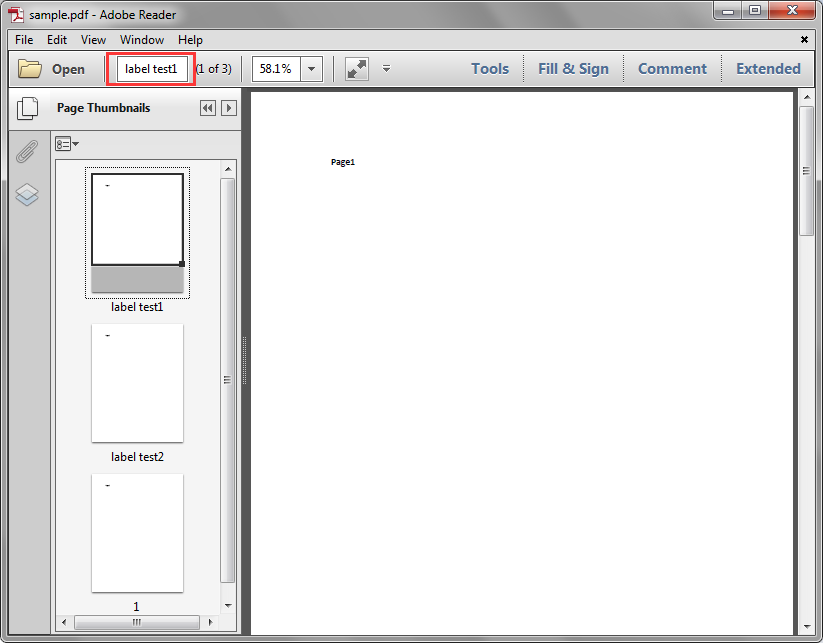
Page labels are used to identify each page visually on the screen or in print. This article demonstrates how to get the PDF page labels using Spire.PDF.
Below is the screenshot of the sample PDF document:
Detail steps:
Step 1: Create a PdfDocument instance and load the sample.pdf file.
PdfDocument pdf = new PdfDocument();
pdf.LoadFromFile("sample.pdf");
Step 2: Get the labels of the pages in the PDF file.
StringBuilder sb = new StringBuilder();
for (int i = 0; i < pdf.Pages.Count; i++)
{
    sb.AppendLine(pdf.Pages[i].PageLabel);
}
Step 3: Save to a .txt file.
File.WriteAllText("PageLabels.txt", sb.ToString());
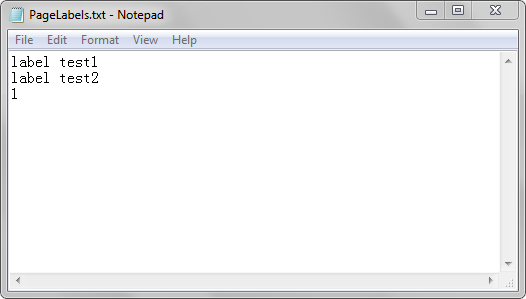
Output:
Full code:
using System.IO;
using System.Text;
using Spire.Pdf;

namespace Get_PDF_Page_Labels
{
    class Program
    {
        static void Main(string[] args)
        {
            //Create a PdfDocument instance
            PdfDocument pdf = new PdfDocument();
            //Load the PDF file
            pdf.LoadFromFile("sample.pdf");

            //Create a StringBuilder instance
            StringBuilder sb = new StringBuilder();
            //Get the lables of the pages in the PDF file
            for (int i = 0; i < pdf.Pages.Count; i++)
            {
                sb.AppendLine(pdf.Pages[i].PageLabel);
            }

            //Save to a .txt file
            File.WriteAllText("PageLabels.txt", sb.ToString());
        }
    }
}
